Vue normale

Il y a de nouveaux articles disponibles, cliquez pour rafraîchir la page.
À partir d’avant-hierOffice365

How to find the Internal name of columns in SharePoint Online?

The internal name of a SharePoint column is a unique name that is automatically generated by SharePoint when a column is created. It is used by SharePoint internally to reference and retrieve the value of a particular column associated with an item or document. The internal name is generated based on the display name you provide but all special characters and spaces will be replaced with Unicode’s by SharePoint. Internal name is generated only once while creating a new column and it cannot be changed even if you change the display name of SharePoint column.

The internal name is not visible to users in the SharePoint user interface by default, but it is commonly used in various scenarios, such as in SharePoint REST APIs, Power Automate flow expressions, Power Apps formulas, PowerShell, etc. to interact with column data programmatically.

Where are Internal names of SharePoint columns used?

  1. Custom Scripts: When creating custom scripts, such as JavaScript or PowerShell, the internal names of columns are required to reference and manipulate the values of the columns while interacting with SharePoint data.
  2. Workflows: In SharePoint Designer workflows or Microsoft Power Automate (formerly known as Microsoft Flow), the internal names of columns are used to reference the values of the columns as inputs or outputs in the workflow actions and in expressions.
  3. Custom Solutions: When building custom solutions, such as SharePoint apps, SharePoint framework (SPFx) web parts, or custom code, the internal names of columns are required to interact with the columns programmatically.
  4. Power Apps: Few of the Power Apps functions like ShowColumns, SortByColumns, etc. requires using internal names of SharePoint columns in formula.
  5. JSON Formatting: Internal name of SharePoint column is required in JSON formatting to reference the column value with [$InternalNameOfColumn] syntax.

How to find the Internal name of a SharePoint column?

Using Modern experience list view

You can use sorting or filtering options from SharePoint online modern experience list view to find the internal name of a SharePoint column. Sort by and Filter by options are supported by most of the column types in SharePoint like Single line of text, Choice, Number, Date and Time, Yes/No (Boolean), Person or Group (single selection), etc.

For this afticle, we will use sorting based on SharePoint choice column as an example:

1. Go to the SharePoint online list for which you want to check the internal name of a column.

2. Click on column name/header from the list view and select either Ascending (A to Z) or Descending (Z to A) option from the popup menu:

Find internal name of SharePoint column by sorting choice column from SharePoint online modern experience list view
Find internal name of SharePoint column by sorting choice column

3. SharePoint will sort the list view based on selection and the browser URL will be changed like:

https://contoso.sharepoint.com/sites/wlive/Lists/InternalNames/AllItems.aspx?sortField=ChoiceColumn&isAscending=false

Where column name (ChoiceColumn) after sortField= is the internal name of your SharePoint choice column.

4. Similarly, when you use Filter by option in SharePoint modern experience to filter the list view based on Date and Time column (named as Start Date), SharePoint changes browser URL like:

https://contoso.sharepoint.com/sites/wlive/Lists/InternalNames/AllItems.aspx?FilterField1=Start_x0020_Date&FilterValue1=2023-04-05&FilterType1=DateTime

Where column name (Start_x0020_Date) after FilterField1= is the internal name of your SharePoint date and time column. Notice _x0020_ in internal column name which is an Unicode encoding of the space character in the display name of date and time column (Start Date).

Using Classic experience List settings page

Few of the SharePoint column types like Multiple lines of text, Hyperlink or Picture, Image, etc. does not support sorting or filtering from SharePoint modern experience list views. So, you have to use the classic experience list settings page to find the internal name for such SharePoint columns.

Follow below steps to find the internal name of multiple lines of text column using SharePoint classic experience list settings page:

1. Go to the SharePoint online list for which you want to check the internal name of a column.

2. Click on Settings (gear) icon from the top right corner and select List settings:

Open SharePoint online List settings page from modern experience list view to find the internal name of SharePoint column
Open SharePoint online list settings page

3. From list settings page, scroll down to the Columns section and click on the column name for which you want to find the internal name:

Open SharePoint online column settings page from classic experience list settings page to find the internal name of SharePoint column
Open SharePoint online Column settings page

4. SharePoint will open column settings page for the respective column with browser URL like:

https://contoso.sharepoint.com/sites/wlive/_layouts/15/FldEdit.aspx?List=%7B6FBA7FAE-AFC0-45D6-99EE-0AB20629EE41%7D&Field=MultilineTextCol
SharePoint online column settings page showing internal name of column

Where column name (MultilineTextCol) after Field= is the internal name of your SharePoint online multiple lines of text column.

Note: You can use this classic experience method to find out the internal name of SharePoint columns for all column types.

Using SharePoint REST API

You can use SharePoint REST API endpoint like below to get the internal name of SharePoint column based on it’s display name. Open URL in below format directly from browser tab:

https://contoso.sharepoint.com/sites/SPConnect/_api/web/lists/getbytitle('InternalNames')/fields?$select=Title,InternalName&$filter=Title eq 'Multiline Text Column'
Find internal name of SharePoint online list column using SharePoint REST API
Find internal name of SharePoint column using SharePoint REST API
Using PnP PowerShell

You can use below PnP PowerShell script to find the internal name of SharePoint online list column using PnP PowerShell:

# SharePoint online site URL
$siteUrl = "https://contoso.sharepoint.com/sites/wlive"

# Display name of SharePoint list
$listName = "InternalNames"

# Display name of SharePoint list column
$columnName = "Multiline Text Column"
 
# Connect to SharePoint online site
Connect-PnPOnline -Url $siteUrl -Interactive
 
# Get internal name of SharePoint list column
Get-PnPField -Identity $columnName -List $listName | Select Title,InternalName
Find internal name of SharePoint online list column using PnP PowerShell
Find internal name of SharePoint column using PnP PowerShell
Using CLI for Microsoft 365

You can use below CLI for Microsoft 365 script to find the internal name of SharePoint online list column using CLI for Microsoft 365:

# SharePoint online site URL
$siteUrl = "https://contoso.sharepoint.com/sites/wlive"

# Display name of SharePoint list
$listName = "InternalNames"

# Display name of SharePoint list column
$columnName = "Multiline Text Column"
 
# Get Credentials to connect
$m365Status = m365 status
if ($m365Status -match "Logged Out") {
	m365 login
}

# Get internal name of SharePoint list column
m365 spo field get --webUrl $siteUrl --listTitle $listName --title $columnName --output text
Find internal name of SharePoint online list column using CLI for Microsoft 365
Find internal name of SharePoint column using CLI for Microsoft 365

Best practices for naming SharePoint columns

When creating columns in SharePoint, it’s important to follow best practices for column naming to avoid using special characters or Unicode characters in internal names. Here are some recommended best practices:

  1. Use only alphanumeric characters: Stick to using letters (A-Z, a-z) and numbers (0-9) in column names. Avoid using special characters such as @, #, $, %, _, etc. Avoid column names beginning with numbers.
  2. Avoid spaces: Use PascalCase to separate words in column names instead of spaces. For example, use ColumnName instead of Column Name. This can help prevent issues with URLs, Unicode encoding, and referencing column names in scripts or code.
  3. Avoid reserved words: SharePoint has reserved words that are used for system functionality, and using them in column names may cause conflicts. Examples of reserved words include “ID”, “Modified”, “Created”, “Title”, etc. Avoid using these reserved words as column names.
  4. Keep it concise and meaningful: Use descriptive and meaningful names for columns that clearly indicate their purpose. Avoid using vague or generic names that may be confusing or ambiguous to users. Use column description to provide more information about the columns.
  5. Be consistent: Establish a consistent naming convention for columns across your SharePoint site or site collection to ensure uniformity and ease of management. This can also help with documentation, training, and maintenance of your SharePoint environment.

I hope you liked this article. Give your valuable feedback & suggestions in the comments section below and share this article with others.
Learn more

Create a SharePoint online site using Power Automate flow

In this article, I will demonstrate how to provision a SharePoint online modern site using a Power automate flow. As there is no standard Power automate action for creating a SharePoint site (previously called “site collections”) using SharePoint connector, we will use the Send an HTTP Request to SharePoint action and SharePoint REST API in Power automate flow.

Follow below steps to create a SharePoint online modern communication site using Power Automate flow:

1. Go to make.powerautomate.com and create a new Instant cloud flow with Manually trigger a flow trigger.

2. Add Send an HTTP request to SharePoint action in Power automate flow.

3. Use configurations for Send an HTTP request to SharePoint action in below format:

MethodPOST

Uri_api/SPSiteManager/create

Headers:

{
	"accept": "application/json;odata=verbose",
	"content-type": "application/json;odata=verbose"
}

Body:

{
	"request": {
		"Title": "My Communication Site",
		"Url": "https://contoso.sharepoint.com/sites/MyCommSite",
		"Description": "My Communication Site created using Power Automate flow",
		"Owner": "gsanap@contoso.com",
		"Lcid": 1033,
		"WebTemplate": "SITEPAGEPUBLISHING#0",
		"SiteDesignId": "6142d2a0-63a5-4ba0-aede-d9fefca2c767",
		"ShareByEmailEnabled": false
	}
}

Where,

Url

URL for the new SharePoint online modern site (site collection)

LCID

Locale identifier (LCID) for the site language. 1033 is for English language, check LCID for other languages at: Language.Lcid property

WebTemplate

WebTemplate property is used to specify which type of SharePoint site to you want to create. You can use following values for this property:

  • Communication Site: SITEPAGEPUBLISHING#0
  • Team Site (not connected to M365 group): STS#3

SiteDesignId

SiteDesignId property is used to apply site template (previously called “site design”) to newly created SharePoint site.

If you want to apply an out-of-the-box available site template, use the following values:

  • Topic: 96c933ac-3698-44c7-9f4a-5fd17d71af9e
  • Showcase: 6142d2a0-63a5-4ba0-aede-d9fefca2c767
  • Blank: f6cc5403-0d63-442e-96c0-285923709ffc

ShareByEmailEnabled

If this property is set to true, it will enable sharing SharePoint files via Email.

Your final Power automate flow should look like this:

Create a SharePoint online modern communication site using Power Automate flow and SharePoint REST API
Create a SharePoint online site using Power Automate flow

4. Save your flow and Run it using Test > Manually options at the top right corner. After flow run completes successfully, navigate to the site URL mentioned in Send an HTTP request to SharePoint action in Power automate flow and you will see a newly created SharePoint online modern communication site like:

SharePoint online modern communication site created using Power Automate flow and SharePoint REST API with Send an HTTP request to SharePoint action
SharePoint online modern communication site created using Power Automate

Learn more

SharePoint Online: All you need to know about Commenting in Lists

Microsoft recently introduced a new feature of commenting in SharePoint Online lists and Microsoft lists. Using this feature users will be able to add and delete comments on list items. Users can view all comments on a list item and filter between views that show comments or activity related to an item in details pane.

Microsoft has started rolling out this feature to all SharePoint Online tenants in December 2020 release, see Roadmap.

Where can you find Comments options?

Comments options are currently located at below three places in SharePoint Online/Microsoft lists:

List view

Users can see which list items have comments when they access the SharePoint Online list view or Microsoft list home page. Comments option will be shown on command bar when you select a list item as well as at the right hand side of Title column. When you hover over on comments icon it will show you the count of comments added to the list item.

New Comments in SharePoint list view
Comments options in List view
Display/Edit form

By default, users will see a new comments pane alongside the list item form when they access a list. Users can toggle the comment pane visibility by clicking the comments icon. When you hide comments, the pane does not collapse. The comments pane will be closed by default for lists customized by Power Apps.

New Comments in SharePoint list display form
Comments options on Display form
Details Pane

Users can see the Comments and All activity related to list item on details pane. Users can filter views that show comments or activity by using the dropdown under “More details” section.

New Comments options in Details pane in SharePoint Online list
Comments options in Details pane

Permission Considerations

Comments follow the permission settings inherent in SharePoint Online and Microsoft Lists.

  • Users with read-only permission can only view comments.
  • Those with list edit permission can make comments as well as delete comments; editing comments is currently not possible. 

Where the Comments will be stored?

Comments are stored in the schema for each list, which is based on the SharePoint storage platform.

Working with SharePoint REST APIs

As comments are stored within the list schema itself and not with list items, it is not possible to fetch comments using  $select with /items endpoint. However, you can get the list item comments using below endpoint:

https://<tenant>.sharepoint.com/sites/<site>/_api/web/lists/getbytitle('<list-name>')/GetItemById(<item-id>)/Comments()

//OR

https://<tenant>.sharepoint.com/sites/<site>/_api/web/lists/getbytitle('<list-name>')/items(<item-id>)/Comments()

For more information on working with comments using SharePoint REST APIs, check:

Working with JSON Formatting

Currently it is not possible to get the actual list item comments value using JSON formatting. But, you can get the count of comments added to list item using [$_CommentCount] which is an internal name of SharePoint list column that returns the count of list item comments.

Check how you can get comments count and show it in SharePoint list view at: Working with SharePoint Online/Microsoft List Comments using JSON Formatting.

Current Limitations

  • Editing comments is currently not possible.
  • Any user can delete the list item comments. Currently there is no way to disable deletion of comments.
  • Maximum characters limit in list comments: 2000 characters
  • Classic lists that are not yet built to show up in modern user interfaces, like Task lists, will not have this commenting feature.
  • Commenting on lists in Teams is not available with this release.
  • Comments are not indexed by Search.

Enable/Disable Comments

Currently it is not possible to disable commenting at the site or list level. Microsoft is working on the new feature which will allow users to enable/disable the comments for individual SharePoint lists. However, Admins can enable/disable this feature at the organization level by changing the CommentsOnListItemsDisabled parameter in the Set-SPOTenant PowerShell cmdlet:

Read more about how to enable/disable the commenting in SharePoint Online/Microsoft Lists at: How to Enable/Disable the commenting in SharePoint Online/Microsoft Lists.

What’s Next?

  • Currently it is not possible to disable commenting at the site or list level. Microsoft is currently working on this feature update, more information at: Enable/Disable the comments for a SharePoint Online/Microsoft List.
  • @mentions in comments:
    • Get a colleague’s attention to an item in a list by @mentioning them within list comments. That person will receive a notification and a link that takes them directly back to the item, to review the comment and take the requested action.

I hope you liked this blog. Give your valuable feedback & suggestions in the comments section below and share this blog with others.

How to find the Internal name of columns in SharePoint Online?

The internal name of a SharePoint column is a unique name that is automatically generated by SharePoint when a column is created. It is used by SharePoint internally to reference and retrieve the value of a particular column associated with an item or document. The internal name is generated based on the display name you provide but all special characters and spaces will be replaced with Unicode’s by SharePoint. Internal name is generated only once while creating a new column and it cannot be changed even if you change the display name of SharePoint column.

The internal name is not visible to users in the SharePoint user interface by default, but it is commonly used in various scenarios, such as in SharePoint REST APIs, Power Automate flow expressions, Power Apps formulas, PowerShell, etc. to interact with column data programmatically.

Where are Internal names of SharePoint columns used?

  1. Custom Scripts: When creating custom scripts, such as JavaScript or PowerShell, the internal names of columns are required to reference and manipulate the values of the columns while interacting with SharePoint data.
  2. Workflows: In SharePoint Designer workflows or Microsoft Power Automate (formerly known as Microsoft Flow), the internal names of columns are used to reference the values of the columns as inputs or outputs in the workflow actions and in expressions.
  3. Custom Solutions: When building custom solutions, such as SharePoint apps, SharePoint framework (SPFx) web parts, or custom code, the internal names of columns are required to interact with the columns programmatically.
  4. Power Apps: Few of the Power Apps functions like ShowColumns, SortByColumns, etc. requires using internal names of SharePoint columns in formula.
  5. JSON Formatting: Internal name of SharePoint column is required in JSON formatting to reference the column value with [$InternalNameOfColumn] syntax.

How to find the Internal name of a SharePoint column?

Using Modern experience list view

You can use sorting or filtering options from SharePoint online modern experience list view to find the internal name of a SharePoint column. Sort by and Filter by options are supported by most of the column types in SharePoint like Single line of text, Choice, Number, Date and Time, Yes/No (Boolean), Person or Group (single selection), etc.

For this afticle, we will use sorting based on SharePoint choice column as an example:

1. Go to the SharePoint online list for which you want to check the internal name of a column.

2. Click on column name/header from the list view and select either Ascending (A to Z) or Descending (Z to A) option from the popup menu:

Find internal name of SharePoint column by sorting choice column from SharePoint online modern experience list view
Find internal name of SharePoint column by sorting choice column

3. SharePoint will sort the list view based on selection and the browser URL will be changed like:

https://contoso.sharepoint.com/sites/wlive/Lists/InternalNames/AllItems.aspx?sortField=ChoiceColumn&isAscending=false

Where column name (ChoiceColumn) after sortField= is the internal name of your SharePoint choice column.

4. Similarly, when you use Filter by option in SharePoint modern experience to filter the list view based on Date and Time column (named as Start Date), SharePoint changes browser URL like:

https://contoso.sharepoint.com/sites/wlive/Lists/InternalNames/AllItems.aspx?FilterField1=Start_x0020_Date&FilterValue1=2023-04-05&FilterType1=DateTime

Where column name (Start_x0020_Date) after FilterField1= is the internal name of your SharePoint date and time column. Notice _x0020_ in internal column name which is an Unicode encoding of the space character in the display name of date and time column (Start Date).

Using Classic experience List settings page

Few of the SharePoint column types like Multiple lines of text, Hyperlink or Picture, Image, etc. does not support sorting or filtering from SharePoint modern experience list views. So, you have to use the classic experience list settings page to find the internal name for such SharePoint columns.

Follow below steps to find the internal name of multiple lines of text column using SharePoint classic experience list settings page:

1. Go to the SharePoint online list for which you want to check the internal name of a column.

2. Click on Settings (gear) icon from the top right corner and select List settings:

Open SharePoint online List settings page from modern experience list view to find the internal name of SharePoint column
Open SharePoint online list settings page

3. From list settings page, scroll down to the Columns section and click on the column name for which you want to find the internal name:

Open SharePoint online column settings page from classic experience list settings page to find the internal name of SharePoint column
Open SharePoint online Column settings page

4. SharePoint will open column settings page for the respective column with browser URL like:

https://contoso.sharepoint.com/sites/wlive/_layouts/15/FldEdit.aspx?List=%7B6FBA7FAE-AFC0-45D6-99EE-0AB20629EE41%7D&Field=MultilineTextCol
SharePoint online column settings page showing internal name of column

Where column name (MultilineTextCol) after Field= is the internal name of your SharePoint online multiple lines of text column.

Note: You can use this classic experience method to find out the internal name of SharePoint columns for all column types.

Using SharePoint REST API

You can use SharePoint REST API endpoint like below to get the internal name of SharePoint column based on it’s display name. Open URL in below format directly from browser tab:

https://contoso.sharepoint.com/sites/SPConnect/_api/web/lists/getbytitle('InternalNames')/fields?$select=Title,InternalName&$filter=Title eq 'Multiline Text Column'
Find internal name of SharePoint online list column using SharePoint REST API
Find internal name of SharePoint column using SharePoint REST API
Using PnP PowerShell

You can use below PnP PowerShell script to find the internal name of SharePoint online list column using PnP PowerShell:

# SharePoint online site URL
$siteUrl = "https://contoso.sharepoint.com/sites/wlive"

# Display name of SharePoint list
$listName = "InternalNames"

# Display name of SharePoint list column
$columnName = "Multiline Text Column"
 
# Connect to SharePoint online site
Connect-PnPOnline -Url $siteUrl -Interactive
 
# Get internal name of SharePoint list column
Get-PnPField -Identity $columnName -List $listName | Select Title,InternalName
Find internal name of SharePoint online list column using PnP PowerShell
Find internal name of SharePoint column using PnP PowerShell
Using CLI for Microsoft 365

You can use below CLI for Microsoft 365 script to find the internal name of SharePoint online list column using CLI for Microsoft 365:

# SharePoint online site URL
$siteUrl = "https://contoso.sharepoint.com/sites/wlive"

# Display name of SharePoint list
$listName = "InternalNames"

# Display name of SharePoint list column
$columnName = "Multiline Text Column"
 
# Get Credentials to connect
$m365Status = m365 status
if ($m365Status -match "Logged Out") {
	m365 login
}

# Get internal name of SharePoint list column
m365 spo field get --webUrl $siteUrl --listTitle $listName --title $columnName --output text
Find internal name of SharePoint online list column using CLI for Microsoft 365
Find internal name of SharePoint column using CLI for Microsoft 365

Best practices for naming SharePoint columns

When creating columns in SharePoint, it’s important to follow best practices for column naming to avoid using special characters or Unicode characters in internal names. Here are some recommended best practices:

  1. Use only alphanumeric characters: Stick to using letters (A-Z, a-z) and numbers (0-9) in column names. Avoid using special characters such as @, #, $, %, _, etc. Avoid column names beginning with numbers.
  2. Avoid spaces: Use PascalCase to separate words in column names instead of spaces. For example, use ColumnName instead of Column Name. This can help prevent issues with URLs, Unicode encoding, and referencing column names in scripts or code.
  3. Avoid reserved words: SharePoint has reserved words that are used for system functionality, and using them in column names may cause conflicts. Examples of reserved words include “ID”, “Modified”, “Created”, “Title”, etc. Avoid using these reserved words as column names.
  4. Keep it concise and meaningful: Use descriptive and meaningful names for columns that clearly indicate their purpose. Avoid using vague or generic names that may be confusing or ambiguous to users. Use column description to provide more information about the columns.
  5. Be consistent: Establish a consistent naming convention for columns across your SharePoint site or site collection to ensure uniformity and ease of management. This can also help with documentation, training, and maintenance of your SharePoint environment.

I hope you liked this article. Give your valuable feedback & suggestions in the comments section below and share this article with others.
Learn more

find-internal-name-of-sharepoint-column-by-sorting-choice-column

ganeshsanapblogs

Find internal name of SharePoint column by sorting choice column from SharePoint online modern experience list view

Open SharePoint online List settings page from modern experience list view to find the internal name of SharePoint column

Open SharePoint online column settings page from classic experience list settings page to find the internal name of SharePoint column

SharePoint online column settings page showing internal name of column

Find internal name of SharePoint online list column using SharePoint REST API

Find internal name of SharePoint online list column using PnP PowerShell

Find internal name of SharePoint online list column using CLI for Microsoft 365

Azure AD Connect Cyber attacks, New AI features for industry, Fun Teams Features & more: Practical 365 Podcast S3 E25

In the show this week, Paul and Steve discuss a cyber attack reported against Azure AD Connect that inflicted a vast amount of damage to a business, Snapchat filters in Teams, two new changes to the Graph API and Microsoft Teams Rooms on Android, and more!

The post Azure AD Connect Cyber attacks, New AI features for industry, Fun Teams Features & more: Practical 365 Podcast S3 E25 appeared first on Practical 365.

Tworzenie elementu listy SharePoint w podfolderze używając SPO REST API

W tym poście chciałbym podzielić się z Wami tym, jak łatwo utworzyć element na liście, ale nie bezpośrednio razem z innymi elementami, ale w podfolderze.

Problem

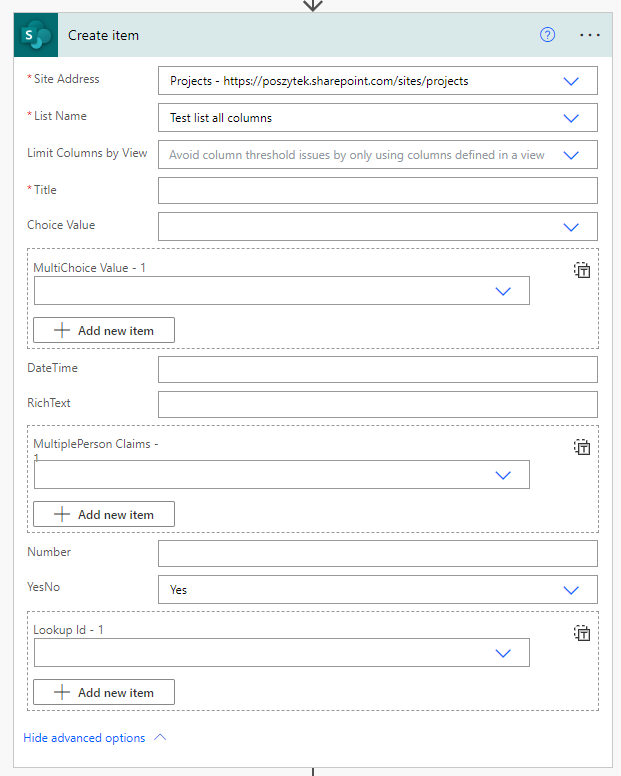
Próba utworzenia elementu wewnątrz podfolderu na liście jest absolutnie niemożliwa przy użyciu istniejącej akcji SharePoint Online.

Create item action

Interfejs akcji nie pozwala na wybór ścieżki, pod którą ma zostać utworzony element. Najlepszym rozwiązaniem jest użycie API REST usługi SharePoint Online.

Użycie REST API SharePoint

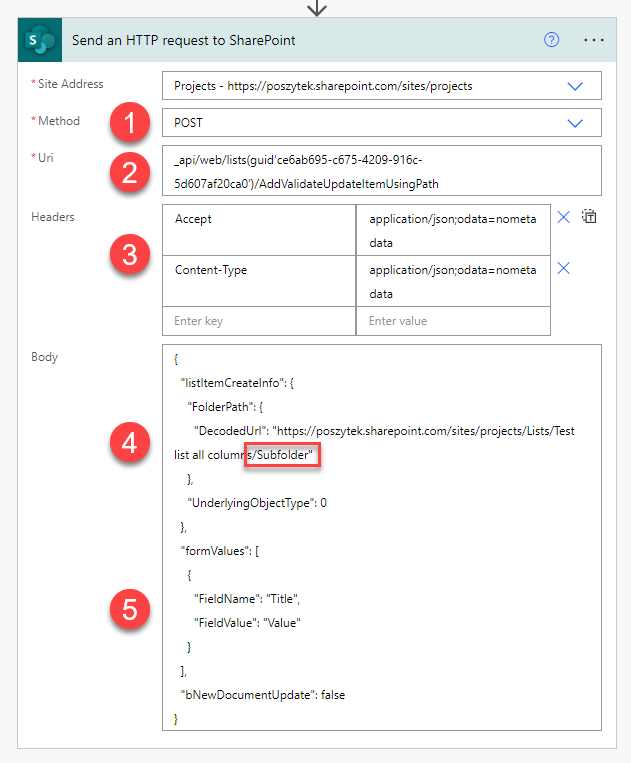
Endpointem, którego należy użyć do wykonania takiej operacji, jest /AddValidateUpdateItemUsingPath z użyciem żądania POST:

Send HTTP Request to SharePoint
  1. Powinno być to żądanie POST
  2. Możesz wypróbować uri „GetByTitle”, chociaż nie mogłem sprawić, by to działało, więc przełączyłem się na guid i jest w porządku 🙂
  3. Użyj nagłówka Accept dla danych zwracanych z wykonanego żądania i Content-Type, aby poinformować punkt końcowy, jaki typ danych jest wysyłany. Używam ;odata=nometadata, aby otrzymać w odpowiedzi tylko minimalną ilość informacji.
  4. Parametr DecodedUrl określa ścieżkę do podfolderu, w którym ma zostać utworzony element.
  5. Lista FieldName + FieldValue może być wykorzystana do stworzenia elementu z metadanymi. Pamiętaj tylko, że musi to być prawidłowy JSON, więc jeśli jakaś wartość zawiera cudzysłowy, należy je wyescapeować.

Generalnie, aby ustawić wartość dla podstawowych typów kolumn, użyj kodu JSON jak poniżej:

   "formValues": [
    {
      "FieldName": "Title",
      "FieldValue": "VALUE"
    },
    {
      "FieldName": "SingleChoice",
      "FieldValue": "VALUE 1"
    },
    {
      "FieldName": "MultiChoice",
      "FieldValue": "VALUE 1;VALUE 2;VALUE 3"
    },
    {
      "FieldName": "DateTime",
      "FieldValue": "DATE IN CORRECT FORMAT"
    },
    {
      "FieldName": "RichText",
      "FieldValue": "VALUE - REMEMBER TO ESCAPE QUOTES!"
    },
    {
      "FieldName": "Number",
      "FieldValue": "1000.00"
    },
    {
      "FieldName": "YesNo",
      "FieldValue": "True or False"
    },
    {
      "FieldName": "SingleLookup",
      "FieldValue": "1"
    },
    {
      "FieldName": "MultiLookup",
      "FieldValue": "I FAILED HERE :("
    },
    {
      "FieldName": "MultiplePerson",
      "FieldValue": "I FAILED HERE AS WELL"
    }
  ]

Ważne! Nie udało mi się pomyślnie wypełnić danych w złożonych kolumnach, takich jak lookup, osoba lub zarządzane metadane. Moje rozwiązanie dla tego problemu znajdziesz poniżej poniżej.

Po pomyślnym wykonaniu akcji treść odpowiedzi będzie zawierała dane dla każdej wypełnionej kolumny wraz z identyfikatorem stworzonego elementu:

{
  "value": [
    {
      "ErrorCode": 0,
      "ErrorMessage": null,
      "FieldName": "Title",
      "FieldValue": "Test 1",
      "HasException": false,
      "ItemId": 0
    },
    {
      "ErrorCode": 0,
      "ErrorMessage": null,
      "FieldName": "Id",
      "FieldValue": "0",
      "HasException": false,
      "ItemId": 0
    }
  ]
}

Ważne! Nawet jeśli kod odpowiedzi wynosi 200, co sugeruje, że żądanie zakończyło się powodzeniem, elementu może nie zostać utworzony. Sprawdź treść odpowiedzi pod kątem komunikatów o błędach.

Jeśli wystąpi błąd, kolumna, która go spowodowała, będzie zawierać następującą odpowiedź JSON:

    {
      "ErrorCode": 0,
      "ErrorMessage": "Value does not fall within the expected range.",
      "FieldName": "Lookup",
      "FieldValue": "[1;2]",
      "HasException": true,
      "ItemId": 0
    },

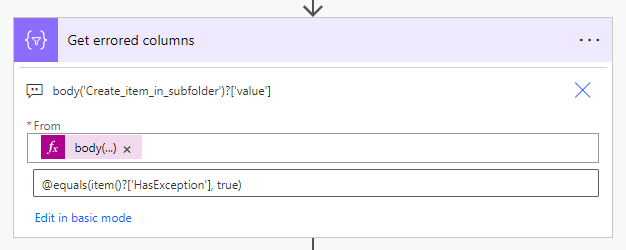
Aby uzyskać wszystkie pola, w których wystąpił błąd podczas tworzenia elementu, możesz użyć akcji „Filter” dla body('Send an HTTP request to SharePoint')?['value'] i filtrować @equals(item() ?['HasException'], true):

Filter response to get array of errors.

W zamian otrzymasz tablicę wszystkich pól, które spowodowały błędy.

Ustaw wartości pól złożonych

Próbowałem ustawić wartości (ale nie udało mi się to) pola, takie jak:

  • Lookup
  • Person
  • Managed metadata

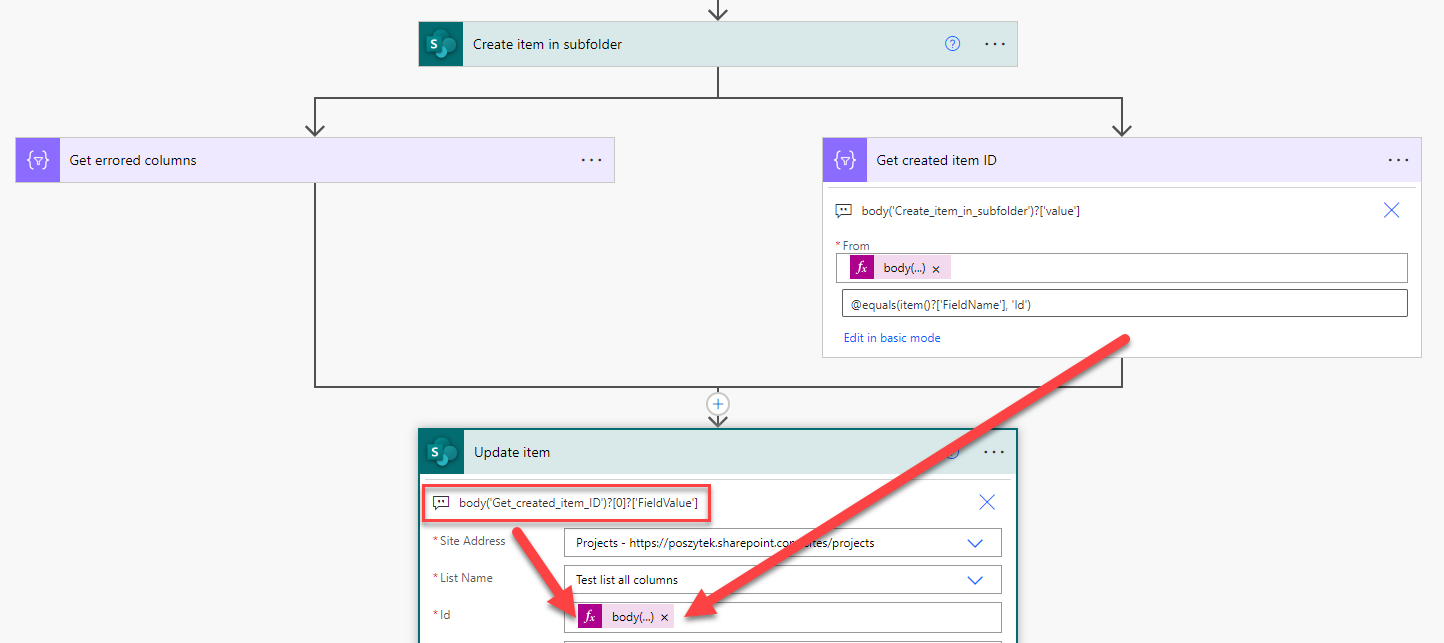
Ale udało mi się ustawić tylko wartość w kolumnie single-lookup 🙁 Więc wpadłem na inny pomysł. Użyj powyższej akcji, aby utworzyć element pod żądaną ścieżką podfolderu, a następnie pobrałem jego identyfikator i użyłem zwykłego „Update item”, aby ustawić żądane wartości nawet dla złożonych typów pól:

Update create item

Osiągnałem to ponownie używając akcji „Filter” dla body('Send an HTTP request to SharePoint')?['value'] i następnie filtrując @equals(item()?['FieldName'], 'Id'). Następnie możesz uzyskać wartość Id korzystając z poniższego wyrażenia:
body('Filter')?[0]?['FieldValue'].

I to wszystko! Daj mi znać, jak to działa u Ciebie.

Artykuł Tworzenie elementu listy SharePoint w podfolderze używając SPO REST API pochodzi z serwisu Tomasz Poszytek, Business Applications MVP.

SharePoint Online: Apply JSON View formatting using SharePoint REST API

JSON View formatting in SharePoint Online can be a useful tool for customizing the way list/library data is presented to end users. This can help improve the user experience and make it easier for users to understand and interact with the SharePoint list/library data.

In this blog post, we will discuss how to apply JSON View formatting in SharePoint Online using SharePoint REST API.

If you want to reuse the JSON view formatting from existing SharePoint list view to newly created views in same SharePoint online list or in different SharePoint list with similar columns, you can get the custom JSON formatting applied on existing SharePoint list view using SharePoint REST API. You have to use the REST endpoint in below format to fetch the JSON:

https://contoso.sharepoint.com/sites/SPConnect/_api/web/lists/getbytitle('My List')/views/getbytitle('All Items')?$select=Title,CustomFormatter

Once you get the list view formatting JSON using above API call, you can use it in below example to apply JSON View formatting to newly created SharePoint Online lists. For this blog post, we will reuse the JSON view formatting from one of my blog posts – SharePoint Online: Highlight selected list item rows using JSON formatting

You can use below SharePoint REST API code for applying JSON view formatting to SharePoint online list:

/sites/SPConnect/SiteAssets/jquery.min.js
<script type="text/javascript">
    function updateViewJSONFormatting(listName, viewName) {
        var viewEndpoint = _spPageContextInfo.webAbsoluteUrl + "/_api/web/lists/getbytitle('" + listName + "')/views/getbytitle('" + viewName + "')";

        var jsonFormatting = {
			"$schema": "https://developer.microsoft.com/json-schemas/sp/v2/row-formatting.schema.json",
			"additionalRowClass": "=if(@isSelected, 'ms-bgColor-themePrimary ms-fontColor-white', '')"
		};
        
        var viewProperties = {
            "__metadata": {
                "type": "SP.View"
            },
            "CustomFormatter": JSON.stringify(jsonFormatting)
        };

        $.ajax({
            url: viewEndpoint,
            type: "POST",
            headers: {
                "accept": "application/json;odata=verbose",
                "content-type": "application/json;odata=verbose",
                "X-RequestDigest": $("#__REQUESTDIGEST").val(),
                "X-HTTP-Method": "MERGE",
                "If-Match": "*"
            },
            data: JSON.stringify(viewProperties),
            success: function(data) {
                console.log(data);
            },
            error: function(error) {
                console.log(error);
            }
        });
    }
</script>

You can call above reusable function like:

updateViewJSONFormatting('Comments List', 'All Items')

Once above function executes successfully, navigate to your SharePoint online list view and you will see that JSON view formatting is applied to your SharePoint online list view:

SharePoint Online: Apply JSON View formatting using SharePoint REST API to highlight selected list item rows using JSON formatting
SharePoint Online: Apply JSON View formatting using SharePoint REST API

Learn more

highlight-selected-list-item-row-using-json-formatting-in-sharepoint

ganeshsanapblogs

SharePoint Online: Apply JSON View formatting using SharePoint REST API to highlight selected list item rows using JSON formatting

Enable/Disable SharePoint Online List Comments using SharePoint REST API

Commenting feature in lists is enabled by default when you create a new list in SharePoint online site or in “My lists” under Microsoft Lists. However you may want to disable the commenting feature if you are using multiple lines of text column with “Append Changes to Existing Text” functionality or if you are capturing comments by Power automate approvals. 

In my earlier blogs, I explained how to enable/disable the comments in SharePoint Online lists for entire tenant using SharePoint Online PowerShell & PnP PowerShell and how to enable/disable the comments for individual SharePoint lists from SharePoint UI via browser.

In this blog I will explain how you can enable/disable the commenting in SharePoint Online/Microsoft Lists using SharePoint REST API. We can retrieve SharePoint list and update list properties with lists endpoint like below using SharePoint REST API:

https://contoso.sharepoint.com/sites/SPConnect/_api/web/lists/getbytitle('Comments List')

Using above endpoint we will update list property named DisableCommenting which allows us to enable/disable SharePoint online list commenting. We have to use the list properties payload like below:

var listProperties = {
	"__metadata": {
		"type": "SP.List"
	},
	"DisableCommenting": true
}

Complete Code

Below is the complete code to disable the commenting in individual SharePoint Online/Microsoft Lists “list” using SharePoint REST API:

function disableListComments(listName) {
	var listEndpoint = _spPageContextInfo.webAbsoluteUrl + "/_api/web/lists/getbytitle('" + listName + "')";

	var listProperties = {
		"__metadata": {
			"type": "SP.List"
		},
		"DisableCommenting": true
	}

	$.ajax({
		url: listEndpoint,
		type: "POST",
		headers: {
			"accept": "application/json;odata=verbose",
			"content-type": "application/json;odata=verbose",
			"X-RequestDigest": $("#__REQUESTDIGEST").val(),
			"X-HTTP-Method": "MERGE",
			"If-Match": "*"
		},
		data: JSON.stringify(listProperties),
		success: function(data) {
			console.log(data);
		},
		error: function(error) {
			console.log(error);
		}
	});
}

You can call this function like given below:

disableListComments('Comments List')

Once above function executes successfully, navigate to List Settings > Advanced Settings and you will see that commenting is disabled for your SharePoint online list:

List Advanced settings showing disabled commenting on SharePoint Online list or Microsoft Lists using SharePoint REST API
Disabled commenting on SharePoint Online list or Microsoft Lists

I hope you liked this blog. Give your valuable feedback & suggestions in the comments section below and share this blog with others.

See also

Jak wzmianiować użytkowników, tagi, kanały i zespoły używając Power Automate

W tym poście chciałbym podzielić się z Tobą moimi najnowszymi odkryciami na temat sposobów, w jakie można wzmiankować wszystko w Microsoft Teams wysyłając wiadomości z Power Automate, niezależnie od tego, czy jest to użytkownik, tag, kanał czy zespół.

Wbudowane wzmiankowanie

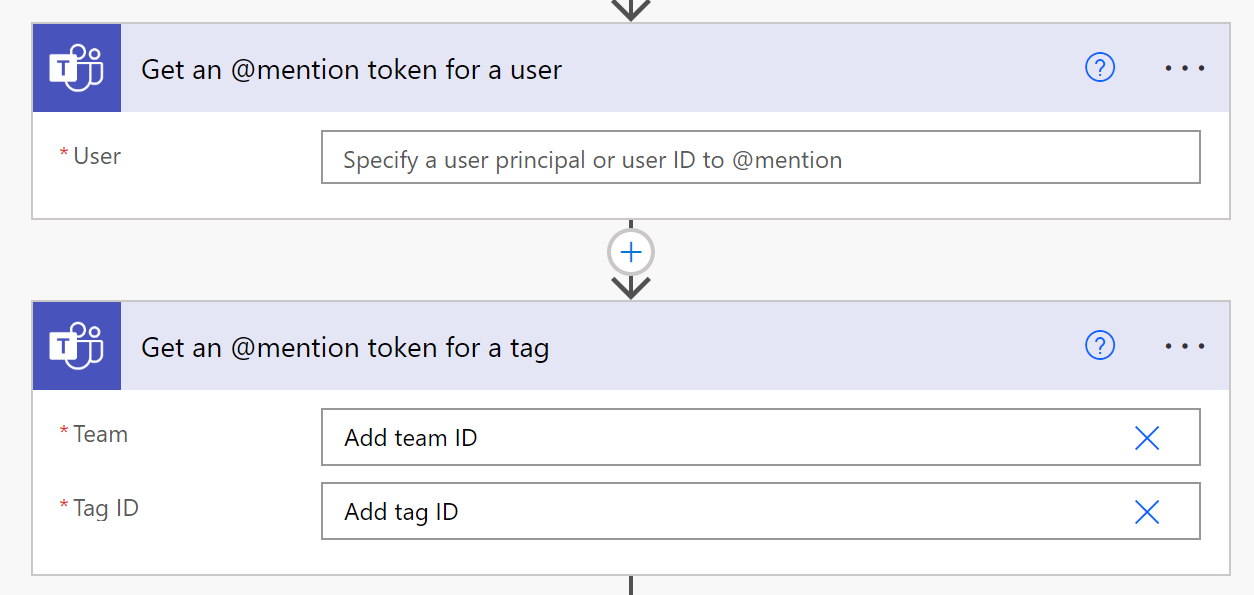
W Power Automate dostępne są dedykowane akcje, które pozwalają wzmiankować użytkownika lub tag.

@mention actions in Power Automate

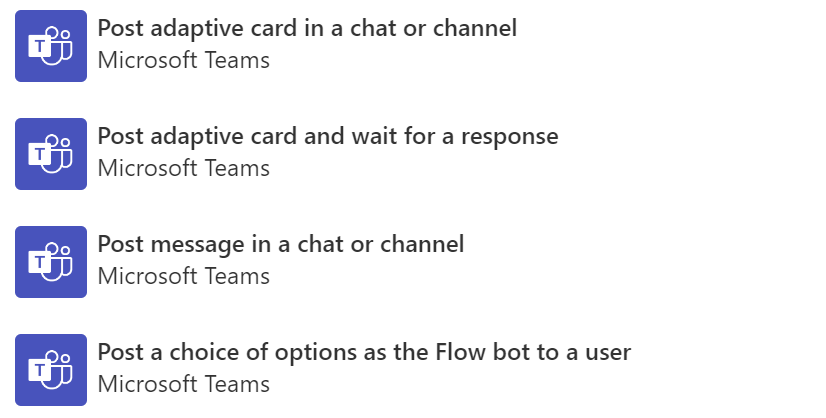
Akcje „Get an @mention token for a user” oraz „Get an @mention token for a tag”. Te dwie akcje zwracają tokeny, które można użyć w dowolnej innej akcji, która wysyła wiadomość do Microsoft Teams, na przykład „Post adaptive card in a chat or channel” lub „Post message in a chat or channel”:

Post messages action in Power Automate

Ważne! Token @mention dla tagu może być używany tylko wtedy, gdy karta adaptacyjna lub wiadomość są publikowane przy użyciu kontekstu użytkownika. Wzmiankowanie tagu nie będzie działać w kontekście bota.

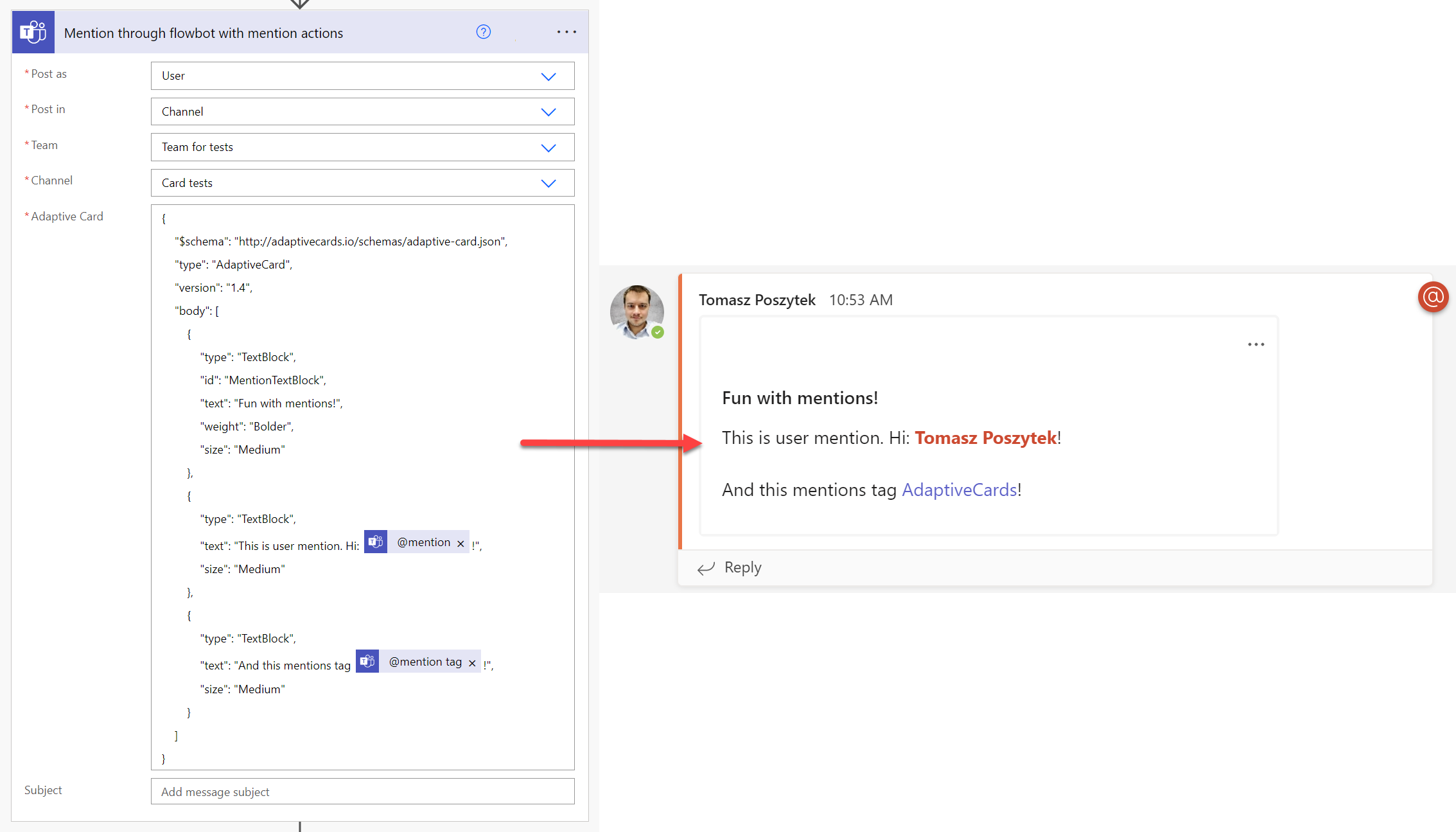
Musisz tylko dodać tokeny do swoich kart lub wiadomości:

@mention token and generated Adaptive Card

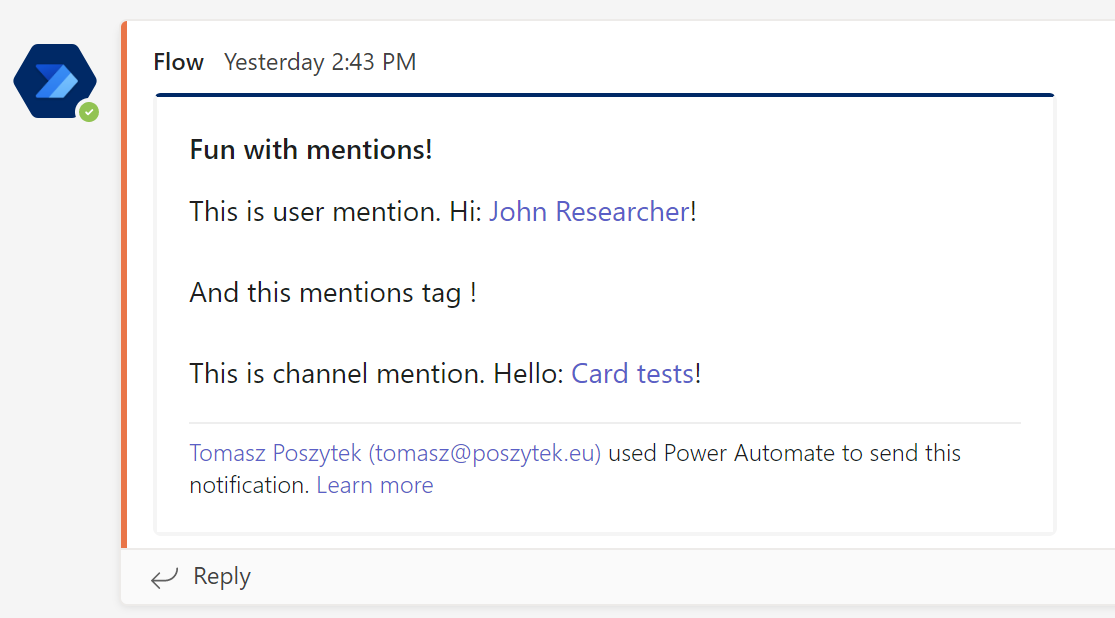
Wzmiankowanie korzystając z property msteams w Adaptive Card JSON

Drugim podejściem, którego możesz użyć, jest skorzystanie z właściwości msteams, którą można dodać na końcu karty adaptacyjnej wysłanej do Microsoft Teams. Przy okazji – ta właściwość może pomóc w wielu innych scenariuszach (źródło: Text formatting in cards – Teams | Microsoft Docs).

Mentioning using msteams property in Adaptive Card JSON

Dlaczego miałbyś to robić w ten sposób nie poprzez akcje @mention, nie wiem, ale podkreślam, że w ten sposób nie udało mi się wspomnieć o tagach, kanałach i zespołach. Chociaż „link” do kanału był wyświetlany na wysłanej karcie, nie zachowywał się prawidłowo, ponieważ najechanie kursorem nie rozwijało szczegółów kanału.

{
    "$schema": "http://adaptivecards.io/schemas/adaptive-card.json",
    "type": "AdaptiveCard",
    "version": "1.4",
    "body": [
        {
            "type": "TextBlock",
            "id": "MentionTextBlock",
            "text": "Fun with mentions!",
            "weight": "Bolder",
            "size": "Medium"
        },
        {
            "type": "TextBlock",
            "text": "This is user mention. Hi: <at>USER NAME</at>!",
            "size": "Medium"
        }
        {
            "type": "TextBlock",
            "text": "And this mentions tag <at>TAG NAME</at>!",
            "size": "Medium"
        },
        {
            "type": "TextBlock",
            "text": "This is channel mention. Hello: <at>CHANNEL NAME</at>!",
            "size": "Medium"
        }
    ],
    "msteams": {
        "entities": [
            {
                "type": "mention",
                "text": "<at>USER NAME</at>",
                "mentioned": {
                    "id": "8:orgid:USER AAD ID",
                    "name": "USER NAME"
                }
            }
            {
                "type": "mention",
                "text": "<at>TAG NAME</at>",
                "mentioned": {
                    "id": "TAG ID",
                    "name": "TAG NAME"
                }
            },
            {
                "type": "mention",
                "text": "<at>CHANNEL NAME</at>",
                "mentioned": {
                    "id": "CHANNEL ID",
                    "displayName": "CHANNEL NAME",
                    "conversationIdentityType": "channel"
                }
            }
        ]
    }
}

Ważne! By wzmiankować użytkownika musisz dodać prefix 8:orgid: przed wartością Azure AAD ID.

Co ważne, z powyższej metody mogłem skorzystać jedynie przy wysyłaniu kart w kontekście bota. Podczas korzystania z kontekstu użytkownika, akcja cały czas kończyła się błędem: „Message mention text needs to be specified.”. Bez względu na to, jak formatowałem obiekty wzmianek, nie mogłem tego rozwiązać. Więc się poddałem. Jeśli wiesz, jak sprawić by to zadziałało, napisz w komentarzach 🙂

Wzmiankowanie korzystając z webhook kanału

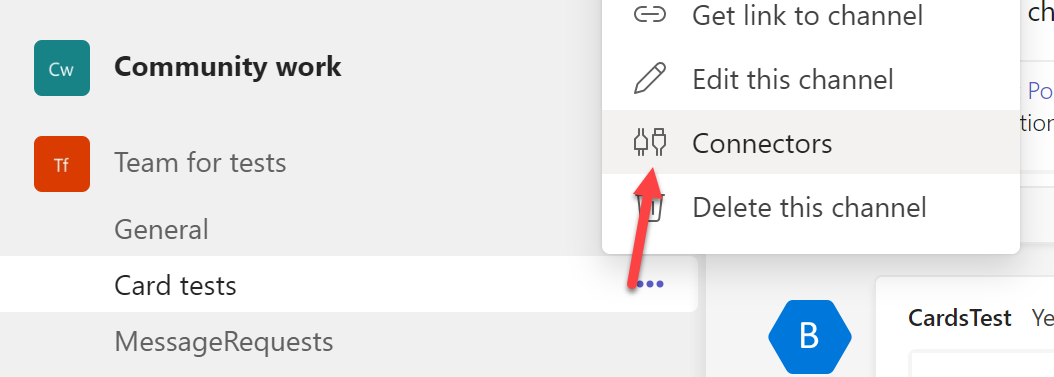
Po pierwsze, aby utworzyć webhooka do kanału, musisz przejść do menu „Connectors” w obrębie kanału:

Connectors menu in channel

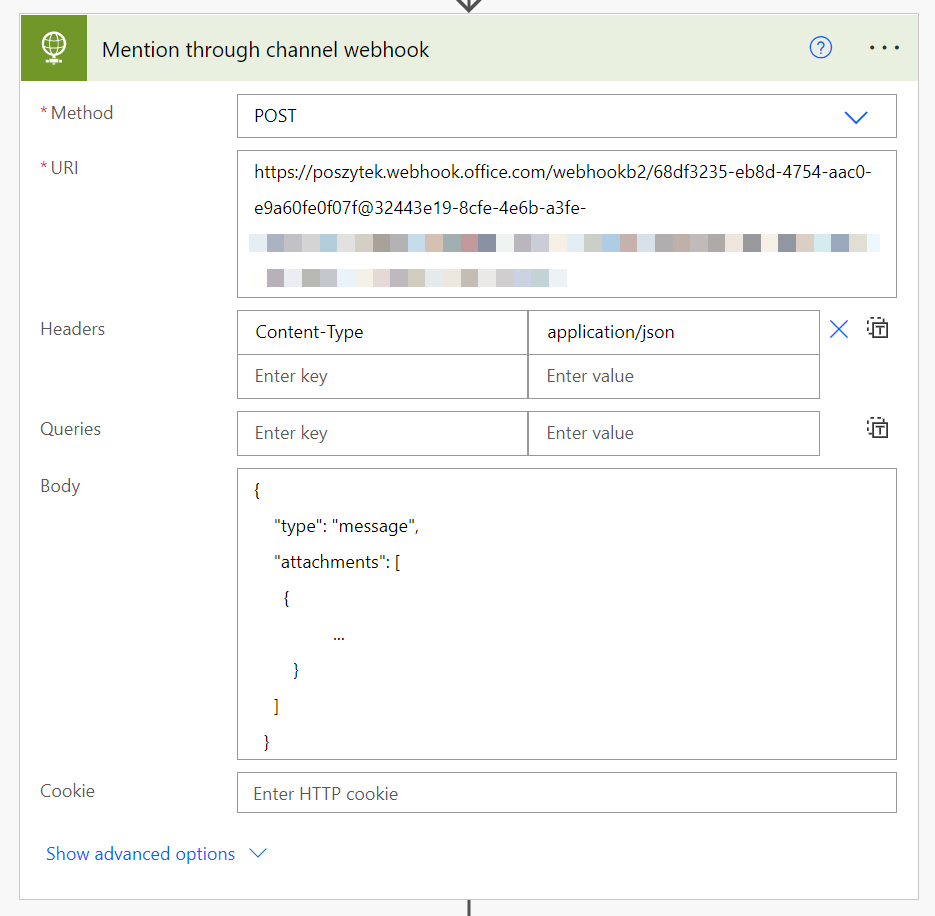
Następnie skonfiguruj webhooka i skopiuj jego adres URL. Gdy to zrobisz, możesz użyć i skonfigurować akcję HTTP:

How to send Adaptive Card via channel's webhook

Musi to być żądanie POST wysłane do webhooka kanału. A w kwestii zawartości:

{
    "type": "message",
    "attachments": [
      {
        "contentType": "application/vnd.microsoft.card.adaptive",
        "content": {
          "$schema": "http://adaptivecards.io/schemas/adaptive-card.json",
          "type": "AdaptiveCard",
          "version": "1.4",
          "body": [
            {
              "type": "TextBlock",
              "id": "MentionTextBlock",
              "text": "Fun with mentions!",
              "weight": "Bolder",
              "size": "Medium"
            },
            {
              "type": "TextBlock",
              "text": "This is user mention. Hi: <at>USER NAME</at>!",
              "size": "Medium"
            },
            {
              "type": "TextBlock",
              "text": "And this mentions tag <at>TAG NAME</at>!",
              "size": "Medium"
            },
            {
              "type": "TextBlock",
              "text": "This is channel mention. Hello: <at>CHANNEL NAME</at>!",
              "size": "Medium"
            }
          ],
          "msteams": {
            "entities": [
              {
                "type": "mention",
                "text": "<at>USER NAME</at>",
                "mentioned": {
                  "id": "8:orgid:USER AAD ID",
                  "name": "USER NAME"
                }
              },
              {
                "type": "mention",
                "text": "<at>TAG NAME</at>",
                "mentioned": {
                  "id": "TAG ID",
                  "name": "TAG NAME"
                }
              },
              {
                "type": "mention",
                "text": "<at>CHANNEL NAME</at>",
                "mentioned": {
                  "id": "CHANNEL ID",
                  "displayName": "CHANNEL NAME",
                  "conversationIdentityType": "channel",
                  "conversationIdentityType@odata.type": "#Microsoft.Teams.GraphSvc.conversationIdentityType"
                }
              }
            ]
          }
        }
      }
    ]
  }

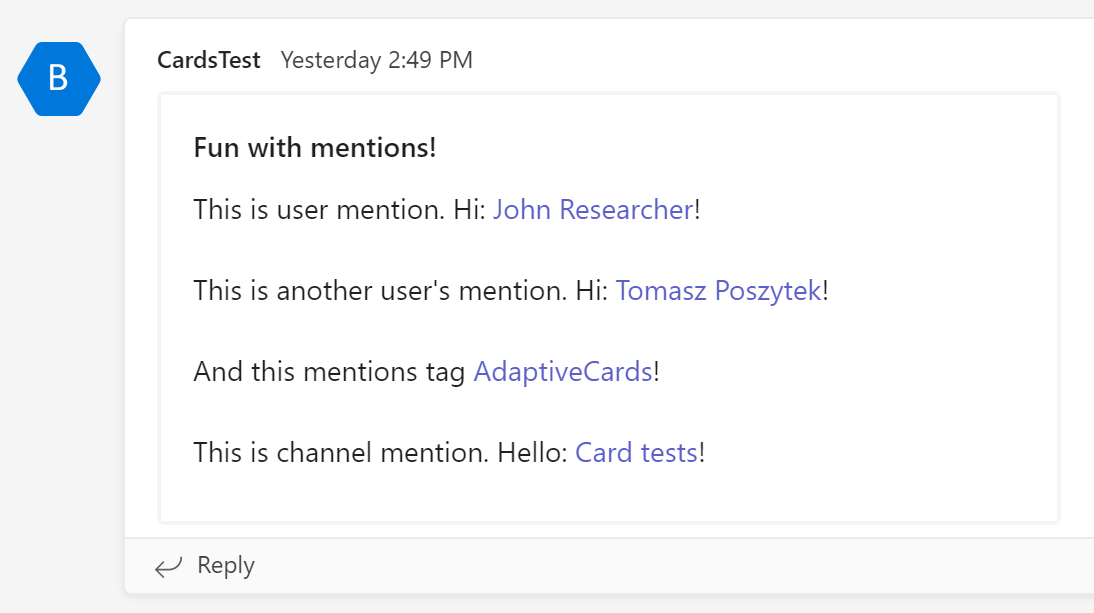
Tutaj znowu, jak widać, używana jest właściwość msteams. W tym podejściu generowane są wszystkie wzmianki.

Mentions sent using team's channel webhook

Mimo to moim zdaniem nie działają. Ponieważ kiedy najeżdżam na któryś z nich, nie wyświetla żadnych szczegółów, a wiadomość nie jest podświetlana jako wzmianka o mnie. Jeśli to dla Ciebie działa, daj mi proszę znać.

Ważne! Karty adaptacyjne wysyłane przez webhook nie pozwalają na wykonywanie żadnych czynności związanych z przesyłaniem (submit). Jeśli więc planujesz dodać formularz do karty, który użytkownicy mogą wypełnić i wysłać, przy takim podejściu nie będziesz w stanie odebrać odpowiedzi.

Wzmiankowanie używając GraphAPI

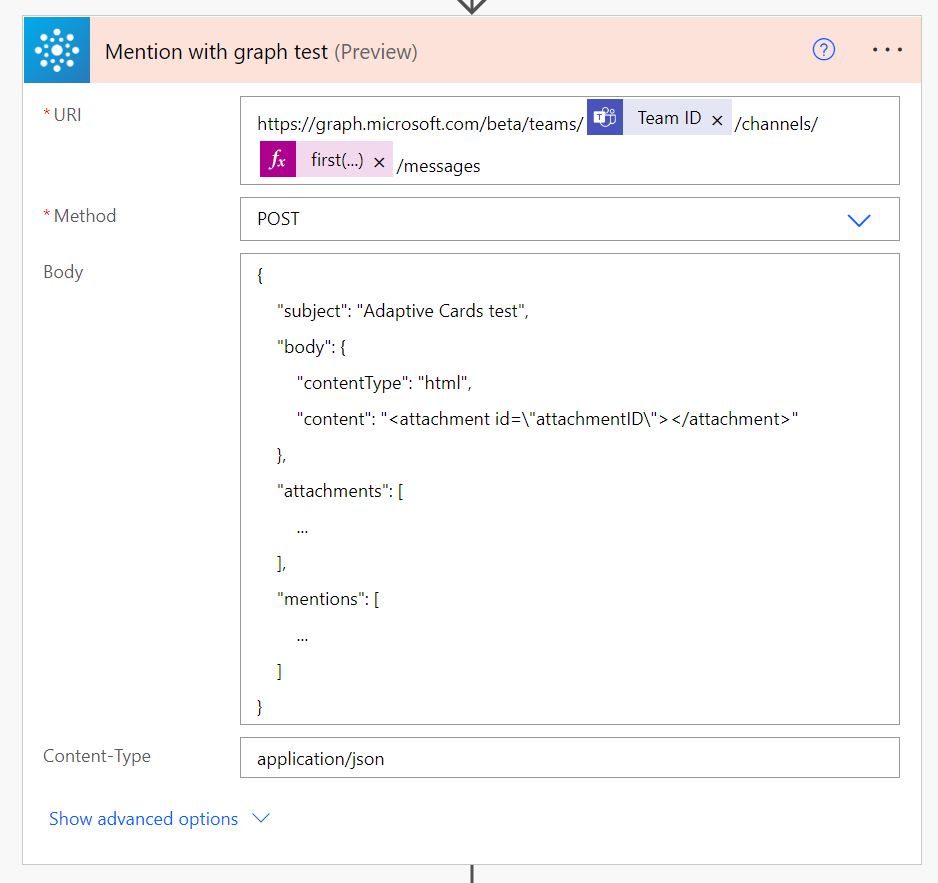
W tym podejściu wysyłasz Adaptive Card do endpointa GraphAPI: /beta/teams/team-id/channels/channel-id/messages. Wiecej szczegółów na temat tego podejścia znajdziesz tutaj: Send chatMessage in a channel or a chat – Microsoft Graph beta | Microsoft Docs.

Robię to za pomocą akcji o nazwie „Send an HTTP request” z grupy akcji „Office 365 Groups”. Czemu? Ponieważ jest to czynność standardowa, więc nie wymaga dodatkowej licencji. Możesz osiągnąć to samo, używając akcji „Invoke an HTTP Request” z grupy „HTTP with Azure AD”. Jednak ta jest akcją premium.

Sending Adaptive Card with mentions through GraphAPI

Kod, który należy wysłać, składa się z następujących sekcji:

  1. Body – zawiera strukturę HTML, w tym miejsce na załącznik, którym w tym przypadku będzie karta adaptacyjna.
  2. Attachments – ta właściwość zawiera wyescapeowany kod JSON karty Adaptive Card.
  3. Mentions – ta właściwość zawiera obiekty wzmianek, dla każdego identyfikatora wzmianki obecnego w treści karty adaptacyjnej lub we właściwości Body -> Content.
{
    "subject": "Adaptive Cards test",
    "body": {
        "contentType": "html",
        "content": "<attachment id=\"AttachmentID\"></attachment>"
    },
    "attachments": [
        {
            "id": "AttachmentID",
            "contentType": "application/vnd.microsoft.card.adaptive",
            "contentUrl": null,
            "content": "{\r\n  \"$schema\": \"http://adaptivecards.io/schemas/adaptive-card.json\",\r\n  \"type\": \"AdaptiveCard\",\r\n  \"version\": \"1.4\",\r\n  \"body\": [\r\n    {\r\n      \"type\": \"TextBlock\",\r\n      \"id\": \"MentionTextBlock\",\r\n      \"text\": \"Fun with mentions!\",\r\n      \"weight\": \"Bolder\",\r\n      \"size\": \"Medium\"\r\n    },\r\n    {\r\n      \"type\": \"TextBlock\",\r\n      \"text\": \"This is user mention. Hi: <at id=\\\"0\\\">USER NAME</at>!\",\r\n      \"size\": \"Medium\"\r\n    },\r\n    {\r\n      \"type\": \"TextBlock\",\r\n      \"text\": \"This is channel mention. Hello: <at id=\\\"1\\\">CHANNEL NAME</at>!\",\r\n      \"size\": \"Medium\"\r\n    },\r\n    {\r\n      \"type\": \"TextBlock\",\r\n      \"text\": \"This is team mention. Hello: <at id=\\\"2\\\">TEAM NAME</at>!\",\r\n      \"size\": \"Medium\"\r\n    },\r\n    {\r\n      \"type\": \"TextBlock\",\r\n      \"text\": \"This mentions tag <at id=\\\"3\\\">TAG NAME</at>!\",\r\n      \"size\": \"Medium\"\r\n    }\r\n  ]\r\n}",
            "name": null,
            "thumbnailUrl": null
        }
    ],
    "mentions": [
        {
            "id": 0,
            "mentionText": "USER NAME",
            "mentioned": {
                "user": {
                    "id": "USER AAD ID",
                    "displayName": "USER NAME",
                    "userIdentityType": "aadUser"
                }
            }
        },
        {
            "id": 1,
            "mentionText": "CHANNEL NAME",
            "mentioned": {
                "conversation": {
                    "id": "CHANNEL ID",
                    "displayName": "CHANNEL NAME",
                    "conversationIdentityType": "channel"
                }
            }
        },
        {
            "id": 2,
            "mentionText": "TEAM NAME",
            "mentioned": {
                "conversation": {
                    "id": "TEAM ID",
                    "displayName": "TEAM NAME",
                    "conversationIdentityType": "team"
                }
            }
        },
        {
            "id": 3,
            "mentionText": "TAG NAME",
            "mentioned": {
                "tag": {
                    "id": "TAG ID",
                    "displayName": "TAG NAME"
                }
            }
        }
    ]
}

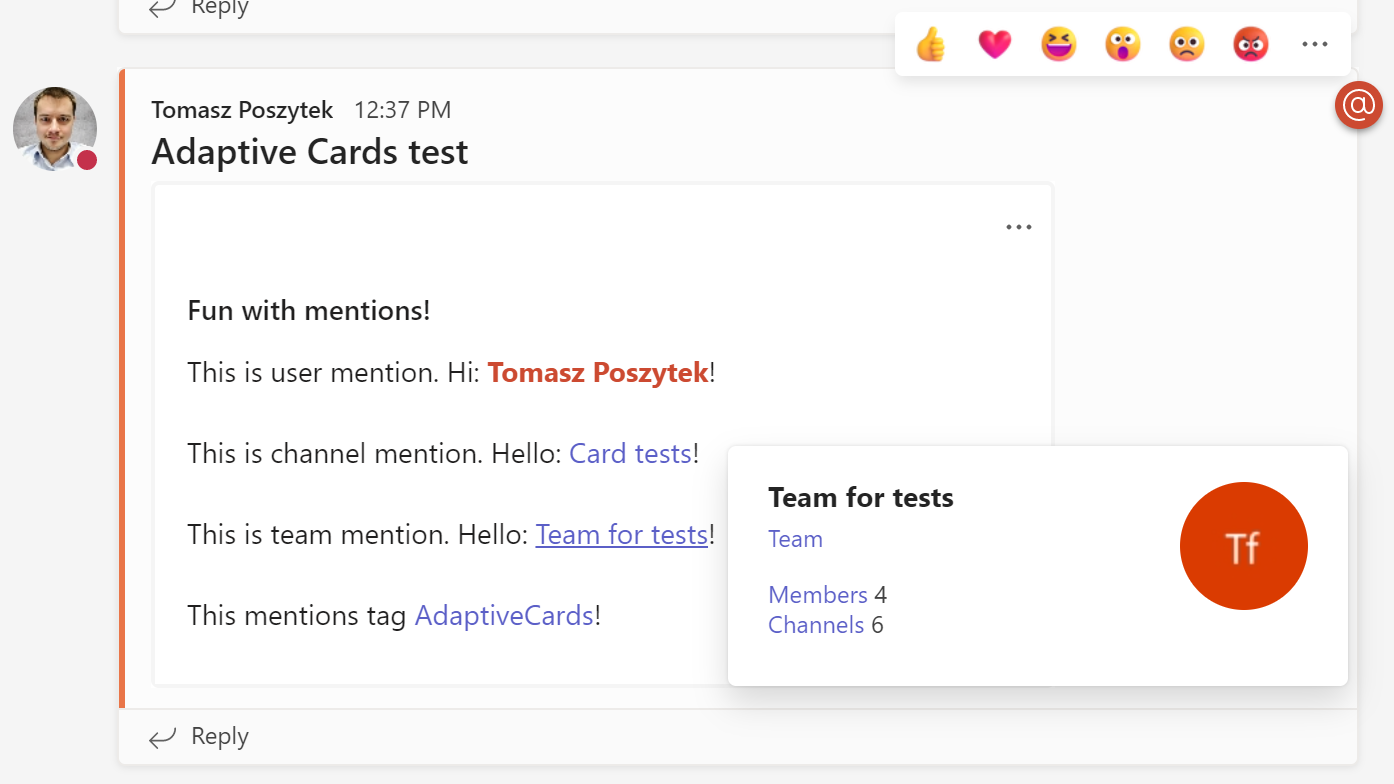
W ten sposób można naprawdę wzmiankować wszystko i działa to dla wszystkich typów wzmianek. A to dlatego, że akcja działa w kontekście użytkownika. Jeśli chcesz wysłać ją w kontekście aplikacji, musisz użyć akcji HTTP i podać szczegóły aplikacji usługi Azure AD, aby uwierzytelnić wywołanie.

Adaptive Card with mentions sent via GraphAPI

Ważne! Wysłane w ten sposób karty adaptacyjne nie pozwolą na wykonanie akcji przesyłania (submit). Jeśli planujesz umożliwić użytkownikom przesyłanie formularzy wysłanych w Adaptive Cards, musisz wybrać inne podejście.

I to wszystko! Ufam, że uznasz to za przydatne.

Materiały

Kilka przydatnych linków, które pomogły mi lepiej zrozumieć jak wzmiankować w Microsoft Teams:

Artykuł Jak wzmianiować użytkowników, tagi, kanały i zespoły używając Power Automate pochodzi z serwisu Tomasz Poszytek, Business Applications MVP.

❌
❌