Connexion
Avoid certificate prompt for Azure Active Directory Certificate-Based Authentication (CBA)
Azure Active Directory Certificate-Based Authentication (Azure AD CBA) allows you to authenticate to Azure Active Directory using a certificate from your internal Public Key Infrastructure (PKI). To know how to implement Azure Active Directory CBA, please refer to the Microsoft doc.
Certificate authentication will happen on the URL https://certauth.login.microsoftonline.com. By default, your web browser will prompt you to select a certificate installed on your Personal User Certificate store.
To avoid the user to manually select a user certificate for authentication, you can use the following parameters with Microsoft Edge :
Configuration
Registry
Create the following registry key either in CURRENT_USER or LOCAL_MACHINE :
- Type : REG_SZ
- Name : 1 (or any following number if you already have parameters configured here)
- Location :
- User setting: HKEY_CURRENT_USER\SOFTWARE\Policies\Microsoft\Edge\AutoSelectCertificateForUrls
OR
- Device setting: HKEY_LOCAL_MACHINE\SOFTWARE\Policies\Microsoft\Edge\AutoSelectCertificateForUrls
- User setting: HKEY_CURRENT_USER\SOFTWARE\Policies\Microsoft\Edge\AutoSelectCertificateForUrls
- Value : check below

GPO or MDM
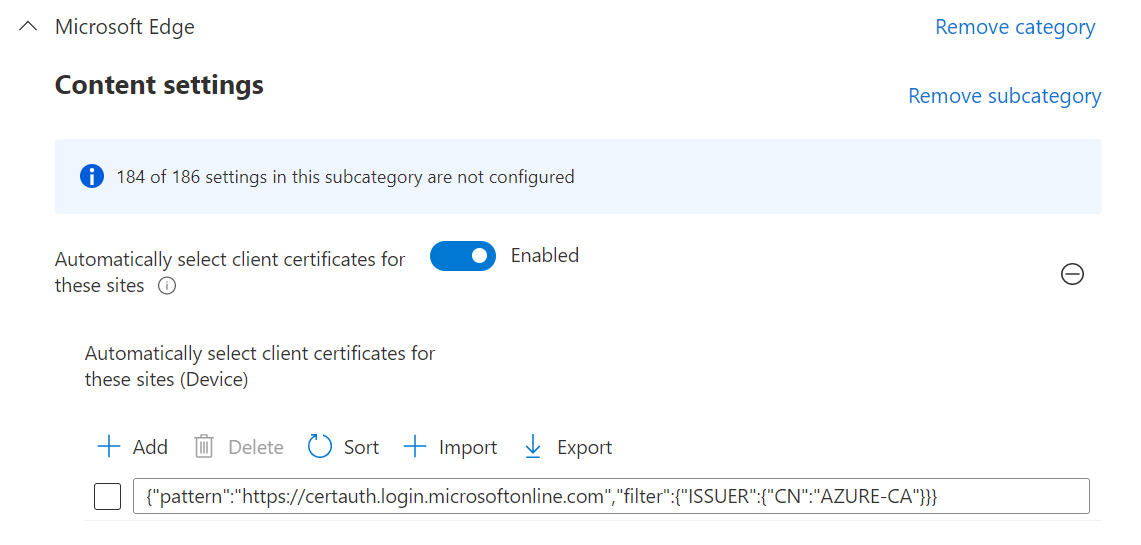
Create a GPO in Active Directory or a Settings Catalog profile in Microsoft Endpoint Manager and set the following parameter :
- Parameter : Automatically select client certificates for these sites
- Location : Administrative Templates / Microsoft Edge / Content settings
- Value : check below
Parameter value
Here is a generic sample of the possible values for the parameter:
{"pattern":"https://www.contoso.com","filter":{"ISSUER":{"CN":"certificate issuer name", "L": "certificate issuer location", "O": "certificate issuer org", "OU": "certificate issuer org unit"}, "SUBJECT":{"CN":"certificate subject name", "L": "certificate subject location", "O": "certificate subject org", "OU": "certificate subject org unit"}}}Make sure you customize the JSON parameters based on your needs and apply it to the pattern https://certauth.login.microsoftonline.com.
Here is my example:
{"pattern":"https://certauth.login.microsoftonline.com","filter":{"ISSUER":{"CN":"AZURE-CA"}}}Replace AZURE-CA by the CN of your issuing CA
Validation
You can check that the setting is properly applied in Microsoft Edge using the tag edge://policy
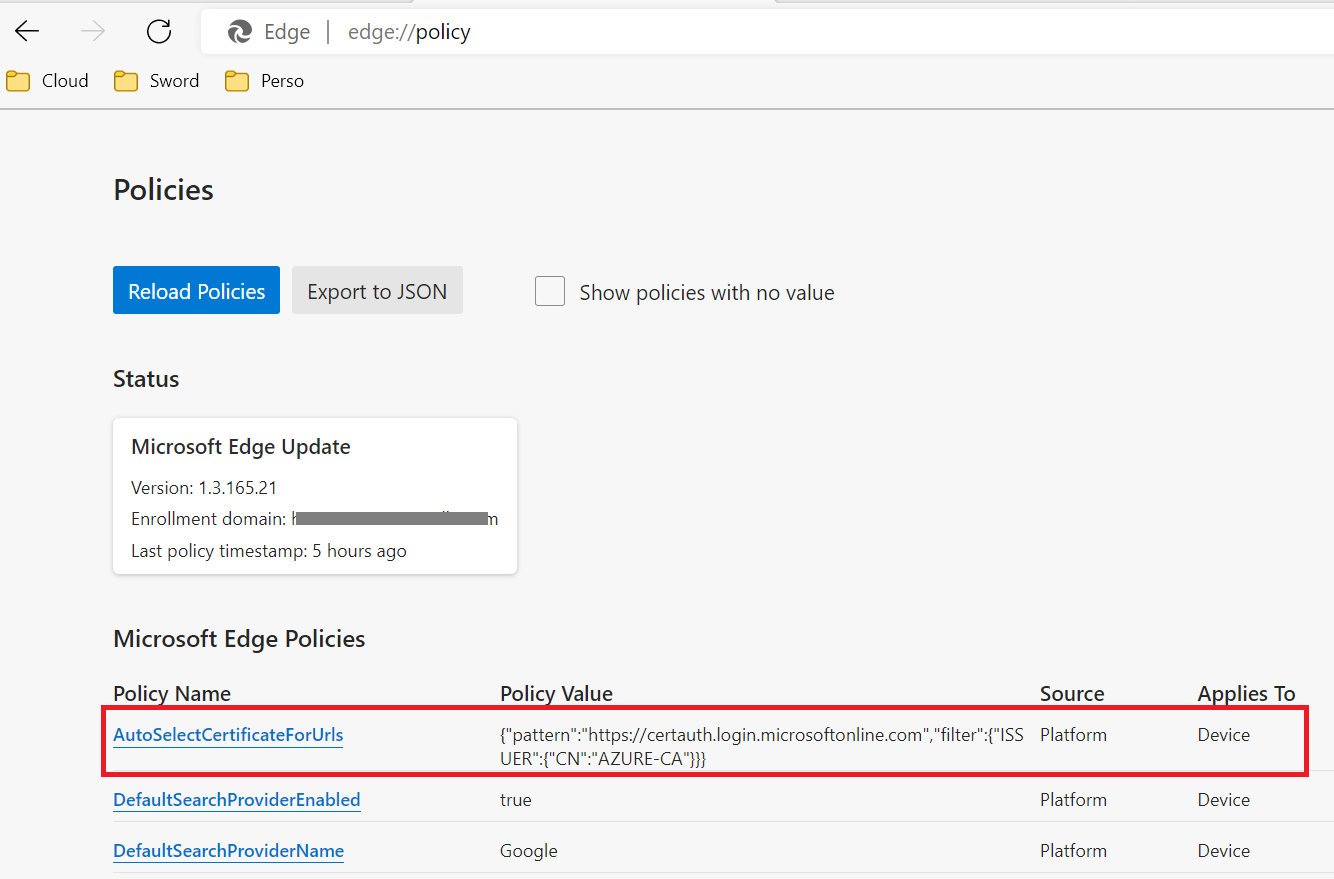
To validate the automatication certificate selection:
- Restart Microsoft Edge
- Go to https://certauth.login.microsoftonline.com.
- You should be automatically authenticated and redirected to https://www.office.com.