Vue lecture

Il y a de nouveaux articles disponibles, cliquez pour rafraîchir la page.
✇Microsoft Tech Community - Latest Blogs - Security, Compliance, and Identity Blog

Three steps to master information governance in your organization

This month's episode of Uncovering Hidden Risks will discuss Information Governance and the industry trends we are seeing in this space. Information governance is the overall strategy for managing information at an organization. It is a discipline that spans several markets, including data governance, security, compliance, data privacy, content services, and more. Recently, these markets have begun to converge, highlighting the sometimes conflicting requirements between these disciplines.


Joining our host Erica Toelle is our guest, Randolph Kahn. Mr. Kahn is a globally recognized leader in Information Governance, with his consulting team advising major multinational corporations and governments on various information management issues. He has been an expert witness in major court cases and is a trusted advisor to corporations and governmental agencies. Mr. Kahn is also an accomplished author, speaker, and adjunct professor of Law and Policy of Electronic Information and The Politics of Information.


Natalie Noonan joins us as our guest host. Natalie is one of Microsoft’s top information governance experts, and helps our customers to define and plan their strategies. She is also a former program manager in financial services.

Together, we'll explore how you can master information governance in your organization. 


In this episode, we'll cover the following: 

  • Trends around the convergence of security, data governance, privacy, and compliance.
  • How the increase in laws and regulations around the management of data, especially regarding privacy, affected these trends.
  • How people can approach a data governance solution.
  • What requirements as important for data governance.
  • Options for implementing these requirements.
  • Looking ahead to the future, what is coming for data governance.

Listen to this episode on your favorite podcast platform:

To learn more about Microsoft Security solutions, visit our website. Bookmark the Security blog to keep up with our expert coverage on security matters. Also, follow us at @MSFTSecurity for the latest news and updates on cybersecurity.

✇Microsoft Tech Community - Latest Blogs - Microsoft Teams Blog

Celebrate success using Together Emojis in Microsoft Teams

We're celebrating #NationalHighFiveDay today by introducing an exciting and unique way to interact with your team members using new Together Emojis in Microsoft Teams. The new Together Emoji for high fives is currently rolling out and will be available to users soon!


What are Together Emojis?

“Together Emojis” are a unique concept conceived by myself and my colleague Nico Nuzzaci in 2016 to bridge the gap across the communication stream. For a long time, when you send an emoji in chat, it stays on the left or right and has always felt disconnected to us.

We wanted a way for people to come together when they are apart using digital communication to foster a greater sense of connection and community. Ranging from a slap of hands with high fives, clinking glasses to cheers, grabbing a coffee, or getting pizza for lunch, Together Emojis are there to bring everyone’s sentiments together and belong!


How to do it:

Open Microsoft Teams for work or life, desktop or mobile app, and jump in to chat with friends, colleagues, and family, and by each of you sending high five after each other, you’ll get a fun animation:

highfive.png

And watch the two smileys come together.

Together Emoji high five mobile.gif


You can find the “highfive” emoji in 3 ways:

  1. On desktop type (highfive) in the compose bar and hit enter; or
  2. On mobile or desktop, open the fun picker, and type “highfive” in the search bar and hit enter; or
  3. On mobile or desktop, open the fun picker and scroll down the smileys category to the custom emojis and tap the highfive emoji and hit enter.

“Highfive” is one Together Emoji of many other sentiments you can bring together, more coming soon!


More about National High Five Day:

National High Five Day is celebrated in the United States on the third Thursday of April and is a holiday about giving high fives and spreading good vibes. This year, it benefits CoachArt by sending virtual high fives to kids with chronic illnesses. Learn more about this holiday, the charity, and how to get involved at http://nationalhighfiveday.com.

✇Microsoft Tech Community - Latest Blogs - Security, Compliance, and Identity Blog

Introducing Data collaboration in Microsoft Purview data catalog with Ratings feature

Research suggests that ratings and reviews are critical in identifying trustworthy products. Customers can see these reviews across various industries and outlets, from Amazon's e-commerce platform, to TripAdvisor, and Yelp. This suggests that a similar approach can be adopted and ratings will be crucial to provide trust and confidence to users discovering data assets in Microsoft Purview data catalog for usage either in an analytical pipeline, reporting dashboard, etc. 


Imagine you are a data analyst tasked with building customer usage metrics for the last six months. Using Microsoft Purview data catalog, you can now search and find all the customer related data assets. However, you will now face the challenge that there are multiple data assets which have customer information, and you are not sure which one is the trusted one.  One way to understand this would be to get access to all the customer data assets which you think are relevant, read the data, and then determine which one to use. This process can be cumbersome and time consuming, and ratings can help alleviate some of the inefficiencies. As users in your organization use data assets, they can now provide a rating of 1- 5 and leave comments on the data asset. Now, as an analyst you can use these ratings and reviews to understand and use the most trusted and used data.


You can also provide your rating and leave comments on the data asset based on your experiences of using that data asset.


To learn more about this feature, see here.


Naga_Yenamandra_0-1681927864530.png


✇Microsoft Tech Community - Latest Blogs - Microsoft SharePoint Blog

Support update for SharePoint 2013 workflow in Microsoft 365

Microsoft strives to deliver utmost value to our customers through modern, optimized, secure solutions in this newly evolved world focused on digital transformation. As part of this evolution of Microsoft 365 solutions, we retired SharePoint 2010 workflow as of November 1, 2020. In continuation with this, we will be retiring SharePoint 2013 workflow and believe Microsoft 365 customers will be better served by modern workflow solutions.


SharePoint 2013 workflows will be retired in 2026


SharePoint 2013 workflow will be turned off for new tenants as of April 2, 2024 and will be removed from existing tenants and will be fully retired as of April 2, 2026. This applies to all environments including Government Clouds and Department of Defense. If you are using SharePoint 2013 workflow, we recommend migrating to Power Automate or other supported workflow orchestration solutions such as those from Preferred members of our Microsoft 365 Business Apps Partner Program. If your tenant is using a 3rd party workflow engine, you should also inquire if it has a dependency on Workflow 2013 and work through options to migrate to a future offering of the workflow engine. There will not be an option to extend SharePoint 2013 workflow beyond April 2, 2026.


Microsoft 365 Assessment tool


To understand if your organization is using SharePoint 2013 workflow or begin planning migration to Power Automate or other 3rd party orchestration tools, we recommend that customers run the Microsoft 365 Assessment tool to scan their tenants for SharePoint 2013 workflows usage. Using the Power BI Workflow Report generated by the scanner tool, you can:


  • Identify all SharePoint 2013 workflows in the tenant, per site collection and site
  • Evaluate the recency and volume of usage of SharePoint 2013 workflows
  • Lists, libraries and content types that use SharePoint 2013 workflows
  • Power Automate upgradability score indicating if the detected actions in the SharePoint 2013 workflows are upgradable to flows with Power Automate


Using the Workflow Report along with site information, tenant administrators can plan the migration of SharePoint 2013 workflows with minimal impact to the users.


Turn off creation of new SharePoint 2013 workflows on your tenant


We recommend Tenant administrators to turn off creation of new SharePoint 2013 workflows using the following PowerShell command. Administrators should do this once you have confirmed there is no business need to allow new workflows to be created and that other applications are not creating workflows. The assessment tool should give administrators the usage information to understand where and when workflows are being created.


Connect-SPOService -Url https://<tenant>-admin.sharepoint.com

Set-SPOTenant -StopNew2013Workflows $true


Existing SharePoint 2013 workflows will continue to function and be editable. You can use the same command to re-enable the creation of SharePoint 2013 workflows if required. However, Microsoft recommends choosing a modern workflow orchestration solution instead.


Use Power Automate for workflow orchestration


Since the release of SharePoint workflows, Microsoft has evolved workflow orchestration to not only encompass SharePoint, but all the productivity services you use with Microsoft 365 and extend to 3rd parties. Power Automate is the Microsoft solution for workflow orchestration.  It connects to all Microsoft 365 services and over 700 other services to let an enterprise build custom workflows. There are also many 3rd party solutions that can directly orchestrate SharePoint data via SharePoint’s open API platform.


Summary


We recognize that these changes may require additional work for some of our customers, and we’re ready to provide support during this transition. We are encouraged by our customer successes, and our ongoing investment in business process modernization in Microsoft 365 on the Power Platform. We’ll continue to share updates through our support articles at https://aka.ms/sp-workflows-2013support.


Thank you.


More information


Friendly link to this blog post: https://aka.ms/sp-workflows-2013update


Friendly link to the support article: https://aka.ms/sp-workflows-2013support


Friendly link to Migration Guidance: https://aka.ms/sp-workflows-guidance


✇Microsoft Tech Community - Latest Blogs - Yammer Blog

Improvements to conversations in Viva Engage (Yammer)

At Viva Engage (Yammer), we are committed to improving conversations to help make your employees feel even more connected. Organizations and employees use conversations as a way to keep everyone connected, informed, and engaged, both in communities and through storylines. We share below the improvements we have made to conversations, as we continue to make it easier and more intuitive to start and continue having conversations in Viva Engage. 

@mention first or last names directly in a conversation


Now you will be able to @mention colleagues by using just their first or last name, making it feel more natural and conversational. When employees @mention someone in the conversation, the conversation is ~3x more likely to get engagement. Viva Engage tenant admins will be able to enable this for your organization.


@mention first names to make conversations less formal@mention first names to make conversations less formal


Admins can find reported conversations and replies easier


When an employee reports a conversation, including replies, we now have a way to help admins find the exact part of the reported conversation. To help find the exact reported conversation, the notification includes a link to the exact message that was reported by an employee. Admins can quickly identify and take the necessary next action, providing a more efficient moderation process. Learn more about Report Conversations in Viva Engage.

More control for authors for conversation starters


Any conversation started, the author now has the ability to close their own conversations, giving more control to the content creator. Community Admins can still close conversations and can re-open conversations as necessary. When employees control the ability to moderate the conversations they start, it allows for greater confidence and sense of ownership in starting conversations within communities or their storyline.


Close the conversations you start, giving you more controlClose the conversations you start, giving you more control


More improvements to conversations 

As we continue to respond to customer feedback, we have also made other changes within the last year to make it easier to create conversations in Viva Engage. These changes include:


Discover announcements: Announcements serve as one way for admins to guarantee that their posts effectively reach their target audience, regardless of if the message is a discussion, poll, question or praise. First, we introduced an educational moment for community admins who have never used the announcement feature, explaining how and when they should use an announcement within their community. Secondly, we refined the icon's design to improve its discoverability. Announcements in Viva Engage get ~5x more viewers than a regular post. Learn more about announcements and how they deliver messages to employees to Outlook, Microsoft Teams or directly in Viva Engage.


Easily add images: To ensure employees are aware of the ability to incorporate images into their posts, we have introduced a simple icon to the publisher, making it easier for users to add images to their posts.  On average, posts with an image attachment get 1.5x more engagement than those without. 


‘Collapse’ the creation publisher: To enhance this interaction and clarify the button’s purpose, the 'X' button is now the 'collapse' button. Clicking on this button does not erase the content that you have already written within the publisher.


Announce any type of message. Add images to conversations. Collapse your messages.Announce any type of message. Add images to conversations. Collapse your messages.


Share thoughts with a discussion post type: To provide greater clarity on the purpose of a discussion post, the initial prompt has been updated to provide a more helpful nudge, "Share thoughts, ideas, or updates."


We continue to listen to your feedback and make it easier to create and contribute in Viva Engage. While these may seem like incremental changes, they have a big impact in helping employees start and continue to have conversations in Viva Engage.


Stay tuned on the blog and keep an eye on the Microsoft 365 Roadmap for ongoing updates and continuous improvements to Viva Engage.

✇Microsoft Tech Community - Latest Blogs - Security, Compliance, and Identity Blog

Multi-Geo Exchange Online Admin Audit Logs

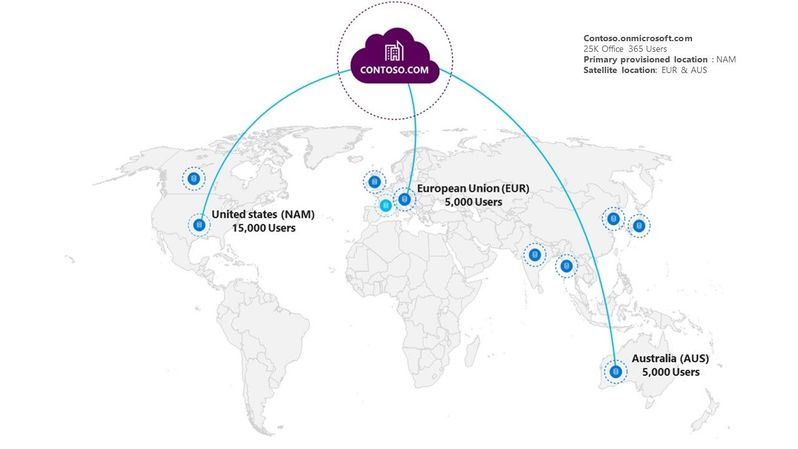
We’re excited to announce that Exchange admin audit logs are now available from all geo locations for Multi-Geo tenants in Office 365. This feature is only applicable for tenants utilizing Multi-Geo Capabilities in Microsoft 365 using Multi-Geo license.  In a Multi-Geo environment, a Microsoft 365 Tenant consists of a Primary provisioned location (where Microsoft 365 subscription was originally provisioned) and one or more satellite locations.


rtarunkumar_0-1681249082921.jpeg


Prior to the release of this feature, exchange admin audit events were available only for the Primary provisioned location. With the rollout of this feature, the exchange admin audit events are now available from satellite locations as well.


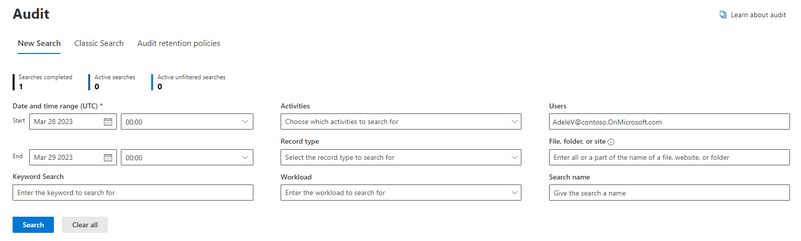
Tenant Admins can use Microsoft Purview and the Search-UnifiedAuditLog cmdlet to search the exchange admin audit log events generated from satellite locations. All tenants utilizing Multi-Geo Capabilities in Office 365 have this feature enabled by default if audit logging is turned on.


To verify that auditing is turned on for your organization, you can run the following command in Exchange Online PowerShell:


Get-AdminAuditLogConfig | Format-List UnifiedAuditLogIngestionEnabled


A value of True for the UnifiedAuditLogIngestionEnabled property indicates that auditing is turned on. A value of False indicates that auditing isn't turned on.


Let’s look at an example:

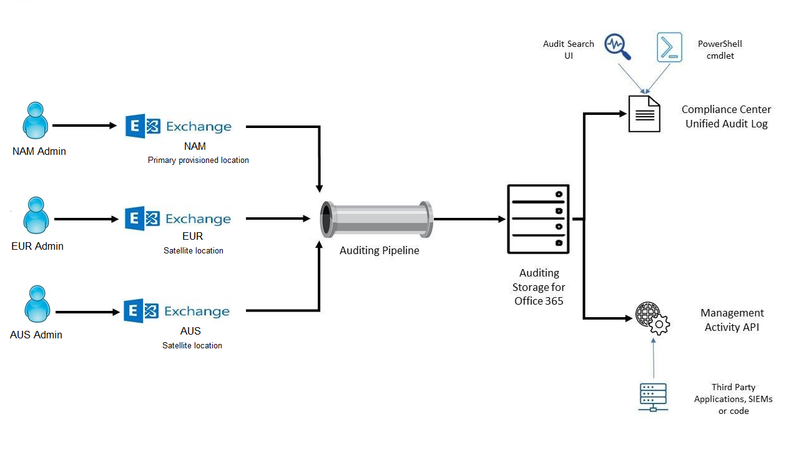
When EUR administrator changes the litigation hold on a mailbox using Set-Mailbox cmdlet, this event will be sent to Office 365 Audit storage via Auditing event pipeline.


PS C:\Users\euradmin> Set-Mailbox user@contoso.OnMicrosoft.com -LitigationHoldEnabled $false


rtarunkumar_1-1681249082939.png


Tenant administrators can use the following methods to search for this event:


Events can be searched between a specified date range, or the results can be filtered based on specific criteria, such as the user who performed the action or the target object.


$start = (Get-Date).AddDays(-1); $end = (Get-Date);

Search-UnifiedAuditLog -StartDate $start -EndDate $end -UserIds euradmin@contoso.OnMicrosoft.com


rtarunkumar_2-1681249082942.png


The Office 365 Management APIs provide a single extensibility platform for all Office 365 customers' and partners' management tasks, including service communications, security, compliance, reporting, and auditing.


Most auditing data will be available within 60-90 minutes, but it may take up to 24 hours after an event occurs for the corresponding audit log entry to be displayed in the search results. Refer Before you search the audit log that shows the time it takes for events in the different services to be available.


Note:

Exchange admin audit events from satellite location is not available through Search-AdminAuditLog.


Resources:

✇Microsoft Tech Community - Latest Blogs - Security, Compliance, and Identity Blog

Microsoft Priva: Helping you build a privacy resilient workplace.

Last week, the 2023 IAPP Global Privacy Summit was held in Washington DC. There, privacy professionals and leaders from around the world came together to promote learning and awareness for data privacy. IAPP GPS served as a platform for individuals and organizations to come together to put privacy at the forefront of business practices—showcasing that the right set of tools can help meet fast-paced privacy regulatory changes.  


Microsoft Priva

Microsoft Priva was launched in 2021 to help organizations in their privacy journeys. Microsoft Priva brings automated functionality to help organizations meet adapting privacy requirements related to personal data. Microsoft Priva solutions are:  

Priva Privacy Risk Management: Helps proactively identify and remediate privacy risks arising from data transfers, overexposure, and hoarding, and empowers information workers to make smart data handling decisions. 


Priva Subject Rights Requests: Helps manage subject rights requests at scale with automated data discovery and privacy issues detection, built-in review and redact capabilities, and secure collaboration workflows. 


What’s new with Priva Privacy Risk Management? 

Improved customization when creating policies. 

We are excited to announce that when configuring a data transfer policy, Priva Privacy Risk Management now enables organizations to define and customize boundaries using Azure Active Directory attributes. The ability to configure flexible boundaries is now generally available—these boundaries can be set by department and subsidiaries, Microsoft 365 Groups and SharePoint sites, and automatically detect and block personal data that crosses set boundaries. For example, when Bob from the US subsidiary tries to send personal data to Sam in the Germany subsidiary, the message can be automatically blocked with an option to override the policy.   


Alma_Bencomo_0-1681276784275.png

Figure 1. Options within Priva to choose boundaries for data transfer policies. 


When setting up policies in Priva, configuring alerts help privacy admins take action to remediate privacy risks. Now available is added customizability for setting alerts in Priva Privacy Risk Management. This can be especially useful as organizations might have different risk appetites or profiles when it comes to managing privacy data. With this update, admins can set up and customize alerts for high-risk violations—for instance, admins can set up an alert, like detecting and flagging incidents of large volumes of personal data or high impact regulatory personal data, and receive alerts based on their preferences. This functionality can help ensure that alerts are more relevant and thus easier to act upon. 


Alma_Bencomo_0-1681274450350.png

Figure 2. Alert customization options within the policy creation wizard in Priva Privacy Risk Management. 


Better together integration. 

Microsoft Purview Compliance Manager offers data protection and privacy assessment templates that correspond to compliance regulations and industry standards around the world. Now in preview is Microsoft Priva working hand in hand with Compliance Manager. With this update, admins can take specific actions within Microsoft Priva and see those actions reflected in their organization’s overall compliance score automatically. Additionally, it can detect whether admins have created data transfer, data minimization or data overexposure policies within Priva Privacy Risk Management, as well as enabling and enforcing data retention limits for data in Priva Subject Rights Requests—allowing for collaboration that yields better together productivity. 

 Alma_Bencomo_1-1681276866128.png

Figure 3. Visual of Compliance Manager recognizing actions taken within the Priva solution in the “improvement actions” section of Compliance Manager. 


Additionally, insights from Compliance Manager will populate within Priva itself. This update in preview will bring recommendations on actions that will help admins align to regulations and improve their score in compliance manager. 


What’s new with Priva Subject Rights Requests? 

Added capabilities accelerate review. 

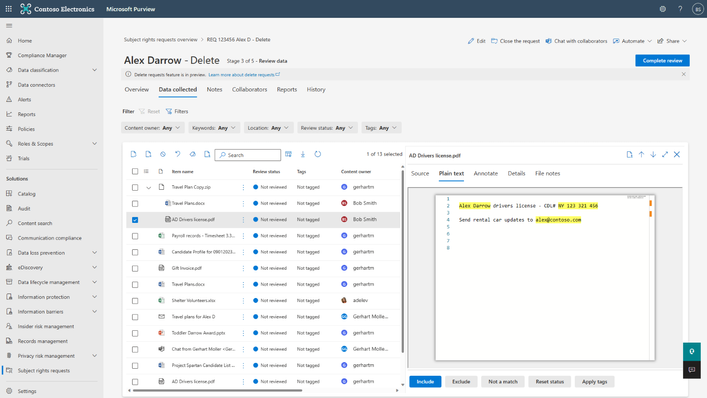
Priva Subject Rights Requests provides admins features that automate requests, so they can be fulfilled confidently, efficiently and at-scale. We are excited to share that Priva will now visually highlight data subject identifiers during review and enable admins to quickly navigate between these data subject references within content.  This update enables admins to better understand the context of how the data subject is mentioned and helps them determine relevancy to the request. 


Alma_Bencomo_2-1681276866140.png

Figure 4. Data subject identifiers highlighted within context on the “Plain Text” tab. 


Priva Subject Rights Requests has a new capability in preview to spotlight items collected with potential data governance implications within your organization.  This is powered by a new priority item detection type called “Record”.  


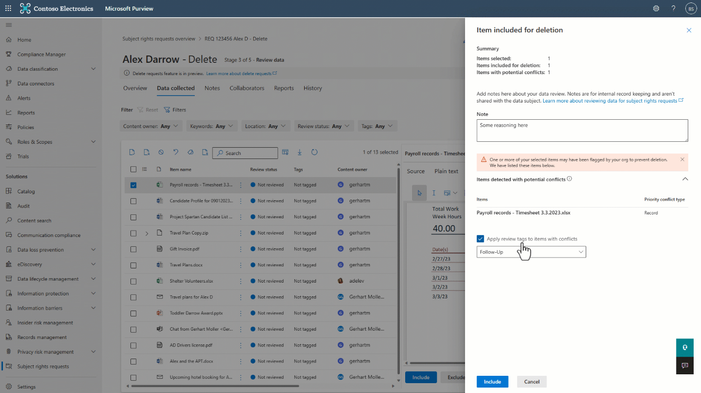
Your organization may be controlling retention on items that can directly conflict with a data subject’s delete request—we are enhancing our right to be forgotten preview capability to provide just in time awareness to collaborators during review when Priva detects an item with an applied retention label.  This comes with streamlined workflows that let you apply review tags and file notes to better facilitate collaboration with other SMEs in your organization to resolve conflicts.  Note: In addition to surfacing this insight during review, Priva Subject Rights Request will check for conflicts when executing the delete workflow as well.  


Alma_Bencomo_4-1681276866200.png

Figure 5. Tab populating within Priva where tags and notes can be applied. 


Newly released to general availability for Priva Subject Rights Requests is the ability for admins to focus their review with additional filters for data collected, including a powerful keyword filter. This allows admins to type in one or more word(s), and if matched in the collected content, it will filter to that. Previously, admins were only able to search for limited data, like documents titles. Now admins have improved options to focus their review experience with the ability to use powerful keyword searches and other filters to target content.  


Alma_Bencomo_6-1681276866189.png

Figure 6. Keyword search in progress within the data collected tab within the Priva solution. 


More flexibility to manage requests. 

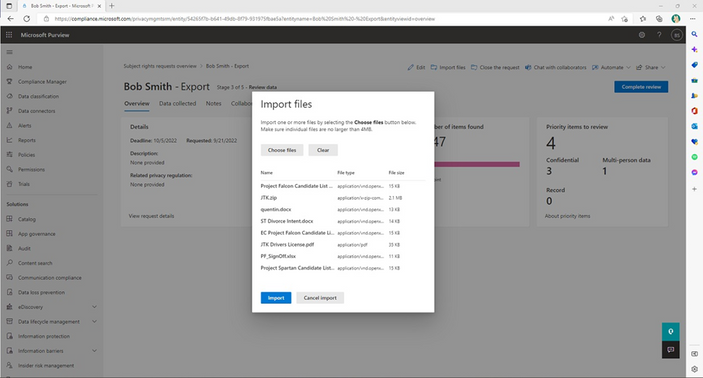
Now generally available is the ability for admins to import files from non-Microsoft 365 environments such as on-premises storage locations, or cloud-based systems where files exist for the data subject (individual files have a max limit of 500MB). This enables admins to consolidate response efforts and adds flexibility for imported data to leverage the review and collaboration features of Priva Subject Rights Requests. 


Alma_Bencomo_7-1681276866194.png

Figure 7. Icon in the upper right menu area of a request is accessible while in the "Review Data" stage, providing access to import files. 


In addition to importing non-M365 files, Priva Subject Rights Requests can now download items not supported by in-line review or annotation.  


Finally, the Microsoft Graph APIs for Priva subject rights requests provides functionality for organizations to automate repetitive tasks and integrate with existing line of business apps or business processes. You can use the Priva Subject Rights Requests API to help you automate and scale your organization's ability to perform subject rights requests searches in Microsoft 365 and help meet industry regulations more efficiently.  We have released the preview for right to be forgotten support for the Priva API.  If you’re new to working with the Microsoft Graph API, you can check out this video to get oriented on how to get started with the Priva API. 


Learn more 

Organizations today face many challenges in protecting personal data, while also meeting the demands of a changing privacy landscape—Microsoft Priva can help. We welcome you to learn more about Microsoft Priva by visiting our website and trying Microsoft Priva free with our 90-day trial. 


Did you know? The Microsoft 365 Roadmap is where you can get the latest updates on productivity apps and intelligent cloud services. Check out what features are in development or coming soon on the Microsoft 365 Roadmap. 

✇Microsoft Tech Community - Latest Blogs - Microsoft SharePoint Blog

Request external files into SharePoint document libraries

The magic of “requesting files” into Microsoft 365 started with OneDrive (Oct. 2019) providing users with a quick and secure way to request and collect files from anyone. And now we have extended the same capability for SharePoint – specifically requesting file into document libraries. Voila!


It is easy and safe. A file request can start from a link in your email signature (see below tip), a link in a chat, a hyperlink that is a part of your intake or onboarding processes with customers, clients, and vendors. For the recipient, it is a simple web interface to upload a file and send it. And for you, the file(s) arrive(s) without granting access to your SharePoint document libraries or other sites – just the ability to upload to a specific folder you manage and control.


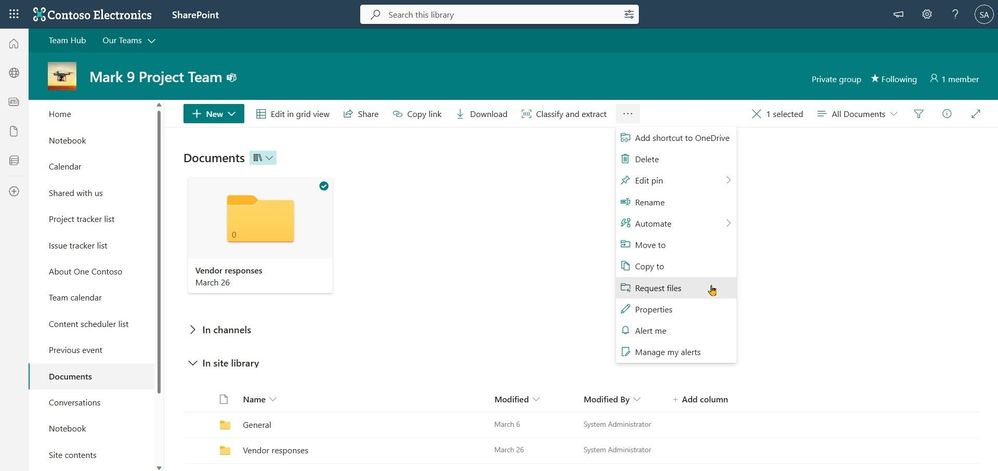
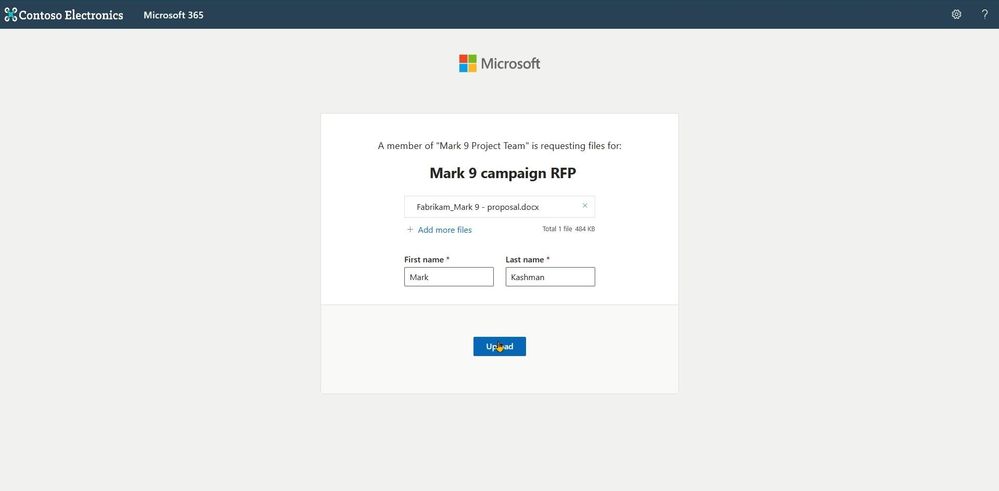
To start, you simply select a folder you want the recipient to place documents into and click Request Files. Fill in the name of the folder, and then type in the email address of the person you want to request files from. The recipient clicks on the link, picks her or his files, and uploads - only able to see the files they upload. The original requestor will get an email when new files are added - seeing the new files with the name of the person who uploaded them. Files requested - files done.


Look at it all in action:


Anyone with the file request link will be able to upload files without having to sign in, no Microsoft 365 account needed. Best of all, uploaders will only be able to upload files. They cannot view, edit, or even see who else may have uploaded to the request.


Once guest sharing is enabled, site owners and members can select a folder to request files into – after which you can send a unique link or email direct from the SharePoint user interface.Once guest sharing is enabled, site owners and members can select a folder to request files into – after which you can send a unique link or email direct from the SharePoint user interface.

There are multiple use cases where this feature can be extremely valuable – consider "Request for Proposal" (RFP) scenario where you need to collect bids, or a marketing professional accumulating quotes from various vendors for a campaign, a teacher collecting assignments, a manager reaching out for feedback from team members, collecting images and videos from an event, or a financial rep or recruiter gathering documents from their clients – just to name a few.


What a recipient sees when they click on a request files link – a web page with a simple browse and upload experience; no access or visibility to anything else in the sender's SharePoint environment.What a recipient sees when they click on a request files link – a web page with a simple browse and upload experience; no access or visibility to anything else in the sender's SharePoint environment.

Note | If Anyone links are enabled at the tenant level, request files are available. Admins can use the SharePoint Online Management Shell to disable or enable the Request Files feature on OneDrive or SharePoint sites. If there is no change in sharing capability for all sites, then the file request feature can be enabled.


Tip | Consider assigning a common folder for broader file requests. Once you set up the right folder within a SharePoint document library – use the request files link within your email signature with a simple phrase: “Send me a file” with the word ‘Send’ hyperlinked using your newly created request files link/URL.


Support.Microsoft.com | Learn more about requesting files to OneDrive and SharePoint, plus how admins can enable file requests.


Let us know what you think in the comments below. You can also reach us via Twitter (@SharePoint) and send future innovation requests to the SharePoint Feedback portal. We are here to expand content collaboration capabilities and refine your experience along the way.


Cheers and thanks, Irfan

✇Microsoft Tech Community - Latest Blogs - Security, Compliance, and Identity Blog

Microsoft Purview Information Protection in Microsoft 365 Apps - April 2023

Welcome back to the quarterly newsletter from Word, Excel, PowerPoint, and Outlook discussing what’s new and coming soon with sensitivity labels, powered by Microsoft Purview Information Protection. We pick up where we left off in January 2023.


From Bolt-On to Built-In: Recap

In March 2023,

  • We started rolling out to Current Channel the new configuration for M365 Apps that disables the AIP add-in by default, alongside a slew of new features that replace the capabilities of the add-in.


From Bolt-On to Built-In: April 2023

Using the various feedback channels and quality signals we rely on, we’ve been learning how this change is impacting customers who have already experienced the new configuration and features that launched in March.


We’re deeply grateful for the customer feedback so far and all our signals that point to improvements in app performance, reliability, and label-usage metrics. A HUGE thanks to all our customers who have participated in the preview channels and shared their feedback. :hearteyes:


As of today:

  • The new configuration in M365 that disables the AIP add-in by default is now fully available to all users in Current Channel.
  • For users on Monthly Enterprise Channel, we’re extending the start date by 1 month to give customers more time to evaluate their organization’s readiness and compatibility with the new changes
  • The AIP add-in enters its final phase in its support lifecycle with the announcement of its retirement timeline.

Please review the information below if your organization uses the Azure Information Protection (AIP) Add-in. The table summarizes the changes to the minimum version and dates for the new configuration. We're committed to helping organizations manage this transition at their own pace. If the release timeline isn't appropriate for you while the AIP add-in is in support, you can opt-out of the new configuration at any time, even if the Office build hasn't been deployed in your organization yet.


Unsure where to begin? Head to https://aka.ms/AIP2MIP/HowTo/GetStarted for resources and options to get added assistance.


Release Information

Original

(Revised March 2023)

New

(As of April 2023)

Beta Channel

Learn more about M365 Insiders

Target version: 2210+

Preview: Oct 12, 2022

GA: NA

No change

Current Channel

Learn more about CC

Target version: 2302+

Preview: Oct 2022

GA: March 14, 2023

No change

Monthly Enterprise Channel

Learn more about MEC

Target version: 2302+

Preview: NA

GA: Apr 11, 2023

Target version: 2303+ 

Preview: NA

GA: May 9, 2023

Semi Annual Enterprise Channel

Learn more about SAEC

Target version: 2302+

Preview: Mar 14, 2023

GA: Jul 11, 2023

No change


System administrators can review the Microsoft 365 admin message center for information about this update.


What’s New and Coming Soon

In case you missed it, check out What’s New with sensitivity labels alongside other new capabilities from Microsoft Purview. These features are exclusively available with the built-in labeling client for Office; none of these features are available with AIP Add-in. Review a complete list of features for built-in labeling and their availability on other platforms or release channels.


Check out many of these capabilities in action in this Microsoft Mechanics video!


To keep an eye out for upcoming capabilities that will help you organization transition from the AIP Add-in, take a look at our comparison guide that highlights features that are available in preview, in development, or in planning.


Get started today

Whether you’re a new customer starting to use sensitivity labels in Office for the first time or are transitioning from the legacy AIP Add-in, we invite you to review the playbook for an in-depth walkthrough of the migration process and relevant resources to help you plan the transition.


Need help?

If you have questions or need assistance with migrating to the built-in sensitivity labeling client, leverage your Microsoft account team.

✇Microsoft Tech Community - Latest Blogs - Security, Compliance, and Identity Blog

Retirement notification for the Azure Information Protection Unified Labeling add-in for Office

The Azure Information Protection (AIP) Unified Labeling add-in for Office has been in-market for close to eight years. In that time, it has grown in functionality and usage, becoming deeply embedded in the information protection strategy for thousands of organizations and used daily by millions of users. Since October 2019, Microsoft 365 Apps for Enterprise has been building the same functionality into Word, Excel, PowerPoint, and Outlook and has expanded sensitivity labels across Windows, Mac, Web, and Mobile for a comprehensive, consistent, and seamless experience for end-users and admins. Microsoft 365 Apps now have most of the capabilities found in the AIP Unified Labeling add-in for Office, as well as advanced capabilities not possible with the AIP Unified Labeling add-in for Office.


We are officially announcing the retirement of the AIP Unified Labeling add-in for Office and starting the 12-month clock, after which it will reach retirement on April 11, 2024. All customers with Azure Information Protection service plans will also receive a Message Center post with this announcement.

In this blog post we will cover some essential information that you should know about the retirement along with resources to help the transition and ways to reach out about additional questions you may have. Read all the way to the end, and do not hesitate to reach out for help.


Q.  What is the replacement for the AIP Unified Labeling add-in for Office apps?

Since we are talking about Office apps, we now have sensitivity labeling built directly into Office apps – with no need for an add-in on Windows. Learn more about migrating to Office built-in labeling. You will need to deploy a subscription edition of Office (now called Microsoft 365 Apps) as built-in labeling is not available with standalone editions of Office (sometimes called “Office Perpetual”).


Q.  What will happen to the AIP Unified Labeling client? Will the AIP Viewer on Windows go away?

We are focused on retiring only the add-in for Office apps for Windows. As we called out in the last modernization blog post, all the other capabilities you use will continue to be supported. To be explicit, we are not retiring the AIP Viewers on Windows/iOS/Android, the AIP PowerShell extension, the right-click Classify & Protect, or the Scanner.

Once the AIP Unified Labeling add-in for Office has reached retirement following the 12-month period, it will be removed from the Download Center package – leaving the other components of the package as-is. Over time we will rebrand these other capabilities under Microsoft Purview, and we continue to recommend using these to cover your labeling scenarios outside of Office apps.


Q.  Why are you doing this? Why now?

Those of you who have been with us since the early days of the add-in have seen this journey play out once already with the AIP Classic add-in as it was replaced with the AIP Unified Labeling add-in. The standard procedure was to have both versions available in-parallel for a while, then put one in maintenance mode while all updates went to the new version, and then eventually retire the older version.

We are now repeating that process with the AIP Unified Labeling add-in and Office built-in labeling: both have been available in-parallel for a while, we then set the AIP Unified Labeling add-in in maintenance mode on January 1, 2022, and put our energies toward Office built-in labeling, and now we are retiring the AIP Unified Labeling add-in. 

We have reached a point with the Office built-in labeling where it can take over from the AIP Unified Labeling add-in, providing better performance, reliability, data classification, and other advanced feature capabilities not possible with the add-in. In most cases, customers can disable the add-in without impacting functionality, resulting in a behavior that is consistent across platforms and is geared towards the additional of advanced capabilities now and in the future.


Q.  How do I start planning for this change?

The best resource is the migration playbook at https://aka.ms/AIP2MIP/HowTo/GetStarted. It has a five-step guide to help you learn, evaluate, and execute the replacement of the add-in.


Q.  Is it as simple as turning off the AIP Unified Labeling add-in for Office?

For a lot of customers – yes, it is that simple. We have worked to provide feature parity between the add-in and Office built-in labeling. With Microsoft 365 Apps version 2302 we are also switching to built-in labeling by default, and customers must explicitly opt-out to continue using the add-in. 

However, there are differences that need to be accounted for. For example, the look and feel of the labeling experience in Office is different from the labeling experience in the add-in. Your users might need to be made aware of these differences beforehand and might need additional training. All this can add calendar time to your migration even if the actual switch-over is simple.

If there are capabilities in the add-in being actively used and are not yet available in Office built-in labeling, the migration playbook will help you understand the roadmap and delivery date for these features. If you cannot find what you are looking for, reach out to your Microsoft account team or to Microsoft Support to get help.

Our recommendation is to use the self-evaluation questionnaire and the migration playbook extensively. Try out the features too. You will quickly get an idea of where you should devote your planning energy to get the best ROI.


Q. About this 12-month period – does it apply to everyone? What if I need more time?
Yes - this retirement notification applies to every AIP customer. After the standard 12-month timeframe, the add-in is retired, and customers will not be able to use the add-in with sensitivity labels. We expect most of our customers to migrate to Office built-in labeling within this timeframe.
However, there will be exceptions:

  1. Customers using AIP in China do not have a specific retirement date yet and will be informed about their specific retirement date in a future message center post.
  2. Customers with complex AIP deployments can request an extension through Microsoft Support or through their Microsoft account team. NOTE: Granting the extension is not automatic.


Q. I need more help, who can I reach out to?
Depending on your size and the complexity of your environment, you have a few options:

  • Reach out to your Microsoft account team.
  • Reach out to Microsoft FastTrack and request help with the migration.
  • Reach out to Microsoft Support with specific questions.
  • Reach out to Microsoft MVPs who specialize in Information Protection.
  • Use the Information Protection Yammer group (NDA customers only) to reach out directly to the product group and leverage the community for answers.
  • Reach out to AIP2MIPGetHelp@microsoft.com distribution list that is being monitored by the product group.


✇Microsoft Tech Community - Latest Blogs - Microsoft Teams Blog

Oh, Snap! Let Your Silly Side Shine with Snapchat Lenses for Microsoft Teams

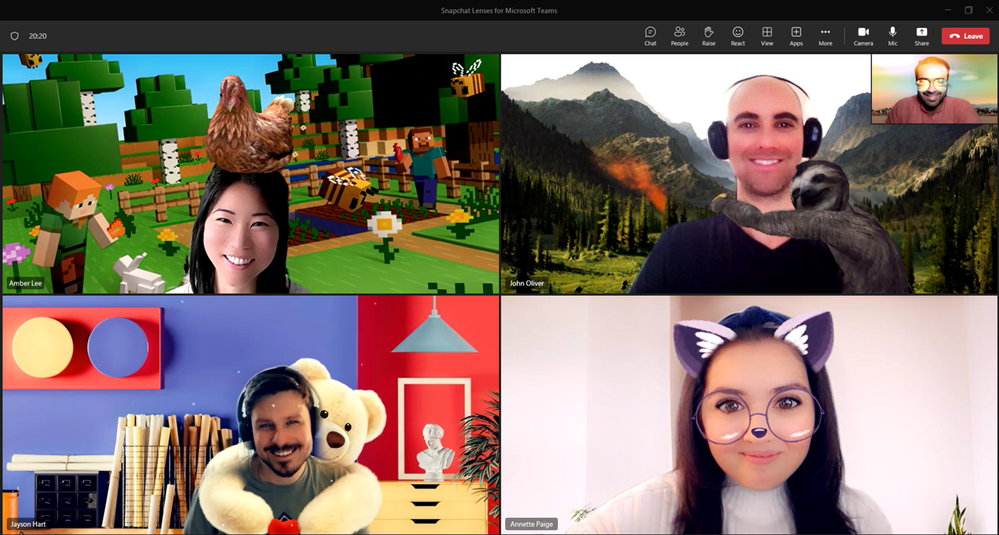
A shower of hearts, a sloth’s warm embrace, or a chicken on your head. It sounds like a fun, eclectic party! Good news, it CAN be—in your next work meeting through Snapchat Lenses for Microsoft Teams.


Starting this week, a collection of 20+ of the most popular Snapchat Lenses are available to Teams customers globally*, giving you more ways to express yourself, build relationships and let your meetings shine. Ahem, cue the Sunglasses Lens. Or better yet, check out Bear in Love, Cat on Head, or the Sunset Lenses. And did you know video calls make up 78% of positive memories in meetings?** Why not use Lenses to share more of your personality during your next Teams meeting and create connections with your coworkers that are, dare I say, memorable?


The key advantage of Snapchat Lenses for Teams is its direct integration. No need to download anything or add a new app to Teams; it’s already available and ready for you to try!

SnapChat in Teams.png


Teams is your modern workplace, now smarter with AI, for 280 million people worldwide. And it just got a whole lot more entertaining with the integration of Snapchat Lenses, made possible by Snap's Camera Kit. Lenses allow users to add augmented reality (AR) effects to video calls, bringing livelier human interaction to meetings. AR captures and processes information about our physical environment and then overlays it with virtual objects and information, allowing us to see and experience the world in a different way. Since AR uses cameras, sensors, and displays, which are already built into video conferencing, it is a perfect and seamless fit with Teams.


How to get started using Snapchat Lenses for Teams

Before your next meeting:

  1. Click “Video Effects”
  2. Then “More Video Effects”
  3. Scroll down in the right pane and select “Snapchat” under the “Filters” category
  4. Scroll down to view all and select your favorite Lens
  5. Click “Join now”

SnapChat in Microsoft Teams.png


If you already joined a meeting and want to choose a filter:

  1. Click “More…” at the top of your meeting screen
  2. Click “Video Effects”
  3. Scroll down in the right pane and select "Snapchat” under the “Filters” category
  4. Scroll down to view all and select your favorite Lens
  5. Click “Preview” to see your selected Lens without others viewing yet or “Apply” to turn on your favorite Lens


Lenses give you an easy way to show your personality or mood—from silly to sweet—through the power of AR. There are Lenses that make you look like a cartoon character, Lenses that add quirky backgrounds like Airy Sparkles to your video feed, and Lenses that let you show up as a Fungi, or... “fun guy?” With so many options to choose from, it's easy to find a Lens that suits your personality and sense of humor.


Enhance your meetings and bring levity to any situation—use a wacky Lens as the perfect way to break the ice. If you're meeting a new team member for the first time or want to get creative juices flowing on a project, use a Lens to put square glasses on your face, add a snowy background, or turn your co-worker into a stallion…er, horse. It will lighten the mood, create connections and make everyone feel more comfortable.


But wait, not wanting any funny business on a call? No problem. Snapchat Lenses are completely optional. If you prefer to keep your video feed free of effects, you can simply choose not to use them. You can also try out the “smooth look” filter for a “glow up” to show up polished and camera-ready—no animations included.


Snapchat Lenses are a witty and lighthearted addition to the world’s leading communication platform. Whether you're using them to get to know coworkers better or simply express yourself in a new way, Snapchat Lenses are sure to bring a smile to your work day. Add some sunshine, cloud freckles, or a sparkling aura to your next Teams meeting. Try them out starting this week!


This feature is built keeping privacy and compliance in mind. We have ensured that –

1. The tenant admin has the control to enable/disable the video filter apps’ availability in their tenant. These apps are enabled by default.

a. Refer to Manage your apps in the Microsoft Teams admin center to disable these apps

2. The tenant admin cannot pre-install these apps as they require explicit user consent.
3. Before using the filters, you will need to provide explicit consent to the app to access your video feed.
4. You can turn off these filters by uninstalling the filter app.


*Available for Teams for Work customers on desktop and Mac only; web version and mobile to come, as well as EDU
**FY22 H2 ABTS report
***Only available for “classic” Teams at this time; will be available in new Teams by calendar year-end

****If your domain is blocked, please contact your IT administrator

✇Microsoft Tech Community - Latest Blogs - Microsoft Teams Blog

How are ISVs growing their businesses with Microsoft Teams?

Independent software vendors (ISVs) across the world are finding are finding new ways to grow their businesses with Microsoft Teams. Building on the recent blog post that dives deep into an example from Mural, we’d like to share examples from other ISVs across the globe so you can learn how they meeting unique customer demands, thriving with new business models, and making money from their Teams experiences. Here are three ways ISVs are growing their businesses with Teams.


1. ISVs are excelling by meeting unique customer and market needs

Microsoft Teams enables ISVs to fulfil specific use cases that are unique to their markets. For example, Japanese start-up Communitio launched TeamSticker on Teams, a recognition and peer bonus communication tool where employees can easily send praise badges as recognition to their peers. Since the onset of the pandemic there has been a demand for employee engagement solutions. Communitio recognized the Teams platform as an opportunity for growth and has been able to generate significant revenue for their business.


Another ISV meeting their unique market needs is a Japanese start-up called PKSHA Workplace Inc. They’ve been able to land more than 20 large enterprise deals with their BEDORE app on Teams.


Microsoft Teams has enabled new business opportunities for many ISVs. The co-founders of WorkplaceBuddy wanted to drive higher engagement for Microsoft 365 products. Having witnessed the growth of Teams they launched WorkplaceBuddy to help companies upskill their employees on Microsoft 365. On average, their customers consume more than 444 minutes of video training every day, five million questions have been answered so far, and there has been more than 94% positive feedback on the learning videos.


2. ISVs are enabling new business models

Microsoft Teams is also enabling ISVs to launch & drive growth via new business models. Kickle identified Teams as an ideal platform to launch their ISV business. With remote work becoming more prevalent during the pandemic, Kickle saw an opportunity to solve the new hybrid workplace management need and launched Waldo on Teams. Waldo is a desk sharing and parking reservation solution native to Teams. After the pandemic with the ongoing hybrid work trend, the solution has continued to grow and monetize via Teams. With their innovative solution, Kickle and Waldo received the prize for Microsoft France Start-up of the Year 2022.


Another example of an ISV that’s thriving with their business model is Creately. They have over a decade of experience in the visual collaboration space and chose Teams to further its mission of helping teams think and work visually. Creately equips organizations with the right set of collaboration tools to help them achieve their creative potential with a unique unlimited user plan that offers a seamless collaborative experience.


The launch of Social Advocacy on Teams has been a success for Oktopost, with the ISV realizing monetary gains and deals amounting to more than a million in ARR, which has help pave the way for the ISV to capture larger enterprise deals, with a business model of unlimited users to increase the application’s usage.


Finally, Monday.com has also seen immense success on Teams with their business model, with some of the largest fortune 500 customers using their collaborative app.


3. ISVs are making money from their Teams apps

In 2020, TeamViewer partnered with Microsoft to enhance the Teams experience with TeamViewer's cross-platform remote control, augmented reality (AR) remote assistance, and shared remote access to devices and development environments thereby empowering the IT and support teams to support the internal employees and external customers.

TeamViewer.png


In January 2022, TeamViewer monetized this integration on Microsoft Marketplace and defined their first TSaaS offer, achieving $670K USD of Marketplace revenue from July 2022 to March 2023. Over 10,000 companies are using this integration, empowering their employees to be more efficient and productive. Every month, over 30,000 thousand users initiate TeamViewer powered remote connections in Teams to resolve their issues more efficiently.


Overall, ISVs are seeing tremendous benefits to their Microsoft Teams experiences. Learn how you can build collaborative apps and help grow your business with Microsoft Teams.

✇Microsoft Tech Community - Latest Blogs - Yammer Blog

Introducing Viva Engage, now on iOS and Android!

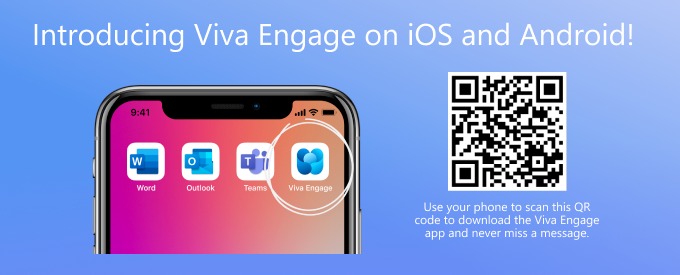
We are excited to announce that the Yammer mobile app has now been rebranded as the Viva Engage mobile app! Following the Yammer Communities app in Teams and Outlook rebranding, our mobile app will now reflect the same to align Yammer more closely with our Viva suite of employee experiences


With the new Viva Engage app on iOS and Android, you can stay connected with your colleagues, get updates on important projects, and share information easily, all from your mobile device. The app comes with a modern interface, support for device-specific features, and an improved user experience.  


evelynchan_0-1680904622057.png


Now, whether a user visits to Yammer.com or experiences the Viva Engage app in Teams, they will see the same content and communities directly from their mobile device.


With Viva Engage on iOS and Android, you can: 

  • Receive important messages and announcements 
  • Discover communities and conversations happening across your network
  • Upload pictures and videos, directly from your photo album 
  • React to messages and preview media right from the notifications
  • View Live Events while using other apps 
  • Drag and drop across apps to easily compose messages

For more information on how to set up Viva Engage on your mobile device, click here


To see the rebranded experience, update your Yammer mobile app. Or you can download the app on the App Store or Google Play and see the latest version.  


evelynchan_0-1681142652199.png


Viva Engage on the Play Store - Viva Engage (Yammer) - Apps on Google Play 

Viva Engage on the App Store - Viva Engage (Yammer) on the App Store (apple.com) 


The App Store and Play Store listings will continue to carry a reference to Yammer, as will the push notifications until Yammer.com is rebranded later this year. 


Existing Yammer (Viva Engage) mobile app users:  

Prior to updating, the Yammer app will continue to function like before! It is the same app, the rebranded experience will just come as a newer version of it. Existing installations will update depending on what your app settings are, either via auto-updates or you will need to manually update the app to see the rebrand. Once you have updated your app, you will notice the new Viva Engage branding and updated features. 


We are confident that you will enjoy the new Viva Engage mobile app and look forward to hearing your feedback.  

✇Microsoft Tech Community - Latest Blogs - Microsoft SharePoint Blog

Develop Applications that use Sites.Selected permissions for SPO sites.

Develop Applications that use Sites.Selected permissions for SPO sites. 


Microsoft Graph APIs have improved consistently over the years.


In 2021, one highly demanded feature, Application Only or granular access to individual site instead of whole tenant, was implemented, this scope is called “Sites.Selected”.


Initially, for this scope, there are two permission levels that can assigned to the Applications, “read” and “write.”


Some customers found there are management tasks cannot be executed with even “write” permission level. To address that, “fullcontrol” and “manage” permission level was added this year.


Here are the steps to implement App Only Sites.Selected permissions:


Step I, Register AAD Application in Azure Portal, https://portal.azure.com, and let’s call this Application “Target Application”.


Please see these articles for details:
Quickstart: Register an app in the Microsoft identity platform - Microsoft Entra | Microsoft Learn
Tutorial: Register an app with Azure Active Directory (Microsoft Dataverse) - Power Apps | Microsoft...

Once you registered the Target Application, copy below information to a text file:
Display name: Contoso Time Manager App
Client Id: d806f38b-a107****-1ec8e90c8ccc
Client Secret: XZW8Q*****855JDEw1cxP
Directory(tenant) ID: 31********95c59c1b


Step II, Give Target Application the permission for Graph API and/or SharePoint API in Azure Portal depending on whether you will access the site resource with
Graph API, like, 
https://graph.microsoft.com/v1.0/...
or SharePoint Rest API, like, https://contoso.sharepoint.com/sites/demo/_api/...
 

If you need to use Graph API to access SharePoint, you give Graph API permissions.

SPDev_Support_0-1680913069759.png


If you need to use SharePoint APIs, for example, SPO Rest API, SPO CSOM, you give SharePoint API permissions.

SPDev_Support_1-1680913069765.png


Step III, Use Graph API endpoint listed in this article, https://learn.microsoft.com/en-us/graph/api/site-post-permissions?view=graph-rest-1.0&tabs=http , to assign Target Application the permission to specific SharePoint Online site.


POST https://graph.microsoft.com/v1.0/sites/{sitesId}/permissions
Content-Type: application/json{ 
 "roles": ["write"],
 "grantedToIdentities": [{
    "application": {
      "id": "89ea5c94-7736-4e25-95ad-3fa95f62b66e",  //Target Application’s Client Id
      "displayName": "Contoso Time Manager App"       //Target Application’s Display name
    }
  }]
}


The import thing is, to do that, you need to have another Application which has Sites.FullControl.All permission for Graph API, then you get an App Only AccessToken with this Application’s identity and you can make above call with Authorization Header, the value is “Bearer {tokenvalue}”.


Below is Fiddler Trace of the Graph API call to assign permission for the target Application:

SPDev_Support_2-1680913069776.png


POST https://graph.microsoft.com/v1.0/sites/fb1e20f2-56fc-4eb7-ae1d-a97804d224e2/permissions HTTP/1.1
Authorization: Bearer eyJ0eXAiOiJKV8CJY2R……………qtlW1WoBXu3fdR8G7R-
Accept: application/json
User-Agent: NONISV|SharePointPnP|PnPCore/1.11.2.0 (Microsoft Windows NT 10.0.22621.0)
Content-Type: application/json
Host: graph.microsoft.com
Content-Length: 132

{"roles":["write"],"grantedToIdentities":[{"application":{"id":"ea5f05ef-2a5c-418b-b679-0380b3e83fd3","displayName":"aadAppOnly"}}]}


Now, your Target Application has been given the permission to the specific site successfully!


If you have chosen Graph API Sites.Selected Application permission, you can use Graph API to access the site.


If you have chosen SharePoint Sites.Selected Application permission, you can use SharePoint Rest API or CSOM to access the site.

NOTE, For SharePoint APIs, you cannot use just client secret to do the authentication, you have to setup certificate to gain Access Token.


A. Graph API Test Run:


To Test the access to specific site, you can use following sample PowerShell script to get App Only Access Token and retrieve the site with Graph API, see reference https://learn.microsoft.com/en-us/graph/api/site-get?view=graph-rest-1.0&tabs=http


#AAD AppOnly for Graph API
$tenantId="{tenantId}"
$aadClientId = "{clientId}"
$aadClientSecret = "{clientSecret}"

$scopes =  "https://graph.microsoft.com/.default"
$loginURL = "https://login.microsoftonline.com/$tenantId/oauth2/v2.0/token"
$body = @{grant_type="client_credentials";client_id=$aadClientId;client_secret=$aadClientSecret;scope=$scopes}

$Token = Invoke-RestMethod -Method Post -Uri $loginURL -Body $body
$Token.access_token  #expires after one hour
$headerParams  = @{'Authorization'="$($Token.token_type) $($Token.access_token)"}
$headerParams

#Graph API call to get site
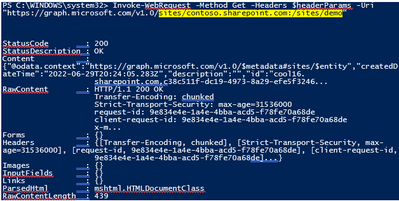
Invoke-WebRequest -Method Get -Headers $headerParams -Uri "https://graph.microsoft.com/v1.0/sites/contoso.sharepoint.com:/sites/demo"


Response:


SPDev_Support_3-1680913069781.png


If you try to access another site that permission has not been given to, you will get error (403) Forbidden.:

SPDev_Support_4-1680913069784.png


B. SharePoint API Access:


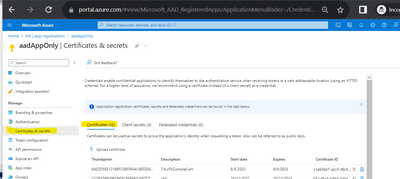
To make App only SPO REST and CSOM calls, you will need to generate certificates and upload the public key (.cer file) to Azure - App Registration – App – Certificates & secrets:


SPDev_Support_5-1680913069787.png


The simplest test script using PnP commands: ReferenceConnect-PnPOnline | PnP PowerShell

$aadClientId = "*"
$SiteURL = https://contoso.sharepoint.com/sites/demo
$secure = ConvertTo-SecureString "***" -AsPlainText –Force

Connect-PnPOnline -Url $SiteURL -CertificatePath c:\..\test.pfx -Tenant contoso.onmicrosoft.com -ClientId $aadClientId  -CertificatePassword $Secure   

Get-PnPSite

In other programming languages, you can use MSAL library to get the App Only Access Token with certificate through client credential flow, then you can attach that Token for the web requests, see reference: https://learn.microsoft.com/en-us/azure/active-directory/develop/sample-v2-code.


✇Microsoft Tech Community - Latest Blogs - Exchange Team Blog

Update: Deprecation of Client Access Rules in Exchange Online

Last September, we announced the deprecation of Client Access Rules (CARs) in Exchange Online. CARs allow admins to control which devices can access their organization's mailboxes. It was introduced in 2017 as a way to provide granular access control based on client properties such as IP addresses, protocol, or application.

In October 2022, we disabled CARs cmdlets for tenants that were not using CARs. This was done to reduce the complexity and confusion around CARs and to encourage the adoption of newer and more secure features like Azure Active Directory (AAD) Conditional Access and Continuous access evaluation (CAE).

We have been working with customers to learn how they use CARs and how they can migrate to these newer features, but we have encountered a few scenarios where it's not possible to migrate current rules. For these scenarios, we will allow the use of CARs beyond the previously announced September 2023 deadline until we can support them.

We understand that migrating from CARs to Conditional Access and CAE requires some planning and testing, and we are here to help you with this process. If there is a technical reason preventing you from migrating your CARs, please open a support ticket so we can investigate and understand your needs.

Our updated CARs deprecation timeline is as follows:

CARsUpdate01.jpg

Resources

The Exchange Team

✇Microsoft Tech Community - Latest Blogs - Microsoft Teams Blog

Signature Microsoft Teams Rooms: A more inclusive and collaborative vision for hybrid meeting rooms

Flexible work has replaced hybrid work in our lexicon here at Microsoft. Rather than a simple equation of X days in office + Y days working remotely = 1 hybrid week, we have now adopted a model that is fluid and flexible, and customized for each individual’s and team’s productivity. Most meetings, however, meet the traditional definition of hybrid work, with a mix of attendees in person and remote.


The opportunity to improve hybrid meeting experiences so that they better meet the needs of our flexible workforce started as a collaboration between the Microsoft Teams product group and Microsoft’s internal IT organization. Through prototypes, experimentation, and a focus on real-world hybrid experiences, Signature Microsoft Teams Rooms emerged as an innovative new way to design hybrid-optimized spaces.


Watch the video to see how we use Signature Teams Rooms on the Microsoft campus today, and then read on to learn more about what makes them great hybrid meeting spaces:


“It’s been quite the journey over the last few years. We’re very much in a hybrid world,” says Keshav Puttaswamy, a partner director of product management with Microsoft Digital Employee Experience (MDEE), an internal IT organization. “We place a lot of importance on flexibility. We want to make sure our employees are able to do their best work wherever they are.”


“Signature Microsoft Teams Rooms are a powerful tool for us to fully embrace this hybrid experience,” Puttaswamy says.


Finding the best of both worlds

A more inclusive experience for everyone in a hybrid meeting was one of the primary motivating factors behind the evolution of Signature Teams Rooms.


“We’re all used to seeing a room with a rectangular table in the middle and a screen on one end,” Puttaswamy says. “What we’re seeing with hybrid is different needs emerging for employees, and traditional rooms aren’t necessarily the best experience for all meeting types.”
Where a traditional space can create connection between people in the room, remote attendees may not be able to track the subtle nuance that comes with being able to see everyone’s faces and body language. And likewise, people in the room may find it easier to focus attention on people sitting around the table, to the exclusion of remote attendees on the display. A hybrid space should be able serve both worlds.


“When I think about Signature Microsoft Teams Rooms, I just think about trying to build the workplace that our employees really want to be in,” says Matt Hempey, a principal group product manager who supports engagement and collaboration in MDEE. “We know much of our work gets done in meetings, so why shouldn’t we rethink this space where we spend so much our time?”


Built with a concise arrangement of displays, cameras, audio devices, and specialized tables, Signature Microsoft Teams Rooms makes a better hybrid meeting experience for all attendees, no matter where they join a meeting from.


Furniture is arranged so that all attendees, whether in-person or remote, face each other. Designed for hybrid meetings, the Front Row display option available in Teams Rooms presents remote attendees front-and-center and at eye-level with in-room participants.


Displays with a 21:9 aspect ratio mean there’s enough space on the screen to project content, remote attendees, and chat space — it’s what we refer to as “the meeting within the meeting”. This enables in-person attendees to follow along with the chat, without having to divert their attention to their PC screens.

Example of a small-sized Signature Microsoft Teams RoomExample of a small-sized Signature Microsoft Teams Room


Example of a medium-sized Signature Microsoft Teams RoomExample of a medium-sized Signature Microsoft Teams Room


“[In a meeting room, there are] body language cues when you want to speak. You’ll lean into the table and everybody around you knows that you want to say something,” says Greg Baribault, Head of Product for Microsoft Teams Rooms. “If you look at the layout of a Signature Teams Room, the physical space itself is designed to facilitate that sort of intuition for the remote participant.”


Those participating virtually benefit from the room’s AI-powered intelligent cameras. Instead of a single camera feed of a large room filled with small, unidentifiable faces, some AI cameras can identify participants in the room and present them to remote attendees as individuals in the meeting. In the room, in-person participants who have also joined the meeting via their companion device don’t see themselves on the room display, which can be disconcerting. The experience for each person is somewhat personalized, designed for how they’re joining the meeting.


“Some of these features are being driven from the platform, Microsoft Teams,” says Sam Albert, a principal product manager responsible for conference room experiences at MDEE. “Features like spatial audio with Front Row make it feel like the remote participants are in the room with you, and audio is coming from where people are speaking.” This same technology can light up names of speakers and identify individuals in transcripts.


Upgrading everyone’s experience

Deploying Signature Teams Rooms as part of your meeting rooms mix in new construction makes sense. “From a new construction perspective, building a Signature Teams Room is no more expensive and no more complicated than building any meeting room,” Hempey says.


For existing real estate, a change of furniture or a refresh to some room components may be enough to improve the hybrid experience. “We’re very thoughtful around what we can do with the existing rooms, so we look at more creative ways to bring the benefits of Signature Microsoft Teams Rooms to everyone,” Puttaswamy says. “Even equipping an existing room with a new table shaped more like a guitar pick or gumdrop enables meeting room attendees to face remote attendees without changing out lighting and other heavy construction costs.”


Guidelines around the principles to design meeting room spaces – both traditional rooms and Signature rooms – are available to everyone.


“We want to make it as easy as possible for our customers to build these experiences on their own campuses,” Albert says. “All of the technology that we’re putting in our conferences rooms today use Microsoft Teams-certified devices. They’ve been rigorously tested and we work closely with all our hardware partners, so we can take different components and also have some flexibility.”


The workplace continues to evolve, with flexible work now encompassing a wide range of employee experiences. Whether it’s a Signature Teams Room or a traditional Teams Room, Microsoft is focused on delivering on the promise of what a workplace can be for its employees. This includes building out the toolbox to improve hybrid meeting experiences, and enabling the connections that help business succeed.

✇Microsoft Tech Community - Latest Blogs - Security, Compliance, and Identity Blog

Microsoft Information Protection SDK 1.13: Now Available!

We're pleased to announce that the Microsoft Information Protection SDK version 1.13 is now generally available via NuGet and Download Center.


In this release of the Microsoft Information Protection SDK, we've focused on adding preview support for offline publishing and have made changes in how MIP SDK consumes Office documents and emails protected with AES in cipher block chaining (CBC) mode.


Offline Publishing

Until now, applying protection to a file required an online call to fetch a publishing license from the rights management service. In MIP SDK 1.13, we've added public preview support to enable offline publishing. Now, after making an initial connection to the service, the client no longer needs to have internet connectivity or make a service call to protect content. This feature is in public preview for the 1.13 release.


To learn more, check out the MIP SDK documentation: https://aka.ms/mipsdkofflinepublishing 


CBC Mode Updates

We've made updates to how MIP SDK consumes and publishes Office files, including Word, Excel, and PowerPoint documents as well as emails protected by Microsoft Purview Information Protection. In the second half of 2023, M365 Apps on Current Channel and Monthly Enterprise Channel, Exchange Online, and SharePoint Online will default to publishing Office documents and emails using 256-bit AES encryption in CBC mode.  Applications using the Microsoft Information Protection File SDK must be updated to version 1.13 to support consumption of these files. 


For a full list of changes to the SDK, please review our change log.


Links

✇Microsoft Tech Community - Latest Blogs - Security, Compliance, and Identity Blog

Public preview: Programmatically interact with Microsoft Purview workflows using APIs and SDKs

To increase our developer experience landscape and to allow customers to interact and extend Microsoft Purview functionality using software technologies and tools in their organization, we are happy to announce that REST APIs and SDKs for workflow data plane in public preview. Software engineers or developers in your organization can now leverage these APIs/SDKs to programmatically create or update a workflow, submit a workflow, approve or reject an action, update or re-assign an approval or task action, list or cancel workflow runs, and more.


In order to use any Microsoft Purview data plane APIs you need to first create a service principal and assign it to the right Microsoft Purview role before invoking the APIs. This is needed to establish trust between the service principal and the Microsoft Purview account. For example, to create a new self-service data access request workflow and bind the same to root collection, you need to provide 'Workflow Admin' role to the service principal at the root collection level. 


This tutorial covers details on how to create service principal, set up authentication using the service principal, get token and use the token to call Microsoft Purview data plane APIs.


To get started with workflow data plane APIs and SDK's please see the below links:

  • Workflow data plane APIs, see here.
  • Workflow data plane C# SDK, see here.
  • Workflow data plane Java SDK, see here.
  • Workflow data plane Python SDK, see here.
  • Workflow data plane Java script SDK, see here.
✇Microsoft Tech Community - Latest Blogs - Microsoft SharePoint Blog

SharePoint Roadmap Pitstop: March 2023

March 2023 brought both new updates and big announcements – spanning the value of AI, becoming acquainted with a zippier Teams, and we got even Loop’ier. Keep scrolling to listed to the podcast episode and learn more about each feature below.


In this episode, we cover the following March updates: File web part now: “File and Media”, Viva Connections on iPad, Microsoft Edge + Adobe Acrobat PDF Engine, Microsoft Lists + Approvals app in Teams, OneDrive: Favorite/Unfavorite, Suggested files in 1:1 chat, Microsoft Word: Send to Kindle, and more.


We have two guests on the podcast: 1) Matt McKenzie, Director of Microsoft 365 product marketing, shares insights about the upcoming Microsoft 365 Conference in Vegas (May 2-3), and 2) Sudha Narayanan explains how Microsoft Lists supports approval scenarios natively within info tracking incorporating the Approvals app in Teams. Plus, our related tech segment highlights three big disclosures: 1) Microsoft 365 Copilot, 2) the Loop app (Public Preview), and the New Teams app (Public Preview) #Speed.


The Intrazone – SharePoint roadmap pitstop: March 2023

The Intrazone guests, left-to-right: Matt McKenzie (Director of product marketing – Microsoft) and Sudha Narayanan (Senior product manager – Microsoft).The Intrazone guests, left-to-right: Matt McKenzie (Director of product marketing – Microsoft) and Sudha Narayanan (Senior product manager – Microsoft).

All features listed below began rolling out to Targeted Release customers in Microsoft 365 as of March 2023 (possibly early April 2023).


Inform and engage with dynamic employee experiences

Build your intelligent intranet on SharePoint in Microsoft 365 and get the benefits of investing in business outcomes – reducing IT and development costs, increasing business speed and agility, and up-leveling the dynamic, personalized, and welcoming nature of your intranet.


Renaming File viewer webpart to 'File and Media'

At first glance, this is a minor update and I've seen a lot of positive feedback on the clarity a simple name change/update brings. Among the set of SharePoint web parts – this brings clarity. We are renaming the Files webpart to File and Media to make this webpart inclusive of more file types like videos.


When adding a new web part to a SharePoint page, you'll now see the File web part reads, "File and Media." Note the longer description appears on-hover.When adding a new web part to a SharePoint page, you'll now see the File web part reads, "File and Media." Note the longer description appears on-hover.

Users will see the new name for the webpart. Functionally, nothing changes w.r.t. the capabilities of the webpart. This is a step to educate everyone about the capabilities of the webpart beyond Word, Excel, PowerPoint, PDF and extended to videos as well - aka Stream (on SharePoint).


Note: Image files are not supported in the File and Media web part. However, if you want to insert an image on your page, you can use the use the Image web part.


Microsoft Viva Connections: Available on iPad

Meet your people where they work. And if they work on an iPad, great - you can connect via Viva Connections 'on their iPad.' With the launch of tablet support, coupled with the new desktop experience of Viva Connections and existing mobile capabilities, Viva Connections has a quick time to set up, unified UI and experience across any device. Now, whether employees are on their mobile device, tablet, or desktop, the same critical news and information from the Dashboard, Feed, or Resources, are easily discoverable and actionable.


Viva Connections, the gateway to a modern employee experience, is accessible on iPads.Viva Connections, the gateway to a modern employee experience, is accessible on iPads.

If you have deployed Viva connections in your organization, the change will impact all iPad users. Before rollout begins, iPad users will see a "Not available for tablet", however, once we begin rollout, iPad users will see the full experience for news, dashboard items, layout, functionality and more.


Note: Android users can access Viva Connections on their device starting early April 2023. This, too, is a boost to ISVs and Line of business developers of Viva Cards and Teams apps, because users will start accessing Viva Connections on every device they have.


Microsoft Edge to replace built-in PDF engine with Adobe Acrobat PDF engine

As part of the Adobe and Microsoft collaboration to re-envision the future workplace and digital experiences, we are natively embedding the Adobe Acrobat PDF engine into the Microsoft Edge built-in PDF reader.


With the use of the Adobe Acrobat PDF engine, users will have a unique PDF experience that includes higher fidelity for more accurate colors and graphics, improved performance, strong security for PDF handling, and greater accessibility – including better text selection and read-aloud narration. There will be no loss of functionality with the use of the Adobe Acrobat PDF engine and these capabilities will continue to be free of cost.
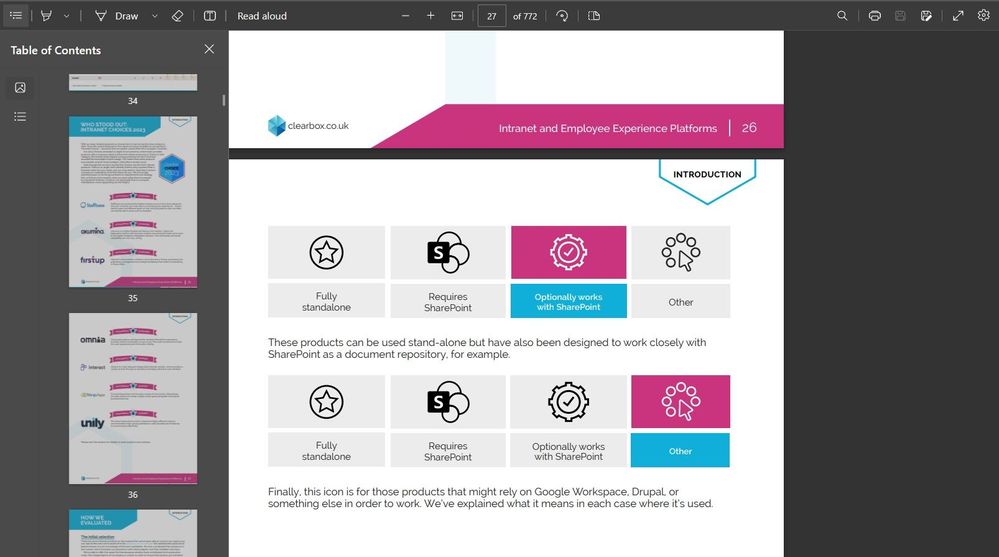
 

Viewing a PDF with the new Adobe Acrobat PDF engine in Microsoft Edge.Viewing a PDF with the new Adobe Acrobat PDF engine in Microsoft Edge.


New List Templates with Approvals

Whether you need to approve a purchase order, a vacation request, or a blog post, Microsoft Approvals in Microsoft Lists can help you streamline the process and collaborate with your team.


We are introducing two new list templates that embed the Approvals app (service) into the Lists experience. With this change, two Microsoft Lists templates appear – specifically Travel Requests with approvals and Content Scheduler with approvals; both bring integration with the Approvals app in Microsoft Teams. You'll see the new list templates within the Create list experience.


Kicking off an approval request from within Microsoft Lists.Kicking off an approval request from within Microsoft Lists.

With these two templates, you can create a list item and submit it for approval by creating an approval request and specifying the approver, the request will appear in the Approvals app in Teams or can be approved directly within the list. Once approved, the list item status is updated.


Note: This is an optional feature that users can leverage by using one of the two new list templates. If they opt out of the Approvals integration when creating the list, the value of each template carries through - minus the added approval functionality.


Teamwork updates across SharePoint team sites, OneDrive, and Microsoft Teams

Microsoft 365 is designed to be a universal toolkit for teamwork – to give you the right tools for the right task, along with common services to help you seamlessly work across applications. SharePoint is the intelligent content service that powers teamwork – to better collaborate on proposals, projects, and campaigns throughout your organization – with integration across Microsoft Teams, OneDrive, Yammer, Stream, Planner and much more.


OneDrive Web: Favorite/Unfavorite Files

Adding files to Favorites is a great way to mark content of personal importance and can help you get to the content you're looking for more easily. We have made sure that the favorites experience is consistent across Microsoft 365 apps by building on top of the existing pinning and favorites experience. This release will include support for favoriting files from OneDrive web and SharePoint document libraries.
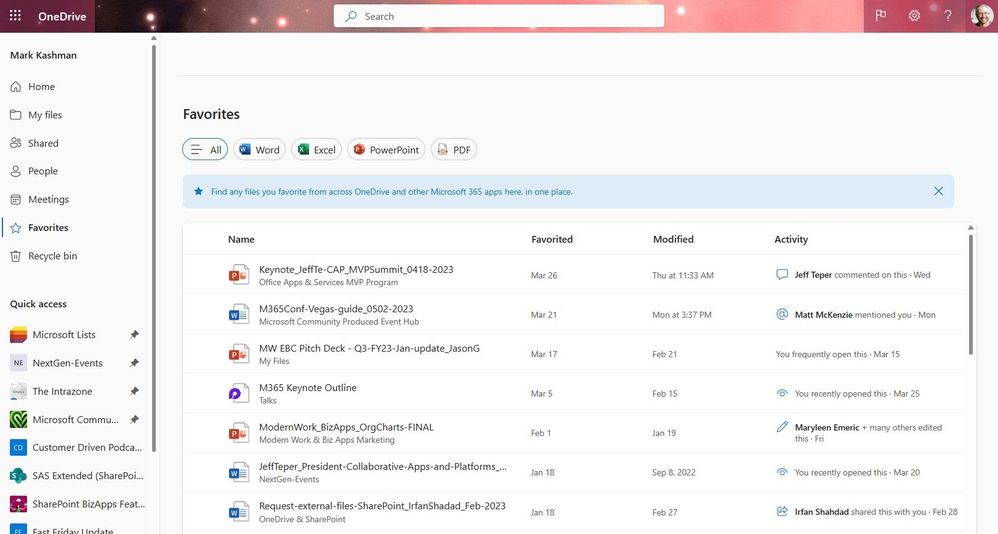
 

Find any files you favorite from across OneDrive and other Microsoft 365 apps here, in one place.Find any files you favorite from across OneDrive and other Microsoft 365 apps here, in one place.

Once you favorite a file, you can easily access them from the Favorites pivot in the left nav. Users can Favorite/Unfavorite files using the Favorite/Unfavorite command in the context menu, command bar, or by simply using the star icon which will show up on hover.


Suggested files in 1:1 Chats

As an extension of suggested replies in 1:1 chats, you can now save time when you need to send a file in a chat by tapping on a "Share file" suggestion. This is another example of where you save time with AI-based file suggestions in chat, especially when the service detects an intent to share. Now, people will be able to respond to their chat message AND attach a file in one click.
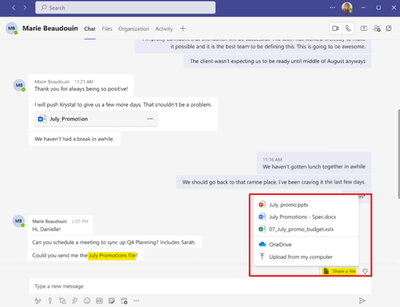
 

Save time with AI based file suggestions in Teams chat. When the service detects the intent to share, respond and attach a file in one click.Save time with AI based file suggestions in Teams chat. When the service detects the intent to share, respond and attach a file in one click.

NOTE: If you wish to disable this feature in your tenant, please disable the Suggested Replies setting that is found in Messaging Policies. Users also have a setting within the app so they can disable the feature.


Send to Kindle

Review your documents alongside your next read. We will be adding the ability for users to send documents from Microsoft Word (Win32, Web, Mac) to the Kindle e-reader device or Kindle app.


I tested this out to use my Kindle to review an upcoming Message Center post from a colleague. In Word, go to the File > Export > Send documents to Kindle. I signed in with my Amazon.com account and off it went. And voila: appeared on my Kindle within my Library ready to read and review.
 

The prompt you see in Microsoft Word when you choose to export to Kindle, aka - Send to Kindle.The prompt you see in Microsoft Word when you choose to export to Kindle, aka - Send to Kindle.

The Word document, "MC post" by my peer, Bert Jansen, appears on my Kindle Oasis reader device.The Word document, "MC post" by my peer, Bert Jansen, appears on my Kindle Oasis reader device.


Related technology

March 16, 2023 | “Introducing Microsoft 365 Copilot – your copilot for work” - Learn from Sumit Chauhan – CVP-Office Product Group – on how Microsoft 365 Copilot seamlessly integrates into the apps you use every day to turn your words into the most powerful productivity tool on the planet.


March 22, 2023 | “New Microsoft Loop app is built for modern co-creation” - In this show, Derek Liddell, an engineering leader from the Loop team at Microsoft presents the end-to-end experiences with the new Microsoft Loop app, available both on the web and in mobile.


March 27, 2023 | “Introducing the new Microsoft Teams, now in preview” - In this episode, Derek Snyder speaks with Jeff Teper, President of Collaborative Apps & Platforms about what this means for the future.


April 2023 teasers

Psst, still here? Still scrolling the page looking for more roadmap goodness? If so, here is a few teasers of what’s to come to production next month…


  • Teaser #1: Project for the Web Integration in Viva Goals [Roadmap ID: 117462
  • Teaser #2: People in Viva [Learn more]


… shhh, tell everyone.


Helpful, ongoing change management resources


Thanks for tuning in and/or reading this episode/blog of the Intrazone Roadmap Pitstop – March 2023. We are open to your feedback in comments below to hear how both the Roadmap Pitstop podcast episodes and blogs can be improved over time.


Engage with us. Ask those questions that haunt you. Push us where you want and need to get the best information and insights. We are here to put both our and your best change management foot forward.


Stay safe out there on the road’map ahead. And thanks for listening and reading.


Thanks for your time,

Mark Kashman – senior product manager (SharePoint/Lists) | Microsoft)
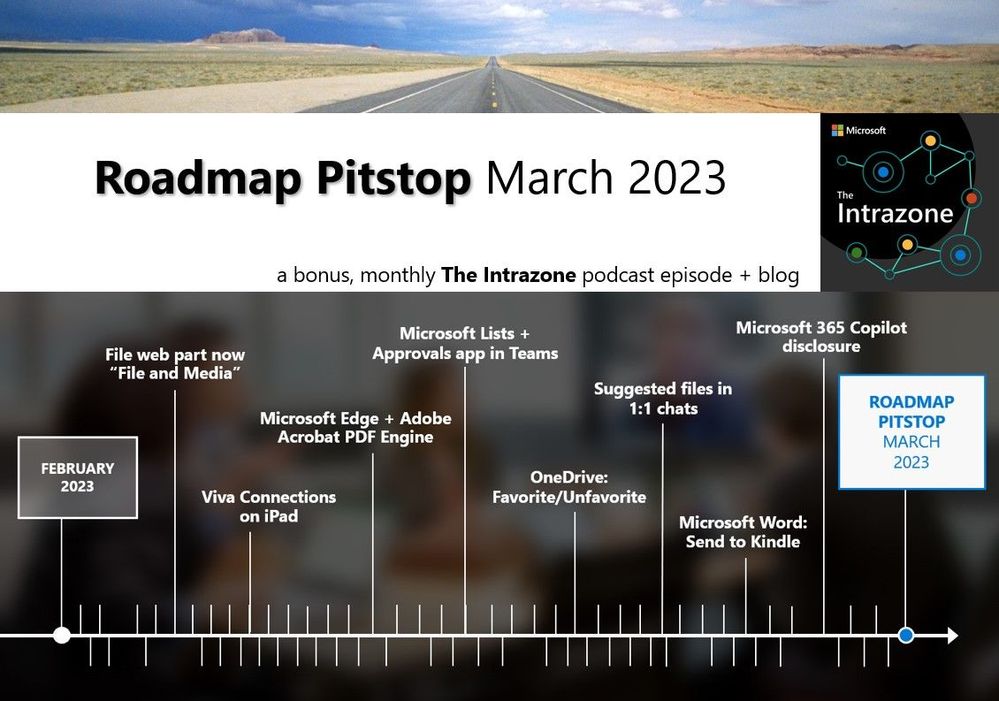
 

The Intrazone Roadmap Pitstop - March 2023 graphic showing some of the highlighted release features.The Intrazone Roadmap Pitstop - March 2023 graphic showing some of the highlighted release features.

❌