Vue lecture

Il y a de nouveaux articles disponibles, cliquez pour rafraîchir la page.
✇Office 365 for IT Pros

Microsoft Limits Graph API Requests for User Account Data

Old Limit with SignInActivity was 999 – New Limit for Azure AD Accounts is 120

Because it retrieves details of Azure AD accounts, the List Users API is one of the most heavily used of the Microsoft Graph APIs. It also underpins the Get-MgUser cmdlet from the Microsoft Graph PowerShell SDK. Microsoft generates the cmdlet from the API using a process called AutoRest, which means that changes made to the API show up soon afterward in the cmdlet.

I’ve documented some of the issues that developers must deal with when coding with the cmdlets from the Microsoft Graph PowerShell SDK. The cmdlets have been stable recently, which is a relief because tenants are migrating scripts from the Azure AD and MSOL modules. However, last week an issue erupted in a GitHub discussion that caused a lot of disruption.

In a nutshell, if you use List Users to fetch Azure AD accounts and include the SignInActivity property, the API limits the page size for results to 120 items. Calls made without specifying SignInActivity can set the page size to be anything up to 999 items.

An Unannounced Change

To help manage demand on the service, all Graph API requests limit the number of items that they return. To retrieve all matching items for a request, developers must fetch pages of results until nothing remains. When a developer knows that large numbers of items must be fetched, they often increase the page size to reduce the number of requests.

Microsoft didn’t say anything about the new restriction on requests that fetch Azure AD account data with sign-in activity. Developers only discovered the problem when programs and scripts failed. I first learned of the issue when some of the users of the Office 365 for IT Pros GitHub repository reported that a Graph request which included a $top query parameter to increase the page size to 999 items failed. For example:

$uri = "https://graph.microsoft.com/beta/users?`$select=displayName,userPrincipalName,mail,id,CreatedDateTime,signInActivity,UserType&`$top=999"
[array]$Data = Invoke-RestMethod -Method GET -Uri $Uri -ContentType "application/json" -Headers $Headers
Invoke-RestMethod : The remote server returned an error: (400) Bad Request.
At line:1 char:16
+ ... ray]$Data = Invoke-RestMethod -Method GET -Uri $Uri -ContentType "app ...
+                 ~~~~~~~~~~~~~~~~~~~~~~~~~~~~~~~~~~~~~~~~~~~~~~~~~~~~~~~~~
    + CategoryInfo          : InvalidOperation: (System.Net.HttpWebRequest:HttpWebRequest)
   [Invoke-RestMethod], WebException
    + FullyQualifiedErrorId : WebCmdletWebResponseException,Microsoft.PowerShell.Commands.I

As shown in Figure 2, testing with the Get-MgUser cmdlet revealed some more information in the error (“Cannot query data for more than 120 users at a time”). This was the first time I learned about a query limit:

Get-MgUser reports more useful error information

Cannot query data for more than 120 users at a time (SignInActivity)
Figure 2: Get-MgUser reports more useful error information

According to a response reported in the GitHub discussion, Microsoft support reported

The PG have confirmed that this endpoint will be transitioning from beta to General Availability (GA).

As part of this transition, changes to its behavior has been made, this includes not requesting more than 120 results per call. They recommend requesting less than 120 results per call, which can be done by setting the top parameter to, say 100.”

It’s likely that Microsoft made the change because retrieving sign-in activity data for Azure AD accounts is an expensive operation. Reducing the page size to 120 possibly makes it easier to process a request than if it asked for 999 items.

Beta Version of List Users Moving to Production

When the product group (PG) says that the endpoint is transitioning from beta to GA, it means that instead of needing to use https://graph.microsoft.com/beta/users to access sign-in activity, the data will be available through https://graph.microsoft.com/V1.0/users. If you use the Microsoft Graph PowerShell SDK, you won’t have to run the Select-MgProfile cmdlet to choose the beta endpoint. Moving the beta version of the API to the production endpoint is a good thing because there are many other account properties now only available through the beta endpoint (like license assignments).

If you use the Microsoft Graph PowerShell SDK, the Get-MgUser cmdlet is unaffected by the change if you specify the All parameter. This is because the cmdlet handles pagination internally and fetches all pages automatically without the need to specify a page size. For instance, this works:

$AccountProperties = @( ‘Id’, ‘DisplayName’, ‘SignInActivity’)
[array]$Users = Get-MgUser -All -Property $AccountProperties | Select-Object $AccountProperties

Moving to Production

Although it’s good that Microsoft is (slowly) moving the beta versions of the List Users API towards production, it’s a pity that they introduced a change that broke so many scripts and programs without any warning. At worse, this so exhibits a certain contempt for the developer community. At best, it’s a bad sign when communication with the developer community is not a priority. That’s just sad.


Insight like this doesn’t come easily. You’ve got to know the technology and understand how to look behind the scenes. Benefit from the knowledge and experience of the Office 365 for IT Pros team by subscribing to the best eBook covering Office 365 and the wider Microsoft 365 ecosystem.
✇REgarding 365 - Medium

Synchronising tasks at scale between Bloom Growth and Microsoft To Do

At Rapid Circle, we utilise a framework known as the Enterprise Operating System (EOS), and to help achieve this we use a tool called Bloom Growth (formerly known as Traction Tools).

I won’t get into the specifics of how it works, but one of the things that comes out of our weekly “L10” team meetings is tasks get allocated to people. (This isn’t rocket science, and is possible with many other systems, but Bloom Growth is what we and many organisations use.)

The Challenge

The only issue with tasks being created in Bloom Growth is that they stay in Bloom Growth. If you want to update them or mark them as complete — you need to log into Bloom Growth to do that. Additionally, the only way you’re reminded of the tasks is a daily email — which for many people gets lost in their sea of other reminder emails.

Effective users of the Microsoft 365 platform will use To Do for managing their tasks as it does a great job of individual task lists, shared task lists, and synchronising tasks with Planner.

So how do we connect the two together?

The Solution — v1

As soon as I started using Bloom Growth and was assigned a task, I immediately looked for any form of integration to be able to bring the tasks to where I work — in Microsoft 365. Unfortunately nothing existed that I could find.

A quick search online yielded a positive result — a Bloom Growth v1 API swagger.

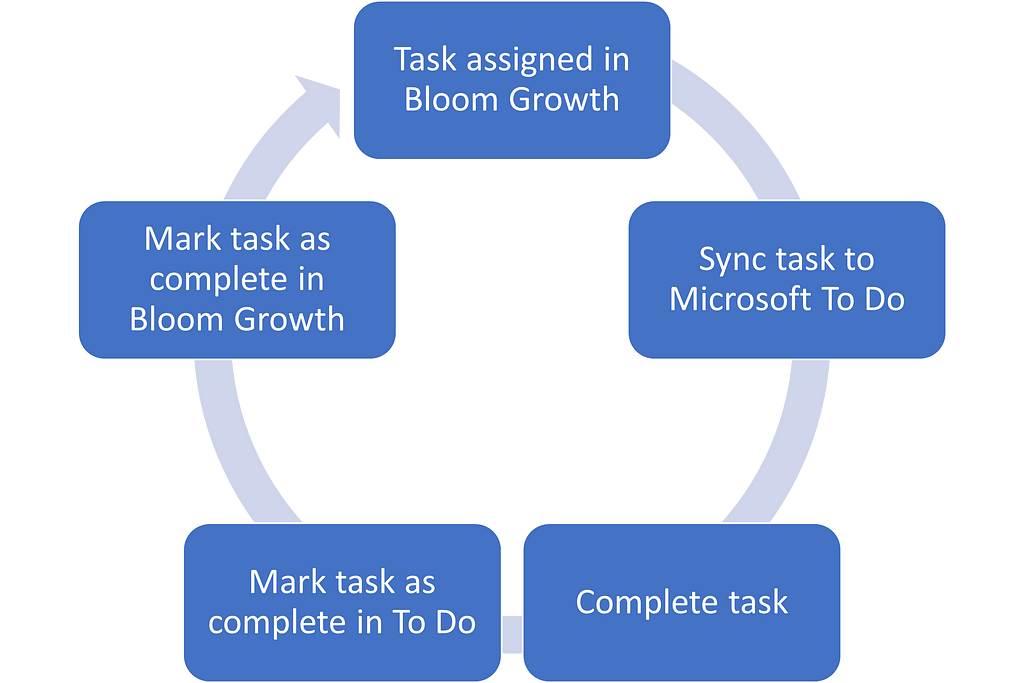
The initial solution I built was for myself only using two workflows.

Flow #1

  1. Triggered based on a daily schedule
  2. Connects to Bloom Growth with my account
  3. Checks for any open tasks under my account
  4. Checks to make sure the tasks don’t already exist in To Do
  5. Creates tasks in a specific To Do task list with the Bloom Growth ID appended to the task title (required for Flow #2)

Flow #2

  1. Triggered when a task in the specific To Do list was updated, using a trigger condition to only run for completed tasks
  2. Connects to Bloom Growth with my account
  3. Looks for a task in Bloom Growth that matches the ID in the task title
  4. Marks the task as complete in Bloom Growth

While a few of my colleagues made copies of these workflows for themselves, I heard some of the managers lamenting that their staff were not completing tasks on time for the reasons mentioned above. And while I could go with the approach of walking people through setting it up, ultimately it’s a lot of separate solutions, running under each employee — which can be challenging to support.

Enter…

The Solution v2

While discussing this with one of my colleagues who was using a copy of my two flows, we wondered if there was a way we could do this at scale.

At the time, the Graph documentation for Microsoft To Do did not reflect that application permissions were supported for the endpoints, but I thought I’d try it anyway… and it worked.

So, without further ado, here is how to synchronise tasks from Bloom Growth with Microsoft To Do for large amounts of staff.

This solution utilises 3 workflows:

  • Create a “L10 Tasks” folder for users
  • Check for tasks assigned to them, add them to To Do
  • Check for completed tasks in To Do, mark them as complete in Bloom Growth

Solution Requirements

There are 3 requirements we need for this to work:

Requirement #1: Bloom Growth access

For this solution to work, we need an account with administrator-level access in Bloom Growth, so that it can see the tasks of every single member.

Requirement #2: Azure AD App Registration

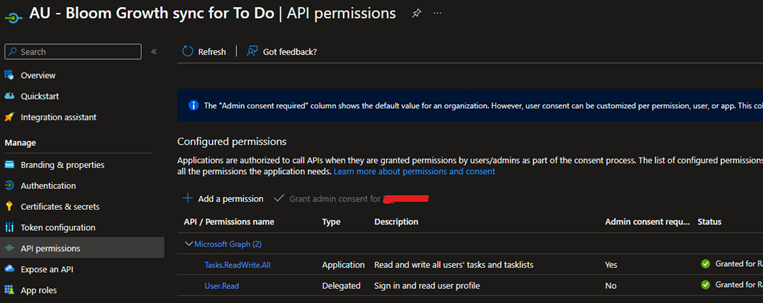
In order to be able to read/write everyone’s task lists, we need an Azure AD App Registration with the following permissions:

Create a client secret, and that’s it!

Requirement #3: Table to store user-specific information

For my solution, I used a SharePoint list out of convenience. However, you could use a Dataverse table or something else if you like.

All we need to store in this list is:

  • User Principal Name (UPN)
  • Bloom Growth ID
  • Task list ID

Workflows

Workflow #1: Create the “L10 Tasks” list in To Do

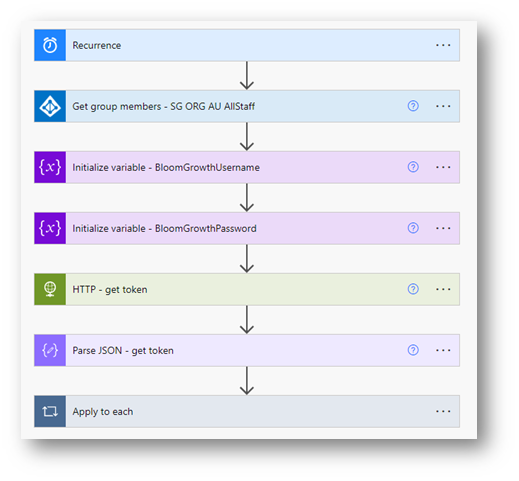
This workflow runs on a regular basis and performs the following functions:

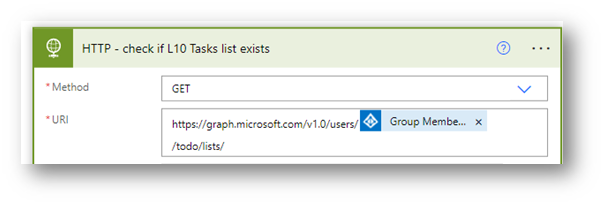
  1. Get members of a security group (so we only apply this to valid users)
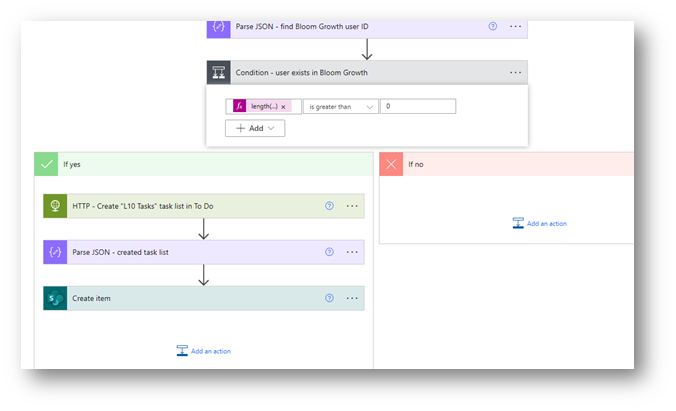
  2. Find their Bloom Growth user ID
  3. Create the task list in To Do
  4. Record the details in a table

Of course we need some basic error checking to handle if they already have an existing task list, and secondly whether they actually exist in Bloom Growth.

Sure the workflow is not necessarily as elegant as it could be, but it only takes about 2–3 minutes to run for about 80 users, so I don’t feel the need to optimise it at this point.

Workflow #2: Check for new tasks in Bloom Growth and create them in To Do

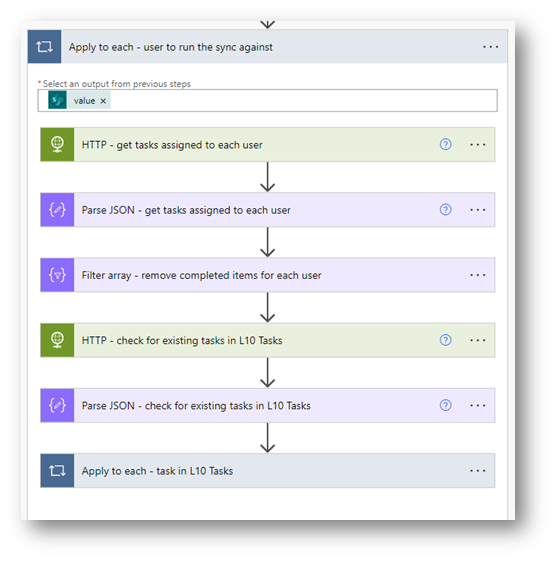
This workflow is timed to run after the first workflow, and performs the following functions:

  1. Get the users to run the sync against
  2. For each user, find tasks assigned to them in Bloom Growth
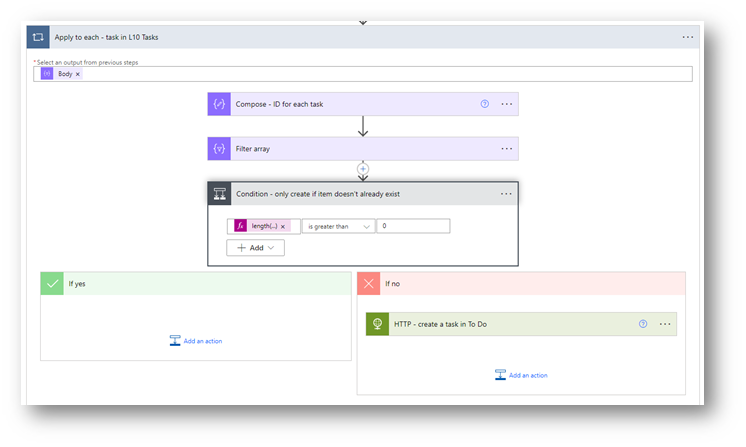
  3. Check if those tasks already exist in the “L10 Tasks” list (using the Bloom Growth task ID as a reference)
  4. If not found, create the task in To Do with the Bloom Growth task ID in the title (used by the previous step, and the next workflow)

Again, this workflow could be more elegant, but it also only takes a whopping 2–3 minutes to run for the 80 users.

Workflow 3: Check for completed tasks in To Do and update their status in Bloom Growth

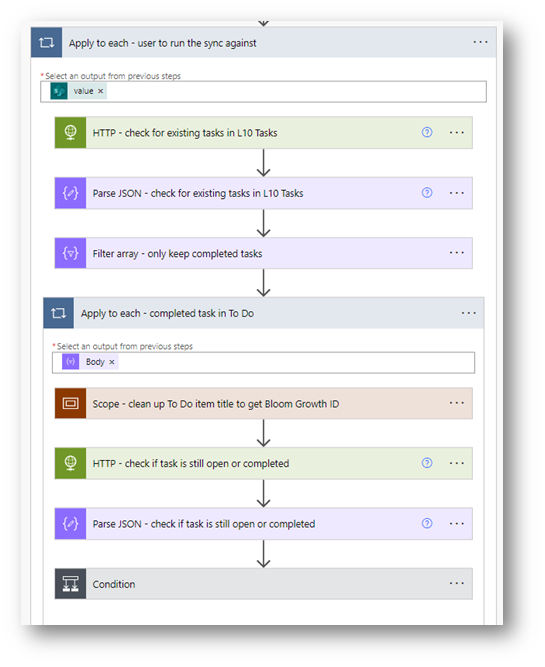
The first part is the same as Workflow 2, but what it does within the Apply to each is different.

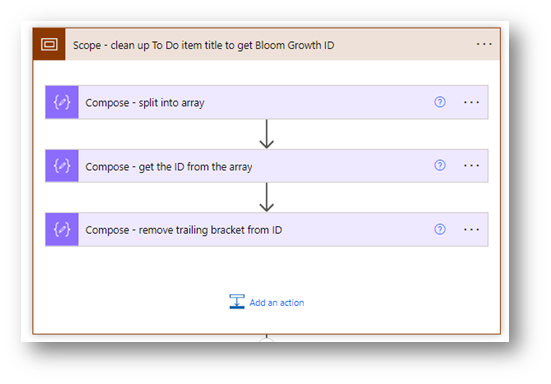
Within the scope we retrieve the Bloom Growth ID of the task from title of the To Do task:

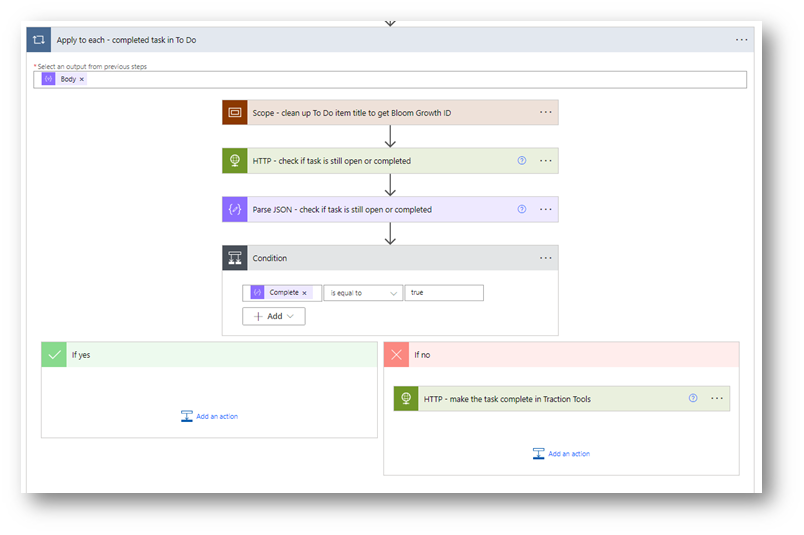
Then we check if the task is still open in Bloom Growth or not (as someone may have already marked it as complete directly in the web portal, and we don’t want to get an error):

The Final Result

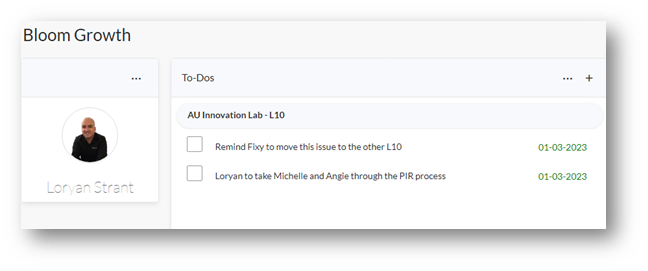
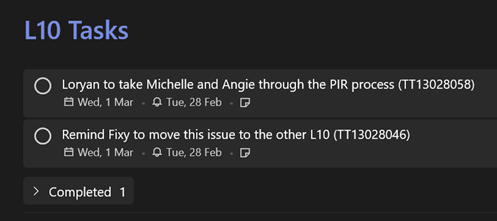
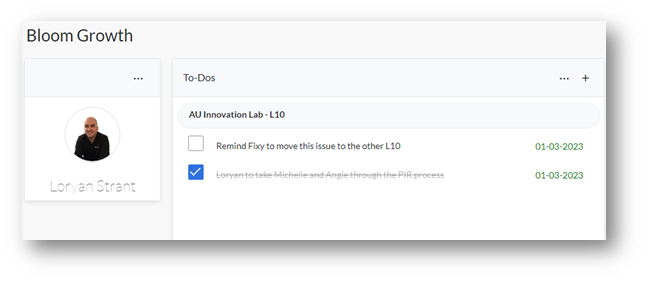
Here’s what my tasks look like in Bloom Growth:

And in To Do:

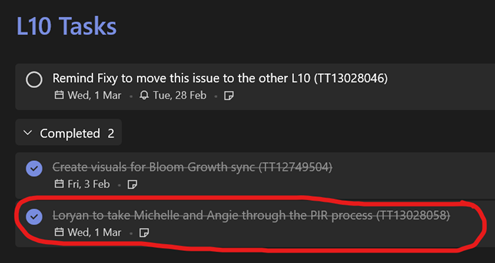
So let’s mark one of these tasks as complete in To Do:

And presto:

You can download the full solution from my PowerThings repository on GitHub.

Appendix — Graph endpoints used

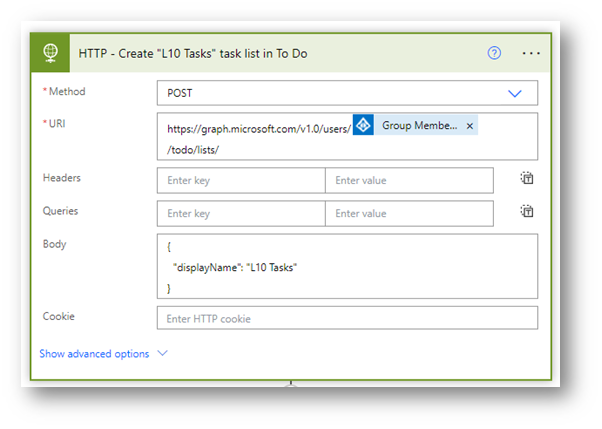
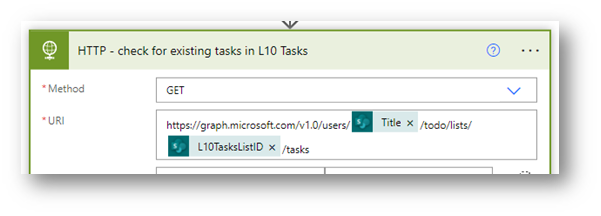
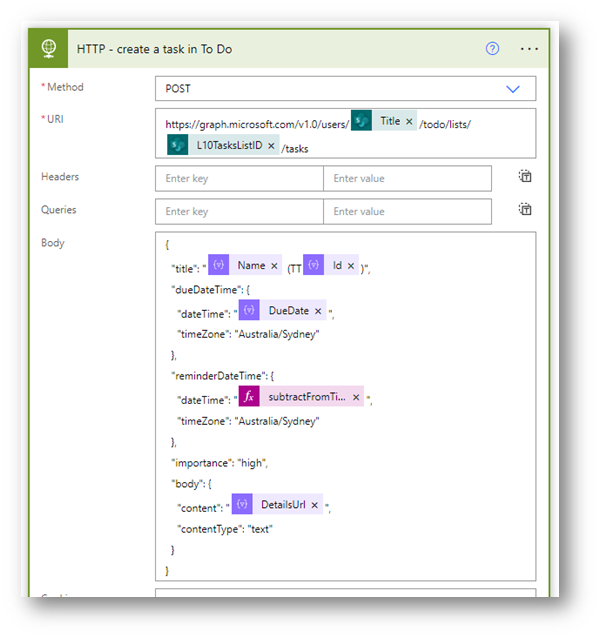
This blog post is already long, so I’ve put the breakouts of the To Do specific API calls down here.

Originally published at Loryan Strant, Microsoft 365 MVP.


Synchronising tasks at scale between Bloom Growth and Microsoft To Do was originally published in REgarding 365 on Medium, where people are continuing the conversation by highlighting and responding to this story.

✇Office 365 for IT Pros

Flaws in the Plan for Microsoft Graph PowerShell SDK V2

Work Ongoing on Other Projects – and Now the Microsoft Graph PowerShell SDK V2 Appears

Due to the deprecation of the Azure AD and Microsoft Online Services (MSOL) PowerShell modules (still scheduled for June 30, 2023), there’s been a lot of activity around upgrading scripts to use cmdlets from the Microsoft Graph PowerShell SDK. This is especially true for any script that performs license management activities as these cmdlets will stop working on March 31, 2023.

Microsoft’s documentation says, “Scripts written in Azure AD PowerShell won’t automatically work with Microsoft Graph PowerShell.” This is incorrect. The scripts won’t work at all because the cmdlets differ. Because the modules are based on very different technologies, no one-to-one translation from Azure AD cmdlets to SDK cmdlets either. Moving to a new module isn’t therefore not a matter of a quick edit to swap cmdlets over. Parameters and outputs differ. The effort needed to upgrade and test even a relatively simple script might extend to half a day or more.

The experience of using the SDK is growing within the technical community, but a knowledge gap still exists at times, especially when searching for good examples of how to accomplish a task. Microsoft’s documentation for the SDK cmdlets has improved recently, but it’s still not at the level that it should be.

Microsoft PowerShell Graph SDK V2

The current situation with the transition from Azure AD to SDK makes me think that Microsoft’s plan for changes in version two of the Microsoft PowerShell Graph SDK are badly flawed. The new version is still in the preview stage so things will probably change before general availability. At least, I hope that they do.

There’s some good changes lined up that I’ll cover first.

Although it’s possible to use V1 of the SDK with an Azure Automation managed identity, the method requires getting an access token from Azure and isn’t as clean as other implementations, such as those for Microsoft Teams and V3.0 of the Exchange Online management module. V2 of the SDK will allow you to connect using:

Connect-MgGraph -Identity

Support for managed identities will extend to user-created managed identities. Another change for authentication is support a credentials prompt when signing into the Graph. Finally, V2 supports certificate-based authentication.

Other changes include support for HTTP/2 and better handling by cmdlets for HTTP status codes.

Breaking Up is Hard to Do

V1 of the SDK is a giant module with 40 sub-modules (like Microsoft.Graph.Authentication). The size and unwieldly nature of the SDK means that it’s more difficult to manage than it should be. For instance, when Microsoft updates the SDK, the sub-modules used by developers on local PCs and in Azure Automation accounts require updating.

One reason why the SDK is so large is that it includes both V1.0 and beta version of cmdlets. This is because the Graph APIs that Microsoft generates the cmdlets from come in V1.0 and beta versions. Microsoft’s solution for the V2 SDK is to deliver separate modules: one for V1.0 (production) and another for beta.

Practical Side-Effects of Breaking the Microsoft Graph PowerShell SDK V2 into Two Modules

Conceptually, I don’t have any issue with the idea of splitting up the SDK into two modules. It’s on a practical level where my concerns kick in.

Today, a script can switch between V1.0 and beta by running the Select-MgProfile cmdlet. I do this all the time because the beta version of many cmdlets deliver more information than their V1.0 counterparts do. For example, Get-MgUser is a basic cmdlet to fetch details of an Azure AD user. The V1.0 cmdlet does not return license assignment data while the beta cmdlet does.

Select-MgProfile v1.0
Get-MgUser -UserId Tony.Redmond@office365itpros.com | fl assign*

AssignedLicenses :
AssignedPlans    :

Select-MgProfile beta
Get-MgUser -UserId Tony.Redmond@office365itpros.com | fl assign*

AssignedLicenses : {f61d4aba-134f-44e9-a2a0-f81a5adb26e4, 61902246-d7cb-453e-85cd-53ee28eec138, 26d45bd9-adf1-46cd-a9e1-51e9a5524128, 4016f256-b063-4864-816e-d818aad600c9...}
AssignedPlans    : {b44c6eaf-5c9f-478c-8f16-8cea26353bfb, fd2e7f90-1010-487e-a11b-d2b1ae9651fc,f00bd55e-1633-416e-97c0-03684e42bc42, 3069d530-e41b-421c-ad59-fb1001a23e11...}

Basic functionality issues afflict V1.0 cmdlets that operate against user accounts, groups, and other Azure AD objects. It would be nice if Microsoft fixed these problems and delivered a solid V1.0 module that allowed developers to focus on V1.0. Instead, the need exists to use the beta cmdlets.

Instead of making sure that many important cmdlets work like they should, Microsoft plans to drop the Select-MgProfile cmdlet. They say that “the profile design made the module bulky and error prone as it combined Microsoft Graph v1.0 and beta commands into a single module.” I accept that combining the two cmdlet sets in a single module is bulky, but is that a reason to remove a useful piece of functionality that allows developers to switch between V1.0 and beta cmdlets as needed? I don’t think it would take a lot of software engineering to figure out how to make the Select-MgProfile cmdlet load and unload modules as needed.

Even worse, Microsoft plans to introduce different names for the cmdlets in the two modules. Cmdlets in the V1.0 module will have the original names like Get-MgUser and Get-MgGroup. The beta cmdlets will have names like Get-MgBetaUser and Get-MgBetaGroup. Microsoft says that an advantage of their approach is that customers will be able to run V1.0 and beta cmdlets in the same script. In my experience, this never happens. Developers use Select-MgProfile to decide what cmdlets to use and then use cmdlets from that set. Mixing and matching cmdlets from different modules overcomplicates things.

Will this command be Get-MgBetaUser in the Microsoft Graph PowerShell SDK V2
Figure 1: Will this command be Get-MgBetaUser in the Microsoft Graph PowerShell SDK V2

The suggestion of using different names for cmdlets is just silly. It means that a developer must decide what module they want to use for a script up front to know what cmdlet names to use. Developers must check every existing script to identify if the correct cmdlet names are in place (and to deal with the Select-MgProfile issue). All the work done to upgrade scripts from the Azure AD and MSOL modules will need revalidation. That’s work Microsoft is forcing on tenants at a time when the Exchange development group wants tenants to upgrade their Exchange scripts to remove dependencies on Remote PowerShell. Forcing tenants to upgrade scripts for Exchange and Azure AD at the same time is an example of a lack of joined-up thinking within Microsoft.

I hear that Microsoft might generate a tool to help developers move to V2 by updating references to the beta cmdlets to use the new names. That might help, but work still needs to be done to review scripts before and after the tool runs and test to make sure that the updated script works. And what happens if Microsoft updates the V1.0 cmdlets and a decision is made to revert to that version? You’ll still have to update scripts manually.

A Way Forward for the Microsoft Graph PowerShell SDK V2

What I would like to see done in the Microsoft Graph PowerShell SDK V2 is:

  • Repurpose the Select-MgProfile cmdlet so that it switches between the two modules as transparently as possible.
  • Keep the same cmdlet names in both modules. It then becomes a choice for the developer as to which cmdlets to use.
  • Fix the V1.0 of basic user and group cmdlets like Get-MgUser and Get-MgGroup so that they return the information necessary to get real work done. If the V1.0 cmdlets delivered that functionality, the need to switch to beta wouldn’t be as pressing. The problems must be fixed in the Graph API rather than the SDK (which simply replicates what the Graph API does).

The precedent for having cmdlets with the same name in production and development modules exists. We’ve used the AzureAD and AzureADPreview modules in this manner for years. Why Microsoft can’t do the same with V2 of the Microsoft Graph PowerShell SDK is beyond me.

In any case, the first preview version of the Microsoft Graph PowerShell SDK V2 is available to download from the PowerShell Gallery. Test it and see what you think. The important thing is to give feedback to Microsoft (you can comment in GitHub). If you don’t, then the current plan is what will flow through to the Generally Available release of the Microsoft Graph PowerShell SDK V2 sometime in 2023.


So much change, all the time. It’s a challenge to stay abreast of all the updates Microsoft makes across Office 365. Subscribe to the Office 365 for IT Pros eBook to receive monthly insights into what happens, why it happens, and what new features and capabilities mean for your tenant.

✇Office 365 for IT Pros

Microsoft Clarifies How It Plans to Charge for APIs

Pay as You Go Model for Microsoft 365 APIs

Microsoft 365 APIs

About fifteen months ago, Microsoft introduced the notion of metered APIs where those who consumed the APIs would pay for the resources they consume. The pay-as-you-go (PAYG) model evolved further in July 2022 when Microsoft started to push ISVs to use the new Teams export API instead of Exchange Web Services (EWS) for their backup products. The Teams export API is a metered API and is likely to the test case to measure customer acceptance of the PAYG model.

So far, I haven’t heard many positive reactions to the development. Some wonder how Microsoft can force ISVs to use an API when they don’t know how high the charges metering will rack up. Others ask how Microsoft can introduce an export API for backup when they don’t have an equivalent import API to allow tenants to restore data to Teams. I don’t understand this either as it seems logical to introduce export and import capabilities at the same time. We live in interesting times!

PAYG with Syntex Backup

To be fair to Microsoft, they plan to go down the same PAYG route with the new backup service they plan to introduce in 2023 as part of the Syntex content management suite. Customers will have to use an Azure subscription to pay for backups of SharePoint Online, OneDrive for Business, and Exchange Online (so far, Microsoft is leaving Teams backup to ISVs).

All of which brings me to the December 2 post from the Microsoft Graph development team where Microsoft attempts to describe what they’re doing with different Microsoft 365 APIs. Like many Microsoft texts, too many words disguise the essential facts of the matter.

Three Microsoft 365 API Tiers

Essentially, Microsoft plans to operate three Microsoft 365 API tiers:

  • Standard: The regular Graph-based and other APIs that allow Microsoft 365 tenants to access and work with their data.
  • High-capacity: Metered APIs that deal with high-volume operations like the streaming of data out of Microsoft 365 for backups or the import of data into Microsoft 365.
  • Advanced: APIs developed by Microsoft to deliver new functionality. Microsoft points to Azure Communications Services as an example. These APIs allow developers to add the kind of communication options that are available in Teams to their applications.

My reading of the situation is that Microsoft won’t charge for standard APIs because this would interfere with customer access to their data. Microsoft says that standard APIs will remain the default endpoint.

However, Microsoft very much wants to charge for high-capacity APIs used by “business-critical applications with high usage patterns.” The logic here is that these APIs strain the resources available within the service. To ensure that Microsoft can meet customer expectations, they need to deploy more resources to meet the demand and someone’s got to pay for those resources. By using a PAYG model, Microsoft will charge for actual usage of resources.

Microsoft also wants customers to pay for advanced APIs. In effect, this is like an add-on license such as Teams Premium. If you want to use the bells and whistles enabled by an advanced API, you must pay for the privilege. It’s a reasonable stance.

Problem Areas for Microsoft 365 APIs

I don’t have a problem with applying a tiered model for APIs, especially if the default tier continues with free access. The first problem here is in communications, where Microsoft has failed to sell their approach to ISVs and tenants. The lack of clarity and obfuscation is staggering for an organization that employs masses of marketing and PR staff.

The second issue is the lack of data about how much PAYG is likely to cost. Few want to write an open-ended check to Microsoft for API usage. Microsoft is developing the model and understands how the APIs work, so it should be able to give indicative pricing for different scenarios. For instance, if I have 100 teams generating 35,000 new channel conversations and 70,000 chats monthly, how much will a backup cost? Or if my tenant generates new and updated documents at the typical rate observed by Microsoft across all tenants of a certain size, how much will a Syntex backup cost?

The last issue is the heavy-handed approach Microsoft has taken with backup ISVs. Being told that you must move from a working, well-sorted, and totally understood API to a new, untested, and metered API is not a recipe for good ISV relationships. Microsoft needs its ISVs to support its API tiered model. It would be so much better if a little less arrogance and a little more humility was obvious in communication. Just because you’re the big dog who owns the API bone doesn’t mean that you need to fight with anyone who wants a lick.


Make sure that you’re not surprised about changes that appear inside Office 365 applications by subscribing to the Office 365 for IT Pros eBook. Our monthly updates make sure that our subscribers stay informed.

✇REgarding 365 - Medium

Creating a SharePoint page using Microsoft Graph API and Power Automate

Thanks to the workflow that notifies me of updates to the Microsoft Graph API, I saw a new addition to the list: the sitePage resource type.

This is exciting for me, as I currently have some workflows that distribute SharePoint pages to various sites both within our own tenant, as well as client tenants. Currently these are triggered by a page being published in a central location, with specific information used as trigger conditions.

What’s annoying about this scenario is that I need to create connectors in Power Automate to the client tenant using an account in their environment. It also means I need a workflow per client (to keep it clean).

Now with the addition of the sitePage resource type in Microsoft Graph, I can make this work programmatically across any number of clients — all from a single workflow.

WARNING: This is a beta feature at present, so don’t use it for production systems unless you’re find to accept the risks.

Requirements

The requirements of this are fairly simple. We need:

  • An app registration in Azure AD that has the “Sites.ReadWrite.All” application permission added
  • A repository where the details are stored, including:
  • Client name
  • Tenant ID
  • App/Client ID
  • Secret
  • SharePoint site ID

Now, we could use a different way to authenticate, and we could also use an action to perform a search in the tenant to find the relevant site by name or URL, but if we’ve got that — then it’s not exactly difficult to get the SharePoint site ID and store it in our repository.

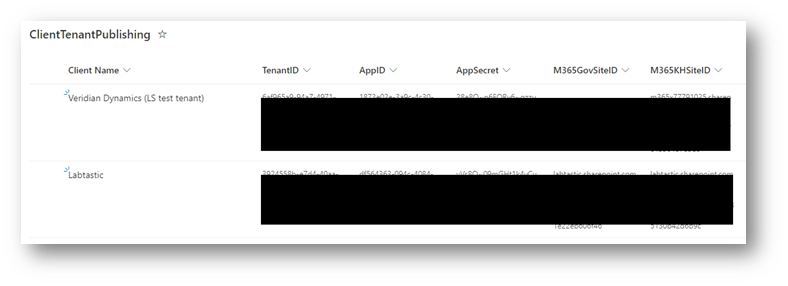
For the purposes of this, I’m going to store it in a SharePoint list:

Workflow

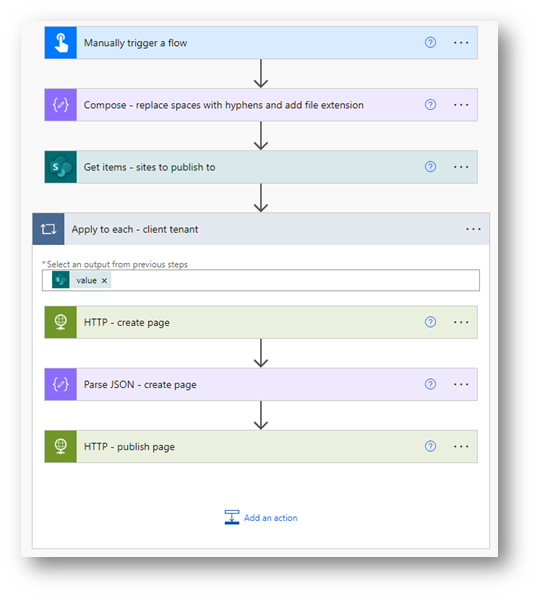
At a high-level, my workflow is quite simple:

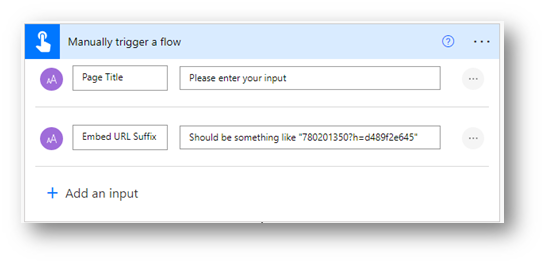
In my specific scenario, all the workflow is doing is publishing a page with an embedded video, as part of a program of regular content I create for clients. So all I need to provide is a page title and the URL suffix from the embed code.

The next step of the workflow takes my page title, and turns it into a file name:

The code used here is:

concat(replace(triggerBody()['text'],' ','-'),'.aspx')

From here, we’re now ready to retrieve all the sites we want to apply this to:

Within our Apply to Each, we have three steps:

  1. Create the page
  2. Parse the JSON of the page creation
  3. Publish the page, using the ID from step 2

(If you’re comfortable with extracting the page ID value directly from the results of step 1, then you don’t need the Parse JSON action.)

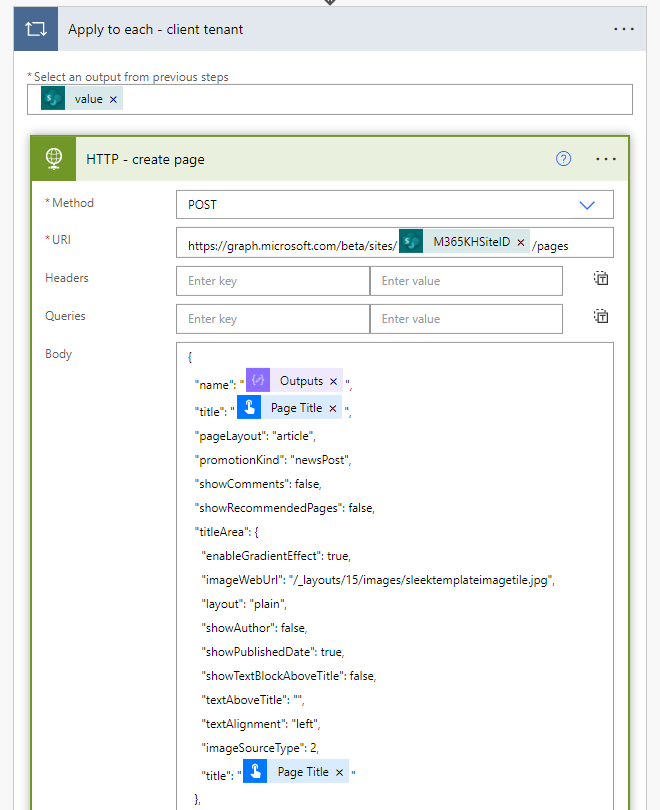
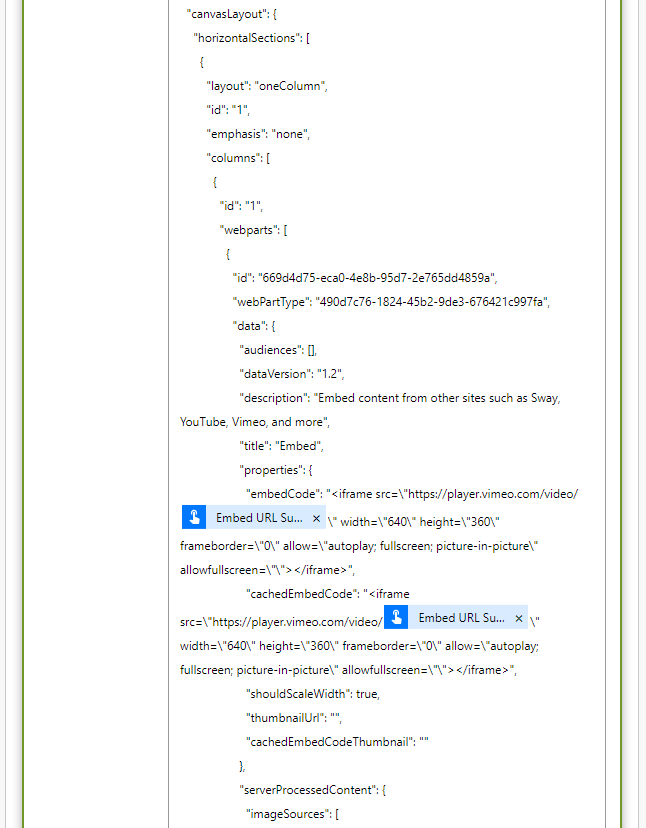
In the page creation action, I’m creating a very simple page that only has a single embed web part on it, and I’m passing variables from both the trigger as well as the Get Items action.

The Parse JSON is relatively straightforward:

And for the final step we hit publish on the page:

And that’s it! We have a simple page published in each tenant listed, with the same content.

If you want something more glamorous, refer to the sitePage resource type page to get a breakdown of the structure of the body of the content.

Appendix

Here’s the full details of the body of the page creation and Parse JSON actions.

Create page

{
"name": "@{outputs('Compose_-_replace_spaces_with_hyphens_and_add_file_extension')}",
"title": "@{triggerBody()['text']}",
"pageLayout": "article",
"promotionKind": "newsPost",
"showComments": false,
"showRecommendedPages": false,
"titleArea": {
"enableGradientEffect": true,
"imageWebUrl": "/_layouts/15/images/sleektemplateimagetile.jpg",
"layout": "plain",
"showAuthor": false,
"showPublishedDate": true,
"showTextBlockAboveTitle": false,
"textAboveTitle": "",
"textAlignment": "left",
"imageSourceType": 2,
"title": "@{triggerBody()['text']}"
},
"canvasLayout": {
"horizontalSections": [
{
"layout": "oneColumn",
"id": "1",
"emphasis": "none",
"columns": [
{
"id": "1",
"webparts": [
{
"id": "669d4d75-eca0-4e8b-95d7-2e765dd4859a",
"webPartType": "490d7c76-1824-45b2-9de3-676421c997fa",
"data": {
"audiences": [],
"dataVersion": "1.2",
"description": "Embed content from other sites such as Sway, YouTube, Vimeo, and more",
"title": "Embed",
"properties": {
"embedCode": "<iframe src=\"https://player.vimeo.com/video/@{triggerBody()['text_2']}\" width=\"640\" height=\"360\" frameborder=\"0\" allow=\"autoplay; fullscreen; picture-in-picture\" allowfullscreen=\"\"></iframe>",
"cachedEmbedCode": "<iframe src=\"https://player.vimeo.com/video/@{triggerBody()['text_2']}\" width=\"640\" height=\"360\" frameborder=\"0\" allow=\"autoplay; fullscreen; picture-in-picture\" allowfullscreen=\"\"></iframe>",
"shouldScaleWidth": true,
"thumbnailUrl": "",
"cachedEmbedCodeThumbnail": ""
},
"serverProcessedContent": {
"imageSources": [
{
"key": "imageSource",
"value": "/_LAYOUTS/IMAGES/VISUALTEMPLATEIMAGE1.JPG"
}
]
}
}
}
]
}
]
}
]
}
}

Parse JSON

{
"type": "object",
"properties": {
"@@odata.context": {
"type": "string"
},
"@@odata.etag": {
"type": "string"
},
"eTag": {
"type": "string"
},
"id": {
"type": "string"
},
"lastModifiedDateTime": {
"type": "string"
},
"name": {
"type": "string"
},
"webUrl": {
"type": "string"
},
"title": {
"type": "string"
},
"pageLayout": {
"type": "string"
},
"thumbnailWebUrl": {
"type": "string"
},
"promotionKind": {
"type": "string"
},
"showComments": {
"type": "boolean"
},
"showRecommendedPages": {
"type": "boolean"
},
"createdBy": {
"type": "object",
"properties": {
"user": {
"type": "object",
"properties": {
"displayName": {
"type": "string"
}
}
}
}
},
"lastModifiedBy": {
"type": "object",
"properties": {
"user": {
"type": "object",
"properties": {
"displayName": {
"type": "string"
}
}
}
}
},
"parentReference": {
"type": "object",
"properties": {
"siteId": {
"type": "string"
}
}
},
"contentType": {
"type": "object",
"properties": {
"id": {
"type": "string"
},
"name": {
"type": "string"
}
}
},
"publishingState": {
"type": "object",
"properties": {
"level": {
"type": "string"
},
"versionId": {
"type": "string"
}
}
},
"reactions": {
"type": "object",
"properties": {}
},
"titleArea": {
"type": "object",
"properties": {
"enableGradientEffect": {
"type": "boolean"
},
"imageWebUrl": {
"type": "string"
},
"layout": {
"type": "string"
},
"showAuthor": {
"type": "boolean"
},
"showPublishedDate": {
"type": "boolean"
},
"showTextBlockAboveTitle": {
"type": "boolean"
},
"textAboveTitle": {
"type": "string"
},
"textAlignment": {
"type": "string"
},
"title": {
"type": "string"
},
"authors@odata.type": {
"type": "string"
},
"authors": {
"type": "array"
},
"authorByline@odata.type": {
"type": "string"
},
"authorByline": {
"type": "array"
},
"imageSourceType": {
"type": "integer"
},
"serverProcessedContent": {
"type": "object",
"properties": {
"imageSources": {
"type": "array",
"items": {
"type": "object",
"properties": {
"key": {
"type": "string"
},
"value": {
"type": "string"
}
},
"required": [
"key",
"value"
]
}
}
}
}
}
}
}
}

Originally published at Loryan Strant, Microsoft 365 MVP.


Creating a SharePoint page using Microsoft Graph API and Power Automate was originally published in REgarding 365 on Medium, where people are continuing the conversation by highlighting and responding to this story.

❌