Vue lecture

Il y a de nouveaux articles disponibles, cliquez pour rafraîchir la page.
✇MG

How to Create an Emailable Exchange Distribution List with Internal and External Contacts?

Scenario:

If you need a distribution list in Exchange that includes both internal organization contacts and external contacts—without requiring external users to be invited as guest accounts—there’s a simple way to achieve this.

In Exchange Online, external contacts are referred to as Mail Contacts. These allow you to add external email addresses to your organization’s address book, making them available for inclusion in distribution lists. By leveraging Mail Contacts, you can create a fully functional distribution list that includes both internal users and external recipients while keeping everything manageable within Exchange.

Managing email distribution lists efficiently is crucial for organizations that need to communicate with both internal and external contacts. While Exchange Online allows us to create Mail Contacts programmatically using PowerShell scripts or the Exchange Online Management API, automating this process is key—especially when integrating it with Dynamics 365 Marketing Lists.

The Automation Challenge

In my case, I wanted to automatically add new contacts from a specific Dynamics 365 Marketing List to a corresponding Exchange Distribution List. Initially, I considered using Power Automate to invoke a PowerShell script, but that introduced additional complexities:

  • Using Power Automate to trigger an Azure Automation Runbook
  • Managing authentication and execution permissions
  • Handling execution timing and monitoring

A More Efficient Approach: Logic Apps

Instead of relying on Power Automate, I found a better and more streamlined approach—using Azure Logic Apps. Unlike Power Automate, Logic Apps offer built-in functionality to create and execute Runbook Jobs directly within Azure Automation.

What This Blog Covers

In this post, I’ll walk you through:
✅ Setting up an Azure Automation Account
✅ Creating a Runbook to execute a PowerShell script that adds Mail Contacts
✅ Using Azure Logic Apps to trigger the Runbook
✅ Handling authentication across these services

By the end, you’ll have an end-to-end automation setup that seamlessly adds external contacts to Exchange Distribution Lists as soon as they join a Dynamics 365 Marketing List—without requiring manual intervention.

Let’s dive in! 🚀

Step 1: Set up the Azure Automation Account

  1. Log in to Portal Azure https://portal.azure.com/ and in the search box, type Automation Accounts


2. Click on Create, Select your Subscription and Resource group, and type in the Automation Account Name

2. Then click the Advanced Tab, and on the Managed Identities, select User Assign; we will set up the User Managed Identity in the next steps.

3. Click Review and Create.

Step 2: Setup the User Managed Identity

A common challenge for developers is the management of secrets, credentials, certificates, and keys used to secure communication between services. Managed identities eliminate the need for developers to manage these credentials.

A common challenge for developers is the management of secrets, credentials, certificates, and keys used to secure communication between services. Managed identities eliminate the need for developers to manage these credentials.

While developers can securely store the secrets in Azure Key Vault, services need a way to access Azure Key Vault. Managed identities provide an automatically managed identity in Microsoft Entra ID for applications to use when connecting to resources that support Microsoft Entra authentication. Applications can use managed identities to obtain Microsoft Entra tokens without having to manage any credentials.

So Let’s see how to setup the account with the Required Permissions!

  1. On the Search, Type Managed Identities

2. Click Create, Select the subscription, Resource group, and give it a name

3. Then Press Review and Create

4. Open the automation account that we have created in Step no. 1

5. Search for Identity, open the link, select user assigned, and click Add.

6. Add the managed identity that we have just created.

7. Next comes setting the Permissions for the Managed Identity, so go back and open the Managed Identity.

8. Go to Azure Role Assignments and add the Automation Contributor Role; this is required to enable the Logic app to execute the RunBook (we will be creating this in the next step) on the automation account.

9. Grant the Exchange.ManageAsApp API permission for the managed identity to call Exchange Online, Unfortunately, this step can’t be done through the Azure / Entra Portal, so we will be using Graphy API Explorer to achieve this.

Get the Managed Identity’s Object ID

Get Exchange Online Service Principal ID

Open Grap API Explorer, Login ,and run the below query and grap the Exchange online service Principal ID

Method: Get

https://graph.microsoft.com/v1.0/servicePrincipals?$filter=appId eq '00000002-0000-0ff1-ce00-000000000000'

Assign the Exchange.ManageAsApp Permission

Using Graph Explorer API again, use the below to assign the Exchange.ManageAsApp Permission

POST https://graph.microsoft.com/v1.0/servicePrincipals/{MANAGED_IDENTITY_OBJECT_ID}/appRoleAssignments
Authorization: Bearer YOUR_ACCESS_TOKEN
Content-Type: application/json

{
  "principalId": "{MANAGED_IDENTITY_OBJECT_ID}",
  "resourceId": "{EXCHANGE_ONLINE_SERVICE_PRINCIPAL_ID}",
  "appRoleId": "dc50a0fb-09a3-484d-be87-e023b12c6440"
}

10. Assign Microsoft Entra roles to the managed identity; you will need to assign the Exchange Administrator Role

In the Search type role and select Microsoft Entra Roles and administrators

11. Open Exchange Administrator Assignments and add the user Managed Identity by clicking the Add Assignments Button .. Global administrator privileges will be required for this.

Step 4: Import Exchange Management Modules

  1. Open the Automation Account that we have created in step 1
  2. Navigate to Shared Resources -> Modules
  3. Click Add Module

4. Click Browse from gallery

  1. Open the Automation Account
  2. Navigate to Process Automation -> Runbooks
  3. Search for PackageManagement and select and choose the Runtime Version 5.1

4. Repeat for Add PowerShellGet and choose Runtime Version 5.1

5. Repeat for ExchangeOnlineManagement and choose Runtime Version 5.1

Step 5: Create a runbook in Azure Automation

  1. Open the Automation Account
  2. Navigate to Process Automation -> Runbooks
  3. Click on Create a runbook. Make sure you are using Runtime Version 5.1 because PowerShell works only for this Version

4. Open the Run Book and click Edit in Portal.

5. Paste the below Powershell Script that connects to exchange

//The below piece of code sets parameters on the run book so that when called from a logic app we can pass these parameters to the run book.
param (
    [string]$MailContactName,
    [string]$MailContactEmail,
    [string]$DistributionList
)
// Connects to Exchange online via the managed Identity that have been setup in step 3
Connect-ExchangeOnline -ManagedIdentity -Organization Organisationdomain.onmicrosoft.com -ManagedIdentityAccountId {Managed Account Identity ID}

//Creates a mail contact in Exchange
New-MailContact -Name $MailContactName -ExternalEmailAddress $MailContactEmail

//Add mail Contact to the Distribution List
Add-DistributionGroupMember -Identity $DistributionList -Member $MailContactEmail

6. After that Click Save and Publish

7. You can then test the runbook by clicking the Test Pane on the Edit in Portal Screen of the runbook, entering the parameters and clicking start.

Step 5: Create the Logic App

So the Logic app will be created in a schedule and can query any enterprise connector like dataverse and then call the runbook that has been created in Step 5

  1. From the Azure Portal , Look for Logic Apps and click Add
  2. Choose the Hosting Plan, and here you can select the Consumption plan

3. Select the subscription, the Resource Group and add the logic app name

4. Click Review and Create and then Create

5. On the created Logic app, search for Identity, Navigate to user assigned and add the Managed identity created in step 2

5. Navigate to the Logic app designer. On the Add Trigger step, choose schedule and set the recurrence schedule. Then, add Action and look for Create Job and select the one under Azure Automation

6. Set the Connection Name and Choose the Authentication Type as Logic Apps Managed Identity

7. Select the Subscription, Resource Group, Automation Account, Run book and pass the required Parameters

8. Save and test the Logic App

Resources:

https://learn.microsoft.com/en-us/entra/identity/managed-identities-azure-resources/overview

✇MG

Model Driven Apps: How to open a custom page when selecting a record in a sub-grid?

I came into a business requirement where I needed to override two out of the box actions to open a custom page instead of the normal out of the Box Quick create or Main form the two scenarios are as below:

Scenario 1:

Overriding the New Record button from a sub grid which usually opens a quick create but in my case I need to open a custom page.

To achieve this please follow the below steps:

  1. Create your custom page and Add to your Model Driven App.
  2. Create a new web resource to add the functions that open the custom page sample code is as below:

It depends on your scenario you can pass parameters in my scenario I want to pass the parent record Id, so I am passing the execution context and in the next step I will show how we can pass this parameter through the xrmtoolbox.

function OpenCustomPageDialog(executionContext) {
    let formContext = executionContext;
    //Initiating Web Resource Parameter.
    let pageInput = {
        pageType: "custom",// Set pageType as "custom"
        name: "Prefix_CustomPageName", // Custom Page Name
        entityName: "prefix_entityname", // Entity Name
        recordId:  formContext.data.entity.getId().replace(/[{}]/g, '')
    };
    //Declaring HTML Page Dimensions.
    var navigationOptions = {
        target: 2,
        position: 1,
        height: 800,
        width: 1200,
        title: "Transfer Case"
    };
    //Using navigateTo Client API.
    Xrm.Navigation.navigateTo(pageInput, navigationOptions).then(
        function success() {
            // Run code on success
            formContext.data.refresh();
        },
        function error() {
            // Handle errors
            formContext.data.refresh();
        }
    );
}

3. In this scenario we will need to use the XRMToolbox Ribbon workbench as currently we can’t modify the existing commands using the new command bar.

4. So to do this create a new solution and just add your table in the above example it will be the contact as this is the sub grid we need to override its behavior.

5. Load the solution using the Ribbon Work Bench

6. Then navigate to the sub grid select the Add New Button, Right click and choose customise button

7. Go to the command and then go to Actions and remove the existing Out of the box action choose your web resource and add you JS function name and pass the primary control which will be the execution context of the parent record in my case it is the account.

8. Publish your customisation and then you can open the dialog of your custom page , you can choose the position of the dialog and choose whether you need it inline – centre or on the side.

More details on using the navigate to function you can find here.

Scenario 2:

Overriding the the event when selecting a record to open a custom page instead of the normal Main form

  1. For this we need to follow the same steps from the previous scenario step 1 to 5
  2. On your sub grid you need now to add a new button and Hide it and the whole idea is to use a magic word in the command of the hidden button that does all the magic
  3. On the ribbon select the button from the left navigation and drag to the subgrid

4. Right click on the button and select customise command, Set the Id of the new command to: Mscrm.OpenRecordItem the magic word , choose the javascript in the below step and use the parameter: selectedcontrolallitemsid to pass the selected record Ids

5. Same way we need to reference a new JavaScript function and we pass whatever parameters accordingly in this case I am going to pass the record Id which is item is passed from the step above as selectedcontrolallitemsid

function OpenExistingCustomPageDialog(item) {
    //let formContext = executionContext;
    //Initiating Web Resource Parameter.
    let pageInput = {
        pageType: "custom",// Set pageType as "custom"
        name: "prefix_custompagename", // Custom Page Name
        entityName: "contact", // Entity Name
        recordId: item[0]
    };
    //Declaring HTML Page Dimensions.
    var navigationOptions = {
        target: 1,
        position: 1,
        height: 800,
        width: 1200,
        title: "Update Transfer Case"
    };
    //Using navigateTo Client API.
    Xrm.Navigation.navigateTo(pageInput, navigationOptions).then(
        function success() {
            // Run code on success
            //formContext.data.refresh();
        },
        function error() {
            // Handle errors
         //   formContext.data.refresh();
        }
    );
}

6. On the command we need to add an enable rule as below to make sure that the button is always hidden.

7. Now go back to the button and rename the button Id to Mscrm.OpenRecordItem and choose the command we have just created in step 5:

8. Publish customisation and watch the magic happens!

Thanks to the amazing Scott Durrow for the amazing ribbon work bench as well as the details youTube Video on achieving the above, I have just blogged it for easy reference mainly to myself.

Some useful link below:

Pass data from a page as a parameter to ribbon actions

Override the default open behavior of data rows in an entity-bound grid

✇MG

Power Pages: How to use custom CSS ?

The new power pages styling is really nice and easy to use but i have tried every option and I could not figure out how to change the font Colour of the label of a field on my form and the magic way to do this is using a custom CSS and F12.

So follow the below steps to achieve this:

  1. Login to make.powerpages.com , Select your environment and then Select your site from Active sites and click Edit

2. In the left navigation -> Navigate to Styling.

3. You can customise your Theme by adding colours to the colour and modifying in the theme and everything gets reflected as you change the colours which is very nice and very handy as you can see how things looks like.

4. Now to add a custom CSS file , Click the 3 horizontal dots on your selected them and click Manage CSS.

5. Navigate down and click Upload Custom CSS.

6. Upload your custom CSS and then Click Edit Code this opens the file in Visual studio Code, you can edit your CSS file there easily and once you save and click Sync Configuration.

7. Now comes the tricky part where you will need to have the discovery yourself which is trying to figure out the class name that you need to override. So to do so you need to use the preview on your portal so you can browse and then click F12 which opens your developer tools.

8. Using the developer tools you can navigate to the html component using the Ctrl+Shift+C , in my example I was trying to change the colour of the field label on the form, so i have picked the class name which is field_label

9. In Visual studio code , edit the class field_label, save and sync configuration and your changes will be reflected automatically

I will add here some of the class names I have used:

Modify the field label style.field_label
{}
Modify styling of submit button.btn_submit
{}

References:

https://learn.microsoft.com/en-us/power-pages/getting-started/tutorial-add-custom-style?WT.mc_id=DX-MVP-5004221

https://learn.microsoft.com/en-us/power-pages/configure/manage-css?WT.mc_id=DX-MVP-5004221

https://learn.microsoft.com/en-us/power-apps/maker/portals/edit-css?WT.mc_id=DX-MVP-5004221

✇MG

Clone a single record from Command bar using Power FX Formulas

Power Fx is a low-code language that makers can work with directly in an Excel-like formula bar or Visual Studio Code text window.

Power Fx are the main coding language in Canvas apps and have been extended to Model Driven apps as well to be used from the Command bar to execute actions in addition to JavaScript, and is used as well as a new column type similar to calculated columns.

In this quick article we will see how we can clone a contact record directly by clicking a button on the form command bar:

  1. Add your model driven app in a solution and open
  2. Navigate to Pages->Contacts View-> Click the 3 horizontal dots and choose Edit Command Bar ->Edit

3. Select Main Form and click Edit

4. Select New -> New Command from the commands left Navigation.

5. You will be promoted with a question whether you want to create a Power FX command or JavaScript for Power Fx it will need to create a component library to enable you to use the Power FX formulas -> Choose Power FX and click Next

6. Give you new command a label “Clone Contact“, in the Action shows to run Formula and you will see the Formula Bar is opened by default on the On Select Event, you can also change the visibility to run based on a formula

7. For the actual command we need to use the very popular Patch function and the key thing here is how to access the fields in the current form so it is very easy using the below expression:

Self.Selected.Item

This expression gives you access to the current object and then you can access the fields easy as

Self.Selected.Item.'Last name'

The below command will be cloning the first name, last name and company name which is a lookup to the account table.

Patch(Contacts,Defaults(Contacts),{'First name':Concatenate("copy",Self.Selected.Item.'First name')},{'Last name':Self.Selected.Item.'Last name'},{
    'Company':Self.Selected.Item.'Company'
})

Note:

I could not make it work till now using Composite/Polymorphic Look ups like customer!

It is working perfectly in less than 10 minutes you could clone a record very easily!

Happy Low Code Development!

References:

https://learn.microsoft.com/en-us/power-apps/maker/model-driven-apps/commanding-use-powerfx

✇MG

AI Builder – Document Processing Limitation and Work around

We faced an issue while running the Predict or Extract Information from Document and using a custom AI Model, we have defined the fields on our Model 495 fields and then we finished Tagging and Publish our Model , so far we got no warnings or clues that when we put our model into action it will not work.

We started our Power Automate flow .. and just trying to save it we get the below error:

Exact error message:

Request to XRM API failed with server error: 'Message: Flow server error returned with status code "InternalServerError" and details "{"error":{"code":"DynamicSchemaResponseTooLarge","message":"The dynamic schema response from API 'commondataserviceforapps' operation 'GetPredictionSchema' is too large, only schemas with at most '1024' properties are supported."}}". Code: 0x80097376 InnerError: '. The tracking Id is 'a7efeb3c-50aa-44b2-8f95-4037ebc2eb5a'.

So we learned that currently the AI Builder connector has a limitations of 300 fields per AI Custom Model, I could not find these Limitations stated anywhere in the Microsoft documentations.

Solution as shared by Joe Fernandez and special thanks to him for sharing this solution with us, I am listing the steps below as well:

  1. Add the Perform a bound action from the Dataverse connector.

2. Put the following information on each field of the action.
Table name: AI Models
Action Name: Predict
Row id: The model id. (You can get the model id form the URL in the Model Details Page in the Power
Apps portal.

For example: https://make.powerapps.com/environment/223537a6-254b-4fe5-910c0fbd4e36a65d/aibuilder/models/e61cd551-8b1d-4757-9a99-80c3defe59ad.

In Bold will be the model id to use.
Version: 1.0
Request:
For a .jpeg image of the form:
{
“base64Encoded”: “EXPRESSION”,
“mimeType”: “image/jpeg”
}
For a .pdf document of the form:
{
“base64Encoded”: “EXPRESSION”,
“mimeType”: “application/pdf”
}
In the case of a manual trigger, replace EXPRESSION with the following expression: string(triggerBody()?[‘file’]?[‘contentBytes’])
Depending on which connector the file comes from, the expression will need to be enclosed by base64() instead of string(), so in short this should be a base64 string

3. Select Test on the upper right, select I’ll perform the trigger action, and then select Save & Test.

4. Select a document that can be processed by your trained form processing model and then select Run flow.

5. Go to the flow run history and copy the results from PredictResponse response, if your predict response is very big then you will not be able to get the predict response unless you add it to a compose data operation as below.

6. Go to the flow run history and copy the output from the compose data operation by clicking the Download output, it will open in browser, Copy and paste in notepad and replace the backslash \ with empty value.

You can use a tool like Code Beautify to fix any json issues you have. Thanks to Suga for pointing it out to me.

7. Go back to edit the flow editor. Select + New step, search for Parse JSON, and then select Parse JSON– Data Operations from the list of actions.

8.In the Parse JSON action, next to Content, select PredictResponse response from the Dynamic
content pane.

8.Click on Generate from sample and paste what you copied on step 6, and then select Done.

9.Now you can use the output of the form processing model in subsequent actions in Power Automate.

Note. All fields will be displayed with the name “value” on the dynamic content pane. To put a more
explanatory name, modify the JSON schema that was generated from the Parse JSON step. Put a title
attribute like seen in the following screenshot for each field.

✇MG

DataVerse Tip #7: Can’t delete a Table because of dependency of Type App Action

I came around an interesting topic in the community forums where the issue was about the inability to delete a created table because of the dependency of type ‘app action’.

What is app action?

App action is created when you create a new command bar button using Power FX Formula and a component library gets created.

To demonstrate what this means follow these steps:

  1. Create a table called Table 1
  2. Create a model driven app called Test Dependencies Issues.
  3. Add the table to your Model Driven app by adding a new page.
  4. Click Edit command Bar on your Table
  5. Add a new button and name it Test Command.
  6. When you choose to create a new command of type powerFx formula you get the below message which means a new component library will be created for your button, Save an publish.

7. Now you can go to dependencies and check there will be a dependency on the Model Driven app and this is easy by removing button and the table from the model driven app and another dependency which is the app action.

How to get rid of this dependency?

This dependency is not available through the UI and so you need to use the Rest Builder tool to identify the Id highlighted in the above image and then delete it using the rest builder tool.

  1. Open the Dataverse Rest Builder tool of the XRM toolbox, Perform a Retrieve Multiple Request on the Primary Entity appaction and click create request to view the results.

2. Identify the Id of the app action related to your table and then using the Delete action on the Dataverse Rest Builder , delete the app action and hence you delete the dependency.

Kudos goes to Prakash4691 and his awesome topic answer here.

Reference for the entity app action is here

miraghaly

✇MG

DataVerse Tip #7: Can’t delete a Table because of dependency of Type App Action

I came around an interesting topic in the community forums where the issue was about the inability to delete a created table because of the dependency of type ‘app action’.

What is app action?

App action is created when you create a new command bar button using Power FX Formula and a component library gets created.

To demonstrate what this means follow these steps:

  1. Create a table called Table 1
  2. Create a model driven app called Test Dependencies Issues.
  3. Add the table to your Model Driven app by adding a new page.
  4. Click Edit command Bar on your Table
  5. Add a new button and name it Test Command.
  6. When you choose to create a new command of type powerFx formula you get the below message which means a new component library will be created for your button, Save an publish.

7. Now you can go to dependencies and check there will be a dependency on the Model Driven app and this is easy by removing button and the table from the model driven app and another dependency which is the app action.

How to get rid of this dependency?

This dependency is not available through the UI and so you need to use the Rest Builder tool to identify the Id highlighted in the above image and then delete it using the rest builder tool.

  1. Open the Dataverse Rest Builder tool of the XRM toolbox, Perform a Retrieve Multiple Request on the Primary Entity appaction and click create request to view the results.

2. Identify the Id of the app action related to your table and then using the Delete action on the Dataverse Rest Builder , delete the app action and hence you delete the dependency.

Kudos goes to Prakash4691 and his awesome topic answer here.

Reference for the entity app action is here

✇MG

Pre-Filtering Multi-table Lookups

A very common requirement which is being request frequently is having a lookup table that points to multiple tables similar to the out of the box customer lookup type that can point out to either a contact or account.

This feature was released in July 2021 but I hadn’t the chance to try it till now and it came up with a challenge to using it which is Prefiltering this new type of lookup and I have searched and googled and everything and I really could not find someone who tried it, Many articles pointing out how to create this column typeand how it looks like but none really explained how to add prefiltration so it does not display all the records but show them as filtered based on a predefined criteria.

This article by Nick Doelman has a very good explanation to Polymorphic lookups.

This article describes how to do pre-filtration to a normal lookup type.

Also with the help of the XRMToolbox Polymorphic Lookup Creator it was very easy to create the polymorphic lookup which for the sake of the example below my lookup needed to point to either contact or user tables with a pre-search filter where first name = Mira

SO when it came to the prefiltration it was pretty easier than I thought and I just tried it and to my Surprise it worked, so all I did is used the normal way for lookup filtration but added a custom filter for each of my tables.

function FilterPolymporphicLookup(executionContext){
	formContext = executionContext.getFormContext();
formContext.getControl("new_polymorphiclookupid").addPreSearch(filterPolymorphic);
}
 function filterPolymorphic() {

    var contactFilter = "<filter type='and'><condition attribute='firstname' operator='eq' value='Mira' /></filter>";
    var userFilter = "<filter type='and'><condition attribute='firstname' operator='eq' value='Mira' /></filter>";

    formContext.getControl("new_polymorphiclookupid").addCustomFilter(contactFilter, "contact");
    
    formContext.getControl("new_polymorphiclookupid").addCustomFilter(userFilter, "systemuser");

}

Multilookup

miraghaly

✇MG

Pre-Filtering Multi-table Lookups

A very common requirement which is being request frequently is having a lookup table that points to multiple tables similar to the out of the box customer lookup type that can point out to either a contact or account.

This feature was released in July 2021 but I hadn’t the chance to try it till now and it came up with a challenge to using it which is Prefiltering this new type of lookup and I have searched and googled and everything and I really could not find someone who tried it, Many articles pointing out how to create this column typeand how it looks like but none really explained how to add prefiltration so it does not display all the records but show them as filtered based on a predefined criteria.

This article by Nick Doelman has a very good explanation to Polymorphic lookups.

This article describes how to do pre-filtration to a normal lookup type.

Also with the help of the XRMToolbox Polymorphic Lookup Creator it was very easy to create the polymorphic lookup which for the sake of the example below my lookup needed to point to either contact or user tables with a pre-search filter where first name = Mira

SO when it came to the prefiltration it was pretty easier than I thought and I just tried it and to my Surprise it worked, so all I did is used the normal way for lookup filtration but added a custom filter for each of my tables.

function FilterPolymporphicLookup(executionContext){
	formContext = executionContext.getFormContext();
formContext.getControl("new_polymorphiclookupid").addPreSearch(filterPolymorphic);
}
 function filterPolymorphic() {

    var contactFilter = "<filter type='and'><condition attribute='firstname' operator='eq' value='Mira' /></filter>";
    var userFilter = "<filter type='and'><condition attribute='firstname' operator='eq' value='Mira' /></filter>";

    formContext.getControl("new_polymorphiclookupid").addCustomFilter(contactFilter, "contact");
    
    formContext.getControl("new_polymorphiclookupid").addCustomFilter(userFilter, "systemuser");

}
✇MG

Create a virtual table from Excel using the Virtual Connector Provider

Virtual tables enable integrating data from external data sources by seamlessly representing that data as tables in Microsoft Dataverse, without data replication

Virtual Connector Providers currently available are:

  • SQL Server
  • Sharepoint
  • Excel

In this article I will go step by step on how to connect your excel sheet to Dataverse:

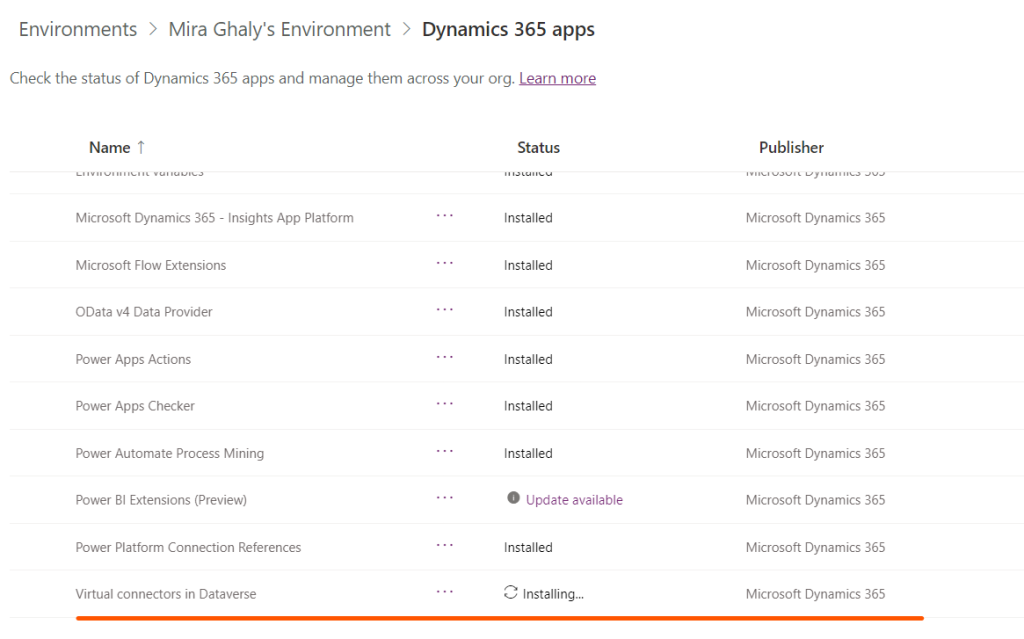
  1. Download and Install the virtual connector from this URL
  2. Click on Get Free , Sign in to your account and choose your environment, you can check the progress of installation and once it is installed you can proceed to step3.

3. Go to Power Apps (make.powerapps.com), and select the environment in which you would like to set up the virtual table.

4. In the left navigation pane, select Dataverse > Connections, and then select New connection.

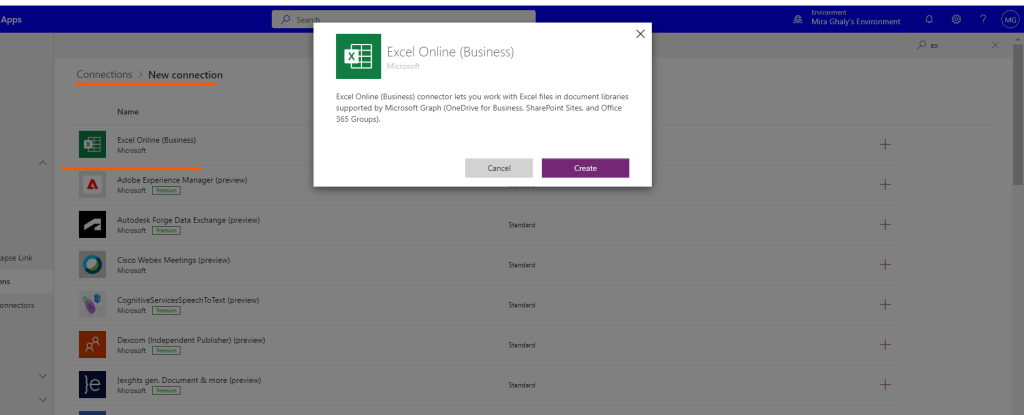
5. Select the Microsoft Excel Online (Business) from the list of connections and create new connection

6. You’ll be asked to provide additional details to connect to the data source.

Note: Your excel file should be saved in OneDrive of the person whose the connection belongs to and the table should be formatted as table.

7. Select Create, your current signed-in credentials will be used.

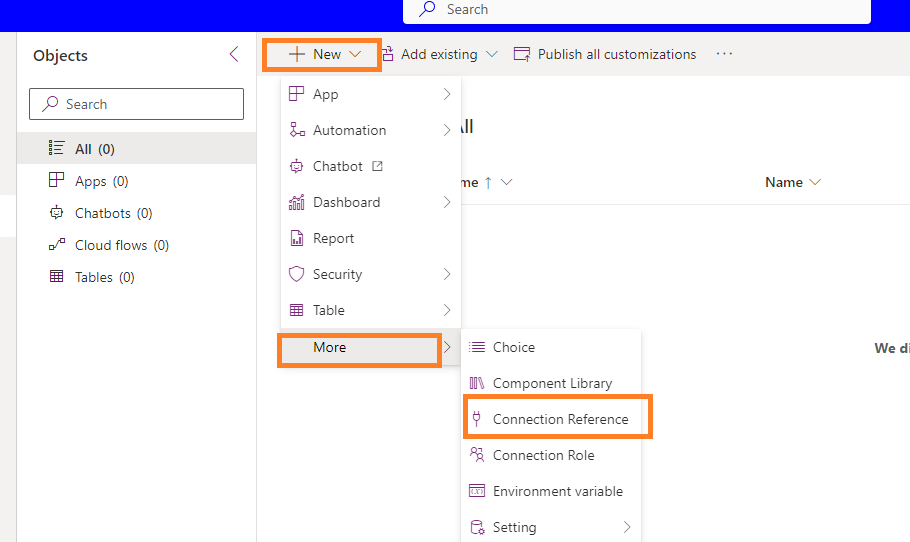
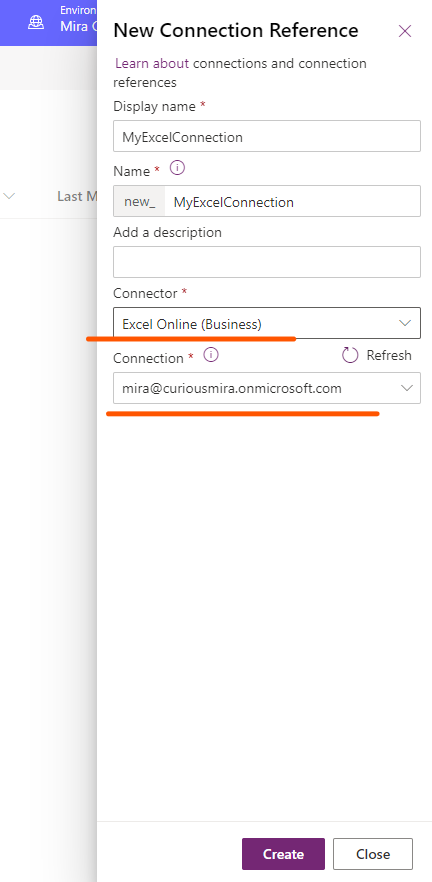
8. Go to solutions -> Create new Solution and Select New Connection reference.

9. Choose the Connector and the connection and click Create

10. Go to Advanced setting by selecting the Gear Icon

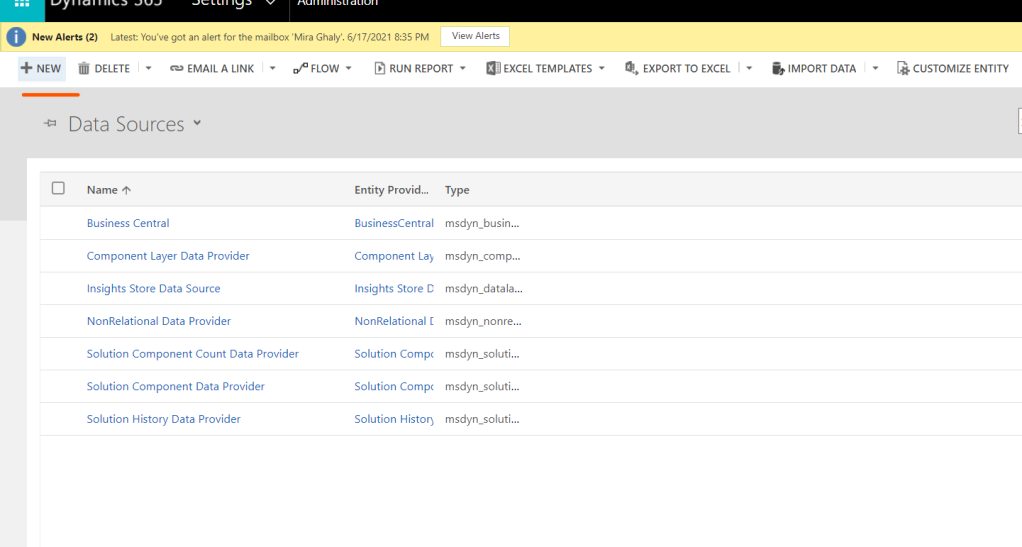
11. Navigate to settings – > Administration and select virtual entity data sources

12. Click on New

13. Select Virtual Connector Data Provider and Click OK.

14. Set the Name of your Data Source, Select the connection we have created in step 9 and the file name in your onedrive:

15. Once you save an entity catalogue will be created, Entity Catalogue will be used to help you create your virtual tables

16. Go to Tables -> Filter by Virtual and then you can see your entity catalogue

17. Next you need to proceed to creating your virtual table based on your entity Catalogue so you need to create a new app and add the entity catalogue to it.

18. Navigate to Apps and Click New App and add the Entity Catalogue to it.

19. Click Add Page from the left navigation and select the entity catalouge

20. Save and Publish, then Play to open the app

21. Select Table 1 or any table from the tables defined in your datasource.

22. Select the Name , the primary key and the primary name and set Create or Refresh Entity to yes and save and now you can see your virtual table in the list of Dataverse Tables.

Moving Solution to other Environment:

  1. Make sure you have installed the Dataverse Virtual Connector on your target environment before importing your solution.
  2. Make sure you have created the required connection step No. 5 on the target environment.
  3. You will need to add the Virtual table Data Source through the solution components -> Developer

miraghaly

✇MG

Create a virtual table from Excel using the Virtual Connector Provider

Virtual tables enable integrating data from external data sources by seamlessly representing that data as tables in Microsoft Dataverse, without data replication

Virtual Connector Providers currently available are:

  • SQL Server
  • Sharepoint
  • Excel

In this article I will go step by step on how to connect your excel sheet to Dataverse:

  1. Download and Install the virtual connector from this URL
  2. Click on Get Free , Sign in to your account and choose your environment, you can check the progress of installation and once it is installed you can proceed to step3.

3. Go to Power Apps (make.powerapps.com), and select the environment in which you would like to set up the virtual table.

4. In the left navigation pane, select Dataverse > Connections, and then select New connection.

5. Select the Microsoft Excel Online (Business) from the list of connections and create new connection

6. You’ll be asked to provide additional details to connect to the data source.

Note: Your excel file should be saved in OneDrive of the person whose the connection belongs to and the table should be formatted as table.

7. Select Create, your current signed-in credentials will be used.

8. Go to solutions -> Create new Solution and Select New Connection reference.

9. Choose the Connector and the connection and click Create

10. Go to Advanced setting by selecting the Gear Icon

11. Navigate to settings – > Administration and select virtual entity data sources

12. Click on New

13. Select Virtual Connector Data Provider and Click OK.

14. Set the Name of your Data Source, Select the connection we have created in step 9 and the file name in your onedrive:

15. Once you save an entity catalogue will be created, Entity Catalogue will be used to help you create your virtual tables

16. Go to Tables -> Filter by Virtual and then you can see your entity catalogue

17. Next you need to proceed to creating your virtual table based on your entity Catalogue so you need to create a new app and add the entity catalogue to it.

18. Navigate to Apps and Click New App and add the Entity Catalogue to it.

19. Click Add Page from the left navigation and select the entity catalouge

20. Save and Publish, then Play to open the app

21. Select Table 1 or any table from the tables defined in your datasource.

22. Select the Name , the primary key and the primary name and set Create or Refresh Entity to yes and save and now you can see your virtual table in the list of Dataverse Tables.

Moving Solution to other Environment:

  1. Make sure you have installed the Dataverse Virtual Connector on your target environment before importing your solution.
  2. Make sure you have created the required connection step No. 5 on the target environment.
  3. You will need to add the Virtual table Data Source through the solution components -> Developer
✇MG

Business Central – Setup Data-Verse Connection

In this article I will guide you through a step by step guide to connect Business Central to your dataverse environment:

  1. Login to your business central environment.
  2. Click on the Search Icon on the top right of your screen and type Assisted Setup.

3.Go to Connect with Other systems – > Setup a connection to Dataverse.

4. This will open the Dataverse Connection Setup Pop up window

5. Choose the default options for enabling data synchronisation and enable virtual table and events and click Next

6. Choose Accept on the review terms and conditions an click Next

7. On the Next screen, you will be presented with all environments that you have access to, choose the environment URL.

8. Click Sign in with administrator user that have System Administrator rights in Dataverse and you should be using a specific account for this integration and click Next.

9. By Default the setup will run with Data Synchronisation, if you want to do the setup without Data Synchronisation , you can enable this option

10. Then on the next screen you will be you will be presented with an Analysis for the data to be synchronised and you can select your coupling criteria.

11. Click Next and Finish

References:

https://learn.microsoft.com/en-nz/dynamics365/business-central/admin-how-to-set-up-a-dynamics-crm-connection

miraghaly

✇MG

Business Central – Setup Data-Verse Connection

In this article I will guide you through a step by step guide to connect Business Central to your dataverse environment:

  1. Login to your business central environment.
  2. Click on the Search Icon on the top right of your screen and type Assisted Setup.

3.Go to Connect with Other systems – > Setup a connection to Dataverse.

4. This will open the Dataverse Connection Setup Pop up window

5. Choose the default options for enabling data synchronisation and enable virtual table and events and click Next

6. Choose Accept on the review terms and conditions an click Next

7. On the Next screen, you will be presented with all environments that you have access to, choose the environment URL.

8. Click Sign in with administrator user that have System Administrator rights in Dataverse and you should be using a specific account for this integration and click Next.

9. By Default the setup will run with Data Synchronisation, if you want to do the setup without Data Synchronisation , you can enable this option

10. Then on the next screen you will be you will be presented with an Analysis for the data to be synchronised and you can select your coupling criteria.

11. Click Next and Finish

References:

https://learn.microsoft.com/en-nz/dynamics365/business-central/admin-how-to-set-up-a-dynamics-crm-connection

✇MG

Dataverse Tip# 6 Adding a new column to an existing Excel Template

Let’s say you have an existing out of the box Excel Template that you use to export data from a dataverse Table, and you came to the need to add a new column from a related table to your template so you need to apply the below steps to update your existing template instead of having to go back and redo your template:

  1. Create a new view with the new field added and click Excel Templates and Choose Download Template.In my Example i have added on the contacts view Account Name from Company and Number

2. Open the downloaded Excel file template and then show the developer tab by going to options -> Customise Ribbon and selecting the developer tab

3. On the excel sheet navigate to the developer tab and click View Code

4. The view code opens a VBA project you will find a hidden sheet on the left hand side , called hiddenDataSheet, this is where all the binding happens between the column name in dataverse and the excel column, so go to the Visible property and set it to visible close the VBA project and go back to your excel sheet you will find the hidden sheet now visible

5.

6. Go to the hidden sheet and you will find in the first column of the first row the bindings between the dataverse columns and the Excel Column

7. Now you need to identify the New column that you need to add to your existing template that you need to update this is highlighted in the above image.

&60807094-c373-4995-91f7-712993b50884.accountnumber=Account%20Number%20%28Company%20Name%29%20%28Account%29

60807094-c373-4995-91f7-712993b50884.accountnumber is the dataverse column name

Account%20Number%20%28Company%20Name%29%20%28Account%29 is your excel column name

8. Now go back your contacts view click on Excel Templates and choose the excel template you need to update.

9. Open the excel template , Go to developer tab,click view code and set the hiddenDatasheet to visible, Go back to your Excel sheet add a new column called AccountNumber

10. Go to the hidden sheet and append the text in step 7 as below:

&60807094-c373-4995-91f7-712993b50884.accountnumber=Account%20Number%20%28Company%20Name%29%20%28Account%29

Remove the part in bold and replace by AccountNumber your new ExcelColumn

So it will be like this:

&60807094-c373-4995-91f7-712993b50884.accountnumber=AccountNumber

11. Go back to view code , hide the hiddenDataSheet and upload your template.

References:

https://learn.microsoft.com/en-us/power-apps/maker/model-driven-apps/templates-overview

miraghaly

✇MG

Power FX Metadata not Refreshing

I thought this might be useful to share , we run into an issue where we used the new command bar editor to create new buttons and All was good till we added a new column to the same table and published all customisations, went to the Command Bar and tried to set the visible property using Power FX formula but unfortunately the new column did not show up.

So by contacting Microsoft this is a known issue as of now and as a work around you need to follow the below steps:

  1. Go to the Solution -> Choose the app ->Select the table -> Right Click Edit Command Bar.

3. Choose the Command Bar you want to Edit

4. Select your customised button and click Open Component Library

5. Component Library will be loaded on the Menu Click File -> Save , Then Publish and then reopen the Command Bar ,your metadata will be refreshed.

miraghaly

✇MG

Power Automate w Word Online: generate document updates

Update generated word template

Something Awesome About ... Power Platform and BizApps..Dev and Ops

Scenario:

My client generates a summary document for applications lodged online. The generated summary could be manually edited by an officer. At the final stage of the application processing, it’s required to include additional information to the generated summary document regarding the outcome of the application. This information must be dynamically generated.

This is a process diagram below:

Multi-step document generation

As you can see, the dynamic content for a document is generated twice: once during the document creation and a second time we update the existing document to add blocks of information that are not available at the earlier phase.

The solution:

We are going to use Power Automate with Word Online (Business) connector to generate and update the summary document.

There is an article explaining how to prepare the template and discussing some limitations of the connector: https://learn.microsoft.com/en-us/connectors/wordonlinebusiness/

Step 1. Prepare a document template.

We must add all…

View original post 423 more words
Featured Image -- 2025

miraghaly

✇MG

CanvasApps: Tip#1 : How to add a Separator to your Gallery!

How to simply add a Separator like below to your custom gallery control?

  1. Go to your Gallery (myGallery) and add a rectangle (mySeparator)

2. set the below properties on the rectangle

X= 2
Y= myGallery.TemplateHeight - mySeparator.Height
Width =  myGallery.TemplateWidth - 2 * mySeparator.X
Height= 2

miraghaly

✇MG

Dataverse Pie Charts in Canvas app

So today I got a question on the PowerApps community on how to display a Pie chart based on DataVerse tables.

So the Scenario is as below, Locations Table and Visits where location is a lookup and on the pie chart we need to display the number of Visits per Location, I thought initially this should be easy the same as it should be on model driven app, so added the pie chart on on the Items I thought it would be as easy as linking it to visits and use the location column in the series but this did not work as expected as the Lookup (Location) was not showing up so I ended up by doing the solution described below, so this is the steps to create the data and do the pie chart!

Let’s Go!

1. I have created a Table called Location Primary column Name is Location Name

2. Visits Table where location is a lookup

 To be able to get the pie chart working I had to do a Join using Add Columns , then Group BY , Then Add Columns again to get the row counts, this is the final expression:

AddColumns(GroupBy(ShowColumns(AddColumns(Visits,"LocationName",LookUp(Locations,'Location Name'=Visits[@Location].'Location Name').'Location Name'),"LocationName"),"LocationName","myGroup"),"count",CountRows(myGroup))

Let me explain part by part the above Expression:

No. 1 the Join: So We join the table visits with the table Locations and show the new Column in the Location Name
ShowColumns(AddColumns(Visits,"LocationName",LookUp(Locations,'Location Name'=Visits[@Location].'Location Name').'Location Name'),"LocationName")

 No. 2 Add Grouping by Location and the location group name is myGrouping

GroupBy(ShowColumns(AddColumns(Visits,"LocationName",LookUp(Locations,'Location Name'=Visits[@Location].'Location Name').'Location Name'),"LocationName"),"LocationName","myGroup")

No. 3 Then add another column to count the grouping

AddColumns(GroupBy(ShowColumns(AddColumns(Visits,"LocationName",LookUp(Locations,'Location Name'=Visits[@Location].'Location Name').'Location Name'),"LocationName"),"LocationName","myGroup"),"count",CountRows(myGroup))

This yield the below collection as below:

Mira_Ghaly_0-1660722857672.png

The Pie Chart looks like below:

Mira_Ghaly_1-1660722973312.png

Hope this is useful!

Reference to Expressions Used to learn more about them:

https://docs.microsoft.com/en-us/power-platform/power-fx/reference/function-table-shaping?WT.mc_id=DX-MVP-5004221

https://docs.microsoft.com/en-us/power-platform/power-fx/reference/function-table-counts?WT.mc_id=DX-MVP-5004221

https://docs.microsoft.com/en-us/power-platform/power-fx/reference/function-groupby?WT.mc_id=DX-MVP-5004221

miraghaly

Mira_Ghaly_0-1660722857672.png

Mira_Ghaly_1-1660722973312.png

✇MG

Power Apps Grid Control – First Glimpse to the Cell Renderer and Editors

Dianamics PCF Lady

We’ve saw the Power Apps grid control (Preview) in the latest Wave Announcements. Each time we hear about great improvements. In Release Wave 1/2022 we’ve got inline-editing and infinite scrolling. But as we’ve tried it out, we saw the last parameter which sounded really promising:

The description of the parameter was really exciting:

Full logical name of the control (…) that provides custom cell renders and/or editors for the Power Apps grid control

The description was confirmed in the Release Wave 2/2022 :

Customizable cells: If the default visualization for the cells in one or more columns doesn’t meet your needs, makers can create custom cell renderers and editors to modify how cells look when showing data and when users are editing data.

Since yesterday we can find in the docs how the control works. And there is also an example in the github Power-Apps-Samples. Of course I…

View original post 1,913 more words

Featured Image -- 1956

miraghaly

❌