Vue lecture

Il y a de nouveaux articles disponibles, cliquez pour rafraîchir la page.
✇Manuel T. Gomes

Power Automate: Office 365 Outlook – When a new email mentioning me arrives Trigger

I’ve mentioned this many times, but sorting email is where productivity dies, even if you have a quick way to do it. There’s nothing better than having Power Automate doing all the work for you, so today, we’ll explore the “when a new email mentioning me arrives” trigger for Office 365.

Let’s see how to use it and how to find it.

Where to find it?

To find it, you can search for the “When a new email mentioning me arrives” trigger or go to the “Office 365 Outlook”:
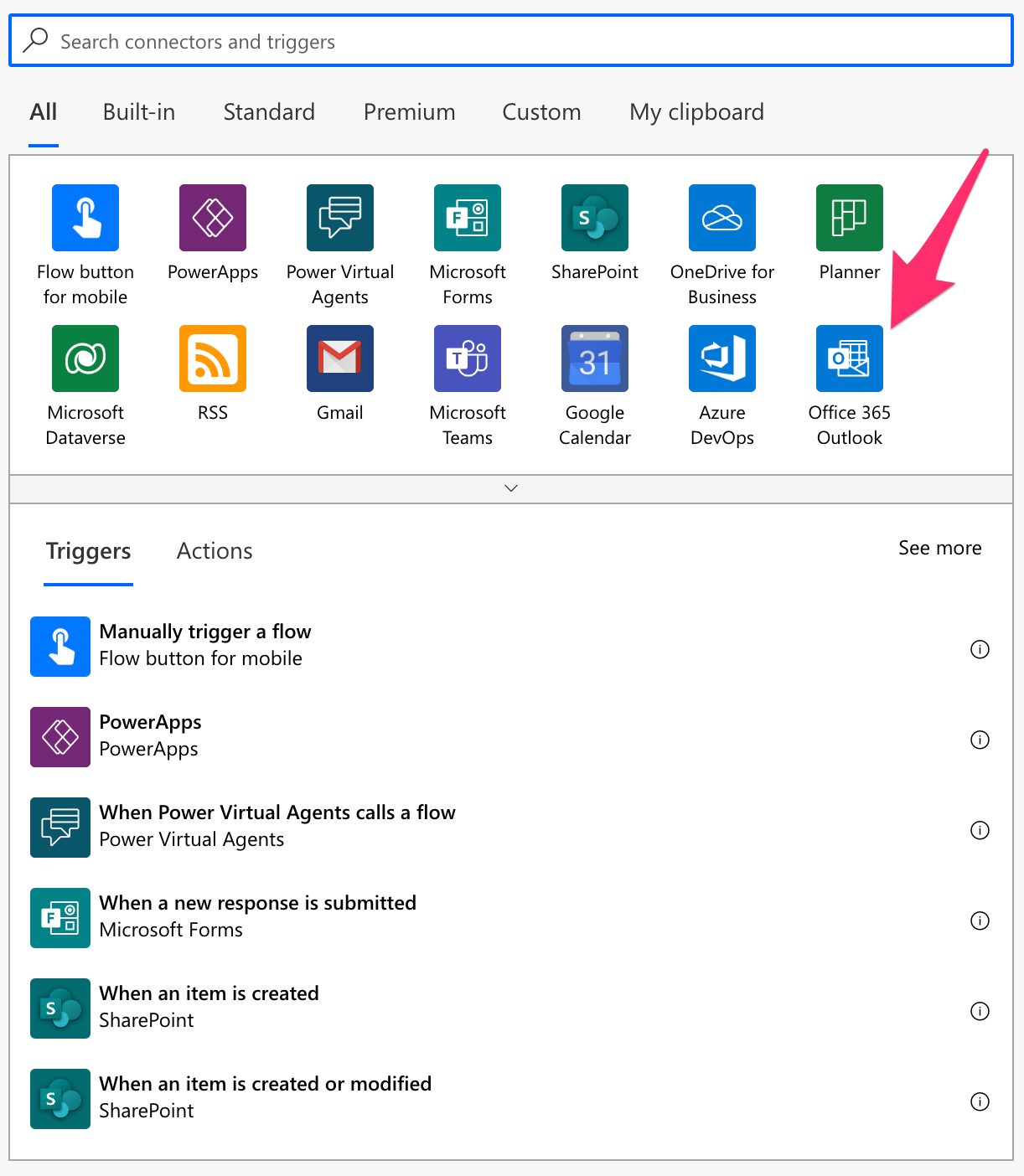
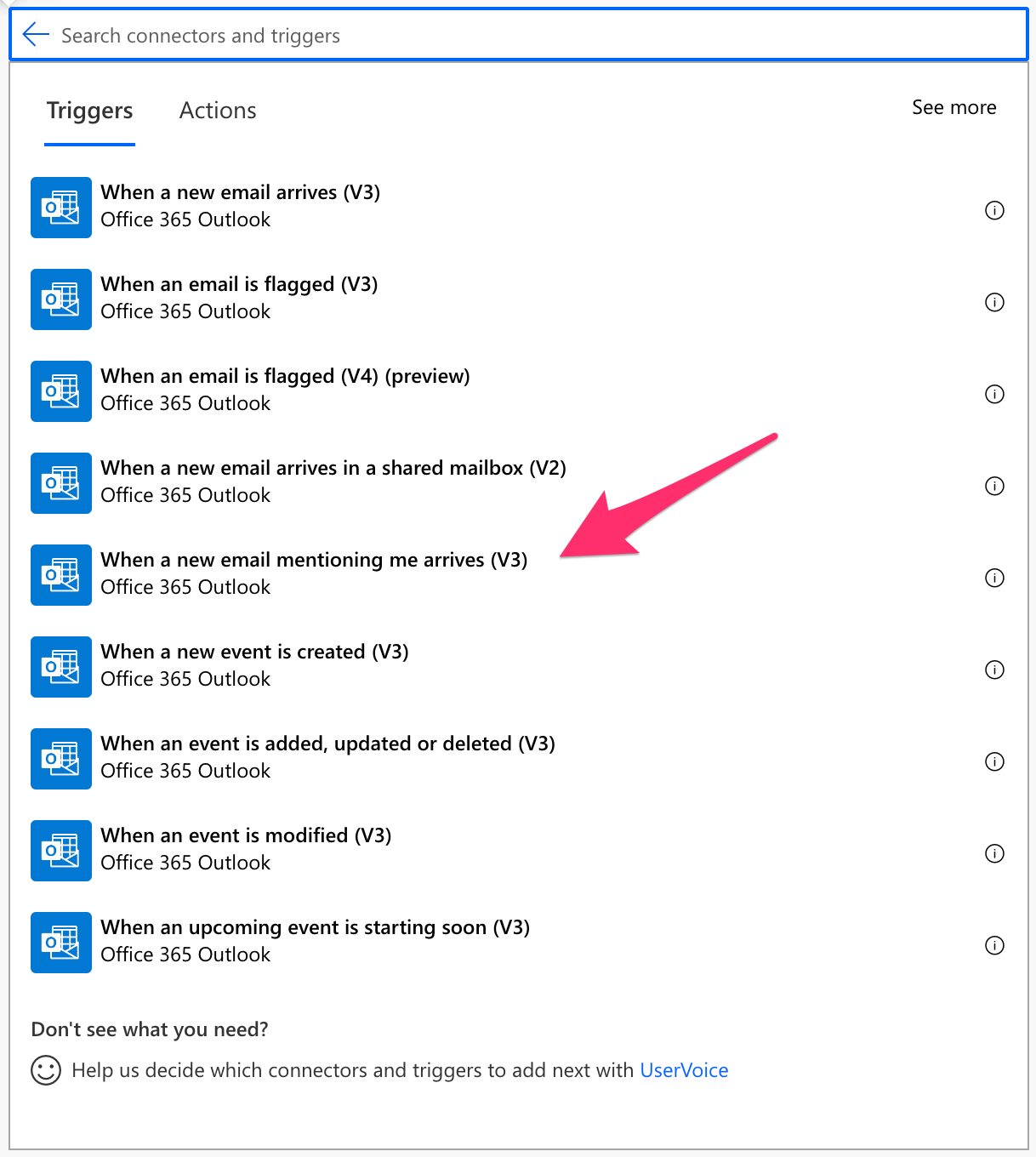
Select “When a new email mentioning me arrives”:
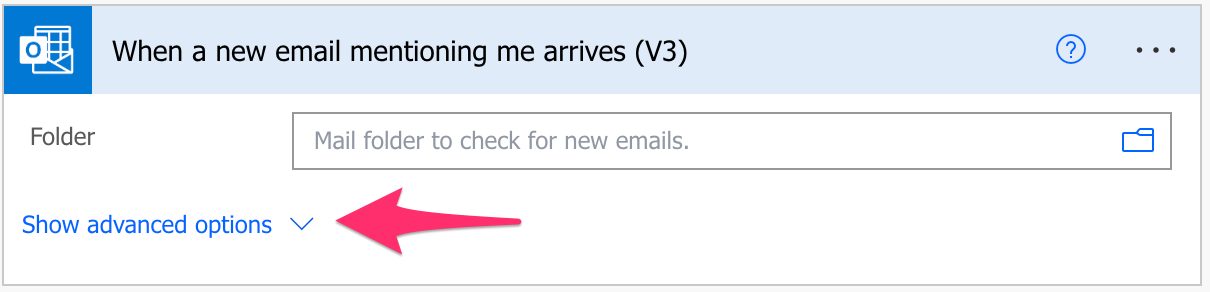
Here’s what it looks like:
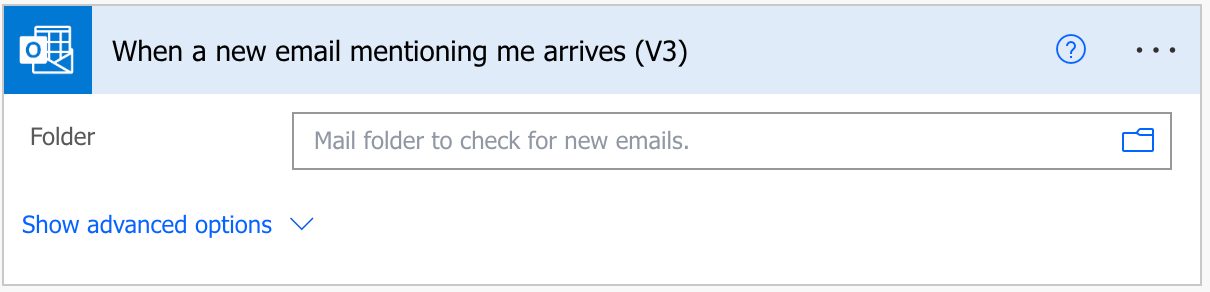
There are advanced options that we’ll explore below, but here’s how to activate them:
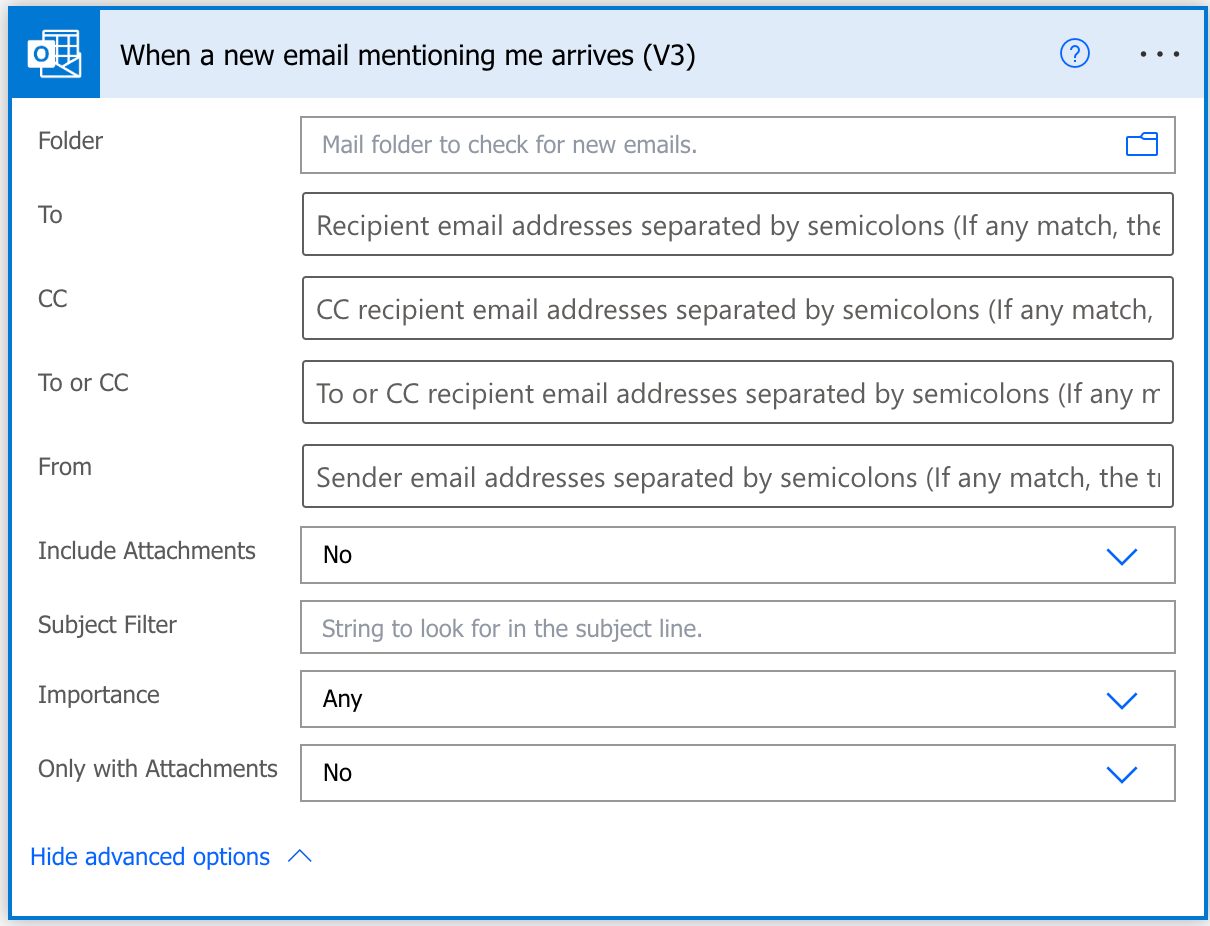
Here’s the advanced view.
Pro Tip:
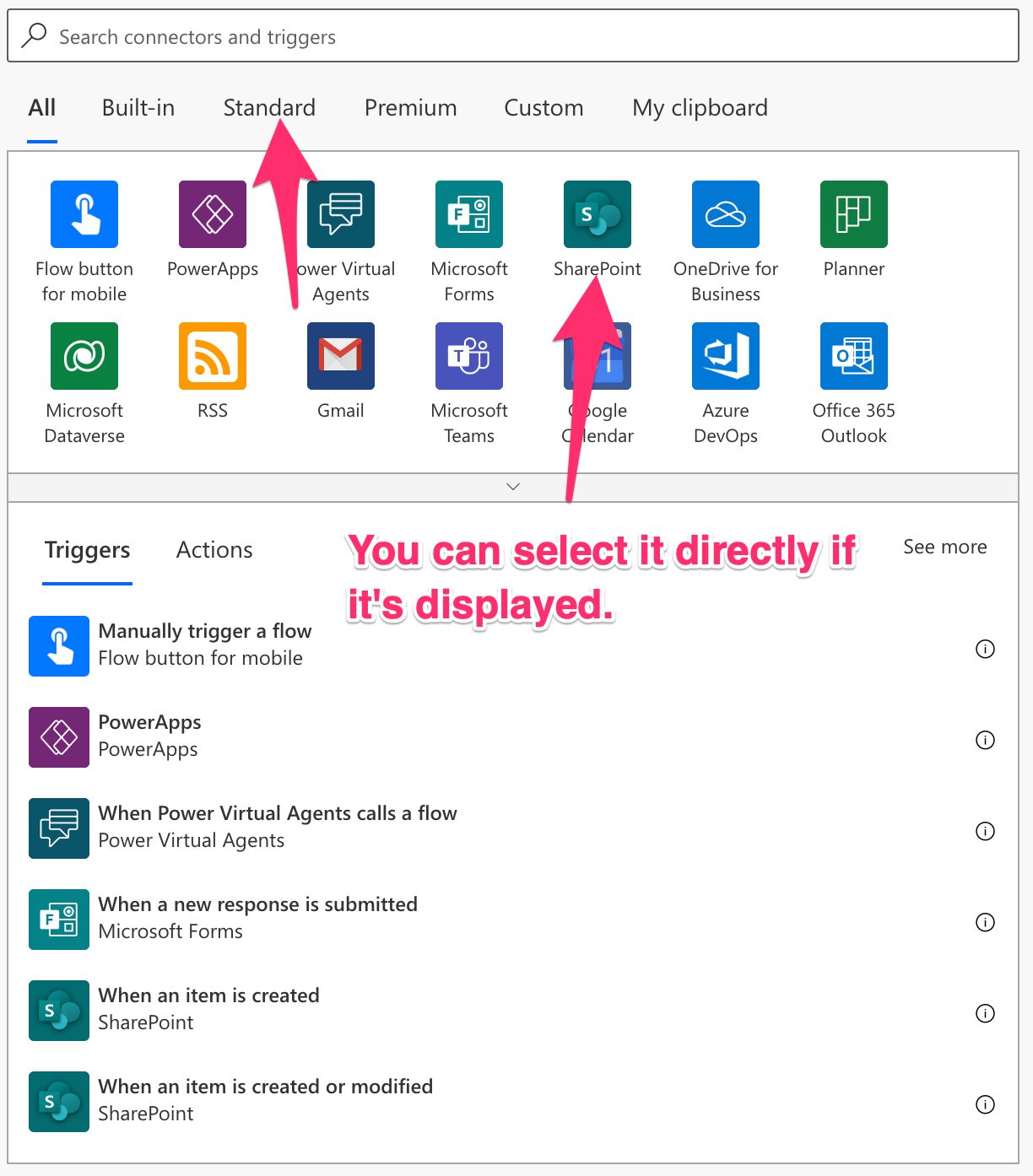
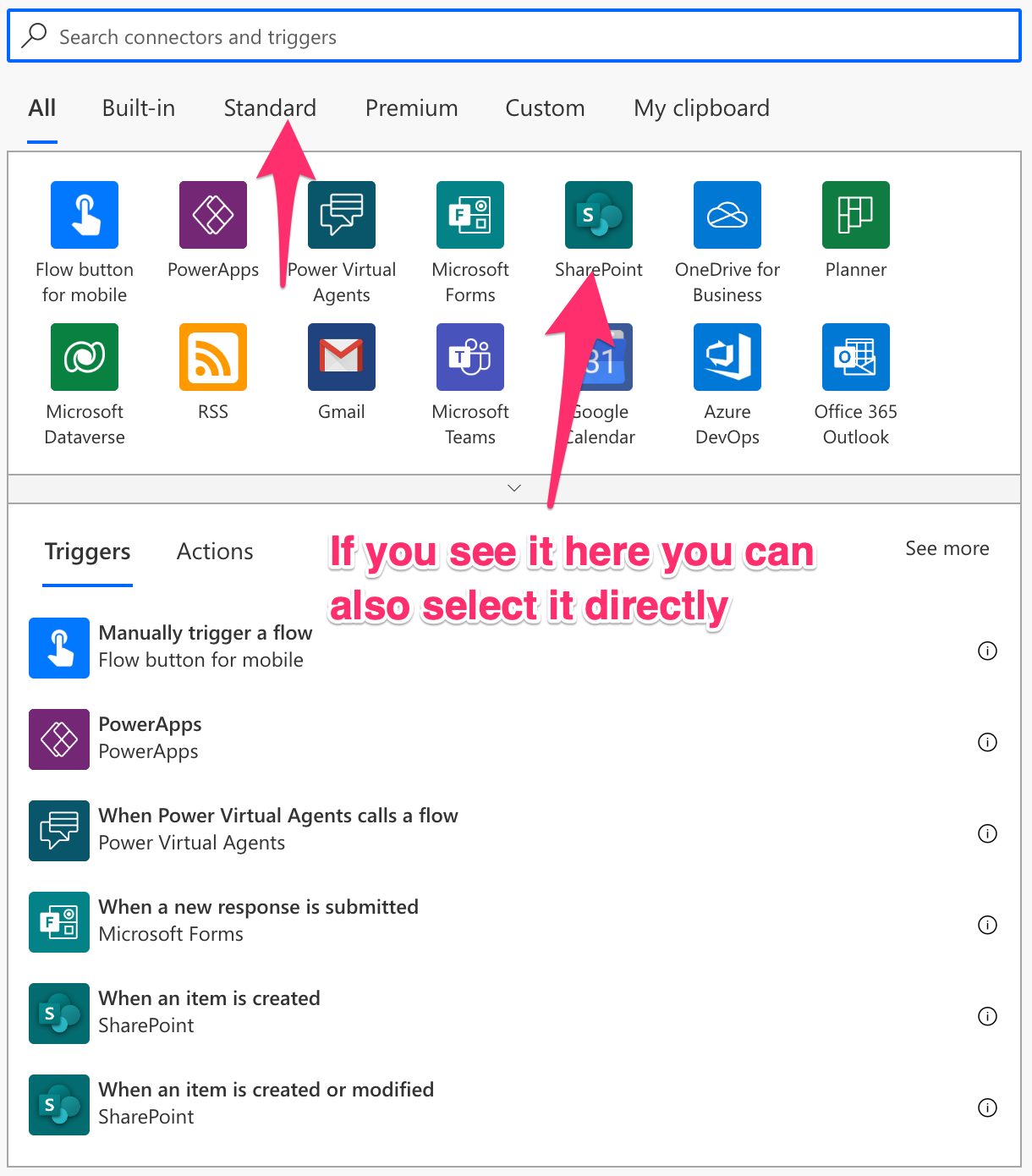
Power Automate tends to save the most common triggers on the main screen, so check there before going through the full hierarchy. Also, you can use the search to find it quickly.

Let’s check the “advanced” fields since they allow us to filter emails we don’t want to process.

Fields

There are a lot of fields that we can configure. Let’s look at them individually.

Folder

If you leave it blank, Power Automate will look at all incoming emails, but you can define different folders to trigger instead of the inbox. For example, you may have a folder where you send a pre-defined answer to the person that emails you while mentioning you or send you a notification when this happens. The folder is a great way to limit catching all emails that arrive mentioning you so that the Flow doesn’t fire for all emails, so be sure to define it if possible.

“To”, “CC”, “To or CC,” or “From”

These fields were a great idea from Microsoft when creating this trigger. Since we receive many emails, it doesn’t make sense for the trigger to fire each time we receive an email mentioning us. For example, we may only want a subset of the total emails or emails from specific co-workers. With these filters, we don’t need to add large “Condition” or “Switch” actions to filter the emails you want. The trigger does all the work for you.

Just so you know, the trigger will run only if at least one matches, so this is also good if you have substantial limitations on the number of Flows you can run a day.

To use it, separate the emails with “;”. You can have internal and external emails, but keep this field with only the email. When you copy emails from some email clients, you’ll have the name associated with it, so be sure to remove it.

Finally, I want to highlight the “To or CC” field. If you add an email to the “To” field or the “CC” field, the email must contain both for the Flow to trigger. But if you want either one, you can use the “To or CC” field.

Importance

The “importance” field is often ignored, but some organizations can have strict rules on how to use it. If yours is one of them, you can have a Flow that sends you a notification each time a “High” priority email arrives, for example. The available possibilities are:

  1. Any
  2. High
  3. Normal
  4. Low

Only with Attachments

For example, if you have a Flow that archives your attachments automatically, you may want to trigger Flows that have them. Having your Flow trigger only when a condition is satisfied makes your life easier because you don’t need to validate, for each email that arrives, if there’s an attachment or not.

Include Attachments

Should the trigger include the attachment information or not? There is, however, something that you should know. Even if you enable this feature, Flow (at the time of writing this article) won’t fetch the attachments correctly. I go into detail in this article, but you need to know that you need to fetch the articles separately using the “Get email” action.

Subject Filter

As with the other fields, we can filter the subject for a specific string, and the Flow will only trigger if that condition is met.

Usage

It’s essential to define what is an email “arriving”. It doesn’t need to be a new email or an email that drops in the inbox. We consider it as “arriving” any email that is moved to a folder, being automatically when it arrives in your inbox, or you move it to another folder. This is super important because it opens the doors to a lot of automation based on moving emails to folders.

This trigger will fire if the emails mention you in the body, so you’ll have access to all properties of that email in the following actions. For example, here’s how to access the email’s subject using a “Compose” action.
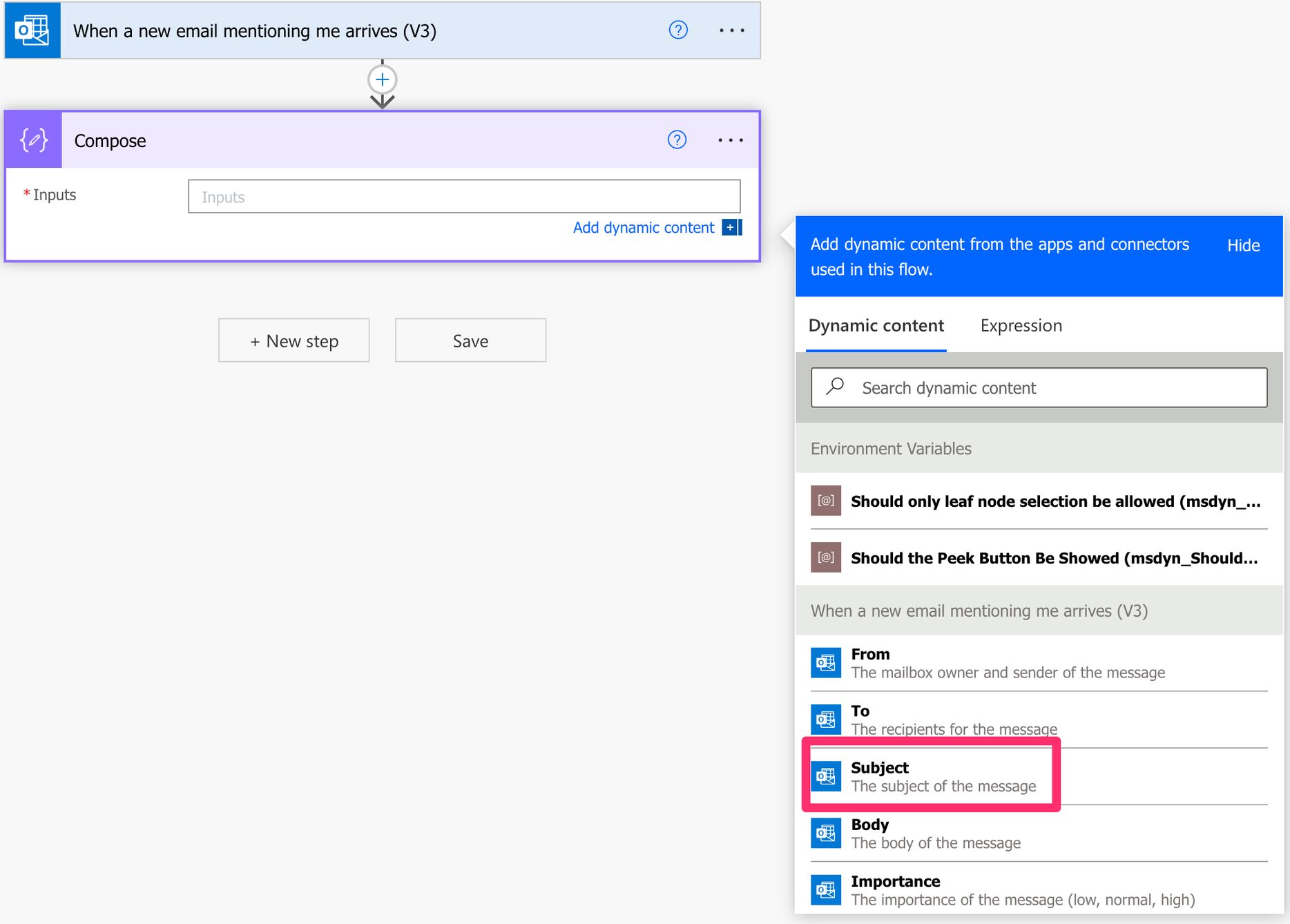
Notice that you don’t need to use the “Apply to each” action because you only have one email each time, meaning that if you receive multiple emails where you’re mentioned, your Flow will trigger once per email received.

Please remember that a mention is not the same as having your name. For example, if I write the following email, it won’t be considered a mention.
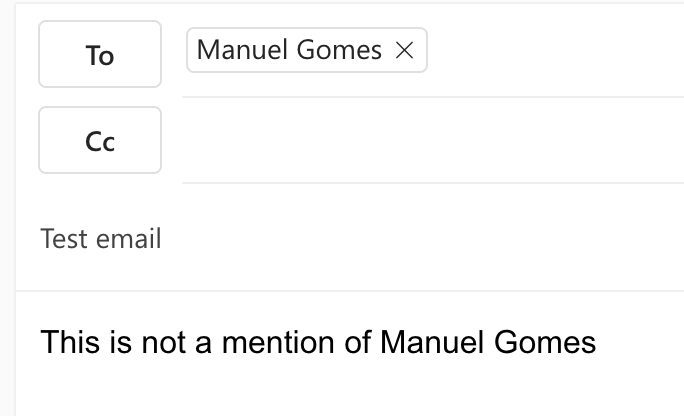
But the following is:
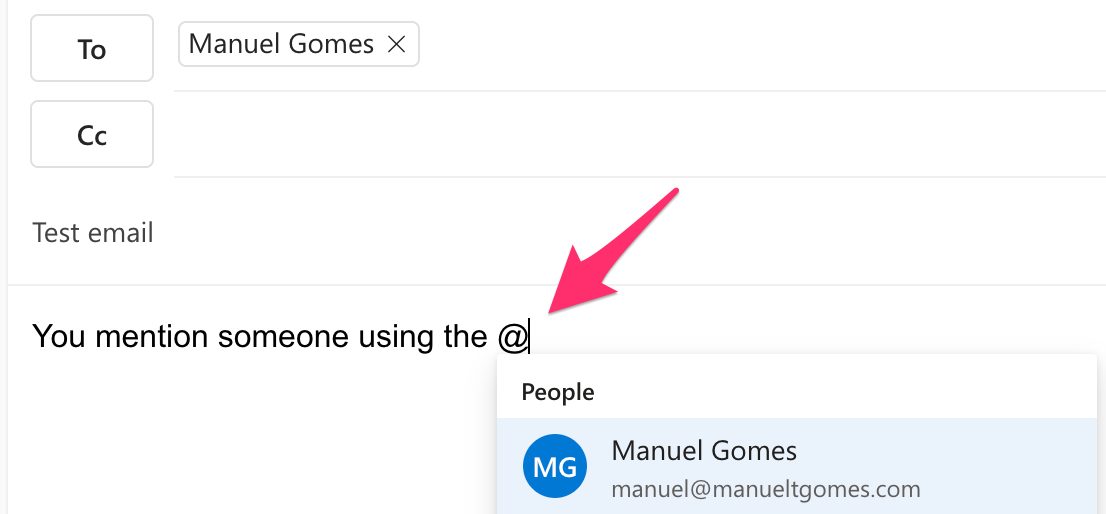
You need to use the “@“ character to display several suggestions that can be people from this email. Please be careful because some email clients will automatically add the email to the list of senders if it’s mentioned, so be sure you want that person to receive the email.

Limitations

You can’t access emails in shared libraries. You can use the “When a new email arrives in a shared mailbox” trigger to catch emails, but then you need to check int email’s body to see if there’s a mention of you manually.

Also, some emails, like protected emails, could be skipped depending on your tenant configurations. If there’s any issue in the attachments or body of the email, the “When a new email mentioning me arrives” won’t trigger as well.

Recommendations

Here are some things to keep in mind.

Use the filters wisely

Using the filter fields is a fantastic way to trigger your Flow when the condition is met, limiting the number of times the Flow fires. But it’s important to know that the flow triggers only if all filters are met. Test your triggers and ensure they are firing when you want them. Any email that should be parsed but doesn’t fit the filters will be ignored, so it’s a hidden error since there are no error messages or warnings.

Name it correctly

The name is super important in this case since there are a lot of filters. Define in the name what you’re trying to achieve. Always build the name so that other people can understand what you are using without opening the action and checking the details.

Always add a comment

Adding a comment will also help avoid mistakes. Indicate what emails you want to fetch, the ones to ignore the exceptions, and the reasoning behind that. It’s essential to enable faster debugging when something goes wrong. Besides, it’s good to understand the mindset and requirements when building the Flow in case someone else is debugging or improving it.

Back to the Power Automate Trigger Reference.

Photo by Melinda Gimpel on Unsplash
 

✇Manuel T. Gomes

Power Automate: OneDrive for Business – For a selected file Trigger

Did you know you can trigger Flows for files directly in OneDrive for Business? Let’s say that you have a contract that you want to send for approval. You need to generate a link to the file or attach it to an email, send it to the people who need to approve it, receive notifications, and merge changes. Or you press a button and let Power Automate do the work for you by using OneDrive for Business “For a selected file” trigger that catches these requests.

Let’s see how to use it.

Where to find it?

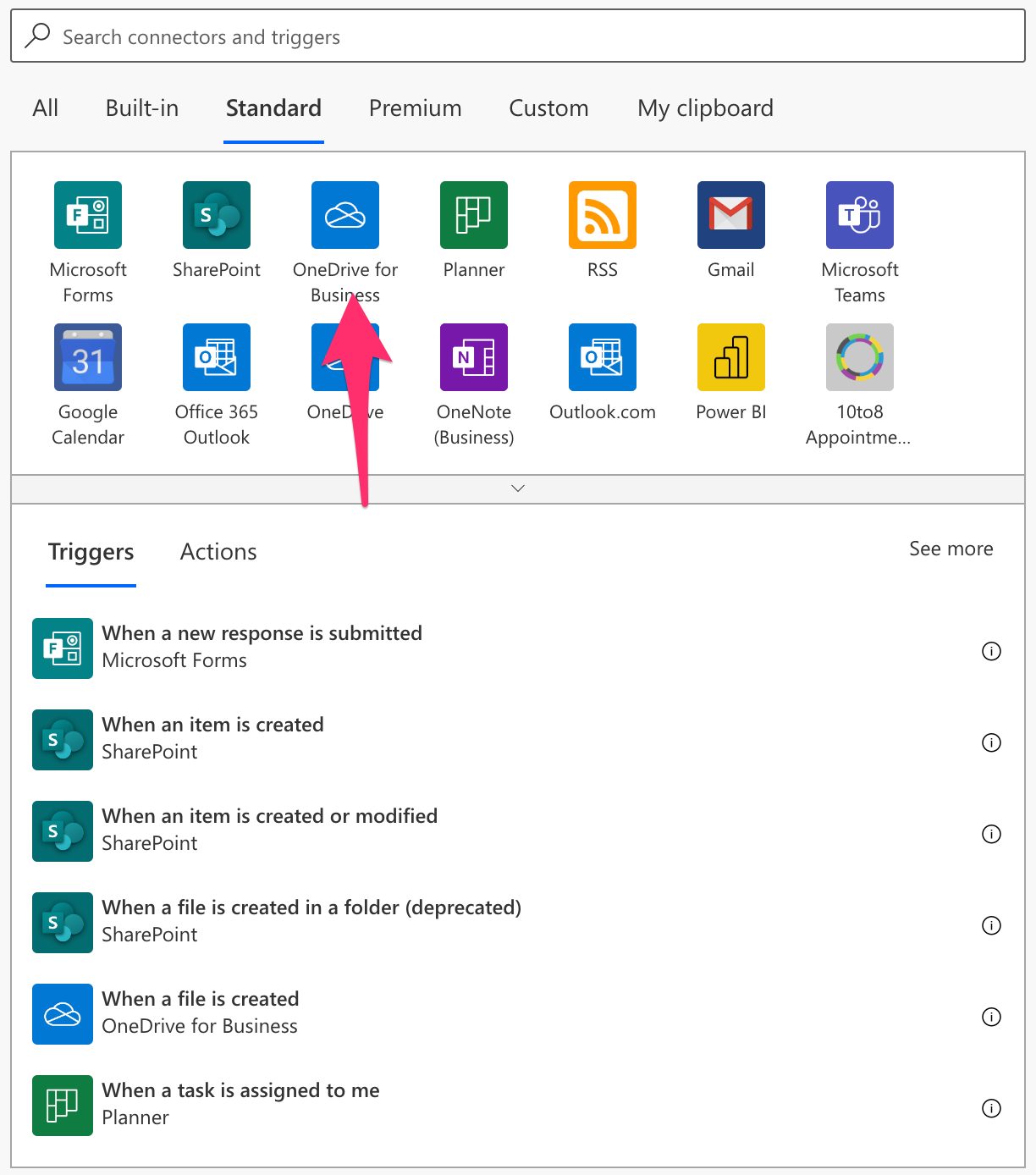
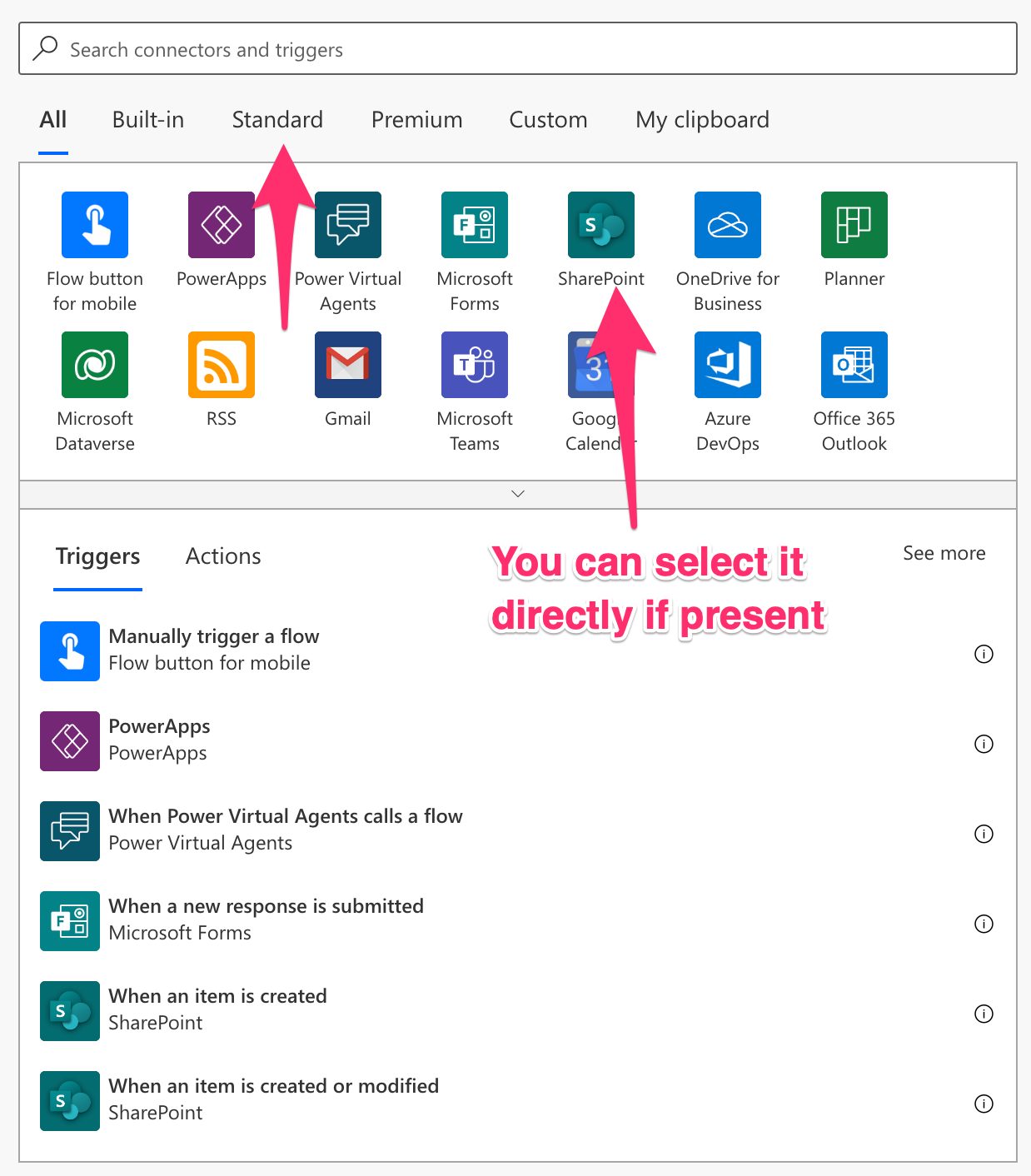
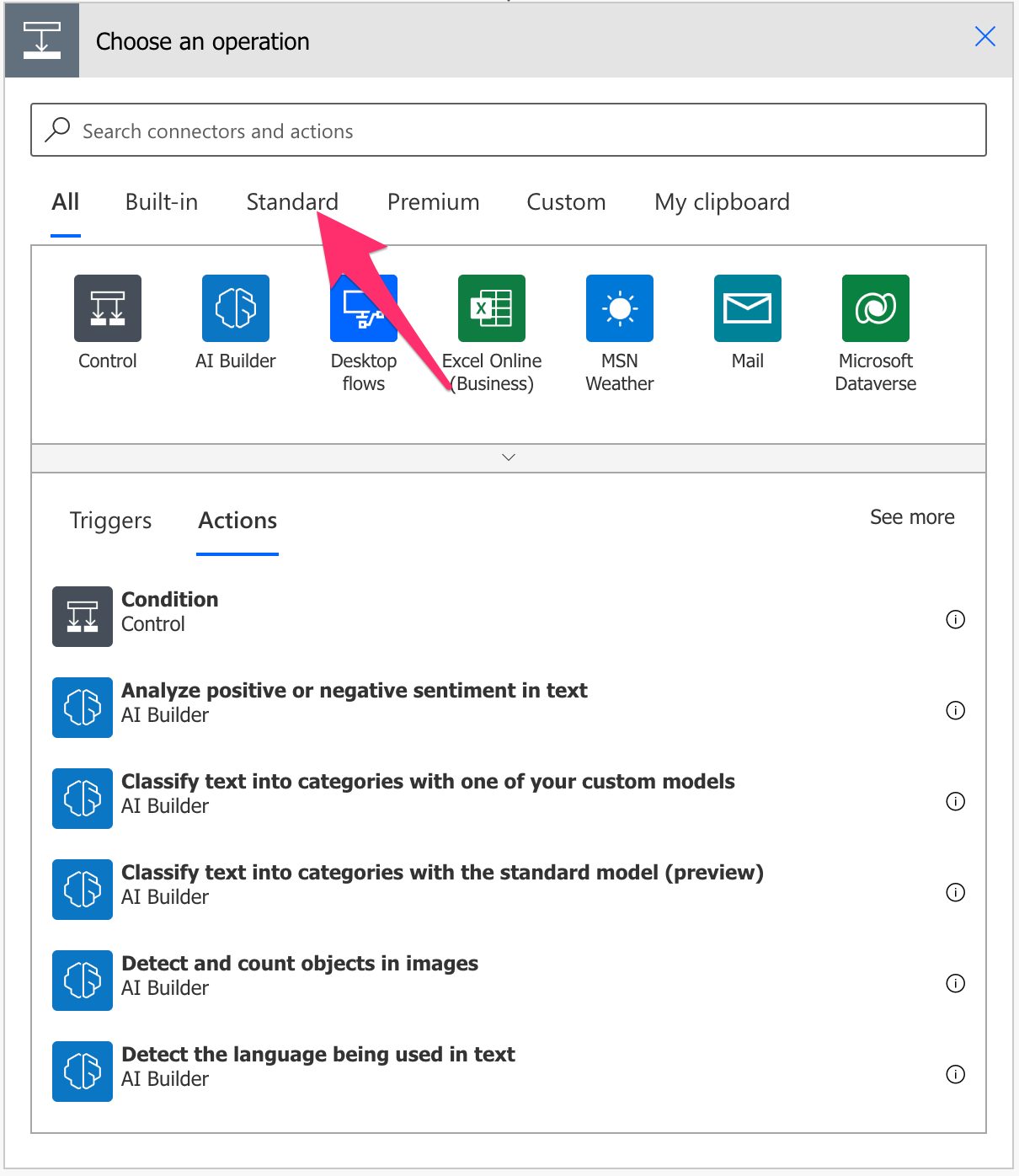
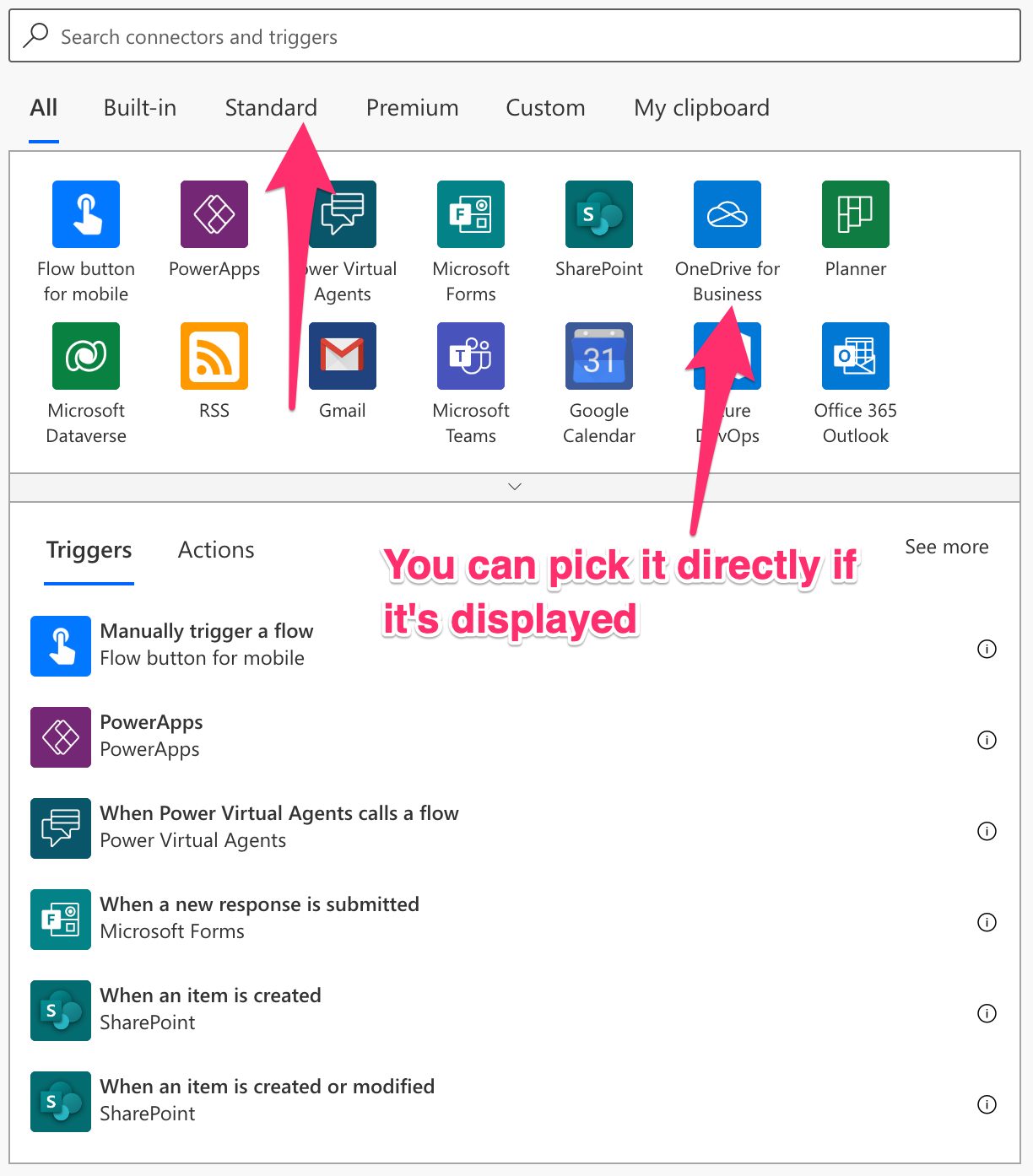
To find it, you can search for OneDrive for Business “For a selected file” trigger or select “Standard”.

Select “OneDrive for Business”:

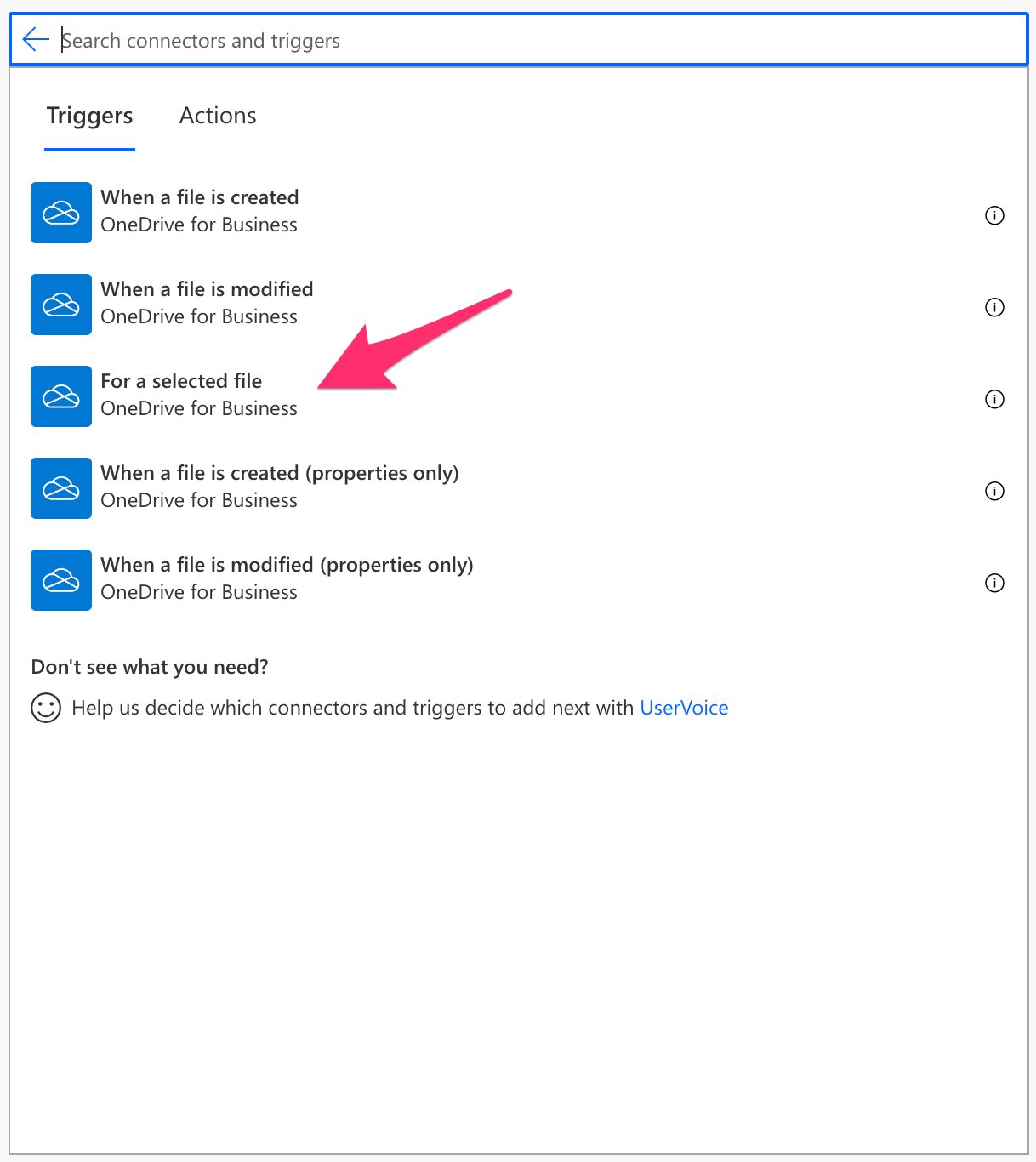
Pick OneDrive for Business “For a selected file” trigger:

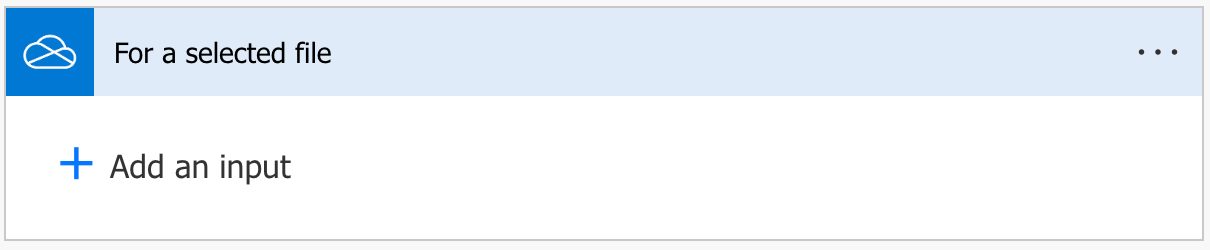
Here’s what it looks like:

Pro Tip:
Power Automate tends to save the most common triggers on the main screen, so check there before going through the full hierarchy. Also, you can use the search to find it quickly.

There are no fields to configure, so let’s look at how to use it.

Usage

First, let’s create a Flow called “Approve Contract” (the name will be important later).

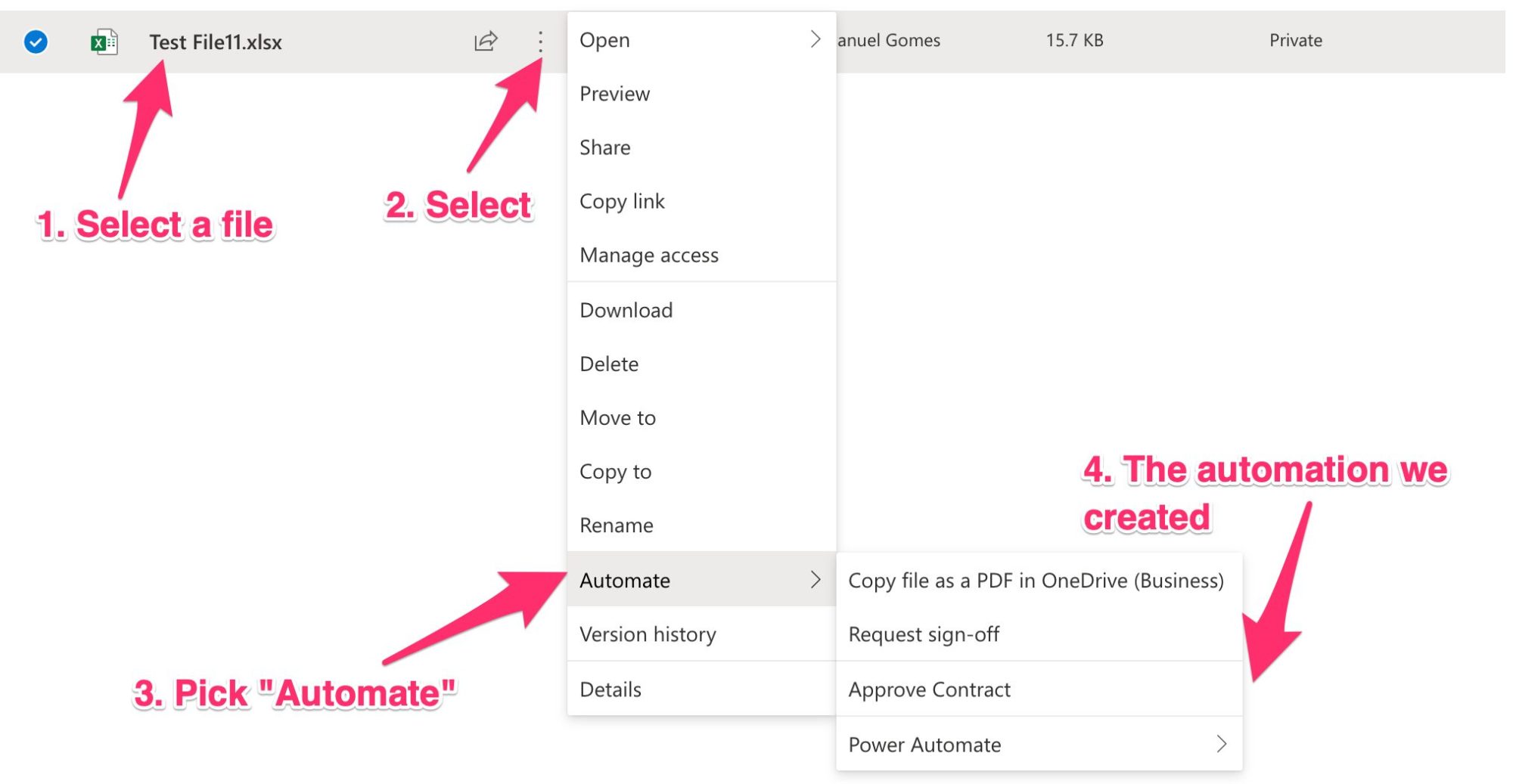
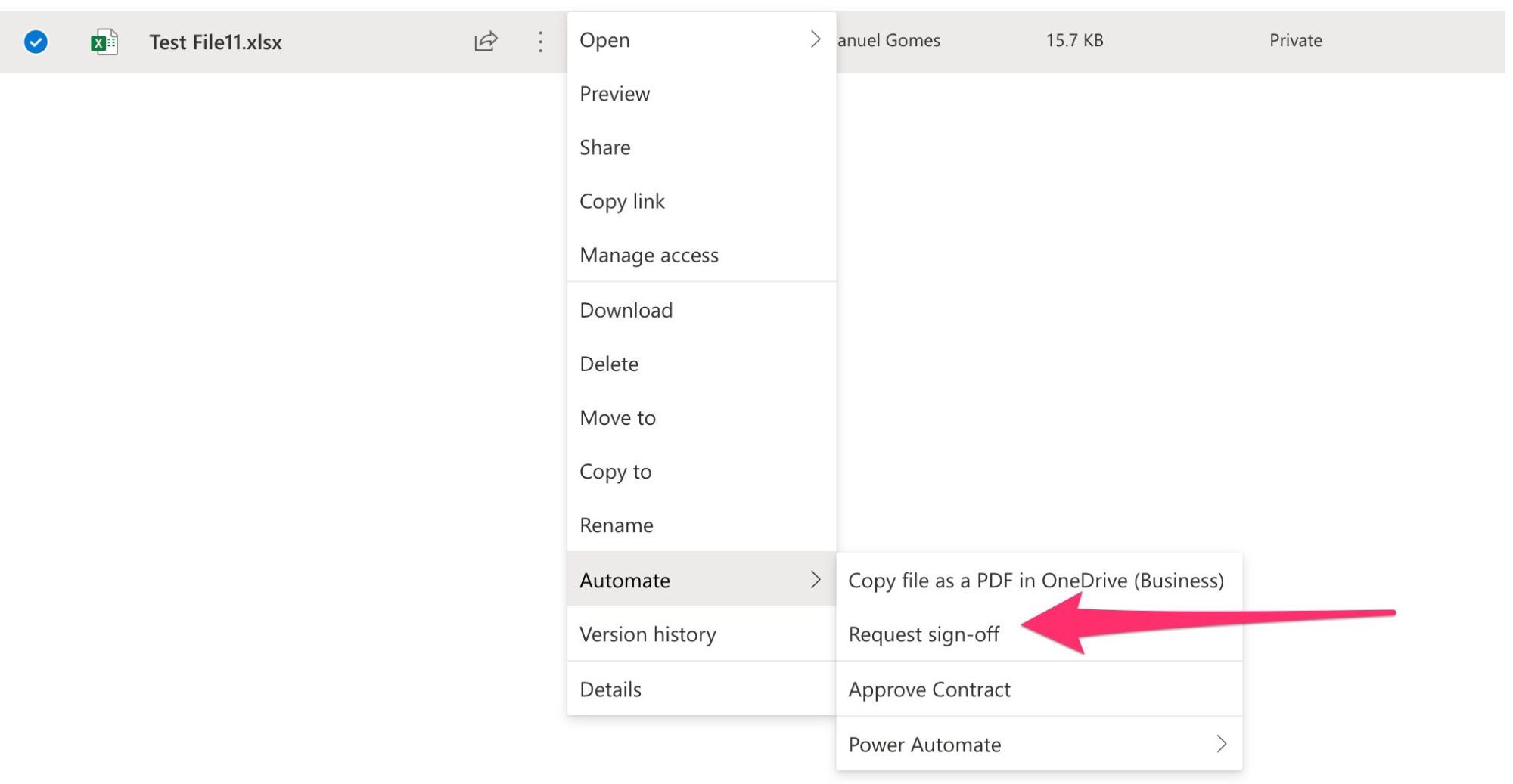
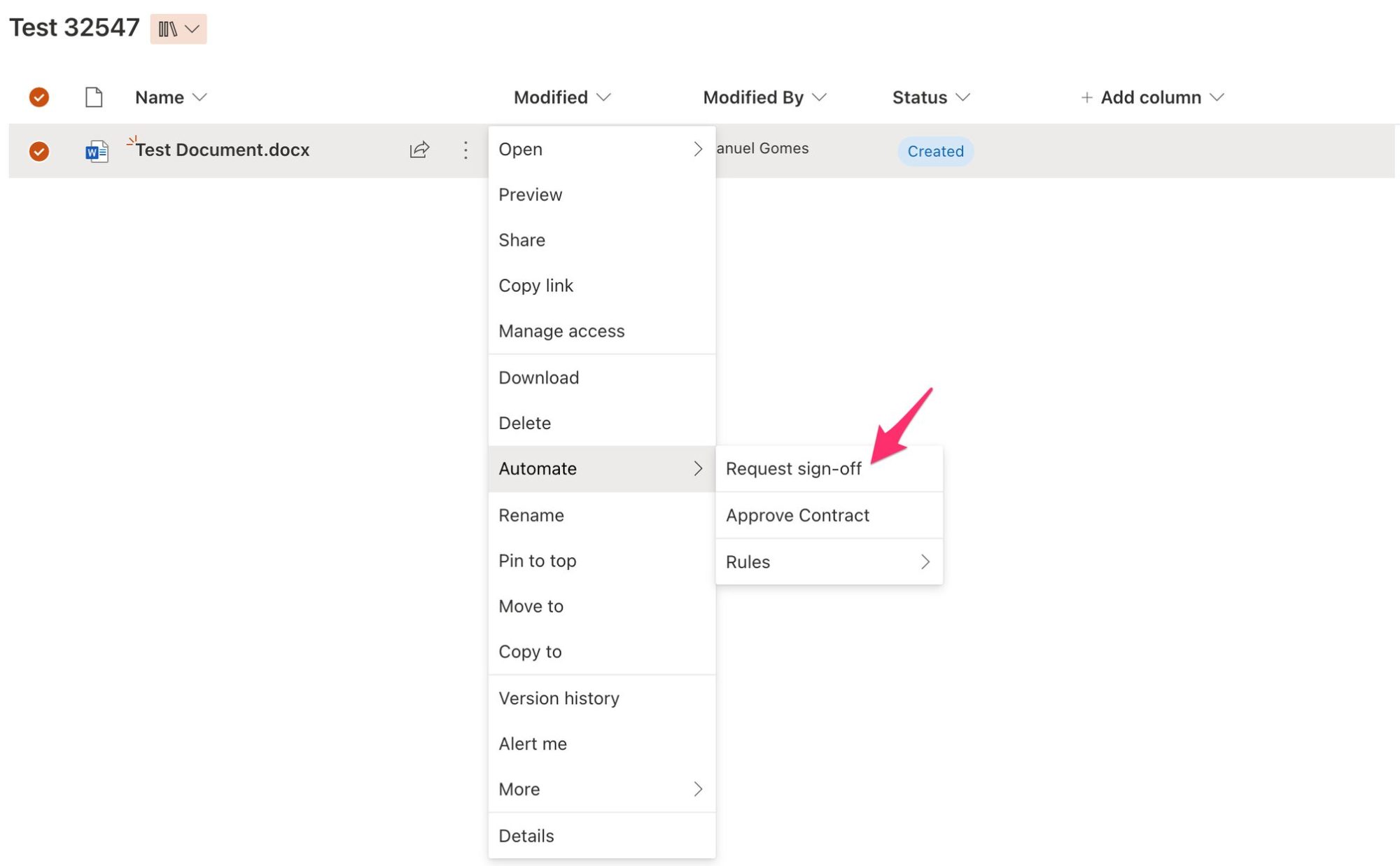
Now that we have a Flow with OneDrive for Business “For a selected file” trigger, let’s go to our OneDrive and see how to trigger the automation:

OneDrive for Business did all the work in the backend, and it’s already displaying the Flow for us to run.

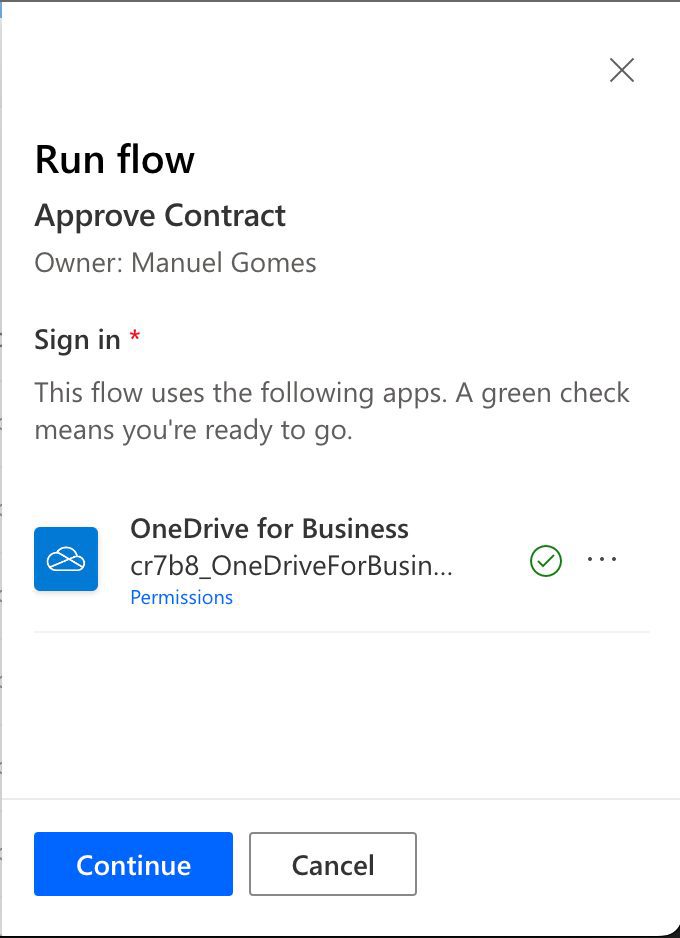
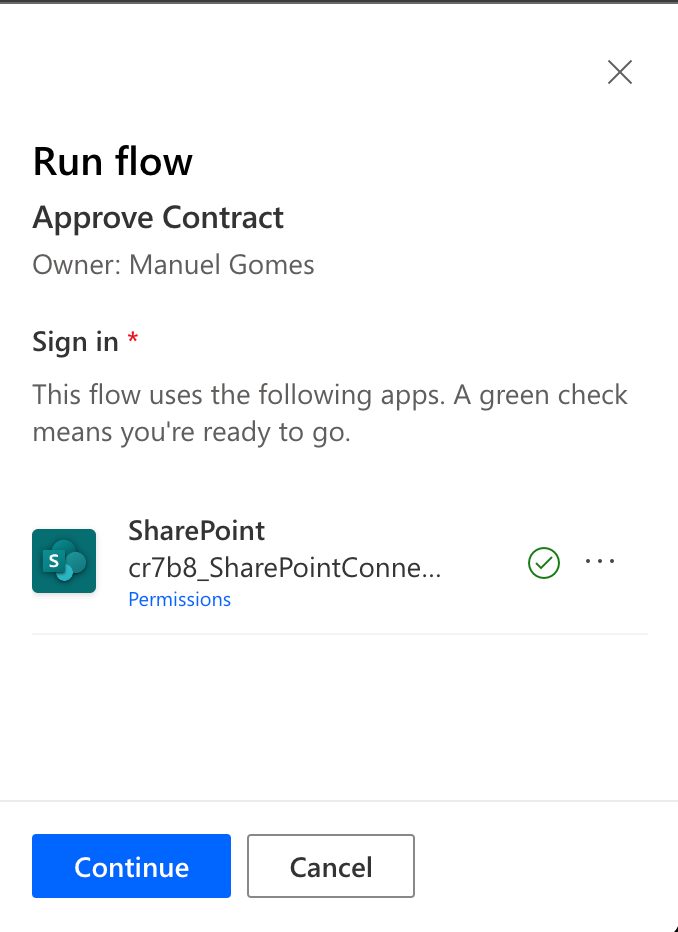
When you run, if it’s the first time, you may need to configure/confirm the connections.

After this, the Flow will trigger on Power Automate.

Outputs

The trigger returns a lot of information in a JSON format, although the conversion from JSON is done automatically for you. Here’s an example:

{
    "headers": {
        ...
    },
    "body": {
        "entity": {
            "filePath": "/TMP/Test File11.xlsx",
            "fileUrl": "https://manueltgomescom-my.sharepoint.com/personal/manuel_manueltgomes_com/_layouts/15/Doc.aspx?sourcedoc=%7B5f82b4aa-827d-4c7d-b607-963b0542e7f7%7D&action=default&uid=%7B5f82b4aa-827d-4c7d-b607-963b0542e7f7%7D&ListItemId=372689&ListId=7B5f82b4aa-827d-4c7d-b607-963b0542e7f7&odsp=1&env=prod",
            "ID": 372689,
            "itemUrl": "https://manueltgomescom-my.sharepoint.com/personal/manuel_manueltgomes_com/_layouts/15/Doc.aspx?sourcedoc=%7B5f82b4aa-827d-4c7d-b607-963b0542e7f7%7D&action=default&uid=%7B5f82b4aa-827d-4c7d-b607-963b0542e7f7%7D&ListItemId=372689&ListId=8e3fcb4a-4b52-4790-a96b-89f9e426aa90&odsp=1&env=prod",
            "fileName": "Test File11.xlsx",
            "FileId": "372689"
        }
    }
}

Notice that we only got the information about the file, not the file itself. Other triggers like OneDrive for Business “When a file is created Trigger”, for example, will return the file information we can use. Still, the OneDrive for Business “For a selected file” will return the file ID. We can then use that ID and the “Get File Content Action” action to get the file to parse.

Limitations

If you build the Flows in the “My Flows” section, only you will see them in OneDrive for Business. This is not a limitation per se, but it’s something that you should be aware of, but there’s no real impact since you’re triggering the Flow in files that are in your OneDrive for Business and not a shared place like SharePoint where multiple people have access to the same file.

Recommendations

Here are some things to keep in mind.

Don’t use this for synchronization

I see many questions regarding the synchronization of files. OneDrive for Business “For a selected file” trigger is an excellent target to catch files that need replication. But I would strongly advise you not to do it. Synchronization of files is an amazingly complex topic in computer science, and we are all super when something doesn’t synchronize properly. If the trigger fails, data will be out of sync, and Power Automate won’t rerun it. If the data is changed on the destination folder, you already have a problem that will only worsen over time.

Name it correctly

The name is super important since we need to provide context for what we will do with the file. Keeping the name “For a selected file” won’t give any helpful context. Always build the name so that other people can understand what you are using without opening the action and checking the details.

Additional contracts to the name

Since you’ll be seeing the flow’s name in OneDrive for Business, and it’s your only clue as to what it will do to the selected item, it’s essential o keep the names as straightforward as possible.

In this example, “Request sign-off” is not clear enough. Request sign-off of what? What will happen? Name it so that, even with only a few characters, people will know what happens when they trigger the automation.

Finally, this is the only exception I see to not using environment clues like “PROD” in the name, for example. Space is limited, so if the name is too long, it may be truncated.

Always add a comment

Adding a comment will also help avoid mistakes. Indicate what you’re expecting, why the Flow should be triggered, and what the data will be used. It’s essential to add comments when limiting the trigger with some custom rulessince these are not prominent in the UI, and people may get confused as to why the Flow doesn’t trigger when it’s simply a rule preventing it from doing so. It’s essential to enable faster debugging when something goes wrong.

Finally, let people know why you’re choosing the parameters you configured. For example, why do you select that folder if you have a folder defined? It may make sense now, but not in a few months.

An automated trigger is better than a scheduled one

Sometimes people are tempted to use scheduled triggers that pool the resources once in a while. This way, they can control when the information is fetched and save many Power Automate “triggers” if their quota is low. However, even if it isn’t, it may be more efficient to do batch tasks than once by one. I understand, and in some cases, I can agree, but it brings a lot of difficulties in the process. For example, you may need to keep track of what changed from the last run until this one so that some things may get lost. Also, you’re forcing something to happen periodically, even if there’s no data.

I always recommend using these “automatic” triggers instead, where they trigger one by one, but only when there’s data, so you’re always sure you get something to do. Also, debugging triggers that parse a single data point instead of multiple simultaneously is much easier. If something fails on one, then you can fix the Flow and repeat the process. But while parsing multiple ones, things can get a lot harder.

Back to the Power Automate Trigger Reference.

Photo by Priscilla Du Preez on Unsplash

✇Manuel T. Gomes

Power Automate: SharePoint – For a selected file Trigger

Did you know you can trigger Flows for files directly in SharePoint? Let’s say that you have a contract that you want to send for approval. You need to generate a link to the file or attach it to an email, send it to the people who need to approve it, receive notifications, and merge changes. Or you press a button and let Power Automate do the work for you by using SharePoint “For a selected file” trigger that catches these requests.

Let’s see how to use it.

Where to find it?

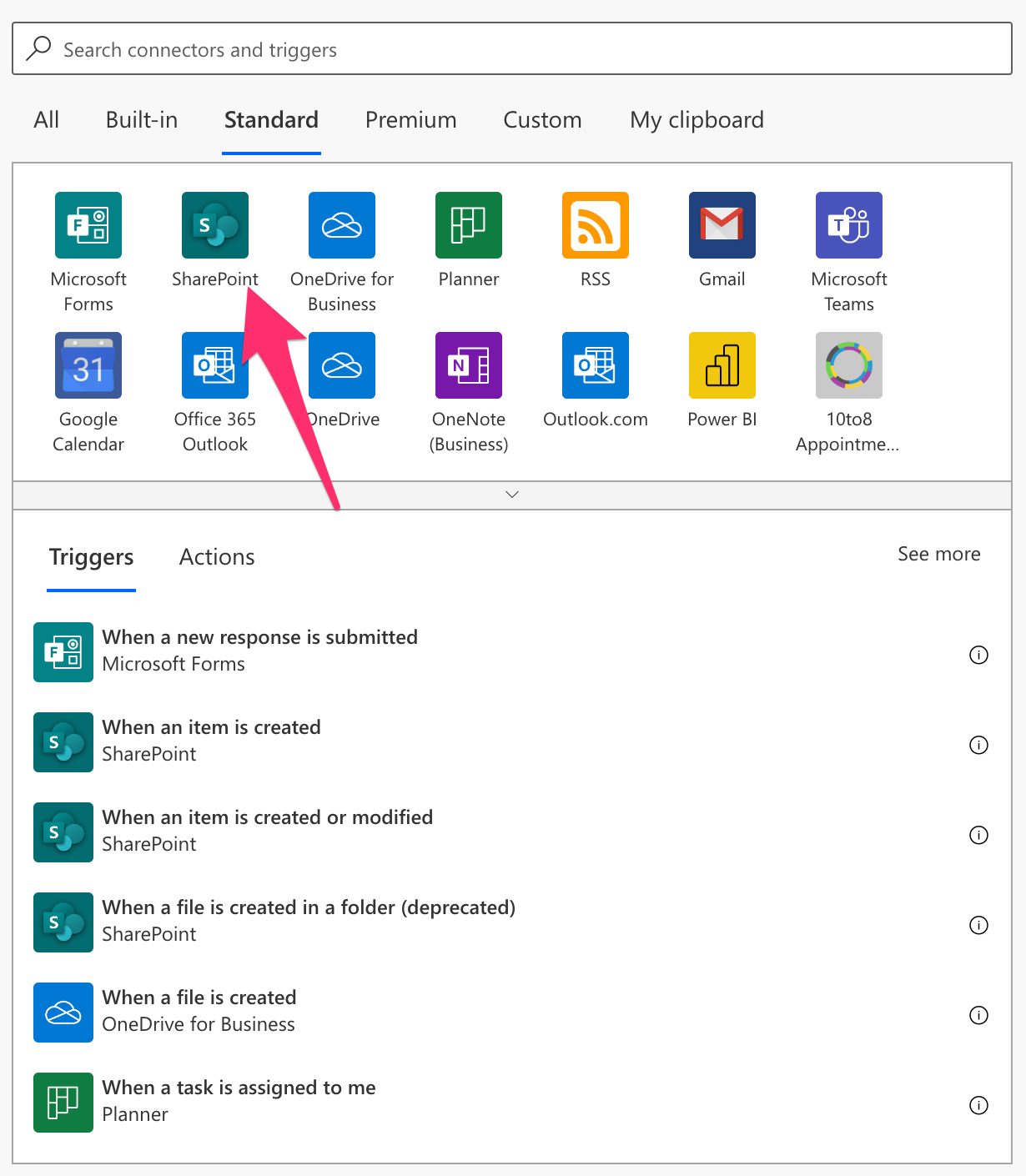
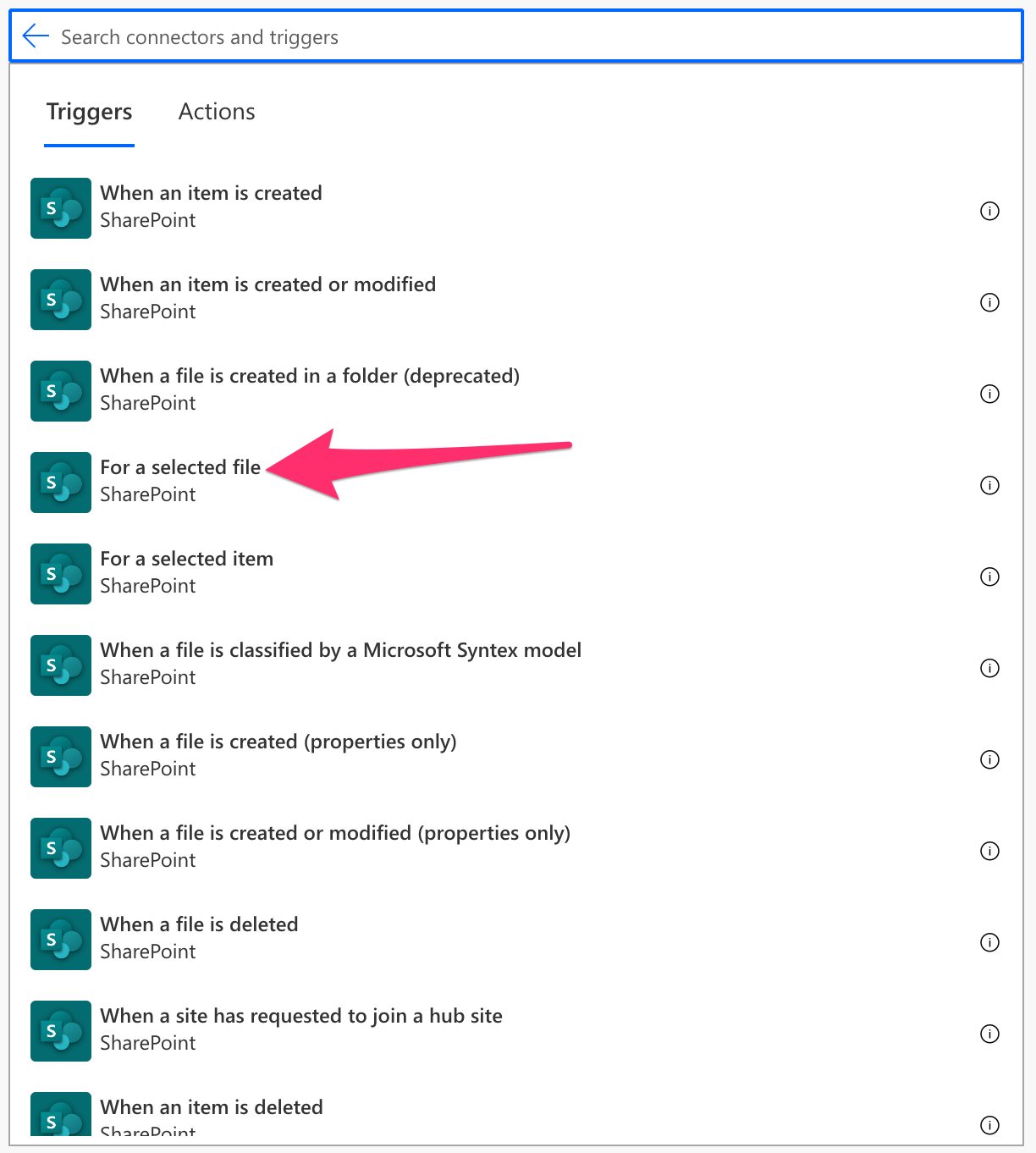
To find it, you can search for SharePoint “For a selected file” trigger or select “Standard”:

Select “SharePoint”:

Pick “For a selected file” trigger:

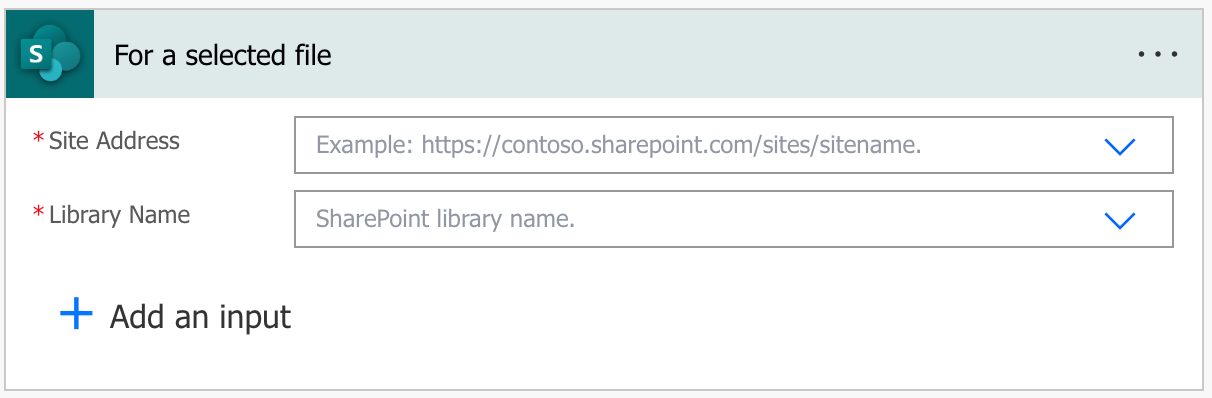
Here’s what it looks like.

Pro Tip:
Power Automate tends to save the most common triggers on the main screen, so check there before going through the full hierarchy. Also, you can use the search to find it quickly.

Let’s see the fields that we need to configure.

Fields

There are a few fields to configure so that you can take advantage of them.

Site address

We need a place to search for changes, so we need to configure the site address. There’s no way to select “all sites,” but this is a broad search parameter since a site could already have a lot of activity. If you want more sites, you need to replicate the trigger to consider all the sites you need.

Library Name

Within sites, there are multiple libraries, so we need to indicate what library we want. As before, we cannot have an “all libraries” filter, so if you have a lot of libraries, you need to duplicate the trigger for all of them.

Usage

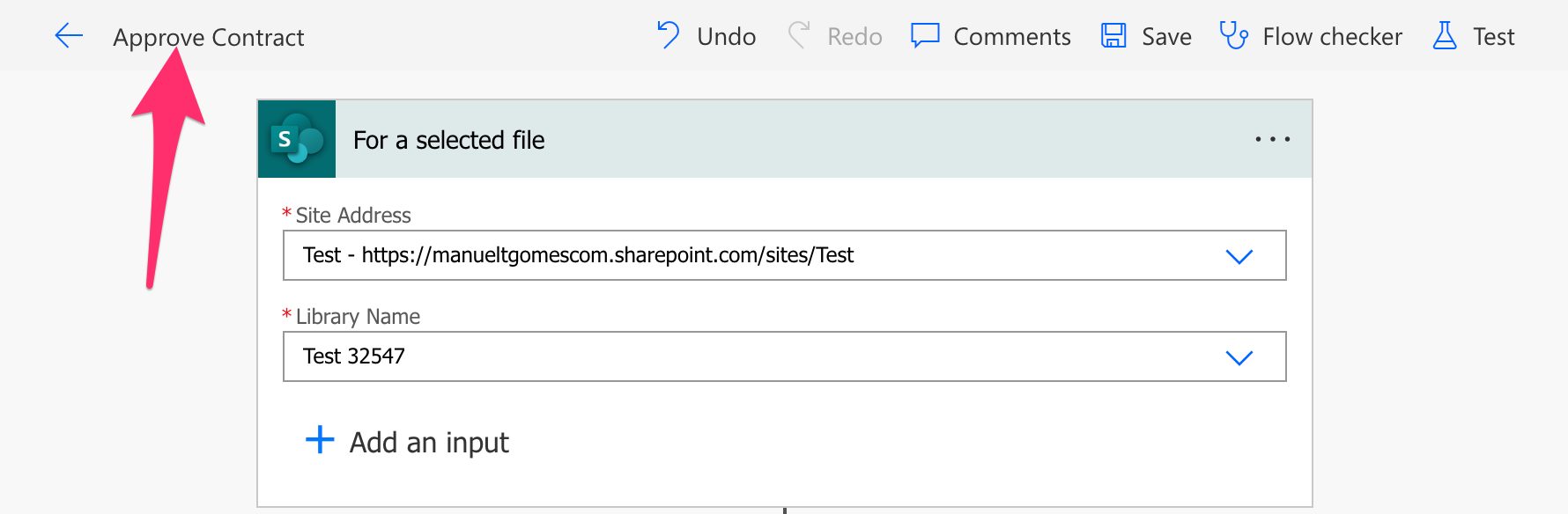
Now that we have the site and library name configured, let’s see how to use it. First, let’s create a Flow with a trigger named “Approve Contract” (the name will be important later).

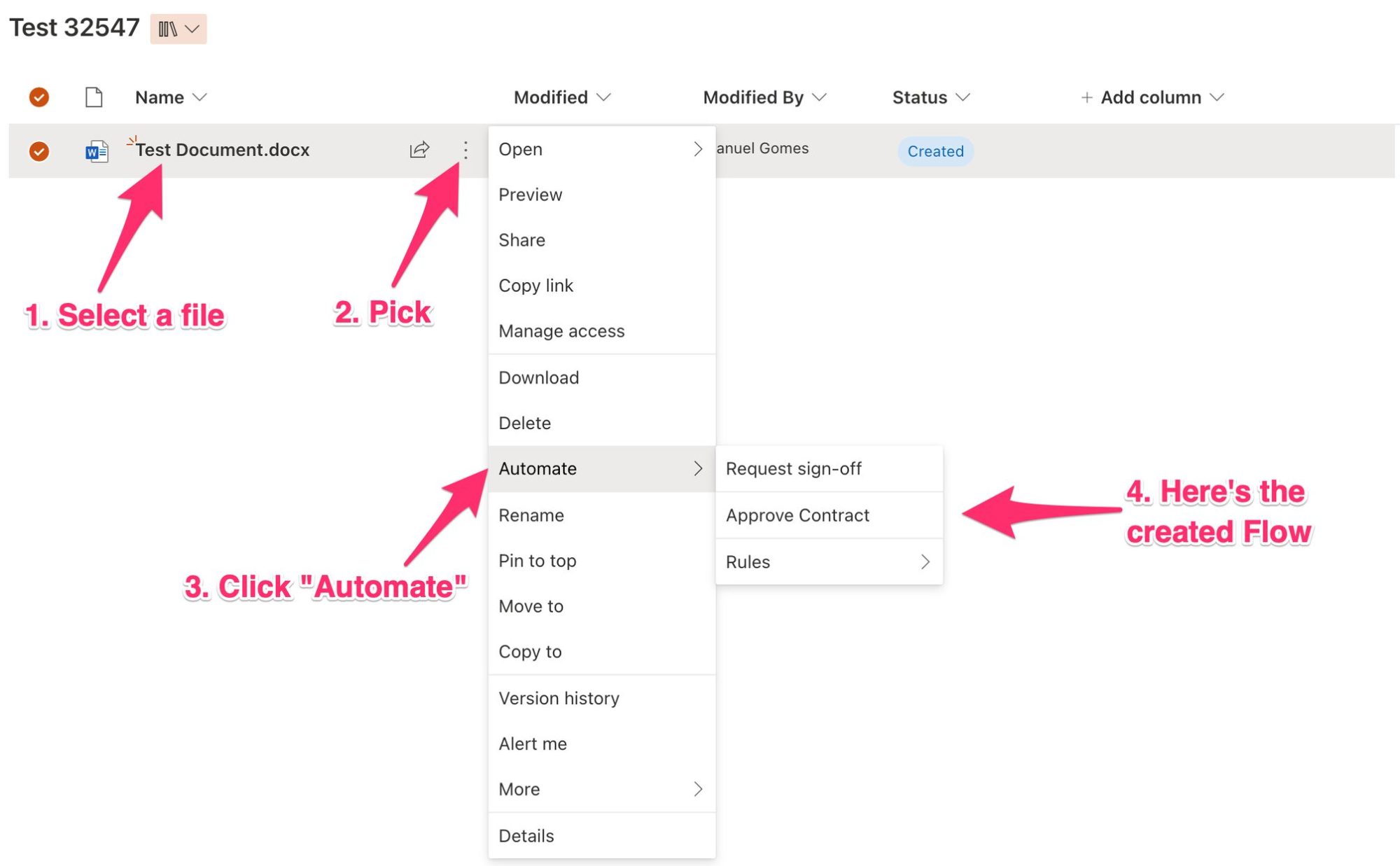
Now that we have a Flow with SharePoint “For a selected” trigger, let’s go to the SharePoint document library and see how to trigger the automation.

SharePoint did all the work in the backend, and it’s already displaying the Flow for us to run. No configuration is needed on the SharePoint side.

When you run, if it’s the first time, you may need to configure/confirm the connections.

After this, the Flow will trigger on Power Automate.

Outputs

The trigger returns a lot of information in a JSON format, although the conversion from JSON is done automatically for you. Here’s an example:

{
    "headers": {
        ...
    },
    "body": {
        "entity": {
            "ID": 4,
            "itemUrl": "https://manueltgomescom.sharepoint.com/sites/Test/_layouts/15/Doc.aspx?sourcedoc=%7B5f82b4aa-827d-4c7d-b607-963b0542e7f7%7D&action=edit&uid=%3c139851-251a-4ee0-907f-24dcfd5c29c1%7D&ListItemId=4&ListId=%ed455c5b-349d-4c44-bc20-ec45ce49c417%7D&odsp=1&env=prod",
            "fileName": "Test Document.docx",
            "FileId": "4"
        }
    }
}

Notice that we only got the information about the file, not the file itself. Other triggers like SharePoint’s “When a file is created (properties only)” trigger, for example, will return the file metadata that we can use, but the SharePoint “For a selected file” will return the item ID. We can then use that ID and use the “Get File Metadata Action” action to get the file metadata for the file to parse.

Limitations

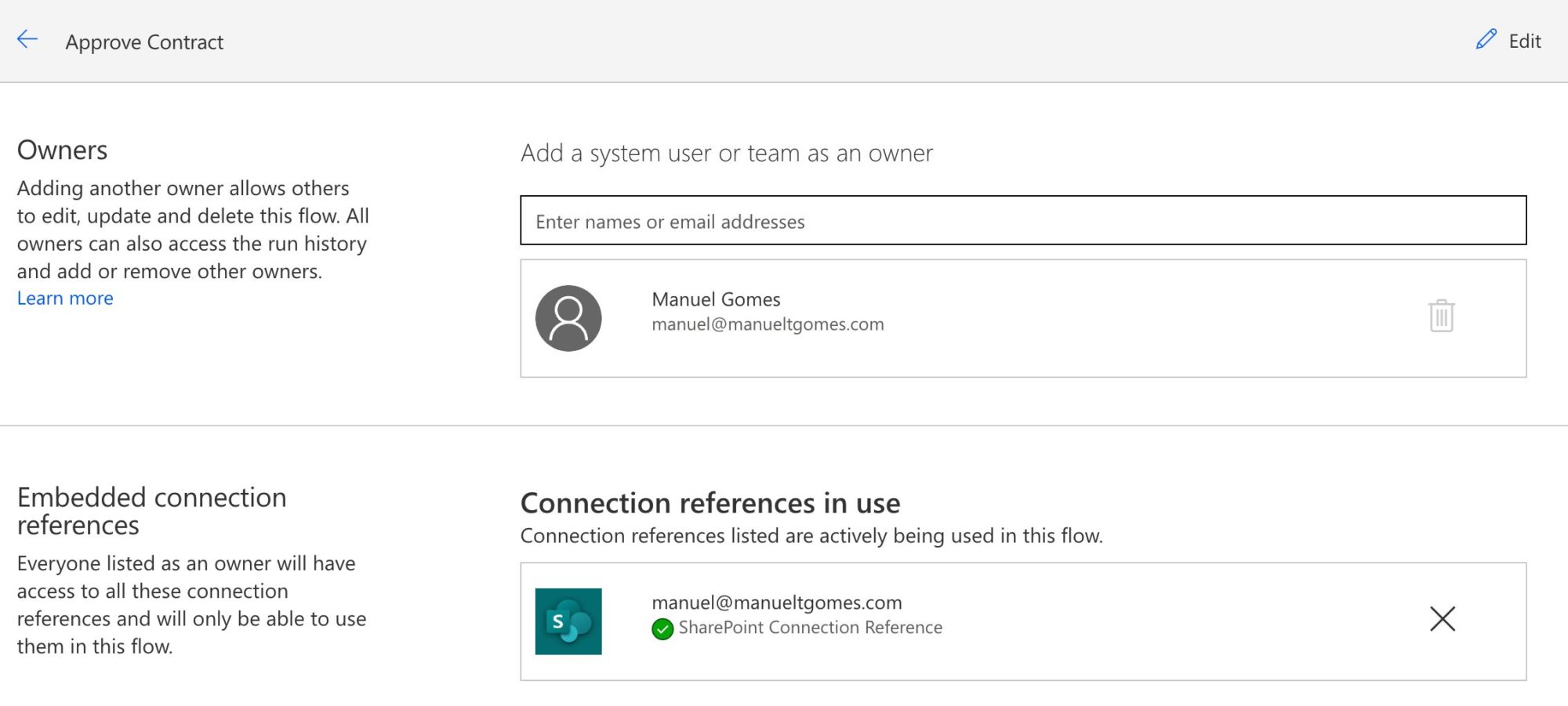
If you build the Flows in the “My Flows” section, only you will see them in SharePoint. This is not a limitation per se, but it’s something that you should be aware of. If you want other users to see the Flow, you need to share it with them like this:

Add the names or emails:

The Flow will not show in their SharePoint document library.

Recommendations

Here are some things to keep in mind.

Don’t use this for synchronization

I see many questions regarding synchronization between SharePoint document libraries, and SharePoint “For a selected file“ trigger is an excellent target to catch files that need replication. But I would strongly advise you not to do it. Synchronization of files is an amazingly complex topic in computer science, and we are all super when something doesn’t synchronize properly. If the trigger fails, data will be out of sync, and Power Automate won’t rerun it. If the data is changed on the destination folder, you already have a problem that will only worsen over time.

Name it correctly

The name is super important since we need to provide context for what we will do with the file. Keeping the name “For a selected file” won’t give any helpful context. Always build the name so that other people can understand what you are using without opening the action and checking the details.

Additional contracts to the name

Since you’ll be seeing the flow’s name in SharePoint, and it’s your only clue as to what it will do to the selected item, it’s essential o keep the names as straightforward as possible.

In this example, “Request sign-off” is not clear enough. Request sign-off of what? What will happen? Name it so that, even with only a few characters, people will know what happens when they trigger the automation.

Finally, this is the only exception to not using environment clues like “PROD” in the name. Space in SharePoint is limited; if the name is too long, it may be truncated.

Always add a comment

Adding a comment will also help avoid mistakes. Indicate what you’re expecting, why the Flow should be triggered, and what the data will be used. It’s essential to add comments when limiting the trigger with some custom rulessince these are not prominent in the UI, and people may get confused as to why the Flow doesn’t trigger when it’s simply a rule preventing it from doing so. It’s essential to enable faster debugging when something goes wrong.

Finally, let people know why you’re choosing the parameters you configured. For example, why do you select that folder if you have a folder defined? It may make sense now, but not in a few months.

An automated trigger is better than a scheduled one

Sometimes people are tempted to use scheduled triggers that pool the resources once in a while. This way, they can control when the information is fetched and save many Power Automate “triggers” if their quota is low. However, even if it isn’t, it may be more efficient to do batch tasks than once by one. I understand, and in some cases, I can agree, but it brings a lot of difficulties in the process. For example, you may need to keep track of what changed from the last run until this one so that some things may get lost. Also, you’re forcing something to happen periodically, even if there’s no data.

I always recommend using these “automatic” triggers instead, where they trigger one by one, but only when there’s data, so you’re always sure you get something to do. Also, debugging triggers that parse a single data point instead of multiple simultaneously is much easier. If something fails on one, then you can fix the Flow and repeat the process. But while parsing multiple ones, things can get a lot harder.

Back to the Power Automate Trigger Reference.

Photo by Brienne Hong on Unsplash


✇Manuel T. Gomes

Power Automate: Office 365 Excel – Update a Row action

Although Excel is known for being a standalone application, there’s a lot that we can do with Power Automate and tasks that we can automate. Today we’ll explore how to automate the update of rows in an Excel file by using the “Update a Row” action. This action works for files in SharePoint, Teams , or OneDrive for Business so let’s look at how to use it.

Where to find it?

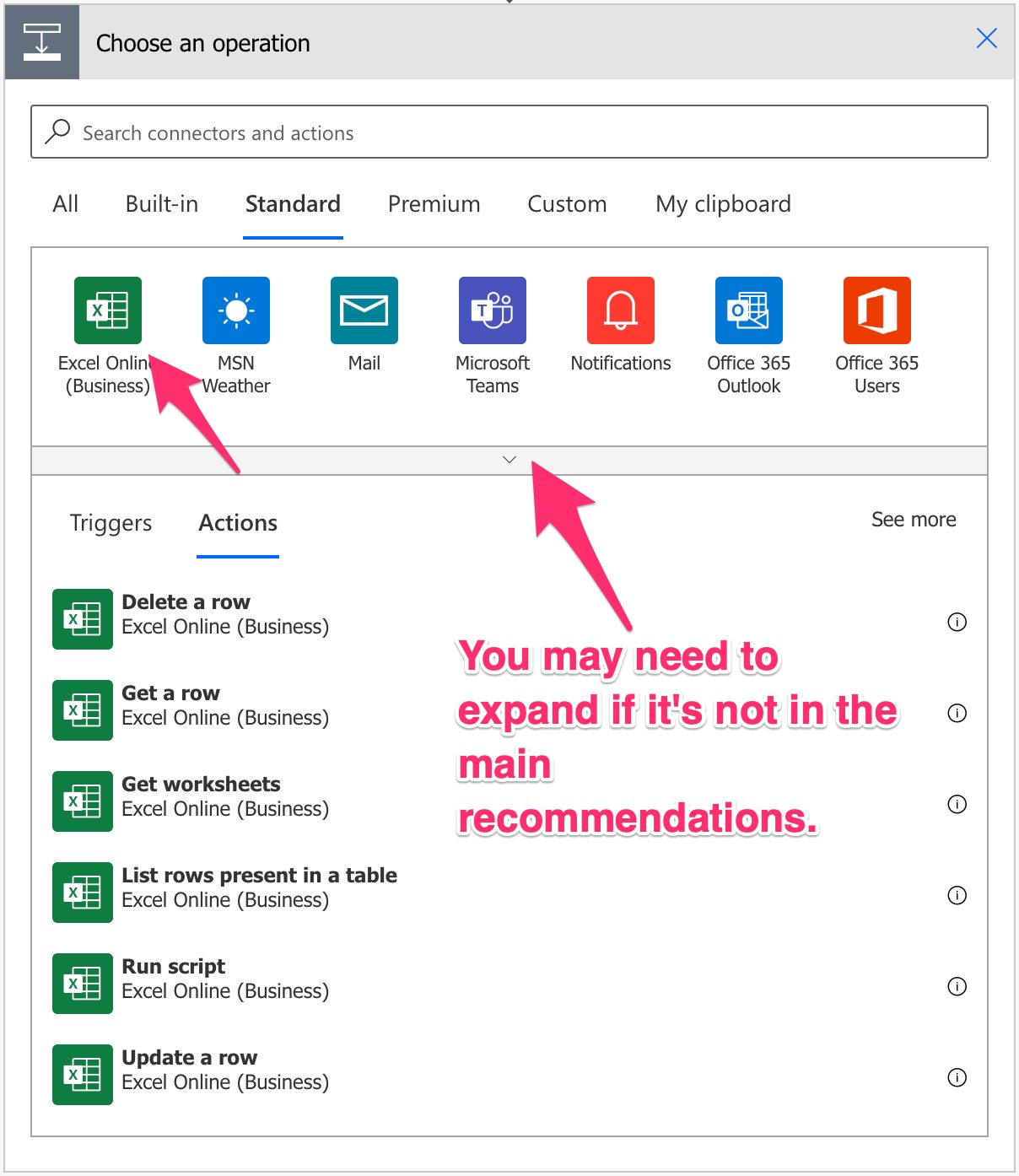
You can find it under “Standard”.

Pick “Excel Online”. You may see or need to expand the list depending on your suggestions.

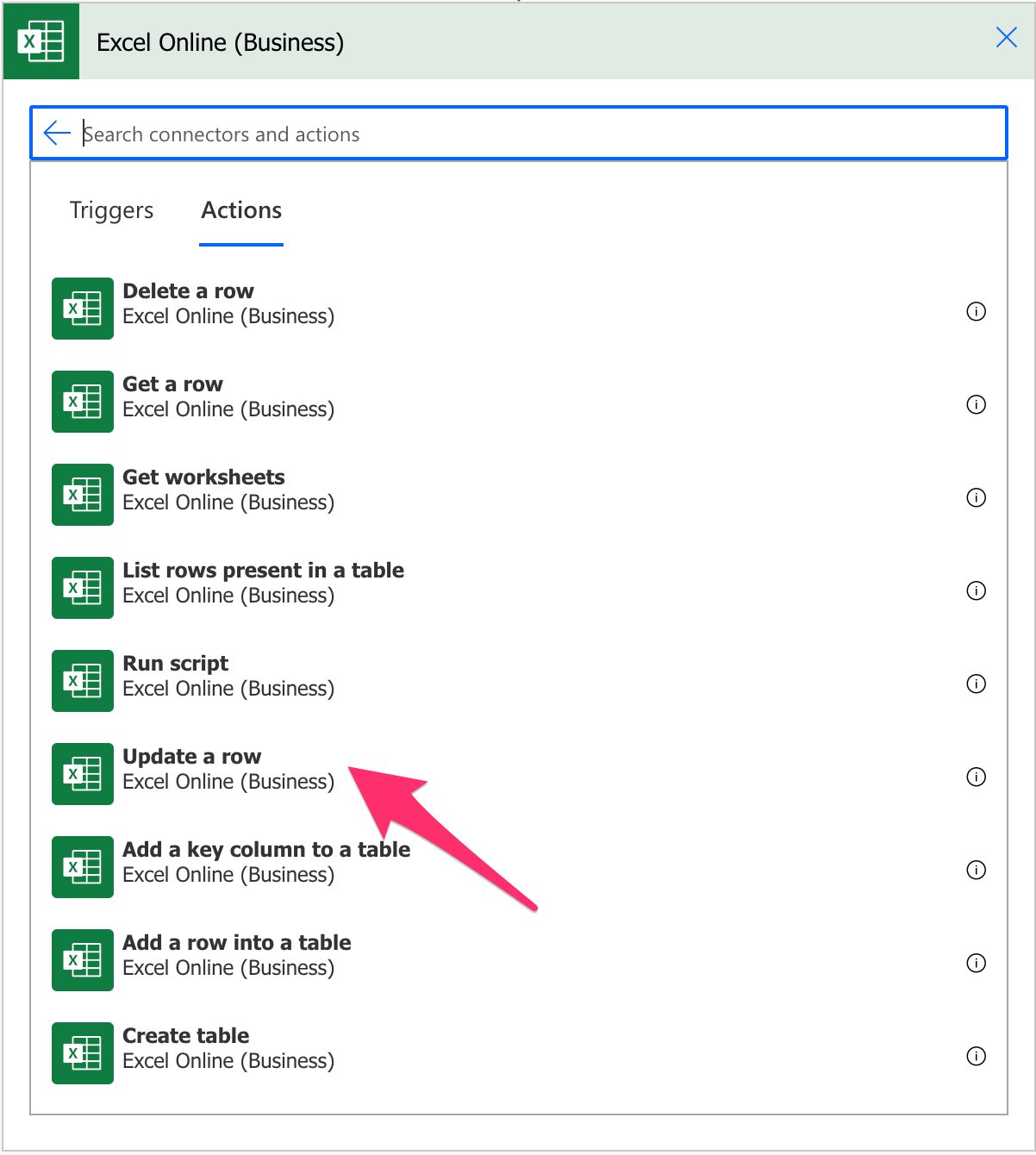
Select the “Update a Row” action:

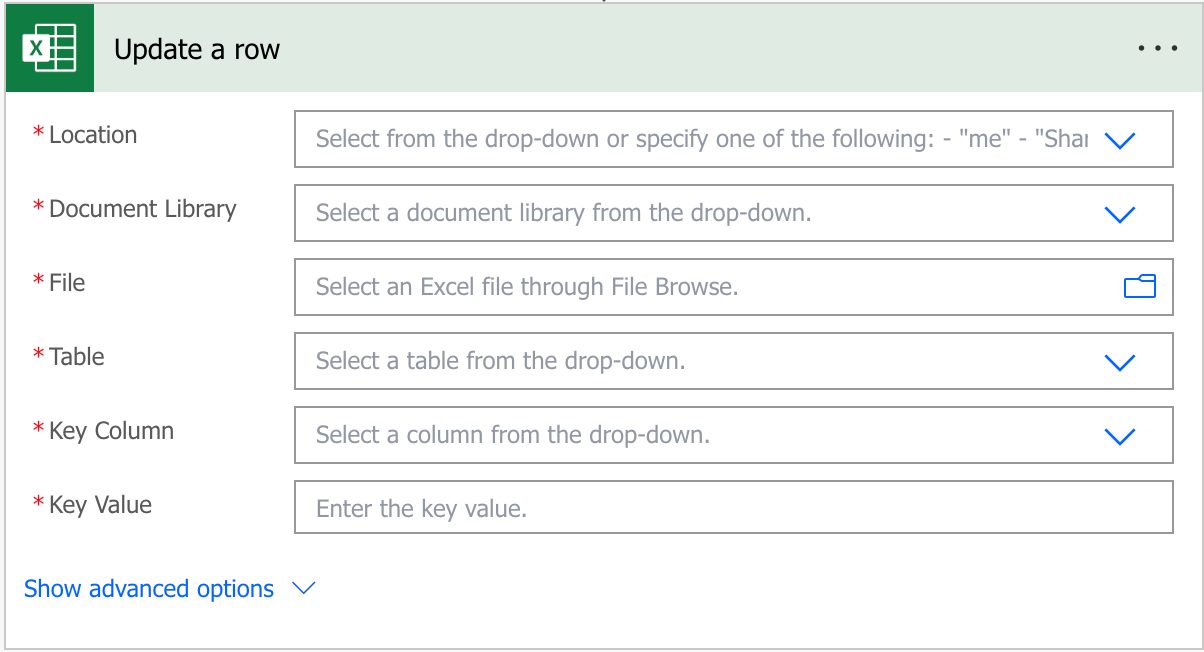
Here’s what it looks like.

Pro Tip:
Power Automate tends to save the most common actions in the main screen, so check there before going through the full hierarchy. Also, you can use the search to find it quickly.

Now that we know how to find it let’s understand how to use it.

Fields

You can find some fields to configure before using the “Update a row” action, so let’s look at them individually.

Location

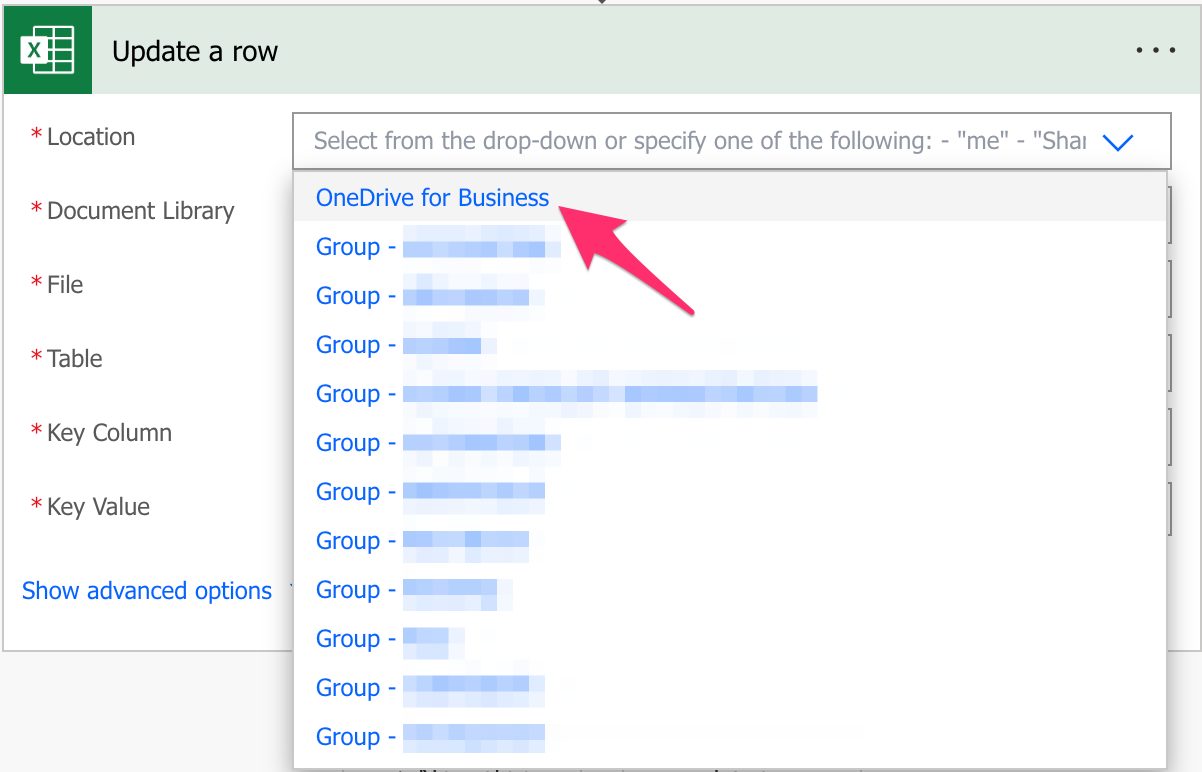
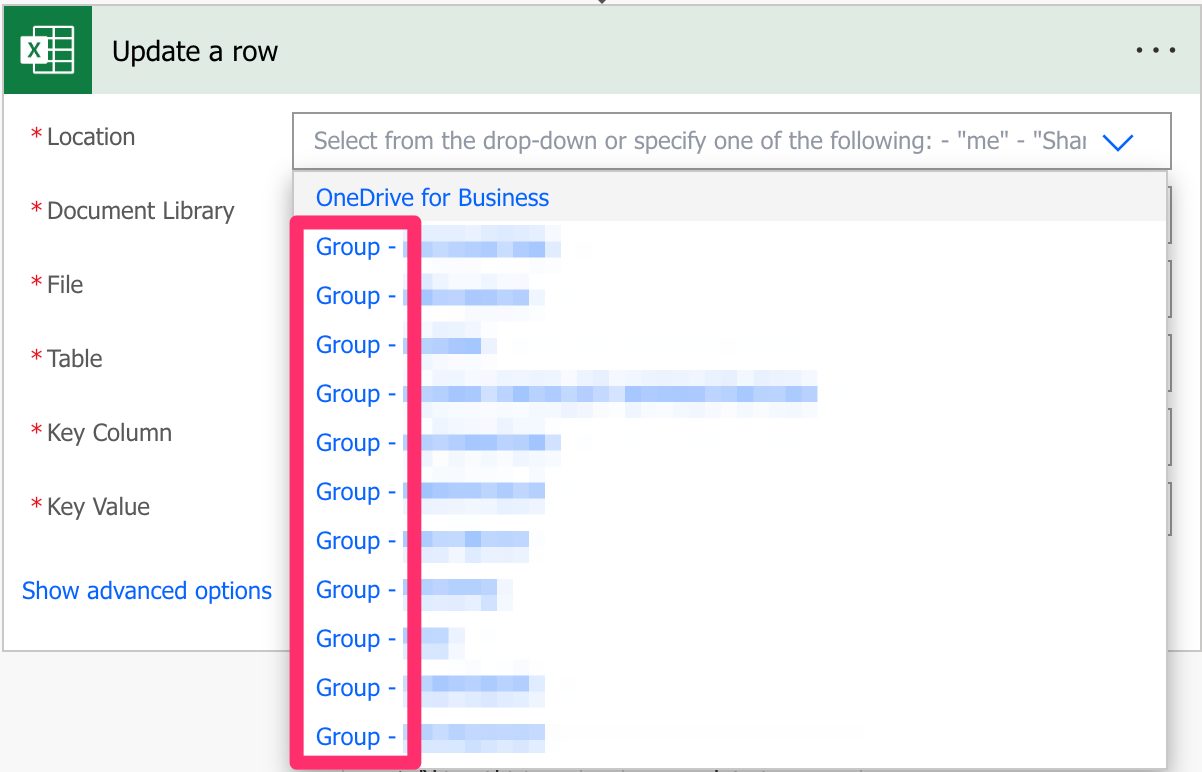
As mentioned before, we can use SharePoint, Teams, or OneDrive For Business to find our Excel files. To do it, select the location where you want to find the data. For example, for OneDrive For Business:

As you see above, you have a lot of “Groups” sites that are commonly Microsoft Teams sites.

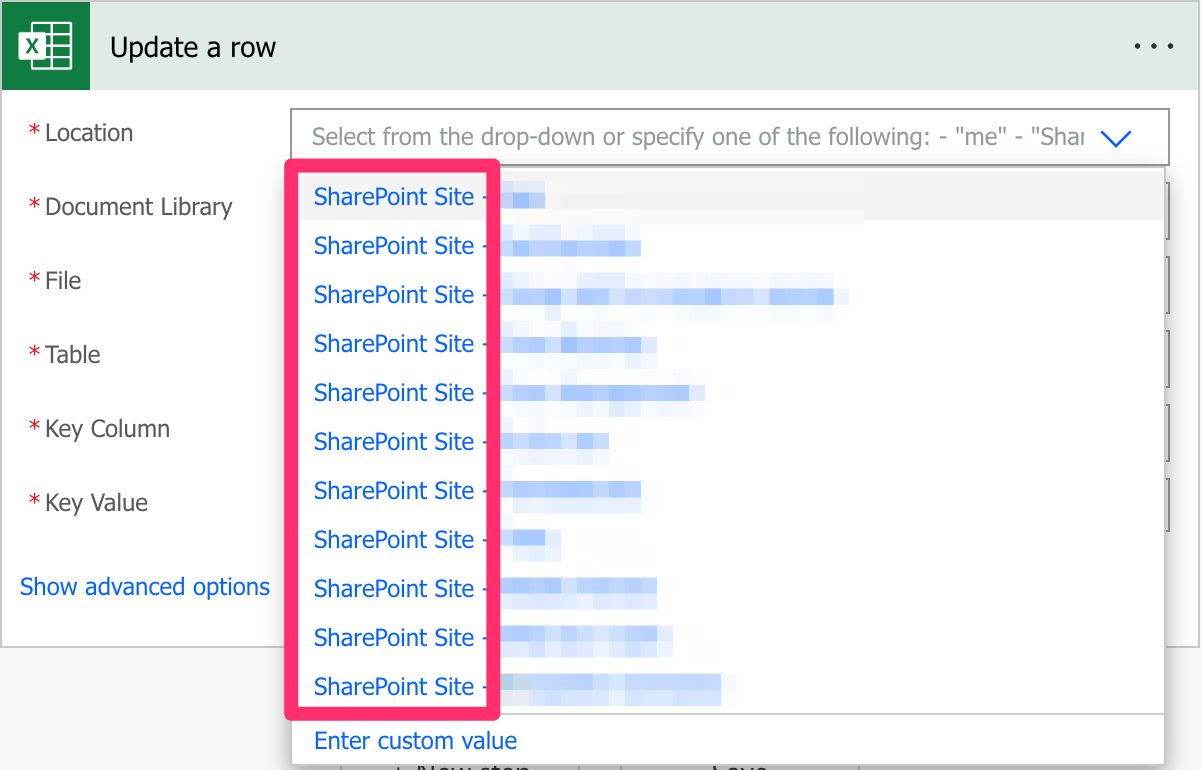
If you’re looking for SharePoint sites, they are commonly displayed like this:

Since they all behave the same way, I’ll refer only to SharePoint sites from now on, but keep in mind that you can also use Microsoft Teams and OneDrive For Business. I’ll highlight the differences when appropriate.

Document Library

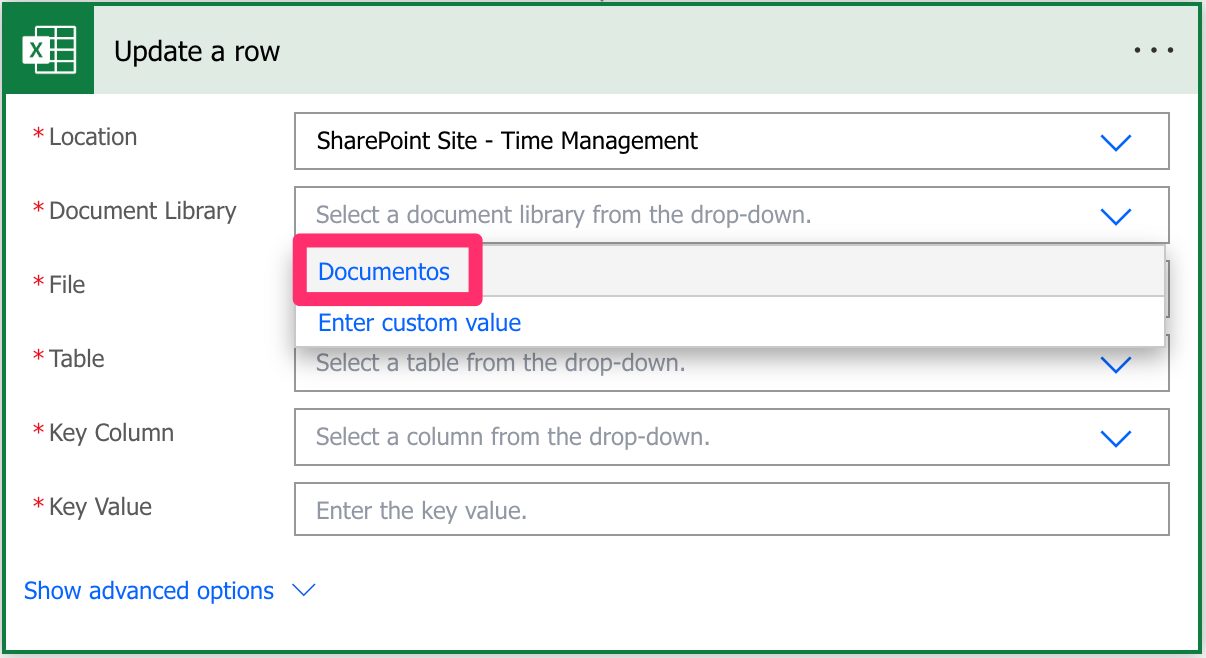
Since SharePoint sites can have multiple document libraries, we need to pick them from the list.

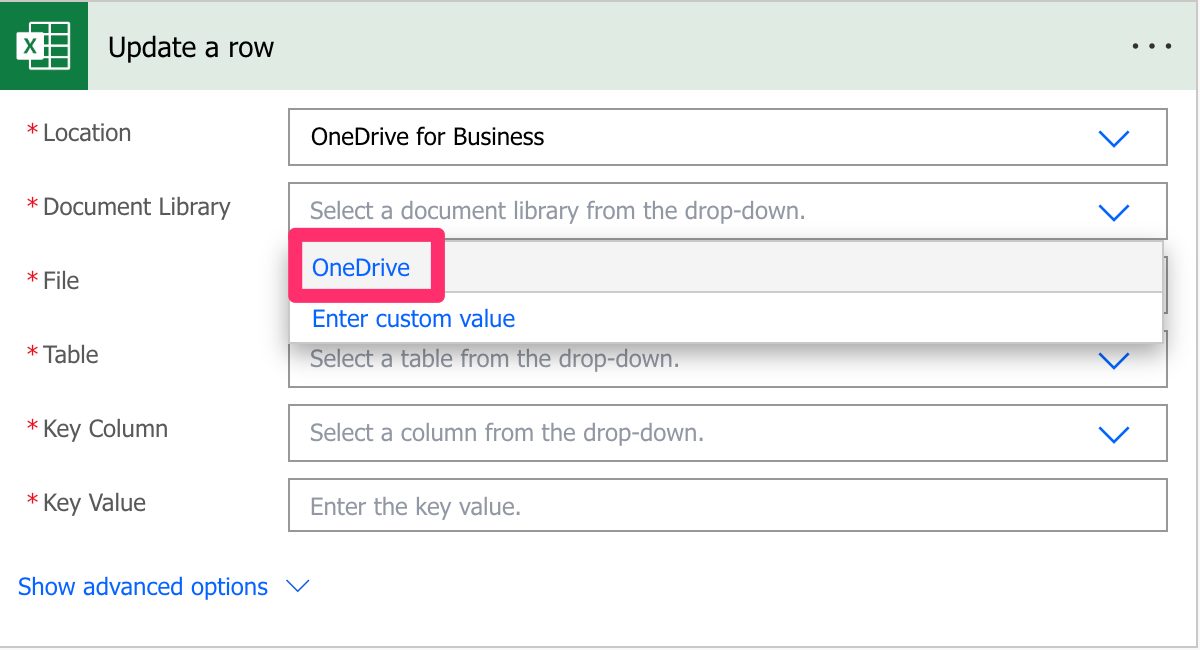
There’s always one created by default called “Documents” or something different depending on your language, but since it’s a mandatory field, you need to pick it; otherwise, you won’t be able to choose the file from the following field.

The same behavior occurs for OneDrive For Business, even if it’s not possible to create document libraries. Microsoft creates a document library that you can pick from the list.

File

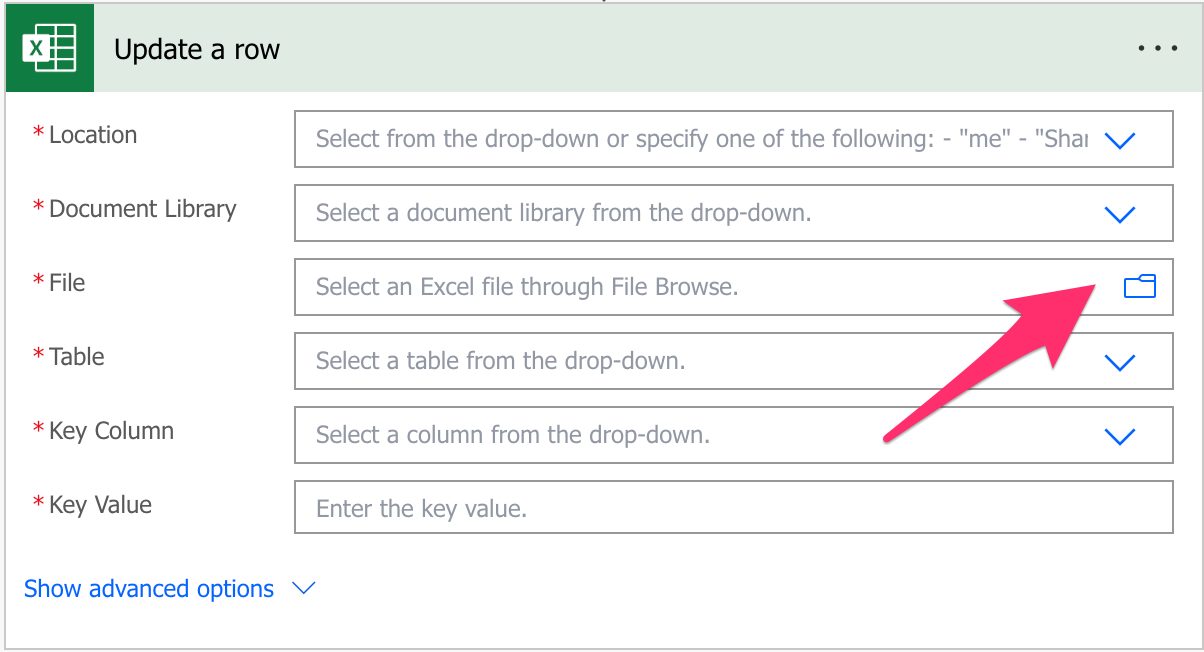
Now that we have the locations defined, let’s look at a file. You can pick the file in the “File Browser”.

Or you can provide the path yourself, although I discourage this. Although you can do it, Power Automate sometimes returns strange errors related to the path, especially if the file has special characters. It’s always recommended that you can, of course, select the file directly in Power Automate’s UI.

Table

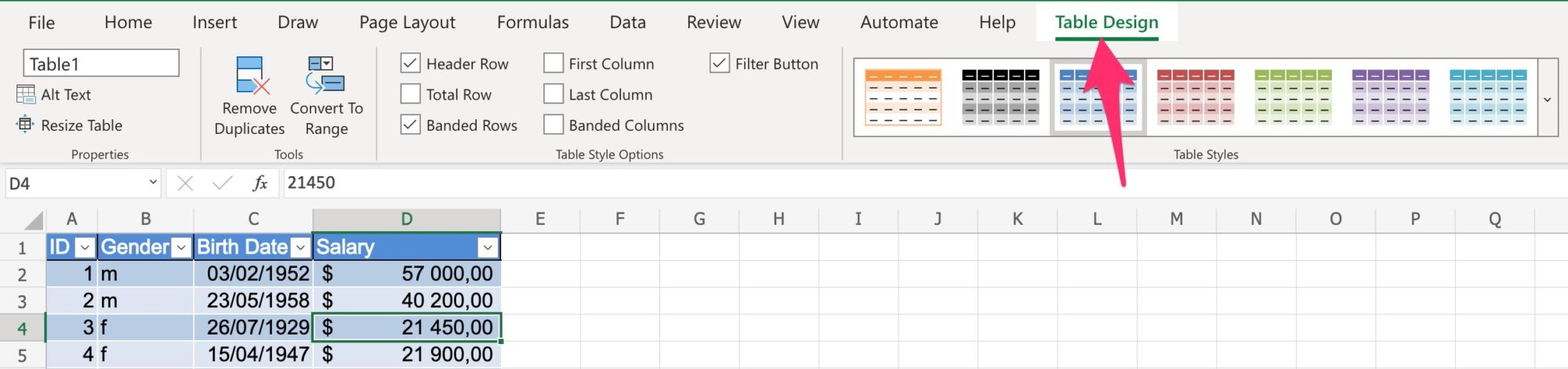
Power Automate requires the information inside an Excel table to access the data. To find the table, you can go to your Excel file, select a row and then check if you have a “Table Design” tab in the ribbon.

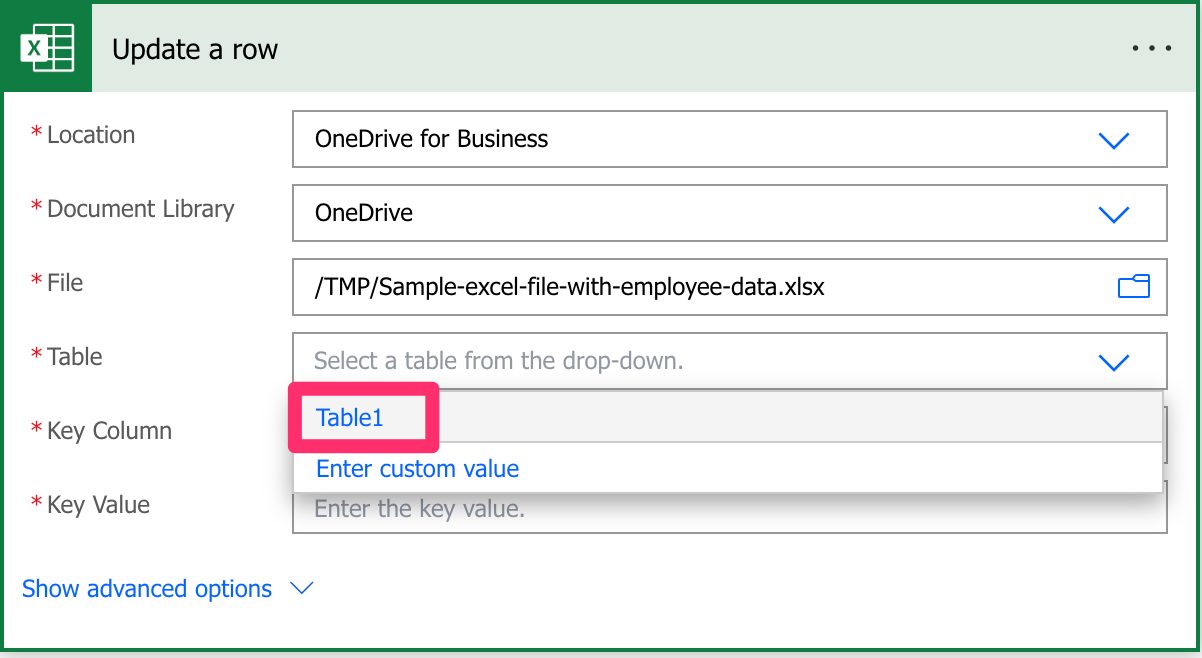
If you don’t, then chances are that you need to create a table in Excel before you can continue. Select the table in the dropdown.

The Excel file can have multiple tables, so it’s essential to define the one you want to manipulate the data. Finally, you can provide the table’s name as a “dynamic field,” but to ensure that your Flows always work, I recommend picking it from the dropdown.

Key Column

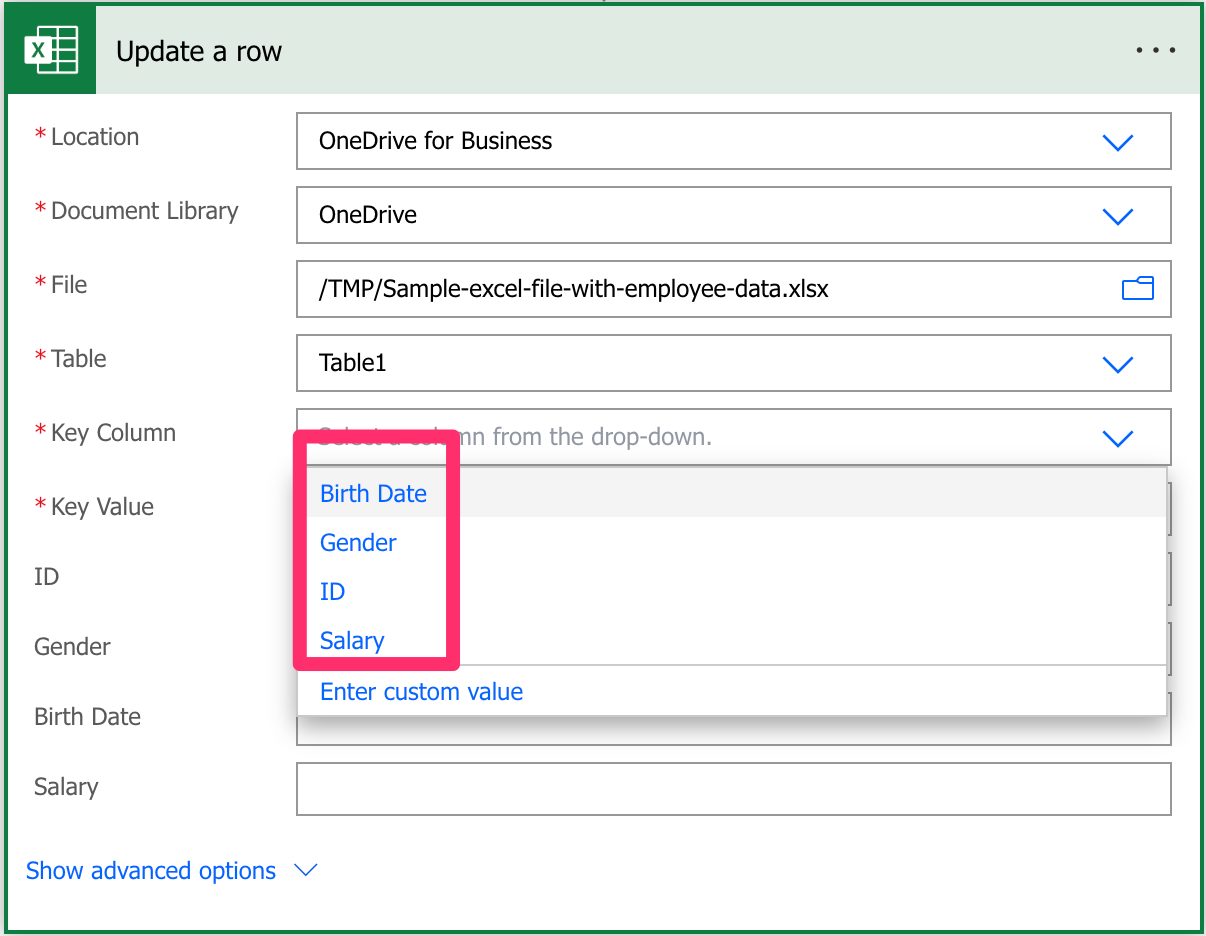
Now that we have a file, we need to tell Power Automate how to identify the row we want to update. Since there could be multiple tables in Excel, Microsoft required a key column that identifies the row we want to update inside the defined table. If you don’t have one, you can use the “Add a key column to a table” action that will do it for you.

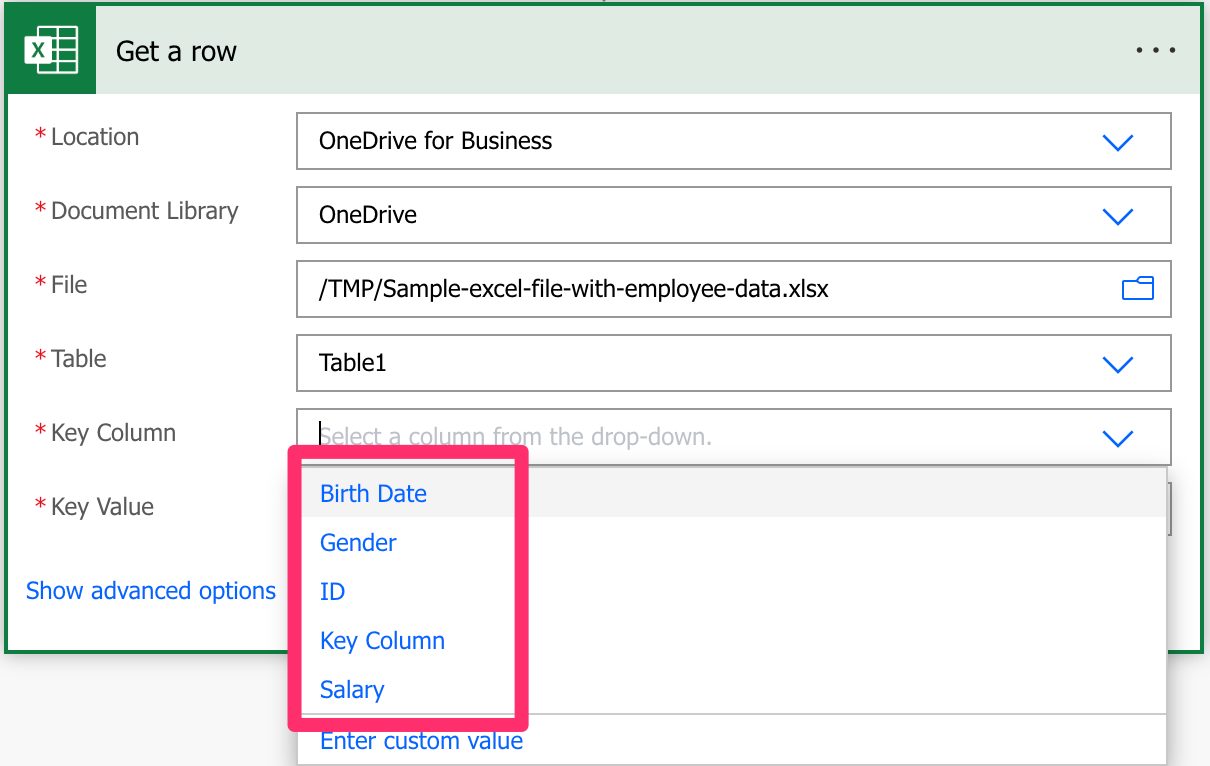
Since we provided the path before, Power Automate checks the file and gives us a list of the columns in the provided table.

Notice that once we defined those fields, Power Automate added in the background additional fields for us to add information. This is only possible because we are not dynamically providing any of the fields, allowing Power Automate to access the file, get the columns, and add them as fields.

Please be aware that if you dynamically define the path, table, or file, you need to provide the “key column” name since Power Automate won’t find the list of columns before the Flow runs.

In case you don’t know what “Key Columns” are, I have an article here that explains them in a lot of detail.

Key Value

Finally, we need a key value that identifies the row we want to update from the table. Notice that we’re updating the item by providing an identifier, not the row number, since the same row can be inside multiple tables. The key value needs to be unique within the “key column” and should be a number.

Usage

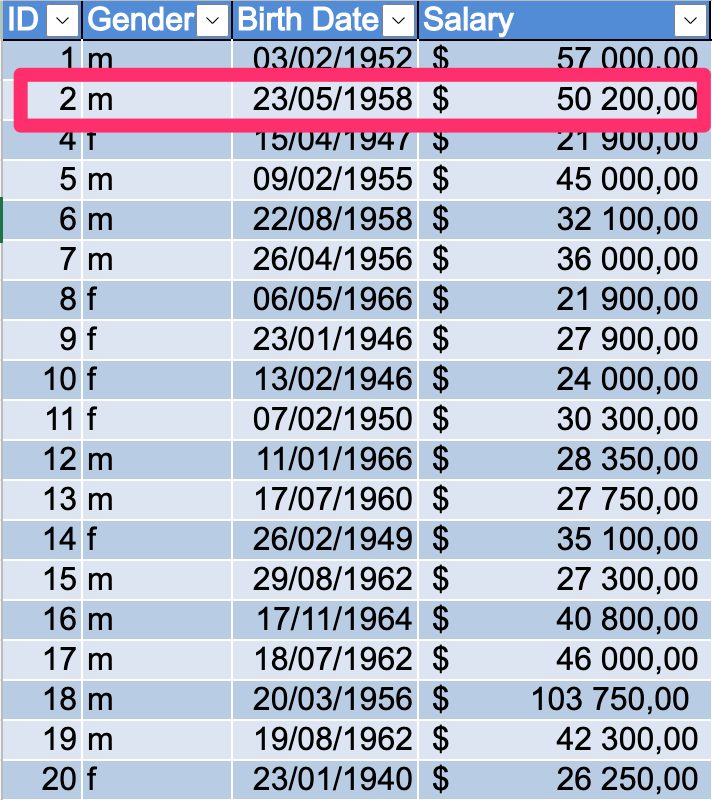
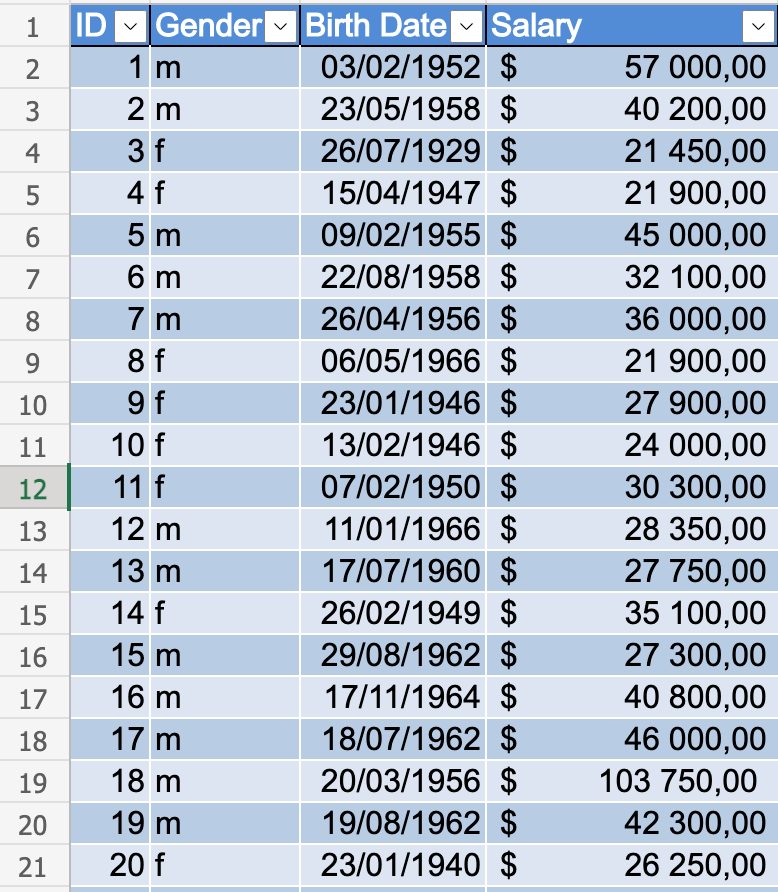
Let’s look at a test file with anonymous employee information.

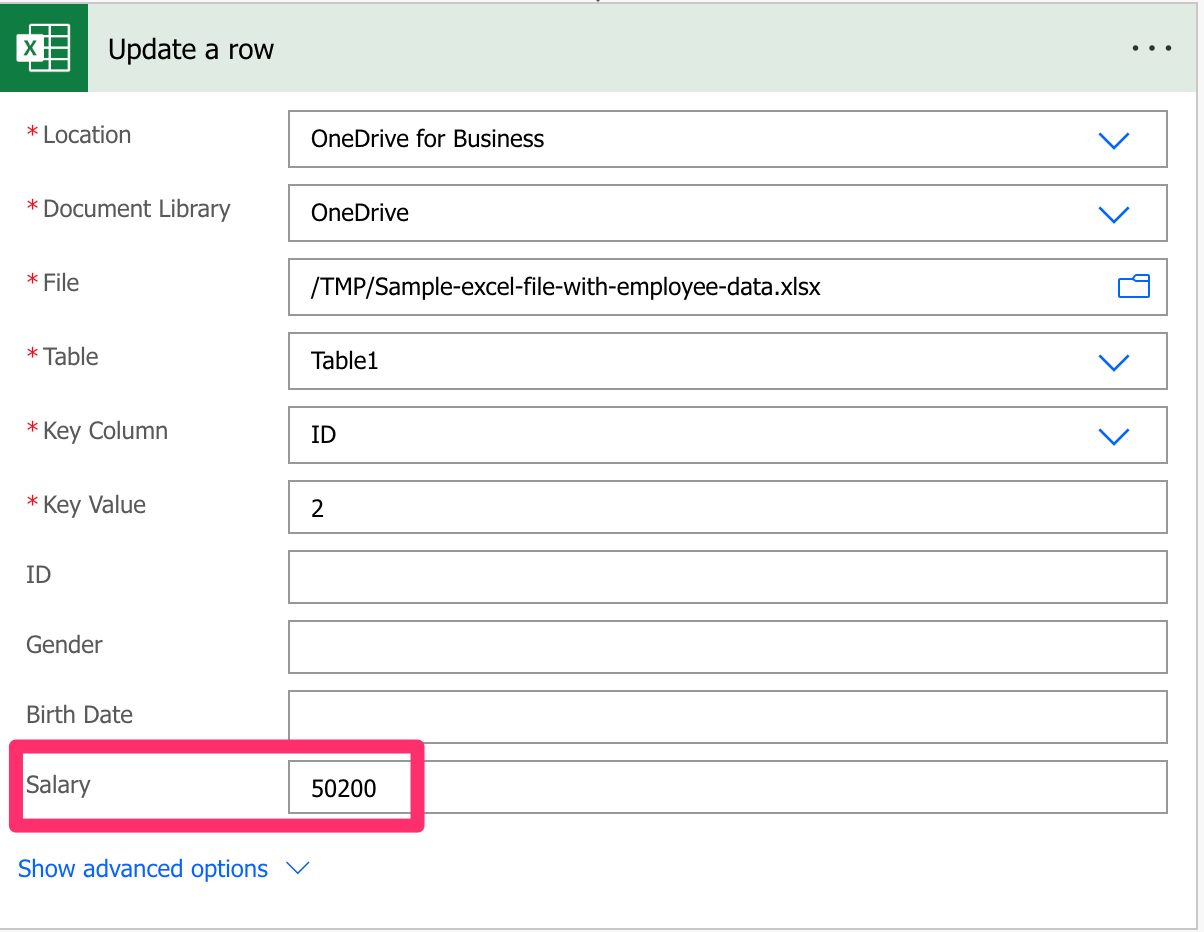
Let’s say we want to promote a person and update their salary to another value. Here’s what it looks like:

After we run, here’s what the Excel looks like:

Be careful to ensure that you have proper error handling, especially after this action, since the action will fail if the ID cannot be found with an exception like this:

No row was found with Id '3'.

Advanced Properties

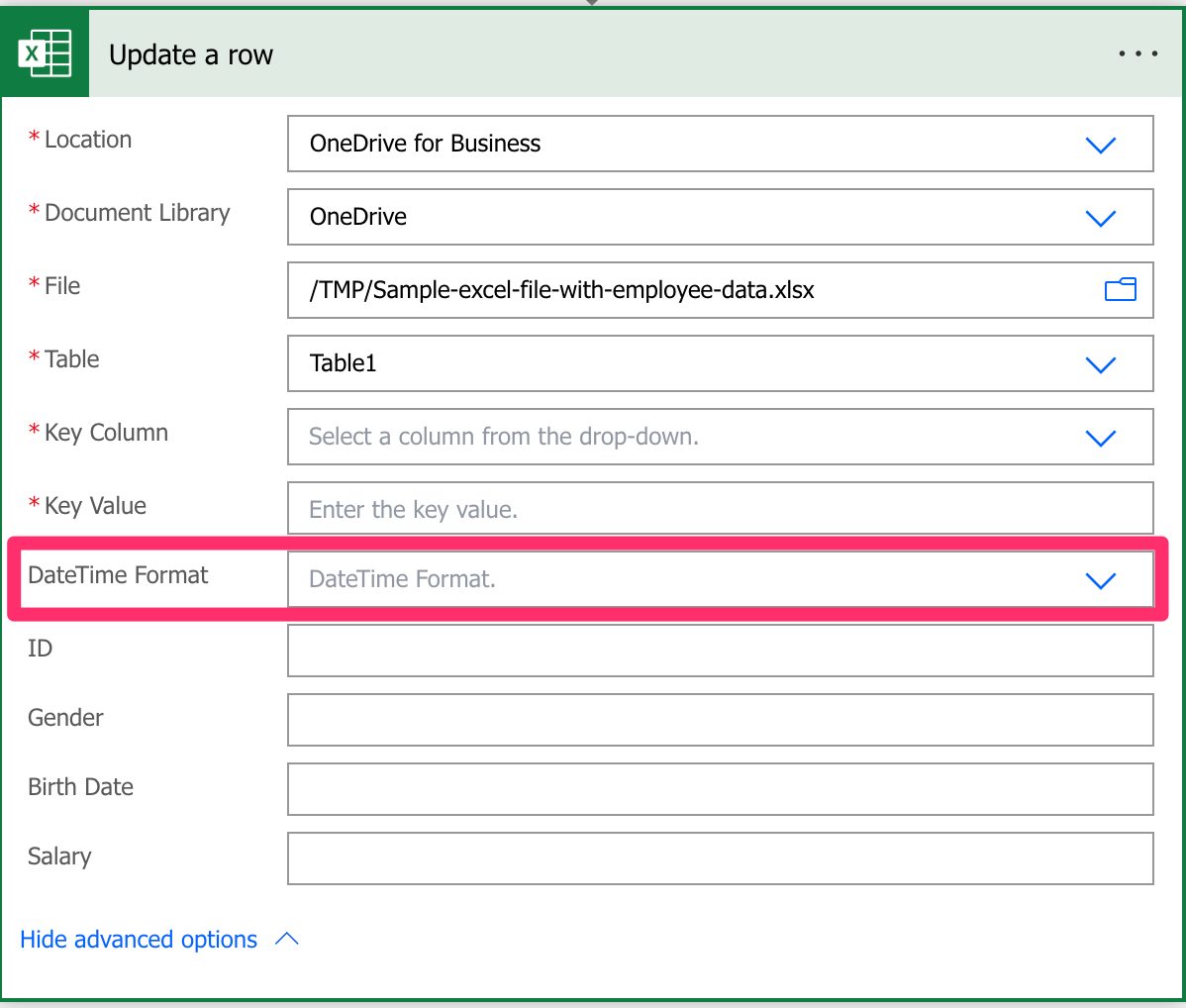
As you can see, there are also advanced properties that we can take advantage of. When you toggle it, you get an additional field as follows:

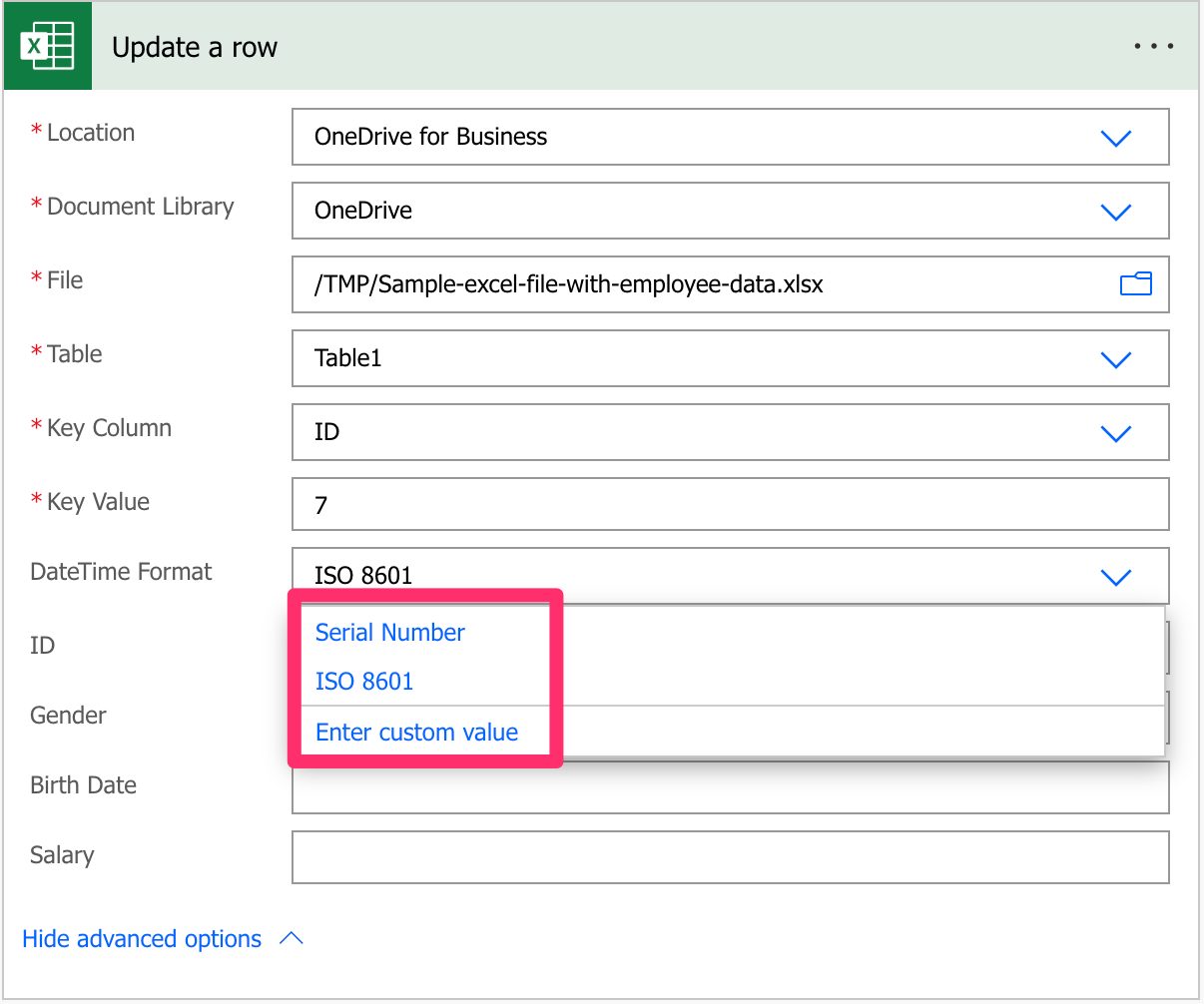
This field will define, for the dates fields, how the date should be provided. Remember that Excel internally stores the dates in a numeric format, even if it’s presented to you differently. So Power Automate enables us to define the format of the data with two options:

The “Serial Number” is the “native” way that Excel stores the date, meaning that if you want to provide a date, you need to provide a number. With “ISO 8601” you give a date that makes more sense to us but in a fixed format. Functions in Power Automate , like the utcNow() function, return the date already in that format. Still, if you have a date in a string, you can use the formatDateTime function to format it correctly.

Non-intuitive behaviors

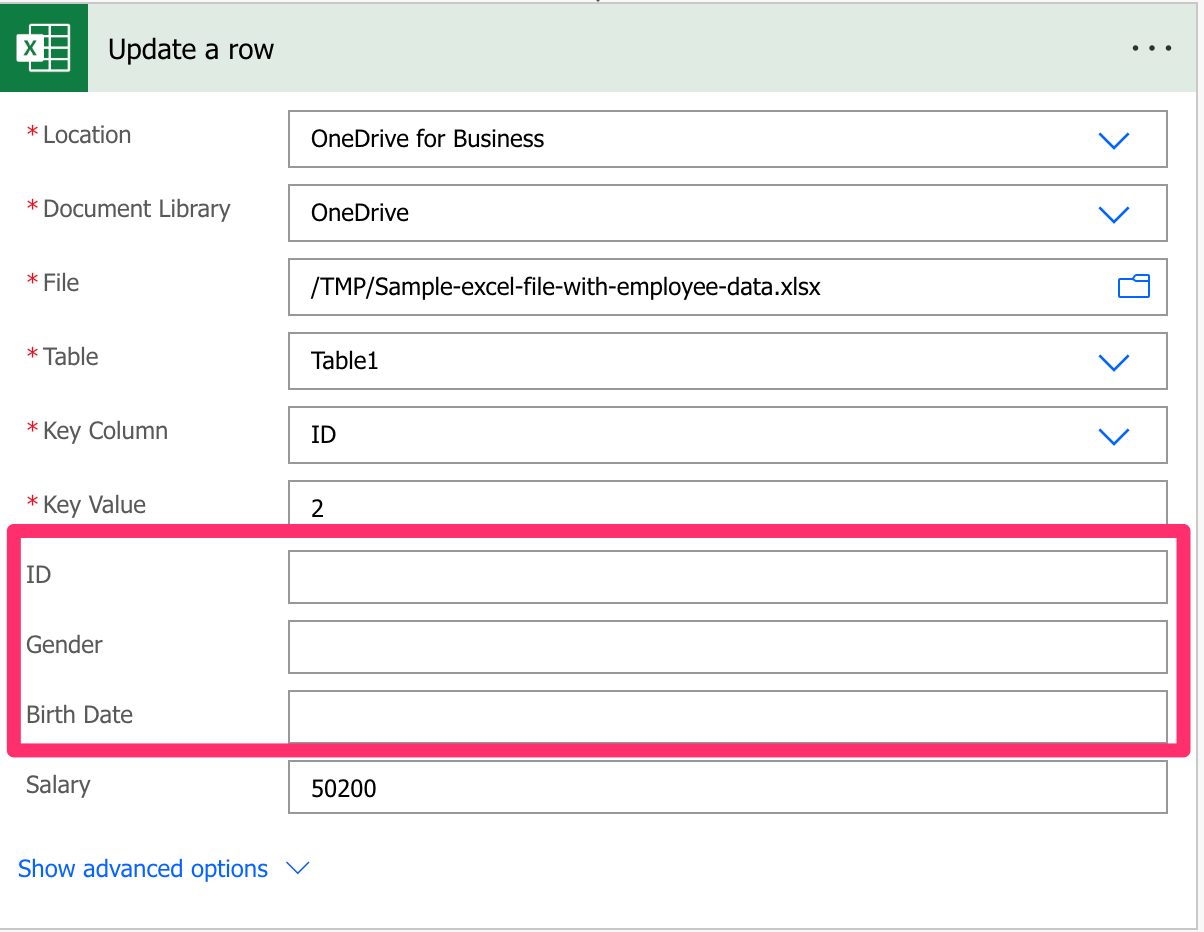
If you leave the values empty, it doesn’t mean you want to delete the values in Excel for that column. It means that you don’t want to make changes to that field. Notice the example above where I only filled in the “Salary” field since that was the only one I wanted to update.

If you want to remove the value from a column, please use the “null” special value that will signal to Power Automate that the information should be removed from the selected item.

Limitations

It could have been a temporary problem, but I got a lot of issues with some key column names, like “identifier”, for example. If you’re having issues with Flow returning strange error messages, consider changing to something like “Key Column”.

At this point should not be considered a limitation anymore, the “Update a row” action will only support Excel Workbook (xlsx) files, so you need to convert your Excel file before you can use the action.

Recommendations

Here are some things to keep in mind.

Name it correctly

In this case, the name is super important to provide the context of what we’re updating. Always build the name so that other people can understand what you are using without opening the action and checking the details.

Always add a comment

Adding a comment will also help avoid mistakes since we can indicate why that row is updated in Excel. Also, if you’re adding any elements dynamically, it’s a good practice to explain how the values are obtained. Indicate where the path comes from, for example, if it’s calculated and how. It’s essential to enable faster debugging when something goes wrong.

Always deal with errors

Have your Flow fail graciously and notify someone that something failed. It’s horrible to have failing Flows in Power Automate since they may go unlooked-for a while or generate even worse errors. I have a template that you can use to help you make your Flow resistant to issues. You can check all details here. Remember that if the “Key Value” doesn’t exist in the “Key Column,” the action will return an error, so it’s essential to have a parallel branch that catches these cases.

Am I missing something? Leave a comment or interact on Twitter. Let’s work together to make this reference as complete as we can

Back to the Power Automate Action Reference.

Photo by Peter Herrmann on Unsplash


✇Manuel T. Gomes

Power Automate: SharePoint – When an item or a file is modified Trigger

I have to admit that this is a strange trigger because it mixes items and files, and it doesn’t have a “when created” counterpart. It can be helpful depending on your workflow, so today, we’ll explore the “When an item or a file is modified” trigger and how to take advantage of it.

Where to find it?

To find it, search for the “When an item or a file is modified” trigger or go to “Standard”.

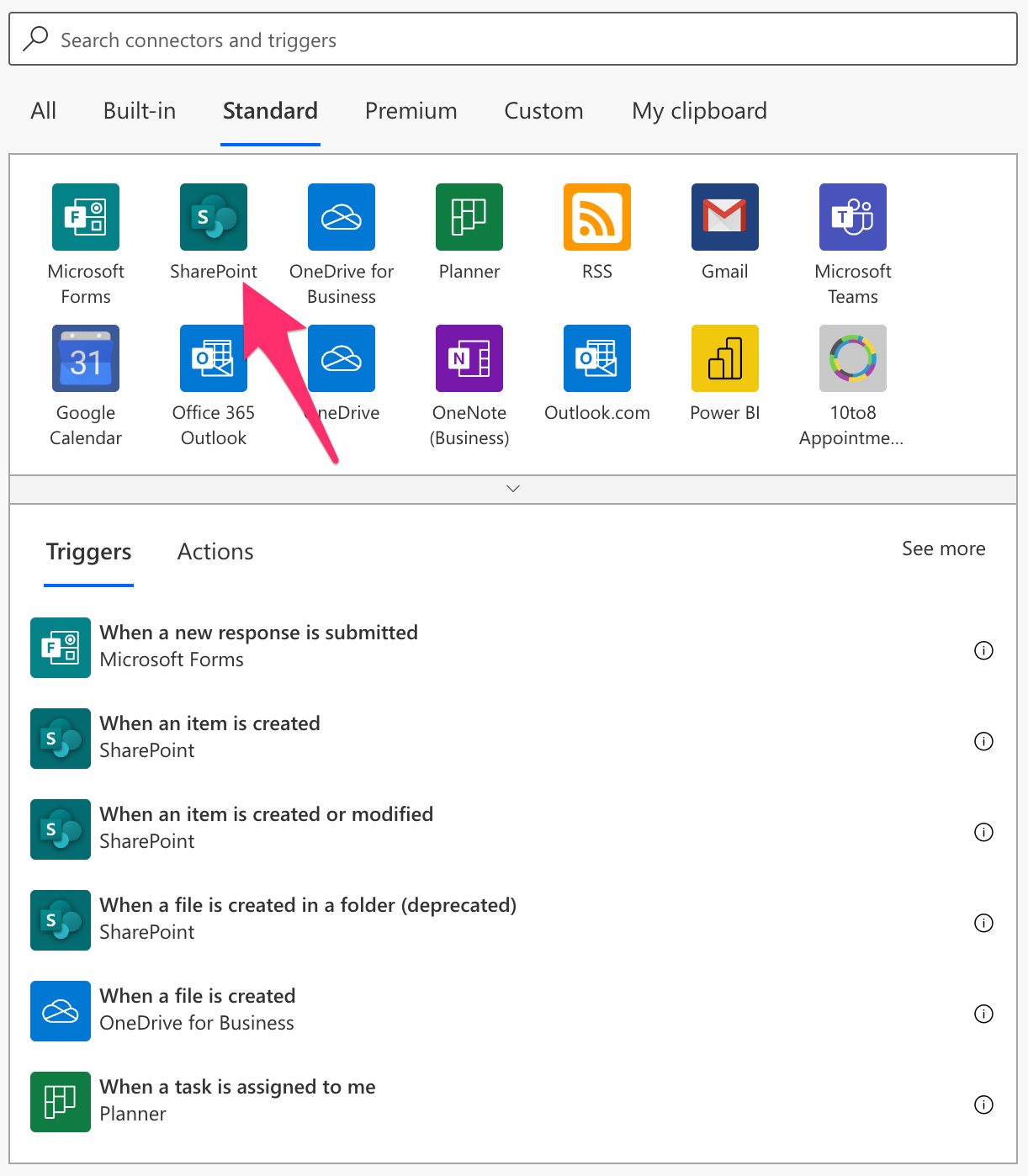
Select “SharePoint”.

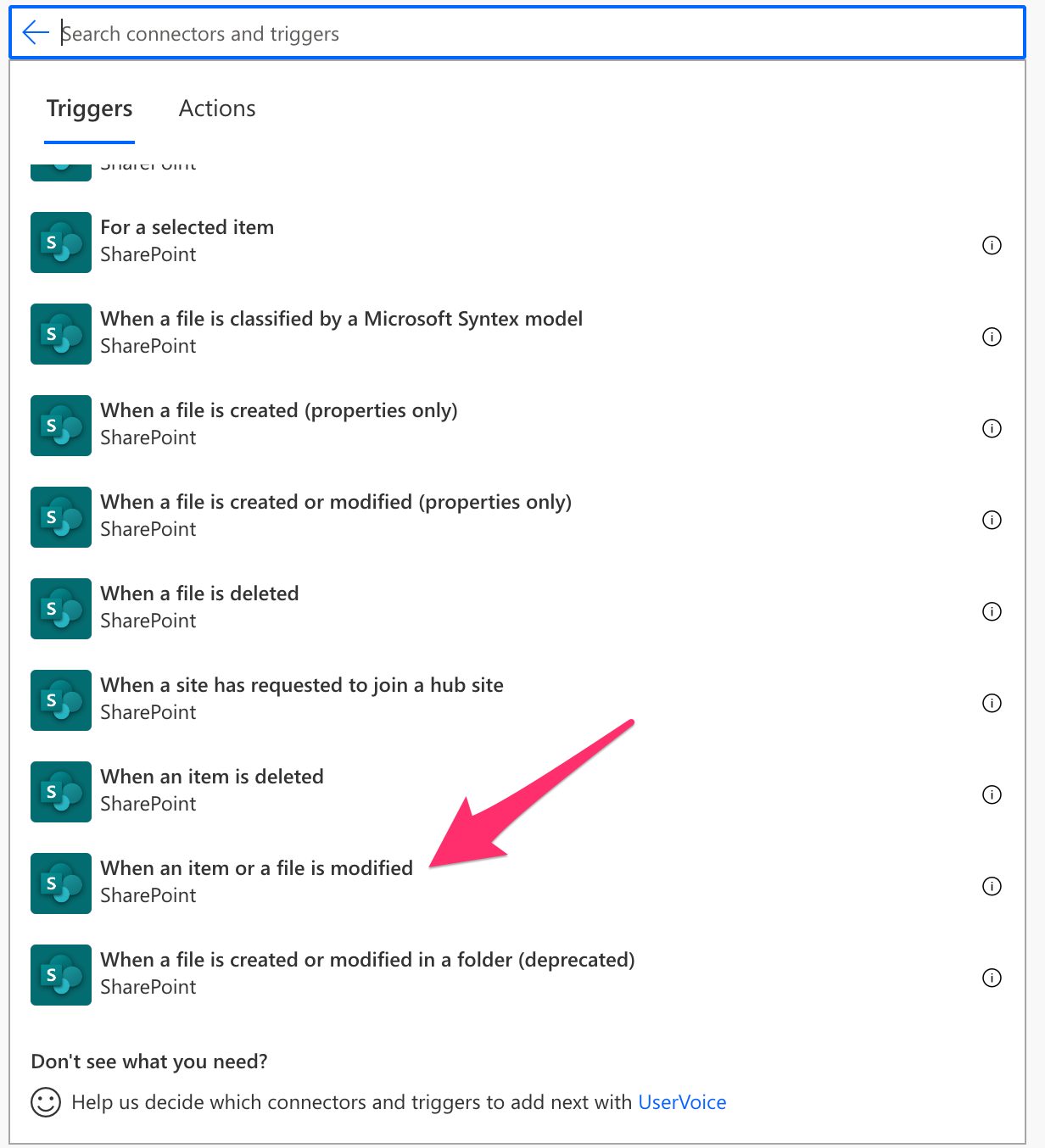
Pick the “When an item or a file is modified” trigger.

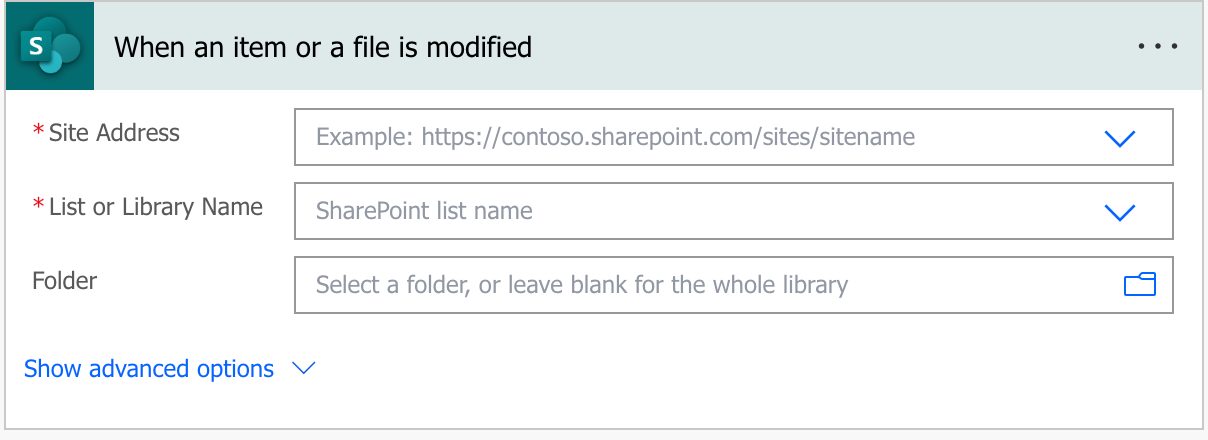
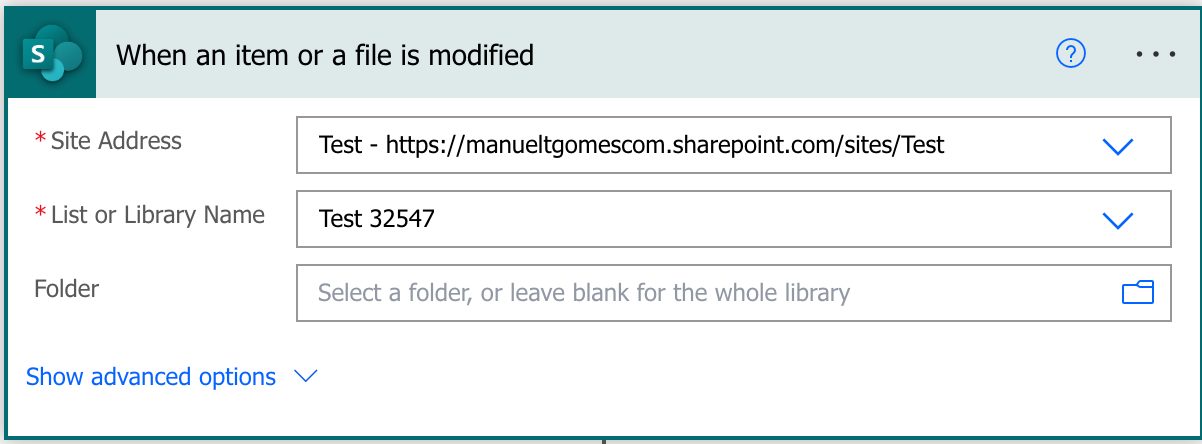
Here’s what it looks like.

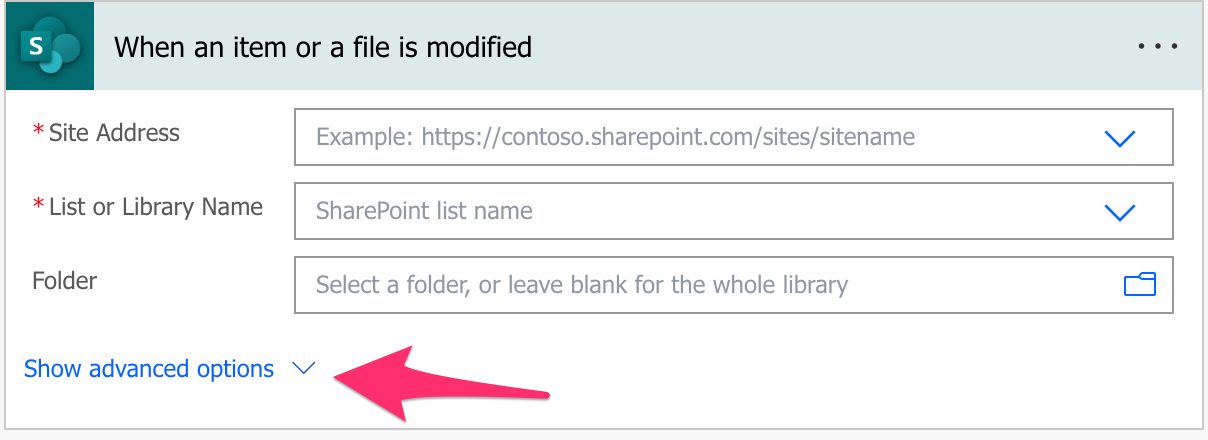
There are some advanced options that you can explore. To add them, press here:

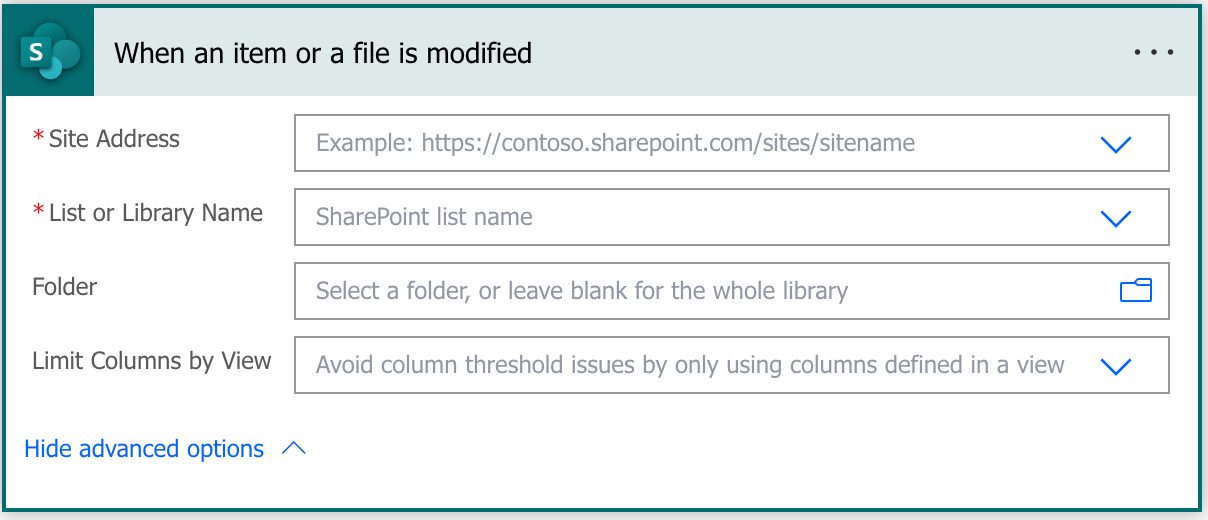
Here’s what it looks like with the options expanded:

Pro Tip:
Power Automate tends to save the most common triggers in the main screen, so check there before going through the full hierarchy. Also, you can use the search to find it quickly.

Let’s look at the fields and how we can configure them.

Fields

There are a few fields to configure so that you can take advantage of them.

Site address

We need a place to search for changes, so we need to configure the site address. There’s no way to select “all sites,” but this is a broad search parameter since a site could already have a lot of activity. If you want more sites, you need to replicate the trigger to consider all the sites you need.

List or Library Name

Within sites, there are multiple libraries, so we need to indicate what library we want. As before, we cannot have an “all libraries” filter, so if you have a lot of libraries, you need to duplicate the trigger for all of them.

It will also display all the lists on the site; as for the document libraries, you cannot have an “all lists” choice.

Folder

This one is optional and should be used wisely. If we want to get changes from all files, by all means, keep it empty, but it’s always good to limit a bit the number of Flows that we trigger. If you can have the trigger look for folders down the line, it will help you:

  1. Having fewer exceptions to parse and reducing the number of folders also limits the number of types of files that you need to look at.
  2. Fewer triggers, meaning that you keep your Power Automate usage under control. Remember that triggers are not unlimited, so keeping them controlled will go a long way to avoid having limitation issues in the future.

Limit Columns by View

You can limit the columns that you want to be returned by defining a view in SharePoint, and by doing so, you can speed up your Flow because it will only return a smaller subset of data. But remember that it won’t consider any filters you have defined in the view. As the name indicates, it will only look at the columns in the view, not the data, so it will always return changes to files and items that may not be visible in your view.

Usage

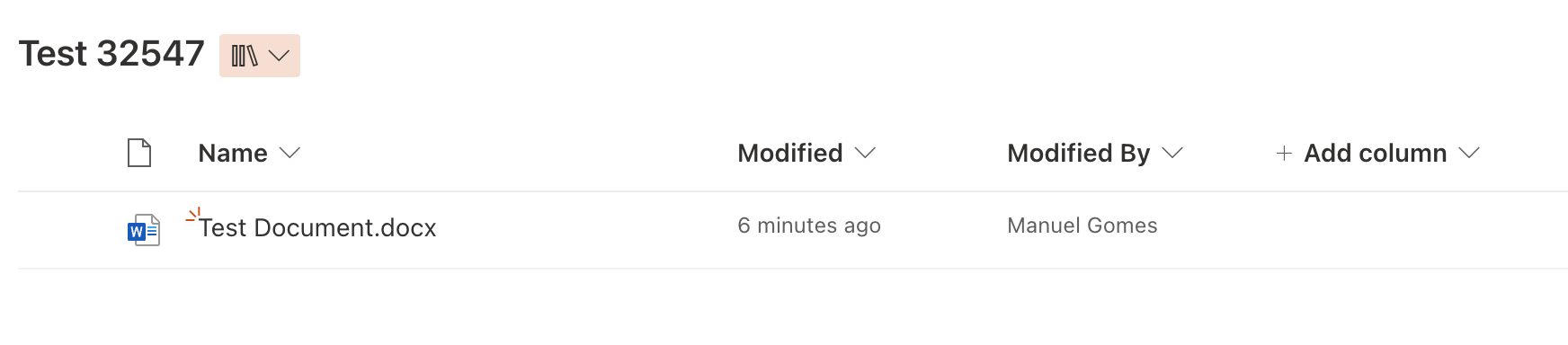
Here’s an example of a document library I created, and we want to check changes to those files.

Since we leave the folder field empty, Power Automate will look at all files in the document library.

What is a modification?

But to understand when the trigger will fire, we need to understand what is a “modification”. A “modification” is when you change the data associated with the item’s metadata and not the file itself. Adding more text to a word file is not a change.

When you see a document library, you’ll notice that the folder structure looks much like the item structure, and that’s for a good reason. They are the same, but since they are different types, SharePoint displays them in a way that makes sense to the user.

Here’s an example of the document library in the example above:

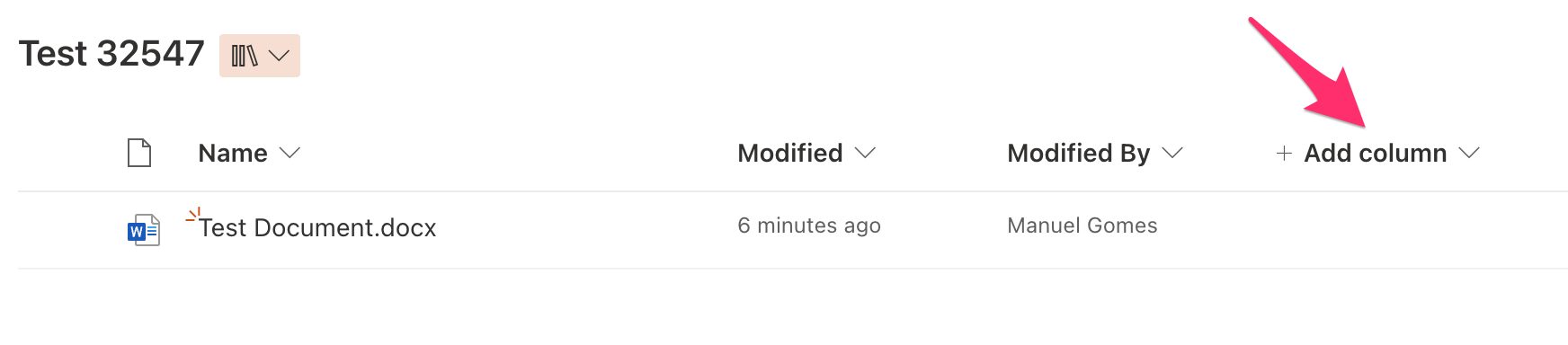
We even have the “+ Add column” option as we have on the list item view.

This is because the document library is a view behind the scenes, meaning we can add additional items to a list, so let’s add a new column called “Status” to test.

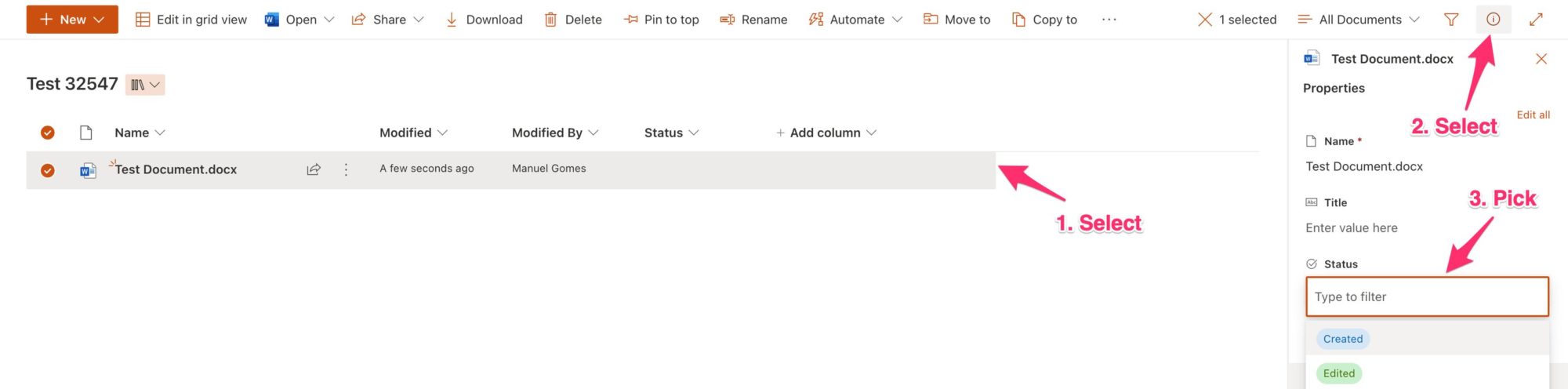
Now let’s edit the value. When you’re a list item, you will click on the row, but since this is a file, it will open the file itself and not its properties. You need to do the following:

You’ll notice that we’re not touching the file. We’re not editing the file itself. We’re editing the list item, in this case, a file, because it’s a document library. And this is when the trigger will fire because there was a change to the file.

So the “When an item or a file is modified” trigger will fire when you edit the fields in the list regardless of their type (item or file). I know it’s not intuitive since we think modifying a file by editing it, but this is not how this trigger works.

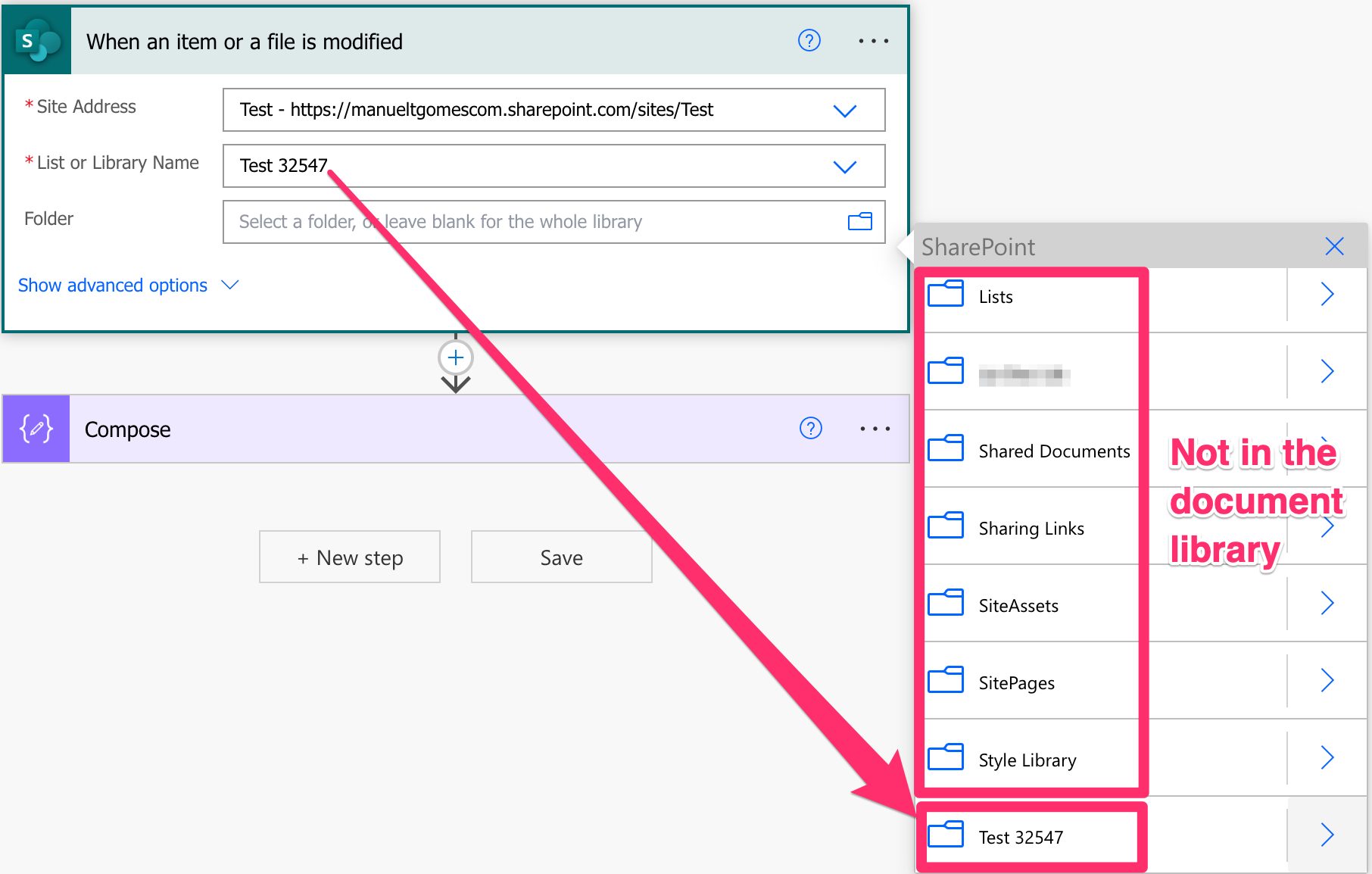
If you select the folder ensure it is in the document library

Finally, be careful when selecting the folder in case you need it. When you choose a document library, the UI won’t filter the folder list to the ones inside that library and will always list for the site. For example:

Be sure to pick folders inside the document library because Power Automate won’t return an error. The Flow won’t fire because it’s impossible for the file to be in two folders simultaneously.

Outputs

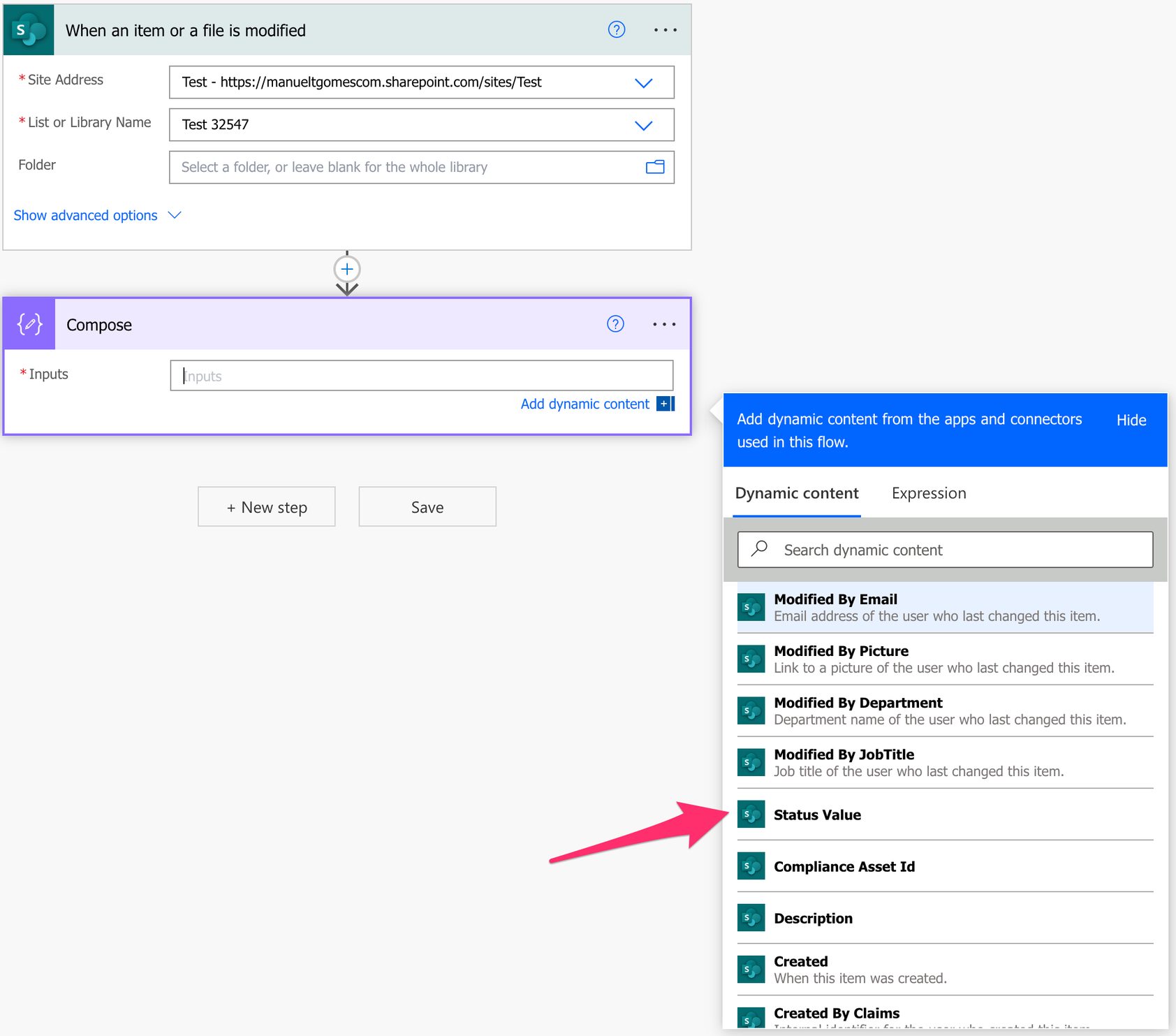
The “When an item or a file is modified” trigger outputs depend on the parameters you pick. For example, in the case above, we have a column “Status”, so the trigger will return it:

But if we pick a list, the UI will adapt and provide the columns for that list.

Non-intuitive behaviors

I mentioned above, but the most non-intuitive behavior for the “When an item or a file is modified” trigger is that the files could be modified (for example, adding a new row in an Excel file). Still, the trigger won’t consider it as a “modification”. It will only consider modifications when you change the columns associated with that document library, as it was a “simple” list.

Limitations

You can’t pick “all document libraries”, so you always have to pick a list or a document library from the list. It’s not really a limitation since it’s a good compromise, but if you have multiple document libraries, you need to replicate the Flow for each document library.

Recommendations

Here are some things to keep in mind.

Don’t use this for synchronization

I see many questions regarding synchronization between SharePoint lists, and the “When an item or a file is modified“ trigger is an excellent target to catch items that need replication. But I would strongly advise you not to do it. Synchronization of items is an amazingly complex topic in computer science, and we are all super when something doesn’t synchronize properly. If the trigger fails, data will be out of sync, and Power Automate won’t rerun it. If the data is changed on the destination list, you already have a problem that will only worsen over time.

Name it correctly

The name is super important since the trigger has a lot of configurations. We should name it, so it’s clear what information we’re getting and why. Always build the name so that other people can understand what you are using without opening the action and checking the details.

Always add a comment

Adding a comment will also help avoid mistakes. Indicate what you’re expecting, why the Flow should be triggered, and what the data will be used. It’s essential to add comments when limiting the trigger with some custom rulessince these are not prominent in the UI, and people may get confused as to why the Flow doesn’t trigger when it’s simply a rule preventing it from doing so. It’s essential to enable faster debugging when something goes wrong.

Finally, let people know why you’re choosing the parameters you configured. For example, why do you select that folder if you have a folder defined? It may make sense now, but not in a few months.

An automated trigger is better than a scheduled one.

Sometimes people are tempted to use scheduled triggers that pool the resources once in a while. This way, they can control when the information is fetched and save much Power Automate “triggers” if their quota is low. However, even if it isn’t, it may be more efficient to do batch tasks than once by one. I understand, and in some cases, I can agree, but it brings a lot of difficulties in the process. For example, you may need to keep track of what changed from the last run until this one so that some things may get lost. Also, you’re forcing something to happen periodically, even if there’s no data.

I always recommend using these “automatic” triggers instead, where they trigger one by one, but only when there’s data, so you’re always sure you get something to do. Also, debugging triggers that parse a single data point instead of multiple simultaneously is much easier. If something fails on one, then you can fix the Flow and repeat the process. But while parsing multiple ones, things can get a lot harder.

Back to the Power Automate Trigger Reference.

Photo by Christopher Bill on Unsplash
 

✇Manuel T. Gomes

Power Automate: Office 365 Excel – Get a Row action

Although Excel is known for being a standalone application, there’s a lot that we can do with Power Automate and tasks that we can automate. Today we’ll explore getting a row in an Excel file using the “Get a row” action. This action works for files in SharePoint, Teams, or OneDrive for Business so let’s look at how to use it.

Where to find it?

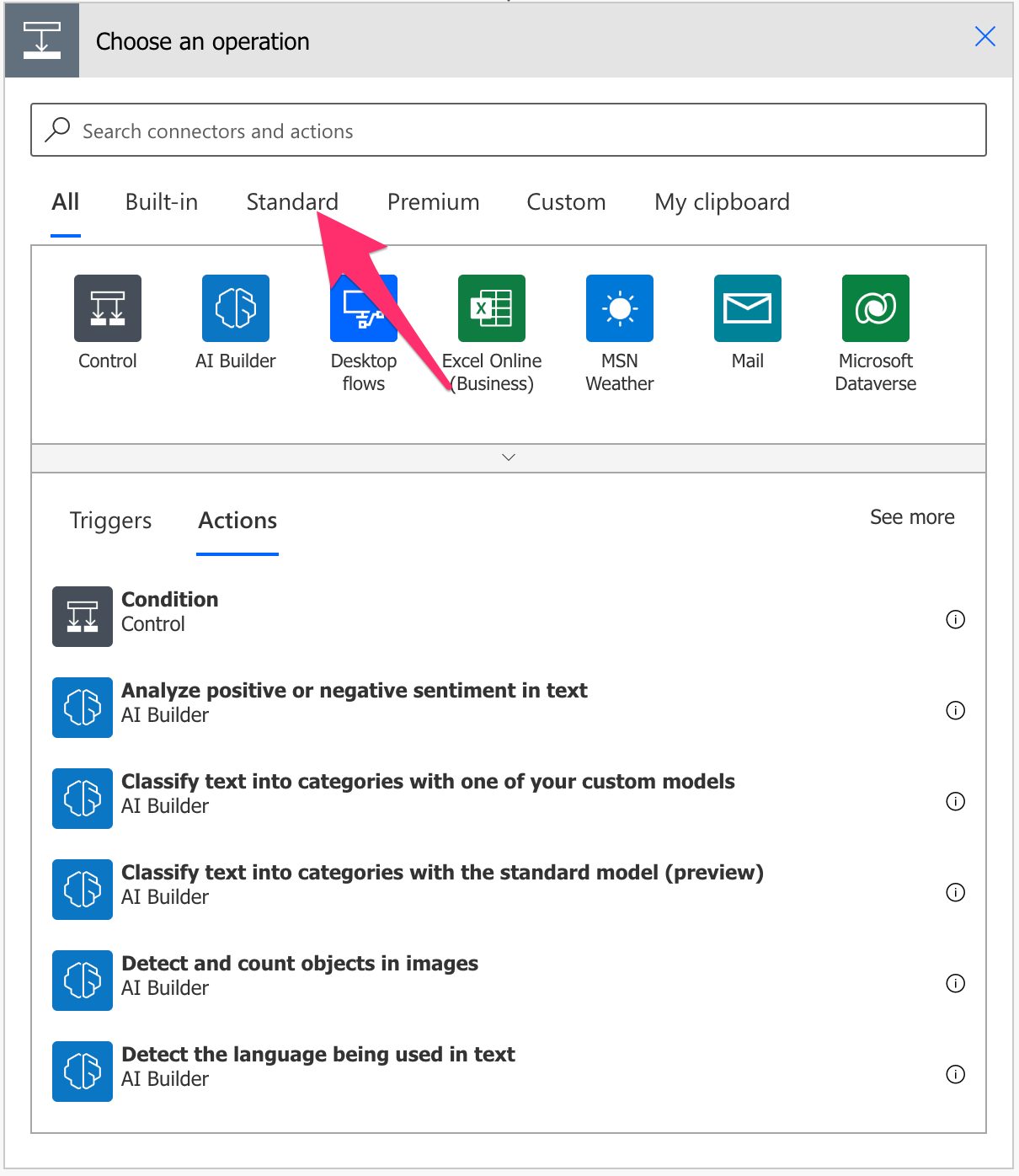
You can find it under “Standard”:

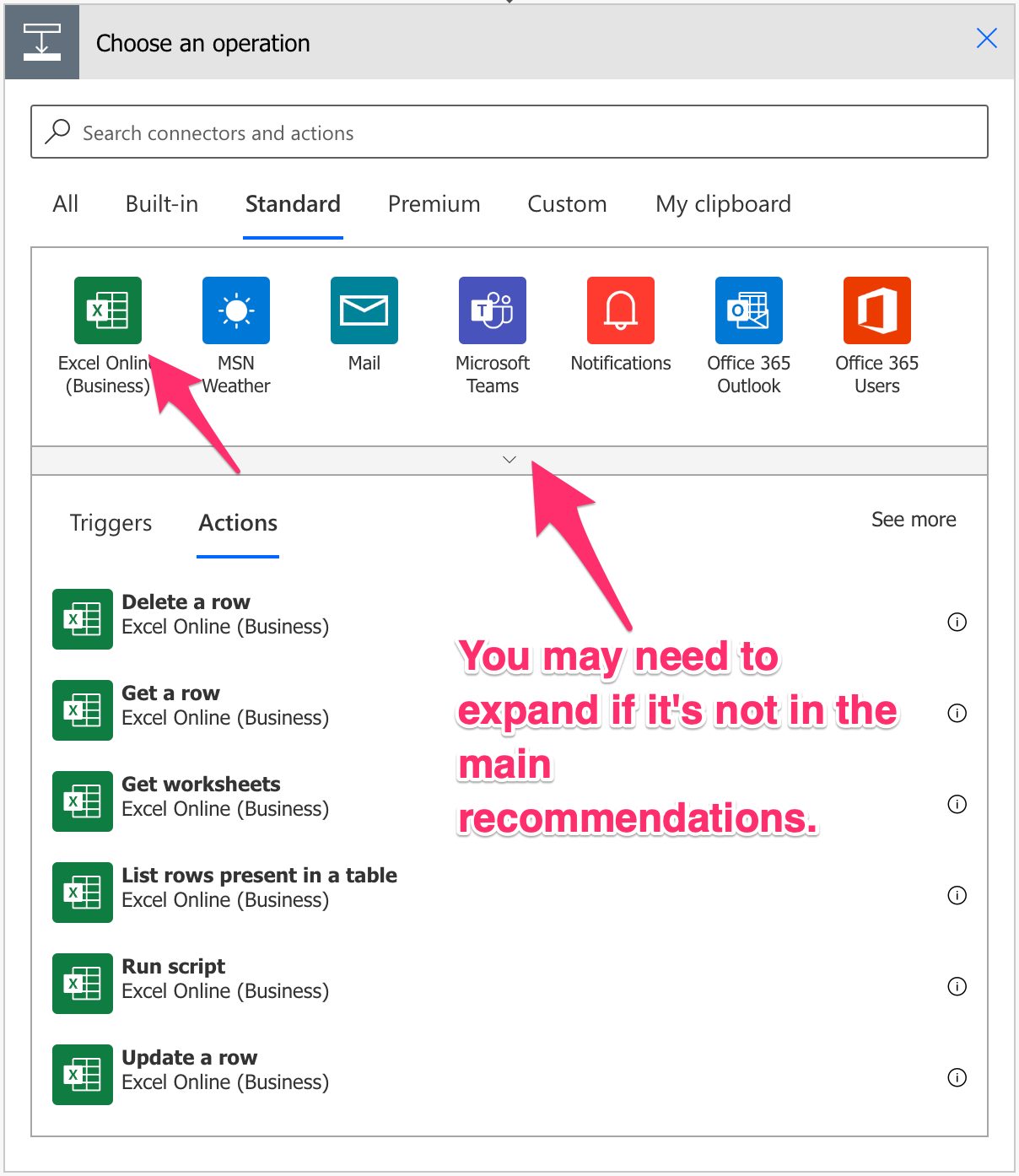
Pick “Excel Online”:

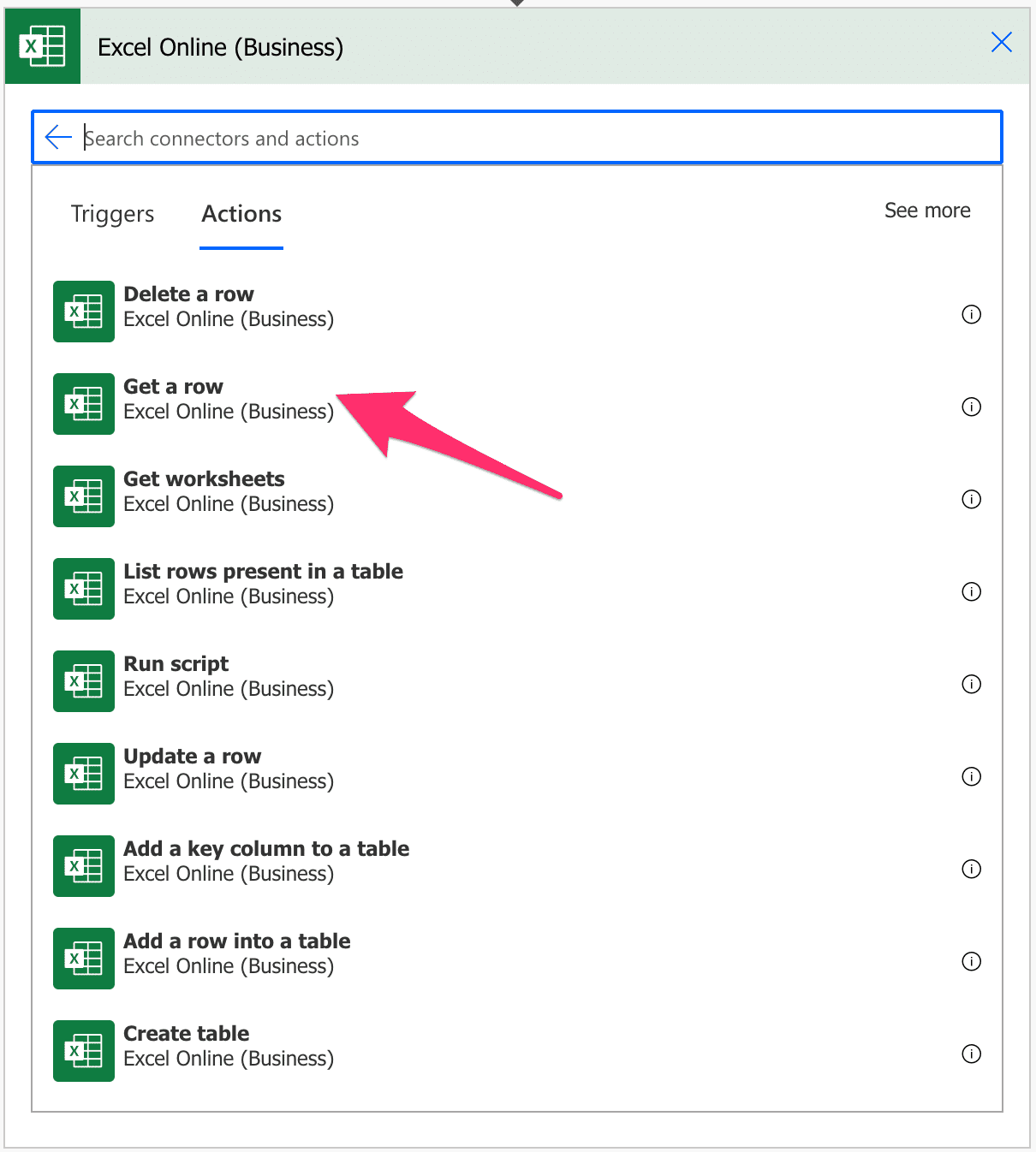
Select “Get a Row” action:

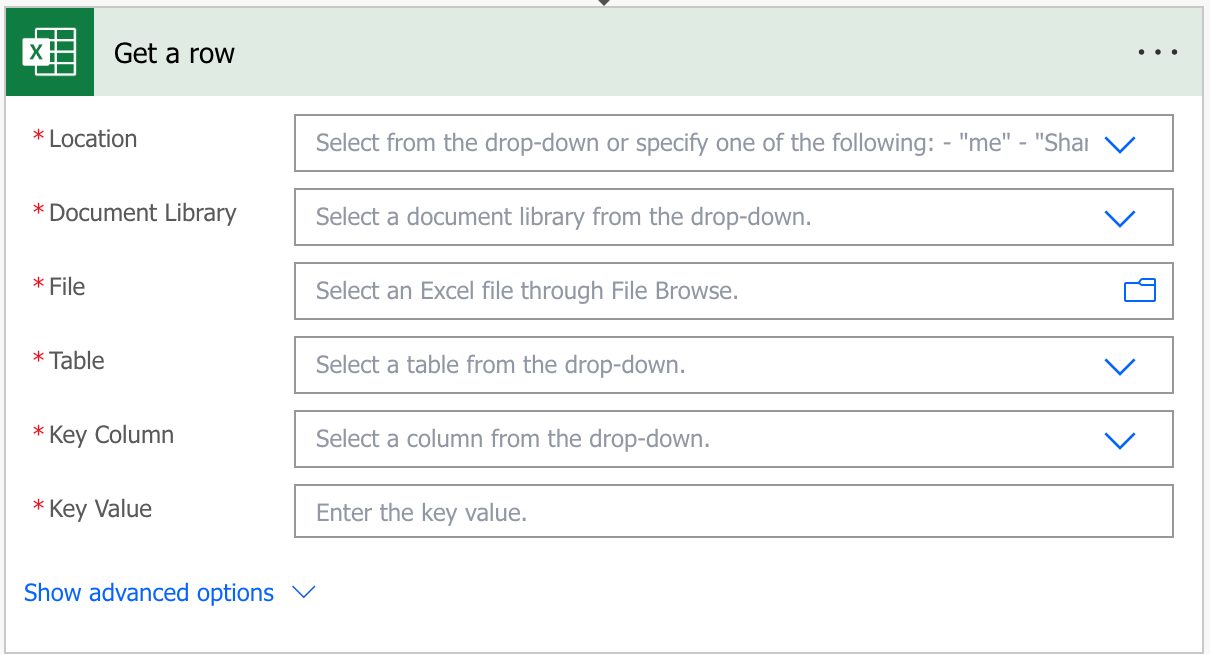
Here’s what it looks like.

Pro Tip:
Power Automate tends to save the most common actions in the main screen, so check there before going through the full hierarchy. Also, you can use the search to find it quickly.

Now that we know how to find it let’s understand how to use it.

Fields

You can find some fields to configure before using the “Get a row” action, so let’s look at them individually.

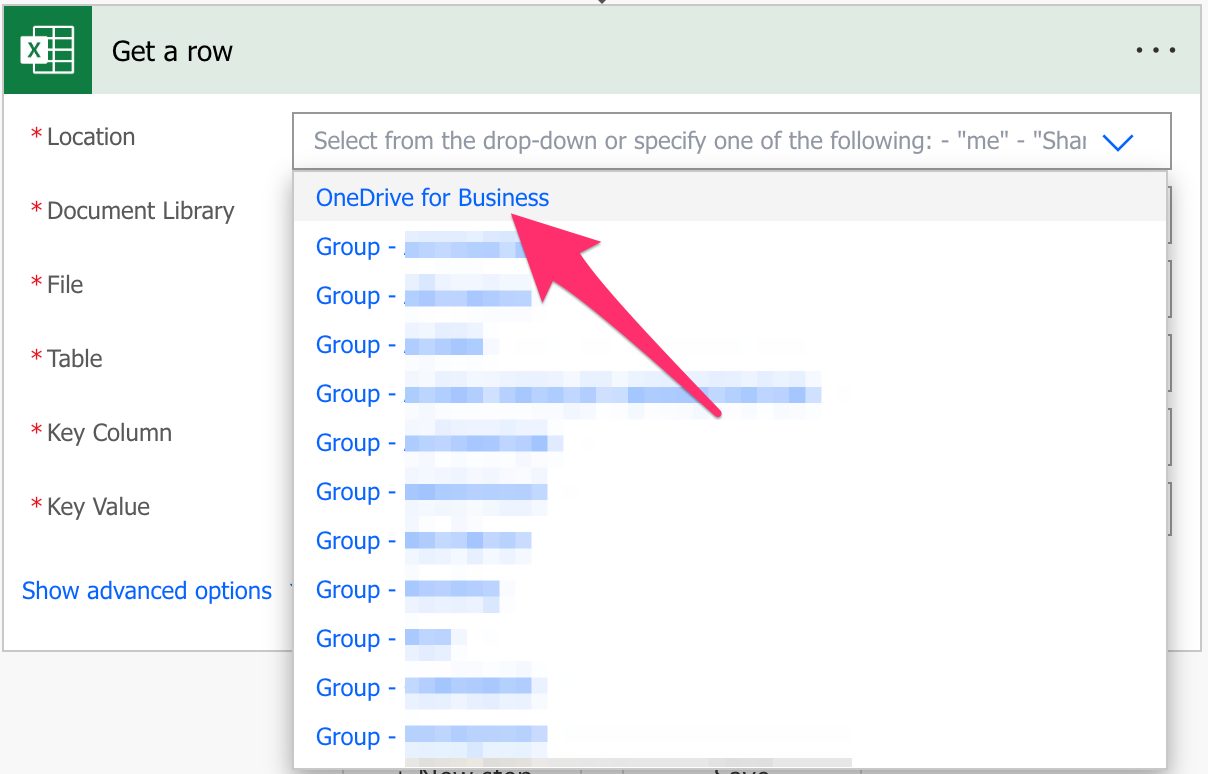
Location

As mentioned before, we can use SharePoint, Teams , or OneDrive For Business to find our Excel files. To do it, select the location where you want to find the data. For example, for OneDrive For Business:

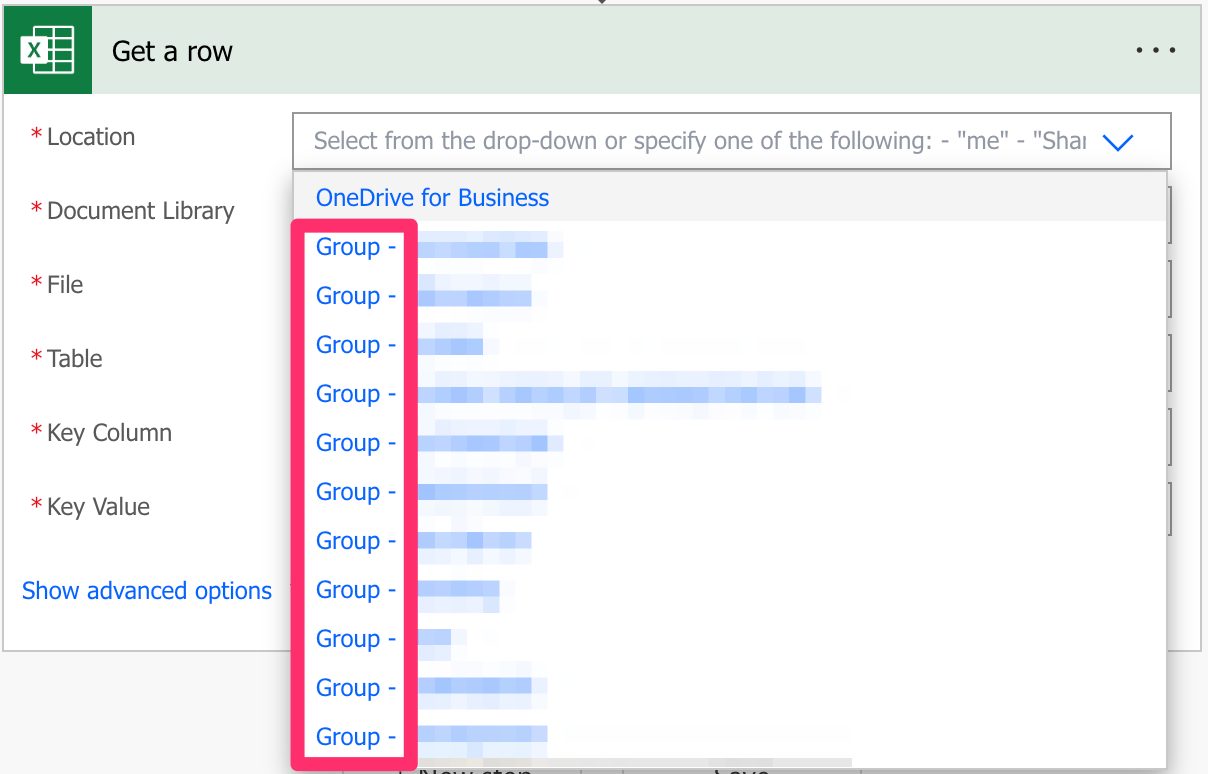
As you see above, you have a lot of “Groups” sites that are commonly Microsoft Teams sites.

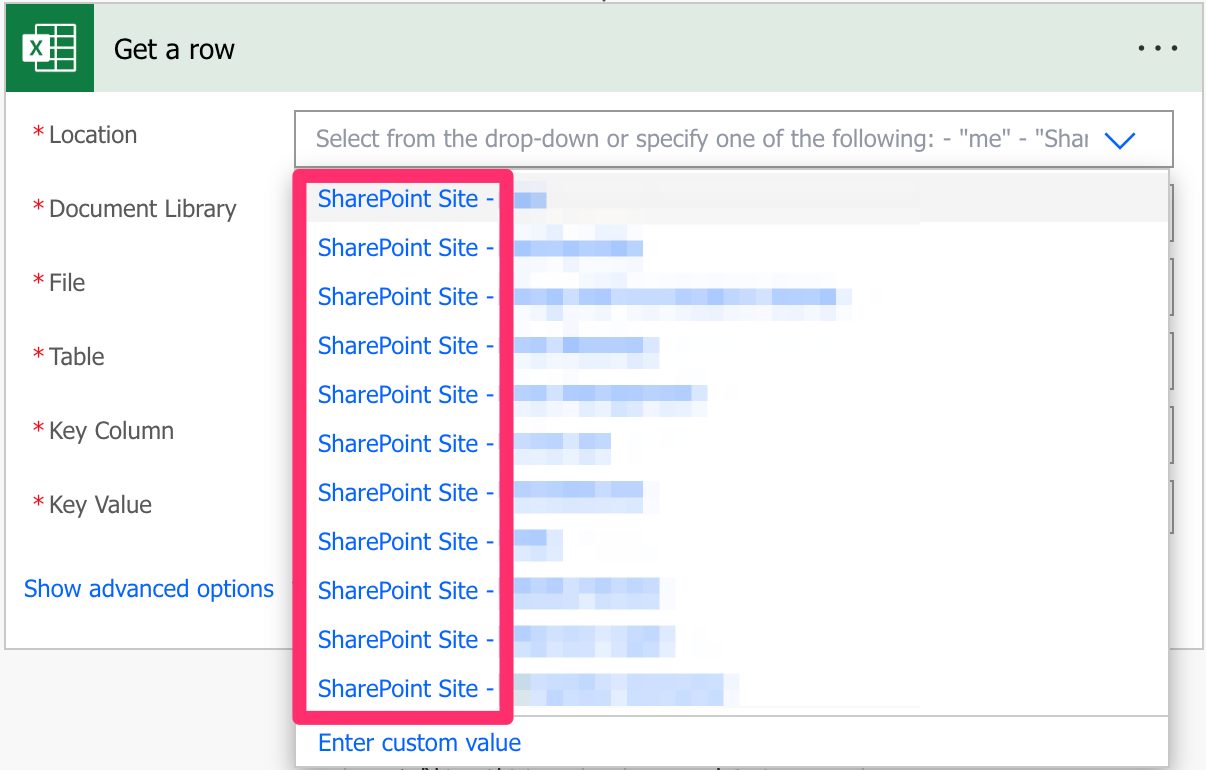
If you’re looking for SharePoint sites, they are commonly displayed like this:

Since they all behave the same way, I’ll refer only to SharePoint sites from now on, but keep in mind that you can also use Microsoft Teams and OneDrive For Business. I’ll highlight the differences when appropriate.

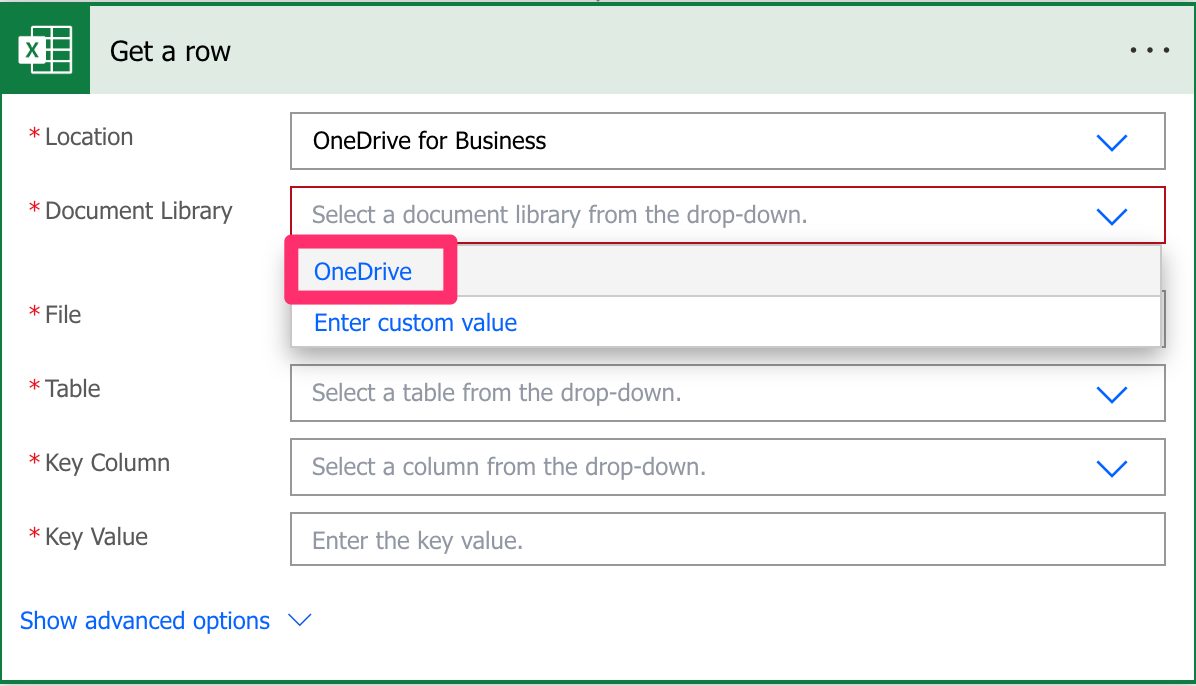
Document Library

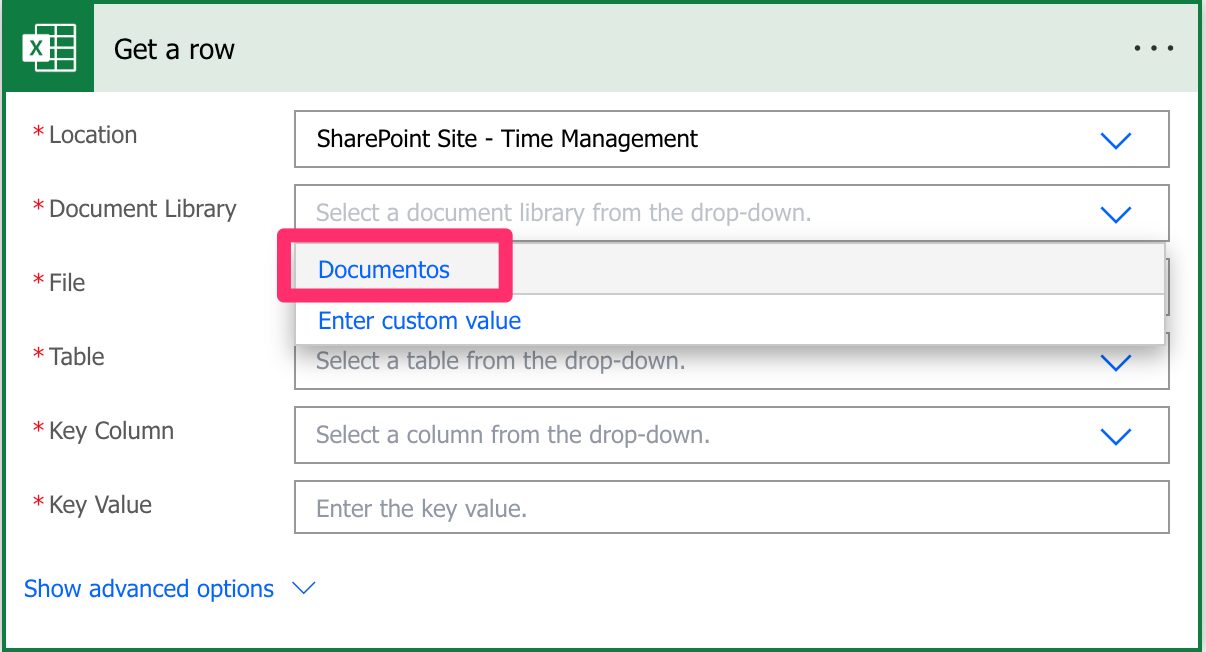
Since SharePoint sites can have multiple document libraries, we need to pick them from the list.

There’s always one created by default called “Documents” or something different depending on your language, but since it’s a mandatory field, you need to pick it; otherwise, you won’t be able to choose the file from the following field.

The same behavior occurs for OneDrive For Business, even if it’s not possible to create document libraries. Microsoft creates a document library that you can pick from the list.

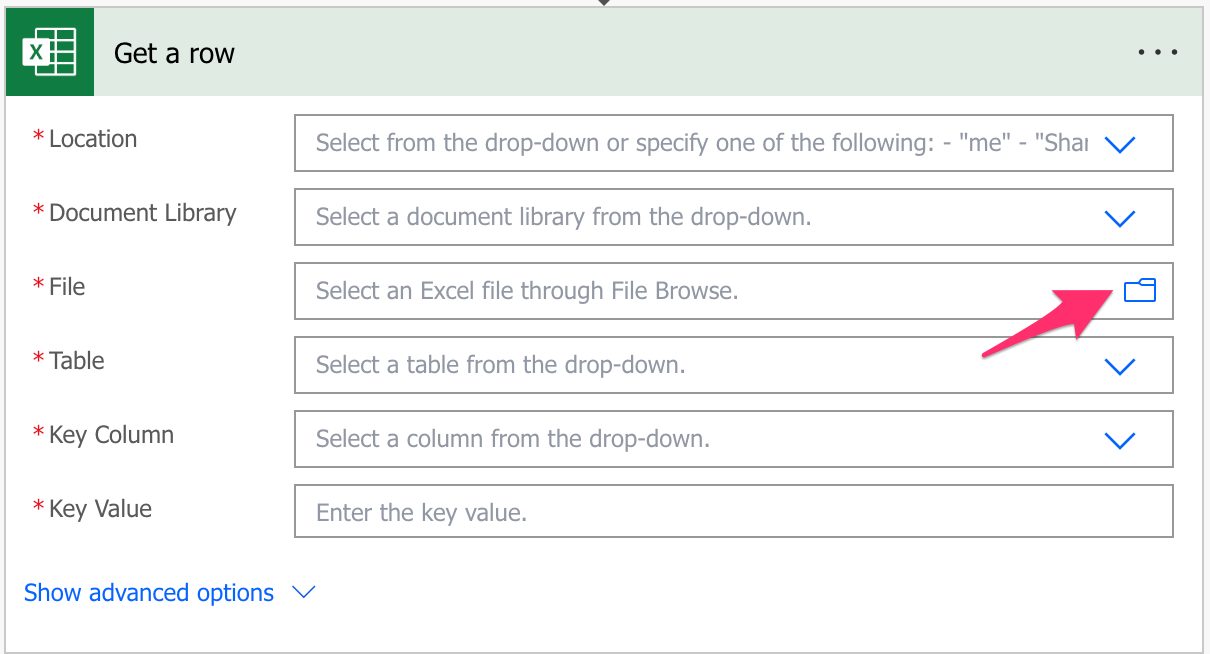
File

Now that we have the locations defined, let’s look at a file. You can pick the file in the “File Browser”.

Or you can provide the path yourself, but I discourage this. Although you can do it, Power Automate sometimes returns strange errors related to the path, especially if the file has special characters. It’s always recommended that you can, of course, select the file directly in Power Automate’s UI.

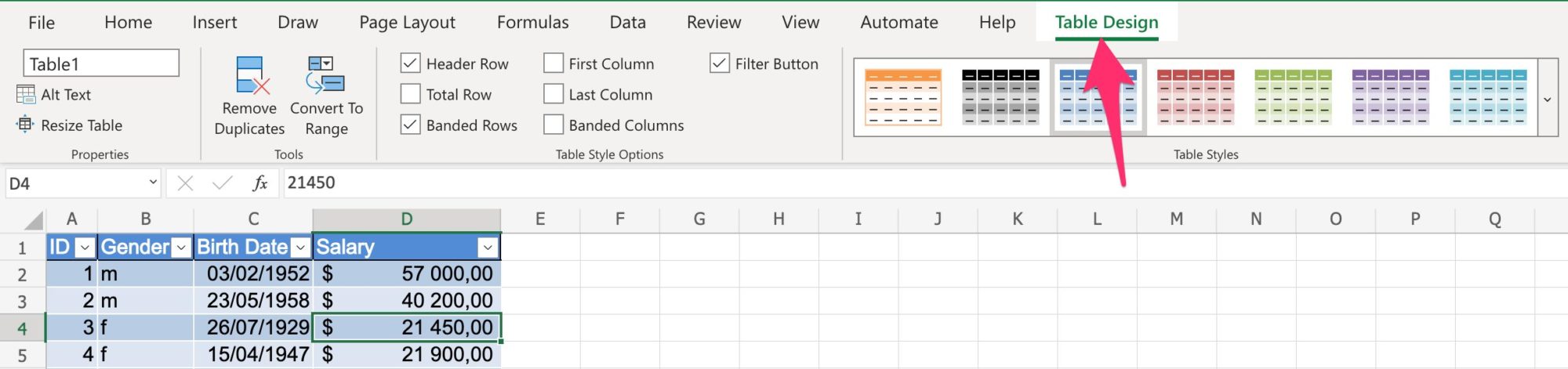
Table

Power Automate requires the information inside an Excel table to access the data. To find the table, you can go to your Excel file, select a row and then check if you have a “Table Design” tab in the ribbon.

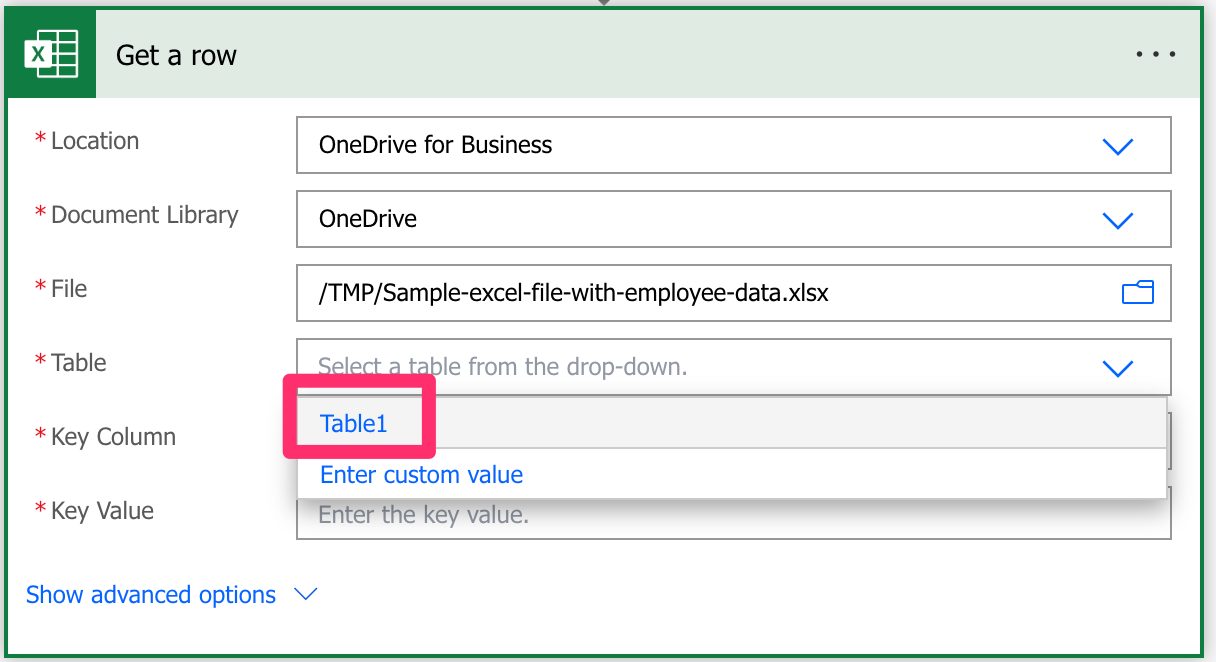
If you don’t, then chances are that you need to create a table in Excel before you can continue. Select the table in the dropdown.

The Excel file can have multiple tables, so it’s important to define the one you want to manipulate the data. Finally, you can provide the table’s name as a “dynamic field,” but to ensure that your Flows always work, I recommend picking it from the dropdown.

Key Column

Now that we have a file, we need to tell Power Automate how to identify the row we want to get. Since there could be multiple tables in Excel, Microsoft required a “Key Column” that identifies the row we want to get inside the defined table. If you don’t have one, you can use the “Add a key column to a table” action that will do it for you.

Since we provided the path before, Power Automate checks the file and gives us a list of the columns in the provided table.

Please be aware that if you dynamically define the path, table, or file, you need to provide the “Key Column” name since Power Automate won’t find the list of columns before the Flow runs, so it can’t present you with a list.

In case you don’t know what “Key Columns” are, I have an article here that explains them in a lot of detail.

Key Value

Finally, we need a key value that identifies the row we want to get from the table. Notice that we’re getting the item by providing an identifier, not the row number, since the same row can be inside multiple tables. The key value needs to be unique within the “Key Column” and should be a number.

Usage

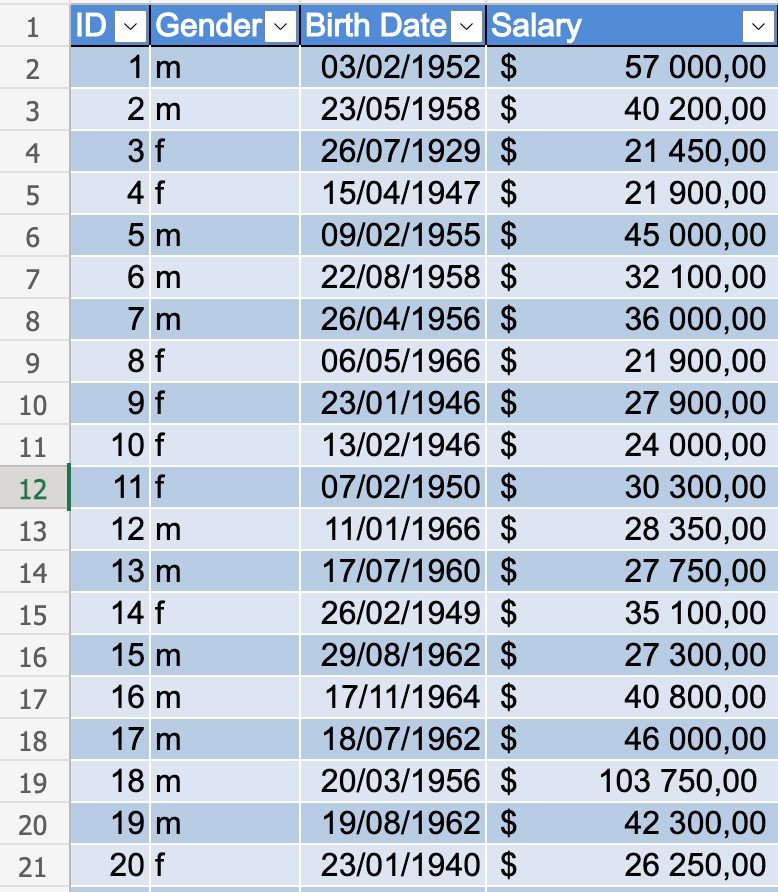
Let’s look at a test file with anonymous employee information.

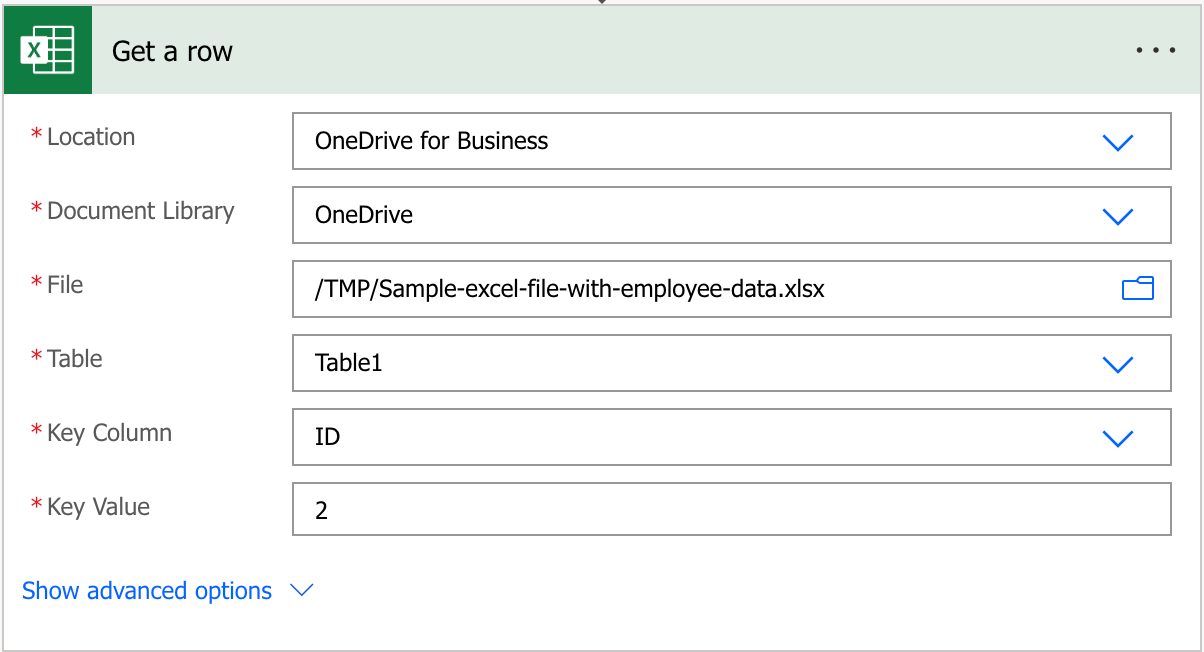
Let’s say you want the information for the employee with ID “2”. For our example, we’ll use OneDrive for Business, so here’s what it looks like:

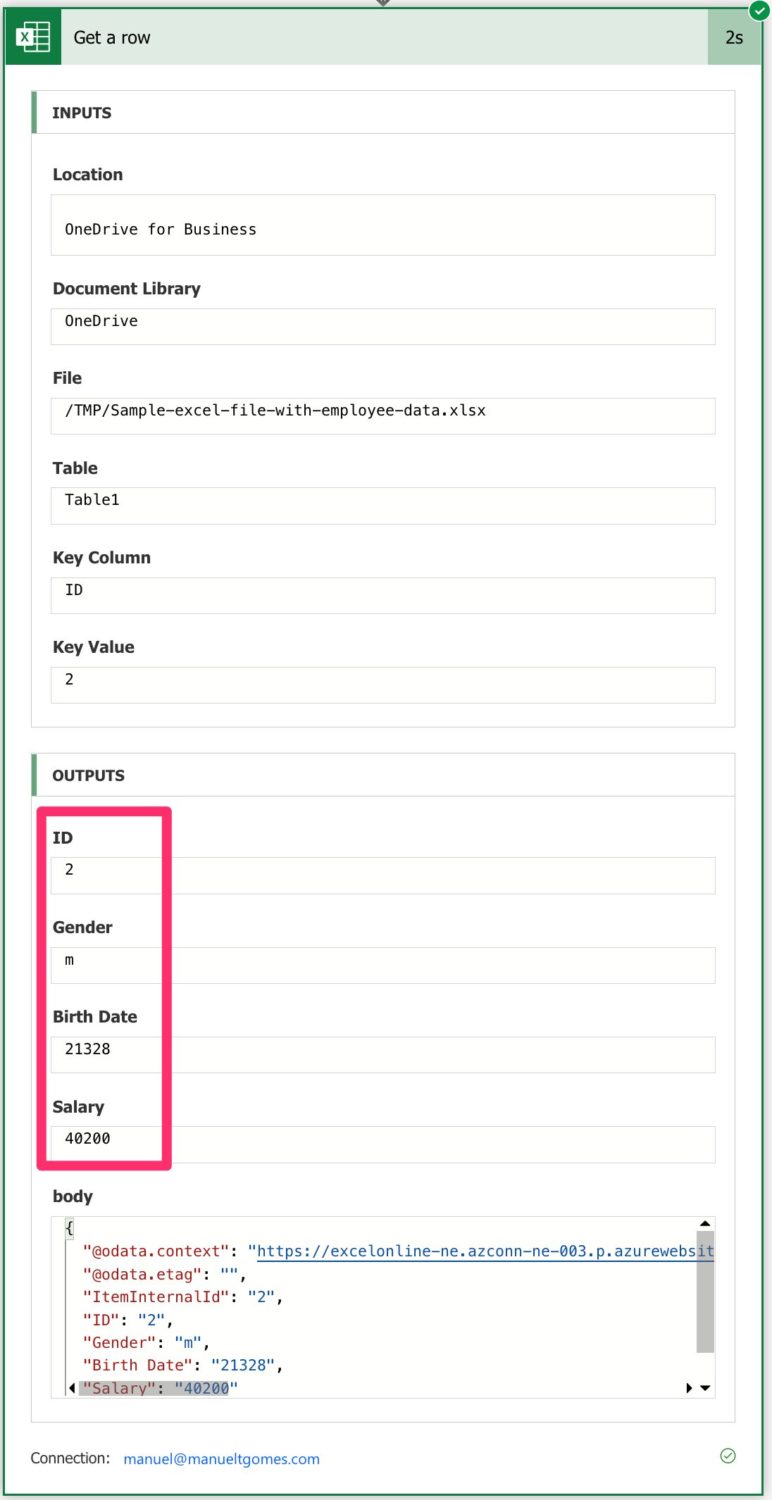
After we run, we get the following information:

Be careful to ensure that the ID that you’re picking exists in the table otherwise, you’ll get an error. For example, if we don’t have the ID “3” in the table, we’ll get the following exception:

No row was found with Id '3'.

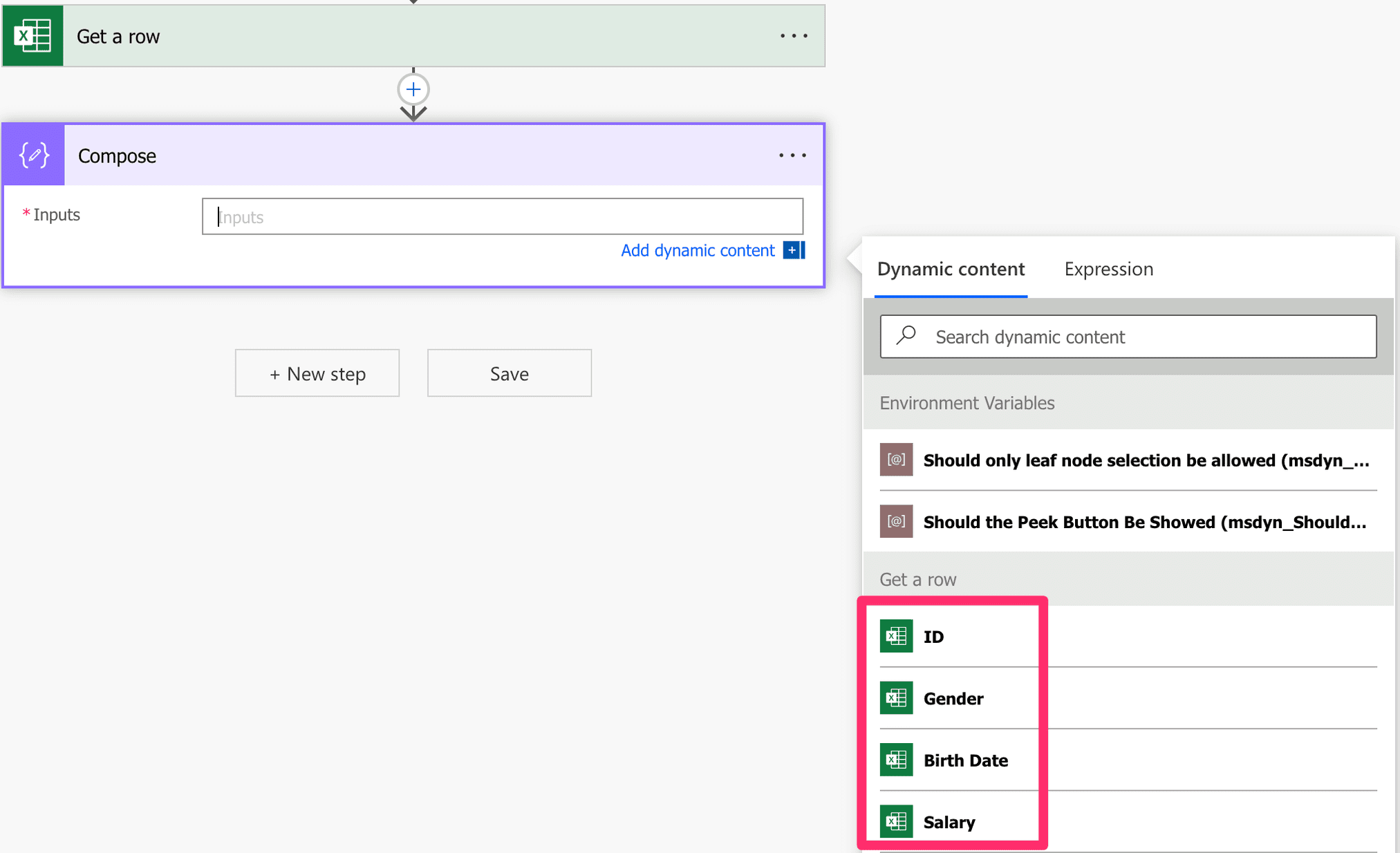
You can find the fields in the “Dynamic Fields” tab if you want to access them. For example, let’s use a compose action:

Please note that you won’t be able to do this if you use dynamic fields for any of the elements, like the path, for example. Since Power Automate can only know the structure of the file while it’s running, it’s not possible to add the fields as a preview to pick them in the UI.

Finally, notice that the values returned are not formatted and, in some cases, don’t have the format you would expect. For example, dates are returned as numbers, so if you want to convert the Excel number dates into “real” dates, here’s an article on how to do it. Or if you need to check this article to convert the dates up until the second. There’s also an article that shows you how to format the date and show information in other languages.

Please also consider that numbers don’t contain formatting like currency or custom Excel formats that you define. If you want to configure the numbers in other formats, you need to use the “Format Number” action after you get the data.

Limitations

At this point should not be considered a limitation anymore; the “Get a row” action will only support Excel Workbook (xlsx) files, so you need to convert your Excel file before you can use the action.

Recommendations

Here are some things to keep in mind.

Name it correctly

In this case, the name is super important to provide the context of what we’re trying to get. For example, if you’re trying to get information about an employee, mention that in the name of the action. Always build the name so that other people can understand what you are using without opening the action and checking the details.

Always add a comment

Adding a comment will also help avoid mistakes since we can indicate the reason for getting the Excel file row. Also, if you’re adding any elements dynamically, it’s a good practice to explain how the values are obtained. Indicate where the path comes from, for example, if it’s calculated and how. It’s essential to enable faster debugging when something goes wrong.

Always deal with errors

Have your Flow fail graciously and notify someone that something failed. It’s horrible to have failing Flows in Power Automate since they may go unlooked-for a while or generate even worse errors. I have a template that you can use to help you make your Flow resistant to issues. You can check all details here. Remember that if the “Key Value” doesn’t exist in the “Key Column,” the action will return an error, so it’s essential to have a parallel branch that catches these cases.

Back to the Power Automate Action Reference.

Photo by Becca Tapert on Unsplash
 

✇Manuel T. Gomes

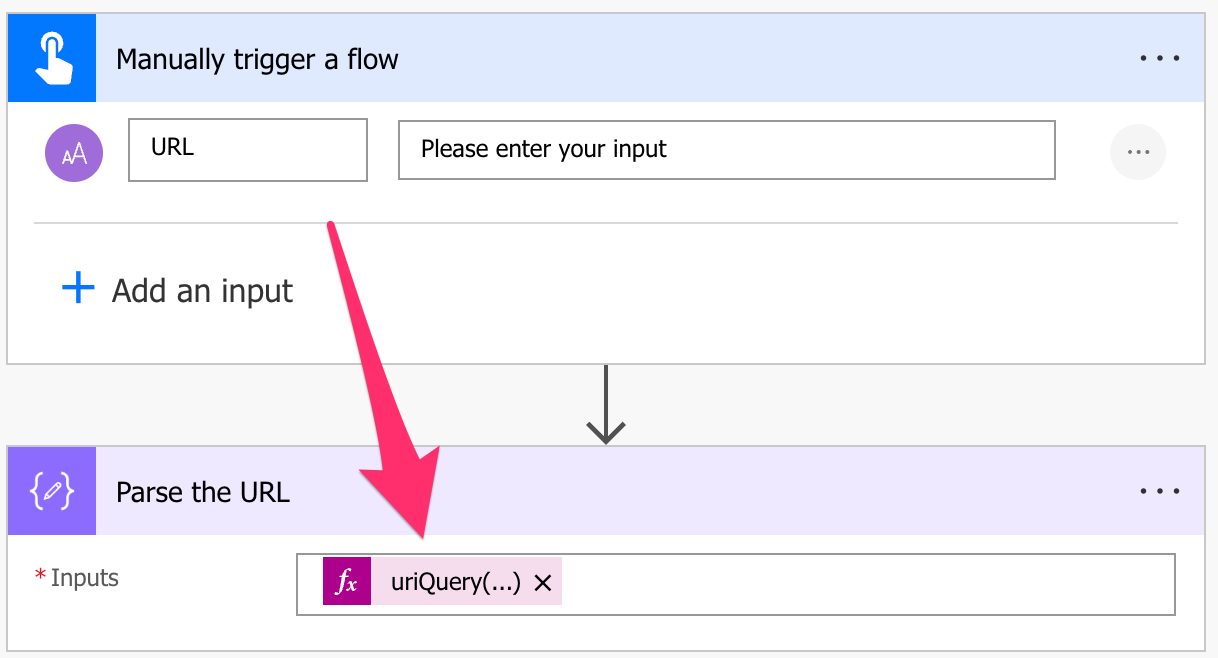
Power Automate: uriQuery function

So you have a URL and want to get parts of it. One way would be to use the split function or indexOf function and parse it yourself, but there’s a better way by using one of the “uri” functions available in Power Automate like the “uriHost”, “uriPath” and “uriPathAndQuery” functions to name a few. Today we’ll explore the “uriQuery” function and, as the name indicates, get the URL’s query string (also known as parameters). Let’s see how to use it.

Where to find it?

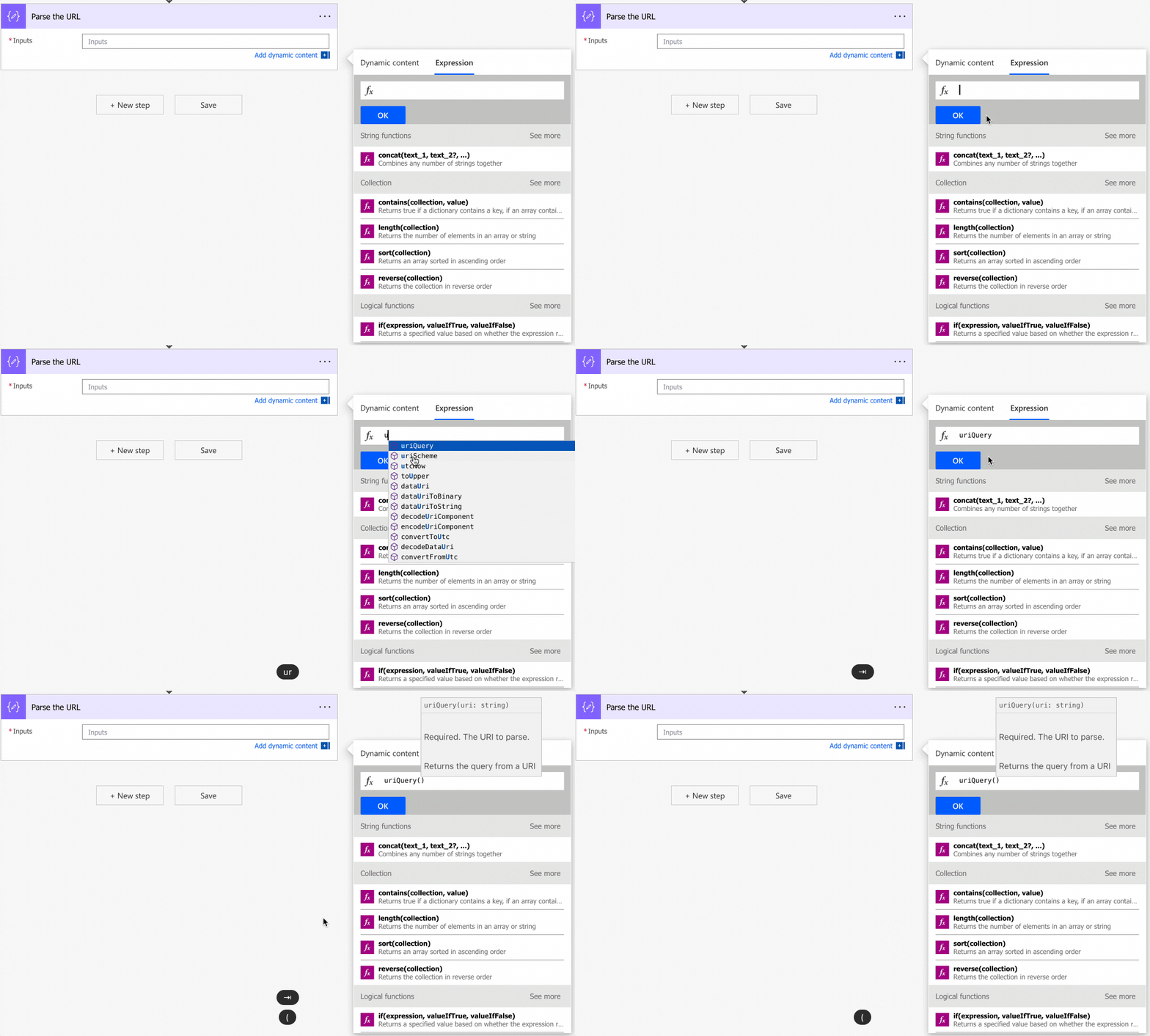
You can find the function in every action where a formula is supported. For example, let’s look at a “Compose” action:

As you can see, we can auto-complete by using the “tab” key. Let’s look at how to use it.

Usage

It follows a simple pattern.

  1. String with the URL

Let’s start with a simple example:

Let’s try with a big URL.

String 'https://manueltgomes.com/area/microsoft/powerautomate/'

will return 

""

The URL will return an empty string if it doesn’t have any query string.

If you’re used other “uri” functions you know that this behaviour is a bit different than “uriPath” or “uriPathAndQuery” functions for example. These functions will return “/” if they cannot find information instead of an empty string

Let’s try with parameters and see what we get:

String 'https://manueltgomes.com?query=test'

will return

?query=test

Notice that if you used the “uriPathAndQuery” function above, you would get something slightly different:

String 'https://manueltgomes.com?query=test'

will return

/?query=test

This is because every function that deals with the path in some way, like “uriPath” or “uriPathAndQuery” consider the “empty” path as “/“ and not as an empty string, so the “/“ is always included.

Let’s try an URL with a path:

String 'https://manueltgomes.com/area/microsoft/powerautomate/?query=test'

will return 

?query=test

As expected, the path would be ignored, and we only get the query string.

Finally, what about a string that is not a valid URL?

String 'this is not a valid URL'

will return

Unable to process template language expressions in action 'Parse_the_URL' inputs at line '0' and column '0': 'The template language function 'uriQuery' expects its parameter to be a well-formed absolute URI. The provided value was 'this is not a valid URL'. Please see https://aka.ms/logicexpressions#uriQuery for usage details.'.

Notice that we need a valid URL to be provided to the function, so be sure you validate the string before running the function; otherwise, your Flow will fail.

Limitations

Depending on the size of your string, your expression may return an error, even if it’s correct. Please note that the expressions have a max size of 8,192 characters. If you have an expression even bigger than 1000, I would strongly advise you to break it into smaller manageable formulas.

Recommendations:

Here are some things to keep in mind.

If you want to parse an URL, don’t do it manually

Always use the “uri” functions that Power Automate provides you. They do a lot of work and consider edge cases that you may not consider. Also, using one function that does all the work for us is much easier than doing all the work ourselves.

Use “debug” compose actions

I recommend using Compose actions to have the values that go “in” the function. This way, if the value doesn’t make sense, you can understand, based on the parameters, why it was calculated that way. It’s useful, especially if you change something in the URL before parsing it, so you can see the value before the function parses it.

Don’t nest

There’s no real reason to do it, but if you find yourself in a situation where you have nested “uriQuery” functions in a formula, you should review it and make everything more straightforward. If you nest it, the Flow will fail since the result of the function is not a valid URL, so be sure not to do it.

Always add a comment

Adding a comment will also help avoid mistakes. Indicate why you are trying to find the element and what it means. It may look obvious initially but it will not be in a few months or years. It’s essential to enable faster debugging when something goes wrong.

Sources:

Microsoft’s uriQuery Function Reference

Back to the Power Automate Function Reference.

Photo by Towfiqu barbhuiya on Unsplash
✇Manuel T. Gomes

Power Automate: How to add all email attachments to Planner?

Recently Nick commented on my “How to send an email and create a task in Microsoft Planner?” article, mentioning that I don’t have an article on how to add all email attachments to Planner, so today we’re going to solve that. The idea is simple. We get an email with attachments, and we want to add all of them to a Microsoft Planner as attachments to a task. Let’s see how to add all email attachments to Planner using Power Automate.

The trigger

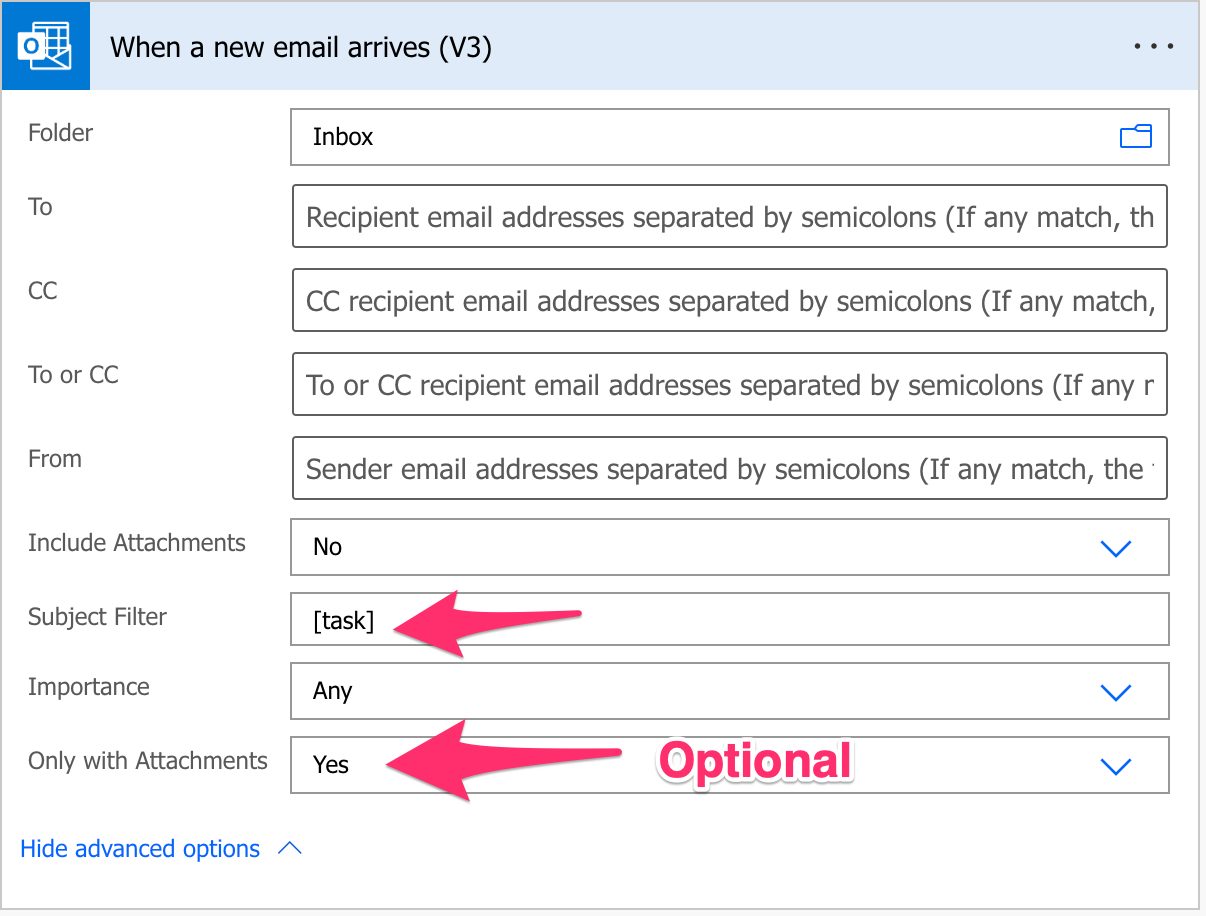
In order not to process all emails that we get and add them to Planner, we’re going to add a prefix to the header of the email to indicate Power Automate that only those should be processed. Also, we’ll add a filter to the “When a new email arrives” trigger to ensure that the Flow will only fire for the emails we want to process. This way, we don’t need to add any more filters to the Flow, and we will save Flow runs that are important if you’re using a free account and stricter limitations on how many Flows can be run. Also, it’s a lot easier to debug since the history will only contain items we intended to add to the process and not all emails we received.

Here’s what the trigger will look like:

In our example, we’re adding the string “[task]” to ensure that only these emails are processed. Also, I’m checking the “Only with Attachments” to “Yes” because I only want to process emails with attachments. Still, in your case, you can process all emails you want to add to Planner and, optionally, add the attachments if they exist. It’s up to you how you want to do it.

Finally, there’s the “Include Attachments” tag. I will keep it disabled because even if you enable this feature, Flow (at the time of writing this article) won’t fetch the attachments correctly. I go into detail in this article, but you need to know that you need to fetch the articles separately using the “Get email” action.

Getting all attachments

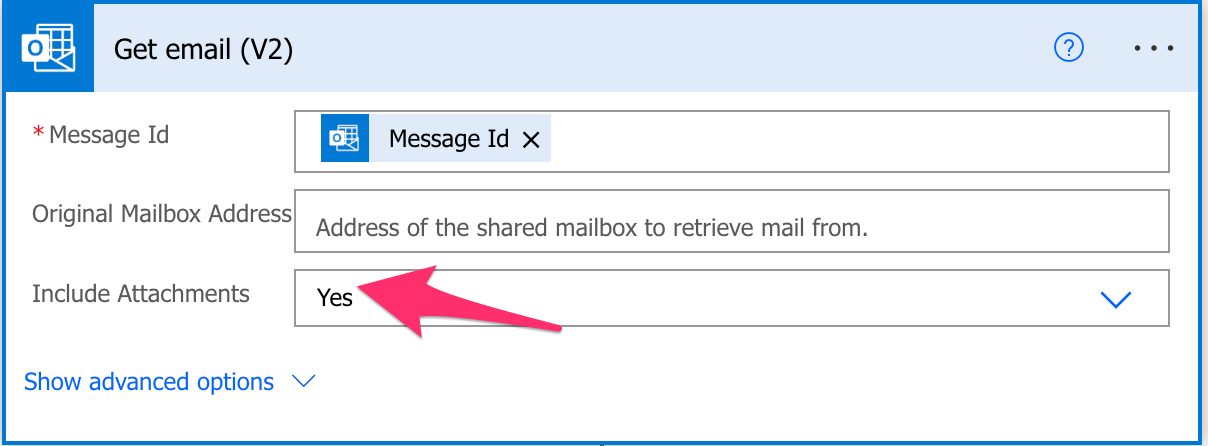
Now that we have the trigger properly configured let’s look at how to get the attachments. As mentioned before, we get the attachments by using the “Get email” action, like this:

Notice that we’re using the “Include Attachments” as “Yes” to get the attachments’ contents.

Saving all attachments

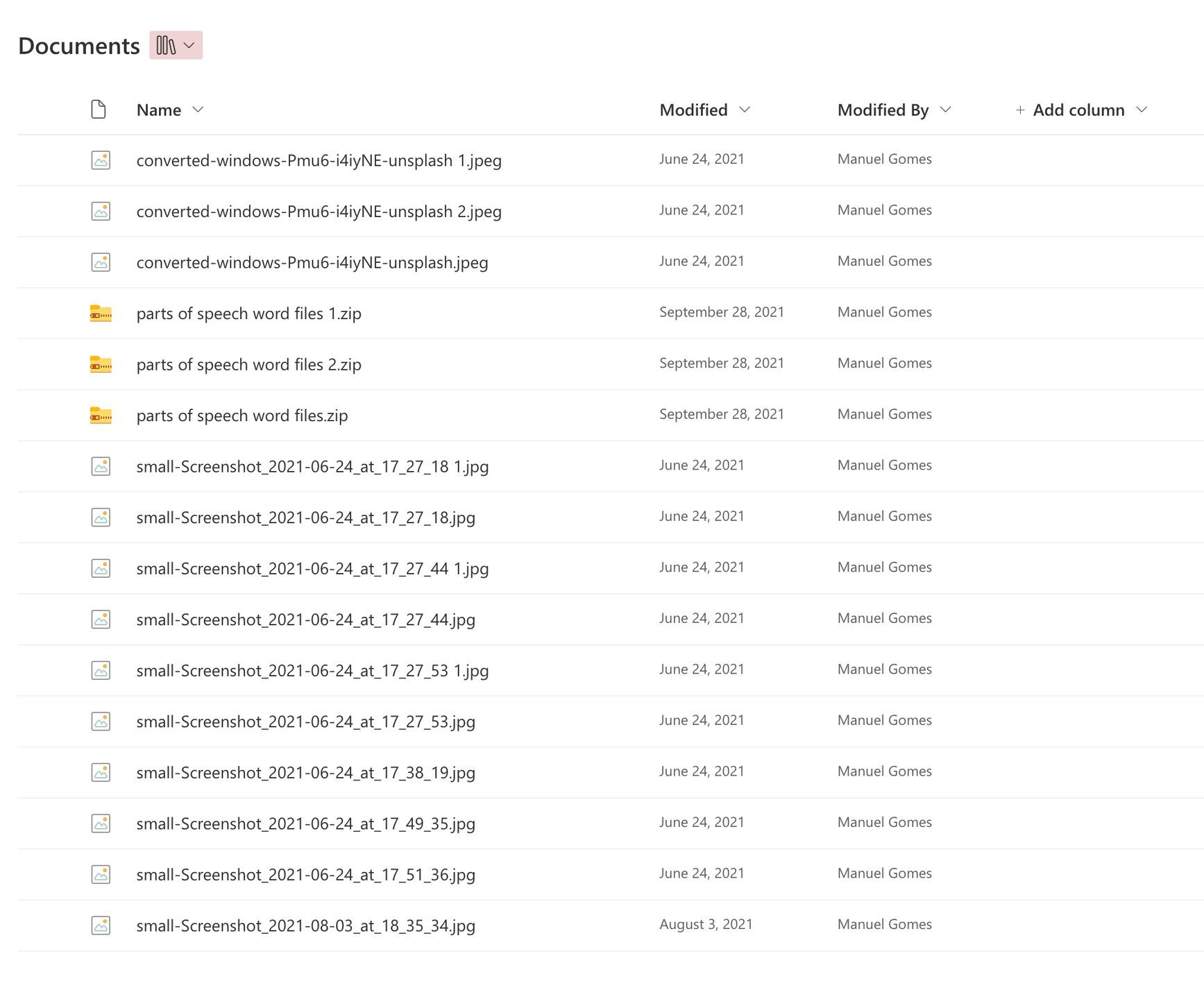
Now that we have all attachments, we need to save them somewhere. This is because Planner won’t store the files, so we need to upload the files to a location (OneDrive for Business or SharePoint, for example). Although it looks like Planner has the files attached, what it will do is upload the files to the root of the SharePoint documents default library if the plan was created there, or if you created it in Teams, for example, it would upload to the root of the document default library there as well.

I don’t like this behavior, and it’s not consistent with Microsoft Forms , where it creates a new folder called “Apps” > “Microsoft Forms” and then creates a folder per Form. This way, things are nice and organized, and the files won’t pollute your root directory. Let’s look at one where I created only a few tasks and see what it looks like:

After a few hundred tasks, the document library would be unusable because it will have a huge number of files, so we’ll see in the steps below how to solve that.

As mentioned before, since the Planner won’t store the files, we need to save them somewhere to be referenced in the Planner’s task. We have two ways to do it:

  1. According to Microsoft, the “correct” place is where you upload to the document library where the plan was created.
  2. Your OneDrive for Business, where you can organize them properly but need extra action to ensure that the attachments are visible to everyone.

Let’s take a look at both approaches.

Save to the “correct” place

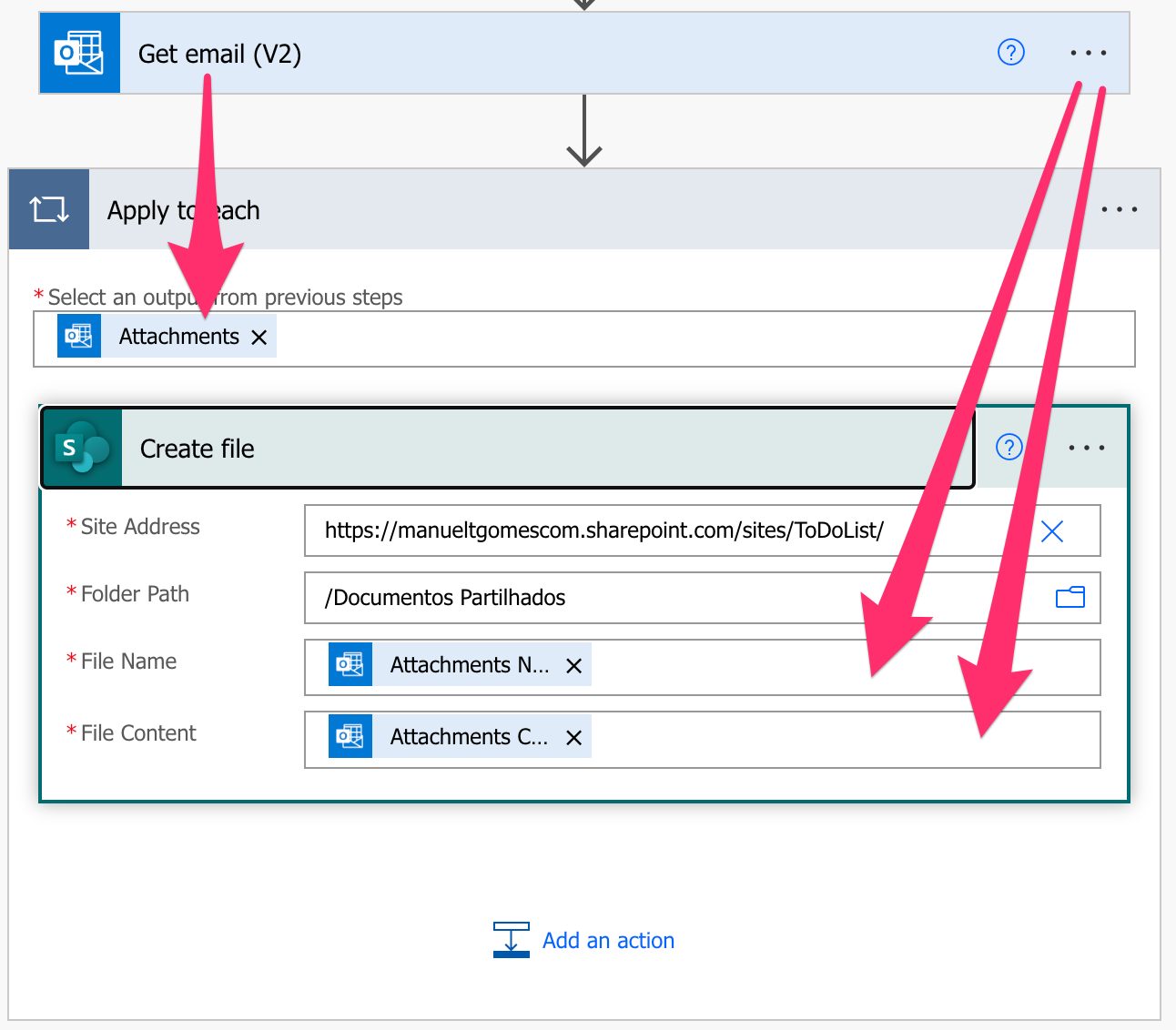
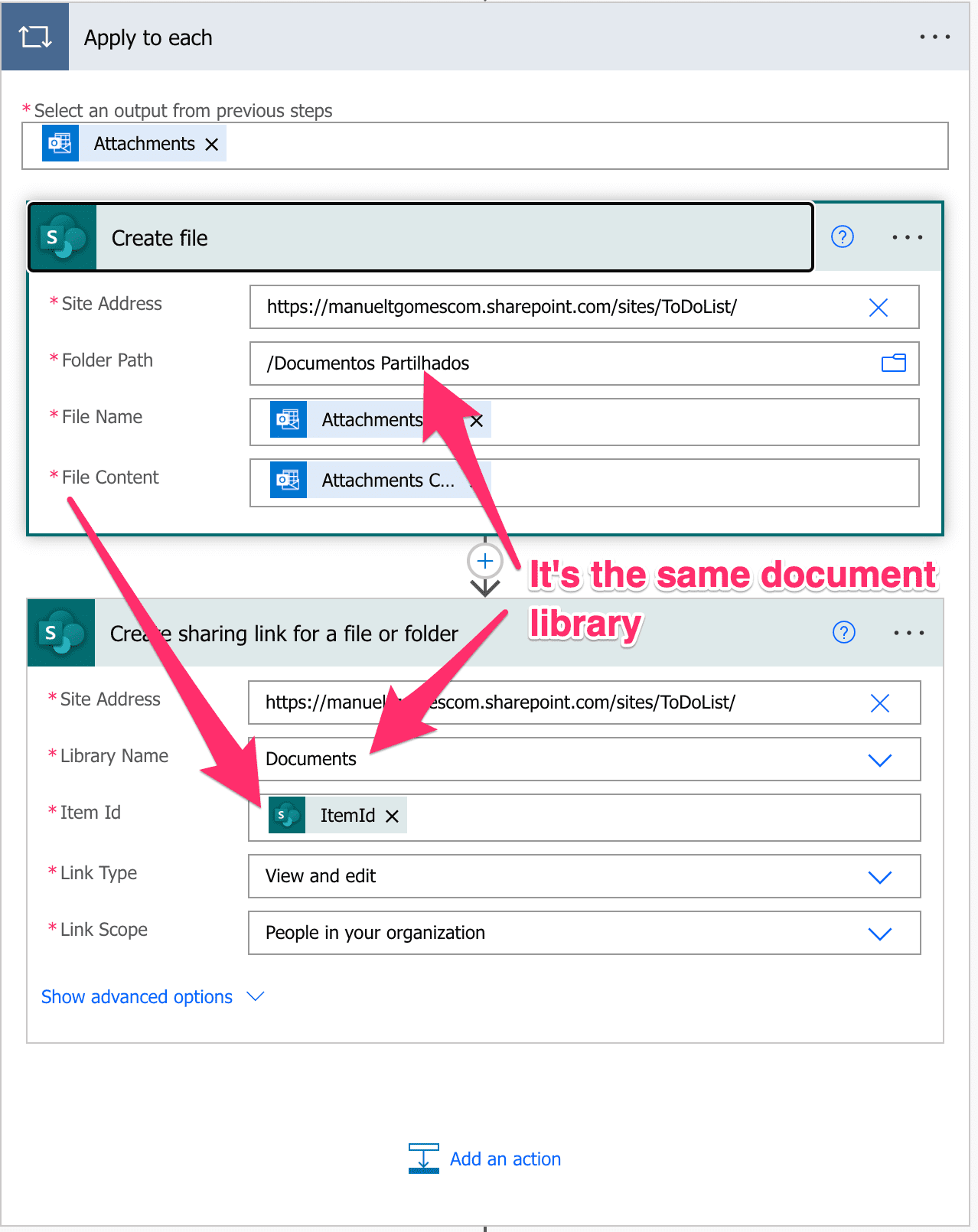
We can use a simple “Apply to Each” action and the SharePoint “Create file” action to save the file. Here’s what it looks like:

With this, we’ll save all files for that email in the default folder, defined in the previous example as “Documentos Partilhados”, but depending on the site’s language, you’ll see a different name.

Since we’ll be fetching a link, you can define the path that you want to save them. Take this opportunity to consider where the files should be to keep things organized. Think as well that no one should be able to remove them, to avoid issues in the task.

OneDrive for Business

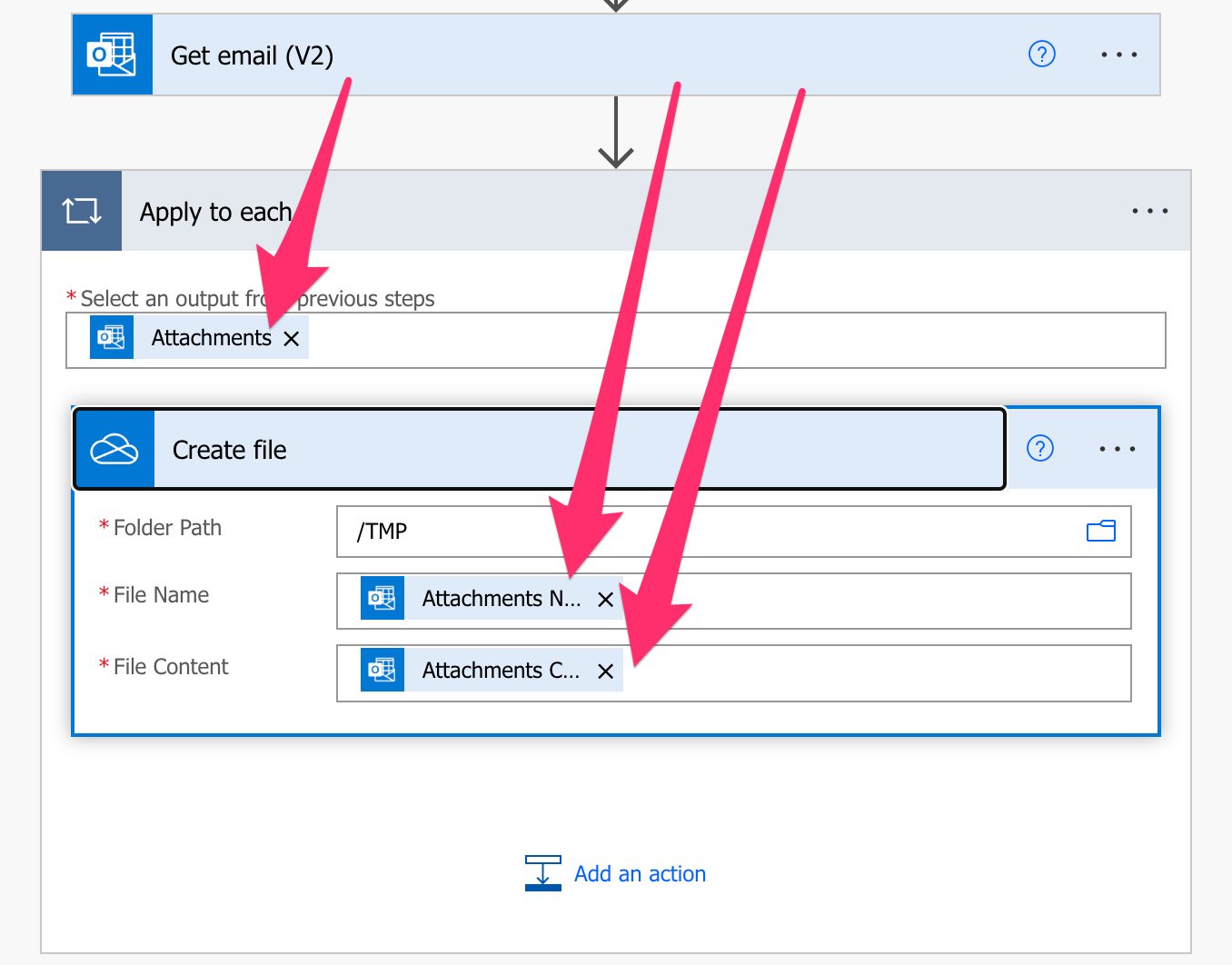
We can do it with a simple “Apply to Each” action with a “Create File” action like this:

Notice that we’re using OneDrive for Business “Create file” action to save the files into a temporary location before we can add them to Planner. You can and should pick a better place for your files so that you can keep things organized.

Prepare the attachments

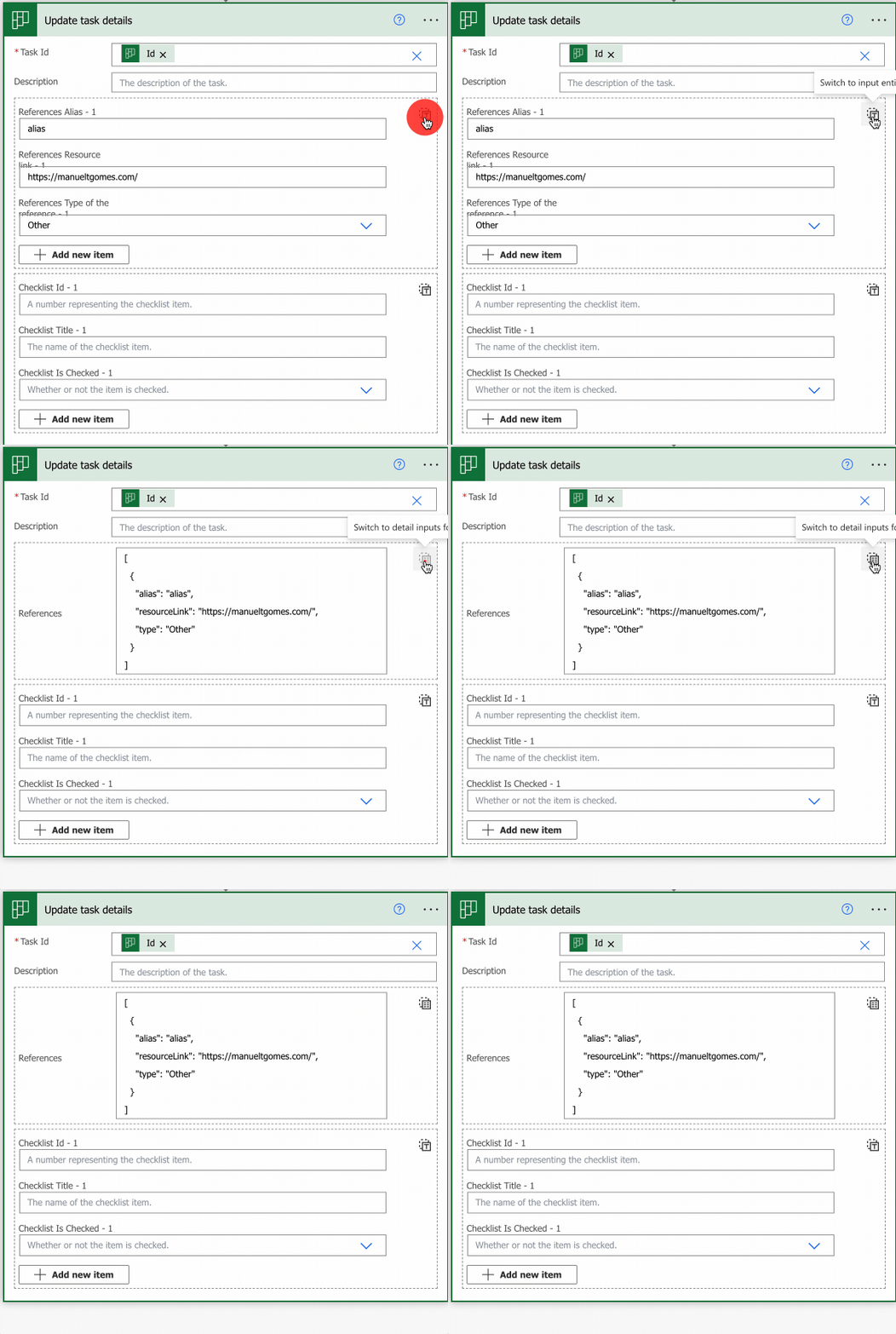
Now that we have the attachments uploaded, we need to prepare them to upload. We will use the data in future actions, but we must keep track of the attachments uploaded to add them to the task. We can use the same “Apply to each” action to keep track and an array variable to keep the data. But what data do we need? We can get that information from the action we’re going to use. The Planner “Get task detail” action, by adding some dummy data and using the toggle like this:

Now we know that, for each attachment, we need:

[
  {
    "alias": "alias",
    "resourceLink": "https://manueltgomes.com/",
    "type": "Other"
  }
]

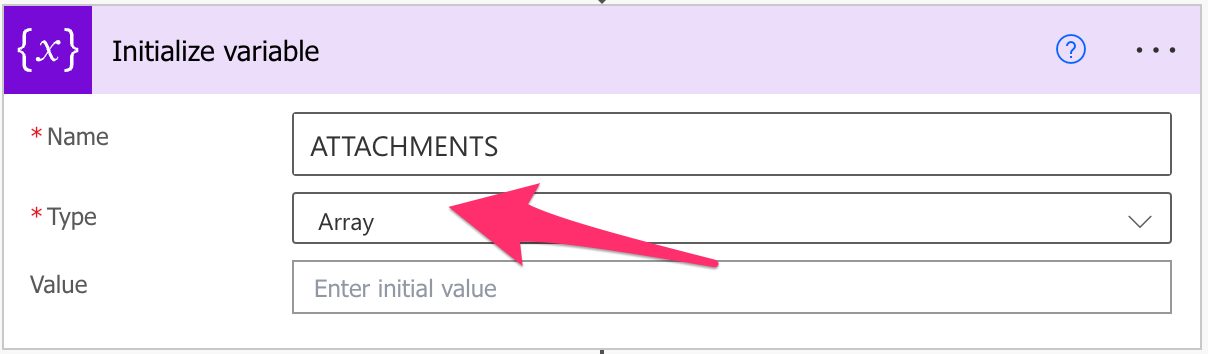
Of course, the “resourceLink” won’t be my website, and the “alias” won’t be called “alias”. This is an excellent way to understand what we need. So let’s add a variable and when we get a new attachment, let’s add it to the variable. You can use the “Initialize Variable” action as follows.

Don’t forget to pick “Array” otherwise; it won’t work.

Now let’s update the variable. I’ll split it up into two subsections depending on your choice in the previous section:

SharePoint

If you picked SharePoint, then you can use SharePoint’s “Create sharing link for a file or folder” to get the link to the file like this:

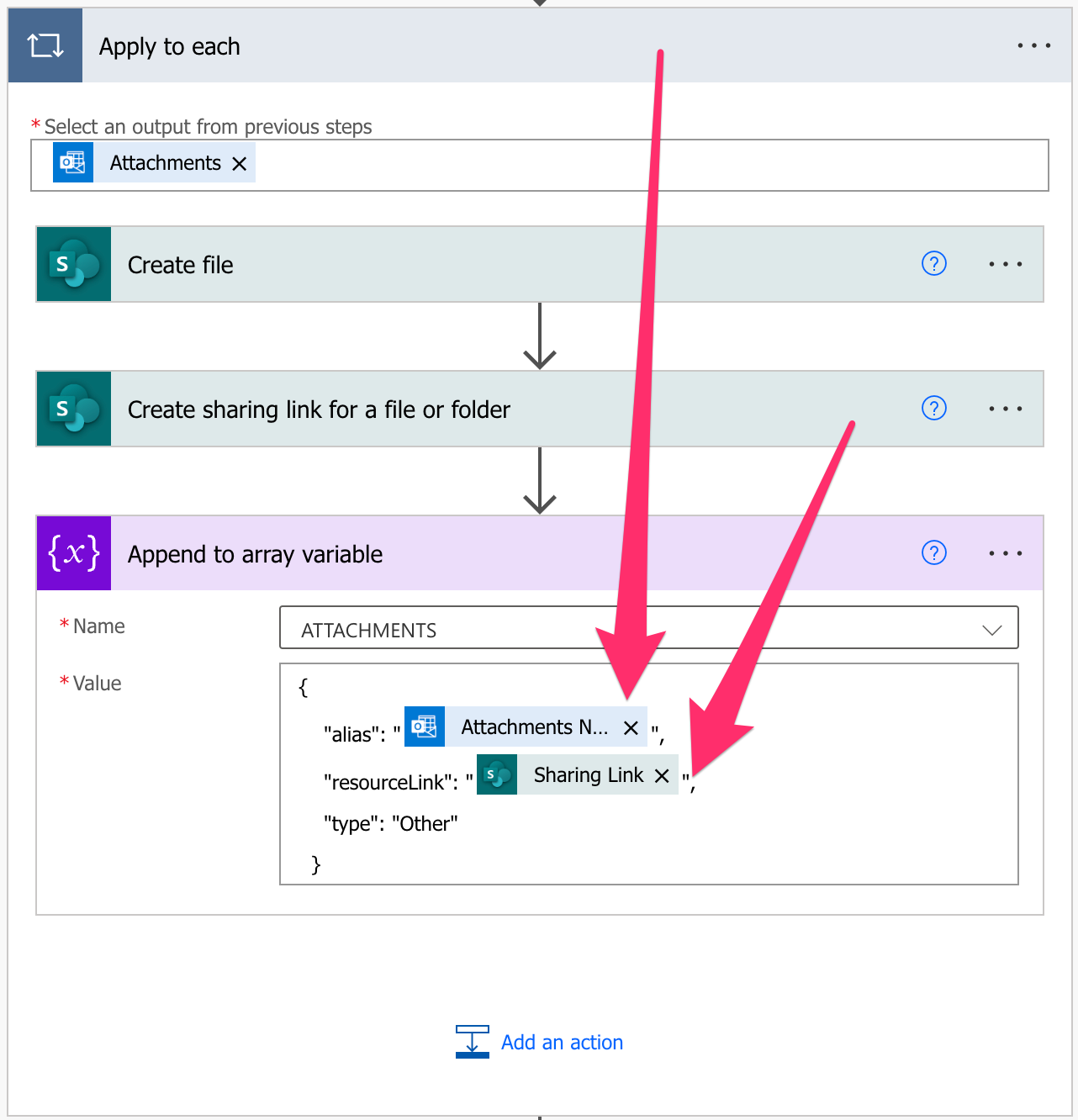
Now let’s use the “Append to array variable” action to build the previous object like this:

We’re using the file’s name as the alias to display it in Planner’s task and the link to the file we got from the previous action.

OneDrive for Business

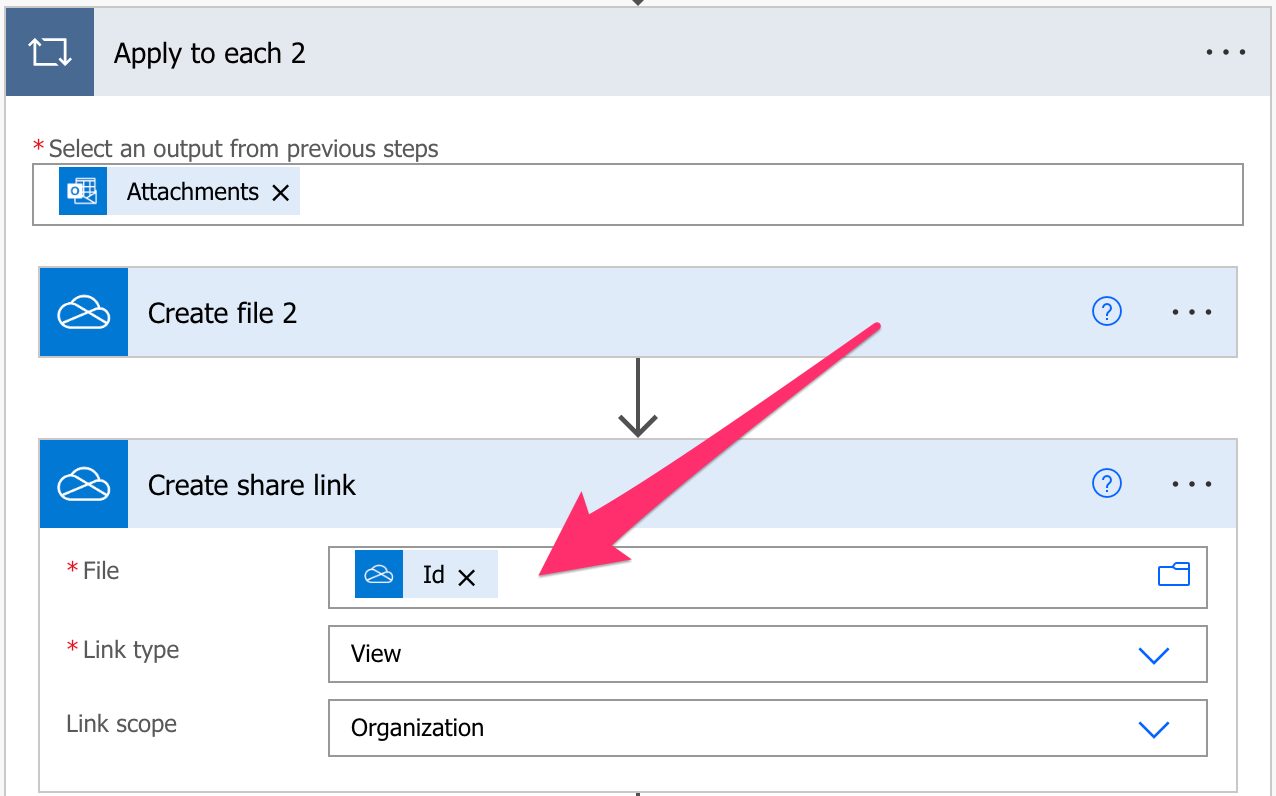
The OneDrive for business strategy will be the same, but the action will be adjusted to get the link from OneDrive for Business by using the “Create share link” like this:

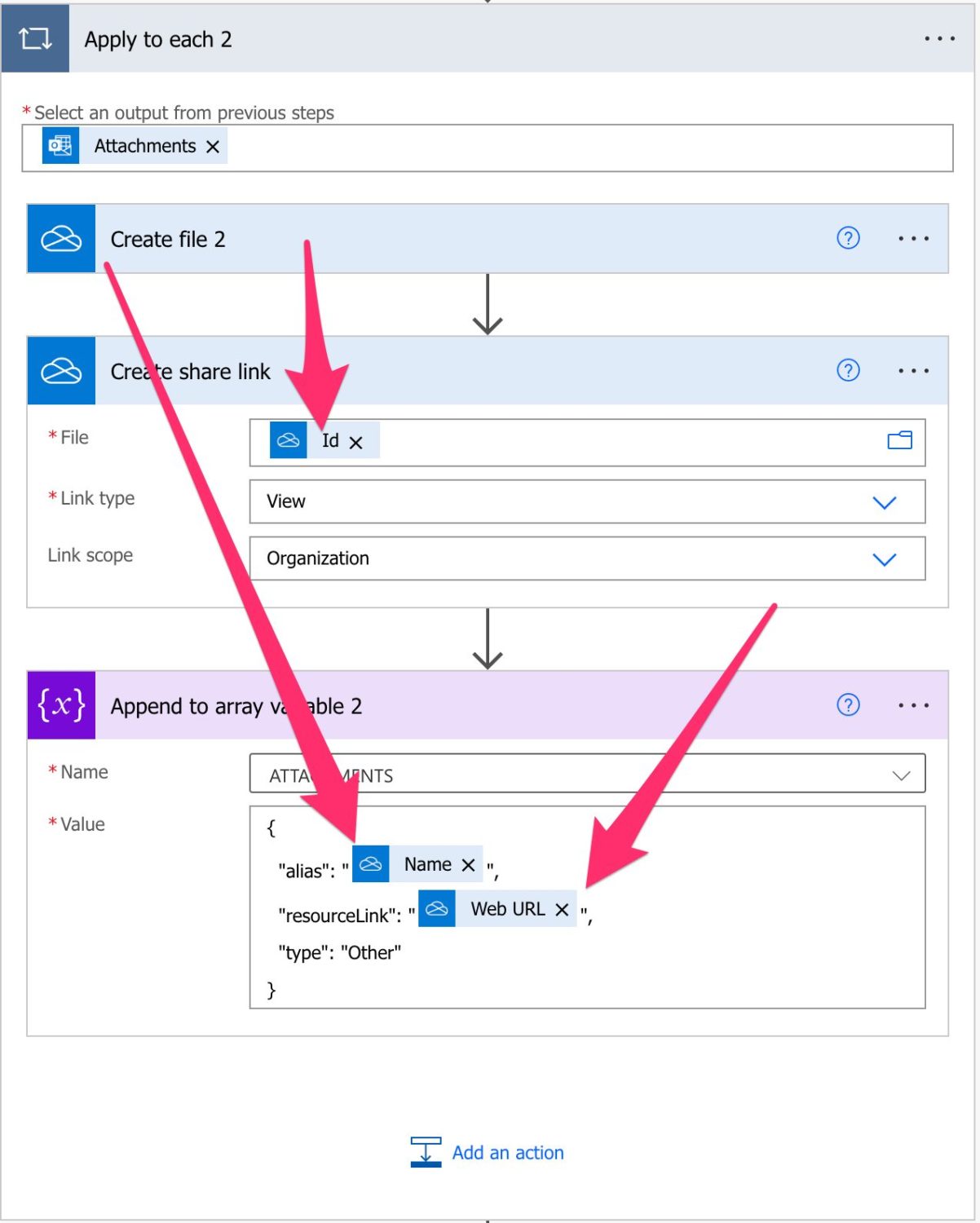
Now let’s use the “Append to array variable” action to build the previous object like this:

We’re using the file’s name as the alias to display it in the Planner task and the link to the file we got from the previous action.

Create the task

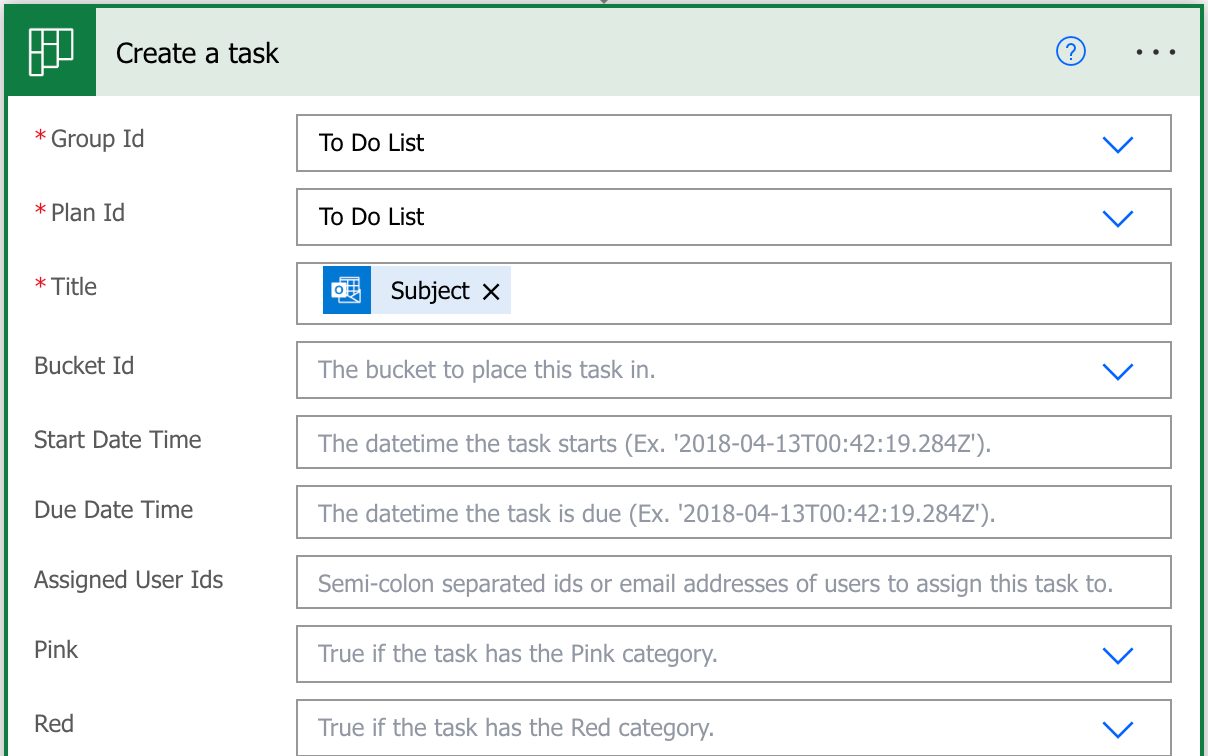
Now that we have the files saved, let’s create the task. This is the most straightforward part of the Flow since we have a “Create Task” action. Here’s an example:

In the example above, I’m adding the subject as the title of the task, but you can use something else that makes sense.

Add the attachments to the task.

Now that we have a task let’s add all email attachments to Planner. It’s impossible to create a task with attachments in one step, so we need to use the “Update task details” action. As we’ve seen before, we can use the “References” to add attachments, but we need to prepare the array’s contents to add it as a reference. To do that, we need three functions. The JSON, concat, and join functions. Here’s the complete formula:

json(concat('[',join(variables('ATTACHMENTS'),','),']'))

It may look complex, but it’s not. Let’s explore each section from the inside out:

  1. Join – will transform the array into a string separated by the character we define (in our case, “,”).
  2. concat – will generate a string from multiple strings. We want the final result to be an array, so we need to add them to the string.
  3. JSON – will convert the string to a valid JSON. We need to provide a JSON to the “Update task details” action , so we need to convert the string; otherwise, we’ll have issues.

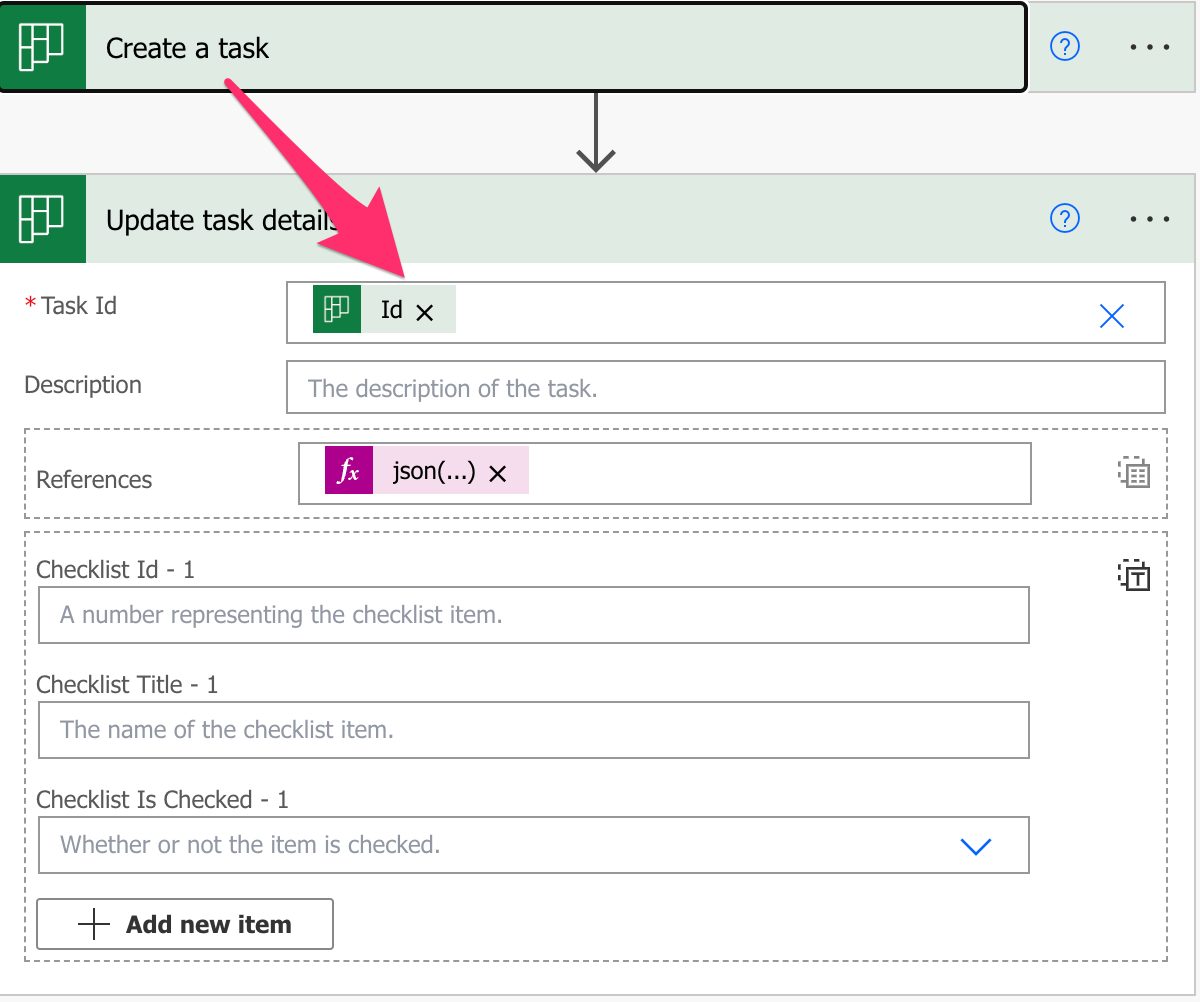
Now we only need to add it to the “Update task details” action like this:

That’s it. The task will be created with all attachments.

Final thoughts

It may look like many steps, but it seems much more manageable when you break them down into smaller pieces. I like this approach because we can automate the process of creating tasks and, at the same time, add all email attachments to Planner. It’s a huge time saver for you and your coworkers in case they know where to send the emails and the format. 

Photo by Felipe Furtado on Unsplash
✇Manuel T. Gomes

Power Automate: SharePoint – When an item is deleted Trigger

SharePoint’s lists are excellent for keeping data, but one accidental delete could generate a lot of headaches, especially if you don’t notice it. That’s why Microsoft developed the “When an item is deleted” trigger, where you can define Flows that do actions when an item is deleted, like a notification to someone to check the “Recycle bin” and see if the item should have been deleted or not.

Let’s check how to take advantage of SharePoint’s “When an item is deleted” trigger.

Where to find it?

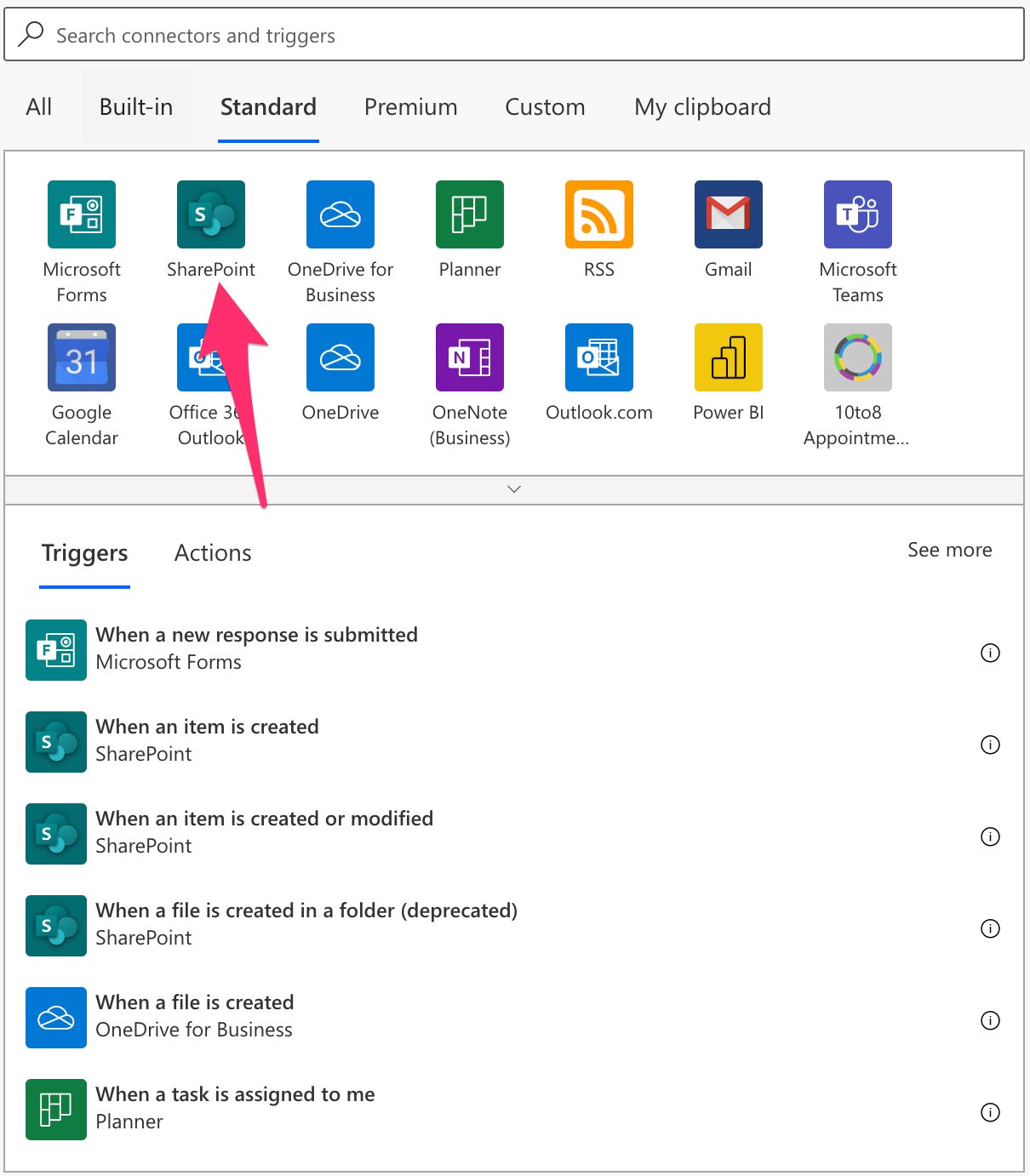
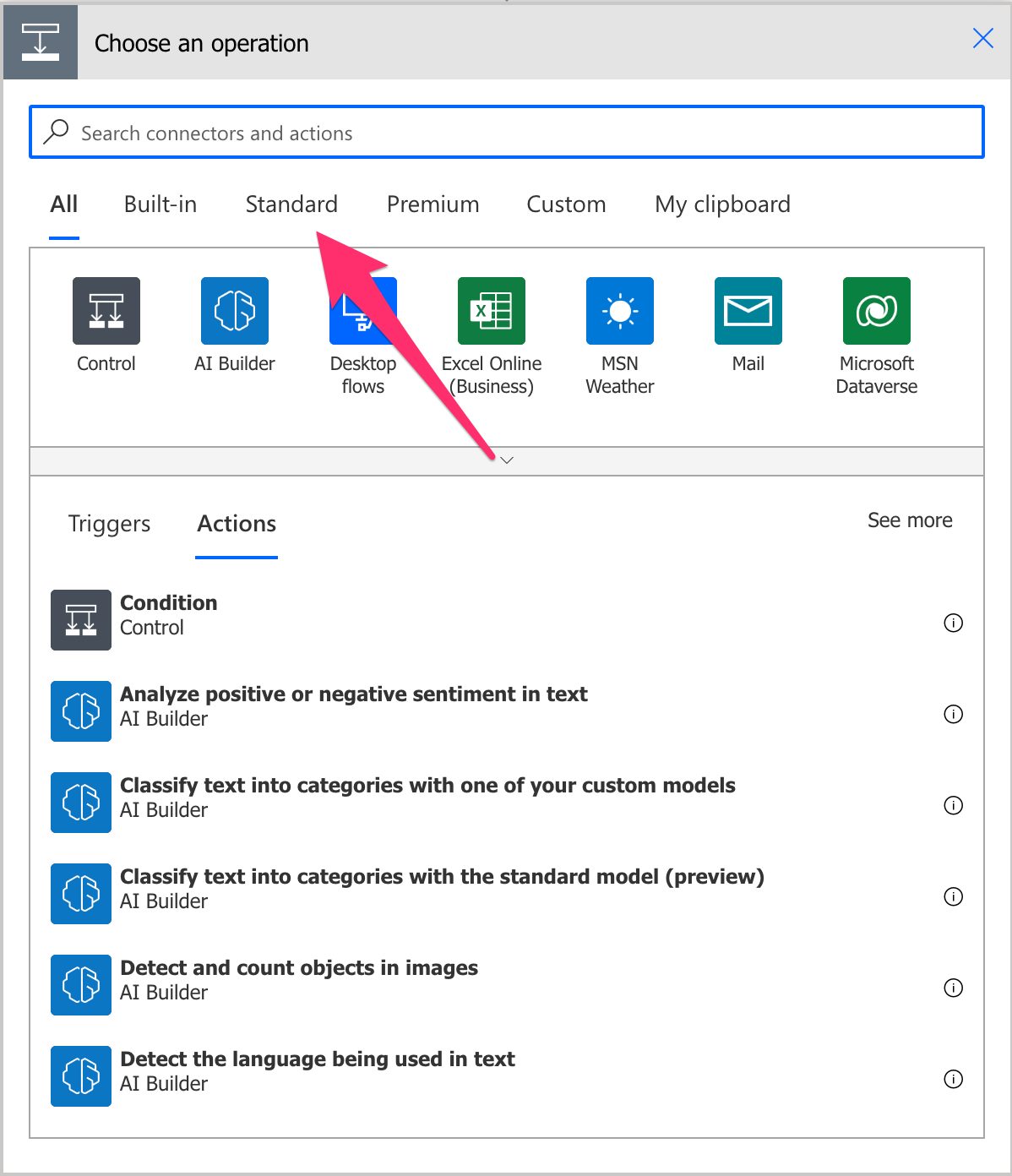
To find it, you can search for the “When an item is deleted” trigger or go to “Standard”:

Select “SharePoint”:

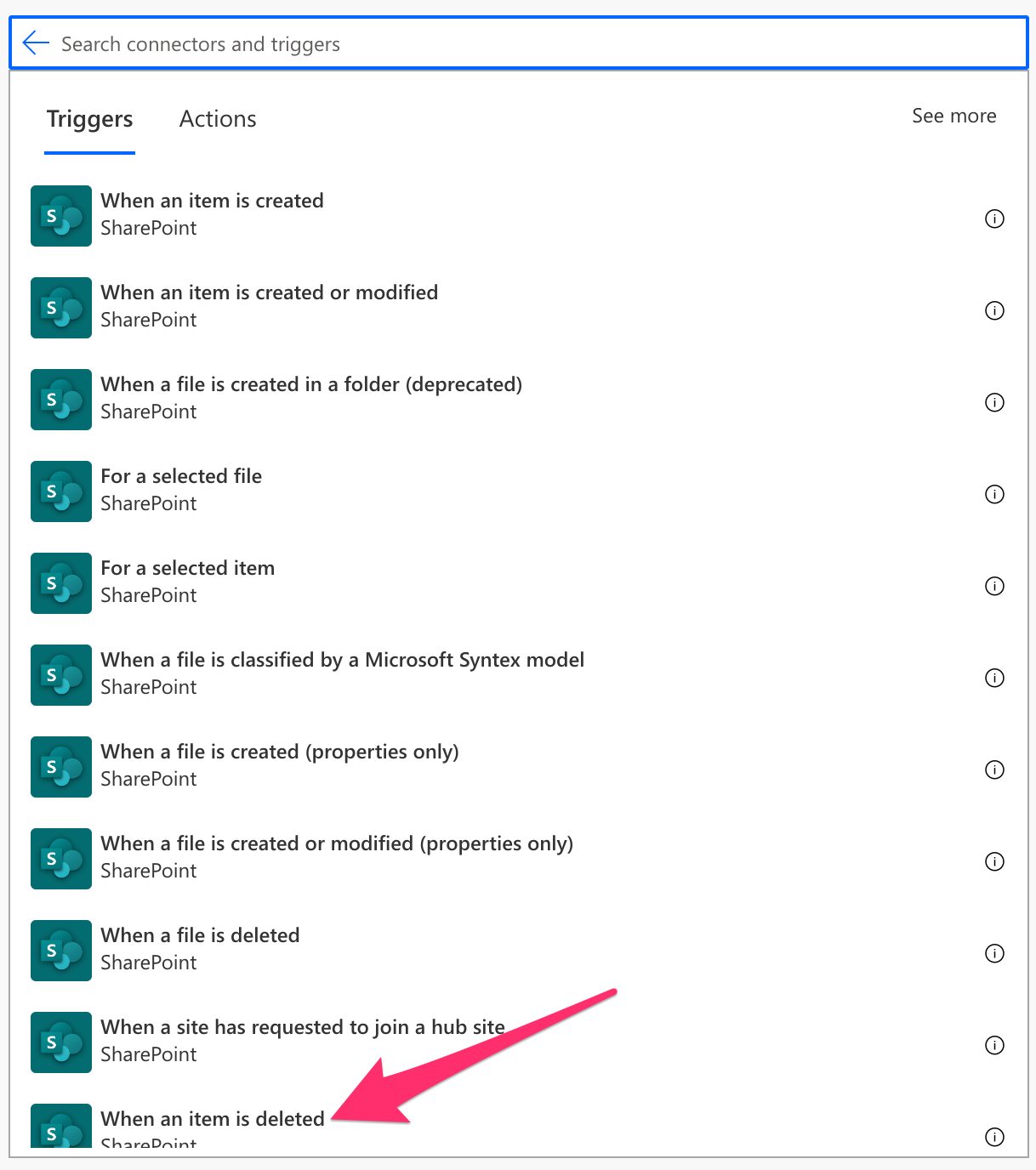
Pick the “When an item is deleted” trigger.

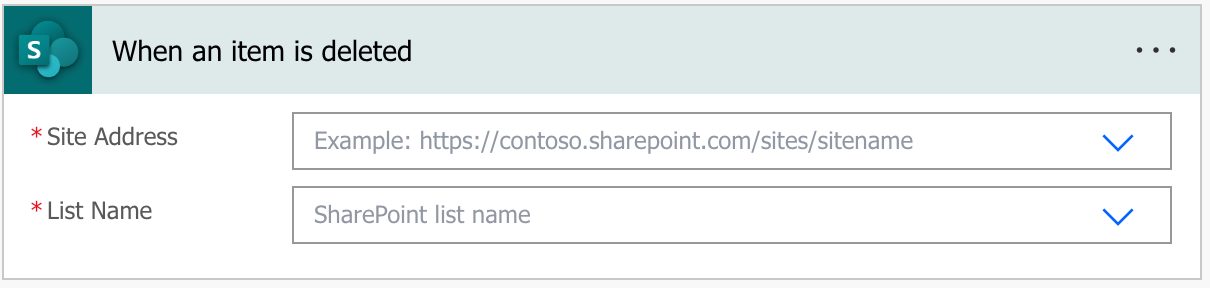
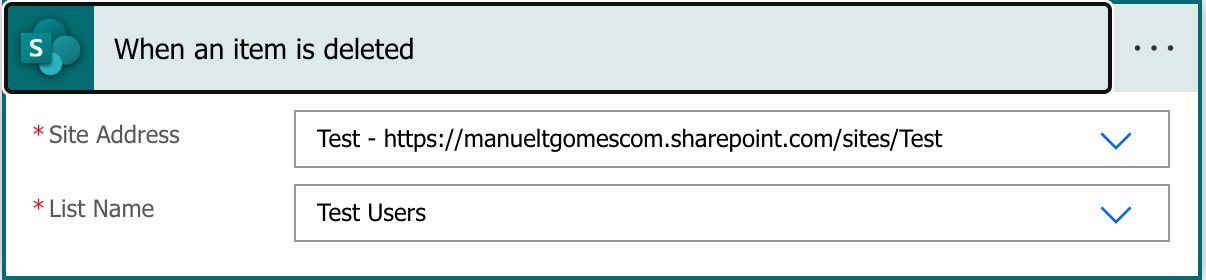
Here’s what it looks like.

Pro Tip:
Power Automate tends to save the most common triggers on the main screen, so check there before going through the full hierarchy. Also, you can use the search to find it quickly.

Usage

It’s pretty easy to configure. You select the site and the list you want to check, and that’s it. For example, if we want to check our “Test Users” list, we’ll do the following:

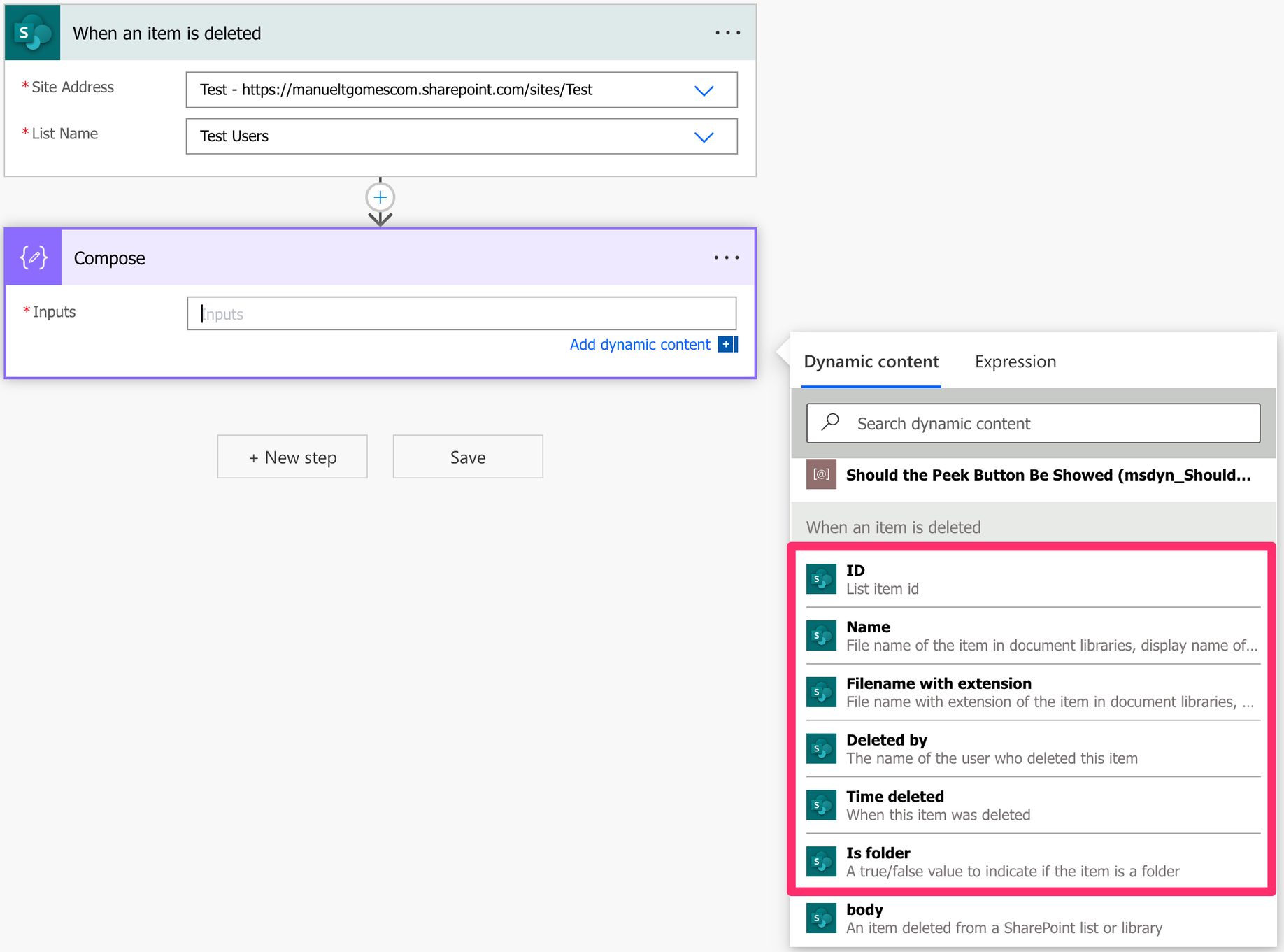
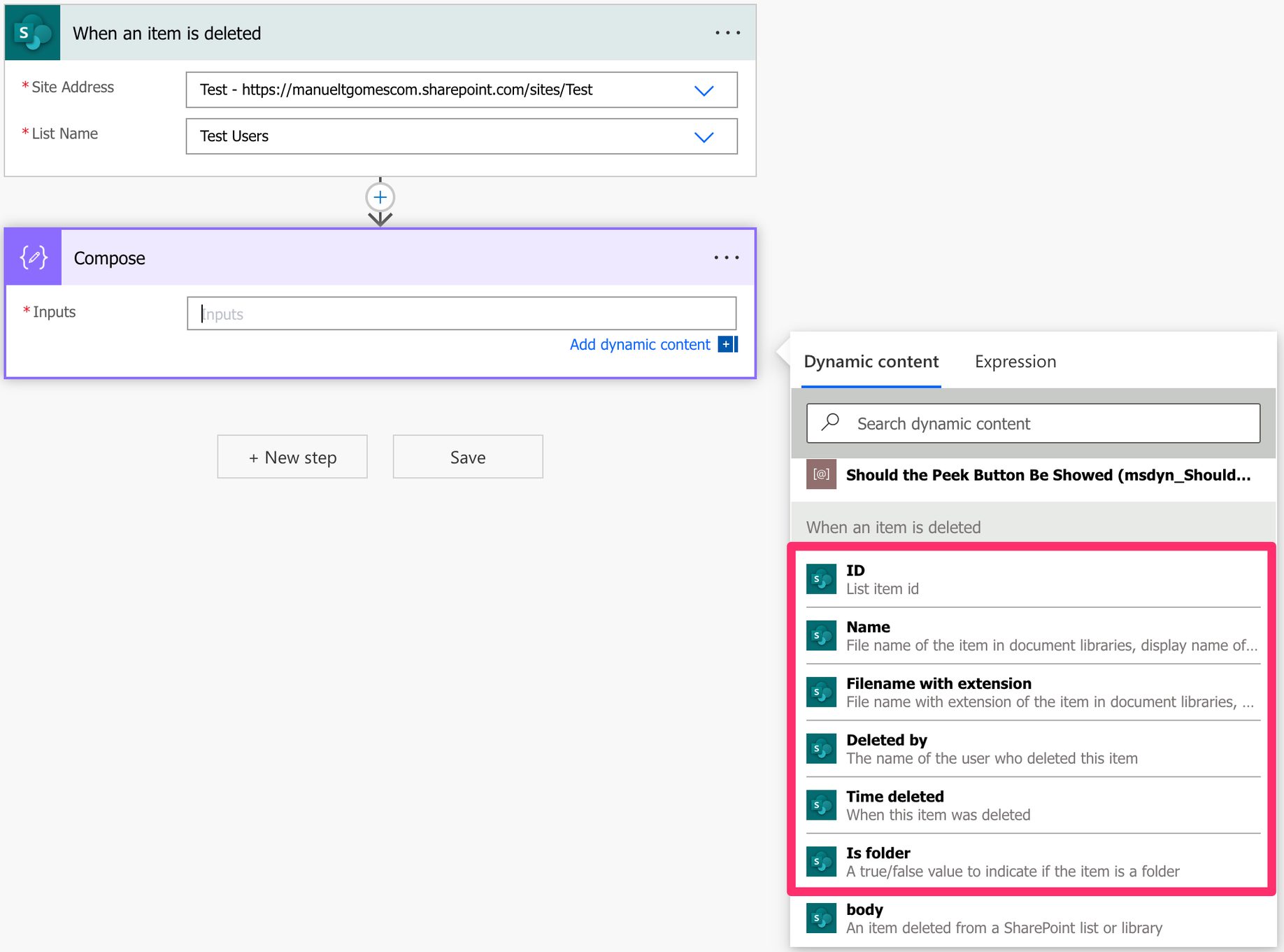
It will trigger as soon as an item is deleted, but I want to highlight the outputs of this trigger. It won’t return the elements of the item, so you won’t have access to all columns like in the “When an item is created or modified” trigger, for example. You will get the following information:

It makes sense to return this data since the trigger will fire after the item is deleted, so it won’t have access to its information. It will provide information about the deletion, like who deleted it and when.

Non-intuitive behaviors

As mentioned above, not returning all list elements could be considered a non-intuitive behavior. Still, there’s another one I would like to highlight concerning the data returned.

As you can see above, you have the “Is Folder” that is kind of strange on a list, right? We’re dealing with list items, not folders and files, but there’s the indication of “Is Folder”. This is because you can add folders to a list to organize your items. I go into a lot of detail here , so take a look if you want to learn how to use them.

Finally, there’s the possibility to configure SharePoint to keep all changes to the list items. If you don’t know how to do it, check my article on SharePoint’s best practices in the section “Versions”. We can take advantage of this version history and use the “Send an HTTP request to SharePoint “ action to get it. If you don’t know how to do it, here’s an article.

The issue with this is that you won’t be able to do it. You’ll get the following error message:

Item does not exist. It may have been deleted by another user.

Again, the trigger will fire after is deleted, so you won’t have access to its elements unless you manually restore it from the “Recycle Bin”. However, one could consider a “deletion” as a change to the item’s status and worth keeping a version mention of it, but I can understand why Microsoft chose this behavior.

Limitations

The “When an item is deleted” trigger can only be used by site collection admins of the site where the list is located, meaning that if you’re not a site admin, this trigger won’t fire, so keep this in mind in case you’re having issues with the trigger.

Recommendations

Here are some things to keep in mind.

Don’t use this for synchronization

I see many questions regarding synchronization between SharePoint lists, and the “When an item is deleted“ trigger could be an excellent target to catch items that need deleting. But I would strongly advise you not to do it. Synchronization of items is an amazingly complex topic in computer science, and we are all super when something doesn’t synchronize properly. If the trigger fails, data will be out of sync, and Power Automate won’t rerun it. If the data is changed on the destination list, you already have a problem that will only worsen over time.

Name it correctly

The name is super important since the trigger can be used on any list you can access. Always build the name so that other people can understand what you are using without opening the action and checking the details.

Always add a comment

Adding a comment will also help avoid mistakes. Indicate what you’re expecting, why the Flow should be triggered, and what the data will be used. It’s essential to add comments when limiting the trigger with some custom rulessince these are not prominent in the UI, and people may get confused as to why the Flow doesn’t trigger when it’s simply a rule preventing it from doing so. It’s essential to enable faster debugging when something goes wrong.

Finally, let people know why you’re choosing the parameters you configured. For example, why do you select that folder if you have a folder defined? It may make sense now, but not in a few months.

An automated trigger is better than a scheduled one

Sometimes people are tempted to use scheduled triggers that pool the resources once in a while. This way, they can control when the information is fetched and save much Power Automate “triggers” if their quota is low. However, even if it isn’t, it may be more efficient to do batch tasks than once by one. I understand, and in some cases, I can agree, but it brings a lot of difficulties in the process. For example, you may need to keep track of what changed from the last run until this one so that some things may get lost. Also, you’re forcing something to happen periodically, even if there’s no data.

I always recommend using these “automatic” triggers instead, where they trigger one by one, but only when there’s data, so you’re always sure you get something to do. Also, debugging triggers that parse a single data point instead of multiple simultaneously is much easier. If something fails on one, then you can fix the Flow and repeat the process. But while parsing multiple ones, things can get a lot harder.

Back to the Power Automate Trigger Reference.

Photo by Gareth Harper on Unsplash
✇Manuel T. Gomes

Power Automate: Office 365 Excel – Add a key column to a table action

If you do operations in Excel using Power Automate, you know that you need to use a “Key Column” and a “Key Value” pair to identify the item you want to operate on. For example, if you use the “Delete a row” action, you need to provide it so that Power Automate knows what element to delete. But what about if you don’t have a “Key column”? You can create one yourself directly in the Excel file, but Power Automate also has the “Add a key column to a table” action that can do that for us automatically.

In case you don’t know what “Key Columns” are, I have an article here that explains them in a lot of detail.

Let’s look at how to use it.

Where to find it?

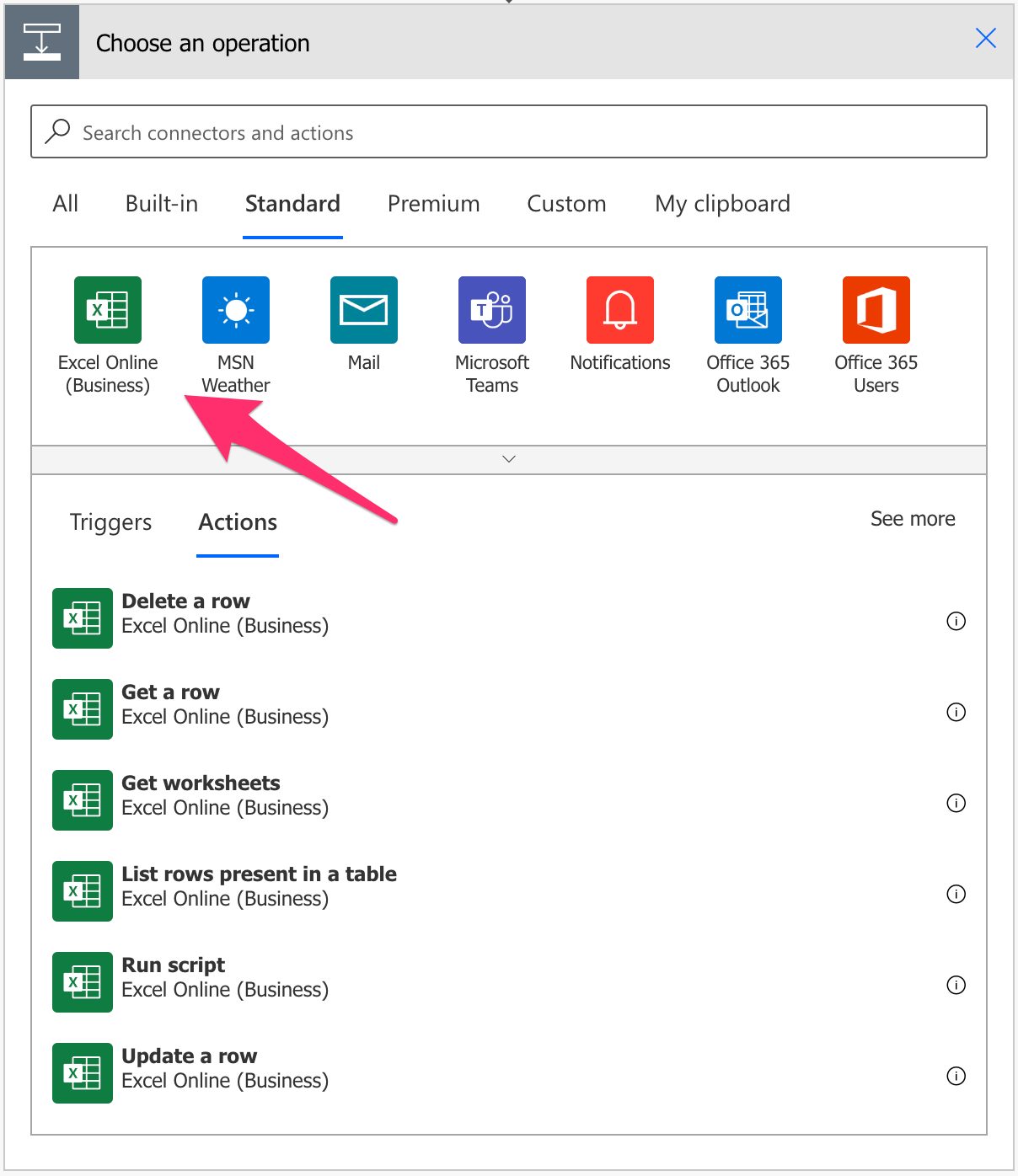
You can find it in “Standard”.

Select “Excel Online”:

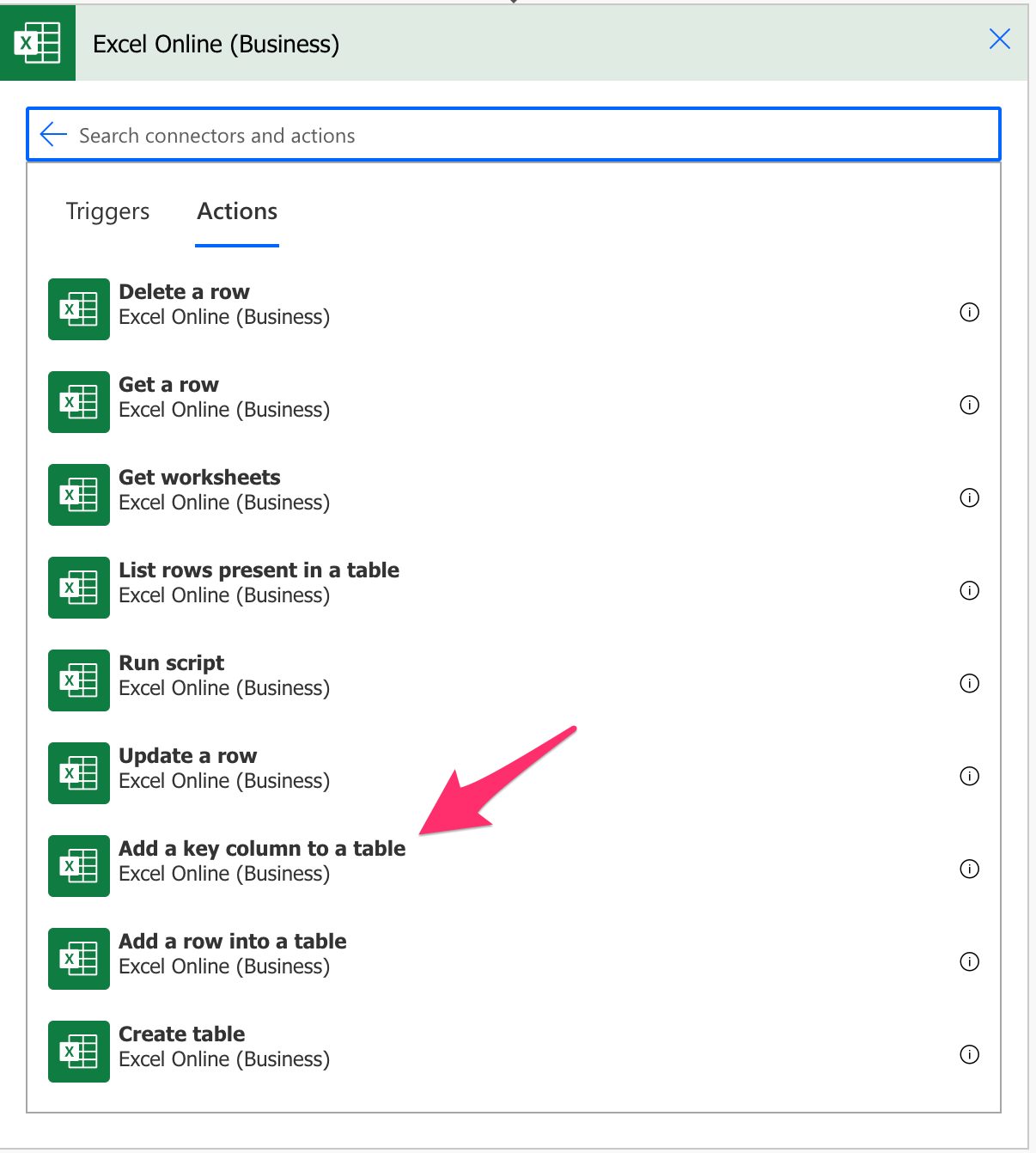
Pick the “Add a key column to a table” action:

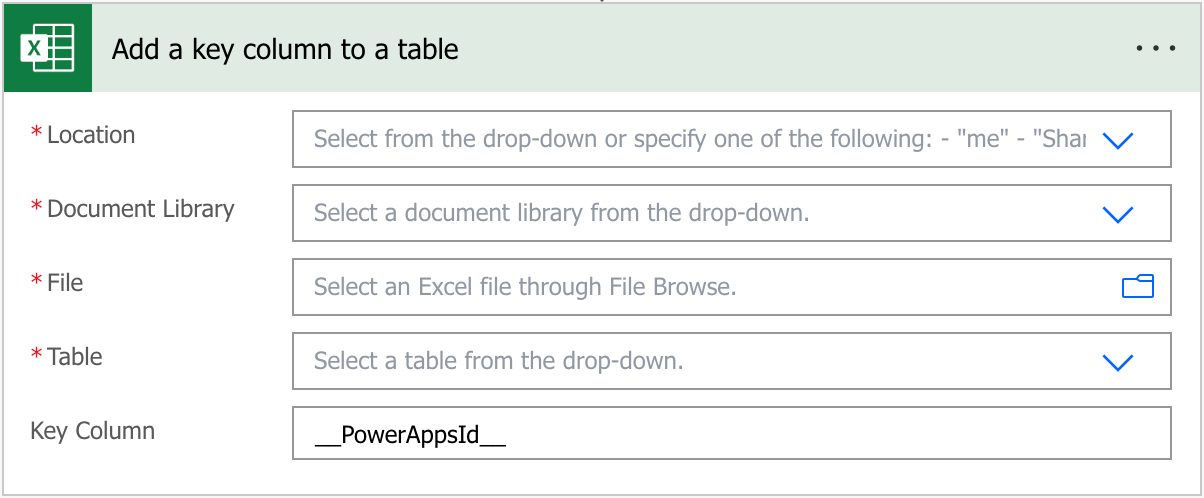
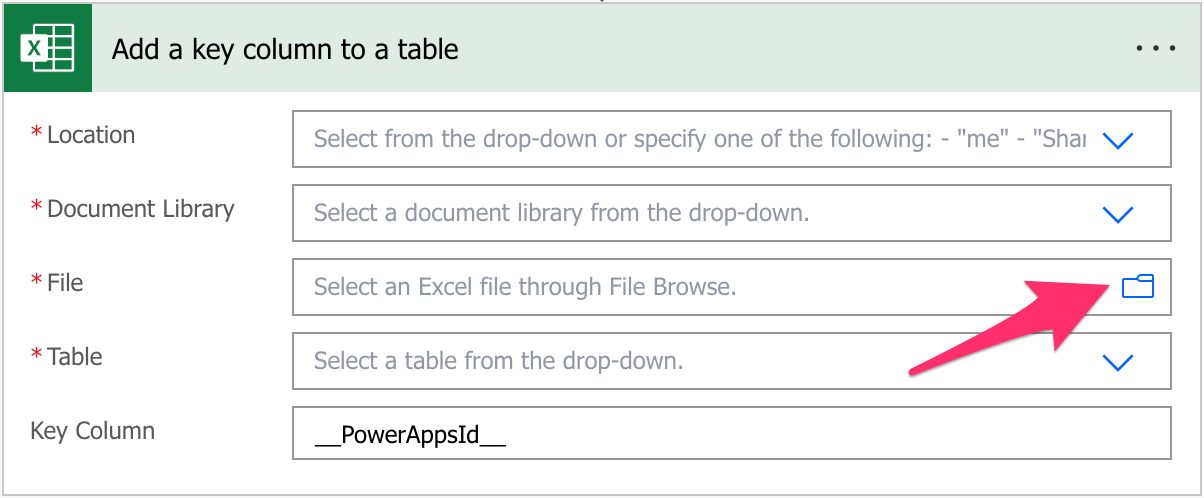
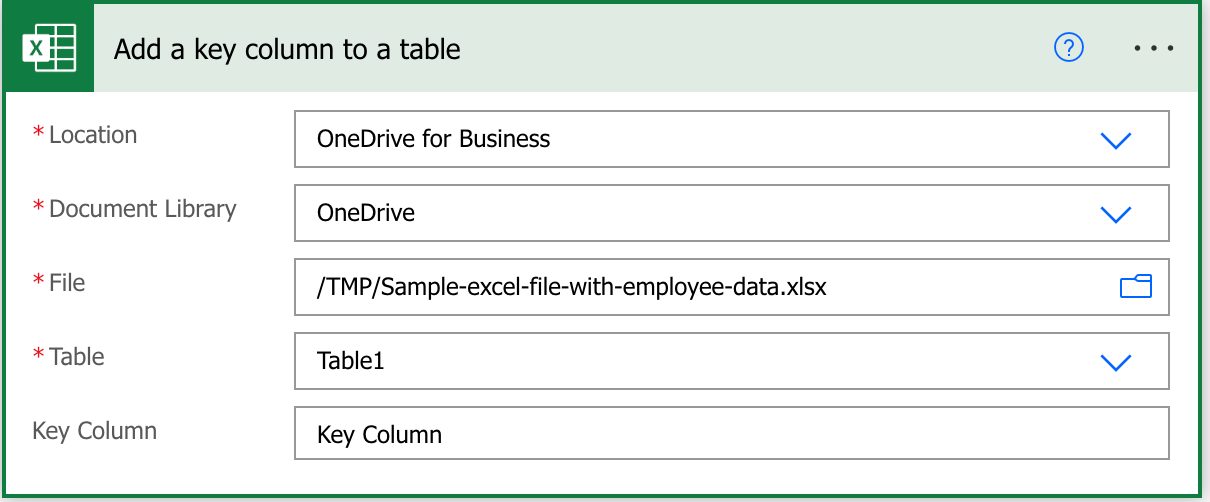
Here’s what it looks like.

Pro Tip:
Power Automate tends to save the most common actions in the main screen, so check there before going through the full hierarchy. Also, you can use the search to find it quickly.

Now that we know how to find it let’s understand how to use it.

Fields

You can find some fields to configure before using the “Add a key column to a table” action, so let’s look at them individually.

Location

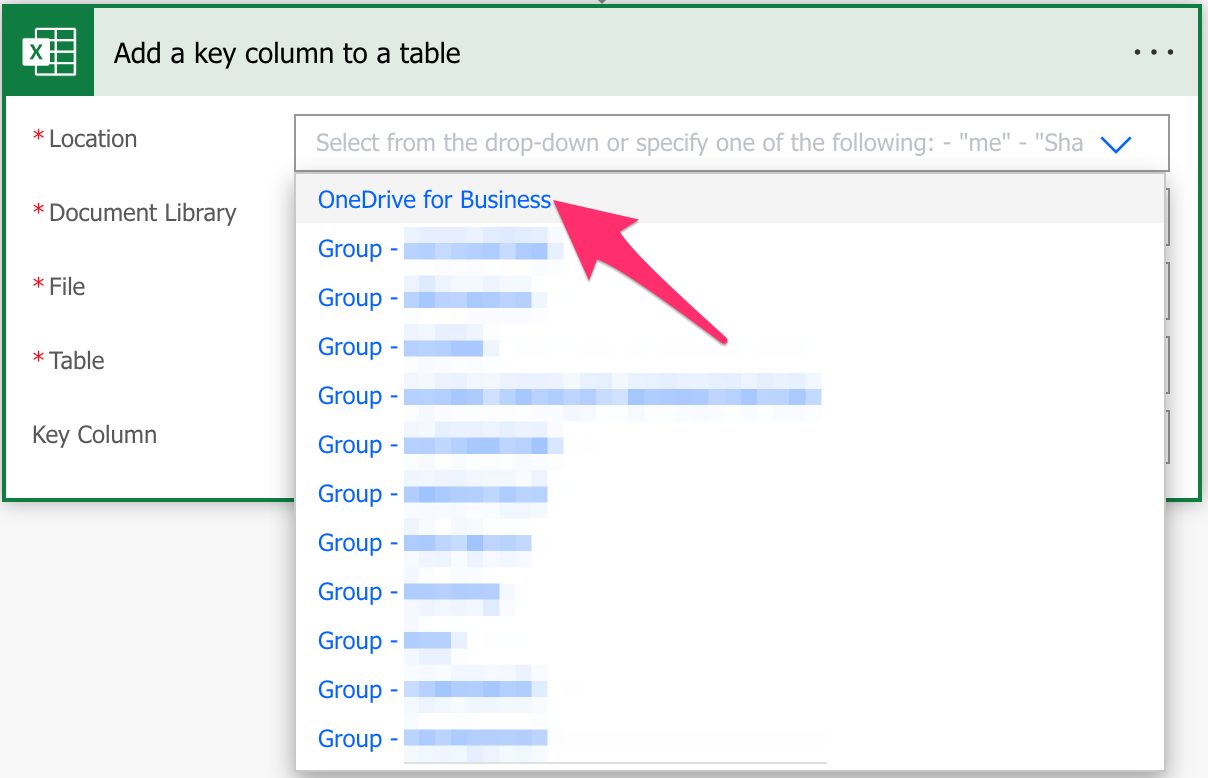
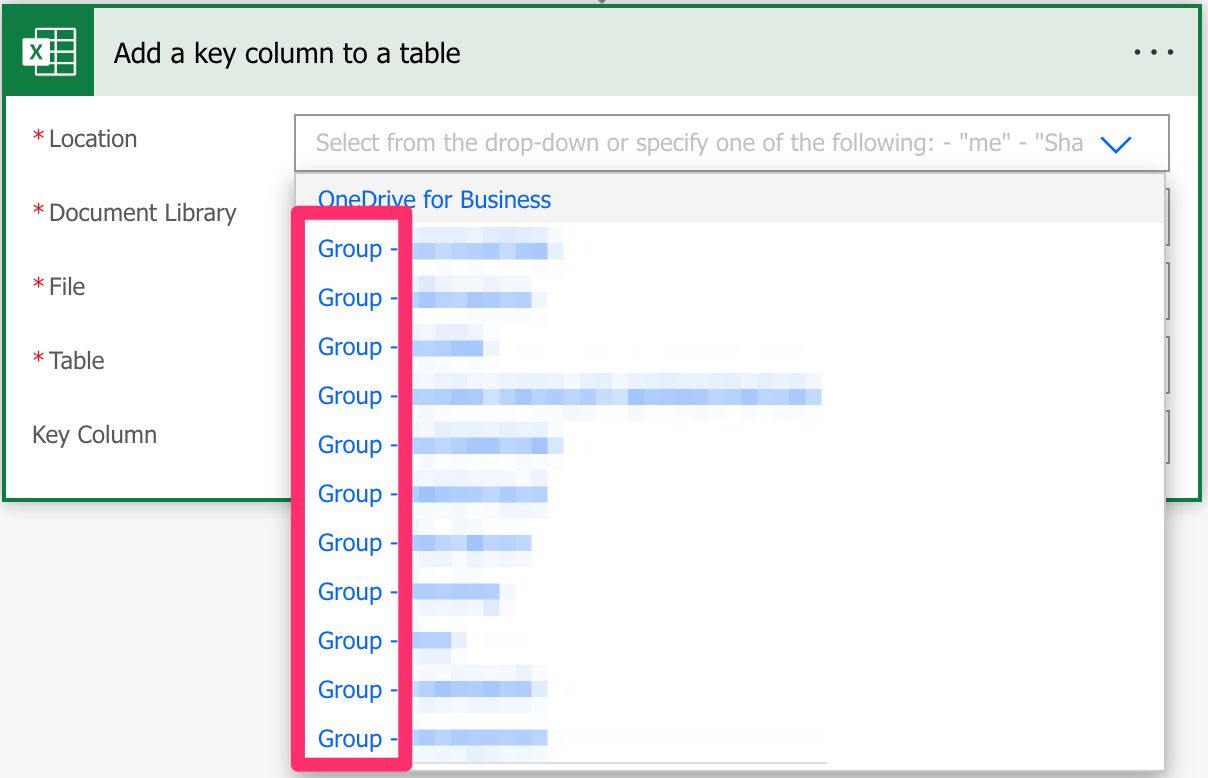
As mentioned before, we can use SharePoint, Teams , or OneDrive For Business to find our Excel files. To do it, select the location where you want to find the data. For example, for OneDrive For Business:

As you see above, you have a lot of “Groups” sites that are commonly Microsoft Teams sites.

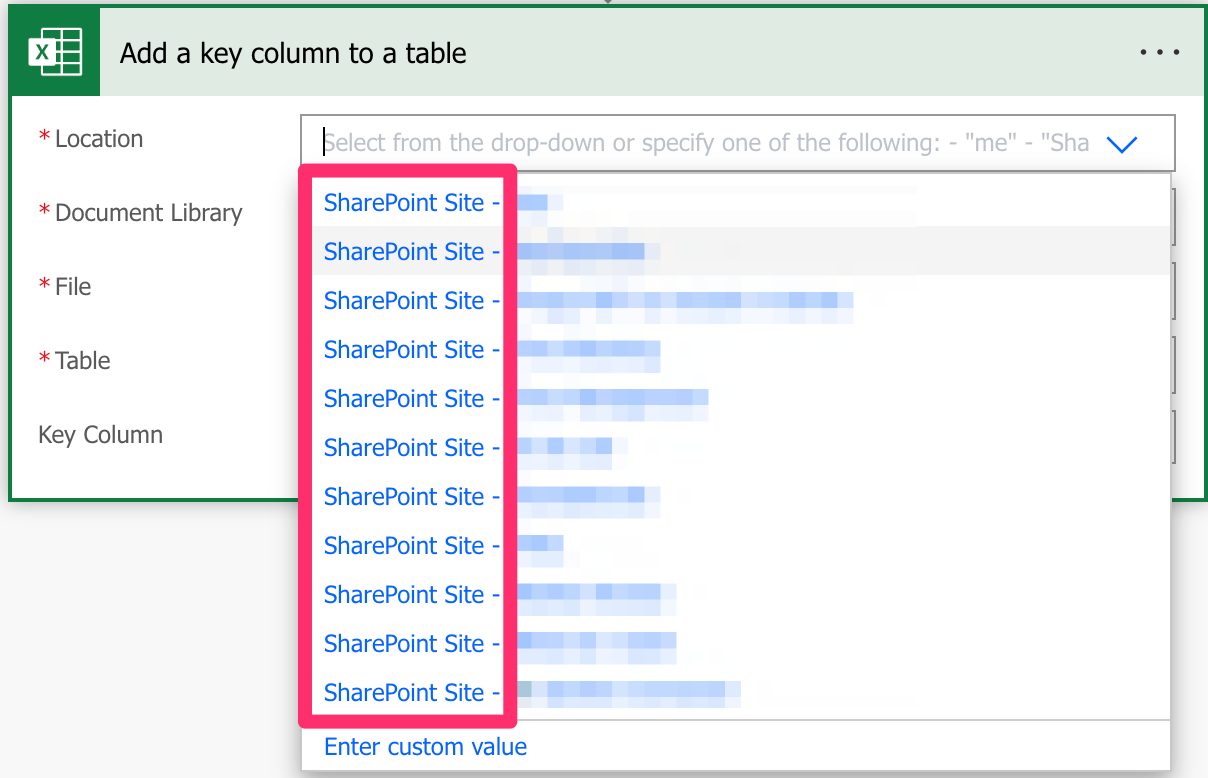
If you’re looking for SharePoint sites, they are commonly displayed like this:

Since they all behave the same way, I’ll refer only to SharePoint sites from now on, but keep in mind that you can also use Microsoft Teams and OneDrive For Business. I’ll highlight the differences when appropriate.

Document Library

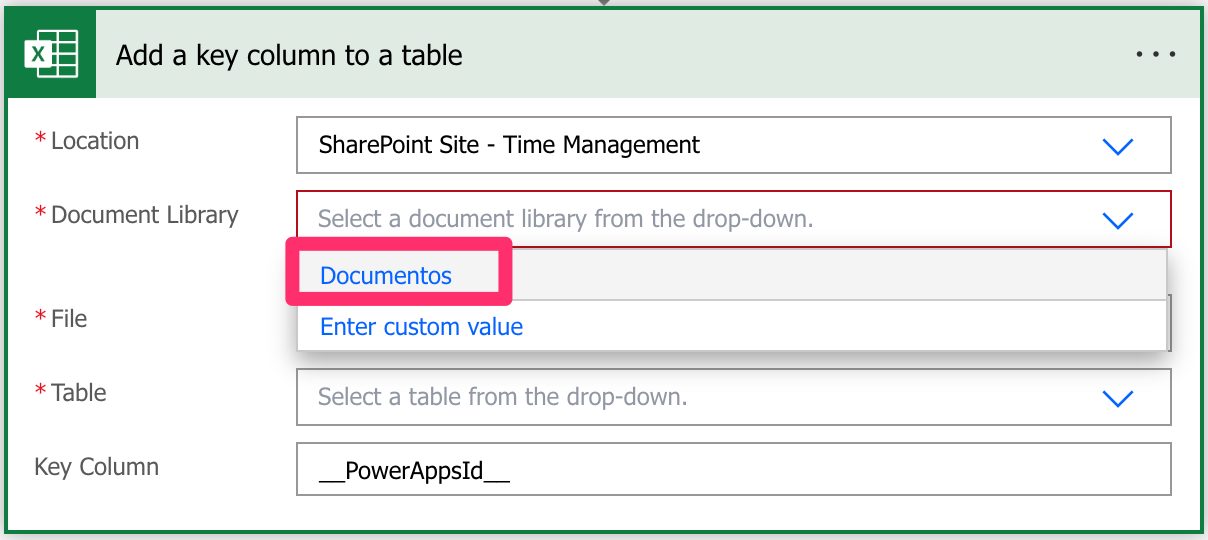
Since SharePoint sites can have multiple document libraries, we need to pick them from the list.

There’s always one created by default called “Documents” or something different depending on your language, but since it’s a mandatory field, you need to pick it; otherwise, you won’t be able to choose the file from the following field.

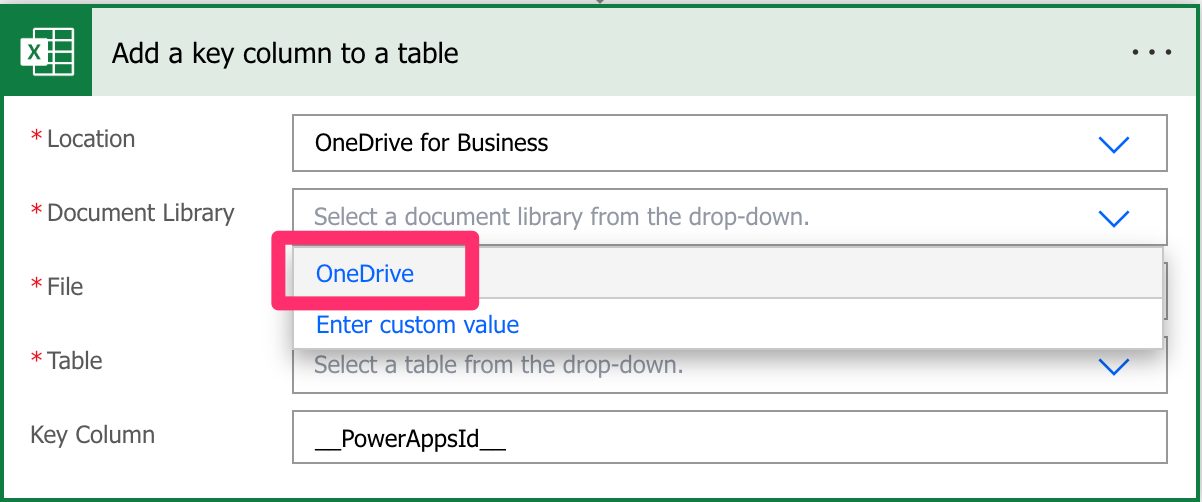
The same behavior occurs for OneDrive For Business, even if it’s not possible to create document libraries. Microsoft creates a document library that you can pick from the list.

File

Now that we have the locations defined, let’s look at a file. You can pick the file in the “File Browser”.

Or you can provide the path yourself, but I discourage this. Although you can do it, Power Automate sometimes returns strange errors related to the path, especially if the file has special characters. It’s always recommended that you can, of course, select the file directly in Power Automate’s UI.

Table

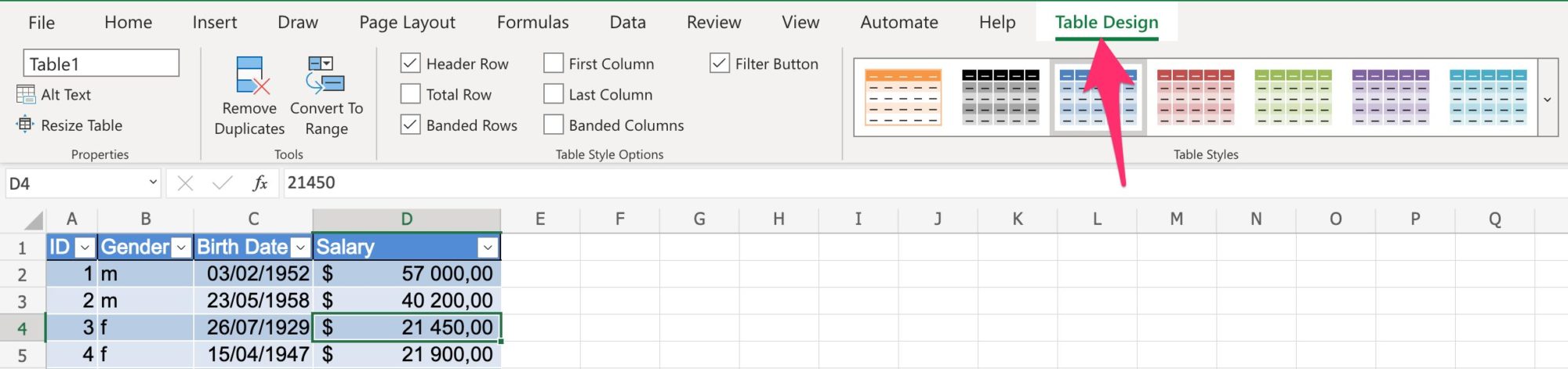
Power Automate requires the information inside an Excel table to access the data. To find the table, you can go to your excel file, select a row and then check if you have a “Table Design” tab in the ribbon.

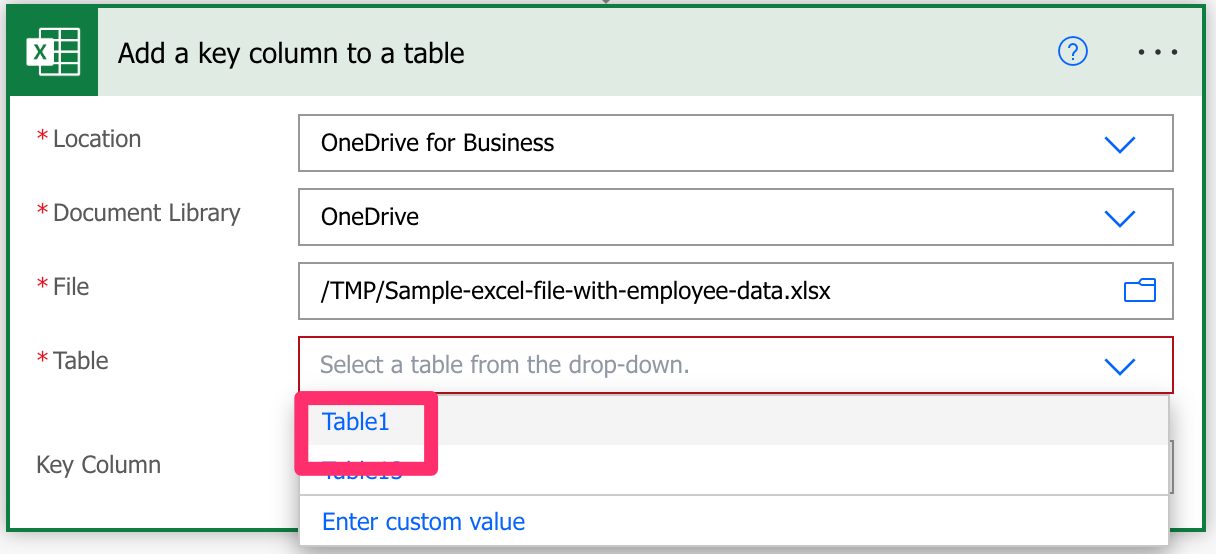
If you don’t, then chances are that you need to create a table in Excel before you can continue. Select the table in the dropdown.

The Excel file can have multiple tables, so it’s essential to define the one you want to create the column. Finally, you can provide the table’s name as a “dynamic field,” but to ensure that your Flows always work, I recommend picking it from the dropdown.

Key Column

Now that we have the file adequately configured, we can define the “Key Column” we want to add to the file. Notice that, while ugly, Power Automate suggests a name, but picking the name to use is up to you. I recommend adding something more descriptive that fits more with the naming convention of the other columns, but any name will do.

Usage

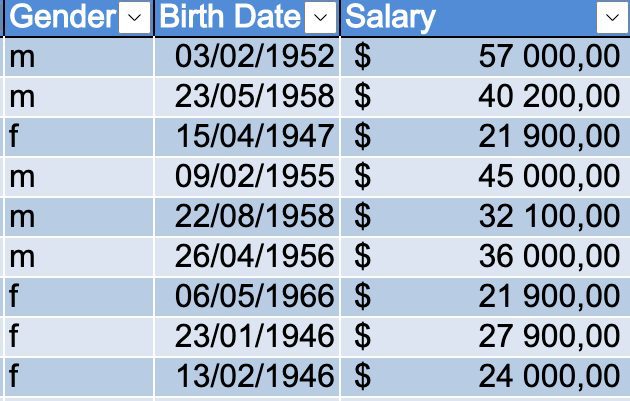
Let’s look at a test file with anonymous employee information.

For our example, we’ll use OneDrive for Business, so here’s what it looks like:

Notice that we changed the name of the column we want to create. After we run, let’s look at the file, and we see a new column called “Key Column” created:

Be careful because if you run the “Add a key column to a table” action again, you’ll get an error since the column already exists. Here’s the error if we rerun it:

Column 'Key Column' already exists in the table 

Let’s look at some non-intuitive behaviors.

Non-intuitive behaviors

Since we’re creating a “Key Column”, we would expect that the column would be populated with data, like a unique sequence of numbers we can reference later, but it’s not what happens. Power Automate creates the column and leaves it empty, meaning we’re roughly creating a “normal” column. We need to manually fill the column with unique values we can reference later.

Please note that when you’re creating a column using the “Add a key column to a table” action, you’re only creating a “normal” column, meaning that other columns could exist that can be used as “Key Column” in Flows. A “Key Column” is only a column that contains unique values that can be referenced, and there’s no way to define in Excel that a column is a key column, like when it happens on a database system, for example.

Limitations

Although at this point should not be considered a limitation anymore, the “Add a key column to a table” action will only support Excel Workbook (xlsx) files, so you need to convert your Excel file before you can use the action.

Recommendations

Here are some things to keep in mind.

Name it correctly

In this case, the name is super important to provide the context of where we’re adding the key column, for example. Always build the name so that other people can understand what you are using without opening the action and checking the details.

Always add a comment.

Adding a comment will also help avoid mistakes since we can indicate why the Excel file “Key Column” is added. Also, if you’re adding any elements dynamically, it’s a good practice to explain how the values are obtained. Indicate where the path comes from, for example, if it’s calculated and how. It’s essential to enable faster debugging when something goes wrong.

Always deal with errors.

Have your Flow fail graciously and notify someone that something failed. It’s horrible to have failing Flows in Power Automate since they may go unlooked-for a while or generate even worse errors. I have a template that you can use to help you make your Flow resistant to issues. You can check all details here. Remember that if the “Key Column” already exists in the Excel file, the action will return an error. This could be because you ran a Flow with a “Add a key column to a table” action, for example, so it’s essential to have a parallel branch that catches these cases.

Don’t forget to fill in the column after creating it.

Since Power Automate creates the “Key Column” empty, you need to add the values to the Excel files; otherwise, when you try to use another action that uses the “Key Column”, like the “Delete a row” action, for example, you’ll get an error.

Am I missing something? Leave a comment or interact on Twitter. Let’s work together to make this reference as complete as we can

Back to the Power Automate Action Reference.

Photo by Wolfgang Rottmann on Unsplash
 

❌