Vue lecture

Il y a de nouveaux articles disponibles, cliquez pour rafraîchir la page.
✇Matthew Devaney

Power Apps PDF Function: Create, View & Download PDFs

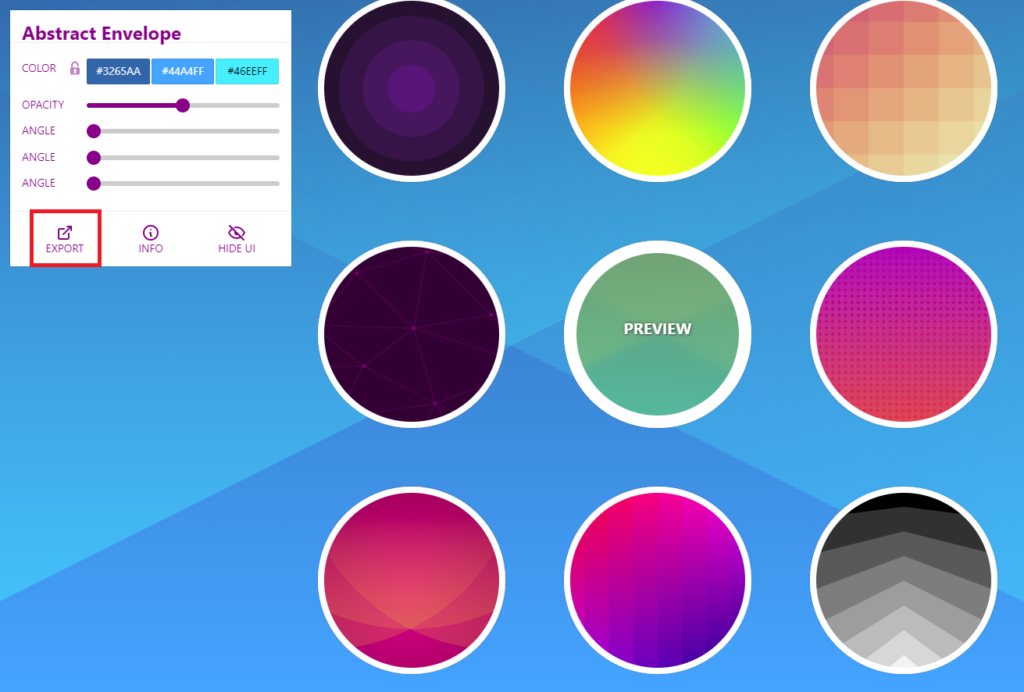
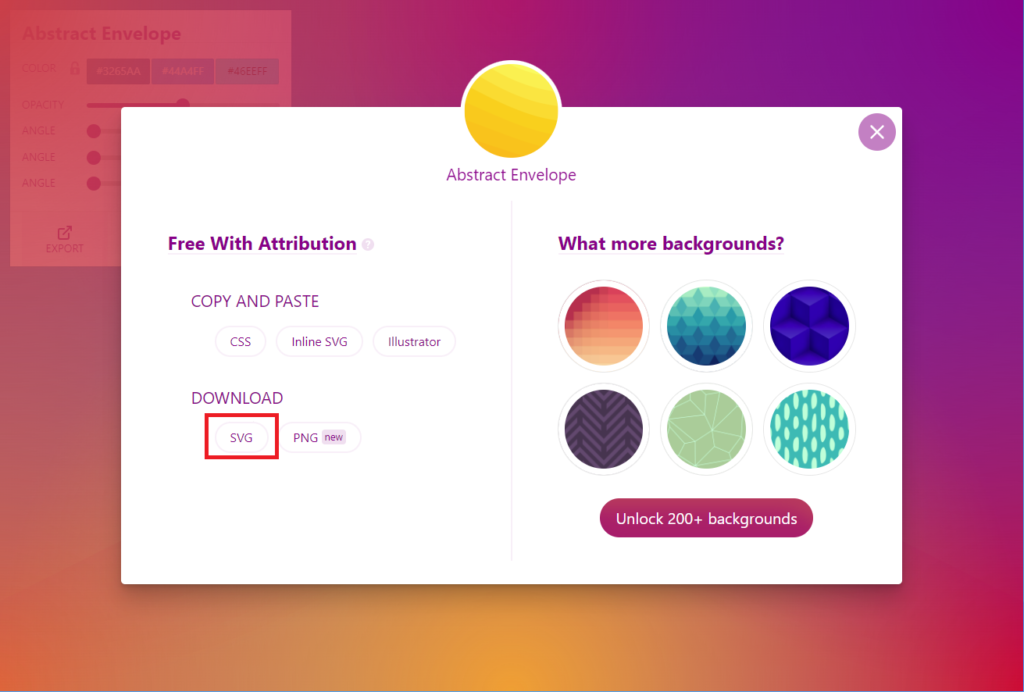
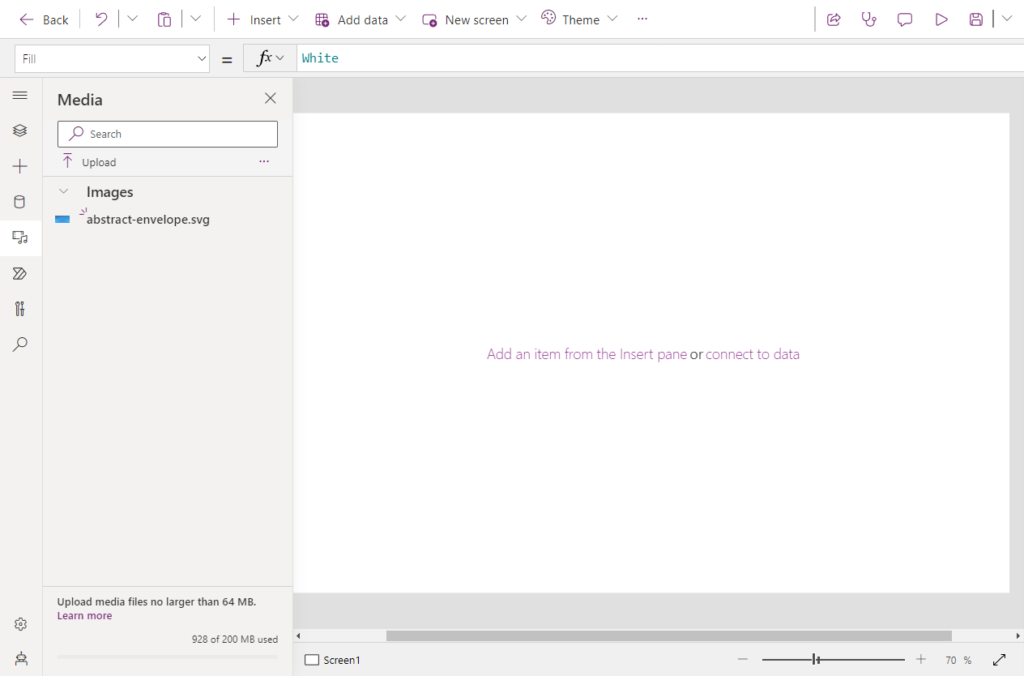
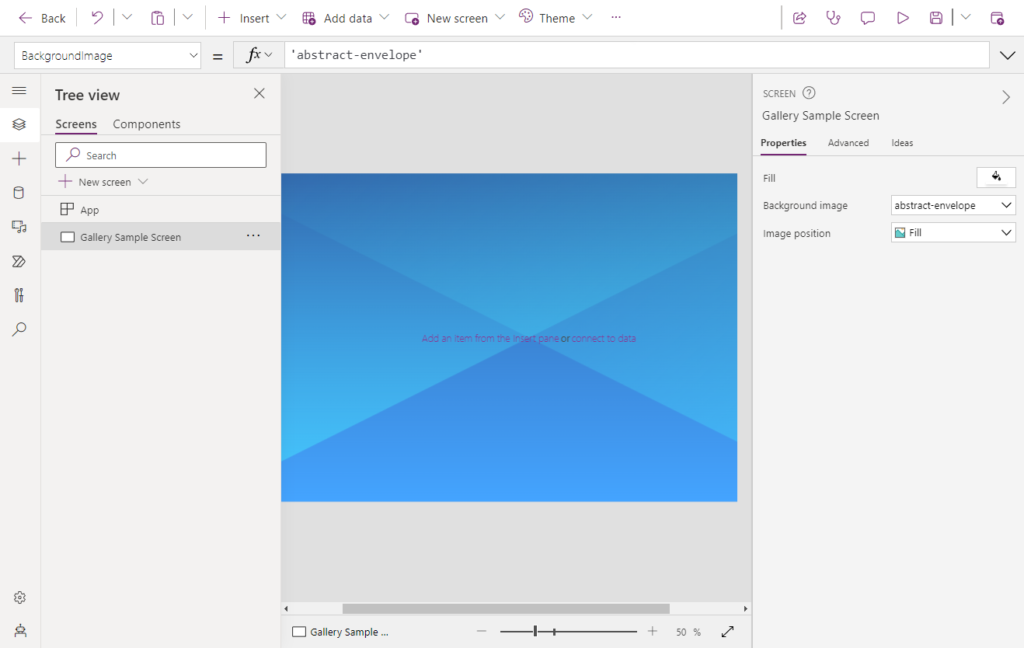
The new Power Apps PDF Function can generate a PDF document from any screen or control. It makes the task of creating PDFs very simple and only requires a standard license. Once the PDF is generated we can then view a PDF and download a PDF from directly inside of the app itself. In this article I will show you how to use the Power Apps PDF Function.

Table of Contents
• Introduction: The Work Orders AppSetup The SharePoint ListInsert A Vertical ContainerAdd A Power Apps Form To The Vertical ContainerEnable The Power Apps PDF Function Experimental FeatureGenerate A PDF Of The Power Apps FormView The PDF In Power AppsCreate A SharePoint Document Library To Store PDF FilesBuild A Flow To Download PDF Files From A SharePoint Document LibraryDownload The PDF Directly From Power Apps


Introduction: The Work Orders App

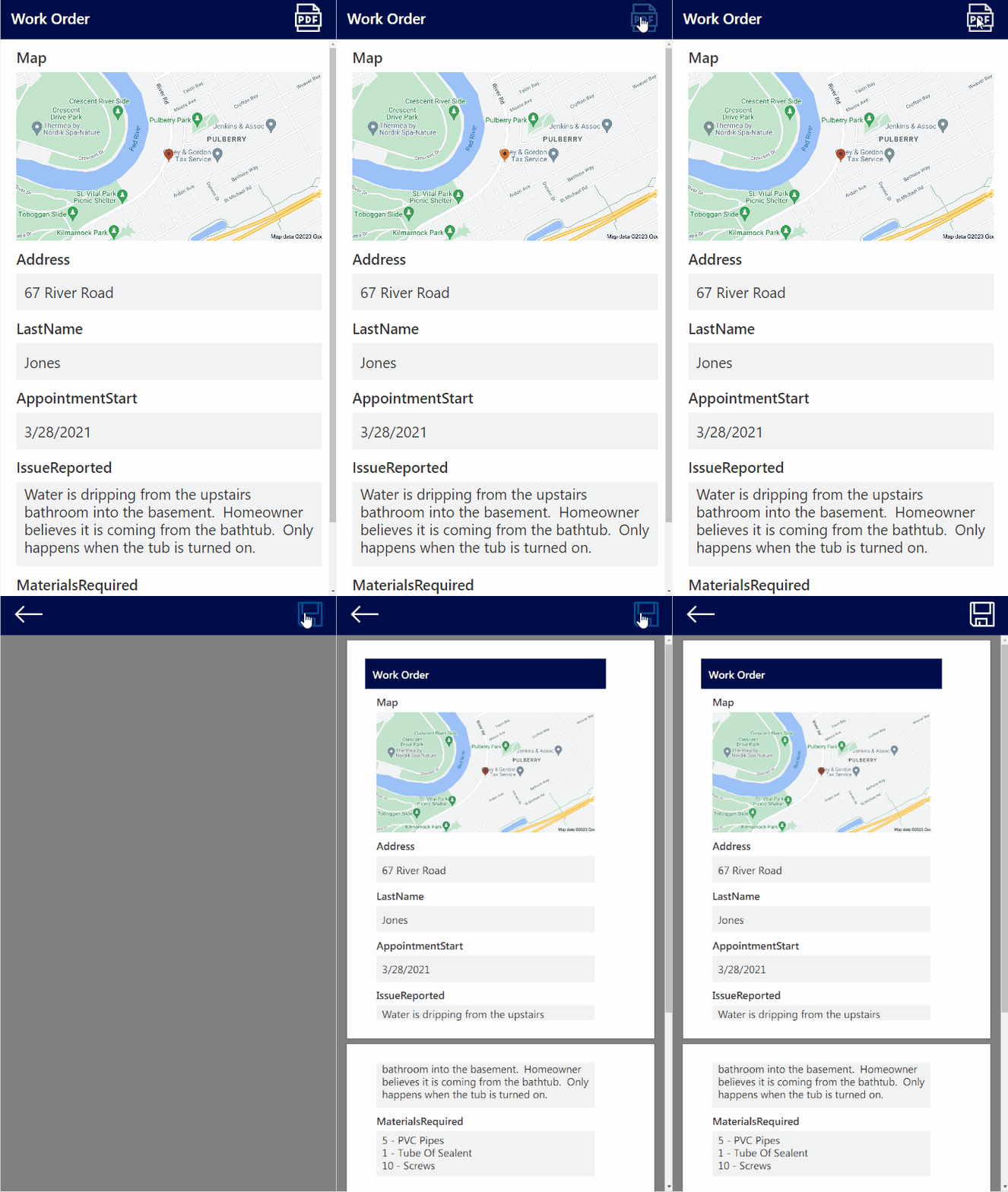
The work orders app is used by employees at a plumbing services company to track job details. An employee can view a PDF of the Work Order form on their device and download a copy of the PDF.


Setup The SharePoint List

Create a new SharePoint list named Work Orders with the following columns:

  • Map (image)
  • Address (single line text)
  • LastName (single line text)
  • AppointmentStart (date only)
  • IssueReported (single line text)
  • MaterialsRequired (single line text)


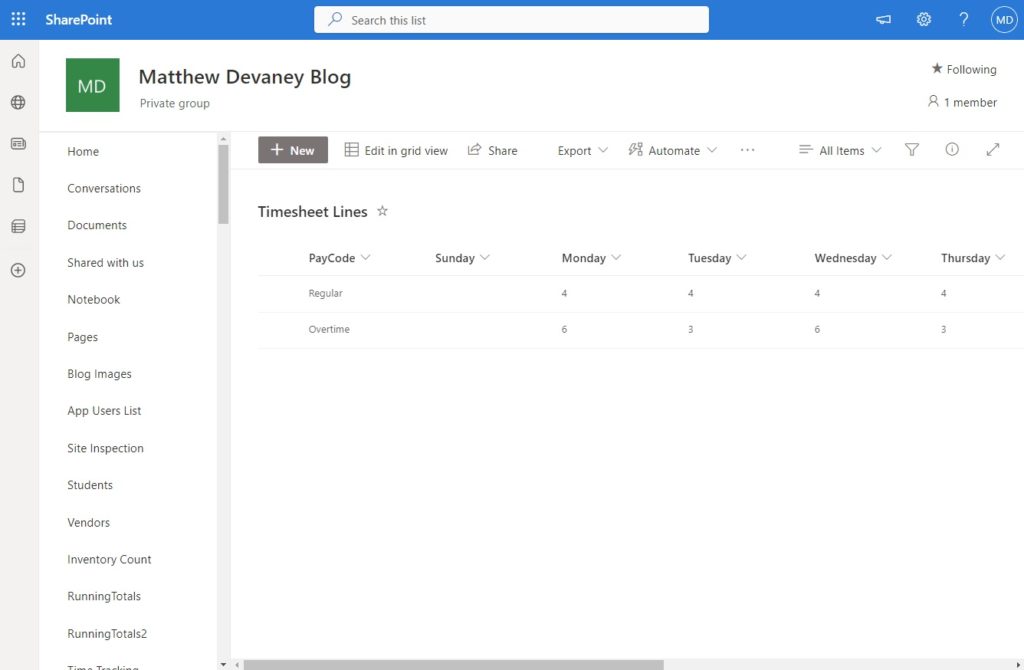
Add a new row to the SharePoint list with this data. We will display it on the Work Order PDF.

ColumnValue
Map
Address67 River Road
LastNameJones
AppointmentDate3/28/2021
IssueReportedWater is dripping from the upstairs bathroom into the basement. Homeowner believes it is coming from the bathtub. Only happens when the tub is turned on.
MaterialsRequired5 – PVC Pipes
1 – Tube Of Sealent
10 – Screws


Insert A Vertical Container

A PDF cannot be generated for a Power Apps Edit Form so we must use a workaround. We can place an Edit Form inside of a container and create a PDF of container’s contents instead. Open Power Apps Studio and create a new app from blank. Insert a vertical container onto the screen.
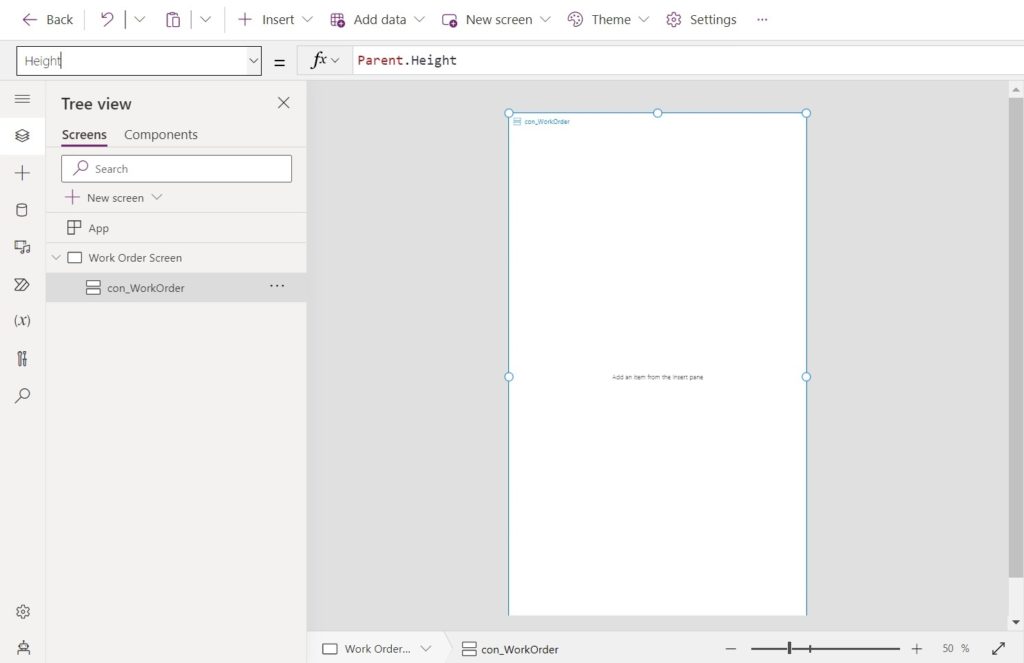


Make the vertical container fill the screen by giving the following properties these values.

Height: App.Height
Width: App.Width
X: 0
Y: 0


Set the LayoutAlignItems property to this value to make them fill the width of the container.

LayoutAlignItems.Stretch


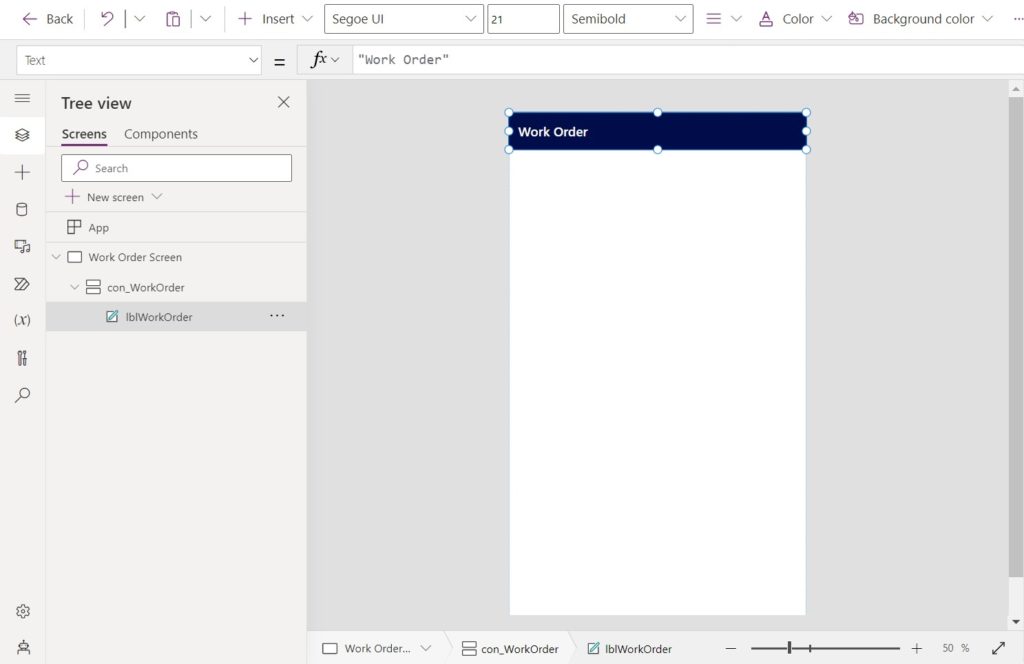
Add a label to the container to use as a title bar. Give it the text “Work Order” and apply a dark blue fill.


Add A Power Apps Form To The Vertical Container

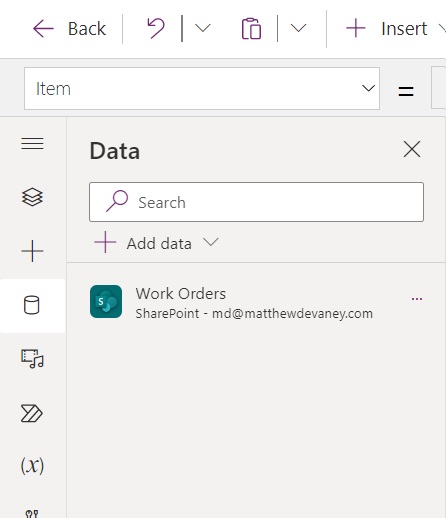
Next we will create a Power Apps Edit Form to display Work Order information. Open the Data tab from the left navigation menu and add the Work Orders SharePoint list as a data source.


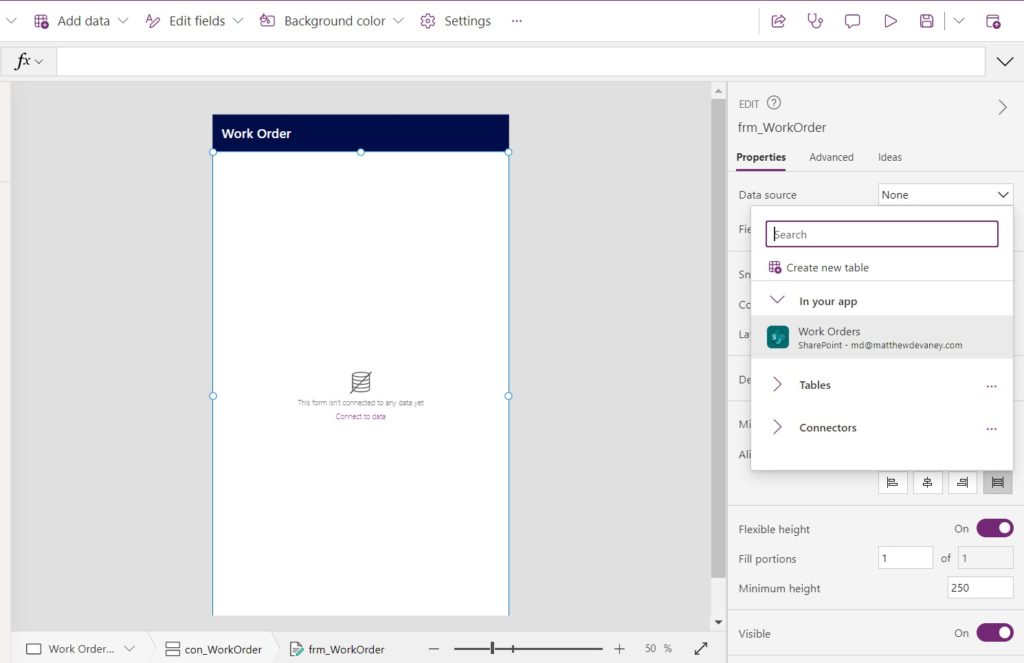
Insert a Power Apps Edit form into the vertical container. Select the Work Orders SharePoint list as the data source.


Update the Edit Form to use a vertical layout with only 1 column.
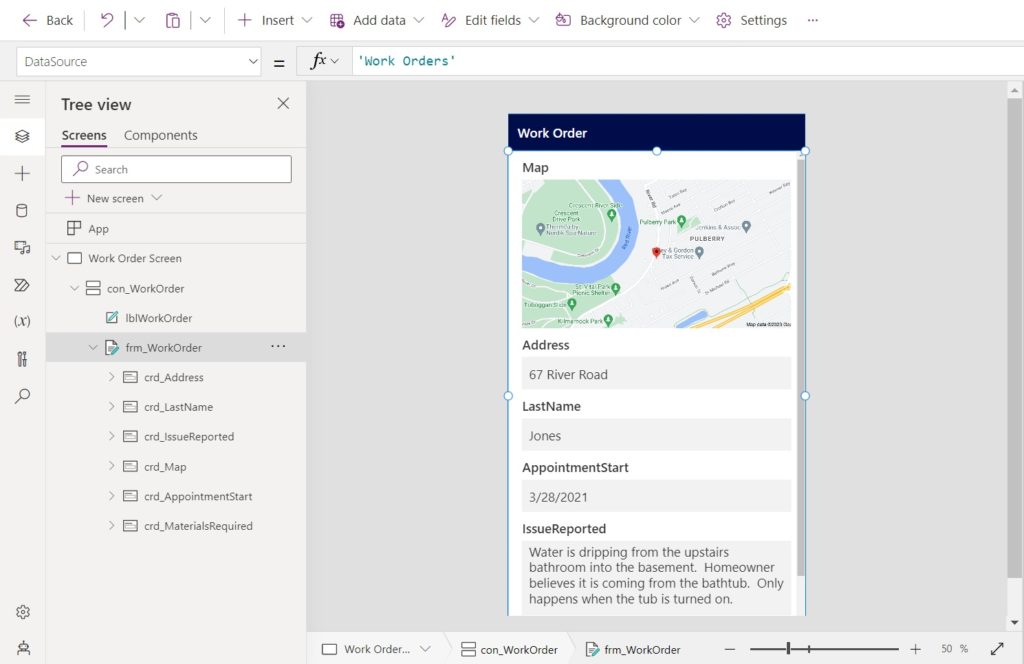


Use this code in the Item property of the form to display the first record in the SharePoint list. In this tutorial the user will not have an ability to select another record.

LookUp('Work Orders', ID=1)


Change the DisplayMode property of the the Edit Form to View.

DisplayMode.View


Enable The Power Apps PDF Function Experimental Feature

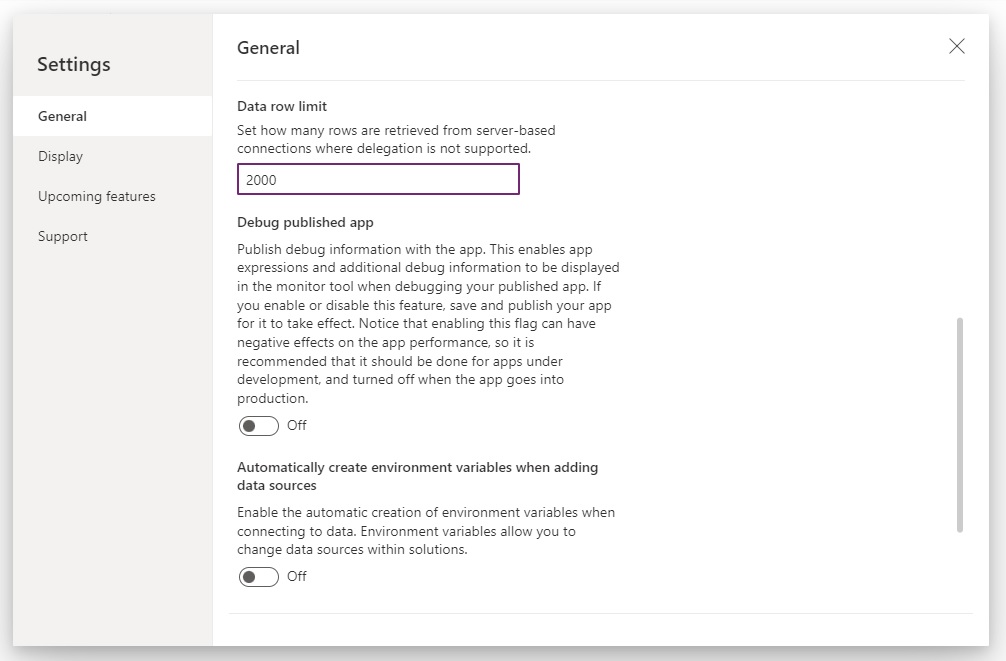
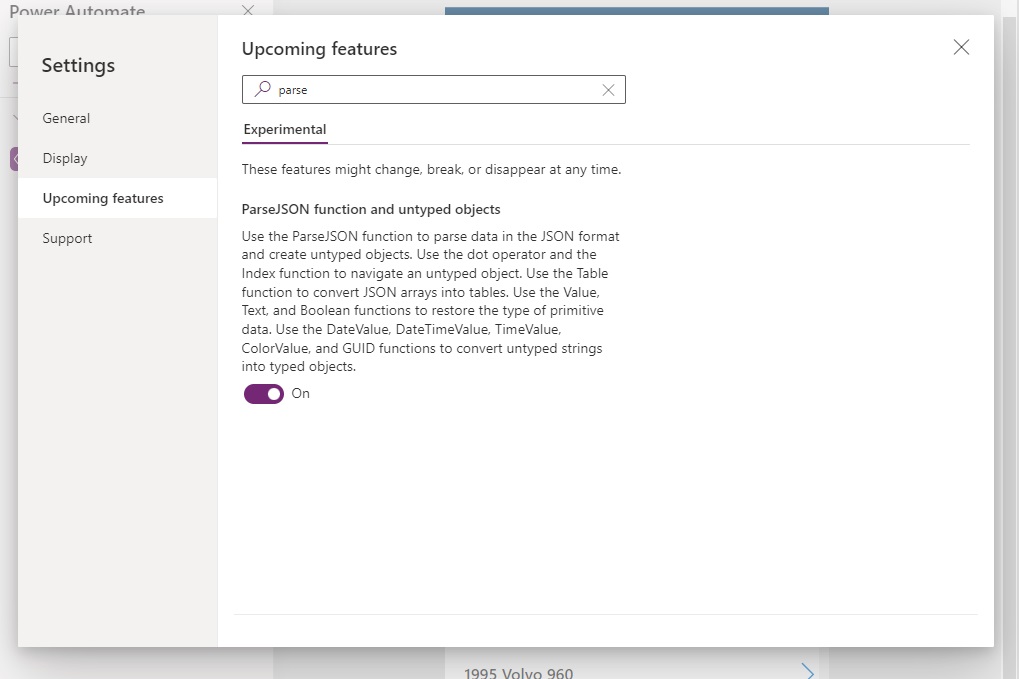
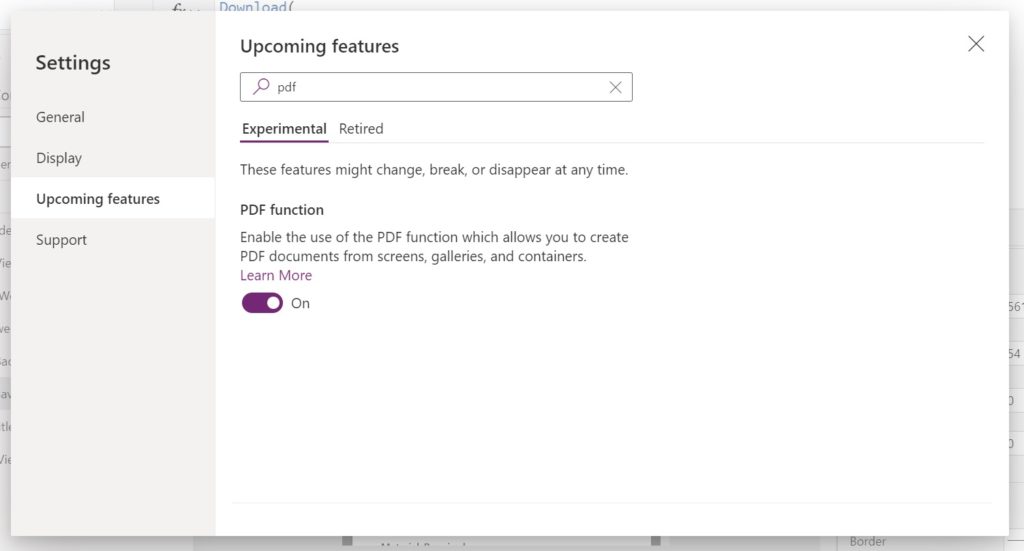
The Power Apps PDF Function is an experimental feature and is not enabled by default. To use it, go to the Settings menu, select upcoming features, then toggle on the PDF Function setting.


Generate A PDF Of The Power Apps Form

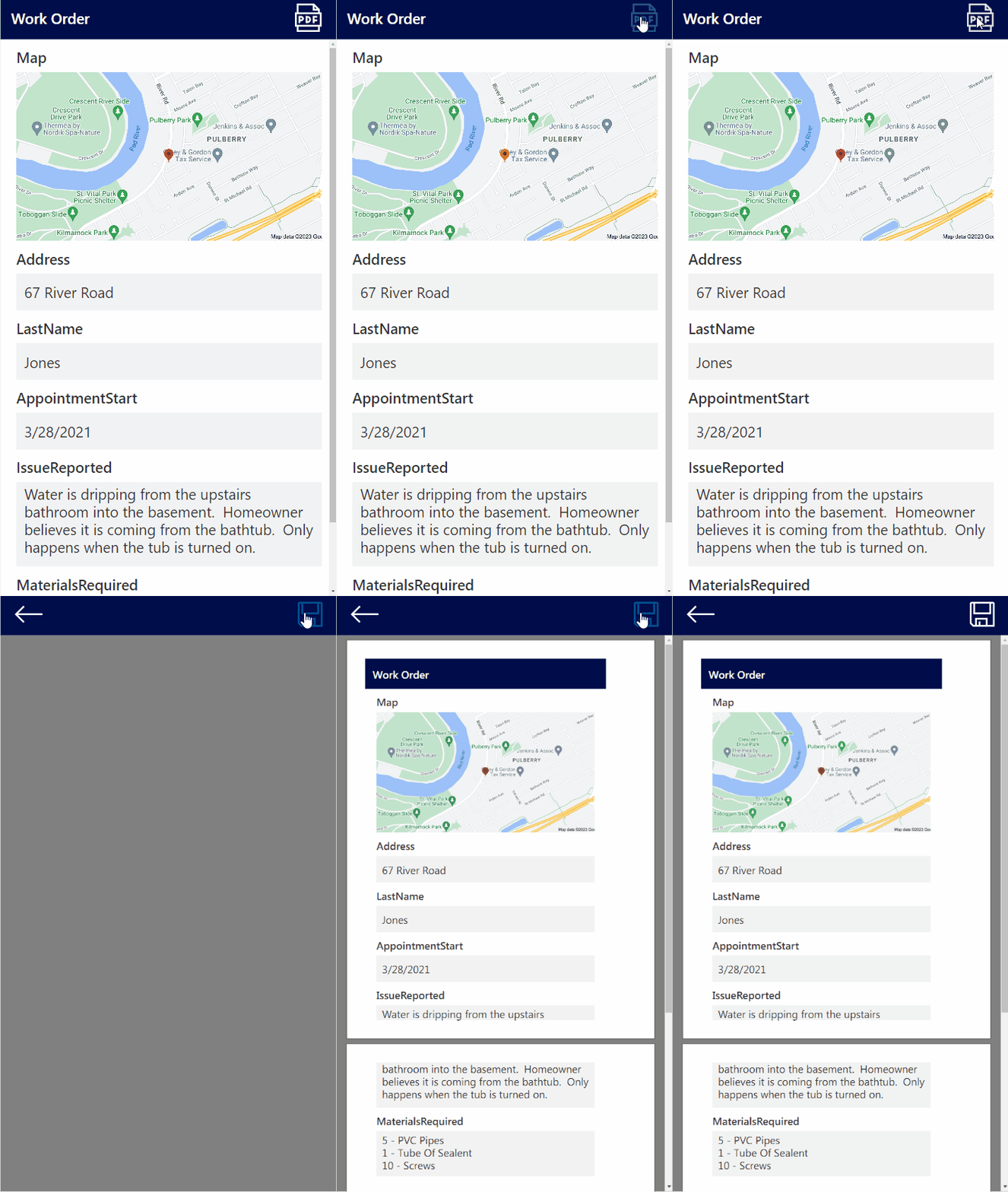
When the user clicks on a PDF icon it generates the PDF and navigates to a screen with PDF viewer. Add a PDF icon to the app’s titlebar.
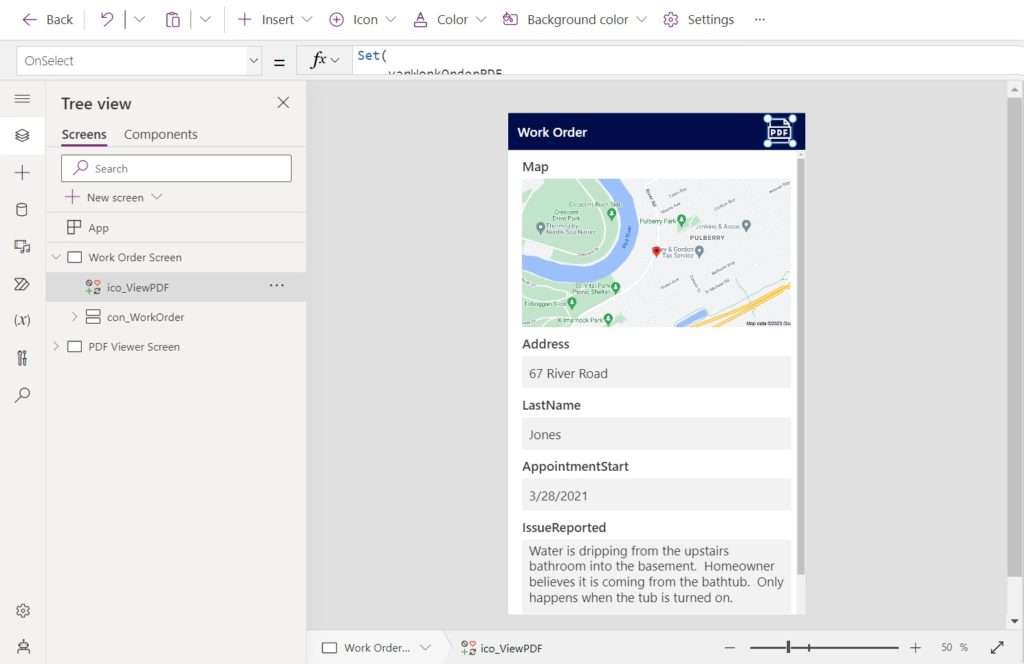


Then write this code in the icon’s OnSelect property.

The first argument to the Power Apps PDF Function tells it which screen or control to generate a PDF from. The second argument can be used to pass in optional values to control the PDF’s size, orientation, margins & DPI. Here we will use the ExpandContainers parameter to ensure the container expands to show any hidden or off-screen controls.

Set(
    varWorkOrderPDF,
    PDF(
        con_WorkOrder,
        {ExpandContainers: true}
    )
);
Navigate('PDF Viewer Screen');


View The PDF In Power Apps

We need to make another screen to display the PDF. Create a new screen named PDF Viewer Screen. Add a dark blue label for a titlebar and insert a left arrow icon in the top-left corner.
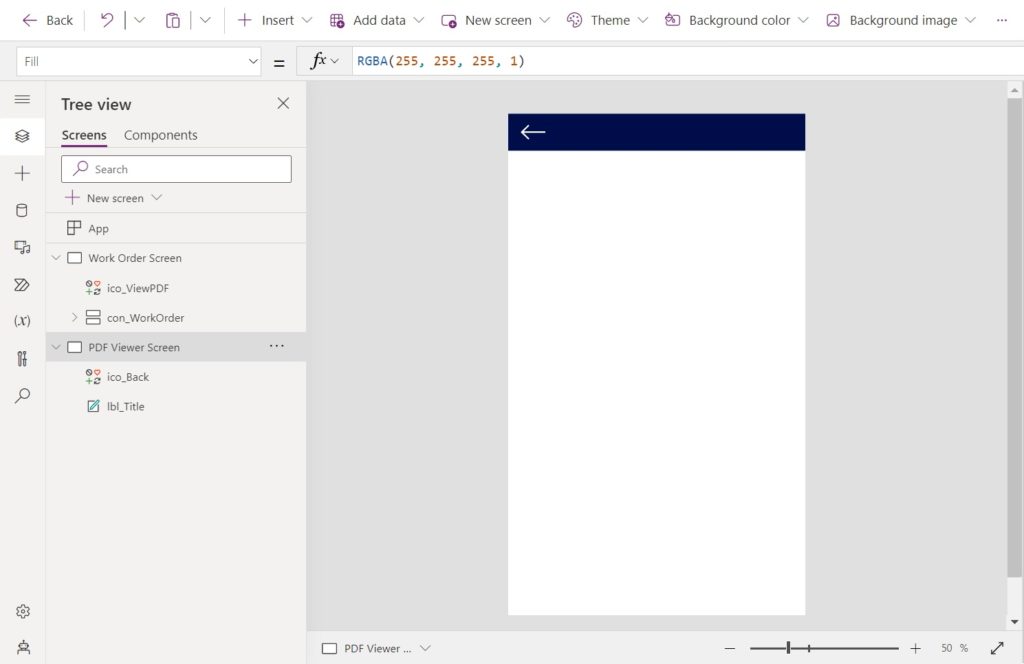


Use this code in the OnSelect property of the left arrow icon to navigate back to the previous screen.

Set(varWorkOrderPDF,Blank());
Navigate('Work Order Screen');


Add the PDF Viewer control the screen. Position the PDF Viewer control so it fills the remaining space on the screen.
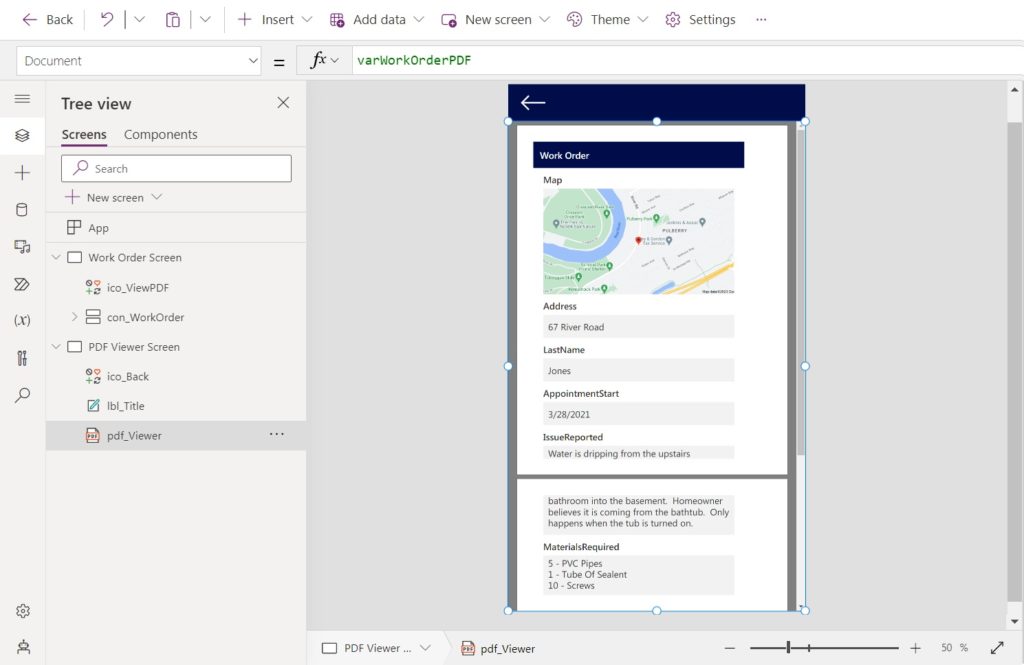


Use this code in the document property of the PDF. The PDF document will now display in the PDF viewer.

varWorkOrderPDF


Test the feature we built to generate and view a PDF from Power Apps. It should look like this.


Create A SharePoint Document Library To Store PDF Files

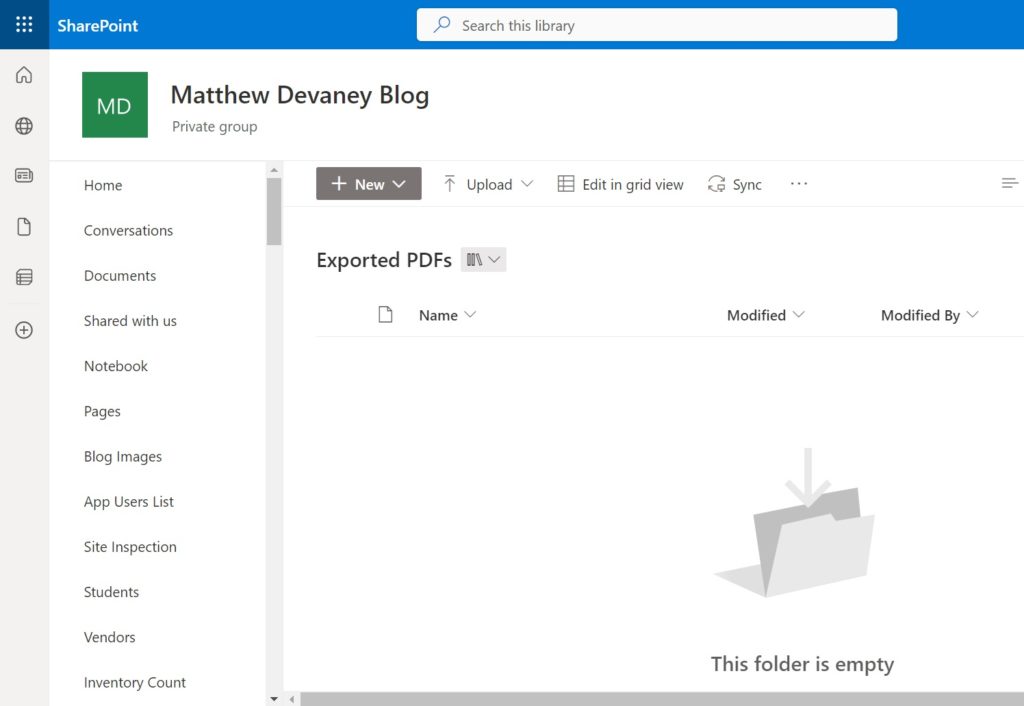
We want to create the ability to download the PDF file directly from Power Apps. To do this, we need a place to temporarily store the PDF file. Make a new SharePoint Document library named Exported PDFs. No additional setup is required beyond creating the document library.


Build A Flow To Download PDF Files From A SharePoint Document Library

To download the PDF file we must make a flow to store the PDF file in SharePoint and then return a file download link to the app. Open Power Automate, create a new flow named Download PDF From Power Apps and setup the flow as show in the image below.
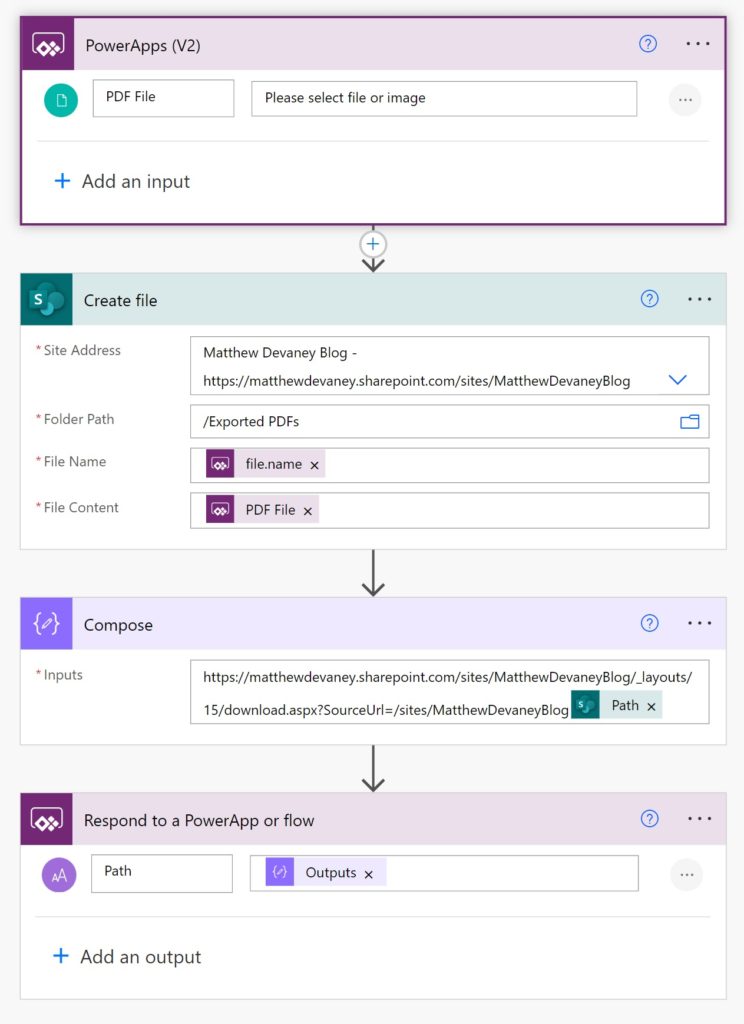


Use this code in the File Name property of the SharePoint – Create File action.

triggerBody()['file']['name']


A link to the PDF file in SharePoint opens it in the SharePoint document viewer. However, we want to perform a direct download of the PDF file instead. We can use this special URL to bypass the SharePoint document viewer and download the file. Fill in any tags <> with your own values.

https://<tenantname>.sharepoint.com/sites/<site collection title>/_layouts/15/download.aspx?SourceUrl=/sites/<site collection title>/<file path with the library name>


My completed URL looks like this.

https://matthewdevaney.sharepoint.com/sites/MatthewDevaneyBlog/_layouts/15/download.aspx?SourceUrl=/sites/MatthewDevaneyBlog/Exported PDFs/WorkOrder_20230423081046.pdf


Download The PDF Directly From Power Apps

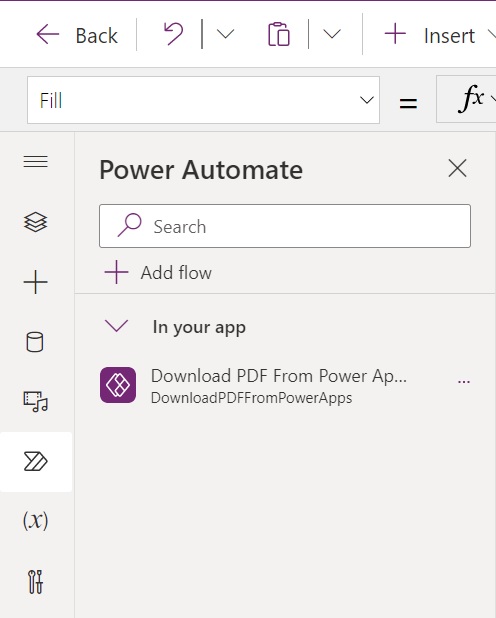
Now that the Power Automate flow is completed go back to Power Apps Studio and add the Download PDF From Power Apps flow to the app.


Insert a save button icon in the top left corner of the PDF Viewer Screen.
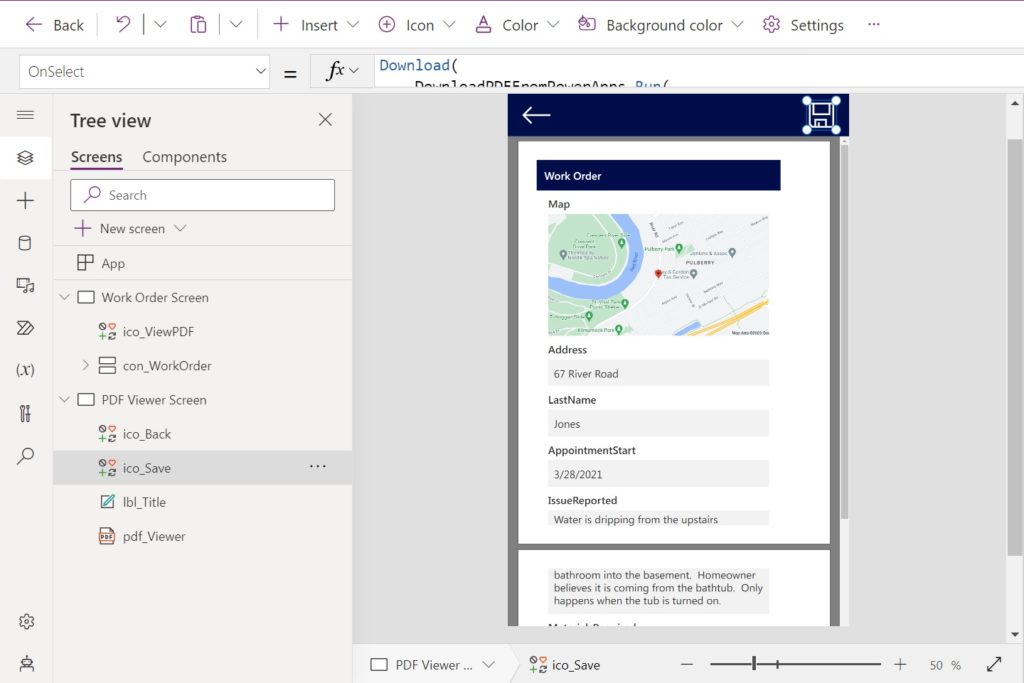


Then add this code to the OnSelect property of the save icon. The Download function downloads a file from the internet to the user’s device. We get the file’s web address returned in the path property of the Download PDF From Power Apps flow.

Download(
    DownloadPDFFromPowerApps.Run(
        {
            name: $"WorkOrder_{Text(
                Now(),
                "yyyymmddhhmmss"
            )}.pdf",
            contentBytes: varWorkOrderPDF
        }
    ).path
);


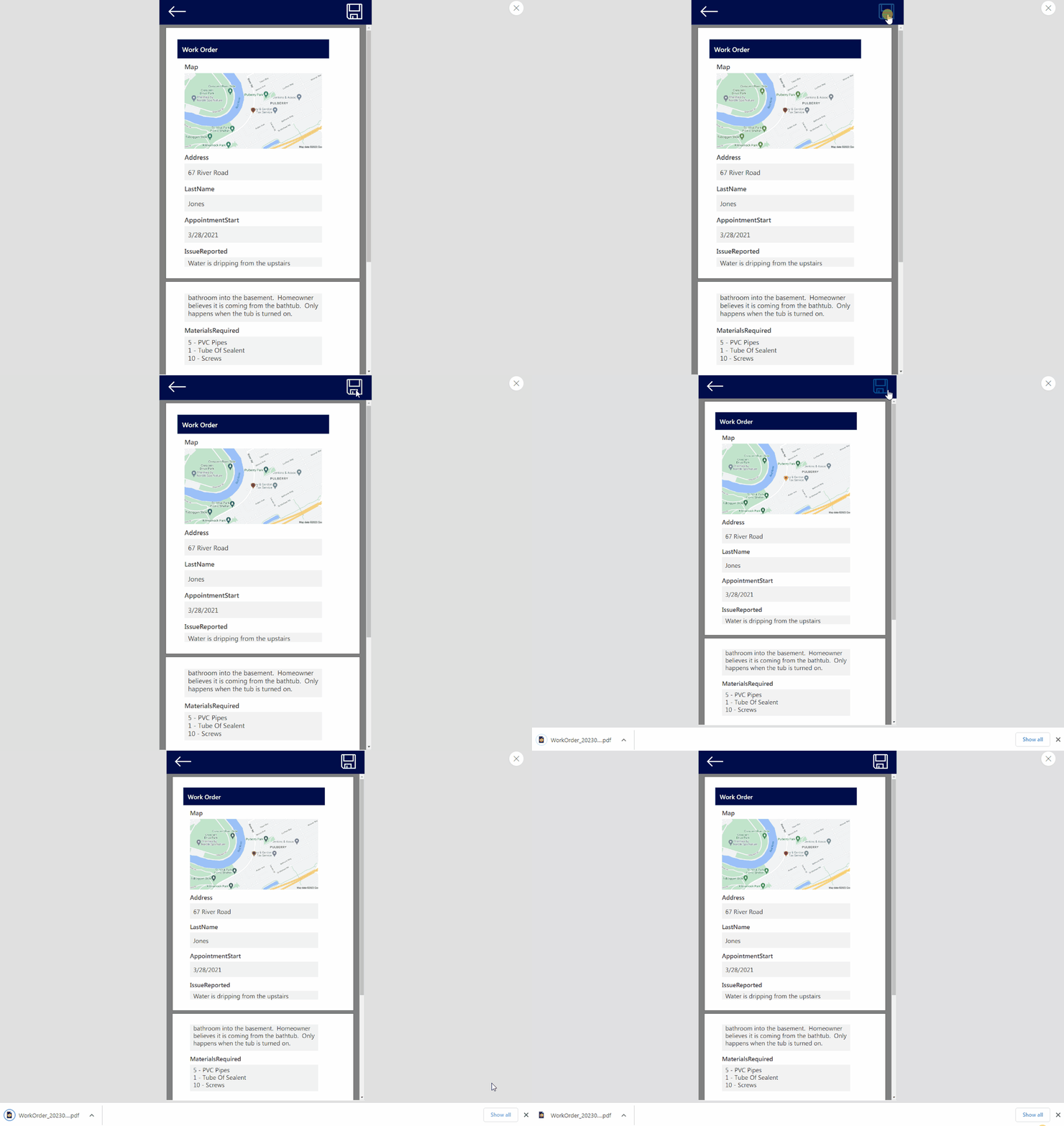
Test the completed download PDF from Power Apps feature. It should work like this:

Did You Enjoy This Article? 😺

Subscribe to get new Power Apps articles sent to your inbox each week for FREE


Questions?

If you have any questions or feedback about Power Apps PDF Function: Create, View & Download PDFs please leave a message in the comments section below. You can post using your email address and are not required to create an account to join the discussion.

The post Power Apps PDF Function: Create, View & Download PDFs appeared first on Matthew Devaney.
✇Matthew Devaney

Make A Power Apps Timesheet App – Part 2

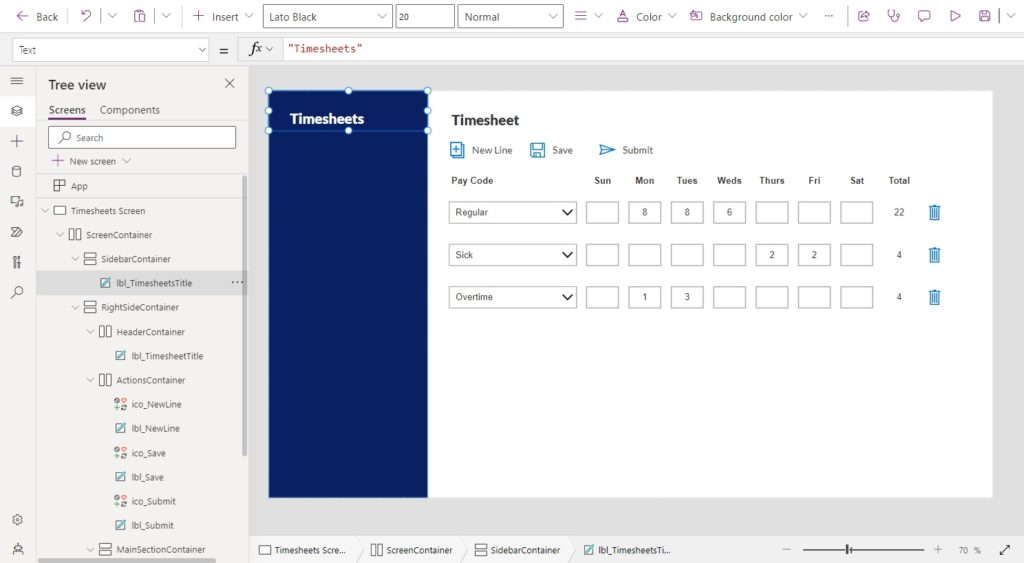
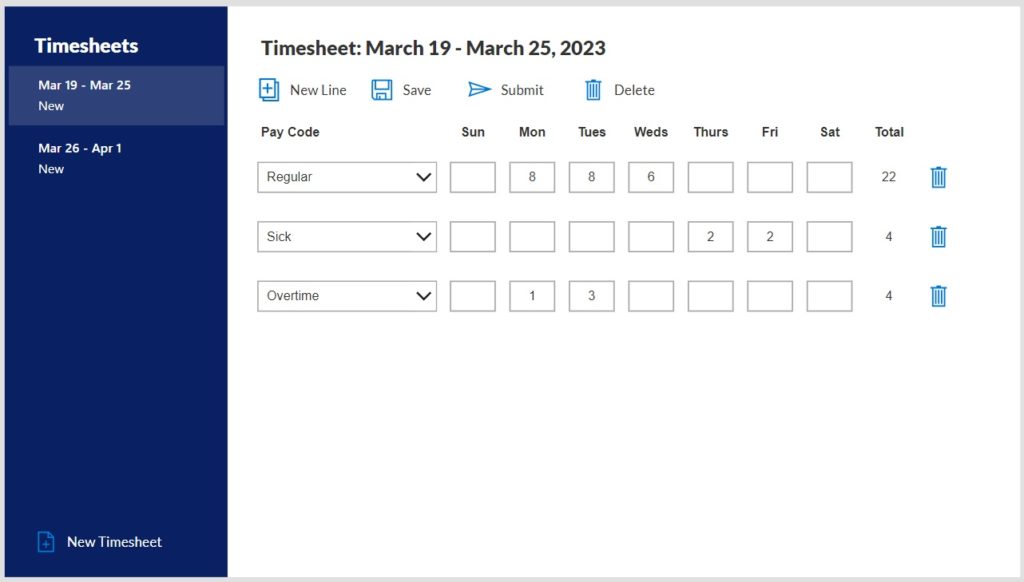
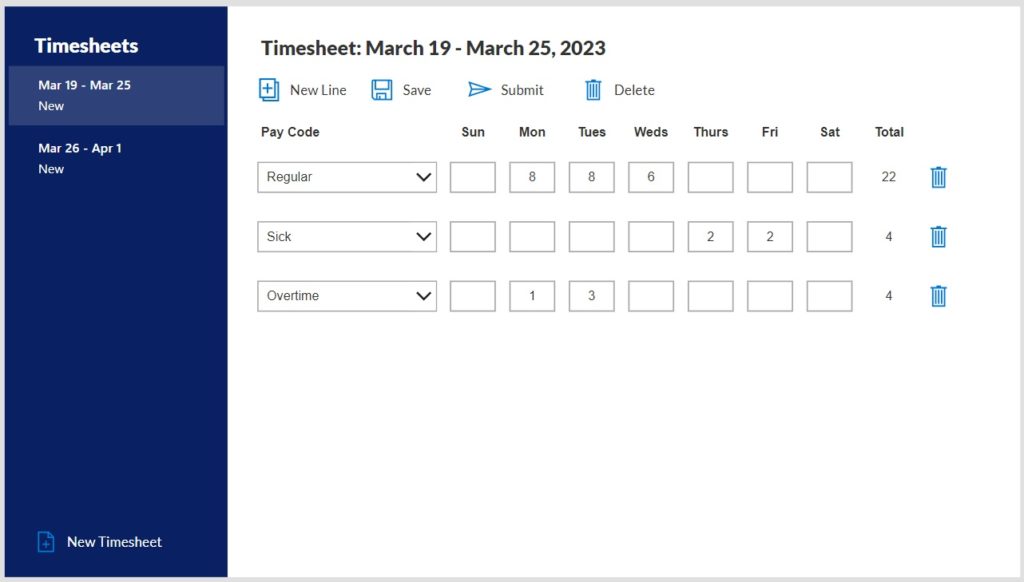
This is the 2nd article in a series about how to build your own timesheets app in Power Apps. The first article focused on creating a timesheet lines feature with the ability to add, edit, delete and save lines. This article will continue the tutorial to include the ability to create new timesheets and submit them for approval.

If you haven’t completed Make A Power Apps Timesheet App Part 1 then I would highly encourage you to check it out first.

Table of Contents
• Setup The Timesheets SharePoint ListAdd A LookUp Columns To The Timesheet Lines SharePoint ListDesign The Sidebar MenuCreate A New TimesheetSave The New Timesheet To The SharePoint ListSubmit The Completed TimesheetUpdate The Save Button CodeLock The Text Input Fields When Timesheet Is SubmittedDelete An Existing TimesheetDisplay The Current User's Timesheets In The SidebarSelect A Timesheet From The SidebarTimesheets App Completed


Setup The Timesheets SharePoint List

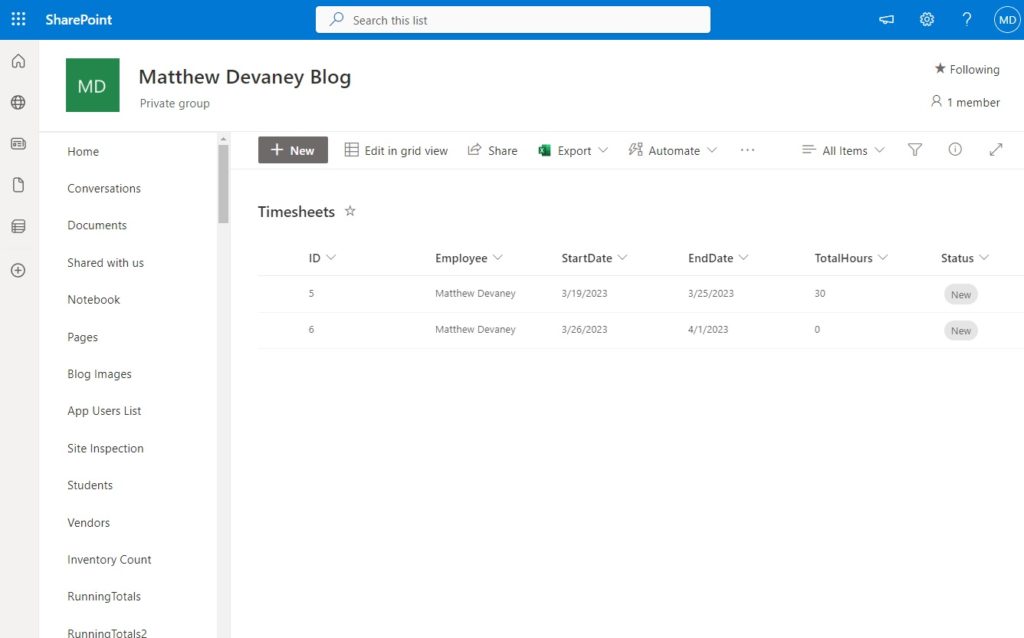
Create a new SharePoint list with the following columns:

  • Employee (Person)
  • StartDate (Date)
  • EndDate (Date)
  • TotalHours (Number)
  • Status (Choice) [New, Submitted, Accepted, Rejected]


The SharePoint list will look like this once it becomes populated with data.


Add A LookUp Column To The Timesheet Lines SharePoint List

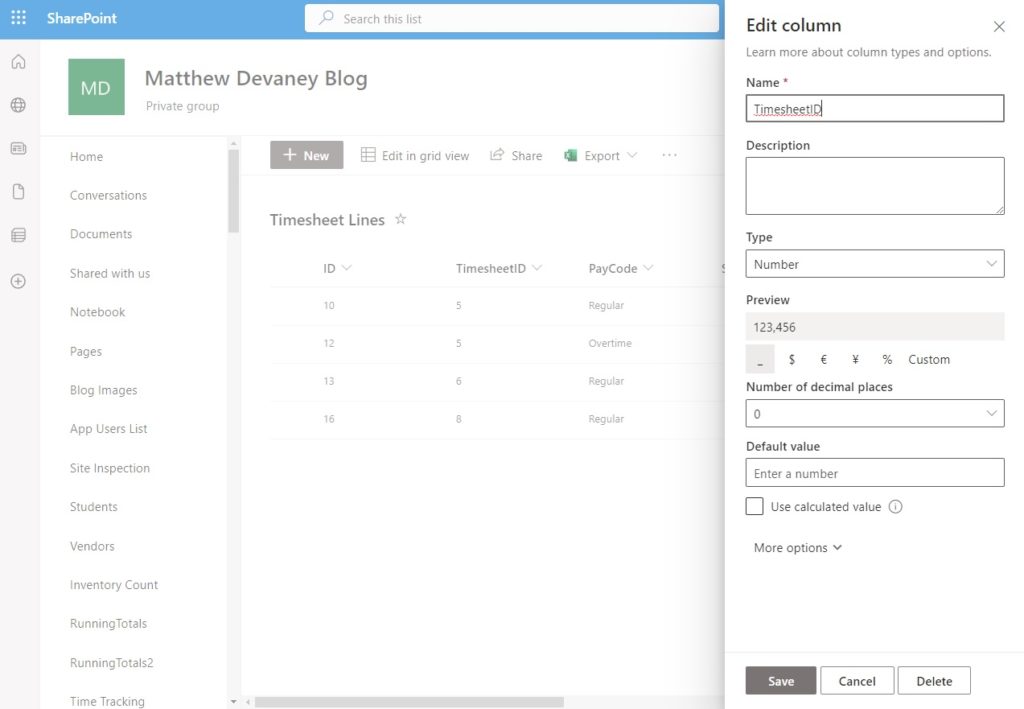
Each timesheet will have one or more associated timesheet lines. Therefore, we must create a relationship between the Timesheet List and the Timesheet Lines. Go to the Timesheet Lines SharePoint list and add a new column named TimesheetID.


Design The Sidebar Menu

Add a new label to the SidebarContainer with the text “Timesheets.” Give it the same styling as the “Timesheet” label in the HeaderContainer but make the Color property White.


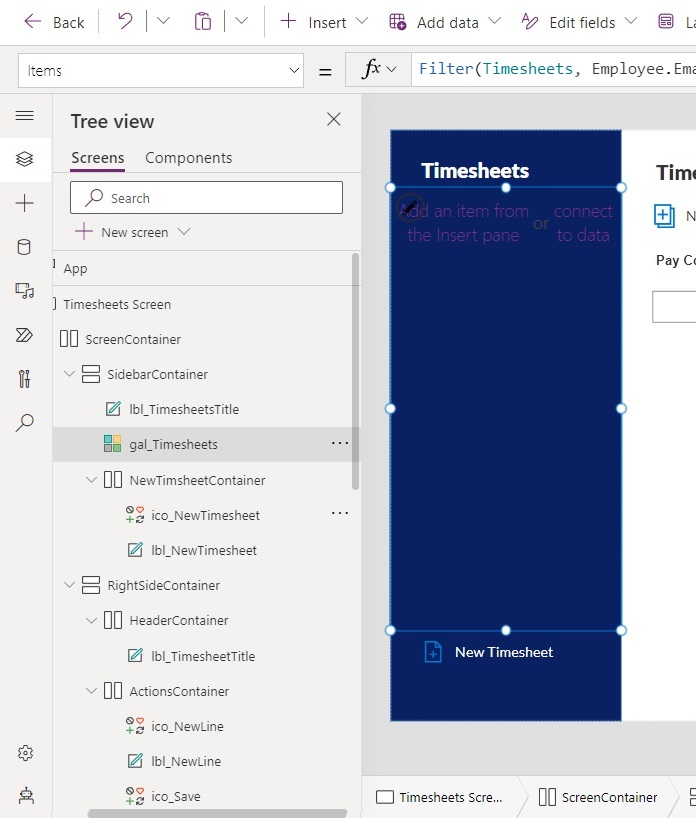
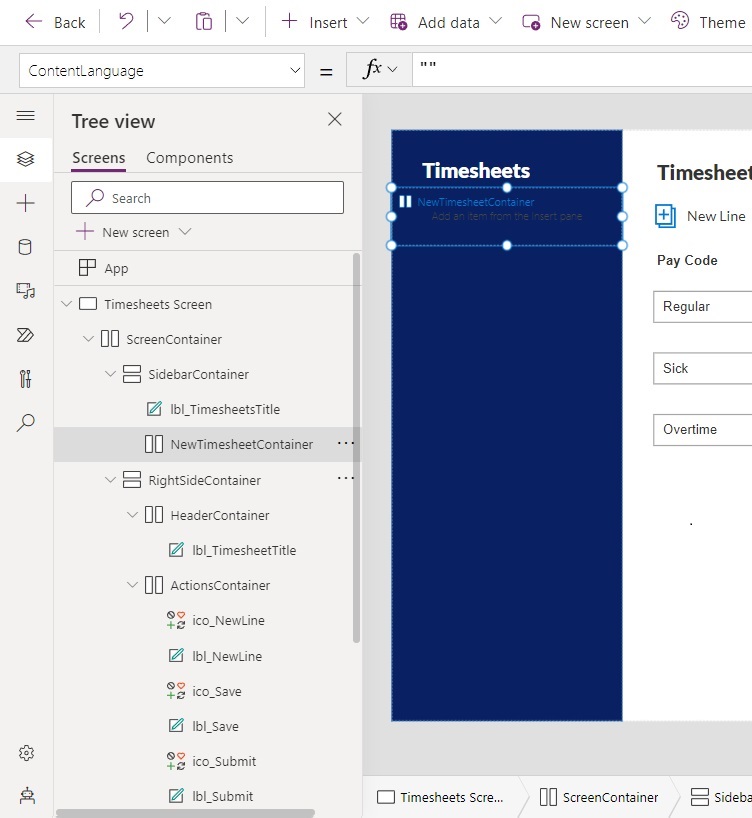
Insert a horizontal container named NewTimesheetContainer into the SidebarContainer.


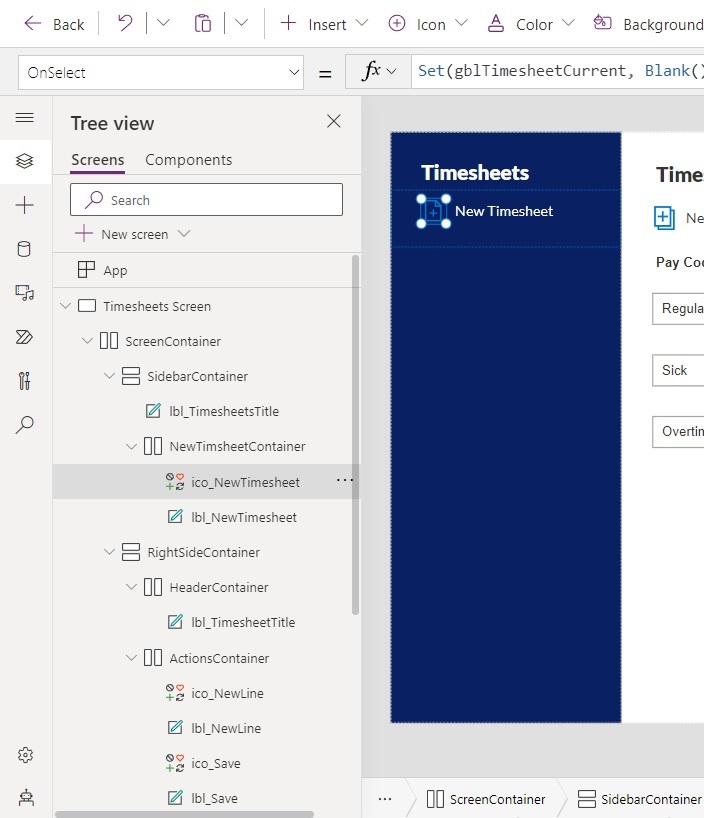
Place an Add Document icon and a label with the text “New Timesheet” inside the NewTimesheetContainer.


Write this code in the OnSelect property of the icon to set the current timesheet value to blank and clear the deleted time sheet lines collection.

Set(gblTimesheetCurrent, Blank());
Clear(colDeleteTimesheetLines);


Create A New Timesheet

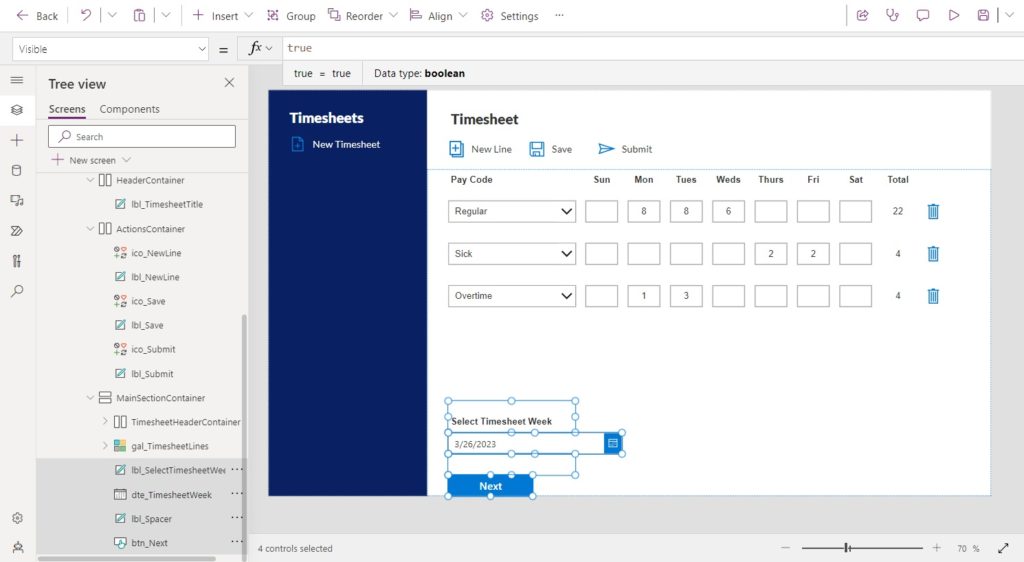
When a user presses the New Timesheet icon a form will appear and ask the user to select the new timesheet’s week. Insert the following 4 controls into the MainSectionContainer.

  • Label – with the text “Select Timesheet Week”
  • DatePicker
  • Label – empty
  • Button – with the text “Next”


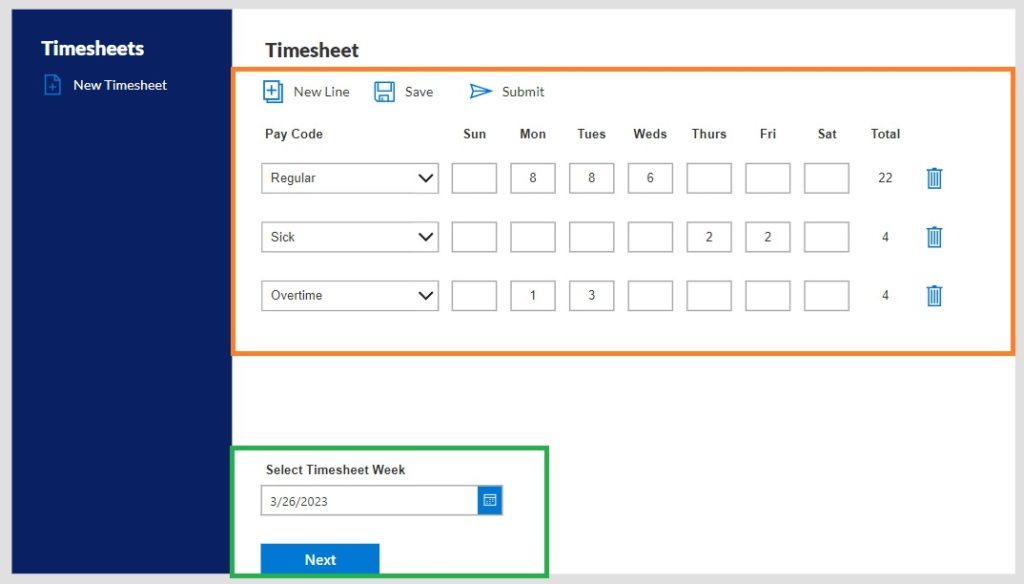
The highlighted areas will conditionally shows based upon whether the variable gblTimesheetCurrent is blank or is not blank.


Set the Visible property of all controls highlighted in green to this code…

IsBlank(gblTimesheetCurrent)


…and set the Visible property of all controls highlighted in orange to this code.

!IsBlank(gblTimesheetCurrent)


Update the timesheet title label to show the text “Create A New Timesheet” when the variable gblTimesheetCurrent is blank.


Use this code in the Text property of the title label. When the variable gblTimesheetCurrent is not blank display the selected timesheet’s

If(
    IsBlank(gblTimesheetCurrent),
    "Create A New Timesheet",
    $"Timesheet: {Text(
        gblTimesheetCurrent.StartDate,
        "mmmm d"
    )} - {Text(
        gblTimesheetCurrent.EndDate,
        "mmmm d, yyyy"
    )}"
)


Save The New Timesheet To The SharePoint List

Once the user clicks the next button the timesheet is saved to SharePoint and they can begin to enter their time worked.


Write this code in the OnSelect property of the button. The Employee field is populated with a person type value. StartDate and EndDate are set to the Sunday and Saturday of the selected week. Status is New and TotalHours are 0.

// create a new timesheet and store the result
Set(
    gblTimesheetCurrent,
    Patch(
        Timesheets,
        Defaults(Timesheets),
        {

            // set timesheet employee to current user
            Employee: {
                '@odata.type':"#Microsoft.Azure.Connectors.SharePoint.SPListExpandedUser",
                Claims: $"i:0#.f|membership|{User().Email}",
                Department: "",
                DisplayName: User().FullName,
                Email: User().Email,
                JobTitle: "",
                Picture: ""
            },


            // set start date to Sunday of the selected week
            StartDate: DateAdd(dte_TimesheetWeek.SelectedDate,1-Weekday(dte_TimesheetWeek.SelectedDate,StartOfWeek.Sunday),TimeUnit.Days),

            // set end date to Saturday of the selected week
            EndDate: DateAdd(dte_TimesheetWeek.SelectedDate,1-Weekday(dte_TimesheetWeek.SelectedDate,StartOfWeek.Sunday)+6,TimeUnit.Days),

            Status: {Value: "New"},
            TotalHours: 0
        }
    )
);
// create the first timesheet line
ClearCollect(
    colTimesheetLines,
    Patch(
        'Timesheet Lines',
        Defaults('Timesheet Lines'),
        {TimesheetID: gblTimesheetCurrent.ID}
    )
);
// reset date picker to blank
Reset(dte_TimesheetWeek)


After the Next button is pressed the RightContainer updates to look like this.


Update The New Timesheet Line Code

We must update the new line icon code to apply the Timesheet ID.


Replace any code in the OnSelect property of the new line icon with this code.

Patch(
    colTimesheetLines,
    Defaults('Timesheet Lines'),
    {TimesheetID: gblTimesheetCurrent.ID}
)


Submit The Completed Timesheet

The save button writes timesheet data back to the SharePoint list but it does not update the timesheet status to “Submitted”. To do this, insert a new Send icon into the ActionsContainer and label with the text “Submit.”


Write this code in the OnSelect property of the Submit icon. The final line of code uses the the Select function to run the code found in the OnSelect property of the Save icon. We will update that code next.

// update the timesheet status to submitted
Set(
    gblTimesheetCurrent,
    Patch(
        Timesheets,
        gblTimesheetCurrent,
        {Status: {Value: "Submitted"}}
    )
);
// save the timesheet lines
Select(ico_Save);


Update The Save Button Code

The Save button must now perform one additional action to update the timesheet’s total hours.


Add the new code below to the OnSelect property of the Save icon.

// collection to update timesheet lines
ClearCollect(
    colUpdateTimesheetLines,
    ForAll(
        gal_TimesheetLines.AllItems,
        'Timesheet Lines'@{
            ID: ID,
            TimesheetID: TimesheetID // <----- NEW CODE
            PayCode: drp_PayCode.Selected.Value,
            Sunday: Value(txt_Sunday.Text),
            Monday: Value(txt_Monday.Text),
            Tuesday: Value(txt_Tuesday.Text),
            Wednesday: Value(txt_Wednesday.Text),
            Thursday: Value(txt_Thursday.Text),
            Friday: Value(txt_Friday.Text),
            Saturday: Value(txt_Saturday.Text)
        }
    )
);

// update timesheet lines and store the results
ClearCollect(
    colTimesheetLines,
    Patch(
        'Timesheet Lines',
        gal_TimesheetLines.AllItems,
        colUpdateTimesheetLines
    )
);


// delete timesheet lines
ForAll(
    colDeleteTimesheetLines,
    Remove(
        'Timesheet Lines',
        ThisRecord
    )
);
Clear(colDeleteTimesheetLines);

// ***NEW CODE***

// update total hours on timesheet record
Set(
    gblTimesheetCurrent,
    Patch(
        Timesheets,
        gblTimesheetCurrent,
        {
            TotalHours: Sum(
                colUpdateTimesheetLines,
                Sunday
            ) + Sum(
                colUpdateTimesheetLines,
                Monday
            ) + Sum(
                colUpdateTimesheetLines,
                Tuesday
            ) + Sum(
                colUpdateTimesheetLines,
                Wednesday
            ) + Sum(
                colUpdateTimesheetLines,
                Thursday
            ) + Sum(
                colUpdateTimesheetLines,
                Friday
            ) + Sum(
                colUpdateTimesheetLines,
                Saturday
            )
        }
    )
);


Lock The Text Input Fields When Timesheet Is Submitted

The user must not be able to change the timesheet lines once the timesheet is submitted.


Use this code in the DisplayMode property of the timesheet lines pay code dropdown menu and all of the text input fields.

If(
    gblTimesheetCurrent.Status.Value="New",
    DisplayMode.Edit,
    DisplayMode.Disabled
)


Hide the ability to delete timesheet lines by setting the Visible property of the Trash icon to this code.

gblTimesheetCurrent.Status.Value="New"


A submitted timesheet should look like this.


Delete An Existing Timesheet

We must add one more ability to the ActionsContainer to delete a timesheet. Insert a Trash icon and a label with the word “Delete” into the container.


Write this code in the OnSelect property of the Trash icon.

ForAll(
    gal_TimesheetLines.AllItems,
    Remove(
        'Timesheet Lines',
        {ID: ThisRecord.ID}
    )    
);
Clear(colDeleteTimesheetLines);
Remove(
    Timesheets,
    gblTimesheetCurrent
);
Set(
    gblTimesheetCurrent,
    Blank()
)


Display The Current User’s Timesheets In The Sidebar

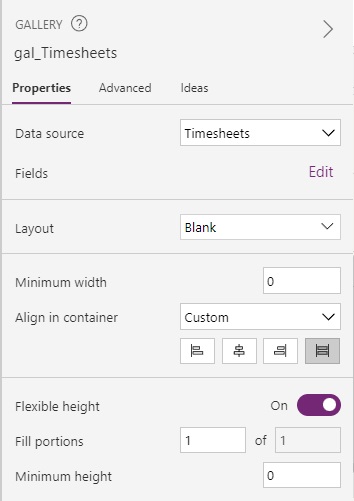
New timesheets will appear in the sidebar menu as they are created. The user can change to a different timesheet by clicking on it. Add a blank vertical gallery to the SidebarContainer.


Set the Flexible Height property of the gallery to true.


Use this code in the Items property of the gallery to show only the current user’s timesheets.

Sort(
    Filter(
        Timesheets,
        Employee.Email = User().Email
    ),
    StartDate,
    SortOrder.Descending
)


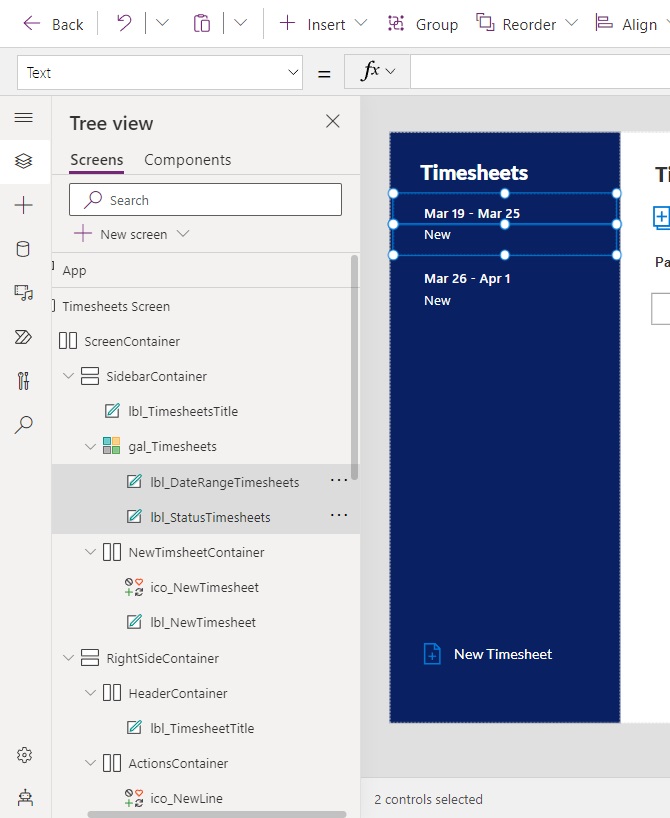
Insert two labels into the gallery to display the timesheet start & end date and status,


Use this code in the Text property of the date range label.

$"{Text(
    ThisItem.StartDate,
    "mmm d"
)} - {Text(
    ThisItem.EndDate,
    "mmm d"
)}"


Write this code in the Text property of the status label.

ThisItem.Value.Status


Select A Timesheet From The Sidebar

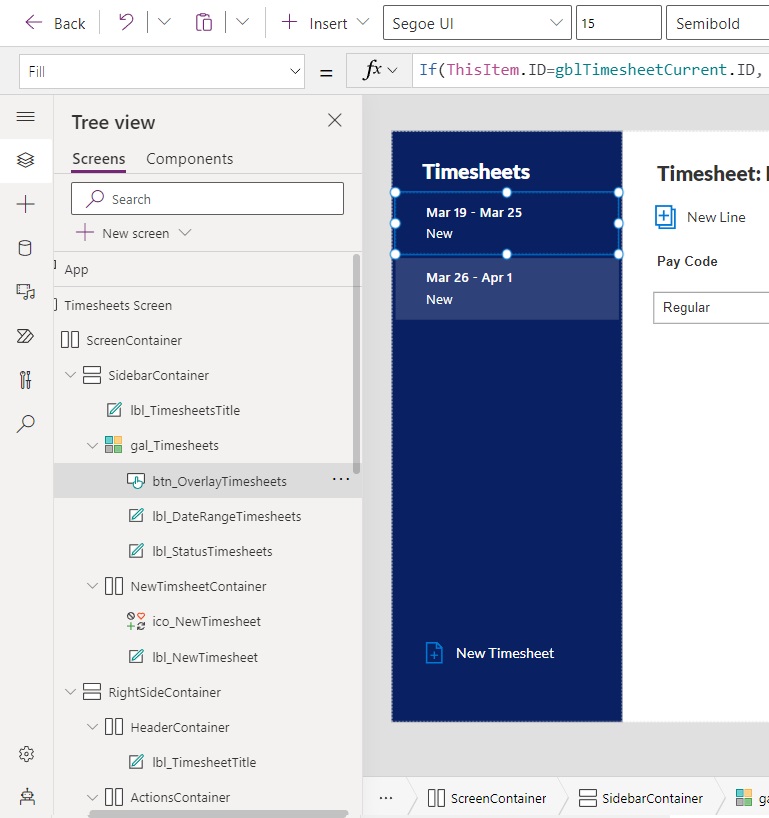
When a user selects a timesheet from the sidebar it should appear in the RightContainer. Add a button to the gallery and make it fill the entire gallery row. Remove any text found in the button.


Use this code in the OnSelect property of the button to select the current timesheet and load its timesheet lines.

Set(
    gblTimesheetCurrent,
    ThisItem
);
ClearCollect(
    colTimesheetLines,
    Filter(
        'Timesheet Lines',
        TimesheetID = gblTimesheetCurrent.ID
    )
);
Clear(colDeleteTimesheetLines)


Make the button Fill property transparent when the timesheet is not selected and show a slightly transparent white color when the timesheet is selected.

If(
    ThisItem.ID=gblTimesheetCurrent.ID,
    RGBA(255, 255, 255, 0.15),
    Color.Transparent
)


Also update the HoverFill and PressedFill properties to this code.

RGBA(255, 255, 255, 0.15)


Timesheets App Completed

The timesheets app is now completed. Add any additional features that are required then deploy it to the organization.


Did You Enjoy This Article? 😺

Subscribe to get new Power Apps articles sent to your inbox each week for FREE


Questions?

If you have any questions or feedback about Make A Power Apps Timesheet App – Part 2 please leave a message in the comments section below. You can post using your email address and are not required to create an account to join the discussion.

The post Make A Power Apps Timesheet App – Part 2 appeared first on Matthew Devaney.

✇Matthew Devaney

The Complete Power Apps Modern Controls Guide

Welcome to the Complete Power Apps Modern Controls Guide

On this page you will find documentation on how to use all 13 of the Power Apps Modern controls. Every modern control property is described to tell you how it works. You’ll also find handy usage tips.

Why did I create this guide?

  • The official documentation for each Power Apps modern control is not finished yet and I wanted a reference right now.
  • I like documentation with lots of pictures to show what changing control’s properties actually does
  • As the modern controls library expands I can give my own commentary on proper usage and limitations


I hope you enjoy the Complete Power Apps Modern Controls Guide


List Of Power Apps Modern Controls

BadgeDisplay short items of information, such as a person’s initials or a status indicator.
ButtonTriggers an action when clicked or tapped
CheckboxAllows the user to select one or more options from a list of choices.
Date Picker Enables the user to select a date from a calendar.
DropdownAllows users to select one option from a list of predefined options by clicking or tapping on a downward arrow.
Info ButtonProvides additional information or context about a particular feature, field or setting within an app
LinkClickable element that redirects users to a web page
Progress Bar Visual representation of the completion status of a task or process.
Radio GroupAllows users to select one option from a set of mutually exclusive options.
SpinnerVisual element that indicates to the user that content is being loaded or processed.
Tab ListDisplays a set of tabs, each representing a different section or page within an app.
Text InputLets users enter text or data into a form or field.
TextDisplays descriptive text or instructions for other user interface components.


Enable Power Apps Modern Controls

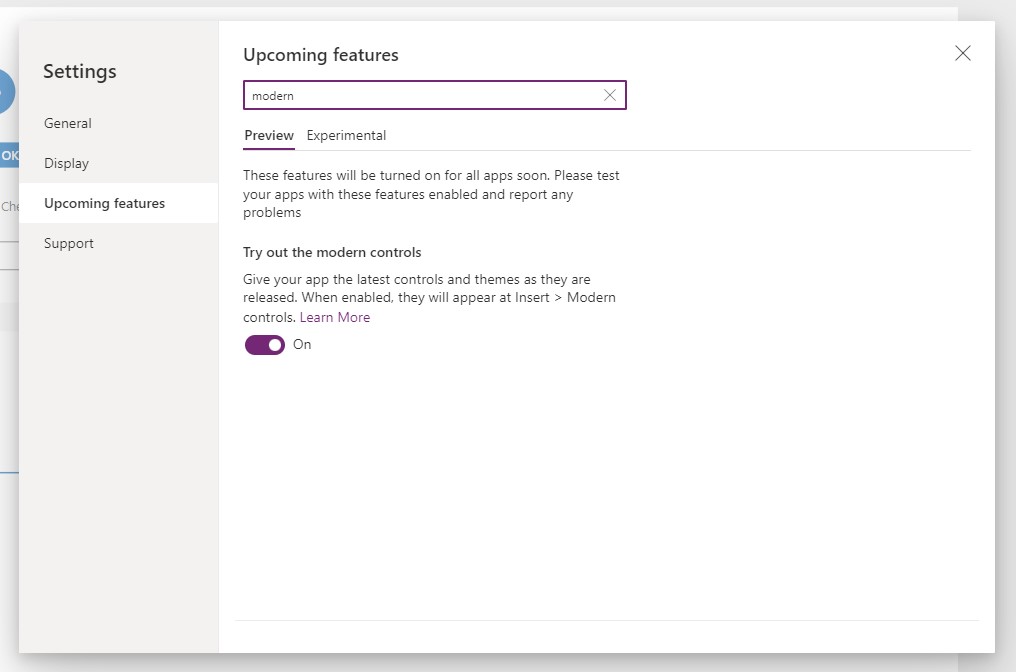
Power Apps Modern Controls are not turned on in studio mode by default. Go the Settings menu > Upcoming Features and then toggle on the feature named Try out the modern controls.


Did You Enjoy This Article? 😺

Subscribe to get new Power Apps articles sent to your inbox each week for FREE


Questions?

If you have any questions or feedback about The Complete Power Apps Modern Controls Guide please leave a message in the comments section below. You can post using your email address and are not required to create an account to join the discussion.

The post The Complete Power Apps Modern Controls Guide appeared first on Matthew Devaney.

✇Matthew Devaney

Make A Power Apps Timesheets App – Part 1

Timesheets are a popular app to make in Power Apps. In this step-by-step tutorial, I’ll show you how to build your own timesheets app. We will begin by creating timesheet lines with ability to add, edit, delete them. Then we will add the ability to create new timesheets and submit them for approval. I know it’s possible to download a pre-made timesheets template. But I believe the best way to learn Power Apps is to build apps for yourself.

Table of Contents
• Introduction: The Timesheets AppSetup The Timesheet Lines SharePoint ListAdd A New Screen With The Sidebar LayoutInsert An App Title LabelCreate An Actions BarLayout The Timesheet Lines Table HeadingsConfigure The Pay Code Dropdown MenuArrange The Time Entry Fields For Sunday To SaturdayCalculate The Total Hours For Each Timesheet LineDelete A Timesheet LineSave The Timesheet Lines


Introduction: The Timesheets App

Employees at a company enter their weekly worked hours into a Power Apps Timesheets app. Each timesheet has one or more timesheet lines with a specific paycode (regular, overtime, sick, etc.). When the timesheet is completed the employee submits it to their manager for review.


Setup The Timesheet Lines SharePoint List

Create a new SharePoint list named Timesheet Lines with the following columns:

  • PayCode (single-line text)
  • Sunday (number)
  • Monday (number)
  • Tuesday (number)
  • Wednesday (number)
  • Thursday (number)
  • Friday (number)
  • Saturday (number)
  • TotalHours (calculated number)
  • AppGUID (single line text)


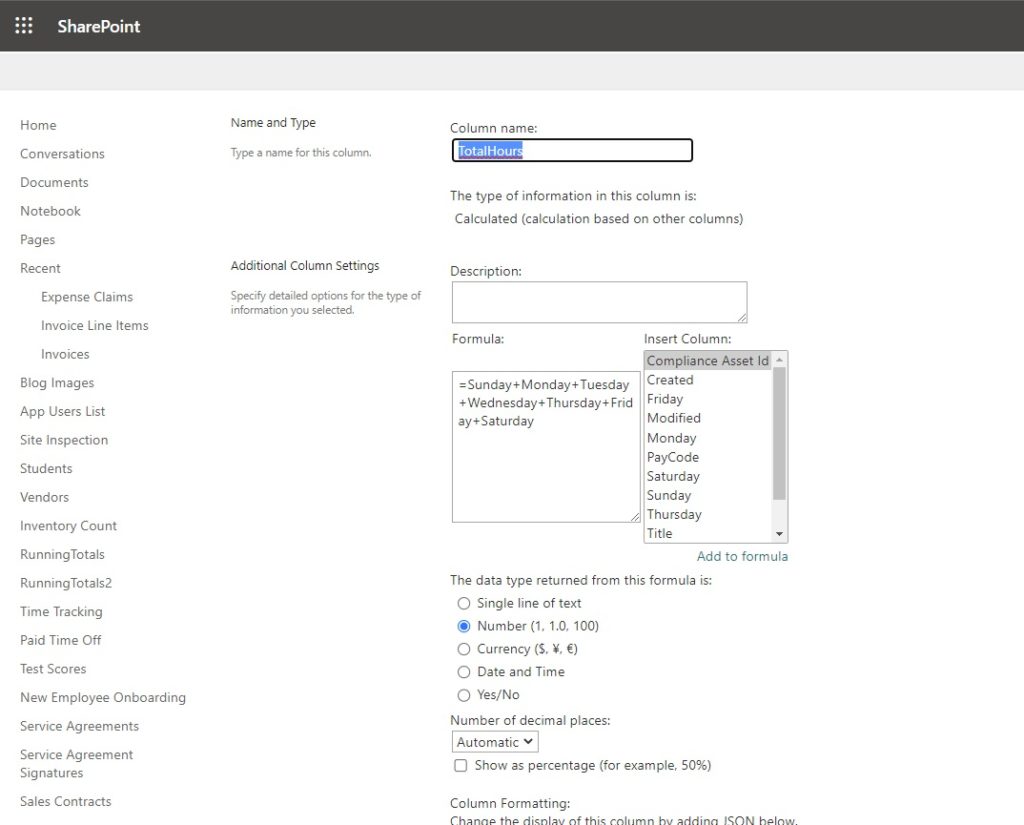
Go to the SharePoint list settings and edit the TotalHours column.


Change the calculated field formula to this formula.

=Sunday+Monday+Tuesday+Wednesday+Thursday+Friday+Saturday


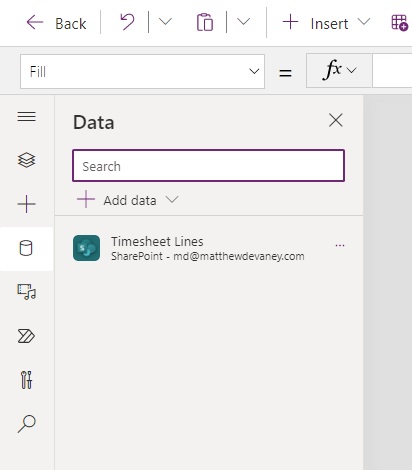
Then open Power Apps Studio and create a new app from blank. Add the Timesheet Lines SharePoint list to the app using the Data menu.


Add A New Screen With The Sidebar Layout

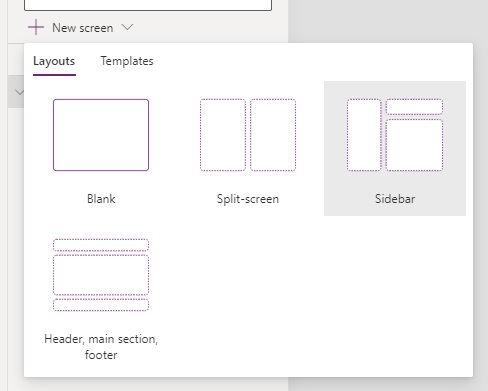
In Power Apps Studio add a new screen to the app. Choose the sidebar layout.


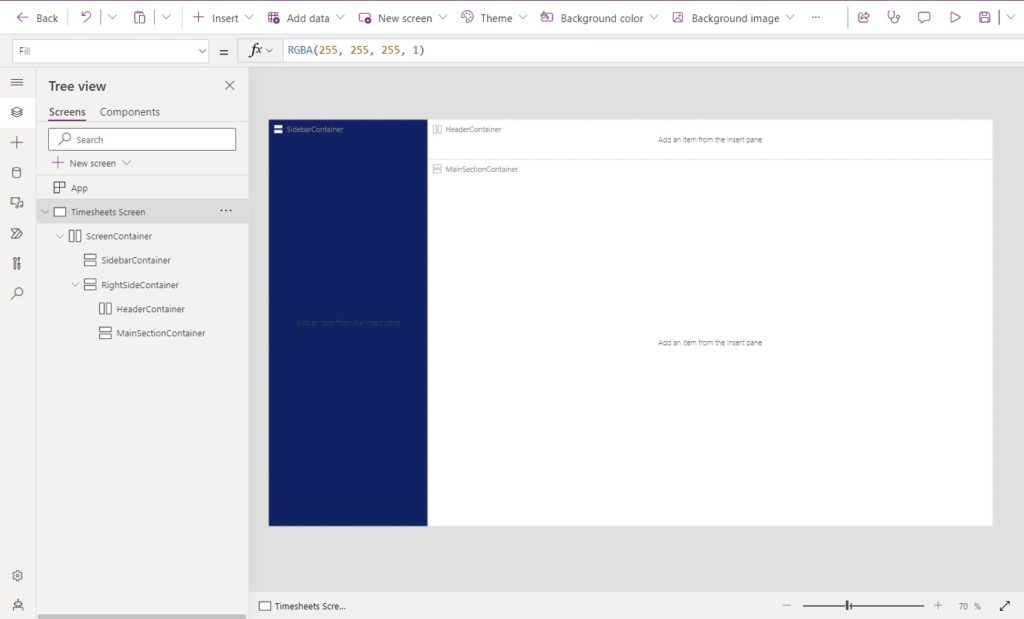
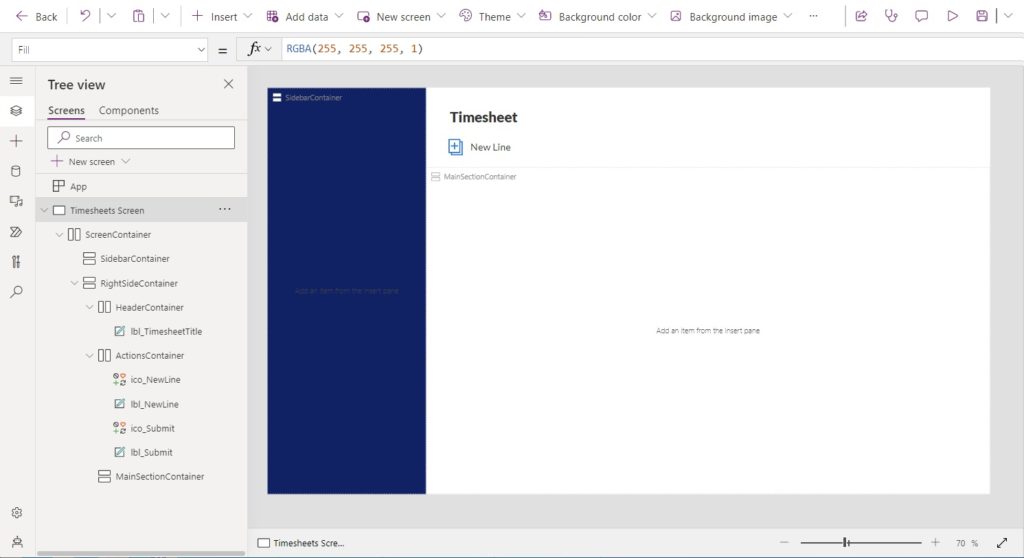
The new screen will appear with several layout containers

  • ScreenContainer
  • SidebarContainer
  • RightSideContainer
  • HeaderContainer
  • MainSectionContainer


Change the Fill property of the SidebarContainer container to dark blue.

RGBA(9, 33, 98, 1)


Insert An App Title Label

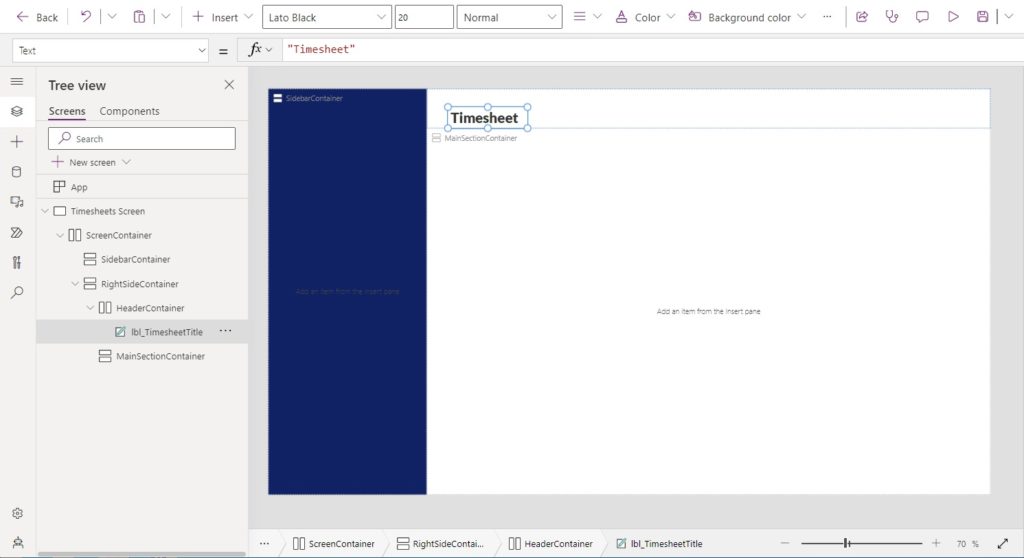
Create a new label in the the HeaderContainer with the word “Timesheet.”


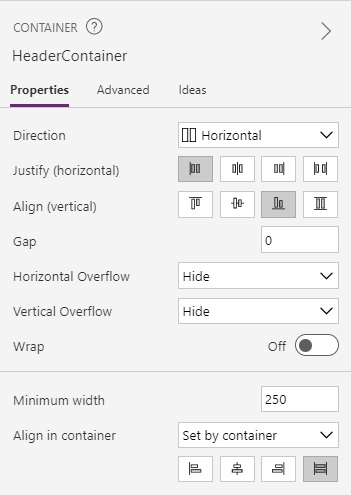
Configure the HeaderContainer to have a bottom vertical alignment. This will cause the title label to also become bottom-aligned.


Then update the following properties in the title label.

Font: Font.'Lato Black'
Height: 40
PaddingLeft: 40
Size: 20


Create An Actions Bar

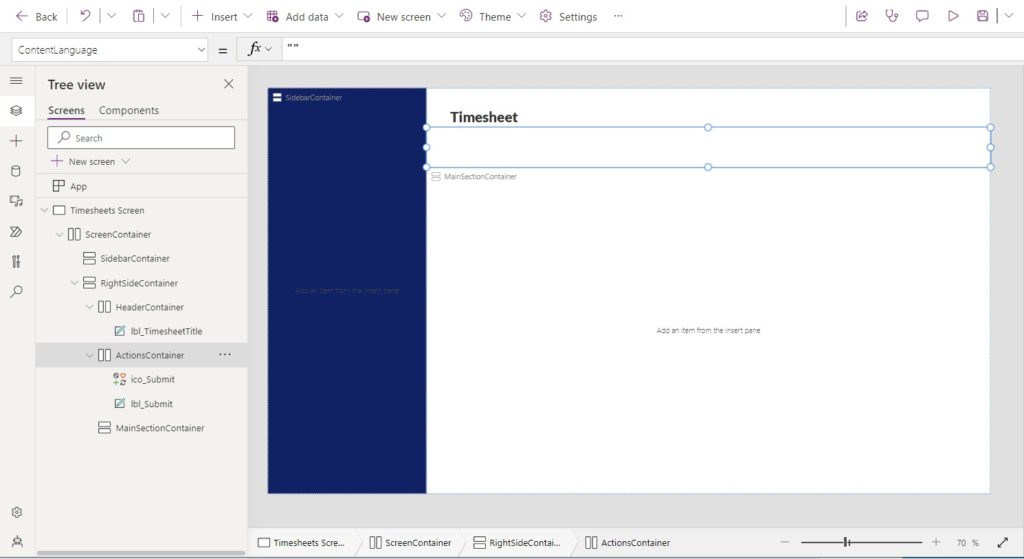
Underneath the HeaderContainer we will make an actions bar. Eventually, the actions bar will give a user the ability to create timesheet lines, save the timesheet, submit the timesheet and delete the timesheet.

Copy and paste the HeaderContainer into the RightSideContainer. Rename the new container ActionsContainer.


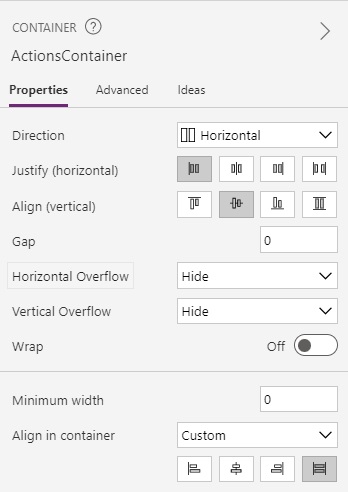
Change the vertical alignment of the Actions Container to middle.


Add an icon and a label the to the ActionsContainer for purpose of adding a new timesheet line.


Set the Icon property of the Icon to AddLibrary.

Icon.AddLibrary


Write this code in the OnSelect property of the icon to create a blank new timesheet line.

Collect(
    colTimesheetLines,
    Defaults('Timesheet Lines')
)


Layout The Timesheet Lines Table Headings

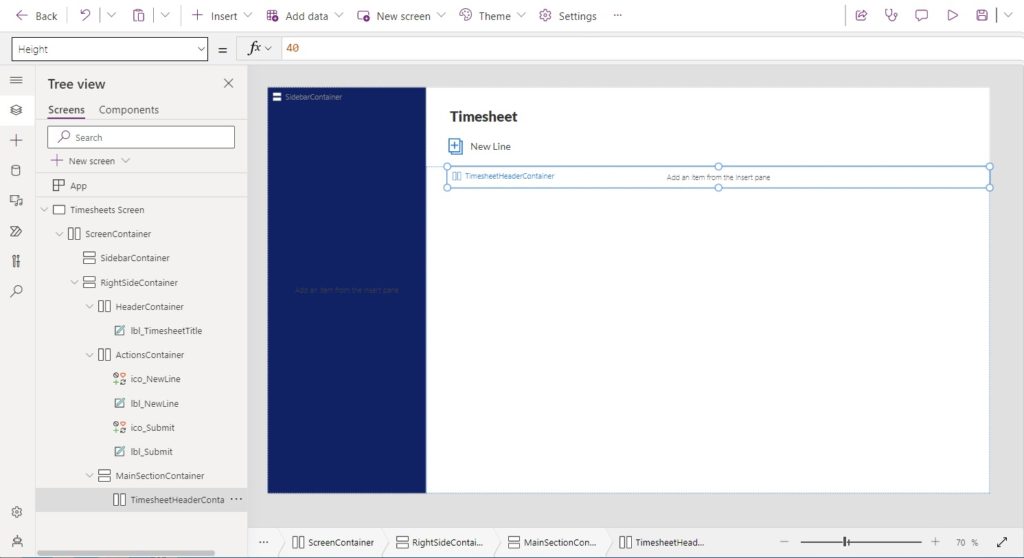
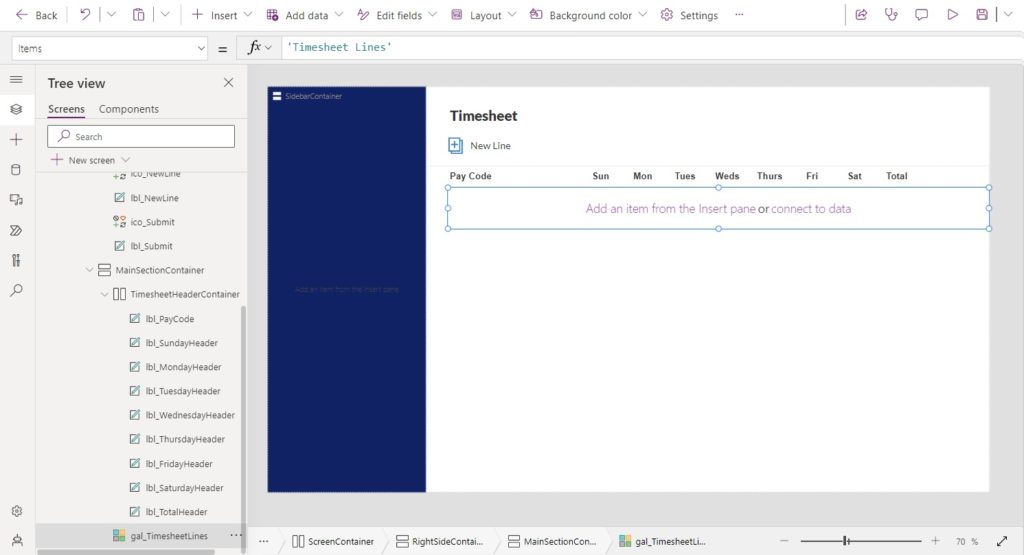
The timesheet lines will appear in a table-like format with the days Sunday to Saturday arranged from left to write. We need to create the table header. Insert a new horizontal container in the MainSectionContainer called TimesheetHeaderContainer.


Setup the TimesheetHeaderContainer properties with the following values.

Height: 40
LayoutGap: 20


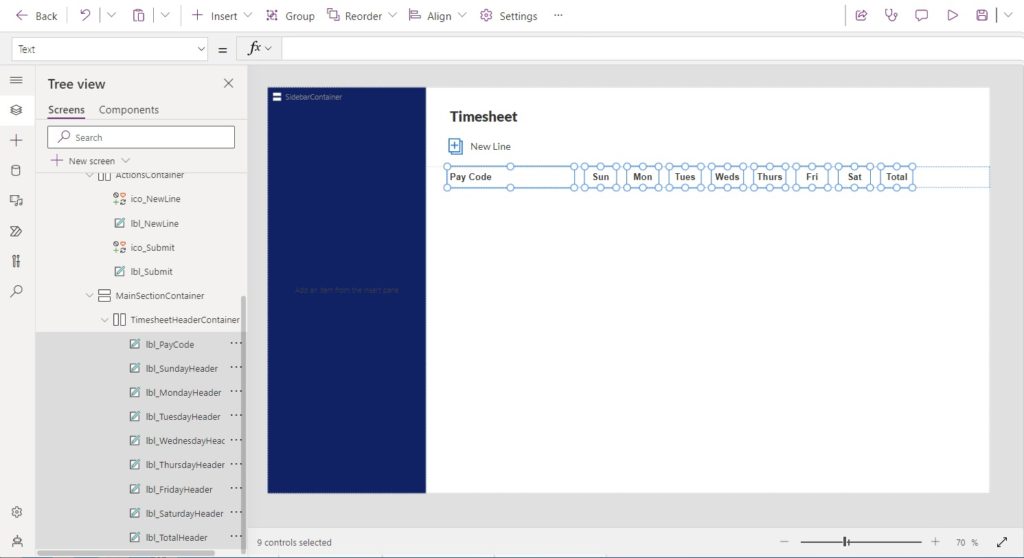
Insert 9 new labels into the TimesheetHeaderContainer with the following text.

  • PayCode
  • Sun
  • Mon
  • Tues
  • Weds
  • Thurs
  • Fri
  • Sat
  • Total


Configure The Pay Code Dropdown Menu

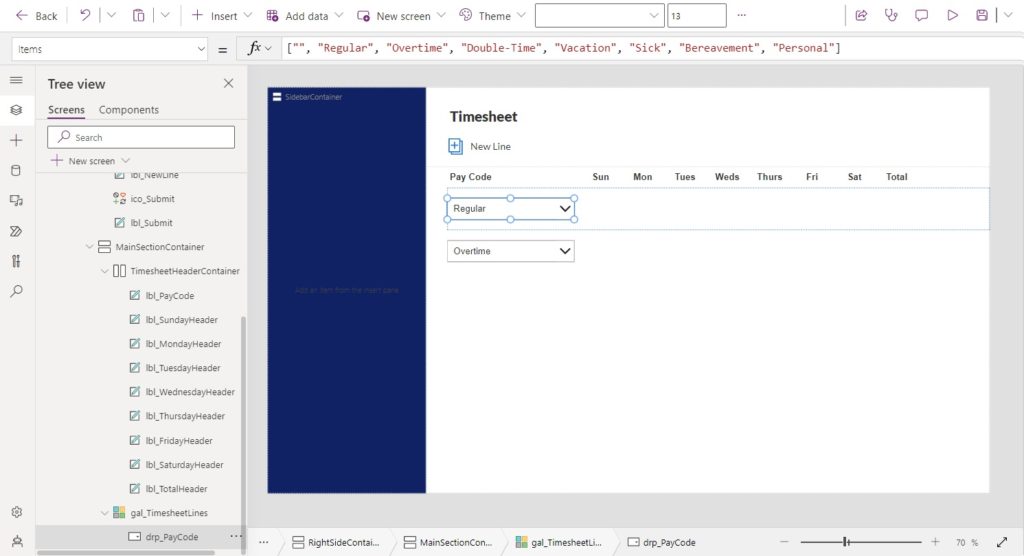
We want the app to allow multiple lines per timesheet for pay codes such as: regular, overtime, vacation, sick, etc. Insert a new vertical gallery into the app.


Use the Timesheet Lines collection in the Items property of the gallery.

colTimesheetLines


Place a new dropdown menu named drp_PayCode at left-side of the gallery.


Load the Items property of the dropdown menu with the following values.

["Regular", "Overtime", "Double-Time", "Vacation", "Sick", "Bereavement", "Personal"]


Soon we will build a feature to save the timesheet line values to SharePoint. To show the saved value of the pay code use this value in the Default property of the dropdown.

ThisItem.PayCode


Arrange The Time Entry Fields For Sunday To Saturday

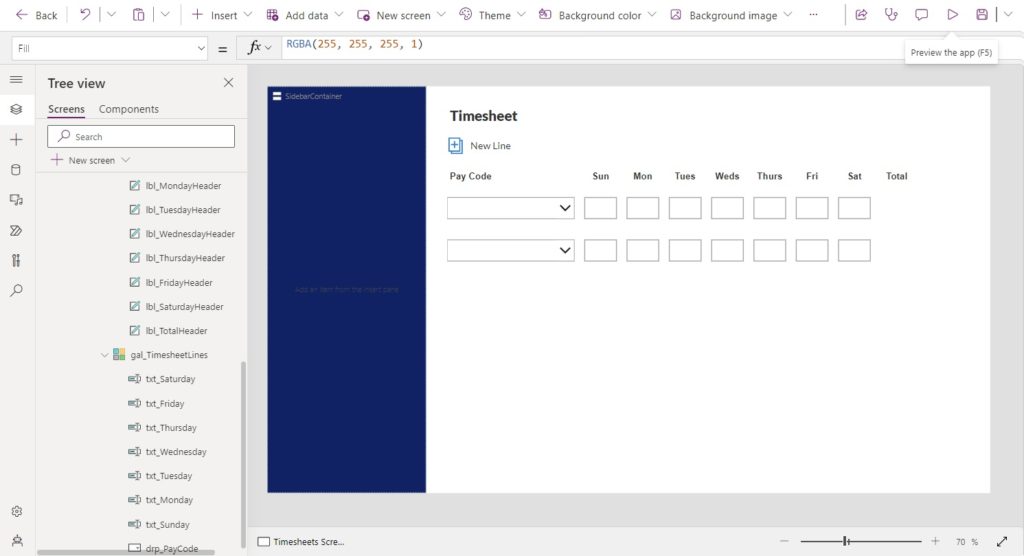
The app user will enter their time for each day into a text input. Create 7 new text inputs and place them inside the the gallery.


We want to ensure the text input fields stay aligned with the table headers. Use the following code inside the X property of the respective text input fields.

Sunday TextInput: lbl_SundayHeader.X
Mon TextInput: lbl_MondayHeader.X
Tues TextInput: lbl_TuesdayHeader.X
Weds TextInput: lbl_WednesdayHeader.X
Thurs TextInput: lbl_ThursdayHeader.X
Fri TextInput: lbl_FridayHeader.X
Sat TextInput: lbl_SaturdayHeader.X


The user should only be able to write a number into the text input. Update the TextFormat property of all text inputs to the number type.

TextFormat.Number


To show the saved number of hours for each day use this value in the Default property of the respective text input.

Sunday TextInput: ThisItem.Sunday
Monday TextInput:ThisItem.Monday
Tuesday TextInput: ThisItem.Tuesday
Wednesday TextInput: ThisItem.Wednesday
Thursday TextInput: ThisItem.Thursday
Friday TextInput: ThisItem.Friday
Saturday TextInput: Thistem.Saturday


Calculate The Total Hours For Each Timesheet Line

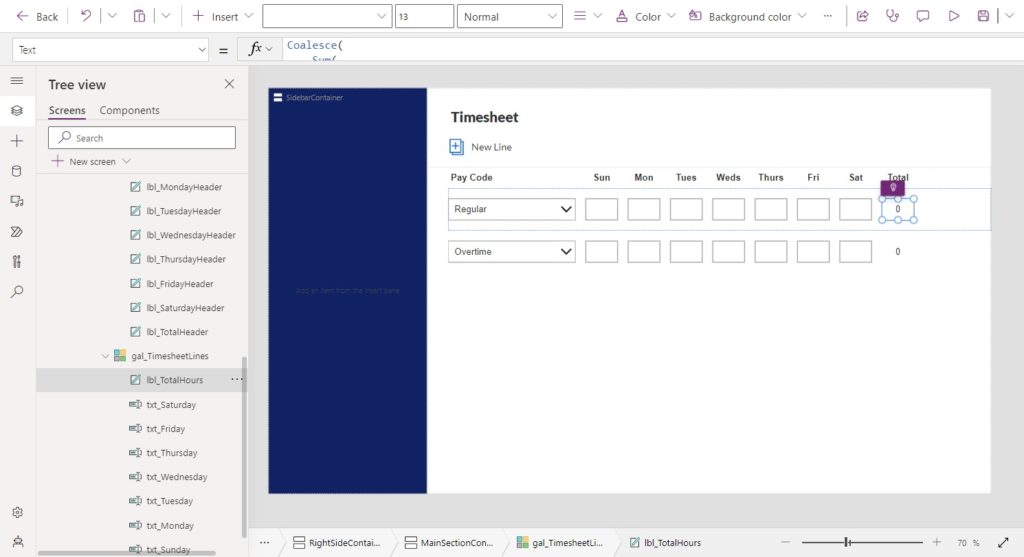
The SharePoint list uses a calculated field to determine the total number of hours on a timesheet line. But we also need to calculate this value in the app for unsaved timesheet lines.

Add a new label to the gallery.


Set the X position of the label to the same position as the TotalHours header.

lbl_TotalHoursHeader.X


Calculate the total of the timesheet line as the sum of the text inputs for Sunday to Saturday and show 0 when they are all blank. Write this code in the text property of the label.

Coalesce(
    Sum(
        Value(txt_Sunday.Text),
        Value(txt_Monday.Text),
        Value(txt_Tuesday.Text),
        Value(txt_Wednesday.Text),
        Value(txt_Thursday.Text),
        Value(txt_Friday.Text),
        Value(txt_Saturday.Text)
    ),
    0
)


Delete A Timesheet Line

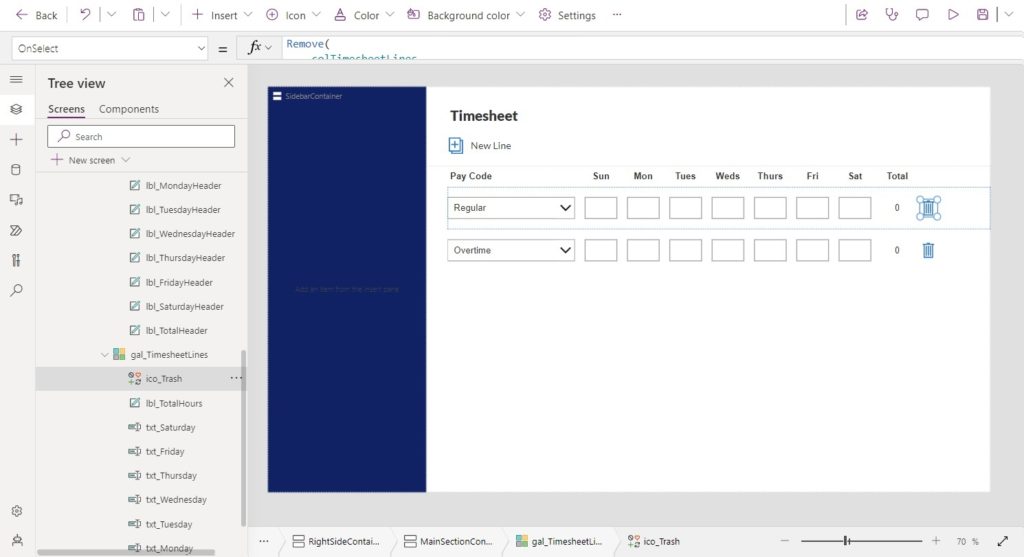
A user has the ability to remove a timesheet line from the timesheet. Insert a Trash icon into the gallery after the total hours label.


Use this code in the OnSelect property of the Trash icon to remove the timesheet line from the colTimsheetLines collection. If the timesheet line ID is not blank, it means the timesheet line exists in the SharePoint list and must be deleted there as well.

Remove(
    colTimesheetLines,
    ThisItem
),
If(
    !IsBlank(ThisItem.ID),
    Collect(
        colDeleteTimesheetLines,
        ThisItem
    );
)


Save The Timesheet Lines

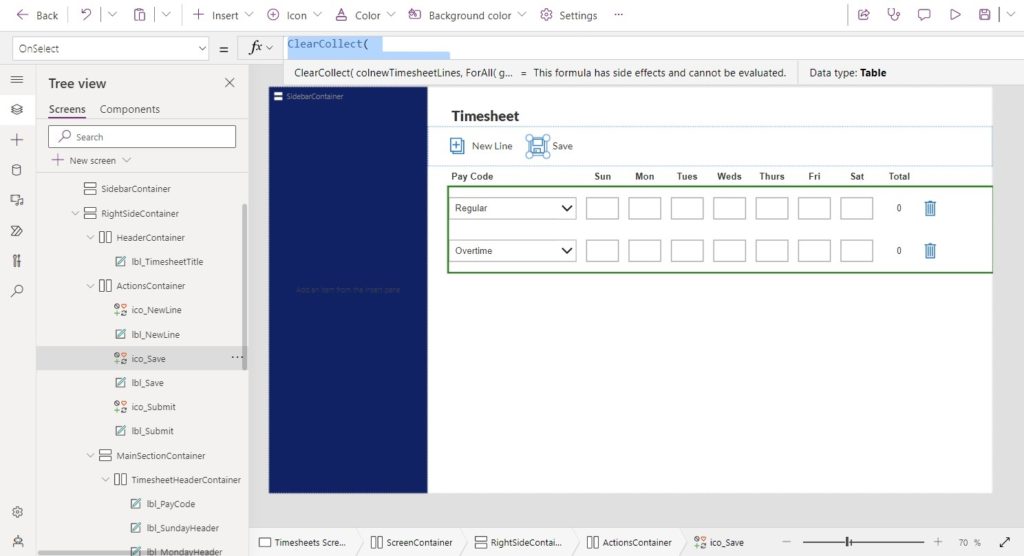
Once the timesheet is completed the user saves the updated timesheet lines. Insert a Save icon into the ActionsContainer.


Write this code in the OnSelect property of the gallery to store all of the timesheet lines in collection and patch them to the SharePoint list with new values.

// collection to update timesheet lines
ClearCollect(
    colUpdateTimesheetLines,
    ForAll(
        gal_TimesheetLines.AllItems,
        'Timesheet Lines'@{
            ID: ID,
            PayCode: drp_PayCode.Selected.Value,
            Sunday: Value(txt_Sunday.Text),
            Monday: Value(txt_Monday.Text),
            Tuesday: Value(txt_Tuesday.Text),
            Wednesday: Value(txt_Wednesday.Text),
            Thursday: Value(txt_Thursday.Text),
            Friday: Value(txt_Friday.Text),
            Saturday: Value(txt_Saturday.Text)
        }
    )
);

// update timesheet lines and store the results
ClearCollect(
    colTimesheetLines,
    Patch(
        'Timesheet Lines',
        gal_TimesheetLines.AllItems,
        colUpdateTimesheetLines
    )
);

// delete timesheet lines
ForAll(
    colDeleteTimesheetLines,
    Remove(
        'Timesheet Lines',
        ThisRecord
    )
);
Clear(colDeleteTimesheetLines);


Ready For Part 2 Of This Tutorial?

In Make A Power Apps Timesheets App – Part 2 we will add the ability to create new timesheets and submit them for approval. Click here to continue the tutorial.


Did You Enjoy This Article? 😺

Subscribe to get new Power Apps articles sent to your inbox each week for FREE


Questions?

If you have any questions or feedback about Make A Power Apps Timesheets App – Part 1 please leave a message in the comments section below. You can post using your email address and are not required to create an account to join the discussion.

The post Make A Power Apps Timesheets App – Part 1 appeared first on Matthew Devaney.

✇Matthew Devaney

23 Power Apps Filter Function Examples For SharePoint

The Power Apps Filter function checks a table for any records matching a set of logical criteria. Then it extracts the results into a new table. Use these examples to help you filter a SharePoint list. All of the filter functions on this page support delegation so the full results set will be returned.

Table of Contents

• Filter A SharePoint Text Column In Power AppsText Column EqualsText Column Starts WithText Column Is BlankFilter A SharePoint Number Column In Power AppsNumber Column Is Greater Than Or Less ThanNumber Column Is Greater Than Or Equal To/Less Than Or Equal ToNumber Column Does Not EqualNumber Column Is Between Two ValuesFilter A SharePoint Date Column In Power AppsDate Column Equals Current DateDate Column Equals A Specific DateDate Column Is Between Two DatesDate Columns Date Range Includes DateFilter A SharePoint Yes/No Column In Power AppsYes/No Column Equals YesYes/No Column Equals NoFilter A SharePoint Choice Column In Power AppsChoice Column EqualsFilter A SharePoint LookUp Column In Power AppsLookUp Column ID EqualsLookUp Column Value EqualsFilter A SharePoint Person Column In Power AppsPerson Column Equals Current UserPerson Column Equals User NamePerson Column Equals User EmailAdditional ExamplesAND Logical OperatorOR Logical OperatorNOT Logical OperatorMultiple Logical Operators


Filter A SharePoint Text Column In Power Apps


Text Column Equals


Input:

Inventory SharePoint List

IDTitleManufacturer
1DishwasherLG
2FreezerSamsung
3Kitchen FaucetKohler
4Kitchen SinkAmerican Standard
5RefrigeratorSamsung
6Stove


Code:

Get records where the Manufacturer column equals Samsung

Filter(Inventory, Manufacturer ="Samsung")


Output:

IDTitleManufacturer
2FreezerSamsung
5RefrigeratorSamsung


Text Column Starts With


Input:

Inventory SharePoint List

IDTitleManufacturer
1DishwasherLG
2FreezerSamsung
3Kitchen FaucetKohler
4Kitchen SinkAmerican Standard
5RefrigeratorSamsung
6Stove


Code:

Get records where the Title column starts with “Kitchen”

Filter(Inventory, Title="Kitchen")


Output:

IDTitleManufacturer
3Kitchen Faucet Kohler
4Kitchen Sink American Standard


Text Column Is Blank


Input:

Inventory SharePoint List

IDTitleManufacturer
1DishwasherLG
2FreezerSamsung
3Kitchen FaucetKohler
4Kitchen SinkAmerican Standard
5RefrigeratorSamsung
6Stove


Code:

Get records where the Manufacturer column is blank

Filter(Inventory, Manufacturer=Blank())


Output:

IDTitleManufacturer
6Stove


Filter A SharePoint Number Column In Power Apps


Number Column Is Greater Than Or Less Than


Input:

Inventory SharePoint List

IDTitleInStock
1Dishwasher9
2Freezer14
3Kitchen Faucet7
4Kitchen Sink10
5Refrigerator15
6Stove13


Code:

Get records where the InStock column is greater than 10

Filter(Inventory, InStock > 10)


Output:

IDTitleInStock
2Freezer14
5Refrigerator15
6Stove13


Number Column Is Greater Than/Less Than


Input:

Inventory SharePoint List

IDTitleInStock
1Dishwasher9
2Freezer14
3Kitchen Faucet7
4Kitchen Sink10
5Refrigerator15
6Stove13


Code:

Get records where the InStock column is greater than 10

Filter(Inventory, InStock > 10)


Output:

IDTitleInStock
2Freezer14
5Refrigerator15
6Stove13


Number Column Is Greater Than Or Equal To/Less Than Or Equal To


Input:

Inventory SharePoint List

IDTitleInStock
1Dishwasher9
2Freezer14
3Kitchen Faucet7
4Kitchen Sink10
5Refrigerator15
6Stove13


Code:

Get records where the InStock column is less than or equal to 10

Filter(Inventory, InStock <= 10)


Output:

IDTitleInStock
1Dishwasher9
3Kitchen Faucet7
4Kitchen Sink10


Number Column Does Not Equal


Input:

Inventory SharePoint List

IDTitleInStock
1Dishwasher9
2Freezer14
3Kitchen Faucet7
4Kitchen Sink10
5Refrigerator15
6Stove13


Code:

Get records where the InStock column does not equal 9

Filter(Inventory, InStock <> 9)


Output:

IDTitleInStock
2Freezer14
3Kitchen Faucet7
4Kitchen Sink10
5Refrigerator15
6Stove13


Number Column Is Between Two Values


Input:

Inventory SharePoint List

IDTitleInStock
1Dishwasher9
2Freezer14
3Kitchen Faucet7
4Kitchen Sink10
5Refrigerator15
6Stove13


Code:

Get records where the InStock column is between 5 and 10

Filter(Inventory, InStock >= 5 And InStock <= 10)


Output:

IDTitleInStock
1Dishwasher9
3Kitchen Faucet7
4Kitchen Sink10


Filter A SharePoint Date Column In Power Apps


Date Column Equals Current Date


Input:

Inventory SharePoint List

IDTitleLastSoldDate
1Dishwasher2/16/2023
2Freezer2/18/2023
3Kitchen Faucet3/1/2023
4Kitchen Sink3/4/2023
5Refrigerator2/23/2023
6Stove3/6/2023


Code:

Assuming the current date is March 6, 2023, get records where the LastSoldDate column equals today

Filter(Inventory, LastSoldDate = Today())


Output:

IDTitleLastSoldDate
6Stove3/6/2023


Date Column Equals A Specific Date


Input:

Inventory SharePoint List

IDTitleLastSoldDate
1Dishwasher2/16/2023
2Freezer2/18/2023
3Kitchen Faucet3/1/2023
4Kitchen Sink3/4/2023
5Refrigerator2/23/2023
6Stove3/6/2023


Code:

Get records where the LastSoldDate column equals March 1, 2023

Filter(Inventory, LastSoldDate >= Date(2023, 3, 1) And LastSoldDate <= Date(2023, 3, 31)


Output:

IDTitleLastSoldDate
3Kitchen Faucet3/1/2023


Date Column Is Between Two Dates


Input:

Inventory SharePoint List

IDTitleLastSoldDate
1Dishwasher2/16/2023
2Freezer2/18/2023
3Kitchen Faucet3/1/2023
4Kitchen Sink3/4/2023
5Refrigerator2/23/2023
6Stove3/6/2023


Code:

Get records where the LastSoldDate column is between March 1, 2023 and March 31, 2023

Filter(Inventory, LastSoldDate >= Date(2023, 3, 1) And LastSoldDate <= Date(2023, 3, 31)


Output:

IDTitleLastSoldDate
6Stove3/6/2023


Date Columns Date Range Includes Date


Input:

Inventory SharePoint List

IDTitlePromotionStartDatePromotionEndDate
1Dishwasher2/14/20232/28/2023
2Freezer2/20/20233/5/2023
3Kitchen Faucet2/24/20233/17/2023
4Kitchen Sink3/11/20233/18/2023
5Refrigerator3/15/20233/31/2023
6Stove3/17/20234/2/2023


Code:

Get records where the PromotionStartDate column and the PromotionEndDate column includes March 1, 2023

Filter(Inventory, PromotionStartDate <= Date(2023, 3, 1) And PromotionEndDate >= Date(2023, 3, 1)


Output:

IDTitlePromotionStartDatePromotionEndDate
2Freezer2/20/20233/5/2023
3Kitchen Faucet2/24/20233/17/2023


Filter A SharePoint Yes/No Column In Power Apps


Yes/No Column Equals Yes


Input:

Inventory SharePoint List

IDTitleOnSale
1DishwasherYes
2FreezerNo
3Kitchen FaucetNo
4Kitchen SinkNo
5RefrigeratorYes
6StoveNo


Code:

Get records where the OnSale column equals Yes

Filter(Inventory, OnSale = true)


Output:

IDTitleOnSale
1DishwasherYes
5RefrigeratorYes


Yes/No Column Equals No


Input:

Inventory SharePoint List

IDTitleOnSale
1DishwasherYes
2FreezerNo
3Kitchen FaucetNo
4Kitchen SinkNo
5RefrigeratorYes
6StoveNo


Code:

Get records where the OnSale column equals No

Filter(Inventory, OnSale = false)


Output:

IDTitleOnSale
2FreezerNo
3Kitchen FaucetNo
4Kitchen SinkNo
6StoveNo


Filter A SharePoint Choice Column In Power Apps


Choice Column Equals


Input:

Inventory SharePoint List

IDTitleOrderStatus
1DishwasherOrdered
2FreezerOrdered
3Kitchen FaucetNot Ordered
4Kitchen SinkDiscontinued
5RefrigeratorOrdered
6StoveNot Ordered


Code:

Get records where the OnSale column equals “Ordered”

Filter(Inventory, OrderStatus.Value = "Ordered")


Output:

IDTitleOrderStatus
1DishwasherOrdered
2FreezerOrdered
5RefrigeratorOrdered


Filter A SharePoint LookUp Column In Power Apps


LookUp Column ID Equals


Input:

Inventory SharePoint List

IDTitleManufacturer
1DishwasherLG
2FreezerSamsung
3Kitchen FaucetKohler
4Kitchen SinkAmerican Standard
5RefrigeratorSamsung
6Stove


Manufacturers SharePoint List

IDTitle
1LG
2Samsung
3Kohler
4American Standard


Code:

Get records from the Inventory table where the Manufacturer column ID equals 2

Filter(Inventory, Manufacturer.ID = 2)


Output:

IDTitleManufacturer
2FreezerSamsung
5RefrigeratorSamsung


LookUp Column Value Equals


Input:

Inventory SharePoint List

IDTitleManufacturer
1DishwasherLG
2FreezerSamsung
3Kitchen FaucetKohler
4Kitchen SinkAmerican Standard
5RefrigeratorSamsung
6Stove


Manufacturers SharePoint List

IDTitle
1LG
2Samsung
3Kohler
4American Standard


Code:

Get records from the Inventory table where the Manufacturer column value equals “Kohler”

Filter(Inventory, Manufacturer.Value = "Kohler")


Output:

IDTitleManufacturer
3Kitchen FaucetKohler


Filter A SharePoint Person Column In Power Apps


Person Column Equals Current User


Input:

Inventory SharePoint List

IDTitleBuyer
1DishwasherMatthew Devaney
2FreezerSarah Green
3Kitchen FaucetMatthew Devaney
4Kitchen SinkDavid Johnson
5RefrigeratorDavid Johnson
6StoveAlice Lemon


Code:

Assuming the current user is Matthew Devaney, get records from the Inventory table where the Buyer column equals the current user

Filter(Inventory, Buyer.Email = User().Email)


Output:

IDTitleManufacturer
1DishwasherMatthew Devaney
3Kitchen FaucetMatthew Devaney


Person Column Equals User Name


Input:

Inventory SharePoint List

IDTitleBuyer
1DishwasherMatthew Devaney
2FreezerSarah Green
3Kitchen FaucetMatthew Devaney
4Kitchen SinkDavid Johnson
5RefrigeratorDavid Johnson
6StoveAlice Lemon


Code:

Get records from the Inventory table where the Buyer column user name equals “Sarah Green”

Filter(Inventory, Buyer.'Display Name' = User().Name)


Output:

IDTitleManufacturer
2FreezerSarah Green


Person Column Equals User Email


Input:

Inventory SharePoint List

IDTitleBuyer
1DishwasherMatthew Devaney
2FreezerSarah Green
3Kitchen FaucetMatthew Devaney
4Kitchen SinkDavid Johnson
5RefrigeratorDavid Johnson
6StoveAlice Lemon


Code:

Get records from the Inventory table where the Buyer column email David.Johnson@retailstore.com

Filter(Inventory, Buyer.Email = "David.Johnson@retailstore.com")


Output:

IDTitleManufacturer
4Kitchen SinkDavid Johnson
5RefrigeratorDavid Johnson


Additional Examples


AND Logical Operator


Input:

Inventory SharePoint List

IDTitleManufacturerOnSale
1DishwasherLGYes
2FreezerSamsungNo
3Kitchen FaucetKohlerNo
4Kitchen SinkAmerican StandardNo
5RefrigeratorSamsungYes
6StoveNo


Code:

Get records from the Inventory table where the manufacturer column “Samsung” and the OnSale column equals Yes.

Filter(Inventory, Manufacturer="Samsung" And OnSale = true)


Output:

IDTitleManufacturerOnSale
5RefrigeratorSamsungYes


OR Logical Operator


Input:

Inventory SharePoint List

IDTitleManufacturerOnSale
1DishwasherLGYes
2FreezerSamsungNo
3Kitchen FaucetKohlerNo
4Kitchen SinkAmerican StandardNo
5RefrigeratorSamsungYes
6StoveNo


Code:

Get records from the Inventory table where the manufacturer column “Samsung” or the OnSale column equals Yes.

Filter(Inventory, Manufacturer="Samsung" Or OnSale = true)


Output:

IDTitleManufacturerOnSale
1DishwasherLGYes
2FreezerSamsungNo
5RefrigeratorSamsungYes


NOT Logical Operator


Input:

Inventory SharePoint List

IDTitleManufacturerOnSale
1DishwasherLGYes
2FreezerSamsungNo
3Kitchen FaucetKohlerNo
4Kitchen SinkAmerican StandardNo
5RefrigeratorSamsungYes
6StoveNo


Code:

Get records from the Inventory table where the manufacturer column is not “LG.”

Filter(Inventory, Not Manufacturer="LG")
Important note: the NOT operator does not support delegation. Use the <> equals operator instead.


Output:

IDTitleManufacturerOnSale
2FreezerSamsungNo
3Kitchen FaucetKohlerNo
4Kitchen SinkAmerican StandardNo
5RefrigeratorSamsungYes
6StoveNo


Multiple Logical Operators


Input:

Inventory SharePoint List

IDTitleManufacturerOnSale
1DishwasherLGYes
2FreezerSamsungNo
3Kitchen FaucetKohlerNo
4Kitchen SinkAmerican StandardNo
5RefrigeratorSamsungYes
6StoveNo


Code:

Get records from the Inventory table where the manufacturer column equals “Samsung” and OnSale equals Yes or the manufacturer column equals LG

Filter(Inventory, (Manufacturer="LG" And OnSale="Yes") Or Manufacturer="LG")


Output:

IDTitleManufacturerOnSale
1Dishwasher LGYes
5RefrigeratorSamsungYes


Did You Enjoy This Article? 😺

Subscribe to get new Power Apps articles sent to your inbox each week for FREE


Questions?

If you have any questions or feedback about 23 Power Apps Filter Function Examples For SharePoint please leave a message in the comments section below. You can post using your email address and are not required to create an account to join the discussion.

The post 23 Power Apps Filter Function Examples For SharePoint appeared first on Matthew Devaney.

✇Matthew Devaney

Power Apps Custom Page Modal Dialog For Model-Driven Apps

Power Apps custom pages can be used to build a modal dialog in model-driven apps. A modal dialog is a pop-up menu that lets the user fill in some information then click OK or cancel. This technique requires a little bit of JavaScript code. But don’t worry. If you’re a JavaScript beginner I’ve got code you can copy and paste into your own model-driven app to make it work. In this article, I will teach you how to make a Power Apps custom page modal dialog.

Table of Contents
• Introduction: The Review Comments Dialog BoxAdd A New Custom Page To The Model-Driven AppConfigure The App Display SettingsSetup The Custom Page App Object And ScreenCreate The Custom Page Modal Dialog Main ContainerInsert A Comments Box Into The Modal DialogCreate OK and Cancel Buttons For The Modal DialogAdd A Button To The Main Form Command BarAdd JavaScript Code To The Button To Open The Modal DialogWrite The JavaScript Code To Open The Modal DialogTest The Custom Page Modal Dialog


Introduction: The Review Comments Dialog Box

The I/T department uses the Asset Checkout app to manage loaning devices for users. The Reviews table stores user reviews for the device they borrowed. Comments can be edited using a modal dialog built using a custom page.


Create A New Power Apps Model-Driven App

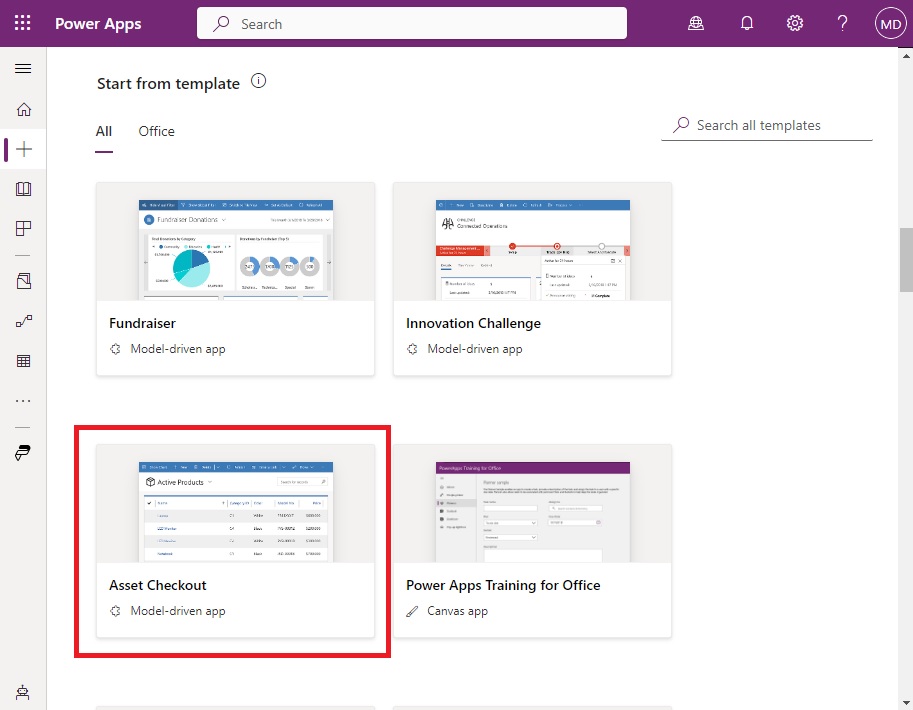
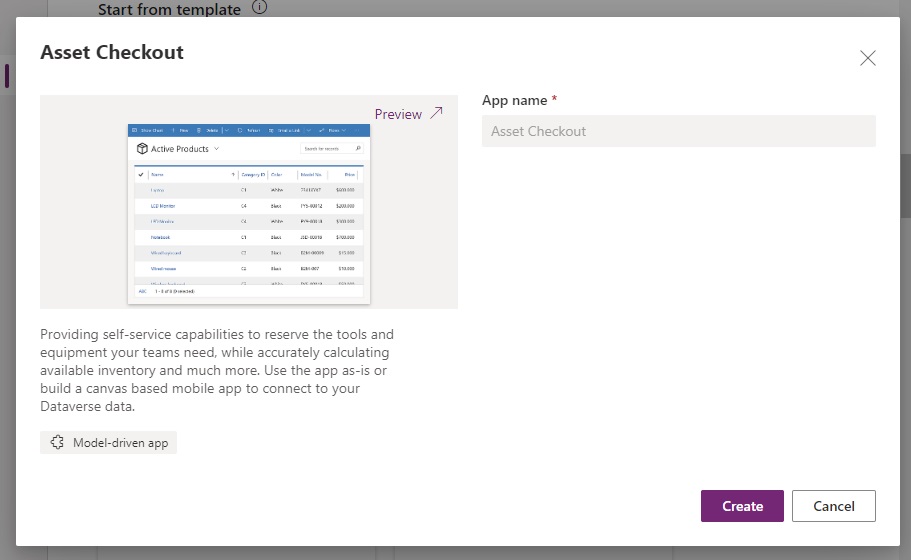
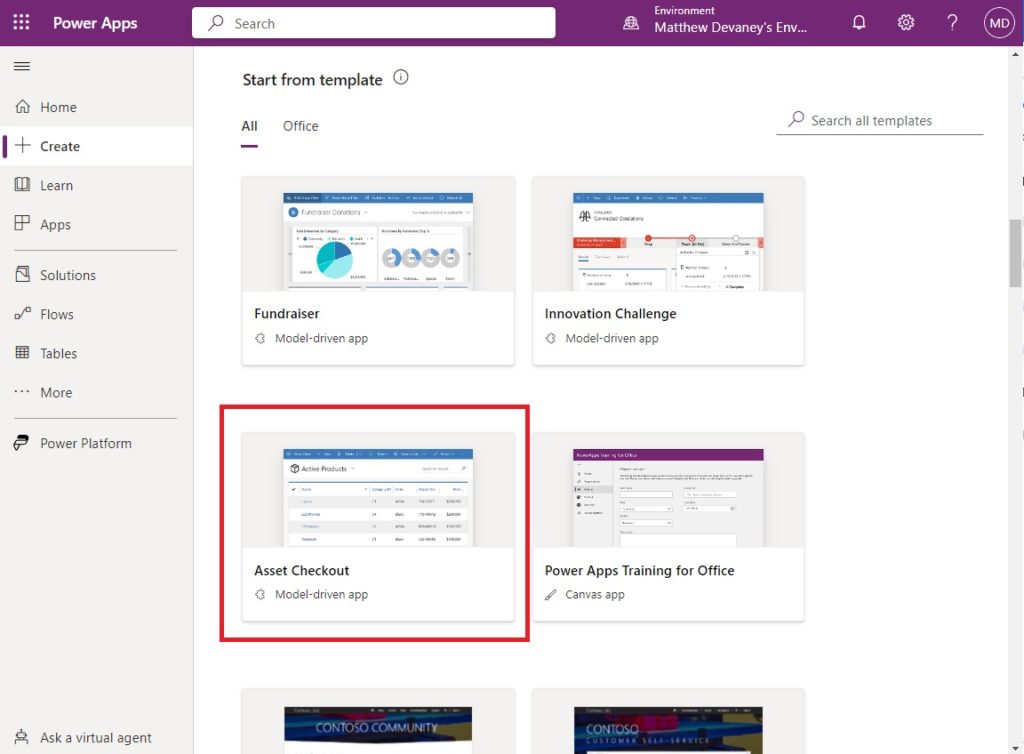
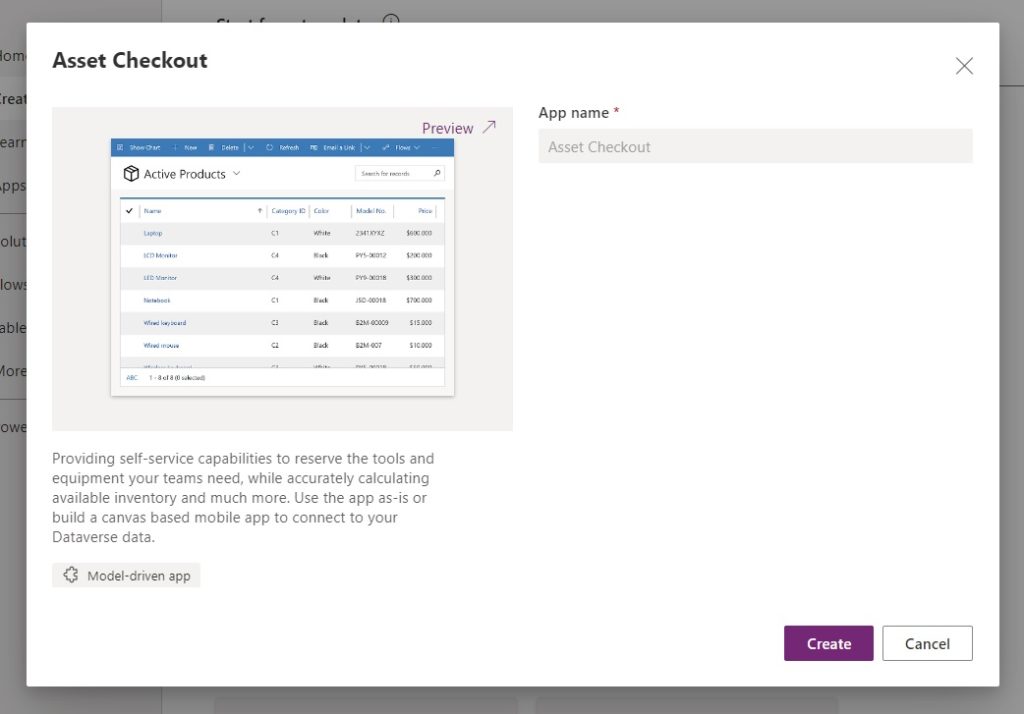
Open Power Apps Studio and navigate to the Create page. Select the Asset Checkout model-driven app template.


Click the Create button.


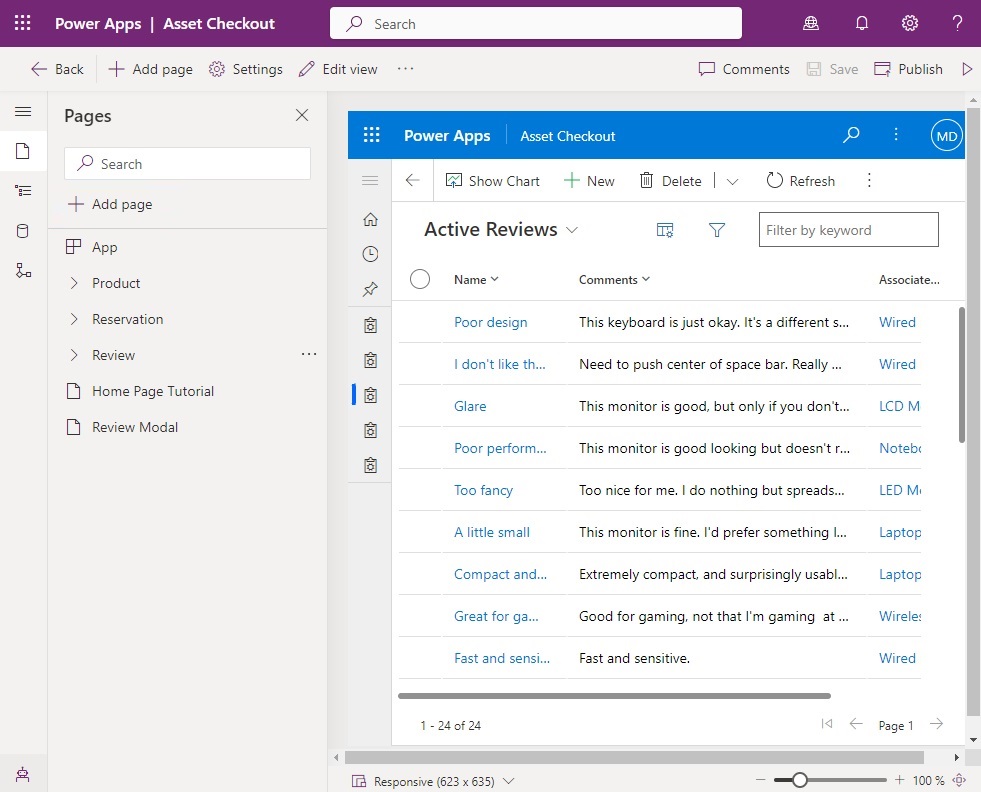
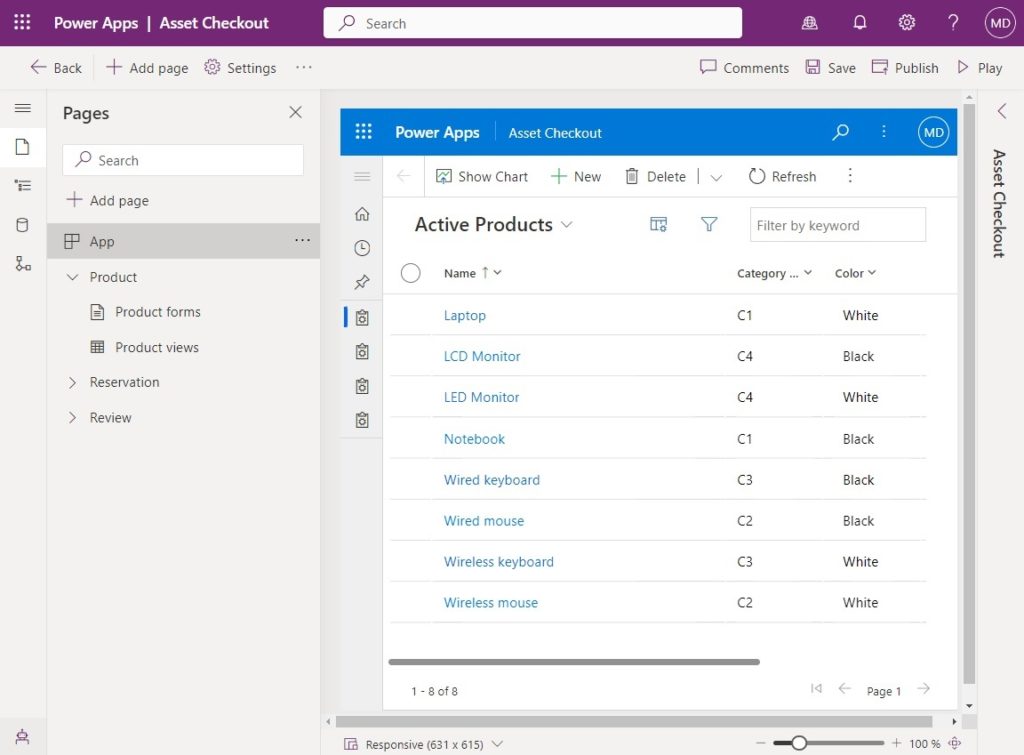
The Asset Checkout app will open in the model-driven app editor.


Add A New Custom Page To The Model-Driven App

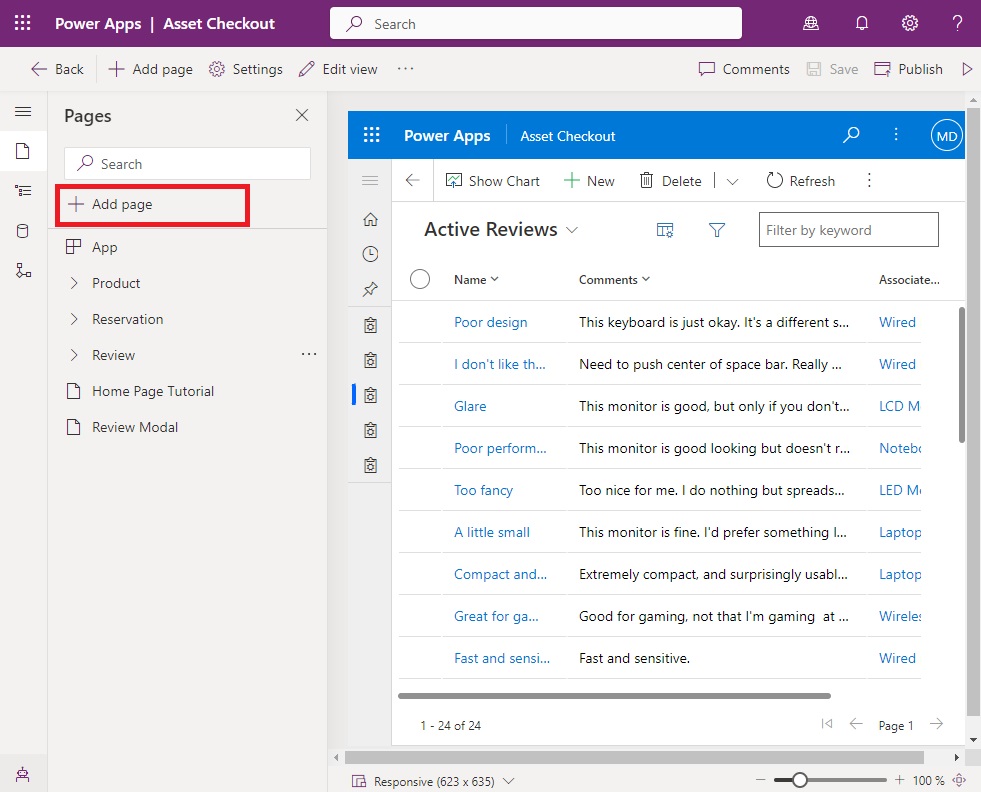
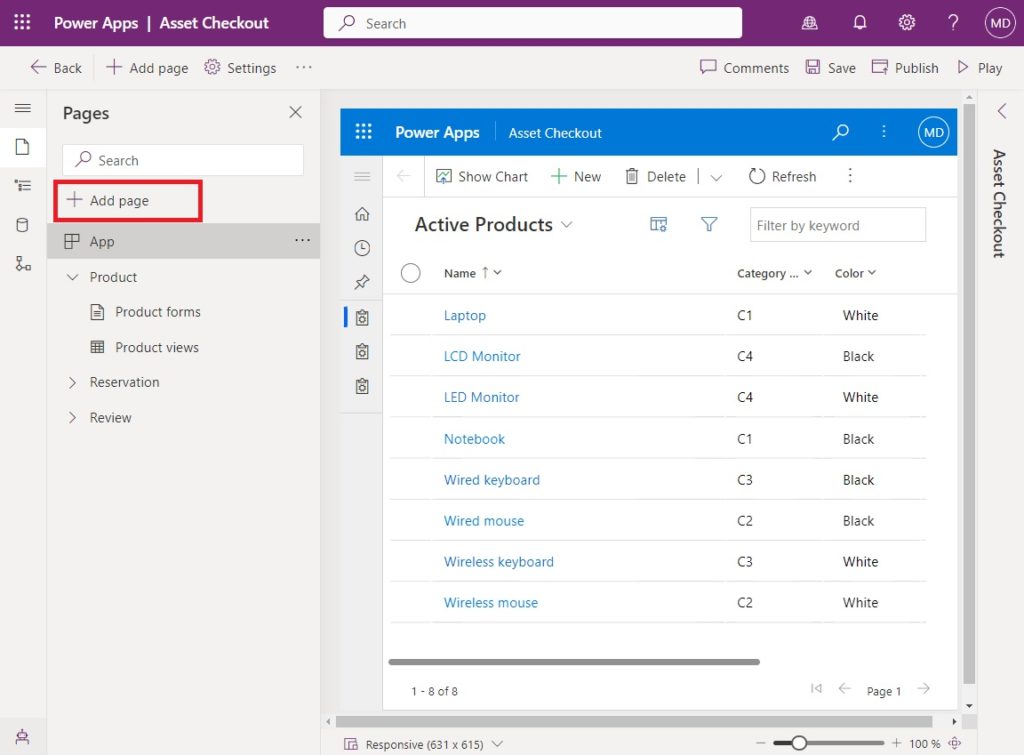
Press the Add page button in the model-driven app editor


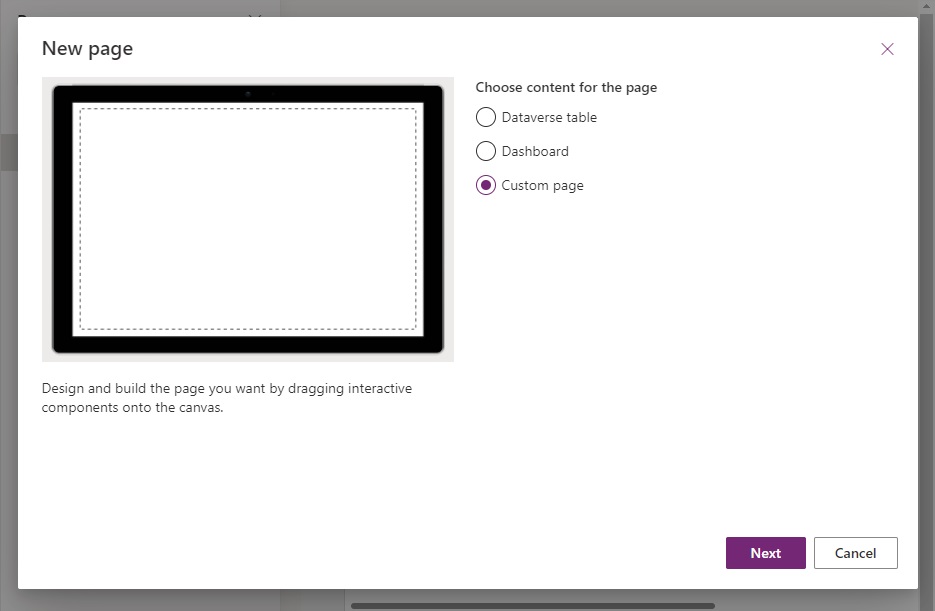
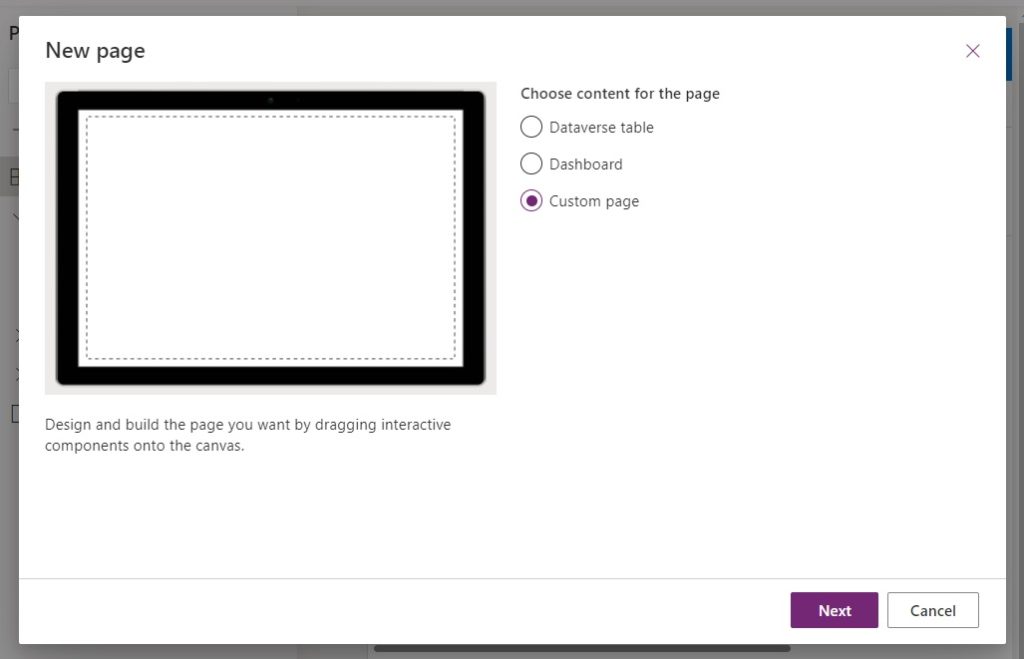
Select Custom page.


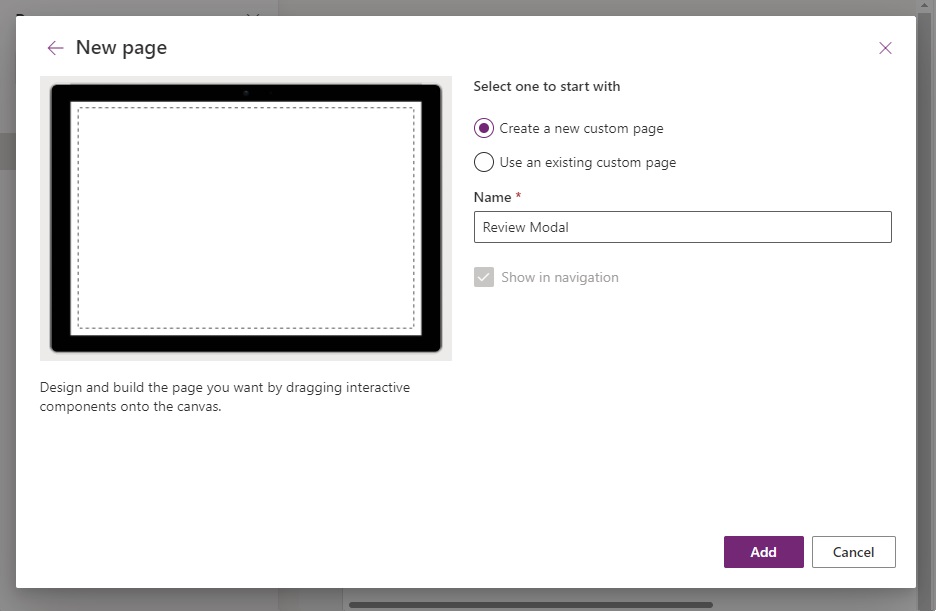
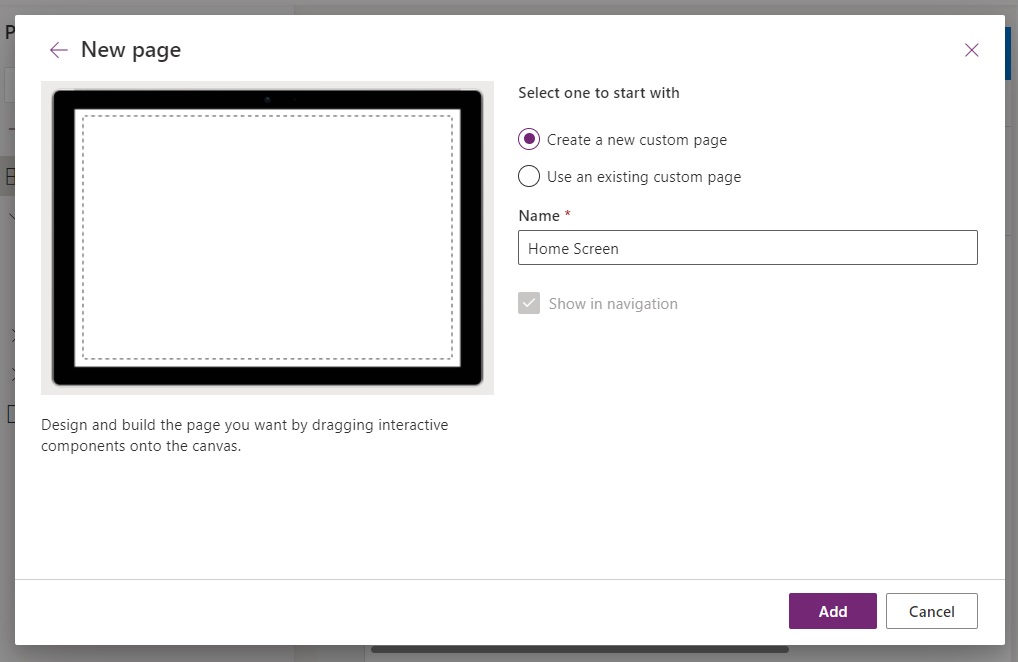
Choose Create a new custom page called Review Modal then click the Add button. This will open a new custom page in the canvas app designer.


Configure The App Display Settings

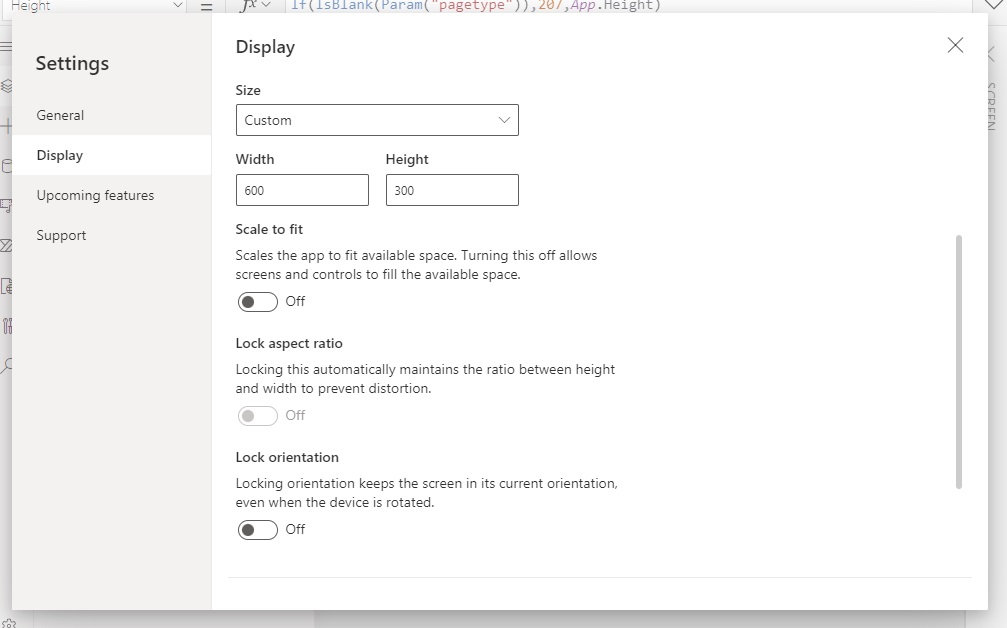
In Power Apps Studio, the custom page will appear on the screen as a full-size page. To make the modal dialog smaller, open the Advanced Settings menu and go to Display. Change the Width and Height to 600 x 300 pixels. Also, toggle off the Scale to fit option. This will allow the modal dialog to become responsive and properly sized on mobile, tablet and PC.


Setup The Custom Page App Object And Screen

We will starting building the custom page modal dialog by updating the app object.


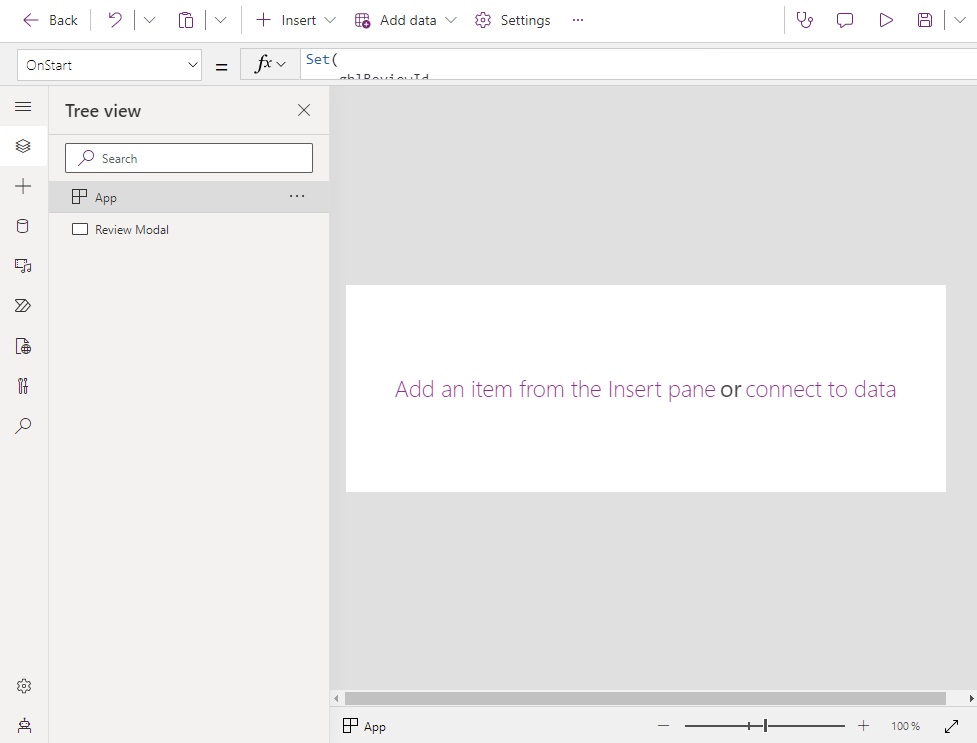
Write this code in the OnStart property of the app object. It gets the recordId from Dataverse and stores it in a variable called gblReviewId. The GUID is in the format “{725851A0-B573-4A33-B609-DA0F2E202EFA}” so we must remove the curly braces and change the data type from string to GUID.

Later in this tutorial, we will learn how to pass a GUID to the modal dialog using URL parameters. Nothing should appear in the custom page at this point. Then we use the variable gblReviewId to obtain the Review record from the reviews table and store it in a variable named gblReview.

Set(
    gblReviewId,
    GUID(Mid(Param("recordId"),2, Len(Param("recordId"))-2))
);
Set(
    gblReview,
    LookUp(
        Reviews,
        Review = gblReviewId
    )
)


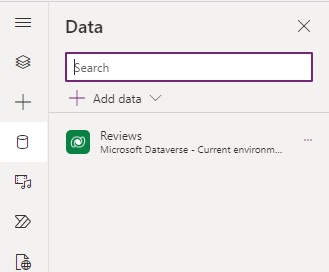
To use the Reviews table in the OnStart property code make sure it is added to the Data menu.


Also, change the minimum screen width and height to 200 x 200.

MinScreenHeight: 200
MinScreenWidth: 200


Then set the width and height of the screen named Review Modal.


Set the following properties to change the screen width and height. The height property uses a formula to check whether the app is running in studio mode or in play mode. In play mode, the modal dialog comes with a header that is 53 pixels tall. Therefore, when we are in studio mode we must decrease custom page modal dialog height by 53 pixels.

We will set the pagetype URL parameter later in the tutorial. For now, enter the code shown below and trust me that it will work.

Height: App.Height - If(IsBlank(Param("pagetype")), 53)
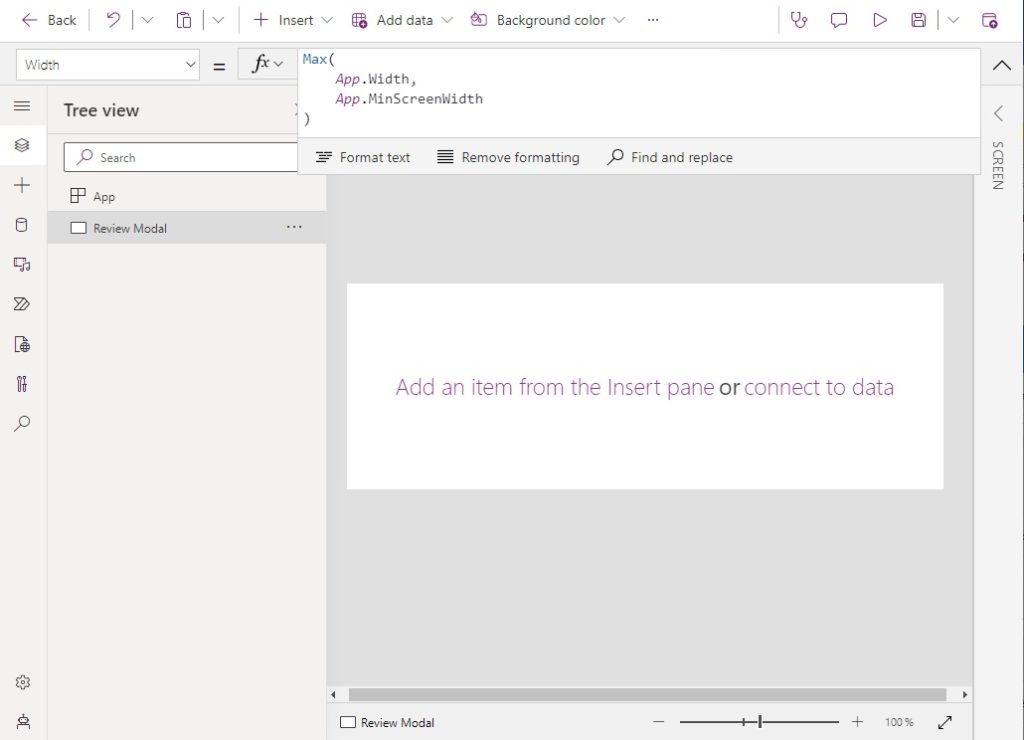
Width: Max(App.Width, App.MinScreenWidth)


Create The Custom Page Modal Dialog Main Container

Add a vertical container to the screen to hold all of the dialog’s controls.


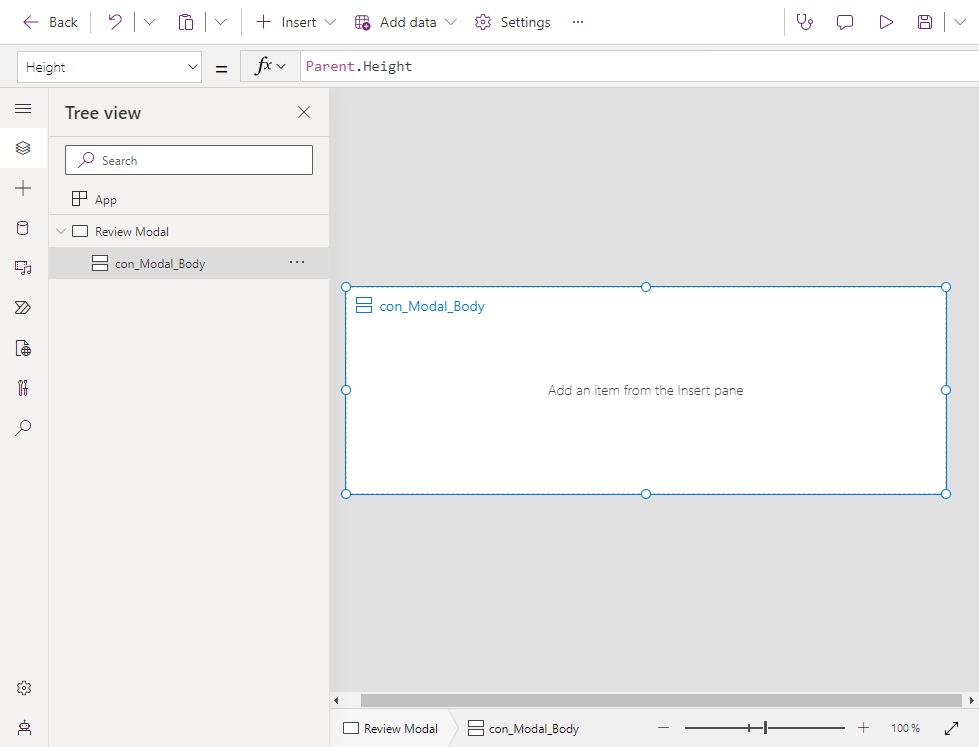
Position the container in at X & Y co-ordinates (0, 0) and set the width and height to match the size of the screen.

Height: Parent.Height
Width: Parent.Width
X: 0
Y: 0


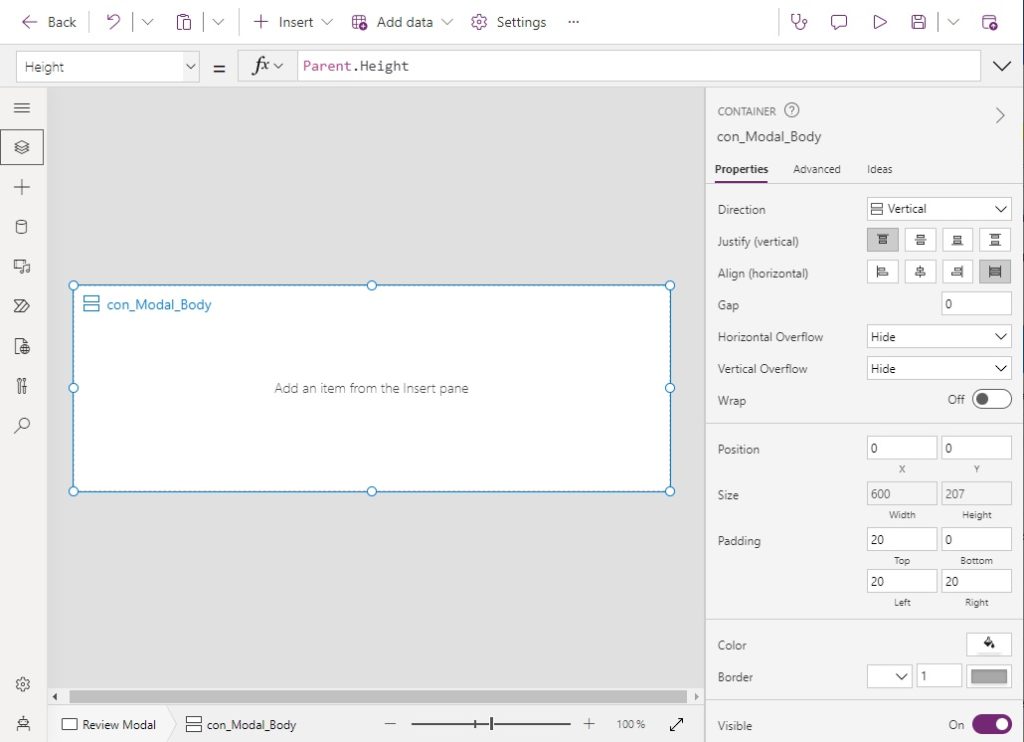
We want controls placed inside the main container to flow from top-to-bottom and stretch to fill the size of the container.


Use these values to define the LayoutJustifyContent and LayoutAlignItems properties of the container.

LayoutJustifyContent: LayoutJustifyContent.Start
LayoutAlignItems: LayoutAlignItems.Stretch


Insert A Comments Box Into The Modal Dialog

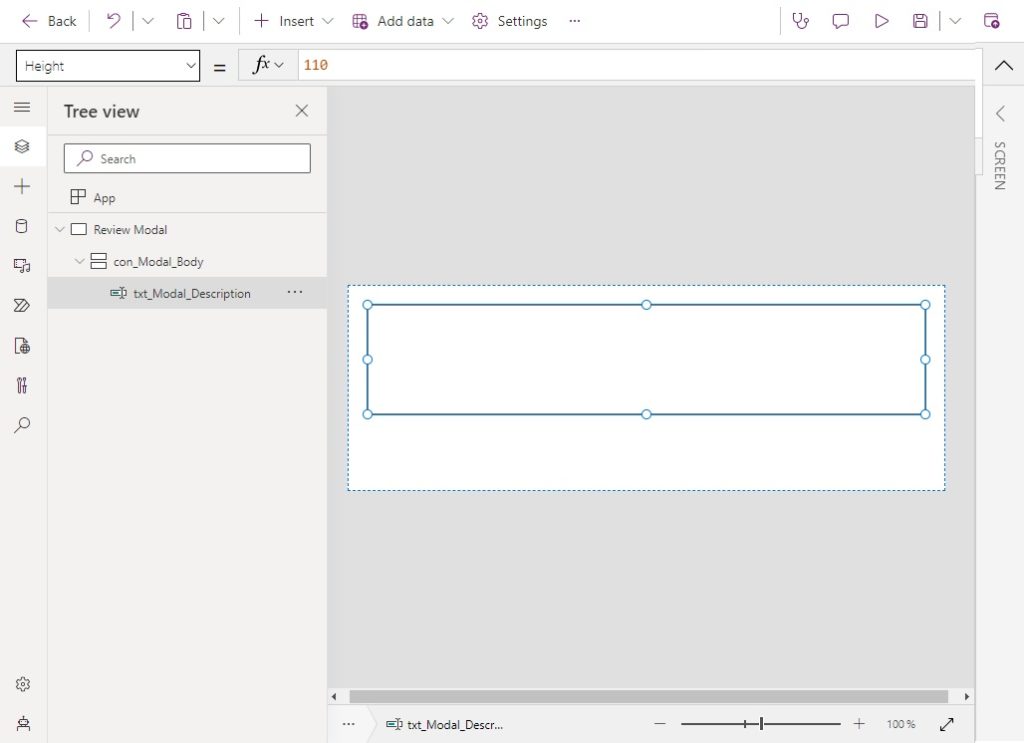
The key feature of the modal dialog is text box to display comments and let user make edits. Insert a text input into the main container.


Use this code in the Value property of the text input (modern control). It will display the current record’s comments when the model-driven app is in play mode, but not in studio.

gblReview.Comments


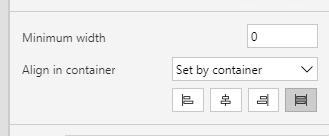
Ensure the text input’s Align In Container property is “Set by Container.” This will make it stretch to fill the available space.


Create OK and Cancel Buttons For The Modal Dialog

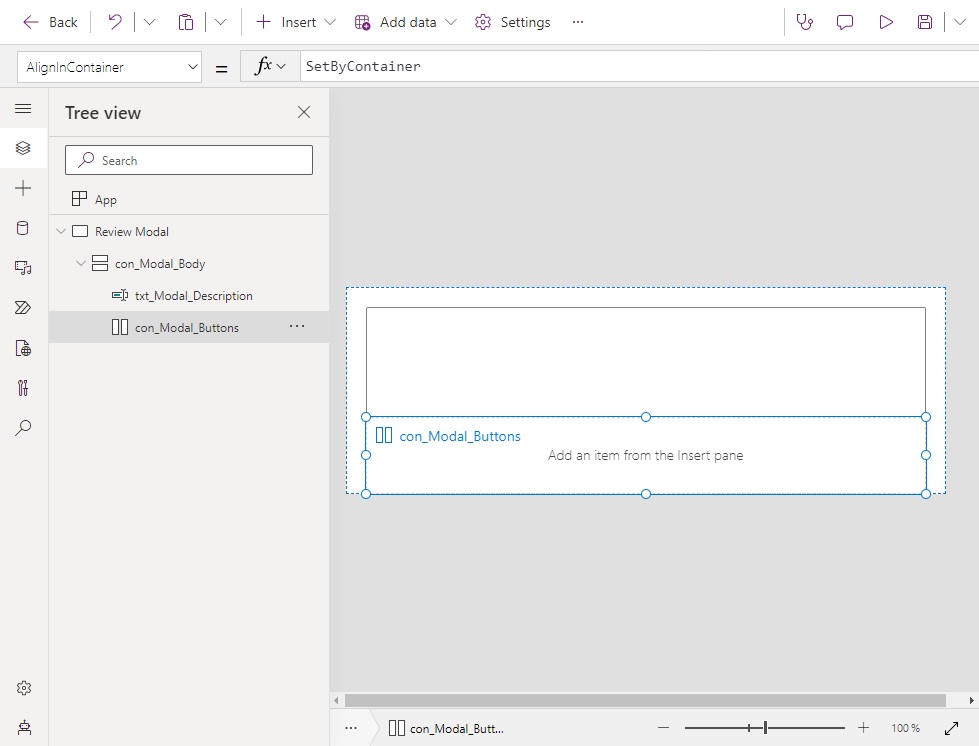
The modal dialog’s OK and Cancel buttons will be placed below the comments box. Create a new horizontal container to hold them.


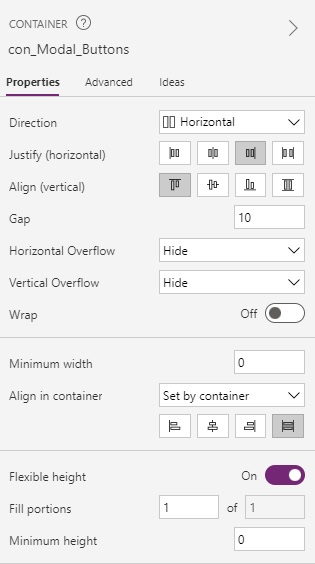
Set the Justify property of the container to End and the Align property to Top.


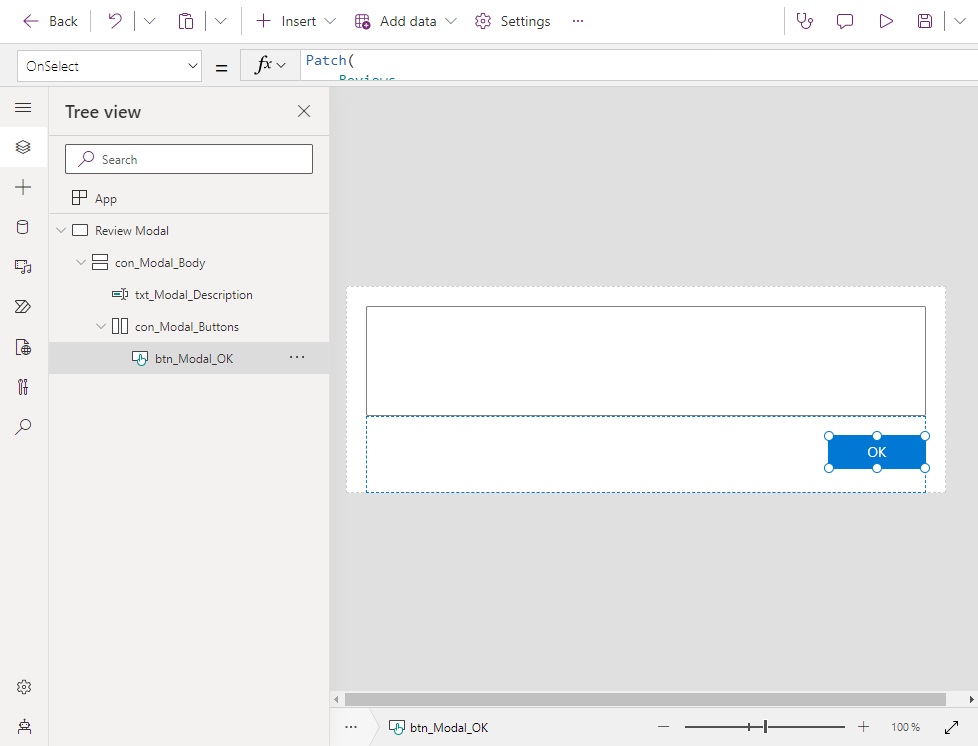
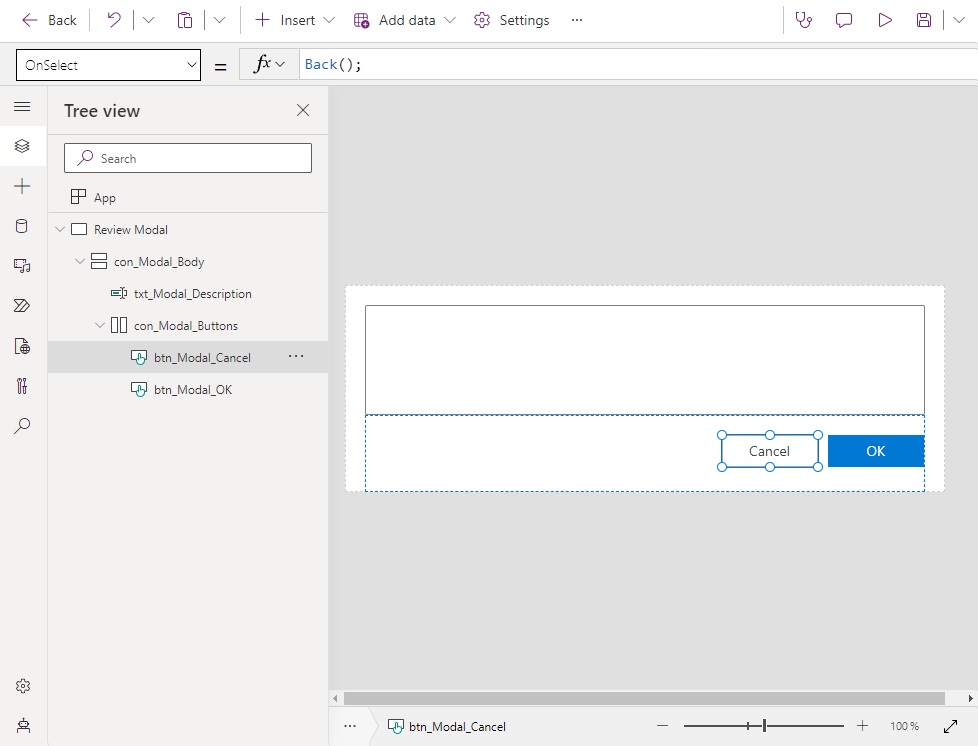
Insert a button into the horizontal container with the text “OK.”


Use this code in the OnSelect property of the button. It saves text from the comments box to the current record and closes the modal dialog using the back function.

Patch(
    Reviews,
    gblReview,
    {Comments: txt_Modal_Description.Value}
);
Back()


Insert another button into the horizontal container with the word “Cancel.”


Use this code in the OnSelect property of the form to close the modal dialog without saving.

Back();


We are now done building the canvas app. Save and publish the app. Then the close the canvas app editor.


Add A Button To The Main Form Command Bar

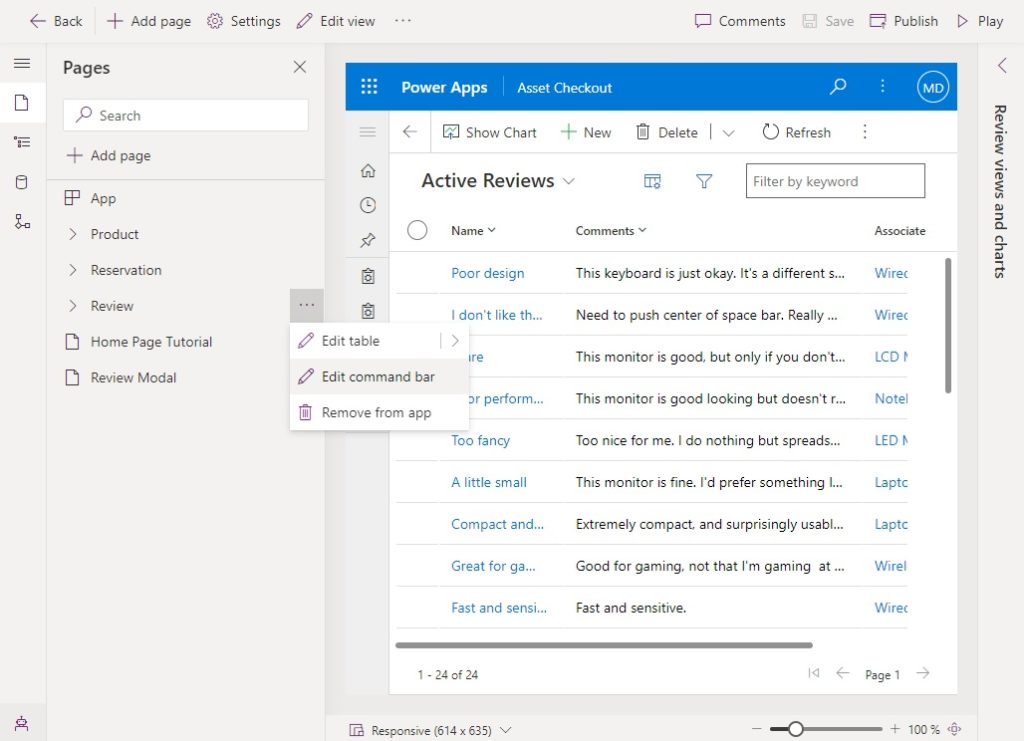
Now that the Review Modal custom page is completed we will add a button to the model-driven form so a user can open it. Go back to the model-driven app editor and click the three dots beside the Review Table. Choose Edit Command Bar.


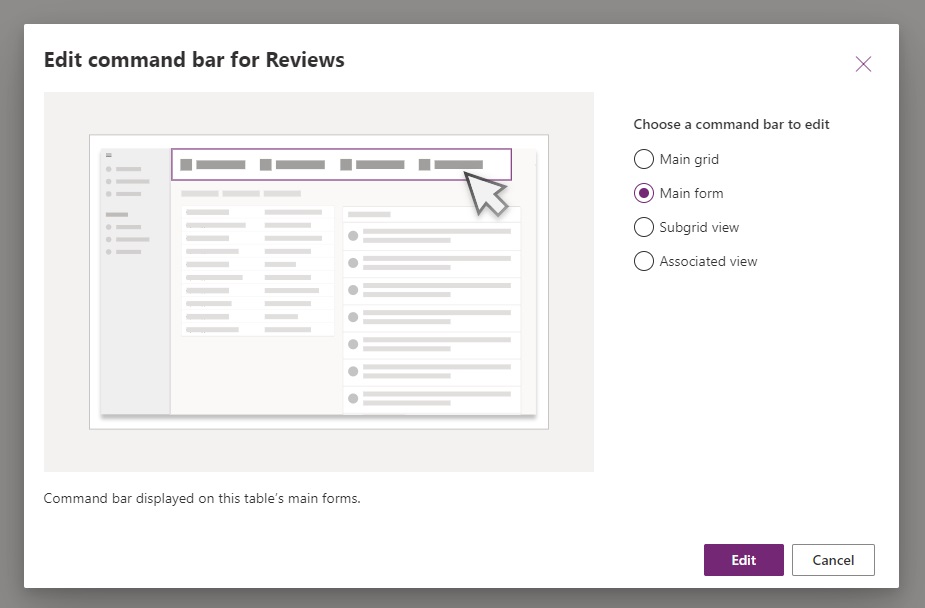
Select Main form.


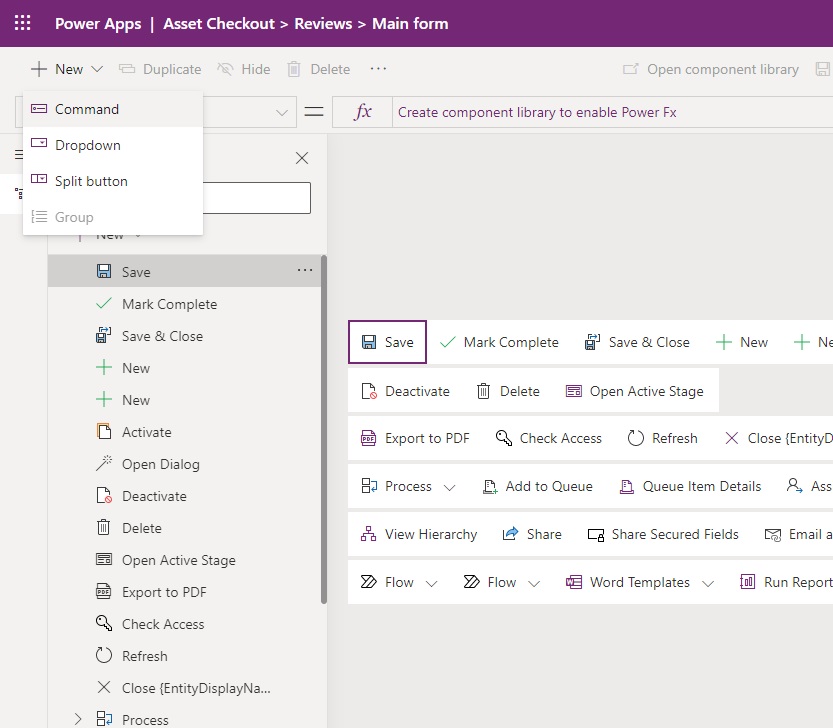
In the command bar edit, go to the ribbon menu and choose New > Command.


Add JavaScript Code To The Button To Open The Modal Dialog

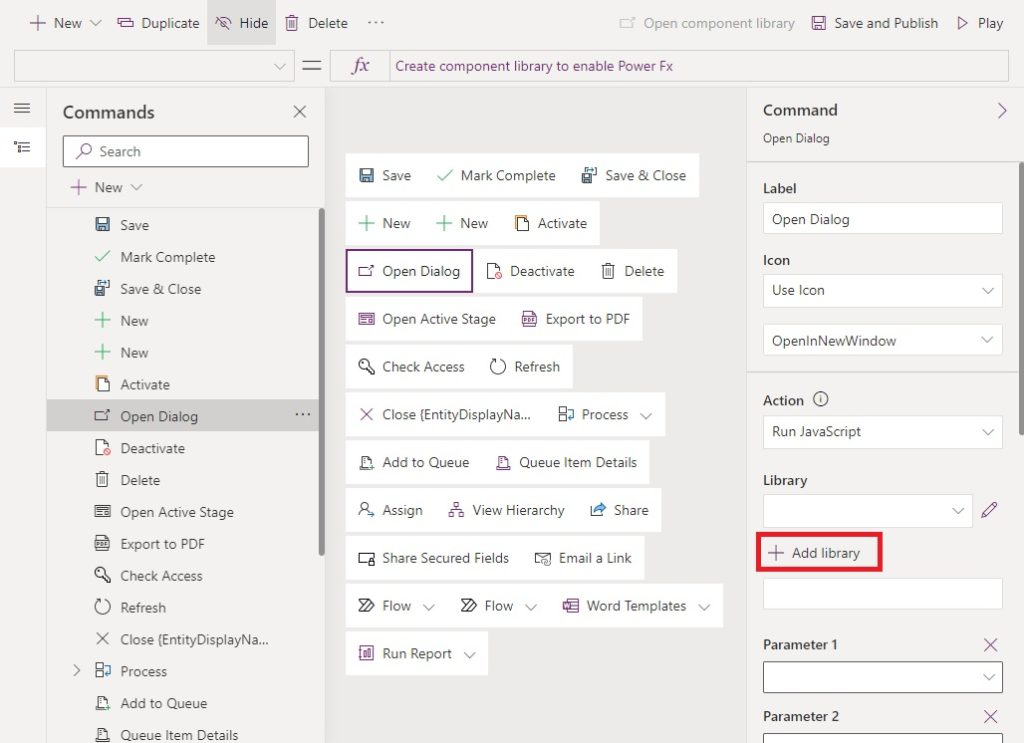
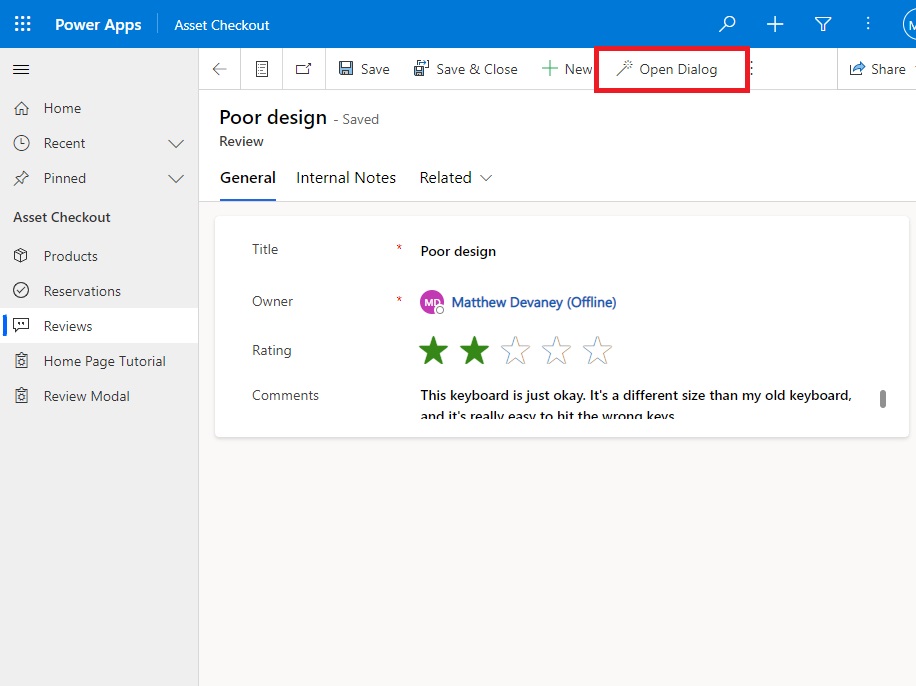
Select the newly added button from the center menu of the screen. Give the icon a label called “Open Dialog” and choose an icon for it. Then update the Action dropdown to Run JavaScript and select Add Library.


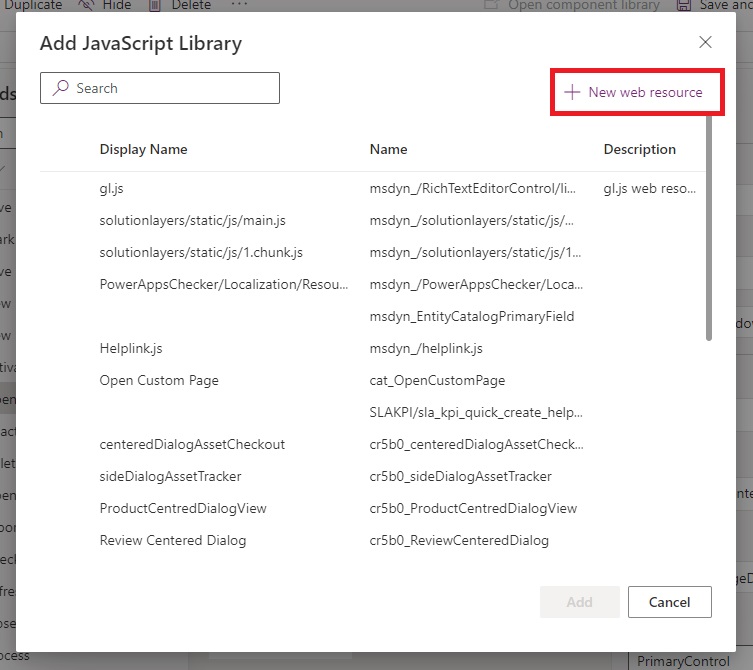
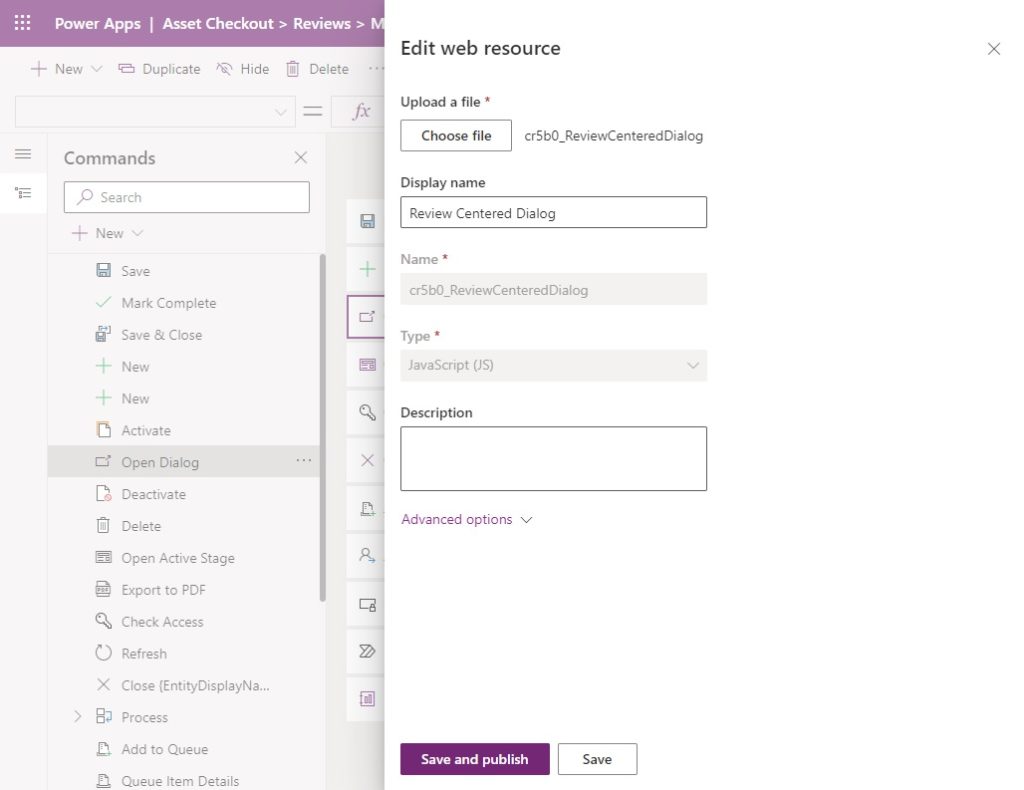
On the Add JavaScript library menu click New web resource.


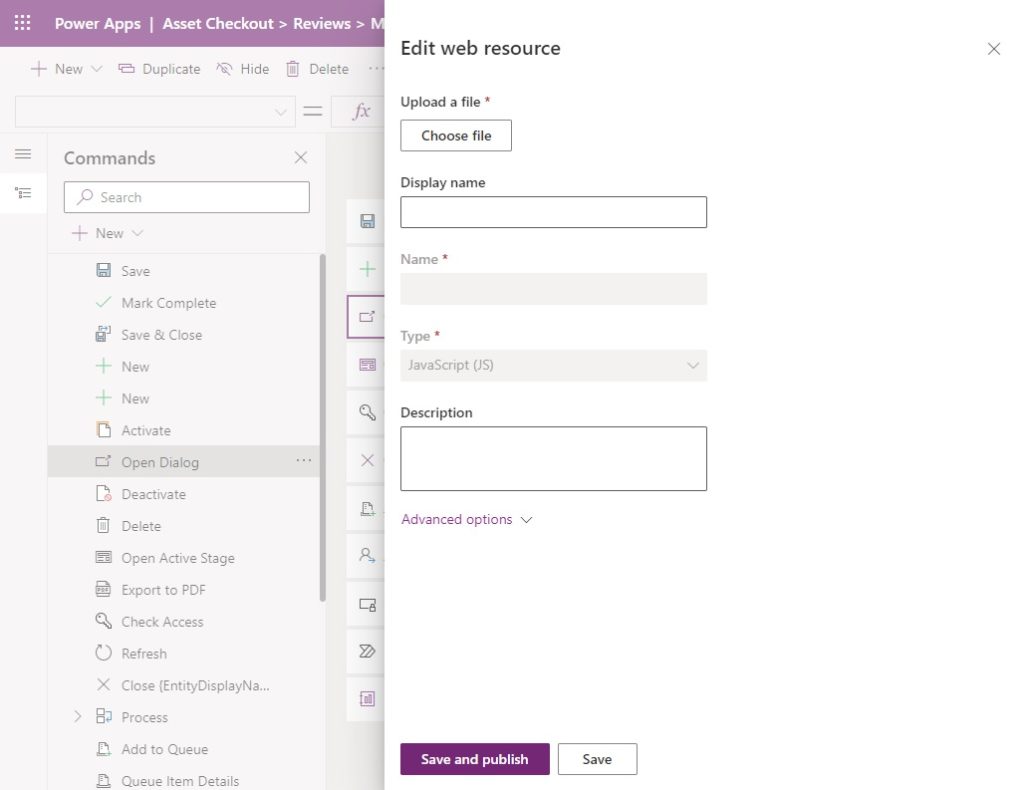
Then Power Apps will navigate to this screen.


Write The JavaScript Code To Open The Modal Dialog

Now we need to write some JavaScript code to open the custom page as a modal dialog. If you have not written any JavaScript code before, don’t worry. I will provide you with the necessary code you can copy and paste into a text file while making only a few minor changes.


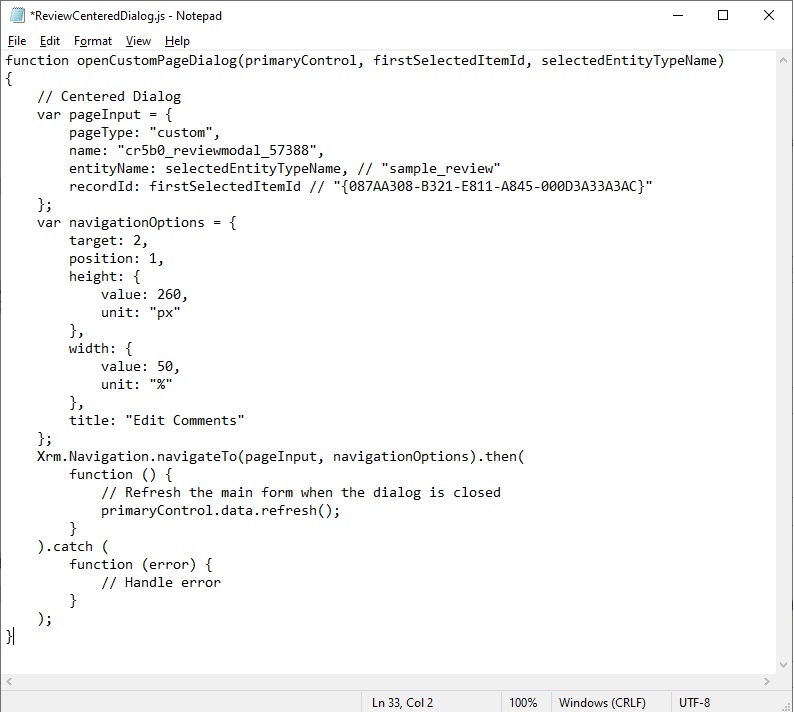
Copy and paste this code into Windows Notepad and save it as a Javascript file (extension .js). You will need to update the name parameters with your own custom page’s logical name.

function openCustomPageDialog(primaryControl, firstSelectedItemId, selectedEntityTypeName)
{
    // Centered Dialog
    var pageInput = {
        pageType: "custom",
        name: "cr5b0_reviewmodal_57388",
        entityName: selectedEntityTypeName, // "sample_review"
        recordId: firstSelectedItemId // "{087AA308-B321-E811-A845-000D3A33A3AC}" 
    };
    var navigationOptions = {
        target: 2,
        position: 1,
	height: {
	    value: 260,
	    unit: "px"
	},
	width: {
	    value: 50,
	    unit: "%"
	},
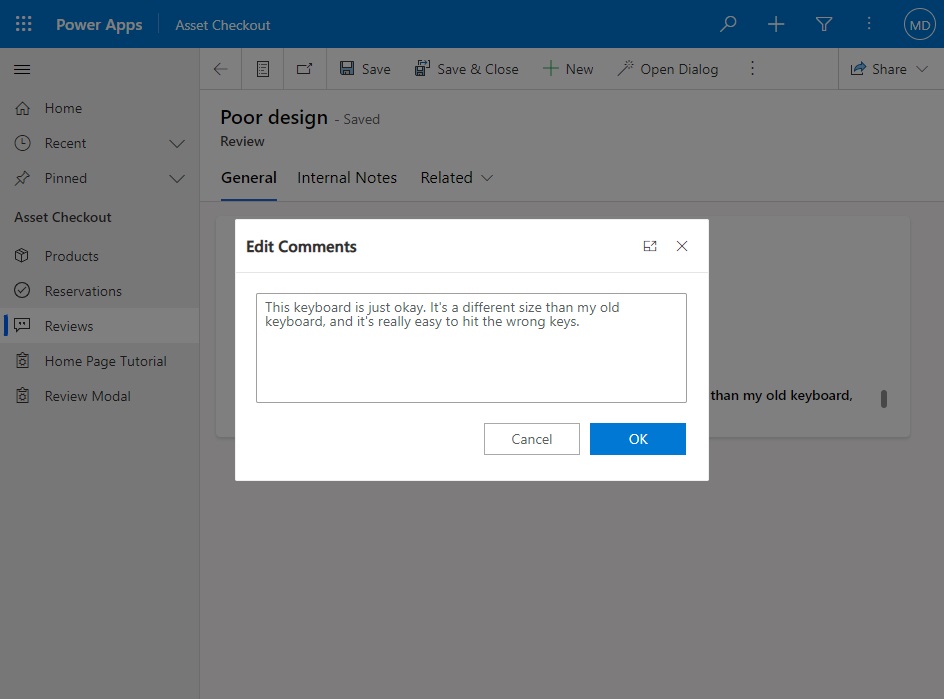
	title: "Edit Comments"
    };
    Xrm.Navigation.navigateTo(pageInput, navigationOptions).then(
        function () {
            // Refresh the main form when the dialog is closed
            primaryControl.data.refresh();
        }
    ).catch (
        function (error) {
            // Handle error
        }
    );
}


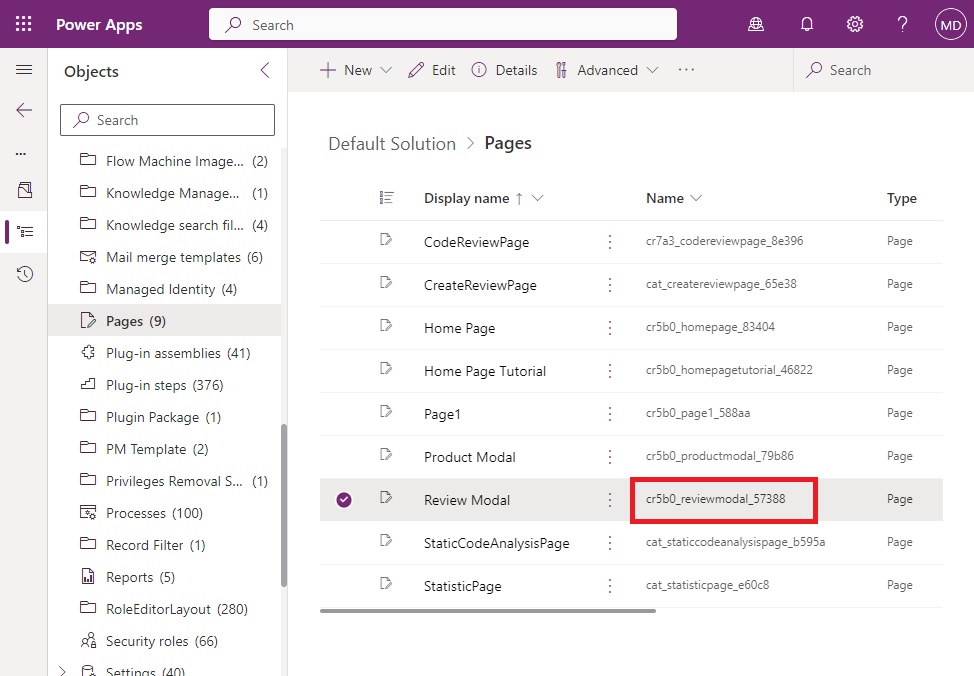
Get the logical name by going to the Solutions menu in make.powerapps.com, go to the Default Solution, choose the Pages category and look for the Page. The logical name is displayed in the Name column.


Save the JavaScript file and upload it in the command bar editor. Click save and publish.


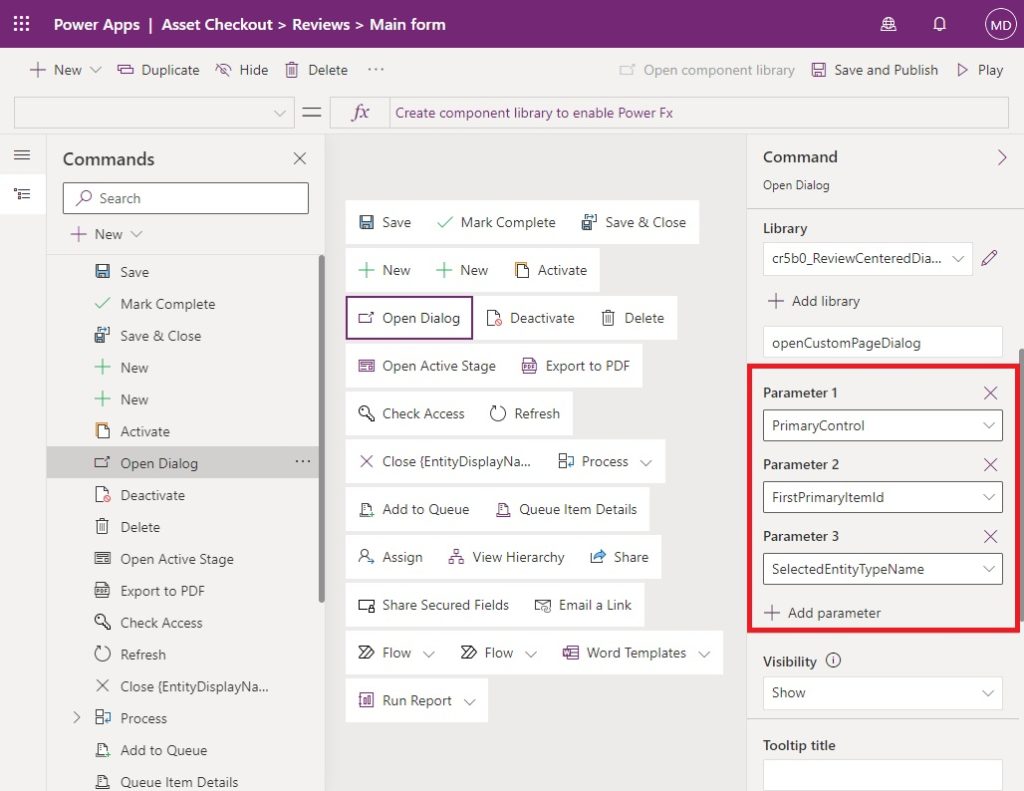
As a final step, set the command button parameters as shown below. These values get passed into the JavaScript function when the Open Dialog button is pressed.

  • Parameter 1 – PrimaryControl (identifier for the open dialog button)
  • Parameter 2 – FirstPrimaryItemId (current record GUID)
  • Parameter 3 – SelectedEntityTypeName (table name)


Save and Publish the command bad and then press Play.


Test The Custom Page Modal Dialog

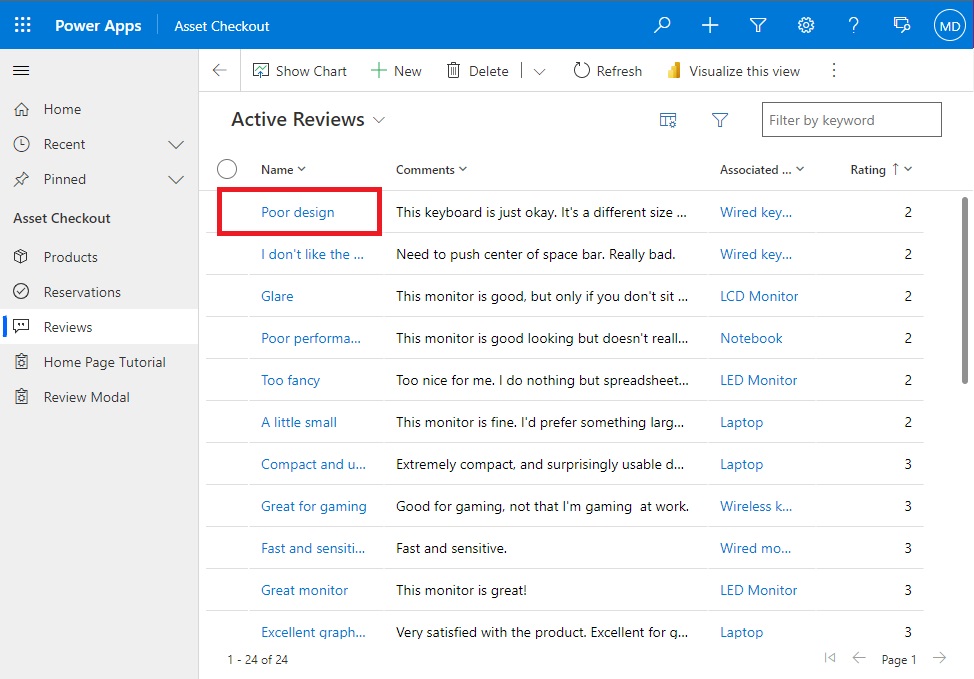
It’s time to test our custom page modal dialog. Open the model-driven app in play mode and select Reviews. Open the first record in the app.


Click on the Open Dialog button.


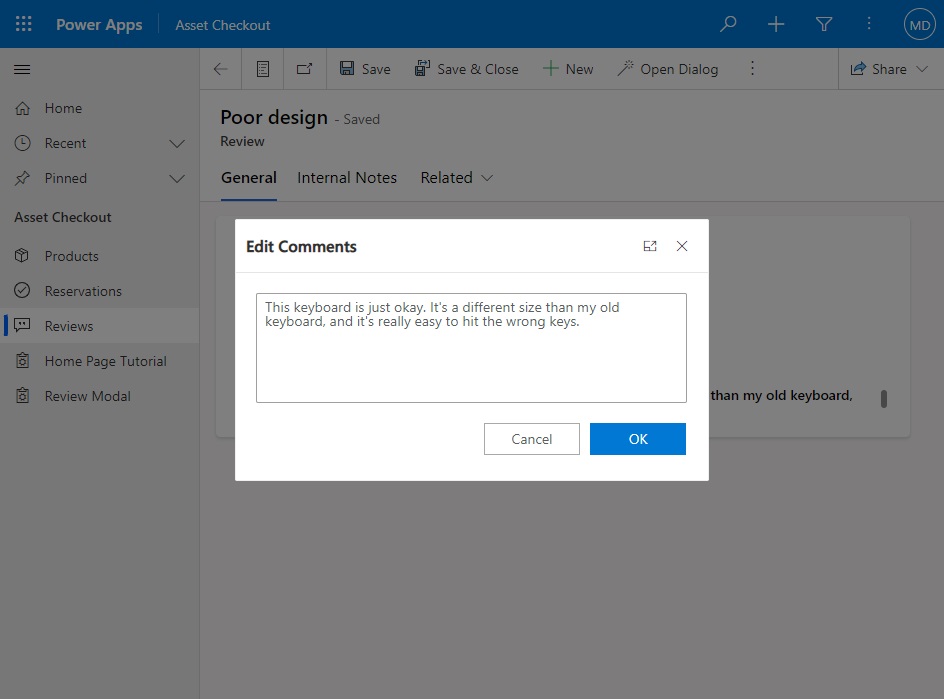
The Power Apps custom page modal dialog appears on the screen!


Did You Enjoy This Article? 😺

Subscribe to get new Power Apps articles sent to your inbox each week for FREE


Questions?

If you have any questions or feedback about Power Apps Custom Page Modal Dialogs For Model-Driven Apps please leave a message in the comments section below. You can post using your email address and are not required to create an account to join the discussion.

The post Power Apps Custom Page Modal Dialog For Model-Driven Apps appeared first on Matthew Devaney.
✇Matthew Devaney

How To Make A Power Apps Custom Page (Full Tutorial)

A Power Apps custom page enables you to build a full page canvas app into a Power Apps model-driven app. Model-driven apps traditionally only have forms and views. Now with custom pages we can build full-screen pages, dialogs and side-panes with the canvas app editor. We can even bring together data from multiple Dataverse tables on the same screen. In this article I will show you how to make a Power Apps custom page in a model-driven app.

Table of Contents
• Introduction: The Asset Checkout App Home ScreenCreate A New Power Apps Model-Driven AppAdd A New Custom Page To The Model-Driven AppDisplay Reservations In A Vertical GalleryNavigate To A Model-Driven Form In Edit ModeNavigate To A Blank Model-Driven Form In New ModeNavigate To A Model-Driven App ViewComplete the Model-Driven App Custom Page


Introduction: The Asset Checkout App Home Screen

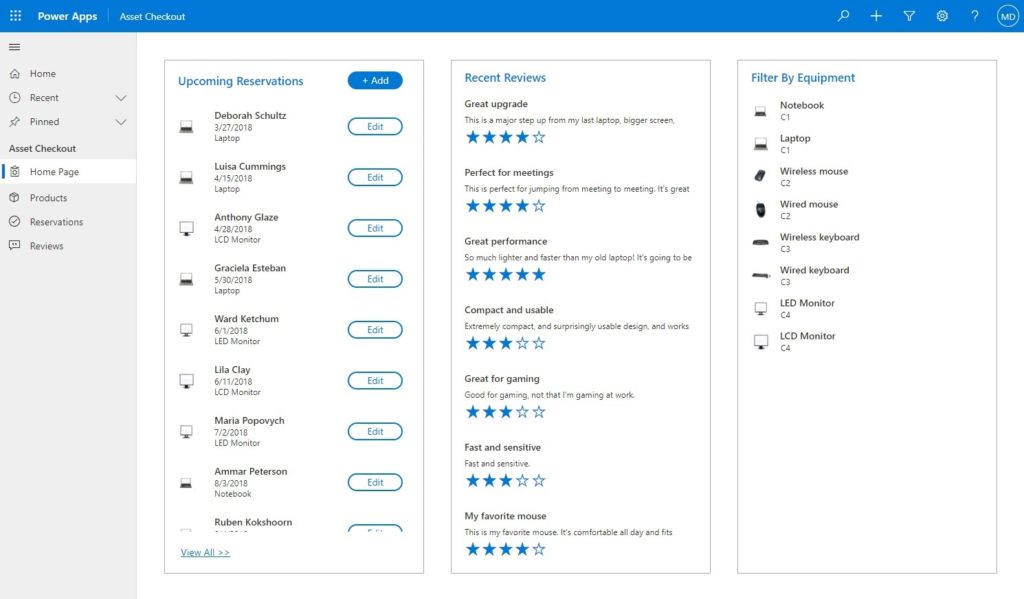
The I.T. department uses the Asset Checkout App to manage loaning devices to users. The Home Page shows upcoming reservations, recent reviews of devices and gives the ability to filter by equipment type.


Create A New Power Apps Model-Driven App

Open Power Apps Studio and navigate to the Create page. Select the Asset Checkout model-driven app template.


Click the Create button.


The Asset Checkout app will open in the model-driven app editor.


Add A New Custom Page To The Model-Driven App

Press the Add page button in the model-driven app editor


Select Custom page.


Choose Create a new custom page called Home Screen then click the Add button. This will open a new custom page in the canvas app designer.


Setup Responsive Containers In The Custom Page

Power Apps model-driven apps use responsive-design to ensure they look good on all screen sizes. A custom page should also be responsive because it is a part of the model-driven app. Go to the Advanced Settings, navigate to the Display tab and toggle off Scale to fit.


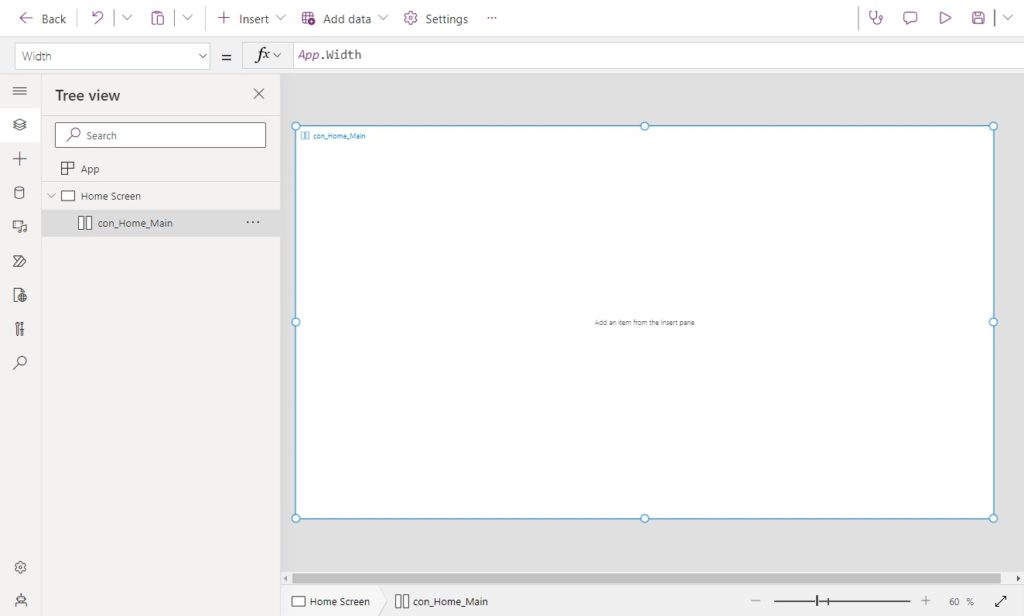
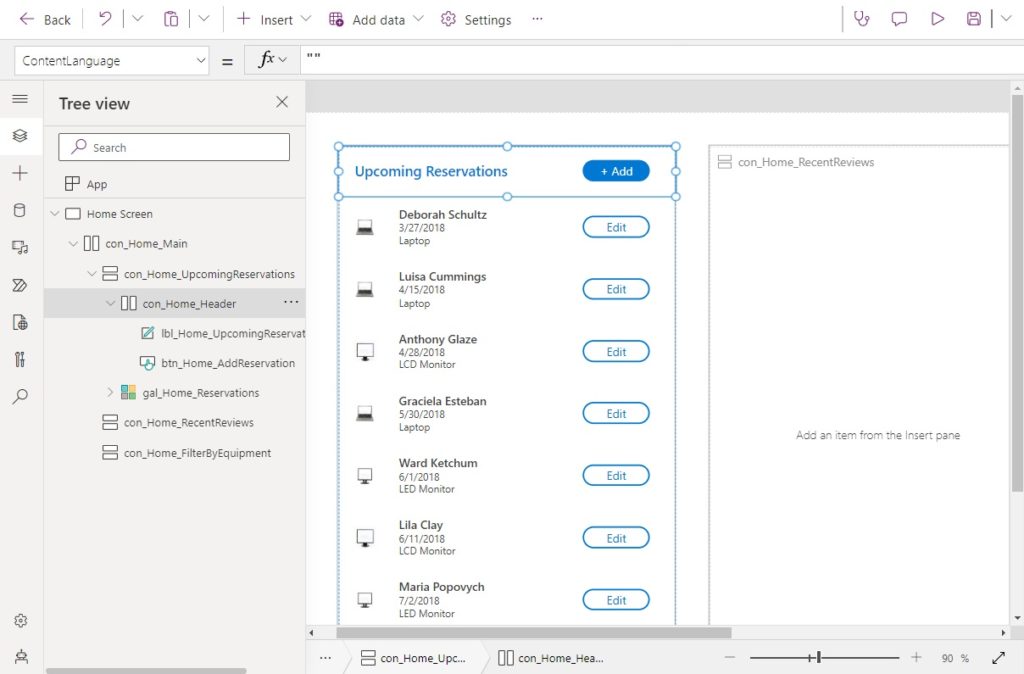
Add a horizontal container to the custom page named con_Home_Main.


Give the horizontal container these properties. It will make the main container cover the the entire page and re-size itself as the page re-sizes.

Height: App.Height
Width: App.Width
Gap: 40
PaddingBottom: 40
PaddingLeft: 40
PaddingRight: 40
PaddingTop: 40


Set the LayoutAlignItems property to Stretch. This will make objects placed inside the main container extend to fill-it horizontally (left-to-right).

LayoutAlignItems.Stretch


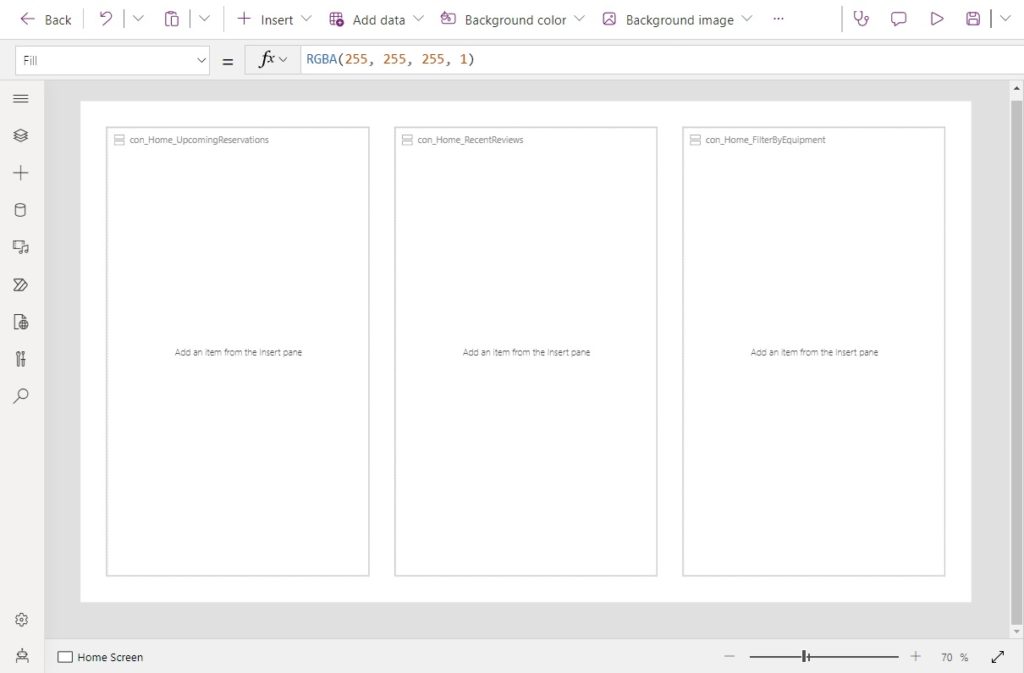
Insert 3 vertical containers into the main container and name them as follows:

  • con_Home_UpcomingReservations
  • con_Home_RecentReviews
  • con_Home_FilterByEquipment


Set the flexible width property of all vertical containers to true with a minimum width of 360 pixels. Each container will take up 1/3 of the screen.

FlexibleWidth: true
LayoutMinWidth: 360
FillPortions: 1


Then apply these properties to the vertical containers to give them a dark grey border.

BorderColor: DarkGray
BorderStyle: Solid
BorderThickness: 1


Display Reservations In A Vertical Gallery

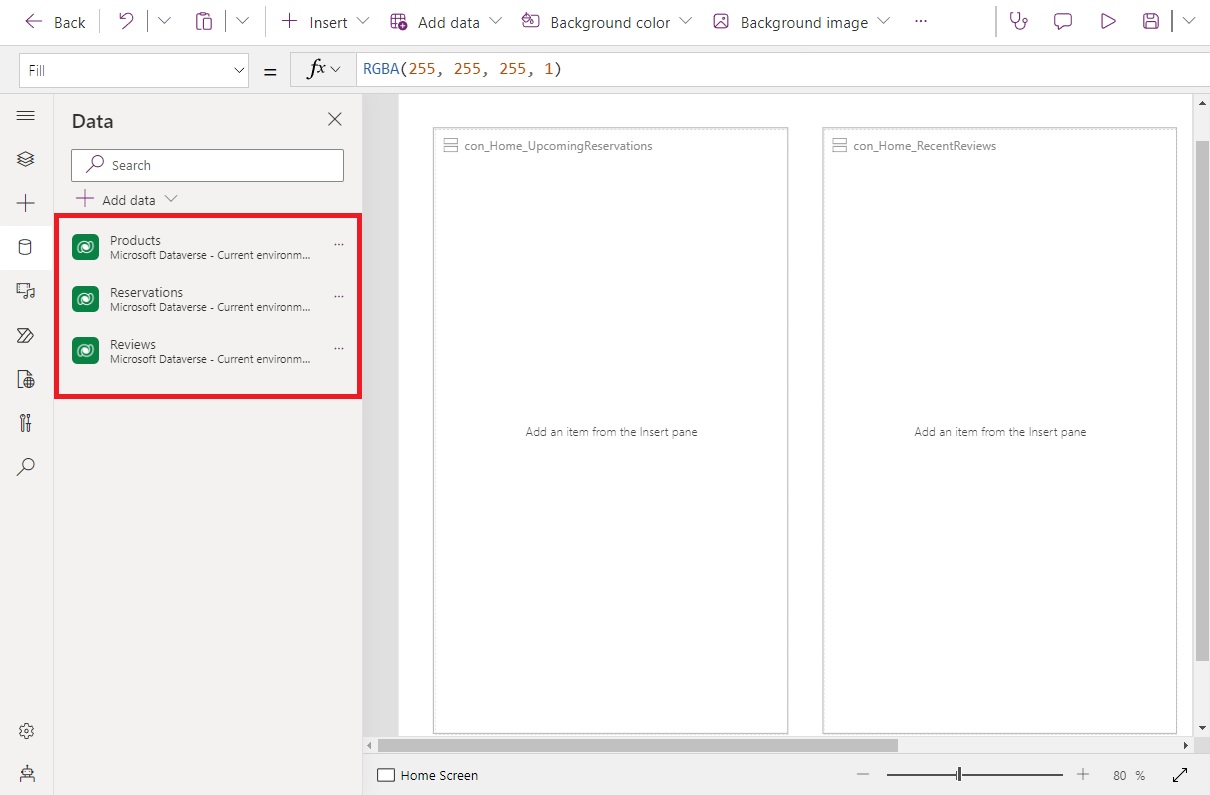
The left-most vertical container displays upcoming device reservations. Go to the Data menu and add these 3 Dataverse tables to the custom page.

  • Products
  • Reservations
  • Reviews


Insert a label at the top of the gallery with the words “Upcoming Reservations”. Then add a vertical gallery to the container.


Stretch the gallery by using this code in the AlignInContainer property so it expands to fill all remaining space inside the vertical container.

AlignInContainer.Stretch


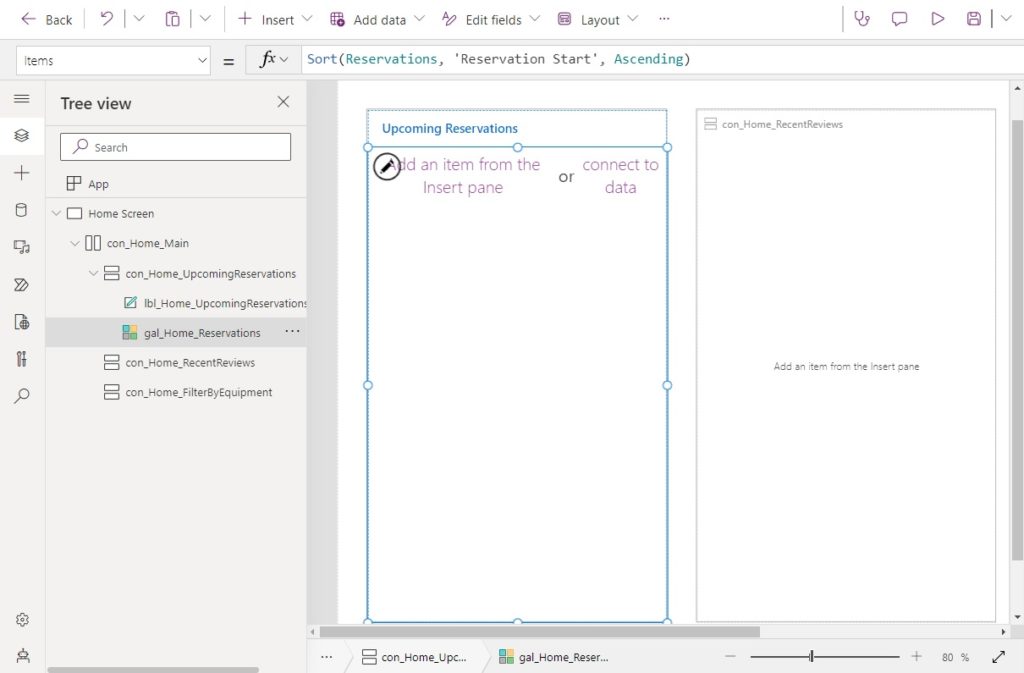
Use this code to populate the gallery with Reservations from oldest-to-newest

Sort(Reservations, 'Reservation Start', Ascending)


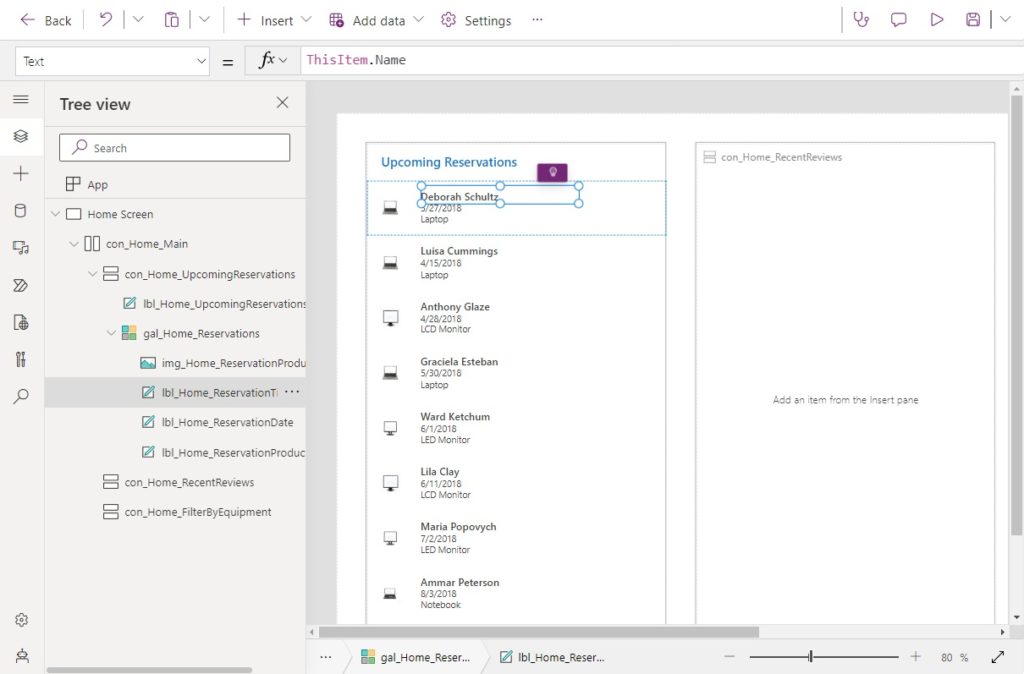
Change the layout of the gallery to title, subtitle and body. This will create 3 new labels inside the gallery.


Write this code in the Text property of the title, subtitle & body labels of the gallery respectively.

ThisItem.Name
Text(ThisItem.'Reservation Start', ShortDate)
ThisItem.'Product Reservation'.Name


Insert an Image control to the left of the labels and use this code in the Image property to display the Product Image.

ThisItem.'Product Reservation'.'Product Image'


Navigate To A Model-Driven Form In Edit Mode

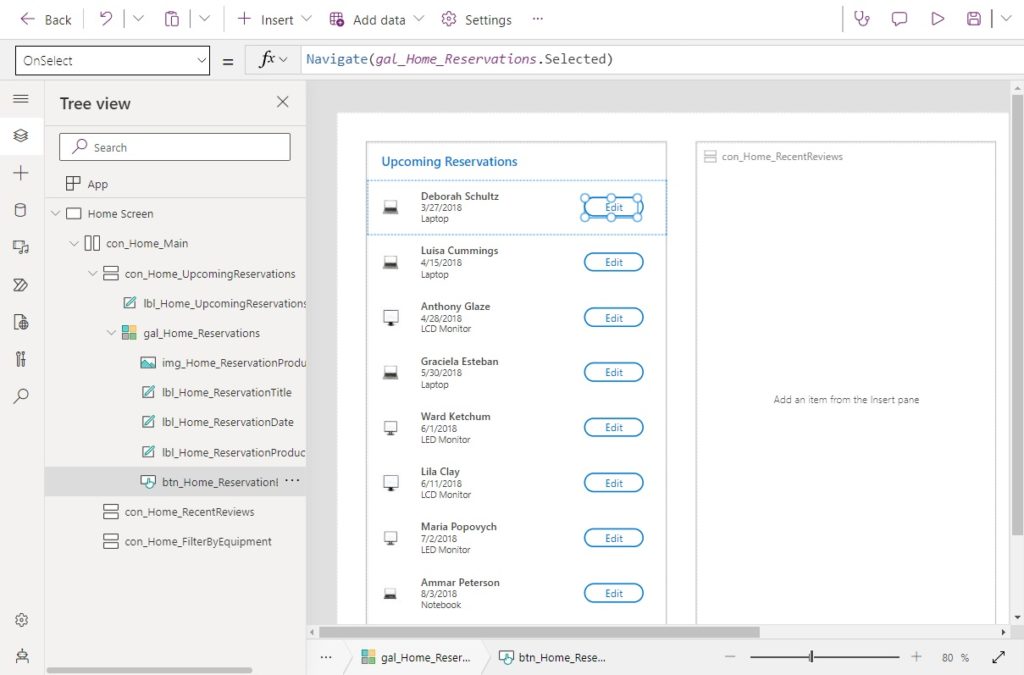
When a user selects the Edit button beside a reservation it opens up a model-driven form for that reservation. Insert a new button into the gallery with the word “Edit”.


Write this code in the X & Y properties of the button to ensure it maintains its position as the custom page expands or shrinks in size.

X: (App.Width-Self.Width)-40
Y: (App.Height-Self.Height)/2


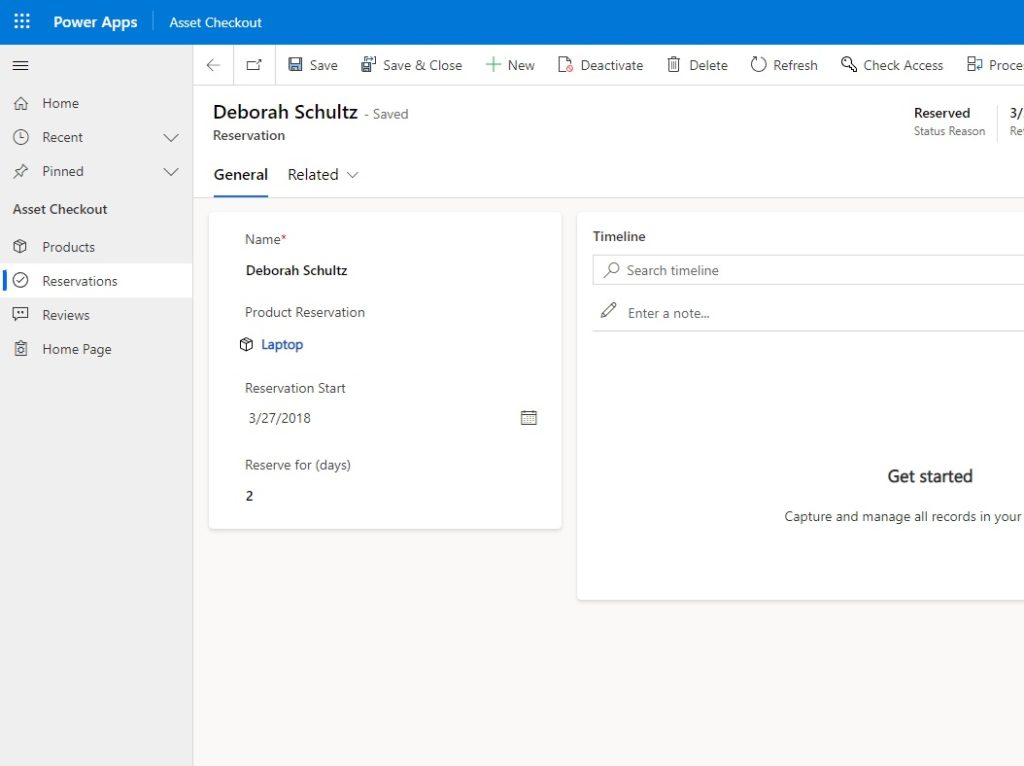
Use this code in the OnSelect property of the button. When the user presses the edit button it will navigate away from the custom page to the reservation’s model-driven form.

Navigate(gal_Home_Reservations.Selected)


To test the Edit button, save and publish the canvas page. Then re-publish the model-driven app and press play on the Model-Driven App. When the Edit button is pressed that form that appears should look like this.


Navigate To A Blank Model-Driven Form In New Mode

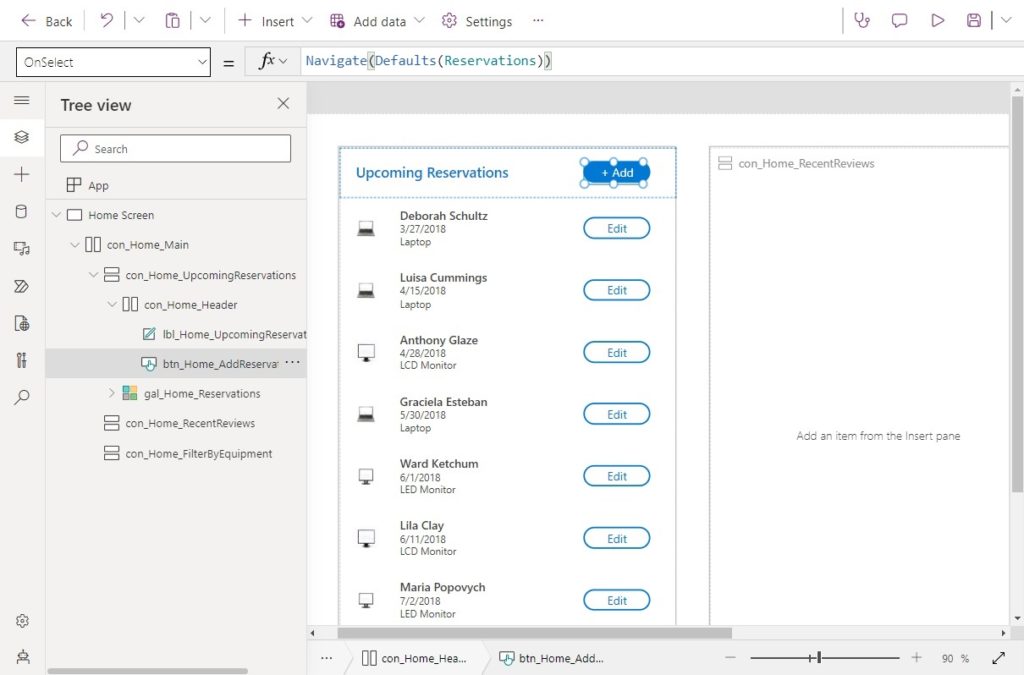
User can also navigate to a blank form to create a new reservation from the custom page. Insert a horizontal container at the top of the gallery. Cut and paste the “Upcoming Reservations” label into the horizontal container and place a new button beside it with the text “+ Add”.


Give the horizontal container these properties. Apply padding to the right-side so the button will not be touching the edge of the container.

LayoutAlignItems (Vertical): Center
FlexibleHeight: false
Height: 60
PaddingRight: 40


Set the FlexibleWidth property of the horizontal container to true.

true


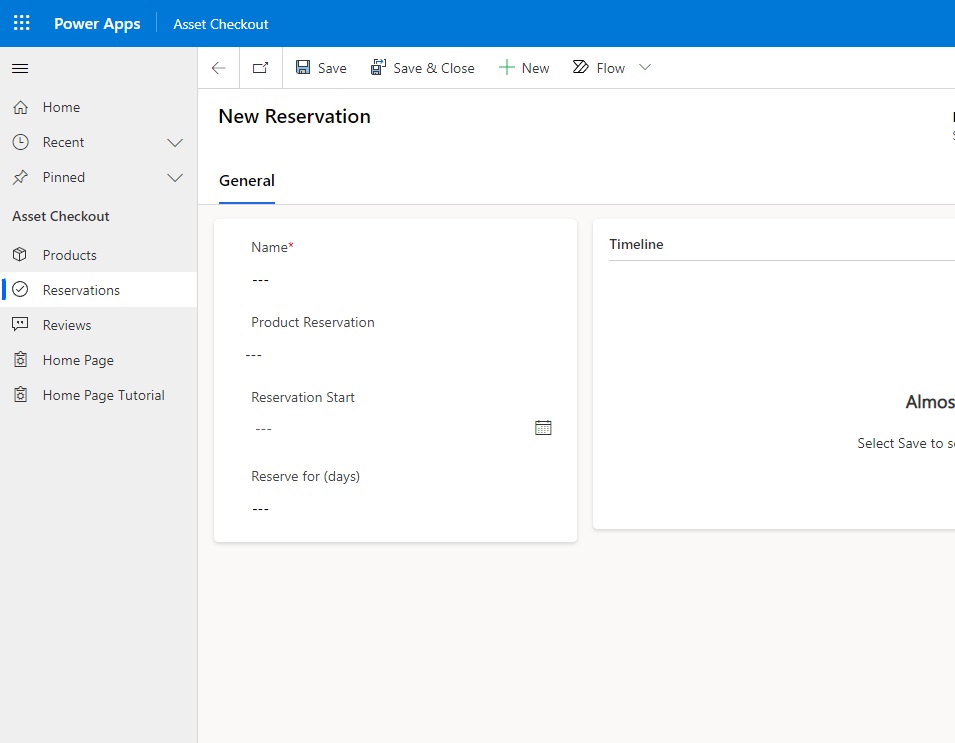
When a user clicks the Add button they are navigated to a blank model-driven form.


Use this code in the OnSelect property of the Add button.

Navigate(Defaults(Reservations))


To test the Add button, save and publish the canvas page. Then re-publish the model-driven app and press play on the Model-Driven App. When the Add button is pressed that form that appears should look like this.


Navigate To A Model-Driven App View

At the bottom of the Upcoming Reservations container the user can click on a button that says view all to see all of the active reservations. The app navigates away from the custom page and goes to the selected model-driven app view.

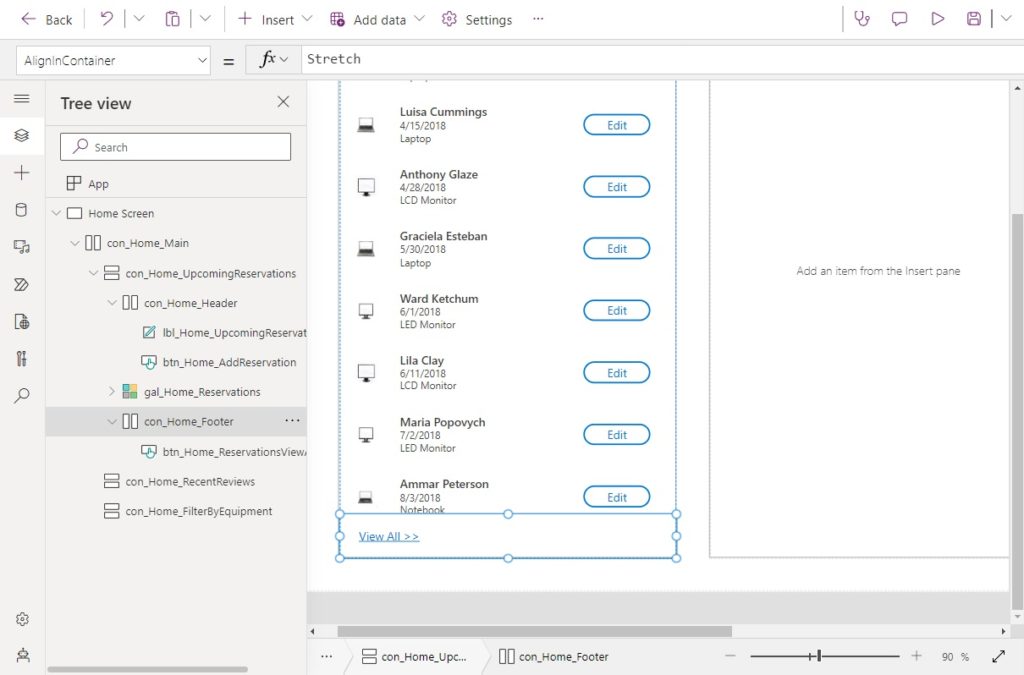
Add a horizontal container to the bottom of the Upcoming Reservations container. Place a button with the text “View All >>” inside it. Make the button fill transparent and format the text with an underline.


Give the horizontal container these properties. Apply padding to the right-side so the button will not be touching the edge of the container.

AlignInContainer (Vertical): Stretch
FlexibleHeight: false
Height: 60


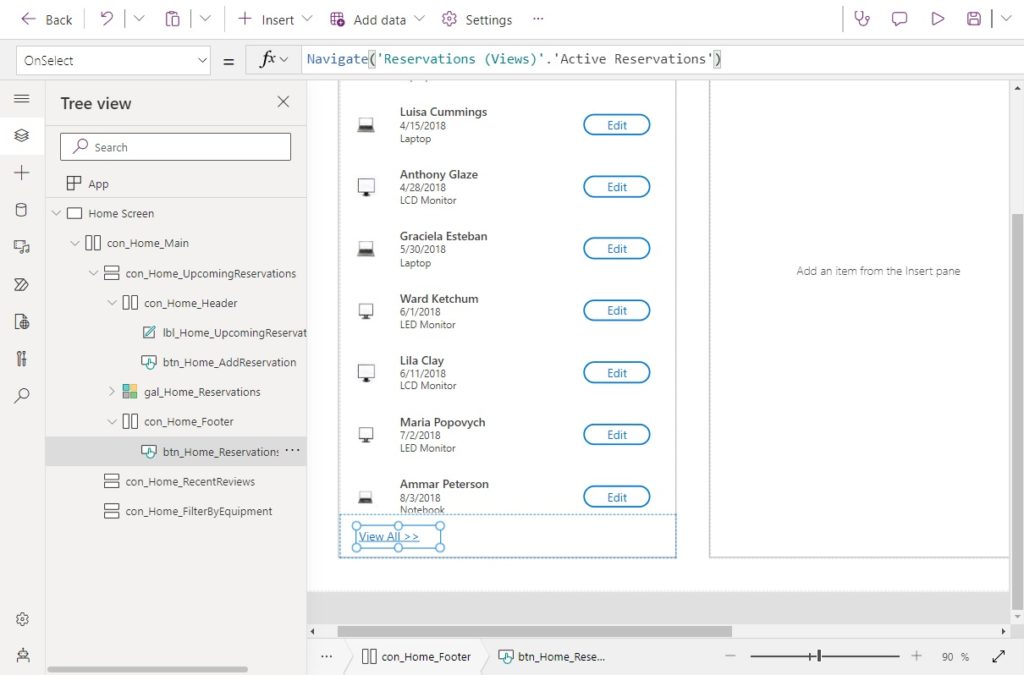
When the user presses the “View All >>” button they navigate to the Active Reservations model-driven view.


Use this code in the OnSelect property of the button.

Navigate('Reservations (Views)'.'Active Reservations')


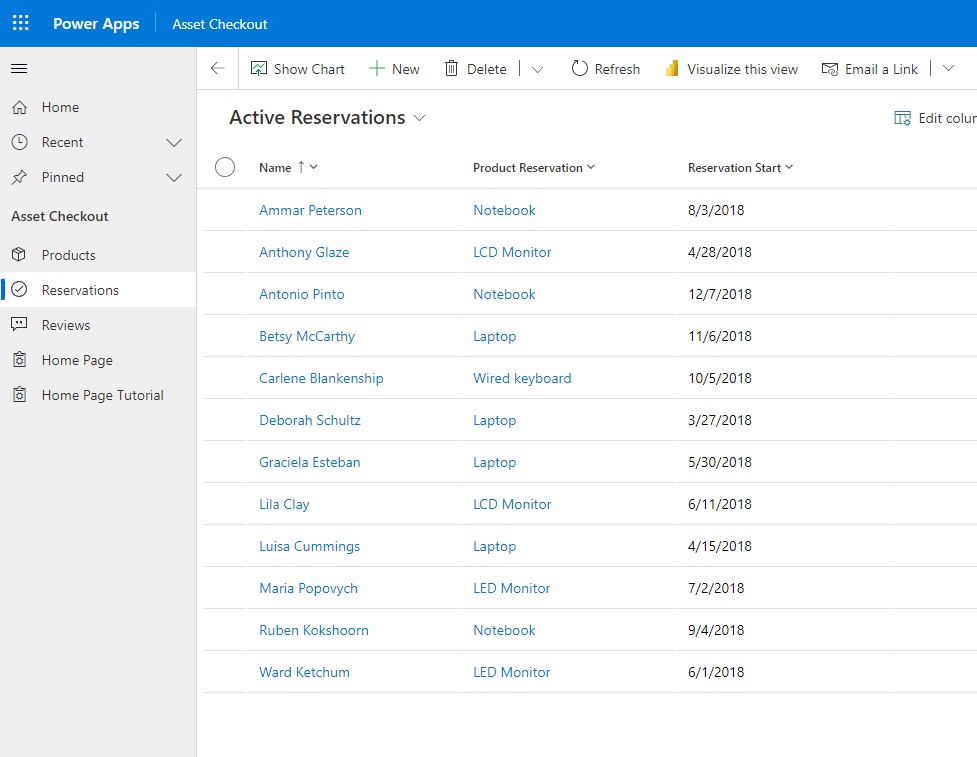
To test the View All button, save and publish the canvas page. Then re-publish the model-driven app and press play on the Model-Driven App. When the View All button is pressed the view that appears should look like this.


Complete the Model-Driven App Custom Page

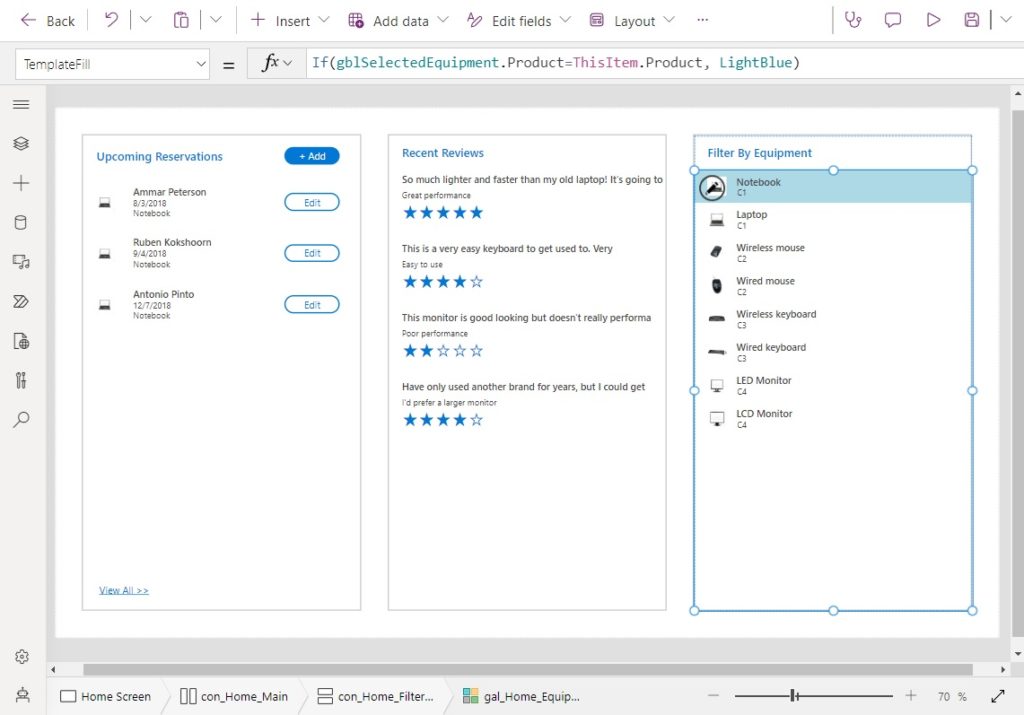
The Recent Reviews and Filter By Equipment vertical containers are setup much in the same way as the Upcoming Reservations container.


Use this code in the Items properties of the Recent Review and Filter By Equipment containers respectively. Add all of the controls shown in the screenshot above.

Sort(
    Reviews,
    createdon,
    Ascending
)
Products


When a user clicks on an item in the filter by equipment gallery the upcoming reservations and recent reviews become filtered to only show data for the selected equipment.


Use this code in the OnSelect property of the gallery to track which equipment is currently selected.

If(
    gblSelectedEquipment.Product=ThisItem.Product,
    Set(
        gblSelectedEquipment,
        Blank()
    ),
    Set(
        gblSelectedEquipment,
        ThisItem
    )
)


Write this code in the TemplateFill property of the gallery to highlight the selected equipment in light blue.

If(gblSelectedEquipment.Product=ThisItem.Product, LightBlue)


Finally, use this code in the Items property of the Upcoming Reservations gallery and the the Recent Reviews gallery to filter the records.


Sort(
    Filter(
        Reservations,
        'Product Reservation'.Product = gblSelectedEquipment.Product
        Or IsBlank(gblSelectedEquipment)
    ),
    'Reservation Start',
    Ascending
)
Sort(
    Filter(
        Reviews,
        'Associated Product'.Product = gblSelectedEquipment.Product
        Or IsBlank(gblSelectedEquipment)
    ),
    createdon,
    Ascending
)


Did You Enjoy This Article? 😺

Subscribe to get new Power Apps articles sent to your inbox each week for FREE


Questions?

If you have any questions or feedback about How To Make A Power Apps Custom Page (Full Tutorial) please leave a message in the comments section below. You can post using your email address and are not required to create an account to join the discussion.

The post How To Make A Power Apps Custom Page (Full Tutorial) appeared first on Matthew Devaney.
✇Matthew Devaney

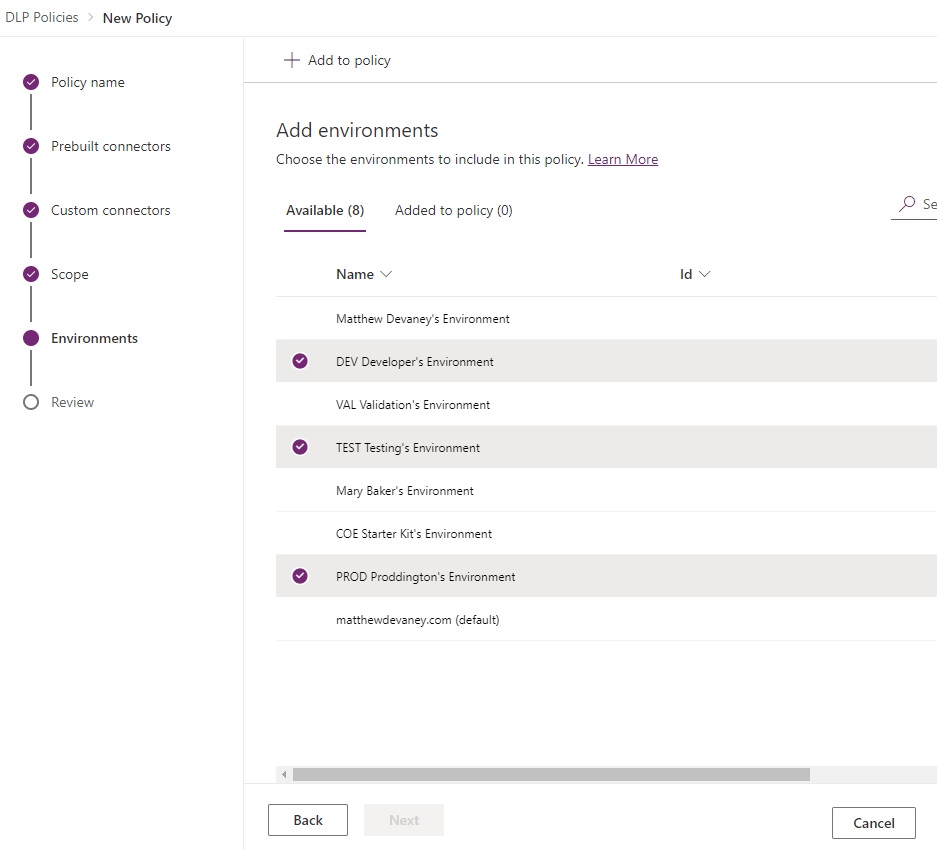
8 Power Platform DLP Policy Best Practices

Power Platform DLP Policies determine which data connectors can be used by apps & flows in an environment and which connectors are blocked. They are essential to put in place for every environment. DLP Policies prevent makers from accidentally exposing data to 3rd party services that should not have it. In this article I will share 8 Power Platform DLP Policy best practices and help you build a strategy to prevent data-leakage.

Table of Contents
1. Safeguard The Default Environment With A Restrictive DLP Policy
2. Set A Power Platform DLP Policy For Each New Environment
3. Fine-Tune Connector Endpoints And Actions
4. Use A Shared Power Platform DLP Policy For DEV-TEST-PROD Environments
5. Check Before Changing The DLP Policy For An Existing Environment
6. Create A Blanket Power Platform DLP Policy For The Entire Tenant
7. Update The Governance Error Message With An Admin Contact
8. Do Not Use Power Platform DLP Policy Resource Exemptions


1. Safeguard The Default Environment With A Restrictive DLP Policy

All users with a standard Power Apps/Power Automate license have access to the default environment with the Environment Maker role assigned. Many arrive at the default environment with no prior-training. They cannot be blocked from creating apps or flows so it is important to restrict their capabilities.

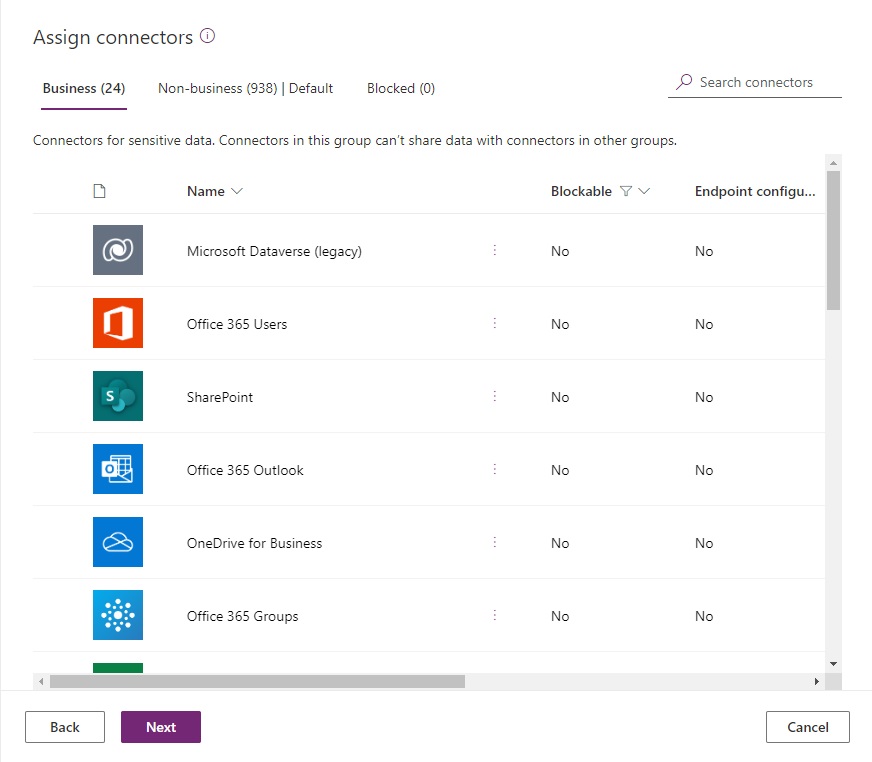
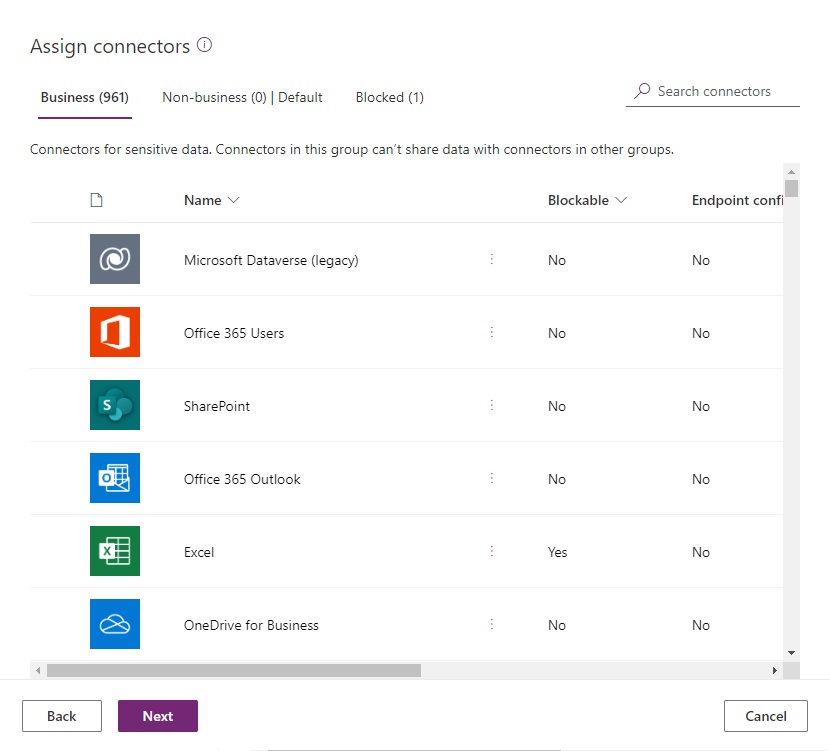
Move all non-blockable connectors to the business category.


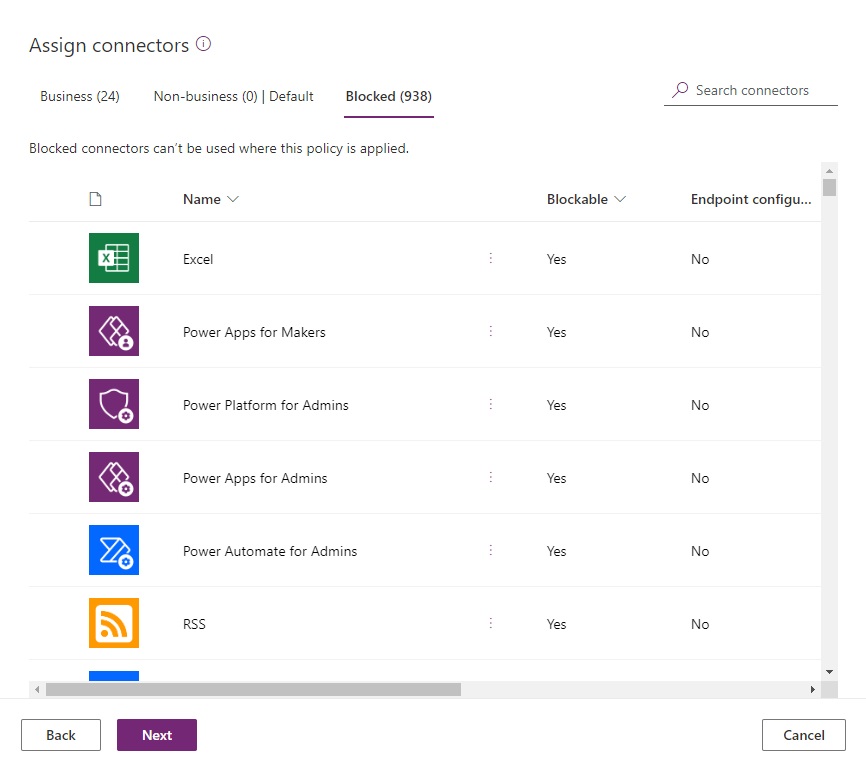
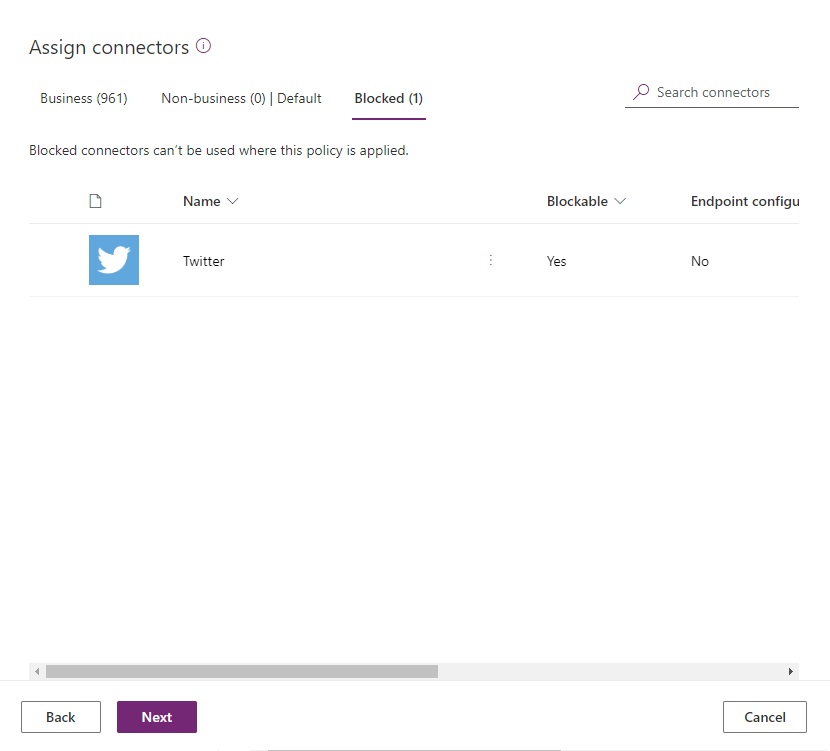
Then move all blockable connectors to the blocked category.


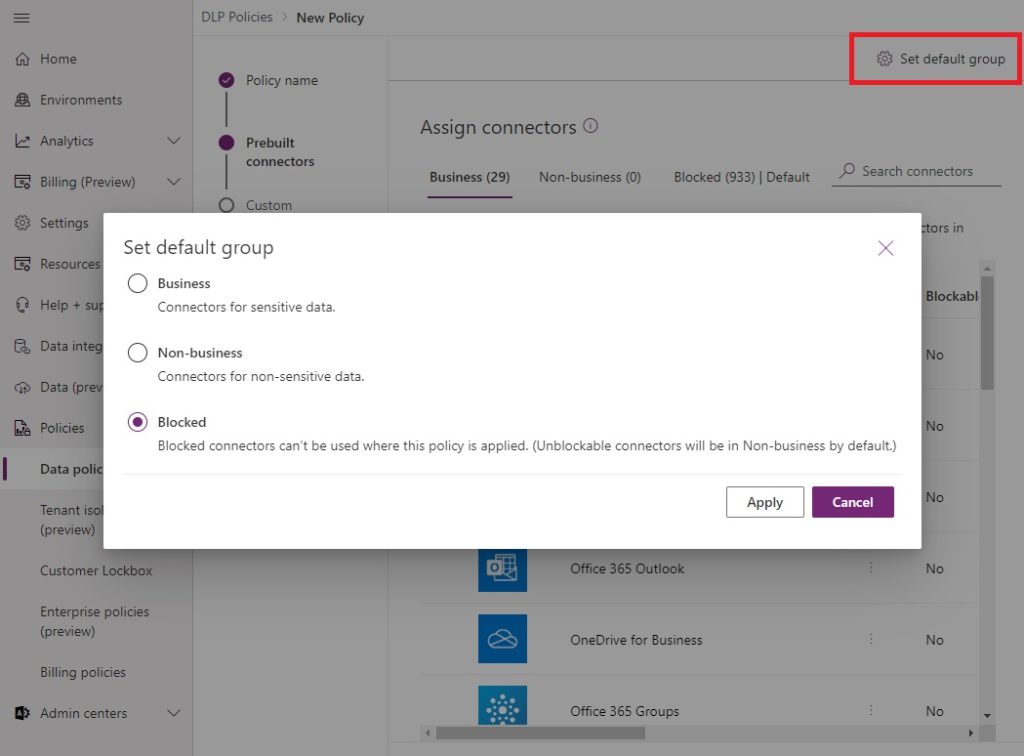
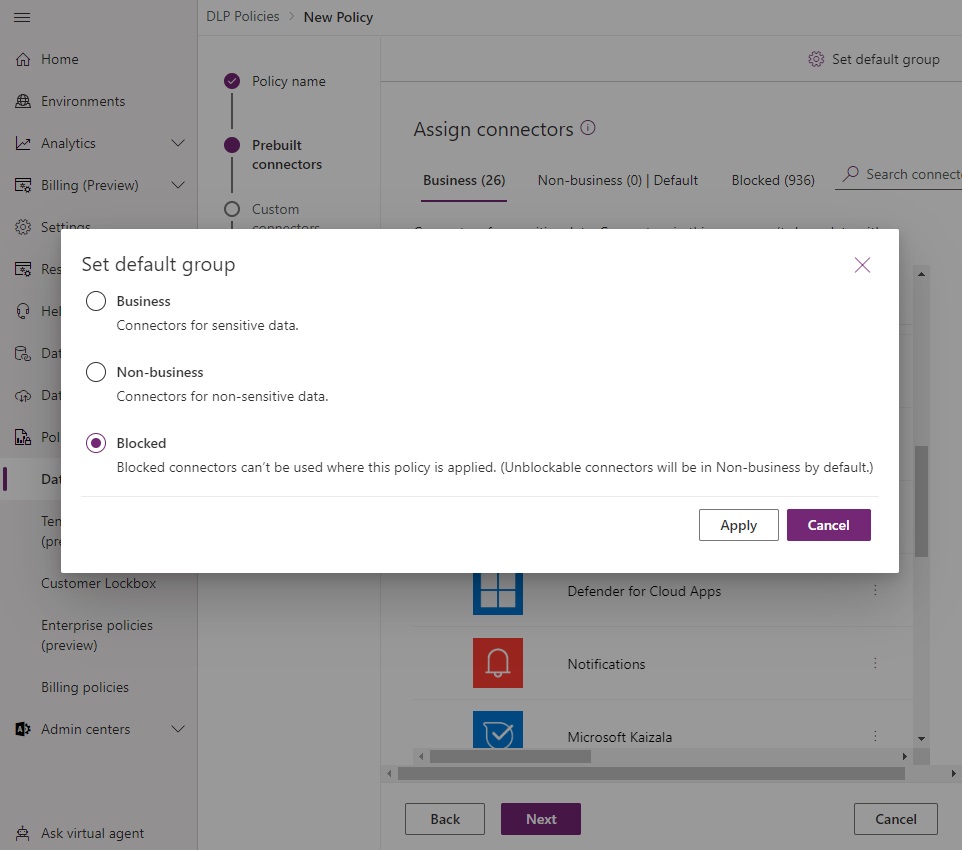
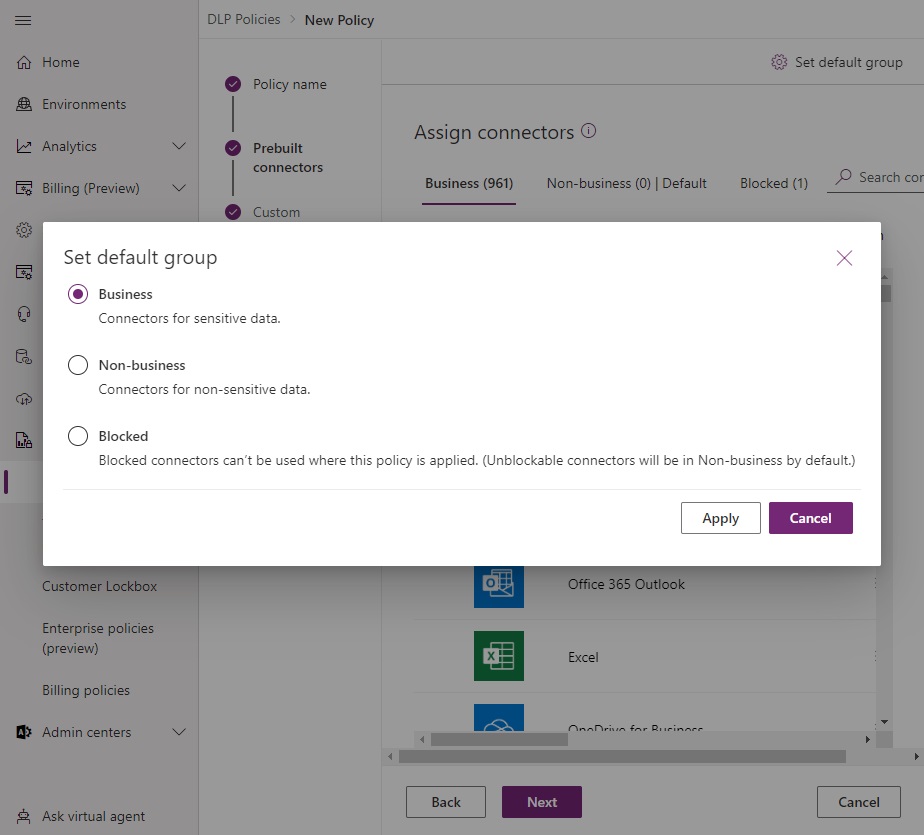
Set the default group for the default environment to blocked. Any new connectors will automatically blocked unless they are non-blockable.


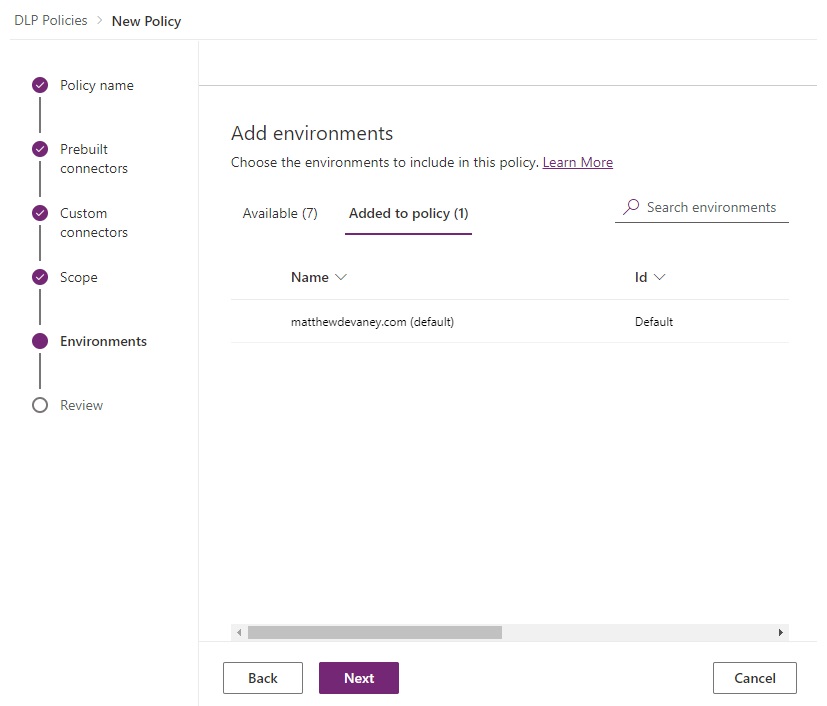
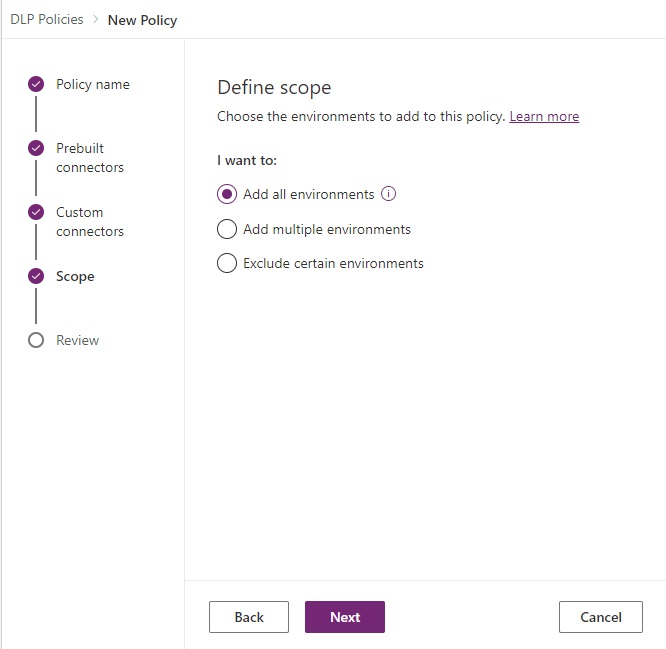
Apply the DLP Policy to only the default environment.


2. Set A Power Platform DLP Policy For Each New Environment

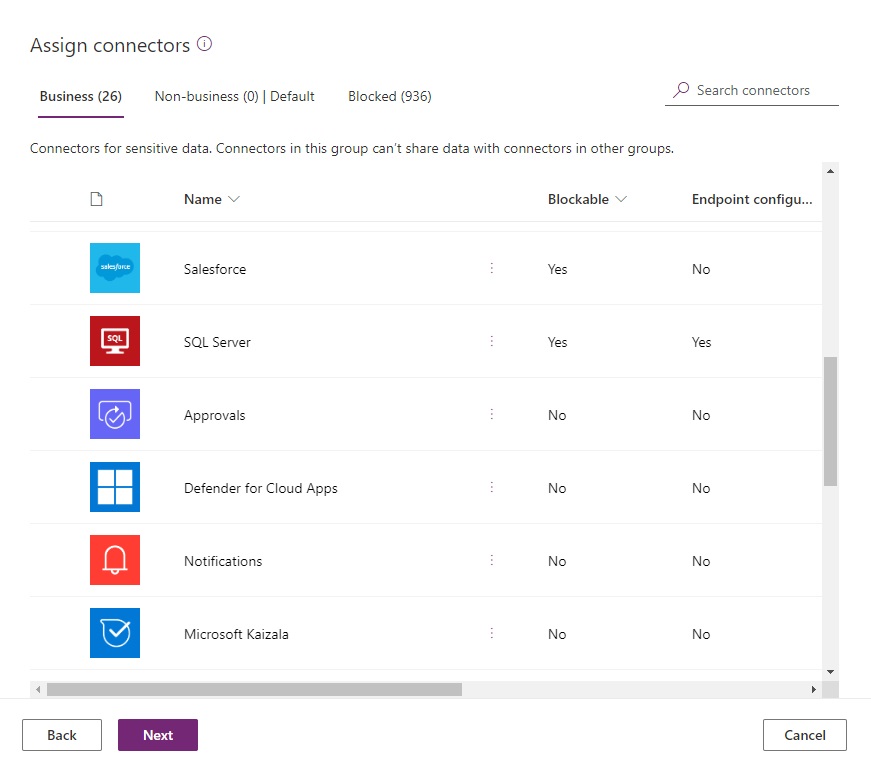
Every environment should have a DLP Policy in place before makers start to use it. When a new environment is requested, start by moving all non-blockable connectors to the business category. Then work with the environment owner to identify any additional connectors that are required (example: Salesforce, SQL Server, etc.) and move them to business as well. Move the remaining connectors to blocked.


Set the default group for the new environment to blocked.


3. Fine-Tune Connector Endpoints And Actions

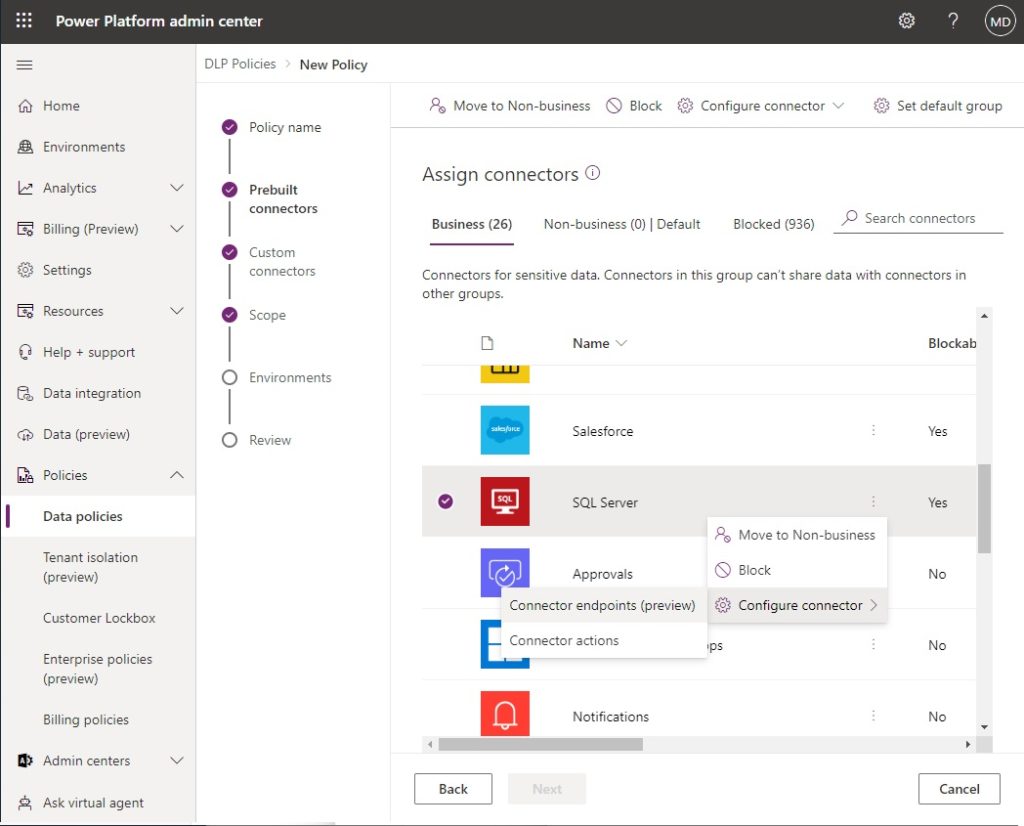
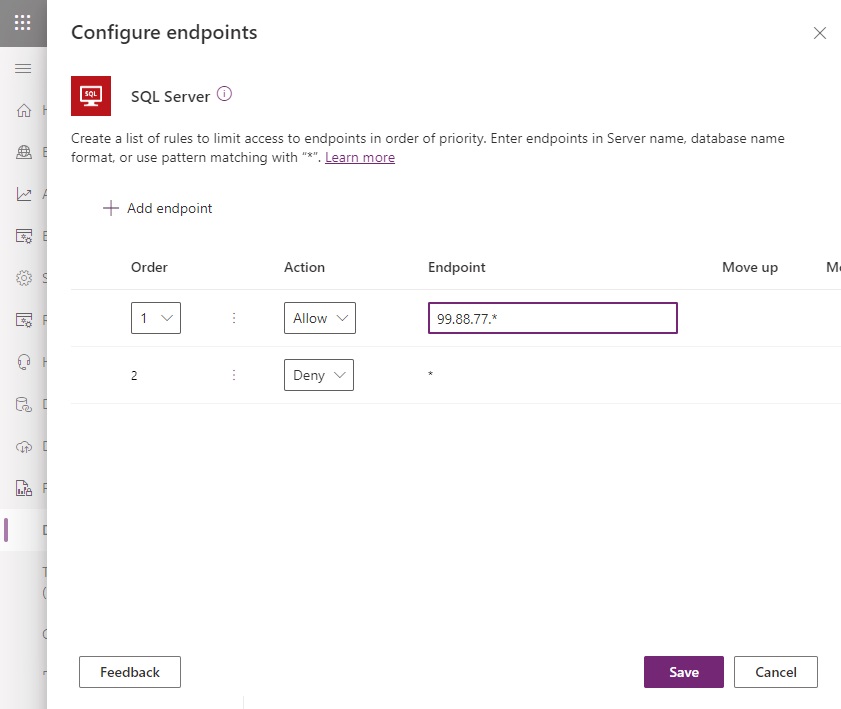
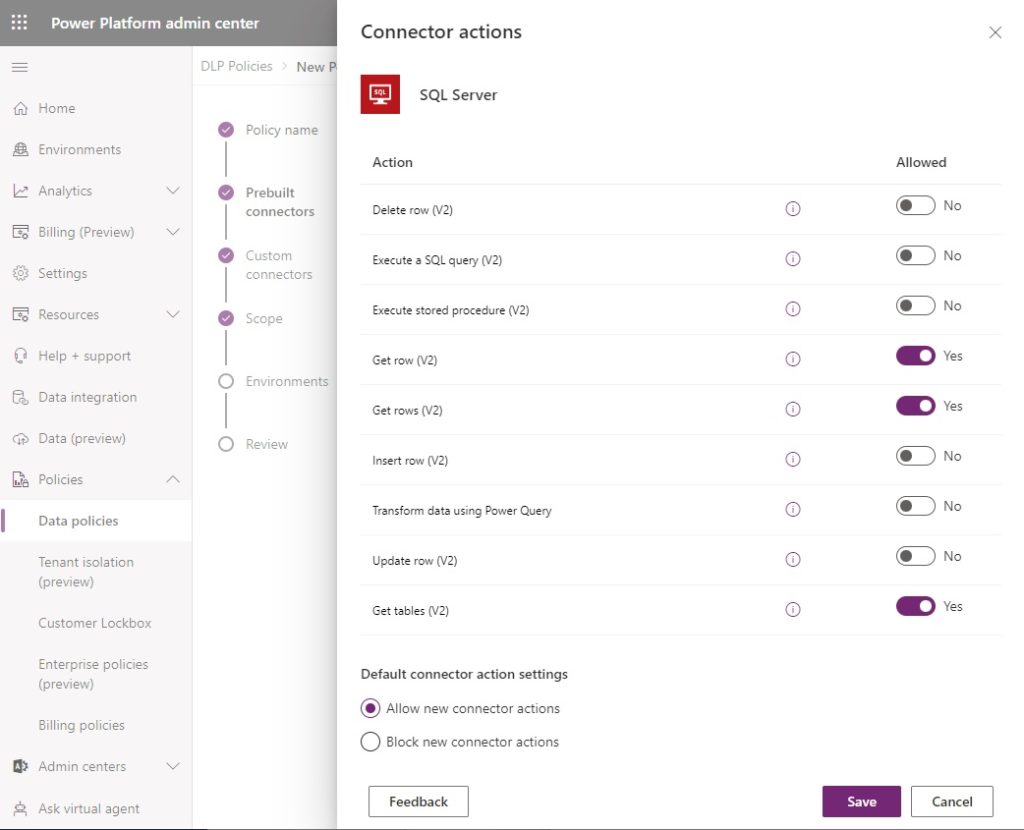
All blockable connectors can specific actions blocked while allowing others. Others can also allow or deny specific endpoints. Consider limiting usage whenever moving a blockable connector into the business category.


In this example, the SQL Server connector is only allowed to access one endpoint. The idea of what an endpoint is differs for each connector (example: HTTP, Dataverse, Blob Storage, etc.).


Consider granting read-only access to a datasource using connector actions when users do not have a requirement to insert, update or delete data.


4. Use A Shared Power Platform DLP Policy For DEV-TEST-PROD Environments

New apps and flows should be created in a development environment. Then, they should undergo testing in a test environment and finally be released into a production environment. Include dev, test and prod environments in the same policy to ensure they are always subject to the same conditions.


5. Check Before Changing The DLP Policy For An Existing Environment

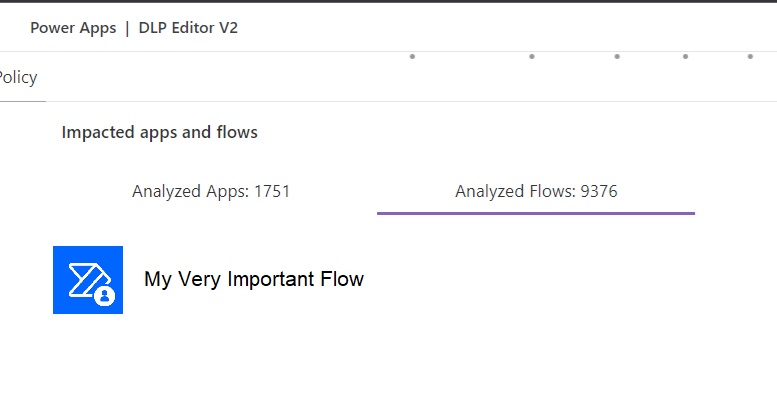
If a data policy changes after apps & flows have already been developed, it runs the risk of breaking them. The Power Platform Center Of Excellence Starter Kit includes a useful Power Apps app named DLP Editor. Run an impact analysis before switching the data policy to see which specific apps & flows will break. Then inform their creators and find a resolution.


6. Create A Blanket Power Platform DLP Policy For The Entire Tenant

A tenant-wide DLP Policy should be created for the sole purpose of blocking any potentially dangerous connectors in all environments. Do not be overly restrictive here. Blocking too many connectors at the tenant level will harm makers and make administration harder. Only block individual connectors on a case-by-case basis.

The blanket DLP policy will stack on top of the individual environment DLP policies. When one DLP Policy allows a connector and the other DLP Policy blocks a connector, the most restrictive policy wins.

Move all connectors to the business category.


Move individual connectors identified as risky into the blocked category.


Set the default group to business. Any new connectors added will automatically appear in the business category.


Choose add all environments when defining the scope.


7. Update The Governance Error Message With An Admin Contact

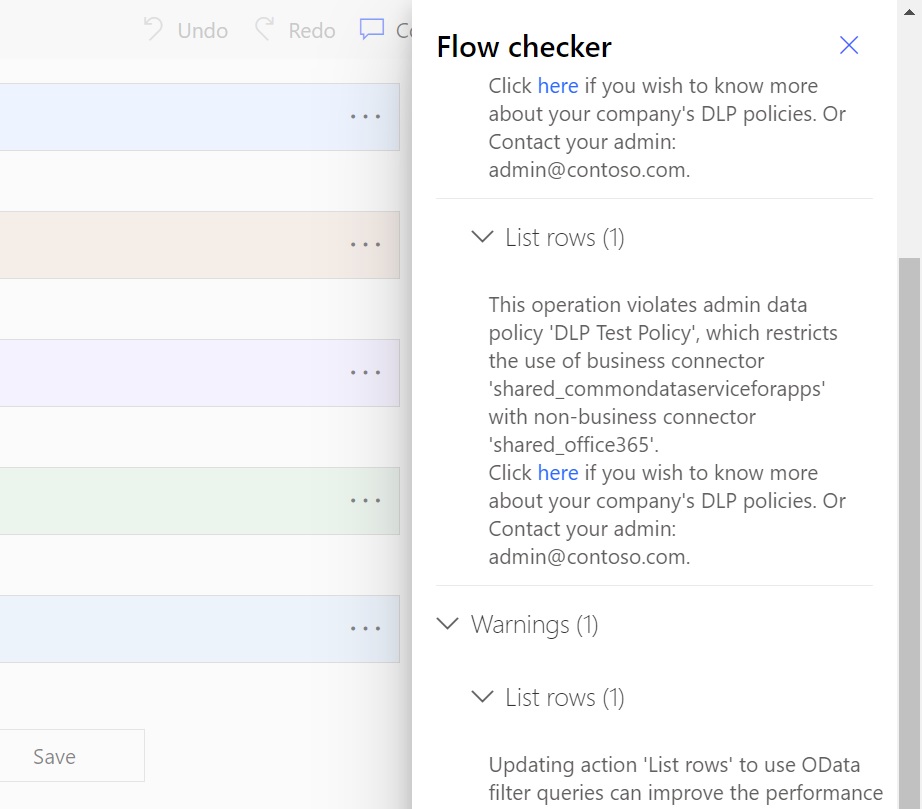
When a maker saves an app or flow that is not DLP Policy compliant they will receive a governance error message. Use PowerShell cmdlets to update the governance message and let makers know who they should contact to resolve the issue.


This PowerShell script was used to create the message above. Consider setting up a Microsoft Form and linking it in the governance message to collect requests for DLP Policy changes.

New-PowerAppDlpErrorSettings -TenantId 'TenantId' -ErrorSettings @{  
  ErrorMessageDetails = @{ 
    enabled = $True  
    url = "https://contoso.org/governanceMaterial" 
  } 
  ContactDetails= @{  
    enabled = $True 
    email = "admin@contoso.com" 
  } 
}


8. Do Not Use Power Platform DLP Policy Resource Exemptions

Apps and flow can be exempted from DLP Policies using these PowerShell cmdlets. Do not grant exemptions. If a resource requires a different DLP Policy consider moving it into another environment.


Did You Enjoy This Article? 😺

Subscribe to get new Power Apps articles sent to your inbox each week for FREE


Questions?

If you have any questions or feedback about 8 Power Platform DLP Policy Best Practices please leave a message in the comments section below. You can post using your email address and are not required to create an account to join the discussion.

The post 8 Power Platform DLP Policy Best Practices appeared first on Matthew Devaney.
✇Matthew Devaney

7 Mistakes To Avoid When Creating A Power Platform Environment

Setting up a Power Platform environment the wrong way can have serious consequences. This includes data-loss with no recovery from backups, lack of security that allows undesired users into the environment, and poor performance that hurts end-users efficiency. In this article I will show you how to properly setup

Table of Contents
1. Picking The Incorrect Region
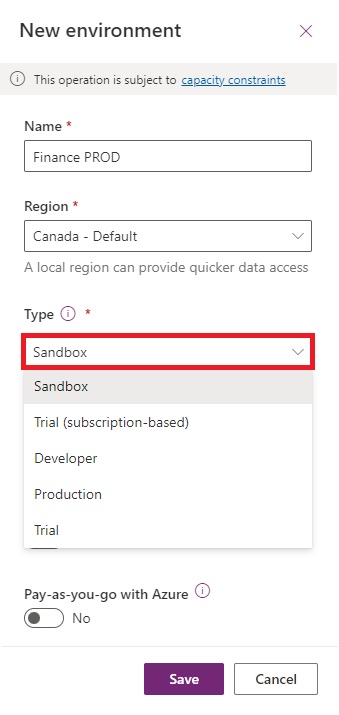
2. Choosing The Wrong Environment Type
3. Forgetting To Enter An Environment URL
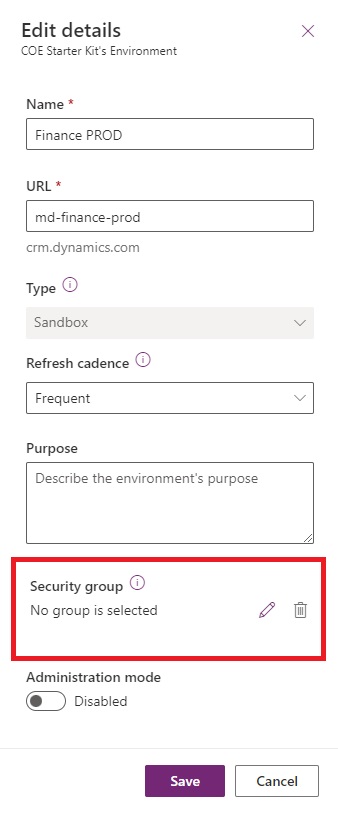
4. Failing To Apply A Security Group
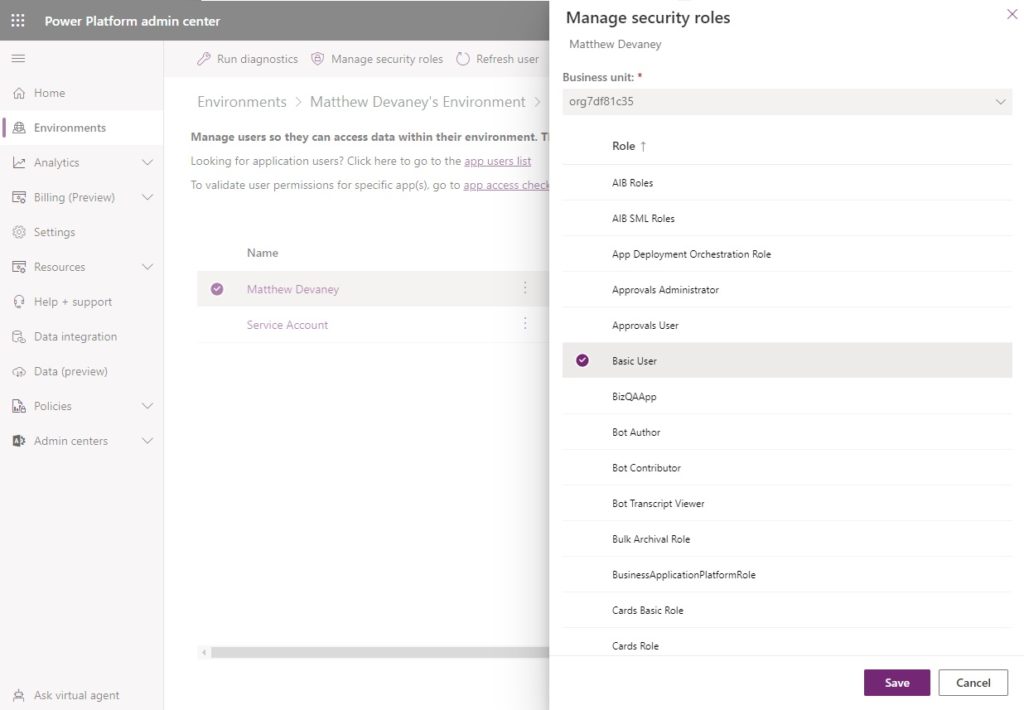
5. Missing Security Roles Assignment To Users
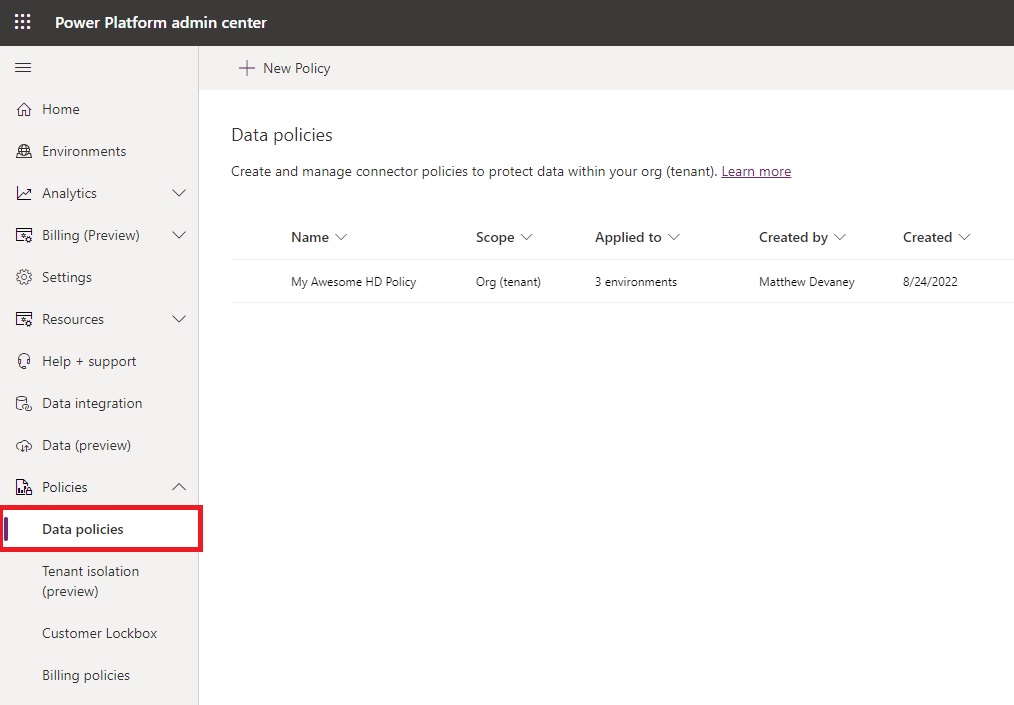
6. Neglecting The Setup Of Data Policies
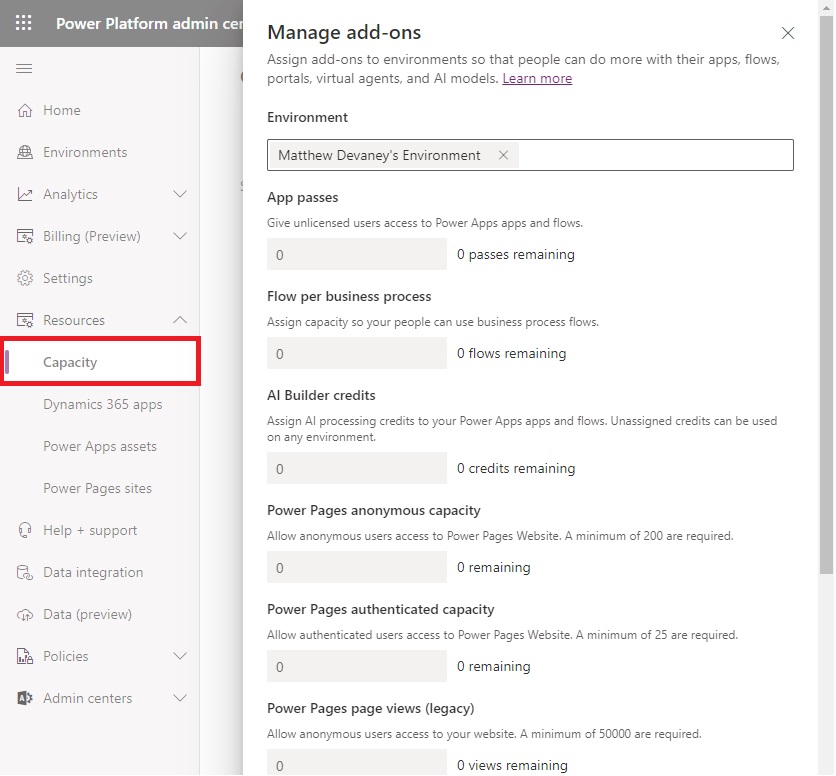
7. Delaying Applying Power Platform Licenses


1. Picking The Incorrect Region

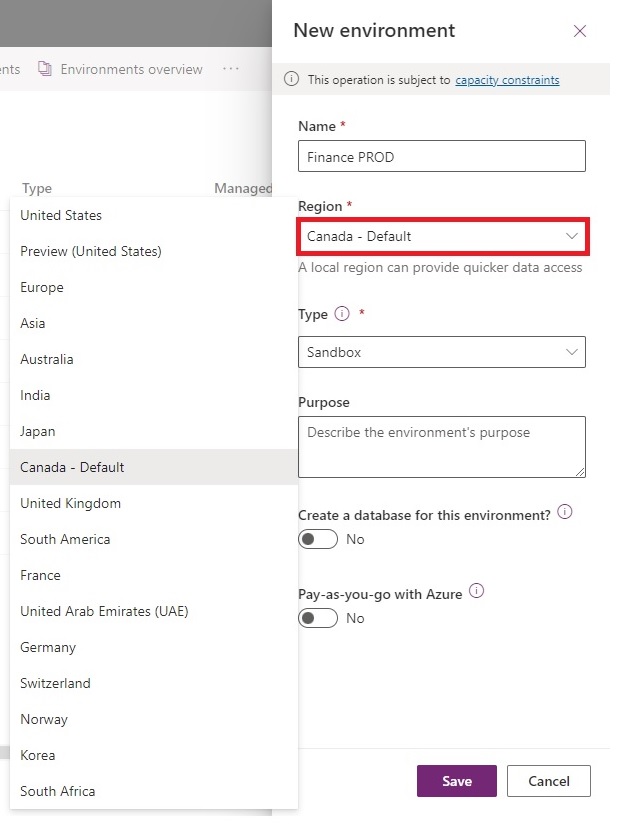
You only have one chance to select the proper region. If you choose the wrong one, there is no way to change it. The only way forward is to create another new environment and start again.

The environment’s region matters because it determines which datacenter your Power Apps, Power Automate flows and your data lives in. Choose the datacenter closest to your users to deliver the best performance. Also consider data sovereignty – data stored outside of your home country will be subject to the laws where it is stored.


2. Choosing The Wrong Environment Type

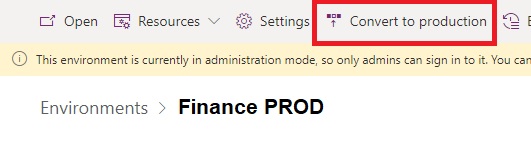
The default environment type Sandbox enables the Reset action which deletes all data & customizations within the environment and restores it to factory settings. You cannot perform a restore to recover lost data or customizations because the environment backups get deleted too. It is critical that you make sure the environments used for production do not have the type Sandbox.


This mistake can be easily fixed by opening the environment in the Power Platform Admin Center and pressing the Convert To Production action.


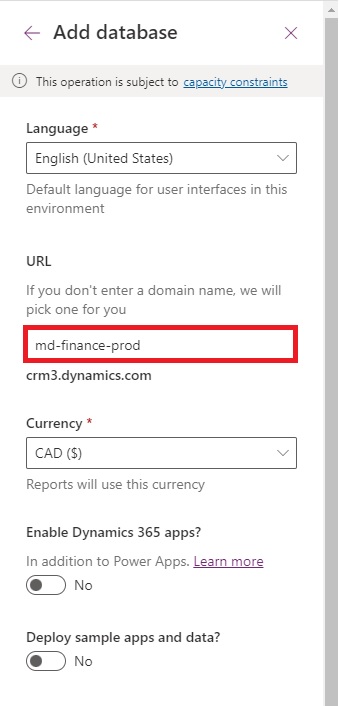
3. Forgetting To Enter An Environment URL

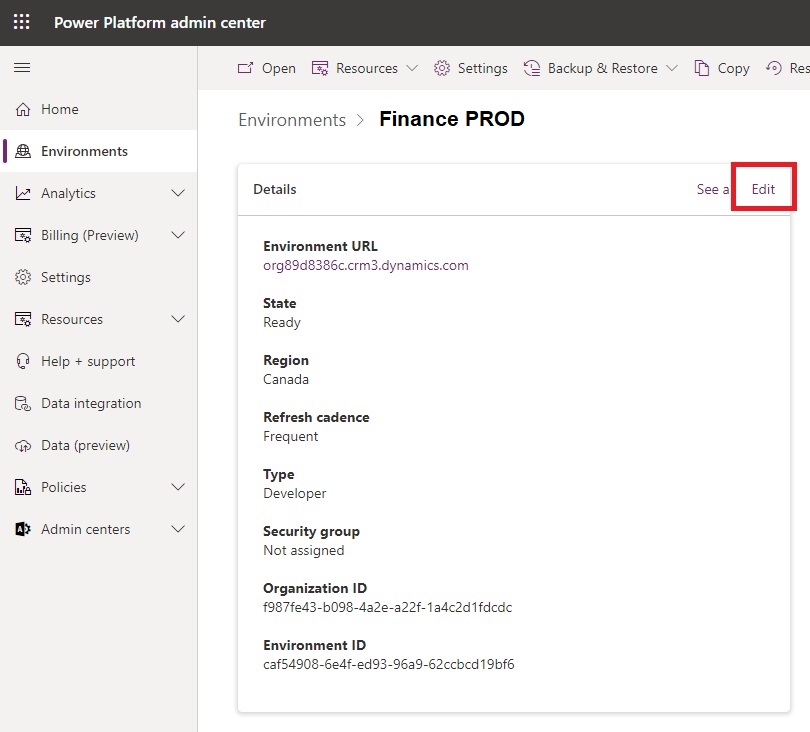
Changing the environment URL after initial environment setup has the potential to break Power Automate flows and other customizations. For example, a Power Automate flow that uses the environment URL stored in an environment variable would begin to fail.


To update the environment URL after an environment is created go to Power Platform Admin center and Edit the environment settings.


4. Failing To Apply A Security Group

An environment with no security group allows the system administrator to assign roles and share apps & flows with any user in the tenant. Only developers should be allowed in the development environments to ensure no customizations are broken. Likewise, only authorized users should be allowed in the production environment to make certain no sensitive data is leaked.


To update the Security group go to Power Platform Admin center and Edit the environment settings.


5. Missing Security Roles Assignment To Users

Users cannot run apps in an environment until they are assigned at least a Basic User security role. Developers require an Environment Maker role or System Customizer role to create new resources and view data. Additional custom security roles may be required as well. Do not assume that because a user appears in the environment’s Users list that they have a security role.

To assign a security role to a user, open the Users menu, select a user and then click Manage Security Roles.


6. Neglecting The Setup Of Data Policies

Data policies define which connectors are enabled or blocked and which connectors can be used with one another. By default all connectors can be used with no limitations. Your organization’s private data can be sent to 3rd party online services and consumed by their APIs.

If proper data policy for the environment is unknown upon creation consider move all Microsoft connectors to the business category while leaving the others in the non-business category. This will prevent Microsoft connectors from interacting with 3rd party APIs. Consider blocking the HTTP connector until you have a good reason to enable it. The HTTP connector can access any API on the internet.


Also, if you decide to enact a data policy after apps & flows have already been developed, you run the risk of breaking them. The Power Platform Center Of Excellence Starter Kit includes a useful Power Apps app named DLP Editor. You can run an impact analysis before changing the data policy to see which specific apps & flows will break. Then you would inform their creators and find a resolution.


7. Delaying Applying Power Platform Licenses

Developers and end-users alike cannot use being using premium apps, flows and other services without Power Platform licensing. Per app and per flow licenses must be added to the environment as an add-on within the Capacity menu. The sames goes for AI Builder credits and Power Pages capacity.

Per user licenses are assigned to a user account and do not need to be assigned to each new environment created.


Did You Enjoy This Article? 😺

Subscribe to get new Power Apps articles sent to your inbox each week for FREE


Questions?

If you have any questions or feedback about 7 Mistakes To Avoid When Creating A Power Platform Environment please leave a message in the comments section below. You can post using your email address and are not required to create an account to join the discussion.

The post 7 Mistakes To Avoid When Creating A Power Platform Environment appeared first on Matthew Devaney.
✇Matthew Devaney

Power Apps Filter Multiple Person Column (No Delegation Warning)

A SharePoint multiple person column can be filtered with no delegation warnings in Power Apps. So can a multiple choices column type and a multiple lookups type column. No, it cannot be done with the Power Apps filter function. But it can be done by using a Power Automate flow. Pass in the filter criteria, let a flow do the heavy lifting and return the results. No premium licensing needed. In this article, I will show how to filter complex SharePoint columns containing multiple values using a flow.

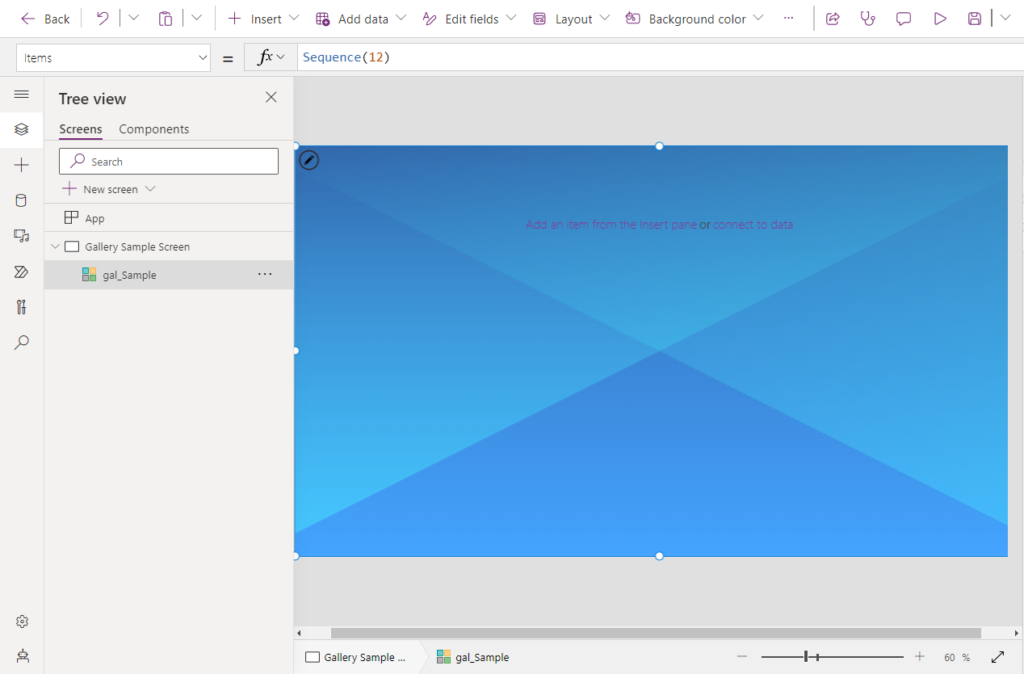
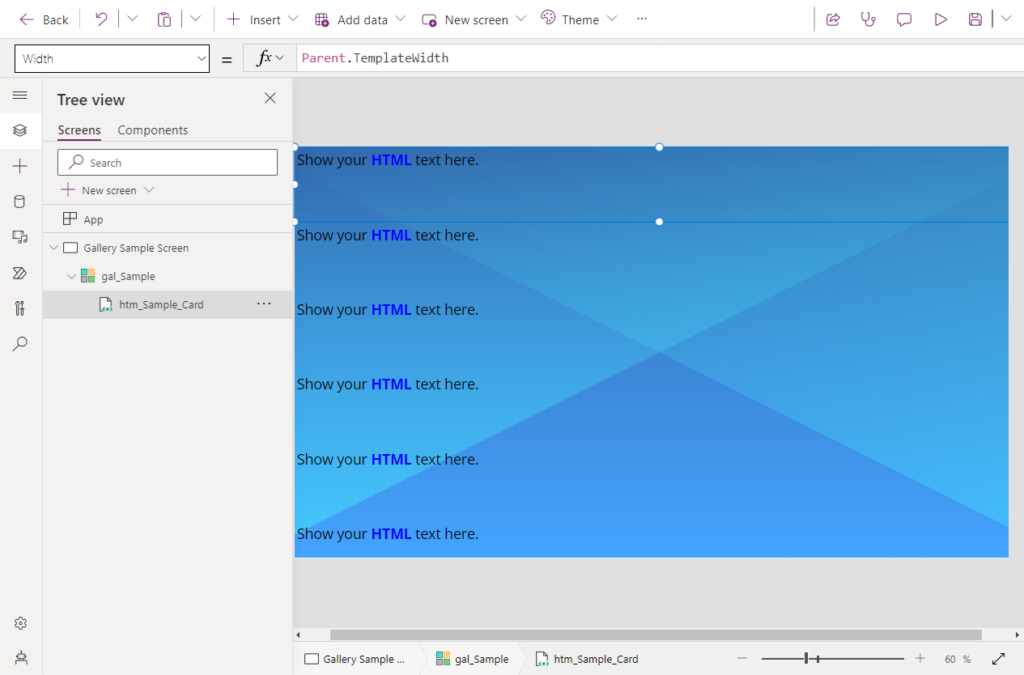
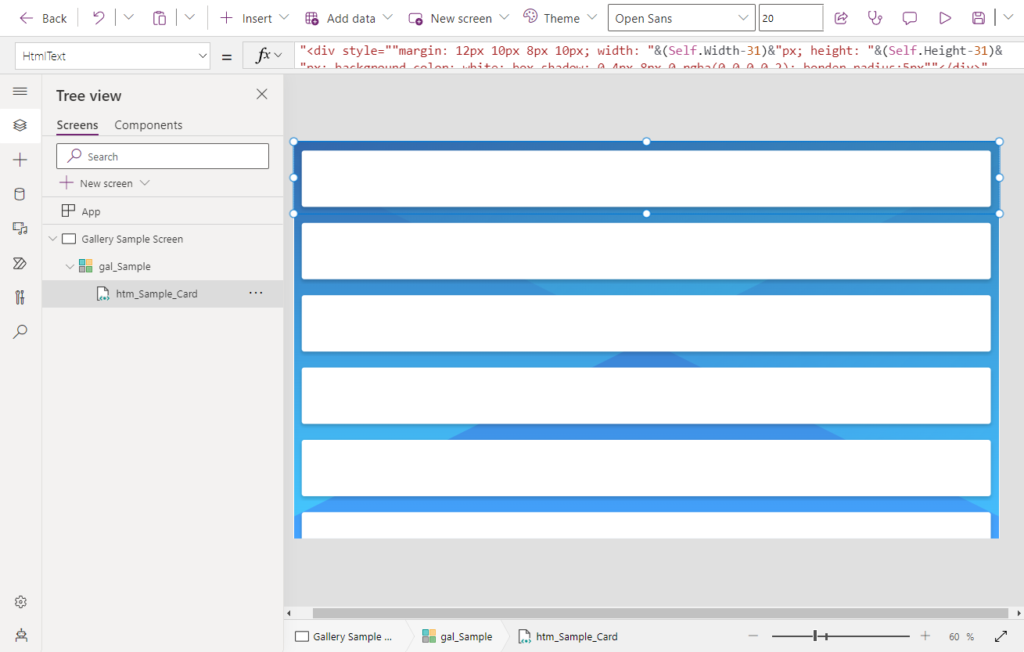
Table of Contents:

• Filter A SharePoint Multiple Person Type Column With No Delegation WarningSetup The SharePoint ListBuild The Power Automate Cloud FlowReturn The Flow Response To Power AppsFilter A SharePoint Multiple Choices Type Column With No Delegation WarningSetup The SharePoint ListBuild The Power Automate Cloud FlowReturn The Flow Response To Power AppsFilter A SharePoint Multiple LookUps Type Column With No Delegation WarningSetup The SharePoint ListBuild The Power Automate Cloud FlowReturn The Flow Response To Power Apps


Filter A SharePoint Multiple Person Type Column With No Delegation Warning


Setup The SharePoint List

Create a SharePoint list named Projects Backlog with the following columns:

  • ID – autonumber column
  • Title – text column
  • ProjectTeam – person column with allow multiple selections set to true

IDTitleProject Team
1Time Off Request AppMatthew Devaney, Mary Baker
2Safety Incidents ReportingMary Baker, David Johnson, Alice Lemon
3Job Site Inspection AppAlice Lemon, Sarah Green
4Expense Report AppMary Baker, David Johnson, Matthew Devaney
5Accounting System AutomationMatthew Devaney


Build The Power Automate Cloud Flow

Open Power Automate and create a new cloud flow named FilterSPMultiplePeople. Add the Power Apps V2 trigger with a required field called Claims. Then add a SharePoint – Get Items action that targets the Projects Backlog list.


Write this code in the Filter Query field to filter the multiple people type column.

ProjectTeam/Name eq 'triggerBody()['text']'


Complete the flow using the following actions.


Return The Flow Response To Power Apps

Make a People Picker combobox and use it to select a person’s name. Learn how to make a people picker by reading this article.


Connect the FilterSPMultiplePeople flow to Power Apps. Then write this code in the OnSelect property of a button. It will pass the claims token of the selected person into the flow and return a JSON with the matching results. Then we use the ParseJSON function to convert the JSON to a collection.

ClearCollect(
    colProjects,
    ForAll(
        Table(ParseJSON(FilterSPMultiplePeople.Run($"i:0#.f|membership|{cmb_Person.Selected.UserPrincipalName}").response)),
        {
            ID: Value(Value.ID),
            Title: Text(Value.Title),
            ProjectTeam: ForAll(
                Table(Value.ProjectTeam),
                {
                    Claims: Text(Value.Claims),
                    DisplayName: Text(Value.DisplayName),
                    Email: Text(Value.Email),
                    Picture: Text(Value.Picture),
                    Department: Text(Value.Department),
                    JobTitle: Text(Value.JobTitle)
                }
            )
        }
    )
)


For reference, the claims token passed into the flow for Matthew Devaney looks like this.

"i:0#.f|membership|md@matthewdevaney.com"


The collection colProjects shows the matching results with Matthew Devaney in the ProjectTeam field.

IDTitleProjectTeam
1Time Off Request AppMatthew Devaney, Mary Baker
4Expense Report AppMary Baker, David Johnson, Matthew Devaney
5Accounting System AutomationMatthew Devaney


When the colProjects collection is displayed in a Power Apps gallery it looks like this:


Filter A Sharepoint Multiple Choices Type Column With No Delegation Warning


Setup The SharePoint List

Create a SharePoint list named Projects Backlog with the following columns:

  • ID – autonumber column
  • Title – text column
  • SkillsRequired- choice column with allow multiple selections set to true

IDTitleSkillsRequired
1Time Off Request AppPower Apps
2Safety Incidents ReportingPower Apps, Power Automate, Power BI
3Job Site Inspection AppPower Apps, Power Automate
4Expense Report AppPower Apps, Power BI, Power Virtual Agent
5Accounting System AutomationPower Automate


Build The Power Automate Flow

Open Power Automate and create a new cloud flow named FilterSPMultipleChoices. Add the Power Apps V2 trigger with a required field called Claims. Then add a SharePoint – Get Items action that targets the Projects Backlog list.


Write this code in the Filter Query field to filter the multiple choices column.

SkillsRequired eq 'triggerBody()['text']'


Complete the flow using the following actions.


Return The Flow Response To Power Apps

Create a combobox to allow the user to select a value from the SkillsRequired choices field.


Connect the FilterSPMultipleChoices flow to Power Apps. Then write this code in the OnSelect property of a button. It will pass the claims token of the selected person into the flow and return a JSON with the matching results. Then we use the ParseJSON function to convert the JSON to a collection.


ClearCollect(
    colProjects,
    ForAll(
        Table(ParseJSON(FilterSPMultipleChoices.Run(cmb_Choice.Selected.Value).response)),
        {
            ID: Value(Value.ID),
            Title: Text(Value.Title),
            SkillsRequired: ForAll(
                Table(Value.SkillsRequired),
                {
                    ID: Value(Value.ID),
                    Value: Text(Value.Value)
                }
            )
        }
    )
)


The collection colProjects shows the matching results with Power BI in the SkillsRequired field.

IDTitleSkillsRequired
2Safety Incidents ReportingPower Apps, Power Automate, Power BI
4Expense Report AppPower Apps, Power BI, Power Virtual Agent


When the colProjects collection is displayed in a Power Apps gallery it looks like this:


Filter A SharePoint Multiple LookUps Type Column With No Delegation Warning


Create The SharePoint Lists

Create a SharePoint list named Projects Backlog with the following columns:

  • ID – autonumber column
  • Title – text column
  • Department- lookup column with allow multiple selections set to true

IDTitleDepartment
1Time Off Request AppHuman Resources, Accounting, Operations
2Safety Incidents ReportingOperations, Project Management
3Job Site Inspection AppOperations, Project Management
4Expense Report AppHuman Resources, Accounting
5Accounting System AutomationAccounting


Then create another SharePoint list called Departments with the following columns:

  • ID – autonumber column
  • Title – text column

IDTitle
1Operations
2Procurement
3Project Management
4Legal
5Accounting
6Human Resources


Build The Power Automate Flow

Open Power Automate and create a new cloud flow named FilterSPMultipleChoices. Add the Power Apps V2 trigger with a required field called departmentID. Then add a SharePoint – Get Items action that targets the Projects Backlog list.


Write this code in the Filter Query field to filter the multiple lookups column.

Department/Id eq 'triggerBody()['text']'


Complete the flow using the following actions.


Return The Flow Response To Power Apps

Create a combobox to allow the user to select a value from the Department lookups field.


Connect the FilterSPMultipleLookUps flow to Power Apps. Then write this code in the OnSelect property of a button. It will pass the claims token of the selected person into the flow and return a JSON with the matching results. Then we use the ParseJSON function to convert the JSON to a collection.

ClearCollect(
    colProjects,
    ForAll(
        Table(ParseJSON(FilterSPMultipleLookUps.Run(cmb_LookUp.Selected.Id).response)),
        {
            ID: Value(Value.ID),
            Title: Text(Value.Title),
            Department: ForAll(
                Table(Value.Department),
                {
                    ID: Value(Value.ID),
                    Value: Text(Value.Value)
                }
            )
        }
    )
)


The collection colProjects shows the matching results with Accounting in the Department field.

IDTitleDepartment
1Time Off Request AppHuman Resources, Accounting, Operations
4Expense Report AppHuman Resources, Accounting
5Accounting System AutomationAccounting


When the colProjects collection is displayed in a Power Apps gallery it looks like this:


Did You Enjoy This Article? 😺

Subscribe to get new Power Apps articles sent to your inbox each week for FREE


Questions?

If you have any questions or feedback about Power Apps Filter Multiple Person Column (No Delegation Warning) please leave a message in the comments section below. You can post using your email address and are not required to create an account to join the discussion.

The post Power Apps Filter Multiple Person Column (No Delegation Warning) appeared first on Matthew Devaney.
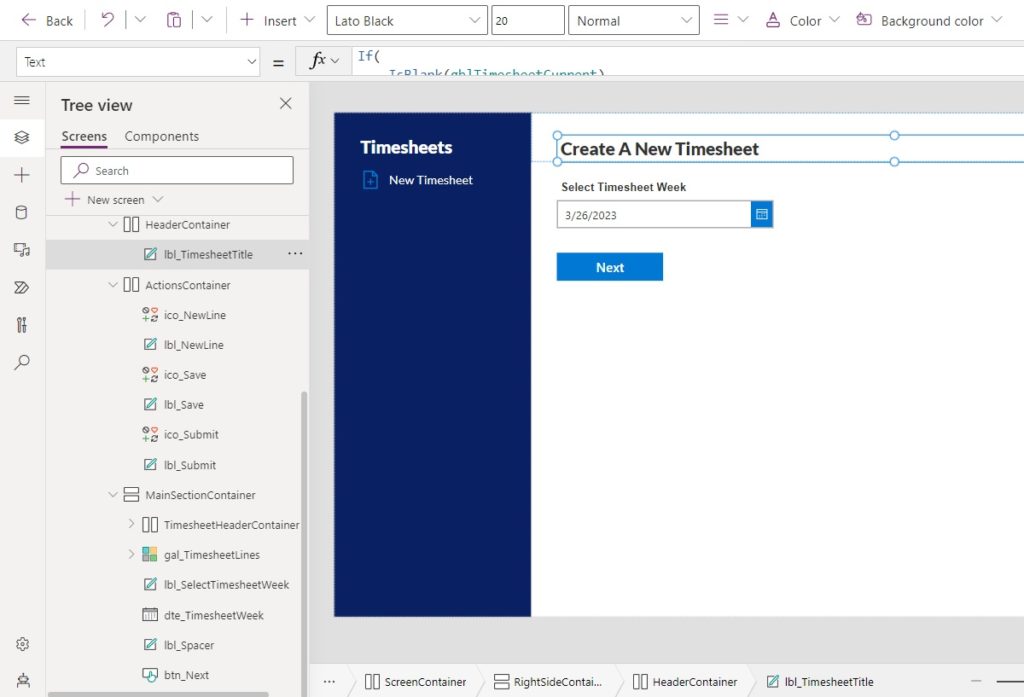
✇Matthew Devaney

Power Apps Button With Icon And Text

Icons can easily be added to Power Apps buttons with a little bit of creative coding. The trick is to place an icon on top of the button. Then trigger both the icon and button to change color when an invisible overlay above them is pressed. We can add a subtle hover effect on the button too. In the Power Apps article, I will teach you how to make a button with an icon and text.

Table of Contents:
• Introduction: The Save ButtonAdd A Container To Hold The Button & IconCreate A Power Apps Button Inside The ContainerInsert An Icon Into The ContainerPosition An Overlay Button Above The Icon & Save ButtonChange Icon & Save Button Color When Pressed


Introduction: The Save Button

The Save button can be clicked while filling out a form to save the user’s progress. This Power Apps button has an icon and words Save. When a user presses the button both the icon and text change color at the same time.


Add A Container To Hold The Button & Icon

Open Power Apps Studio and start a new app from blank. Add a container control to the app. The Power Apps button with an icon will be built inside of the container to make it easier to maintain.


Change the height and width properties of the container to the values below.

Height: 80
Width: 240


Create A Power Apps Button Inside The Container

Insert a new button named btn_Save into the container.


Make the button fill the entire space inside the container by updating its properties with the values below. It the container is re-sized, the button will re-size itself too. This makes our button with an icon re-usable in other places.

Height: con_SaveButton.Height-Self.BorderThickness
Width: con_SaveButton.Width-Self.BorderThickness
X: Self.BorderThickness/2
Y: Self.BorderThickness/2


Update the button’s text to the word Save. Position the text on the right side of the button. Leave a blank space for a button on the left-side.


Change the button properties to this code to re-position the text.

Align: Center
PaddingLeft 80
PaddingRight: 0
PaddingTop: 0
PaddingBottom: 0


We want the button background to be green to indicate that saving is a positive action.


Use these values to update the button’s style.

BorderColor: RGBA(40,167,69,1)
Color: White
Fill: RGBA(40,167,69,1)


Insert An Icon Into The Container

Create a Save icon named ico_Save and place it in the container. Position the icon to the left of the Save text.


Give the icon these color and fill property values.

Color: White
Fill: Transparent


Position An Overlay Button Above The Icon & Save Button

To make the icon and the save button’s color change at the same time they need to be triggered by common event. We will place a transparent button on top of the other controls. Then, when the transparent button’s pressed output property changes to true the icon and button will change color.

Insert a new button called btn_Overlay into the container.


Position the new overlay button directly over top of btn_Save.

Height: btn_Save.Height
Width: btn_Save.Width
X: btn_Save.X
Y: btn_Save.Y


Remove any text from the overlay button and make it transparent.


Use this code to make the button see-through. Notice the HoverFill property is not fully transparent. This gives the button a subtle hover effect.

BorderStyle: BorderStyle.None
Color: Transparent
Fill: Transparent
DisabledColor: Transparent
DisabledFill: Transparent
HoverColor: Transparent
HoverFill: RGBA(0,0,0,0.05)
PressedColor: Transparent
PressedFill: Transparent


Change Icon & Save Button Color When Pressed

The icon and save button must change color at the same time when pressed. Initially the button is green and the text is white.


When the button is pressed its colors become inverted. The button is white with a green border and the icon turns green.


Use this code in btn_Save to change its Color property and Fill property when btn_Overlay is pressed.

Color: If(
    btn_Overlay.Pressed,
    RGBA(40,167,69,1),
    White
)

Fill: If(
    btn_Overlay.Pressed,
    White,
    RGBA(40,167,69,1)
)


And use this code in ico_Save to change its Color when btn_Overlay is pressed.

Color: If(
    btn_Overlay.Pressed,
    RGBA(40,167,69,1),
    White
)


Test the button to make sure its style properties behave as expected. Add any code that should be executed when the button is pressed in its OnSelect property.


Did You Enjoy This Article? 😺

Subscribe to get new Power Apps articles sent to your inbox each week for FREE


Questions?

If you have any questions or feedback about Power Apps Button With Icon And Text please leave a message in the comments section below. You can post using your email address and are not required to create an account to join the discussion.

The post Power Apps Button With Icon And Text appeared first on Matthew Devaney.
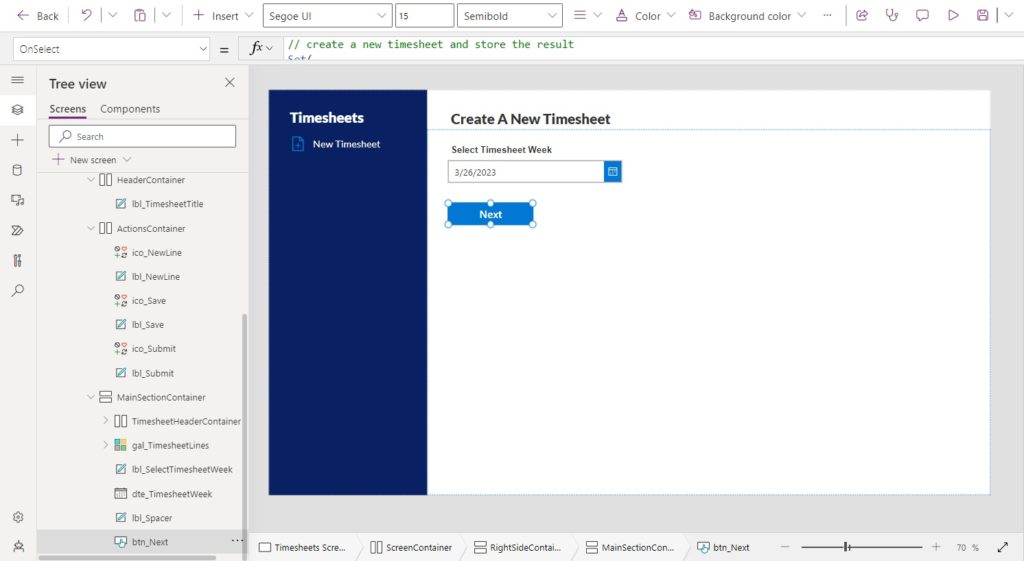
✇Matthew Devaney

SharePoint Delegation Cheat Sheet For Power Apps

This SharePoint delegation cheat sheet is the quickest way to check which Power Apps functions support delegation. When you get a delegation warning like this: “the Filter part of this formula may not work correctly on large data sets”, change your code to only use functions found on this page. It will remove the delegation warning.

Table Of Contents:
• Power Apps Functions With Full Delegation Support In SharePointPower Apps Functions With Partial Delegation Support In SharePointKnown Workarounds For Non-Delegable Power Apps Functions In SharePointIsBlankSearchCreate Collections Over 2,000 RowsDouble Collection Size To 4,000 RowsForAll + Filter LoopColumn Indexing For Large Datasets Over 5,000 SharePoint List Items


Power Apps Functions With Full Delegation Support In SharePoint

When these functions are used to get data from SharePoint the full result is returned.

Filter
LookUp
Sort [1]
SortByColumns [1]
StartsWith
And, Or [2]
=, <, <=, <>, >, >= [3]


Notes
  1. Sort & SortByColumns function does not support delegation on complex column types: Choice, LookUp, Person, etc.
  2. Not operator does not support delegation
  3. SharePoint ID column only supports the = operator. Does not support <, <=, <>, >, >=


Power Apps Functions With Partial Delegation Support In SharePoint

When these functions are used to get data from SharePoint only the first 500 records are returned by default.

AddColumns
ClearCollect
Collect
DropColumns
RenameColumns
ShowColumns


This can be increased to 2,000 records by changing the data row limit in the Power Apps advanced settings menu.


Known Workarounds For Non-Delegable Power Apps Functions In SharePoint

Delegation is not supported for these Power Apps functions in SharePoint.


IsBlank Function

The IsBlank function does not support delegation in SharePoint.

Filter('SharePoint List', IsBlank(Title))


We can use the Blank function to achieve the same result.

Filter('SharePoint List', Title=Blank())


Search Function

The Search function does not support delegation in SharePoint.

Search('SharePoint List', "Cat", "Title")


We can use the StartsWith function to get all results where the start of the word matches the search terms.

Filter('SharePoint List', StartsWith(Title, "Cat"))


A full delegation workaround for the Search function is possible by performing the search in a Power Automate flow and sending the result back to Power Apps.


Create Collections Over 2,000 Rows

The ClearCollect function supports partial delegation in SharePoint. However, there are ways to create collections over 2,000 rows.

ClearCollect(colCollectionName, 'SharePoint List')


Double Collection Size To 4,000 Rows

We can use this Power Apps code to load up to 4,000 rows into a collection. First, we load the list data into 2 temporary collections. The 1st temporary list is sorted in ascending order and the 2nd temporary list is sorted in descending order. Then we merge both temporary collections into a single collection and remove the duplicates.

This technique only returns the full result when the filtered SharePoint list contains less than or equal to 4,000 items. For more information check out this article.

Concurrent(
    ClearCollect(
         colChunk1,
         Sort('SharePoint List', ID, Ascending)
     ),
     ClearCollect(
         colChunk2,
         Sort('SharePoint List', ID, Descending)
     )
);
ClearCollect(
    colYourCollectionName,
    colChunk1,
    Filter(colChunk2, Not(ID in colChunk1.ID))
);
Clear(colChunk1);
Clear(colChunk2);


ForAll + Filter Loop

The ForAll function can also be used to exceed the delegation limit. It can loop over a set of single column table of values an return the results into a collection. The only limitation is each iteration of the loop can only return up to 2,000 results. For a full example of the technique check out this article.

Clear(colYourCollectionName);
ForAll(
    ["New", "Submitted", "Approved"],
    Collect(
        colYourCollectionName,
        Filter('SharePoint List', SubmissionStatusColumn=Value)
    )
);


Column Indexing For Large Datasets Over 5,000 SharePoint List Items

When the number of items in a SharePoint list exceeds 5,000 items the following warning appears. The Power Apps Filter function and LookUp function will not evaluate any items past the 5,000th item in the list until column indexing is turned on. Each column used in the filter criteria must be indexed to return the full result.

“The number of items in this list exceeds the list view threshold, which is 5000 items. Tasks that cause excessive server load (such as those involving all list items) are currently prohibited.”


To enable column indexing open the SharePoint list settings…


…and select Indexed columns.


Choose the column to be indexed from the dropdown menu and click Create.


There can be up to 20 indexed columns on the same SharePoint list.


Did You Enjoy This Article? 😺

Subscribe to get new Power Apps articles sent to your inbox each week for FREE


Questions About Delegation In SharePoint?

If you have any questions about Power Apps + SharePoint Delegation Cheat Sheet please leave a message in the comments section below. You can post using your email address and are not required to create an account to join the discussion.

The post SharePoint Delegation Cheat Sheet For Power Apps appeared first on Matthew Devaney.
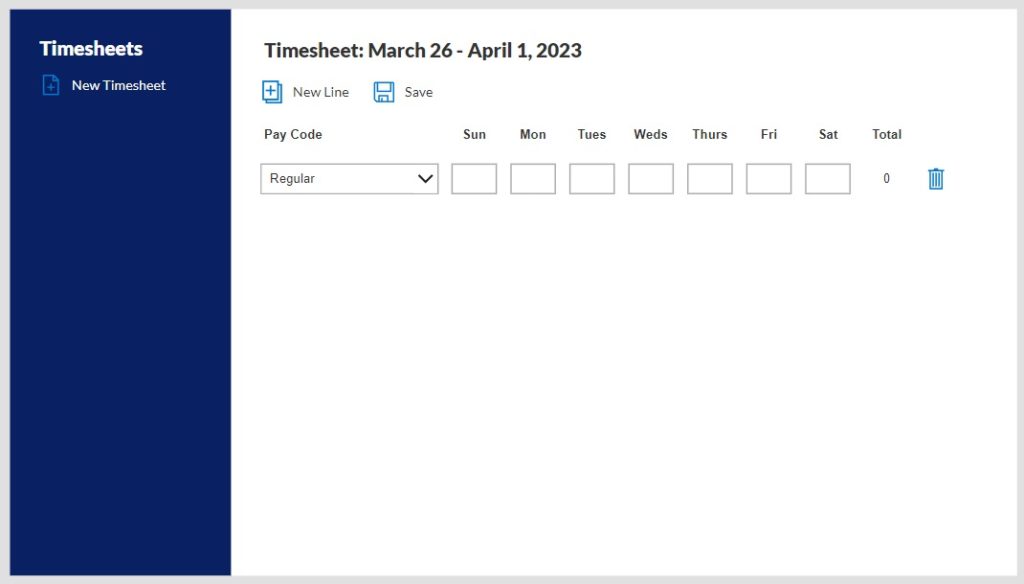
✇Matthew Devaney

Youtube Video: Search Power Apps With No Delegation Warnings


I’ve recorded a video for this week’s Power Apps article on how to search a large SharePoint list and return the matching results with no delegation warnings. I really like this idea of having a video versions of my written tutorials because I have the opportunity to show you how its done. If something didn’t make sense in the article, no problem, just go watch the video and it will all become clear.

I don’t know what my plans are for recording more videos in the future. But if you liked this video please leave some words of encouragement in the Youtube comments. Or subscribe to my Youtube channel. I have alot to learn about making high-quality tutorial videos. With practice I’ll get better at making them one video at a time.


Did You Enjoy This Article? 😺

Subscribe to get new Power Apps articles sent to your inbox each week for FREE


Questions?

If you have any questions about Youtube Video: Search Power Apps With No Delegation Warnings please leave a message in the comments section below. You can post using your email address and are not required to create an account to join the discussion.

The post Youtube Video: Search Power Apps With No Delegation Warnings appeared first on Matthew Devaney.
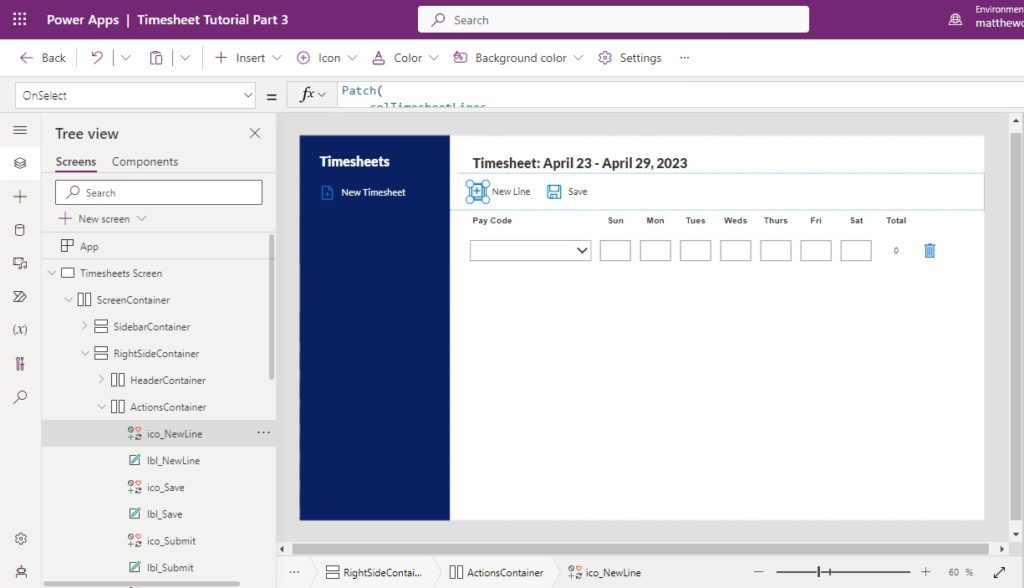
✇Matthew Devaney

Power Apps: Search A SharePoint List (No Delegation Warning)

I have found a way to search a SharePoint list in Power Apps and return any records with a matching substring. The Power Apps Search function does not support delegation for the SharePoint connector. Instead, we can use the SharePoint – Get Items action in Power Automate, return the result to Power Apps as a text string and then ParseJSON to convert it from text to a table (collection). This method does not require a Power Apps premium license.

Table of Contents:
• Introduction: The Car Inventory AppSetup The SharePoint ListCreate A Search Bar And Gallery To Display ResultsSearch The SharePoint List Using Power AutomateReturn the Search Results From Power Automate To Power AppsConvert The Flow Output To A Collection Using ParseJSONShow Unfiltered Results When Search Bar Is EmptyBonus Content: YouTube Video Walkthrough


Introduction: The Car Inventory App

Salespeople at a car dealership use the Car Inventory App to search for vehicles for their customers. The salesperson types a word into the search bar and any vehicles with a full or partially matching name appear in the search results list.


Setup The SharePoint List

Create a new SharePoint list called Car Sales Inventory with the following columns:

  • ID (auto-number)
  • CarYear (number)
  • CarMake (single-line text)
  • CarModel (single-line text)

Include this data in the list:

IDCarYearCarMakeCarModel
12009MazdaRX-5
21985HondaAccord
32001FordWindstar
41994MitsubishiEclipse
52006LamborghiniGallardo
62005SubaruLegacy
71997FordExplorer
30002011 Honda Ridgeline


Create A Search Bar And Gallery To Display Results

Open Power Apps Studio and create a new app from blank. Add a label and a rectangle shape and a label to the app to make a titlebar that says “Car Inventory”.


Insert a text input below the app title to be used as a search bar. Name it txt_Search. Then place a button with the word “Search” beside the text input and name it btn_Search.


Connect the Car Inventory SharePoint list to the app using the Data menu. After that, add a new vertical gallery below the titlebar.


Use this code in the Items property of the gallery to display the Car Inventory SharePoint list.

'Car Inventory'


Now we will update the gallery to show the details for each vehicle.


Write this code the Text property of the gallery’s label to show the year, make and model of each vehicle.

$"{ThisItem.CarYear} {ThisItem.CarMake} {ThisItem.CarModel}"


Search The SharePoint List Using Power Automate

The Power Apps Search function does not support delegation so we make a Power Automate flow to perform the search instead. Go to the Power Automate menu and create a new flow.


Start the flow with the Power Apps (V2) trigger. Create a required text parameter named searchTerm. The search term will store the search bar value passed in from Power Apps.


Add a SharePoint – Get Items action. Select the site address and choose Car Inventory as the List Name.


Use this code in the filter query field. It searches the CarMake and CarModel columns of the Car Inventory SharePoint list and returns any values with a substring matching the search term. For a complete set of instructions on how to create your own filters using SharePoint Rest API check out this excellent article.

substringof('triggerBody()['text']',CarMake) or substringof('triggerBody()['text']',CarModel)


The Top Count field is set to 100 in this example but we can increase it up to 5,000 records without any issues. However, only retrieve the amount of search results we want to display in our app.


Open the SharePoint – Get Items action settings and turn on Pagination. The threshold must be greater than the number of items in the SharePoint list. (example: if the SharePoint list has 10,000 items the threshold must be at least 10,000)


Return the Search Results From Power Automate To Power Apps

Use the Data Operations – Select action to extract the following columns from the Parse JSON action value. The JSON contains many more columns but we only need these 4 in Power Apps.

  • Id
  • CarYear
  • CarMake
  • CarModel


Store the Output of the Select action in a Data Operations – Compose action.


Finally, insert a Power Apps – Respond to a PowerApp or flow action at the end of the flow. Add a text output parameter named searchResults. Load the searchResults parameter with the Outputs from the Compose action.


Enable the ParseJSON Experimental Feature

The flow result is being passed back to Power Apps as a text string. But we need to convert it into a table data type so it can be stored in a collection. To do this, we must enable the experimental ParseJSON function. Go to the Advanced Settings menu and turn on ParseJSON in the Upcoming Features menu.


Convert The Flow Output To A Collection Using ParseJSON

The Power Automate flow we built to get search results from SharePoint appears in the Power Automate menu of Power Apps Studio.


When the user presses the search button it will trigger the flow and return any search results.


Use this code in the OnSelect property of the button. The ParseJSON function interprets the text string returned by Power Automate. Then the ForAll function creates a new record in the colCarInventory collection for each search result.

ClearCollect(
    colCarInventory,
    ForAll(
        Table(ParseJSON(SearchCarInventorySPList.Run(txt_Search.Text).searchresults)),
        {
            ID: Value(Value.ID),
            CarYear: Value(Value.CarYear),
            CarMake: Text(Value.CarMake),
            CarModel: Text(Value.CarModel)
        }
    )
)


Replace the Items property of the gallery with the collection name.

colCarInventory


Test the search feature we built by typing a value into the search bar and clicking Search. The search results will appear in the galler.y


Show Unfiltered Results When Search Bar Is Empty

The last step is to show an unfiltered list when the screen first loads or when search bar is empty.


Use this code in the App’s OnStart property to store the Car Inventory SharePoint list in a collection.

ClearCollect(
    colCarInventory,
    ShowColumns(
        'Car Inventory',
        "ID",
        "CarYear",
        "CarMake",
        "CarModel"
    )
)


Then update the search button to an unfiltered list when the search bar is blank.


Write this code into the OnSelect property of the Search button.

If(
    IsBlank(txt_Search.Text),
    ClearCollect(
        colCarInventory,
        ShowColumns(
            'Car Inventory',
            "ID",
            "CarYear",
            "CarMake",
            "CarModel"
        )
    ),
    ClearCollect(
        colCarInventory,
        ForAll(
            Table(ParseJSON(SearchCarInventorySPList.Run(txt_Search.Text).searchresults)),
            {
                ID: Value(Value.ID),
                CarYear: Value(Value.CarYear),
                CarMake: Text(Value.CarMake),
                CarModel: Text(Value.CarModel)
            }
        )
    )
)


Bonus Content: YouTube Video Walkthrough

This video shows how to Search A SharePoint list in Power Apps using the same steps outlined in the article above.


Did You Enjoy This Article? 😺

Subscribe to get new Power Apps articles sent to your inbox each week for FREE


Questions?

If you have any questions or feedback about Power Apps: Search A SharePoint List (No Delegation Warning) please leave a message in the comments section below. You can post using your email address and are not required to create an account to join the discussion.

The post Power Apps: Search A SharePoint List (No Delegation Warning) appeared first on Matthew Devaney.
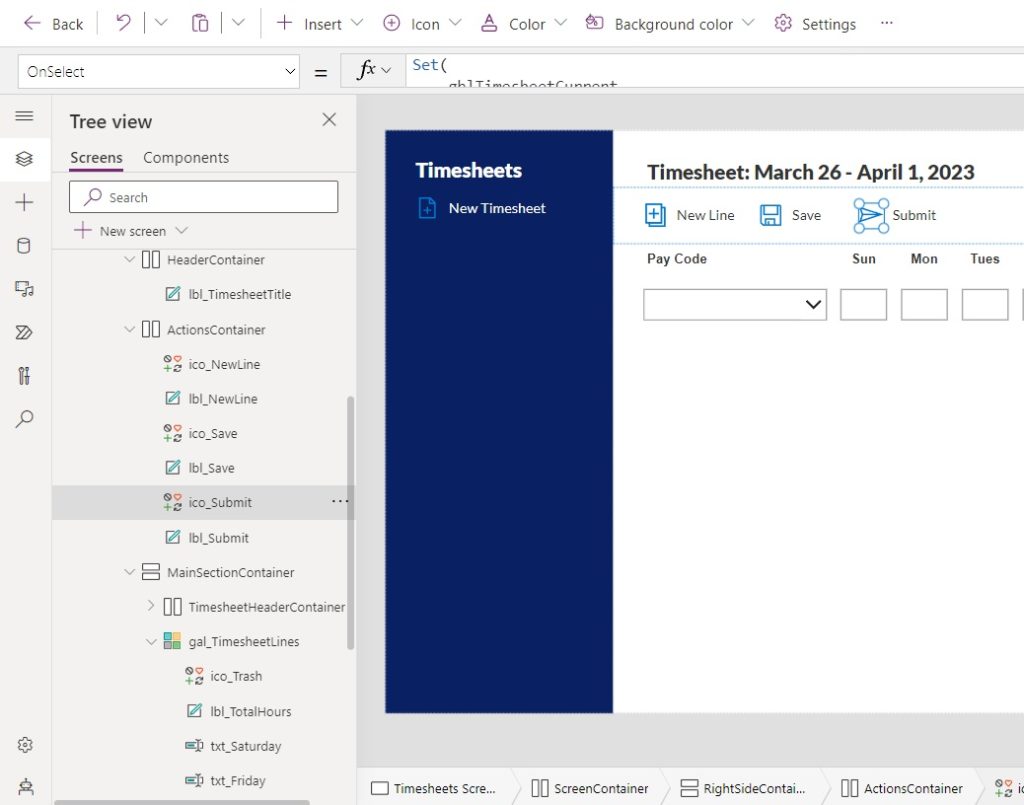
✇Matthew Devaney

How To Make A Power Apps Auto-Width Label

An auto-width property would be useful to have for several Power Apps control types including labels and buttons etc. For example, with auto-width, we could easily create a breadcrumbs UX. Each breadcrumb is a different size and is not known in advance. In this article, I’ll give two solutions on how to make a Power Apps auto-width label. You can either build your own or download a pre-made one.

Table Of Contents:

Option #1: Make Your Own Auto-Width LabelCreate A New Label In Canvas AppInsert An HTML Text Control With AutoHeight EnabledSet Label Width Equal To Height Of HTML Text Control

Option #2: Download A Pre-Made Auto-Width LabelInstall The Power Apps Creator KitImport The Auto-Width Label Into A Canvas App


Option #1: Make Your Own Power Apps Auto-Width Label

This approach uses a clever technique to determine what the width of the label should be. We will create an HTML control with same text as the label, the same font and the same text size. Then we will rotate the text 90 degrees and set the HTML text control’s AutoHeight property to true. The height of the HTML control will tell us the length of the auto-width label.

I first saw this solution posted on Twitter by Robin Rosengrün (@power_r2) and Jake Siskon (@JakeSiskon).


Create A New Label In Canvas App

Open Power Apps studio and create a new app from blank. Insert a blank label onto the screen.


Write these words in the Text property of the label.

"The quick brown fox jumps over the lazy dog"


Also apply these properties to the new label:

Font: Font.'Open Sans'
Size: 13
PaddingBottom: 0
PaddingLeft: 0
PaddingRight: 0
PaddingTop: 0


Insert An HTML Text Control With AutoHeight Enabled

Create an HTML text control and place it on the screen.


Set the AutoHeight property of the HTML text control to true. This makes the height of the HTML control expand to fit the text inside it.

true


Apply these values to the HTML text control properties as well to ensure it uses the same formatting as the label.

Font: lbl_FlexWidthLabel.Font
Size: lbl_FlexWidthLabel.Size
PaddingBottom: 0
PaddingLeft: 0
PaddingRight: 0
PaddingTop: 0


We will use HTML and CSS code to rotate the text and make its starting position the top left corner of the control.


Copy and paste this code into the HTMLText property of the HTML text control. The code below uses Power Fx $-string notation. Ensure the label referenced between the { } brackets matches the name of the label in the app.

$"<div style='
    display: inline-block;
    margin: 0px 30px;
    position: relative;
    transform: rotate(90deg);
    transform-origin: top left;
    white-space: nowrap;
    '
>
    {lbl_FlexWidthLabel.Text}
</div>"


Set Label Width Equal To Height Of HTML Text Control

We can assume the width of the auto-width label should be equal to the height of the HTML text control.


Use this code in the Width property of the auto-width label. A reference to the padding properties of the label are also included in case we want to add extra space on the left or right.

htm_CalculateLabelWidth.Height+Self.PaddingLeft+Self.PaddingRight


Option #2: Download A Pre-Made Power Apps Auto-Width Label

In this approach, we will download and import an auto-width label component published by Microsoft. To do this, the ability to use code components in an environment must be enabled by a system administrator.


Install The Power Apps Creator Kit

Go to the Power Apps Creator Kit page on the Microsoft Learn website and download the Creator Kit.


After the Power Apps Creator Kit is downloaded, ask an administrator to check if the Power Platform environment where it will be used has the Power Apps component framework for canvas apps setting enabled. This menu where this setting is found in the Power Platform Admin Center is located at the path Environments > (Enivornment Name) > Settings > Features.


Go to make.powerapps.com and import the solution into the desired environment.


Open the solution once it has been imported. The auto-width label will appear under the custom controls group.


Import The Auto-Width Label Into A Canvas App

Open Power Apps studio and create a new canvas app from blank. Go to the Insert menu on the left-navigation bar. Scroll to the bottom of the menu and choose Get more components.


Choose the Code tab and select the Auto Width Label. Click Import.


Expand the code components group in the insert menu to reveal the Auto Width Label. Add an auto-width label to the screen.


The auto-width label needs one additional step to configure. It does not stretch to fit the text within it by default.


Set the width of the auto-width label to this code to automatically size it.

Self.AutoWidth


Did You Enjoy This Article? 😺

Subscribe to get new Power Apps articles sent to your inbox each week for FREE


Questions?

If you have any questions about How To Make A Power Apps Auto-Width Label please leave a message in the comments section below. You can post using your email address and are not required to create an account to join the discussion.

The post How To Make A Power Apps Auto-Width Label appeared first on Matthew Devaney.
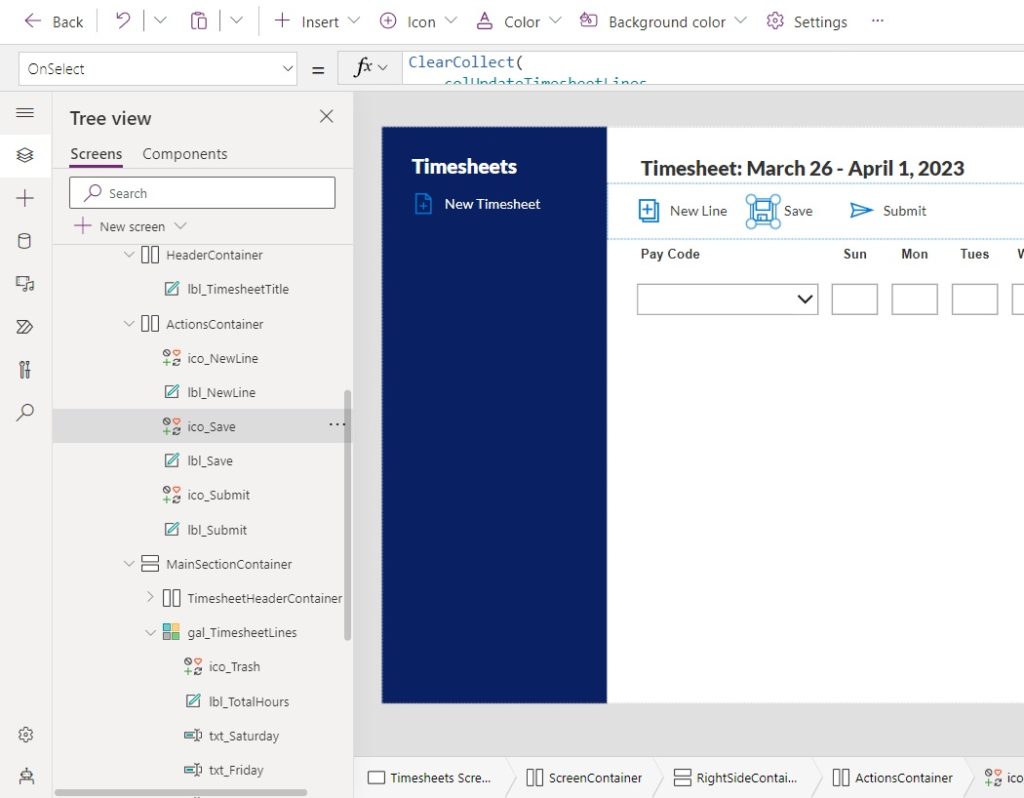
✇Matthew Devaney

Power Apps Curved Header UI Design For Mobile Apps

Recently I used a mobile app with a cool looking home screen. It had a high quality image at the top of the screen with curved shape at the bottom. I wondered if I could pull off this design using Power Apps. Spoiler alert, I did. In this article I’ll show you how to make an awesome header for your next mobile app using SVGs.

Table Of Contents:
• Introduction: The Home ScreenAdd A Header ImageCreate A Custom Shape DividerApply The Curved Divider Shape To The AppDisplay Welcome Messages To The UserInsert A Section HeaderAdd A Gallery SectionComplete The Remaining Sections


Introduction: The Home Screen

In this tutorial we will be building a home screen that shows workers the next task they should work on, any other outstanding tasks for today and any follow-up items from previous days. The header image of the home screen has a rounded bottom which is accomplished by using an SVG image.


Add A Header Image

Open Power Apps studio and create a new mobile app from blank. Insert a vertical container onto the screen.


Give the vertical container these properties.

Height: Parent.Height
LayoutOverflowY: LayoutOverflow.Scroll
X: 0
Y: 0
Width: Parent.Width


Then place a directionless container inside the vertical container. Directionless containers are useful when you want to stack objects on top of one another.


Turn off the flexible height property of the directionless container and set its properties per the code below.

AlignInContainer: AlignInContainer.Stretch
Height: 385


Create a blank image control and insert it into the directionless container.


Expand the image control to fill the directionless container using these properties.

Height: Parent.Height
ImagePosition.Fill
X: 0
Y: 0
Width: Parent.Width


Then choose an image to put inside the image control. The image of mountains used in this tutorial can be found below. Download the mountains image, upload it to the app and then add it to the image property of the image control.


Create A Custom Shape Divider

To create the curved image shown on the home screen we will need to generate and SVG divider image. Go to the website ShapeDivider.app and use the following settings:

  • Shape – Curve
  • Colour – #FFFFFF
  • Flip – No
  • Invert – Yes
  • Top/Bottom – Bottom
  • Height: 100px
  • Width: 100%

Click the download button to get the code. Choose download SVG.


Open the SVG image file using Notepad or another text editor.


Replace all of the double-quotes in the SVG with a single-quote. Keep the file open. We will use it in a few moments.


Apply The Curved Divider Shape To The App

Insert a 2nd image control into the directionless container. Position it on top of the mountains image.


Position the image at the bottom of the direction container using these settings and stretch the image across the entire control.

Height: 100
ImagePosition: ImagePosition.Stretch
Width: Parent.Width
X: 0
Y: Parent.Height-Self.Height


Then add the SVG code we obtained from ShapeDivider.app into the Image property of the image control.


Some extra code must be added to the SVG code found in notepad. First, we must define the type of data contained in the data URL. Then we encode the SVG image as a URL string using the EncodeUrl function.

"data:image/svg+xml;utf8, "&EncodeUrl("<svg  data-name='Layer 1' xmlns='http://www.w3.org/2000/svg' viewBox='0 0 1200 120' preserveAspectRatio='none' ><path  d='M600,112.77C268.63,112.77,0,65.52,0,7.23V120H1200V7.23C1200,65.52,931.37,112.77,600,112.77Z' class='shape-fill' fill='#FFFFFF' fill-opacity='1'></path></svg>")


Additionally, we want to change the fill color of the SVG divider shape from white to light gray. Replace the fill property with the following hex code.

fill='#EDEDED'


Display Welcome Messages To The User

We fill finished customizing our app header by adding a welcome message.


Insert a new label and give it these properties:

Color: White
Font: Font.'Segoe UI'
Size: 24


Add this code to the first label’s Text property to display a welcome message based on the current time.

If(
    Hour(Now())<12,
    "Good Morning",
    Hour(Now())<17,
    "Good Afternoon",
    "Good Evening"
)


Insert a 2nd label and give it these properties:

Color: White
Font: Font.'Segoe UI'
Size: 32


Determine the user’s name using the User function and writing this code in the Text property of the label.

User().FullName


Insert A Section Header

At this point, we’ve successfully added a curved SVG divider image into the app. Now we will take a few more short steps to complete the home screen. Place a new label inside the vertical container.


Write this in the Text property of the label. Emojis can be typed by pressing the [Windows Key] + [Period].

"Up Next ⏰"


Apply these properties to the label:

AlignInContainer: AlignInContainer.Stretch
Color: ColorValue("#27437D")
Fill: ColorValue("#EDEDED")
FontWeight: FontWeight.Bold
Font: Font.Lato
Size: 22


Add another label to the vertical container to act as a separator.


Give the separator label these properties:

AlignInContainer: AlignInContainer.Stretch
Fill: ColorValue("#747474)
Height: 1


Add A Gallery Section

Insert a blank vertical gallery into the vertical container.


Use this code in the Items property of the gallery. This gallery will only have one item, which initially seems like a waste. But we will re-use this gallery in multiple places, so it is necessary to build.

Table(
    {Name: "Widget Machine Safety Check"}
)


Turn off flexible height, stretch the gallery and then set its height.

AlignInContainer: AlignInContainer.Stretch
Height: CountRows(Self.AllItems)*Self.TemplateHeight


Place 2 labels and an icon into the gallery.


Write this code in the Text property of the first label to display the task name.

ThisItem.Name


Apply these properties to the first label to style its text.

Color: Black
Font: Font.Lato
Size: 18


The second label acts as a separator. Give it these properties:

AlignInContainer: AlignInContainer.Stretch
Fill: ColorValue("#747474)
Height: 1
X: 0
Y: Parent.TemplateHeight-Self.Height


Use this code in the Icon property of the icon to display a chevron shape pointing to the right.

Icon.ChevronRight


Complete The Remaining Sections

The Today’s Activities and Follow-Up Tasks sections of the gallery are created the same way as the Up Next section of the gallery. But they use different data. Repeat the steps above to make the remaining sections of the gallery.


Write this text in the section header for Today’s Activities.

"Today's Activities 🌞"


Use this code in the Items property of the Today’s Activities gallery.

Table(
    {Name: "Conveyor Belt Inspection", Icon: Icon.Globe},
    {Name: "Grinder Preventative Mtce", Icon: Icon.ToolsWrench},
    {Name: "Elevator Inspection", Icon: Icon.Search},
    {Name: "Charge Batteries", Icon: Icon.LightningBolt},
    {Name: "Health & Safety Audit", Icon: Icon.Health}
)


Write this text in the section header for Follow-Up Tasks.

"Follow-Up Tasks 📌"


Use this code in the Items property of the Follow-Up Tasks gallery.

Table(
    {Name: "Change Lubricants", Icon: Icon.Pin},
    {Name: "Fix Hole-Puncher", Icon: Icon.Pin},
    {Name: "Review Peer Fixes", Icon: Icon.Pin}
)


Did You Enjoy This Article? 😺

Subscribe to get new Power Apps articles sent to your inbox each week for FREE


Questions?

If you have any questions about Power Apps Curved Header UI Design For Mobile Apps please leave a message in the comments section below. You can post using your email address and are not required to create an account to join the discussion.

The post Power Apps Curved Header UI Design For Mobile Apps appeared first on Matthew Devaney.
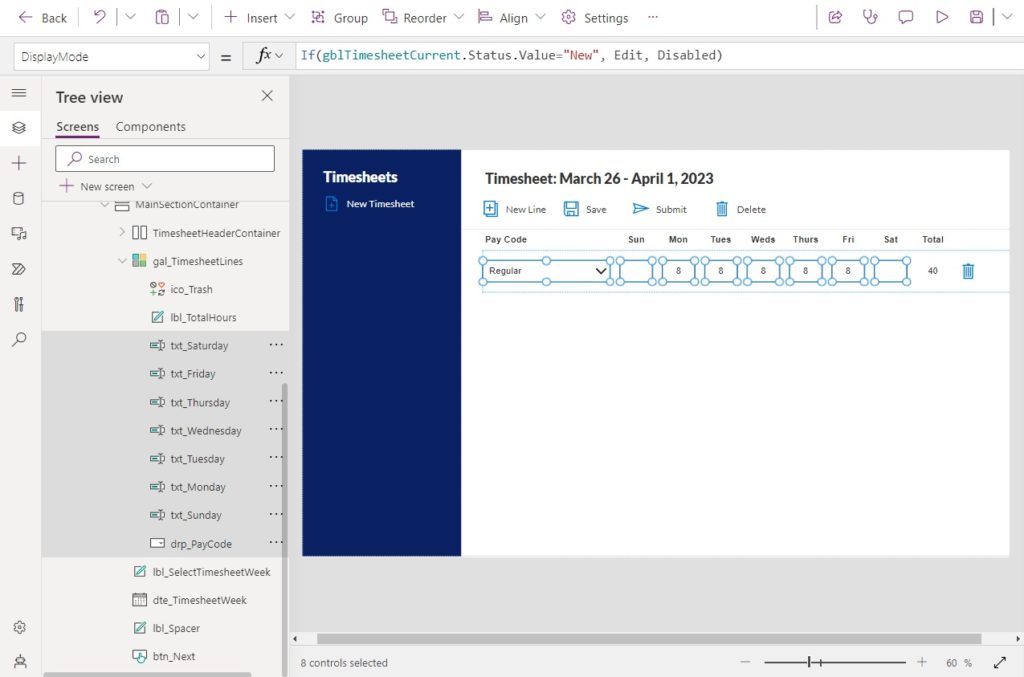
✇Matthew Devaney

5 Power Apps Gallery Design UX Tips

An app built with Power Apps can look amazing if you have a strong understanding of design principles and UI UX skills. Most citizen developers don’t. And that’s OK, neither did I when I started building Power Apps. But what I want everyone to know is you can make great designs on this platform if you learn the right skills. In this article, I’ll show you how create an awesome looking gallery screen using 5 simple Power Apps design tips.


Table Of Contents:
1. High Quality SVG Background
2. UX Cards With Drop Shadows
3. Text Hierarchy Using Size, Color & Font Weight
4. Custom SVG Icons
5. Brightly Colored Item Status Dots


Introduction: The Gallery Screen

In this tutorial, our goal will be to build the gallery shown below.


1. High Quality SVG Background

I enjoy using SVG images as the backgrounds for my apps for two reasons. Number one, SVG images are high-quality at any screen size. Number two, their patterns give users something more visually interesting to look at than a solid color background. So what is the best website to find cool backgrounds? It’s the aptly named SVGBackgrounds.com. 😉

My buddy Tim Shaw gets full credit for showing me this awesome Power Apps design tip!


There are several free SVG backgrounds to choose from. I decided to use Abstract Envelope for my app with the colors #3265AA, #44A4FF, #46EEFF. Once you’ve found picked your background, click the export icon to get the image file.


Then select Download SVG.


Go to Power Apps studio and create a new app from blank. Upload the SVG image file using the Media menu.


Set the BackgroundImage property of the screen to the name of the SVG image.


2. UX Cards With Drop Shadows

A UX card is a container that shows a few short, related pieces of information about a gallery item. Don’t make UX cards look that flat and boring. Make them look cool using drop shadows. 😎


Insert a blank vertical gallery onto the screen and apply the following properties to these values.

Height: App.Height
Items: Sequence(12)
ShowScrollbar: false
TemplateFill: Transparent
TemplatePadding: 0
TemplateSize: 140
Width: App.Width
X: 0
Y: 0


Then create an HTML Text control inside the gallery to use as the card.


Set the height and width properties of the HTML text control to fill the entire gallery row.

Height: Parent.TemplateHeight
Width: Parent.TemplateWidth
X: 0
Y: 0


Then set the HtmlText property to this code. It uses inline CSS to create the UX card with a drop shadow.

"<div style=""margin: 12px 10px 8px 10px; width: "&(Self.Width-31)&"px; height: "&(Self.Height-31)&"px; background-color: white; box-shadow: 0 4px 8px 0 rgba(0,0,0,0.2); border-radius:5px""></div>"


It really looks amazing doesn’t it? I did not come up with this code on my own. I pieced it together by looking at examples from Geetha Silvasailam, W3 Schools and making adjustments until it looked great.


3. Text Hierarchy Using Size, Color & Font Weight

I’m no graphic designer, but I do know that establishing a typographic hierarchy is important when designing a card. 🤓 It means showing the reader what to focus on using size, color, font weight, direction, etc. Of all the Power Apps design tips, this one is my favorite because it’s so simple yet powerful.

In the example below, our eyes are first drawn to the title “Initial Sample Verification”, then to the sample ID number, and finally the less important information on the 2nd row.


Insert a label with the text “Initial Sample Verification”.


Use these properties to style the label. This label has the biggest size, the darkest color, and the heaviest font weight. App users will look there first.

Font: Font.'Open Sans'
FontWeight: FontWeight.Semibold
Color: ColorValue("#000000")
Size: 16


Next, add another label with the ID number “#INDIR207IND50076”.


Use these properties to style the label. App users will look at this label 2nd because it has the same size and font weight as the title but it has a slightly lighter color. Positioning is important here too. The label is placed to the right of the title.

Font: Font.'Open Sans'
FontWeight: FontWeight.Semibold
Color: ColorValue("#747474")
Size: 16


Insert four more labels on the 2nd row of the card like this.


Give all of the labels the following properties. These labels have smaller text, with a normal font weight, and a light color. App users will look here last.

Font: Font.'Open Sans'
FontWeight: FontWeight.Normal
Color: ColorValue("#484644")
Size: 13


4. Custom SVG Icons

Power Apps comes with a set of standards icons. They are alright 😐. We can get better ones though by using custom SVG image code instead.

I offer a set of 2,000 Fluent UI SVG icons on my website. In this example, we are going to use Google’s Material Design icons instead from materialdesignicons.com.


Search the icon set to find the Account icon. Select View SVG and then copy the SVG code that appears.


Go back to Power Apps and add an Image control into the gallery.


Then paste the SVG code into the Image property of the Image control with a few key edits I describe in this post:

  • Change all double quotes inside the SVG tag to single quotes
  • Encode the SVG code as a URL
  • Add the data type at the start


To save you time, here’s all of the code and icon’s I used in my example


Account icon

"data:image/svg+xml;utf8, "&EncodeUrl("<svg xmlns='http://www.w3.org/2000/svg' viewBox='0 0 24 24'><path fill='#484644' d='M12,4A4,4 0 0,1 16,8A4,4 0 0,1 12,12A4,4 0 0,1 8,8A4,4 0 0,1 12,4M12,14C16.42,14 20,15.79 20,18V20H4V18C4,15.79 7.58,14 12,14Z' /></svg>")


Calendar icon

"data:image/svg+xml;utf8, "&EncodeUrl("<svg xmlns='http://www.w3.org/2000/svg' viewBox='0 0 24 24'><path fill='#484644' d='M19,19H5V8H19M16,1V3H8V1H6V3H5C3.89,3 3,3.89 3,5V19A2,2 0 0,0 5,21H19A2,2 0 0,0 21,19V5C21,3.89 20.1,3 19,3H18V1M17,12H12V17H17V12Z' /></svg>")


Building icon

"data:image/svg+xml;utf8, "&EncodeUrl("<svg xmlns='http://www.w3.org/2000/svg' viewBox='0 0 24 24'><path fill='#484644' d='M5,3V21H11V17.5H13V21H19V3H5M7,5H9V7H7V5M11,5H13V7H11V5M15,5H17V7H15V5M7,9H9V11H7V9M11,9H13V11H11V9M15,9H17V11H15V9M7,13H9V15H7V13M11,13H13V15H11V13M15,13H17V15H15V13M7,17H9V19H7V17M15,17H17V19H15V17Z' /></svg>")


Map-marker icon

"data:image/svg+xml;utf8, "&EncodeUrl("<svg xmlns='http://www.w3.org/2000/svg' viewBox='0 0 24 24'><path fill='#484644' d='M12,11.5A2.5,2.5 0 0,1 9.5,9A2.5,2.5 0 0,1 12,6.5A2.5,2.5 0 0,1 14.5,9A2.5,2.5 0 0,1 12,11.5M12,2A7,7 0 0,0 5,9C5,14.25 12,22 12,22C12,22 19,14.25 19,9A7,7 0 0,0 12,2Z' /></svg>")


Chevron-right icon

"data:image/svg+xml;utf8, "&EncodeUrl("<svg xmlns='http://www.w3.org/2000/svg' viewBox='0 0 24 24'><path fill='#747474' d='M8.59,16.58L13.17,12L8.59,7.41L10,6L16,12L10,18L8.59,16.58Z' /></svg>")


5. Brightly Colored Item Status Dots

I’ll be honest here. I just added a colored dot to each card to make it look interesting 🙄.

No real-world design should do this. Instead, a real-world design should use color to indicate an item’s status, it’s category, or it’s connection to other gallery items. Nonetheless, I’ll show how I did it.


Replace the gallery’s Items property code with this code. Each record in the table contains a color.

Table(
    {ColorCode: ColorValue("#FD7E14")}, // Orange
    {ColorCode: ColorValue("#DC3545")}, // Red 
    {ColorCode: ColorValue("#28A745")}, // Green
    {ColorCode: ColorValue("#FFC107")}, // Yellow
    {ColorCode: ColorValue("#DC3545")}, // Red 
    {ColorCode: ColorValue("#17A2B8")}, // Cyan
    {ColorCode: ColorValue("#FD7E14")}, // Orange
    {ColorCode: ColorValue("#DC3545")}, // Red 
    {ColorCode: ColorValue("#28A745")}, // Green
    {ColorCode: ColorValue("#FFC107")}, // Yellow
    {ColorCode: ColorValue("#DC3545")}, // Red
    {ColorCode: ColorValue("#17A2B8")}  // Cyan
)


Then insert a button control into the gallery.


Style the button using these properties. That’s all. We’re done making an awesome looking gallery 😎.

BorderRadius: 3
BorderStyle: BorderStyle.None
Fill: ThisItem.ColorCode
Height: 10
Width: 10


Did You Enjoy This Article? 😺

Subscribe to get new Power Apps articles sent to your inbox each week for FREE


Questions?

If you have any questions about 5 Power Apps Design Tips To Make An Awesome Looking Gallery please leave a message in the comments section below. You can post using your email address and are not required to create an account to join the discussion.

The post 5 Power Apps Gallery Design UX Tips appeared first on Matthew Devaney.
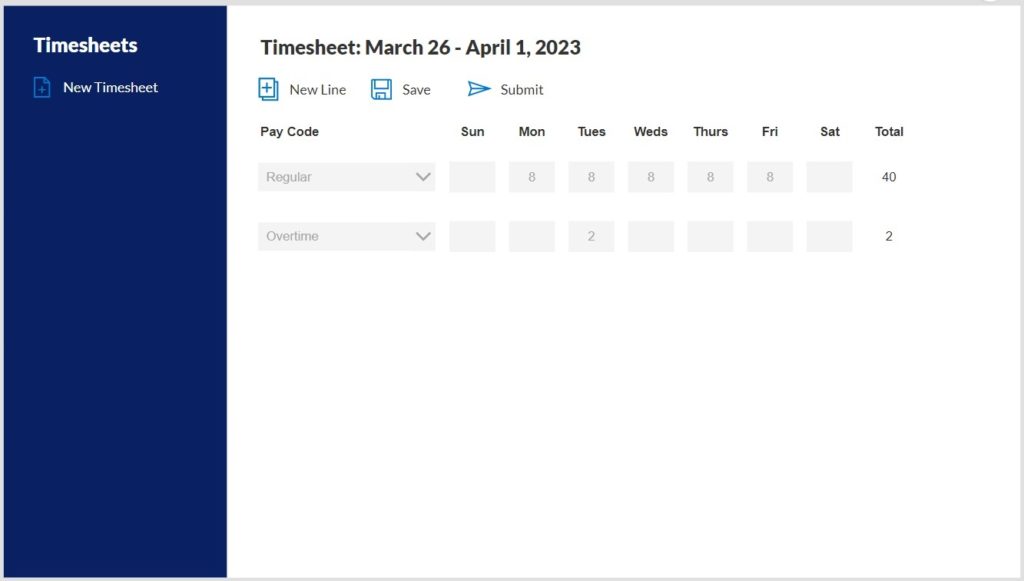
✇Matthew Devaney

Top 10 Power Apps Features Wishlist

Happy new year my fellow Power Appers! To kick off 2023 I’m publishing a wishlist of features I would like to see in Power Apps. I love Power Apps canvas apps and its my full-time job to build them. After working in Power Apps Studio all day it pretty easy to come up with a top 10 list. Take a look at my suggestions below and post your own most wanted features in the comments section.

Table Of Contents:
• 1. Define A Custom Theme2. Pop-Out The Code Editor3. Get New Canvas App Components From An In-Product Marketplace4. Add Fluent UI Controls To Power Apps Studio5. Allow User Impersonation In Power Apps Studio6. Build Custom Functions7. Support For Responsive Apps In Power Apps Studio8. Github Style Switch To Pro Code9. Unlock Forms By Default10. Editable Data Table


1. Define A Custom Theme

The most time-consuming activity in Power Apps is setting up and maintaining a custom theme. Why? If you don’t want to use one of the default themes, you must style each control individually. The community has come to the rescue with some excellent 3rd party branding templates. But this is a feature that really should be in product.

Canvas Apps already includes a Theme menu with several default themes. I’d like to see the product team extend this feature and allow us to create our own themes. If Microsoft already has the ability to default themes for us, that means the hard part is already done. Give us a theme setup screen and allow us to define custom themes for ourselves.


2. Pop-Out The Code Editor

The Power Apps formula bar completely covers the app when it gets expanded to edit a long code block. You cannot immediately see how your code is changing your app. It also makes it harder to know what other controls you are referencing in the code block since you cannot see them highlighted in the canvas area. For a low-code app editor, I believe these two aspects to design are very important.


If we could pop-out the code editor and make it a moveable object on the screen, we could position so we can always see the canvas area. In my mock-up below I’ve moved on top of the right-pane. And why not? It can do everything the right-pane does and more.

Imagine extending Power Apps studio across two screens: positioning the canvas area on the left and the code editor on the write. It would be an amazing app making experience!


3. Get New Canvas App Components From An In-Product Marketplace

One thing I love about Power BI is how easy it is to get new visuals. Don’t like any of the visuals included out-of-the-box? No problem. Select the get custom visuals from store button and you’re taken to an online marketplace that usually has the visual you need.

Power Apps makes it harder to get new components than it needs to be. You must download new components from the community website or find them in a developer’s Github repo. Power Apps should copy this feature from Power BI and start a marketplace for free (and paid) components.

Imagine if you could do this in Power Apps!


4. Add Fluent UI Controls To Power Apps Studio

There’s a simple reason Dataverse for Teams apps and custom pages for model-driven apps look & feel way better than standard canvas apps. They both use Fluent UI controls which are included in a broad range of other Microsoft products. Standard canvas apps still use the same set of classic controls it shipped with back in 2016. If modern Fluent UI control be used in other types of Power Apps, its high-time we bring them to standard canvas apps as well.

Yes, the Power Apps Creator Kit adds Fluent UI controls as components in standard canvas apps. But Fluent UI controls should be included in Power Apps out-of-the-box. Power Apps should look great by default.


Fluent UI controls offer a better user experience too. For example, the Fluent UI DatePicker allows users to select a date with one-click. The classic DatePicker requires two-clicks: one to select the date and another to press OK. Most users don’t understand they need to click OK the first time they use an app.

5. Allow User Impersonation In Power Apps Studio

It is important to test Power Apps with each set of security roles assigned to a user. Security roles define what permissions a user has for a given datasource. They can also be used to hide functionality in a canvas app a basic user should not have access to.

By allowing developers to impersonate another user in Power Apps studio, it would be faster to test all user permissions scenarios. The way to do this right now is to publish the app, login as another account and play the app. It works, but impersonation in Studio would make unit-testing Power Apps faster.


6. Build Custom Functions

Power Apps still lacks a fully-featured way to build re-usable custom functions inside of an app. Named formulas which launched this year are an improvement upon building custom functions using components. But I’d like to see two improvement.

First, let us define custom functions in the formulas property of an app like this. Currently formulas cannot take parameters and are not very useful. This simple improvement would make a big difference.

// define a function in app formulas property
AddNumbers(x,y) = x + y

// use a formula anywhere in an app.  Result: 8
AddNumbers(5,3)


Second, custom functions should be able to execute a code block. I want custom function to be able to do things. Not simply return a result.

ResetScreen = {
    Reset(Toggle1);
    Reset(Toggle2);
    Reset(Toggle3);
    Set(varCurrentRecord, Blank();
}


7. Support For Responsive Apps In Power Apps Studio

Responsive design is one of the toughest skills to learn in Power Apps. Coding aside, it is simply hard for app makers to imagine what an app will look like at each screen size. Right now Power Apps studio only shows apps at their default width while in edit mode. What I would like to see is a menu for responsive apps that allows app makers to change the screen size just like the developer tools in Google Chrome.

Here’s what editing a responsive app would look like at the largest setting.


And here’s what editing a responsive app could look like at the smallest setting.


8. Github Style Switch To Pro Code

There’s a really cool Github feature where you can boot up VS Code in a browser window and start editing code in a repo. Just browse to the code you want to edit and press the [period] keyboard button. It’s honestly amazing.

I cannot think of any better way bridge the gap between low-code and pro-code in Power Apps. Give us an easy way to toggle between Power Apps Studio and a full code editor.


9. Unlock Forms By Default

Every field in a Power Apps form is locked by default and each field must be unlocked one-by-one. Nobody wants this feature. Turn it off. Make forms unlocked by default instead. It is a simple way to give us coders better quality of life.


10. Edit Values Using The Data Table Control

Finally, I would like to see the data table control become a little bit more useful. Data tables are great way to quickly build a way to view a datasource. I want to be able to edit data in the table too just like Excel. When I click into a cell, let me start typing.


Did You Enjoy This Article? 😺

Subscribe to get new Power Apps articles sent to your inbox each week for FREE


What New Features Would You Like to See In Power Apps?

Leave a message in the comments section below. I’d love to know what you think should be added to my Top 10 Power Apps Features Wishlist. You can post using your email address and are not required to create an account to join the discussion.

The post Top 10 Power Apps Features Wishlist appeared first on Matthew Devaney.
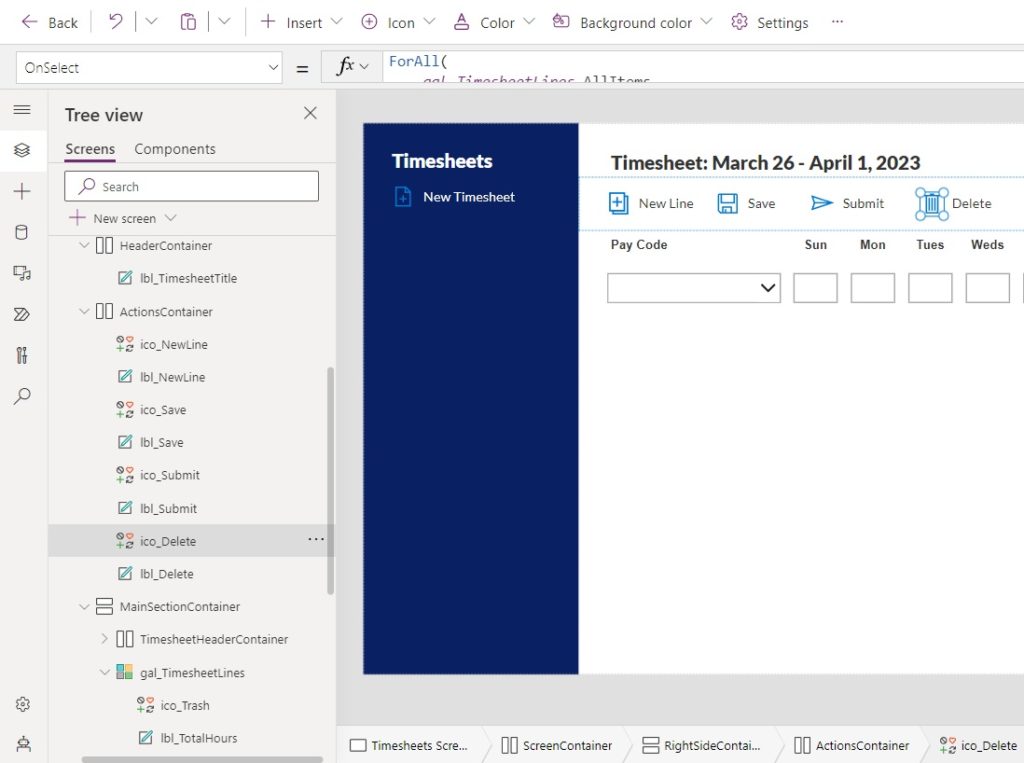
❌