Vue lecture

Il y a de nouveaux articles disponibles, cliquez pour rafraîchir la page.
✇More SharePoint

Power BI Q&A feature in reports

I know I've been lazy in the last six (ok, even more) months... but things have changed around my career a little bit. Don't get me wrong, I am still doing lots of SharePoint stuff, but since last summer I also got involved in some Power BI projects. I've also started putting up a another small blog on Facebook related to my other passion, which is globetrotting.

I got really good insights in the Power BI technology during a full day workshop at the European Collaboration Summit in Zagreb, Croatia last year. Thanks to John White and Jason Himmelstein for the wonderful delivery of the content. It was transferred to hands-on experience starting the day I got back to work.

In the last 9 months, I've got my hands dirty and designed several solutions, based on Power BI reports and dashboards, with data from SharePoint, Exchange Online and other business applications.

To prove I'm seriously into this, today, I have actually passed the now official Microsoft exam:

Analyzing and Visualizing Data with Microsoft Power BI (70-778)


It was the toughest exam I've taken (no kidding!), there were a lot of DAX queries and a mix of admin and developer questions...it was a close one with a passing score of just 745.

Anyway, I wanted to give you some value with this post by telling you about a feature that got released in Power BI Desktop recently... that's the Q & A.

Even on the exam, questions to Q & A referred only to the dashboards in the Power BI service, but this feature is now also available in the reports in Power BI Desktop. Your Power BI desktop client must be at least the December 2017 version... but I recommend you get the March 2018 update.

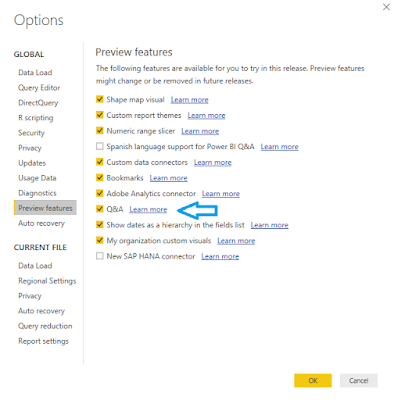
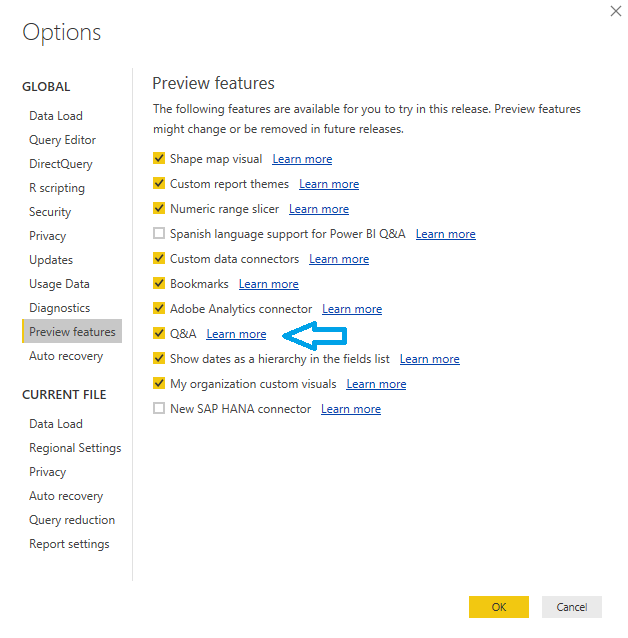
It's a preview feature, so you'd need to enable it first. You can do that by going to File -> Options and settings -> Options -> Preview features. Tick the Q &A feature, click OK and restart Power BI desktop.


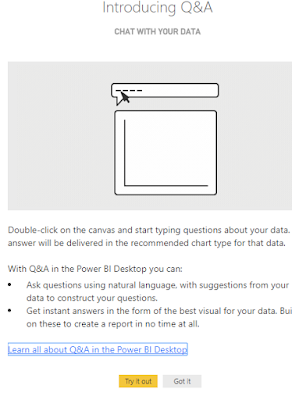
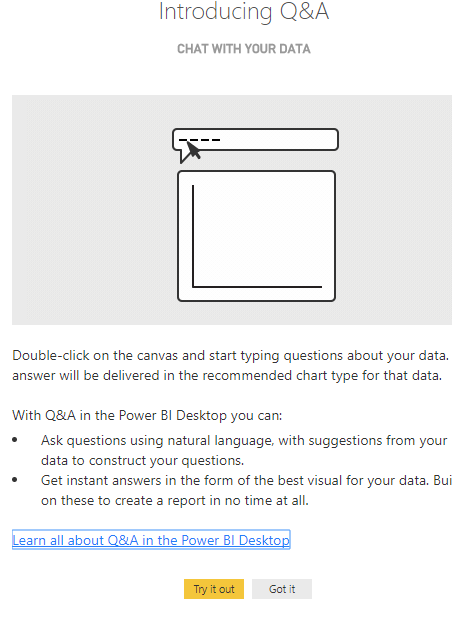
The next time you start your Power BI desktop client, you will see this:


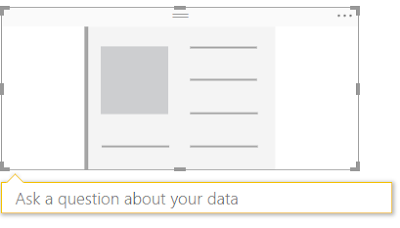
How does the feature work? Pretty simple, you can ask questions about your data in a natural language. Just click on the canvas in Power BI desktop report view and the following visual will appear:


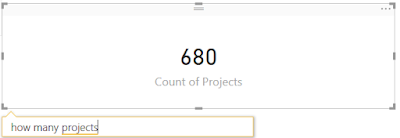
For example, I'll load a dataset of Projects and ask the simple questions.. ok how many are they? Rather than doing a COUNT function with DAX... and boom: I've got the answer.


Now, sometimes, you will not know the exact field name by which to search... let's say you insert a query for top client by revenue, but the field in the dataset is called customer. Here's where the synonyms come into play. I will write another post on how to get the most of those.

So... how many of you are using Power BI? Are there any of you interested on taking the exam?


✇More SharePoint

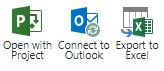
Export to Excel now Works in Chrome. Open with Project doesn't work anywhere :)

So.. some good news for the majority of people.

This scope of this post is all about SharePoint Online.


The most popular browser in the world nowadays is Chrome... and we've had the pain of not being able to use the "Export to Excel" functionality on SharePoint lists for a while... I've even implemented HTML buttons in CEWP in order for people to download a pre-saved .iqy file and get the same functionality in any browser. From last week, the OOB button on the ribbon seems to work fine in Chrome! It also works in FireFox (not sure since when) and IE and Edge had this working traditionally.

Now the bad news...

The Open with Project button that was working fine in any browser traditionally...now doesn't work. In any browser. So the only way to open your Project (.mpp) files that are synced to SharePoint task list is to go to Site Contents -> Site Assests and then open the file from there.

While this has been aknowledged by Microsoft like 2 weeks ago, there's still no fix and no ETA on a fix...
✇More SharePoint

Calculated fields with HTML in SharePoint Online lists are GONE.

Updated 15/09/2017: This feature has been extended up to 28/02/2018.

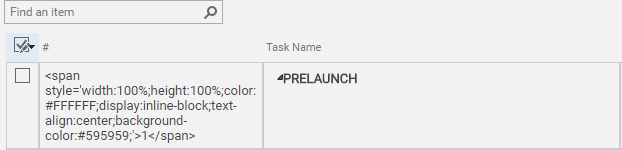
So today I just found out that many of the lists that I've created for Projects, task lists etc. have gotten pretty bad looks. I mean... BAD. This # field should be displaying the color background of the task number, according to the task status...NOT today.


I've also used this to display website links in a pretty way, as well as some traffic lights for project statuses. Then I stumped onto this message in the tenant's Office 365 Message Center.


Turns out, this "undocumented" feature, which exists since ages is taken away IN A DAY. Thanks, Microsoft. Good job in notifying us and making the transition so smooth. I have now requested an extension and let's see what happens...

✇More SharePoint

SharePoint Saturday Munich 2017 Day 2: The Conference!

You can read a short introduction about SPS Munich and the pre-conference workshops that took place on the previous day in my last post.

We went to the conference at around 8:30 and the atrium was already full of people. We were met by Mathias Einig who organizes the SPS Munich and SPS Stockholm events and he gave us the tip to quickly get into the Keynote room as it was expected to get packed. It did. The room was full and there were 3 more rooms that had been watching the keynote on big screens.

Even though Chris McNulty from Microsoft had to cancel his keynote at the last moment, Vesa Juvonen and Eric Shupps opened with a very artistic keynote - Vesa playing the Microsoft guy, and Eric being the bad, really annoyed customer asking the "awesome" questions :) From time to time, Eric did put his positive hat on, yes he had one. We've got many insights from the keynote, mainly around priorities and not real release dates, but there are a few things that are definitely on the way:

- Proper Modern Team Sites, providing customization capabilities that will match the levels possible within the Classic sites
- Classic sites are not going away anytime soon
- OneDrive single client for syncing both SharePoint document libraries & OneDrive will soon be a reality (in fact there is a TeamSiteSyncPreview.reg which you can download and already sync SharePoint document libraries.
- SharePoint Framework will be the future model for SharePoint development. Skills needed would match those of a regular web developer, so the possible career path for SharePoint developers would be more interesting and flexible.
- There will be another (maybe even two) on-premise version of SharePoint Server.
- SharePoint Product Engineering is aiming to shorten the release cycle from 3 years to small incremental releases, so that the users can get more feedback in the process. And oh boy, they did get feedback as Vesa said.

Last but not least, we've had lots of laughing in the hall. Well done, Vesa and Eric!


Eric did really get into the bad cop from Texas role and transmitted a lot of feedback and questions that the audience would have otherwise asked anyway. One of my favorite ones as I hear it all the time from the people I work with:


A little bit of impressive statistics shown by Mathias. With 430 attendees, I think that was the biggest SharePoint Saturday ever? I bet it is the biggest in Europe and the best one held so far. The event was in fact international with all sessions held in English and people from all over Europe and even the US!


Meanwhile, at the coffee area, there was this really cool poster by IF-Blueprint AG who were volunteers at the event. Cheers to the person or team who worked on it, it's really cool!


The agenda. First of all, we've all downloaded the mobile app Whova (which is available for iOS and Android) way before the conference day came, so we've made our custom agendas.  Sorry to the 3 people at the event that had Windows Phones :) The app was really useful for a couple of things:

- Navigating through the schedule and modifying it on the go. I've changed my mind for one of the sessions on the day.
- Rating the sessions - there was even a section for comments.
- Networking with other SharePointers. I've got a message from another Bulgarian whom I didn't know before the conference, but we were in the same room.
- Photo Contest :) Even though we've posted some pics, I think the organizers missed that one partly because there were so many things going on at the same time! But this is not a critic in any way. It was fun, at least to see what people would post in terms of interesting pictures from the event.

There was a printed agenda as a bag insert, too, it was also useful. I liked the looks of it, so I'll share the picture here (it's from the official SPS Munich site).


The #spsmuc20 session with Spencer Harbar got replaced with Paul Hunt's Exploring Identity Management Options in O365 as Spencer couldn't make it to the conference, but it wasn't on my agenda anyway.

The sessions that I've visited were:

#SPSMUC00 - Keynote: The Future if SharePoint is Now, Reinventing Content Collaboration with Vesa Juvonen and Eric Shupps

#SPSMUC01 - The Key to a Successful Office 365 Implementation is Adoption with Jasper Oosterveld

Move, Manage, Protect SharePoint & Office 365 - sponsored session by Metalogix.

#SPSMUC07 - Office 365 Groups Deep Dive with Maarten Eekels

#SPSMUC06 - Securing Office 365 and Microsoft Azure like a Rock Star with Jussi Roine

#SPSMUC11 - Power charging Microsoft Teams with Bots, Connectors and Tabs with Wictor Wilén

#SPSMUC13 - Level up with PowerApps and Microsoft Flow with Mikael Svenson

#SPSMUC23 - Panel Discussion: Groups, Teams, Conversations, Skype, Yammer - say what?

...and SharePINT of course :) 

My recap of the sessions:

#SPSMUC01 - The Key to a Successful Office 365 Implementation is Adoption with Jasper Oosterveld


First of all, Jasper is an amazing speaker, full of energy and always wearing a smile. I truly believed that his IS the key to Office 365 adoption, along with all the tips & tricks he presented :)

One of the case studies I found very interesting - a video with the key stakeholder. The project was a simple Project Management solution in SharePoint, one you've probably designed in a few days - it looked like the default columns in a Task list, then a very simple branding, BUT the key was the way it was presented. With a video with the key stakeholder - I think a VP of Information Technology or something similar.

The solution home page:


A project site:


Video still... it made me wonder how many times I've seen projects fail because of poor communication / presentation / a little bit of PR.


Jasper also used the introduction of Microsoft Teams by Satya Nadella as an example, how Microsoft are bringing "the big guns" when introducing something new.

As a takeaway, if you'd do Office 365 projects, make sure you:

- Have vision & goals.

- Have an executive sponsor.

- Have a budget for adoption (it's not free).

- Know your target audience.

- Make a launch party (everyone loves to have some fun at work).

- Think about a video with the project sponsor if you have virtual teams.

- Try and answer the "What's in it for me?" question proactively

- Train your users by doing quick 1-2 min videos frequently (think of hiring a voice actor to make your videos more professional).

- Train users in person if that's the style of working in your organization (don't make groups larger than 10-15 people and don't do it alone as you won't be able to handle all the incoming questions).

- Train the trainers (especially valid if you're an external consultant and you're not going to be around for long in the organization).

- Have Office 365 champions (definitely try to get those people from different departments).

- Share a roadmap.

- Be honest!

- Set a baseline and success criteria. You can use the OOB O365 Reports to measure the success once you launch - you'd need to be an administrator of the O365 tenant to access those.

- Start small.

- Use the First Release cycle for selected power users in your organization. Keep in mind they must be curious and play with the new features so that you get feedback from them.

- Office 365 is going fast! Go to conferences & events, just like SPS Munich :) to stay up-to-date.

Hands down, the session was above my expectations. Even though just a level 100, I got some useful insights which I'll use into practice.


Move, Manage, Protect SharePoint & Office 365 - sponsored session by Metalogix.

Crappy sponsored session. Slides in German!? The speaker said he gets a bit uneasy in front of people (?!) A good question that was asked at the end about the licensing model for calculation could not be answered. Got redirected to account managers. So where were the account managers instead of in the room?
Although I am certified on Metalogix Content Matrix and I've used their software for a large-scale migration for a customer 2 years ago, I honestly think they could do better. Anyway, thank you Metalogix for being SPS Munich's only diamond sponsor!


Instead of this session, I was planning to go to a level 400 Business (?) session: #SPSMUC10: The Executive's Guide to the Digital Workplace and I am so glad I didn't go there!

Maarten was a great speaker, very professional, the session included lots of info about Groups (and Teams, even if it wasn't announced beforehand). He started with the building blocks of Groups:
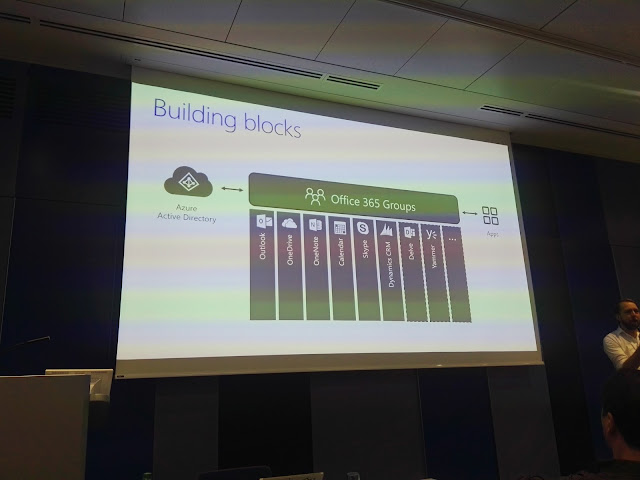

Maarten focused on a few things:

- Connectors - those are also available in Teams and there are more than a 100 of them already. You can build your own by creating an incoming webhook and then send requests to it from any web service (this was demoed with Postman - a very handy tool which I was not aware of, so thanks Maarten).

- External guest access - right now the only part that's available to external users is the modern team site. Teams do not have external access just yet, but it's on the roadmap.
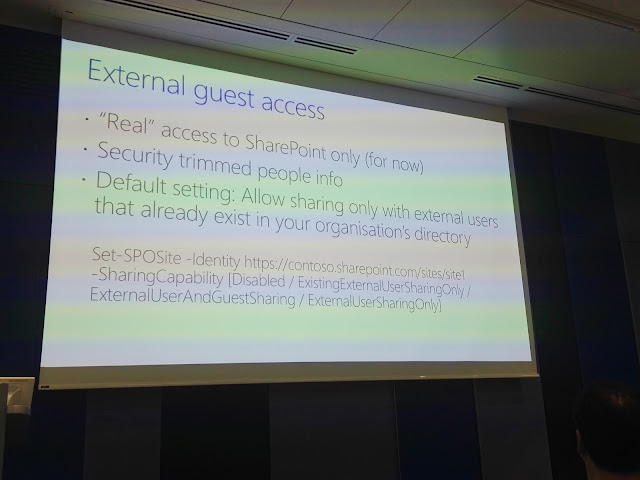

- Manageability - mixed feelings story. Groups are managed from so many different places - O365 Admin Center, Exchange Admin Center, the Outlook (?) Groups mobile app, PowerShell...with the latest being the greatest.

Maarten showed us some good examples of commandlets to manage what kind of external users people can invite in groups (on the picture above) and gave us a few insights on the Groups roadmap to wrap up the session. Again, very glad I chose this one over the level 400 business session...

We've had a pretty good lunch, this day it was a menu with predefined options, but again, hands down for the food. I will not fill this blog post with pictures as they're too much already, you just have to trust me! It was awesome and we've had plenty of time (80 min) for lunch (there were some sponsored sessions going on during lunch time too) and in that time we've managed to get a tour of the brand new Microsoft DE HQ office. There were 5 groups for the day (10-11 people) and the previous group was already full, so this time we went 15 min ahead of time.

And we were in. I'd let the pictures speak for that place, but in a few words: it's awesome! Not what you'd expect from a huge corporation - it was not that grey, dark, American standard cubicle box floor...About 1900 employees are "attached" to that office, but our guides told us that there are only 1100 seats. The difference could be easily explained with the first picture:


#SPSMUC06 - Securing Office 365 and Microsoft Azure like a Rock Star with Jussi Roine

To be honest I don't have much experience with Azure and the security in it, I've just used MFA in Office 365. But Jussi's session was really insightful and I'm surprised he managed to stick it into 50 minutes.

I took a few things with me:

- Azure Active Directory is at the heart of security, just like the good old AD is on-premise.

- Enable MFA for the admin users in Office 365

- Enable the free security tools in Azure - Azure Active Directory reporting, Azure Security Center, Operations Management Suite

- Forget about building on-premise security solutions - they're not as exciting anymore :)

- You can discover unmanaged cloud apps/services on your users' workstations - something that most organizations would launch a project for and do manual surveys and interviews with people.

- If you're a large business, you'd need to invest in the paid options.

And this diagram was really cool - we've had 20 seconds to memorize it :)


Jussi was an expert in the field, and the examples he's used in the demos were quite interesting. such as detecting impossible travel activities from Netherlands to Bosnia and Herzegovina (cool country, been there on a rafting trip :)) and botnet attacks on Russi's tenants. Great session!

#SPSMUC11 - Power charging Microsoft Teams with Bots, Connectors and Tabs with Wictor Wilén


Wictor started with a quick introduction on Microsoft Teams and then focused on 3 areas:

- Connectors - nice use cases here. This topic was also covered by Maarten Eekels in one of the previous sessions.

- Tabs - While those seem basic, they are reminding me of the Global Navigation in SharePoint. Wictor did a cool announcement of his new yo teams-tab tool which is basically scaffolding everything you need to start building your Tab for Microsoft Teams. Wictor asked everyone in the room to know TypeScript for the next time, as this was the future of SharePoint development. I trust him. He was helping me out of a good will with a customer project a few years back and I can say his wealth of knowledge is incredible.

- Bots - those are based on the Microsoft Bot Framework and could do some pretty interesting stuff. During the workshops on Day 1, Vesa showed us how a bot is listening to commands via the iPhone's voice recognition and is creating a team site, based on the voice command. Pretty neat, huh?

 #SPSMUC13 - Level up with PowerApps and Microsoft Flow with Mikael Svenson

What an amazing session :) We were shown the Whac-an-MVP game created with PowerApps - LOL.

I took the following outcomes:

- PowerApps is the successor, not the replacement for InfoPath.
- Same is valid for Flow and SharePoint Designer workflows.
- Always copy your screens in PowerApps, there's no ALM story here :)
- Do not build any new stuff with InfoPath or SharePoint Designer (or at least try not to)

#SPSMUC23 - Panel Discussion: Groups, Teams, Conversations, Skype, Yammer - say what?

This was the most fun session. The atmosphere was quite relaxed at the end of the day, the speakers even got an unexpected beer delivery in the room :)


My outcomes:

- Forget about Yammer, use Teams
- Use the cloud as much as possible, there aren't many valid alternatives for on-premise social.
- Groups are the backbone of everything new in Office 365.

I've found the panel very informative and useful, except for some "marketing" comments done by Symon Garfield, I think he really didn't fit the otherwise "best-of-breed" group of speakers. Perhaps the fact that he's now a Microsoft employee would explain that...


There was a raffle with some pretty cool prizes (Phantom 3 Drone, Xbox etc,) and then an official closing by Mathias with a group picture of the speakers. An epic way to spend the Saturday, I'd say!


SharePINT :) Of course...looking forward for the next SharePoint Saturday!



✇More SharePoint

SharePoint Saturday Munich 2017 Day 1: Pre-Conf Workshops

For the first time, I've аttended SharePoint Saturday Munich which was a massive community event, held directly at the Microsoft DE headquarters (awesome office, by the way).

My friend and ex-colleague Alex Pavlov who is living and working in Munich and has been a part of the previous event in 2015 told me it was awesome and I should definitely go this year. So, I asked another buddy Ivan Yankulov, he thought it was a good idea and we formed the team.

We've traveled the 1334 km  (1:50 hours flight) to attend the free, community-organized SharePoint event and boy, I personally do not regret it!

This Saturday, the organizers (the great team of Rencore AB) invested in setting up two full-day pre-conf workshops (paid - EUR 125 per workshop, limited to 50 seats each) on Friday, March 3rd.

The workshop, targeted more to administrators was SharePoint 2016 Infrastructure Powerclass for Admins with Thomas Vochten.

As I currently do not work with SharePoint 2016, I chose go to to: PnP all the way – Reusable tools for SharePoint with Vesa Juvonen, Erwin van Hunen, Paolo Pialorsi and last, but not least our friend from Bulgaria Radi Atanassov. Sounds funny, right? Going abroad to listen to a Bulgarian speaker - well, unfortunately in Bulgaria there's no SharePoint Saturday anymore and we (about 15-20 of us) only meet up in the SharePoint User Group Bulgaria once a month. I believe it's a good idea to meet 400+ more SharePoint professionals from all around Europe (and even a few from US) so that we can catch up on the latest features, best practices and get aligned on the SharePoint future. And have a SharePint altogether, of course.

I must admit I've missed the first tickets in December and I've booked my place on 9th of January, when the 2nd batch of tickets was released. I was refreshing the site a few times that day :) After I've registered, I got frequent communication over e-mail with updates on sessions, time, logistics etc. There was everything I needed to know so that I just showed up on the first day at 08:15 with my computer and tickets printed (later, I realized I didn't even needed the computer).
So, here we are, flying out from Sofia, Bulgaria on Thursday, March 2nd around sunset time, just after wrapping up the work day. Our flight was delayed with half an hour, but check out what a view we've got in exchange for that.


So, after the landing in Munich, I took the Lufthansa Express bus to the Nordfriedhof station and within 15 mins of walking I was at my hotel, just steps away from the Microsoft office, where we'd spend the next 2 days, full of Microsoft and Office 365 knowledge. By the way, Germany is so well organized, that you don't even need to know German to get around, everyone spoke English, from the bus driver, to the hotel staff and so on...

In the morning, we were at the Microsoft office 08:15 AM and the registration was already running full speed. Even though we couldn't get our badges on time, at 08:30 we were in the workshop rooms, with a cup of hot coffee (by the way the coffee that Microsoft treats their employees with was not bad at all).


Our workshop was focused on everything PnP. I must confess I do not use that yet, but I am quite interested in starting to use it. I brought my laptop (and a few more people did) as I though we're actually going to use the samples and do something with them, but the day went more in a conference-like agenda. Anyway - happy with it, and I just gave PnP a try today so that I can create a solution that updates the SharePoint User Profiles (Delve in SPO) with data populated in a SharePoint list. For that purpose, I've used especially the PowerShell module on which Erwin van Hunen is working frequently.

Here's a quick selfie of the Bulgarian team @ the workshop.


Even though there was a small fee for the workshops, the whole event would not be possible without the support from the sponsors, so I'm including the slide with their names. Kudos to all those great companies!


Paul Hunt mentioned on Twitter, that this was the best food on a SharePoint Saturday. While I can't compare, I think it deserves a few words. During all breaks, there were fresh fruits, pretzels, some small chocolate bites and cakes. Basically, thousands of calories :)

We've had lunch at the Microsoft canteen, and there were plenty of choices - some slow-roasted pork, pizza, pasta, sushi, soups, salads and freshly squeezed juices. Love it! During our lunch, Mathias Einig (who's the main person to blame for SPS Munich and SPS Stockholm) came to ask if everything's going well and if we're happy with the workshops. Great attention to attendees!


I've included this photo of my lunch as it contains something very rare these days - one of the 3 Microsoft phones we've seen during the event:)


After we were full of calories and knowledge, we ended the day with a 6-7 km walk through the Englisher Garten and a few beers (Maß, of course) at Augustiner Keller, which was recommended by Alex as a "local". The food and beers were great, I highly recommend this place, but you should make a booking, especially on a Friday or Saturday evening. There was a huge beergarten, so I'd love to come back here during the summer months. The same is valid for the Englisher Garten, it would be so green during the summer. It didn't matter for the locals, though as the beergartens there were full at 5 PM :)


More info on Day 2 - the actual conference will come as part of the next blog post.
✇More SharePoint

Will Teams take over collaboration from SharePoint?

Already using Microsoft Teams? Do you like it or hate it already?


I've had a talk on the topic last week at the awesome SharePoint User Group Bulgaria meeting.

You can find the video and the slides from the talk, I hope you enjoy them!


Next week I'll be visiting SharePoint Saturday Munich where there will be a deeper level session led by Wictor Wilén on Teams and the customization available.

I'll share some insights after the conference here, so stay tuned.
✇More SharePoint

Microsoft Flow after General Availability: The Good, The Bad and the Ugly

Hey... it's been a good 4+ months since my last post, shameless.

I'll be sharing more details in a future post on why is that, but for now I'd like to post a few updates on Microsoft Flow after it reached General Availability 3 months ago.

1. Outages

I've been using this since the very first day of the Public Preview and it's been acting strange sometimes, but since it entered General Availability, it started to calm down... a bit. Since this Monday (30/01/2017), when it went bananas...for a full day in production. Nothing like the small glitches that we've seen in Public Preview. Asking about SLA I got confusing answers from Microsoft, something that it's a standalone app etc. So it's not considered part of Office 365 and it's SLA? At least I got it this way.


Although it's just the front-end that was lost, there was no way that a user could know if their flows are running in the background or not. There weren't any messages in the Office 365 Portal or Azure Status portals indicating any issue with the services. After I've asked Microsoft, they've fixed it on the next day, and mentioned that it was a regression after a code update. At least they assured me our flows were running in the background, which is good.

So, as an outcome, take your time before starting to use Flow for production scenarios. It is a very powerful tool, but it's just not mature enough yet and hasn't reached parity with SharePoint Designer workflows (no matter how un-innovative it is). If you ask me, my advice is play with Flow and start learning it - it's obvious it's the future and especially now when it's integrated into modern lists and libraries. Keep your legacy workflows in SharePoint Designer, there's no migration path, but they'll be supported until 2026 (parity with the SharePoint Server 2016 support lifecycle), and there's no end date for support in SharePoint Online.

2. Limited Runs

Another bad news is that Flow now has limited runs (depending on your Plan). You can check all plans here as well as find out which Office 365 plan contains Flow.

In the Preview, we've had thousands of runs for free. It was indicated in the very beginning, however that the pricing will not be available until General Availability. So this is more of a neutral point.


3. Premium features

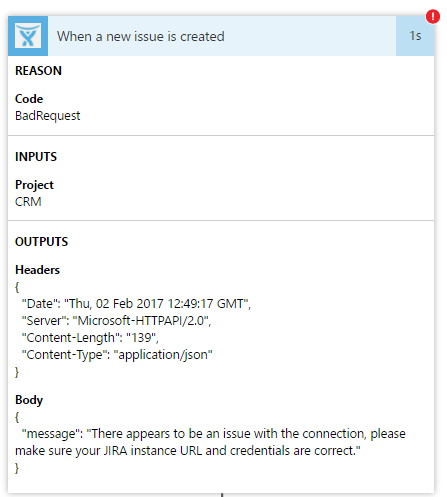
I've subscribed to Flow (Plan 1) on a trial basis in order to explore some of the paid, premium features like connecting to JIRA, Salesforce, etc.

I've had nothing but a bad experience with those so far - they are so unreliable - your flow runs one day and fails on the next without an obvious reason.


Raising a ticket to Microsoft is useless as the Flow would already work before they answer you. The functionality that I wanted to achieve with JIRA is quite limited in the Flow - it can only capture 2 triggers, which is not sufficient at all if you plan some kind of integration:


Hopefully, Microsoft will invest heavily in Flow as they say and the premium features will bring more value in the coming months. It's good to know that almost any major software is there right now...if your scenario is simplified enough, it might even get the job done for you prior you hire a team of developers to do the integration you need for your organization.

4. Sharing

Finally, and surprisingly you can now invite a new owner to your Flow. 


Once you do this, your Flow will get this green label "Team Flow" under its name. And to edit the owners, just go to the icon with the 2 people on the right hand-side.


What are the benefits?

- All Flows are attached to user accounts. This means the user who created it (and was practical enough to share it with their backups) can now go on vacation...undisturbed :)

- The Flows are storing connections of user accounts and if you'd like your HR to come insert their password in order for them to achieve that nice little automation they've requested from you - they might not feel confident about it. Now you can share the Flow with them and they can insert their username and password from their device and be confident you don't have access to that.


5. Environments

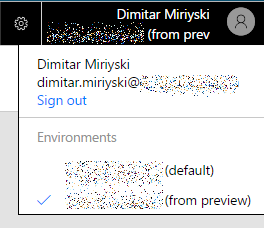
After GA, you'll notice you now have 2 Flow environments when you log in.

One from the preview (which is over) and one listed as default.

A few surprises:

Your Flows are living.... in the Preview environment!

There is no copy or migration of Flows into the live one... confirmed by Microsoft. That means recreation :) hopefully you didn't invest too much efforts in building Flows with the preview (like I did :)

As a dessert, Microsoft is not going to kill the preview environment (again confirmed by them), so there's no hard deadline on when to recreate your flows. There's also no limit on the runs on the preview environment as of this day, but I didn't tell you that :)


✇More SharePoint

InfoPath forms not displaying correctly in Chrome / FireFox

Recently I noticed that every form that I've created with Info Path 2013 (I know it's old-school, but no Nintex in this case) that contains Multiple Lines of Text fields was not displaying correctly in Chrome / FireFox e.g. the text was displayed on a single line and not wrapped.


In Internet Explorer, things look like this:


Another issue is that in FireFox, on editing the form noone could insert a few spaces - only one. The Enter key did not insert a new line in a Multi-line text field either. 

I managed to find the reason quickly - the text area that contains the field has the following property:
white-space: pre. Changing this to pre-line would work fine - you need to use a custom CSS file for that.


Of course you need the SharePoint Server Publishing feature enabled on the sites in order to inherit the CSS from the top-level site. Another one-off solution is to add this in a Content Editor webpart on the page(s) that contain your form...but I guess it's not one form with that kind of field that you'd use...
✇More SharePoint

Link sharing in SharePoint Online just got tricky!

Update 23/08/2016: Activating the Document ID Service feature on the site collection level will fix that. The links will then work for any file types and not just Excel, Word, PPT.


Just recently (like 10 days ago) Microsoft has deployed some changes to SharePoint Online and specifically to the links to individual documents that you could obtain by just clicking on the context menu. This way of providing a link to someone was very quick and easy, hence heavily used by lots of people. It's just a click, compared to using the Share function or "Get a Link".


The only thing you need to be sure of is that the person that you give the link already has access to this document. Otherwise using the "Get a Link" feature would be more useful. But it also has the disadvantage - you are breaking the permission structure using these links and you don't know where your link will travel after you give it to the person... if it's an anonymous link this can even get out of the boundaries of your organization! Not a good deal of control there...

Few days ago, when I tried to share a document (a project plan in the Microsoft Project .mpp format) in this way - the user got "Page not found" error. Same thing when I tried to open the link :) Both of us have access to that document anyway.

So... I looked up the link and saw that it looks like this:


https://********.sharepoint.com/projects/mytestproject/Shared%20Documents/Project%20Plan.mpp?d=w7c7a7782c60d4480ad0db7a8cd231f60

Now, that's the new thing. In these auto-generated links, there's a new bit - "document ID" as Microsoft called it. This is what's breaking the functionality.

An interesting fact is, that when I tried the same thing with Word / Excel / PowerPoint documents - all workred like a charm (like in the good old days - 10 days ago :). The links contain the same document ID, but they open fine in the browser.

After some research on the topic and a quick call with MS support, they advised me that this behavior is "by design" - great job Product teams. So from now on, every document that can't be open in Office Online (Office Web Apps) e.g. anything but Word, Excel, PowerPoint would fail and the user has to manually modify the link before providing it to another user - how usable is that?

There's also a Yammer hot thread on this... you can check it out in the next 12 days... before the IT Pro Yammer network becomes history, which is another sad topic and a poor decision in my view.

Of course... meanwhile we could still use the "Get a Link" feature and forget about the good permission practices in the organization. At least I recommend not using the anonymous links, unless you absolutely need this shared with someone outside of the organization.
✇More SharePoint

Microsoft Flow first impressios

It's been an interesting week of follow-ups after last week's "The Future of SharePoint" event held at San Francisco. The world is excited about the many new (really new) functionalities and tools that were presented. Today I tested one of them - Microsoft Flow, which is still in Preview and is available to Office 365 FR tenants (or select FR people only).

Flow is similar in concept to IFTTT ('If This Then That'), but aimed at organizations rather than the individual, which means you can't get to it if you don't have a work or school account (Office 365).

Similar to Planner, the tool is not yet integrated into SharePoint, but feels like standing a little bit aside from it with its own domain: https://flow.microsoft.com.
It does, however suggest future tighter integration with Office 365 and SharePoint Online, as today I saw the Flow tile in the App launcher.


Going to the Flow website, very similar to Power BI and Planner, you need to Sign Up.

Once signed in, you can either browse the available Templates ("recipies ready to cook") which will allow you to connect about 35 services or you can start a new flow from scratch. In my example, I'd like to be emailed every time someone creates a new project in Project Online (which is the cloud brother of the newly released Project Server 2016.


Here you'd need to provide the URL for your PWA site collection, then you have just two basic options - "Add a condition" or "Add an Action" - just like the old school workflows for WSS 3.0.
That's understandable as Flow is designed to be simple in its core. So it's definitely not a full-blown Business Process Automation solution (like Nintex, for example) and the flows here are per user, so no centralized store and management of those.

When you choose "Add an action", you see the available hardcoded actions, sorted by the service they're related to. Send Email is under Office 365 Outlook. You'd need to sign in.


You can then configure the recipients, subject and body of the email - the basics. There are some predefined lookups to the current item that you can insert like Project Name, type, etc. That's cool, you just click on them and add them where appropriate.


Then all you need is a name for this new simple flow, you click Create Flow and Done.


On the next Project that gets created in Project Online, I get this:


Looks simple and clean to me. What are your thoughts? Have you signed up for Flow and tested it yet?


✇More SharePoint

Big changes coming to SharePoint Online!

After the new Microsft Mechanics episode with Adam Harmetz was published last night, I am completely stumped at what Microsoft are bringing forward!

Straight to the point:

- A mobile app for SharePoint is finally on the way (iOS, Android & Windows)! 

That's a bit overdue, but great news. Lots of users preferred OneDrive these days due to the great mobile experiences.

- Microsoft Flow - a brand new product, that allows users to build logic around documents and items in a super friendly way. 

That brings a couple of question - what would happen to the existing SharePoint Designer workflows? With the decision taken earlier to not introduce a new version of SharePoint Designer and considering the almost no changes that happened to it and the workflows since 2010 - I think those will be killed. The question is more likely until when they'll be supported?

How would Flow compete to veteran 3rd parties like Nintex and K2? Would it be the free quick go-to solution if you're after something simple or would it try to compete with them?

- Power Apps - a tool that will allow users to create simple, yet powerful mobile apps that can be run on mobile devices and work with SharePoint items.

That's really nice. Something similar to what Nintex were already offering as part of their Nintex Forms product.

- Easier, user-friendly site creation process - click and have a new site in a few seconds.

Only 2 templates availabe - team site / publishing site. We were advised that site templates are not good a while ago... here's the reason why. I've always avoided them as a best practice, but a lot of people use them, especially in large organizations.

- Easier page creation and editing - each new page will automatically be responsive to look great on any device.

Cool, but again - what would happen to the current pages? 

- Each newly created SharePoint site will also create an Office 365 Group with an e-mail address so that conversations can be started around files easily.

Does that mean that the existing sites will also have groups created? I doubt it considering the number of sites organizations may already have. So this will bring some inconsistencies between "old" and "new" team sites. We're about to find out.

- Users will be able to add links to anything in Document Libraries, not just files that are stored in the library.

Simple, yet useful. Doclibs were kind of limiting as of today.

- Users will be able to pin files that must be highlighted and they'll appear on top of the library.

Kind of like what Facebook brought as Featured Photos.

- The Sites tile in the App Launcher will be renamed to SharePoint, so no confusion on what's SharePoint anymore.

I love that :) No more questions like "How do I get to SharePoint in Office 365"?

And last, but not least.... what would happen to all the branding that's already in place? Looking at the new beautiful and responsive UI I don't think there's any way to automatically adapt the custom branding. More likely there will be "old" and "new" experiences going on simultaneously until the IT Pros and developers can adapt their Intranets and users to the new one. What are your thoughts?
✇More SharePoint

Yammer External Groups live today

Update 10/05: After deep dive-in with Microsoft, it turned out some domains like GMail, Hotmail etc. are blocked. I was however able to sign up in the free Yammer network of abv.bg (which is a free email service provider in Bulgaria) and surprise, surprise - there were already 335 members!

So... it's a hit or miss whenever you invite external partners if they're not using their corporate domains. So... working with freelancers anyone? Use external  networks instead - no restrictions there. Or we should wait for the Office 365 Groups to allow external users...


Update: It seems you can't invite external users to the external groups, unless they are existing Yammer users (e.g. they have a home Yammer network), which makes the service 50 % useless.
Going back to External networks if you need to collaborate with just anybody out there without knowing or asking them if they already belong to a Yammer network...


Starting today, we got a hold of the Yammer External Groups feature.

Previously, when people had to collaborate with external parties, they had to go through creating an external network and then create groups in there and invite people. That worked, however it was hard to keep track of which networks are you in and it was tough when you just had to post a quick message, you had to switch networks...

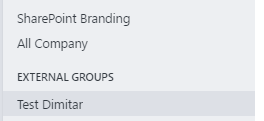
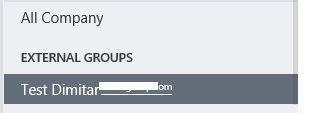
I've already tested the feature and it works surprisingly well - the external groups are clearly listed as such below all the internal groups. When you invite someone, they get the email invite, join and only see the external group they're invited to. Nothing else.


This is the experience for the external user when they join. They see your group along with the network name under their All Company group.


With external networks, a Network Admin could configure whether those external groups could be created by all users or by the admins only. So far I don't see the option to control the external groups creation, but the regular users can't create them in our network. I can also see that the option to create an external network is now gone.


So... enjoy the external groups and say goodbye to external networks.

✇More SharePoint

Overdue date not marked in red in SharePoint Online Task Lists

Hi folks,

Been a while since I've posted anything SharePointy.
One reason is the migration to Exchange that I was recently involved with and it's in fact still not completed, so expect Part 2 of the post anytime soon(ish) - it will include GMail to Office365 stuff.

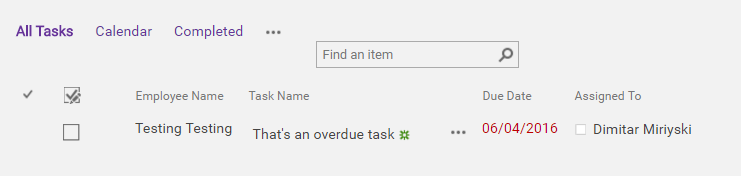
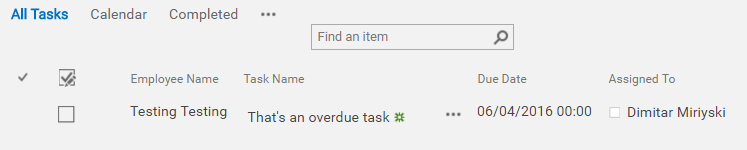
Now, I've found out that whenever your dates in an out of the box task list become overdue, they are NOT marked in red if you've changed the Due Date column to include the time (and not just date).

Strange, isn't it? Yes, so you can't really use this as a very precise task/time tracking solution (yet).

Default (Due Date = Date Only) and today's date = 07/04, so any task before that should be RED.


Including the time, and the task is no more overdue :) I've talked to MS about it, and hopefully it will be changed in the future by the product team (which happens to be Project for that one).


So... alternatives are for you to use some list conditional formatting...which is another big topic I might write about in the future as I've had to do it as part of a project management solution.
✇More SharePoint

DO NOT use Project Pro 2016 when syncing to SharePoint Online just yet

Project Pro for Office 365 2016 was released ~2 months ago.

As it came out slightly later than the whole Office 2016 suite (which had quite some troubles with OneNote syncing and OneDrive for Business), you would assume that it's a healthy product :)

Wrong.

In a synchronization with SharePoint Online, this thing simply won't work in your production.
If you sync a task or two, works fine. If you sync more than 50 (confirmed by MS) than it breaks the whole thing - your resources columns don't sync, same with the predecessors and that's just enough to stop you... there are other bugs with recurring tasks crashing the whole software, dates being messed up and so on.

I've raised this to MS a month ago and there's still no fix, they promised there will be a fix coming in one of the next public releases. To visualize what I mean..

All the resources are created in both the resource sheet in Project Pro and in the People Directory in SharePoint.

Project Plan in Project Pro 2016:


After the sync in SharePoint Online:


I'm not even going to start on the dates / times / completion stuff that breaks.

Now, after a downgrade to Project Pro 2013 - all works fine, however the installation of it is quite painful - you need to contact MS to get a link as it's not really available in the Office 365 portal as of today (unless you have applied for First Release on your whole tenant).

✇More SharePoint

Migrating to Exchange Online (Part 1)

Yep, you got that right.

I volunteered and got involved  in a migration to Exchange Online these days and I thought it would be quick, nice and easy job to help the IT team in a mid-sized organization. Not even close!

The scope is the following:

3 IMAP e-mail solutions (5 domains, 3 geo-locations of the servers) -> Exchange Online

No migration tools and no external consultants will be involved in the migration.

The first thing you'd need to know when you plan and estimate your migration is speed. Depending on how important this is for you, you can choose the different options ahead.

Option 1: PST Import service 

Caveat: If your e-mail servers can't export a PST, then you need a 3rd party tool to do that.

Limitation: You can't import PST files larger than 10 GB or containing more than 1 000 000 items. So you might as well need a tool to split your largest mailboxes into multiple PST files.

1.1. Copy your PSTs to a secure Azure BLOB storage and then import them through the Admin Panel (you need to be a Global Admin)

We were considering to use the new Office 365 Import service launched last year (and still free, MS are planning to charge for it if you ship your drives) and we were very frustrated to find out the capping of 0.5 GB / hour when you import your PSTs. There's an additional prerequisite step to that, first you'd need to copy your PSTs in an Azure Blob, which for us worked as a charm - over 300 Mbps - and that's when the speed traffic police comes in and your happy face is gone :)

By speed traffic police I meant the Office 365 User Throttling - I still dunno how the PST import of 500 mailboxes, for instance could be considered user import. It's purely the migration team's job to export all PSTs, prepare PST mapping files and all that. I totally don't see it the same as if you'd import your data through Outlook - this is where there should the throttling apply, and not if these actions are associated from the Office 365 interface, but anyway... you do get the perks like calendars, tasks, contacts. It's never perfect.

Tip: If you run multiple PST import jobs at the same time - you get 0.5 GB / h for each of them.

1,2. Ship your hard drives to the nearest Microsoft data center and then import through the Admin Panel (still, you need to be a Global Admin)

This is usually the preferred method if you have slow bandwidth to Azure. On our tests, 300 Mbps were more than satisfactory and we don't use an ExpressRoute to Azure, This means that we can transfer 1 TB for ~13 hours. So in our particular scenario, shipping the hard drives would definitely take more than the copying to Azure, but if you have 10 TB of e-mail and slower connection to Azure, your choices are different.

If you still decide to go that dirt road (PST import in general), the official MS Import guide is here.

Option 2: IMAP migration

Obviously the only other option (I'm excluding user-handled migration through Outlook and all that, of course) is the IMAP migration. It comes in two flavors.

2.1. DIY e.g. get one of the many free 3rd party scripts out there and run it on your own environment - why would you do that?

This will get the source and target mailboxes in sync, but a big trouble with that is you need your source e-mail account passwords, and the destination (Office 365) passwords for the users as well. Not a big deal, unless your users are already in Office 365 and using stuff like SharePoint, OneDrive, Yammer, etc. A no-brainer to reset or ask them for their passwords.

2.2. Initiate the IMAP migration from the Exchange Admin Center

Before you start, a good survival guide about it is found here. The most obvious limitations:

  • Only items in a user's inbox or other mail folders can be migrated. You can’t migrate contacts, calendar items, or tasks.
  • A maximum of 500,000 items can be migrated from a user’s mailbox.
  • The maximum message size that can be migrated is 35 MB.
Provided this works for you, let's imagine you've already tried the PST import and you want to clear all stuff that you've imported and start anew. The most intuitive thing will be to delete the users - but they will be retained for about 30 days. A workaround is to rename and delete them :) 

Or... as a best practice empty those mailboxes through PowerShell.

Use the Search-Mailbox cmdlet and pipe it with DeleteContent.

Example: Search-Mailbox -Identity "John Doe" -DeleteContent

It's a bit slow, but maybe faster than opening the user's mailbox through Outlook (and for that you'd need to grant yourself Full Access to that mailbox first - lame and unprofessional approach).

So... the trouble with IMAP migration. If you run a single mailbox - the speed is still not much better - between 0.5 and 1 GB per hour. A disaster I'd say.

The key is concurrency - you'd need to run at least 20 mailboxes per batch so you can get your migration done in some realistic schedules that you can present to the business.

With the concurrency, we've easily reached speed of 10 GB per hour with 15 concurrent mailboxes. This totally corresponds with the Microsoft provided data, so you can bet on it. Of course, this excludes a lot of other factors which might block you from reaching such speeds - your ISP, your firewall, your current e-mail server bandwidth and so on and so forth.

In the process of setting this up we've found a nice little calc that helps you do the math.

So once you have your estimations and you prepare your CSV file for the IMAP migration, you start your sync. Everything goes well over the weekend, the Spring flowers are blooming and etc. NO!

There are many reasons why the IMAP sync can fail - wrong CSV format, wrong passwords, your e-mail server goes down, Microsoft Exchange Online goes down...but all of those you can either fix or just hope for Microsoft to fix as quickly as possible. But what to do when the sync fails and you want to start afresh?

Well, first the sync will not always stop if some of the above problems occur. It will continue running even if it runs fine for 1 mailbox and all the rest fail. So you need to stop it manually. From the GUI - I've noticed that stopping it manually leaves it in "Removing" state for more than 12 hours - dunno if it's a bug on our tenant or not, but then your only way is to kill it with PowerShell. The Remove-MigrationBatch command comes handy in this case. If you miss this part, your new sync with all the correct data will NOT run as the same mailboxes are already part of another sync which is not totally gone. Use the "-force" parameter, otherwise there is no result (at least in our tests).

Once you clear the migration job, you go to the GUI in EAC, you see it gone and you import your same CSV file and hope to get this running. No! 2 reasons:

If you import the same CSV file, EAC tries to be smart and doesn't detect the mailboxes which were part of the previous synchronizations. So rename your CSV file.

Your next attempt would also fail. Even if your mailboxes get detected and they go into the batch, they will fail. Don't ignore the error report, but download it and read the following:

The user "dimitar.miriyski@abc.xyz" already exists, but the migration batch that includes it couldn't be found.

Does that make sense? Yes, of course. Your Office 365 user is not deleted. But the migration batch is. So what's the problem with that? There's a history of all those batches... which you need to sweep off manually with the Remove-MigrationUser command. Hopefully you haven't messed with too many users in your failed batch :) Ideally it should never have failed, but things like that happen.

Another trick when running the migration batches is not to use CAPS in the batch title.

Option 3: A mix of 1 and 2.

It seems as the perfect cocktail - you do the bulk stuff with IMAP sync to gain the speed advantage and then you do the calendars, tasks and contacts through PST export and import. Not tested yet.

Conclusion

So... from the short time of research and testing this, I'd say there are a lot of things you'd need to consider and Exchange Online is not a toy. No wonder the Exchange Administrators are still out there, but in the next post from this series I'll see if I can prove that a SharePoint guy with some Office 365 knowledge and experience can do the trick for a small to medium sized company.

✇More SharePoint

Syncing fields from Project Pro to SharePoint Online

Something that started as a quite simple requirement turned out into a more hefty task, so I decided to share it here.

So the requirement: Be able to sync fields from Project Pro to a SharePoint Task List in SharePoint Online. All great, works out of the box, with the exception of 2 things:

- If the column in SharePoint is of type "Multiple lines of text" and the type of text to allow is "Enhanced rich text (Rich text with pictures, tables, and hyperlinks)" that doesn't work correctly.

- If the column is of type "Person/Group" then this doesn't work as expected. Some resources are missing on consecutive synchronizations from Project Pro to SharePoint Online. I've taken this with MS to see what's going wrong, but for now if it happens to you - configure your resource or "Assigned To" (named by default) column to be of type "Single line of text" or think of it as just a string.


You will loose the functionality to check the person's status in Skype for Business (if you use that) and to click on the user profile and go to their Delve page (in Office 365). But you'll still be able to sort and filter on that column if you want to view a particular person's tasks.


I'll describe the steps needed to match the requirement to sync Task Descriptions to SharePoint Online. 


By default, the Description column in the Task Lists (coming with the default Task Content Type) is of type Multiple lines of text and has the "Enhanced rich text (Rich text with pictures, tables, and hyperlinks)" as the allowed type of text. I've just renamed the column in this example:


Fill in some tasks if you're the PM (or just one if you're a lazy blogger like myself):


Then open the Task List with Project Pro (provided you do have the license assigned and the software installed from the Office 365 Portal):


You won't see your description column:


When you go to File -> Info -> Map Fields, you won't be able to map anything to it:


Now, part of the solution is to change your column allowed text type to Plain Text in SharePoint.


But even then, you won't see it in Project Pro the next time you open your project plan.

The key is in the mappings. Add a new column in Project Pro. You can choose some of the predefined text columns, e.g. Text1:


Name it whatever you want, let's do Task Description to avoid any confusion. Hint: the columns in Project Pro and SharePoint Online don't really have to be using the same naming convention, as long as they're mapped. Right click on your newly created column and go to Field Settings (and no, double clicking on the column doesn't do what double-clicking on a row does, sorry):


Tile field - self explanatory:


Now, when you go back to the Map Fields you can definitely map your newly created column in Project Pro (although its name is not reflected in the mapping list - dunno why) to your SharePoint Online column which appears nicely as Task Description:


Once you're done with all your mappings, just click the huge Save button.

If you've tried to break things like me and inserted different values in the field in SharePoint Online and Project Pro, then you'll get this good warning. Skip this if you're a good user and didn't do that :)

The warning basically is quite liberal - it gives you the option to choose whether you like your Project Pro or your SharePoint Online value better and it's even displaying them and color-coding them for you. I'll keep the Project Pro value which says "Sync this description":


Boom! It's done.


(Optional) If you want to break things even further, you can go back to your column in the SharePoint Online Task List and change it to allow Enhanced Rich Text again and then open the Task List with Project Pro. You'll see this (and believe me, it gets even uglier when you include some links, etc.)


Hope that's helpful if you stumble upon it, I'll keep another post once I sort out the issue with syncing resources without using the string field workaround with MS (if at all).
✇More SharePoint

New Year...OneDrive new UI and a bug in it

Update 01/02/2016: It seems that through the new UI you can now even upload folders (one by one for now) with drag & drop! Great functionality that has been missing so far...

Hey, it's been a while since my last post...holiday season got us all, right? :) Happy New Year, everyone! Let it bring you a lot of new tech, gadjets, innovations and of course health and happiness!

It's been more than a month since we all could use the OneDrive new UI and I've decided to share my first positive impressions of the it and a very unpleasant bug unfortunately, so you can take an informed decision whether to use it or switch back to the classic experience.

First, it looks really nice, based on HTML5 and it's even responsive! Good job so far for the OneDrive team. There must be something with Jeff Teper going back to leading the SharePoint and OneDrive divisions @ MS :)

The menus are arranged in a better way, even though the Version History is still kind of hidden in the context menu.


You can now drag & drop stuff in the browser... e.g. move a file or folder into another one - how cool is that? Let's hope we'll see that in SharePoint some day... which is still using some old-school XHTML 1.0.


There's also a file size column now added, which I don't use that much, considering the 1 TB storage limit, but anyway... another small improvement.

Now tot he bad news...

Whenever you try to share a folder (and it happens with files sometimes) and share it with more than 1 person they DON'T all get the notifications over email. E.g. you share it with Peter, Joe and Dean, then you check your mail (as you're in cc of those notifications by default) and realize that only Peter got the email with the link to the file.

Unpleasant.

After I've talked with one of my friends at Microsoft, I got a confirmation that this issue is only present in the new UI and is being worked upon, however it's now taking a few weeks and there's no resolution.

It all works just fine if you do share the file/folder with one person. And of course you can always forward the notification to the appropriate people once you see it in your inbox, but this is what OneDrive's for - avoid shooting a bunch of emails about the same file.

I'm hoping to see this resolved soon, otherwise we'll just have to use the classic experience...which is not that sophisticated to be honest, but at least one of its basic functionalities (the notification) works.

I might write another post about the NGCS (Next Generation Sync Client) that I was testing as part of the preview for more than a month now... still some mixed feelings about it, if you plan to use both the new UI and the new client organization-wide, maybe you should hold on...

✇More SharePoint

Office 365 down in Europe

Today Office 365 went down in Europe and it's down since more than 3 hours at the time of this post.

OK, Microsoft, it's technology - we get it, and you'd still make the numbers in the SLA report due to the high number of users you've got.

But there's something more worrying in today's scenario - communication!

Wouldn't it be nice to put up something on the http://status.office365.com page rather than the bogus message below? And not asking people to login to their tenants and check their dashboards? When in fact they CAN'T login at the time of calling you...


People are relying on this platform for their daily jobs, and a good communication would have been key in user satisfaction with the products. The communications today is absolutely ridiculous.

I even got a call from one of your support reps asking me to do a remote session and see one of our other issues we're experiencing, so I kindly had to inform him everything is DOWN in Europe!

Meanwhile, we had to find the hard way what's working and what's not, e.g;

- OneDrive sync is working
- OneNote sync is working
- Yammer mobile app is fine (if you haven't logged out)
- Everything else is FINE if you were logged in and haven't logged our prior to 11:00 this morning.

I'd say this is a complete communication failure on your end today...


And while you've put this nice little "warning" message on the Azure portal status, it's still unclear and doesn't mention Office 365 (you need to be aware it's dependent on Azure) and it's saying North and West Europe...while NO ONE in Europe can't go to the Login Portal.


✇More SharePoint

1 TB space in SharePont Online! /not OneDrive/

Update 18/02. The space has reappeared (this time as 1 TB - expected) although the feature on the roadmap is still "In Development".


Update: Microsoft has reclaimed this space and when talking to them, they said this was "a test 2 TB rollout to select tenants", and ours is not a First Release one. Shame.

Anyway, they said by the end of January all tenants (first they claimed Enterprise only) should get upgraded to 1 TB.

On this foggy November morning, I've logged in to the admin panel in one SPO tenant and saw this!


Prior to Friday afternoon, that space was ~130 GB, based on the well-known formula 10 GB + 0.5 GB per licensed user. 

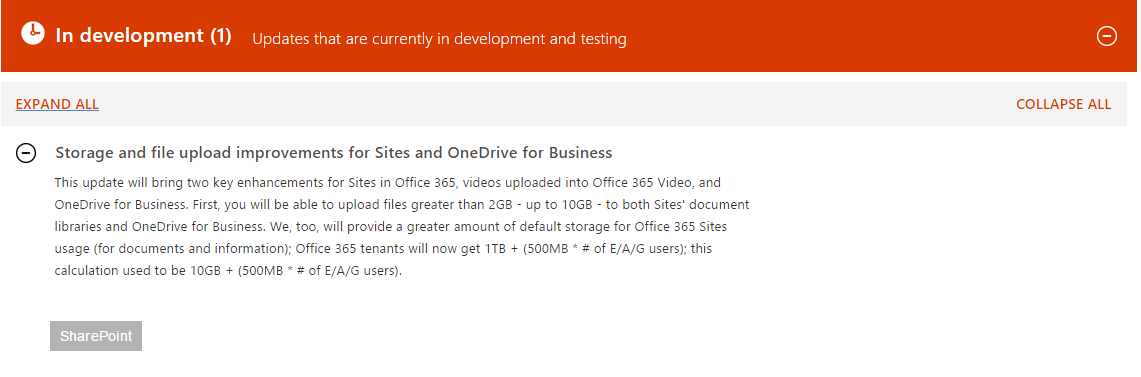
The O365 roadmap says Office 365 tenants will now get 1TB + (500MB * # of E/A/G users) but this feature is still in development, and our tenant is not a FR one.

Have you already observed the storage increases in your tenants?

By the way, thanks Microsoft! Really generous :)

❌