Vue lecture

Il y a de nouveaux articles disponibles, cliquez pour rafraîchir la page.
✇TechGenix

Top 9 NGFW Solutions for 2023

A man in a dark room on a laptop, with the word "security" above him.
Network security is paramount, which is why next-generation firewalls are the future.

Next-generation firewalls (NGFW) are the wave of the future for small businesses to large enterprises. So far, in 2023, they represent a 20% market share! These advanced firewalls improve the existing technology, enabling more security features than traditional ones.

Generally, firewalls can only grow as challenges advance. So security teams must rise to meet them with better protection. That’s where NGFWs come into play. They’re more effective than your traditional firewalls and are great for SMBs that don’t have a large dedicated security team. So let’s dig into why they’re great for SMBs and some of our top NGFWs.

Why Are Next-Generation Firewalls Important for Small Businesses?

Next-generation firewalls offer more than just port/protocol info and inspection. Newer protocols and rules provide robust security for constant monitoring and automatic threat detection and notification. This is important for SMBs, where most employees wear multiple hats. So besides network segmentation and multiple firewalls, you can have one firewall rule them all! 

9 NGFW Features to Look For

When buying next-generation firewalls, keep an eye out for essential features traditional firewalls don’t offer. Check out these 9 features and keep them in mind when shopping. 

1. Application and Identity Awareness

As mentioned before, it’s not just about analyzing ports and protocols. Next-generation firewalls also have new abilities to recognize identities that help administrators to enable access protocols. This access can be based on specific criteria. As a result, you’re able to give the right access to the right people without worrying about anyone breaking the rules. 

2. Centralized Management, Visibility, and Auditing 

Administrators need access to a user-friendly interface to view and adjust various security systems, like NGFW devices. NGFWs typically include features like log analysis, policy management, and a management dashboard. These features allow admins to monitor the network’s overall status, examine traffic patterns, and export firewall configurations.

3. Stateful Inspection 

Traditional firewalls generally inspect network traffic up to Layer 4 using stateful inspection. In contrast, NGFWs inspect traffic at Layers 2-7, providing a more comprehensive view of network traffic. This improvement allows NGFWs to perform the same packet-inspecting duties as traditional firewalls while also being able to identify safe and unsafe packets. Extending this to the application layer is extremely valuable as more and more important resources are located at the network edge.

4. Deep Packet Inspection (DPI)

DPI takes packet inspection one step further by inspecting the content of the packets rather than just the headers. It performs this inspection by looking into both the data and header parts of the transmitted packets. DPI can identify, classify, prevent, or redirect packets that contain suspicious code or payloads that stateful inspection might miss.

5. Integrated Intrusion Prevention (IPS)

As cybersecurity technology has evolved, IPS has become an increasingly popular feature in next-generation firewalls. While the differences between these two types of products are becoming less distinct, this creates a challenge for buyers. They have to decide whether the IPS technology included in their NGFW is good enough compared to a standalone product. IPS plays a crucial role in preventing attacks like brute force, known vulnerabilities, and DoS attacks.

6. Network Sandboxing 

Depending on your NGFW, you may be able to use network sandboxing, a method of advanced malware protection. It allows IT professionals to send potentially malicious programs to a safe, isolated, cloud-based environment to analyze for security purposes.

7. Secured Traffic 

HTTPS is currently the norm for secure communication over the internet, utilizing the SSL/TLS protocol to encrypt traffic. As next-generation firewalls have become the leading network traffic inspection device, they have been adapted to decrypt SSL and TLS communications, frequently including features like remote access VPN. This type of monitoring ensures the infrastructure can detect and prevent any potential threats that may be under wraps.

8. Threat Intelligence and Dynamic Lists

Generally, next-generation firewalls offer some type of threat intelligence feature. As new cyber threats appear regularly, it’s unrealistic to expect admins to monitor and respond constantly. NGFWs can use threat intelligence feeds from external sources to stay updated on the latest threats and attack origins. They use this information to block or automatically eliminate malicious traffic or flag events requiring attention. With threat intelligence feeds and dynamic lists at their disposal, NGFWs make threat hunting more automated and less prone to human error.

9. Integration Capacity 

Regardless of their size, many businesses increasingly use third-party services to improve their operations and processes. This includes a wide range of popular and essential SaaS applications and APIs. As IT managers evaluate new products to incorporate into their organization’s infrastructure, these products must have the ability to integrate easily with third-party applications. For example, integrations include SIEM software, 2FA, Active Directory, and reporting tools. 

Without further ado, let’s dive into the top NGFWs on the market for 2023.

Top 9 Next-Generation Firewalls for 2023

An image of a closed red lock on a laptop keyboard.
Check out our top NGFW picks for 2023!
Source: Pixybay

After a thorough review of different key security aspects, we’ve arrived at our top picks for 2023!

1. Palo Alto Networks

Palo Alto Networks has a comprehensive set of next-generation firewalls. These include physical appliances, virtualized firewalls, and container firewalls. The firewalls are based on a consistent single-pass architecture and can inspect all types of traffic, including applications, threats, and content. 

In particular, they can link the traffic to a specific user, regardless of their location or device type. Their NGFWs can also secure businesses that use multiple clouds with their cloud identity engine and protect from the increasing use of SaaS applications with an integrated Cloud Access Security Broker. 

2. Fortinet

Fortinet offers a wide range of firewall products, suitable for different deployment use cases and available on public cloud platforms. They also continually develop their firewall services, providing customers with access to cutting-edge security tools necessary.

Their next-generation firewalls also come with high-performance appliances, adding intrusion prevention, application control, and anti-malware to traditional firewall-VPN combinations. So Fortinet gives you one platform for end-to-end security across your network.

3. Check Point

Check Point offers a wide range of features and capabilities, including stateful inspection, VPN support, and intrusion prevention. It also features a SmartConsole management console that allows admins to easily configure and manage firewall policies and view real-time security events and statistics. Check Point is well-known for being the solution of choice for several large enterprises and government organizations.

4. Barracuda 

Barracuda is a hardware-based firewall designed to provide comprehensive security for small and medium-sized businesses. One of the main advantages of the Barracuda firewall is its ease of management with a web interface that makes it easy for admins to set up and maintain firewalls. 

Additionally, Barracuda provides a cloud-based management and reporting platform to help admins manage multiple firewalls from a single console. Their firewall is a good option for SMBs as it’s relatively affordable and has a good balance of features and accessibility.

5. Cisco

Cisco offers a variety of firewall options that can scale from small branch offices to large carrier-grade data centers. These firewalls are also available in virtual form, which allows for security in both private and public cloud environments. 

Their Secure Firewall 3100 series is designed for hybrid work environments, providing remote workers with up to 17 times faster VPN performance. These firewalls use machine learning to passively identify user applications and potential threats in encrypted traffic without decrypting.

6. Forcepoint

Forcepoint offers a variety of network security solutions, including 9 different firewall series designed for different purposes. They include central management and extensive security features like VPN, IPS, encrypted inspection, SD-WAN, and more. 

Their NGFW intends to simplify getting a network running securely and efficiently and keep it that way. The Forcepoint NGFW is built around a unified software core that provides consistent capabilities, acceleration, and central management across all types of deployments.

7. Juniper

The on-premises devices provided by Juniper can collect and analyze data from any external firewall or data source. This allows companies to quickly respond to threats, detect malware and avoid being tied down to a single vendor. 

The Juniper ATP platform functions as an open ecosystem and can be used with any firewall and SIEM system. This makes it highly compatible and able to be implemented quickly in any environment. The platform’s ability to detect and analyze threats, as well as automate response actions, allows for one-touch mitigation of malware. It offers a unique approach to addressing advanced malware.

8. Sophos

Sophos offers next-generation firewall (NGFW) features that allow you to safeguard your network with an enterprise-class firewall while ensuring the safety of your web traffic. It protects against threats like drive-by downloads and botnets and enables secure communication by providing flexible VPN options. Additionally, it offers detailed reports to help you understand and analyze the network’s performance and protection and gives the insight to improve them.

9. KerioControl

KerioControl is a software-based firewall that offers many features, including stateful inspection, VPN support, and intrusion prevention. It also includes content filtering, bandwidth management, and real-time reporting.

One of the key features of Kerio Control is its flexibility and ease of deployment. You can install it on various hardware, including physical servers, virtual machines, and even on a cloud platform like AWS. Kerio Control also offers a comprehensive and intuitive web-based management interface that makes it easy for admins to set up and manage firewall policies.

Kerio Control is a solid firewall solution that is well-suited for small and medium-sized businesses and provides a good balance of features and accessibility. It can be easily deployed in a variety of scenarios making it a versatile option for different businesses.

Before we wrap up, I’ll quickly take you through some of the top firewall trends in 2023 that you should know about.

Firewall Trends in 2023

An image of a laptop on a desk displaying statistical data on the screen.
Demand for NGFWs will continue to grow in 2023.
Source: Unsplash

In 2023, we can expect that the industry will continue moving towards the cloud, which provides the same level of protection as traditional firewalls but is more cost-effective and easier to manage. Virtualization and software-defined networking will also be more widely adopted, allowing for scalability and flexibility. 

Growth Will Be in Demand for NGFWs

The market for next-generation firewalls is expected to grow in the coming years. Factors like the increasing adoption of cloud-based services, the growing use of mobile and IoT devices, and the rising threat of cyberattacks are all driving demand. Additionally, the growing use of virtualization and software-defined networking contributes to the NGFW market’s growth. The growing focus on compliance and regulatory requirements also drives the need for more advanced security solutions, like NGFWs.

Cloud-Built NGFWs 

The future of cloud-built next-generation firewalls is expected to be positive. More and more companies are moving their operations to the cloud, so the demand for cloud-based NGFWs is expected to increase. Cloud-built NGFWs offer many benefits over traditional on-premises NGFWs, including ease of deployment, scalability, and flexibility. Additionally, since the firewall runs on the cloud provider’s infrastructure, it can handle higher traffic loads and provide better performance than on-premises NGFWs.

Time for some quick final words as I wrap up this guide.

Final Words

The NGFWs are pretty revolutionary and are poised to be the market leader in the near term. They are also very beneficial for small businesses since they have a lot of automation, which is very helpful to smaller teams. As security threats become more advanced, so do the security tools that keep them at bay. It would only be wise to jump on the NGFW bandwagon to use the best firewall to secure your network. 

Want to learn more about NGFWs or have more questions? Read the FAQ and Resources sections below!

FAQ

What are next-generation firewalls?

A next-generation firewall uses advanced features to protect networks from cyber threats, like intrusion prevention, application control, and malware protection. NGFWs provide a higher level of security than traditional firewalls.

What are the benefits of next-generation firewalls?

NGFWs provide a higher level of security than traditional firewalls, including intrusion prevention, application control, and malware protection. Additionally, they offer better visibility into network traffic and allow you to control access to network resources based on user identity.

How do next-generation firewalls differ from traditional firewalls?

NGFWs differ from traditional firewalls because they provide additional security features like intrusion prevention, application control, and malware protection. Additionally, they offer better visibility into network traffic and allow you to control access to network resources based on user identity.

How are next-generation firewalls managed?

NGFWs can be managed in several ways, including through a web-based interface or a command-line interface. Some NGFWs also include support for APIs, which allows them to be integrated with other tools and systems.

What types of threats can next-generation firewalls protect against?

NGFWs can protect against a wide range of cyber threats, including intrusion attempts, malware, and malicious traffic. Additionally, many NGFWs also include features like intrusion prevention, application control, and malware protection, which can help to protect networks from a wide range of threats.

Resources

TechGenix: Article on Stateful and Stateless Firewalls

Learn about the differences between stateful and stateless firewalls and how they can benefit your organization

TechGenix: Article on VPN and Firewall Security 

Explore VPN and firewall security solutions for your business.

TechGenix: Article on 5 Firewall Best Practices 

Discover five firewall best practices you should implement in your business

TechGenix: Article on Firewall as a Service (FWaaS) Vendors

Get acquainted with some of the top FWaaS vendors

TechGenix: Article on Firewall Vendor Strategies 

Learn about the different strategies you can use with multiple firewall vendors

The post Top 9 NGFW Solutions for 2023 appeared first on TechGenix.

✇TechGenix

Trend Micro’s Investigation into GitHub Codespaces Reveals Malware Vulnerability

An image of a combination lock on top of a laptop keyboard.
This time, a GitHub vulnerability has been identified proactively, not retroactively.
Source: Pixabay

A Trend Micro investigation revealed that the “port forwarding” feature within GitHub Codespaces could allow cybercriminals to host and deliver malware. The researchers found that it’s possible to exploit the public sharing of forward ports to create a malware server. To do this, threat actors need a legitimate GitHub account to avoid getting flagged as suspicious. However, no incident exploiting the security vulnerability has occurred in the wild so far. 

GitHub Codespaces, available since Nov. 2022, has been a popular choice among developers and large tech companies. It provides them with a container-based environment equipped with tools and dependencies for completing projects. Developers deploy Integrated Development Environment (IDE) platforms inside these virtual containers. This allows them to write, edit, and test code directly within the web browser. 

GitHub Codespaces has over 94 million developer accounts and is used by large companies such as DuoLingo and Vanta. Upon registering, each developer gets to create at least two codespace instances for free. 

GitHub Codespaces Public Port Vulnerability

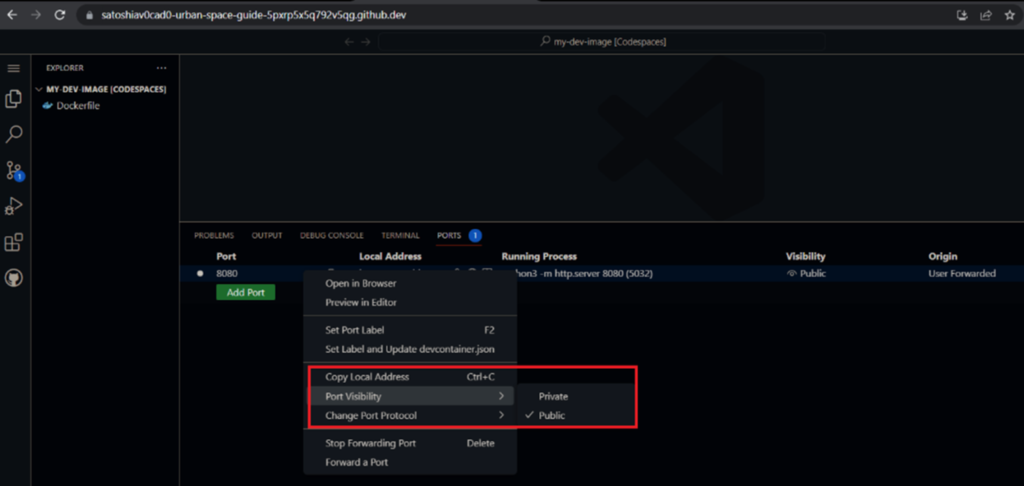
A snapshot from GitHub Codespaces showing how ports can easily be set to public visibility.
Setting ports to public can drastically increase the chances of a cybercrime event.
Source: Trend Micro

While private ports forwarding requires cookies or tokens for authentication, a public port is available to just about anybody with access to the URL. According to Trend Micro’s investigation, the trouble with GitHub Codespaces is that when it allows public port forwarding via Transmission Control Protocol (TCP) for users to view and test applications, it also allows cybercriminals a means of entry

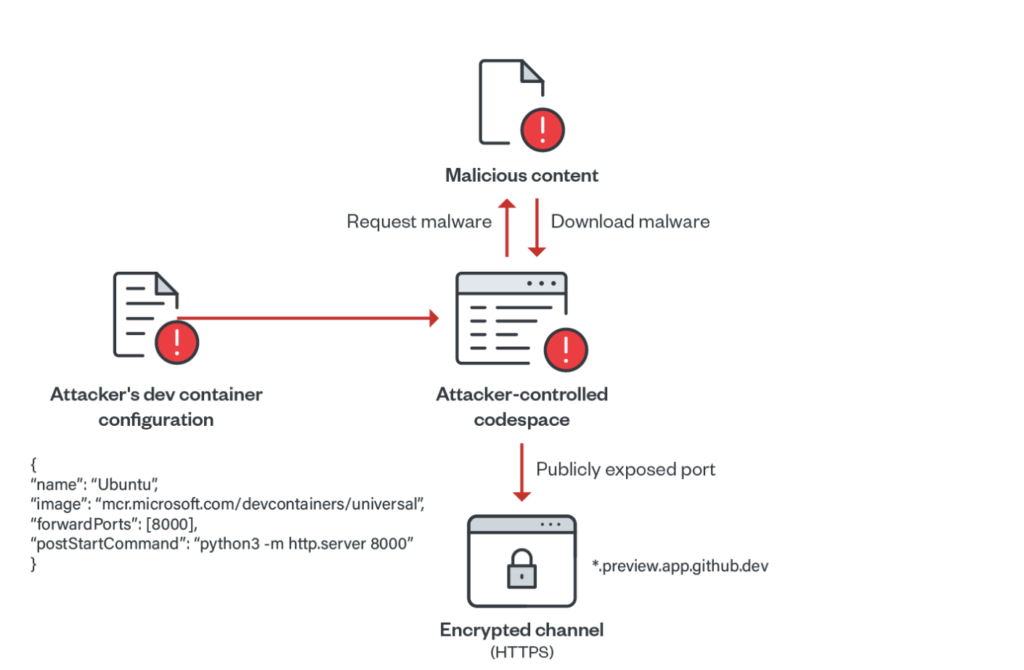
This enables threat actors to bypass suspicion from threat intelligence platforms. On GitHub Codespaces, ports are forwarded using HTTP. HTTP is less secure than HTTPS. With no malicious history showing, the malware flies under the radar. In Trend Micro’s simulated attack, researchers forwarded the port 8000 using forwardPorts property. Then, they ran a Python-based HTTP server on each successful container startup using the postStartCommand property. 

Consequently, the researchers demonstrated how a cybercriminal could run a Python web server, upload malicious scripts to Codespace, and open a public web server port. After that, they used the URL to distribute malware to end users. Throughout the process, GitHub Codespaces didn’t start any authentication procedures.

This process is similar to how cybercriminals distribute malware on other reputable services, such as Microsoft Azure, Google Cloud, and Amazon AWS.

Using Dev Containers to Enhance Efficiency

An image of a diagram denoting how cybercriminals would upload malware to GitHub Codespaces.
Threat actors used the efficiency of GitHub Codespaces to further their own aims.
Source: Trend Micro

Since dev containers within GitHub have all the tools and dependencies used in projects, developers have come to rely on them for rapid deployment. But, at the same time, the same dev containers also help cybercriminals create a malicious web server on GitHub Codespaces within minutes, with zero checks. 

“Using such scripts, attackers can easily abuse GitHub Codespaces in serving malicious content at a rapid rate by exposing ports publicly on their codespace environments. Since each created codespace has a unique identifier, the subdomain associated is also unique. This gives the attacker enough ground to create different instances of open directories,” read the Trend Micro report. 

Usually, the platform deletes codespaces within 30 days, allowing threat actors a month to use a URL. While this particular security vulnerability hasn’t been exploited yet, cybercriminals will waste no time once they’ve figured it out. Their predilection for exploiting free services, such as Dropbox, GitHub, Azure, OneDrive, and more, is well-known and documented. Sadly, these vulnerabilities expose unsuspecting users to the possibility of downloading malware from these platforms. 

GitHub Under Fire

A snapshot from the official GitHub Codespaces website with a black background.
It’s easy to start coding instantly with GitHub Codespaces. It’s easy for cybercriminals to do the same.
Source: GitHub Codespaces

In recent years, GitHub has dealt with a spate of cybercrimes directed toward it. Part of this is due to its growing size and popularity, making it an attractive target for cybercriminals. In response, GitHub is upgrading its security features to deal with these threats. The latest among these actions is GitHub’s step in making 2FA and free secret scanning mandatory for all users. 

As companies unwarily leave access to their code open to the public on GitHub, they’ve been left reeling from the fallout. For instance, Toyota left a publicly available access key on GitHub for 5 years. They later regretted it when cybercriminals compromised the personal information of 296,000 of its customers. 

Similarly, in January 2021, Nissan North America experienced a breach where cybercriminals exposed 20 GB of sensitive information. The security breach occurred due to default access credentials on a Git server (Git is not the same as GitHub, but has similar features). Moreover, in December 2022, Okta authentication provider was targeted via GitHub repositories — but these were private, not public, repositories. 

Business owners who manage software teams must secure the environment where developers contribute code. Preferably, They can do this with some form of multi-factor authentication (MFA) for all commits to restrict access. In addition, businesses must set ports to private — a practice that will reduce the variety of possible attack vectors. These are simple solutions that work like a charm against many lethal threats. Leaving an open public port is a rookie mistake, but it’s often the obvious cause of serious compromises. 

Software Development Environments Need to Step Up

The lesson here is that user authentication should be paramount. It’ll help avoid the consequences emanating from a leak at the top of the software supply chain that can cascade to users and organizations all the way down the line. 

Even though cookies and tokens can make it harder for cybercriminals to breach such spaces, multi-factor authentication (MFA) vastly increases web security. This shows why businesses should take pains in implementing additional security protocols. Ultimately, passkeys will have to replace clunky passwords and MFA in the software world. Nothing at the moment is as important as this shift in the industry, which can finally stem the tide of cybercrime. 

The post Trend Micro’s Investigation into GitHub Codespaces Reveals Malware Vulnerability appeared first on TechGenix.
✇TechGenix

Meta Sues Surveillance Software Firm for Scraping 600,000 Profiles

The image shows lots of black and white CCTV cameras against a brick wall with two women looking up toward them.
People need to exercise vigilance against surveillance operations.
Source: Pixabay

Meta is suing the London-based “scraping-for-hire” Voyager Labs for using surveillance software to automatically scrape information from 600,000 user profiles on Facebook and Instagram. 

The lawsuit alleges the surveillance firm violated Facebook’s and Instagram’s terms and conditions and California Law. In this instance, information obtained through automated scraping included likes, comments, friends, and users’ photos. Voyager’s surveillance software also scraped information from Twitter, YouTube, Medium, Pinterest, Vimeo, Tumblr, LinkedIn, and Telegram. 

The information Voyager scraped was sold to law enforcement agencies, including the LA Police Department, for profit. Marketing its surveillance software to law enforcement agencies for clandestine intel gathering, the company boasted that its data-scraping activities were untraceable. 

However, in 2017, Meta gave Voyager a warning to cease and desist its scraping activities. These activities had been going on since it first became active on the Facebook platform back in 2016, according to the exhibits of the case released. 

The surveillance software, which cost USD 705,000, created over 38,000 fake Facebook profiles for data scraping purposes. It also tracked COVID-19 victims and their connections. 

AI-Backed Surveillance Software

The image shows Voyager's surveillance software graph, profiling an individual and his connections.
Voyager marketed its surveillance software as untraceable and an intel gatherer.
Source: ARS Technica

Voyager designed its AI surveillance software to be untraceable. It then marketed it to law enforcement agencies and departments as an intel gatherer. The surveillance software blatantly disregarded users’ rights and indiscriminately profiled users for criminal behavior. 

Voyager’s website states that the software is “designed to analyze massive amounts of data” and “to uncover social whereabouts and hidden connections between entities.”

Its marketing materials further state that “Voyager’s unique collection methods enable traceless collection from social media networks” and claim that the “collection process cannot be associated with clients servers by any third party or by the social network itself.” 

Meta recently announced its fight against scraping-for-hire, explaining that a data scraper “covertly collects information that people share with their community, family, and friends, without oversight or accountability, and in a way that may implicate people’s civil rights.” 

No Regard for Individual Privacy

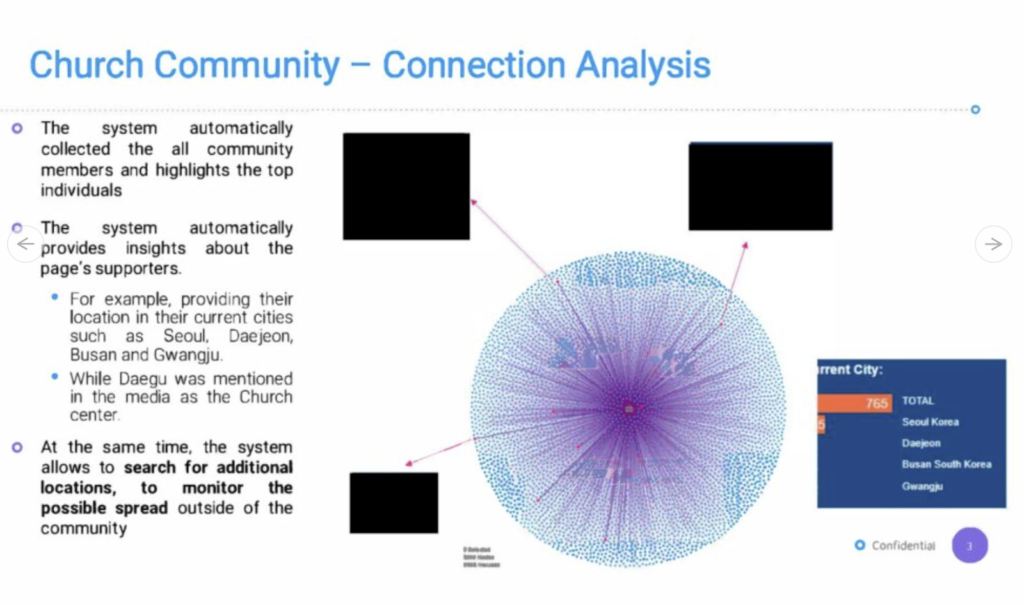
The image shows a Voyager graph about a church in South Korea, highlighting sensitive information on members of the church.
Surveillance software disregards international boundaries and national sovereignty.
Source: ARS Technica

In another transgression, Voyager Labs used COVID-19 tracing as a public-interest cover-up for its illegal data-scraping policies and surveillance activities. Its surveillance software targeted individuals, pubs, and religious organizations. 

For instance, followers of Shincheonji’s Church in South Korea were tracked and monitored through the organization’s Facebook page. Through the scraping operation, the firm obtained information on infection rates and individual connections. 

These activities were carried out with intent. As such, they violate both individual privacy and Facebook’s policies, not to mention the sovereignty of individual states whose citizens they monitor. Hyping up its software’s appeal, Voyager claimed it provided near real-time data that was “untraceable” and “completely anonymous”. It achieved this by employing multiple proxies from different vendors and locations.

The Voyager surveillance software case comes after Meta sued another scraping-for-hire company, Octopus, in July 2022. Similar to Voyager, Octopus used automated accounts to scrape data from the profiles of over 350,000 Instagram users. 

However, despite Meta’s best efforts to put itself in a favorable light for protecting users’ rights, its own data-scraping activities are well-known. In 2018, reports on Meta (then Facebook) emerged, alleging it collected SMS and voice data from Android mobile devices. 

The Ongoing Data Scraping Question

The image shows the blue LinkedIn logo against a dark blue background.
Data scraping is a pressing question for LinkedIn and other social media sites.
Source: Unsplash

Whether or not data scraping is legal is a much-debated question. It largely depends on the context and, chiefly, on what purposes the data will serve later on. Social media sites typically discourage data scraping, because users who feel their data isn’t protected would be incentivized to leave the platform. 

Voyager’s agents on Facebook and Instagram platforms used the data to aid law enforcement and COVID-19 tracking. As such, they might argue they used scraping for the general good. 

Certain jurisdictions, like the EU and California state, enforce users’ rights and privacy with stricter regulations. Data scrapers consider any publicly available information as open-to-scraping, arguing that any private information shouldn’t be public in the first place. 

In April 2022, in a case involving LinkedIn and a data-scraping company, hiQ, an appeals court ruled that data scraping of public information for presentation to corporate companies is perfectly legal. This ruling dealt a serious blow to the fight against data scraping. But the LinkedIn and hiQ case is different from this current lawsuit. In this case, hiQ hadn’t agreed to LinkedIn’s terms and conditions before scraping user information. 

Protection Against Data Scraping

The image shows a rusty chain with locks, holding a fence wire gate together.
Your personal information should be under tight locks when it comes to public uploads.
Source: Pexels

Data scraping is concerning for individuals and businesses. Cybercriminals who gain access to personal information online may later use it in phishing scams and other social engineering attacks. Using scraped personal information, they can contact victims, pretending to be officials from the government.

Many victims end up giving up more sensitive information via email or phone during such interactions. This is because people generally trust that anyone with access to such personal information must belong to the government. But, such information, culled from LinkedIn, Facebook, and Twitter databases is easily accessible on darknet forums. 

That said, steps and protections are available for those who take their privacy seriously. Users should take care when posting online. They could also minimize the number of social media accounts that they use and adjust their privacy settings to protect their information from prying eyes. Facebook, Instagram, WhatsApp, and Twitter have all experienced multiple hacks recently. This should put those worried about their individual privacy on alert. 

Since these platforms have added more privacy controls over the years, users should strive to put them to good use. Some measures that users can take to protect their privacy are requesting data, setting profiles to private, and refusing to upload any Personally Identifiable Information (PII) in a public way. 

A Silver Lining for Public Surveillance Operations

Voyager Labs is a well-backed surveillance software firm that intentionally violated Facebook’s and Instagram’s terms and conditions. Covering up its data-scraping activities under noble causes, it tracked and monitored individuals using sophisticated AI analysis. It did this for purposes it couldn’t disclose to the public without incurring condemnation and ire.

But, despite repeated violations of digital privacy, many see a silver lining. With these incidents becoming public knowledge, the general public will be inspired to exercise care when online. Moreover, data regulation policies within the states are shifting. These policies are starting to align closely with those enshrined in General Data Protection Regulation (GDPR), providing victims with comprehensive and retributive legal recourses against illicit data scraping. 

The post Meta Sues Surveillance Software Firm for Scraping 600,000 Profiles appeared first on TechGenix.
✇TechGenix

US Department of Interior Passwords Cracked within 90 Minutes, Report Reveals

The image shows a small golden key on top of a black keyboard.
Passwords are easy to crack, thanks to some solid guesswork and government laxity.
Source: Pexels

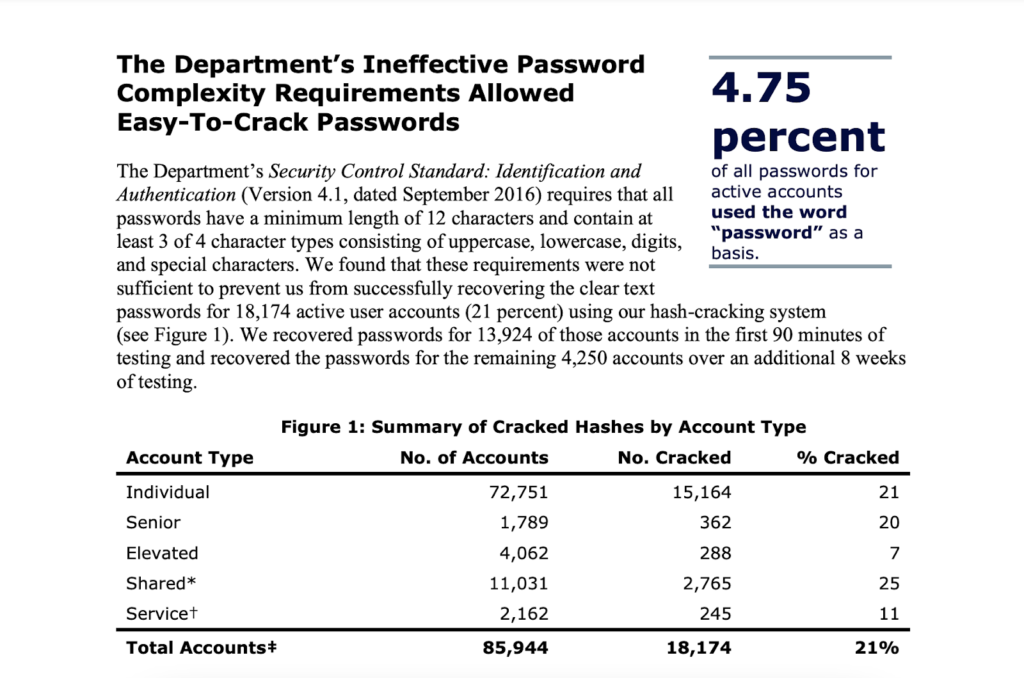
Password crackers at the Office of Inspector General (OIG), tasked with testing security protocols at the US Department of the Interior (DOI), successfully breached 21% of the active accounts’ passwords inside the department within 90 minutes. 

The rig created for the purpose cost less than USD 15,000, but it exposed the many flaws in DOI’s authentication protocols. These included a lack of two-factor authentication (2FA) and extremely weak password management. Among the passwords cracked were the easily-guessable “Password-1234,” and its variations. Surprisingly, that password met the department’s criteria for password complexity. 

Despite decades of guidance from the government on enforcing 2FA protocols, the DOI has failed to follow through. This puts at stake billions of dollars in department revenue and funds. Its other responsibilities involve managing parks and cultural heritage sites, protecting the environment, and assisting indigenous populations. 

The report alluded to the Colonial Pipeline ransomware attack — where a single password leak cost over USD 4.4 million in payments. It warned that such weak password protocols might result in an attack with similarly disruptive consequences. 

Another major issue that the OIG has referred to in the report is the presence of inactive accounts. These accounts could also become a security liability if not fixed. 

Giving its detailed examination of these password vulnerabilities within the department, the OIG has provided the department with eight recommendations. Essentially, the department must implement these recommendations no later than 2024. 

A Damning Report on Password Protocols in the DOI

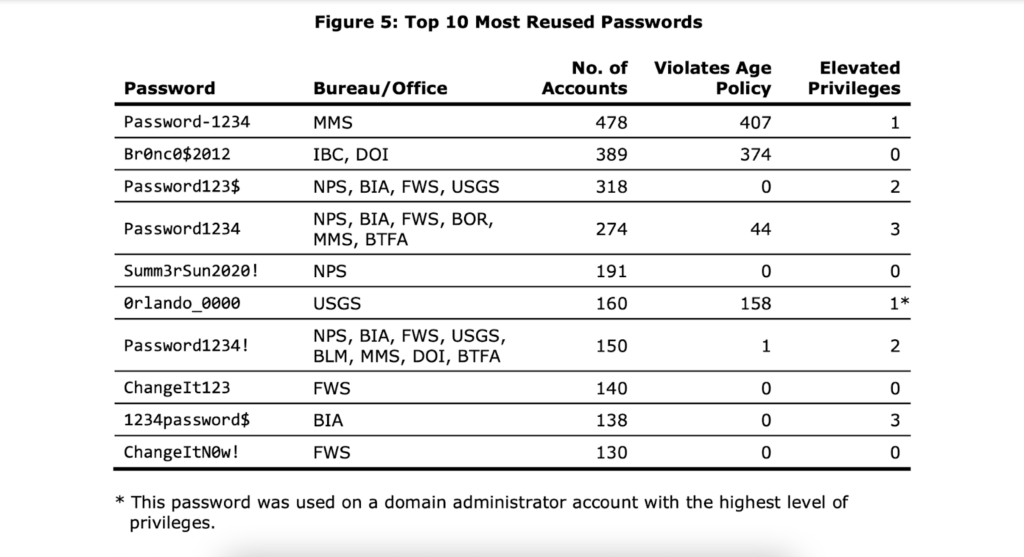
The image shows the commonly reused passwords across DOI departments.
Passwords used by the DOI are easy to guess and commonly reused.
Source: OIG

The DOI didn’t enforce password limits nor disable inactive accounts on time. Moreover, 89% of high-value assets under the department had no 2FA protection. These actions are in clear violation of Executive Order No. 14028, which mandated the enforcement of 2FA across federal systems by Nov. 8, 2021. 

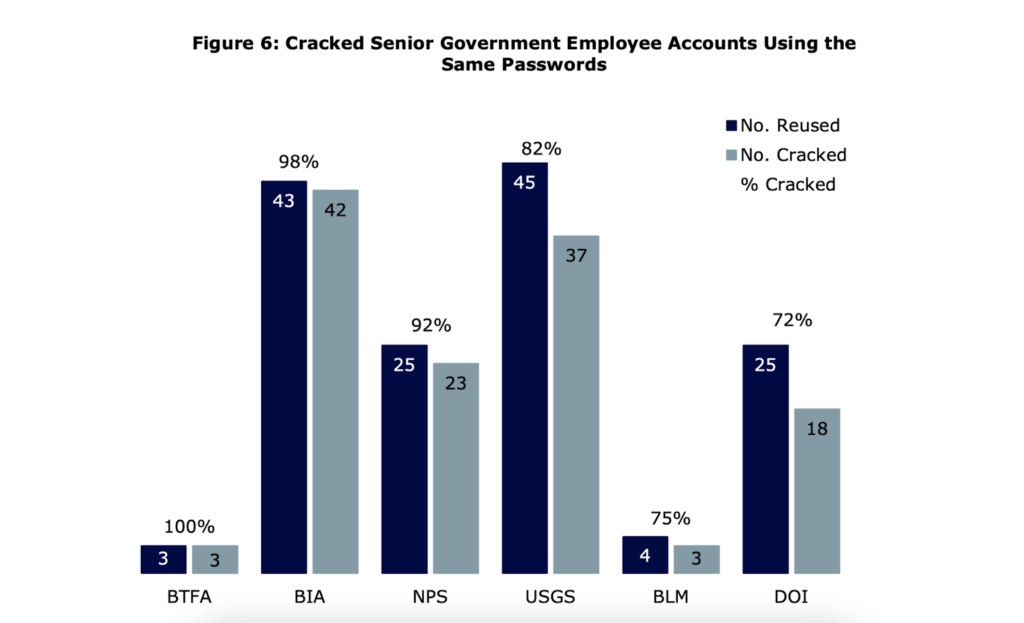
Of the 85,944 active accounts, the OIG cracked 18,174, including 288 with elevated privileges and 362 belonging to senior employees. The department’s password protocols were so lax that they allowed employees to use the same weak passwords across many accounts. For example, 478 unique employee accounts used “Password-1234”. 

The OIG conducted these tests after a previous inspection had revealed weak authentication protocols across DOI’s various sub-departments and agencies. This test came on the heels of that inspection. The OIG conducted the test to determine if the DOI’s cybersecurity protocols were robust enough to protect against stolen and recovered passwords. They were not.

Password Encryption and Publicly Available Password Lists

The image shows a bar chart of reused and cracked passwords used by the DOI and senior government officials.
Senior government employees often reuse the same weak passwords.
Source: OIG

Aside from an appalling disregard for password management by a federal agency, the report debunks the impenetrability of password hashing. This process encrypts and scrambles passwords, and many public and private companies and departments rely on it. Many believe it to be enough to foil threat actors’ plans to obtain credentials, assuming it to be impenetrable. This complacent thinking leads companies to shun 2FA measures that would further bolster security.

The consequences of not following through on recommended password security measures are now too evident from this story: OIG created a USD 15,000 commercial password cracking rig and ended up cracking over 14,000 passwords within 90 minutes. They cracked another 4,200 hashed passwords within the next eight weeks. 

Since people reuse passwords, password-cracking teams know the hashes for those passwords. For example, the word “password” converts to “5f4dcc3b5aa765d61d8327deb882cf99”. With the enormous number of password breaches at private and public organizations, lists of common and reused passwords are publicly available for anyone to see. 

All the password crackers have to do is input these password lists to speed up their operations. As a result, a cybercriminal group with resources like an efficient password-cracking rig can easily crack vulnerable accounts. They can do this using known hashes and publicly available lists. As such, to ensure that employees don’t reuse passwords shown on these publicly available lists, some tech agencies even purchase them to avoid using the same passwords on their networks. 

Preventing Password Theft

The image shows a snapshot from the OIG report, detailing ineffective password complexity and cracked hashes by account type.
Password complexity is quite poor at the DOI.
Source: OIG

Incidences of password theft across social media and other applications have increased the demand for zero-knowledge architectures. These allow clients to hold the private key that decrypts passwords. While still crackable, it’s regarded as far more secure than conventional encryption, where the service provider holds the encryption and decryption keys. 

On a more basic level, 2FA still counts as the most effective way to ensure network security against an increasing variety of attack vectors. A second authentication layer “adds a layer of security that protects organizations — even when passwords are compromised,” according to the OIG report. Companies that ensure 2FA across as many services as possible make it harder for cybercriminals to infiltrate their network security. 

The next phase in the evolution of stronger user authentication is the replacement of passwords with passkeys. Passkeys have certain inherent advantages over passwords when it comes to security. For instance, a cryptographic key pair is created for users on each website, allowing users to hold onto the private key on their device. Users reuse passwords for convenience, but passkeys will relieve them of their responsibilities to memorize, change, or alter credentials. This will cut back on user error and time lost in password management, developing stronger passwords, and changing and resetting them. Some in the tech space, like Google, have already started rolling passkeys out to users.

A Migration From Traditional Encryption? 

Migration from the conventional means of data storage, encryption, and user authentication is nowhere near the frequency or speed at which cybercriminals are breaching networks. A focus on strengthening security and password protocols is the need of the hour. 

The combined use of passkeys and 2FA across all platforms and devices could go a long way in reducing cybercrime. Unfortunately, as evidenced by the DOI, many organizations still won’t follow through even when a cybersecurity procedure is recognized and mandated. 

The post US Department of Interior Passwords Cracked within 90 Minutes, Report Reveals appeared first on TechGenix.
✇TechGenix

Best Practices for Refreshing Your Virtualization Hardware

An image of a laptop with someone typing on the keyboard.
A slow computer means more trouble your way!
Source: Unsplash

Old hardware calls for a refresh. Otherwise, you’ll be dealing with slow computers, meaning you’ll reduce your productivity and your company’s ROI. Even worse, slow computers are an open door for security breaches. 

When refreshing your server hardware, you should consider your budget, support plan, warranty period, and capacity planning. But it’s another story when you’re refreshing server hardware to use it as a virtualization host.  So I’ll be showing you 3 extra things you need to keep in mind when planning for a virtualization host hardware refresh.

3 Best Practices to Refresh Your Virtualization Hardware

When refreshing your virtual hardware, you can put yourself ahead of the game in many ways. These transitions aren’t always easy, so you want to try your best to make it as smooth as possible for your systems. I’ve got 3 of my favorite tips for making your virtual hardware refresh as easy as can be:

1. Don’t Focus Your Hardware Planning Solely on Capacity

When it comes to purchasing a virtualization host, the natural tendency is to try to estimate your future capacity requirements. You can then select server hardware with the CPU, memory, storage, and network resources to meet the anticipated demand. 

While this type of capacity planning is undeniably important, it’s also important to consider any additional hardware requirements. For example, when Windows 11 was released, Microsoft included a TPM 2.0 chip among the hardware requirements. So, it seems that any future Windows releases will also have a similar requirement. 

Finding a current-generation server that doesn’t include a TPM 2.0 chip is hard. But it’s worth your time to list TPM 2.0 among your hardware specifications before making a server purchase.

You should also consider GPU hardware. It’s becoming increasingly common for workloads, particularly those that leverage machine learning, to require a physical GPU. You may already have VMs running in your data center mapped to a physical GPU.

When purchasing new server hardware, consider how many GPUs you’ll need to invest in. It’s also important to think about how you’ll migrate GPU-dependent VMs off the old hardware and onto the new hardware. That’s because VMs don’t generally support live migration.

2. Consider How the Transition Will Impact Clustered Workloads

Cluster capacity is another key consideration when refreshing virtualization host hardware. More specifically, you’ll have to consider whether or not your failover clusters have any room for growth.

Suppose, for a moment, you run Hyper-V on a group of clustered Windows servers. The maximum number of nodes in a failover cluster is 64. If your cluster consists of fewer than 64 nodes, you can simply join the new servers to the existing cluster, live migrate VMs to the new hardware, and then evict your old servers from the cluster. 

On the other hand, if you have a 64-node cluster, you won’t be able to join any new nodes to the cluster until you remove one or more of the old nodes. Removing a cluster node will momentarily reduce the cluster’s capacity, at least until you add the new node to the cluster. So you’ll have to consider the impact of the upgrade process on the cluster’s ability to absorb any node failures that might coincidentally occur at the time of the migration.

3. Assess the Impact of the Refresh on Normal Operations

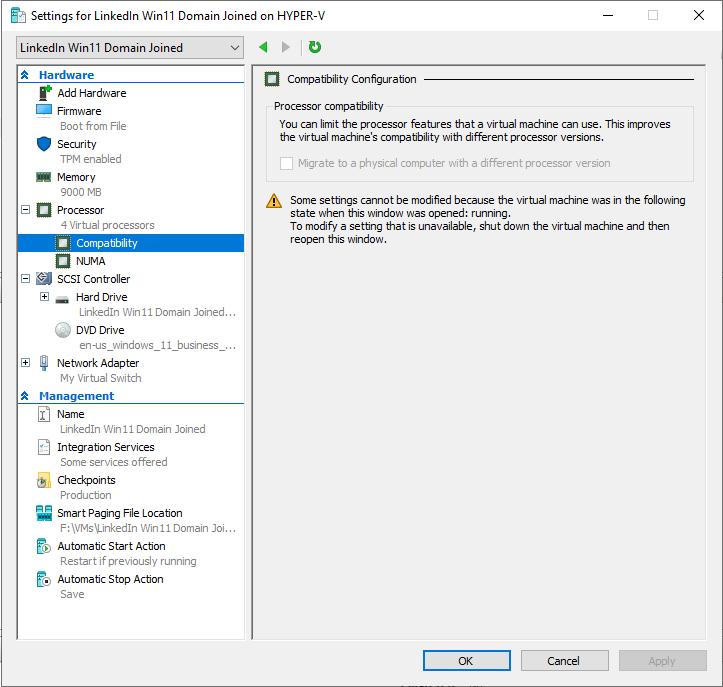
If you’re running Hyper-V, you’ll have to consider whether or not you can live migrate your VMs to the new hardware. When you migrate a Hyper-V VM to dissimilar hardware, you may have to enable processor compatibility mode for the VM before moving it. 

That said, you may have to shut down the VM to enable processor compatibility mode. Another option is to simply power down the VM before attempting the migration. In either case, you’ll need to plan for possible downtime.

A screenshot for settings for LinkedIn win11 domain joined on Hyper-V.
Hyper-V’s processor compatibility mode allows you to migrate the VM to a server with a different CPU version.

The Bottom Line

When refreshing your virtualization hardware, you must consider factors beyond capacity planning estimates. Otherwise, you’ll be dealing with a slow computer that causes your company many problems. That’s because the hardware you choose directly impacts how easy or difficult the migration process will be. 

You also shouldn’t focus your hardware planning solely on capacity when refreshing your hardware. In addition, you should consider how the transition will impact clustered workloads. Lastly, you must also assess the impact the refresh will have on normal operations. 

If you have more questions in mind, check out the FAQ and Resources sections below. 

FAQ

Does a hardware refresh always necessitate using CPU compatibility mode?

No, not every situation requires using CPU compatibility mode. If the new hosts are architecturally similar to the old hosts, you probably won’t have to enable CPU compatibility mode. Likewise, you won’t have to worry about CPU compatibility if you were to replace all of the hosts at once rather than trying to work new hosts into an existing cluster.

Should I run burn-in tests?

Burn-in tests fell out of fashion at some point, but I still find it important for any hardware that’ll host mission-critical workloads. The basic idea behind a burn-in test is that when you plug in and power up a new server, that server is unproven. You have no idea at that point if the server will be reliable or if it contains faulty components that made it past quality control. A burn-in test is designed to confirm the integrity of the server’s hardware.

How do you go about performing a burn-in test?

Performing a burn-in test doesn’t have a standard method. Everyone has their ideas about what such a test entails. That said, you can find guides online that can walk you through the process. 

Why is it difficult to live migrate a VM using a physical GPU?

A VM using GPU passthrough is linked to a specific GPU device within the server hardware. So, the hardware dependency once made live migrations impossible for such VMs. Today, you can live migrate GPU-accelerated VMs. That said, doing so requires you to have just the right hardware.

What are the requirements for using processor compatibility mode?

According to Microsoft, you can only enable or disable processor compatibility mode while a VM is off. Processor compatibility mode will allow you to move a running VM to a host with a different CPU version. That said, you can’t move a running VM to a host equipped with a processor from a different manufacturer. For such moves, you must shut down the VM, and processor compatibility mode isn’t required.

Resources

TechGenix: Article on Hyper-V Tricks

Learn some tricks for Hyper-V capacity planning.

TechGenix: Article on GPU Assignments

Read more on GPU assignments within Hyper-V hosts.

TechGenix: Article on Hyper-V Monitoring

Find out about Hyper-V resource health monitoring.

Microsoft: Article on Processor Compatibility Mode

Discover why you may have to use processor compatibility mode.

Microsoft: Article on Hyper-V Live Migration

Read more on Hyper-V live migration.

Microsoft: Article on GPU Acceleration

Discover what Microsoft has to say about GPU acceleration.

The post Best Practices for Refreshing Your Virtualization Hardware appeared first on TechGenix.

✇TechGenix

5 PowerShell Tips Every User Needs to Know

Image of a turtle swimming underwater.
Look at the power in that shell!
SOURCE: Rawpixel

PowerShell has long been Microsoft’s preferred administrative tool for Windows and provides far more utility and flexibility than using its predecessor, the command prompt. For all PowerShell’s functionality and usefulness, it still has a reputation for being difficult to learn. For this reason, I want to present a few PowerShell tips you should know when you’re just getting started with the tool. 

So I’ve compiled 5 PowerShell tips I wish someone had told me when I was learning PowerShell from the outset; may they serve you well!

5 PowerShell Tips

Let’s dive right into the 5 PowerShell tips that will make your life much easier.

1. PowerShell Mimics Natural Language

The first of the five PowerShell tips you need to know is that the command structure is designed to mimic natural language. That said, it reminds me more of the way that old video games used to work. 

When I was a kid in the ’80s, command-line-driven adventure games were popular. The top half of the screen was a visual depiction of where you were in the game, while the bottom half consisted of a command line interface. You would enter really simple, two-word commands to control your character in the game. Some examples of these commands would be; open door, go left, climb stairs, or pay bartender.

PowerShell commands, or cmdlets, are made up of two words separated by a hyphen. Like the adventure games from halcyon days, the first of these two words is a verb, and the second is a noun. 

Consider, for example, the open door command; “open” is a verb, and “door” is a noun. If this were a PowerShell cmdlet, it would be “Open-Door”.

It’s also worth noting that Microsoft tries to use cmdlet words consistently. For example, you’ll find quite a few PowerShell cmdlets that use the verb Get, including; Get-Service, Get-Process, and Get-PhysicalDisk. In each case, the word Get does the same thing; it retrieves information. 

Microsoft tries to use nouns consistently as well. For example, the word Service always pertains to a system service regardless of the cmdlet like Get-Service, Start-Service, and Stop-Service. 

Even though thousands of PowerShell cmdlets are present, they’re based on a somewhat limited vocabulary. Also, it’s often easy to guess the cmdlet you need to use in a given situation and resolve errors.

Now that you know PowerShell’s core syntax, let’s look at the second pearl of wisdom! 

2. Using Windows PowerShell Isn’t Your Only Option

Next, let’s cover number 2 of our PowerShell tips. Windows PowerShell usually refers to the version of PowerShell built into the Windows operating system. However, this is one of many available versions of PowerShell. 

Windows currently comes bundled with PowerShell 5.x. However, PowerShell 7.x is available for download.

Two main differences exist between PowerShell 5 and PowerShell 7; 

  1. PowerShell 7 is cross-platform compatible; it works on Windows, macOS, and Linux, as well as on ARM and Docker. This gives you the power to unify your approach to administration across platforms. This will reduce errors associated with using different interfaces and code and save you time. 
  2. PowerShell 7 has several new features that don’t exist in PowerShell 5 — and these new features can help you. Notably, you can use new options for some cmdlets that contain logical operators, allowing you to run more intelligent code.

Remembering the differences above can help you when you’re working on cross-platform systems or can’t find the functionality needed to complete a task. Now, let’s move on to the third top tip!  

3. Help Is Always Available

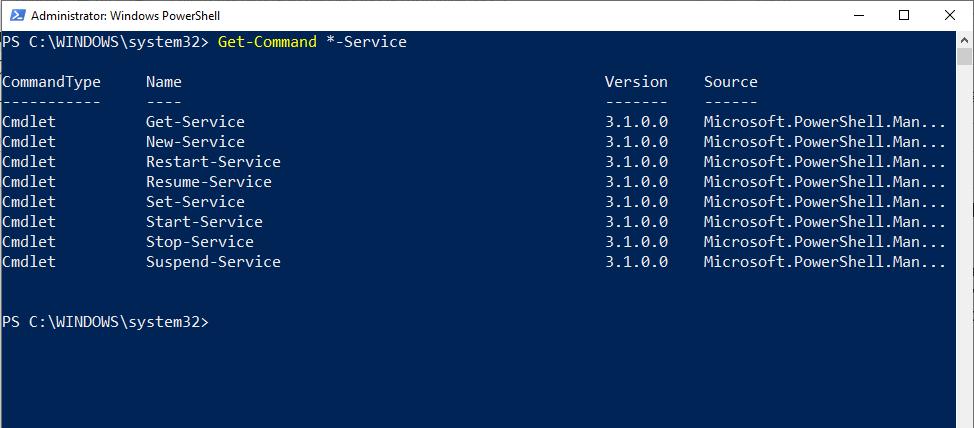
One of the most important PowerShell tips we cover here is that you can always ask for help! For example, if you need help figuring out what cmdlet to use for a particular task, you can use the Get-Command cmdlet. This cmdlet supports wildcards, so if you know what noun or verb you need to use, the Get-Command cmdlet can help you figure out the rest.

Suppose for a moment that you need to start a system service but don’t know the command to use. Let’s also pretend that you’re pretty sure the command will incorporate the word Service. In a situation like this, you might type; 

Get-Command *-Service

Typing in the above command causes PowerShell to show you every cmdlet that includes the word Service. You can see what this looks like below. 

Screenshot of what's returned after executing Get-Command cmdlet in a PowerShell window.
The Get-Command cmdlet can help you to figure out what command to use.

Conversely, typing the following shows you all the cmdlets that use the word “start”’;

Get-Command Start-*

Now, you’ve figured out that Start-Service is the cmdlet that will allow you to start a system service, but you don’t know how to use it. You can acquire the cmdlet’s syntax by using the Get-Help command. Sometimes, Get-Help will even provide you with usage examples using the Get-Help cmdlet. To use Get-Help, type Get-Help followed by the name of the cmdlet you need help with; look at the example below. 

Screenshot of PowerShell window showing what's returned after executing the Get-Help cmdlet.
The Get-Help cmdlet provides assistance with using PowerShell cmdlets.

Remarkable how easy PowerShell is starting to look; now, onto number 4 in our PowerShell tips guide!

4. PowerShell Can Be a Scripting Language, a Management Tool, or Both

When PowerShell was first created, anyone at Microsoft would have described it as a command line-driven management tool for Windows. While that definition still holds today, it needs to be improved, and PowerShell is both a management tool and a scripting language.

PowerShell is an extremely capable scripting language that does almost anything that any other general-purpose programming language can do. Additionally, PowerShell can leverage WMI and the .NET Framework. If you need to do something not supported through native PowerShell, you can do it through WMI or .NET. For example, .NET allows you to build GUI-based applications even though PowerShell is a text-based environment.

PowerShell scripts are nothing more than text files containing PowerShell commands. You can create or edit PowerShell scripts using any text editor, so long as it saves text files using ANSI encoding. However, most people new to PowerShell prefer to write scripts using PowerShell ISE. PowerShell ISE offers syntax highlighting, making it easier to locate syntax errors, and offers predictive suggestions, simplifying the coding process. The figure below shows an example of a PowerShell script within PowerShell ISE.

Screenshot of the PowerShell ISE uses syntax.
PowerShell ISE uses syntax highlighting as a way of making code easier to write and debug.

To run a PowerShell script, enter a dot and a slash (./) followed by the name of the script you want to run. Keep in mind that a script will only be able to run if PowerShell’s execution policies allow the use of scripts. You can check to see what execution policy is currently in use by entering the Get-ExecutionPolicy command.

Onwards and upwards to the last on our list of PowerShell tips you need to know!

5. PowerShell Can Be Used Remotely

In this last of our PowerShell tips, you should know that one of the advantages of PowerShell over GUI-based management tools is that it’s scalable. In other words, you can direct PowerShell commands, or even entire scripts, to run on as many systems as you need. As such, PowerShell can run commands locally, or it can direct those commands to a remote system.

Many PowerShell cmdlets support the use of the -ComputerName parameter. This parameter allows the cmdlet to be run against a remote machine, and you need only to enter the machine’s name or IP address after the word ComputerName.

Not all cmdlets allow the use of the Computer parameter, but you can use other methods of establishing remote connectivity. One popular method involves using the Invoke-Command cmdlet. The Invoke-Command cmdlet also requires the use of the ComputerName parameter. Still, it allows you to run an entire script block against one or more remote machines rather than being limited to a single command. It can also be directed at multiple remote machines. If, for example, you wanted to run the Get-Service cmdlet against a remote machine using the Invoke-Command cmdlet, you would use this command: 

Invoke-Command -ComputerName <remote machine name> -ScriptBlock {Get-Service}

The third option is to establish a session with the remote machine. A session allows you to work as though you were accessing the remote machine locally. Once the session is established, you don’t have to worry about using ComputerName or Invoke-Command. The command you can use to launch a remote session is:

New-PSSession -ComputerName <remote machine name>

You may have to provide credentials when accessing remote machines, depending on your security configuration.

Let’s wrap up our PowerShell tips guide!

Final Thoughts

When getting started with PowerShell, you need to know a few crucial PowerShell tips to make the learning process easier.

Firstly, PowerShell is a natural language command line environment that you can use as both a scripting language and a management tool. Additionally, PowerShell cmdlets and scripts can be directed to run on a remote system just as easily as they can be used on a local system. PowerShell has been created to give you the power and flexibility you need to administer your system and surpass the shortcomings of the humble command prompt.

When using PowerShell, always remember that later versions of PowerShell can be used cross-platform and allows you to streamline your management tasks in cross-platform environments. In addition, later versions of PowerShell often provide new options, allowing you to manage your system more effectively. To this end, check new releases for features that can help you when a task appears impossible.

Always remember help is always available in PowerShell; simply add the service tag after the cmdlet you’re using to get a definition of all the options available. In addition, remember you can always use wildcards with the Get-cmdlet when you can’t remember the name of what you’re looking for. 

Learn more about PowerShell tips and related topics in the FAQ and Resources sections below!

FAQ

Does Microsoft ever make changes to PowerShell?

The basic PowerShell cmdlets tend not to change because if Microsoft were to change the command syntax suddenly, it would likely break any script that incorporates the changed cmdlet. But Microsoft does occasionally introduce new cmdlets and new functionality.

How can I change my PowerShell execution policy?

The easiest way to change a PowerShell execution policy is to use the Set-ExecutionPolicy cmdlet. If you want to disable the execution policy completely, you can type Set-ExecutionPolicy Unrestricted. Similarly, if you wanted to require scripts downloaded from the Internet to be signed, you could type Set-ExecutionPolicy RemoteSigned.

Where is the best place to get help with a specific PowerShell cmdlet?

While you can use the Get-Help cmdlet to get assistance with any other PowerShell cmdlet, Microsoft also provides online help for every native PowerShell cmdlet. 

What is the best place to get PowerShell content?

Numerous modules exist natively in Windows but are not loaded by default. You can use the Get-Module cmdlet to find the available modules. You can also download modules and scripts from GitHub or the PowerShell Gallery.

Does PowerShell ISE have any benefit over other text editors aside from its syntax highlighting feature?

Every text editor is designed to cater to different needs; you can’t make an effective comparison between PowerShell ISE and all other text editors. Noteworthy features include a live PowerShell window that can be used to test a script without having to leave the editor. It also has a built-in debugger, a list of PowerShell cmdlets, and line numbers.

Resources

TechGenix: Article on Working With PowerShell Variables

Learn how to work with variables in PowerShell.

TechGenix: Article on Using PowerShell Core on Linux VMs

Read more on how to use PowerShell Core on Linux virtual machines.

TechGenix: Article on Improving PowerShell Reliability

Find out how to make your PowerShell scripts more reliable.

Microsoft: Article on PowerShell Functionality

Discover Microsoft’s official PowerShell documentation

Microsoft: Article on Installing PowerShell on Different Platforms

Find instructions for installing PowerShell on various platforms.

The post 5 PowerShell Tips Every User Needs to Know appeared first on TechGenix.
✇TechGenix

How Can I Find Out a Server’s Hardware Specification?

Image of the underside of a CPU.
Without hardware specifications, nothing would ever work!
SOURCE: Hippopx

In an IT professional’s life, several situations require you to know a server’s hardware specification. The specification helps you when working on a hardware upgrade, troubleshooting problems, or assessing server resource capacity

Unfortunately, a server’s hardware specification is hardly ever readily available. You can, however, use several methods to identify a server’s hardware. In this article, I’ll show you 3 crucial methods to help you out.

3 Methods to Identify a Server’s Hardware Specification

Quick note: the first two methods will rely on built-in features in your device, whereas the third will require some external interference. But I’ll explain everything in detail for you. Let’s jump in!

Method 1: Device Manager

The first option we’ll cover for identifying a server’s hardware specification is to use the Windows Device Manager, which you can see in the image below. Device Manager is often a convenient option because it is easy to use and is built into Windows. With a few clicks, the user can access all hardware specifications without knowing any executable commands and how to run them. 

When talking to different administrators, you’ll often find that some look down their noses at this method and prefer to use PowerShell or command prompts for everything. Sure, it’s great to flex or dust off your keyboard, but typing anything is often slower than clicking a GUI. One of the biggest benefits of using Device Manager is the speed of accessing hardware details.

Screenshot of the Device Manager window.
The Device Manager is a native tool for displaying a Windows server’s hardware configuration.

The main disadvantage of using the Device Manager is that it’ll only work in some situations. For example, Windows servers running a server core configuration don’t include the Device Manager. At one time, it was possible to use a Device Manager on a Windows desktop to access a server’s device information remotely. But Microsoft removed this capability some time ago. Using Device Manager will only be an option for servers equipped with Desktop Experience.

Overall, Device Manager is a highly effective and convenient means of gaining system information quickly. Let’s now turn our attention to our next method!

Method 2: PowerShell

A second option is to use PowerShell to gather system information. Unlike the first method, you use programmatic instruction to query and retrieve your system hardware specification. 

The biggest benefit of using PowerShell is the control and flexibility you have when accessing and retrieving data from various types of onsite and remote servers. 

The disadvantages of using this method are that it takes time to execute commands, and Powershell is only typically present on Windows servers. 

To understand how PowerShell can help you retrieve server hardware specifications, let’s look at the following example. Suppose you wanted to gather information on your server’s CPU for a moment. You could leverage the power of WMI and enter the following command into PowerShell:

Get-WmiObject Win32_processor

This command and returned response in the screenshot below shows some basic information about the system’s CPUs. As handy as that might be, you would have to use a different cmdlet to gather information on the system’s memory:

 Get-WMIObject Win32_PhysicalMemory 

Additionally, for information about the system’s disks, you’ll need to use: Get-PhysicalDisk.

Screenshot of the PowerShell console displaying your system's individual components.
You can use PowerShell to retrieve information on individual system components.

An easier alternative to using individual PowerShell cmdlets is to use the Get-ComputerInfo cmdlet. This cmdlet returns a detailed summary of the system’s hardware and software configuration, as shown below.

Screenshot of the returned values of the Get-CompterInfo cmdlet.
The Get-ComputerInfo cmdlet returns a summary of the system’s configuration.

Method 3: Third-Party Solution

A third option for gathering hardware information is to use a third-party system information tool . One of my favorite utilities for examining system hardware is Belarc Advisor. But many other tools are available on the market. 

One of the most significant advantages is that you can choose from a wide variety of tools, some of which are free. Often, third-party tools will display highly detailed information about your hardware configuration.

Screenshot of the Belarc Advisor window.
Belarc Advisor is one of many available third party tools that can help you to identify a server’s hardware specifications.

Please note that while some third-party tools do work remotely, many have to be installed directly on the system. Also, if a third-party hardware utility does not support operations, it may not work with systems configured to run a server core configuration.

Overall, if you’re happy running third-party software to collect information about your hardware specification, this can be a useful way to quickly gather what you need. Some solutions can also create monitoring and auditing reports for you, saving you time. If you’re considering this method, only go with a reputable vendor. Also, consider how adding another piece of software will impact your system’s performance. Finally, consider if you’re getting good value for the money required to implement the solution. 

Final Thoughts

You can retrieve information about a server’s hardware specification in several ways, with pros and cons associated with each method. As such, only some of the methods discussed are suitable for some situations. 

Using the Device Manager to retrieve your system specification is among the most popular. It uses the Windows GUI to retrieve and display information through simple clicks. But, Windows servers running a server core configuration don’t include the Device Manager utility, which makes it impossible to use this option in this use case. 

Microsoft is continuing to use PowerShell for all programmatic execution of tasks. This method helps you to retrieve system specifications across servers and is one of the most flexible ways of retrieving hardware information. The drawback of this method is it requires you to remember commands. Additionally, you’ll need to have some degree of PowerShell knowledge and know how to execute commands correctly.

If you have the time and savvy, you could create your script for automating routine checks tailored to your system. This method can also help you create reports for system monitoring activities and audits. An alternative to using native Windows tools is to leverage third-party utilities to help automate data collection. This method can be highly convenient as you don’t need any prior knowledge. The drawback is that you often pay for the convenience it affords. 

Learn more about server hardware specification assessment and related topics in the FAQ and Resources sections below!

FAQ

Why might installing a third-party hardware utility directly on a server be a problem?

Many administrators are hesitant to install any unnecessary software on their servers. At the very least, such software consumes resources that might be better used for running production workloads. At worst, though, third-party utilities might cause system stability issues, with the potential for free utilities to be bundled with malware.

How can the information generated by the Get-ComputerInfo cmdlet be written to a text file?

PowerShell makes it easy to create a text file containing the summary information generated by the Get-ComputerInfo cmdlet. The easiest way to accomplish this is to append the Out-File cmdlet, followed by the path and filename you want to use. For example, you might type Get-ComputerInfo | Out-File C:\data\summary.txt

Can I narrow down the information generated by the Get-ComputerInfo command?

The easiest way to narrow down the Get-ComputerInfo cmdlet’s output is to append the Select-Object cmdlet and the names of the objects you want to include in the output. You can also use wildcards as an alternative to individual object names. If, for example, you were only interested in seeing BIOS-related information, you could type: Get-ComputerInfo | Select-Object BIOS*.

Can the Get-WMIObject Win32_Processor cmdlet produce more detailed information than what is shown in the screen capture?

Generally speaking, PowerShell Get cmdlets, including those that use WMI, are designed to surface the most relevant information and suppress likely irrelevant information. If you want to see all of the available processor-related details, you’ll need to append the Select-Object cmdlet and an asterisk. The command would be Get-WMIObject Win32_Processor | Select-Object *.

Did Microsoft remove the ability to connect Device Manager to a remote machine?

In Windows 10, you can open the Computer Management console and select the Connect to Another Computer command from the Action menu. However, attempts to connect to Windows Server will fail. Some workarounds will allow remote device manager use, but these workarounds have yet to be officially supported by Microsoft.

Resources

TechGenix: An Article on Purchasing Hardware

Read more on making sure you purchase hardware that will last.

TechGenix: An Article on Post P2V Conversion

Find out how to clean up Device Manager after a P2V conversion.

TechGenix: An Article on Hardware Resource Consultation

Discover how PowerShell can help estimate hardware resource consumption.

Microsoft: An Article on Resolving Device Manager Error Messages

Read more on Device Manager error messages and what they mean.

Spiceworks: An Article on Finding Detailed CPU Information

Get to grips with how to use PowerShell to retrieve detailed CPU information

The post How Can I Find Out a Server’s Hardware Specification? appeared first on TechGenix.

✇TechGenix

Lloyd’s Insurer Beazley Issues World’s First Cyber Catastrophe Bond

The image shows a man writing on a white sheet of paper.
Beazley issues the first cyber catastrophe bond to assist a flailing cyber insurance industry.
Source: Pexels

Beazley, a UK insurance company contracted with Lloyd’s of London, has launched the market’s first cybersecurity catastrophe bond, intended to protect insurers from massive cyber payouts. Risks of these crippling payouts have increased exponentially in proportion to the rise in cybercrime. The catastrophe bond will cover a total payout of USD 45 million (£37 million) for claims exceeding USD 300 million. 

A catastrophe bond covers major events that fall outside premium coverage. It’ll cushion the cyber insurance industry against an increasingly volatile cybersecurity environment that its clients find themselves in. The cyber catastrophe bond is the outcome of a three-year project involving multiple firms, including Gallagher Re and Fermat Capital Management. 

Speaking to the Financial Times, Beazley CEO Adrian Cox stated that the new financial instrument will give cyber insurance firms access to a wider pool of capital: “What that taps into is a pool that is trillions rather than hundreds of billions, and is a pathway for us to be able to hedge and grow.” 

Cyber Catastrophe Bond to Ease Insurance Burden

The image shows a golden weighing scale next to a laptop.
Cyber Insurance coverage is a matter of weighing risks vs rewards.
Source: Pexels

Last year, Lloyd’s announced a policy change that will leave catastrophic events, like cyberattacks, out of its coverage. Now, the Beazley catastrophe bond may help provide some protection from cyber risks. This is also the first time an insurer has established a liquid insurance-linked securities (ILS) instrument to cover cyber catastrophe incidents. 

Catastrophe bonds work much like ordinary bonds. Investors take out the bond on floating interest rates and pay back the principal sum at the end of the bond duration. Like all bonds, the rewards balance out the risks. But in certain events — like extreme weather events — investors could lose some or all of their investments.

The cyber catastrophe bond eases the pressures on insurers by adding more market actors to contribute to the capital pool. These kinds of bonds act as a form of secondary insurance or “reinsurance” for underwriters. Institutional investors looking for returns pour billions of dollars into these ILS instruments, providing large insurance companies with a form of reinsurance.

Cyber Insurance Industry Teetering in the Face of Cyberattacks 

The image shows a red coloring pencil, writing out the word "stress" on a white surface.
Can insurance firms cope with the stress of modern cybercrime?
Source: Pexels

The Beazley catastrophe bond, though much anticipated, is the first instrument to deal with the ever-evolving threat of cybercrime. Recently, Zurich Insurance CEO Mario Greco stated that cybercrime could soon become uninsurable. However, Beazley’s Cox doesn’t share Greco’s pessimism and says that the cyber insurance industry can be resilient enough to absorb shocks if adequate safeguards are implemented. 

To become more resilient, cyber insurance companies will need accurate risk assessments. While all insurance companies do risk assessments, it’s especially difficult for cybercrimes. This is due to the scale of recent attacks and their increasing sophistication. To make matters worse, many of these breaches go unreported, leading to a void in accurate statistical data. A miscalculation in premiums and risk assessment can mean bankruptcy for a large insurance firm. 

Cyber insurance is a global issue. Cybercriminals are finding ways to attack vulnerable networks and businesses with increasing confidence in an interlinked world. This has hurt cybercrime insurance. The US cost of cybercrime insurance doubled between 2016 and 2019. Despite this, the US Government Accountability Office has outlined the difficulties with cybercrime insurance, such as limited historical data and lack of standardized definitions. The result of this has been that cyber insurance companies are increasing premiums but lowering overall coverage. 

SMBs Hit the Hardest

The image shows the words "Support Small Businesses" written in white against a black background.
All businesses have to face the cybercrime threat, not just larger organizations.
Source: Pexels

A potentially overlooked commercial class in terms of cyber insurance is small to medium businesses (SMBs). These businesses need to help themselves by maintaining resilient network security. With mounting premiums for cyber insurance, business owners must decide between insurance, in-house cybersecurity personnel, or high-quality antivirus and malware toolkits. 

New research has indicated that cybersecurity budgets are stretched thin for small business owners. The research shows that, in 2023, business owners will cut back 50% on cybersecurity budgets, from €117,000 to €58,000. This is a concerning level of cutbacks for an area in dire need of resources, given that 79% of SMBs experienced a cyberattack in 2022. Since 32% of SMBs don’t even have a disaster recovery plan in place, a serious priority readjustment is needed in the industry. 

Even if SMBs have their priorities straight, they can’t afford to get the best insurance policies, in-house personnel, and software toolkits like large enterprises. They’ll have to be picky and choose cost-effective security precautions. These invariably include implementing multifactor authentication, conducting employee awareness training, and telling employees to maintain strong passwords.

For safer data storage, SMBs can look into cloud storage options. Despite many breaches, cloud storage services are cheaper and more secure than in-house storage. Additionally, cloud storage providers tend to have more powerful security precautions, and you can take advantage of this at a much better price than storing sensitive information in-house. Having said that, remember that the liability rests with the original data owner in case of a data breach.

Cyber Insurance Needs to Evolve—Quickly

The industry’s failure to standardize definitions has left insurers with no means of assessing business network security before issuing quotes. For example, the industry has no information regarding ransomware payments. This is a sorry state of affairs where insurance companies are at a loss to respond to the rise in cybercrime, which seems to be evolving at a clip faster than can be accurately quoted. 

With all this in mind, Beazley’s catastrophe bond couldn’t have come at a better time. 

The catastrophe bond serves the useful purpose of making cyber insurance more affordable for all business entities, providing a level of safety for insurers to issue better policies. Without these kinds of financial innovations, cyber insurance would continue its death spiral of lower and lower coverage accompanied by higher and higher premiums, potentially to the point where business owners may be forced to take a chance without it. 

Yet, this doesn’t leave the business owners off the hook. Given cybercriminals’ recent onslaught, SMBs will do better by allocating their budgets to cost-effective security protocols to defend against threats as soon as they arise. 

The post Lloyd’s Insurer Beazley Issues World’s First Cyber Catastrophe Bond appeared first on TechGenix.
✇TechGenix

Zoom Phishing Site Delivers IcedID Malware, Poses Threat to User Banking Credentials

The image shows a computer with active Zoom call participants, next to an iPad, a phone, and a watch.
Zoom application has been phished to deliver IcedID malware.
Source: Unsplash

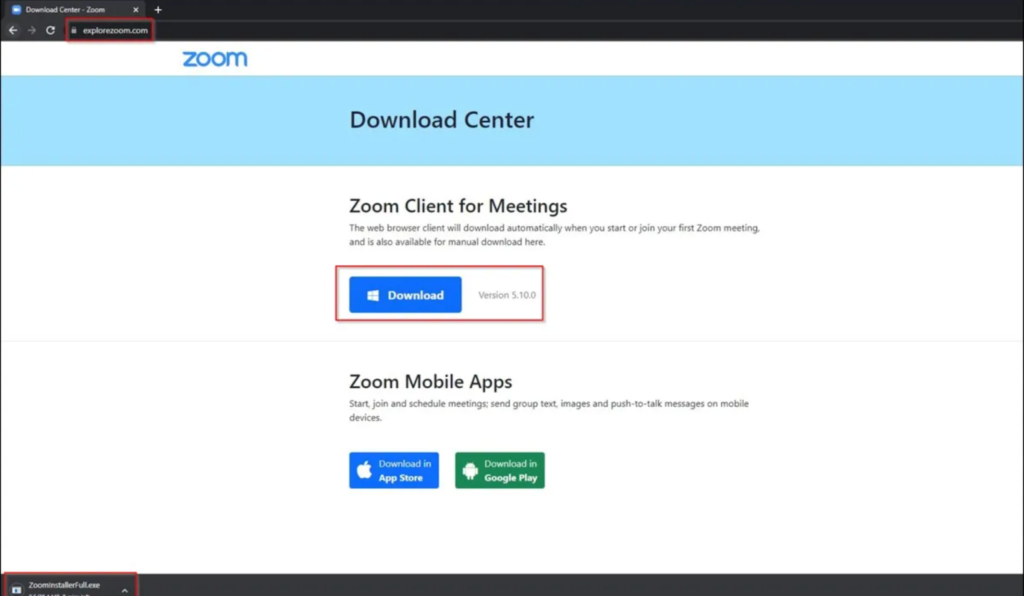
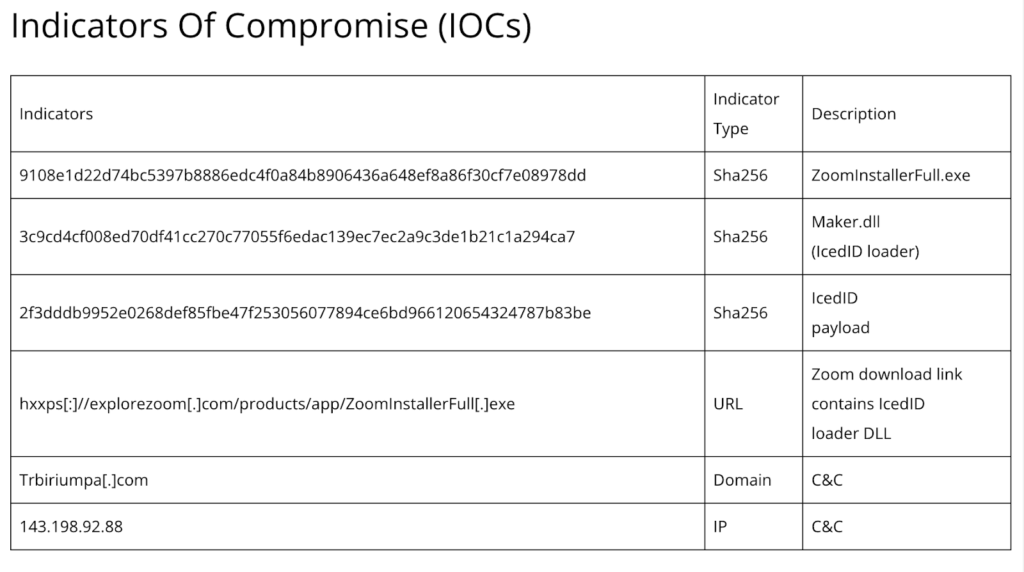
Cyber threat actors have created a phishing site impersonating the official Zoom video conferencing application to deliver IcedID malware to installers, according to a report Cyble Research and Intelligence Labs (CRIL) issued. IcedID, also referred to as “BokBot,” is designed to steal user banking credentials and primarily targets businesses. The phishing site impersonates the original Zoom site, leading unsuspecting users to download the IcedID along with the application. 

Threat actors usually deliver IcedID via spam emails. But this time, they used a phishing website to carry the malicious load, breaking away from their known methods. IcedID malware steals login credentials for banking sessions using man-in-the-browser attacks. The attackers use multiple injection methods and frequently update their IcedID operations to evade detection from scanners. 

The IcedID Zoom Phishing Scam: Technical Specifications

The image shows the Zoom phishing site which lets users download the software and malware.
Beware when downloading Zoom. You could be downloading malware along with the application.
Source: CRIL

The download URL for the latest IcedID phishing campaign is explorezoom.com, as opposed to the official Zoom.us. This highlights the importance of always checking domains before downloading anything online. Closely examining domain names or URLs can help reveal whether a download is legitimate. 

Upon download, the Zoom IcedID malware drops two files into the temp folder: ikm.msi and maker.dll. Ikm.msi is a legitimate Zoom file, put there intentionally to lull suspicion. Users downloading from the link may use the application unaware of the threat. The second file, maker.dll, is highly malicious. It’s initiated using rundll32.exe with the “init” parameter. When executed, it uploads the IcedID malware into the memory. 

The IcedID malware is a 64-bit DLL file that uses the following Windows API functions to gather user information and converts the output into numerical data:

  • GetTickCount64()
  • ZwQuerySystemInformation()
  • RtlGetVersion()
  • GetComputerNameExW()
  • GetUserNameW()
  • GetAdaptersInfo()
  • LookupAccountNameW()
  • CPUID

Later, in the final stage of malware execution, IcedID assigns an ID to the converted numbers and sends them to the C&C server as a cookie. The malware then deploys more malware strains in the %programdata% directory of the C&C server. 

IcedID Malware IOCs and Recommendations

The image shows a table of IcedID indicators of compromise.
Network admins should know the ins and outs of IcedID malware to stay ahead of the curve.
Source: CRIL

CRIL has listed the indicators of compromise (IOCs), including the malicious link, SHA addresses, domains, and IP addresses. This is useful information for security researchers and network administrators, who can use it to avoid falling prey to the same threats. CRIL has also listed some security recommendations, which are often standardized after a cybercrime event. These include:

  • Enforcing strong passwords and 2FA as much as possible
  • Employing automatic software and patching updates across multiple devices and platforms
  • Using a high-quality malware scanning tool in tandem with antivirus software
  • Holding employee awareness training for suspicious URLs, particularly in email links
  • Blocking known malware-distributing URLs

Out of all the recommendations, companies shouldn’t underestimate the importance of malware detection and antivirus tools. Even if these fail to prevent the initial breach, they reduce the detection time and, thus, limit the cost and severity of an attack. Early detection helps contain the threat within a few hours rather than weeks or months. This has major cost implications for businesses. 

In its report, CRIL has also detailed the methods of attack used in this latest IcedID malware campaign to help network administrators and business owners identify the attack patterns. These include T1071 and T1095 C&C tactics, which relate to application and non-application layer protocols. Execution tactics include T1204 and T1059, which relate to user execution and the command and scripting interpreter. 

Software Impersonations Becoming Increasingly Sophisticated

The image shows a table of attack techniques used in the IcedID Zoom phishing campaign.
Updated attack vectors often pass by undetected.
Source: CRIL

Since the Covid-19 pandemic, cybercriminals have increasingly sought to compromise remote work applications like Zoom. Two reasons that make such applications such prime targets for cybercriminals are their widespread adoption and that they serve as means to access more lucrative businesses outside a highly secured network. 

The issue here isn’t just the scale of these attacks — but that these are becoming increasingly adaptive and versatile with time. Cybercriminals are continually tweaking and adapting their models, leaving researchers a step behind in mapping their attack patterns and developing software that can fend them off. 

Commenting on the threat posed by IcedID, CRIL refers to it as a “highly advanced, long-lasting malware that has affected users worldwide.” Cybercrime groups, including Emotet, TrickBot, and Hancitor, have also deployed IcedID malware. Though it’s usually spread through email phishing, cybercriminals created a phishing site to carry the malware in this instance. This also marks the first time that threat actors have used such tactics for deploying IcedID malware.

Yet, despite their sophistication, such attacks are easy to mitigate. For instance, users only need to practice a little awareness and caution to discern the legitimacy of software applications. Email phishing attacks often contain grammatical errors, typos, and poor English. 

Moreover, some websites intentionally use incorrect URLs, known as typosquatting, to masquerade as the original website it’s impersonating. Hurried employees looking to download applications quickly may overlook these subtle signs and unwittingly invite trouble. 

While commercial and enterprise networks may prevent these downloads automatically, remote employees who can navigate any site may be more at risk from the IcedID variant. Since many businesses nowadays employ large remote staff, this could spell disaster for the safety and integrity of a company’s internal communication and sensitive information.

The Key to Staying Safe from Malware in 2023

The best way to remain safe from malware online is to take a pause before downloading an application from any site, as legitimate as it may seem. Cybercriminals are even exploiting Google Ads to rank their phishing site higher in the SERPs to assume legitimacy and trick users into downloading from malicious links. 

Aside from Zoom, other applications targeted through the MasquerAds campaign include AnyDesk, Dashlane, Grammarly, Malwarebytes, Microsoft Visual Studio, MSI Afterburner, Slack, Audacity, Teamviewer, Brave, and more. Under such circumstances, a user’s best defense is exercising vigilance online. A momentary pause and a closer look can reveal what even sophisticated software might fail to detect. 

The post Zoom Phishing Site Delivers IcedID Malware, Poses Threat to User Banking Credentials appeared first on TechGenix.
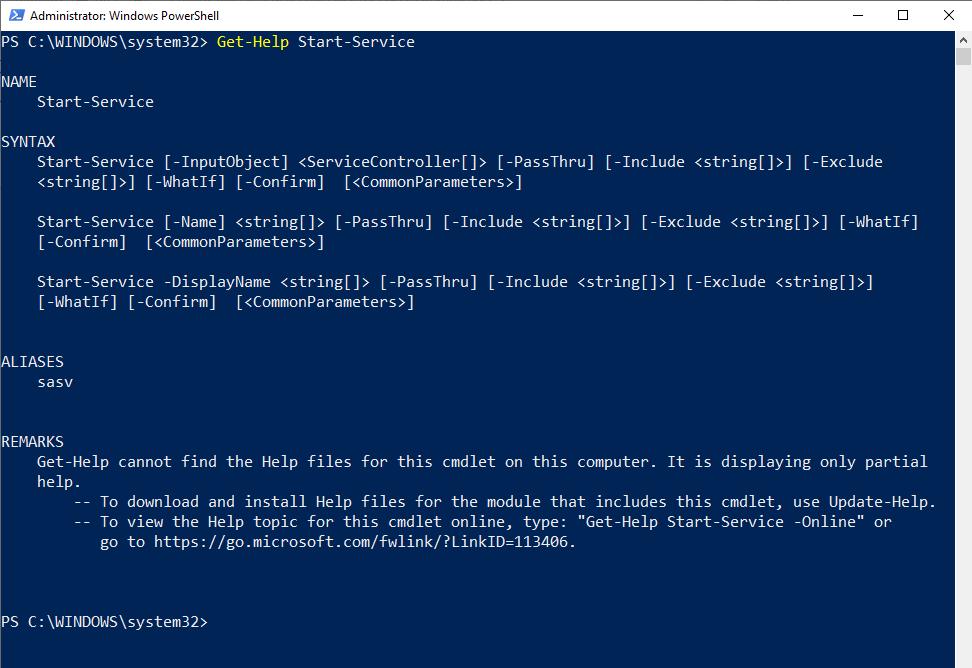
✇TechGenix

Irish DPC Fines Meta $414 Million for GDPR Violations concerning Targeted Ads

The image shows a post with stickers, one of which reads, "Big Data is watching you."
EU regulatory authorities are tightening screws on Big Tech, slapping it with fines and violations.
Source: Unsplash

Ireland’s Data Protection Commission (DPC) has fined Meta a total of €390 million ($414 million) in a ruling against Facebook’s and Instagram’s use of targeted advertising. The ruling declared both subsidiaries’ method of furnishing user consent under its updated terms and service a violation of Article 6 of GDPR. The fines levied against Facebook and Instagram amount to €210 million ($225 million) and €180 million ($191 million), respectively. 

NOYB, a user privacy protection group, first lodged complaints against Meta’s subsidiaries in May 2018 — immediately after GDPR came into effect. Following this outcome, Meta and its subsidiaries won’t be able to rely on their terms of service as legal cover for obtaining user consent to process their information for personalized ads.

Authorities have repeatedly found Meta in violation of user privacy regulations in Europe, under the GDPR, and also in the US. Just last month, in the Cambridge Analytica settlement, authorities slapped Meta with a $725 million fine, the largest US data privacy class-action lawsuit ever.

The Basis for the $414 Million Fine against Meta

The image is a snapshot of the official DPC statement in regard to the $414 million Meta fine for GDPR violations.
The DPC reversed its initial decision and imposed a much larger fine on Meta.
Source: Data Protection

Article 6, under which this recent DPC ruling was made, allows data processing only when an entity complies with one of its six legal premises. In advance of the GDPR implementation in 2018, Meta — then Facebook — changed its terms of services. The company made consent to its processing of user information a precondition for its services. 

Arguing its case, representatives of Meta alluded to their terms of service as a legal contract. The “contract” allowed its subsidiaries to process customer data. However, the DPC disagreed and found it in violation of Article 6, and Articles 5 (1)(a), 12, and 13(1)(c) that concern data transparency. 

“In breach of its obligations in relation to transparency, information in relation to the legal basis relied on by Meta Ireland was not clearly outlined to users, with the result that users had insufficient clarity as to what processing operations were being carried out on their personal data, for what purpose(s), and by reference to which of the six legal bases identified in Article 6 of the GDPR,” read the DPC statement. 

Meta’s Subsidiaries Tried to Bypass GDPR

The image shows a snapshot of the NOYB page showing the Meta story, while an animation below declares it a victory for user privacy.
Meta has lost the battle of forced consent for personalized ads. And it’s losing more and more often.
Source: NOYB

Max Schrems, who leads NOYB, claims that the prohibition of the use of personal data for targeted advertising is a win for individual privacy. According to NOYB, Meta hid the yes/no binary opt-in decision concerning targeted advertising in its terms and conditions. 

According to Schrems: “Instead of having a ‘yes/no’ option for personalized ads, they just moved the consent clause in the terms and conditions. This is not just unfair but clearly illegal. We are not aware of any other company that has tried to ignore the GDPR in such an arrogant way.”

Meta very nearly succeeded in its attempt to bypass GDPR as well. DPC’s original fine was €36 million. But when authorities referred the case to the European Data Protection Board (EDPB), it reversed DPC’s decision that Meta and its subsidiaries could use user information for targeted ad campaigns on a legal contract basis. Consequently, the fine was increased by over 1,000%, from €36 million to €390 million. 

Schrems has gone as far as to claim that the DPC colluded with Meta: “This case is about a simple legal question. Meta claims the ‘bypass’ happened with the DPC’s blessing. For years the DPC has dragged out the procedure and insisted that Meta may bypass the GDPR, but was now overruled by the other EU authorities. It is overall the fourth time in a row the Irish DPC got overruled.”

GDPR Affects More than Just Meta

The image shows a snapshot of the official GDPR enforcement tracker page, listing recent violations.
GDPR is affecting businesses, large or small, that fail to comply.
Source: Enforcement Tracker

The latest DPC fine puts Meta in a bind. It’ll be unable to operate, in the EU at least, under its current business model. This is especially the case because it’s also struggling to comply with the transatlantic data processing directives. EU authorities are tightening the screws on Big Tech companies. This is in an effort to rein them in and to ensure their compliance with the GDPR. 

Apple and Twitter have also recently found themselves in the line of fire. However, fines against Twitter are much less frequent and far lesser than those against Meta. Twitter is currently under a DPC investigation for a breach that could potentially affect 5.4 million users. Apple, meanwhile, has been fined $8 million by the French regulatory authority Commission Nationale de l’informatique et des Libertés (CNIL) for a non-consensual targeted ad campaign toward iOS 14.6 users. The authority leveled the fine under Article 82 of the French Data Protection Act. CNIL previously fined Google for a breach of the same article.

Small and medium-sized businesses are also subject to GDPR provisions, but these cases don’t make major news headlines. The enforcement tracker has a full list of GDPR cases. The tracker includes details such as entity name, fine amount, relevant GDPR provision, jurisdiction, decision date, and official press statement. 

To avoid GDPR fines, business owners should tread carefully when processing and using user data. In protecting user information, companies must ensure that their databases are secure. Implementing a combination of cybersecurity protocols, including powerful firewalls, multi-factor authentication, antivirus protection, malware scanners, email spam filters, and automated patch management, can help companies avoid violations. 

Implications for Big Tech 

For a long time, Big Tech has been operating above the law. This is even though its involvement in feeding deep analytics with user information is an open secret. All this seems to be changing, with the authorities, in Europe especially, calling for stricter GDPR compliance. These stricter user-privacy enforcement measures have led to Meta signaling its withdrawal from the EU. This is because its subsidiaries rely on the processing of user information to remain operational. 

Other social media and Big Tech platforms and companies also employ targeted advertising. Big Tech, with its use of sophisticated tracking and surveillance and cross-device, cross-platform monitoring, had eluded accountability for quite some time, with little transparency on how it uses user data. 

With GDPR and other directives curtailing Big Tech’s power and enforcing user privacy rights, the playing field is leveling. However, the dream of reclaiming user data and a more sovereign internet still seems distant. 

The post Irish DPC Fines Meta $414 Million for GDPR Violations concerning Targeted Ads appeared first on TechGenix.
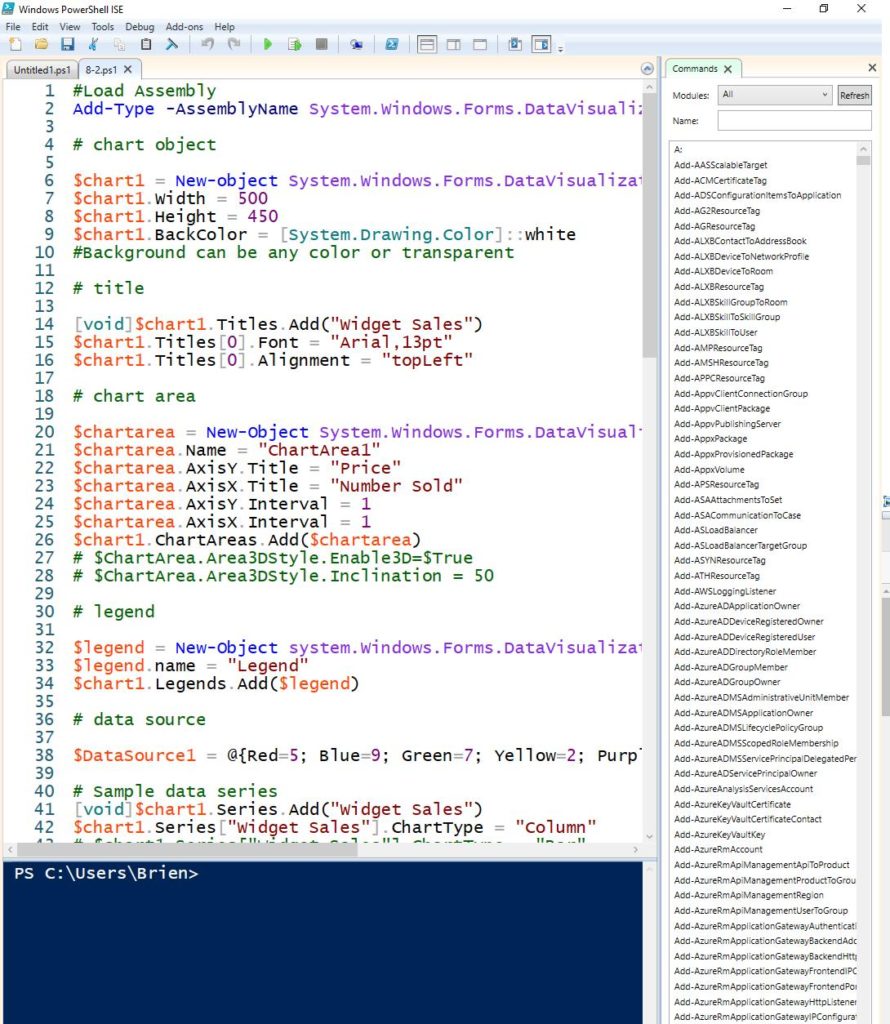
✇TechGenix

What Is Advanced Malware Protection?

Image of a businessman looking at an antivirus security login screen on a computer.
Does your computer have the proper protection to defend you from advanced threats?
Source: iStock Photo – Courtneyk

Malware is a serious threat to both individuals and enterprises. It can compromise your sensitive data, disrupt operations, and even cause physical damage to computer systems. That’s not the end of the rope, though. If malware infects your system, it could severely damage your company’s reputation in the case of a data breach. In addition, data breaches usually require a settlement to affected customers, which is very costly. As if regular malware wasn’t enough, we’ve got bigger, smarter, and worse malware out there. So, it’s important to have advanced malware protection in place to protect your enterprise. 

In this article, I’ll define advanced malware protection and its importance for your business. You’ll also gain a complete understanding of its 4 different types. So without further ado, let’s find out what advanced malware is. 

What Is Advanced Malware?

Malware includes many different types like viruses, worms, Trojans, ransomware, etc. Each type has its own unique characteristics and can cause different types of damage. For example, a virus might replicate itself and spread to other devices. Meanwhile, ransomware might encrypt important files and demand a ransom for their release. Advanced malware can also evade detection or act like a friendly file. We haven’t seen these actions before, and they require better protection. Clearly, you need to deploy the big guns to safeguard your enterprise. 

What Is Advanced Malware Protection?

Advanced malware protection (AMP) involves using specialized tools and techniques to detect, prevent, and respond to malware threats on a network or system. This can include a variety of approaches like antivirus software, firewalls, intrusion detection and prevention systems, and sandboxing. This also includes incident response plans and forensic analysis to help respond to and mitigate the impact of malware attacks. 

Advanced malware protection is critical for helping businesses protect their networks and systems against cyber threats. It’s also critical for preventing cybercriminals from stealing sensitive data. It also stays up to date with evolving threats and provides multiple protection layers to help defend against new and sophisticated malware attacks. 

So, employing advanced malware protection allows you to better protect yourself, your company, and your bottom line from cybercriminals. Malware has evolved so much, and you’ll need this advanced protection. 

Drawbacks of Regular Malware Protection 

One of the main drawbacks of common malware protection is that it may not be sufficient to better protect against sophisticated malware threats. For example, antivirus software relying on signature-based detection may not be able to detect new or unknown malware. On the other hand, advanced threats may bypass firewalls and intrusion prevention systems relying on rules-based approaches.

In addition, SMBs may face significant security risks if they rely on common malware protection while being attacked by advanced malware. Without advanced protection, they may be more vulnerable to data loss, downtime, and other negative impacts of malware attacks.

Now, let’s see why your business needs advanced malware protection.

5 Reasons Why Advanced Malware Protection Is Important

Advanced malware protection is important for many reasons, but most of all, it’s the prevention that counts. You want to ensure the safety of your data to avoid a costly settlement in case something happens to your data. Let’s look at how APM can benefit you: 

1. Protects against Malware Threats

Malware threats are constantly evolving and becoming more sophisticated. This puts you at a higher risk of being attacked and losing valuable assets like data. So, it’s important to have protection that can adapt and stay up to date with new threats. Advanced malware protection uses different approaches to help defend against these threats. These approaches include machine learning algorithms and regular updates. You can think of it as artificial intelligence against malware.

2. Protects against Data Loss

Malware attacks can result in the loss or theft of sensitive data in your system. In return, this can result in serious consequences for your business and costly ones too. Advanced malware protection helps to prevent these attacks and protect against data loss. It also helps prevent the execution of malware on a network or system in the first place. 

3. Protects against Downtime

Malware attacks can also cause disruptions and downtime. This can be costly and disruptive for businesses and enterprises. Advanced malware protection helps to minimize these disruptions and protect against downtime.

4. Detects and Removes Unknown Threats

​​Advanced malware protection can detect and remove malware that is still unknown to the security community. Traditional malware protection involves identifying known threats based on their unique characteristics or “signatures.” But new malware is constantly being developed. This means it can take time to identify these signatures and add them to security software. Advanced malware protection, on the other hand, uses more sophisticated techniques, like machine learning and advanced AI, to identify potential threats even if they don’t match any known signatures.

5. Prevents Malicious Installations

Another important benefit of advanced malware protection is that it can prevent malware from being installed in the first place. Many malware threats make it to your network through phishing attacks or other forms of social engineering. In these cases, the victim falls into the trap of downloading and installing malicious software. Advanced malware protection can block these attempts and prevent the malware from being installed on the system.

Now that you know why advanced malware protection is a must, you may wonder what’s running under the hood. Let’s see. 

What’s Involved in Advanced Malware Protection?

Advanced malware protection is critical for helping businesses protect their networks and systems from cyber threats. As we discussed above, advanced malware protection involves 3 different approaches, including: 

1. Detection

Advanced malware detection involves using specialized tools and techniques to identify and detect malware. This includes different approaches like:

  1. Signature-based detection, which looks for known malware patterns
  2. Behavior-based detection, which monitors the behavior of programs and looks for anomalies indicating the presence of malware 

In addition, advanced malware detection systems may use machine learning algorithms to analyze data and identify potential threats. They also regularly update their databases with new malware signatures to keep up with evolving threats. Overall, advanced malware detection is critical for protecting businesses and enterprises and preventing sensitive data loss or theft.

2. Prevention

Advanced malware protection has many prevention methods like:

  1. Antivirus software, which scans files and blocks the execution of known malicious software 
  2. Firewalls, which block unauthorized network traffic
  3. Intrusion prevention systems, which monitor network traffic for signs of malicious activity and block it before it can execute 

Advanced malware protection systems may also use machine learning algorithms to analyze data and identify potential threats. So, they help protect your business’s network and prevent the loss of sensitive data. 

3. Response

To effectively respond to and mitigate the impact of malware attacks on a network or system, advanced malware protection has several approaches to responding that include: 

  1. Incident response plans, which outline the steps to be taken in the event of a malware attack
  2. Forensic analysis, which involves analyzing the attack and determining how the malware was able to bypass security 
  3. Containment and eradication measures like isolating infected systems or devices from the rest of the network or cleaning and repairing systems to remove any remaining traces of malware

Essentially, the response aspect is critical for helping businesses quickly and effectively respond to malware attacks. They also help minimize these attacks’ impact on the network or system.

Now, let’s take a look at the 4 different types of advanced malware protection. 

An image of a human skull on a black background.
Malware is getting stronger, but so are our defenses.
Source: Ahmed Adly

4 Types of Advanced Malware Protection

Here, we’ll take a look at the different types of advanced malware protection. Understanding these types allows you to better protect your email and systems, avoid costly data breaches, and more! 

1. Cloud-Powered Cybersecurity

Cloud-powered cybersecurity involves using cloud computing technologies to provide security solutions for your business. These solutions can include services like cloud-based antivirus and malware protection, firewalls, and intrusion detection and prevention systems.

Since it’s in the cloud, you can access and manage cloud-powered cybersecurity solutions remotely. This makes it easier for businesses to protect their networks and data from threats. The security solutions are hosted in the cloud. So, you can scale them up or down to meet the changing needs of your enterprise.

Cloud-powered cybersecurity solutions can also provide additional benefits like increased reliability and uptime. In addition, they provide reduced costs compared to traditional on-premises security solutions. For example, businesses can pay for only the security services they need rather than investing in expensive hardware and software upfront.

2. Rapid and Seamless Cybersecurity Deployment

Rapid and seamless deployment allows you to integrate new technologies, systems, or applications into a network or environment without disrupting normal operations. This can be particularly important in cybersecurity, where it’s often necessary to deploy new security controls or updates to protect against new threats.

AI or algorithm-based cybersecurity solutions often provide administrators with an abstraction layer to help with deployment, configuration, and management. This control layer sits between you and system settings allowing it to directly manage port blocking, web filtering, etc.

During deployment, you simply have to answer a few questions about your security goals, and the software does the rest. All connected network devices are mapped and security configured according to the administrator’s goals. This makes deployment to highly complex networks far easier and ensures you don’t miss vulnerabilities.

Cybersecurity conducted as part of an automated deployment reduces the risk of human error during the implementation process. You often see this type of deployment in next-generation firewalls and integrated cybersecurity solutions

3. Automated Sandboxing

Automated sandboxing is a security technique that involves executing potentially malicious code in a controlled environment. Sandboxing helps determine the malware’s behavior and assess its potential risk. You can use it to detect and prevent the execution of malicious code on a network or system, helping to protect against cyber threats.

Automated sandboxing typically involves using specialized software to create an isolated and virtualized environment. This allows the execution of potentially malicious software without affecting the rest of the system or network. In return, security analysts can observe its behavior and assess its potential risk.

Using automated sandboxing as part of a cybersecurity strategy has several benefits. For example, it helps identify and prevent the execution of malware before it can cause harm, like the loss of sensitive data. You can also use it to evaluate the effectiveness of security controls and identify any weaknesses that need addressing. Finally, you can use automated sandboxing can analyze and classify new types of malware. This helps improve the overall security of a network or system and ensures the safety of your data.

4. Adding and Securing Multiple Entry Points

Multiple entry points refer to having multiple ways for users to access a network or system. This can be useful for several reasons, like providing backup access in case of a failure or outage. It also enables different groups of users to access the network or system from different locations.

You can implement multiple-entry points in a network or system in several ways. One common approach is a Virtual Private Network (VPN). It allows users to connect to a network or system remotely using an encrypted connection over the internet. This helps enable remote access from anywhere with an internet connection.

Another approach is Remote Desktop Protocol (RDP). It’s a protocol that allows users to remotely access and control a computer or device from another location. This helps enable remote access to specific computers or devices on a network or system.

In addition, you can add secondary routers to a network to increase the number of access points available. To improve wireless network coverage, you often see wireless routers added where signal dead spots occur.

Adding multiple entry points enables you to improve network availability to users. When adding these access points, you also add ways for bad actors to access your network and deploy malware. Advanced malware protection solutions can help reduce the risk of malware passing your perimeter and running riot inside your network.

Let’s recap what we’ve covered! 

Final Thoughts

Advanced malware protection is essential to any robust cybersecurity strategy. It protects your enterprise against many different threats. It also provides an additional layer of defense against sophisticated cyber attacks. This is important to succeed in combating cybercriminals and preventing costly data breaches. Whether you’re an individual concerned about protecting your data or an enterprise responsible for protecting critical infrastructure, advanced malware protection is an important investment in your security.

Do you still have some lingering questions? Would you like to read more about AMP and similar topics? Read the FAQ and Resources sections below. 

FAQ

What is malware?

Malware, short for “malicious software,” refers to any software designed to harm or exploit a computer system or network. Malware can take many forms, including viruses, worms, Trojans, ransomware, adware, and spyware. It can make it to your network and system through various means like email attachments, infected websites, or drive-by downloads. Once it does, malware can perform many harmful actions like stealing sensitive information, deleting or corrupting data, or using the system to attack other computers.

Can a firewall prevent a malware attack?

Firewalls block or limit incoming and outgoing network traffic based on predetermined security rules to prevent cyber attacks. A firewall acts as a barrier between a trusted network, like a private home network, and an untrusted network, like the internet. It can help protect against external threats by blocking traffic from known malicious sources, like known malware-infected servers or IP addresses. It can also inspect incoming traffic for signs of malicious activity. To be most effective, you should pair firewalls with other security measures. 

How does advanced malware differ from other types of malware? 

Advanced malware is typically more sophisticated and difficult to detect than other forms of malware. That’s because it’s designed to avoid detection by traditional security measures like antivirus software and firewalls. It may also use complex tactics to infiltrate a system, like zero-day vulnerabilities and spear-phishing attacks.

How do I know if my system has been infected with advanced malware? 

It can be difficult to detect advanced malware, as it’s designed to evade detection. That said, some signs may indicate a possible infection. Some of these signs are unusual system behavior or performance, strange network activity, or the presence of unfamiliar files or programs.

How long do advanced malware campaigns last before detection?

It’s difficult to determine the average time an advanced persistent threat (APT) campaign lasts before detection. This is because it can vary widely depending on several factors. Some APT campaigns have been active for years before detection. Meanwhile, others have been detected within weeks or even days of their inception.

Resources

TechGenix: News on Recent Android Malware 

Learn how a malicious piece of malware infected more than 300,000 users in December of 2022. 

TechGenix: Article on Types of Malware

Learn about the different types of malware and how to protect yourself against them

TechGenix: Article on Huawei’s AppGallery and Malware

Find out about the 9.3 million users affected by this malware

TechGenix: Article on Stateful and Stateless Firewalls

Learn more about stateful and stateless firewalls and which ones might be best for your needs

TechGenix: Article on Virtual Firewalls

Explore the world of virtual firewalls and what they can do to protect your cloud resources

The post What Is Advanced Malware Protection? appeared first on TechGenix.

✇TechGenix

How to Perform an Audit Using Microsoft 365 Defender

Image of a magnifying glass on a blue surface.
Audits can help you find out who and what was involved in any incident!
Source: Unsplash

If any security or compliance-related incident occurs in your Microsoft 365 environment, it’s important to find out the source of the issue. Fortunately, Microsoft provides a very nice audit interface within the Microsoft 365 Defender portal that can help you research any event in your Microsoft 365 environment.

In this article, I’ll show you how you can perform an audit using Microsoft 365 Defender. Let’s get started. 

Performing an Audit

I’ve broken down the process of performing an audit into 4 steps. Let’s start by accessing the audit interface.

1. Accessing the Audit Interface

As mentioned earlier, if you want to audit your Microsoft 365 environment, you’ll need to use the Microsoft 365 Defender portal. You can access the Audit interface by completing the following steps:

  1. Log into Microsoft 365
  2. Click on Admin to open the Microsoft 365 Admin Center
  3. Click Security to open the Microsoft 365 Defender portal (depending on your Microsoft 365 license type, you may need to click All Admin Centers and then click Security)
  4. Select the Audit tab

You’re now ready to perform an audit search.

2. Performing an Audit Search

Auditing events through Microsoft 365 Defender essentially involves querying Microsoft 365 audit logs. The Audit interface, which you can see in the screenshot below, includes numerous query options.

Screenshot of the Audit interface in Microsoft 365 Defender.
This is the interface to query the Microsoft 365 audit logs.

The first thing that you’ll typically want to do is specify a date and time range. Microsoft 365 can produce an overwhelming number of log entries, so specifying a date and time range can help you narrow down the results. This makes it much easier to find what you’re looking for.

Next, you need to specify the type of activity you’re looking for. The Activities drop-down, as shown in the screenshot below, contains dozens of activities you can choose from. You can select one or multiple, depending on your needs. You can also search for a specific activity using the handy search box.

Screenshot of several activity types used to create an audit in Microsoft 365 Defender.
Lots of activity types to choose from!

Then, you can specify the users whose logs you wish to examine. Also, under the Users field, you can specify individual files, folders, or sites. Lastly, you can use the keyword field to search for any logs containing a specific keyword.

When you finish entering your search criteria, click the Search button. This will queue your audit as a job (as shown in the screenshot below). You can also click the Refresh button to get updates on the job’s status.

Screenshot of Microsoft 365 Defender queuing a search job.
Microsoft 365 Defender will queue your search job.

When the search completes, the Job Status column will indicate a status of Completed. Clicking on the word Completed will cause Microsoft 365 Defender to display the search results. You can see an example of a completed job in the screenshot below.

Screenshot of a generated audit report in Microsoft 365 Defender.
This is what a typical audit report looks like.

Let’s review your results!

3. Reviewing the Audit Results

As you review the audit report (as shown in the previous screenshot), you can click on any of the log entries to see additional details. These details vary widely in scope depending on the type of log entry that you click on. If you’re overwhelmed with the excessive number of entries listed, you can use the Filter button to narrow down the results.

You can also export the search results to a file by clicking on the Export button shown in the previous screenshot. Again, you’ll have to refresh the display before the download link appears.

One final thing to mention involves audit retention policies. Let me briefly explain this point before we wrap up.

4. Configuring the Audit Retention Settings

Audit reports pull results from Microsoft 365 audit logs. Due to this, you’ll only see a search result if whatever you’re looking for appears in a log entry. Therefore, it’s worth taking a moment to examine your audit retention policies.

At the top of the Audit interface, you can see the Audit Retention Policies tab. Clicking on this tab takes you to a screen (shown in the screenshot below) where you can create an audit retention policy. To create one, simply follow these steps:

  1. Click the Create Audit Retention Policy link
  2. Enter a name and an optional description for the new policy
  3. Choose the users or the record types for which the policy should apply
  4. Enter the policy duration (you can save logs for a minimum of 90 days and a maximum of 10 years)
  5. Enter a policy priority (the priority is just a number that determines policy precedence in case you want to create multiple, contradictory policies; lower priority numbers have higher precedence)
  6. Click Save
Screenshot of the audit retention policy creation interface in Microsoft 365 Defender.
This is the interface to create a new audit retention policy.

Alright, time to recap.

Final Words

In essence, a security or compliance-related issue can cause a lot of problems if not rectified immediately. Microsoft 365 auditing can help you identify the source of these incidents. Through the Audit interface, you can create detailed logs that can help you quickly identify the issues at hand. The interface itself is also comprehensive, offering a lot of criteria to help you in your search. 

Overall, I hope this article helped you out in some way. As always, feel free to save it as a point of reference for the future.

Do you have more questions about Microsoft 365 auditing or other related topics? Check out the FAQ and Resources sections below!

FAQ

What is the difference between New Search and Classic Search?

New Search is the preferred audit search method because it gives you a few extra options that Classic Search doesn’t. Specifically, these options include the ability to search by record type, keyword, or search name.

I can’t access the Microsoft 365 Defender Portal. Why not?

Microsoft 365 Defender isn’t included with all Microsoft 365 subscriptions. Generally speaking, you’ll need an enterprise subscription such as Microsoft 365 E5 or A5, or E3 with an add-on such as Microsoft 365 E5 Security, Enterprise Mobility + Security, or A5 Security. You can also get Microsoft 365 Defender with Windows 10 or 11 Enterprise E5 or A5, or as a separate add-on. You can find the full licensing requirements here.

How do I know which Microsoft 365 license I have?

If you want to know what Microsoft 365 license you have, log in as a global administrator or billing admin. After that, go to the Microsoft 365 Admin Center and click on Billing, followed by Licenses. 

I only have a vague idea of what I am looking for. What are my options?

It’s fine if you don’t know exactly what you’re looking for. Microsoft provides various query fields for your convenience, but you don’t need to use them in your search. You can populate as many or as few of the query fields as you like. Normally though, the more fields you populate, the fewer results you’ll receive.

What is the downloadable file format when I export an audit report?

The audit report file will be in comma-separated values (CSV) format. You can natively open it in Excel or any text editor. It’s also possible to write a PowerShell script to parse the contents of a CSV file.

Resources

TechGenix: Article on Internal Audits

Read more on how to conduct an internal audit for your organization.

TechGenix: Article on the Importance of Internal Security Audits

Find out why internal security audits are so important.

TechGenix: Article on Microsoft 365 and Multi-Factor Authentication (MFA)

Discover why MFA is now more important than ever for Microsoft 365.

Microsoft: Article on Searching the Audit Log

Educate yourself on how to search the audit log in the compliance portal.

Microsoft: Article on Managing Audit Log Records

Learn how to export, configure, and view your audit search results.

The post How to Perform an Audit Using Microsoft 365 Defender appeared first on TechGenix.

✇TechGenix

Everything You Need to Know about Your Mail Server

Image showing a person sending multiple emails from a smartphone in their palm.
Mails, mail servers, and more.

Emails are currently the most important form of communication among businesses. So it goes without saying that you need to way to make sure your email communications are as secure and efficient as can be. That’s where setting up a mail server can come in handy. A mail server can help strengthen the privacy and confidentiality of your email data. It also helps you to have better control over data and content customization and allows you to set up your own service levels, among other benefits. But how do mail servers work, and which type is best for your business?

In this article, I’ll discuss mail servers, how they work, and the different types you can choose from. Let’s get going with the definition first!

What Is a Mail Server?

In its simplest form, a mail server is a system that collects user-drafted emails and distributes them to the intended recipients. A mail server or a mail transfer agent (MTA) is an application that handles the process of sending and receiving emails along with all the intermediary steps associated with the process. While this process is very fast, each email transmitted traverses through multiple servers before being delivered to the recipient. It also involves a complex set of network protocols, algorithms, and processes. 

Because email platforms are widely accessible today, they may not have as much security as you need. But to counter these privacy concerns, you can host your own mail server instead of relying on large email platforms, like Gmail and Yahoo.

Let’s now learn how a mail server works in the next section.

How Does a Mail Server Work?

As mentioned earlier, sending an email involves several processes, algorithms, and network protocols. For a mail server to function, it needs to have mail server software — this allows you to control the mailing alongside network mailing protocols. Every sender side needs a client node like a laptop or a cell phone and a mail server working with a mailing protocol to send and receive emails.

Graphical representation of how a mail server works along with the sequence of steps and the components involved in the process.
How a mail server works.

In addition, SMTP and POP/IMAP are the most widely used mailing protocols that handle outgoing and incoming mail requests, respectively. Simple Mail Transfer Protocol (SMTP) transmits and moves your email across networks and sends it to the recipient. 

Meanwhile, a Post Office Protocol (POP) and Internet Message Access Protocol (IMAP) are used in receiving emails. Both IMAP and POP3 servers are widely used to copy emails from remote servers into the local mail client. POP3 is known for its ease of usage, features, and high success rate. That said, IMAP is more convenient for syncing emails between devices.

To further bolster your understanding of the steps and processes involved in sending an email, here are the 4 different steps that explain the end-to-end process of sending an email. 

4 Steps Involved in Sending an Email

Emails are now an essential part of our work routines. Almost all companies across the globe use some form of mailing solution to carry out their daily business communication. Here’s a step-by-step process to help you understand how a mail server works.

Image of a laptop and a smartphone with many mails flying out of it.
Mail overflow!

1. Connecting to the SMTP Server

To send an email, any email service provider like Gmail, Exchange, or Yahoo has to connect with an SMTP server. An SMTP server connects with your domain and has a specific address like smtp.gmail.com or smtp.ExampleService.com. In this step, your email service provider will also give out crucial information like your and your recipient’s email address along with the email content to the underlying SMTP server for processing.

2. Processing the Recipient’s Email Domain

As a next step, the SMTP server will work on processing the data it receives from the email service provider. It parses the recipient’s email address and identifies the domain to which you need to forward the email. If the domain is the same as the sender’s, it directly transmits the data to the internal POP3/IMAP server. On the contrary, if the SMTP server identifies the receiver’s domain to be external, the SMTP server will need to identify the recipient’s server. 

3. Identifying the Recipient’s IP

Once the SMTP establishes the connection, it needs to work on identifying the recipient’s server to deliver the email. For this, the SMTP server then connects with the Domain Name System (DNS). The DNS will work as a translation system to help convert the recipient’s domain into an IP address. This IP address is then used to uniquely identify the recipient and transmit the email.

Image showing multiple IP addresses on a plane with a magnifying glass to showcase the search.
IP addresses being mapped for mail delivery.

4. Delivering the Email

The final step is to deliver the email to the recipient. The process of your SMTP server sending the email to your recipient involves several SMTP server hops. When the recipient receives the email, their SMTP server checks the email and forwards it to their corresponding POP3 or IMAP servers for receiving the email. The email is then placed in a queue until it’s made available for the recipient to consume it. 

Now, let’s look at different types of mail servers based on their function and purpose.

2 Different Types of Mail Servers

Mail servers can be broadly classified as outgoing and incoming based on their functioning. As the name suggests, an outgoing mail server is responsible for sending emails from the sender to the recipient. Meanwhile, an incoming mail server is responsible for receiving emails and making them accessible to the recipient. For any mailing system to send and receive emails, they need to have both incoming and outgoing mail servers configured. 

FeatureOutgoing Mail ServerIncoming Mail Server
PurposeIt enables the user’s machine to communicate with SMTP, which handles the process of mail deliveryIt is a digital version of an actual postbox that stores incoming emails and forwards them to your inbox 
Example ProtocolsSMTPPOP3, IMAP
Protocol DetailsSMTP Function: It sends email from an email client or a server to another email serverPOP3/IMAP Function: Both these protocols’ primary function is to retrieve emails from an email server
Learn the differences between outgoing and incoming mail servers.

You might be wondering now about your options when it comes to mail servers. You can choose from traditional on-premise or cloud-based email servers for your company. 

On-Premises vs Cloud-Based Mail Servers

With the exponential increase in the cloud paradigm across almost all industries, enterprise IT teams continue to leverage both cloud-based and traditional on-premise email servers. Let’s see the major differences between on-premise vs cloud-based email servers.

ParameterOn-Prem Email ServerCloud-Based Email Server
Installation CostsExpensive to set up Cheap to install and configure, but can become expensive with high usage
ControlOffers complete control of dataLacks control over the data as it resides in the cloud
ConfigurationInvolves a complex configurational overheadAre usually very easy to set up and use
ScalabilityAren’t easy to scaleAre very easy to scale up or down cloud-based mail servers
MaintainabilityNeed to handle updates, upgrades, security patching, and configurational overheadAre easier to maintain with the vendor support
Here are the major differences between on-prem and cloud-based email servers.
Image of a hand with a cloud icon on top. The cloud has a lock icon in it.
Cloud setup for mailing servers.

Let’s consider why you need to have a mail server and all the benefits it provides you. 

4 Reasons to Own a Mail Server

Although setting up your own mailing server for your business could involve multiple challenges and complexities, it can offer several benefits to companies, especially SMBs. It also offers better control, security, protection, and integration with your internal systems and services. This allows you to achieve better operational control and continuity. Let’s look at these advantages in detail.

  1. Customization: You can customize the emails and their content to fit your business needs. It also allows you to configure your emails to meet the company’s risk profiles, perform whitelisting and blacklisting emails, etc. 
  1. Data Confidentiality and Security: Owning your own email server allows you to safeguard your data. It also allows you to perform mailing, encryption, email infrastructure management, and more in-house.
  1. Service Levels: You can customize and design your service levels to control the criticalities of incidents and emails. This also saves costs in setting up third-party systems to ensure service levels.
  1. Control: Having your own mail server also gives you complete control over the mail, data, and the process involved in transmitting the data via emails.

If you’re considering transitioning or upgrading your mail server, you first need to know your existing mail server.

Accessing Mail Server Information on Your Device

If you’re working on making any changes, upgrading your mail server, or integrating a new service or tool that uses your mail server configuration, you’ll need to know which mail server runs across your company. You can then access, configure, and set up your email server’s SMTP and IMAP/POP3 configuration by accessing your account settings. 

To access your mail server information on your device based on the application you use, you’ll also need to follow different steps. Here are the steps based on each device. 

Windows PC/Microsoft Outlook

  1. Select View all Outlook Settings in the Settings menu
  2. Now, click on Mail and select Sync mail
  3. This will give you access to the POP and IMAP settings with an option to enable them

Apple Mail for macOS

  1. Launch the Mail application and go to Preferences > Accounts
  2. Select Server Settings from the Accounts menu
  3. Select the Account pop-up menu to access the SMTP server list
Image showing the Server Settings tab in the Accounts section of Mail for macOS.
IMAP settings in Mail for macOS.

iPhone/iOS 

  1. Go to Settings and click on Mail
  2. Select Accounts and select the corresponding email account
  3. Under the account information, you will see SMTP under the Outgoing Mail Server section to access the SMTP settings

Access to mail server configuration and settings allows you to view your email server settings. From here, you’ll be able to integrate new systems and/or reconfigure the mail server settings. 

Final Words

Emails play a crucial role in the operation and business continuity of all companies around the globe. A mail server allows you to configure, control, and customize your company’s ability to send and receive emails. The behind-the-scenes working process for a mail server involves 4 steps. These steps are connecting to the SMTP server, processing the recipient’s email domain, identifying the recipient’s ID, and delivering the email. In addition, you can differentiate between mail servers based on different types. Setting up and configuring your email server also allows you to better control your company’s email data and establish a secure mail and mail data monitoring system. 

I hope this article sufficiently answers all your questions about mail servers. If you still have any more lingering questions or you’d like to read more, check out the FAQ and Resources sections below. 

FAQ

What are some examples of mail servers?

Mail servers come in all shapes and forms. Some are open-source and free, while others are available for commercial purposes. For example, some mail servers are Halon MTA, Oracle BeeHive, Amazon SES, and OpenSMTPD. 

Is the SMTP server secure?

SMTP server isn’t inherently secure and has no encryption standards or security mechanisms built into them. So, to avoid unfortunate happenings like spoofing, spamming, or data thefts, you can add additional layers of security like Secure Sockets Layer (SSL)

What are some key aspects to consider before choosing a mail server?

On top of choosing between a cloud-based vs on-prem mail server, you need to consider other crucial factors before choosing a mail server for your company. Email security, cost, features, integrations, and compatibility are also some factors.

What are some of the common mail attacks?

The most common email attacks include phishing, adware, scareware, spyware, and ransomware. Each of these email attacks either steals, corrupts, or damages the data associated with or transferred over emails. 

What is a Domain Name System (DNS)?

Domain Name System (DNS) is a distributed and hierarchical naming system that associates a domain name with IP addresses. Mail servers also leverage and use DNS to accurately identify the domain name associated with the mailing addresses to send and receive mail.

Resources

TechGenix: News on IT Enterprise World

Read all the latest and trending tech-related news and announcements in the IT enterprise world.

TechGenix: An Article on the Importance of Email Archives 

Learn more about email archives and why you need an email archive, not a backup solution.

TechGenix: News on phishing Attacks

Discover how phishing attacks use legitimate emails to gain remote admin privileges.

TechGenix: Article on Email Security Best Practices 

Discover the top 5 must-have email security policies for your business.

TechGenix: Preventing Email Hacking

Learn how to prevent email hacking and recover a hacked email

The post Everything You Need to Know about Your Mail Server appeared first on TechGenix.
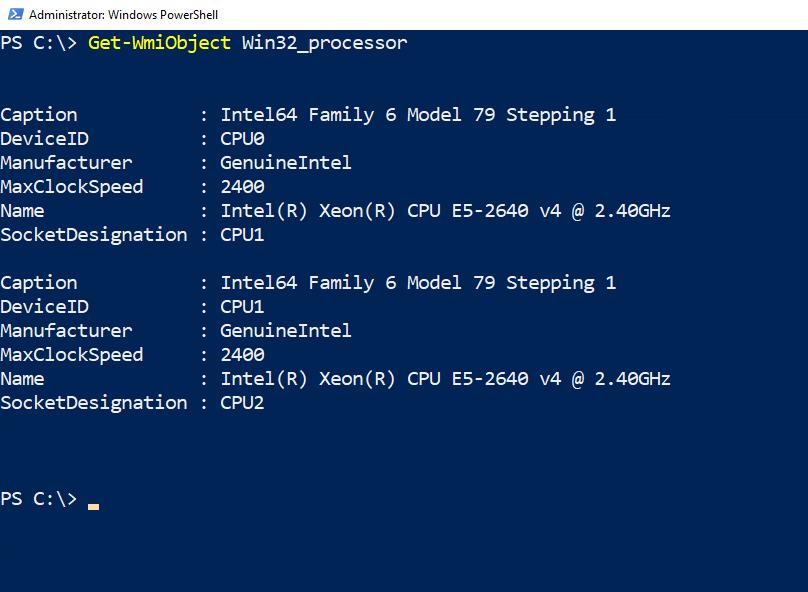
✇TechGenix

Prioritizing Incidents in Microsoft Defender for Business

Image of two security cameras on a concrete wall.
Security is important, and we always need to keep an eye on any incidents that occur on our networks.
Source: Pixabay

Microsoft Defender for Business is best known for its ability to identify vulnerabilities. Yet, Defender goes well beyond listing vulnerabilities and providing security recommendations. It also tracks incidents that have occurred in your company. 

But when it comes to incident management, Defender for Business has a few things you should know to improve your security. In this article, I’ll explain how to access these incidents and prioritize them in 3 steps.

1. Retrieving a List of Incidents

To access a list of incidents that have occurred in your company, follow these steps:

  1. Log into Microsoft 365
  2. Open the Microsoft 365 Defender Portal
  3. Expand the Incidents and Alerts container
  4. Click on the Incidents tab

Sometimes, your Incident list shows blank, as seen below. This can happen because no incidents have occurred or because of filters currently applied.

Screenshot of a blank Incidents Page
With my two filters on, Defender for Business won’t show any incidents that don’t fall under both filters.

Looking at the figure above, you’ll notice the Filters list includes Status and Severity. Click on the X icon for each filter to remove it. It also has a date filter on the far right side of the screen. You may also need to adjust this date filter for older incidents. 

A screenshot of the same Incidents page, but with the filters removed.
Now that I’ve removed the filters, incidents begin to show up.

2. Examining an Incident

The information displayed on the Incidents screen serves as a summary. The most important thing to pay attention to on the summary screen is the Severity rating. The severity is an assessment of the severity of the malware and the potential risk it poses. When many incidents come in, it’s important to focus on the highest severity.

Clicking on an incident causes the portal to display a more detailed summary, as shown below. At the very bottom of the screen, a legend shows how many alerts are included in the incident. It also shows their seriousness. This information can also help you know which incidents to prioritize.

A screenshot of an example of an Incident Summary
Clicking on an incident causes Defender to display a more detailed incident summary.

As you can see above, the incident summary includes information on which users and devices were involved. You can also see when the incident occurred and how it was classified. If you look at the Incident Details section, you’ll notice it’s for a specific user. Microsoft allows you to give an incident to a particular user for investigation. 

Additionally, we see a link labeled Open Incident Page. Anyone assigned to investigate will click on this link to access all the details. Microsoft Defender provides an “attack story” outlining the users, devices, and processes involved in the incident. You can change the chart’s layout to meet your needs and click on individual elements for more detail. For example, you might click on Processes to get a list of the involved processes.

A screenshot of a view of the incident details in Defender for Business
The attack story outlines the incident in granular detail.

The page also includes a series of tabs you can use to look at other resources associated with the incident. These resources may have alerts, mailboxes, apps, and more.

3. Managing an Incident

Now that we’ve seen some tools that can help you investigate an incident, we’ll see how to manage and prioritize them. To manage an incident, click on it and then click on the Manage Incident link. Defender for Business will then open a screen like the one shown below.

A screenshot of a form showing the interface for managing an incident.
This is Defender for Business Incident Management details.

First, you’ll notice the Manage Incident screen prompts you for an incident name and tags. Using tags and names is optional but can be helpful if you manage a lot of incidents.

Next, you’ll see the Assign To field. This field assigns the incident to a staff member for further investigation.

The following three fields are for whoever is investigating the incident. The first of these fields is the Status field. We have three options here: Active, In Progress, or Resolved. Each of these is self-explanatory, but your company may want to define what these statuses should entail.

Next, you’ll find the Classification section. Incidents are classified as true positive, false positive, or informational, expected activity. Defender for Business offers several more specific classifications within each of these categories. For example, informational, expected activity might stem from security testing. Or an application with a known behavior mimicking a security incident.

A screenshot of a list showing several different indecent classifications in Microsoft Defender.
You can choose from tons of classifications, allowing you to have greater control over the information in Defender.

Finally, the Manage Incidents screen includes a Comments section that you can use to make notes.

The Wrap-Up

It’s normal for Microsoft 365 Defender to report incidents. Some incidents are informational or pertain to conditions that don’t signal an actual security threat. Yet, all non-informational incidents should at least be examined, emphasizing elevated incidents

With this in mind, you’ve hopefully learned a few extra tricks on how to work with Defender for Business. It’s an excellent way for small businesses to manage and investigate security incidents across your network. 

If you have more questions, check out our FAQ and Resources sections below.

FAQ

Can I get Defender for Business if I don’t have a Microsoft 365 Enterprise subscription?

Yes, although Defender comes with some Microsoft 365 Enterprise subscriptions, it’s also available as an add-on for Microsoft 365 Business. You can find information on the available Defender for Business subscriptions on their website.

When I assign an incident to a technician, where do they go to review the incidents assigned to them?

A technician investigating incidents assigned to them would go to the same Incidents screen. They can then use the Filter option to show the incidents assigned to them.

How can I keep informational events from being listed among the incidents?

The built-in filter will allow you to filter the incidents by severity. You can choose to display all incidents, informational incidents, or incidents of high, medium, or low severity. You can, of course, also show incidents with any combination of these severity levels.

Are incidents generated solely by Microsoft 365 Defender, or can they come from other sources?

At a minimum, incidents are reported by Microsoft 365 Defender. Depending on the services included in your subscription, incidents may also come from other sources in the Microsoft 365 security suite.

Should I be concerned if I keep seeing incidents related to a specific user account?

It just depends on the types of incidents that are being reported. After all, some incidents are entirely benign. The important thing to consider is whether the incidents that are being reported are in line with regular user activity. If the incidents don’t align, it might signify a rogue user or a compromised account.

Resources

TechGenix: Article on Integrating Microsoft Defender with the Cloud

Learn how to integrate Microsoft Defender alongside your other cloud-based security solutions

TechGenix: Article on How Windows Defender Evolved

Find out more about the growth of Microsoft Defender to the multi-faceted security solution it’s become.

Microsoft: Documentation on Defender for Business

Not all questions are easy to solve, so check out the official documentation for Defender.

Microsoft: Article on How Defender for Business Works for SMBs

Read more on the Defender plans available to small and medium-sized businesses.

Microsoft: Guide on Defender for Business’ Free Trial

Check out what you can do with a free trial of Defender for Business and get a jumpstart on your security suite.

The post Prioritizing Incidents in Microsoft Defender for Business appeared first on TechGenix.

✇TechGenix

Emsisoft State of Ransomware Report for 2022 Reveals No Reduction in Attacks

The image shows a person pointing at something on a laptop.
After crunching the numbers, little change has been found in ransomware attacks since 2019.
Source: Unsplash

Emsisoft has published the state of ransomware report for 2022, providing a synopsis of ransomware attacks that occurred in the US last year. The report categorizes the attacks by the areas they affected — local government, education, and healthcare. Overall, 106 local governments, 44 universities, 1,981 schools, and 290 hospitals faced ransomware attacks. Information in the report came from various sources, including the dark web, press reports, third-party feeds, and disclosure statements. 

Despite the US government’s best efforts and awareness campaigns since 2019, the ransomware attack figures have remained mostly the same in the years following. The report acknowledged its estimations don’t consider the attacks repelled by government efforts. Since accurate ransomware data collection can be tricky, the report indicated that its findings are on the minimum-range side. 

“When it comes to cybersecurity incidents, it has always been hard to get accurate statistical information. What data is available is based largely on publicly available reports, but not all incidents are made public, even in the public sector and, consequently, the true number of incidents in all sectors of the economy is and has always been higher than reported,” read the official blog.

Emsisoft State of Ransomware Report: Local Governments

The image shows the lawn in front of the White House.
The report categorizes ransomware data into three categories: local governments, education, and healthcare.
Source: Pexels

Cyberattacks targeting local governments have jumped from 77 in 2021 to 105 in 2022. However, the figures for this year also include the cyberattack in Miller County, Arkansas. In this incident, a single malware spread to 55 different counties.

A single large-scale incident like that can tip the scales and warp estimations. For example, if you exclude the Arkansas incident, cybercriminals stole data in about 54% of the cases. If you include the incident, the number is down to about 26%. 

Only one local government paid ransom to cybercriminals this year: Quincy of Massachusetts paid  USD 500,000 in ransom to retrieve stolen files. Five million dollars was the highest local government ransom demanded in 2022 in Wheat Ridge, Colorado. 

The following year-by-year comparison shows that the incident figures have remained quite consistent since 2019: 

  • 2019 — 113
  • 2020 — 113
  • 2021 — 77
  • 2022 — 105

On Christmas, an attack in North Carolina left 6 local governments locked out of their online records. As a result, they couldn’t access wills, birth certificates, death certificates, marriage licenses, and other documentation. They were forced to use pen and paper, bringing their operational efficiency to a standstill. 

Emsisoft State of Ransomware Report: Education

The image shows 5 dice on a wooden surface spelling out the words "STUDY" with books in the background.
Teachers and students should be made aware of how ransomware attacks happen and learn about basic cybersecurity principles.
Source: Pexels

The attack on the Los Angeles Unified School District, affecting 1,300 schools and 500,000 students, was the most significant of 2022. The total number of education institutions targeted doubled from the previous year: 1,043 to 1,981. This figure includes 45 school districts and 44 colleges. In these attacks, cybercriminals extracted data in 65% of incidents, up from 50% in the previous year. 

Out of all the attacks targeting educational institutions, at least three paid the ransom. This includes the USD 400,000 ransom Glenn County Education Office in California paid. Like the figures of local government attacks, the attacks on educational institutions have also remained stable since 2019:

  • 2019 — 89
  • 2020 — 84
  • 2021 — 88
  • 2022 — 89

Attacks on educational institutions carry other costs as well. These attacks bring university operations to a halt and delay module progression. Activities like test markings, accessing online lectures, and submitting assignments are all consequences of ransomware attacks. 

Such costs are unbearable for institutions. They would also require proper awareness among both teachers and students about how ransomware attacks happen. Students are susceptible to clicking on malware and Trojans, which can lead to ransomware. In response to the recent breaches, Berkeley has recommended cybersecurity training for all its students and professors

Emsisoft State of Ransomware Report: Healthcare

The image shows white scrabble blocks spelling out the word "HEALTHCARE" with a green leaf to the left.
Healthcare remains an easy and juicy target for cybercrime gangs.
Source: Pexels

The healthcare sector, with its vast, sensitive information collections, remains a favorite target of cybercrime gangs. Administrators in healthcare can’t afford the information leaking out, which forces them to give in to the criminals’ demands. The Emsisoft report revealed that the number of cyberattacks in the healthcare sector is huge. Yet, the industry lacks transparent reporting. 

Emsisoft reported 24 healthcare ransomware incidents in 2022, potentially affecting 289 hospitals. In 71% of the cases, cybercriminals exfiltrated Protected Health Information (PHI) and other data. Due to a lack of disclosure, Emsisoft couldn’t ascertain the extent of its reported breaches. However, the most significant cybersecurity incident concerning healthcare in 2022 was the attack on CommonSpirit Health — which operates 150 hospitals. 

More recently, a Hive ransomware attack on the Lake Charles Memorial Health System (LCMHS) in Louisiana affected over 270,000 patient records. Leaked information from the Hive attack included patient names, addresses, dates of birth, medical record or patient identification numbers, health insurance information, payment information, and/or limited clinical information regarding care received at LCMH. 

In an unexpected event recently, LockBit apologized to the SickKids Hospital in Toronto and even offered the decryptor to the hospital after its affiliates held the hospital’s technology for ransom. The group said the attack on the hospital violated its terms of service. However, apologies are rare, and it’s better to be safe than sorry. 

Recommendations, Remedies, and Safeguards

The report focuses on public sector breaches because of the lack of transparency in private organizations. In particular, the lack of transparency around disclosing information related to ransomware or other breaches. Yet, private companies that suppress information related to ransomware and breaches still need to bolster their defenses. This is especially the case since cyberattacks have increased in complexity and extent. 

All commercial entities should implement the most highly recommended cybersecurity practices to protect against and mitigate cyberattack aftershocks. These measures include multifactor authentication across all services, regular and automated patching, high-quality antivirus and malware detection tools, and employee awareness campaigns. Penetration testing is also an excellent way to find weaknesses in any network. 

While commercial entities can choose to pay the ransom to get their data back, the public sector may no longer have this choice: Florida and North Carolina have introduced legislation preventing public sector entities from paying ransomware demands. But private entities could face severe penalties for neglecting proper security measures and failing to protect user information on their servers. 

Future Implications 

Ransomware is here to stay, despite public and private organizations’ best efforts to curb it. In fact, ransomware attacks are growing in sophistication. To counter the new ransomware attacks and to spread awareness about them, Emsisoft first recommends calling them by names that more accurately describe the nature of these attacks. Suggested terms include “data extortion events,” “encryption-based data extortion,” and “exfiltration-based data extortion.” 

Among the report’s blindspots are the success of government efforts and details about the severity of incidents, such as the spread of lateral infection. Regardless, the fact remains that information is key when it comes to ensuring protection against ransomware. In light of all this, Georgia’s legislation to allow public entities to suppress reporting of cybercrime incidents is alarming

This could set quite a worrying precedent, as the cybersecurity industry benefits from quick communication regarding the most recent cybercrime breaches. With more sophisticated threats on the horizon, companies can benefit from information sharing and updated defense mechanisms. 

The post Emsisoft State of Ransomware Report for 2022 Reveals No Reduction in Attacks appeared first on TechGenix.

✇TechGenix

A Checklist for New Hyper-V Host Deployments

Image showing a representation of a network and data.
Ready to deploy Hyper-V?
SOURCE: TheDigitalArtist on Pixabay

You’d think the process of deploying Microsoft’s Hyper-V couldn’t be simpler. Simply install Windows and then the Hyper-V role. Unfortunately, it really isn’t that simple. This is because you need to complete several other tasks to ensure a successful deployment. It’s also very easy to forget about these tasks. 

That said, I’ve created a checklist of some easy-to-miss steps in the deployment process to help you get started on the right foot for Hyper-V. I also divided the checklist into categories, depending on which stage of the deployment process you’re in. After going over this checklist, you should be all good to go!

Before I Begin

Before I get started, consider the following:

  1. This isn’t intended to be a completely comprehensive checklist. Every Hyper-V deployment is different, so the required tasks will differ from one business to the next. I’ve based this checklist on my own experiences with deploying Hyper-V. Microsoft also offers a checklist, which you can find on its website
  2. Subtasks are beyond the scope of this checklist. For example, you can have numerous tasks associated with setting up failover clustering. These tasks go well beyond what I’m covering here

Alright, now that that’s all said and done, here’s the checklist!

Hyper-V Host Deployment Checklist

You’ll find 4 main checklist categories. As mentioned above, these categories depend on which stage of the deployment process you’re in. Underneath each category, you’ll find a checklist to ensure you don’t miss any important tasks.

1. Ensure Host Hardware Is Ready

First, you need to ensure that your host hardware is ready for provisioning. You could just take a new server out of the box, mount it in a rack, and install Windows. But you’ll be better off doing a little prep work before deploying an OS on a new server. Some tasks you might consider completing include:

  • Update the server’s firmware to the latest version
  • Verify that the host adheres to Microsoft’s hardware compatibility list for Hyper-V. Ensure that any additional hardware (such as PCIe cards) you install in the server also adheres to Microsoft’s hardware requirements
  • Check if you need to update the firmware for any ancillary devices. These devices include NICs, storage controllers, or even hard disks. Note that firmware updates don’t exist for every hardware device

2. Use the Right OS

In this next step, you need to ensure you have the necessary Windows licenses and that you’re running an appropriate version of Windows Server. Here are a few things to consider:

  • Ensure you have a Windows Server license for your Hyper-V server. The Windows Server edition you choose will majorly affect the overall cost. Windows Server Standard Edition, for example, only allows for one virtual machine (VM) per license. On the other hand, Windows Server Datacenter Edition licenses support multiple VMs
  • Check if you have to stack your Windows Server licenses. For instance, a Windows Server Standard Edition license only supports up to 16 cores. The same applies to the Datacenter Edition. Servers with more than 16 cores will require additional licenses
  • Purchase licenses for any VMs running an OS other than Windows Server. You need to do this even though Windows Server Datacenter Edition allows for unlimited VMs
  • Purchase Client Access licenses (CALs) for each user or device accessing your server
  • Run Hyper-V on a server-core deployment, which doesn’t include the Windows desktop. This is regardless of whether you’re running Windows Server Standard Edition or Datacenter Edition
  • Install all available updates after installing Windows Server
Screenshot showing a Hyper-V server deployment in progress on Windows Server
Server-core deployments don’t include the Windows desktop.

3. Install Hyper-V

Once you’ve installed and updated Windows, it’s time to install Hyper-V and the required supporting software, if any. Consider the following:

  • Install the Hyper-V role manually. You can’t find Hyper-V installed by default with Windows Server. You also shouldn’t install any other Windows Server roles on the server
  • Install the Failover Clustering Feature if the Hyper-V host will be a part of a failover cluster
  • Install a backup agent on your Hyper-V server (you may require other configuration tasks for non-agent-based backup solutions) if you’re using a backup solution that requires the use of agents. Also, ensure you have the required licenses to back up an additional server
  • Install antivirus and make sure that you exclude Hyper-V from the active scanning process. Microsoft maintains a list of the Hyper-V components you should exclude from malware scanning
  • Verify you didn’t install any applications (other than low-level utilities such as antiviruses and backup agents) on the host OS
Screenshot showing the "Add Roles and Features Wizard" on Windows Server
Installing Hyper-V as a Windows Server role.

4. Finalize Post-Installation Tasks

Once you’ve installed Hyper-V and any required supporting software, you might need to work on some post-deployment tasks. Some of these tasks include:

  • Join the Hyper-V host to a domain if doing so is appropriate for your business
  • Enable management for your Hyper-V host and the VMs that will reside on it. The Hyper-V Manager is the default management tool for Hyper-V, but it isn’t the only option available. You can also manage Hyper-V using PowerShell or System Center Virtual Machine Manager. In addition, some businesses enable RDP on their host servers (to allow remote access), while others leave RDP disabled for security reasons
  • Create or join the host to an existing failover cluster if you installed the Failover Clustering role
  • Ensure the host adheres to your desired state configuration. Even if you don’t use Microsoft’s Desired State Configuration tool, you need to configure the host to adhere to your organization’s security policies
  • Set the default virtual machine path to the appropriate location. The default virtual machine path points to the system drive by default, but you might need to redirect it
  • Verify that the Windows clock and time zone are set correctly
  • Adjust the power management settings as required by your business
  • Enable the host for live migration

And we’re done! If you’ve reached this point, you’re probably all good to go in terms of Hyper-V host deployment. Let’s wrap up now.

The Bottom Line

Deploying Microsoft Hyper-V involves much more than just installing the Hyper-V role. You must complete several other tasks as well. These tasks range from preparing the server hardware and purchasing the correct software licenses to adjusting the server’s clock and power profile.

The checklist above gives you a good idea of the tasks that are easy to miss when deploying Hyper-V. You might want to save it as a reference for the future. Overall, I hope it proved to be useful to you and your business.

Do you have more questions about Hyper-V deployments and other related topics? Check out the FAQ and Resources sections below!

FAQ

What happens if I can’t see some of my server’s hardware listed on the Windows Compatible Products List?

If you can’t see a server or its connected hardware listed on the Windows Compatible Products List, that server may still be able to run Windows. An omission from the list doesn’t necessarily indicate that you’ll have problems getting Windows to work properly. It means that Microsoft hasn’t certified the hardware for use with Windows. In other words, Microsoft doesn’t guarantee that Windows will work properly on the device.

What should I worry about when running Windows on hardware that isn’t on the Windows Compatible Product List?

You shouldn’t worry about any issues from a licensing perspective. But if you experience problems, you may have trouble getting Microsoft support to resolve the issue if they suspect it lies with your hardware. You may also have difficulty explaining to your boss why you chose to run a production workload on non-certified hardware.

Can I run Hyper-V on Windows Server Essentials?

Yes, Windows Server Essentials does support Hyper-V. However, Windows Server 2022 Essentials is only available from an OEM. You can, however, purchase Windows Server 2019 Essentials licenses from Microsoft.

Why does Microsoft recommend against installing other roles alongside the Hyper-V role?

They recommend against it for several reasons. For one, doing so might weaken security or diminish performance. One of the main reasons Microsoft recommends against installing the Hyper-V role with other roles is that those additional roles could result in more frequent update-related reboots.

Why is it important to adjust a Hyper-V server’s power management settings?

While it’s true that electricity is one of a data center’s greatest costs, minimizing a Hyper-V host’s power consumption can adversely affect the server’s performance. As such, it’s a good idea to balance power efficiency and server performance.

Resources

TechGenix: Article on Failover Clusters

Learn how to create a failover cluster in System Center Virtual Machine Manager.

TechGenix: Article on Deploying Windows Admin Center without Internet

Find out how to deploy the Windows Admin Center if your hosts aren’t connected to the internet.

TechGenix: Article on Virtualization vs Containerization

Read about the differences between virtualization and containerization and which is better for you.

Microsoft: Article on Power Plans and Slow Server Performance

Discover why using the wrong power plan can degrade your server’s performance.

Microsoft: Article on Hyper-V Live Migration

Check out how Hyper-V’s live migration works.

The post A Checklist for New Hyper-V Host Deployments appeared first on TechGenix.

✇TechGenix

LockBit Apologizes, Gives Decryptor to SickKids Hospital in Toronto

The image shows two hands typing on a mac, while a blue stethoscope lies on the side.
LockBit shows mercy in a strange show of compassion to the SickKids hospital in Toronto.
Source: Unsplash

After LockBit encrypted information in an attack on the Hospital for Sick Children (SickKids) in Toronto on Dec.18, it has tendered an apology and a free decryptor to the hospital. LockBit has come out against the attack, calling it a violation of its terms of service by an affiliate, and said it doesn’t target institutions where a compromise “could lead to death.” By Jan. 1, SickKids had restored 60% of its operations.

The hospital was forced to declare “System Failure” under its code “Grey”. Despite disrupting hospital phone lines and web pages, the breach didn’t affect patient care. Attempting to ease privacy concerns from such attacks, the hospital claimed the cybercriminals didn’t steal any sensitive patient information — a rarity in such cases.

The decryptor, which includes Linux/VMware ESXi, suggests that the attack could only encrypt virtual machines on the hospital’s network, and no Windows machines were compromised.

LockBit’s Ransomware-as-a-Service Model

The image shows the LockBit blog, where the group apologized for the attack on SickKids hospital.
A rare apology from LockBit isn’t proof of it mending its ways.
Source: Bleeping Computer

LockBit operates a ransomware-as-a-Service (Raas) model. This enables it to lend the software to affiliates whose job is to use the software to penetrate networks and perform operations. At the same time, LockBit itself only has to maintain the encryptors, decryptors, and websites. These affiliates pocket 20-25% of the profits on each extortion.

Once the cybercriminals encrypt a server, they hold it for ransom, refusing to decrypt it unless the victims make the payment. Mostly, a payment results in server and file decryption. Cybercrime groups run on commercial principles, so they have to keep up their end of the bargain.

LockBit, under its terms, forbids encrypting medical data. Nonetheless, it delayed the release of the decryptor in this case. Yet, the same terms and conditions haven’t stopped its affiliates from breaching hospitals in the past. In August, LockBit affiliates compromised the Center Hospitalier Sud Francilien (CHSF) in France and demanded $10 million in ransom. The group leaked staff and patient data online when the hospital failed to meet its demands.

It seems as if these terms and conditions allow LockBit to keep its distance from affiliates in case its vigilante reputation is at stake. It could plead deniability and sever relations with the affiliate if the attack doesn’t go down well. By lending its ransomware, it can just stay back and lurk in the shadows. 

The ransomware it has developed is automated and easy to use. Once it infects a single host on a network, the virus spreads to other hosts on autopilot. It also automatically completes post-exploitation procedures, such as the escalation of privileges. 

LockBit Protection — Staying Safe in the World of Ransomware

The image shows a computer with a red screen and a black pirate skull-and-bones flag.
LockBit is the most active ransomware strain in the world, according to Blackberry.
Source: Unsplash

According to Blackberry, LockBit is one of the most active ransomware strains worldwide. With its ransom demands averaging at about $85,000 per victim, it’s safe to assume that the group mainly targets small to medium-sized enterprises. However, it has also compromised large federal and commercial organizations, demanding ransoms in the millions of dollars. 

Blackberry research explained how LockBit works: “LockBit seeks initial access to target networks primarily through purchased access, unpatched vulnerabilities, insider access, and zero-day exploits. Second-stage LockBit establishes control of a victim’s system, collects network information, and achieves primary goals such as stealing and encrypting data.”

Knowing these patterns, network administrators can devise their defense mechanisms. Above all, a well-rounded cybersecurity strategy that offers robust protection can thwart any cybercrime group, including LockBit. Networks need high-quality antivirus protection as well as sensitive malware detection systems. Bear in mind that not every security product is made equal — some are far better than others at detecting and preventing infections. 

Better still, network administrators should encourage the use of multifactor authentication across as many services as possible. These vastly reduce the risks of network penetration. For employees, administrators should lay down clear guidelines for changing passwords. Further, they should use automatic patch management that can routinely identify and patch vulnerabilities as they arise. Lastly, reduce user privileges on the network to a functional bare minimum. 

The Continual Critical Infrastructure Threat

The image shows Lockbits' extortion website, listing APL as a victim.
The Port of Lisbon remains operational, but they have until Jan.18 to comply with LockBit’s demands.
Source: The Bleeping Computer

As highlighted earlier, hospitals continue to be soft targets for cybercriminals. On Christmas, cyberattacks hit the administrative registrars of six counties in North Carolina. As a result of the attack, processing and access to wills, birth certificates, death certificates, marriage licenses, and other governmental procedures have slowed down or halted completely. Local governments have been reduced to using pen and paper, causing operational efficiency to nosedive. 

LockBit was also busy on Christmas launching an attack on the Port of Lisbon Administration (APL). The Port of Lisbon is a key European port, serving a variety of ships from various countries arriving at its harbors. Currently, the APL website (http://portodelisboa.pt) is offline. LockBit added the APL to its ransomware website on Dec. 29. While the port is operational, the cybercrime gang claims to have accessed financial reports, audits, budgets, contracts, cargo information, ship logs, crew details, customer PII (personally identifiable information), port documentation, email correspondence, and more.

In Canada, a cyberattack on Dec. 27 shut down the Canadian Copper Mountain Mining Corporation (CMMC) in British Columbia, though no details have been disclosed yet. CMMC is an 18,000-acre estate, producing 100 million pounds of copper on average per year. 

Hospitals Are an Ongoing Target for Ransomware Operations

Despite the odd compassionate turn in tendering an apology and offering decryption, LockBit and other cybercrime groups like it continue to target hospitals. Recently, a Hive ransomware attack exposed 270,000 patient records at Lake Charles Memorial Hospital

In another incident, an attack on CommonSpirit Health — a chain of over 150 hospitals — exposed over 600,000 patients’ data. Hospitals are easy targets and contain vast repositories of patient information. From 24 healthcare exploits in 2022, cybercriminals obtained Protected Health Information (PHI) in over 71% of the cases. Poor data protection procedures coupled with sensitive data and many avenues for exploitation make healthcare systems extremely vulnerable and sensitive targets. 

The post LockBit Apologizes, Gives Decryptor to SickKids Hospital in Toronto appeared first on TechGenix.

❌