Vue lecture

Il y a de nouveaux articles disponibles, cliquez pour rafraîchir la page.
✇Microsoft Tech Community - Latest Blogs - Office 365 Blog

Application Guard for Office is now generally available!

As of today, Application Guard for Office is now generally available.


Files from the internet and other potentially unsafe locations can contain viruses, worms, or other kinds of malware that can harm your users’ computer and data. To help protect your users, Office opens files from potentially unsafe locations in Application Guard, a secure container that's isolated from the device through hardware-based virtualization. When Office opens files in Application Guard, users can securely read, edit, print, and save those files without having to re-open files outside the container. This feature will be off by default.


Here is the installation guide to get started:
Application Guard for Office 365 for admins - Office 365 | Microsoft Docs


Customers will receive a Message center post on Wednesday, 1/27/2021. Microsoft 365 Roadmap Featured ID is 67101. Application Guard for Office is only available to organizations with a Microsoft 365 E5 or Microsoft 365 E5 Security license.

✇Microsoft Tech Community - Latest Blogs - Office 365 Blog

Application Guard for Microsoft 365 Apps now in public preview

Application Guard for Office is now available in public preview!

Files from the internet and other potentially unsafe locations can contain viruses, worms, or other kinds of malware that can harm your users’ computer and data. To help protect your users, Office opens files from potentially unsafe locations in Application Guard, a secure container that is isolated from the device through hardware-based virtualization. When Office opens files in Application Guard, users can securely read, edit, print, and save those files without having to re-open files outside the container. This feature will be off by default. Learn more about Application Guard here:

https://docs.microsoft.com/en-us/microsoft-365/security/office-365-security/install-app-guard?view=o365-worldwide

✇Microsoft Tech Community - Latest Blogs - Office 365 Blog

Network optimization tips for on-premises Office installs and updates

There are a variety of scenarios including but not limited to, installations of Office using Content Delivery Network (CDN), lean 2nd installs (removing the Office source files from the install packages), right-sized first install (only include most used language packs), and default behavior where Office stays up to date using CDN. Microsoft recommends optimizing these network operations because a device can get portions of the content from other devices on its local network instead of having to download the update completely from Microsoft CDN. The goal of this article is to provide solutions for challenges collected from customers in the field.  


Typical challenges we've heard from our customers

  • Office updates are too large.
  • Too many egress points within on-premises network when obtaining content.
  • In a remote work world, we need a solution to address on-premises and remote users.
  • Are there additional costs for this optimization?  (Spoiler...NO!)
  • Fear of increased complexity for office installs and updates. 
  • Can my compliance deadlines still be met?

Solution: Use Windows Delivery Optimization (DO) or if available,  Microsoft Endpoint Configuration Manager Connected Cache

All of these above concerns can be addressed with this proposed solution.  You can use Delivery Optimization (DO) to reduce bandwidth consumption by sharing the work of downloading Office content among multiple Windows 10 devices in your deployment. DO can accomplish this because it is a self-organizing distributed cache that allows clients to download content from alternate sources (such as other peers on the network). Delivery Optimization is a cloud-managed solution. Access to the Delivery Optimization cloud services is a requirement. This means that to use the peer-to-peer functionality of DO, devices must have access to the DO cloud service end points.


Optionally, customers who use Microsoft Endpoint Configuration Manager can take advantage of a feature called Configuration Manager Connected Cache which delivers a powerful combination of DO plus Connected Cache leading to high hit rates for content searches. If the cache doesn’t contain necessary files, Configuration Manager Site Server will download content to Distribution Point to populate cache, based on the client needs. In this way, customers have far more flexibility in terms of supporting different architectures and languages as manual downloads are no longer required as they've been replaced by a dynamic workflow as well as making use of existing capital investments.

Prerequisites for solution

  • At least Office Version 1808 for background updates
  • At least Office Version 1908 for installing or user-initiated updates
  • Windows 10 Delivery Optimization
    • For communication between clients and the Delivery Optimization cloud service:
      *.do.dsp.mp.microsoft.com.
      *.dl.delivery.mp.microsoft.com
      *.emdl.ws.microsoft.com

      Delivery Optimization listens on port 7680 for requests from other peers by using TCP/IP. The service will register and open this port on the device, but you might need to set this port to accept inbound traffic through your firewall yourself. If you don't allow inbound traffic over port 7680, you can't use the peer-to-peer functionality of Delivery Optimization. However, devices can still successfully download by using HTTP or HTTPS traffic over port 80 (such as for default Windows Update data).

    • If you set up Delivery Optimization to create peer groups that include devices across NATs (or any form of internal subnet that uses gateways or firewalls between subnets), it will use Teredo. For this to work, you must allow inbound TCP/IP traffic over port 3544. Look for a "NAT traversal" setting in your firewall to set this up.

      Delivery Optimization also communicates with its cloud service by using HTTP/HTTPS over port 80.

    • Recommended (if existing Configuration Manager customer, use Microsoft Connected Cache combined with Delivery Optimization) 

Implementation steps.

1. Operationally, stop any future software updates for Microsoft 365 Apps for enterprise using Configuration Manager

Group Policy or Configuration Manager Client Settings require setting "Management of Microsoft 365 Apps for enterprise" (formerly known as Office 365 Client Management) to Disabled in order to restore default functionality where software update workflow for Office updates uses CDN not Configuration Manager. When available, Connected Cache feature will be enabled but software updates workflow for Office using Configuration Manager will no longer be used.


2. Configure Group Policy for Microsoft Office 2016 (Machine)/Updates

Enable Automatic Updates Enabled
Hide option to enable or disable updates Enabled
Management of Microsoft 365 Apps for enterprise Disabled
Update Deadline 3 (Deadline count starts once content download has completed on client)


3. Configure Group Policy for Delivery Optimization

Allow uploads while the device is on battery while under set Battery level (Percentage) Enabled (60)
Delay background download from http (in secs) Enabled *Higher time will increase likelihood of finding peer but slow background update. Example (240)
Delay foreground download from http (in secs) Enabled (60)
Download Mode Enabled (Group 2)
Enable Peer Caching while the device connects via VPN Disabled
Minimum Peer Caching Content File Size (in MB) Enabled (1)
Select a method to restrict Peer Selection Enabled (subnet)
Set Business Hours to Limit Background Download Bandwidth Enabled


4. (optionally) Configure Connected Cache for Microsoft Endpoint Configuration Manager

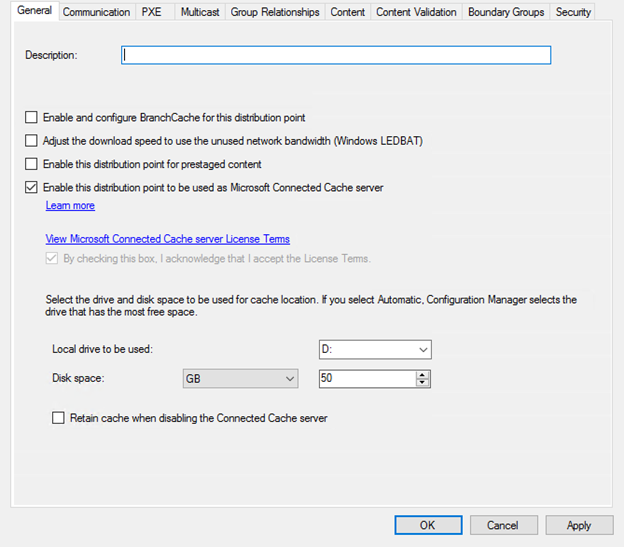
Navigate using Configuration Manger Console to \Administration\Overview\Distribution Points and select properties of Distribution Point. Enable Connected Cache by checking box and designate LUN to host cached content.

LUN.png

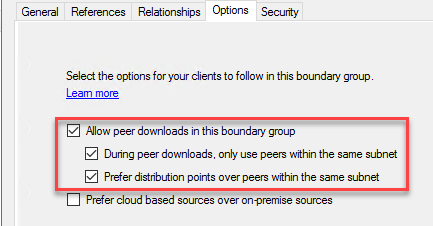
Navigate using Configuration Manger Console to panel \Administration\Overview\Hierarchy Configuration\Boundary Groups. Select each on-premises boundary group and enable selection highlighted below. (toggle on other selections based on your environment preferences)

allowpeers.png

Finally, using Configuration Manger Console Navigate to \Administration\Overview\Client Settings, enable options below.

ClientSettings.png


How to verify DO and Connected Cache are working?

1. Deploy Office to validation machine where per Update history for Microsoft 365 Apps (listed by date) build is N-2.
For example, at the time of this writing, today is “Patch Tuesday” so August 2020 Monthly Enterprise Channel is Version 2006 (Build 13001.20520). The reference machine should have June 2020 Version 2004 (Build 12730.20430) installed. This should result in Office moving to N-1 or N (depending on CDN throttle).


2. Allow up for 24 hours for scheduled task Office Automatic Updates 2.0 to detect and perform Office update.
For accelerated lab testing consider moving system clock forward by one day prior to running scheduled task.


3. [Client] Use PowerShell on Windows client to verify Office content used DO and Conncted Cache.

  1. PS C:\Windows\system32> Get-DeliveryOptimizationStatus
  2. Search for field FileID from the list which contains string STREAM_X64_X_NONE or STREAM_X86_X_NONE for details which contains the build. (this is largest file containing Office).  For the test, your looking for FileId is 95D2EE60-C9D3-45E4-876D-BAE16D758A87_16_0_13001_20520_STREAM_X64_X_NONE. 
  3. Search for fields under FileID such as FileSize, TotalBytesDownloaded, BytesFromPeers, BytesFromHttp and BytesFromCacheServer.  In my lab, the FileSize was 1863339050 bytes or 1.86 GB. Referencing TotalBytesDownloaded, the Office client using DO only downloaded 516967466 bytes or 517 MB because only the necessary pieces were downloaded not the entire Office build. Further, using BytesFromCacheServer I can confirm the 517 MB was downloaded from Configuration Manager connected cache, not egress to internet.
    *In the example the client was N-2 plus Office was a new version which contributed to larger download.

4. [Server] Check the Configuration Manager Connected Cache disk for build.

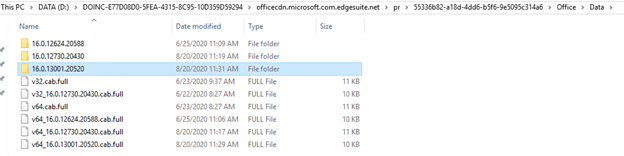
  1. Browse the Connect Cache disk and explore content under officecdn.microsoft.com.edgesuite.net to find dynamically populated content for latest Monthly Enterprise Channel 16.0.13001.20520

DOINC.png

Conclusion:

Delivery Optimization and Microsoft Connected Cache provide a powerful and low cost of ownership method for Office installations and updates using peer to peer sharing technologies.


FAQ

Are there some additional references for Delivery Optimization and its capabilities?

Are there some additional references for Configuration Manager and Connected Cache?

Where can I obtain more information about VPN and remote configuration options?

Can we use a third-party Configuration Manager alternate content provider with this solution?

No, alternate content providers typically depend on Configuration Manager software update workflow which won’t be used in scenario above.


For the UpdateDeadline GPO, how does that impact the end user experience?

Please see section “User Experience when updating from CDN” from blog posting Understanding Office 365 ProPlus Updates for IT Pros (CDN vs SCCM)


The Authors

This blog post is brought to you by @Dave Guenthner and @Martin Nothnagel, two Office Rangers at Microsoft. We’re looking forward to your questions and feedback in the comments below.

✇Microsoft Tech Community - Latest Blogs - Office 365 Blog

Changes to the Office 365 Groups Tech Community

As we announced last month, to reflect the fact that Office 365 Groups power collaboration across Microsoft 365, Office 365 Groups will become Microsoft 365 Groups. These changes will happen over time and will be reflected in all the connected endpoints over the next couple of quarters. 


To align the Tech Community with the name change, we are also creating a new Community Hub called Microsoft 365 Groups. This new Hub will replace the existing Office 365 Groups community. Folks who are existing members of the Office 365 Groups Community Hub will be automatically joined as members of the new Hub. In addition, content from the conversation spaces in the Office 365 Groups Community Hub will be migrated to the Microsoft 365 Groups Hub, and the Office 365 Groups Hub will be redirected to the new Microsoft 365 Groups Hub. By migrating membership and content to the new Community Hub, we are making this move seamless and transparent for you, although you will need to update your bookmarks/favorites, as the URL will be changing. 


We are making the transition on June 30, 2020and we wanted to give everyone notice before doing so. The new Microsoft 365 Groups community will be your place to discuss best practices, news, and the latest topics related to Microsoft 365 Groups. It is intended as a place for sharing information and discussions. 


Thanks for your help keeping the Office 365 Groups community a vibrant and useful place, and we look forward to seeing you in the new Microsoft 365 Groups community in the future! 

--The Microsoft 365 Groups team 

✇Microsoft Tech Community - Latest Blogs - Office 365 Blog

How to Optimize Stream & Live Events traffic in a VPN scenario

***Updated August 4, 2021: This article was initially intended to provide customers with an option to optimize connectivity to the services during the early days of the Covid-19 pandemic. As time went on from the original publication date, parts of the article are no longer accurate. Additionally, it’s currently not possible to maintain that accuracy and as such, you may find missing IP ranges. This is the final update on this blog.***


The current official guidance for Stream connectivity can be found in this Microsoft Docs article herewhich links to another Docs article for the Microsoft 365 URL/IP service where you’ll find the Stream FQDNs in the "Default" category. Additional troubleshooting guidance can be found in this Microsoft Support article here. If you still need further assistance outside of the support articles currently available online, please contact Microsoft support.


***Updated February 25, 2021: With two new IP ranges which have had to be added to provide additional capacity and resilience as we work to improve the endpoint requirements for the service. Added are 13.107.213.0/24 and 13.107.224.0/24***


***Updated September 22, 2020: With a new FQDN and additional IP ranges as part of steps to simplify connectivity for the service. This information is provided as-is, in response to customer demand for options to optimize Live Events & Stream traffic via VPN during the Covid crisis***


During this current COVID-19 crisis, many organizations have had to rapidly implement a work-from-home model for the majority of their users. For many, this means an enormous increase in load to the VPN infrastructure as all traffic is traditionally sent via this path that was invariably not designed for the volume or type of traffic now reliant on it.


To improve performance, and also reduce load on the VPN infrastructure, many customers have achieved significant results by following the Microsoft guidance to implement split tunneling (or forced tunnel exceptions to use the correct technical term) on the Optimize-marked Office 365 endpoints. This traffic is high-volume and latency-sensitive traffic, and thus sending it directly to the service solves the problems outlined above and is also the designed best practice for these endpoints.


Microsoft 365 Live Events (Teams-produced live events and those produced with an external encoder via Teams, Stream, and Yammer) and on-demand Stream traffic are not currently listed within the Optimize category with the endpoints listed in the ‘Default’ category in the Office 365 URL/IP service. The endpoints are located in this category as they are hosted on CDNs that may also be used by other services, and as such customers generally prefer to proxy this type of traffic and apply any security elements normally done on diverse endpoints such as these.


In most organizations, the traffic is internally routed via a network path that is designed to cope with the load and provide latency at a level that doesn’t impact service quality. With the switch to large scale remote working, many customers have asked for the information required to connect their users to Stream/Live Events directly from their local internet connection, rather than route the high-volume and latency-sensitive traffic via an overloaded VPN infrastructure. Typically, this is not possible without both dedicated namespaces and accurate IP information for the endpoints, which is not provided for the Default marked Office 365 endpoints.


Microsoft is working to provide more-defined and service-specific URL/IP data to help simplify connectivity to the service for the VPN connection model but as you can imagine for a global SaaS service like Office 365, this is not something which can be achieved overnight. Therefore, in the interim, we've been working on interim methods to meet customer demand for this information. As a result of some changes we were able to perform relatively quickly, we are able to provide the following steps to allow for direct connectivity for the service from a client using a forced tunnel VPN.

This is slightly more complex than normal to implement (requiring an extra function in the PAC file) but should provide a solution to this challenge until such time as we can re-architect the endpoints so as to simplify connectivity requirements. 

Please note, there may be service elements that don't resolve to the IP addresses provided and thus traverse the VPN, but the bulk of high volume traffic (eg streaming data) should do. There also may be other elements outside the scope of Live Events/Stream which get caught by this offload but these should be relatively limited as they have to meet both the FQDN and the IP match before going direct, but this scenario does exist with this temporary solution so customers are advised to assess the need to implement this solution with that in mind and the risk of allowing direct access to shared domains such as *.azureedge.net. This solution is intended to provide customers with a temporary option to avoid Live Events traffic being routed via VPN whilst high home worker scenarios are in place, if possible though it is advised to access the service through an inspecting proxy. Customers are advised to weigh up the risk of a limited number of unintended endpoints being routed direct, over the need to ensure Live Events traffic is not sent via a VPN.


To reiterate, this is intended to be a temporary solution to provide customers some level of relief to use at their discretion whilst we work through engineering changes to simplify and scope this traffic optimization. 


To implement the Forced tunnel exception for Teams Live Events and Stream, the following steps should be applied:


  1. External DNS resolution.


The client needs external, recursive DNS resolution to be available for the following FQDNs so they can resolve host names to IPs.


  • *.streaming.mediaservices.windows.net
  • *.azureedge.net
  • *.media.azure.net
  • *.bmc.cdn.office.net

It is important to note, it is not advised to just use these URLs to configure VPN offload even if technically possible in your VPN solution (eg if it works at the FQDN rather than IP). This is due to the fact some of these endpoints are shared with other elements outside of Stream/Live Events and as such the IPs provided below are not comprehensive for that FQDN, but are for Teams Live Events/Stream. (Note FQDNs are not required in the VPN configuration, they are purely for use in PAC files in combination with the IPs to send the relevant traffic direct).


  1. PAC file changes (Where required)


In most organizations, a PAC file will be used in a VPN scenario to configure the client to send traffic either direct or via the internal proxy server. Normally this is achieved using FQDNs. However, with Stream/Live Events, the namespace provided currently includes wildcards such as *.azureedge.net, which also encompasses other elements for which it is not possible to provide full IP listings. Thus, if the wildcard is sent direct, traffic to these endpoints will be blocked as there is no route via the direct path for it in step 3.


To solve this, we’re able to provide the following IPs and use them in combination with the FQDNs in section 1 for Stream/Live Events in an example PAC file. The PAC file checks if the URL matches those used for Stream/Live Events and then if it does, it then also checks to see if the IP returned from a DNS lookup matches those provided for the service. If both match, then the traffic is routed direct. If either element (FQDN/IP) doesn’t match then the traffic is sent to the proxy. This way we ensure anything which resolves to an IP outside of the scope of both the IP and FQDN will traverse the proxy via the VPN as normal.


Table 1: IP addresses for Live Events & Stream


IPv4

IPv6

72.21.81.200

2606:2800:011F:17A5:191A:18D5:0537:22F9

152.199.19.161

2606:2800:133:206E:1315:22A5:2006:24FD

117.18.232.200

2606:2800:0147:120F:030C:1BA0:0FC6:265A

192.16.48.200

2606:2800:0157:1508:1539:0174:1A75:1191

93.184.215.201

2606:2800:11F:7DE:D31:7DB:168F:1225

68.232.34.200

2606:2800:133:F17:19E8:2356:251B:02A9

192.229.232.200

2606:2800:0147:0FF8:129B:22EB:020B:1347

152.195.19.97

2606:2800:11f:1cb7:261b:1f9c:2074:3c

152.199.52.147

2606:2800:157:3ac:1a2e:26c9:99c:8f9

152.199.21.175

2606:2800:233:1cb7:261b:1f9c:2074:3c

152.199.39.108

2606:2800:247:1cb7:261b:1f9c:2074:3c

13.107.208.0/24

2620:1ec:29::/48

13.107.219.0/24

2620:1ec:40::/47

13.107.246.0/24

2620:1ec:bdf::/48

13.107.253.0/24


13.107.213.0/24


13.107.224.0/24


To implement this in a PAC file you can use the following example which sends the Office 365 Optimize traffic direct (which is recommended best practice) via FQDN, and the critical Stream/Live Events traffic direct via a combination of the FQDN and also the returned IP address. Contoso would need to be edited to your specific tenant name where contoso is from contoso.onmicrosoft.com


Example PAC file


Note in this example the IPv6 addresses are not used. If your client and network is IPv6 enabled then you should add the IPv6 addresses from the table above into the section with the IPv4 addresses.


function FindProxyForURL(url, host)


{

var direct = "DIRECT";

var proxyServer = "PROXY 10.1.2.3:8081";


//Office 365 Optimize endpoints direct

if(shExpMatch(host, "outlook.office.com")

|| shExpMatch(host, "outlook.office365.com")

|| shExpMatch(host, "contoso.sharepoint.com")

|| shExpMatch(host, "contoso-my.sharepoint.com"))


{

return direct;

}


/* Don't proxy Stream/Live Events traffic*/


if(shExpMatch(host, "*.streaming.mediaservices.windows.net")
|| shExpMatch(host, "*.azureedge.net")
|| shExpMatch(host, "*.bmc.cdn.office.net")
|| shExpMatch(host, "*.media.azure.net"))


{

var resolved_ip = dnsResolve(host);


if (isInNet(resolved_ip, '72.21.81.200', '255.255.255.255') ||

isInNet(resolved_ip, '152.199.19.161', '255.255.255.255') ||

isInNet(resolved_ip, '117.18.232.200', '255.255.255.255') ||

isInNet(resolved_ip, '192.16.48.200', '255.255.255.255') ||

isInNet(resolved_ip, '93.184.215.201', '255.255.255.255') ||

isInNet(resolved_ip, '68.232.34.200', '255.255.255.255') ||

isInNet(resolved_ip, '192.229.232.200', '255.255.255.255') ||
isInNet(resolved_ip, '152.195.19.97', '255.255.255.255') ||
isInNet(resolved_ip, '152.199.52.147', '255.255.255.255') ||
isInNet(resolved_ip, '152.199.21.175', '255.255.255.255') ||
isInNet(resolved_ip, '152.199.39.108', '255.255.255.255') ||

isInNet(resolved_ip, '13.107.213.0', '255.255.255.0') ||
isInNet(resolved_ip, '13.107.224.0', '255.255.255.0') ||
isInNet(resolved_ip, '13.107.208.0', '255.255.255.0') ||
isInNet(resolved_ip, '13.107.219.0', '255.255.255.0') ||
isInNet(resolved_ip, '13.107.246.0', '255.255.255.0') ||
isInNet(resolved_ip, '13.107.253.0', '255.255.255.0'))


{

return direct;

}

}

// Default Traffic Forwarding

return proxyServer;
}


It’s worth stressing again, it is not advised to attempt to perform the VPN offload using just the FQDNs, utilizing both the FQDNs and the IPs in the function helps scope the use of this offload to a limited scope including Live Events/Stream. The way the function is structured means that only if the FQDN matches those listed, do we perform a DNS lookup for it i.e DNS does not have to be performed for all namespaces used by the client. 


If you wish to limit the risk of offloading endpoints not related to Live Events and Stream, you can remove the *.azureedge.net domain from the configuration which is where the majority of this risk lies as this is a shared domain within Azure for customers. The downside of this is that any event using an external encoder and those scheduled through Yammer will not be optimized but events produced/organized within Teams will be. So if events via Teams is all you are using, this configuration may work well.


  1. Configure routing on the VPN to enable direct egress


The final element is to add a direct route for the Live Event IPs in Table 1 into the VPN configuration to ensure the traffic is not sent via the forced tunnel into the VPN. Detailed information on how to do this for the Office 365 Optimize endpoints can be found in this article and the process is exactly the same for the Stream/Live Events IPs listed in this document. Note, only the IPs (not FQDNs) published above should be used for VPN configuration. 


FAQ:


Question:  Will this send all my traffic for the service direct?

Answer:    No, this will send the latency-sensitive streaming traffic for a Live Event or Stream video direct, any other traffic will continue to use the VPN tunnel if they do not resolve to the IPs published.


Question:  Do I need to use the IPv6 Addresses?

Answer:     No, the connectivity can be IPv4 only if required.


Question:  Why are these IPs not published in the Office 365 URL/IP service?

Answer:    Microsoft has strict controls around the format and type of information that is in the service to ensure customers can reliably use the information to implement secure and optimal routing based on endpoint category.


The default endpoint category has no IP information provided for numerous reasons, such as it being outside of the control of Microsoft, is too large, or changes too frequently, or is in blocks shared with other elements. For this reason, Default marked endpoints are designed to be sent via FQDN to an inspecting proxy, like normal web traffic.


In this case, the above endpoints are CDNs that may be used by other non Microsoft controlled elements than Live Events or Stream, and thus sending the traffic direct will also mean anything else which resolves to these IPs will also be sent direct from the client. Due to the unique nature of the current global crisis and to meet the short-term needs of our customers, Microsoft has provided the information above for customers to use as they see fit.


Microsoft is working to reconfigure the Live Events endpoints to allow them to be included in the Allow/Optimize endpoint categories at a later date.


Question:   Do I only need to allow access to these IPs? 

Answer:     No, access to all of the ‘Required’ marked endpoints in the URL/IP service is essential for the service to operate. In addition, any Optional endpoint marked for Stream (ID 41-45) are required. 


Question:   What scenarios will this advice cover?

Answer: 


  1. Live events produced within the Teams App
  2. Viewing Stream hosted content
  3. External device (encoder) produced events


Question:   Does this advice cover presenter traffic?

Answer:  It does not, the advice above is purely for those consuming the service. Presenting from within Teams will see the presenter's traffic flowing to the Optimize marked UDP endpoints listed in URL/IP service row 11 with detailed VPN offload advice outlined here


Question:   Does this configuration risk traffic other than Live Events & Stream being sent direct?

Answer: Yes, unfortunately due to shared FQDNs used for some elements of the service, this is unavoidable. This traffic is normally sent via a corporate proxy which can apply inspection. In a VPN split tunnel scenario, using both the FQDNs and IPs will scope this risk down to a minimum but it will still exist. Customers can remove the *.azureedge.net domain from the offload configuration and reduce this risk to a bare minimum but this will remove the offload of Teams live events produced using an Encoder and those scheduled in Yammer. Events produced in Teams are unaffected. 

 
✇Microsoft Tech Community - Latest Blogs - Office 365 Blog

Multi-Geo reduced seat minimum and expanded geo coverage

We are excited to announce the availability of Microsoft 365 Multi-Geo in Switzerland, and the reduction of the seat minimum requirement to 250 for Enterprise Agreement customers. These updates will allow more organizations to utilize Microsoft 365 Multi-Geo to address their legal, compliance, industry, or other related data residency requirements.


Please note that this product was previously referred to as ‘Multi-Geo Capabilities for Office 365,’ and will now be named ‘Multi-Geo Capabilities for Microsoft 365,’ consistent with the overall Microsoft 365 announcement on March 30. We previously announced the general availability of Multi-Geo Capabilities, in addition to the workload expansion from Exchange Online and OneDrive to include SharePoint Online.


Microsoft 365 Multi-Geo provides a solution for multi-national businesses seeking a balance between working as a single organization in the Microsoft 365 cloud and addressing global data residency needs. With the reduced seat minimum requirement and coverage across Exchange Online, OneDrive, and SharePoint Online this feature helps bring the full power of Microsoft 365 – the world’s productivity cloud – to organizations at any stage in their digital transformation journey.


Microsoft 365 Multi-Geo enables customers to reduce their on-premises footprint by allocating user data at rest to our available geo locations in the Microsoft 365 cloud, facilitating their ability to meet data residency obligations, all within a single tenant. For in-depth information on how Multi-Geo capabilities work and how to get started, please review the links above.


Available Geos

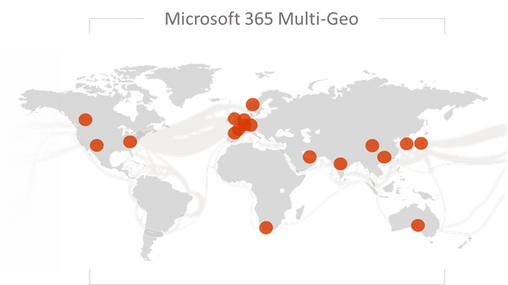
Microsoft is continuously making new infrastructure investments in response to growing customer demand as more industry leaders choose Microsoft’s cloud services. As a result, Microsoft 365 Multi-Geo is increasing our geo coverage as we expand our datacenter footprint for Microsoft 365. With the latest addition of Switzerland, you can now extend your Microsoft 365 tenant to store your users’ data in one or more of the following geos:


Australia

Asia Pacific

Canada

European Union

France

India

Japan

Korea

United Kingdom

United States

United Arab Emirates

South Africa

Switzerland


John_Mighell_0-1587062466172.png


Learn about where your Microsoft 365 data is stored at aka.ms/DataMaps


Industry Focus

We see worldwide organizations of all sizes and across all industries currently investing in new ways of empowering their employees with modern tools to enable secure, flexible, and mobile working that fosters collaboration. The ability to configure data residency on a by-user basis helps organizations meet regulatory requirements, which is particularly important and relevant in industries such as healthcare, manufacturing, public sector, and financial services. This latest step enables companies adopting Microsoft 365 to accelerate their digital transformation journey. As a result, we see Microsoft 365 Multi-Geo assisting organizations across the world to enable the scalability required to address critical challenges affecting the global community.


John_Mighell_1-1586976202701.jpeg


“We now have as many people outside the US as in it, and although the GDPR doesn’t mandate a particular Geo for data residency, our clients are hypersensitive about data privacy issues, so we prefer to get in front of it,” Ackermann says. “Our lifeblood includes data which is personal information about people and with Multi-Geo, we’re able to proactively address client concerns about data residency.”

-       Bryan Ackermann, Chief Information Officer, Korn Ferry


Pricing and Licensing:

Multi-Geo is available as an add-on to the following Microsoft 365 subscription plans for EA customers with a minimum of 250 Microsoft 365 seats in their Microsoft 365 tenant, and a minimum of 5% of the Microsoft 365 seats within a tenant have corresponding Multi-Geo Capabilities for Microsoft 365. Please contact your Microsoft account team for details.


Microsoft 365 F1, F3, E3, or E5

Office 365 F3, E1, E3, or E5

Exchange Online Plan 1 or Plan 2

OneDrive for Business Plan 1 or Plan 2

SharePoint Online Plan 1 or Plan 2


Licensing

  • USD $2/user/month for users in Satellite Geos
  • Resource mailboxes (Rooms/Equipment) and Shared mailboxes need to be licensed
  • Microsoft 365 Group Mailboxes moved to Satellite Geos will not need to be licensed for Multi-Geo

How to buy Multi-Geo?

Please talk to your Microsoft representative to buy Multi-Geo Capabilities for Microsoft 365.


Questions?

Please comment on this thread with your questions

✇Microsoft Tech Community - Latest Blogs - Office 365 Blog

Deploy Microsoft 365 Apps to remote workers

This blog post will address the enterprise IT admin’s challenge on how to deploy Microsoft 365 Apps to remote workers without saturating the company’s VPN connections. It will show you how to implement a tactical approach which allows an IT admin to stay in control and quickly relief the pain of VPN congestion by offloading content distribution to the Microsoft Content Delivery Network (CDN). Maybe you are in the process of moving off legacy versions of Office and want to keep the pace with e.g. the Office 2010 end-of-support approaching fast. There are multiple strategic solutions available (e.g. Intune and Windows Autopilot), but for now we focus on a quick fix.


Overview of blog post series

This blog post is part of a series, which is brought to you by the Office Rangers Team at Microsoft, a group of senior deployment experts. The series provides guidance on how to address scenarios around working-from-home across the lifecycle of an Microsoft 365 Apps installation:


We hope this will help you to minimize the impact of deploying, servicing and managing Microsoft 365 Apps on your own network and your user’s VPN connections.


The Concept

With the approach described below, we want to achieve two things:

  • Keep IT admins in control what happens when by continue using your enterprise management solution like Microsoft Endpoint Configuration Manager (formally known as System Center Configuration Manager (SCCM))
  • Offloading the content distribution to Microsoft’s CDN to allow remote user to leverage their local internet connection instead of pulling large source files from your ConfigMgr Distribution Points over VPN connections

We will walk you through the process on how to adjust an existing Microsoft 365 Apps deployment package for a hybrid approach, update your sources and ensure that the source file download will bypass your VPN.


Step 1 – Adjust your deployment package

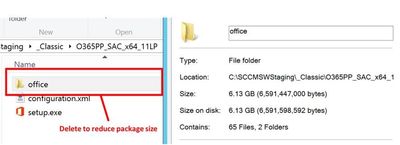
To allow remote users to leverage their local internet connection for source file access, we have to remove the source files from the Configuration Manager application. Navigate to the folder which is holding your software sources, locate the “office” folder and delete it:

Deploy_O365PP_to_Remote_workers_2.jpg

In the above example, 11 Language Packs were included in the deployment package, bumping the size up to 6+ gigabytes. Keep the setup.exe as well as any configuration files located in the folder. This reduces the size of your deployment package to less than 10 megabyte. That’s a huge saving on your VPN connections.

In case you don’t have an Microsoft 365 Apps installation package yet, you can use the built-in wizard to create one. Maybe you want to adjust the handling of languages, instead of hard-coding those you might want to use MatchOS or MatchPreviousMSI. After that, apply the steps above.


Step 2 – Update the content sources

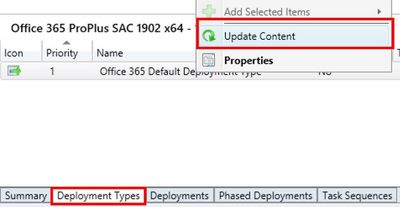
If your application was already synced to Distribution Points, those still have the larger package cached. Navigate to Software Library > Application Management > Applications, select your application, switch to the Deployment Types Tab, right-click the appropriate entry and click Update Content.

Deploy_O365PP_to_Remote_workers_3.jpg

This will re-sync any changes to your Distribution Points, so those will now also have the smaller deployment package ready to sync to devices.


Step 3 – Verify VPN configuration and deploy

Once a client has received the smaller deployment package through ConfigMgr and kicks off the installation, it will download the source files directly from the Microsoft CDN. It is important to ensure that your devices can actually reach out to those endpoints directly and don’t backhaul through the VPN tunnel. We published guidance on how to enable so-called VPN split-tunneling, the endpoints relevant for Microsoft 365 Apps source file download are listed at Office 365 URLs and IP address ranges as entry #92.

If you already have an active deployment of the newly-updated package, clients will start receiving it after the Distribution Points have finished syncing the changes. If you want to start with a fresh deployment, just follow the regular guidelines in your organization.


Step 4 - Leverage peer caching to reduce on-prem traffic (optional)

The following step is not required, but highly recommended. In order to use the same deployment package for your remote and on-premises workers, we recommend to configure and enable Delivery Optimization for Office in combination with Connected Cache. This will enable your on-prem devices to share content which is no longer included in the deployment and greatly reduce the load on your corporate internet connection.


FAQ

Q: We usually controlled which build is installed by embedding the matching source files. How can I control this now?
A: By default, setup will fetch the latest build available for the specified update channel. You can use the version attribute in the configuration file to specify a build. This might be important if your organization is wants to deploy the older SAC feature release.


The Authors

This blog post is brought to you by @Martin Nothnagel from the Microsoft 365 Apps Ranger Team at Microsoft. Feel free to share your questions and feedback in the comments below.

✇Microsoft Tech Community - Latest Blogs - Office 365 Blog

Configuring Office 365 ProPlus updates for remote workers using VPN

Due to the dynamic situation with COVID-19 many IT pros are being challenged to assess ways to configure Office 365 Client to update directly from Microsoft CDN. Today, the majority of customers I engage with manage updates using Configuration Manager (ConfigMgr), predominately on-premises. The objective of this posting is how to minimize internet egress through customer VPN network for Office updates.  We also have guidance for initial remote install and second installs (e.g. Visio/Project) of Office.  Further, we offer additional free security layer to protect machines whether they are  on-premises or remote regardless if machine is "managed" or not.


Network considerations

There are an infinite number of ways customers configure network access, no two customers are identical in configuration.  Speaking generally, the VPN client needs to support split tunneling or be configured so network traffic destined for Office 365 are directed to internet and are not required to pass through VPN Server.  Microsoft provides a list of all Office 365 URLs and IP address ranges in the following document.  Some customers have VPN clients dynamically aware of Office 365 Services using Microsoft Graph API, some support URLs and others only support IP exclusions.  You’ll notice item(s) 90 and 92 which provide specific URLs used by the Office 365 Client to perform updates.

90

Default
Required

mrodevicemgr.officeapps.live.com (Description: Device Management Service (DMS) is used to advertise the C2R builds to the machines which are non-admin managed based on the meta data passed by the machine.)

TCP: 443

92

Default
Required

officecdn.microsoft.com, officecdn.microsoft.com.edgesuite.net (Description: Office CDN where content is downloaded)

TCP: 443, 80


Concerning Office updates, one challenge is that the CNAME officecdn.microsoft.com doesn't belong to the "optimize" category.  Therefore, the IP addresses which may be defined for VPN Forced Tunnel with exceptions won't include OfficeCDN IP addresses (hosted by Akamai) so Office updates will be directed to the VPN tunnel and back to corporate.  If you have VPN Selective Tunnel implemented, then all network traffic for Office updates will go directly to the internet.  Reviewing common VPN scenarios and comparing it to your environment is an important first step.


Tip: Please review blog posting How to quickly optimize Office 365 traffic for remote staff & reduce the load on your infrastructure

Tip: Please review blog posting Managing remote machines with cloud management gateway in Microsoft Endpoint Configuration Manager


Background on how Office 365 Client works by default

Office 365 ProPlus is designed by default to update from CDN.  A scheduled task called “Office Automatic Updates 2.0” uses a trigger to routinely check for updates as advertised by DMS service.  The Office client will always move to the latest version\build available by assigned channel documented hereDocumentation around what to expect from a user experience when updates are delivered from CDN can be found here.  If ConfigMgr Office 365 Client Management integration is enabled by Configuration.xml during initial installation, ConfigMgr Client settings, or Domain Policy, the scheduled task will continue to execute but will only perform software updates from ConfigMgr. 


Options available to update from CDN

Option 1: Cloud managed

Steps:

  • Disable OfficeMgmtCOM (required if previously ConfigMgr managed)
    • On the next restart of Microsoft Office Click-to-Run Service, Office COM application will de-registered.  Allows Office Client to do its thing and get updates from the CDN.  
    • This can be done by changing client settings in ConfigMgr or by Group Policy.
  • Set UpdatesEnabled GPO to True (optional)
    • Allows the client to resume normal update checks from the CDN
  • UpdateDeadline GPO as an integer (optional) in days (ex. 12) to ensure the client is updated to ensure compliance.  Using an integer value allows the admin to not have to continually change the date to a future date/time for every update.

Option 2: SCCM managed but offload content distribution

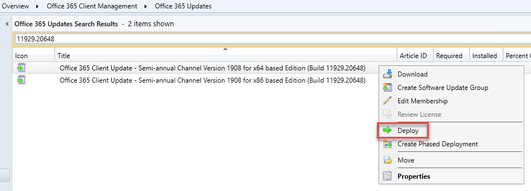
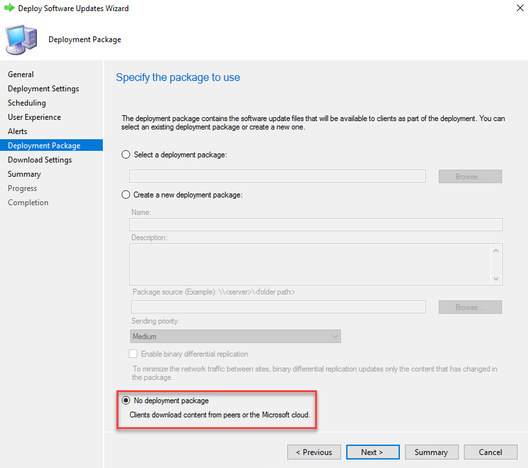
Use normal deploy software updates wizard within ConfigMgr console selecting deploy option. When completing deployment package screen, it is important to select option “No deployment package”. In this way, clients will download content directly from CDN but keep existing controls and user experience during software update workflow.

Steps:

Deploy1.png

NoDeployPackage.png

FAQ:

How can I verify ConfigMgr integration is disabled?

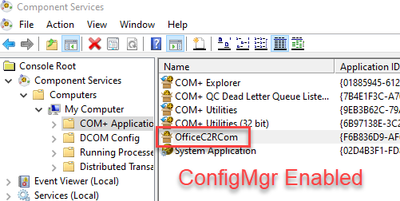
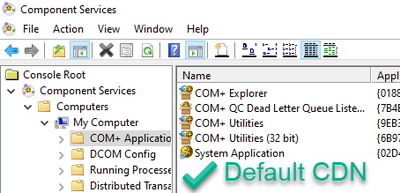
Start -> Run ->dcomcnfg.exe and look for presence of OfficeC2Rcom application.

COMEnabled.png

COMDisabled.png

Where in the Office logs can I confirm Office updates are coming from CDN?

Use http://aka.ms/office365logcollector to collect Office logs or search for files in C:\windows\temp which have your NetBIOS name like MININT-314VFT4-20200318-0857.log.  (There will be a bunch of them).  Use your favorite text editor to search for strings like 'officecdn.microsoft.com' or the build number you deployed.


Starting with version 1902, 'Prefer cloud based sources over on-premise sources' allows IT Pro to prioritize Cloud content.  Does this feature extend\support Office 365 Client updates?

**Updated 10/28/2020** 

The fix for this was not included in 2002 as originally expected and is still under development.  We expect technical preview in coming weeks available for testing.  Please see official guidance for latest updates on this specific issue:

Manage Microsoft 365 Apps with Configuration Manager

Use a cloud distribution point in Configuration Manager


[original statement below]

No, this appears to be a bug which is under investigation.  Workaround is to ensure Distribution Points used by VPN clients do not host Office 365 Client updates resulting in error 404.  If the software deployment has selection ‘If software updates are not available on distribution point in current, neighbor or site boundary groups, download content from Microsoft Updates', this should allow new location of CDN fallback to be used.  I will update this item with updates when available.


The Authors

This blog post is brought to you by Dave Guenthner and Martin Nothnagel, two ProPlus Rangers at Microsoft.  We’re looking forward to your questions and feedback in the comments below.

✇Microsoft Tech Community - Latest Blogs - Office 365 Blog

Excluding and re-including applications within the Office 365 ProPlus Suite

When installing Office 365 ProPlus using the Office Deployment Tool (ODT), the standard configuration includes the entire suite of applications by default. In some cases, IT Pros need to exclude one or more of the apps or add back previously excluded ones. The article will go over the various scenarios and provide guidance on how to implement them. These scenarios include:

  • Exclude apps during initial install
  • Remove specific apps after initial install
  • Re-including apps that were previously removed
  • Adding Visio and/or Project after initial ProPlus installation

So, let’s look at each of these scenarios:


Exclude apps during initial install

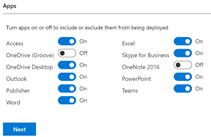
There are two main ways how admins can control which apps are excluded at the initial install of Office 365 ProPlus. First, using the Office Customization Tool (OCT) at https://config.office.com, admins can simply toggle the buttons for the apps they wish to exclude from the initial install:


apps.png


This will craft the configuration file with the necessary exclusions for you. You can either export and save the file locally or to the cloud and reference this file during setup.

A second way that admins can control which apps are installed at the initial install of Office 365 ProPlus is to leverage the <ExcludeApp ID="APPNAME" /> attribute in the ODT configuration file directly. The names of all the app values are as follows:

  • ID="Access"
  • ID="Excel"
  • ID="Groove" (This is the old sync client for on-Premises SharePoint)
  • ID="Lync" (Skype for Business)
  • ID="OneDrive"
  • ID="OneNote" (OneNote 2016, Win32 app. NOT the UWP Windows 10 app)
  • ID="Outlook"
  • ID="PowerPoint"
  • ID="Publisher"
  • ID="Teams"
  • ID="Word"

A sample configuration file with Groove and OneNote excluded from the install would look like this:


<Configuration>
  <Add OfficeClientEdition="64" Channel="Monthly">
      <Product ID="0365ProPlusRetail">
        <Language ID="MatchOS" />
        <ExcludeApp ID="Groove" />
        <ExcludeApp ID="OneNote" />
      </Product>
  </Add>
</Configuration>


With either method at install time, Office 365 ProPlus will be installed with the selected apps excluded. You can verify by looking at this registry key:

HKEY_LOCAL_MACHINE\SOFTWARE\Microsoft\Office\ClickToRun\Configuration
O365ProPlusRetail.ExcludedApps
registry.png
Or simply by checking the start menu and noticing those applications are not present.   

Remove specific apps after initial install

If Office 365 ProPlus is already installed on a device or devices and you need to remove one or more of the apps, you can use the same method as above. However, there are a couple things to keep in mind.

  • You can use Version=”MatchInstalled” to eliminate the need to keep track of the Architecture and Servicing Channel as this attribute will read the existing values and honor them. This can cut down on the number of configuration files needed in environments with multiple Office 365 ProPlus configurations.
  • Setup.exe and the configuration file will need access to the Office source files. Either from the Microsoft CDN (Recommended) or internally by including them in a Configuration Manager application. Click-to-Run Office does not cache source files like the MSI version did in the MSOCache location.

warning.png
If you had previously excluded an app or apps at initial install time, and wish to keep them excluded, you must continue to exclude them via the <ExcludeApp…/> section of the new configuration file you create along with whichever app or apps you now also want to exclude. Failure to do so will result in those applications being present and usable by your users.


The below example configuration file, leveraging “MatchInstalled” would remove Access from the device after initial install:


<Configuration>
  <Add Version="MatchInstalled">
    <Product ID="O365ProPlusRetail">
      <Language ID="MatchOS" />
      <ExcludeApp ID="Access" />
    </Product>
  </Add>
</Configuration>


Like the warning pointed out, running the above configuration will result in Access excluded and ONLY ACCESS EXCLUDED. If you had previously excluded apps such as Groove or OneNote 2016 from your initial install and now wish to exclude Access while keeping Groove and OneNote 2016 also excluded, you must have all three applications called out like in this example:


<Configuration>
  <Add Version="MatchInstalled">
    <Product ID="O365ProPlusRetail">
      <Language ID="MatchOS" />
      <ExcludeApp ID="Access" />
      <ExcludeApp ID="Groove" />
      <ExcludeApp ID="OneNote" />
    </Product>
  </Add>
</Configuration>


Re-including apps that were previously removed


This is very similar to the above scenario. Since Office 365 ProPlus does not include or exclude applications in the traditional sense, but rather asks “what do you want the suite to look like after this configuration?” So therefore If you excluded an app at initial install or post install and now wish to add it back in, you will use a similar configuration to the above example leaving any other apps still excluded you want to remain that way.

Consider this scenario: The IT Pro excluded Access, Groove and OneNote 2016 at initial install and now wishes to add OneNote 2016 back into the suite but leave Access and Groove still excluded. The example configurations would look like this:


Initial install Configuration:

<Configuration>
  <Add OfficeClientEdition="64" Channel="Monthly">
      <Product ID="O365ProPlusRetail">
        <Language ID="MatchOS" />
        <ExcludeApp ID="Access" />
        <ExcludeApp ID="Groove" />
        <ExcludeApp ID="OneNote" />
      </Product>
  </Add>
</Configuration>
Second install Configuration:

<Configuration>
  <Add Version="MatchInstalled">
      <Product ID="O365ProPlusRetail">
        <Language ID="MatchOS" />
        <ExcludeApp ID="Access" />
        <ExcludeApp ID="Groove" />
      </Product>
  </Add>
</Configuration>


Adding Visio and/or Project after initial ProPlus installation


Visio and Project operate in a different manner as they are different Product ID’s. These products cannot be added or excluded with the <ExcludeApp/> attribute. They can be added after the initial install by using a configuration file with Visio and/or Project as the <add Product ID> value. You must match the servicing channel and version of Click to Run architecture (64/32-bit) to prevent making unwanted changes. Better yet, you can leverage the power of the CDN and the new <MatchInstalled> attribute to do the heavy lifting here. Deploying Visio and/or Project from the Microsoft CDN after installing Office 365 ProPlus is very bandwidth friendly as most of the shared files are already installed.

Here is an example configuration of adding Visio and Project to device after Office 365 ProPlus has already been deployed:


<Configuration>
  <Add Version="MatchInstalled">
    <Product ID="ProjectProRetaill">
      <Language ID="MatchOS" />
      <ExcludeApp ID="Groove" />
    </Product>
   <Product ID="VisioProRetaill">
      <Language ID="MatchOS" />
      <ExcludeApp ID="Groove" />
    </Product>
  </Add>
</Configuration>


warning.png

Notice in the above example I have excluded Groove from both Product sections. Groove, OneDrive and Teams operate slightly different at install time and if not excluded from each product they will get installed along with Office 365 ProPlus, Visio and Project Click-to-Run.


The Author

This blog post is brought to you by Eric Wayne, a Sr. Office Deployment expert and ProPlus Ranger at Microsoft. Feel free to share your questions and feedback in the comments below.

✇Microsoft Tech Community - Latest Blogs - Office 365 Blog

How to quickly optimize Office 365 traffic for remote staff & reduce the load on your infrastructure

Update 02 April 2020.


A genuine thank you all for your feedback around this article. Given the enormous popularity of this subject in the current crisis, we've worked hard over the past few weeks to improve and expand the guidance in this article and as a result, we've moved the Office 365 VPN connectivity guidance to a new home which is linked below. As with this article, we've aimed to provide simple and priority driven guidance to help customers deliver solutions to this problem quickly and securely in this current climate. 

Further we've reached out to key VPN partners who have rapidly responded to provide step by step guides on how to configure Office 365 split tunneling/Forced Tunneling with exceptions, within their particular implementation. Cisco (AnyConnect), Palo Alto (GlobalProtect) and F5 Networks (BIG-IP APM) are the first to publish, with more to come over the coming days. Special thanks to those partners for their commitment and rapid delivery of this guidance for our mutual customers.


New Links:


Please continue to provide feedback via the comments section on the articles above and we'll endeavour to respond as quickly as possible and continue to improve the guidance as needed. 


Paul & The Office 365 Network Connectivity & Performance team 


**********************************************************************************************************

Original Article below:


Over the past few weeks, Microsoft, and more specifically the Office 365 Network team have seen a large influx of questions from customers around how best to optimize their Office 365 connectivity as they work diligently to plan for a large amount of their userbase suddenly working from home. We’ve also seen similar queries from customers looking for best practice whilst rapidly enabling their Office 365 benefits, Free Teams plans or free 6 month E1 trial recently announced to rapidly roll out Teams to allow their business to continue to function and allow users to collaborate effectively without being in the Office.  


The recent COVID-19/Coronavirus outbreak has caused many customers to rapidly enable, or proactively plan for the bulk of their employees working from home. This sudden switch of connectivity model for the majority of users typically has a significant impact on the corporate network infrastructure which may have been scaled and designed before any major cloud service was rolled out and in some cases, not designed for a situation when it is required simultaneously by all users.

Network elements such as VPN concentrators, central network egress equipment such as proxies, DLP etc, central internet bandwidth, backhaul MPLS circuits, NAT capability and so on are suddenly put under enormous strain due to the load of the entire business using them, with the end result being poor performance and productivity coupled with a poor user experience for those users forced to adapt to working from home.

A simple diagram of a traditional network model can be seen below, where remote user's connectivity is forced in and back out of the corporate network to reach critical resources as well as branch offices using MPLS circuits to reach the services offered at head office. It is an incredibly common network model for businesses around the world, but it was designed to be effective for a pre-cloud world.

A traditional enterprise network, which does not work well in a cloud first worldA traditional enterprise network, which does not work well in a cloud first world

This model made perfect sense and worked very well when the bulk of applications, data and services resided within the corporate network (the dotted line in the diagram), but as enterprises shift to the cloud, it rapidly becomes a cumbersome environment which doesn’t scale well or provide the organization with any agility to react to situations such as that we face today. Many customers report to Microsoft that they have seen a very rapid shift of network traffic which used to be contained within the corpnet now almost exclusively connecting to some external cloud-based source.


Fortunately, Microsoft has been working closely with customers and the wider industry for many years to provide effective, modern solutions to these problems from within our own services, and also aligned to industry best practice. Solutions that apply very simply and effectively to remote workers as much as they do to branch offices. Microsoft has designed the connectivity requirements for the Office 365 service to work efficiently for remote users whilst still allowing an organization to maintain security and control over their connectivity.


Below we will outline the simple steps an organization can take to drastically reduce the impact Office 365 traffic has on the traditional corporate infrastructure when we have a large percentage of users working remotely all at once. The solution will also have a significant impact on user performance and also provide the benefit of freeing up the corporate resources for elements which still have to rely on it.


Most remote users who are not using a virtualized desktop will use a VPN solution of some sort to route all connectivity back into the corporate environment where it is then routed out to Office 365, often through an on premises security stack which is generally designed for web browsing.


The key to this solution is separating out the critical Office 365 traffic which is both latency sensitive and that which also puts enormous load on the traditional network architecture. We then treat this traffic differently and use the user’s local internet connection to route the connectivity directly to the service. To do this we need to follow a simple set of actions:


1. Identify the endpoints we need to Optimize


Microsoft has already identified these endpoints and marks them very clearly for reference. In the URL/IP list for the service these endpoints are marked as “Optimize”. There are just four URLS which need to be optimized and nineteen IP subnets. In just this small group of endpoints we can account for around 80% of the volume of traffic to the service and it also includes the latency sensitive endpoints such as those for Teams media. Essentially this is the traffic that we need to take special care of and is also the traffic which will put incredible pressure on traditional network paths.


URLs in this category have the following characteristics:


  • Are Microsoft owned and managed endpoints hosted on Microsoft infrastructure.
  • Have IPs provided
  • Low rate of change to URLs/IPs compare to other two categories
  • Expected to remain low in number of URLs
  • Are High volume and/or latency sensitive


You can also query the REST API Web Service for this information, and a PowerShell example script which does this and outputs the URLs/IPs/Ports for all three endpoint categories can be found using the link above.  


Endpoint to Optimize

Port/s

Use

https://outlook.office365.com

TCP 443

This is one of the Core URLs Outlook uses to connect to its Exchange Online server and has high volume of bandwidth usage and connection count. Low network latency is required for online features including: Instant search, Other mailbox calendars, Free / busy lookup, manage rules & alerts, Exchange online archive, Emails departing the outbox.

https://outlook.office.com

TCP 443

This is use for Outlook Online web access to connect to its Exchange Online server and network latency. Connectivity is particularly required for large file upload and download with SharePoint Online.

https://<tenant>.sharepoint.com

TCP 443

This is the primary URL for SharePoint Online and has high volume of bandwidth usage.

https://<tenant>-my.sharepoint.com

TCP 443

This is the primary URL for OneDrive for Business and has high volume of bandwidth and possibly high connection count from the OneDrive for Business Sync tool.

Teams Media IPs (no URL)

UDP 3478, 3479, 3480, and 3481

Relay Discovery allocation and real time traffic (3478), Audio (3479), Video (3480), and Video Screen Sharing (3481). These are the endpoints used for Skype for Business and Microsoft Teams Media traffic (Calls, meetings etc). Most endpoints are provided when the Microsoft Teams client establishes a call (and are contained within the required IPs listed for the service).

UDP is required for optimal media quality.


<tenant> should be replaced with your Office 365 tenant name. For example contoso.onmicrosoft.com would use contoso.sharepoint.com and constoso-my.sharepoint.com


At the time of writing the IP ranges which these endpoints correspond to are as follows. It is strongly advised you use the script referenced previously or the URL/IP page to check for any updates when applying the policy, and do so on a regular basis.


104.146.128.0/17

13.107.128.0/22

13.107.136.0/22

13.107.18.10/31

13.107.6.152/31

13.107.64.0/18

131.253.33.215/32

132.245.0.0/16

150.171.32.0/22

150.171.40.0/22

191.234.140.0/22

204.79.197.215/32

23.103.160.0/20

40.104.0.0/15

40.108.128.0/17

40.96.0.0/13

52.104.0.0/14

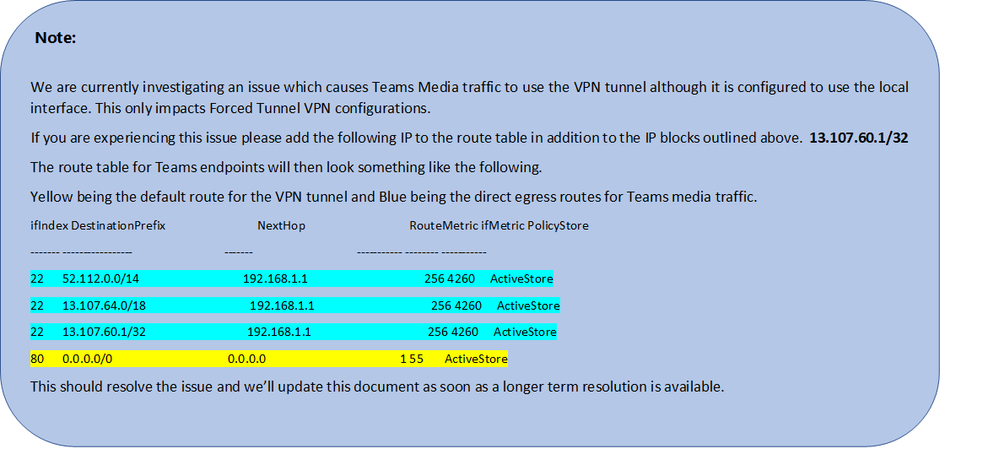
52.112.0.0/14

52.96.0.0/14

52.120.0.0/14


note.png

  • TCP ports 80/443
  • UDP ports 3478, 3479, 3480, 3481


IPV6 endpoints can be ignored if not currently required, i.e. the service will currently operate successfully on IPV4 only (but not the other way round). This will likely change in future but IPV4 only is possible for the time being.


2. Optimize access to these endpoints via the VPN


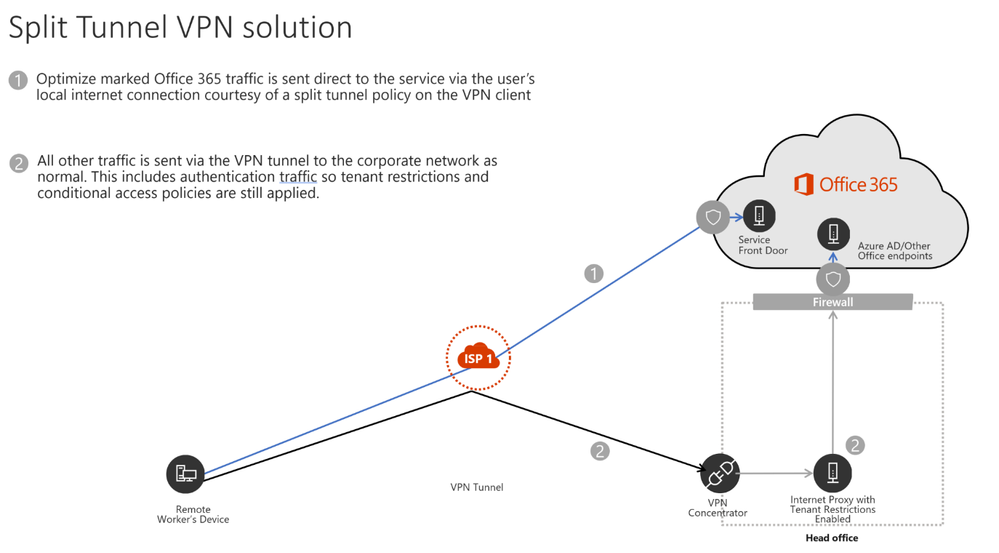
Now that we have identified these critical endpoints, we need to divert them away from the VPN tunnel and allow them to use the user’s internet connection to connect directly to the service. The vast majority of VPN solutions allow split tunnelling, where identified traffic is not sent down the VPN tunnel to the corporate network but rather sent direct out the user’s local internet connection. The VPN client should be configured so that traffic to the above, Optimize marked URLs/IPs/Ports are routed in this way. This allows the traffic to utilize local Microsoft resources such as Office 365 Service Front Doors such as AFD as one example, which deliver Office 365 services & connectivity points as close to your users as possible. This allows us to deliver extremely high performance levels to users wherever they are in the world. There is also Microsoft’s world class global network which is very likely within  a small number of milliseconds of your users direct egress, and is designed to take your traffic securely to Microsoft resources wherever they may be in the world, as efficiently as possible.

The solution would look something like that below.


A client's VPN connection with split tunneling enabledA client's VPN connection with split tunneling enabled


Sounds simple? It is in most cases, but for an enterprise, this shift in connectivity invariably raises questions about security. In the traditional network approach security is often applied inline to network traffic as it egresses to the internet. Proxies and firewalls perform inspection on the traffic to check for data exfiltration, viruses and so on. By bypassing this we are removing this layer of protection we have come to rely on when connecting to the internet. The good news is, for the highlighted endpoints above, Microsoft has numerous features in place which means your security with the modern approach may well be higher than available previously. We will run through some of the common solutions below, not all will be relevant or necessary to all customers, but we will cover the majority of common concerns that come up when implementing modern network connectivity.


3. Common questions when implementing local breakout and split tunnelling for Office 365


It should be noted that the two steps above are all that is necessary to solve the performance/scalability issues if you need to move very quickly given the current situation. The elements below can be added as needed and as time allows or you may have them in place already.


Q1. How do I stop users accessing other tenants I do not trust where they could exfiltrate data?


A: The answer is a feature called tenant restrictions. Authentication traffic is not high volume nor especially latency sensitive so can be sent through the VPN solution to the on-premises proxy where the feature is applied. An allow list of trusted tenants is maintained here and if the client attempts to obtain a token to a tenant which is not trusted, the proxy simply denies the request. If the tenant is trusted, then a token is accessible if the user has the right credentials and rights.


So even though a user can make a TCP/UDP connection to the Optimize marked endpoints above, without a valid token to access the tenant in question, they simply cannot login and access/move any data.


Q2. Does this model allow access to consumer services such as personal OneDrive accounts?


A: No, it does not, the Office 365 endpoints are not the same as the consumer services (Onedrive.live.com as an example) so the split tunnel will not allow a user to directly access consumer services. Traffic to consumer endpoints will continue to use the VPN tunnel and existing policies will continue to apply.


Q3. How do I apply DLP and protect my sensitive data when the traffic no longer flows through my on-premises solution?


A: If required, endpoints can be protected with Office DLP if required and it’s much more efficient to provide this feature in the service itself rather than try and do it in line at the network edge. Azure Information protection can also be used to provide a high level of information protection if required.


Q4. How do I evaluate and maintain control of the user’s authentication when they are connecting directly?


A: In addition to the tenant restrictions feature noted in Q1, conditional access policies can be applied to dynamically assess the risk of an authentication request and react appropriately. Microsoft recommends the Zero Trust model is implemented over time and we can use Azure AD conditional access policies to maintain control in a mobile & cloud first world. Conditional access policies can be used to make a real-time decision on whether an authentication request is successful based on numerous factors such as:


  • Device, is the device known/trusted/Domain joined?
  • IP – is the authentication request coming from a known corporate IP address? Or from a country we do not trust?
  • Application – Is the user authorized to use this application?


We can then trigger policy such as approve, trigger MFA or block authentication based on these policies.


Q5. How do I protect against viruses and malware?


A: Again, Office 365 provides protection for the Optimize marked endpoints in various layers in the service itself, outlined in this document. As noted, it is vastly more efficient to provide these security elements in the service itself rather than try and do it in line with devices which may not fully understand the protocols/traffic.


For the Exchange endpoints listed above, Exchange Online Protection and Office 365 Advanced Threat Protection do an excellent job of providing security of the traffic to the service.


Q6. Can I send more than just the Optimize traffic direct?


A. Priority should be given to the Optimize marked endpoints as these will give maximum benefit for a low level of work. However, if you wish, the Allow marked endpoints are required for the service to work and have IPs provided for the endpoints which can be used if required.


There are also various vendors who offer cloud based proxy/security solutions called secure web gateways which provide central security, control and corporate policy application for general web browsing. These solutions can work well in a cloud first world, if highly available, performant, and provisioned close to your users by allowing secure internet access to be delivered from a cloud based location close to the user. This removes the need for a hairpin through the VPN/corporate network for general browsing traffic, whilst still allowing central security control.

Even with these solutions in place however, Microsoft still strongly recommends the Optimize marked Office 365 traffic is sent direct to the service.


Q7. Why is port 80 required? Is traffic sent in the clear?


A. Port 80 is only used for things like redirect to a port 443 session, no customer data is sent or is accessible over port 80. This article outlines encryption for data in transit, and at rest for Office 365 and this article outlines how we use SRTP to protect Teams media traffic.


Q8. Does this advice apply to users in China using a worldwide instance of Office 365?


A. No it does not. The one caveat to the above advice is users in the PRC who are connecting to a worldwide instance of Office 365. Due to the common occurrence of cross border network congestion in the region, direct internet egress performance can be variable. Most customers in the region operate using a VPN to bring the traffic into the corporate network and utilize their authorized MPLS circuit or similar to egress outside the country via an optimized path. This is outlined further in this article https://docs.microsoft.com/en-us/office365/enterprise/office-365-networking-china


Finally, please ask any questions you may have in the comments section below and we will do our best to answer as quickly as possible.


4. Further reading


General best practice for Office 365 connectivity:

http://aka.ms/pnc

https://docs.microsoft.com/en-us/archive/blogs/onthewire/__guidance


Recorded Ignite sessions

https://myignite.techcommunity.microsoft.com/sessions/81561?source=sessions

https://myignite.techcommunity.microsoft.com/videos/64276

https://myignite.techcommunity.microsoft.com/videos/64275


Office 365 Partner Program

https://resources.techcommunity.microsoft.com/networking/

Current partners are Citrix, Netfoundry, NTT, SilverPeak and Zscaler


Network Connectivity performance testing

https://connectivity.office.com/

This tool runs some tests against Office 365 endpoints including the Optimize marked ones and give you some clear feedback around how connectivity looks for those endpoints and anything you can do to improve the connectivity.


Bandwidth planning

https://aka.ms/bandwidth/

This tool is one mechanism you can use to monitor user's Office 365 network traffic volumes to get a clear figure for bandwidth requirements for the wider business.

❌