Vue lecture

Il y a de nouveaux articles disponibles, cliquez pour rafraîchir la page.
✇MTC Microsoft Teams Blog

Celebrate success using Together Emojis in Microsoft Teams

We're celebrating #NationalHighFiveDay today by introducing an exciting and unique way to interact with your team members using new Together Emojis in Microsoft Teams. The new Together Emoji for high fives is currently rolling out and will be available to users soon!


What are Together Emojis?

“Together Emojis” are a unique concept conceived by myself and my colleague Nico Nuzzaci in 2016 to bridge the gap across the communication stream. For a long time, when you send an emoji in chat, it stays on the left or right and has always felt disconnected to us.

We wanted a way for people to come together when they are apart using digital communication to foster a greater sense of connection and community. Ranging from a slap of hands with high fives, clinking glasses to cheers, grabbing a coffee, or getting pizza for lunch, Together Emojis are there to bring everyone’s sentiments together and belong!


How to do it:

Open Microsoft Teams for work or life, desktop or mobile app, and jump in to chat with friends, colleagues, and family, and by each of you sending high five after each other, you’ll get a fun animation:

highfive.png

And watch the two smileys come together.

Together Emoji high five mobile.gif


You can find the “highfive” emoji in 3 ways:

  1. On desktop type (highfive) in the compose bar and hit enter; or
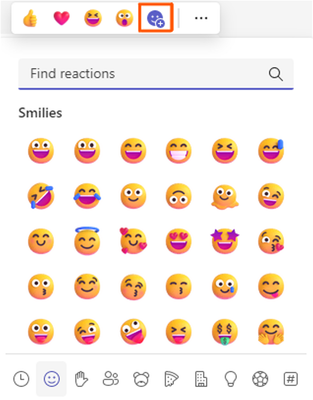
  2. On mobile or desktop, open the fun picker, and type “highfive” in the search bar and hit enter; or
  3. On mobile or desktop, open the fun picker and scroll down the smileys category to the custom emojis and tap the highfive emoji and hit enter.

“Highfive” is one Together Emoji of many other sentiments you can bring together, more coming soon!


More about National High Five Day:

National High Five Day is celebrated in the United States on the third Thursday of April and is a holiday about giving high fives and spreading good vibes. This year, it benefits CoachArt by sending virtual high fives to kids with chronic illnesses. Learn more about this holiday, the charity, and how to get involved at http://nationalhighfiveday.com.

✇MTC Microsoft Teams Blog

Oh, Snap! Let Your Silly Side Shine with Snapchat Lenses for Microsoft Teams

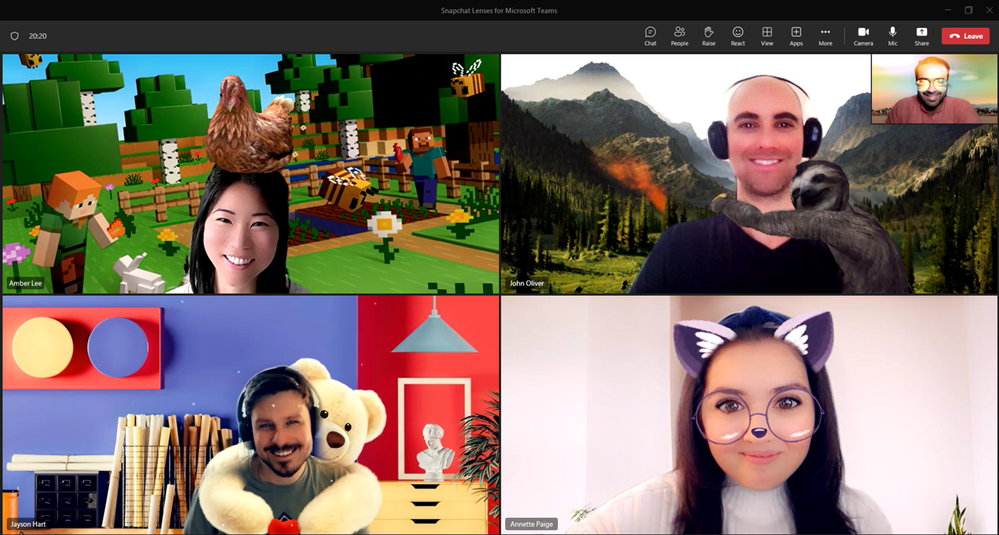
A shower of hearts, a sloth’s warm embrace, or a chicken on your head. It sounds like a fun, eclectic party! Good news, it CAN be—in your next work meeting through Snapchat Lenses for Microsoft Teams.


Starting this week, a collection of 20+ of the most popular Snapchat Lenses are available to Teams customers globally*, giving you more ways to express yourself, build relationships and let your meetings shine. Ahem, cue the Sunglasses Lens. Or better yet, check out Bear in Love, Cat on Head, or the Sunset Lenses. And did you know video calls make up 78% of positive memories in meetings?** Why not use Lenses to share more of your personality during your next Teams meeting and create connections with your coworkers that are, dare I say, memorable?


The key advantage of Snapchat Lenses for Teams is its direct integration. No need to download anything or add a new app to Teams; it’s already available and ready for you to try!

SnapChat in Teams.png


Teams is your modern workplace, now smarter with AI, for 280 million people worldwide. And it just got a whole lot more entertaining with the integration of Snapchat Lenses, made possible by Snap's Camera Kit. Lenses allow users to add augmented reality (AR) effects to video calls, bringing livelier human interaction to meetings. AR captures and processes information about our physical environment and then overlays it with virtual objects and information, allowing us to see and experience the world in a different way. Since AR uses cameras, sensors, and displays, which are already built into video conferencing, it is a perfect and seamless fit with Teams.


How to get started using Snapchat Lenses for Teams

Before your next meeting:

  1. Click “Video Effects”
  2. Then “More Video Effects”
  3. Scroll down in the right pane and select “Snapchat” under the “Filters” category
  4. Scroll down to view all and select your favorite Lens
  5. Click “Join now”

SnapChat in Microsoft Teams.png


If you already joined a meeting and want to choose a filter:

  1. Click “More…” at the top of your meeting screen
  2. Click “Video Effects”
  3. Scroll down in the right pane and select "Snapchat” under the “Filters” category
  4. Scroll down to view all and select your favorite Lens
  5. Click “Preview” to see your selected Lens without others viewing yet or “Apply” to turn on your favorite Lens


Lenses give you an easy way to show your personality or mood—from silly to sweet—through the power of AR. There are Lenses that make you look like a cartoon character, Lenses that add quirky backgrounds like Airy Sparkles to your video feed, and Lenses that let you show up as a Fungi, or... “fun guy?” With so many options to choose from, it's easy to find a Lens that suits your personality and sense of humor.


Enhance your meetings and bring levity to any situation—use a wacky Lens as the perfect way to break the ice. If you're meeting a new team member for the first time or want to get creative juices flowing on a project, use a Lens to put square glasses on your face, add a snowy background, or turn your co-worker into a stallion…er, horse. It will lighten the mood, create connections and make everyone feel more comfortable.


But wait, not wanting any funny business on a call? No problem. Snapchat Lenses are completely optional. If you prefer to keep your video feed free of effects, you can simply choose not to use them. You can also try out the “smooth look” filter for a “glow up” to show up polished and camera-ready—no animations included.


Snapchat Lenses are a witty and lighthearted addition to the world’s leading communication platform. Whether you're using them to get to know coworkers better or simply express yourself in a new way, Snapchat Lenses are sure to bring a smile to your work day. Add some sunshine, cloud freckles, or a sparkling aura to your next Teams meeting. Try them out starting this week!


This feature is built keeping privacy and compliance in mind. We have ensured that –

1. The tenant admin has the control to enable/disable the video filter apps’ availability in their tenant. These apps are enabled by default.

a. Refer to Manage your apps in the Microsoft Teams admin center to disable these apps

2. The tenant admin cannot pre-install these apps as they require explicit user consent.
3. Before using the filters, you will need to provide explicit consent to the app to access your video feed.
4. You can turn off these filters by uninstalling the filter app.


*Available for Teams for Work customers on desktop and Mac only; web version and mobile to come, as well as EDU
**FY22 H2 ABTS report
***Only available for “classic” Teams at this time; will be available in new Teams by calendar year-end

****If your domain is blocked, please contact your IT administrator

✇MTC Microsoft Teams Blog

How are ISVs growing their businesses with Microsoft Teams?

Independent software vendors (ISVs) across the world are finding are finding new ways to grow their businesses with Microsoft Teams. Building on the recent blog post that dives deep into an example from Mural, we’d like to share examples from other ISVs across the globe so you can learn how they meeting unique customer demands, thriving with new business models, and making money from their Teams experiences. Here are three ways ISVs are growing their businesses with Teams.


1. ISVs are excelling by meeting unique customer and market needs

Microsoft Teams enables ISVs to fulfil specific use cases that are unique to their markets. For example, Japanese start-up Communitio launched TeamSticker on Teams, a recognition and peer bonus communication tool where employees can easily send praise badges as recognition to their peers. Since the onset of the pandemic there has been a demand for employee engagement solutions. Communitio recognized the Teams platform as an opportunity for growth and has been able to generate significant revenue for their business.


Another ISV meeting their unique market needs is a Japanese start-up called PKSHA Workplace Inc. They’ve been able to land more than 20 large enterprise deals with their BEDORE app on Teams.


Microsoft Teams has enabled new business opportunities for many ISVs. The co-founders of WorkplaceBuddy wanted to drive higher engagement for Microsoft 365 products. Having witnessed the growth of Teams they launched WorkplaceBuddy to help companies upskill their employees on Microsoft 365. On average, their customers consume more than 444 minutes of video training every day, five million questions have been answered so far, and there has been more than 94% positive feedback on the learning videos.


2. ISVs are enabling new business models

Microsoft Teams is also enabling ISVs to launch & drive growth via new business models. Kickle identified Teams as an ideal platform to launch their ISV business. With remote work becoming more prevalent during the pandemic, Kickle saw an opportunity to solve the new hybrid workplace management need and launched Waldo on Teams. Waldo is a desk sharing and parking reservation solution native to Teams. After the pandemic with the ongoing hybrid work trend, the solution has continued to grow and monetize via Teams. With their innovative solution, Kickle and Waldo received the prize for Microsoft France Start-up of the Year 2022.


Another example of an ISV that’s thriving with their business model is Creately. They have over a decade of experience in the visual collaboration space and chose Teams to further its mission of helping teams think and work visually. Creately equips organizations with the right set of collaboration tools to help them achieve their creative potential with a unique unlimited user plan that offers a seamless collaborative experience.


The launch of Social Advocacy on Teams has been a success for Oktopost, with the ISV realizing monetary gains and deals amounting to more than a million in ARR, which has help pave the way for the ISV to capture larger enterprise deals, with a business model of unlimited users to increase the application’s usage.


Finally, Monday.com has also seen immense success on Teams with their business model, with some of the largest fortune 500 customers using their collaborative app.


3. ISVs are making money from their Teams apps

In 2020, TeamViewer partnered with Microsoft to enhance the Teams experience with TeamViewer's cross-platform remote control, augmented reality (AR) remote assistance, and shared remote access to devices and development environments thereby empowering the IT and support teams to support the internal employees and external customers.

TeamViewer.png


In January 2022, TeamViewer monetized this integration on Microsoft Marketplace and defined their first TSaaS offer, achieving $670K USD of Marketplace revenue from July 2022 to March 2023. Over 10,000 companies are using this integration, empowering their employees to be more efficient and productive. Every month, over 30,000 thousand users initiate TeamViewer powered remote connections in Teams to resolve their issues more efficiently.


Overall, ISVs are seeing tremendous benefits to their Microsoft Teams experiences. Learn how you can build collaborative apps and help grow your business with Microsoft Teams.

✇MTC Microsoft Teams Blog

Signature Microsoft Teams Rooms: A more inclusive and collaborative vision for hybrid meeting rooms

Flexible work has replaced hybrid work in our lexicon here at Microsoft. Rather than a simple equation of X days in office + Y days working remotely = 1 hybrid week, we have now adopted a model that is fluid and flexible, and customized for each individual’s and team’s productivity. Most meetings, however, meet the traditional definition of hybrid work, with a mix of attendees in person and remote.


The opportunity to improve hybrid meeting experiences so that they better meet the needs of our flexible workforce started as a collaboration between the Microsoft Teams product group and Microsoft’s internal IT organization. Through prototypes, experimentation, and a focus on real-world hybrid experiences, Signature Microsoft Teams Rooms emerged as an innovative new way to design hybrid-optimized spaces.


Watch the video to see how we use Signature Teams Rooms on the Microsoft campus today, and then read on to learn more about what makes them great hybrid meeting spaces:


“It’s been quite the journey over the last few years. We’re very much in a hybrid world,” says Keshav Puttaswamy, a partner director of product management with Microsoft Digital Employee Experience (MDEE), an internal IT organization. “We place a lot of importance on flexibility. We want to make sure our employees are able to do their best work wherever they are.”


“Signature Microsoft Teams Rooms are a powerful tool for us to fully embrace this hybrid experience,” Puttaswamy says.


Finding the best of both worlds

A more inclusive experience for everyone in a hybrid meeting was one of the primary motivating factors behind the evolution of Signature Teams Rooms.


“We’re all used to seeing a room with a rectangular table in the middle and a screen on one end,” Puttaswamy says. “What we’re seeing with hybrid is different needs emerging for employees, and traditional rooms aren’t necessarily the best experience for all meeting types.”
Where a traditional space can create connection between people in the room, remote attendees may not be able to track the subtle nuance that comes with being able to see everyone’s faces and body language. And likewise, people in the room may find it easier to focus attention on people sitting around the table, to the exclusion of remote attendees on the display. A hybrid space should be able serve both worlds.


“When I think about Signature Microsoft Teams Rooms, I just think about trying to build the workplace that our employees really want to be in,” says Matt Hempey, a principal group product manager who supports engagement and collaboration in MDEE. “We know much of our work gets done in meetings, so why shouldn’t we rethink this space where we spend so much our time?”


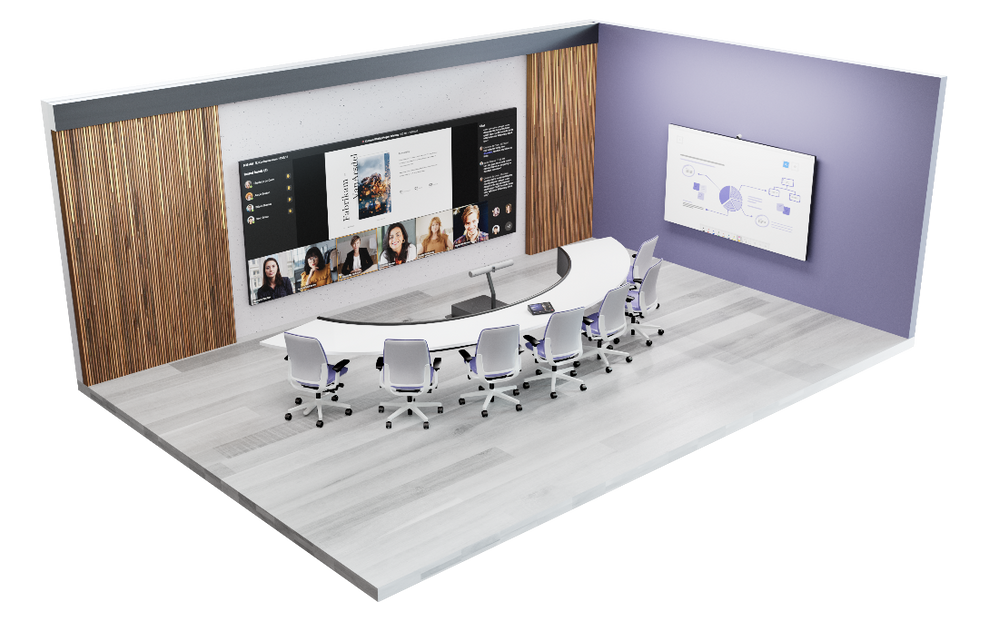
Built with a concise arrangement of displays, cameras, audio devices, and specialized tables, Signature Microsoft Teams Rooms makes a better hybrid meeting experience for all attendees, no matter where they join a meeting from.


Furniture is arranged so that all attendees, whether in-person or remote, face each other. Designed for hybrid meetings, the Front Row display option available in Teams Rooms presents remote attendees front-and-center and at eye-level with in-room participants.


Displays with a 21:9 aspect ratio mean there’s enough space on the screen to project content, remote attendees, and chat space — it’s what we refer to as “the meeting within the meeting”. This enables in-person attendees to follow along with the chat, without having to divert their attention to their PC screens.

Example of a small-sized Signature Microsoft Teams RoomExample of a small-sized Signature Microsoft Teams Room


Example of a medium-sized Signature Microsoft Teams RoomExample of a medium-sized Signature Microsoft Teams Room


“[In a meeting room, there are] body language cues when you want to speak. You’ll lean into the table and everybody around you knows that you want to say something,” says Greg Baribault, Head of Product for Microsoft Teams Rooms. “If you look at the layout of a Signature Teams Room, the physical space itself is designed to facilitate that sort of intuition for the remote participant.”


Those participating virtually benefit from the room’s AI-powered intelligent cameras. Instead of a single camera feed of a large room filled with small, unidentifiable faces, some AI cameras can identify participants in the room and present them to remote attendees as individuals in the meeting. In the room, in-person participants who have also joined the meeting via their companion device don’t see themselves on the room display, which can be disconcerting. The experience for each person is somewhat personalized, designed for how they’re joining the meeting.


“Some of these features are being driven from the platform, Microsoft Teams,” says Sam Albert, a principal product manager responsible for conference room experiences at MDEE. “Features like spatial audio with Front Row make it feel like the remote participants are in the room with you, and audio is coming from where people are speaking.” This same technology can light up names of speakers and identify individuals in transcripts.


Upgrading everyone’s experience

Deploying Signature Teams Rooms as part of your meeting rooms mix in new construction makes sense. “From a new construction perspective, building a Signature Teams Room is no more expensive and no more complicated than building any meeting room,” Hempey says.


For existing real estate, a change of furniture or a refresh to some room components may be enough to improve the hybrid experience. “We’re very thoughtful around what we can do with the existing rooms, so we look at more creative ways to bring the benefits of Signature Microsoft Teams Rooms to everyone,” Puttaswamy says. “Even equipping an existing room with a new table shaped more like a guitar pick or gumdrop enables meeting room attendees to face remote attendees without changing out lighting and other heavy construction costs.”


Guidelines around the principles to design meeting room spaces – both traditional rooms and Signature rooms – are available to everyone.


“We want to make it as easy as possible for our customers to build these experiences on their own campuses,” Albert says. “All of the technology that we’re putting in our conferences rooms today use Microsoft Teams-certified devices. They’ve been rigorously tested and we work closely with all our hardware partners, so we can take different components and also have some flexibility.”


The workplace continues to evolve, with flexible work now encompassing a wide range of employee experiences. Whether it’s a Signature Teams Room or a traditional Teams Room, Microsoft is focused on delivering on the promise of what a workplace can be for its employees. This includes building out the toolbox to improve hybrid meeting experiences, and enabling the connections that help business succeed.

✇MTC Microsoft Teams Blog

Modern Work Superheroes | Teams Apps Video + March News

Wow! These past weeks must have been the most exciting and busy we've had at Microsoft in a while. From seamless integrations to the release of powerful new tools, the latest updates are a testament to Microsoft's commitment to innovation and customer satisfaction. My head is spinning with the number of new features, apps, and articles that have been announced recently. If you feel the same way, you've come to the right place! We've curated a list of the most relevant links and resources from the past four weeks to give you an easy guide to get up to speed on the latest announcements.

- Mariel Vargas


New YouTube video | Power up your Productivity with Microsoft Teams Apps

Today we are starting by sharing the newest video in our YouTube channel: Day in life with Microsoft Teams. This quick, 5-minute video shows the integration of 13 apps into the flow of work of a Nestor, powered by Teams as a platform. We hope it inspires you in different ways to level up your experience in Teams.


Customer Story | Alfa Beta introduces a fresh way to communicate with stores using the Microsoft Teams platform

“Teams is now the major communication hub for the entire business. With it, we have created a faster, safer, and more reliable way to communicate with employees in our stores.”


Customer Story | Carlsberg improves digital employee experience to reach 29,000 employees using Microsoft VIVA

“We strive to make  sure that we have the best beer in the world for our customers and we wanted the best experience for our employees. We wanted them to be able to utilize tools that met their needs from the minute they left their house to the minute that they went home.”


Roadmap Updates | AI, CoPilot, New Teams, Loop, Viva Engage, Stream

Ok, now, here is a complete guide on all the latest Modern Work and Adoption latest releases. We know there is a lot to unpack, so we have divided them into different topics for ease of reference.


No better way to start than with our AI updates! We have announced AI integrations in Windows, Bing, word, power point, outlook, power platform, security, you name it we have it!


AI | Windows, Copilot, Viva, Power Apps

Starting the most exciting launch, Copilot! below we have curated three resources to get up speed in this amazing new tool!

We don’t yet have dates on when Copilot will be available, but make sure to keep up with our community for all the latest updates!


Moving to Windows and Bing, there is a lot of excitement on the Bing chat, image creator, and new Windows features, here is a good recap:


Lastly, we also had AI announcements in Teams Premium, Viva, Power Apps, and Security catch up below:


Teams Updates | New Teams, Meeting improvements, Avatars and newly certified devices

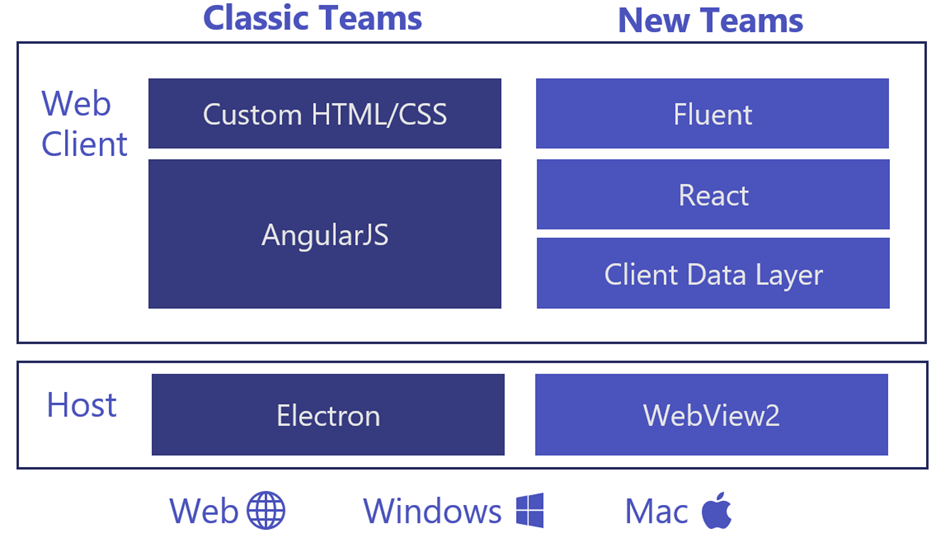
Also, in March we had the launch of New Teams. Microsoft completely recoded Teams from the ground up to address one of our customer’s biggest feedback items: performance. The new Teams is faster, simpler, more flexible, and smarter.


I am already hearing a lot of very positive feedback from customers, and you can start testing it today, since New Teams is now in public preview. Here are some links on New Teams for you:


For our IT admins and architectures out there, this is a great article to understand the advantages of the new architecture in New Teams.


And for a great recap on everything new in Teams check the article below:


Viva Engage | Rebranding Toolkit

Lastly, I really need to highlight the new rebrand toolkit that the viva engage team has launched. This is a complete change management guide to help you walk your customer through the rebranding of Yammer to Viva Engage announcement that was announced last month.


Loop | New app available in public preview!

Next on the list is Loop, our new app that will transform your co-creation experience by bringing together teams, content, and tasks seamlessly across your tools and devices. Learn more below:


Stream | Migration upcoming dates

Also, bringing stream in the spotlight in this month’s blog, just as a reminder on the upcoming migration dates we have for the New Stream platform: starting May 15th it will not be possible to upload new videos in Classic Stream, therefore make sure you have your migration plan in place!

Also, since we are in the Stream topic, here is an awesome new Stream tip: learn how create Playlists to share your video and audio files in Microsoft 365


Upcoming Event | FLW Art of the Possible Event | April 13th

Frontline workers are vitally important in companies both big and small. They use a wealth of knowledge – both institutional and first-hand customer insights – to provide essential services. Because those services are sometimes routine, frontline workers may be overlooked during digital transformation efforts. Don’t leave them behind.


Upcoming Event | Viva Summit | April 20th

The Microsoft Viva Summit will happen on April 20h and will offer research findings, expert insights, panel discussions, a technology showcase, and a thriving community focused on empowering the workforce for accelerated business impacts.


Upcoming Event | EduCon: Join Us - 3655 EduCon DC - a Microsoft Conference

We are super excited to announce that our Superheroes vTeam will be hosting sessions and workshops in person for the first time during the EduCon conference in DC!


We can’t wait to meet you! We’ll have meet and greet time and a special gathering at the AMA session (+Teams SWAG for Superheroes)!

We will be in DC, but EduCon also has conferences in Seattle and Chicago!


🦹‍ Who are the Modern Work Superheroes?

Join me and over 2000+ customers and Microsoft experts around the globe in accelerating their digital transformation journey in the Modern Work Superheroes community on Viva Engage. The Modern Work Superheroes Community is your single source for Modern Work content, community, and collaboration. Explore:

  • Customer stories on improving outcomes and lessons learned
  • Best practices for IT pros, Change Management, and End User leaders
  • Exclusive customer events and networking opportunities
  • Roadmap updates and insights from Teams and Viva product leaders

Click here to join the Modern Work Superheroes!* 

*Consumer and non-Microsoft 365 email addresses are not supported

✇MTC Microsoft Teams Blog

Enable the new Microsoft Teams toggle for your organization

The new Microsoft Teams desktop app for Windows was announced yesterday at Enterprise Connect and many users are excited to start using it. As an admin, if your organization is in production, you will have the option to enable the new Teams experience for your users. To manage this experience, use the Teams admin setting “UseNewTeamsClient” under “Teams update management policy” and select which users in your organization can see the toggle and get access to new Teams.


There are two methods to manage and configure the new setting either via Teams Admin Center or via Teams Powershell.


Configure setting via Teams Admin Center

Use the Teams Admin Center to manage the visibility of the toggle on a per-user basis.


1. Sign in to the Microsoft Teams admin center.


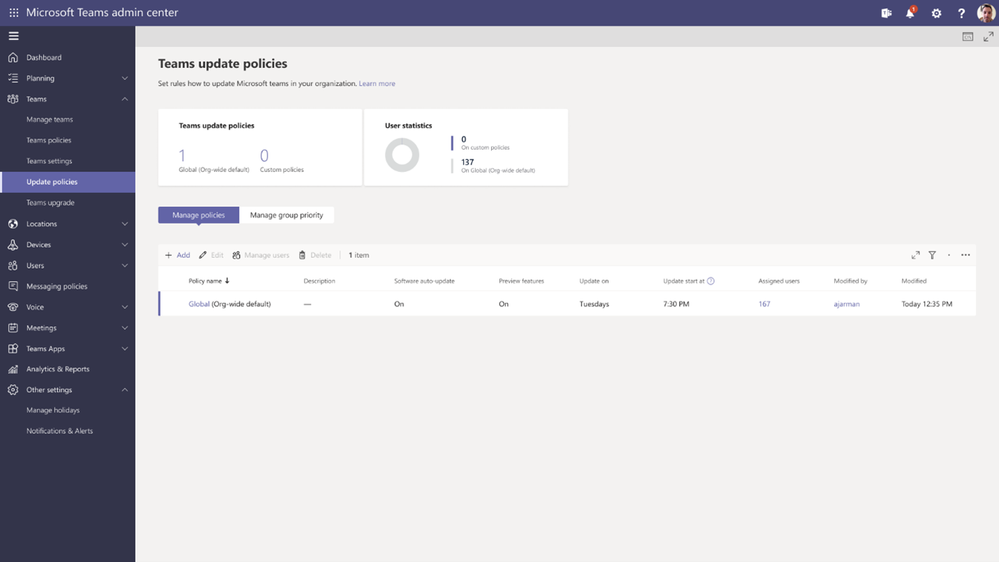
2. Select Teams>Teams Update policies from the left pane, as shown below.

Teams Update policies.png


3. Select Add to create a new policy or select an existing policy to open Update policy.


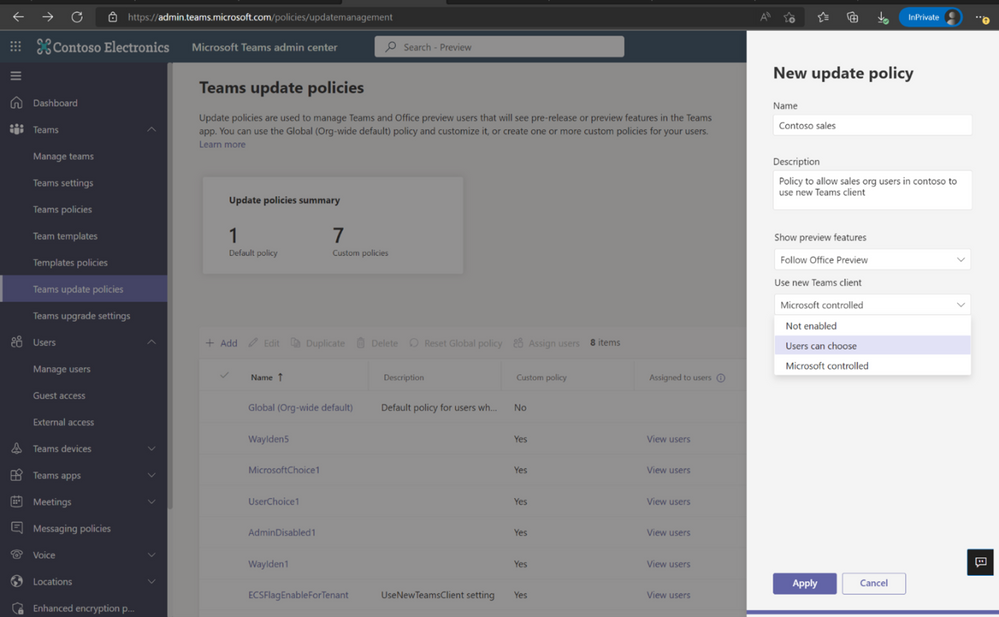
4. Name the update policy, add a description, and select the setting for “Use new Teams client”, as shown below. The setting UseNewTeamsClient can be configured to one of the following possible values:

Setting value 

Description 

Microsoft Controlled

[Default] This is the automatic default that allows Microsoft to control whether the "Try the new Teams" switch is shown or not based on product readiness  

User Choice 

Use this value to show the "Try the new Teams" switch, and allow users to opt-in to the new Teams, and switch back if they need to. 

Admin Disabled 

Use this value to hide the "Try the new Teams" switch. Users will not be able to opt-in to the new Teams. 


New Update Policy.png


5. Once the policy is defined, you can assign it to a specific user or user groups by selecting the Policy name>Assign users>Manage users. Enter the user to add and hit apply (as shown below for Contoso sales policy)

Manage Users.png


6. Once the policy is defined, you can also assign it to a specific user via Manage users under Users> Manage users drop-down.


Update policy setting using this method takes effect within one minute without user having to restart the app.


Control setting via Teams PowerShell

Here are the steps needed to configure this setting:

1. Import the latest Teams PowerShell cmdlets (require version 4.9.1 or greater) by following Manage Teams with Microsoft Teams PowerShell instructions. Direct link: PowerShell Gallery | MicrosoftTeams 4.9.1.


2. Connect using an admin account using this command:
Connect-MicrosoftTeams


3. Once connected and logged in via PowerShell, you can explore the list of related commands: Enter *-CsTeamsUpdateManagementPolicy and tab through the commands (tab key).


4. Use the following commands to change the existing Update Management policy to opt-in the
assigned users to ensure that they have the option to try the new Teams:
Set-CsTeamsUpdateManagementPolicy -identity <new_policy_name> -UseNewTeamsClient UserChoice


Example:
Set-CsTeamsUpdateManagementPolicy -identity MySetting -UseNewTeamsClient UserChoice

Note: this method (existing policy modification) does not take effect immediately; please allow up to 24 hours for the change to propagate to users. Users do not need to restart the app, but specifically for opt-in, they will need one restart following a fresh install to see the toggle.

Use the following commands to deploy a new policy to opt-out a specific user from seeing the
toggle:
New-CsTeamsUpdateManagementPolicy -identity <new_policy_name> -UseNewTeamsClient AdminDisabled
Grant-CsTeamsUpdateManagementPolicy -identity <user> -PolicyName <new_policy_name>


Example:
New-CsTeamsUpdateManagementPolicy -identity MySetting -UseNewTeamsClient AdminDisabled
Grant-CsTeamsUpdateManagementPolicy -identity admin@contoso.org -PolicyName MySetting

Note: this method (new policy assignment) should take effect within one minute. Users do not need to restart the app.


How to uninstall new Teams client

Any user who was using the new Teams before the policy was implemented can manually opt out by using the new Teams toggle.
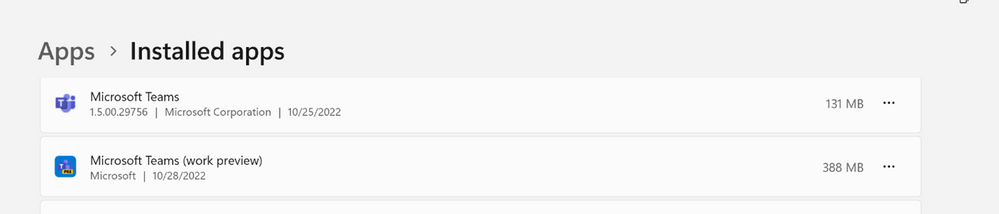
After they opt out, the toggle won't appear when they relaunch Teams. To prevent users from using this client, you can also request them to manually uninstall it from settings.

Installed Apps.png


  • As an administrator, you can also run an elevated command prompt to remove the new Teams client from user’s computer:
    • use Remove-AppxPackage Powershell cmdlet to remove new Teams from all users on the machine:
    • Get-AppxPackage *MSTeams* -AllUsers |Remove-AppxPackage -AllUsers
  • For an individual user without administrator privilege, use this command:
    Get-AppxPackage *MSTeams*|Remove-AppxPackage

For more resources, check out the new Teams page, read through our technical documentation, and learn more about the new era of Teams.

✇MTC Microsoft Teams Blog

What's new in Microsoft Teams Rooms and Devices at Enterprise Connect

The audience that gathers for Enterprise Connect is obsessed with finding the best tools for communications and collaboration. So when we first introduced Microsoft Teams at Enterprise Connect six years ago, we knew we’d found our people. And Microsoft Teams Rooms was there too, meeting a need our customers had for easier-to-use meeting rooms that introduced innovative new solutions for inclusive collaboration, with audio and video that gave everyone a voice. Since then, we’ve continued to expand our vision for what it means to meet together in meeting rooms.


Creating more flexible work spaces and experiences, doing more with less, and providing amazing customer experiences – these are the themes that bring us all together at Enterprise Connect this year, and we are here for it. The need for better hybrid meetings has exploded, while at the same time, many of our customers are looking for ways to reach their goals with simple solutions. And as always, our focus on delivering great customer experiences, for both end users and IT, are the reason why Teams Rooms are the most broadly deployed cloud connected rooms system on the planet. As we connect with you this week, we can’t wait to share how the ways we meet, communicate, and collaborate together will evolve next.


Expanding the ways your teams can join meetings and collaborate together

We are committed to delivering great meetings in every space across the end-user experience and ensuring that managing these rooms is as seamless and efficient as possible. We see that office spaces are in a moment of transition, moving from dedicated personal spaces to flexible shared spaces – or hotdesking. And we know that our customers want to achieve more with less, and have an easier time doing it.


Through collaboration with all our partners, we’re continuing to deliver great meeting experiences, while  helping to lighten the load for IT teams who have to manage numerous BYOD (bring your own device) rooms.


Cisco meeting devices natively run Microsoft Teams

As promised, native Microsoft Teams Rooms experiences are now available on Cisco’s high-quality, reliable video technology. Together, we are incredibly excited about what this partnership will bring our mutual customers – a broad portfolio of Teams-certified devices by Cisco, covering all workspaces.


Cisco devices certified for Teams will enable users to seamlessly connect from a native Teams Meeting to a Webex meeting, and back again. Customers will have the option to make Microsoft Teams Rooms their default experience, even as the devices will continue to support joining Webex meetings with all the features and functionality customers enjoy today. All Cisco devices certified for Teams will be manageable in the Teams Rooms Pro Management Portal for customers with the Teams Rooms Pro license.


The new Cisco Board Pro, available in 55-inch and 75-inch sizes, are among the first Cisco devices certified for Teams. The Board Pro is a touch board that enables video meetings, digital whiteboarding, annotating on shared content, access to apps, and wireless presenting.

The Cisco Board ProThe Cisco Board Pro


Teams displays: Even easier to use than before

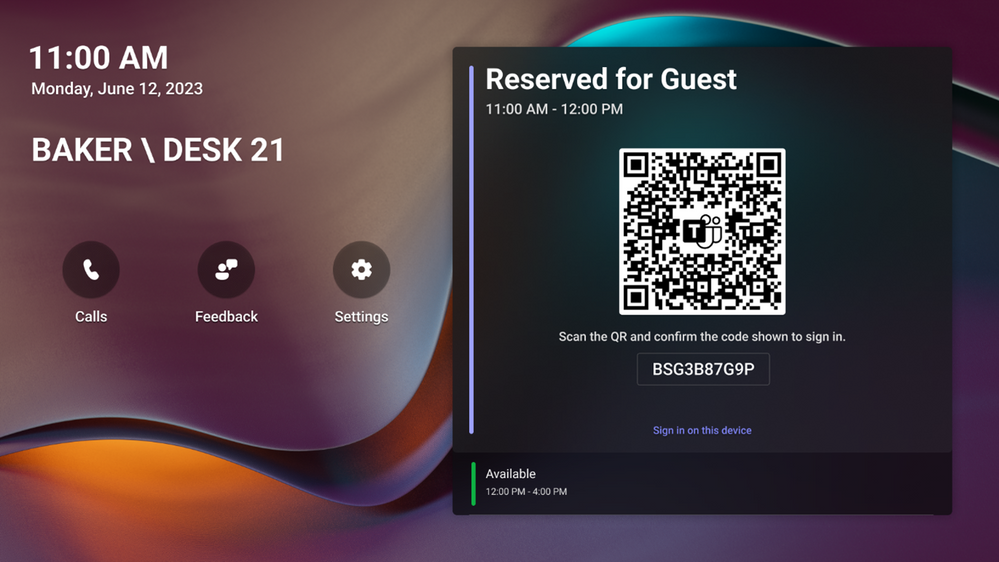
Teams displays with the hotdesk experience make it easy for you to reserve a seat in the office and know you will have a workspace when you arrive. In fact, with the latest QR code sign-in experience that will be available later this summer, hotdesking users can seamlessly access their personal Teams account by scanning a QR code on a Teams display and using the Teams app on their mobile phone to login faster. With this update, users no longer have to manually enter their credentials in the device, which slows down user productivity. This feature was introduced after running a few pilots of Teams displays in phone rooms around Microsoft’s campus. Our users involved in the testing process offered valuable feedback, telling us that logging into the device was tedious and inefficient, so the ability to sign in with a QR code should streamline this process.

Hotdesk QR code sign-in experience.png


Yealink DeskVision A24: Now certified for Microsoft Teams, the Yealink DeskVision A24 delivers productive personal or shared space computing as a Microsoft Teams display. The device includes several premium communications features with AI-powered audio and video capabilities. The A24 comes with dual-mode device connections as well as a powerful 4K camera, built-in speaker and mic, wireless charger, and even a hinge monitor design that enables the screen to be tilted and use for whiteboarding.


Great Teams meetings for every space

Delivering great meetings in every space across end users and IT admins – both enhancing end user experiences, and on making it easier for IT teams to enable, manage, and understand the utilization of their spaces – has been Microsoft Teams Rooms’ north star from the beginning. To continue to deliver on that promise, we are expanding our offerings for shared spaces that are smaller, lower profile, and lower cost. We like to call them BYOD (bring your own device) spaces, and they support our claim that  Microsoft Teams is for every team – including those that are focused on doing more with less.


On that note, later this year, for less than $1,000 you will be able to light up the front-of-room display, have a high-quality Teams meeting experience, and manage the space. Low-compute capabilities allow BYOD room screens to greet users with room details and calendar, with instructions on how to use the room, while IT admins can manage device firmware updates and access real-time monitoring and room utilization metrics via the Pro Management Portal. And when you see a room hit your utilization threshold in the Pro Management Portal, it’s easy to upgrade to a Teams Room for the most inclusive and collaborative shared-space meeting.


Many of our partners are also committed to delivering devices optimized for BYOD spaces. One we’re excited about is the Crestron AirMedia® for Microsoft Teams, which brings plug-and-play presentation and wireless conferencing capabilities to your BYOD space. With a single USB-C connection and a one-button press, the AirMedia solution delivers a more streamlined workflow for sharing content and meeting connections. No drivers to download, no applications to run. Simply plug in, press to connect, and you’re meeting-ready. 

Sample screen for a room using the Crestron AirMedia® for Microsoft TeamsSample screen for a room using the Crestron AirMedia® for Microsoft Teams


Expanding the availability of Teams meeting experiences across Windows and Android

This year, customers will enjoy more consistency in Teams Rooms user experiences and functionality across Windows and Android™, and new devices certified for Teams on both platforms.


Surface Hub 2S: Now a Teams Rooms on Windows device

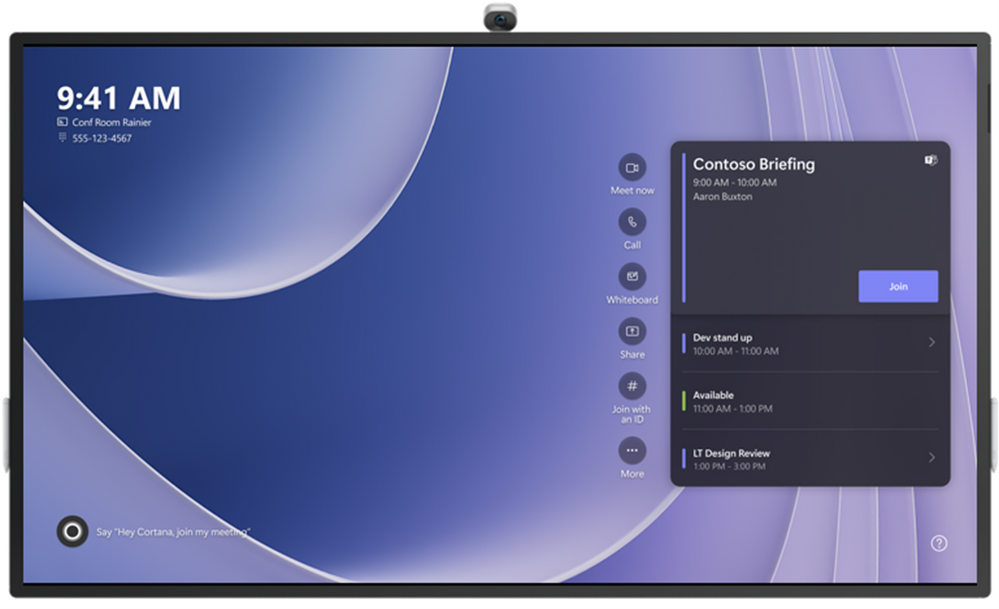
Welcome to the family! Surface Hub will join the Teams Rooms family later this year as the first touch-enabled board running Teams Rooms on Windows. Newly released Teams Rooms features will now come to Surface Hub on Day 1, so look forward to great hybrid meetings with layouts like Front Row (which will look beautiful on the 85-inch screen, if we do say so). And with streamlined management and compatibility with any Teams-certified Rooms devices, it’s easier than ever to add a Surface Hub for premium collaboration alongside traditional setups. To learn more about what’s coming to Surface Hub, visit the Surface IT Pro Blog.

Surface Hub 2S 85” running Teams Rooms on Windows (pre-release product shown; subject to change prior to commercial release)Surface Hub 2S 85” running Teams Rooms on Windows (pre-release product shown; subject to change prior to commercial release)


Announcing the Microsoft device ecosystem platform: the best of Microsoft and Android, tailored for shared spaces and optimized for Teams devices

We are excited to announce the Microsoft device ecosystem platform, which brings together the best of Microsoft and Android, tailor-made for shared spaces and optimized for Microsoft Teams devices. Built on the Android Open Source Project (AOSP), the platform delivers the security, reliability, management, and ease of deployment Microsoft is known for, and the diversity of hardware and software support that comes with Android. It is designed for innovation, with the extensibility and customization that manufacturers need to deliver innovative products with both hardware and software extensions.


The Microsoft device ecosystem platform delivers class-leading security tailored for shared spaces and features a class-leading collection of security and tamper resistance features including secure and verified boot, anti-rollback, access-controlled security policies, partition Logical Unit Number (LUN) locking and data at rest encryption.


With a hardware-based root of trust and attestation, built on Microsoft’s PKI cryptography and Qualcomm’s Trusted Execution Environment, the platform reinforces security with attestation by enabling secure identification of the device and its configuration. This is built with the advantage of the Qualcomm QCS8250 IoT chipset supporting multiple concurrent instances of VPU-based hardware offload video encoding and decoding.


The first device taking advantage of the new device ecosystem is from Jabra, with more to come from other partners. The Jabra PanaCast 50 Video Bar System is an integrated solution that includes a Qualcomm state-of-the-art system-on-chip (SOC) compute unit running Android, which will be upgradable to the new Microsoft device ecosystem platform. It also includes other specialized processors, as well as speakers, microphones, and video cameras, with network and display interfaces for easy deployment. The solution comes with a 10.1” touch controller to manage the room experience. The system natively and securely runs Microsoft Teams Rooms on Android.


“We are excited to partner with Jabra to bring the Microsoft device ecosystem platform to our customers and as its first adopter from the partner ecosystem building devices certified for Microsoft Teams,” says Dave Kearney, General Manager of Program Management at Microsoft. “Security, reliability, management, and performance are critical for businesses globally, and by building on the Android Open Source Project (AOSP) and partnering with Qualcomm, we are pleased to offer a solution designed for shared spaces which brings the best Microsoft has to offer across those fronts while providing flexibility and diversity in the hardware and software offered.”


Management capabilities are enhanced with native support for Intune’s latest Android (AOSP) management solution, Teams Admin Center, and the new Microsoft management watchdog service all of which ensure that devices are always responsive and ready to use.  Matching this, the PanaCast 50 Video Bar System is designed to adapt to evolving UC experiences and hybrid workplace needs with its AI-powered software-defined platform.


Microsoft Defender for Endpoint Plan 2: The best security solution for Teams Rooms devices

Customers have been asking, and we’ve responded. Teams Rooms is strengthening endpoint security for Teams Rooms Pro customers to provide the most secure Teams Rooms meeting experience. Microsoft Defender for Endpoint Plan 2 will be integrated into the Microsoft Teams Rooms Pro license and the Pro Management Portal, combining robust enterprise security management together with Microsoft Teams Rooms Pro management.


This integration will save Teams Rooms Pro customers money, with anti-malware protection from security vulnerabilities that eliminate the need to add other security services. Customers will also gain peace of mind with incident reporting that provides a 360-degree view of Teams Rooms health and security. The powerful set of security tools within the Microsoft Defender Security Center will also be available for customers' Teams Rooms alongside the rest of their endpoints.


Microsoft Defender for Endpoint Plan 2 will be added to Teams Rooms Pro licenses by the end of Q2 2023. This feature will be retroactively added to licenses that have already been purchased and will be available for all new Teams Rooms Pro license purchases. In the second half of 2023, the service will be integrated into the Teams Rooms Pro Management portal interface, proactively displaying security incidents across Windows-based Teams meeting room devices, with Android to follow. Learn more about the extensive security capabilities of Microsoft Defender for Endpoint at Microsoft Defender for Endpoint | Microsoft Security.


New user interface on Teams Rooms on Windows devices

First announced in January, a new modern, fluid interface is coming to Teams Rooms on Windows this month. Look forward to a homepage and function screen design refresh, five beautiful new themes, more intuitive messages, and enablement of custom themes with an organization's images and branding on meeting room displays. With the update (v4.16) this month, there is a consistent, familiar Teams Rooms experience across Windows and Android device platforms. IT Admins can find readiness guidance for the user interface update on the MS Learn site.


Microsoft Teams Rooms on Android updates

Teams Rooms on Android updates this month include meeting join and extension enhancements, more inclusive layouts, and more ways to collaborate and control content sharing. See all the details below.


Start an ad-hoc meeting

Quickly start an ad-hoc meeting with the Meet button, and invite participants to your meeting from the table console.

Start an ad-hoc meeting.png


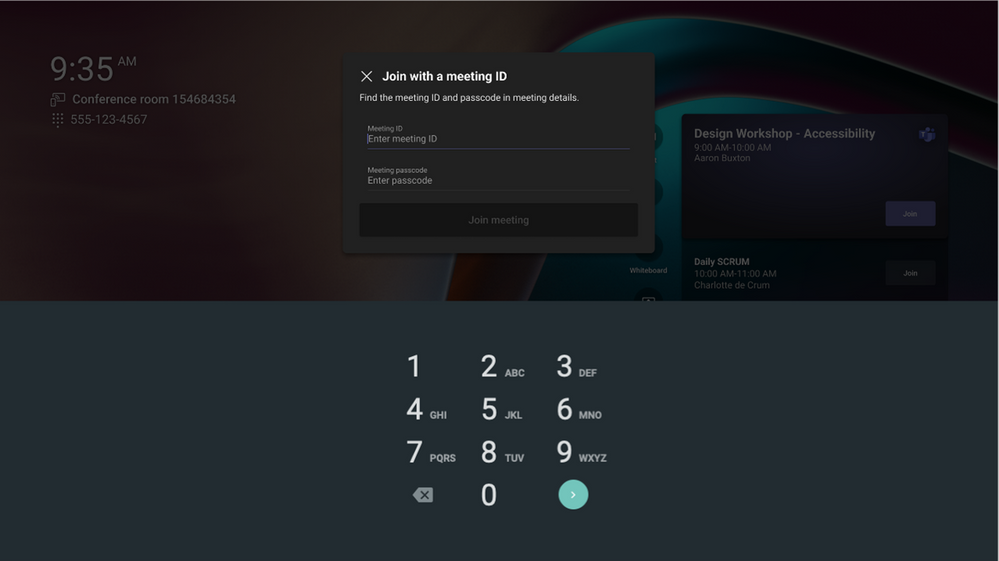
Join meeting by ID

When you need to join an existing meeting and your room wasn’t invited, you can join by ID from the console.

Join meeting by ID.png


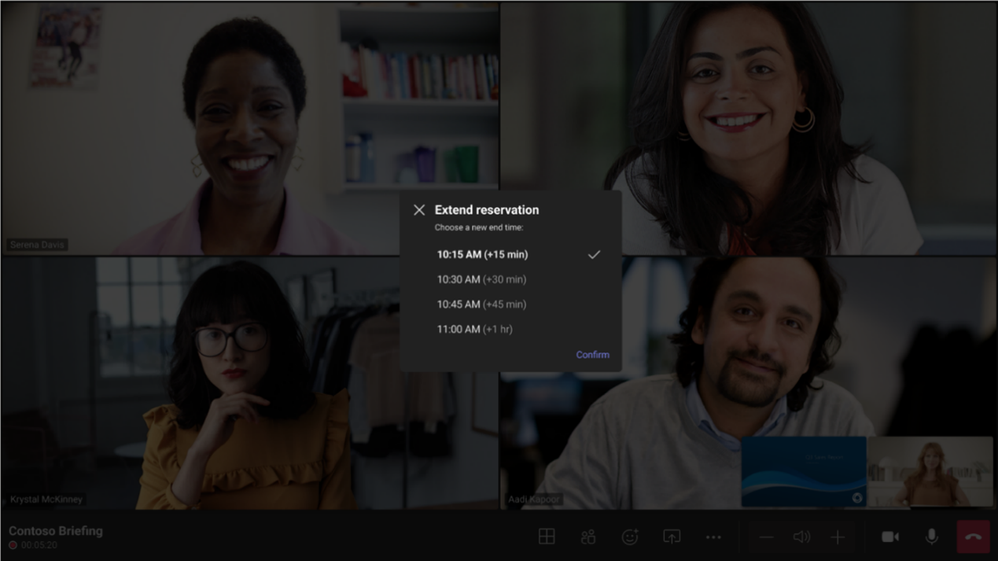
Extend meeting room reservation

On the occasion when your meeting needs to run beyond the scheduled time, if the room is available, you can extend the room reservation with one touch.

Extend meeting room reservation.png


Front Row now available for Teams Rooms on Android

Front Row, a layout experience designed to enhance hybrid meetings, is now available for Teams Rooms on Android. In-room users can see remote attendees at eye level on the front-of-room display, making for more natural interactions between participants whether they are in the room or remote. The meeting chat is available to the right of the content, so in-room participants can follow the meeting chat without taking their attention away from the display. Chat has been added as an option to every layout, including Gallery, Large Gallery, and Together Mode.


Opt-in to share content via HDMI

When sharing content over HDMI, including audio, admins can control whether content gets shared automatically or presenters are required to opt-in via a tap of the “Share” button.

Opt-in to share content via HDMI.png


Watermark camera streams and meeting content

It’s now easier to safeguard confidential information. Meeting organizers with a Teams Premium license can add a room account watermark on video participants’ camera streams and supported shared content.

Watermark camera streams and meeting content.jpg


Annotations on shared content

If a working session requires mark-ups and annotations, everyone can participate. When a participant joining from their desktop starts an annotation session with shared content, in-room users can see the annotations made, and can contribute from the touch display room device.

Annotations on shared content.png


Expanding the ecosystem of OEM devices certified for Microsoft Teams

As always, we love to celebrate new devices certified for Microsoft Teams rooms from our partners. We announced several newly certified devices yesterday, and today want to introduce you to the Poly Studio X70.


The Poly Studio X70 is the first large-room integrated video bar certified for Teams Rooms on Android. It sports a unique dual-lens ePTZ camera with both wide and narrow focus that captures everyone in the room with flawless, life-like video, transitioning seamlessly from one person to the next. The built-in Poly DirectorAI smart camera technology provides intelligent framing modes. Poly's innovative audio technologies empower participants to clearly hear and be heard by blocking out distractions.  

The Poly Studio X70The Poly Studio X70


That’s it for now. Whether we connected in person with you this year at Enterprise Connect, in a virtual meeting, or a hybrid space in between, we hope you’ll stick around to see how Teams Rooms continues to expand the possibilities for your team’s modern workplace.

✇MTC Microsoft Teams Blog

Avatars for Microsoft Teams in Public Preview


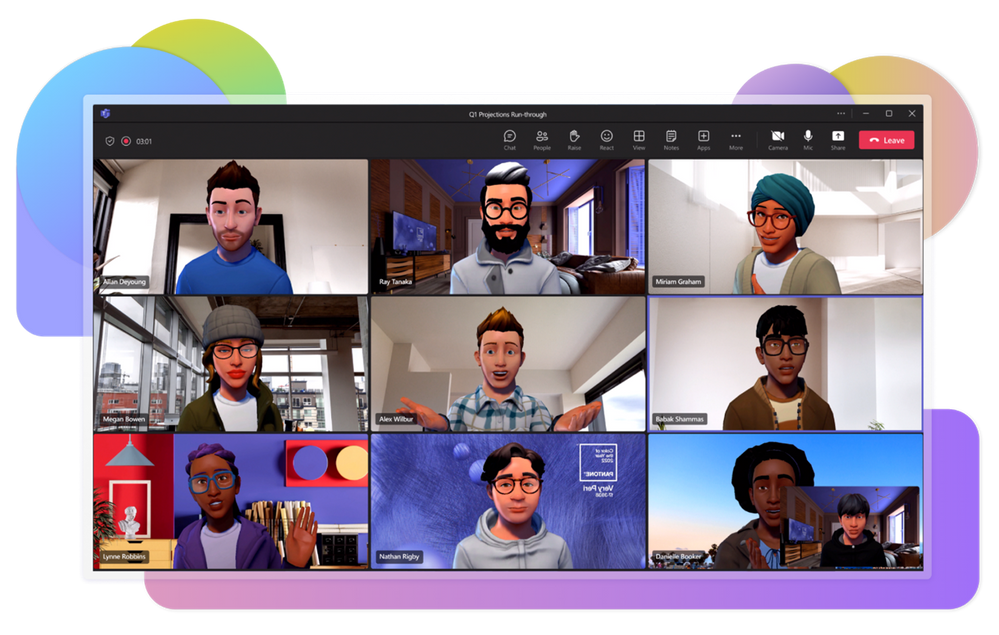
Avatars for Microsoft Teams begins rolling out to public preview today, in the Microsoft Teams desktop app on Windows and Mac.


A day of hybrid meetings can be exhausting, especially when you’re distracted by how you or your background looks. According to our research, video usage is highly correlated to meeting participation, inclusiveness, and effectiveness. However, only ~30% of participants meet with their video on. Avatars for Microsoft Teams offers an alternative to the current binary option of video or no video. Avatars for Teams gives you that much-needed camera break, while still allowing you to collaborate effectively. Include more people in the conversation— whether they need a break due to video fatigue, are joining from a different time zone, or just feel more comfortable with their video off.


Starting today, you can represent yourself the way you want with customizable avatars and reactions. Avatars for Teams public preview is currently available in the Microsoft Teams desktop app on Windows and Mac. It is not yet available in the consumer version of Teams or in the new Teams at this time. Learn more about enabling the avatars for Teams public preview experience here. For more information on avatars, visit our website.


Since we announced the release to private preview in October, we’ve made a few updates.


Improved performance and lighting for avatars

Our first step toward more realistic avatars is a new lighting system. This has improved performance and enhanced the appearance of avatar skin and hair.

Avatars before and after.png


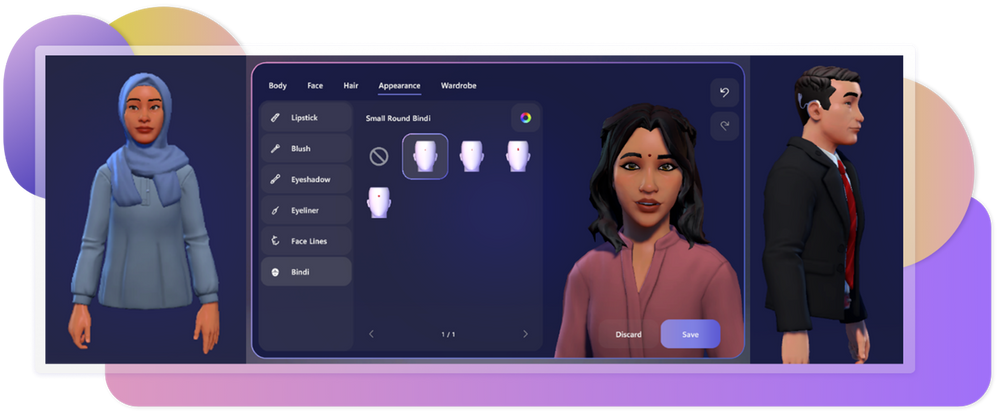
Additional customization options with wardrobe, headwear, and accessories

Represent yourself the way that you want. This new version will include a multitude of new customization options, like bindis and hearing aids.

Improved Avatars.png


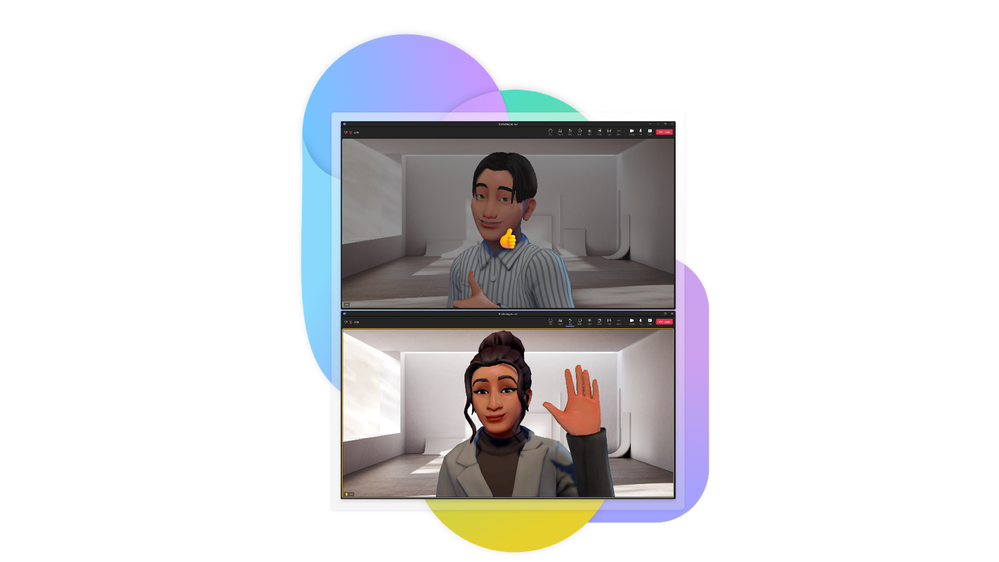
Animated emoji reactions

We understand that there is a lot that can be communicated non-verbally, so we’ve upgraded our reactions. If you react using the Teams emoji reactions, your avatar will mimic that reaction with their body. For example, if you utilize the raised hand reaction, your avatar will also raise their hand.

Avatar reactions.png


Avatars for Microsoft Teams: in Public Preview

Add a new layer of choice to your meetings. Connect like never before with avatars for Teams. Learn more about enabling the avatars for Teams experience here.

Avatars in Teams.png

✇MTC Microsoft Teams Blog

Introducing the new Microsoft Teams, now in preview

As we announced in this blog post, today we’re starting to roll out the preview version of the new Teams desktop app for Windows.


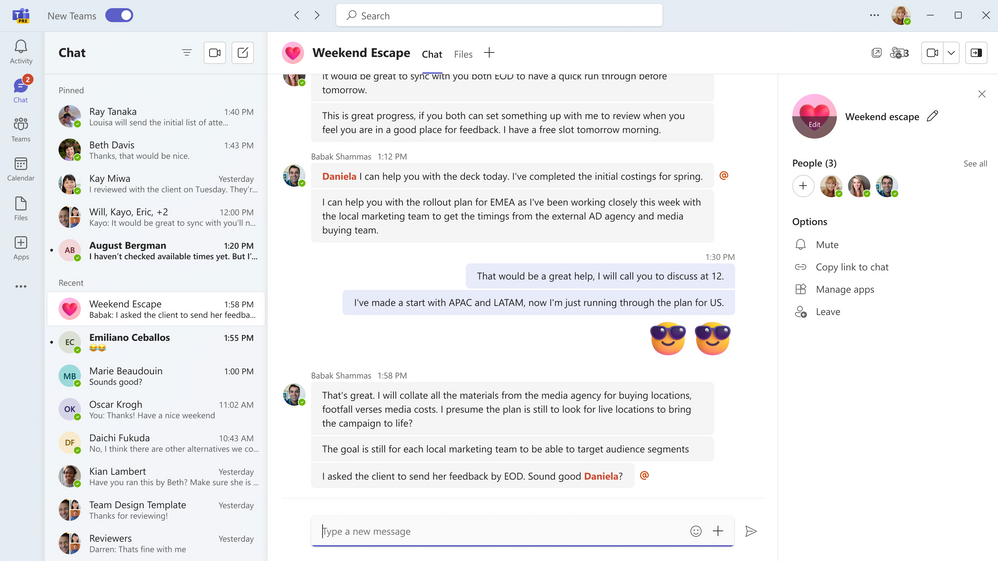
We have been listening to your feedback which has culminated in a reimagining of Teams from the ground up to provide a faster, simpler, and more flexible experience. New Teams is built on a foundation of speed, performance, and flexibility, to help you save time, and work together more efficiently.


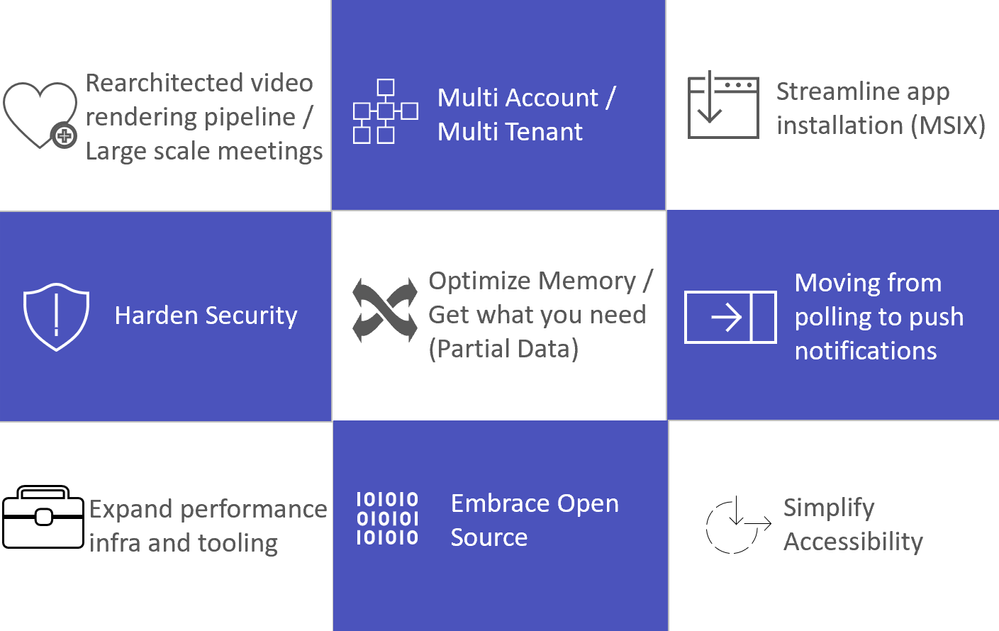
With the new Teams app that launches up to 2X faster and enables you to join meetings up to 2X faster, you can focus on what matters most to you. The new Teams has been optimized for more efficient use of system resources, using up to 50% less memory. It adds support for users that collaborate across organizations and manage multiple work or school accounts. You can be signed into multiple organizations and accounts simultaneously and receive notifications for all your accounts, no matter which one is currently in use. The new Teams also ensures simplified IT management and enhanced data security.

The New Microsoft Teams.png


Faster and more resource efficient

We made a significant investment to overhaul the Teams platform to meet our goal for new Teams to be twice as fast while using half the system resources.


To optimize navigation, we prioritized the user interactions that occur most frequently, including switching between different chats, channels, and activities. On average, a typical user switches ten thousand times per month, emphasizing the importance of a faster and more responsive experience. With new Teams, switching between chats, channels, and activities will be instant, without having to wait for content to load. A fast-scrolling experience is crucial for you to access relevant information quickly and efficiently. With the new Teams, we have lowered shimmering and reduced wait times. The change enables faster app responses to your actions. The new Teams app has been optimized for resource utilization to free up memory and disk space for other applications and provide compatibility with a broader range of computers.


We partnered with an independent benchmarking firm, GigaOm, that tested the performance of new and classic Teams across three different laptops (low-end, general purpose, and high-performance). GigaOm conducted tests comparing new Teams to classic Teams on areas such as installation behavior, application responsiveness, and impact on system resources such as memory and disk space.


These are some of their findings on new Teams' speed and performance improvements.

  • Install app up to 3X faster
  • Launch app up to 2X faster
  • Join meetings up to 2X faster
  • Switch chats/channels up to 1.7X faster
  • Consume up to 50% less memory
  • Consume up to 70% less disk space


Collaborate more effectively across organizational boundaries

We understand how challenging it is for you to collaborate across organizations and manage multiple work or school accounts. You cannot receive real-time notifications during calls or meetings across organizations or accounts. Switching from one organization to another or from one account to another interrupts your workflow since it requires you to log in and out constantly.


New Teams will enable you to collaborate more effectively across organizational boundaries by being actively signed into multiple accounts at the same time and receiving real-time notifications no matter which one is currently in use. You can seamlessly engage with users across multiple accounts and organizations without having to drop out of a call or meeting, ensuring no disruption to your workflow.


Simplify IT management

We want to deliver a cohesive management experience that streamlines the distribution of Teams desktop app on Windows devices and removes the complexity associated with user installation. Admins can now leverage application management tools like Microsoft Intune to simplify app deployment and updates. Since Intune supports deploying MSIX applications to client devices through the client app model, installing and uninstalling an MSIX-packaged app can be performed silently. IT Pros can define when a user gets updates to an MSIX and whether the update experience will be silent. Intune and MSIX packaging makes installing the new Teams app more reliable while reducing network usage and disk space, resulting in less idle memory usage.


Secure your business data

To reduce your risk from cyberattacks, we’re focused on developing solutions that help you prevent, detect, and respond to an attack. We have implemented advanced security measures to enhance the protection of our system, including the adoption of Trusted Types and implementation of a more stringent Content Security Policy. This results in increased protection against cross-site scripting (XSS) attacks for users of the new Teams app. Additionally, the MSIX packaging format ensures Teams is protected by Windows security features, and you have the latest app version with security updates and bug fixes.


Getting started with the new Teams

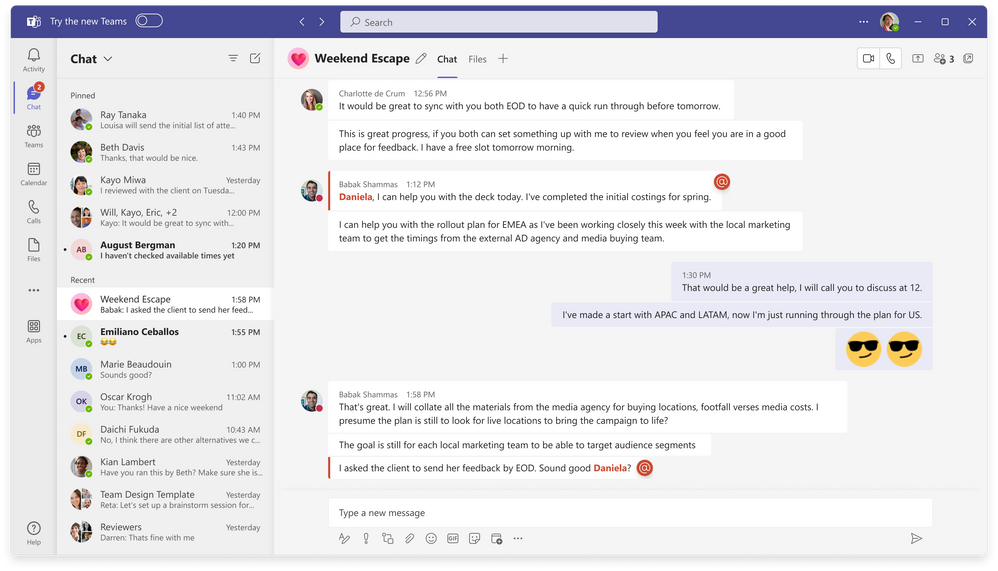
If you are in the public preview program, you will have immediate access to the Try the new Teams toggle. If you are in the Targeted Release program, you will have access to the preview of new Teams starting mid-April 2023. If you’re in production, your admins will have the option to opt-in by using the Teams update management policy to select which users in your organization can see the toggle and get access to new Teams.


Here is how you can preview the new Teams experience today:

1. Open the Teams desktop app on your Windows machine.
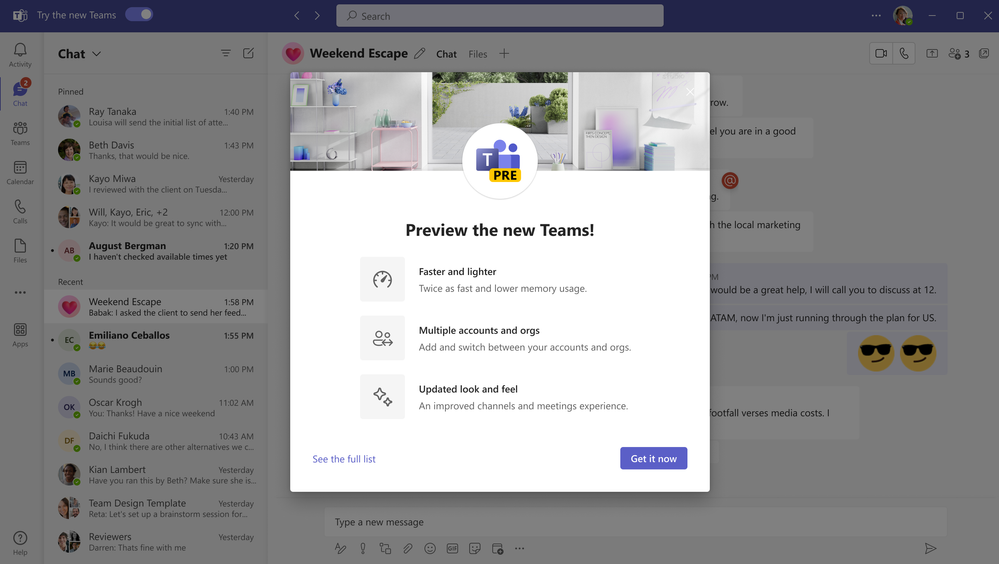
2. Turn on the Try the new Teams toggle at the top left corner of the Teams app.

Toggle to New Teams.png


3. Select Get it now from the pop-out dialogue. The new Teams will start installing.

Get New Teams.png


4. Your Teams app will reboot to open the new Teams experience. Any subsequent actions you take will happen in the new Teams by default, like joining a Teams meeting from Outlook.

Reboot to New Teams.png


How to switch back to classic Teams

It’s easy to switch back and forth between using the classic and new Teams. To switch back to the classic Teams, turn off the New Teams toggle at the top of Teams.

Switch back jpg.jpg


When you switch between the new and classic Teams, the version you’re currently using will close and the one you’re switching to will automatically open and become your default version.


Things to keep in mind

As you try out the new Teams, you will likely encounter some gaps as this preview release only includes some of the features available in classic Teams. Features such as 3rd party apps, Line of Business (LOB) apps, advanced calling features such as call queues, and advanced meeting capabilities, including breakout rooms, have yet to be released.


Availability

The preview of the new Teams app is currently only available to our commercial users on Windows. We’re working on extending the preview of the new Teams to a broader set of customers, including Education, Government Clouds, and platforms such as Mac, VDI, and Web later this calendar year. Check out the Microsoft 365 roadmap and What’s new in Teams page to stay up to date with the most recent product developments.


There is no direct impact to the Teams mobile app experience on iOS and Android since the new Teams is largely an architectural update focused on desktop, web, and VDI.


Experience the new Teams for Windows

We’d encourage you to be the first to preview the new Teams experience and provide feedback. Let us know your thoughts on new features and functionality as they continue to be released. We’re excited to hear from you!


If you have questions or want more information about the new Teams, visit our admin documentation, end user guidance, and adoption page.


Thank you for being a valued user and helping us shape the future of Teams.

✇MTC Microsoft Teams Blog

What’s New in Microsoft Teams at Enterprise Connect 2023

Welcome to the March 2023 edition of What’s New in Teams! This month we are combining the Teams announcements at the Enterprise Connect conference with our What’s New features. We have a lot to share this month. Let’s dive in!


Today, we have unveiled the new era of Teams, including the introduction of a new Teams desktop app in public preview for Windows. New Teams is a reimagining of the app from the ground up to be faster, simpler, and more flexible. Follow the announcements at Enterprise Connect to learn more about new Teams.


In addition to new Teams, we have a great line-up of new features to announce. This month brings 59 new features to Teams. My personal favorites are the Ultrasound Howling Detection to remove the echo that quickly escalates into a howling screech during in-person calls and the Avatars preview which can give me a much-needed camera break when I have a full day of on-camera meetings.


Please read about all the updates and let me know your thoughts! I’ll do my best to respond and answer questions as they come up.


New Teams

Faster

Some of the most common issues we received feedback on with Teams are the launch speed, meeting join time, and memory consumption. The goal for new Teams is to make it twice as fast while using half the system resources.


We partnered with an independent benchmarking firm, GigaOm, that tested the performance of new and classic Teams across three different machines (low-end, general purpose, and high-performance). GigaOm conducted tests comparing new Teams to classic Teams on areas such as installation behavior, application responsiveness, and impact on system resources such as memory and disk space. Here are some of their findings:

  • Launch app up to 2X faster
  • Join meetings up to 2X faster
  • Switch chats/channels up to 1.7X faster
  • Consume up to 50% less memory
  • Consume up to 70% less disk space

With new Teams, you will feel the difference in speed to help you stay in the flow of work.


Simpler
We’re constantly aiming to provide a simple yet feature-rich experience for our diverse and growing user base. That’s why the new Teams makes it easier to do more in fewer clicks. Here are some of the improvements we are bringing to new Teams:

  • Streamlined Actions: Less clutter simplifies notifications, search, messages, and channels
  • Personalized experiences: Threaded conversations, customizable group chats, and interactive emojis give users more expressive collaboration
  • Simplified meetings: Updates to the pre-join experience, gallery view, and screen sharing remove barriers to effective meetings

Simpler Teams.png


More Flexible

We have improved our authentication model, synchronization, and notification systems to provide a seamless and consistent experience. For example, many customers need to collaborate with people across organizational boundaries, which sometimes means they use Teams across multiple organizations and accounts. Instead of logging in and out of different tenants and accounts, you can now stay signed in across them all—receiving notifications no matter which one you are currently using.
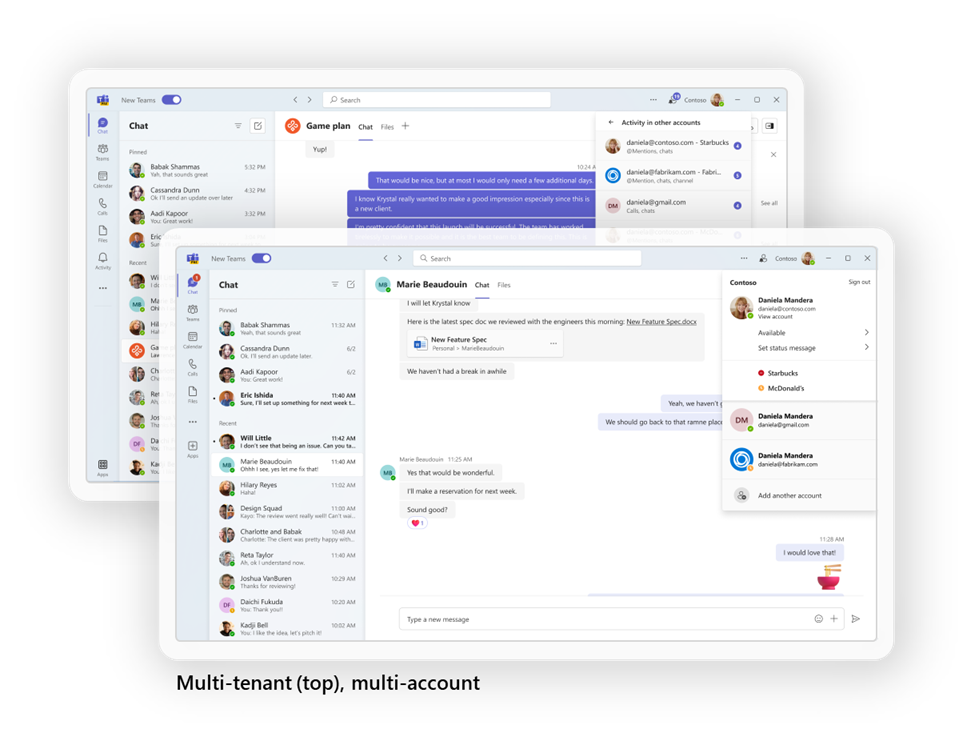
Multi-tentant, multi account.png


Enterprise Connect Announcements

The following announcements are coming out at Enterprise Connect and will be rolling out in the coming quarters.


Meetings

Collaborative notes in Microsoft Teams meetings
Coming to Public Preview in April, Collaborative notes ensure that each meeting helps you to drive your work forward with a collaborative agenda, co-edited meeting notes, and follow up tasks that sync with ToDo and Planner. The best part is these notes are Loop components, that can be copy/ pasted to places like Teams chat and Outlook. They are editable and stay in sync wherever they are shared. Whether you are in the meeting or not, you can access the notes from the meeting recap and check off any completed tasks!


Speaker Coach in Microsoft Teams Meetings
Speaker Coach provides private, personalized feedback on your speaking and presentation skills in both real-time as well as post-meeting in a summary. Now available in preview. Live insights are only seen by you and are not saved in recorded meeting transcripts. Read more here.
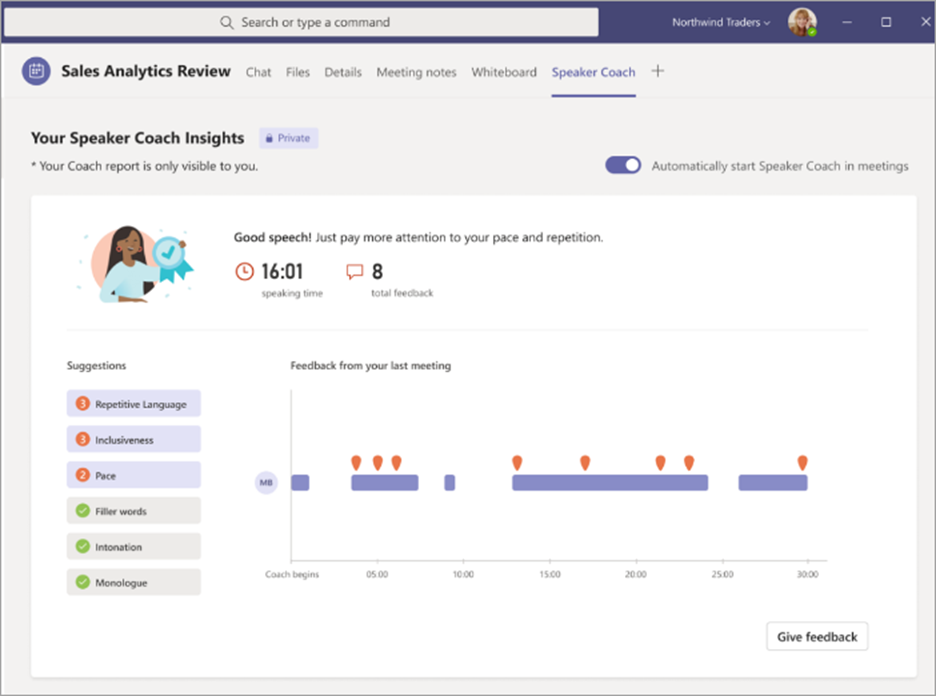
Speaker Coach in ActionSpeaker Coach in Action


Avatars for Microsoft Teams
A day of hybrid meetings can be exhausting, especially when you are distracted by how you or your background looks. Avatars for Microsoft Teams gives you a much-needed camera break, while still allowing you to collaborate. Represent yourself with customizable avatars and reactions. Maximize engagement by including more people in the conversation— whether they need a break due to video fatigue, are joining from a different time zone, or just feel more comfortable with their video off. Add a new layer of choice to your meetings. Connect like never before with avatars for Teams. Read more here.


Teams Phone

Dynamic emergency calling enhancements
If you are in the US, you can now easily set your emergency location in the Calls app on Teams with location recommendations. Next quarter, you will be able to set the emergency location on your Teams Phone devices without needing to rely on administrators to set the emergency location.
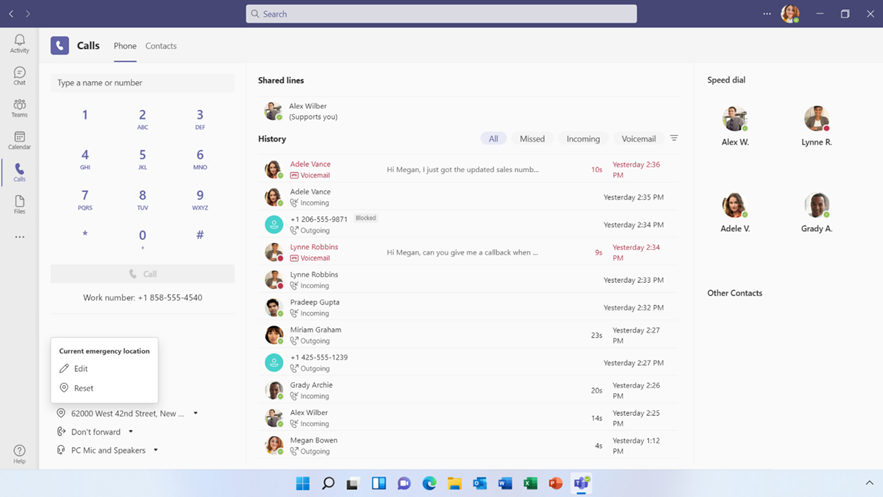
Setting emergency location on your Teams Phone Desktop or WebSetting emergency location on your Teams Phone Desktop or Web
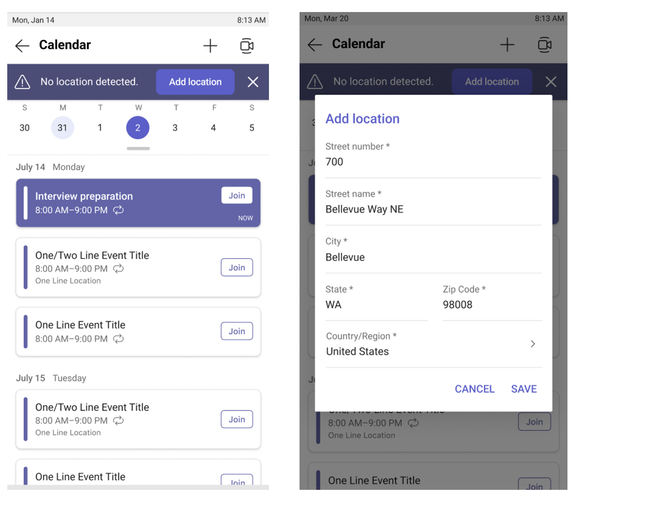
Setting emergency location on your Teams Phone DeviceSetting emergency location on your Teams Phone Device


Busy-on-busy settings
If you are busy in a call or meeting, you can minimize distractions with the ability to manage how incoming calls are routed. Busy-on-busy settings can be set directly from your Calls settings in the Teams app. Choose from the option to allow calls to come through, play a busy signal, or to redirect the call based on your unanswered call routing preference. Next quarter, you will be able to set busy-on-busy settings on Teams phone devices as well.
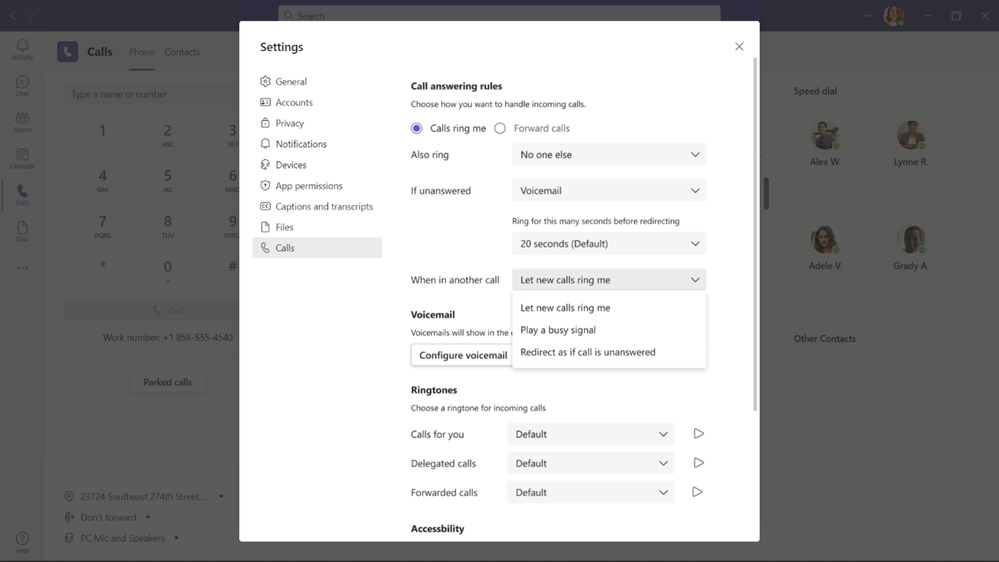
New Settings to decide how to re-direct incoming calls while you are busyNew Settings to decide how to re-direct incoming calls while you are busy


User managed call queue and auto attendant greetings
To adapt to changing environments, you may need to adjust their call queue/auto attendant greetings and announcements. This is required more frequently than what the IT helpdesk can typically handle. To solve this, we introduced user managed call queue and auto attendant greetings. Next month, if you are an authorized user, as identified by Teams tenant admins, you can change greetings and announcements for their respective call queues and auto attendant without leaving Teams. Call queue and auto attendant greetingsCall queue and auto attendant greetings


Click-to-call
In a world where everything and everyone is connected, customers’ expectations have evolved. Customers want quick answers and seamless interactions. Click-to-call makes it easy for customers to reach your sales and support teams directly from your webpage or app. Developers can add, customize, and program the widget to connect customers to a specific Teams user, call queue, or auto attendant. Click-to-call will be available in public preview next quarter.
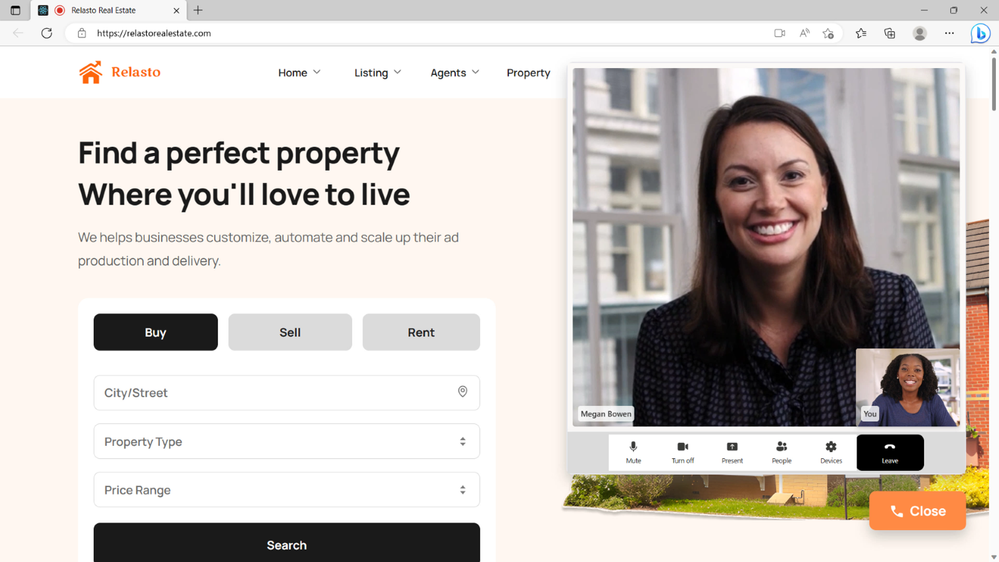
Click to call Teams.png


Hotline phones (Private Line Automatic Ringdown)
Next quarter, you will be able to program Microsoft Teams certified phone devices to directly dial a pre-configured phone number or contact, such as emergency services in a manufacturing plant or help desk in your organization. The hotline can be set up directly through the device settings or the Teams admin center. The device will need to be enabled with a Teams Shared Device License and set to common area phone mode.
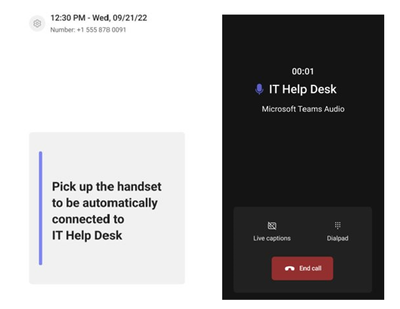
Pick up the Teams Phone device handset to auto dial the pre-configured phone number or contactPick up the Teams Phone device handset to auto dial the pre-configured phone number or contact

Configure hotline phones on Teams Admin CenterConfigure hotline phones on Teams Admin Center


Simplified call delegation UI and feature enhancements
Shared line appearance lets a user choose a delegate to answer or handle calls on their behalf. Next quarter, we will be launching a simplified experience in the Calls app and on Teams phone devices for users who have set up call delegation. Delegators will be able to view and join active calls handled by the delegate and grant delegates permission to join active calls.


Boss and Delegate experience on Teams Phone DeviceBoss and Delegate experience on Teams Phone Device


Teams Shared Device license on Teams mobile app for Android

The usage, importance, and range of experiences conducted on shared devices continues to evolve. Mobility is becoming a must have and many segments of the workforce rely on mobile devices to keep their business connected. To support mobile and flexible work styles, later this year the Microsoft Teams Shared Device license will be available on the Teams mobile app on Android. This will enable Android phones to be set up as shared devices. Walkie Talkie, call queues, auto attendants, cloud voicemail, call park and all other features currently supported for common area phones will be available through the Teams Android app.  Learn more about the Teams Shared Device license.

Teams Shared Device License on Android MobileTeams Shared Device License on Android Mobile


Teams phone devices UI updates
We are continuing to simplify the UI for Teams phone devices. Next quarter, we will be launching a redesigned dial pad to help with reducing unnecessary mistakes while dialing a phone number and offers a new dial pad only view in landscape mode if you primarily use their devices for placing outbound PSTN calls. The updated meeting experience and navigation will enabled you to more quickly join meetings and help them easily navigate across applications on their phone device.

Simplified navigation, redesigned Dialpad and Light weight meeting on Teams Phone DeviceSimplified navigation, redesigned Dialpad and Light weight meeting on Teams Phone Device


Virtual front desk
Virtual front desk helps Teams you interact with and provide personal assistance to customers and colleagues who are on-site through a video call on Microsoft Teams displays. IT admins can easily enable virtual front desk on Teams displays and configure the contact information of whom video calls will be routed to and the call to action on the device. This feature will be available through the Teams Shared Device license next quarter.

Virtual Desk.png


Chat and Collaboration

A New Channel Experience

Channels in Teams enable workgroups and teams of all sizes to come together in one dedicated space to exchange ideas, build collective knowledge, make decisions, and get work done. Last year, we announced a new channels experience, built with an intuitive design that allows teams to focus, stay on task, brings everyone up to speed, actively engages real-time. -- Today we are announcing the following features will be generally available in June.

  • The compose box and recent posts will appear at the top of the page. So now, it’s much easier to start a new post, keep up with the latest conversations and participate - giving you the confidence that they’ve not missed anything.
  • Every post is now a true conversation you can focus on. You can navigate to a conversation view that makes the discussion more engaging and synchronous, just like a chat. You can also pop out the post, keep an eye on the discussion, while continuing to work on other topics.
  • Hashtags referencing Viva Topics will provide context right in the channel on organizational topics without having to ask anyone else.
  • A streamlined information pane will include all the important contextual information like channel’s members and pinned posts so new team members can quickly on-board and for all members to find the information they need, right in the channel.
  • Pin posts to make it easy for everyone to know what’s important in the channel and quickly reference it.
  • Simplified badging is making it easier for users to understand when there are new unread activities in teams. In addition, the simplified design helps users focus on the specific channels which requires the most attention, like channels in which the user was @mentioned.
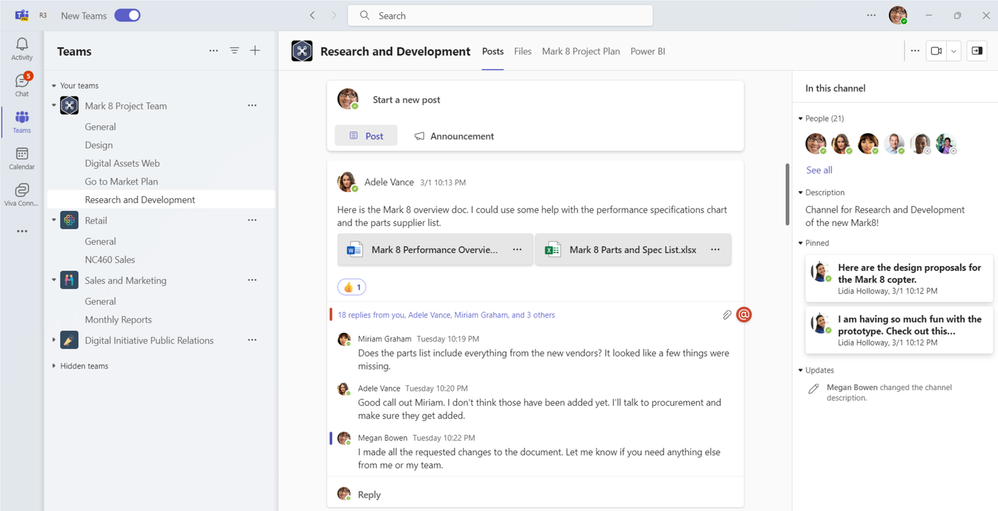
Simplified chat.png


Updated new file apps in Teams
Whether editing a Word document or collaborating in PowerPoint with a team, a new files app experience with an updated navigation panel enables you to quickly discover, access and share your files from your chats, channels, or meetings:

  • Home: Get back to your recently accessed files.
  • My files: Access your personal files saved in your OneDrive.
  • Shared: Find files shared with you and files you have shared with others across M365.
  • Downloads: Locate files downloaded from Teams on your computer.
  • Quick Access: Pin a Teams channel file tab or SharePoint document library to access quickly.

This new file experience brings consistency and familiarity with how files are stored, shared, and accessed across Microsoft 365 and OneDrive. This experience will be generally available in April
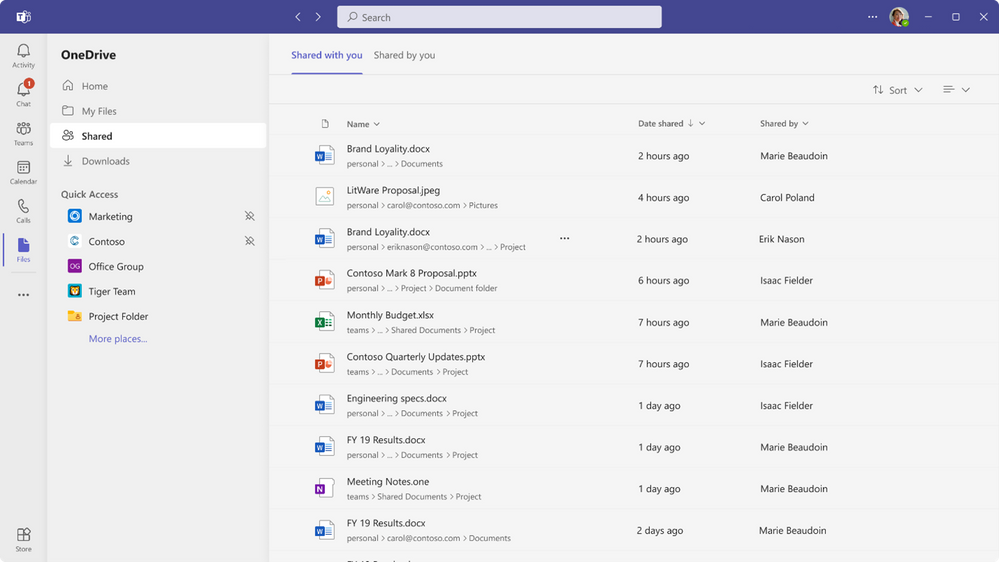
 

New files appNew files app

Frontline Workers

Viva Connections pre-configuration for frontline workers
We are excited to announce that Microsoft Viva Connections pre-configuration for frontline workers is now rolling out in GA throughout April. This experience pins Viva Connections in the number 1 position on mobile and desktop in Microsoft Teams, and includes a default dashboard tailored to frontline needs. It includes relevant adaptive cards for Tasks, Shifts, Approvals, and Top News, providing a quick way to access these key workflows and resources. For details about the tailored app experience for frontline workers, please refer to this documentation, and learn more about the latest enhancements to Viva Connections here.
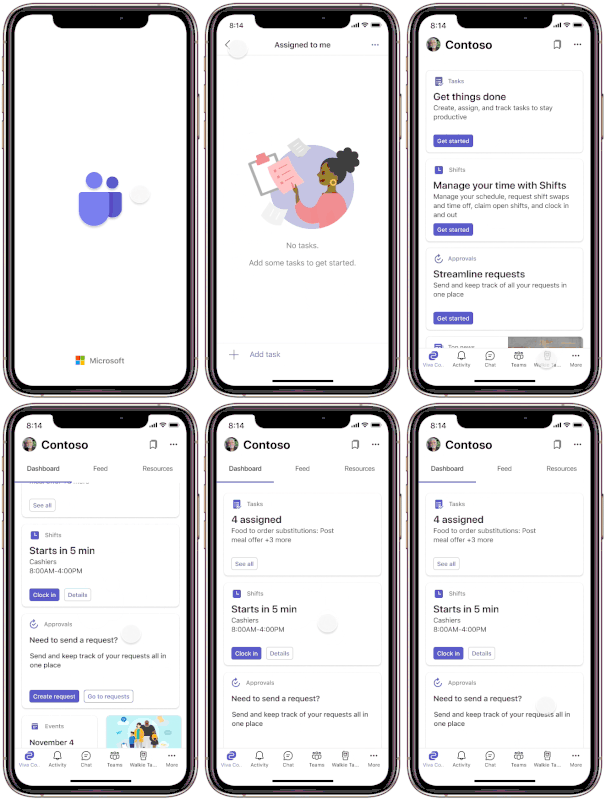
Viva connections pre-config for frontline workers.gif

New Teams Features for March

Meetings

Video filters in Microsoft Teams Meetings
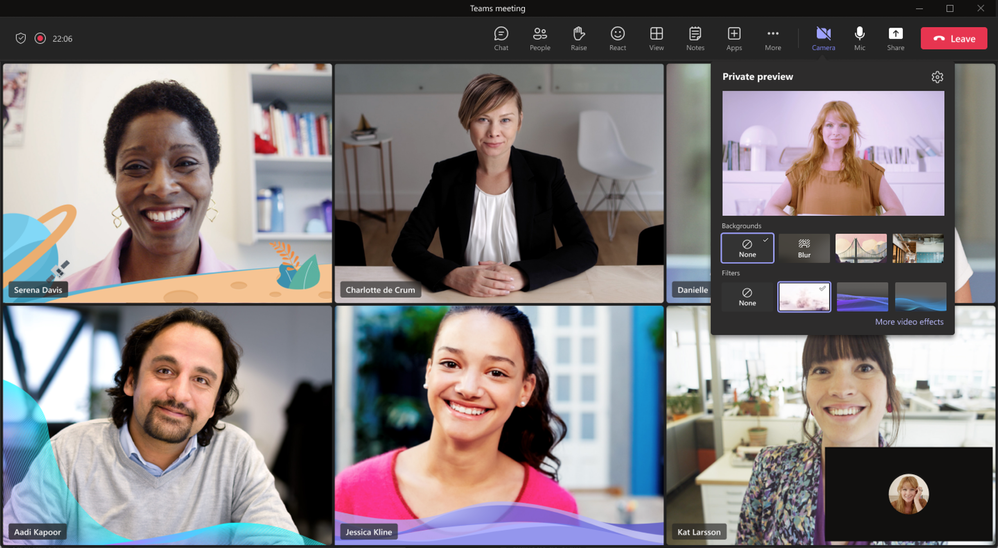
Microsoft Teams empowers users to feel their best with AI powered capabilities that let you soften the appearance of the video feed and add backgrounds. Now, we’re taking it one step further with video filters - allowing you to remove unwanted distractions and better express yourself by bringing your personality to each meeting. The filters enable participants in Teams Meetings to augment their video stream with visual effects ranging from animated frames to styles changing the video’s hue. You can apply these filters even before you join a meeting from the lobby. Read more here.
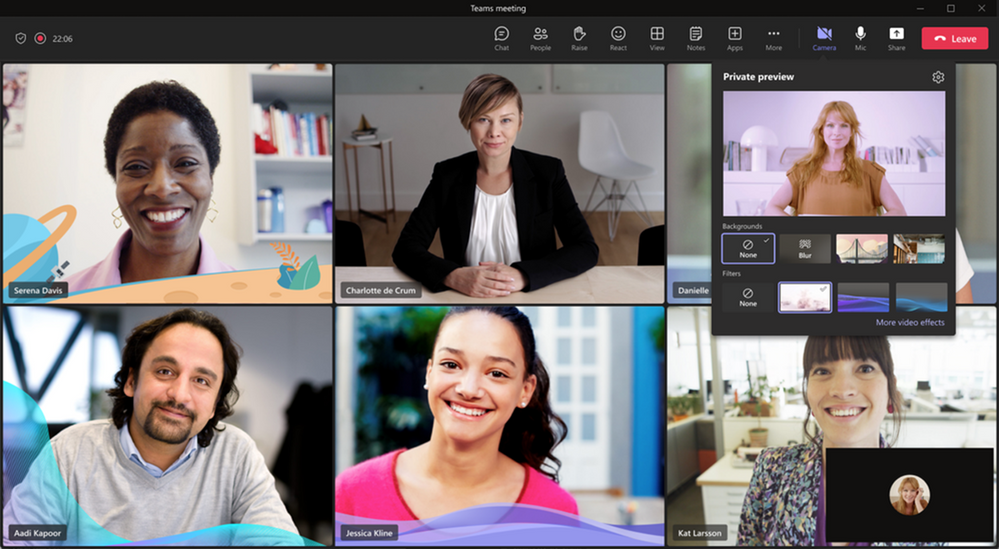
Examples of Video Filters AvailableExamples of Video Filters Available


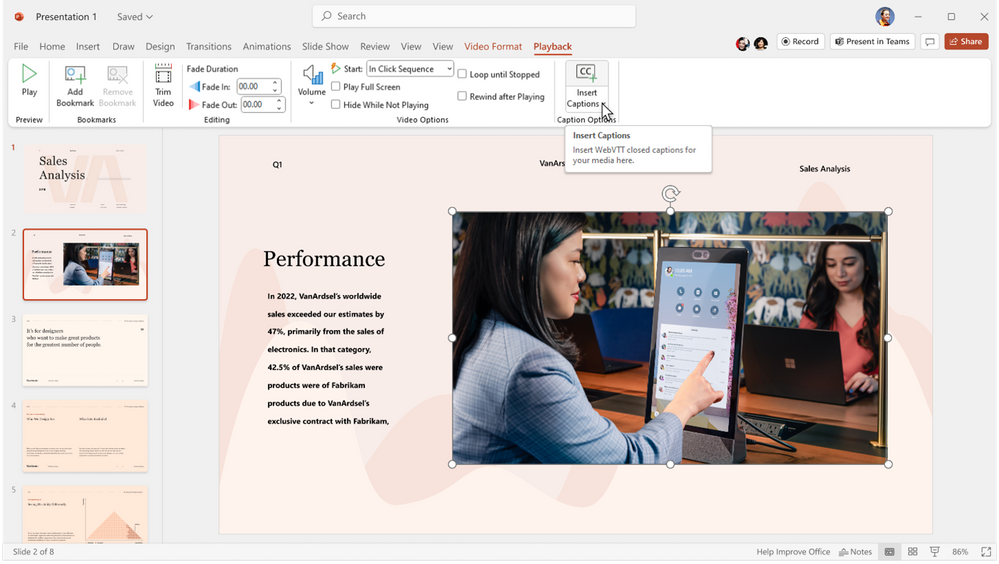
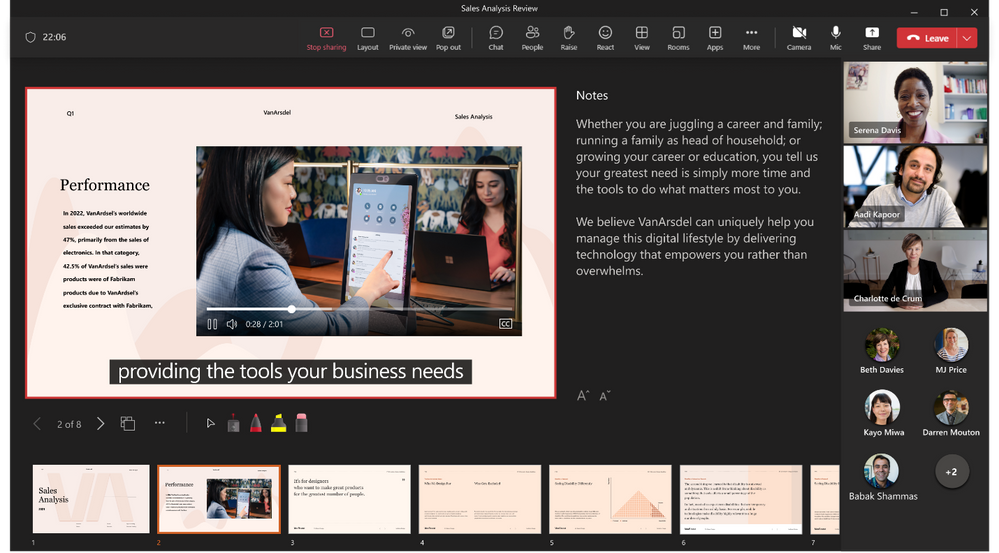
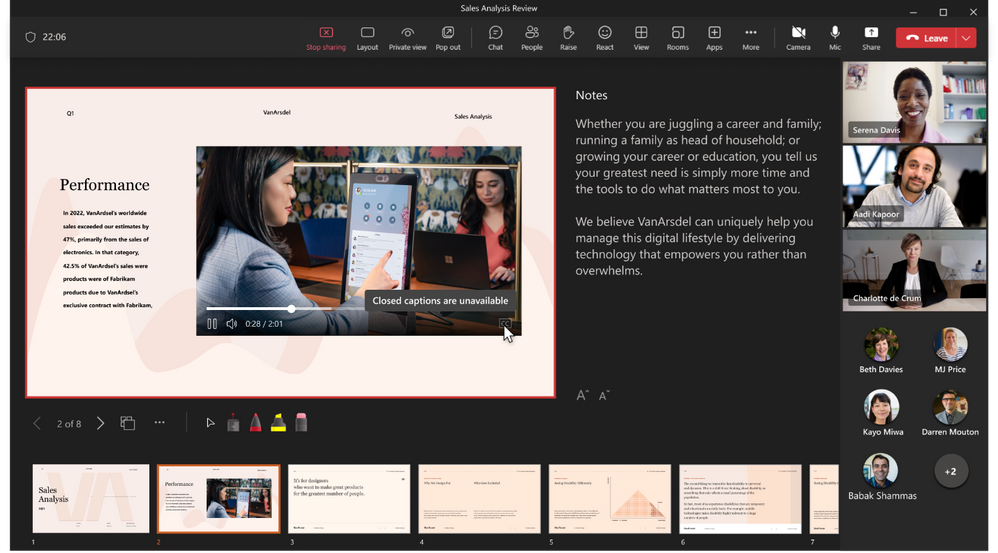
Video Closed Captions in PowerPoint Live
Closed Captions in PowerPoint Live aim to help those who are Deaf or hard of hearing, have difficulty processing auditory information, have a language barrier, or who are simply joining the meeting from a loud environment, to better understand the auditory content being shared. Meeting attendees will now have the option to turn on closed captions for any video that includes a closed captions file. Read more here.
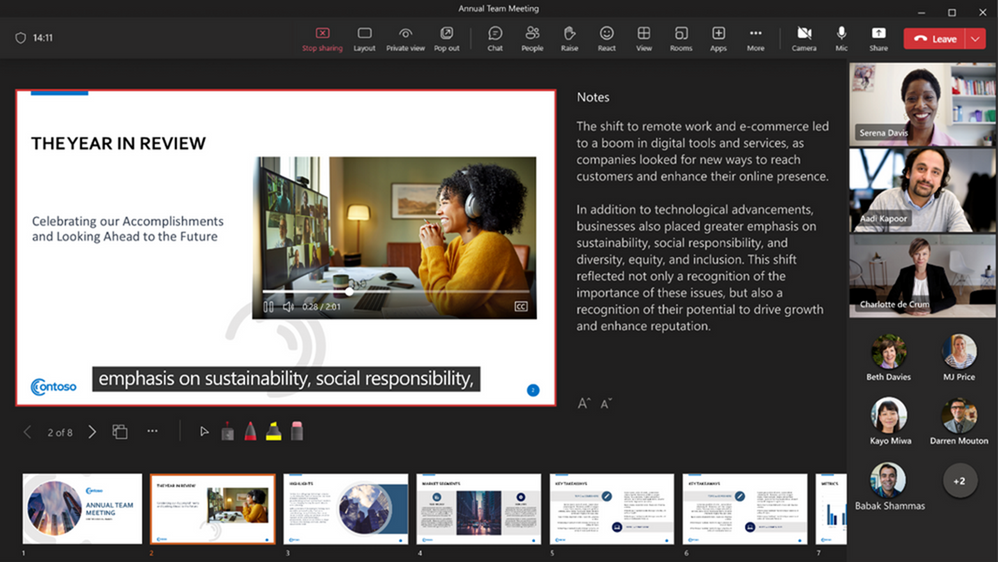
Insert Closed Captions to your Live PresentationsInsert Closed Captions to your Live Presentations


Whiteboard innovations
During the meeting enjoy a breadth of Whiteboard innovations including the ability to open your existing whiteboard in Teams meetings, quickly set up your whiteboard using one of the 60+ templates, invite others to follow your viewpoint as you navigate, identify collaborators through sticky note attribution, automatically resize your sticky note text, and format it as you see fit. You can also copy and paste Loop components into Whiteboard from Teams chat and soon from Outlook mail and Word for the web. The whiteboard you and your participants collaborated on, as well as shared comments, can be accessed in the Teams chat under the Whiteboard tab following the meeting. Read more here.
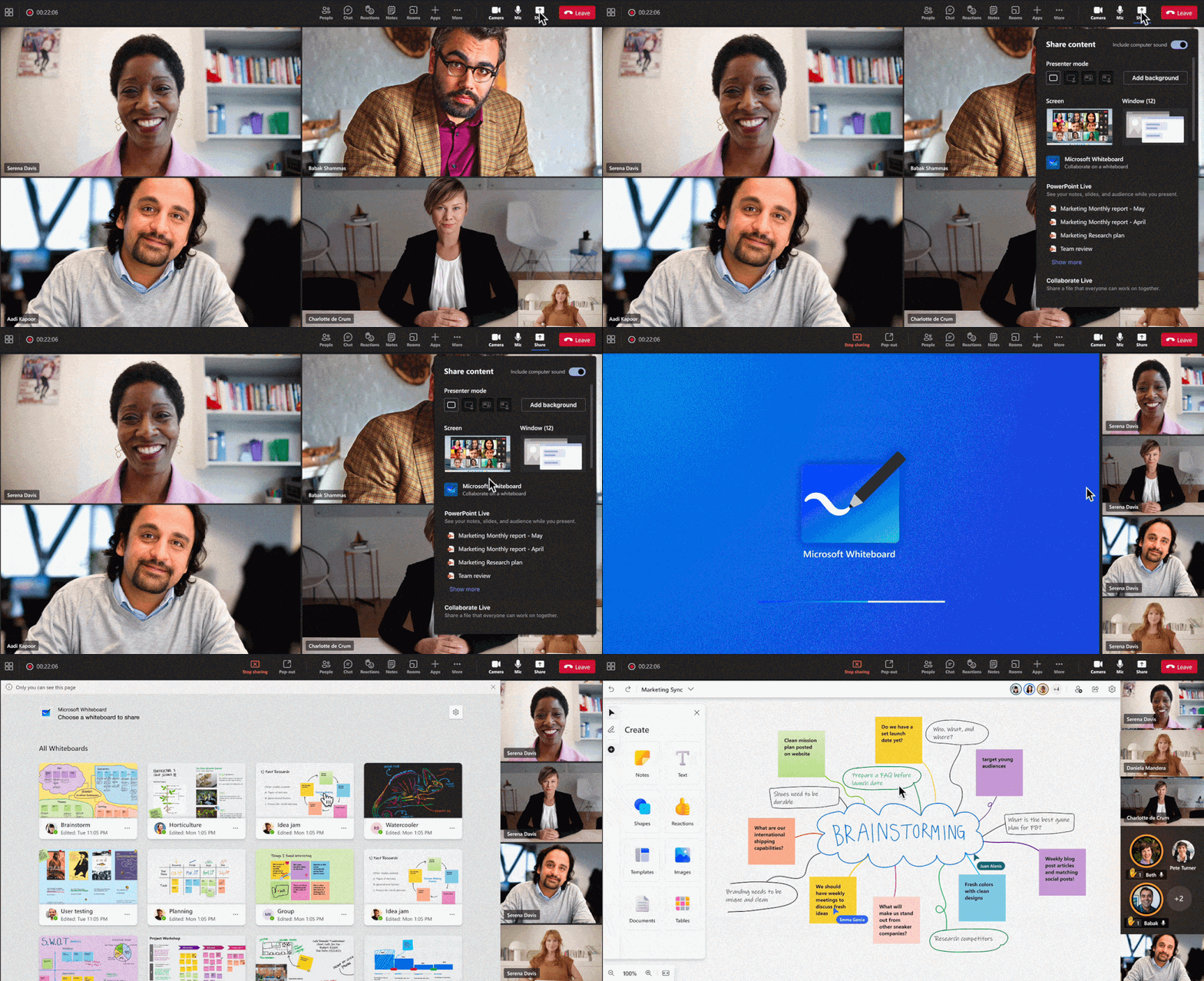
Whiteboard Innovations (1).gif


Automatic lowering of a user's Raised Hand after speaking
To reduce the number of stale raised hands in meetings, Teams will now suggest you lower your raised hand after we detect they spoke in the meeting. You will be able to choose to keep their hand raised. If the you doesn't take any action on the suggestion notification, we'll automatically lower your hand. This should ensure smoother meeting facilitation for organizers and presenters. Read more here.
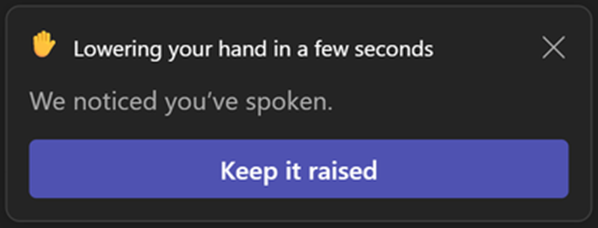
Automatically lowering your handAutomatically lowering your hand


Meetings toolbar improvements
The updated Microsoft Teams meeting toolbar makes navigating meetings and discovering new features and capabilities easier than ever. For example, you are now able to raise your hand from the meeting toolbar with the dedicated raise hand button, you can navigate the More menu easier from sub-menu groupings, as well as navigate the More menu easier from sub-menu groupings. Read more here.
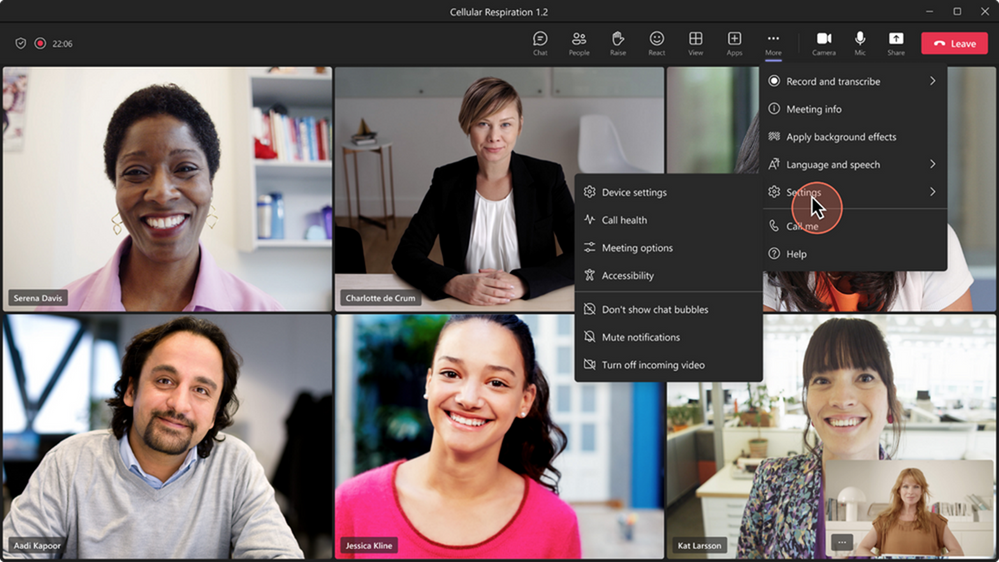
Updated ToolbarUpdated Toolbar


Support PSTN dial-in, dial-out, and call-me attendees in meetings to join Breakout Rooms for DoD and GCC High
Enabling dial-in, dial-out and call-me PSTN participants to join breakout rooms and come back to the main room when breakout rooms end. Read more here.

  • PSTN participants can be assigned to breakout rooms (manually or automatically).
  • PSTN participants can join breakout rooms and hear an announcement.
  • PSTN participants can join back to the main room and hear an announcement after breakout rooms are closed (manually closed or timer ends).
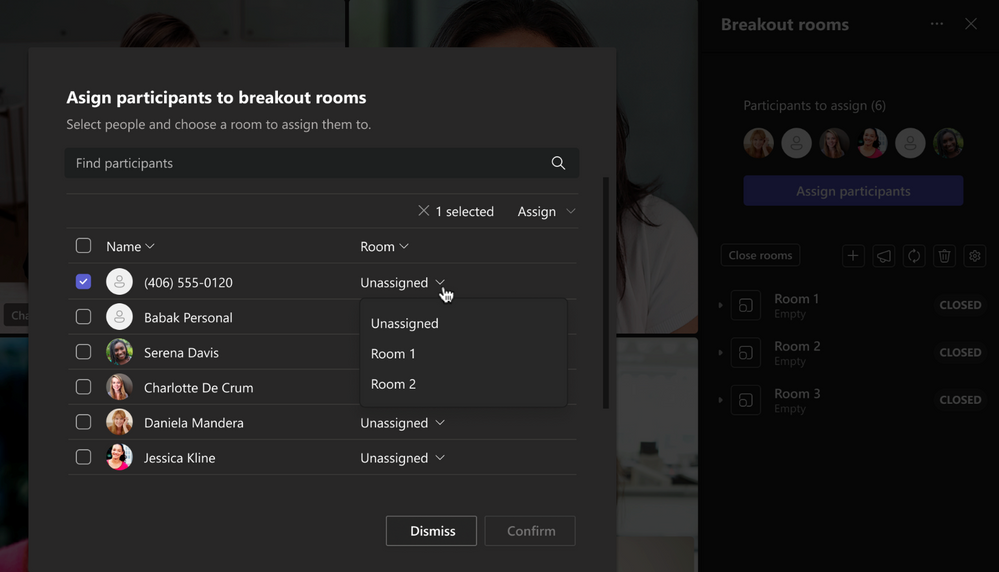
Support PSTN attendees in meetings to join breakout rooms.png


Ultrasound Howling Detection
When multiple people join a meeting in the same room then a feedback loop is created which causes an echo and in many cases the echo quickly escalates to howling (like when a musician holds the mic too close to a loudspeaker). If you a meeting with multiple other people on laptops join from the same location, we notify you that another Teams Device is detected in the vicinity and is already joined with audio to the current meeting. We will automatically mute the mic and speakers of the person who has joined after a you and has audio on. Read more here.
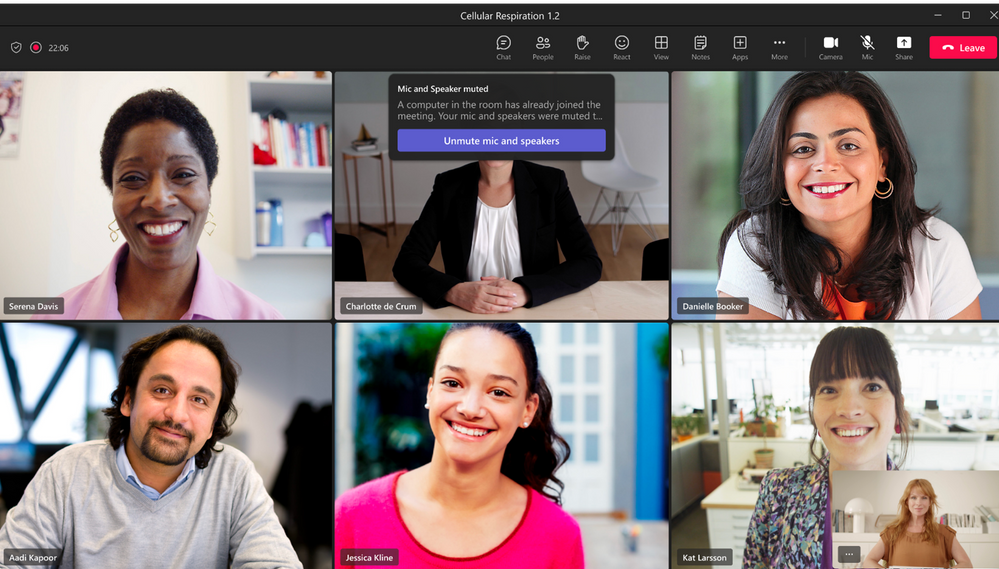
Automatic Muting to stop HowlingAutomatic Muting to stop Howling


Disable chat write access for anonymous or unauthenticated users
IT admins can now disable chat write access at the policy level for non-federated users and unauthenticated users who join Teams meetings through a link that must be used in conjunction with disabled meeting chat policy to provide additional security against data exfiltration. Read more here.
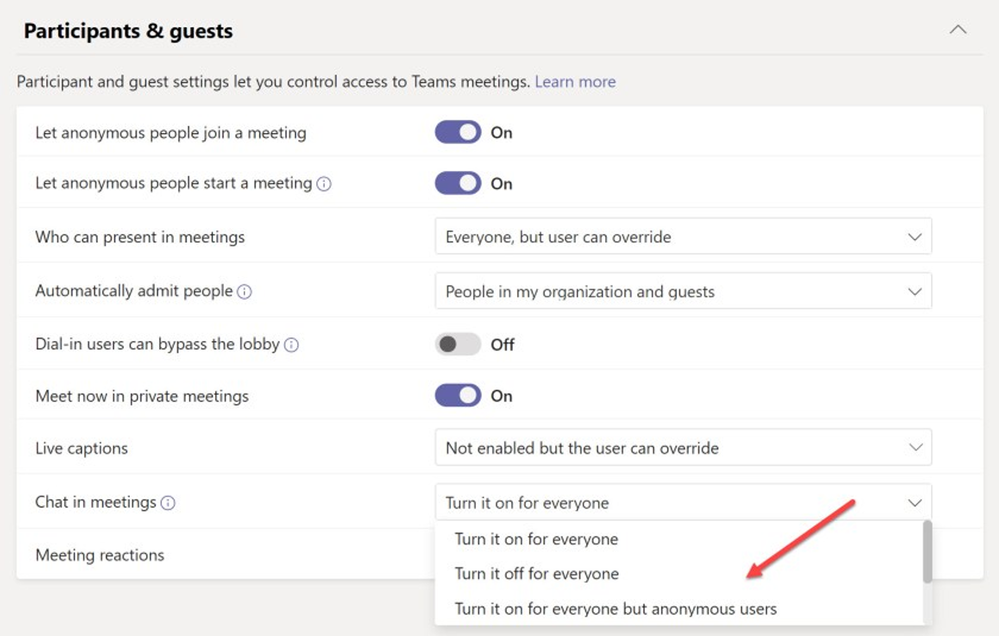
IT Admins can limit who IT can write in the meeting chatIT Admins can limit who IT can write in the meeting chat


Live Transcript in all available languages in Teams Meetings on Web
During any Teams meeting, you can start a live transcription of the proceedings. The text appears alongside the meeting video or audio in real time, including the speaker's name (unless they chose to hide it) and a time stamp. Live transcription can make your meeting more productive and inclusive for participants who are deaf or hard-of-hearing or have different levels of language proficiency. Participants in noisy places will also appreciate the visual aid. People can choose not to be identified in meeting transcripts. Read more here.
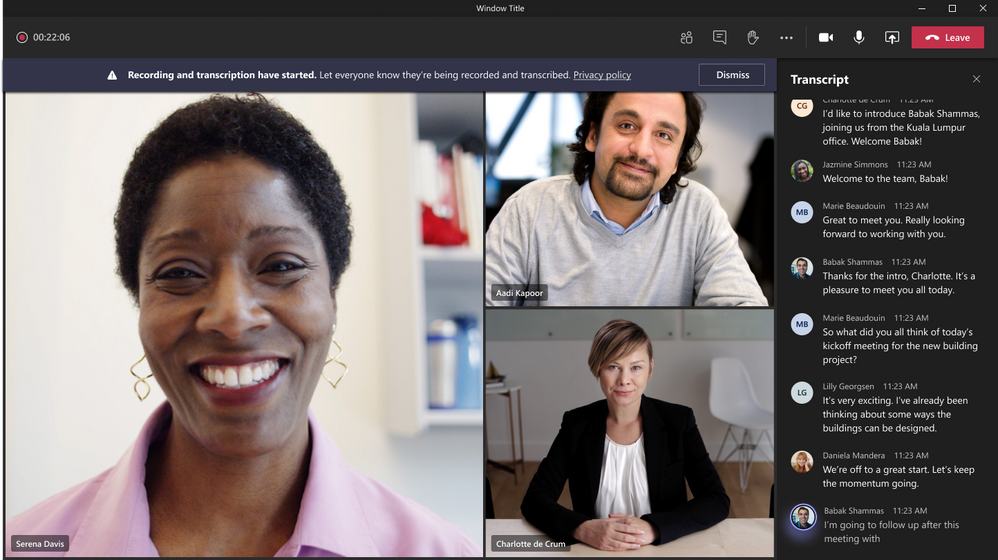
Live TranscriptionLive Transcription


Leave a meeting on all my devices
When you join a meeting using multiple personal devices, you can encounter friction when leaving the meeting, including forgetting to leave the meeting on one of their many devices. This functionality allows you to leave a meeting from all your devices with a single tap. Read more here.
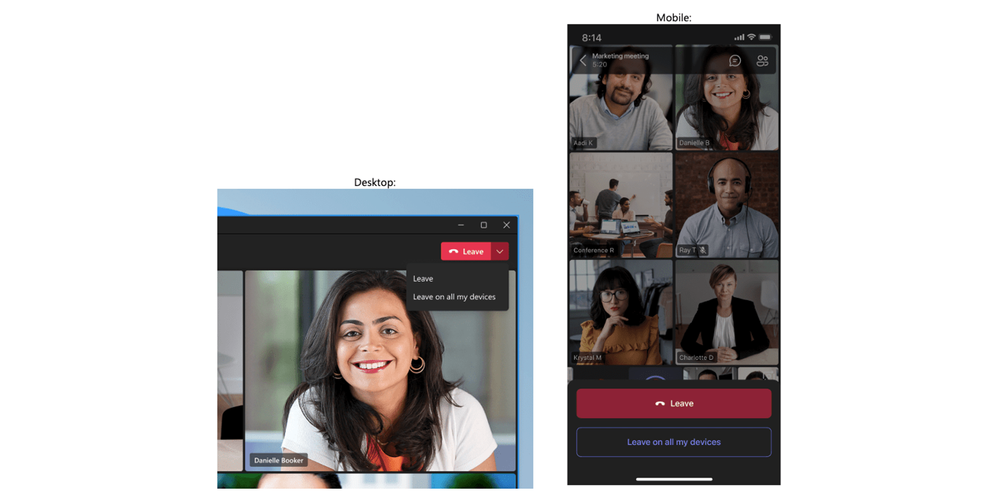
Leave a meeting on All DevicesLeave a meeting on All Devices


Teams Phone

SIP Gateway support for DECT devices from Gigaset

Last year, we integrated Digital Enhanced Cordless Telecommunications (DECT) devices with SIP Gateway, allowing frontline workers to use Teams calling functionality on DECT devices to communicate with colleagues while on the go. DECT device integration with SIP Gateway is currently available on specific models from Spectralink, Poly, Ascom, and Yealink. Compatible DECT devices from Gigaset are now supported as well. Learn more about planning for and configuring SIP Gateway in your organization and see the full list of supported devices.


Chat and Collaboration

Expanded view for profile card

We are introducing an expanded view of the profile card in Teams, giving you the ability to view details and build stronger connections with your collaborators. From Teams chats, channels, calls or meetings, you can easily look up richer profile data and learn more about who you are collaborating with including, contact information, job title, organizational chart, and their LinkedIn profile. Insights like birthdays, career updates, suggested tasks will also be included in your profile card, helping form personal connections by celebrating important milestones.
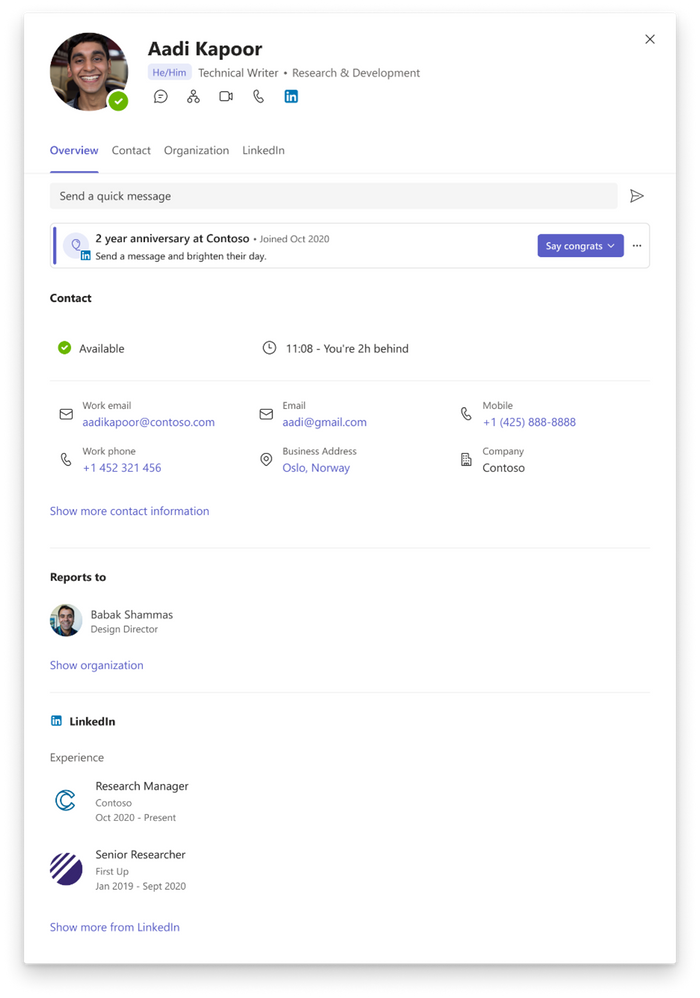
Expanded view for profile cardExpanded view for profile card

You can add pronouns to your profile card. Driven by our inherently inclusive mission at Microsoft, we are committed to creating workplaces that empower everyone to achieve more. By adding pronouns to your profile card, you can express who you are and help inform others how to address you. IT administrators will have the option to turn on this capability to empower employees to add their pronouns
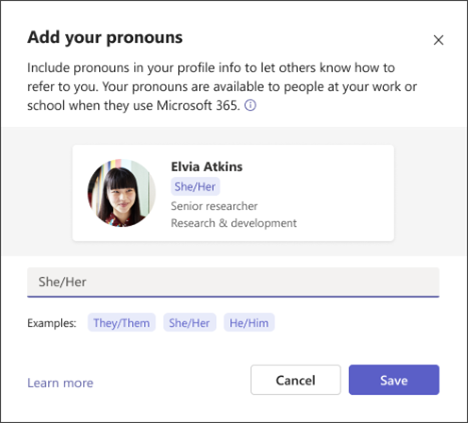
Add Pronouns to your Profile CardAdd Pronouns to your Profile Card


LinkedIn profiles of external people you communicate and collaborate with are now made visible in Teams. If LinkedIn is enabled in your organization, you will be able to view an external person’s public LinkedIn profile in the expanded view of the profile card in Teams alongside the chat conversation without ever needing to switch apps.


Teams Rooms and Devices

Lots of news to share – too much to list it all! For more information about the news we’ve announced this week, visit our What's new in Teams Rooms and Devices at Enterprise Connect blog article.


Newly certified devices for Microsoft Teams

In March, these devices were certified for personal peripherals:


Poly Voyager Free 60 earbuds

Voyager Free 60 UC is a hybrid work solution to meet every moment. With ANC and a three-mic array to isolate your voice, you’re confident both sides of the call are crystal clear. And the smart charge case doesn’t just go the distance — it gives you control at your fingertips, so you can connect instantly with your team, playlists, podcasts, and even inflight entertainment. Your IT department will also approve because they are certified to work with the latest meeting platforms, and they can be centrally managed from anywhere in the world.
Poly Voyager Free 60 earbuds.png

Jabra Evolve2 Headset (50, 55, 65 Flex models)
Jabra recently expanded its line of professional headsets, the Jabra Evolve series, to include mid-range headsets engineered for flexible work - the Teams-certified Jabra Evolve2 50, 55, and 65 Flex. These devices feature custom speakers for premium audio quality, dual connectivity, wireless range, and long talk time.

Jabra Evolve2 50(left), 55(middle), and 65 Flex(right)Jabra Evolve2 50(left), 55(middle), and 65 Flex(right)


Jabra SPEAK2 Speakerphones (40, 55, and 75 models)
This family of next generation, Teams-certified professional speakerphones deliver exceptional audio quality and portability for anywhere Teams Meetings.
Jabra SPEAK2 Speakerphones, 40(left), 55(middle), and 75 models(right)Jabra SPEAK2 Speakerphones, 40(left), 55(middle), and 75 models(right)


Yealink BH71 Pro Headset
The BH71 mono Bluetooth headset series delivers noise-free calling, great wireless range, and ultra-long hours of talking time.

Yealink BH71 Pro Headset.png


Bang & Olufsen (B&O) Beocom Portal Wireless Headphones
The new headset is a one-stop shop for all the audio needs of today’s hybrid workers. It features exceptional sound quality, noise-cancelling technology, and a comfortable, lightweight design that allows you to wear it for long hours without feeling fatigued. You can enjoy clear and crisp voice communication and collaboration with colleagues on Microsoft Teams.

Bang & Olufsen (B&O) Beocom Portal Wireless Headphones.png

Logitech Zone Vibe Wireless Headset

Logitech Zone Vibe Wireless, a modern and comfortable over-the-ear headset certified for Microsoft Teams delivers an immersive audio experience to ensure employees can hear clearly and a noise-canceling mic with beamforming technology to reduce background sound. Wireless reliability with a USB receiver protects against dropped calls and multipoint Bluetooth® enables easy switching between devices. Long battery life provides up to 18 hours of talk time.
 

Steve_Stein_0-1679958657122.png


Logitech Brio 305 and 505 Webcams

The Logitech Brio 305 and Brio 505 Teams-certified webcams.  The Brio 305 is a 1080p webcam that provides reliable meeting experiences. High resolution, auto light correction, and a noise-reducing mic allow employees to be clearly seen and heard. The Brio 505 is a high-quality but affordable 1080p HRD webcam that features an exciting new design. Besides providing a flawless meeting experience, the camera can be tilted down into Show Mode to let you present physical items in a video call.
 

Steve_Stein_0-1679958869378.png

Steve_Stein_0-1679958929647.png


Frontline Workers and Vertical Solutions

Virtual Appointments in Microsoft Teams
Virtual Appointments is a new Teams meeting type tailored for B2C meetings with people outside of your organization. Guests will get a meeting invitation that includes important appointment details and enables an easy join experience via SMS or email from any device—no need to install Teams. The Virtual Appointment app provides a single location where professionals and admins can create and manage scheduled and on-demand appointments as integrated with Bookings. It is further enhanced with Teams Premium, which unlocks a snapshot of the queue of appointments, a summary of appointment analytics, and options to manage appointments.


IT Admin and Security

Teams Admin Center: Simplified navigation
Simplified Left Navigation for TAC feature aims to improve the administrator experience by reducing clutter and simplifying the navigation process. The new Simplified Left Navigation feature allows administrators to pin their preferred menu options to the navigation panel, reducing clutter and streamlining the process of finding the information they need. With the click of a button, administrators can easily add or remove menu items from their pinned list, and then view their customized navigation by clicking the "Show Pinned" button. This way the navigation will be tailored to the specific needs of each administrator, making it faster and easier for them to find the information they need.
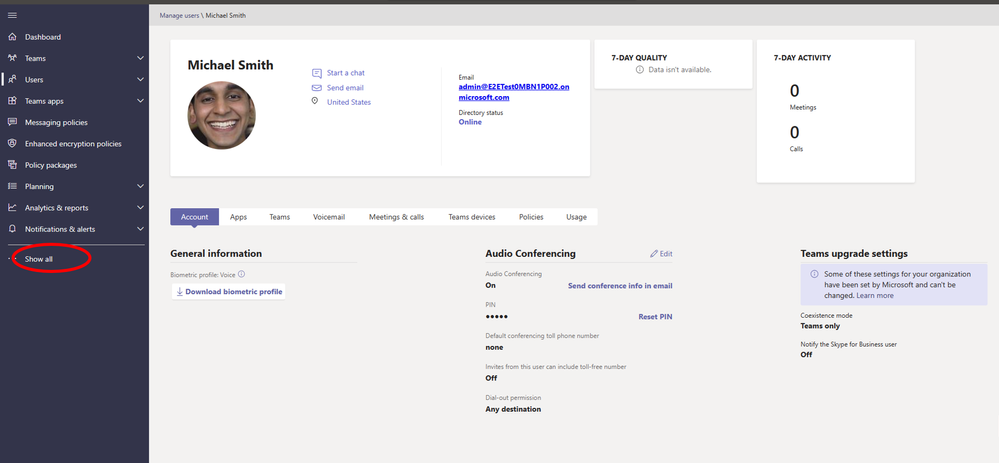
Teams Admin Center Simplified navigation.png


View users and groups assigned to a policy
Admins can view the list of assigned users and groups for a policy.


Teams Advisor guidance for Phone system deployment
Teams administrators can use Deployment Advisor for tailored guidance on deploying Teams Telephony to their organizations.


Export Teams list from Teams Admin Center
Administrators can export Teams list as a csv file from Teams admin center.


Mobile

Join meetings from calendar view on Apple CarPlay
You can now choose to join a meeting from the new calendar view on Apple CarPlay on your iPhone.


Text prediction for Teams mobile
When you compose or reply to a message in Teams, Editor Text Predictions anticipates your writing and suggests a suitable word or phrase inline. This saves time and helps you reduce typos.


Chat Bubbles during Teams meetings for Microsoft Teams Rooms on Android
Ability to view chats sent during a Teams meeting on the front of room display in a Teams Room, calling attention to the chat conversation happening alongside the meeting.


Platform

Five9 empowers customer service agents to deliver fluid and personalized experiences with support for Microsoft Dynamics 365 Channel Integration Framework 2.0
Five9, an industry leading provider of cloud contact center solutions, continues to innovate, growing our relationship with the Microsoft Digital Contact Center Platform and Microsoft Teams. With the announcement of a new version of the Five9 adapter for Microsoft Dynamics 365, which includes support for the Dynamics 365 Channel Integration Framework (CIF) 2.0, our joint customers can empower agents with multisession applications support, seamlessly switching between voice and digital interactions within Dynamics 365 Customer Service, creating more fluid and personalized customer experiences.


Power Automate Connector – Updates App (Microsoft 365)
Updates App (Microsoft 365) connector enables creation of Power Automate flows which trigger when an update is sent to the flow owner. Currently, the connector supports two triggers, 1) When a new update is received, 2) when a new update tied to a specific request is received.


Support apps in Channel Meetings
Teams meeting apps unlock the full potential of your meetings by making them more interactive, engaging, and productive. Meeting organizers and participants can now add apps to meetings in Teams channels for better collaboration and engagement across a variety of scenarios.


In-context Stores
The in-context stores are found in menus throughout the Teams experience that let you discover and install apps that support the specific context you are in. For example, when you open the Message extension (ME) in-context store they are shown a selection of apps that have the ME capability. Discovering apps in the in-context Store keeps you in your flows and reduces the confusion regarding the apps capability you face today when installing apps from the Store.


Visio: Visio personal app in Microsoft Teams
Visio will be available as a personal app, or private workspace, in Microsoft Teams. With a private workspace, you will be able to view and edit Visio files in a central location without leaving Teams. When using the Teams desktop app, you will be able to use the Pop out app option to open Visio in a separate window, allowing you to continue using Teams chat, call, collaboration, and meeting capabilities.


Teams with Dynamics 365 Customer Service
Dynamics 365 Customer Service now offers an opportunity to sign up for a private preview of the consult and transfer to Microsoft Teams users over VOIP feature. This allows service agents who are on a call with the customer to add internal experts that are on Microsoft Teams using voice over IP network (VOIP). Service organizations can save significantly on such calls involving experts, by using VOIP as opposed to traditional PSTN network. Customers can sign up by visiting this page and filling out their details.

Teams with Dynamics 365 Customer Service.png


New app called Microsoft Viva Sales
Microsoft Viva Sales is a new seller experience application that brings together a seller's customer relationship management (CRM) system, Microsoft 365 and Microsoft Teams to provide a more streamlined and AI-powered selling experience -- right from within the tools they use every day to connect with customers and close deals.


Teams Premium

Timeline markers in Teams meeting recording for when your name was mentioned
To help navigate meeting recordings more efficiently, we’ve introduced personalized timeline markers—that only you can see—which display markers within the video for when your name was mentioned during the meeting. The markers help you see who mentioned your name and in which context, and allow you to easily jump right to that part of the meeting. This feature is only available for customers who have purchased the Microsoft Teams Premium add-on offering.


Discover information that matters to you most with Intelligent recap in M365 Feed
M365 Feed is powered by Microsoft Graph and aims to help you discover and learn about people and interests relevant to their work. With Intelligent recap in M365 Feed, you can see what part of a meeting they missed, AI-generated tasks from the discussion, when their name was mentioned, a list of top speakers, and quick links to the full meeting recording and details page.


Events

Yammer Encoded Events powered by Microsoft Teams
Today in Yammer the video stream and production in a Live Event is powered by Stream. With this feature, all Live Events (production and the video stream itself, within Yammer) will be powered by Microsoft Teams.


Teams for Education

Grading Categories in Teams Assignments
Teams for Education is revamping its grading experience with grading improvements including weighted grading categories. Weighted grading categories allow educators to assign percentage weights to different types of assignments and can also be turned on in Grade settings. If a class is using grading categories, average grades will be calculated by multiplying the average score in each category by that category’s weight. This feature is rolling out this month!
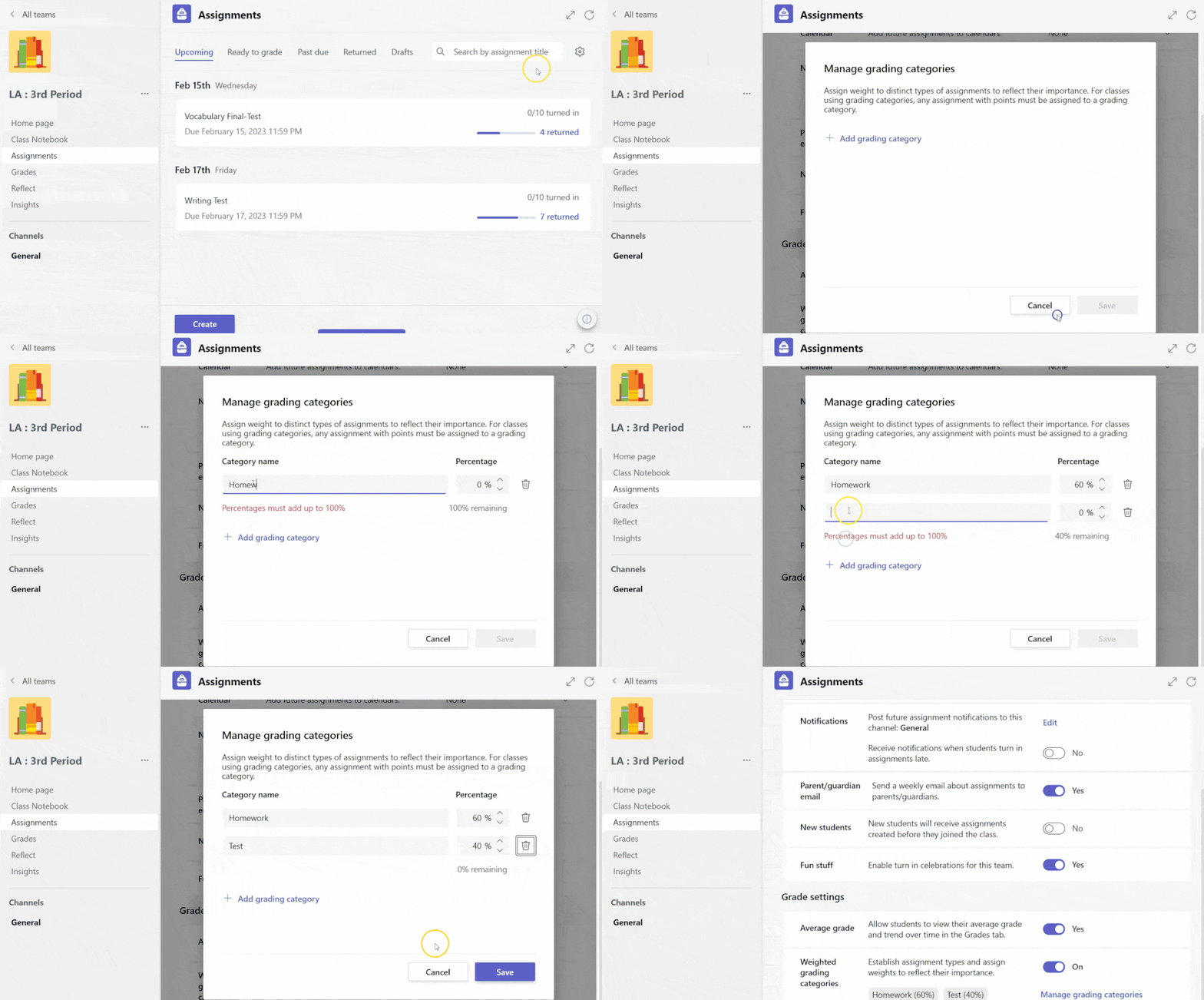
Creating Grading Categories (1)-min.gif


Government

These features currently available to Microsoft’s commercial customers in multi-tenant cloud environments are now rolling out to customers in the US Government Community Cloud (GCC), US Government Community Cloud High (GCC-High), and/or the United States Department of Defense (DoD).


SIP Gateway for GCC

SIP Gateway is now available for Government Community Cloud customers to enable core Teams calling functionality on legacy devices. For organizations with investment in SIP devices, SIP Gateway provides calling, meeting dial-in, voicemail and other core telephony features.

 

✇MTC Microsoft Teams Blog

Microsoft Teams: Advantages of the new architecture

Microsoft Teams has made a significant investment in the re-architecture of its desktop client, with a focus on providing a simpler user experience. This post shares insights into the goals and expected benefits of the modularization and layering that have been implemented. The consumer version of Microsoft Teams has already begun using this new architecture, and the preview version of the upgrade for commercial customers will initially be available for Windows , with support for web, Mac, EDU (education), and VDI (virtual desktop infrastructure) to follow later in the year.
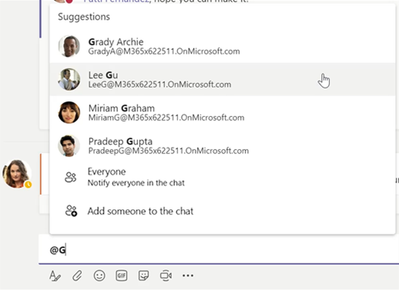

The classic client of Microsoft Teams used open-source software such as Electron as the host, AngularJS as the web development framework, and a variety of custom controls constructed using HTML and CSS. When the development of Teams began in 2015, these choices enabled the rapid delivery of cross-platform web and desktop clients. However, as the capabilities and innovation of Teams expanded significantly over time, it placed strain on device resources. Recognizing this, the team began analyzing available technologies, benchmarking, building prototypes, and defining the new architecture known internally as the "north star". Key decisions made included participating and standardizing on the Fluent UI collection of UX controls, transitioning from Angular to React for building user interfaces, moving data processing out of the main thread to a client data layer worker, and lastly, transitioning from Electron to leverage WebView2 as the host.

Classic vs New.png


To ensure a seamless transition for our customers and to continue delivering new value during the development of the new architecture, the following strategic approach was implemented. We first brought some of the components built using React/Fluent into the classic Teams client. While this enhanced the performance of the components it resulted in overall slowness and more resource usage because we were running two frameworks in the classic Teams client. The consumer client was then built based on the new architecture ground up, as it required fewer features than the commercial client and did not have a classic Teams client to shift from. This reduced risk by allowing us to validate the performance and reliability metrics of the new architecture in the consumer client, and in parallel continue to add high demand capabilities in the classic Teams client. The next phase was to extend the consumer client codebase to add support for the commercial capabilities to support this new Teams release while validating the performance improvements results.


Each layer encompasses advantages and benefit to your new Teams Experience:


Fluent UI
The Fluent UI collection of User Experience (UX) controls enabled us to standardize common components and achieve consistent results across platforms. The use of these responsive, cross-platform styles and controls led to improved responsiveness compared to many of our custom controls and ensured a consistent and cohesive experience across all devices. We are migrating to Fluent v9, which has notable performance benefits with CSS-in-JavaScript. More information on React Fluent UX can be found at https://react.fluentui.dev.


React
The decision to transition from AngularJS to React was primarily based on performance characteristics and benchmarking results specific to our use cases. This shift and choices with the re-write, has resulted in a smaller more modular codebase, improved support for shareable components, and increased responsiveness. We observed that React has been a better fit for our scenarios and it has been a beneficial move for the application’s overall performance.


Client Data Layer
One of JavaScript’s core is its single-threaded nature. To overcome this limitation, we implemented a solution by moving the data management to a separate worker, known as the client data layer. This enabled data fetch, data storage, data compliance operations, push notifications, and offline functionality to run in parallel threads, without adding contention to the main user interface thread. The client data layer is accessed via a GraphQL layer from the main thread, and Inter-Process Communication (IPC) serves as the connection between these layers. By offloading data processing off the main thread, we observed an improvement in the responsiveness of the user experience. Additionally, the segregation of duties has led to cleaner and more optimized code.


WebView2
The key benefits observed from the transition from Electron to WebView2 include reduced memory usage and a lowered disk footprint as resources are shared with Edge. Additionally, we have been able to take greater advantage of the native capabilities provided by WebView2 and ensure support for more up-to-date versions of Chromium (latest performance and security updates). WebView2 is available as an SDK for building hybrid cross-platform applications for a more efficient use of resources and better integration with the underlying platform, thus resulting in a more performant and reliable application. This transition has been a positive step towards delivering better user experience.


Going beyond the core technology upgrade we also invested heavily on performance, stability, ease-of-use, and greater flexibility. Below are some examples of these investments.

Teams Architecture.png


Rearchitected video rendering pipeline 

People's habit and expectation of online meetings significantly changed during the pandemic. The demand for more video usage in meetings and the intensity of usage exploded. While we worked to rapidly scale up our backend audio/video delivery infrastructure, we also rebuilt the client-side video rendering architecture in Teams to scale to the complexity and intensity of video usage. We developed from the ground up a more efficient meeting stage layout for improved video management, virtualized list for smoother navigation, and moved to a native compositor and renderer for media processing. The new video architecture is much more efficient in video processing, resulting in 50% less power consumption and enabled the Teams app to support more complex and advanced video features (e.g., 7x7 video grid, dynamic views) across a broader spectrum of hardware. While these enhancements were introduced in classic Teams, they are also being supported in new Teams with more enhancements to come.


Large scale meetings 

Teams meetings are widely used for large-scale communications at org-wide or company-level beyond point-to-point, small group collaboration. We made focused performance and scale improvements in our large meeting experiences in Teams where there are typically thousands or more concurrent attendees with heavy use of video and chats. Our optimizations ranged from batching and reducing IPC events, reducing the number of UI renders, and eliminating noisy experiences. With the optimization work, we can now deliver faster and consistent meeting join latency, in application responsiveness regardless of the size of the meeting.


Multi-Account / Multi-Tenant

We have undertaken a comprehensive overhaul of our support for multi-tenant and multi-account organizations. This includes significant enhancements to authentication, synchronization, and notification processes. User storage data, including apps built on the Teams Platforms, is isolated across tenants and accounts. As a result, users can now expect a smooth and improved collaborative experience across tenants and accounts with chat, calling, and meeting start notifications from all connected tenants or accounts, concurrently, regardless of which tenant or account they are currently active in. Tenant switching will also be seamless and significantly faster than ever before.


Streamline App Installation (MSIX)

To improve the distribution of our client to Windows devices, we have implemented support for MSIX. This has resulted in a marked improvement in the reliability of installations and app updates, as well as a decrease in network bandwidth and disk space usage. The Install being in the Program Data folder allows for one-time installation for all users of a device. Furthermore, tenant admins are able to leverage Microsoft Intune to manage Teams deployments and alleviate the user installation burden.


Harden Security

We have taken measures to add advanced protection of our system by adopting Trusted Types and implementing more stringent Content Security Policy. These efforts have led to a strengthening of our protection against cross-site scripting (XSS) attacks. Another key benefit of the MSIX installation of Teams is that it installs the app in the program data folder rather than the user profile folder which is not writable by the user and hence adds better protection against attacks that try to alter the installation.


Get what you need (Partial Data)

To address the challenge of managing substantial amounts of data and threads within Teams, which can negatively impact performance, we have transitioned to a partial data model. This approach involves only pulling down the necessary data to render a screen, rather than defaulting to pulling all data. This also greatly improved the memory and disk utilization of the product.


Moving from Polling to push notifications

We have moved from a polling-based system for updating policies, Calendar events, and pinned channels to a push model. This approach leads to a better user experience and reduces the burden on the client.


Optimize Memory

Some strategies used to improve performance sometimes come with a memory cost (e.g., caching data in memory or prefetching data or preloading code). While we do pay a memory cost for some these techniques, we added the ability to dynamically make these choices based on the usage pattern observed by the client. In addition, several of our optimizations for performance that involved reducing the amount of data being fetched, processed and stored locally significantly lowered memory consumption. One of the key elements of our architecture was better code bundling strategies so we could deliver only the required code. We also page out unused memory periodically by leveraging Windows and webview2 APIs.


Expand Performance infrastructure and tooling

In order to meet performance targets, we have expanded our internal performance tooling and infrastructure. Expanded automated tests are run and must pass through established gates, and experimentation scorecards that can block pull requests, after every check-in, and any changes that result in a performance regression are either reverted or optimized to address the issue. This process is supported by extensive dashboards, alerting systems, and a dedicated performance team. In addition, through continuous partnership with Edge we have made several tooling enhancements (e.g., detached elements tool or symbol unminification support) available for everyone.


Embrace Open Source

We remain committed to utilizing open-source code in our development process. For instance, we have implemented the use of lage, which has resulted in faster build times. Additionally, Playwright has proven to be a reliable framework for testing and automation. This has made us more agile, and we have found that often these open-source packages offer the best of breed and bring the best performance characteristics. The Fluent UI React controls used in the new Teams app are available in the following GitHub OSS project: https://github.com/microsoft/fluentui


Accessibility

In the new Teams we have also added more efficient keyboarding for Activity, Chat and Teams, Context sensitive help for keyboard shortcuts, support for Windows 11 High Contrast, and improved performance for screen reader users. Taking advantage of our native integration with Windows 11 the new Teams leverages the operating system toast notifications that honor Windows 11 settings like do not disturb and the notification center.


New Teams Desktop Architecture

Exploring the architecture further, the accompanying diagram presents a broad overview of the primary elements that comprise the desktop client architecture. The native host takes advantage of Edge WebView2, GraphQL is employed to abstract the client data layer, Inter-process communication (IPC) acts as the connecting agent, and ReactJS, TypeScript, and Fluent UI are the standardized technologies used for the user experience. Apps built on the Teams platform no longer require the overhead of a WebView wrapper. Apps are now hosted in an out of process iFrame using the Edge Renderer Process.

New Teams Desktop Architecture.png


It has been quite a journey and we will continue to keep pushing and investing resources to optimize the experience. New Teams initially support Windows Intel, AMD, and ARM platforms and will be coming for all major platforms including Web, native M1, M2 & Intel Macs, and VDI. We anticipate sharing significant performance gains as support for each of these platforms is released. We are happy to hear more from you to learn and continue to improve, and we intend to continue publishing additional blogs to share progress around performance, reliability, and architecture. Please share feedback and upvote your performance request in our feedback portal.


✇MTC Microsoft Teams Blog

Stay focused and productive with Microsoft Teams Phone

Hi, I’m Pete Daderko, Director of Product Marketing for Microsoft Teams Phone. Like you, I’m looking for practical ways to make life a little easier, which is why I’m continually impressed with all the features Teams Phone offers. My job involves evangelizing these features to help others move more smoothly through the day. So, I decided to spread the word, one Teams Phone feature (and interview) at a time.


Join me as we continue our “I didn’t know Teams Phone did that” adventure.


Let’s talk Teams Phone

Welcome back. I am so excited to dive into more Teams Phone features, like … wait, hold on, I’m getting a call on my personal line.


“Hello.”

“Hi, we’re calling with Warranty Unlimited and we wanted to let you know that your factory warranty …”

<Click.>

Another spam call. Ugh.


Now where were we?


Isn’t that so frustrating? You’re in the middle of something really important and, all of a sudden, you get a sneaky call that completely interrupts your focus. It’s the worst.


Well, that’s a great reminder because, with Teams Phone’s spam blocking capability, you don’t ever have to be interrupted by an unwanted telemarketer while using Teams Phone. Unless you enjoy talking to strangers trying to convince you to sign up for a “luxurious” time share or you really want that bogus extended car warranty, this automatically-enabled feature provides peace of mind.


Between your lengthy list of daily tasks and meetings, Teams Phone eliminates as many unnecessary distractions as possible, working in the background to filter those less-than-desirable spam calls.

Teams Phone can notify you of potentially unwanted calls.Teams Phone can notify you of potentially unwanted calls.


OK, now be honest, how often do you check your voicemail?


If you’re like me, it’s not as often as I would like with so many ways to connect with colleagues. Sometimes, though, a voicemail contains crucial information, everything from travel details to contact information. On those occasions, Teams Phone has you covered with voicemail transcription. Now, you can quickly survey a text copy of your voicemails to ensure you never miss an important detail. And to help keep these voicemails civil, Admins can apply a voicemail policy to mask profanity in the voicemail transcript.


Here’s how it works:

View transcriptions of your voicemails and easily replay via text.View transcriptions of your voicemails and easily replay via text.


While these first two features are useful day-to-day, I’ll wrap this edition with something that can be as fun as it is functional: The Walkie Talkie app in Teams. This feature is invaluable to frontline workers who need to quickly relay information through the push-to-talk feature – from a salesperson at the front of a retail store messaging someone in the stockroom with a single click or a worker on the showroom floor who needs to instantly connect with a technical support rep.


This secure, push-to-talk experience eliminates bulky radios, and allows users to communicate via “walkie talkie” in a designated Teams channel. Walkie Talkie works anywhere with Wi-Fi or cellular connectivity.


This feature can be fun, too. I mean who doesn’t love saying, “breaker, breaker.”


Putting the “fun” in function. That’s what Teams Phone is all about. Want to test out Walkie Talkie on your mobile device? This short video shows you how to do it.

The Walkie Talkie app enables quick and easy push-to-talk functionality.The Walkie Talkie app enables quick and easy push-to-talk functionality.


Thanks for joining me for the latest installment of “I didn’t know Teams Phone did that.” Join me next time to learn about more features that, I hope, will be as helpful for you as they have been for me. Until then, “Chirrrrrrick” … over and out.


✇MTC Microsoft Teams Blog

Tips for using Teams chat to stay organized, engaged, and have fun

Chat has quickly become an indispensable mode of communication across organization types, industries, and geographies – facilitating easier conversations and quicker collaboration, and is certainly a fundamental function within Microsoft Teams. But for all of its promise for improving communication with customers, partners, and colleagues, it can sometimes be challenging to keep track of it all. To help, we’ve pulled together a collection of the most used Teams chat features designed to keep you organized and engaged and maybe even having a little fun.


Tips for keeping your chats organized

If you’re like me, the volume of chats I send and receive has long surpassed email. And while the threaded nature of chats helps keep everything in one place, the variety of individual and group chats you may find yourself participating in can still seem like a lot to manage.

Here are a few chat features in Teams that can help you cut through the noise, focus on what matters most, and remove “less relevant” conversations. All of the following features can be accessed by right-clicking a specific chat from the chat list.

Chat Options.jpg


Hide and unhide chats – An easy way to clean up your chat list is to hide chats that may not have an immediate need for but you don’t want to delete. Simply right-click the chat you want to disappear and select “Hide”. When you need to reference or respond to the chat again, you’ll be able to search for and reveal the hidden chat, then “Unhide” it.

Delete chats – No longer need an outdated or irrelevant chat? No problem. Simply delete a specific one-on-one chat, group chat, or meeting chat, all from your chat list by right-clicking the chat and selecting “Delete chat”. Once you confirm you want the chat deleted, it’s gone for good.

Mark as unread – If you want to save a message to read later, right-click the chat and select “Mark as unread”. The chat will now be bolded so it’s easy to remember to come back to.

Mute chat – Sometimes notifications from active chats can be distracting. When you need to focus, simply right-click the chat and select “Mute”. You’ll still be included in the conversation, but now you can pay attention on your terms. You can always “Unmute” the chat when you’re ready to resume notifications.

Pin a chat – Have an important chat you need to keep an eye on and find quickly? Right-click the chat and select “Pin” to have it pinned to the top of your chat list. You can pin up to 15 chats. No longer need to keep it in sight? Simply “Unpin” the chat and it will find its way back to the Recent chats list in chronological order.


Tips for efficient chats

You’re busy, and so are the people you communicate with. But there are features you can use to help ensure your chats are seen by the right people and in the right context.

@mention in a chat – When you’re in a group chat and you want to get the attention of a specific person, use the @mention feature, which sends a notification to that person in their Activity feed. @mentions are a great way to cut through the clutter particularly where there’s a chance your comment may not be seen. In the box where you type your message, type @, then type the first few letters of the person’s name and select the person from the listed options. You can also @mention everyone in group chats to grab the attention of everyone quickly.

@mentions are a great way to get the attention of specific people or groups.@mentions are a great way to get the attention of specific people or groups.


Edit – Ooops! You pressed “Send” too soon. Breathe easy, as you can right-click and select “Edit” to modify, the text and formatting of the chat. Then re-send when you’re ready.

Need to adjust a comment in a chat? No problem. Use the Edit feature.Need to adjust a comment in a chat? No problem. Use the Edit feature.


Quoted reply – Chats often contain numerous back-and-forth replies, and by the time you get around to share your thoughts, the group may be onto a different point. Using quoted reply, you can respond to a specific message in the chat, which preserves important context and clarity. Within the chat, go to the message you want to reply to. Hover over the message, choose “More options” ellipses and select “Reply”. The message you selected will appear in the compose box. Type your reply in the compose box, and send.

Replying to a specific message in a chat enables you to preserve context of your comment.Replying to a specific message in a chat enables you to preserve context of your comment.


Chat with Teams users outside of your organization – You can invite anyone to chat by entering the full email address or phone number you want to reach and start a 1:1 or group chat with anyone with a work or personal account. If permitted by your organization, you can start a new chat with an external contact by typing the person’s email address or phone number. If the name matches, select their name. If there isn’t a name match, select “search externally” to send them a chat invite.

external-chat.jpg


Tips for expressing yourself with chat

The best part of my job is making connections with many amazing people, whether we’re collaborating or challenging and supporting each other. When I want to cheer on a colleague on a great presentation or celebrate a team member’s wedding engagement, Teams chat gives me ways to express myself and make work more human.

Reactions – Reactions allow you to quickly acknowledge a prior message with a wide range of sentiments, to show approval, excitement, surprise, and more. To send a reaction, hover over a message and select the one you want. Then watch it appear in the lower-left corner of the message.

Reactions enable you to quickly acknowledge a message with a little fun and flair.Reactions enable you to quickly acknowledge a message with a little fun and flair.


Emoji – Emoji have become the new “shorthand” in communication, and Teams chat has over 800 to choose from. You know, because a picture is worth a thousand words. :lol: At the bottom of the emoji picker, choose one of the emoji categories including Smilies, Hand gestures, People, Animals, Food, Travel and places, Objects, Activities, and Symbols. Some emoji—those that include a grey dot in the corner—can be personalized for different skin tones. Just right-click to choose the skin tone that represent you.

Emojis with grey dots can be further personalized with different skin tones.Emojis with grey dots can be further personalized with different skin tones.


GIFs – Sometimes it is easier to communicate your message with an image than it is with words. Use GIFs to give a new co-worker an enthusiastic welcome or make someone smile with a popular meme. To send an animated GIF in a chat or channel message, select the GIF icon in Teams beneath the box. Use the search bar at the top of the window to look for something specific (like "I’m in").

Choose from a popular collection or search for the perfect GIF.Choose from a popular collection or search for the perfect GIF.


Memes and stickers – Teams chat also enables you to share stickers and memes and even create your own. Select sticker beneath the box and browse different categories of stickers. Select the one you want, add captions and click Done.

Easily create and send memes that drive home your message.Easily create and send memes that drive home your message.


Teams chat is so much more

Now you know why chat is one of the most widely used capabilities in Teams, going way beyond quick, text-based conversation. Keep an eye on this blog for new chat features you can use for better organization, engagement, and expression. 

✇MTC Microsoft Teams Blog

Microsoft Teams Phone gives you PSTN connectivity choice

Blog co-authored with Tom Arbuthnot, Microsoft MVP and Microsoft Certified Master, Founder and Principal at Empowering.Cloud


Whoever came up with the concept of “one size fits all” originally, likely wasn’t responsible for planning calling and connectivity for a multi-national organization with remote offices, on-the-go salespeople, and front-line workers.


Organizations often have a variety of connectivity needs depending on their geographic footprint and unique business requirements – which can complicate the decision-making process. Some scenarios may be 100% cloud-based, while others may require an on-premises setup with connectivity to legacy hardware, and others require mobility or speedy deployment. Organizations may also want to port numbers or work with their existing connectivity provider.


Fortunately, Teams Phone provides the flexibility to deploy and manage different PSTN connectivity types to different users in your organization, optimizing for specific calling scenarios and requirements.

Teams CB.gif


More ways to communicate with Microsoft Teams

Microsoft Teams allows users to make and receive VoIP voice and video calls with federated Teams users across PCs, desktop phones, and mobile devices. This alone is a game changer for organizations who are now able to communicate more quickly and efficiently and avoid long-distance costs on internal VoIP calls. Furthermore, Teams Phone allows you to make Teams your UCaaS solution, enabling PSTN (Public Switched Telephone Network) connectivity, and adding advanced call control features such as auto attendants, call queues, music on hold, call forwarding and more.


Four options for enabling PSTN calling with Teams Phone:

Enable PSTN calling for your organization with any of the following methods OR a combination of these approaches:


Microsoft Teams Calling Plans – Setup is fast and easy for this all-in-the-cloud calling solution with Microsoft as your PSTN carrier. Teams Calling Plans are a great choice when:

  • Getting started quickly is a priority.
  • Simplified management that comes with all-in-one solution is important
  • There is not any existing on premises PSTN infrastructure (SBC or voice trunks) to interconnect with
  • Callers are located in one of the 34 markets where Teams Calling Plans are available

Operator Connect – Easily bring operator-managed PSTN calling to Teams through a participating carrier. Operator Connect is designed for organizations that:

  • Want to maintain an existing operator contract for fixed line numbers or wish to select a new carrier from a list of Operator Connect partners
  • Seek a fully managed solution - PSTN calling services and infrastructure are completely managed by the operator along with Microsoft
  • Have users in locations where Teams Calling Plans are not yet available
  • Need a fast and easy deployment – simply connect to your operator and assign phone numbers to users, all from the Teams admin center

Teams Phone Mobile – Assign a single business-provided cell phone number as your desktop, mobile and Teams Phone number. Teams Phone mobile enables organizations to:

  • Enable improved mobility for hybrid and mobile workers, through a single, business-provided number for Teams and mobile calling
  • Eliminate costs associated with fixed line service for these users
  • Apply security, compliance, and policy settings across mobile devices
  • Quickly and easily deploy, configure, and manage calling for Teams
  • Inherit all the benefits of Operator Connect for employees with business provided mobile numbers (e.g. leverage your preferred wireless operator contracts and mobile numbers)

Direct Routing – This highly customizable approach allows you to maintain your existing PSTN carrier and telephony investments by connecting your Session Border Controller(s) (SBC) to Phone System. Direct routing is suited for organizations that:

  • Require connectivity in countries not covered by Teams Calling Plans, Operator Connect, or Teams Phone Mobile providers
  • Are subject to regulatory, compliance, or survivability requirements that dictate on-premises connectivity
  • Have an existing operator agreement they wish or need to maintain
  • Require connectivity in countries not covered by Microsoft Calling Plans, Operator Connect, or Teams Phone Mobile providers

Download the Teams Phone PSTN guidance to understand which calling solutions may be right for you.
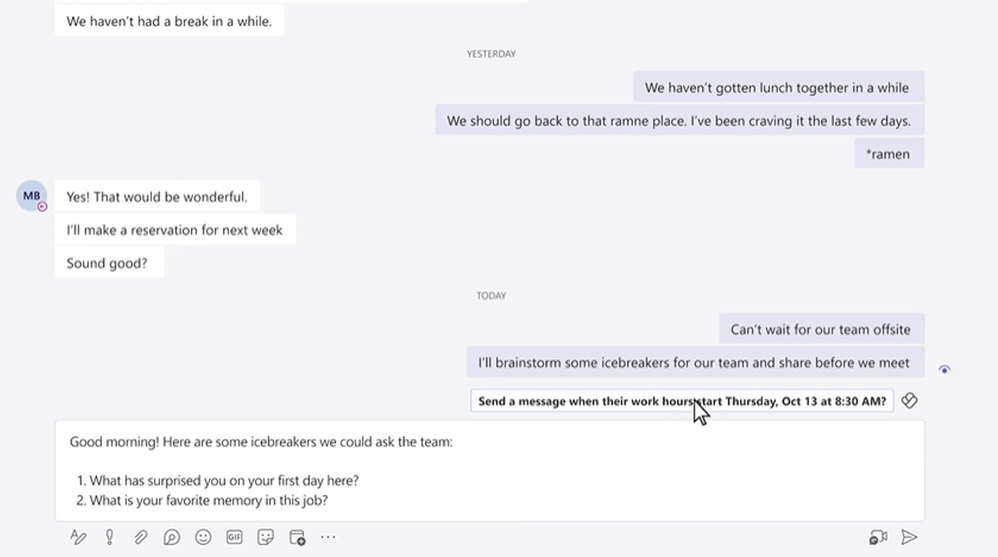
 

Understanding your requirements and use cases

Choosing the right PSTN connectivity solution for your organization may seem overwhelming, but we encourage starting with these steps:

  1. Document your country/user/office locations, user counts, and their phone requirements
  2. Understand whether there are existing service agreements or hardware that need to be maintained
  3. Understand if there are regulatory or compliance requirements governing specific users or countries
  4. Document each of the use cases within your organization and decide which PSTN connectivity solution would be best for each scenario. It may be that one solution fits all scenarios or you may need to find a combination of solutions for your organization

Regardless of the PSTN calling solution - or solutions - you choose for Teams Phone, we’ve got the planning and deployment resources to help ensure your success. The Teams Phone setup guide (requires admin access) is available to guide you through every step of the deployment. Microsoft engineers and FastTrack Ready partners are also available to assist FastTrack eligible customers* with deployment of Teams Phone through FastTrack for Microsoft Teams.


* When you purchase 150 or more seats of an eligible subscription, FastTrack will help with core and advanced Teams onboarding. Learn more about FastTrack for Microsoft Teams here.

✇MTC Microsoft Teams Blog

Introducing Video Filters in Microsoft Teams Meetings

Today, we’re excited to announce the general availability of video filters in Teams!


Many of us want to be more engaged with our colleagues and be fully present during meetings. But due to demanding schedules we don't always have time to get ready and put our best foot forward. Microsoft Teams empowers users to feel their best with AI powered capabilities that let you soften the appearance of the video feed and add backgrounds. Now, we’re taking it one step further with video filters - allowing you to remove unwanted distractions and better express yourself by bringing your personality to each meeting. The filters enable participants in Teams Meetings to augment their video stream with visual effects ranging from animated frames to styles changing the video’s hue. You can apply these filters even before you join a meeting from the lobby.


These are built on the Teams Platform infrastructure and provided as apps that can be added in your meeting experience). Initially, we are launching the filters with a first-party app called Custom Filters.


In March, we’ll begin rolling out Video filters to general availability after first announcing Public Preview in January.

Video Filters.png


Alternatively, you can choose to apply these filters while in a meeting via the following experience:

Video Filters2.png

in-meeting screen.png


This feature is built keeping privacy and compliance in mind. We have ensured that –

1. The tenant admin has the control to enable/disable the video filter apps’ availability in their tenant. These apps are enabled by default.

a. Refer to Manage your apps in the Microsoft Teams admin center to disable these apps

2. The tenant admin cannot pre-install these apps as they require explicit user consent.
3. Before using the filters, you will need to provide explicit consent to the app to access your video feed.
4. You can turn off these filters by uninstalling the filter app.


Initially, these filters can be applied only from a desktop and are not available in EDU tenants. Do try out these filters today and provide your feedback.


✇MTC Microsoft Teams Blog

Introducing Closed Captions in PowerPoint Live for Microsoft Teams Meetings

Today we are pleased to announce Closed Captions in PowerPoint Live, a new feature in Microsoft Teams meetings that aims to help those who are Deaf or hard of hearing, have difficulty processing auditory information, have a language barrier, or who are simply joining the meeting from a loud environment, to better understand the auditory content being shared. Meeting attendees will now have the option to turn on closed captions for any video that includes a closed captions file.

Closed captions in PowerPoint LiveClosed captions in PowerPoint Live


PowerPoint users who are looking to create accessible presentations can easily add closed captions to any embedded PowerPoint video directly from within PowerPoint for Windows and macOS.


To add closed captions:

  1. Select the video and select Insert Captions from the Playback Ribbon
  2. In the Insert Captions dialog box, select the WebVTT file or files that should be included
  3. Select Insert

Insert closed captions in PowerPointInsert closed captions in PowerPoint


When the PowerPoint presentation is shared using PowerPoint Live in a Microsoft Teams meeting, the closed captions option will be available for viewers to turn on.


To turn on closed captions:

  1. In PowerPoint Live, click on the closed captions button on the video player
  2. Select the preferred language from the dropdown menu
  3. Closed captions are now turned on

Enable closed captionsEnable closed captions


Once turned on, the video closed captions will appear at the bottom of the slide for only the individual attendee, empowering each attendee to choose the closed captions setting that’s best for them without distracting other attendees who may prefer to have closed captions turned off. Closed captions make PowerPoint presentations more accessible and benefit everyone who watches videos, especially those watching videos in their non-native language, people learning to read, and individuals who are deaf or hard of hearing. Learn more about how to make PowerPoint presentations more accessible with closed captions!

Closed captions enabledClosed captions enabled


When no closed captions are available for a video, the closed captions button will be unavailable for participants to select.

Closed captions unavailableClosed captions unavailable


Help us continue to improve

This feature is just the beginning – one step along a much longer road. We are committed to creating a Teams meeting experience that is not just accessible, but delightful, for Deaf and hard of hearing participants. And for that, we need your input and engagement. The simplest way to provide feedback is via the Help menu within Teams itself. U.S. customers can also provide feedback – on any Microsoft product, not just this one – through the Disability Answer Desk (DAD) via videophone at (+1 503-427-1234). We look forward to continuing the conversation.


✇MTC Microsoft Teams Blog

Rapidly deploy Microsoft Teams at scale to empower your frontline workforce

Customers are eager to improve frontline collaboration and productivity but often run into scale deployment roadblocks due to a few factors. There is more structure required for companies to organize their frontline workforce, needing to account for location, role, department and more, and the size of frontline teams can cover hundreds or even thousands of workers. Then they need to standardize the team structure across their organization for effective change-management and coordination between HQ (headquarters) and individual frontline units. This leads to large customers investing weeks in building custom scripting solutions or relying on an agency’s help for deployment, increasing the time and cost of deploying to their frontline.


Deploying Teams at scale (DTAS) enables organizations to centrally create and manage multiple pre-populated Teams in one step which saves organizations critical time by providing scalable Teams deployment and user management solutions.


Deploy Teams at scale in 3 easy steps:

IT pros can choose from a list of default Teams templates or create a custom Teams template that best meets their organizational needs and deploy them at scale in 3 simple steps:

Deploy Microsoft Teams.png


Simple CSV Format – Low preparation time

The CSV files are easy to prepare, and the user csv can usually be imported directly from your HR Management system. The following template shows the simple csv framework that an IT pro needs to prepare before creating Teams at scale.

Teams csv.png


Run a one-line command in PowerShell

The PowerShell command takes 2 inputs: The csv files with user information and teams information as shown above.

Deploy from PowerShell.png


Stay Notified

Once the IT pro deploys, they stay notified regarding the deployment status. In case of error, they get a detailed error report so they can make necessary corrections and redeploy.

Deployment Complete and with Errors.png


What’s next for DTAS

We are currently working to make managing teams simple and automatic by connecting Teams to HR systems. Employees profile updates in HR systems, such as workers joining or leaving the company or switching departments will automatically be reflected in Teams. This removes any work the admin has to do to manage membership of the teams created and captures the accurate and most up to date state of business in the digital world.

✇MTC Microsoft Teams Blog

What’s New in Microsoft Teams | February 2023

Welcome to the February 2023 edition of What’s New in Teams! This month is all about Teams Premium. We had a big announcement earlier this month that highlighted the new features and use cases in Teams Premium. What I am most excited about are the new AI features being built into Teams and to see AI being deployed in a useful way for everyday knowledge workers. New AI features such as Intelligent Recap allow all of us to be more productive and focus on tasks that matter. Rather than taking meticulous notes or recalling key moments from meetings, Intelligent Recap will do that work for us while we focus on other tasks and connections. I will not go through every feature detail here, but feel free to scroll through and learn about all the new Teams Premium capabilities hitting the market.


In addition to Teams Premium, several other great updates have been released. Please read about all the updates and let me know your thoughts! I’ll do my best to respond and answer questions as they come up.


Premium

More Intelligent

More Personalized

More Protected

Non-Teams Premium announcements

Meetings

Virtual Appointments—basic functionality

Calling

Chat and collaboration

Teams for Education

Management


Teams Premium

Microsoft Teams Premium
Microsoft Teams Premium launched this month, providing a better way to meet. Teams Premium is more personalized, more intelligent, and more protected. Learn more about the new features included by reading below or by reading the Teams Premium announcement blog.


To get access to Teams Premium, go to this link to get started.


More intelligent

Intelligent Recap
With Intelligent Recap, you can now save time spent reviewing meeting recordings. Available now, AI-generated chapters based on PowerPoint Live divide the meeting into sections using the contents from the presentation, so it’s easy to pick and choose the segment most relevant to you. Intelligent Recap also will automatically generate meeting chapters based on the meeting transcript in the future.

Available today, you can quickly see relevant PowerPoint Live chapters in the meeting recording.Available today, you can quickly see relevant PowerPoint Live chapters in the meeting recording.


In addition, there may be specific points in a meeting that you want to revisit. Available now, personalized timeline markers that only you can see call out when you joined or left a meeting in the recording, so you can quickly click and listen in on what you missed. Personalized timeline markers will expand to include when your name was mentioned and when a screen was shared.

Today in the meeting recording, see when you joined or left a meeting, only visible to you, to quickly catch up on what you missed.Today in the meeting recording, see when you joined or left a meeting, only visible to you, to quickly catch up on what you missed.


Live translation
AI also can help with some of the toughest collaboration challenges—working with people who natively speak different languages. Anyone can turn on live captions in Teams and see real-time captions in the spoken language. But if meeting participants speak different languages, organizations often spend thousands of dollars for additional real-time meeting translation services. With live translations for captions in meetings, now available in Teams Premium, you get AI-powered real-time translations in 40 spoken languages. By default, regular closed captions are displayed in the language that’s spoken during the meeting. Live translated captions allow you to see captions translated from the spoken language into the language you’re most comfortable with, saving money and making meetings more productive and effortless. Only the meeting organizer needs to have Teams Premium for all meeting attendees to enjoy live translations for captions in meetings.

Help reduce language barriers during meetings with live translation for captions.Help reduce language barriers during meetings with live translation for captions.


More personalized

Meeting templates
Meetings are not “one size fits all.” Traditionally, when you schedule an online meeting, you just use the default settings because drilling into meeting options takes valuable time out of your day. Now with Teams Premium, IT admins can create customized meeting templates—like a client call, brainstorming meeting, or help desk call— to automatically include the correct settings, reducing the time and thought process it takes to create and get the meeting right. Also with templates, leaders can ensure that their meetings adhere to company best practices and policies.

Meeting templates, once configured by your IT admin, are easy to use to schedule a new meeting.Meeting templates, once configured by your IT admin, are easy to use to schedule a new meeting.


Branded meetings
With Teams Premium, you can unlock advanced personalization experiences, which can help your organization have a professional and unified impact in meetings. Branded meetings let everyone see the logo and colors of your company when you join the meeting and allow your brand colors to be infused in the meeting itself.

Infuse your brand into every meeting, including a custom-branded meeting lobby.Infuse your brand into every meeting, including a custom-branded meeting lobby.


Organization backgrounds and organization together mode scenes
During the meeting, you can enable brand-approved organization backgrounds and organization together mode scenes, so that what makes your company—and your people—unique will shine through in every part of the meeting.

Make it easy to see and select backgrounds that are specific to your organization, including visuals such as your company logo, an event, or other organization-related images.Make it easy to see and select backgrounds that are specific to your organization, including visuals such as your company logo, an event, or other organization-related images.


Custom user policy packages
Just like meetings are not “one size fits all,” different Teams policies often are assigned based on your groups or departments. Assigning meetings, messaging, and app policies individually can be a complex task. But with custom user policy packages now available, IT can save time by creating a customized bundle of policies for users with similar roles in the organization. It’s a simplified, streamlined tool that provides consistency when managing policies for groups of users across your organization.


More protected

Watermarking
Watermarking, a new meeting option, can help to deter leaks when sharing sensitive or confidential meeting content. Meeting organizers can leverage a unique watermark over attendee screen shares and video feeds to confidently present and display sensitive information.

Easily watermark content and speakers during a meeting and automatically apply relevant Teams meeting options based on sensitivity labels.Easily watermark content and speakers during a meeting and automatically apply relevant Teams meeting options based on sensitivity labels.


Who can record
With who can record, you have additional protections to keep discussions private and can limit who can record specific meetings.


End-to-end encryption (E2EE) for online meetings
For those rare, extremely sensitive meetings that require disabling core meeting features like recording for an advanced encryption option, you can apply end-to-end encryption (E2EE) to the meeting. As a reminder, data exchanged during Teams calls or meetings always is secured using industry-standard encryption in transit and at rest.


Sensitivity labels for Teams meetings (for Microsoft 365 E5 customers)
We know that meetings can often change topics and sometimes that includes discussing business-sensitive information that needs an extra layer of protection. Microsoft 365 E5 customers with Teams Premium can now enable Microsoft Purview Information Protection sensitivity labels for Teams meetings. Meeting organizers can leverage sensitivity labels to automatically apply the most relevant and important meeting options based on the sensitivity of meeting content. Compliance admins can configure this integration with Teams meetings in the Microsoft Purview compliance portal to determine which meeting options should be enforced if the label is used in a meeting.


Advanced webinars: Host events with seamless registration and customized experiences
Many organizations want an end-to-end solution to host various types of virtual events—whether those events are customer-facing webinars to grow business or online organization-wide trainings—that offer personalized touches for presenters and attendees alike. Teams Premium includes webinars to easily host these events while also saving you time and money by eliminating the need for add-on solutions or working across different platforms.


Registration waitlist and manual approval
Once registration is set and invites are sent to attendees, you can enable registration waitlist and manual approval to make it easier to manage registration ahead of a webinar. Enabling the waitlist will keep webinar registration open even after the event has reached the capacity set by the organizer. This allows additional people to register and be automatically added to the list. As new spots open up, people will be automatically moved to the pending approval state, which enables the organizer to review their registration information and manually approve or reject each of the registrants.

Manage registration by enabling the waitlist to manage event capacity and manual approval to view registrant information.Manage registration by enabling the waitlist to manage event capacity and manual approval to view registrant information.


Customize registration start and end times
Webinar hosts also have the ability to customize registration start and end times to specify when you want registration to start and end, making it easier to plan for and manage your event.


Virtual green room
Webinars allow presenters to join the virtual green room so that preparation before the webinar is seamless. Presenters have the time and space to connect and do a quick briefing or test run without disturbing attendees. While attendees wait for the event to start, they can engage with the presenters and one another through chat and Q&A.

Connect and prep with the host and other presenters in the virtual green room and engage with attendees through chat and Q&A.Connect and prep with the host and other presenters in the virtual green room and engage with attendees through chat and Q&A.


Manage what attendees see
During a webinar, presenters can more effectively manage what attendees see. These host controls create more professionally produced events and make it easy to create more dynamic engagement for presenters and attendees.

Manage the attendee experience so they only see shared content and participants brought on screen.Manage the attendee experience so they only see shared content and participants brought on screen.


RTMP-in (Real-Time Messaging Protocol)
To elevate your presentation and deliver more dynamic content, integrate different external media feeds into your webinar using RTMP-in. By leveraging an external encoder and enabling RTMP-in, you’ll be able to livestream a custom RTMP source, whether it’s a professionally produced video or high-quality screen sharing, to all attendees in the meeting.

Stream different media types directly into a presentation with RTMP-in.Stream different media types directly into a presentation with RTMP-in.


Microsoft eCDN: Improve live event experiences
To improve live event experiences within your organization, Microsoft eCDN (Enterprise Content Delivery Network) is now included in Teams Premium. With Microsoft eCDN, you can seamlessly and securely live stream global meetings, all-hands gatherings, and town halls and distribute company-wide training using Teams Live Events. Microsoft eCDN helps reduce the load on the corporate network, helps prevent connectivity failure and poor video quality, and does not require any additional installation on your endpoints and devices.


Advanced Virtual Appointments: A new Teams Meeting type for business-to-customer (B2C) meetings
Virtual Appointments is a new Teams meeting type tailored for B2C meetings with people outside of your organization. When using Virtual Appointments, guests will get a meeting invitation that includes important appointment details to make joining easy via SMS or email. They can join from any device—no need to install Teams—and experience a comfortable pre-appointment virtual lobby until they are ready to begin. To learn more about the entire solution, check out this Microsoft Tech Community blog.


Virtual Appointments app
This app provides a single location where professionals and admins can create and manage scheduled and on-demand Virtual Appointments in Microsoft Teams. It includes a comprehensive dashboard that gives a quick view of an employee's schedule as integrated with Bookings. It is further enhanced with Teams Premium, which unlocks a snapshot of the queue of appointments, a summary of appointment analytics, and options to manage appointments. Download the Virtual Appointments app today through the Teams app store.

Virtual Appointments.png


Queue view of scheduled and on-demand appointments

Enable employees to manage and service Virtual Appointments in one location with advanced capabilities to track wait times, check on the status of a meeting, and more. Scheduling admins and staff conducting virtual appointments can monitor incoming requests and process them appropriately. Scheduling admins also can set up an on-demand entry point for customers to request services and appointments on demand through a hosted, self-service website with company branding.

Virtual Appointments Schedule.png


Custom virtual lobby for Virtual Appointments
Create a custom waiting room for your external attendees so they receive a branded, first-class experience from the start. This virtual lobby can be customized with your company’s logo, branding, and more.

Custom virtual lobby for Virtual Appointments.png


Virtual Appointments individual and departmental analytics
Individuals or departments can focus on key metrics—no-shows, wait times, and calendar-level analytics—to drive business outcomes and improve customer experiences. Reports include trends over time and the ability to drill down into individual appointment data.

Virtual Appointments Analytics.png


Virtual Appointments organizational level analytics
As a Virtual Appointments admin or operations supervisor, you can view aggregated analytics across your department and the entire organization. You also can see detailed activity for appointments created and conducted through multiple scheduling entry points and date ranges. Reports also include active user information for capabilities unlocked in Teams Premium, including SMS, two-way waiting room chat, and queuing. This data can be easily exported into Excel for additional analysis.

Virtual Appointments Organizational Analytics.png


Non-Teams Premium announcements

Meetings

Support for tabs for anonymous users in meetings
Developers now have the ability to show tab experiences for anonymous users in Teams meetings.


Targeted in-meeting notification
You can now send in-meeting notifications to specific people in a meeting via a bot.


Virtual Appointments—basic functionality

The following features are basic Virtual Appointments capabilities available in all Microsoft 365 and Office 365 license plans.


Virtual Appointments Teams meeting template in Teams Calendar for external meetings
Directly from a Teams calendar, schedulers can create an external meeting using the Virtual Appointments Teams meeting template. The template has the familiarity of a basic Teams meeting but comes with custom fields that are tailored for personalized, external business-to-customer (B2C) meetings. Employees get a hassle-free meeting experience without having to set up, learn, or manage new tools. The template also lays out a routine scheduling flow, but with valuable B2C features, such as a tailored meeting invitation for external guests, the ability to join on any device without first having to install Teams, and a pre-appointment lobby that guests can enter before their meeting begins. Create a seamless external meeting by navigating to the Teams Calendar, then select the dropdown menu next to the “New meeting” button, and select “Virtual appointment.”

Virtual Appointments Teams meeting template in Teams Calendar for external meetings.png


Virtual Appointment Graph APIs
Enable developers to programmatically create and manage Virtual Appointments for business-to-consumer scenarios with Graph APIs. Virtual Appointments join links can be embedded in any application and currently include a waiting room and mobile browser join experience for your customers. In the future, Teams Premium will unlock additional advanced capabilities in the Virtual Appointments Graph APIs to enable developers to build solutions that deliver even richer business-to-customer engagement. Learn more about what is available today with Virtual Appointments Graph APIs.


Calling

Multitask with Picture in Picture mode on iPhone/iPad
With the new picture-in-picture mode for iOS, you can adjust your Teams meeting window to different sizes with your fingers and place it in the location of your choice on the screen. The option will become available automatically when you navigate away from the Teams app while in a meeting. This makes it easy to use other apps at the same time and allows for multitasking on your iOS mobile device while in a meeting.


Support for co-organizers to manage Breakout Rooms

Co-organizers can create, manage, and move between Breakout Rooms like meeting organizers with this feature.


Presenter window usability improvements in screen sharing
With the new Presenter window, controls are located at the top to make active speakers’ faces clearly visible during screen sharing. In addition, the “raise hand” notifications are surfaced for improved awareness.


Authentication improvements
Sign-in reliability has been improved to reduce the impact of outages and to ensure the correct online/offline status of a phone is reflected in the Teams admin center. In addition, further improvements have been made to show detailed error messages around authentication failures to help your team members clearly understand what went wrong.


Enabling new call controls with Survivable Branch Appliance
Service continuity during a network outage is critical, so we are continuing to invest in our Survivable Branch Appliance capabilities. In the event of a network outage, you will now have access to call controls with Survivable Branch Appliance. You also will be able to use contact search, dial by name, and initiate a call from their call history.


Support for Android devices in the Teams Rooms Pro Management portal
The Teams Rooms Pro Management portal now enrolls, monitors, and reports on Android devices. With Teams Rooms Pro, you get a multi-OS, multi-brand device management system with an AI-powered platform enabling proactive management for easy access to reports and insights, inventory management, and usage reports for both Android and Windows Teams Rooms devices.


With the new support for Android devices, you can easily manage both Windows and Android devices from the Teams Rooms Pro Management portal. Android devices, including touch consoles, are now visible with essential health monitoring signals. Some of the actions available include remote restart¹ and gathering a complete log history to make troubleshooting easier. Visible device settings² include the device ID, make, model, serial number, IP address, Microsoft Teams Rooms app version, firmware version, agent versions, and Company Portal app versions.

Device health settings in Teams Rooms Pro Management PortalDevice health settings in Teams Rooms Pro Management Portal


¹Restart of a touch console requires it not to be paired with a Teams Meeting Rooms Android device.
²Settings are visible under the Room Settings tab. Editing of settings available in a future release.


Newly certified devices for Microsoft Teams
In February, these devices were certified for Team Rooms systems:

Lenovo ThinkSmart One collaboration bar and Lenovo Core Bundle for Teams Rooms on Windows
Learn more about this innovative collaboration device at ThinkSmart One | Lenovo Tech Today US.


Crestron FLEX Microsoft Teams Rooms kit* with the Dell OptiPlex for Teams Rooms on Windows
Learn more about the Crestron FLEX solution for Microsoft Teams Rooms at Flex - Microsoft Teams [Crestron Electronics, Inc.] and the Dell OptiPlex 7080 at OptiPlex 7080 Desktop System Guide | Dell US.

*Certified configuration includes HD-CONV-USB-300 being used as HDMI ingest.


In February, these devices were certified for personal peripherals:

Yealink UH37 Dual/ Mono Headset
Learn more about this Teams-certified device at UH37 - USB Wired Headset | Yealink.


Chat and collaboration

Start a Teams chat with distribution Groups, mail-enabled security groups, and Microsoft 365 groups

Organizations use distribution groups, M365 groups or mail-enabled security groups to collaborate, communicate and share organizational knowledge and workflows at scale. The ability to reach these audiences instantly through Teams chat is now possible. Teams users will be able to search, select the group and start chatting with members of the group. Admins can disable this capability to chat with groups in the Teams admin center. Learn more here


Teams chat with distribution Groups.png


Edit and delete events support for messages in user:bot chats
As a developer, you now can access message events. This feature allows you to access, edit, or delete event updates on messages in user:bot chats.


Schedule send suggestions with Viva Insights
Maintaining a work-life balance often requires establishing healthy work habits. If you need to send a chat message to a colleague whose work hours differ from yours, once you start typing your message in the chat compose box, you automatically get scheduled send suggestions with Viva Insights. With just one click, you can send a chat message in confidence knowing it will be delivered at the start of your colleague's work hours.

Schedule send suggestions with Viva Insights.png


Mention everyone in chat
Similar to using @ mention individuals in chat, users now have a new option to notify everyone in a group chat with a single message. When a user types @ everyone, all participants in the chat will receive a notification at once, removing the hassle of @ mentioning each person’s name one at a time.

Mention everyone in chat.jpg


Missed call notification in activity feed
You now have the option to call back on a missed call directly from the activity feed in Teams by simply clicking on the “call” button. With one click, you start your call quickly.

Missed call notification in activity feed.png


Teams for Education

Invite parents via SMS for Communication
Parent Connection allows teachers to communicate with the parents or guardians of a student. To enable parent-teacher communication, admins can now choose either email or SMS as their preferred Parent Connection invitation channel. Sending messages in an SMS-heavy market makes it easier to connect with parents while keeping teachers' experience simple. These messages sent to parents and guardians are in plain text, without HTML, formatting, or styles applied. Learn more details here


Parent-teacher meetings
This enables teachers to easily schedule virtual meetings with parents or guardians of students through Teams.


Management | Platform

Manage Surface Hubs as Teams devices from Teams admin center
As an admin, you can manage the entire lifecycle of Surface Hubs as Teams devices from the Teams admin center. Available features include remote restart, download of logs, configuration of settings, and detailed device information.


Notification granularity
You can use Intune to determine the types of content users can see in notifications on their mobile lock screens.


Ability for Teams users to manage their third-party app subscriptions from within Teams Client
Teams users now can view and manage in a single place all third-party app subscriptions purchased in the Teams app store—all without leaving the Teams client. This allows users to easily add more licenses for purchased subscriptions, cancel, upgrade and downgrade subscriptions, and access invoices.


Delete or rename files in a channel and in your OneDrive folder in Teams
To rename or delete a file in a channel, go to the files tab and find the file you want. Then select “more options” (the three dots) on the file. To rename or delete a file from your OneDrive, select “more” at the bottom of the app, then select "files.” Once you find the file you want, select the three dots, and choose to rename or delete it.


Surface Message Actions by most recently used menu
This feature surfaces the most recently used Message Actions into the level one menu for you to access quickly.


License management in Microsoft Teams and Teams admin center for SaaS offers built by ISVs
With Microsoft's license management solution for SaaS offers built by independent software vendors (ISVs), customers can easily assign, use, and track SaaS licenses in Teams and the Teams admin center. This also provides ISVs with a ready-to-use solution without the need to develop their own license management and enforcement system.


Upload files to your approval request via Power Automate portal
Files that you upload within the Power Automate portal will now be shown within the view details window of an approval request within Teams.


Enhanced flyout design for app engagement and discovery
Enhanced visual layout helps you quickly launch apps that you have in addition to discovering new ones to help you complete your day-to-day tasks in Teams.

✇MTC Microsoft Teams Blog

Modern Work Superheroes | Viva Learning Video + February News

Hello to all of you Superheroes, new and old! We are growing at an exciting pace and continue to add high value resources for our customers to embrace and leverage. Be on the lookout for more Superhero events you can join for live discussions, showcasing customers and the success they are achieving, and inspiring solutions you can bring to your organizations.

-Steven Storey


Roadmap Updates | The most dramatic rose ceremony ever!

Ok – I borrowed that clever headline from our Superheroes Ally and Global Viva Engage (Yammer) Evangelist, @Steve Nguyen’s great post here: #YammerIsEngaged


Why is this important? The need for communities, culture, resource groups, and clarity from leaders has never been more important and Viva Engage, including new features and roadmap, is designed for this purpose.


If you haven’t reviewed your Viva Engage (aka Yammer) strategy lately now is the perfect time to do so! By taking advantage of the latest updates and features, you can improve collaboration, communication, and engagement within your organization, ultimately driving productivity and success. Here are all the content you need to get up to speed on the latest announcements:


Make sure to connect with your customer success manager to get support on your Viva Engage journey!


And lastly, here are two more relevant news we have selected in the Modern work area for you:

  1. Learn how Microsoft is expanding the use of AI on an integration with Viva Insights: Microsoft Viva is giving your sales a ChatGPT boost | TechRadar
  2. Have you explored Teams Premium yet? If not, the time is now. Learn more about the new features in this article: Microsoft launches Teams Premium with features powered by OpenAI - The Verge


New YouTube video + One-Pager | Become a superuser of Viva Learning in only 6 minutes!

Hey hey superheroes! Today we have our second video from our viva series, covering everything you need to know in Viva Learning in only 6 minutes!


Viva Learning will help you bring learning to your workflow seamlessly, and in this video, you will learn how to navigate the platform, use search powered by AI to quickly find the right video for you, share training with others, bookmark, add to your calendar, pin the app for quick access and more: 11 tips in 1 video!


Watch the video here Viva Learning Video!


Also, as always, we have an editable one pager for you to download and use to drive adoption within your organization: Viva Learning One Pager


Lastly, if you missed our first viva video, you can watch it here: Automatically Schedule Focus Time - YouTube


Event | EduCon: Join Us - 3655 EduCon DC - a Microsoft Conference

We are super excited to announce that our Superheroes Team will be hosting sessions and workshops in person for the first time during the EduCon conference in DC! We can’t wait to meet you! We’ll have meet and greet time and a special gathering at the AMA session (+Teams SWAG for Superheroes)!


Event | Ability Summit

Ability Summit is a free digital event experience on March 8, 2023. Discover new accessible technology, learn from leaders with disabilities, and how accessibility empowers everyone within an organization, your community, and so much more.


Customer Story | Dell Technologies accelerates innovation and improves culture with Microsoft Teams and Power Platform

“Dell employees have already created thousands of Power Apps applications and automated flows with Power Automate. We’re using Microsoft Power Platform to rethink what we can enable the business to accomplish on a self-serve basis.”


Customer Story | Johnson Controls creates a Power App Smart Factory for citizen developers

“Creating the new apps has been transformational, giving our people real-time updates that boost efficiency and save cost,”


🦹 Who are the Modern Work Superheroes?

Join me and over 2000+ customers and Microsoft experts around the globe in accelerating their digital transformation journey in the Modern Work Superheroes community on Viva Engage. The Modern Work Superheroes Community is your single source for Modern Work content, community, and collaboration. Explore:

  • Customer stories on improving outcomes and lessons learned
  • Best practices for IT pros, Change Management, and End User leaders
  • Exclusive customer events and networking opportunities
  • Roadmap updates and insights from Teams and Viva product leaders

Click here to join the Modern Work Superheroes!*

*Consumer and non-Microsoft 365 email addresses are not supported


❌