Vue lecture

Il y a de nouveaux articles disponibles, cliquez pour rafraîchir la page.
✇MTC OneDrive Blog

Introducing OneDrive customer office hours

The OneDrive product and engineering team now offers monthly customer office hours for commercial and education customers as well as partners. IT Admins can join this one-hour Teams meeting to ask us questions, share feedback, and learn more about the features we’re releasing soon and our roadmap. 


OneDrive Customer Office Hours 


When: 3rd Wednesday of each month, 8:00 a.m. - 9:00 a.m. Pacific Time  
Where: Teams meeting 
How to sign up: Complete this short form and a second confirmation step to have an invite sent to you. Note: invites are not sent immediately and may arrive up to 10 days after sign up. Sign up for OneDrive Customer Office Hours 
Agenda: The typical agenda for the meeting looks like this: 

  • Roadmap: We’ll discuss and demo upcoming features on the public roadmap (5-10 mins) 
  • Feedback: We’ll present a topic and ask for your feedback usually via a single-question poll in Teams (2-5 mins) 
  • Q&A: we’ll answer OneDrive questions and field your requestions/suggestions. (~45 mins) 


Sign up now to learn what’s new and coming with OneDrive, learn from our product team and get your questions answered.  


In office hours you are welcome to ask how to questions, raise issues and report bugs. However, office hours is not an official support tool. To open support tickets, go to see Get support for Microsoft 365. Support for educators and education customers is available at https://aka.ms/edusupport. 


Join the Microsoft OneDrive product team for customer office hours via Microsoft Teams.Join the Microsoft OneDrive product team for customer office hours via Microsoft Teams.

A note on privacy: OneDrive customer office hours is conducted via Microsoft Teams and all meeting participants including Microsoft employees will be able to see each other’s name and work email address while in the office hours meeting and in the meeting chat. 

✇MTC OneDrive Blog

Announcements for files experiences in Microsoft 365 at Microsoft Ignite

We’re excited to share the latest and greatest in files experiences in Microsoft 365 at this year’s Microsoft Ignite. At a time when established patterns of work are undergoing seismic shifts, we want to ensure you can not only access and share files but collaborate with distributed teams in real time from almost any Microsoft 365 app.


OneDrive powers file sharing experiences across Microsoft 365. We’re happy to share new capabilities to help you access everything you need, whether you’re working alone on a project, collaborating with your team, or organizing important documents or files.


Let’s take a closer look at some of the OneDrive files experiences we’ll be highlighting at this year’s Ignite (each with its own section below):

  • OneDrive Home re-imagined
  • Nucleus – Offline mode for OneDrive web with auto sync when online
  • Enhanced views in OneDrive Shared: Shared with you, People and Meeting views
  • Share and collaborate with anyone in real time
  • Favoriting your files in OneDrive
  • OneDrive app in Microsoft Teams
  • OneDrive now supports Citrix seamless mode
  • Back up your macOS Desktop and Document folders
  • OneDrive sync health dashboard
  • Better OneDrive integration within File Explorer


OneDrive Home re-imagined


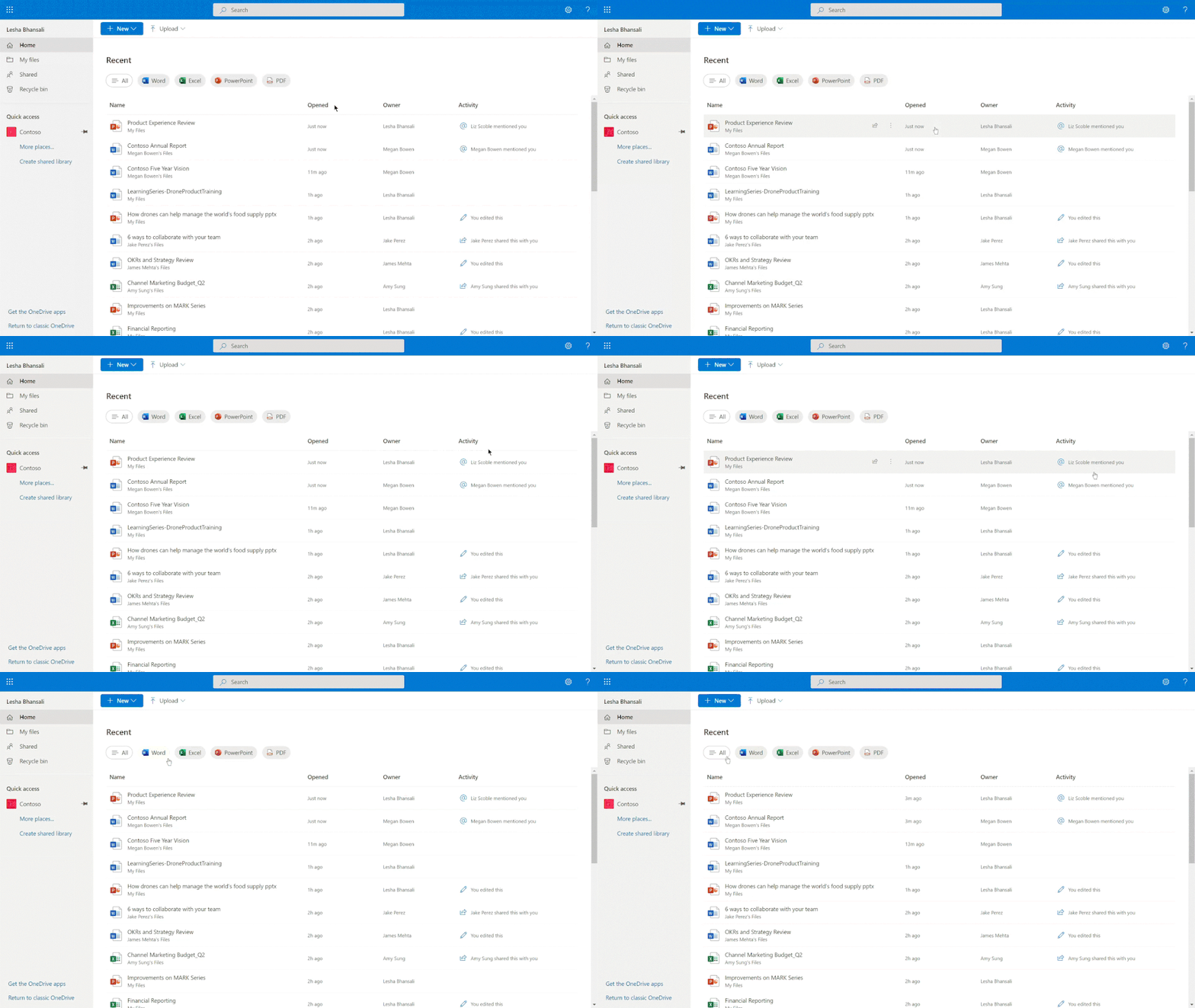
We have refreshed the OneDrive Web Home experience to provide you with the fastest time to get back to your files and work. The new OneDrive Home experience surfaces your most recent files along with any activity updates, so you can see everything at a glance and quickly prioritize where to start working. You can also filter by file type (.docx, .pptx, .xlsx, and .pdf) using the buttons at the top of the Recent file list. OneDrive Home also lets you easily create new files and folders. It also suggests files that are relevant for you and connects you to the files that you’ve recently worked on. The OneDrive Home enhancements are planned for general availability in Q1, CY2023. 


1_OneDriveHomeGIF (1).gif

Nucleus – Offline mode for OneDrive web


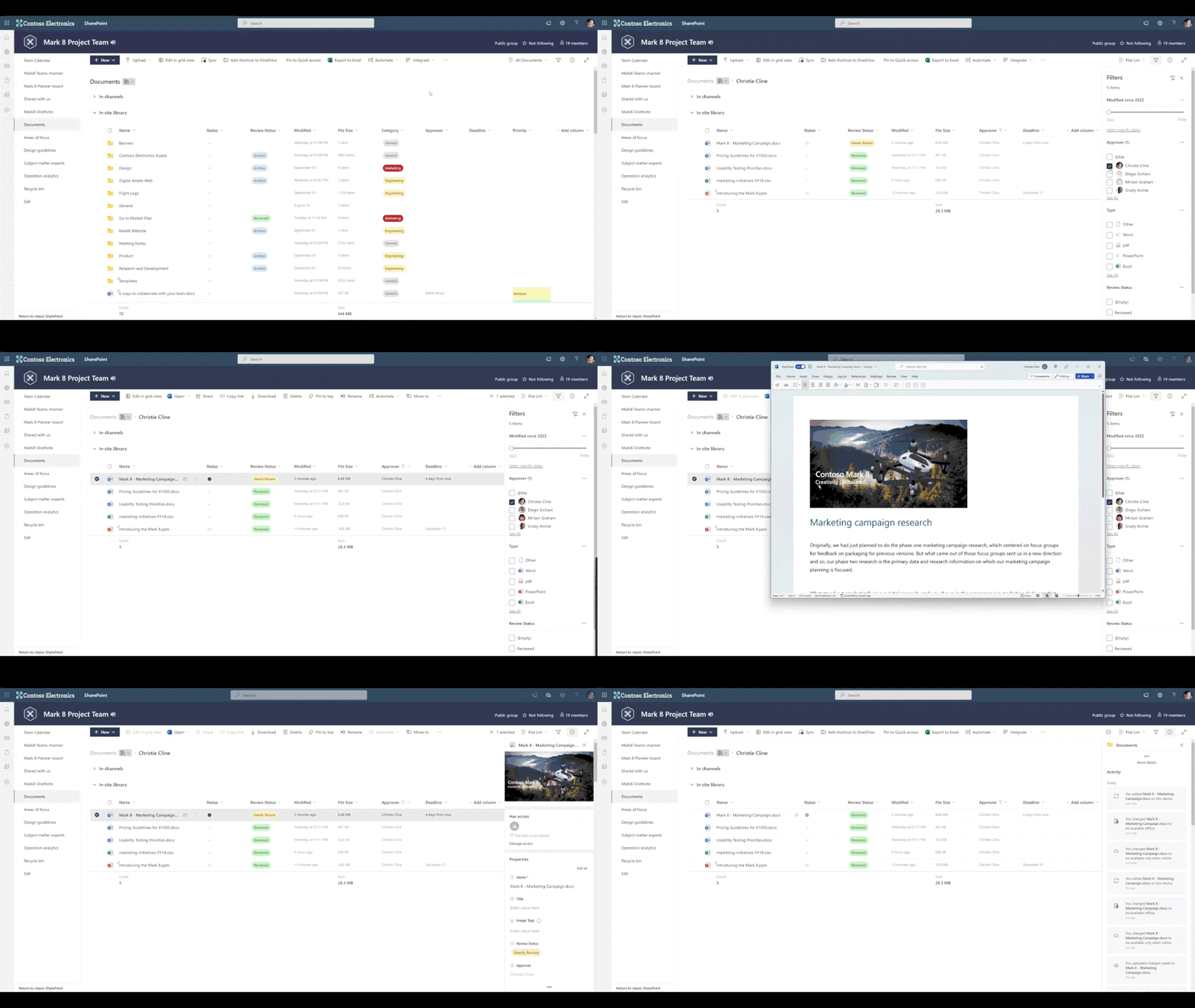
We are pleased to give you an early look into how the OneDrive web app and Document Libraries are getting offline superpowers with the help of Project Nucleus.


Loading and interacting with OneDrive and large document libraries will get a whole lot faster whether you are online or offline. You will always get blazing fast performance when working with your files regardless of the number of items in the view.


Second, Project Nucleus brings some of the OneDrive sync app’s capabilities, like Files On-Demand, directly to the OneDrive web app. You will be able to keep your files on your device, so they are always available for you when you need them. So, if you are on the move with no internet connectivity, you can continue to stay productive and even be able to open your files in your desktop apps directly from the browser.


2_ProjectNucleus_GIF (1).gif


All changes that you make to your files when offline will get synced to the cloud once you reconnect to the internet. When offline, you will still be able to view, interact, and perform actions like renaming files, changing file attributes, creating folders, and seeing your file activity in OneDrive.


To summarize, OneDrive and document libraries will soon be always on, get even faster, and blend the boundaries between the browser and your local device, and we can’t wait to bring these new capabilities for you to try out. We expect to have these offline enhancements fully available by second half of CY2023. 


Enhanced views in OneDrive Shared: Shared with you, People and Meeting filters


We are also introducing the new Shared experience in OneDrive that will quickly help you get back to files shared by others. In addition, we have built views that are more contextual and human ways of remembering things through people and events like meetings.


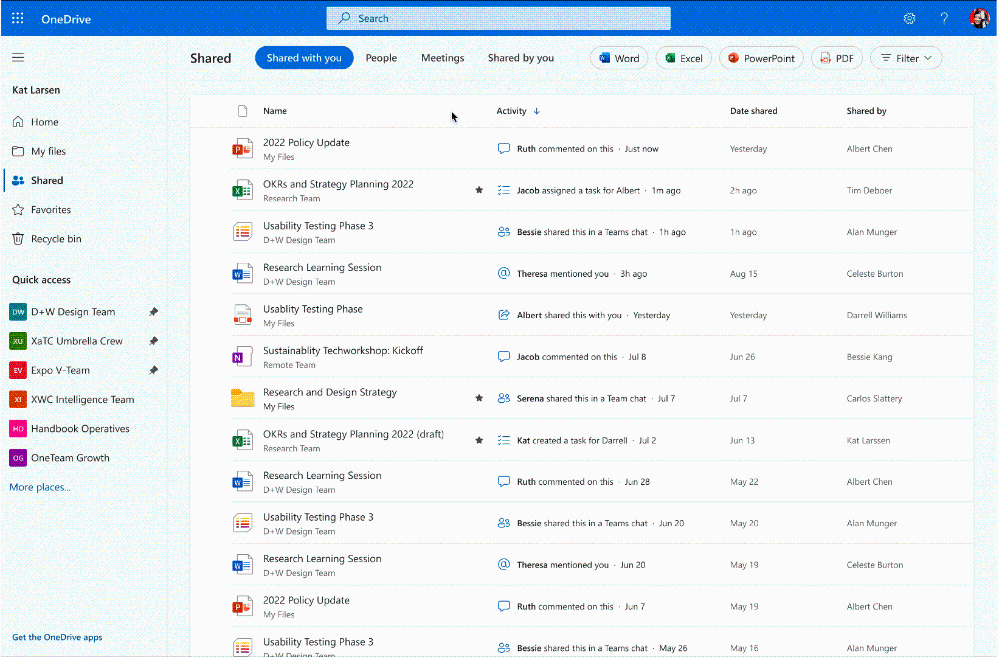
The new “Shared with me” view shows files and folders shared across various Microsoft 365 apps so that you can find files shared with you over email, chats, and meetings all in one place. In addition, you can identify updates to your files by using the activity column, as well as leverage consistent filter pills across OneDrive Home and Shared.


Within “Shared” view, we have also added the People filter. So, if you do not remember the name of a file that a co-worker shared with you, you can now find it using their name in the new filter.


You can now also find shared files from a meeting you recently attended with the new Meetings view. This includes all the meetings you've been invited to along with all files shared across meeting attachments, meeting chat, and even meeting recording – enabling you to stay up to date.


These new shared experiences and filters will be generally available in Q1, CY2023. 


Shared_Ignite_Updated.gif

Share and collaborate with anyone in real time


In a hybrid world of work, the ability to share files with anyone is critical to ensure people can collaborate easily and stay productive in ways that work best for them. We are thrilled to announce a set of improvements that enhance the sharing experience across all the Microsoft 365 ecosystem.

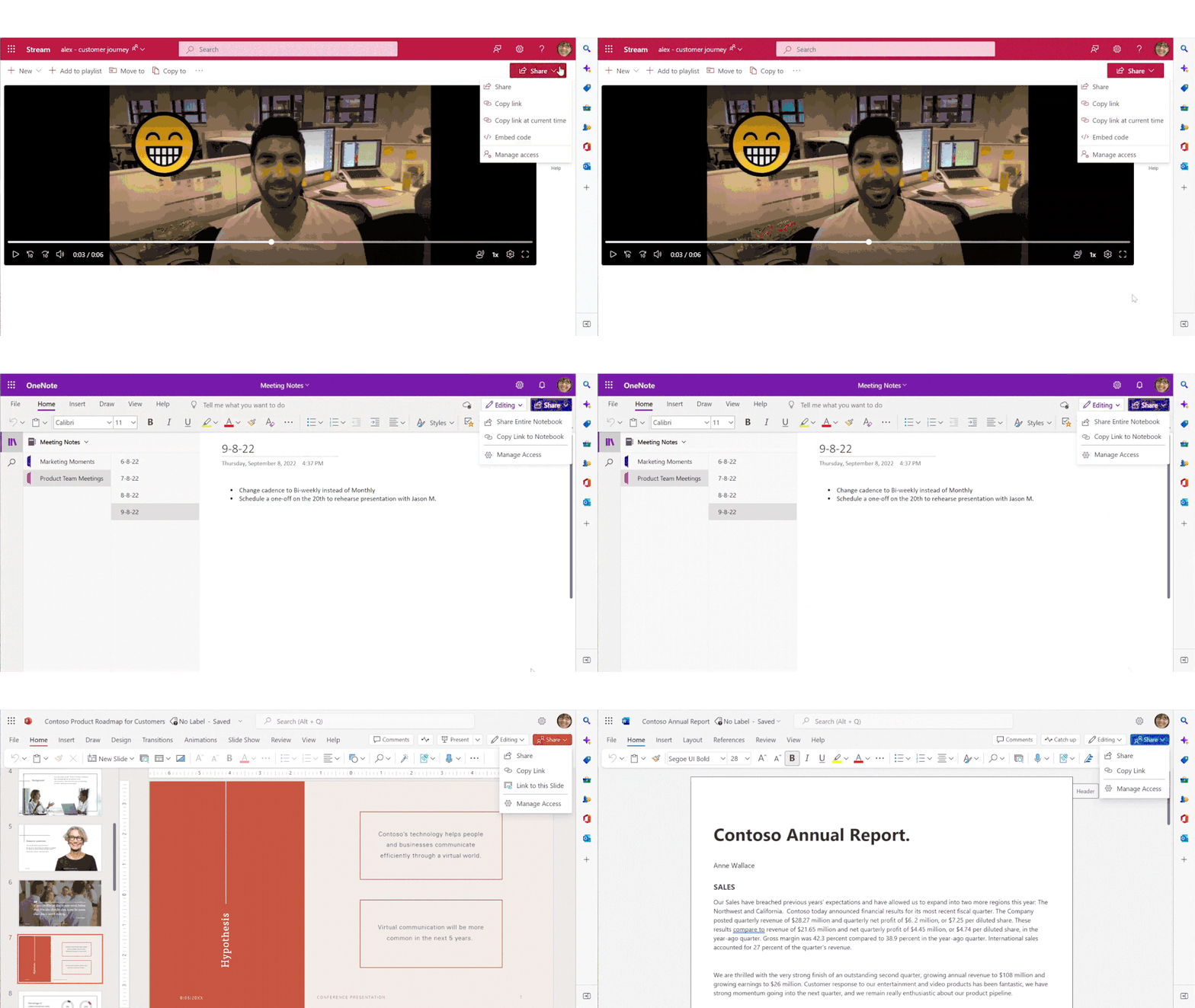
You will now see the new contextual sharing menu in your favorite Microsoft 365 apps. This new share drop-down menu includes new options that are unique per app, making it more personalized for our customers and helping unlock key scenarios for successful collaboration. Contextual sharing menu will be generally available in Q4, CY2022.  


Sharing_1_fixed (1).gif


We want to help you get your sharing settings right from the very beginning of your sharing journey. We’ve made the link settings page a lot more intuitive with clearer tooltips, definitions, and quick at-a-glance view to show you who has existing access to your files or folders. These enhancements in link settings are generally available to you today.


Sharing_2_fixed.gif


For Microsoft Word, we have introduced a new sharing permission called “Can Review” inside of the permissions drop-down that provides even more control on how collaborators can work together on a document. With Review mode, you can include collaborators to review and add suggestions to the document in the form of comments or tracked changes while maintaining full control of your documents. This new sharing permission is available in Microsoft Word today. 


Sharing_3_fixed.gif

Favoriting your files


Not all M365 documents are used in the same way. You’ll inevitably have a few that you use every week and some you’ll use occasionally. This is where using Favorites can help you stay organized.


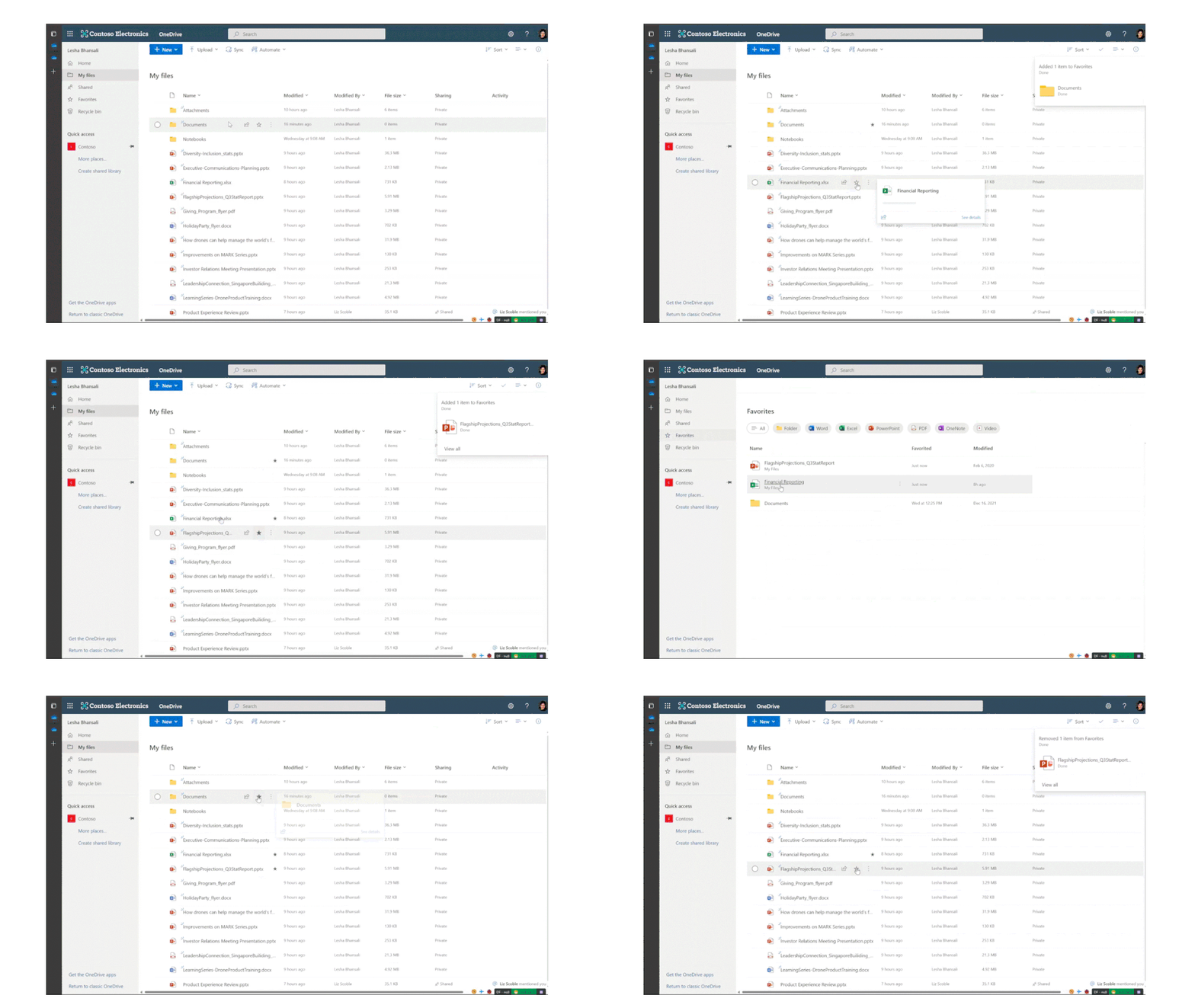
Favoriting files is a great way to mark content of personal importance and can help you to get back to the content you're looking for right away. We have made sure that the favorites experience is consistent across Office.com, OneDrive, Document Libraries, and the Files app in Teams by building on top of the existing pinning and favorites experience in Office.


We are targeting Q1, CY2023 to make this feature generally available to you. 

Favoriting_Fixed.gif

OneDrive app in Microsoft Teams


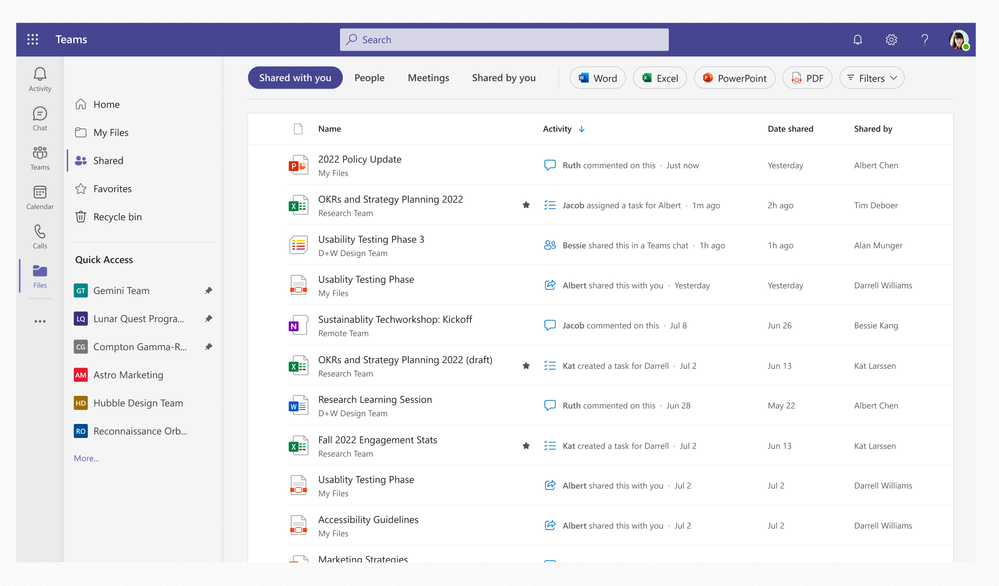
Beyond a great experience in OneDrive Web, our customers have told us that they would like to access OneDrive from inside Teams. We are excited to share that you can now have the latest and greatest OneDrive Home experience available from inside the Teams app. You will now be able to leverage familiar controls to easily move or copy your file to another library within Microsoft Teams. You can also switch between document libraries associated with specific Teams channels (standard or private) directly in Microsoft Teams and access your files as you would directly in OneDrive and SharePoint.  This is targeted to be generally available by Q1, CY2023. 


8_OD Shared in Teams.png

OneDrive now supports Citrix seamless mode


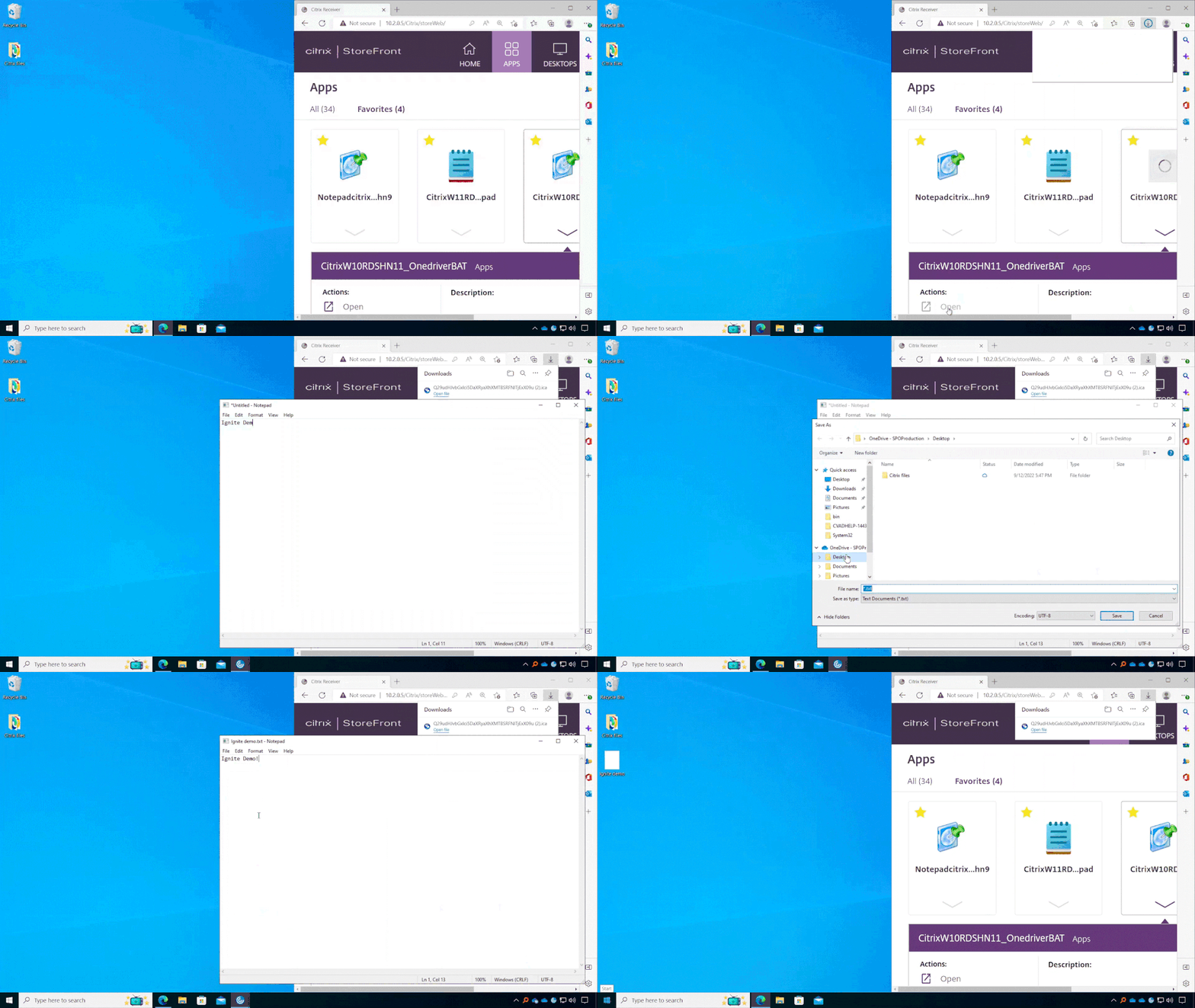
Users need access and save files to OneDrive even while using remote applications. This feature has long been requested since announcing support on remote desktops, and we’re delighted to announce OneDrive support from Citrix Seamless apps, which is now in Private Preview and targeted to be generally available in Q2, 2023.


9_Sync_demo_GIF.gif

Back up your macOS Desktop and Documents folders


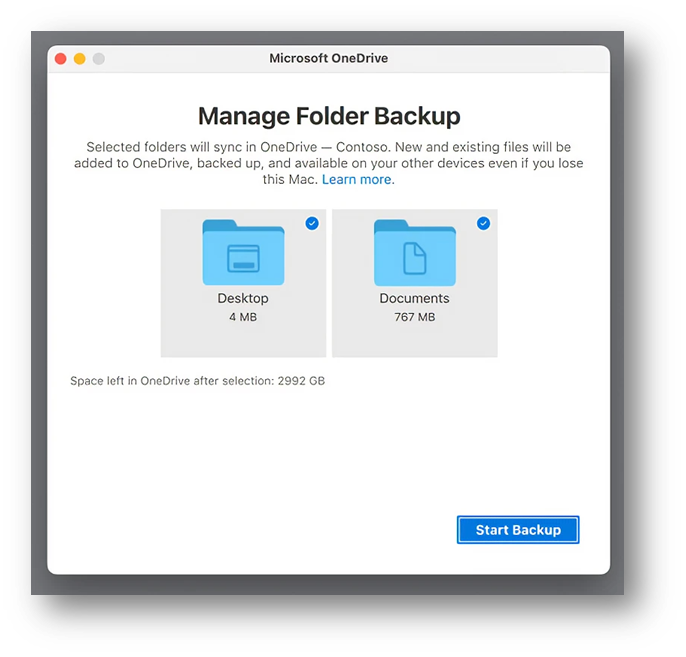
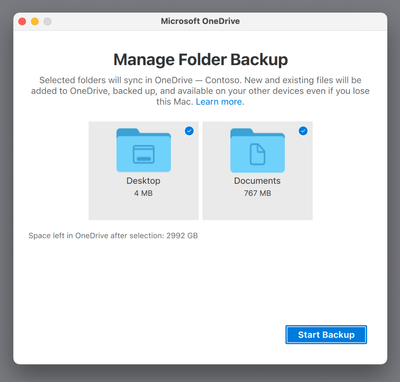
We have been in public preview for a few months now and we are excited to announce the public roll out of Folder Backup (Known Folder Move) for macOS by the end of this year. Many users use their device’s Desktop and Documents folders for productivity scenarios. We are happy to say that those folders can now be backed up and synced with OneDrive.


Picture2.png


Folder Backup also enables users to access their most important files across different devices and applications with no disruption to productivity, because their content is automatically synced to OneDrive. In addition, this feature will also boost collaboration by enabling users to securely share their data within and outside their organization.


OneDrive sync health dashboard


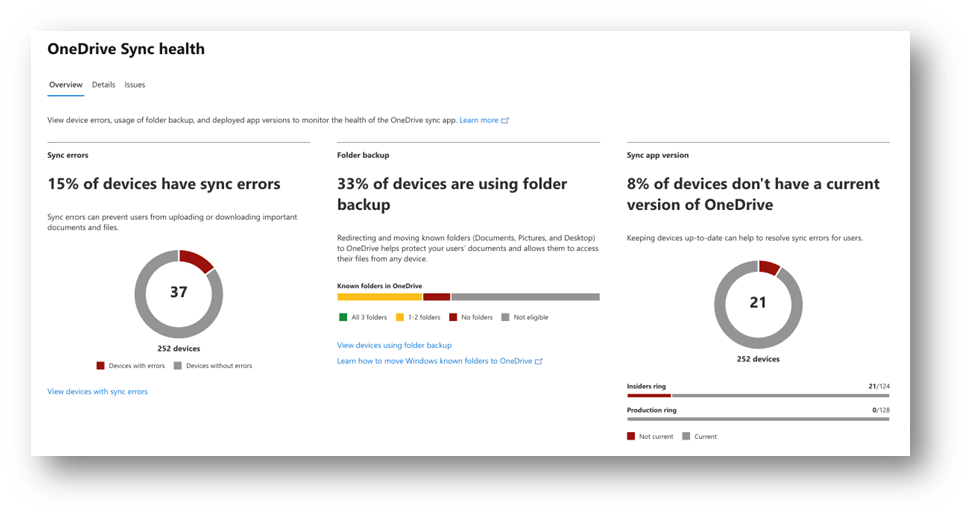
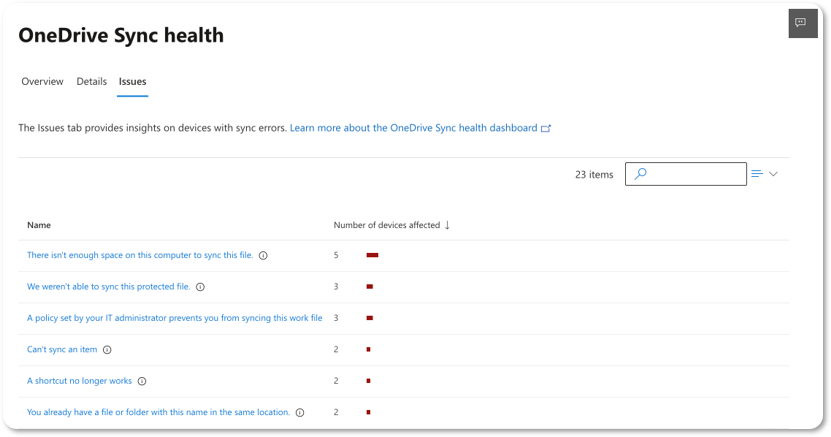
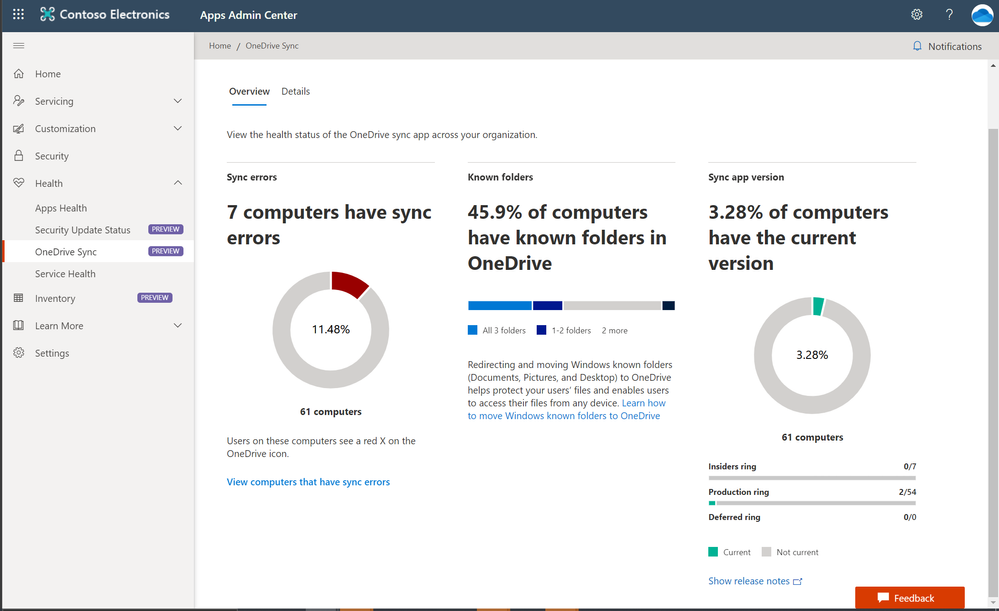
As an admin, it’s critical to have a high-level view of the health of the OneDrive sync app in your organization. The OneDrive sync health dashboard provides an executive summary of everything happening with OneDrive so that you can resolve common issues quickly. You can see what percentage of devices have sync errors and drill into individual devices, monitor the usage of Folder Backup (Known Folder Move), and view a summary of how many devices are using an out-of-date version of the OneDrive sync app. The dashboard also provides advanced filtering options: you can filter by operating system, sync health, last sync date, and more. Finally, the Issues tab provides an aggregated view of the top sync errors in your organization, as well as the specific users and devices that are affected.


The OneDrive sync health dashboard is currently in public preview and will be generally available in November 2022.


Picture3.png

Better OneDrive integration within File Explorer


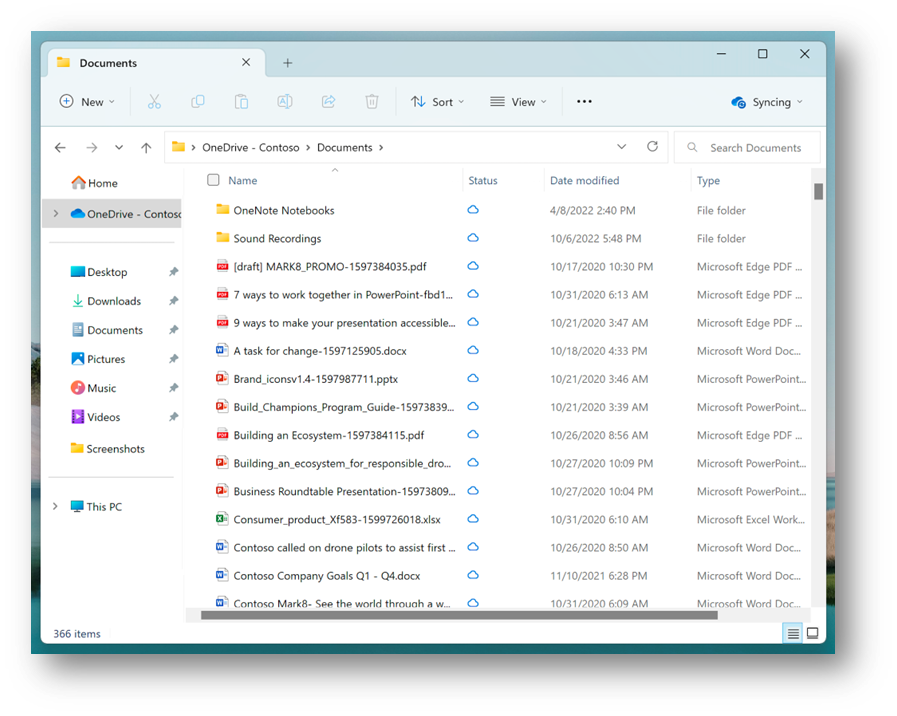
To help you easily view the status of files that are syncing, we’ve added OneDrive integration into File Explorer in the new Windows 11 2022 Update. When browsing your OneDrive folders, you can now see your sync status and quota usage without having to leave File Explorer.


Picture4.png


File Explorer is also introducing a refreshed layout of the left navigation pane which makes it easy for you to navigate to folders that matter to you. The updated organization provides easy access to your OneDrive files. When you navigate to known folders syncing to OneDrive such as Documents or Pictures, the address bar displays the correct path to help bring clarity when your folders are on the cloud vs. when they are local to you.


Picture5.png

Learn more


Watch as Irfan Shahdad (Principal product manager – OneDrive) shares OneDrive insights and value, plus a lot of longer-form demos of the above feature announcements as disclosed at Microsoft Ignite 2022:


To learn more, please review the full "Embrace a new way of work with Microsoft 365" on-demand Ignite session (OD23). You can see more of the action on our YouTube channel and follow us on Twitter: @OneDrive.

To learn more about OneDrive,

Thank you again for your support of OneDrive. We look forward to your continued feedback and hope to connect with you at another upcoming Microsoft or community-led event.

Thanks for your time reading all about OneDrive,

OneDrive Product Team

✇MTC OneDrive Blog

15 reasons to love OneDrive

This month we’re celebrating the fifteenth anniversary of OneDrive. We’ve continued to develop OneDrive over the years to ensure we meet you where you are, whether you’re at work, school, or home. Today, we want to share fifteen ways we think OneDrive can help make your life a little easier. 

  1. Keep all your files at your fingertips. All your files, from Office docs to photos—even files others have shared with you—are always on your OneDrive. And you can store and access your work or school files from any device via a web browser, mobile app, or PC and Mac with robust sync options. This includes your personal files and files co-workers, or classmates have shared with you in Office 365 from Microsoft Teams and SharePoint. 

  2. Securely share files with teammates or classmates. By default, your OneDrive files are accessible only to you until you choose to share them. When you’re ready, you can set file permissions for individuals and groups and control how they access files via OneDrive, Teams, or Outlook. You can even securely share files with people who don’t have a Microsoft account using email verification to prove their identity. So you can share files with external colleagues for review or ask a friend to help edit your paper without risking the need to send it via email and worry about security or version control. You can also apply access controls and expiration dates to whatever you share.  

  3. Take advantage of deep Office integration Whether you’re working on an important client presentation or pulling together a school project, you can engage with colleagues or classmates to simultaneously edit documents from anywhere, across web, desktop, and mobile clients. You can also track changes and add @ mentions in real-time while you work, so nobody misses a beat.  

  4. Easily access Teams and SharePoint files (yours or those that have been shared with you) from right inside OneDrive. Now you can use the Library dropdown to switch between multiple document libraries associated with a Teams channel or SharePoint site. So if you’re working on projects for multiple clients or working on assignments for different classes at school, you can move easily between content libraries without switching context. You can also pin libraries to the Quick Access section so you can find them faster. 

  5. Use intelligent search powered by Microsoft Graph, to surface what you need. You can quickly return to your recent files, files that have been shared with you, or recommended files based on your working relationships with others. These personalized recommendations can help you discover content you might not have been aware of and that is unique to OneDrive and Office 365. 

  6. Create, access, view, edit, and share files on the go with the OneDrive mobile app. Easily capture whiteboards, scan documents for safe keeping, and annotate PDFs with the app’s built-in features. You can access your content on your iOS or Android device from virtually anywhere. 

  7. Shift seamlessly between work or school files and personal files. You can easily switch between your professional or school and personal OneDrive accounts, or even between separate professional accounts you might maintain for multiple clients if you're a consultant or freelancer. This means you don’t have to spend a lot of time opening and closing apps and searching for what you need—and who can’t use a little extra time these days? 

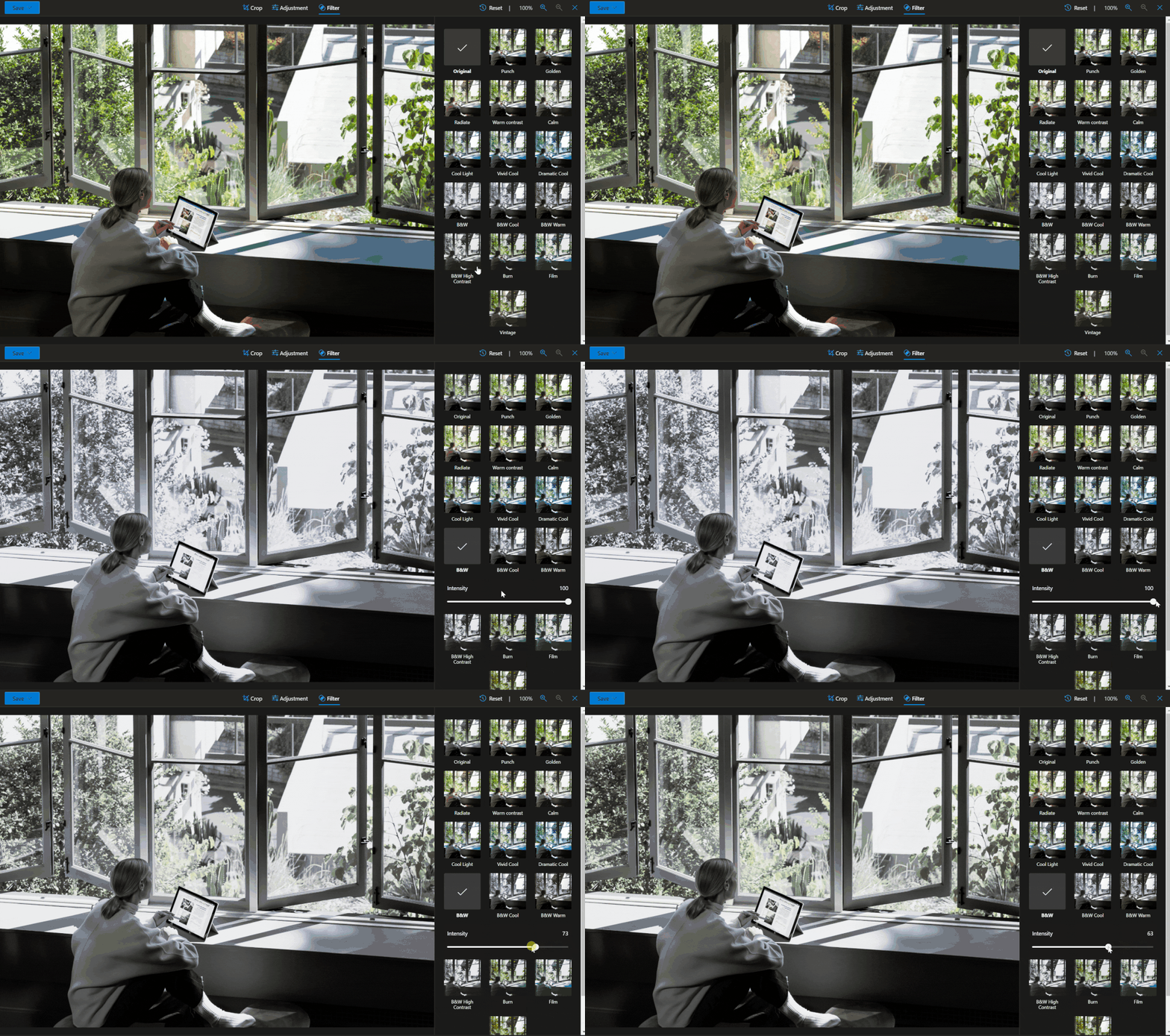
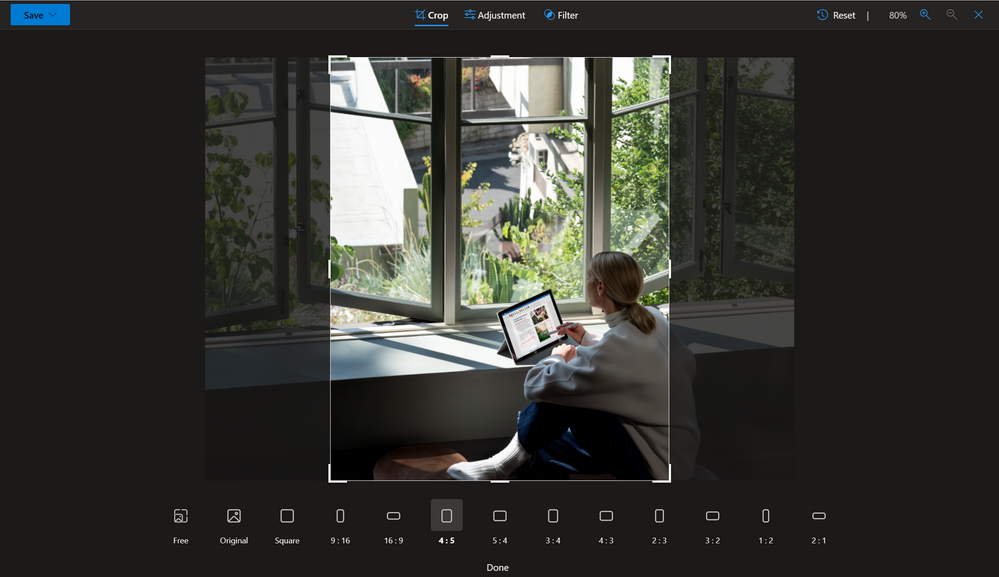
  8. Edit photos directly in OneDrive. Whether you’re managing social media for a client, sharing pictures of the latest product designs with your team, or pulling together the latest edition of the school paper, you can edit photos directly in OneDrive on the web. You can crop photos, adjust light and color, add creative filters, and mark up photos for editing all in one place. 

  9. Upload, preview, and edit large files and videos. If you’re working on an important video project for a client or a 3D model for a computer design class, you can upload file sizes up to 250GB in OneDrive. In addition, OneDrive has more than 320+ rich file previewers —from AutoCAD drawings to 3D designs to DICOM images. 

  10. Save valuable disk space by keeping your files in the cloud and print files from anywhere. With OneDrive Files On-Demand, you can access your work or school files in the cloud without using valuable file storage space on your Windows or Mac device. And with Universal Print integration with OneDrive, you can print documents stored in OneDrive directly to a printer in your organization or home office without requiring you to first install a printer on your device. 

  11. Protect proprietary documents and data. Protect your company data with advanced encryption, compliance, and other enterprise-grade security features. If you lose your device or are subject to a cyberattack, OneDrive has your back, allowing you to recover your files and minimize any loss of work. 

  12. Back up or redirect known folders (Desktop, Documents, Pictures) to OneDrive. For large organizations, this can help IT keep things running smoothly for users and reduce a number of administrative headaches. This ensures files in these important folders are protected and available on other devices.  Users with personal OneDrive can also backup these important folders at no extra cost with PC folder backup (up to 5 GB of files without a subscription). 

  13. Get centralized control over content across the organization. As many organizations adopt hybrid work, IT admins may be seeing their workloads increase. But with Microsoft 365, you have an integrated admin center to help you manage everything at an organizational level: control internal and external sharing, set user access controls, manage default storage limits, enable user device notifications, specify retention policies, and manage sync controls for OneDrive. 

  14. Add extra protection for your personal documents with Personal Vault. This enables you to safeguard sensitive photos and files, like social security cards, drivers' licenses, passports and more.  Microsoft 365 Personal and Family subscribers can store as many files as they want in Personal Vault, up to their storage limit. 

  15. Share files and photos with family and friends in one click. If you’re using a free or paid OneDrive consumer plan or Microsoft 365 Personal or Family plan, you can create family or friend groups to share photos, videos, and other files with. So next time you want to share photos of the family reunion with your relatives or share the team roster for your bowling league with the team, you can do it in one click, instead of typing in all those addresses.  


We believe OneDrive offers something for everybody, at every phase of their lives. Maybe you already know and love some of these things about OneDrive, or maybe you learned something new. Either way, we’re excited to keep bringing you the features that can help you better navigate work, school, and life. 


Thanks for reading all about OneDrive,

Ankita Kirti

✇MTC OneDrive Blog

Introducing OneDrive photo story – a new photo sharing feature now available in public preview

CatherineFeldman_0-1656458766361.png


Powered by innovation and built on trust, Microsoft OneDrive has been extending its commitment of secure, world-class file storage to a refreshed photos experience to securely save, share, and relive a lifetime of memories.  


We’ve now taken the next step in that commitment with the public preview of OneDrive photo story, a new, interactive feature that securely connects your favorite moments to the people who matter most. 


Photo story brings all your memories into a private, invitation-only feed that you can share with family and friends, and it supports comments, reactions, and notifications to spur authentic interactions through photos that people actually care about. The feature is available now in beta in Australia on the OneDrive mobile app for Android and iOS, and from your favorite web browser. We plan to roll out the new feature in the U.S. and other regions later this year, as we continue to listen to customer feedback, and develop and improve feature capabilities. 


With OneDrive photo story, you can deepen your personal connections and tight-knit communities without compromising your privacy or personal data. 


To experience OneDrive photo story feature (Australia only), download the free OneDrive mobile app and sign in or sign up for a personal OneDrive account. If you’re signed into the OneDrive mobile app, tap the Shared tab to create your first photo story; if you’re in a browser, select the Shared tab from the left navigation bar.  You can learn more about Photo Story in our dedicated support article. 


Availability and getting started 
The OneDrive feature is now available in preview in Australia and later this year will roll out to U.S. and other regions. You can experience the feature if you are in Australia and have one of the following plans: OneDrive Basic 5GB (free), OneDrive Standalone 100GB, Microsoft 365 Personal, and Microsoft 365 Family. You can learn more about those plans on our plans page. It is not yet available for OneDrive work or school accounts. 


Want OneDrive photo story to come to your region next? Let us know in the comments! 

✇MTC OneDrive Blog

OneDrive Roadmap Roundup Q2 CY2022

The OneDrive team is excited to share all the recent OneDrive updates and feature releases we’ve released between April and June 2022. We’re continuing to do everything we can to provide you with a seamless experience for accessing and sharing files with your teammates and external colleagues, to keep you productive in this new world of hybrid work.

Here are the OneDrive features we’ve released in full or in preview in Q2 of 2022:


April 2022


Easily navigate to all your Teams files from OneDrive (88912)

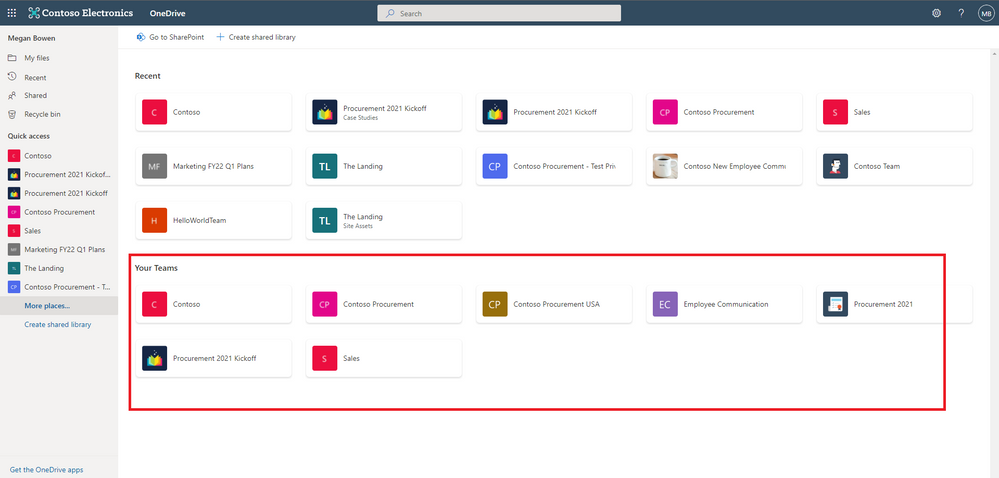
In OneDrive, we are adding a "Your Teams" section to the "More Places" page to allow you to easily find and work with all your files in Teams.


Your Teams.png


Deleting large folders (88979)

To help you keep your workspace uncluttered, we’ve added the ability for you to delete large folders (with up to 10,000 items) at one time. This means that when you’re finished with a project, you can quickly remove all the files you no longer need from your OneDrive and SharePoint libraries.  


Microsoft Stream: Comment on a video or audio file in SharePoint and OneDrive (88521 )

Now, users with view permissions can leave comments in video or audio files. This can be helpful when collaborating on files to share with a larger audience, or for addressing questions of people who were unable to attend a call or meeting.


May 2022


Shift between work and personal files in OneDrive 

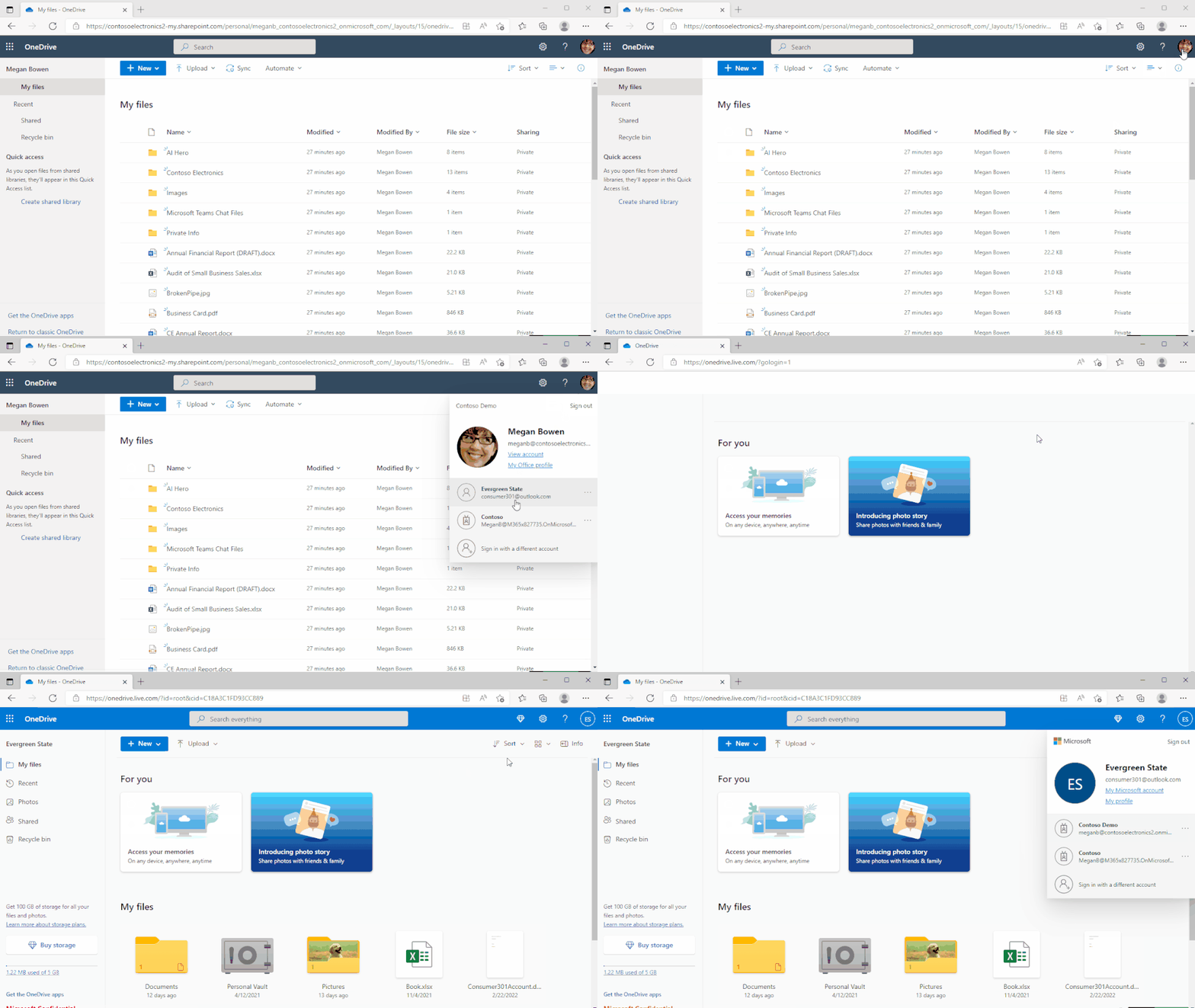
We've made it simpler for you to switch between your professional and personal OneDrive accounts, or even between separate professional accounts you might maintain for multiple clients if you're a consultant or freelancer. By selecting your profile picture at the top right of the OneDrive page, you'll see a list of all your Microsoft accounts, or the option to add a new one.


OneDriveWebAccountSwitching (1).gif


Quickly switch between document libraries

We’ve added a dropdown to OneDrive and SharePoint that lets you easily switch between multiple document libraries associated with a Teams team or a SharePoint Site. You can easily select the Dropdown library icon to switch between document libraries.


doclib dropdown.png


Pin important files to Quick Access

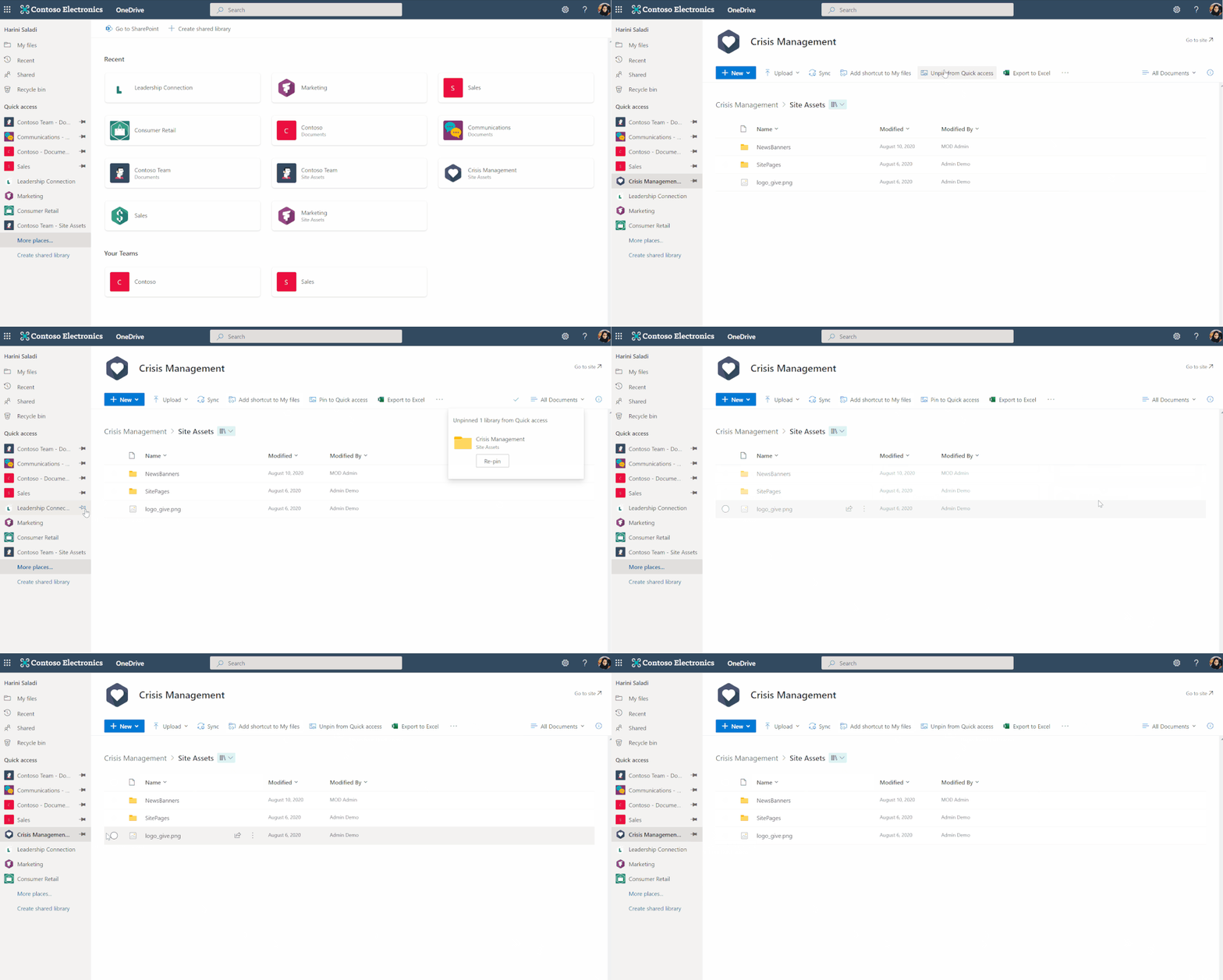
To easily find and access the places where you regularly work, you can pin shared libraries to the Quick Access section in the left nav of OneDrive. Pinning a document library adds it to the top of the Quick Access section. You can also un-pin document libraries from the Quick Access section.


quick access.gif


June 2022


File browsing in Teams

Now when you browse to a Teams channel and click the Files tab at the top, this experience will be powered by OneDrive. For example, you'll be able to leverage familiar controls to easily move or copy your file to another library within Microsoft Teams.
You can also switch between document libraries associated with specific Teams channels (standard or private) directly in Microsoft Teams and access your files as you would directly in OneDrive and SharePoint.

AnkitaKirti_1-1656436922941.png


Add to OneDrive in Teams

You can now use Add shortcut to OneDrive in Teams to give yourself quick access in OneDrive to the Teams files you work with most frequently. Any changes that occur in Teams are also synced, so your files are also up to date. This feature helps you keep all your files organized in one place, no matter where they are stored.


AnkitaKirti_0-1656435478699.png


OneDrive Sync Admin reports for macOS in Public Preview (81982)

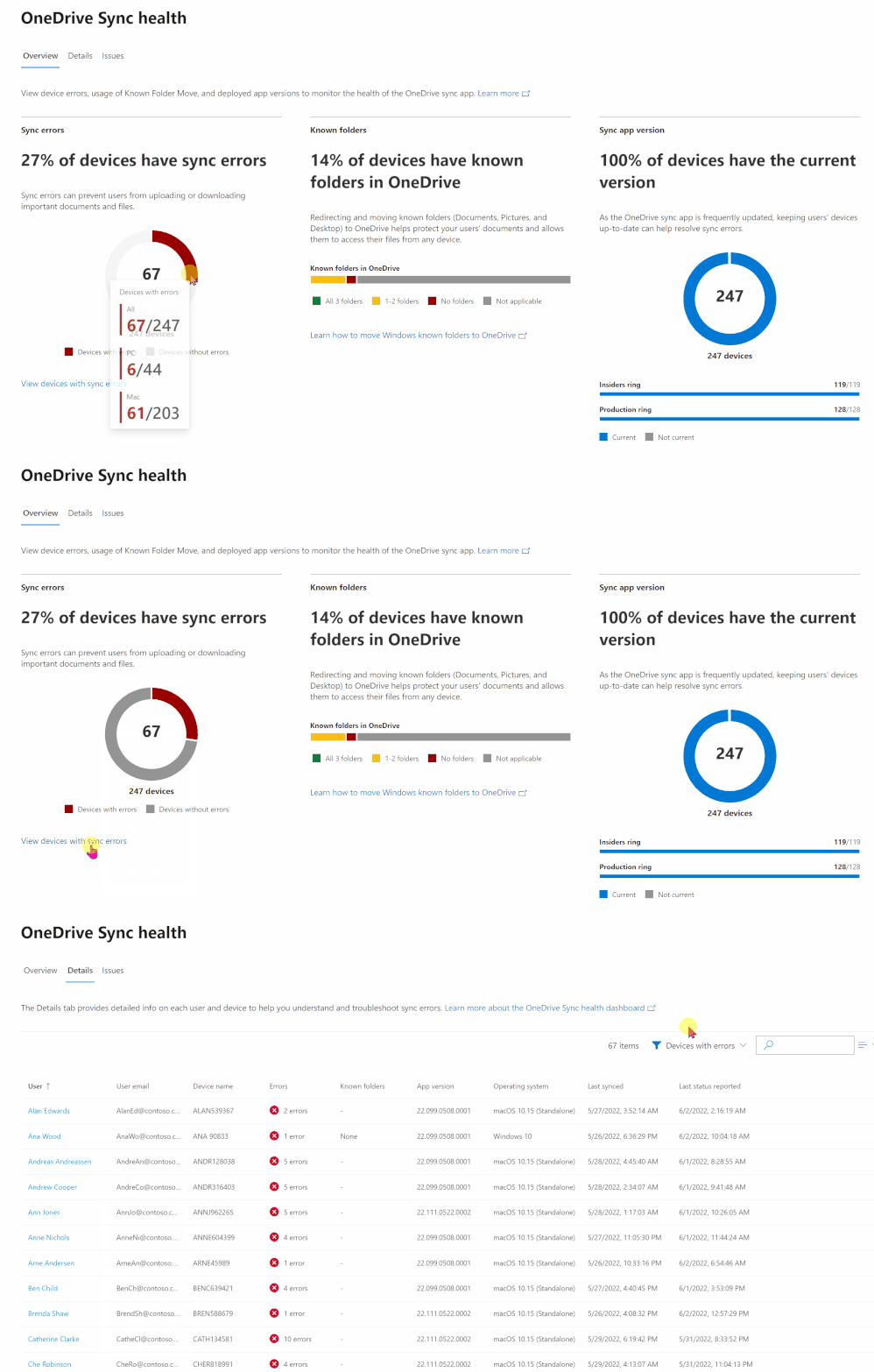
OneDrive Sync Admin Reports for macOS give you more visibility into who in your organization is running the OneDrive Sync client on macOS and any errors they might be experiencing. When you open the OneDrive Sync health dashboard, you’ll see an executive summary of what’s going on with OneDrive Sync in your organization. On the left, you can see how many devices have at least one sync error. In the middle, you can see at a glance what percentage of the devices in your organization have known folders OneDrive is helping to protect. You can see what percentage of devices have the Desktop and Documents folders syncing with OneDrive, which have only one  and which have not opted in to sync those folders at all, meaning if something were to happen to those devices, all the contents of those folders would be lost. On the right, you can see how many devices are running on the current version of OneDrive, meaning they have all the latest and greatest fixes and features from Microsoft.


Sync health dashboardSync health dashboard


Rename shortcuts (93279)

We've added the ability to rename shortcuts you've added using the "Add to OneDrive" feature within OneDrive web.


AnkitaKirti_2-1656469609911.png


Access your Teams standard and private channel files (88911)

When you navigate to a site in SharePoint or OneDrive, you'll be able to access the files stored in the Teams standard and private channels associated with that site.


AnkitaKirti_0-1656436661440.png


Microsoft Stream Generate captions for a video uploaded to SharePoint and OneDrive for GCC and GCC High (85644)

Users with edit permissions to a video file uploaded to SharePoint and OneDrive can click a button in the player to generate closed captions in English.


OneDrive File Picker v8

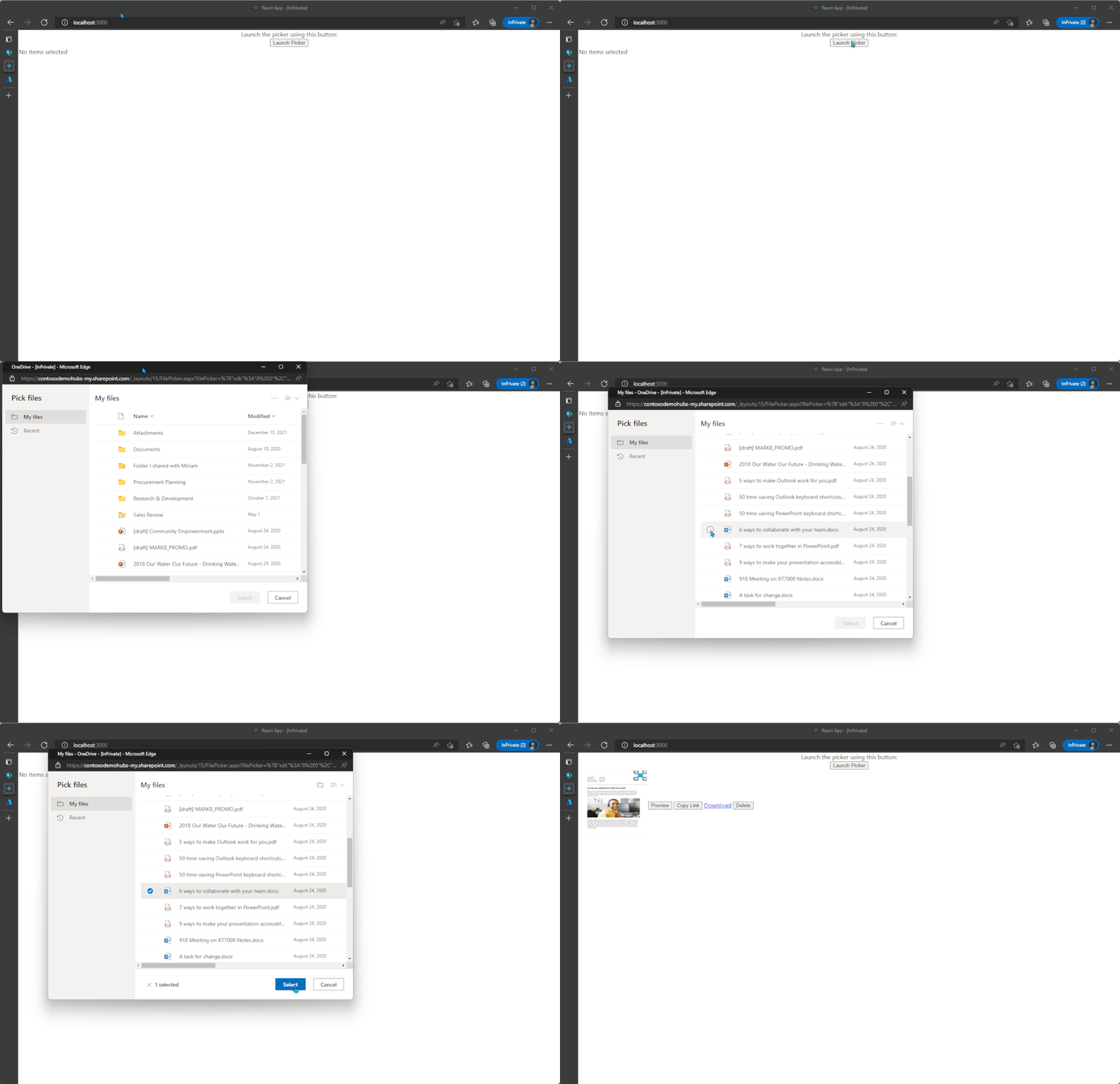
The OneDrive File Picker lets you connect your custom web apps to content stored in OneDrive (both the commercial and business versions) and SharePoint. With File Picker v8, you can integrate directly with the Microsoft 365 service, saving you complexity and time during the development phase and providing your users with the same rich, familiar user experience of OneDrive or SharePoint. Users who are already logged into Microsoft 365 can seamlessly access files and content through your web app, without having to log into the Microsoft 365 account a second time.


File picker v8 experienceFile picker v8 experience


Learn more..

We hope you’re as excited as we are about these new features. Join us for a free webinar tomorrow to learn more about these innovations.

Register here: What’s new in OneDrive: Q2 roadmap roundup


FVTU--4XEAAN5Yl.jpg


We continue to evolve OneDrive as a place to access, share, and collaborate on all your files in Office 365, keeping them protected and readily accessible on all your devices, anywhere.

You can stay up-to-date on all things via the OneDrive Blog and the OneDrive release notes.

Check out the new and updated OneDrive documentation.

Take advantage of end-user training resources on our Office support center.

Thank you again for your support of OneDrive. We look forward to your continued feedback and hope to connect with you at another upcoming Microsoft or community-led event.


Thanks,

Ankita

✇MTC OneDrive Blog

OneDrive Webinar: Q2 Roadmap Roundup

As people adjust to the new normal—whether that’s working in a hybrid environment or going back to an office that’s undergone some changes since pre-pandemic times—we’re continuing to innovate new features and services in OneDrive that make storing, syncing, and sharing files easier, no matter where people are working.


In the past quarter our main theme has been- Search less, do more. Join our free webinar to learn all about new Q2 feature releases that will help simplify access and discovery for you while providing consistent files experience across Microsoft Teams, OneDrive and SharePoint.


Date: June 29, 2022

Time: 9 am PT

Registration link: What’s new in OneDrive: Q2 roadmap roundup


FVTU--4XEAAN5Yl.jpg

✇MTC OneDrive Blog

OneDrive File Picker v8 now Generally Available!

Giving people quick access to what they need is key to providing a great user experience in any application. Today, we’re excited to announce the general release of OneDrive File Picker v8, which enables you to directly integrate Microsoft 365 services into your own web applications. That way, you can bring the OneDrive experience directly into your application to provide a consistent, familiar, user-friendly experience and ensure your users can find the files they need and stay productive—no matter what they’re working on. In addition, by integrating your application with this Microsoft 365 service, you’ll benefit from the same updates, modern token-based authentication, and new features and functionality that all Microsoft 365 users experience.


What is the OneDrive File Picker?


The OneDrive File Picker lets you connect your custom web apps to content stored in OneDrive (both the commercial and business versions) and SharePoint. File Picker provides a consistent, familiar UI for your web app users to open, save, and share files stored in OneDrive or SharePoint.

You can use the file picker to integrate with OneDrive and SharePoint in the following ways:

  • Open a file and receive a short-lived URL to download the content of the file.
  • Create a long-lived sharable link to view or edit a file. These are designed to be sent or shared with co-workers, friends and family, or other individuals.
  • Get a direct link to the file which requires end user authorization.
  • Get a file or folder ID for a file that can be used with Microsoft Graph to perform actions on the file.
  • Save a file to OneDrive or SharePoint team site.

What’s new in File Picker v8?


With this latest version of File Picker, you can integrate directly with the Microsoft 365 service, saving you complexity and time during the development phase and providing your users with the same rich, familiar user experience of OneDrive or SharePoint. Users who are already logged into Microsoft 365 can seamlessly access files and content through your web app, without having to log into the Microsoft 365 account a second time.


How can I try the latest version of File Picker?


No SDK or additional installation is required to use File Picker. Just review the updated documentation and samples to get started. If you have any questions or issues, please let us know using the issues list.

Note: If you’re using File Picker v7.2 or older, we encourage you to use the above resources to transition to the latest version so you can get the benefits of Microsoft 365 apps and services in your own web apps.


File picker v8 experienceFile picker v8 experience


How are developers using the latest version of File Picker?


MicrosoftTeams-image (16).png


Microsoft customer and partner ClearPeople developed its Atlas Digital Workspace & Intranet Platform - a single and intuitive interface that connects the digital tools, information, and knowledge that employees need to do their best work.  The development team at ClearPeople is using the latest version of OneDrive File Picker to create a user-friendly publishing flow via an Add It option in SharePoint or the Add It Teams app.

Before, users who wanted to publish a private file for a broader audience—think of an HR manager who wants to publish a new policy document on the company’s intranet site--were required to download the file from Teams, OneDrive, or SharePoint onto their device, and then upload the file from the device to the intranet. Now, Atlas developers have incorporated the OneDrive File Picker, so users can easily navigate to the file stored directly in their OneDrive, Teams channel, or SharePoint site and select it for publishing. Atlas developers also created a custom form to ensure that all published files have the correct associated metadata, so users can easily find the file during a search.


With the new File Picker, we were able to create the Add It experiences in SharePoint and Teams within a week using just a few parameters,” explains Guillermo Bas Ortiz, Product Manager at ClearPeople.In addition, users have a better experience because they can choose files directly from their OneDrive or SharePoint and feel confident that all the relevant information gets carried over when a file is published for a broader audience.


AnkitaKirti_1-1655916834252.png

Comeen Play (formerly DynamicScreen), is integrating the new picker to connect its display management platform to content stored in OneDrive and SharePoint. In this way, customers can easily incorporate files they are already collaborating on into display streams visible all over the world. Prior to this integration in the new picker, it couldn’t use the picker due to its reliance on cookie-based authentication.


Simon Cleriot, CTO & Cofounder of Comeen, explains: “Our system uses a technical account that will be used to access documents for digital signage. So, the user isn’t logged in to the browser. Instead, we retrieve a token before the user wants to broadcast content. With the previous version of the picker, you couldn’t set a token, so that's a big difference that we’ve been waiting for.


Check out the updated documentation, try out the samples and get started today!


Thanks,

Ankita

✇MTC OneDrive Blog

Calling macOS Admins: OneDrive Sync Reports are in Public Preview!

With so many people working in a hybrid environment and relying on cloud services like OneDrive and SharePoint, it’s critical to have insights into the health of OneDrive sync across your organization. Today we’re excited to announce the public preview of OneDrive Sync Admin Reports for macOS in Microsoft 365 Apps admin center.


Sync health dashboardSync health dashboard

 IT admins can now use sync health reports to get an overview of the sync client across both macOS and Windows. 

Check out some of the key benefits of Sync Admin reports for macOS devices.


Quick snapshot of organization-wide OneDrive sync health

When you open the OneDrive Sync health dashboard, you’ll see an executive summary of what’s going on with OneDrive sync app in your organization. You can see how many macOS devices have errors and whether they’re running the latest and greatest version of OneDrive.


error overview chart clickthrough.gif


Last month we announced Folder Backup (Known Folder Move) support for macOS in public preview. This implies that people using OneDrive on macOS Monterey 12 will be able to move their Desktop and Document folders to OneDrive.  Users can continue accessing folders they’re familiar with to do their daily work and be assured that their data is backed up and secure.

The OneDrive Sync health dashboard also shows you what percentage of macOS devices have these folders (Desktop and Documents) syncing to OneDrive. 

Detailed reports to help you help your users stay productive

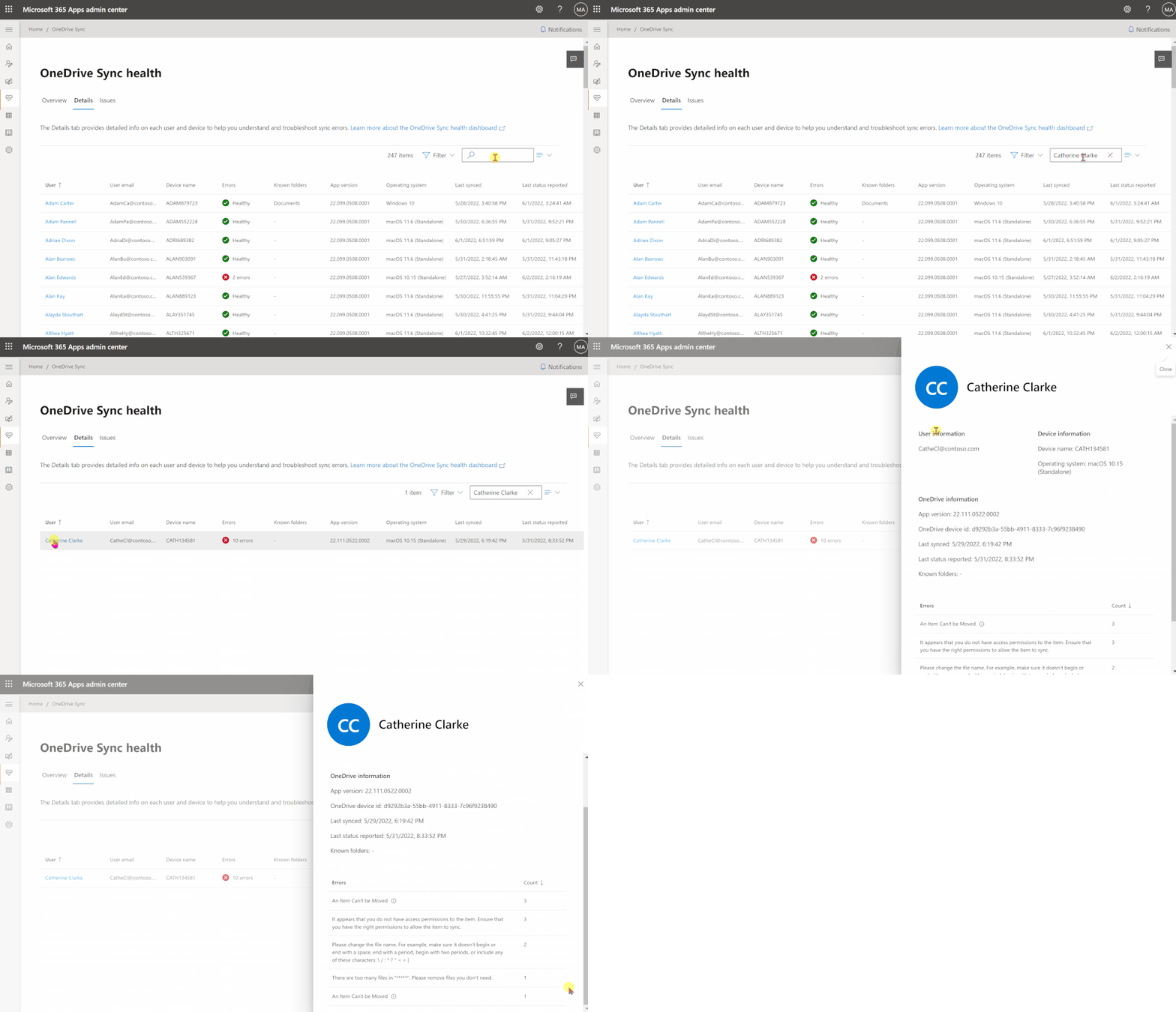
Navigating to the “Details” tab will show comprehensive information on any user facing a problem when syncing files to OneDrive. You can see their macOS version, their current OneDrive app version, as well as the last time the app synced to the cloud or reported its status to the dashboard.

You can click or search for a username and a flyout pane will further show you the types of sync errors and their expected resolution.


search for user.gif


If your organization has a mix of devices, you can easily sort and filter through the list to create a more concise and customized view.


create mac filter.gif


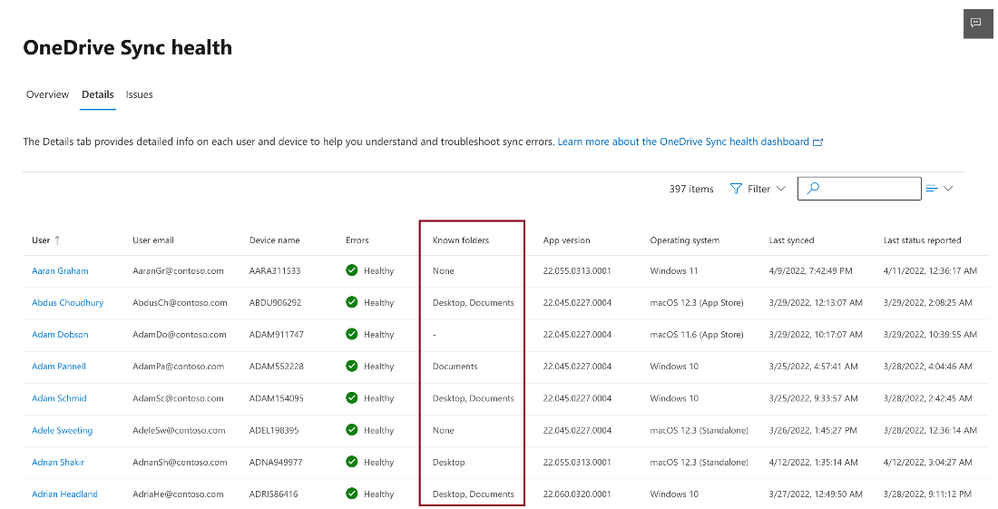
Lastly, in the Details tab, you’ll also be able to track the progress of your KFM rollout for each user in your organization.

Apart from displaying the folders that have been backed up, there are additional status indicators to help you monitor your KFM implementation.

  • Not Available "-" will be displayed if the device isn't eligible for KFM due to older versions of   macOS or OneDrive.
  • "None" will be displayed if the user has not opted to sync their important folders to OneDrive.

AnkitaKirti_1-1654584934402.png


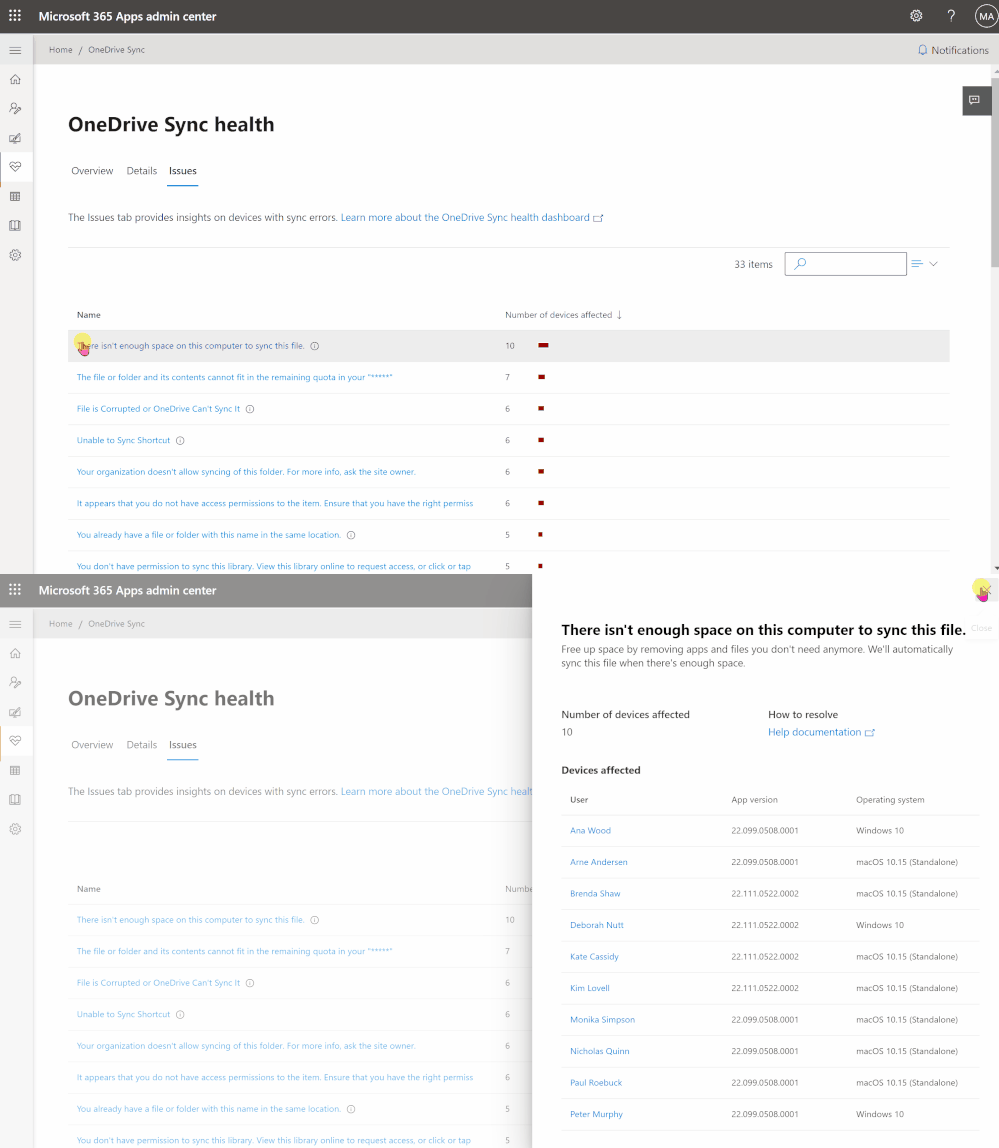
We have also introduced a new “Issues” tab that gives you the ability to access an aggregated summary view of the top sync errors in your organization. You can sort the issues list by the number of affected devices and drill into the specific devices reporting a particular error.


issues flyout.gif


Having these insights into sync errors helps you react quickly to requests for help and be more proactive in driving down occurrence of the most common sync errors. For example, you can plan targeted educational outreach for users in your organization or reach out to individual users who are experiencing specific errors. 

To set up the dashboard, follow the instructions at https://aka.ms/OneDriveSyncHealth .


Stay engaged..


We hope these features help provide you with better focus and more efficient ways to collaborate. As always, we look forward to hearing your feedback!

You can stay up-to-date on all things via the OneDrive Blog and the OneDrive release notes.

Check out the new and updated OneDrive documentation.

Take advantage of end-user training resources on our Office support center.


Thanks,

Ankita 

✇MTC OneDrive Blog

Seamlessly shift between work and personal files

Over the past couple years, many of our priorities have shifted, making the boundaries between our personal and work lives fuzzier. Adjusting to hybrid work may mean that you're working more flexible hours, for example. But time is still a priority, and when you need to switch from doing work tasks to personal tasks, you don't want to spend a lot of time closing and opening apps and hunting for what you need.


That's why we've made it simpler for you to switch between your professional and personal OneDrive accounts, or even between separate professional accounts you might maintain for multiple clients if you're a consultant or freelancer.

Maybe you're spending the morning working at your favorite coffee shop when you remember you needed to send some papers that are saved in your personal OneDrive account to your kids' school. By selecting your profile picture at the top right of the OneDrive page, you'll see a list of all your Microsoft accounts, or the option to add a new one. You can select your personal account, select the file you need in OneDrive, and select Share on the toolbar to email the files to your kids' school. When you're finished, just select your work account to seamlessly return to what you were doing--no switching apps or devices necessary.


OneDriveWebAccountSwitching (1).gif


From April to June, this functionality will be rolled out in Worldwide environments of Office.com, Word, Excel, PowerPoint for the web, Outlook on the web, OneDrive for the web, SharePoint, and Microsoft 365 admin center.


To learn more about the capability, check out the announcement and related FAQ here:  Announcing account switching for Microsoft 365 web apps

Stay engaged..


We hope these features help provide you with better focus and more efficient ways to collaborate. As always, we look forward to hearing your feedback!

You can stay up-to-date on all things via the OneDrive Blog and the OneDrive release notes.

Check out the new and updated OneDrive documentation.

Take advantage of end-user training resources on our Office support center.

Check out our episodes of Sync Up- a OneDrive podcast to learn more about OneDrive from the experts. 

✇MTC OneDrive Blog

More efficient organization and better access to what you need in OneDrive

Having access to your most important files no matter where you are working is key to being successful in the world of hybrid work. The OneDrive team is working continuously to ensure you have everything you need—from Office docs to photos and videos—at your fingertips, whether you’re working alone on files or securely collaborating with teammates or external colleagues for seamless collaboration. Recently, we’ve been working to provide more efficient ways for you to organize and access your files, no matter where you are working. Let’s take a look at how someone in Marketing might have a more productive day using these features.


Easier access across OneDrive, SharePoint, and Teams files for team collaboration


We’re continuously adding features to make it easier for you to collaborate with others, whether you’re working in OneDrive, Teams, or SharePoint. Lately we’ve been focusing on providing you with a more consistent experience when accessing your files across OneDrive, SharePoint, and Microsoft Teams. 


Find all your Teams in one place


Now through OneDrive you can access the Teams you visit most frequently. When you select More places… in the left navigation pane, you’ll see a list of all your Teams and Document Libraries, which you can select to directly access files stored in those channels. For example, let’s say you’re writing a whitepaper on industry trends, and you need some information that’s stored on the Sales channel. You can easily navigate to the Sales Teams channel by selecting More places… and selecting Sales from the Recent list. You can also pin your most frequently visited Teams to the Quick access list.


Your Teams.png


Quickly switch between libraries


We’ve added a dropdown to OneDrive and SharePoint that lets you easily switch between multiple document libraries associated with a Teams team or a SharePoint Site. This gives you faster access to the files you need most, helping make your days more productive. So, as you work on your industry trends whitepaper in the Marketing team channel, you can easily select the Dropdown library icon to switch between document libraries for different product teams to look for the latest information from your organization’s industry-focused Marketing teams.


doclib dropdown.png


Everything you need to be the most productive, in one place


To help you stay focused and productive, we’ve been adding features to help you stay organized and manage the files you work with most frequently.


Pin and unpin shared libraries for quick access


To easily find and access the places where you regularly work, you can pin shared libraries to the Quick Access section in the left nav of OneDrive. Pinning a document library adds it to the top of the Quick Access section. You can also un-pin document libraries from the Quick Access section. 

Let’s say you’ve had a request from the Internal Comms team to help develop some urgent communications for the Crisis Management team. You’ve helped them before, so you have access to their document library, but you want to be sure you can get to it quickly for reference as you develop your document. To do this, you select More places… and then select Crisis Management. In the document library, you select Pin to Quick access, and the Crisis Management library is added to your Quick access list. When the project is over, you can easily unpin the document library from your list to ensure you only have the most current libraries you need.


Note: You can only pin libraries at the document library level and is not available when you navigate into a folder or subfolder in a site.


quick access.gif

Easily move or copy files in OneDrive and SharePoint


When you move or copy your files and folders in OneDrive or SharePoint, you’ll see a dialog where you can choose a new destination for your content. This familiar picker experience helps you easily navigate between your SharePoint libraries or OneDrive folders as you move or copy your files.

For example, you can start and save drafts of the crisis management docs in your Personal folder, and when they’re ready for review you can select them in your files list and select Move to. In the Move dialog, select the destination folder and select Move here to move them into a folder in the Communications library for the Internal Comms team to review.


AnkitaKirti_3-1651086563628.png


Organize your file shortcuts


With Add to OneDrive, you can add shortcuts to your most important shared folders in SharePoint or Teams directly to your OneDrive, making it much easier for you to get back to your important files.

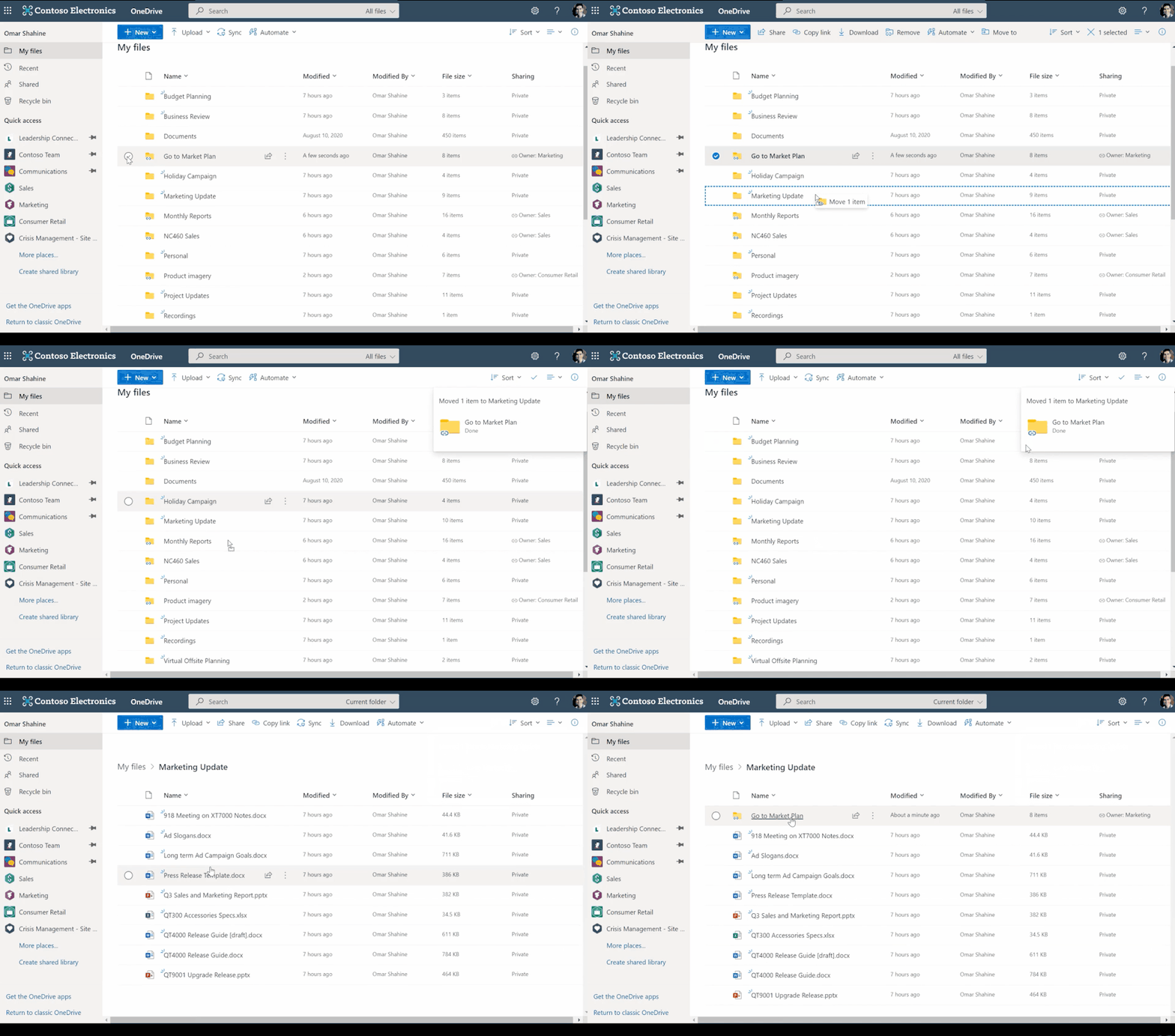
Now, you can also easily organize these shortcuts by moving them to the desired location within your OneDrive. You could either use the "Move to" command to select the destination folder of your choice or simply drag the shortcuts into existing folders.  


Move shortcut- file picker.png


For example, working on your whitepaper, you may have folders to your OneDrive from other Marketing and Engineering groups; you can easily select files to drag and drop these into your Industry Whitepaper folder.


Move shortcut .gif


Easily delete files you no longer need


To help you keep your workspace uncluttered, we’ve added the ability for you to delete large folders (with up to 10,000 items) at one time. This means that when you’re finished with a project, you can quickly remove all the files you no longer need from your OneDrive and SharePoint libraries.  

Learn more and stay engaged:


We hope you’re as excited as we are about these new features. We continue to evolve OneDrive as a place to access, share, and collaborate on all your files in Office 365, keeping them protected and readily accessible on all your devices, anywhere.

Check out our new OneDrive flipbook for tips for powering your collaborative files experience across Microsoft365

You can stay up-to-date on all things via the OneDrive Blog and the OneDrive release notes.

Check out the new and updated OneDrive documentation.

Take advantage of end-user training resources on our Office support center.


Thank you again for your support of OneDrive. We look forward to your continued feedback and hope to connect with you at another upcoming Microsoft or community-led event.


Thanks,

Ankita Kirti  | OneDrive

✇MTC OneDrive Blog

OneDrive Webinar: Q1 Roadmap Roundup

As people adjust to the new normal—whether that’s working in a hybrid environment or going back to an office that’s undergone some changes since pre-pandemic times—we’re continuing to innovate new features and services in OneDrive that make storing, syncing, and sharing files easier, no matter where people are working.


The past quarter has been loaded with OneDrive releases for every role - from better navigation for end users to reporting enhancements for IT admins. Join us for a free webinar to learn more about these exciting features


Date: April 12, 2022

Time: 9 am PT

Registration link: What’s new in OneDrive: Q1 roadmap roundup


1648573206117.jpg


Thanks,

Ankita

✇MTC OneDrive Blog

OneDrive Roadmap Round Up - Q1 CY22

As people adjust to the new normal—whether that’s working in a hybrid environment or going back to an office that’s undergone some changes since pre-pandemic times—we’re continuing to innovate new features and services in OneDrive that make storing, syncing, and sharing files easier, no matter where people are working.

Here are the OneDrive features we’ve released in full or in preview in Q1 of 2022:


January 2022


Files on Demand refresh for macOS (Roadmap ID: 82033)

In January 2022, we released a new OneDrive sync experience in macOS based on Apple’s new File Provider platform to improve the Finder experience for OneDrive. For this latest version of macOS, we updated the Files On-Demand experience to a more native look and feel. You provided some valuable feedback on that release, and we listened: we released an updated version of Files on Demand for macOS at the end of February. Those updates included:

  • Ensuring that “Always keep on this device” works like it previously did before macOS 12.1, so all content with that designation is also fetched into the OneDrive folder.
  • Enabling you to sync all content locally using the Download all OneDrive files now (which closely replicates disabling Files On-Demand) or Download files as you use them (which restores the Files On-Demand experience) options.
  • Improving the experience to when syncing to external drives.

ezgif.com-gif-maker (7).gif


Copy link in command bar (Roadmap ID:  88866)

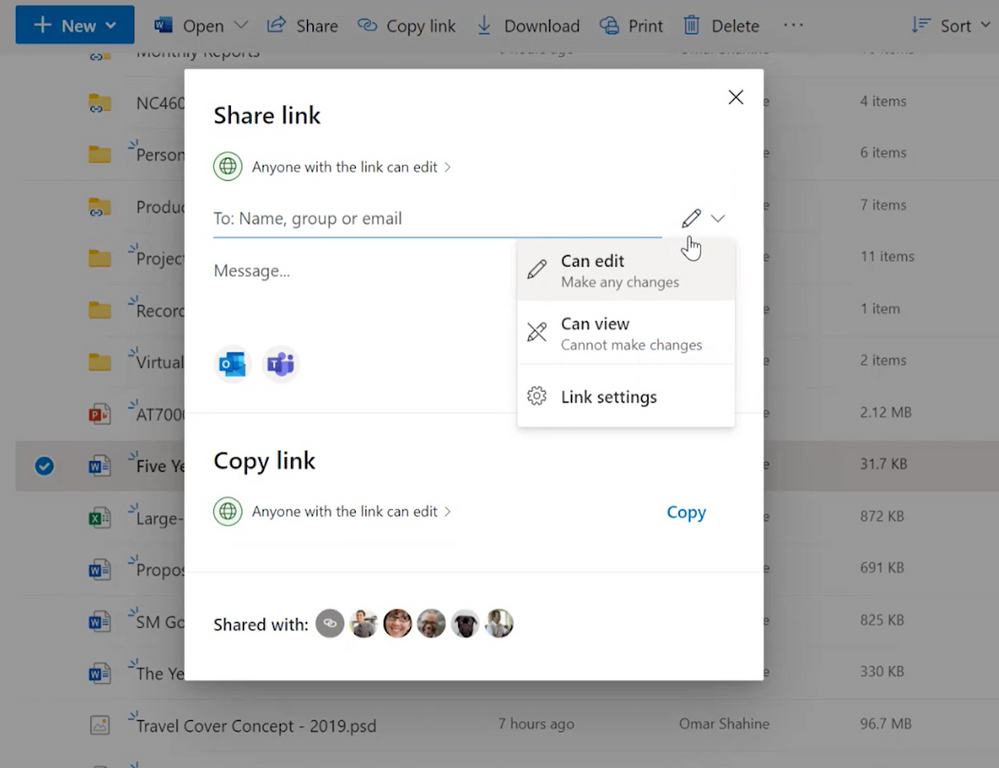
Similar to the "Copy Link" experience in the share dialog, now when you select "Copy link", in the command bar, instead of automatically copying the link with default permissions, you can change the link type and permissions before you generate a link and paste it into the app of your choice.


copy link in command.gif


OneDrive and SharePoint Improved Move or Copy experience (Roadmap ID: 85567)

Now when you move or copy your files and folders in OneDrive or SharePoint, you’ll see a new dialog where you can choose the destination for your content.


Improved move/copy file picking experience.Improved move/copy file picking experience.


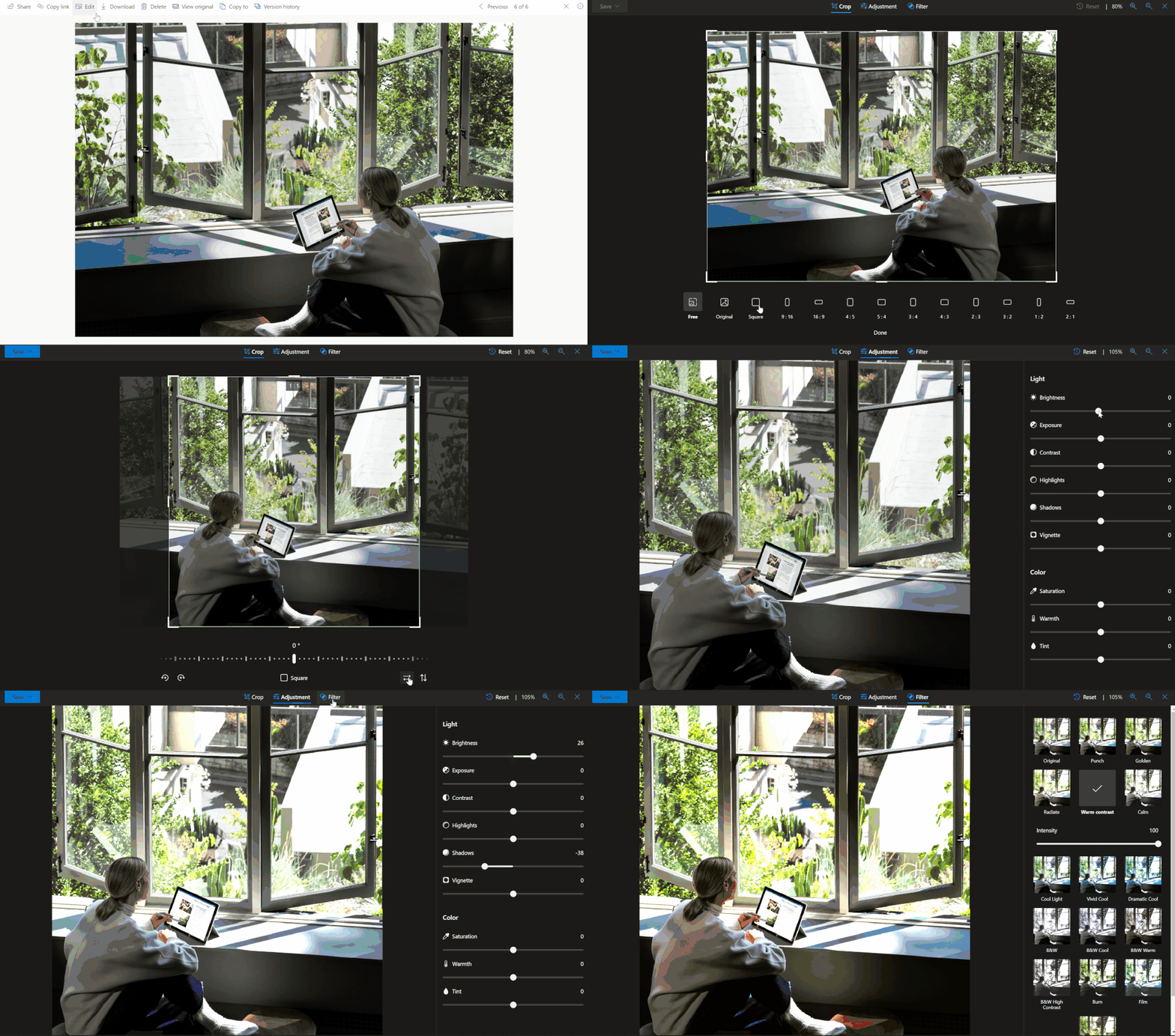
Built-in photo editing capabilities in OneDrive for web (Roadmap ID: 88841)

Users can crop, rotate, adjust light, and color or add filter and markup to images saved in OneDrive. After editing the image, if the user wishes to save the changes, the file would be copied as a new jpg file.

Learn more about these features here.


Built-in photo editing capabilities in OneDriveBuilt-in photo editing capabilities in OneDrive


View aggregated errors in OneDrive Sync Admin Reports (Roadmap ID: 85596)

Sync admin reports helps you with insights into what’s happening with OneDrive Sync across the organization. Sorting through errors can help IT proactively reach out to educate people to resolve common issues and improve user experience to help increase OneDrive adoption.

To make this easier, we have introduced the "Issues View" where admins can now view an aggregated snapshot of all the errors across their organization. This feature is in public preview.


AnkitaKirti_1-1648588834549.png


February 2022


Known Folder Move support for macOS (Roadmap ID: 82032)

Known Folder Move (KFM) for macOS is now in Public Preview, giving you the ability to keep your Desktop, Documents, and Pictures folders protected by syncing them to the cloud with OneDrive. Now you can continue using familiar folders to do your daily work and be assured that your data is backed up and secure. KFM for macOS also gives you access to your most important files across different devices and applications because their content is automatically synced to OneDrive with no disruption to productivity. IT admins also no longer need to worry about losing user data if they perform a device refresh; instead, they can configure KFM so all new files are uploaded to the cloud from the start.


Known Folder Move for macOSKnown Folder Move for macOS


Sync client support for Apple Silicon (Roadmap ID:82035)

In February we announced the availability of a highly requested feature: you can now run OneDrive sync for macOS natively on Apple silicon, enabling OneDrive to gain the full advantages of performance improvements in Apple silicon.


M1.png


Library Dropdown (Roadmap ID:81990)

We’ve added a dropdown to OneDrive and SharePoint that allows you to easily switch between multiple document libraries associated with a Teams team channel or a SharePoint Site, giving you faster access to the files you need most and helping make your days more productive.


Sync Activity Center visual update (Roadmap ID: 88954)

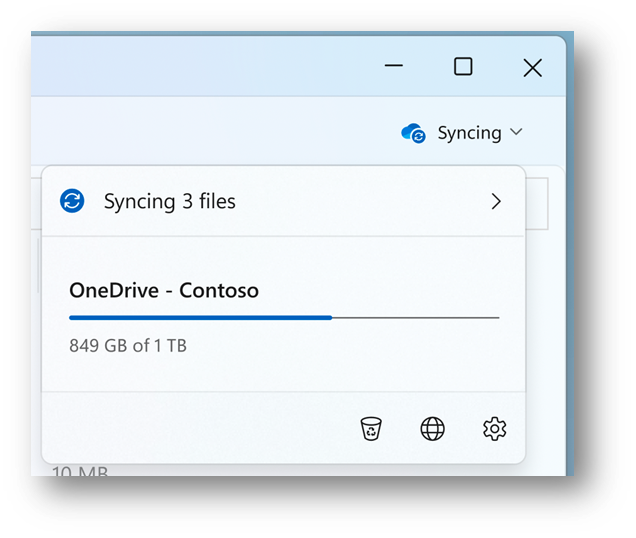
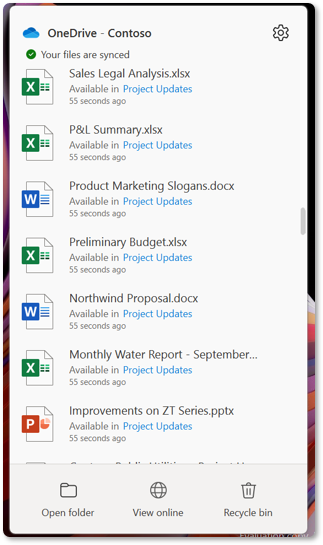
The Activity Center has received a refresh to more align with the Fluent Design language. This visual update applies a modern look with rounded corners for Windows 11 providing easy access to the recycle bin and settings.


AnkitaKirti_0-1648588275823.png


March 2022


Sync client support for ARM on Windows (Roadmap ID : 82182)

Now the OneDrive sync client runs natively on Windows ARM-based devices.


Organize your “Add to OneDrive” shortcuts (Roadmap ID: 82166)

Now you can organize your 'Add to OneDrive' folder shortcuts the way you want by moving them into any private folder you create in your OneDrive.


Move Add to OneDrive shortcuts in your own private foldersMove Add to OneDrive shortcuts in your own private folders


Learn more and stay engaged:


We hope you’re as excited as we are about these new features. We continue to evolve OneDrive as a place to access, share, and collaborate on all your files in Office 365, keeping them protected and readily accessible on all your devices, anywhere.

To learn more about these functionalities join us for a free webinar

Register here: What’s new in OneDrive: Q1 roadmap roundup

1648573206117.jpg


Check out our new OneDrive flipbook for tips for powering your collaborative files experience across Microsoft365

You can stay up-to-date on all things via the OneDrive Blog and the OneDrive release notes.

Check out the new and updated OneDrive documentation.

Take advantage of end-user training resources on our Office support center.


Thank you again for your support of OneDrive. We look forward to your continued feedback and hope to connect with you at another upcoming Microsoft or community-led event.


Thanks,

Ankita Kirti  | OneDrive

✇MTC OneDrive Blog

Apple silicon support in GA and KFM for macOS in Public Preview

OneDrive sync for Apple silicon now GA


We’re excited to announce that OneDrive sync for macOS will now run natively on Apple silicon. This means that OneDrive will take full advantage of the performance improvements of Apple silicon.


We know this has been a long-awaited and highly requested feature, and we're delighted to make it generally available starting with build 22.022. Users will be automatically updated over the next few releases. If you are running the Standalone app and would like to install the Apple silicon version sooner, you can download the latest build from the OneDrive release notes for Mac.


M1.png


Folder Backup (Known Folder Move) support for macOS now in Public Preview


We are thrilled to be rolling out another top feature request - Folder Backup (Known Folder Move) support for macOS to Public Preview

App version 20.033 will be required for the Public Preview.


This implies that people using OneDrive on macOS Monterey 12 will be able to move their Desktop and Document folders to OneDrive.  We have Users can continue accessing folders they’re familiar with to do their daily work and be assured that their data is backed up and secure.


Known Folder Move for macOSKnown Folder Move for macOS


Folder Backup (Known Folder Move) will also enable macOS users to access their most important files across different devices and applications with no disruption to productivity, because their content is automatically synced to OneDrive. In addition, users will be able to securely share their data within and outside their organization, increasing collaboration.

If admins of organizations decide to perform a device refresh, they don’t need to worry about losing user data. For new machines, Known Folder Move can be configured from the start, so all new files are uploaded to the cloud. This is great for organizations as it increases user engagement with OneDrive, and admins can easily protect files with enterprise-level security and compliance that comes built in.
IT admins will be able to use preferences to encourage Mac users to perform Known Folder Move to keep their files backed up and protected, or they can use a silent property to automatically move content in the Desktop and Documents folders to OneDrive.  Here are examples of the preferences in the .plist file:


Prompt users to move known folders to OneDrive:

<key>KFMOptInWithWizard</key>
<string>(TenantID)</string>


Silently move known folders to OneDrive:

<key>KFMSilentOptIn</key>
<string>(TenantID)</string>


If you want to opt-in certain folders during Silent opt-in, please set these preferences in addition to the KFMSilentOptIn key:

<key>KFMSilentOptInDesktop</key>
<(Bool)/>


<key>KFMSilentOptInDocuments</key>
<(Bool)/>


If you want to display a notification to users after their folders have been redirected.<key>KFMSilentOptInWithNotification</key>
<(Bool)/>


Prevent users from moving their known folders to OneDrive (1 will prevent KFM, 2 will redirect previously KFM’d folders back to the user’s device in addition to preventing KFM):

<key>KFMBlockOptIn</key>
<integer>(1 or 2)</integer>


Prevent users from redirecting their known folders to their Mac: 

<key>KFMBlockOptOut</key>
<(Bool)/>


This update will be available to all Mac users running macOS Monterey 12.1, enabling you to also keep your personal files in your important folders (Desktop and Documents) synced, protected, and available on other devices, and there’s no extra cost (up to 5 GB of files without a subscription). So even if your device gets lost or damaged, you won’t lose your important files when they are synced to OneDrive.


Note:

  1. This preview will ONLY be available with our Standalone app.
  2. This preview includes Desktop and Documents backup only. We are exploring supporting more folders.
  3. To enable the preview, please join the Insiders ring and navigate to OneDrive Settings > Backup.
  4. To send feedback, please navigate to OneDrive Activity Center Help & Settings > Send Feedback.


Thank you for reading about OneDrive,

Ankita Kirti

✇MTC OneDrive Blog

Updates to Files On-Demand on macOS

On January 26th, we released a new version of OneDrive sync (22.002) on macOS 12.1+ with an updated Files On-Demand experience. Prior to this release, OneDrive used a kernel extension for Files On-Demand which is deprecated as of macOS 12.3. We've been listening to your feedback, and we've made some design changes. We're releasing a new version that addresses the most common themes and makes it easier to achieve the previous experience.

Starting with app version 22.033, we're making the following updates:


Removing conflicting icons for locally available files and enabling apps like Spotlight or Time Machine to index files


We’re rolling out a change in version 22.033, to change the behavior to improve how OneDrive surfaces locally available content. The cloud with a down arrow will not be present on that content, thus, removing confusion on whether content is available offline or requires internet connection to access. For most of you, this fix should be applied within a few hours after receiving the updated version.


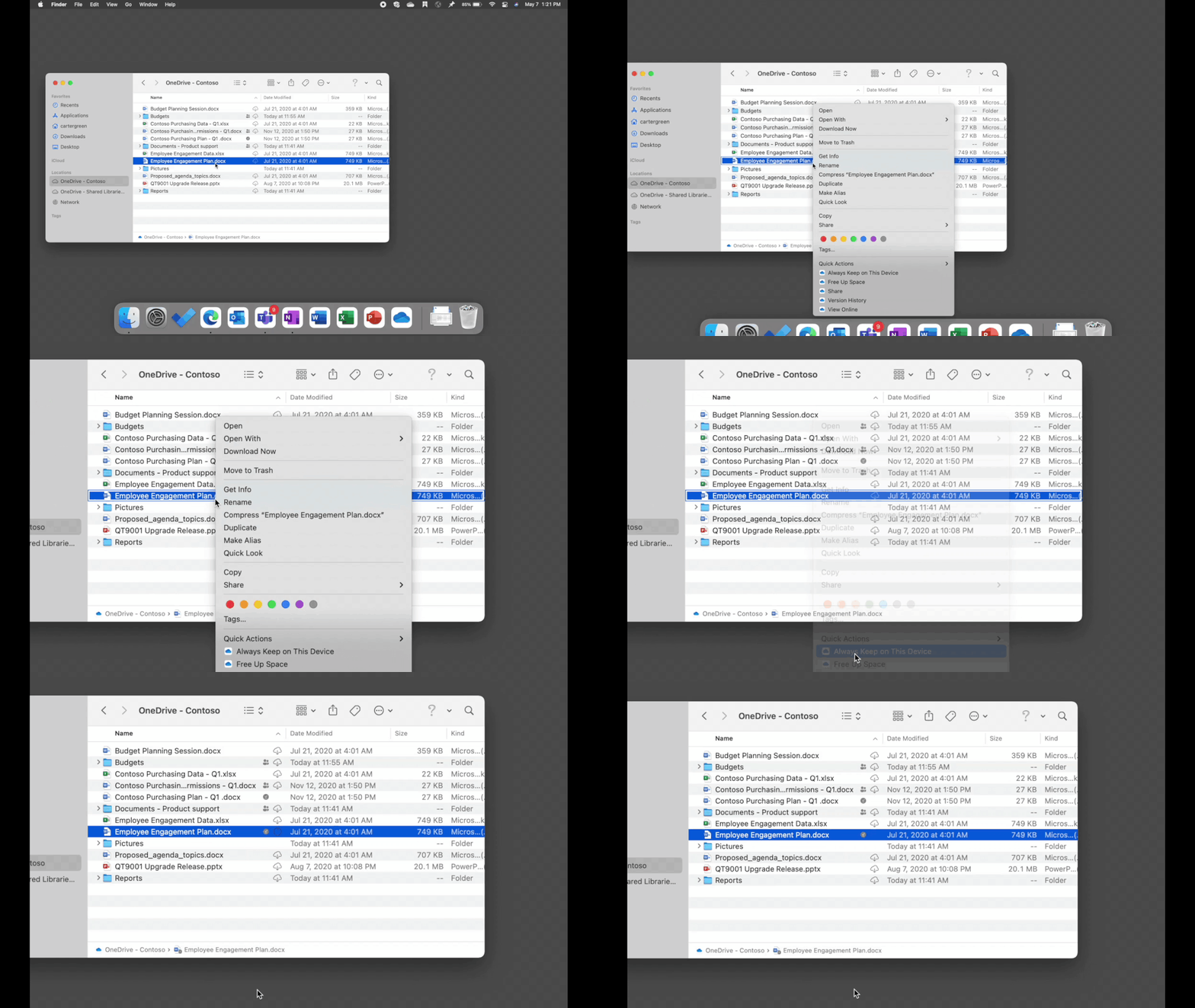
With this change, “Always Keep on This Device” will work like it previously did before macOS 12.1.  When performing the command, a checkmark is applied to the file, and the “not downloaded” cloud icon will be removed. The change that we are making is to ensure that all content that is marked “Always Keep on This Device” is also fetched into the OneDrive folder.

Apps like Spotlight and Time Machine will be able to index these locally available files without any special configuration.


ezgif.com-gif-maker (7).gif


Important: These changes only apply to you if you are not syncing your OneDrive to an external drive. If you are using an external drive, you will have a different experience detailed below.


Enabling a preference to sync all content locally


We’re also making it easier to keep all content synced locally if desired in version 22.033. Currently this is possible if you know where to look in the Finder, but we’ve made it easier with a new preference in the OneDrive Preferences window.


AnkitaKirti_1-1645671935656.png


There are two new buttons in this dialog:


  • Download all OneDrive files now: This most closely replicates the experience of having Files On-Demand disabled. Clicking this button has the same effect as choosing “Always Keep on This Device” for your OneDrive folder. All files and folders will be marked as always available and will download to your device. All newly synced content will also be represented as always available.  
    See below for how this works if you chose to sync your OneDrive to an external drive.
  • Download files as you use them: Clicking this button restores the default experience of using Files On-Demand. All newly synced files from the cloud will be online-only until the first time you use them.  Any file you have previously marked “Always Keep on This Device” will remain available on this device but if disk space becomes low, the operating system can change these files to be available online-only to save disk space.

Important: You do not need to click either of these buttons. These options are helpful if you intend to customize your OneDrive experience. 


Improving the experience when syncing to external drives


If you are syncing your OneDrive to an external drive (other than your home volume), starting in version 22.040, we will help you better identify what files are available locally. External drive support is limited by the File Provider platform. We will continue to partner with Apple on addressing feedback related to the platform in a future version of macOS.


If you are syncing your OneDrive to an external drive, we will not be able to remove conflicting icons. Opening files will bring them into your OneDrive folder on the external drive and onto your home drive and allow you to open them without an internet connection. We will now show a hollow checkmark icon for content that is locally available, similar to what we showed before macOS 12.1. Files with a hollow checkmark can be become online-only if the operating system needs to save disk space.

If you want it always available, then be sure to mark the files as “Always Available on This Device.”


AnkitaKirti_2-1645671935667.png


Note: As per our normal release process, the best way to get all these changes early is to join our Insiders program.

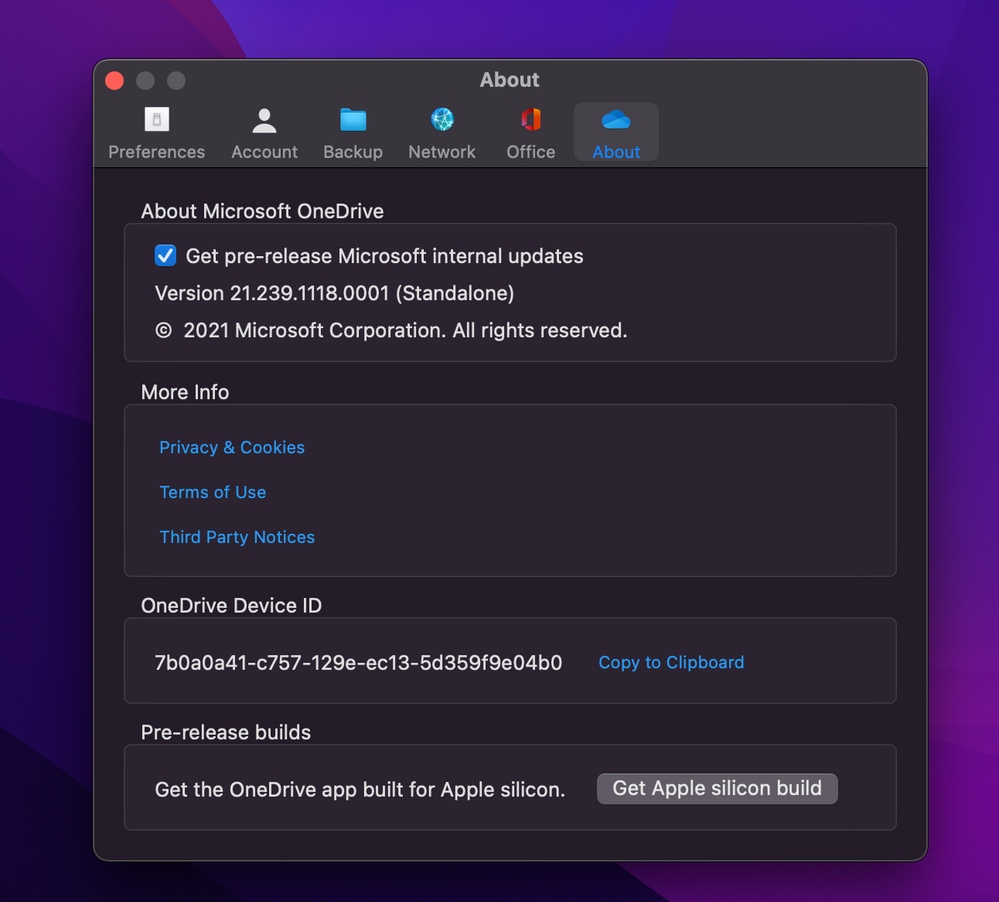
To join, open OneDrive Preferences, click the About tab, and check "Get OneDrive Insider Preview updates." 


Thank you,

Team OneDrive

✇MTC OneDrive Blog

Inside the new Files On-Demand Experience on macOS

2.24.22 UPDATE: We've been listening to your feedback, and we've made some design changes. We're releasing a new version that addresses the most common themes and makes it easier to achieve the previous experience. Please read the latest blog post for more details.


2.15.22 UPDATE: We're actively reviewing feedback and are aware of the difficulties some users are experiencing with the recent update. We working as quickly as possible to resolve these issues. We will share an update soon.

Additional information can be found in the FAQ updated on 2.1.22.

- Team OneDrive 


In June 2021, we announced several important updates for OneDrive on macOS, including an update to our Files On-Demand experience. This new experience is better integrated with macOS and will also help enable new features like Known Folder Move for macOS.


Today, we are excited to share that we have begun rolling out the new Files On-Demand experience to all our customers using macOS 12.1 or later. We also want to share some additional details about how the new Files On-Demand experience works, what changes you can expect, and when you can expect them.

We know that many of you are supporting organizations with lots of Macs that run OneDrive, and the more information we can provide you, the better you can serve your users.


Why we are building a new experience


In 2018, we shipped the first version of Files On-Demand for macOS. Since then, we’ve rolled it out for everyone using macOS 10.14 (Mojave) or later.


We are building a new experience for several reasons. One of the most important is that the new technology stack (based on Apple’s File Provider platform) is much better integrated with the operating system compared to the first version. This means a better user experience, better application compatibility, and better reliability. This technology stack also enables us to offer new features that we couldn’t offer before, like Known Folder Move, along with lots of other little improvements that you probably won’t notice right away!


Because the new experience is more integrated with macOS, it will have long-term support from Apple. The first version of Files On-Demand is built on several pieces of technology that are now deprecated. Moving to the new platform enables us to support this feature for years to come.


Supported macOS versions


For users who are not part of our Insiders program, the new Files On-Demand experience requires macOS 12.1 or later. Users on our Insiders program can continue to use macOS 12.0, but we strongly encourage them to update to the latest version.


macOS 12.2 will be the last version that supports the classic Files On-Demand experience. For macOS 12.3 or later, this means:

  • Files On-Demand will default to on for all users and cannot be disabled.
  • Devices will migrate automatically to the new Files On-Demand as soon as they receive a macOS update. You cannot delay this update without also delaying an update to macOS.
  • Both our Standalone and App Store versions of OneDrive will have the same behavior.
  • Users running a developer or beta version of macOS will have the same experience as a release version of macOS.


If you are concerned about application compatibility with this change, we strongly suggest that you install macOS 12.3 or later and test your workload. Depending on the results of that test, you may want to delay updating your Macs.


File system requirements


The new Files On-Demand experience requires a volume that is formatted with APFS. HFS+ volumes are not supported.


We are ending support for HFS+ after macOS 12.3 or later. A very small minority of customers are syncing OneDrive on HFS+ volumes today. As we roll out the new Files On-Demand, these users will first experience a warning in the OneDrive activity center telling them to upgrade to APFS. Once the new Files On-Demand experience is fully rolled out, OneDrive will not launch until the volume is upgraded to APFS.


You can use Disk Utility (built in to macOS) to determine which volumes are running APFS, and upgrade any HFS+ volumes to APFS.


Sync root location


When users set up OneDrive, they must choose a location where files will sync. This is called a sync root. Historically, we’ve allowed users to choose any location on any fixed volume mounted on their Mac.


With the new Files On-Demand experience, the sync root is always located within users’ home directory, in a path such as:


~/Library/CloudStorage/OneDrive-Personal


As part of the upgrade, the sync root will be moved to this location. This location cannot be moved or changed and is controlled by macOS.


This path is a little cumbersome for users to use, so they can access this directory in two other ways:

  • Under Locations on the Finder’s left navigation pane.
  • Via a symlink at the original location the user picked when setting up OneDrive. For example, if the user chose to sync OneDrive at ~/OneDrive, then a symlink will be created from here to ~/Library/CloudStorage/OneDrive-Personal.


Cache path


To support the new experience, OneDrive maintains a cache path in a hidden location. This path contains a replica of the file tree that the user is syncing. Most of the files in this location are usually dataless and don’t consume disk space, but occasionally files here can have data, such as if a user pins a file or if a change is being transferred to or from the cloud.


OneDrive tries to maintain as little data here as possible, and instead prefers to keep data in the sync root. As such, file data is not generally kept in both locations unless a file is marked as “Always Available on This Device.” In that case, the file’s data will sometimes be retained in both the sync root and the cache, but the files will be linked using a clone, so they do not occupy any additional space.


Using another volume


Sometimes, users choose a path on another volume to set up OneDrive. A typical use case for this happens when a user has a small internal drive on their Mac, but also has a larger external drive attached.


This configuration is still supported in the new Files On-Demand experience if an external drive is selected during the first-run experience. A few things change as a result:

  • The sync root remains in ~/Library/CloudStorage, on the user’s home volume. As noted above, this path cannot be moved from this location.
  • The cache path is on the volume that was selected during the first-run experience. This is located in a hidden folder that’s a sibling of the location that was chosen.
    • This folder begins with the name “.ODContainer”.
  • A symlink is created from the chosen location to ~/Library/CloudStorage.


For example, if the user selects /Volumes/BigDrive/OneDrive for their OneDrive path:

  • The sync root will remain in ~/Library/CloudStorage/OneDrive-Personal
  • The cache path will be set up at /Volumes/BigDrive/.ODContainer-OneDrive
  • A symlink will link from /Volumes/BigDrive/OneDrive to ~/Library/CloudStorage/OneDrive-Personal


Because the cache path is located on an external drive in this scenario, any pinned content will be stored there and not on the main drive.


The cache path folder is hidden by default. Users should not modify this folder or its contents.


User consent


For OneDrive to complete setup with the new File Provider platform, the user must consent to allow OneDrive to sync. This experience is like the experience of allowing an application access to the Documents folder or the user’s Contacts.


AnkitaKirti_0-1642011516079.png


Consent is not required in the following cases:

  • If the user previously opted-in to use the Finder Sync extension. This is set by default for the Standalone build, and the vast majority of our App Store users have opted-in as well.
  • If the OneDrive app was deployed and managed through an MDM tool. MDM-managed applications are considered to have implied consent by the administrator.


If consent is required, the user will be prompted to provide it during the first run experience when setting up OneDrive for the first time.


The user can withdraw consent from the System Preferences -> Extensions preference pane. If consent is withdrawn, OneDrive will display an error dialog, an error in the Activity Center, and an error icon, until the user provides consent again. OneDrive cannot run without consent.


Always Keep on This Device


A standard feature of Files On-Demand on all our platforms is the ability to mark files as “Always Keep on This Device.” Internally, we call this operation “pinning.”
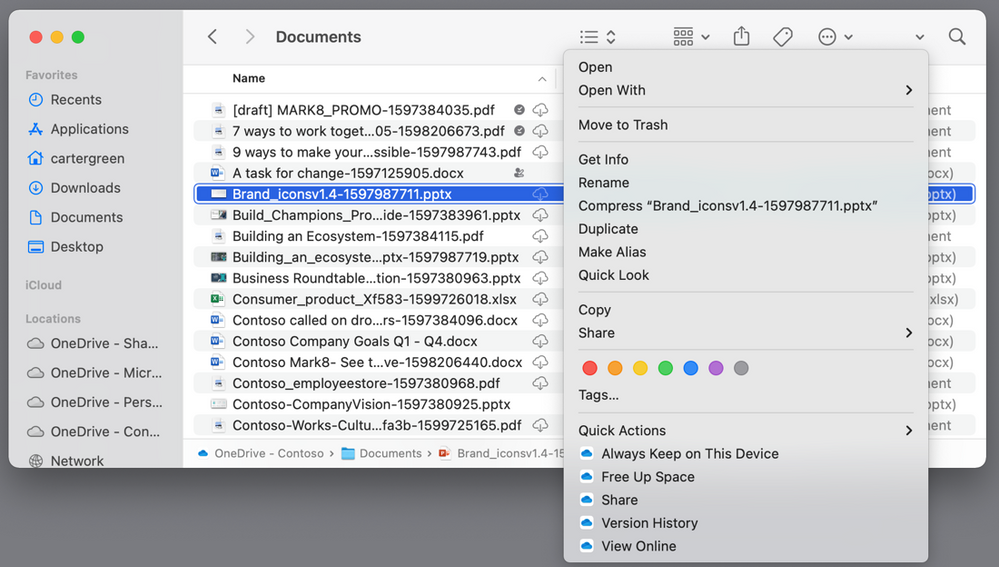
 

AnkitaKirti_1-1642011516145.png


When a file is pinned, it is downloaded to disk and is always available offline, even if there is no network connection. The presence of the check mark icon indicates that a file is in this state. Folders can also be pinned, which means that all files and folders underneath the folder will inherit the state, and new files added to that folder will also inherit the state.


Pinning a file on the new Files On-Demand platform means that its contents will be downloaded into the OneDrive cache. Because is the file is in the OneDrive cache, it can always be provided to the sync root whenever it is needed, even if the machine is offline or the OneDrive app isn’t running. The presence of the gray check mark indicates a file that is in this state.


You may notice that pinned files sometimes have an icon next to them that indicates they aren’t downloaded. This icon just means that the file isn’t in the sync root. If a file has the gray check icon, it is still always available because OneDrive has the file in its cache and can always provide it.


Free Up Space


When you no longer need a file on your Mac, you can use the “Free Up Space” option to immediately evict its data. When you do this, data is evicted from both the sync root and OneDrive’s cache, ensuring it occupies no bytes on disk. However, it is still available in the cloud.


Disk space usage


Files that are kept in the sync root do not count against disk space usage, unless they are marked as “Always Keep on This Device.”


For example, imagine the sync root contains five files, each 20mb in size, for a total of 100mb. These files are fully in-sync with the cloud. Now imagine another application asks about the amount of free space on the drive. These five files do not count against the disk space used, so the size reported to the application will be 100mb larger than you might expect.


The reason for this behavior is that in low disk space situations, these files can be automatically evicted from the disk to make room for more data. For instance, imagine an application wants to write 50mb of data to disk, but there is no more disk space. However, because the five files in the sync root can be evicted as needed, the write can safely complete. To do that, three of these five files will be evicted to make 60mb of space, and so the 50mb write completes.


This behavior has several implications:

  • Files that have data in the sync root can be evicted at any time.
  • The system will automatically clean up files as disk space runs low.
  • Mark files as “Always Available on This Device” if you do not want them to be evicted.


We know that some organizations have scripts or something similar to automatically free up space for OneDrive content, usually at login or on a set schedule. Because macOS will automatically free space from OneDrive files as needed, such scripts are no longer necessary, unless you want to prevent users from keeping content in the “Always Keep on This Device” state.


File system feature support


The new Files On-Demand experience supports some existing features of APFS that were previously poorly supported by OneDrive. These include:

  • File tags
  • Last used date
  • File system flags
  • Extended attributes
  • Type and creator code
  • Symlinks


Note that changes to these properties do not sync to or from the cloud, but OneDrive will preserve them on the local file system. Previously, they might only have been preserved for a short while but overwritten by a change from the cloud.


Symlinks have special support in the new experience. They are preserved as a symlink in the sync root but do not sync to the cloud as a symlink, as the OneDrive cloud does not support symlinks. Instead, the symlink will sync to the cloud as a plain text file with the symlink target as its contents. Previously, OneDrive ignored symlinks.


Packages


OneDrive now supports syncing packages, or files that appear as a single file but are actually a directory with many files and folders underneath them. Some applications exclusively create packages. Additionally, most Mac applications are stored on disk as a package.


Traditionally, the problem with syncing packages has been that packages often contain file states that don’t sync well in the cloud. For example, some packages contain internal symlinks, extended attributes, or other file system quirks that can result in a corrupt package if these are not synced correctly. The OneDrive app itself is an example of such a package – previously, if you saved the OneDrive app in OneDrive and attempted to open it on another Mac, it would be corrupt.


With the new experience, packages are now synced as a single file with a hidden .pkgf extension appended automatically. For instance, if you create a file named “Foo.app” in your OneDrive, it will sync to the cloud as “Foo.app.pkgf”. OneDrive automatically strips the .pkgf extension on compatible Macs, and the file will appear as a valid package on all compatible Macs.


Note that Macs not running the new Files On-Demand experience cannot read files in the .pkgf format.


Unlink, unmount, and reset


When you unlink your Mac or unmount a syncing location, OneDrive will preserve the non-dataless contents of your sync root. This works by removing the symlink to ~/Library/CloudStorage, creating a new folder in its place, and moving the files in your sync root that are not dataless to that location. Files in the OneDrive cache path are removed.


OneDrive also ships with a reset script included in the application bundle. This script behaves in a similar way, except that the non-dataless files are always moved into a folder in the user’s home directory named something like “OneDrive (Archive).” Files in the cache path are removed, except if the cache path is located on a volume other than the home volume.


Over time, we expect to improve this experience.

Learning more


 To learn more about OneDrive,


Thanks for reading!


Jack Nichols

Principal Software Architect - OneDrive


Update 2/1/2022


Hi everyone - Jack from Microsoft here. Just to quickly introduce myself, I'm the author of the original blog post, and also the architect for the OneDrive sync client. I'm the engineer who led the teams that designed and built Files On-Demand for Windows, macOS, and now the new macOS experience, so I have the most context about how Files On-Demand works and the trade-offs involved in building something like this.

The entire OneDrive team has been reading your comments, concerns and feedback, and we really appreciate everyone taking the time to write them. The community clearly has a lot of passion for OneDrive and how it works. I've spent many hours in the last week or two reading comments here and elsewhere, to understand how we can improve our macOS experience further.

Although we can't respond to all of you directly, there are a couple of themes and frequently asked questions that I wanted to answer to help provide some more clarity.


Why are all my files redownloading with this update? Why are my always-available files displaying a "not downloaded" icon?


Let me first set you at ease: your files aren't actually redownloading. What you are seeing is a bit of an optical illusion.


When your OneDrive instance is upgraded to the new Files On-Demand, macOS creates a new folder for your OneDrive files and we move your old folder into our cache location. We do it this way for many reasons, but two of the most important are that we can preserve your settings around which files are always available, and we can prevent the sync client from performing a costly reindex of all of your content.

As your files are brought into our cache, we tell the macOS File Provider platform about them. That causes the operating system to create the files in the new OneDrive folder that you will actually use. As part of telling the File Provider platform about your files, we include metadata about them, so that the operating system knows how big they are, what icons to show, and so forth.

Unfortunately, the current implementation of File Provider does not allow us to tell the operating system that we already have the file's contents available – so they appear to be online-only, even though their contents are safe in our cache, ready for the first time you access them. The best that we can do is tell the system to show the always available icon (the checkmark), but we can't tell the system to hide the "not downloaded" icon. The "not downloaded" icon is shown automatically by the File Provider system when the file is dataless in the sync root, and there's no current way for OneDrive to override this. Please know that we are actively investigating ways to address this, as we understand that it is a top source (if not the top source) of user confusion with this update.


The key thing to remember here is that if you double-click the files that we already have in our cache (files that you pinned when you selected “Always Keep On This Device” and anything you had downloaded before we did the upgrade), they will be retrieved and opened as expected, without any network traffic. This will work even if OneDrive isn't running, is paused, and so forth.


Why were my Finder favorite folders removed?


During the upgrade to the File Provider platform, OneDrive removes these favorites as they no longer point to a valid location. Most users will have a "OneDrive" favorite that will be removed in this manner, but a few users have dragged other folders of interest to this sidebar, which will also be removed if they were pointing at a OneDrive folder.

After the upgrade, if you want these favorite folders back, you will need to add them again by dragging your favorite folders to the Finder's sidebar.


How can I make it so that all my files are synced on my Mac and made available for offline access?


If you want all files synced on your device, you should pin the OneDrive folder. The easiest way to do this is to browse to your OneDrive in the Finder, change the view to Icons view, and then right-click the blank space between icons. Then, select Always Keep on This Device.. We're actively looking at ways to make this easier to configure on both macOS and Windows.
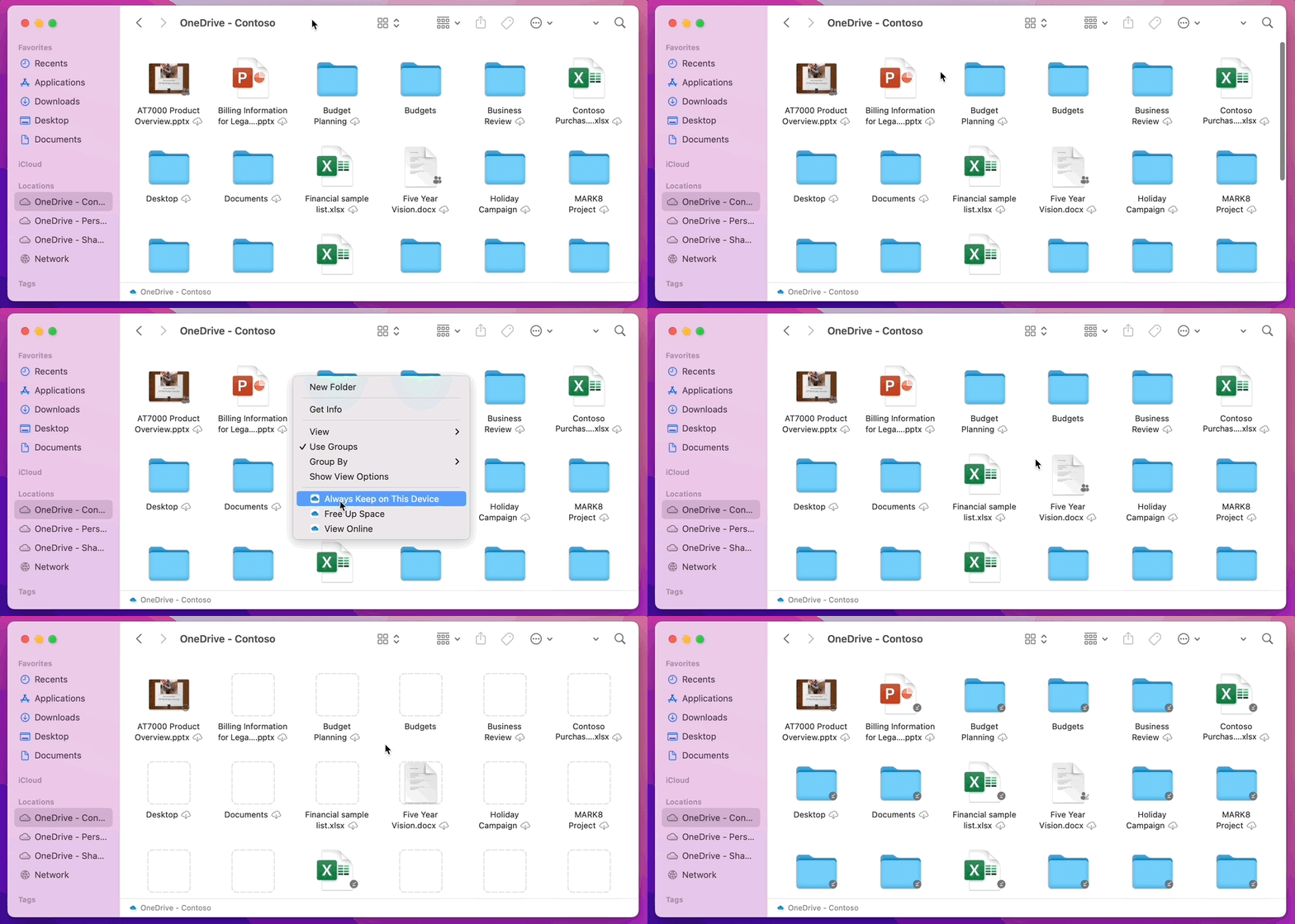
 

macOS Pin the Root 2.gif


Is there a technical reason that explains why Files On-Demand must always be enabled?


OneDrive has taken a dependency on Apple's File Provider platform as part of this update, as we believe it is the right long-term path forward for the product. Files On-Demand functionality is a core part of Apple's File Provider platform, but File Provider offers a lot more than that, too. I'll touch on a few of those things here below.

  • For instance, the little icons you see next to your files in OneDrive for macOS are now handled by the File Provider platform. This seems like a small thing, but it has a big impact. Before File Provider, we used something called a Finder Sync extension to show these icons in the Finder, but the Finder Sync extension was one of the top sources of problems on the macOS sync client. For example, the icons sometimes mysteriously disappeared, or performance problems affected the system. Because we eliminated the Finder Sync extension, we also eliminated an entire class of problems as a result.
  • This has also improved the reliability of OneDrive running on macOS. As part of our normal sync process, the sync client occasionally runs checks to ensure everything is syncing correctly. The results of those checks are reported to us as telemetry which we use to help ensure there aren't emerging bugs, and most of the time, we find and fix bugs before anyone notices them. We've been very closely monitoring this telemetry as the new macOS Files On-Demand experience has rolled out, and we’ve noticed is that reliability is significantly better than what we had before. This translates to a much better sync experience for you.
  • Finally, it is important to note that beginning in macOS 12.3, File Provider is the only Files On-Demand solution that is supported on macOS. Our prior solution is no longer supported. 

Files On-Demand has been available on Windows since 2017, and on macOS since 2018. In that time, we've progressed from the feature being opt-in only to being on by default for all users and have closely monitored how many users turn off Files On-Demand. Only a very small number of users disable Files On-Demand on both platforms, and there are two main reasons for that.

  • Application compatibility: When Files On-Demand first shipped on Windows, some applications didn't work well with the way we stored files, or with anti-virus or other security software that was installed. Over time, we've fixed most of these problems. On macOS, we took a similarly cautious approach, but the application compatibility landscape is quite different and, in some ways, less complex. Still, there were a few cases where, due to the technology stack we were using on macOS, it made sense for certain users to disable Files On-Demand to preserve compatibility. With the File Provider platform, these problems have gone away, so application compatibility issues on macOS should be much less likely to occur. If you find something different with your setup, please reach out to your support contact so we can diagnose the issue.
  • Locally available files: We know that keeping all content locally on the device is an important scenario for a small set of users. The best way to do this is to select Always Keep on This Device from the right-click menu to mark content as “pinned”.

Note that this applies to folders too; if you pin a folder, all of the content that's currently in it and new content that is added to it will be kept on the device.


Why is it sometimes slow to browse folders in my OneDrive?


To save space and system resources, the File Provider platform doesn't actually create the files OneDrive is managing until the first time you need them. The first time you open a OneDrive folder, macOS will create them on-demand. This can sometimes take a moment.

To avoid this delay, you can force the system to pre-create all of these files and folders for you without downloading your content. To do this, open a Terminal window and type "ls -alR ~/OneDrive" (or the path to your OneDrive). This will ensure all of your files and folders are created, but not downloaded, before you browse.


Can OneDrive be stored on an external drive? How does pinning a file work when I use an external drive? Are there multiple copies of my data?


I've seen several threads on this topic but let me clarify with an emphatic yes: external drives are fully supported without any difference in the end-user experience.

That said, external drive support as it exists today is implemented differently than it was in the past because of how File Provider works. Very few users are running this configuration, but for them, it's an important scenario because often their content won't fit on the home drive. File Provider doesn't support creating the sync root on any drive except for the home drive. So, we had to find a way to support external drives within these constraints.

When you choose a path to sync your OneDrive, we use that path to derive where we put your OneDrive cache path. If that path is on an external drive, we'll put the cache path there. We wanted to honor this preference because the cache path is where your pinned content is stored, as I'll explain below.

When your cache path is placed on an external drive, OneDrive tries to minimize the number of copies of your data it makes, and in most cases, only one copy will exist, usually in the sync root. If your home drive runs into disk pressure, the operating system will evict (dataless) files from the sync root, but they can always be obtained again from the cloud if needed. In some cases a file might exist in both places for a short time, but over time we will ship fixes that will optimize this further.

Pinned files on an external drive have behavior quirks that are worth understanding. If you pin a file, it will download to the cache path only, and will show both the checkbox and "not downloaded" state icons. This is because the file is dataless in the sync root but exists as a full file in the cache path. However, if you pin a file and also double-click it to open it, we will bring it into your sync root, so there are two copies, one in each location. Note that files brought into your sync root in this manner can still be evicted by macOS when it encounters disk pressure, but when this happens, only the file in the sync root is evicted. We still keep the data in your cache path, so you can always get to the file's content, even if you are offline.

The table below depicts how this works when you set up sync on external drives:


User action

File in sync root

File in cache path

Default state

Dataless

Dataless

Right click -> "Always Keep on This Device"

Dataless

Has data

Double click the file

Has data

Has data

macOS runs into disk pressure

Dataless

Has data

Right click -> "Free Up Space"

Dataless

Dataless

Essentially, the table depicts the guarantee that OneDrive makes about pinned files, namely that as long as we have a pinned file, we'll always keep the data available to you locally. The only time we don't have that data is either in the default state, or if you tell us to free up space for the file.


How does disk space usage work in the sync root?


In the original blog post, I mentioned that files with data in the sync root do not count against your disk usage. Some people took this to mean that these files occupy zero bytes on the disk, but what actually happens is that these files don't count against your used disk space. That is, if an application asks, "How much space is free on this disk?" that answer will exclude these files.

There are a handful of special cases where these rules don't apply:

  • Pinned files, if your cache path is on your home drive. In this situation, the file in the cache path and the file in the sync root are Apple File System (APFS)clones of one another, and although there are two files, they share the same space on disk until one changes. File Provider won't evict files that have a clone, and such files will count against used disk space.
    • If your cache path is on an external drive, there is no clone, so pinned files can be evicted from your sync root and don't count against used space on your home drive.
  • OneDrive designates certain file types as non-evictable, and therefore these files count against used space. The most important of these file types are shortcuts to OneNote files, which only occupy a handful of bytes. This matches the behavior on Windows as well.

The system logic to decide what files count against used disk space and what files do not is provided by the File Provider platform. If you find behavior that works differently than I've described here, please reach out to support, or to Apple.


Will this work with local file indexing (e.g. Apple's Spotlight)?

Yes. Spotlight indexes everything that is in your sync root, but note that Spotlight will not fetch (or hydrate) files that are dataless. If you are looking for something in Spotlight that could only be read from the full file (such as image EXIF data), only fully hydrated files will be indexed.

Spotlight will not index our cache folder.


Why is my AutoSave not working after this upgrade?


We have been made aware of users experiencing issues with AutoSave when using the Store version of the OneDrive app. We are actively working to resolve this in the next few days. In the interim, if you want to get unblocked, you can move to the Standalone build.
To move to the Standalone build from the Store version, you can unlink your account, uninstall the App Store version, and reinstall the Standalone version from this link: https://go.microsoft.com/fwlink/?linkid=823060.
We will keep you updated about the fix on this thread.

Update 2/3: The fix for AutoSave for the App Store version was released in the Store today. It is fixed with 22.002.0201.0005.


If you still have more queries feel free to reach out to the team directly on this discussion thread.  Files On-Demand for macOS QA - Microsoft Tech Community

Thank you for your constant support and partnership!

Jack 

 

✇MTC OneDrive Blog

Top five: Looking back at OneDrive in 2021

Happy New Year!

As many of us embraced the world of hybrid work in 2021, the OneDrive team worked diligently to add features and functionality to help you stay productive no matter where you’re working. At Ignite this past November, we shared a lot about the latest OneDrive enhancements and what’s coming in 2022. While we’re excited about what’s in store for the year ahead, we wanted to take a quick look back and share our top five most exciting highlights from the past year.  


One: Updated OneDrive experience on Apple products 


We worked closely with Apple to make some exciting advancements that enable you to run OneDrive on your on Apple devices. In December, we announced public preview of OneDrive for Mac running natively on M1-powered Macs including the latest iMac, MacBook Air, 13-inch MacBook Pro, and Mac mini, helping you access your files and connect with your team from anywhere. We also enabled Known Folder Move (KFM) support for macOS, which will go to public preview in February 2022, making it easier for admins to ensure that Mac users can keep their Desktop, Documents, and Pictures folders protected and easily access their files by syncing them to the cloud with OneDrive. To enhance user experience and familiarity with One Drive running on macOS, we also revamped the Files On-Demand experience, which currently in rollout, to help you save space on your device, set files and folders for offline access, see what files are shared, and view thumbnails for more than 300 files types. We also refreshed the status icons, giving you a better at-a-glance experience while you’re working. 


Revamped Files On-Demand experience for macOSRevamped Files On-Demand experience for macOS


Two: Better ways to store, sync, and share videos, recordings, and photos 


We kicked off 2021 with an announcement that we were making it easier than ever for you to store, sync, and share large files in Microsoft 365. We increased the upload file size limit for Microsoft 365 from 100 GB to 250 GB—which includes uploads of files into SharePoint, Teams, and OneDrive. Later in the year, we also moved your Teams recordings into OneDrive (personal meetings) and SharePoint (channel meetings), so you can easily find and collaborate on your important meeting recordings. By the end of 2021, your video recordings included embedded transcripts and comments, so you can jump to parts that interest you most. For your photos, we introduced new built-in photo-editing capabilities that enable you to a crop, adjust, add filters to images for use on social media or in presentations. 


Photo editing capabilities in OneDrive WebPhoto editing capabilities in OneDrive Web


Three: More intuitive file sharing experiences 


In the world of hybrid work, collaboration is more critical than ever, so we announced the Year of Sharing—incremental changes to improve the sharing experience across all Microsoft 365 and Office applications for all platforms (desktop, web, and mobile). Some of the enhancements we released this year included the ability to select quick permissions from a drop-down menu, easier access to change link types and permissions, a more user-friendly way to copy links, and an at-a-glance view of who you’ve shared files with and what permissions they have.   
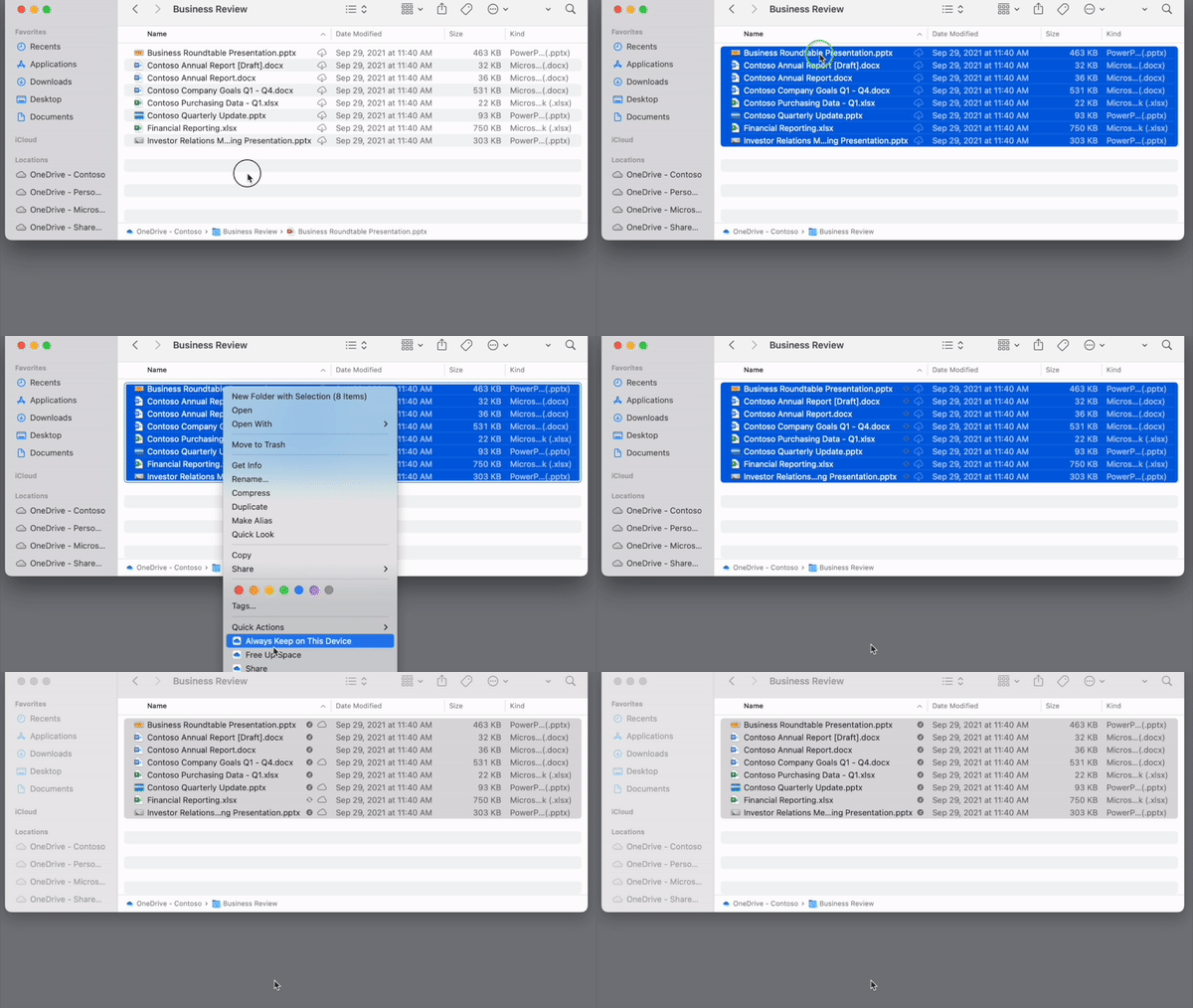
 

Quick permissions and link settings in OneDriveQuick permissions and link settings in OneDrive


Four: Easier administration for OneDrive and SharePoint, together 


With the developments over the last few years, we realized that admins need increased centralized control over content across the organization. That’s why earlier in 2021 we announced the new integrated admin center to help you manage everything at an organizational level all in one place: control internal and external sharing, set user access controls, manage default storage limits, enable user device notifications, specify retention policies, and manage sync controls for OneDrive. We also improved the user interface to provide a more consistent experience and support Web Content Accessibility Guidelines (WCAG) 2.1 compliance, enhanced reporting, and added the Global Reader admin role, which provides a read-only view of SharePoint admin center. 
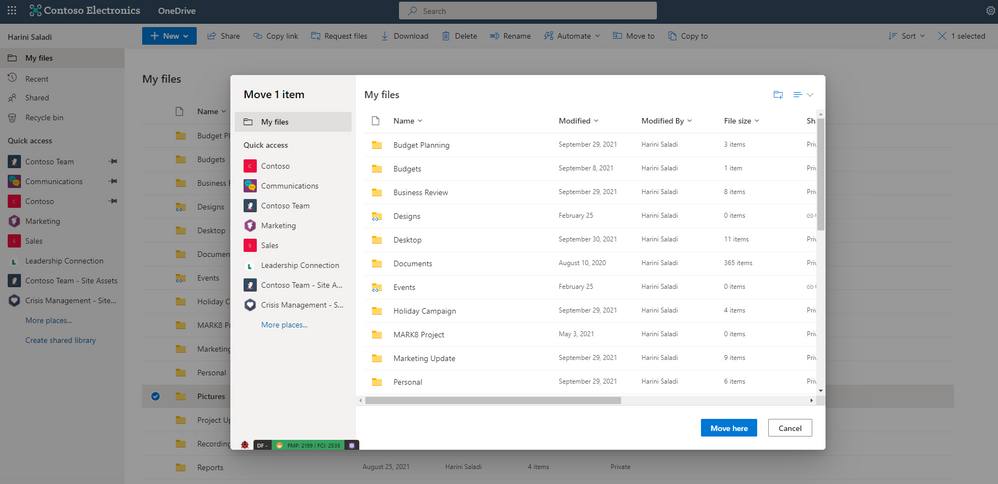
 

Admin center.gif


Five: More ways to keep OneDrive Sync secure and compliant 


To give admins greater insight into what’s happening with OneDrive Sync across their environment, we announced the public preview of OneDrive Sync Admin Reports in the Microsoft 365 Apps admin center. And for our customers running Windows 365, we shared the importance of adhering to the Sync Ideal State for sync client deployments. for sync client deployments.  


OneDrive admin reports will give IT admins more visibility into macOS users in their organization .OneDrive admin reports will give IT admins more visibility into macOS users in their organization .


Honorable mentions 


Some other exciting developments in the OneDrive universe in 2021: 

  • Universal printing. This year we announced Universal Print integration with OneDrive, enabling you to print documents stored in OneDrive directly to a printer in your organization or home office without requiring you to first install a printer on your device. 
  • OneDrive as a progressive web app. Now you can install the OneDrive website as a progressive web app (PWA) directly on your computer, so you can open OneDrive in its own window or set it to launch automatically when you start your device, giving you secure access to your OneDrive files. 
  • Improvements for Windows. We announced a native files experience in Windows 11, which defaults to the OneDrive sharing experience in Windows File Explorer once you’re signed in. We also announced OneDrive support for ARM-based Windows devices, which went into preview at the end of the year. 

Thank you for your support of OneDrive in 2021. We look forward to your continued feedback in 2022! 

To learn more about OneDrive, 


Thank you for reading all about OneDrive, 

Ankita

✇MTC OneDrive Blog

OneDrive sync for native ARM devices now in public preview

Update 4/15: OneDrive sync for Windows on ARM and for Apple silicon is now generally available. 


We’re excited to announce that OneDrive sync for Windows on ARM and for Apple silicon is now available as a public preview 


We know this has been a long awaited and highly requested feature, and we're thrilled to make it available for early access.

To enable the preview, you'll need to make sure that you’ve joined the Insiders ring and enabled the preview in OneDrive Settings > About.


We will be rolling out this feature to the Insiders ring over the next few days. 


Opt-in available for Mac devicesOpt-in available for Mac devices


Opt-in available for Windows devicesOpt-in available for Windows devices


For instructions on installing the native ARM client see Choose between the 64-bit and 32-bit version of OneDrive. 


To look up the version of your OneDrive see Which version of OneDrive am I using?


Thanks for reading about OneDrive, 

Ankita

✇MTC OneDrive Blog

Now it’s easier than ever to edit photos in OneDrive

Over the last year, we’ve been making improvements to OneDrive to ensure you have the tools you need to do your job, so you can get more done in the most efficient way. One thing we’ve heard directly from you is that you’d love a way to work on your photos in OneDrive without having to open another app. 

Today we’re excited to announce new photo editing features in in OneDrive on the web that will enable you to crop photos, adjust light and color, add creative filters, and mark up photos for editing, all in one place, so you can quickly add them to presentations, share them on social media, or use in meetings to enhance discussions about product development or marketing. 


Crop a photo to hone in on your subject 


When you want to focus on a specific part of a larger image, you can easily use the Crop feature to trim out the parts you don’t need. You can crop your photos manually to get the exact effect you want. You can also use preset aspect ratios to crop images to standard sizes for social media, helping you share images and stories more in the moment, or enhance your landing pages with new profile images or banners.  


Crop your imagesCrop your images


Turn it or flip it to gain new perspective 


With the rotation feature, you can rotate your photos left and right by 90 degrees or flip an image by 180 degrees for easy viewing. You can also rotate by incremental degrees to help straighten out images that may have looked straight enough in the camera but came out just slightly tilted in the end—or you can take a level image and make it look off-kilter for artistic effect.  


Rotate and flip your imagesRotate and flip your images


Use light and color for greater effect 


Adjusting light and color can help set the mood of your photos. With Adjustments you can calibrate photo elements like brightness, exposure, contrast, highlights, shadows, and color saturation. Mute light and color to soften glares or cold lighting, or amp up the contrast to sharpen product images. 


Adjust light and color in your photosAdjust light and color in your photos


Get creative with filters 


Using the Filter feature, you can refine the tone of your images or add special effects to transform your photos. Quickly give a photo of your company headquarters a golden glow, or set color photos to black and white or warm tone for a cool vintage effect.  


Add filter to your photosAdd filter to your photos


Mark up photos for editing 


You can use the Markup feature tools (coming in late December 2021) to mark photos for editing. Circle images you want to enhance, strike lines through areas you want to cut, or use color to show where you want to soften or enhance part of an image. 


Markup your photosMarkup your photos


When you edit photos in OneDrive, you also have the flexibility of saving your edited photo as a new image or overwriting the original image. And don’t worry—if you accidentally select to overwrite an image (or if you change your mind later), you can use version history to recover it.  


Visit and follow the Microsoft OneDrive Blog to stay up to date on all the latest features. 


Thanks for your time reading all about OneDrive,

Ankita Kirti | OneDrive

✇MTC OneDrive Blog

End of support for OneDrive desktop application on Windows 7, 8, and 8.1

In order to focus resources on new technologies and operating systems, and to provide users with the most up-to-date and secure experience, beginning January 1, 2022, updates will no longer be provided for the OneDrive desktop application on your personal Windows 7, 8, and 8.1 devices.
Personal OneDrive desktop applications running on these operating systems will stop syncing to the cloud on March 1, 2022. 


After March 1st, 2022, your personal files will no longer sync and should be uploaded/accessed directly on OneDrive for web.


If you are currently using one of these operating systems, we recommend upgrading your operating system to either Windows 10 or Windows 11 to avoid disruption. For machines that do not meet system requirements for Windows 10 or Windows 11 operating system upgrade, you can back up and protect your files by manually uploading them to OneDrive on the web, and continue to access, edit, and share your files on all your devices.


If you are using the OneDrive desktop application for business, starting January 1, 2022, support for this application will be aligned with the Windows support lifecycle.

Note: Windows 7 and Windows 8.1 are in extended support until January 10, 2023. Windows 8 reached end of support on January 12, 2016.


Learn more: 

Thanks,

OneDrive Team


❌