Vue lecture

Il y a de nouveaux articles disponibles, cliquez pour rafraîchir la page.
✇MTC Skype for Business Blog

Skype for Business Server TAP is now recruiting new customers

Picture1.png

The Skype for Business Server team is looking for new members to join our Technology Adoption Program (TAP). TAP is an established program designed to validate updates to Skype for Business Server by asking customers to test them in their own lab or production environments.


Program participants have the opportunity to assess and validate upcoming features and enhancements before they are generally available, and provide feedback directly to the Skype for Business product development team.


New feature announcements will be communicated to participants through email and a Teams channel dedicated to Skype for Business 2015/2019 discussion.


Program Benefits

  • Get a head start in the next deployment cycle, taking advantage of new and enhanced features available in upcoming releases
  • Provide feedback on, and influence direction of, future updates to Skype for Business Server, directly to the product group
  • Build a close relationship with the Skype for Business Server product team
  • Participate the way that makes sense for your organization, with no obligations or commitments


Qualifications for Participation

  • Willing to dedicate resources (people, time, and hardware) to testing pre-release Skype for Business Server builds
  • Respond to requests for feedback, including surveys, attending conference calls and participating in email and Teams channel conversations
  • Provide constructive insights with context
  • Share feedback even when not requested, especially if a new feature is problematic for your organization


How to Join

If you feel your organization is what we are looking for, you can nominate yourself by sending an email with the information listed below.

Please put “SfB TAP Customer Nomination” in the subject line.

  • Company name
  • Number of Skype for Business users in your organization
  • Version(s) of Skype for Business Server you are currently running
  • Name and email address of contact person
  • Reason for your interest in the Technology Adoption Program

Register for the SfB TAP


Once you’ve emailed us, we’ll review your nomination and respond within two business days with next steps.


We look forward to hearing from you!

✇MTC Skype for Business Blog

Skype for Business Server support, Skype for Business App SDK, & migrating users to Microsoft Teams

For millions of customers around the globe, Microsoft Teams is the preferred communications and collaboration platform, enabling chat, calling, meetings, file sharing, and application integration all from a single, cloud-based application.


However, we understand some customers wish to maintain an on-premises deployment, either as a stand-alone or part of a hybrid configuration with Teams. As such, Microsoft will continue to support Microsoft Lync Server 2013, Skype for Business Server 2015, and Skype for Business Server 2019 through Microsoft’s Fixed Lifecycle Policy that covers customers through Mainstream and Extended Support phases.


Product

Start Date

Mainstream End Date

Extended End Date

Microsoft Lync Server 2013

Jan 25, 2011

Apr 10, 2018

Apr 11, 2023

Skype for Business Server 2015

Jul 30, 2015

Oct 13, 2020

Oct 14, 2025

Skype for Business Server 2019

Oct 22, 2018

Jan 9, 2024

Oct 14, 2025


Lync Server and Skype for Business Server customers who may be considering a move to the cloud are strongly encouraged to look at Microsoft Teams, our solution for modern work and a core component of most Microsoft 365 subscriptions. Microsoft Teams is where you’ll find our latest innovations to enable modern work for your organization, as well as enterprise-grade accessibility and security. Guidance is available to plan a successful migration from Skype for Business Server 2019 to Teams.


At Ignite 2020, we announced plans for a version-less subscription for an on-premises solution we have been calling “vNext”. We continue to evaluate customer needs for this opportunity and remain committed to supporting Skype for Business Server beyond October 14, 2025, but do not have additional details to share currently. Customers who wish to remain on-premises should plan to upgrade to Skype for Business Server 2019 as this version provides the furthest window for Mainstream Service, the smoothest upgrade to the “vNext” and the easiest path to migrate users to Teams in the future.


End of Support for Skype for Business App SDK

We want to remind customers that along with the retirement of Skype for Business Online in July 2021, the Skype for Business App SDK is no longer supported for either online or on-premises deployments of Skype for Business. We encourage developers using the Skype for Business App SDK to transition to Azure Communication Services (ACS) to enable voice, video, chat, and telephony in your apps along with the ability to join Teams meetings (as a guest).


Stay tuned to this blog post for future news and announcements about Skype for Business Server and be sure to check out the Tech Community Teams Blog for the latest Teams updates.

✇MTC Skype for Business Blog

Skype for Business Server 2019 - Announcing the general availability of Modern Admin Control Panel

We are pleased to announce the general availability of Modern Admin Control Panel (MACP), as part of the Skype for Business Server 2019 March 2021 Cumulative Update.


This is a continuation to our earlier released versions of MACP. You can read about previous releases, Phase 2 March 2020 here and Phase 1 in July 2019 here.


We had covered ‘Home’, ‘Users’, ‘Conferencing’ and ‘Federation and External Access’ tabs in earlier releases. In this release we introduce following tabs: ‘Voice Routing’, ‘Voice Features’, ‘Response Group’ and ‘Conferencing (Dial-In-Access Number sub-tab)’


We continue to listen to our customers to prioritize and ship new features and updates. Hence based on your feedback, this release also includes the following enhancements.

  • Addition of OAuth (optional) to login into MACP portal
  • Support for Simple URL to access MACP portal

Please start using new Control Panel and share feedback and questions via the ‘Give Feedback’ link in the Control Panel. Read on for details.


Installation Instructions

1. Run SSUI

2. Run Bootstrapper.exe

3. Please install the Management OData if not installed using below steps:

a. Open PowerShell in Administrator mode

b. Run command: Add-WindowsFeature ManagementOData

The administrator account must have CsAdministrator role privileges and must be SIP enabled. If the OAuth is set up, administrator is not required to be SIP enabled.


Launching and Using Control Panel

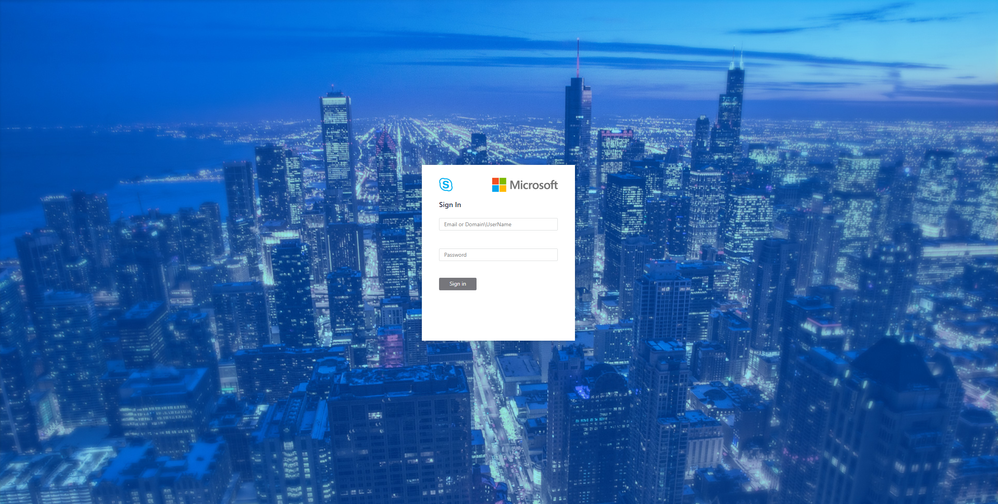
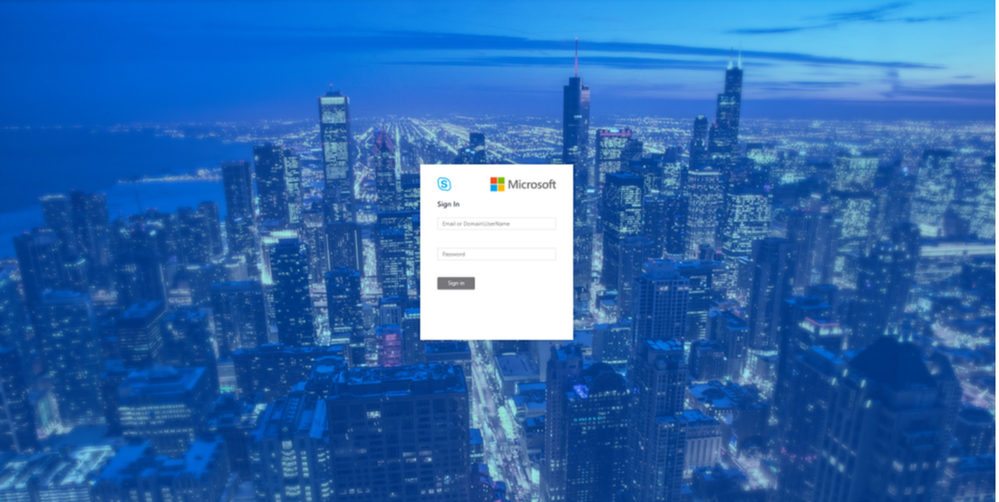
Please put in https://<your pool FQDN>/macp or the configured simple URL https://admin.<your-domain>.com manually in a supported browser, and the Control Panel should open. You can also click on the blue banner at the top of the old Control Panel to launch the new Panel. The login screen looks like the following:
Login screenLogin screen


Once you hit the login screen, log in with your admin credentials.


Voice Routing

Please create, modify, or delete dial plans in Dial Plan sub-tab as below:

Dial Plan Home screenDial Plan Home screen


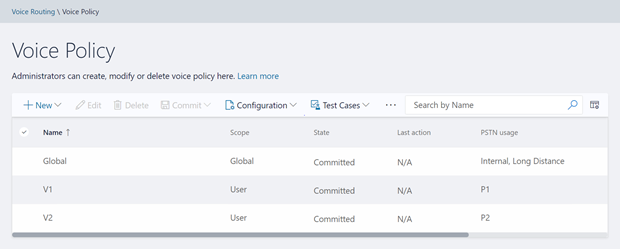
Please create, modify, or delete voice policies in Voice Policy sub-tab as below:
Voice Policy Home screenVoice Policy Home screen


Please create, modify, delete, or change the priority order of routes in the Route sub-tab below:
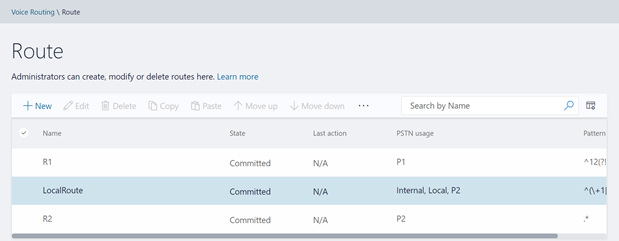
Route Home screenRoute Home screen


Please view or delete PSTN usages in PSTN Usage sub-tab below. The new PSTN usages can be created under Associated PSTN Usages table in the voice policy form.

PSTN Usage Home screenPSTN Usage Home screen


Please create, modify, or delete trunk configurations in Trunk Configuration sub-tab below:

Trunk Configuration Home screenTrunk Configuration Home screen


Please create, modify, run, or delete test cases in Test Voice Routing sub-tab below:

Test Voice Routing Home screenTest Voice Routing Home screen


Please try the import/export functionality in Voice Routing sub-tabs. You may export your voice- routing configuration to a file. Also, you may import the voice-routing configuration from the file. This functionality is present in every sub-tab under voice routing as shown below:

Import/Export ConfigurationImport/Export Configuration


Similarly, you can import/export voice routing test cases in Voice Routing tabs. Also, you can create test cases. This functionality is also present in all voice routing sub-tab as shown below:

Import/Export/Create Test CasesImport/Export/Create Test Cases


Please try creating and running test cases with this functionality as shown below:

Create Test CasesCreate Test Cases


Voice Features

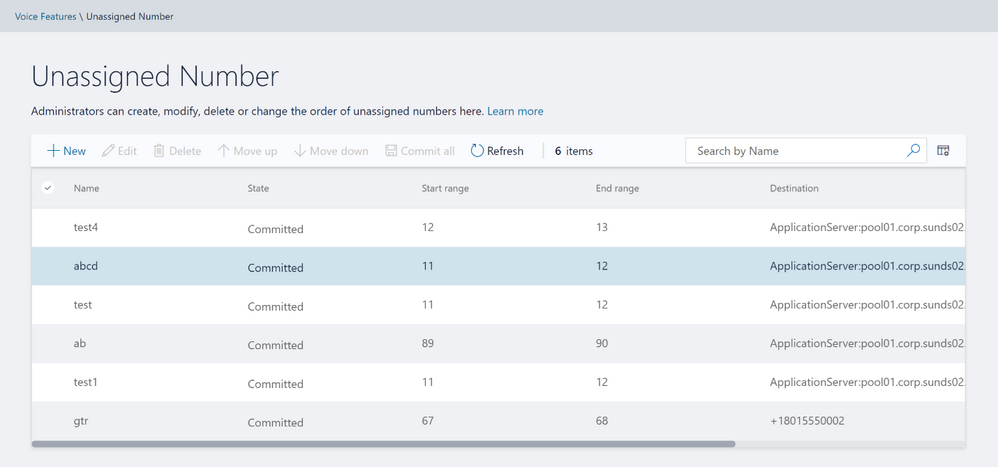
Please try out the scenarios for ‘Call Park’ and ‘Unassigned Number’. You can create various number ranges, edit them, or delete them.

Call Park home screenCall Park home screen


Unassigned Number home screenUnassigned Number home screen


Response Group

Please note that to create or edit a workflow you need to access the page from inside domain network.
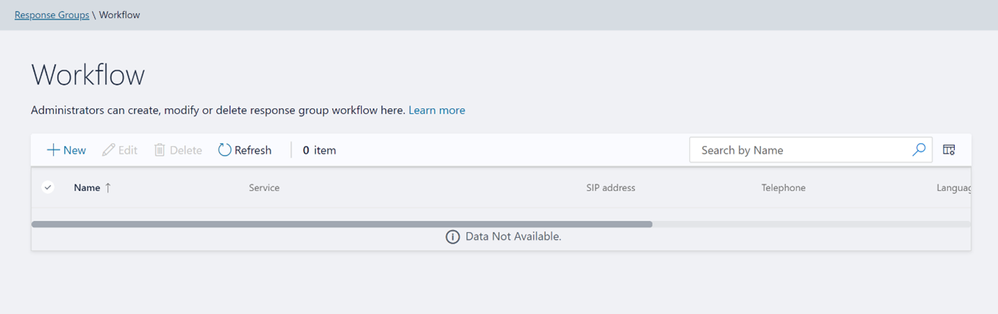
Workflow page in Response GroupWorkflow page in Response Group


If not accessing from inside domain network, then the page displays message as shown below:

Workflow Access from domain messageWorkflow Access from domain message


Please create, modify, or delete Response Group Queues in Queue page below:
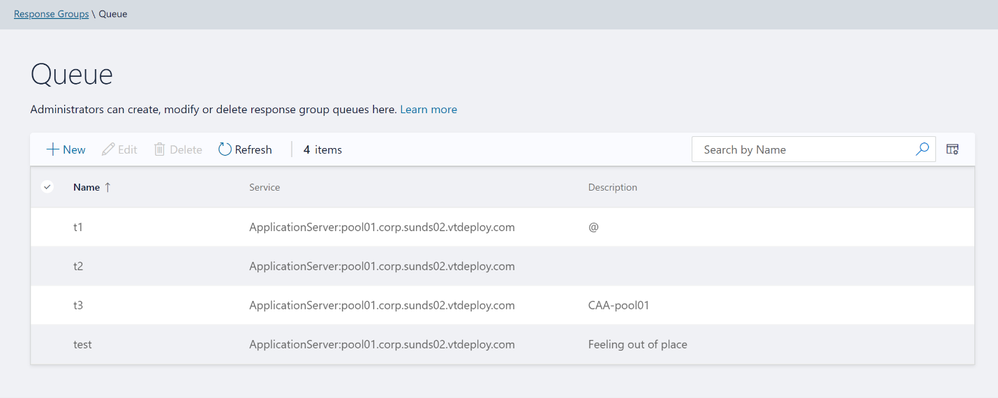
Queue page in Response GroupsQueue page in Response Groups


Please create, modify, or delete group agents in Group page below:

Group page in Response GroupsGroup page in Response Groups


Conferencing

We have also provided the only remaining page from Conferencing tab – ‘Dial-In-Access Number’.

Dial-In-Access Number in ConferencingDial-In-Access Number in Conferencing


Setup OAuth to login into MACP portal

The following is the step by step process to setup OAuth for MACP portal.


Minimum OS req and ADFS Server version:

  • Windows Server 2016 onwards

Steps to be performed on ADFS Farm machine:

  1. Ensure that an ADFS farm exists on the topology
  2. Create a new app for MACP in the ADFS
    a. Use the script Configure MACP application in ADFS Farm
    b. We suggest you go with default options while running the above script.

Steps To be performed on FE w17 server:
Once you have setup the ADFS farm, execute the following steps.

  1. Install the latest SSUI in all the FE pool machines
  2. To enable the ADFS OAuth for MACP across all the pools or selective pools
    a. Use the script Configure OAuth for MACP
    b. We suggest you review default options while running the above script.

NOTE:

  • You need to run the script on just one FE W17 server machine in your topology and it will automatically identify all the FEs in your topology (or the selective pools you have passed to the script).
  • Use the same script to disable ADFS OAuth and fallback to web-ticket auth.
  • To re-configure any ADFS related details, you must disable ADFS OAuth using Configure OAuth for MACP and then configure the ADFS again.

If OAuth is correctly configured, then you should see login screen as below:
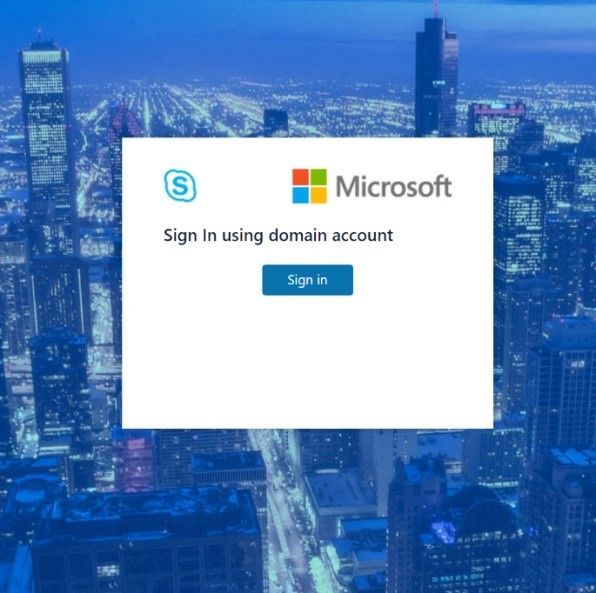
sign-in.jpg


On clicking the Sign in button, you will get a pop-up to enter your username and password.

sign-in2.png


Setup Simple URL to access the MACP portal

You can also access MACP using the simple URL https://admin.<your-domain>.com

Use the following steps to configure simple URL

1. Install the latest SSUI

2. Configure Simple URL using cmdlet.

Example below shows how a new URL can be added to an existing collection of simple URLs
$urlEntry = New-CsSimpleUrlEntry -Url “https://admin.<your-domain>.com”
$simpleUrl = New-CsSimpleUrl -Component "macp" -Domain "your-domain.com" -SimpleUrlEntry $urlEntry -ActiveUrl “https://admin.<your-domain>.com”
Set-CsSimpleUrlConfiguration -Identity "Global" -SimpleUrl @{Add=$simpleUrl}

3. Run Enable-CsComputer
4. In addition, you must also do such things as

a. create Domain Name System (DNS) records for each URL
b. configure reverse proxy rules for external access
c. add the simple URLs to your Front End Server certificates; and so on.

NOTE:

  • Configuring OAuth based authentication for MACP is a prerequisite to use of Simple URL.


Providing Feedback

We always welcomes any feedback and suggestions. Please share feedback and questions via the ‘Give Feedback’ link in the Control Panel. In the top right corner, you’ll see your login name. Click on the adjacent arrow, and you should see a drop-down like the below:

Providing feedback.png


Hit ‘Give Feedback’, and you should see a browser window open with the relevant discussion forum. Please do check the discussions to see if your question has already been addressed. We look forward to hearing from you!

On behalf of the product team,
Ravindra Singh Bisht
Senior Program Manager, Skype for Business Server

✇MTC Skype for Business Blog

The Next Version of Skype for Business Server
This week, at Ignite, we announced that the next version of Skype for Business (SfB) Server will be available in the second half of 2021, and will only be available with the purchase of a subscription license. Subscription entitles access to support, product updates, bug and security fixes. We will share additional details around the official name, pricing and availability, later.
 

The next version of SfB Server will support in-place upgrade from SfB Server 2019 for a period of approximately two years following release. This feature will allow the admin to easily upgrade existing servers running SfB Server 2019 to the subscription-based codebase without needing to add or change servers.


The next version of SfB Server will continue to support side-by-side deployment and migration from earlier versions of SfB, as has been the case over the last few releases, but we have increased the number of versions it can be installed alongside. Customers with Lync Server 2013, SfB Server 2015 or SfB Server 2019 can install the next version of SfB Server into their existing organization.


We highly recommended that customers with existing Lync Server 2013 or SfB Server 2015 deployments and who expect to keep on-premises servers in the future, should start planning and installing SfB Server 2019 today. Once the next version of SfB is released, they will then be able to perform an in-place upgrade to that version, making the move to SfB Server 2019 the last major upgrade they will ever need to do.  


We will have more details on this change over the coming months.


-SfB Server Team

✇MTC Skype for Business Blog

Emerging Issue - Remote Access is disabled External Access Policy and NTLM is Disabled

Emerging Issue - Remote Access is disabled External Access Policy and NTLM is Disabled

If legacy Authentication methods are turned-off externally by following https://docs.microsoft.com/en-us/skypeforbusiness/plan-your-deployment/modern-authentication/turn-on-modern-auth, and remote access for the user is also disabled by External Access Policy a bug has emerged that causes clients on the external network to be in a infinite loop, trying to authenticate and get a 403 Forbidden error. This generally would happen whenever the client is not connected to VPN.

The bug manifests in many ways, some of which are mentioned below


  1. Size of LCSCDR database can increase considerably, especially for the dbo.Registration table
  2. CDR/QOE Reports may be delayed
  3. In rare cases replication would show a single secondary as opposed to both active secondaries and would auto-correct after several hours


LYSS Database can experience an increase in size too, and you will notice

EVENT ID

Event id text

Notes

32056

Space Used by LYSS DB is within normal range

DB Utilization > 0% and < 40%

32057

Space Used by LYSS DB is at or above the Warning Threshold.

DB utilization  > =40% and < 60%

32059

Space Used by LYSS DB is at or above the Critical Threshold

Db Utilization is >= 60%


Depending on the extent of time the issue has been occurring, the size of the environment and other factors as user-behavior the following EVENT IDs may also be see

Event id

Event ID text

Notes

32075

A full flush of all queue items for LYSS DB has started.


32076

A full flush of all queue items for LYSS DB has completed.


32089

A flush of queue items from the LYSS DB was initiated, and items were exported to the file system.


32090

Flushed queue Items from the LYSS DB have been left unattended to for some amount of time and require attention to be imported back.


32103

Fabric service id 'ROUTING GROUP GUID' is running with a reduced replication set.

Get-CsPoolFabricState will show that routing groups are in missing secondaries


You can run a SQL Query against LYSS database to confirm if indeed you have been experiencing issues with 4003 by running


Use lyss;

SELECT     SUBSTRING ( CONVERT(VARCHAR(MAX), CONVERT(VARBINARY(MAX), [ItemHeader])), CHARINDEX( '<MsDiagId>', CONVERT(VARCHAR(MAX), CONVERT(VARBINARY(MAX), [ItemHeader]))) + 10,  CHARINDEX( '</MsDiagId>', CONVERT(VARCHAR(MAX), CONVERT(VARBINARY(MAX), [ItemHeader])))- (10+CHARINDEX( '<MsDiagId>', CONVERT(VARCHAR(MAX), CONVERT(VARBINARY(MAX), [ItemHeader])))))  'MsDiag'     ,Count(1) 'Count'   FROM [lyss].[dbo].[ItemQueue]

WHERE CHARINDEX( '<MsDiagId>', CONVERT(VARCHAR(MAX), CONVERT(VARBINARY(MAX), [ItemHeader]))) > 0

Group by SUBSTRING ( CONVERT(VARCHAR(MAX), CONVERT(VARBINARY(MAX), [ItemHeader])), CHARINDEX( '<MsDiagId>', CONVERT(VARCHAR(MAX), CONVERT(VARBINARY(MAX), [ItemHeader]))) + 10,  CHARINDEX( '</MsDiagId>', CONVERT(VARCHAR(MAX), CONVERT(VARBINARY(MAX), [ItemHeader])))- (10+CHARINDEX( '<MsDiagId>', CONVERT(VARCHAR(MAX), CONVERT(VARBINARY(MAX), [ItemHeader])))))

Order by 2 desc


The output should look like


SQL output.jpg


This issue has been fixed in a client update with version 16.0.11901.10000, but the default behavior hasn’t been updated. In-order to remediate the issue, you would need a client policy ( or a GPO) along with an updated client.


The fix to be effective we need a regkey ForbiddenRemoteAccessIsPermanentError as shown below.


registry entry.jpg


Path:  HKEY_CURRENT_USER\Software\Policies\Microsoft\Office\16.0\Lync

KeyName: ForbiddenRemoteAccessIsPermanentError

Value: 1


The key can be pushed through client policy entry for e.g. adding the policy entry to global client policy

$a = New-CsClientPolicyEntry -name ForbiddenRemoteAccessIsPermanentError -value "True"

Set-CsClientPolicy -Identity Global -PolicyEntry @{Add=$a}


In-order for the client policy to be applied, a successful logon is required, so users need to sign-in atleast once, so the data is cached and used for subsequent failures


blocked logon.jpg


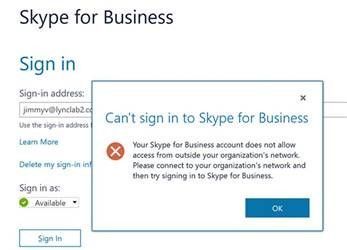
Once appropriate changes have been accomplished users will experience the following error message when logging on remotely


Please Note: At this point in time, only Skype for Business 2016 Client  has a fix, and there are no planned changes for Skype for Business 2015 Client


We understand that updating the clients may take some time, and while the clients are being updated, organizations may want a work-around to prevent any work disruptions. At this point in time, we are recommending the following


  1. Update Storage Service behavior to disable Auto Import functionality to allow for a controlled method for import of data and prevent any potential issues by running

          Set-CsStorageServiceConfiguration -EnableAutoImportFlushedData $false
 

  1. Perform a FULL Flush of storage service before the beginning of the day to prevent automatic export under load to happen during business hours, as it's resource-intensive ( CPU / Memory/ Disk / Network) by running
    Invoke-CsStorageServiceFlush -FlushType FullFlush -PoolFqdn POOLFQDN

This may also prevent FabricReplicationSetReduction happening in your organization, if it was previously occurring


Finally, it's possible that XML files have been written to your file share that may needed to be imported for regulatory and/or compliance purposes. Please reach out to Microsoft Support to help you find ways how/when the data can be imported safely.

✇MTC Skype for Business Blog

On-Premises Diagnostics for Skype for Business Server Are Now Available

March 31st, 2022 Update: Be sure to check out Joao's comment for an incremental update!  Bug fixes and a few small enhancements.


The NextHop team is very pleased to announce the release of On-Premise Diagnostics (OPD) for Skype for Business Server.  OPD is a collection of diagnostic scenarios, analyzers, rules and insights for diagnosing common issues in Skype for Business 2015 and 2019 on-premises and hybrid environments based on real world support expertise from Escalation Engineers in CSS.  


Getting started

First you'll need to Install or upgrade to the latest version of OPD.  Next, check out the instructions on How to use OPD.  Then determine which scenario you would like to test for. Note that each scenario will have one or more unique tests.  For our initial release, we're offering diagnostics for some of the top support issues for On-Premises Skype for Business Servers: 


Scenario

Types of tests

Contact List

User contact list is not available

Deployment

Skype for Business Server deployment best practices analyzer

Skype for Business Modern Authentication is not working

Check to see if TLS 1.0/1.1 deprecation is properly configured

Exchange Integration

Skype for Business Server and Exchange Hybrid deployment integration is not working

Skype for Business Server and Exchange Online deployment integration is not working

Skype for Business Server and Exchange OnPrem deployment integration is not working

Federation

Federation is not working (On-Premises deployment)

Federation is not working (Hybrid deployment)

Hybrid

Validate that the Skype for Business hybrid deployment is disabled

IM and Presence problems between Skype for Business and Teams users

Performance

Skype for Business Server Performance Check

Response Group

Check if response group usage report runs correctly

Services

The front end service is not starting in Skype for Business Server


In the following screenshot we've chosen the Federation Scenario, here's a little teaser of what this looks like: 

diag.png


Please go try these in your environments and let us know how it's going by providing feedback to the team.  We not only look forward to your feedback, we need it to make OPD better for you!  We'd love to hear if these diagnostics solved issues for your or your customers' environments, any issues you encounter, and your top 3 to 5 scenarios you would like to see next.


Quick Links: 

Thanks!
The NextHop Team

✇MTC Skype for Business Blog

Skype for Business 2019 - Control Panel Phase 2 Released


Today, we have released the update for Skype for Business Server Control Panel! Please find the update here. This is a continuation to our earlier introduced phase one of modern control panel in July 2019 here.  


We had covered ‘Home’ and ‘Users’ tab in first phase, in this second phase we introduce ‘Conferencing’ and ‘Federation and External Access’ tabs. The ‘Dial-In Access’ sub-tab in Conferencing is not ready yet and it will be part of the next phase.  


We have also enabled Role Based Access Control (RBAC) to the Admin panel and the mechanism to provide different access permissions remains similar to the old Silverlight based panel.  


We are working on the feedback received in the preview and will be addressing them in future updates.  Top enhancements in the roadmap are - Auto redirect for URL to avoid remembering pool name, and Admins need not be SIP enabled, Single Sign On for tenant. As always, we’re happy to get feedback on the new Panel as we work on the next phase. 


Now that CU3 has been released, we hope you’ll adopt it for better day-to-day admin experience. 


Installation Instructions: 

The installation steps are similar to Phase-1 

If you are installing the Control Panle for first time , see the steps below. 

After running SSUI, you must run Bootstrapper.exe (this is necessary to install the required components) and run SSUI again.  


Please install Management OData if not installed using below steps: 

  1. Open PowerShell in Administrator mode 
  1. Run command - Add-WindowsFeature ManagementOData 


The administrator account must have CsAdministrator role privileges and must be SIP enabled 


Launching and Using the Control Panel 

Please put in https://<your pool FQDN>/macp manually in a supported browser, and the Control Panel should open. You can also click on the blue banner at the top of the old Control Panel to launch the new Panel. We are aware that the URL needs to be simplified and admins need not remember the pool name. This is in our pipeline and will be addressed in next CU. The login screen looks like the following: 


Figure 1 - Login Screen.png

Figure 1 : Login Screen 


Once you hit the login screen, log in with your admin credentials. 


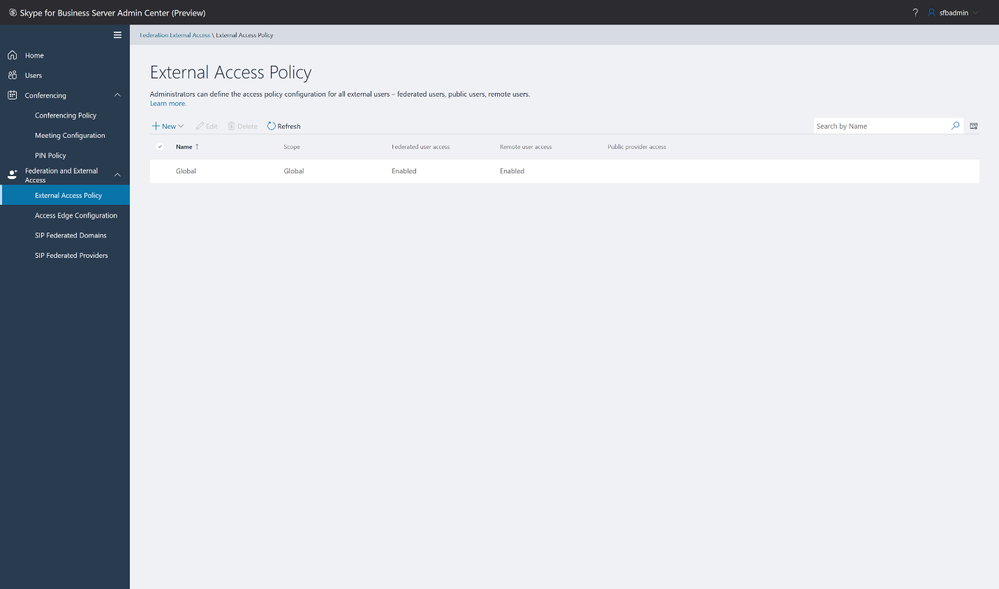
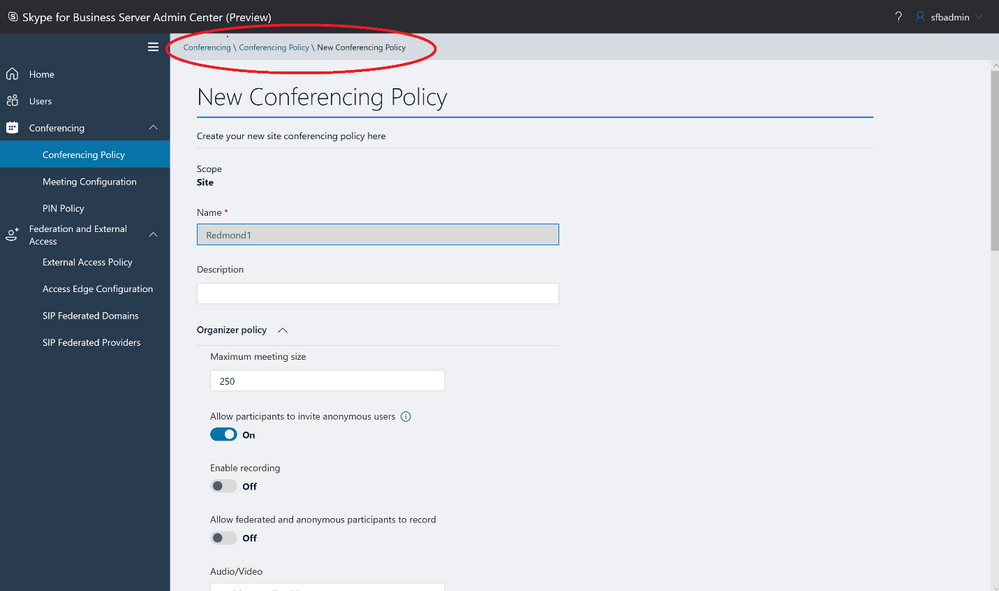
Please try out the scenarios as you would in everyday usage, for Conferencing and ‘Federation and External Access’ tabs such as creating, modifying Conferencing Policy, PIN policy, setting up Federation Domains, Setting up External Access Policy. 


Figure 2 - Conferencing Policy Screen.png

Figure 2 : Conferencing Policy screen 


Figure 3 - External Access Policy Screen.png

Figure 3 : External Access Policy Screen 


Modern UI Experience  


The control panel is designed with modern UI experience and has features to reflect the look and feel of modern-day admin page. The admin panel is responsive in design and supports 200% zoom for accessibility Some highlighted UI experience items are as below -  


Picker panel slides in and it is displayed in a right pane. 


Figure 4 - Flyout panel from right.png

Figure 4 : Flyout panel from right for picker panel (Selecting site or pool from list) 


Breadcrumb trail is displayed at the top which gives easy reference to the current stage in workflow. 


Figure 5 - Breadcrumb trail.png

Figure 5 : Breadcrumb trail 


Role Based Access Control (RBAC) 


For admin with full permissions the Admin panel looks as below –  


Figure 6 - Full Access Admin panel.jpg

Figure 6 : Full Access Admin panel 


For Admin with limited permissions, the Admin panel will look like below –  


Figure 7 - Limited Permissions Admin Panel.jpg

Figure 7 : Limited Permissions Admin Panel 


As mentioned earlier, the mechanism to provide different access permissions remains similar to the old Silverlight based panel.  


Providing Feedback 

As always, we’re happy to get feedback on the new Panel as we work on the next phase. In the top right corner, you’ll see your login name. Click on the adjacent arrow, and you should see a drop-down. Hit ‘Give Feedback’, and you should see a browser window open with the discussion forum. Please do check the discussion to see if your question has already been addressed. We look forward to hearing from you! 

✇MTC Skype for Business Blog

Known Issue: Skype Directory Search Service Connections May Fail if TLS 1.2 Is Not Enabled on Edge

Our investigation determined TLS 1.0/1.1 were disabled pre-maturely on Skypegraph.skype.com - based on your feedback we re-enabled those protocols.  We apologize for the inconvenience. 


We’re investigating an emerging issue with Skype Directory Search for Skype for Business On-Premises to Skype Consumer chat capability. When searching for a Skype account in the Skype for Business Client, you might get the following error message:


An error occurred during the search. Please try again, and contact your support team if the problem continues.


Additionally, you may find the following error in the Lync event log on the impacted Edge servers:

Log Name:      Lync Server
Source:        LS Web Components Server
Date:          1/13/2020 8:53:26 AM
Event ID:      4106
Task Category: (1074)
Level:         Error
Keywords:      Classic
User:          N/A
Computer:      CE1210R2.contoso.com
Description:
The server selected for next hop could not be reached, or did not reply.

A server selected as a proxy target for HTTP traffic could not be reached or did not reply: skypegraph.skype.com. 
Performance Counter Instance:  
Failure occurrences: 4, since 1/13/2020 4:51:18 PM. 
Failure Details: WebException: The underlying connection was closed: An unexpected error occurred on a send.
Cause: The remote server may be experiencing problems or the network is not available between these servers.
Resolution:
Examine the event logs on the indicated server to determine the cause of the problem.

Based on our initial investigation it appears that the Skype Directory Search endpoints are refusing TLS 1.0 connections.


Workaround:

To fix this issue you need to enable your Edge servers to use TLS 1.2.  Your Lync or Skype for Business Servers may require dependency updates, including .Net framework updates.  All the requirements for enabling TLS 1.2 are documented here:

Disable TLS 1.0/1.1 in Skype for Business Server 2015


Note, this procedure is also supported on Lync Server 2013, for more information refer to the following blog post: 

Disabling TLS 1.0/1.1 in Skype for Business Server 2015: Part 1


Once all the pre-requisite software updates are completed, you then need to deploy the prerequisite registry keys. This will enable your Edge servers to negotiate TLS 1.2 connections to the Skype Graph web service endpoints. You do NOT need to disable TLS 1.0 on the impacted Edge servers.


More Information:

Our investigation determined TLS 1.0/1.1 were disabled prematurely on skypegraph.skype.com endpoints.  You should no longer have to set pre-requisites to work around this issue.  We apologize for the inconvenience.  

✇MTC Skype for Business Blog

Lync and Skype for Business Server Base OS Upgrade Supportability

With the imminent end-of-life of support for Windows 2008 and Windows 2008 R2, we’ve received questions from customers surrounding the supportability of upgrading the base OS with Lync or Skype for Business Server installed on it.  With this in mind, we wanted to provide a few key points in this area.

  • It is not supported to upgrade the base OS with Lync or Skype for Business Server installed.   
  • All servers within a pool must run the same OS.
  • Paired pools must run the same OS.

Attempting to do so will cause problems, up to and including catastrophic failure of the pool.


The recommendation is to build a new pool to replace the existing pool and move users to the new pool.  The previous hardware or resources can be used once the old pool has been drained of all users and workloads; this is known as the 'swing' upgrade method.  Effectively, it would be a similar process to migrating Lync or Skype for Business Server versions.


Resources:

Migration:

Migration from Lync Server 2010 to Lync Server 2013

Migrating to Skype for Business Server 2019


Pool Pairing Guidance:

Supported pool pairing options and best practices for Lync Server 2013

When you plan which pools to pair, you must keep in mind that only the following pairings are supported:

  • Enterprise Edition pools can be paired only with other Enterprise Edition pools. Similarly, Standard Edition pools can be paired only with other Standard Edition pools.

  • Physical pools can be paired only with other physical pools. Similarly, virtual pools can be paired only with other virtual pools.

  • Pools that are paired together must be running the same operating system.

✇MTC Skype for Business Blog

Released: Skype for Business Server 2019 CU1!

Earlier this month, we released the much awaited first Cumulative Update for Skype for Business Server!  Please find the update here. We’ve been hard at work to ensure adherence to the high levels of stability that you expect from us. Now that CU1 (July 2019) has been released, we hope you’ll give it a try. Besides several bug fixes, this update also contains some of the features that you may have seen us talking about at our presentation in Ignite 2018.


The most notable feature is a React-based, Silverlight-less version of the Server Control Panel. If you’ve been working with the Skype for Business Server for some time, there most likely have been moments where you’ve wished the Control Panel was more modern, more sleek, and more reliable. With the first phase of the Control Panel included in this update, we’ve taken the first step towards improving the Control Panel experience. Please find more information about the Control Panel here. As always, we’re happy to get feedback on the Panel as we work on the next phase.


The next feature is also one that the Skype for Business community has been requesting for a while now – SEFAUtil cmdlets in PowerShell! We’re certain that this tool needs no introduction. We’ve gone ahead and built the SEFAUtil functionality directly into standard cmdlets that you can run from the PowerShell console. Please find more information about the cmdlets here.


Last but not the least, we’ve also built-in the ability to include RGS data in the standard Server backup feature. You will no longer have to manually export and import RGS data to back it up! Please find more information on this here.


In conclusion, we’d like to assure you that the Skype for Business Server product team is fully committed to supporting the product, and we’d love to keep getting feedback so we know which improvements to prioritize in order to improve the community’s experience with the Server. So, please keep the feedback coming!


On behalf of the product team,

Rohit Gupta

Program Manager, Skype for Business Server

✇MTC Skype for Business Blog

Introducing Skype for Business Server 2019 Control Panel

Last week, we announced the availability of the first phase of the Skype for Business Server 2019 Control Panel, as part of the Skype for Business Server 2019 July 2019 Cumulative Update!  As you’re probably aware from our presentation in Ignite 2018, we have been working to create a modern version of the Control Panel that does not rely on the Silverlight technology, which will be out of support soon, but instead is based on React. While the new Control Panel will not have all the functionality of the older Control Panel, we will be including a core functionality set that should cover most of your organization’s needs.

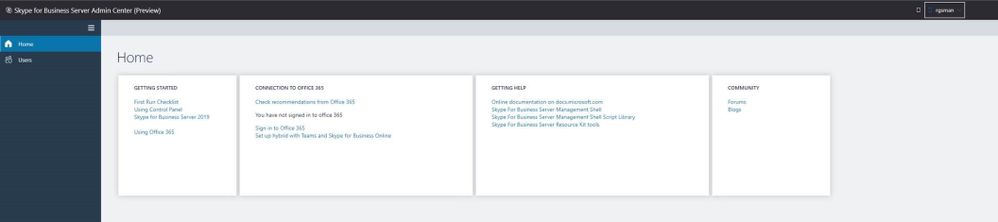
The first phase of the Control Panel consists of the ‘Home’ and ‘Users’ tabs, which let you perform the same tasks as in the old Control Panel. Future phases will ship in upcoming CUs, and we’ll keep the blog updated with the latest. Please note that this feature is in preview, so you may see some rough edges occasionally. If you do, we’d love it if you could report issues via the ‘Give Feedback’ link in the Control Panel. Read on for details.


Pre-requisites

After running SSUI, you must run Bootstrapper.exe (this is necessary to install the required components)

Please install Management OData if not installed using below steps:

  1. Open PowerShell in Administrator mode
  2. Run command - Add-WindowsFeature ManagementOData

You must have a recent version of one of the following browsers:

  • Microsoft Edge (version 44.17763.1.0 or higher is recommended)
  • Google Chrome (version 72.0.3626.121 or higher is recommended)
  • Mozilla Firefox (version 65.0.2 or higher is recommended)

Your administrator account must have CsAdministrator role privileges and must be SIP enabled.

Enable Contacts functionality is not yet implemented for the Users tab. RBAC isn’t implemented yet either, but will be implemented in a later update.


Launching and Using the Control Panel

Please put in https://<your pool FQDN>/macp manually in a supported browser, and the Control Panel should open. You can also click on the blue banner at the top of the old Control Panel to launch the new Panel. The login screen looks like the following:


Login ScreenLogin Screen

Once you hit the login screen, log in with your admin credentials.

Please try out the scenarios as you would in everyday usage, for Home and Users tabs, such as moving users to Teams, setting up Hybrid, changing user properties, etc.

Users TabUsers TabThe following additional step is required before running Move to Teams and Setting up Hybrid scenarios:

  • Run this script and provide your Office 365 Admin credentials.

The above step will create an Azure AD Application on Azure. This will help in signing into Office 365 using OAuth in the new Control Panel.


Providing Feedback

In the top right corner, you’ll see your login name. Click on the adjacent arrow, and you should see a drop-down like the below:Providing feedbackProviding feedback

Hit ‘Give Feedback’, and you should see a browser window open with the relevant discussion forum. Please do check the discussion to see if your question has already been addressed. We look forward to hearing from you!


On behalf of the product team,

Rohit Gupta

Program Manager, Skype for Business Server

✇MTC Skype for Business Blog

Skype for Business Server Public IM Federation is changing

If you currently have connected you Skype for Business Server to consumer IM federation, you will want to read this and insure you are configured for the future.


Federation between Skype for Business on-premise deployments and Skype (Consumer) will change on 8/15/2019 to use federated partner discovery, which is the same mechanism required for federation with Skype for Business Online. The pic.lync.com website that was formerly used to manually provision on-premise deployments for public IM connectivity will be shut down due to end of life. Communication between any on-premise Skype for Business deployment and Skype users via the existing Public IM infrastructure now requires the on-premise edge server configuration to be compatible with Skype for Business Online.


If the customer’s SfB deployment is currently using public IM connectivity but is not able to federate with Skype for Business Online due to their edge proxy FQDN configuration and/or their certificate is incompatible with federated partner discovery, they will need to update their deployment configuration by 8/15/2019. Failure to do so could lead to an interruption to public IM connectivity.


Please note this change may require the purchase of a new certificate.


Please visit our documentation on this issue to learn more.


✇MTC Skype for Business Blog

Screen sharing from Skype Meetings App now supports Video-based Screen Sharing

Starting today, users who share their screen into a meeting from the Skype Meetings App (the web-downloadable meetings app for Skype for Business) can get the significantly improved performance of Video-based Screen Sharing (VbSS).  While you won't see any changes in the way you present on-screen content during your meetings, you will notice that the connection time is drastically reduced, and the screen presentation is always in sync between presenter and viewer. Not only is VbSS faster, but it also more reliable and works better in case of low network bandwidth conditions.


When you start sharing, the app automatically chooses how to share your screen, but it will always choose VbSS when possible.  In some cases, it may continue to use the older Remote Desktop Protocol if VbSS is not supported by the Skype for Business server hosting the meeting, someone is recording the session, or an attendee is using an older client version that does not support VbSS. Click here for information on VbSS technology and supported server and client versions.


For users who have previously downloaded and installed Skype Meetings App, this update will automatically download when they next join a meeting. We hope you enjoy the improved experience!


✇MTC Skype for Business Blog

Application Sharing Failures after Applying July, 10 2018 Windows Security Fixes

First published on TECHNET on Jul 18, 2018
We are aware of an issue impacting Application Sharing on Lync Server 2013 and Skype for Business Server 2015 after applying the July 10, 2018 Security Patches for Windows operating systems. The Windows team has removed all bad packages from Windows Update and systems should no longer attempt to download an update which exposes this problem. New updates are being published through Windows Update and should be available for all operating systems by end of day July 17th.

The NextHop Team recommends that customers use Windows Update or update the catalogs on their own SUS servers to ensure the latest version of the update is available for installation on your Lync Server 2013 and Skype for Business Server 2015 Servers. Doing so will avoid any possible disruption to the ASMCU service which was impacted by the July 10th update.

Problem: Desktop or Application Sharing fails while in a meeting

The following events might be reported:

Log Name:      Lync Server

Source:        LS ApplicationSharing Conferencing Server

Event ID:      32011

Level:         Error

Description: The Application Sharing Server has failed to create a conference because of an internal failure.


Log Name:      Lync Server

Source:        LS User Services

Event ID:      32026

Level:         Warning

Description: Conference rollover failed.

Resolution:

Updated packages are now available via the regular release channels: Windows Update, Catalogue, WSUS. These updates should be applied based upon the operating system version you are using with Lync Server 2013 or Skype for Business Server 2015.  When using Windows Update to apply an update, you will need to initiate a manual request in the Windows UI to find and download updates.

For Windows 2016, the update will be applied as a replacement to the package delivered on July 10th. Customers running Skype for Business Server 2015 on Windows Server 2016 should ensure that the latest operating system updates are applied. These updates are available now and can be applied to a production system regardless of previous updates installed.

For operating systems prior to Windows 2016, the update will be applied as an additional update to the updates released on July 10th. This means you must apply the July 10th update and then may need to execute Windows Update again to receive the additional update to fully resolve the issue. The updates for these operating systems should be fully published to all geographies on Windows Update by end of day July 18th (PDT).

The table below outlines the impacted KB for each operating system and the associated KB which must be applied to resolve the issue. In the case where there are multiple updates listed for an operating system, only one of the updates should be required. The presence of two updates is indicative of whether a rollup or individual security update is being used to update the operating system.


Operating System Impacted Update Update which must be applied
Windows Server 2016 KB 4338814 KB 4345418
Windows Server 2012R2 KB 4338824 KB 4345424
KB 4338815 KB 4338831
Windows Server 2012 KB 4338820 KB 4345425
KB 4338830 KB 4338816
Windows Server 2008R2 SP1 KB 4338823 KB 4345459
KB 4338818 KB 4338821
Windows Server 2008 KB 4295656 KB 4345397

✇MTC Skype for Business Blog

Get-CsPoolUpgradeReadinessState shows as Ready, Active Front-Ends count doesn’t match

First published on TECHNET on Jun 20, 2018
Recently, I come across a particular scenario where Get-csPoolUpgradeReadinessState was showing as READY and Front-End Services were started across all Front-Ends, but the TotalActiveFrontEnds showed a number that was different from the total active Front-Ends in the Pool.


You will notice that UpgradeDomain3 has 1 Front-End Server associated, but then the Total Active Front-Ends is Zero. You will also notice that that the total Front-Ends ( in summary) only shows a 2  Active Front-Ends Servers.

Interestingly, Get-csPoolFabricState was not throwing any errors or warnings !!!

To troubleshoot the issue, we started by First checking, if the Front-End Server was failed-over and so we tried to Failback, but to our surprise, the server was not in a failed-over state, and hence Failback was not working ( expected).

Next, we started investigating by checking Windows Fabric Logs from C:\Program Data\Windows Fabric\Logs and then running a CLS Logging using a scenario called PowerShell.


In the plain-text log, we noticed the following

TL_WARN(TF_HADR) [LYNCPOOL01\LYNCENT03]8554.13B2C::06/18/2018-23:57:49.112.0000200D (PowerShell,FrontEndState.ReadPerfCounters:poolupgradereadinessstate.cs(568)) (000000000261B13F ) FE LYNCENT03.contoso.com is not connected to Fabric Pool Manager according to perf counter.

Based on this we decided to follow a blog entry, Get-CsPoolUpgradeReadinessState showing NOT READY or BUSY and found that the server LYNCENT03.contoso.com was indeed missing the permissions for RTC Server Local Group


So we first added the Local Group


And then updated the permissions to Full Control, and rebooted the server. Once the server was back online and services were running, we noticed that the output for Get-csPoolUpgradeReadinessState was showing Total Active Front-Ends as 3


Attention to detail is indeed important when patching a pool with multiple servers, to ensure that the pools are reporting healthy when indeed, there could be an issue with one or more servers reporting its state.

✇MTC Skype for Business Blog

Disabling TLS 1.0/1.1 in Skype for Business Server 2015 On-Premises Part 3: Advanced Deployment Scenarios

First published on TECHNET on May 11, 2018


In Part 1 of our blog series we covered supportability scope, and prerequisites. In Part 2 , we covered how to update existing Skype for Business 2015 deployments. Here in Part 3, we will discuss some advanced implementation scenarios.

Because some dependency prerequisites are required to support TLS 1.2 in Skype for Business Server 2015, installing from RTM media will fail on any system where TLS 1.0 and 1.1 have been disabled.

Deploying New Standard Edition Servers or Enterprise Edition Pools once TLS 1.0 and 1.1 have been disabled in your environment


Option 1 : Use SmartSetup . Note that we are updating SmartSetup to accommodate the updated SQL binaries in a future CU, and will update this blog upon release.


Option 2 : Pre-install local SQL instances (RTCLOCAL and LYNCLOCAL)

  1. Download and copy SQL Express 2014 SP2 (SQLEXPR_x64.exe) to local folder on FE. Let’s say folder path <SQL_FOLDER_PATH>

  2. Launch PowerShell or Command Prompt and navigate to <SQL_FOLDER_PATH>

  3. Create the RTCLOCAL SQL instance by running the command below. Wait until SQLEXPR_x64.exe finishes before proceeding:


    • SQLEXPR_x64.exe  /Q /IACCEPTSQLSERVERLICENSETERMS /UPDATEENABLED=0 /HIDECONSOLE /ACTION=Install /FEATURES=SQLEngine,Tools /INSTANCENAME=RTCLOCAL /TCPENABLED=1 /SQLSVCACCOUNT="NT AUTHORITY\NetworkService" /SQLSYSADMINACCOUNTS="Builtin\Administrators" /BROWSERSVCSTARTUPTYPE="Automatic" /AGTSVCACCOUNT="NTAUTHORITY\NetworkService" /SQLSVCSTARTUPTYPE=Automati


  4. Create the LYNCLOCAL SQL instance by running the command below. Wait until SQLEXPR_x64.exe finishes before proceeding to the next step:


    • SQLEXPR_x64.exe /Q /IACCEPTSQLSERVERLICENSETERMS /UPDATEENABLED=0 /HIDECONSOLE /ACTION=Install /FEATURES=SQLEngine,Tools /INSTANCENAME=LYNCLOCAL /TCPENABLED=1 /SQLSVCACCOUNT="NT AUTHORITY\NetworkService" /SQLSYSADMINACCOUNTS="Builtin\Administrators" /BROWSERSVCSTARTUPTYPE="Automatic" /AGTSVCACCOUNT="NTAUTHORITY\NetworkService" /SQLSVCSTARTUPTYPE=Automatic


  5. Run Skype for Business Server 2015 RTM setup.

  6. Follow the remaining steps from Part 2.


Option 3 : You may also manually replace binaries in a local installation media directory as follows:

  1. Install Prerequisites Software for Skype for Business Server 2015 https://technet.microsoft.com/en-us/library/dn933900.aspx

  2. Install .NET 4.7:


  3. Copy ISO Files/Folders:

    • With the Skype for Business Server 2015 ISO attached, open the root directory of the drive it is attached as (Ex: D:\) in File Explorer.

    • Copy all folders and files to a folder on a local disk (Ex: C:\SkypeForBusiness2015ISO)

    • Note : Prior to installing components, some files will need to be updated for support of TLS 1.2.


  4. Replace MSI/EXE Packages:


  5. Install Core Components:

    • Run Setup.exe from the Setup/amd64/ folder of the installation media. Follow the instructions to install Core Components

    • Close Core Components.


  6. Update Core Components:


  7. Install Administrative Tools (Optional):

    • This will install the Microsoft SQL Server 2012 Native Client, SQL Server 2014 Management Objects (x64), and Microsoft System CLR Types for SQL Server 2014 (x64) using the updated files. Additionally, Skype for Business Server 2015's Topology Builder and Control Panel will be available on the local machine.


  8. Install Local Configuration Store (Step 1):

    • Open the Deployment Wizard, click Install or Update Skype for Business Server System, and click on Run at Step 1: Install Local Configuration Store.

    • Click Next on the Install Local Configuration Store window.


clip_image001

  • Review the results, and ensure that the Task Status is Completed. Review the resulting log file by clicking View Log.


clip_image002

  • When done, click Finish.


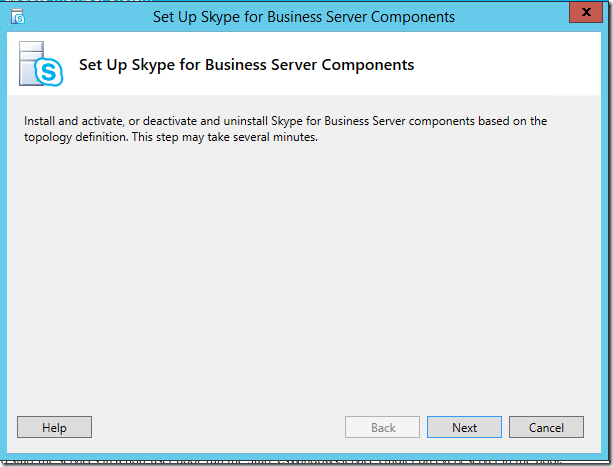
9. Setup or Remove Skype for Business Server Components (Step 2):

  • Open the Deployment Wizard, click Install or Update Skype for Business Server System, and click on Run at Step 2: Setup or Remove Skype for Business Server Components.

  • Click Next at the Set Up Skype for Business Server Components window.


clip_image003

  • Review the log using View Log, and validate that setup completed without issues.

  • When done, click Finish.


10. Proceed with additional installation and configuration as required (you can resume normal installation procedures at this point).
✇MTC Skype for Business Blog

Disabling TLS 1.0/1.1 in Skype for Business Server 2015–Part 2

First published on TECHNET on Apr 18, 2018
December 22, 2021 Update: Validate workloads section has been updated with addition of On-Premises Diagnostics for Skype for Business Server 'Check to see if TLS 1.0/1.1 deprecation is properly configured' diagnostic reference. Please review the following document carefully!

In Part 1 of our Disabling TLS 1.0 and 1.1 Support for On-Premises Skype for Business deployments blog we covered the pre-requisites and supportability scope. In this blog we will go over how to disable TLS 1.0 and 1.1 in your environments.

Please review Part 1 to ensure all your servers, clients and devices are in scope, and that you have a plan to address any gaps. Except where noted in Part 1 , once TLS 1.0 and 1.1 are disabled out-of-scope servers, clients and devices will longer function properly, or at all. This may mean you need to pause and wait for updated guidance from Microsoft. Once you are satisfied you meet all requirements and have a plan to address gaps, proceed.

At a high level, this requires installing Skype for Business Server 2015 CU6 HF2, applying pre-requisite updates to .Net and SQL, deploying pre-requisite registry keys and finally a separate round of OS configuration updates, i.e. disabling TLS 1.0 and 1.1 via registry file import. It is critically important that you complete installation of all prerequisites, including Skype for Business Server 2015 CU6 HF2, prior to disabling TLS 1.0 and 1.1 on any server in your environment. Every Skype for Business Server, including Edge role and SQL Backends, require the updates. Also ensure that all supported (in-scope) clients have been updated to the required minimum versions. Don’t forget to update management workstations as well.

We want to follow the usual order of operations of "inside out" for upgrading Skype for Business servers. Treat Director pools, Pchat and Paired Pools in the same manner you normally would. Order and methods for upgrade are covered here and here .

High level process:

    1. Test all steps in your lab prior to configuring production servers


    1. Backup and preserve a copy of exported registry on each and every individual server to be updated. You cannot share registries between Servers, they contain unique machine based keys.


    1. Upgrade all Skype for Business 2015 Servers to CU6 HF2 or higher


    1. Install all pre-requisites to all servers


    1. Deploy pre-requisite registry keys


    1. Ensure all in-scope clients are updated (covered in Part I)


    1. Disable TLS 1.0 and 1.1 via registry import


    1. Validate workloads are functioning as expected

        1. If problems encountered, troubleshoot and resolve or

        1. Restore registry from step 2 to re-enable TLS 1.0 and 1.1


    1. Validate only TLS 1.2 is being used


Install Pre-Requisites to All Servers

Extensive dependency updating is required before you begin to disable TLS 1.0 and 1.1 at the operating system level in your Skype for Business Server 2015 deployments. The following are the minimum versions that can support TLS 1.2. Deploy all pre-requisite updates across every Skype for Business server in your environment before you begin disabling TLS 1.0 and 1.1.


    • . NET Framework 4.7 or higher with SchUseStrongCrypto enabled in the registry (provided below)


    • SQL must be updated on all Skype for Business 2015 servers and backends. Update Enterprise Edition Pool SQL Backends first, then their respective FEs.

        • SQL Server 2014 SP1 + CU5 ( link ), or higher / SQL Server 2012 SP2 + CU16 or higher/ SQL Server 2014 RTM + CU12 ( link ) or higher / SQL Server 2014 SP2

        • SQL Server Native Client for SQL Server 2012 ( link )

        • Microsoft ODBC Driver 11 for SQL Server ( link ), or higher

        • Shared Management Objects for SQL Server 2014 SP2 ( link )

        • SQLSysClrTypes for SQL server 2014 SP2 ( link )


Basic steps to install pre-requisites, in recommended order of operations:

    1. Install the Skype for Business Server CU6HF2 (6.0.9319.516) update to all servers.

        1. Install the update to components using the updater.

        1. Update databases according to documented procedures. Instructions are documented at https://support.microsoft.com/en-us/help/3061064/updates-for-skype-for-business-server-2015 .

        1. Validate product functionality in the deployment prior to moving forward with any other changes.


    1. Download .NET 4.7 Offline Installer

        1. Reference: https://www.microsoft.com/en-us/download/details.aspx?id=55167

        1. Ensure Skype for Business Server 2015 services are stopped on the Front End server.

        1. Reference: https://support.microsoft.com/en-us/help/3061064/updates-for-skype-for-business-server-2015

        1. Ex (Standard Edition): Stop-CsWindowsServices

        1. Ex (Enterprise Edition): Invoke-CsComputerFailover

        1. Run the installer package.

        1. Reboot the server.


    1. Update SQL Express 2014 on all Servers

        1. Reference: https://support.microsoft.com/en-us/help/3135244/tls-1-2-support-for-microsoft-sql-server .

        1. Download SQL 2014 SP2

            1. Reference: https://www.microsoft.com/en-us/download/details.aspx?id=53168


        1. Copy the installation media to a folder on the server (Ex: C:\01_2014SqlSp2)

        1. Ensure Skype for Business Server 2015 services are stopped on the Front End server

            1. Ex (Standard Edition): Stop-CsWindowsService

            1. Ex (Enterprise Edition): Invoke-CsComputerFailove


        1. Open an Admin Command Prompt, and upgrade all installed components and instances

            1. Example: C:\01_2014SqlSp2\SQLServer2014SP2-KB3171021-x64-ENU.exe /qs /IAcceptSQLServerLicenseTerms /Action=Patch /AllInstances


    1. Update SQL Native Client

        1. Reference: https://support.microsoft.com/en-us/help/3135244/tls-1-2-support-for-microsoft-sql-server .

        1. Download from https://www.microsoft.com/en-us/download/details.aspx?id=50402

        1. Ensure Skype for Business Server 2015 services are stopped on the Front End server.

            1. Ex (Standard Edition): Stop-CsWindowsServices

            1. Ex (Enterprise Edition): Invoke-CsComputerFailove


        1. Stop the SQL instances installed from running

            1. Ex: Get-Service 'MSSQL$RTCLOCAL' | Stop-Servic

            1. Ex: Get-Service 'MSSQL$LYNCLOCAL' | Stop-Servic

            1. Ex (Standard Edition Only): Get-Service 'MSSQL$RTC' | Stop-Servic


        1. Install the update.


    1. Update ODBC Driver 11 for SQL Server

        1. Reference: https://support.microsoft.com/en-us/help/3135244/tls-1-2-support-for-microsoft-sql-server .

        1. Download from https://www.microsoft.com/en-us/download/confirmation.aspx?id=36434

        1. Ensure Skype for Business Server 2015 services are stopped on the Front End server

            1. Ex (Standard Edition): Stop-CsWindowsService

            1. Ex (Enterprise Edition): Invoke-CsComputerFailove


        1. Install the update.


    1. Deploy pre-requisite registry keys


Pre-requisite registry keys:

Copy/paste the following test into Notepad and rename TLSPreReq.reg or a name of your choice, then import:

Windows Registry Editor Version 5.00

[HKEY_LOCAL_MACHINE\SOFTWARE\Microsoft\.NETFramework\v2.0.50727]

"SchUseStrongCrypto"=dword:00000001

[HKEY_LOCAL_MACHINE\SOFTWARE\Microsoft\.NETFramework\v4.0.30319]

"SchUseStrongCrypto"=dword:00000001

[HKEY_LOCAL_MACHINE\SOFTWARE\Wow6432Node\Microsoft\.NETFramework\v2.0.50727]

"SchUseStrongCrypto"=dword:00000001

[HKEY_LOCAL_MACHINE\SOFTWARE\Wow6432Node\Microsoft\.NETFramework\v4.0.30319]

"SchUseStrongCrypto"=dword:00000001

[HKEY_LOCAL_MACHINE\SOFTWARE\Microsoft\Windows\CurrentVersion\Internet Settings\WinHttp]

"DefaultSecureProtocols"=dword:00000AA0

[HKEY_LOCAL_MACHINE\SOFTWARE\Wow6432Node\Microsoft\Windows\CurrentVersion\Internet Settings\WinHttp]

"DefaultSecureProtocols"=dword:00000AA0

[HKEY_LOCAL_MACHINE\SYSTEM\CurrentControlSet\Control\SecurityProviders\SCHANNEL\Protocols\TLS 1.2]

[HKEY_LOCAL_MACHINE\SYSTEM\CurrentControlSet\Control\SecurityProviders\SCHANNEL\Protocols\TLS 1.2\Client]

"DisabledByDefault"=dword:00000000

"Enabled"=dword:00000001

[HKEY_LOCAL_MACHINE\SYSTEM\CurrentControlSet\Control\SecurityProviders\SCHANNEL\Protocols\TLS 1.2\Server]

"DisabledByDefault"=dword:00000000

"Enabled"=dword:00000001


For SQL Back ends for Enterprise Edition Pools, pre-requisites and TLS disable should be treated as any SQL or OS updates would; refer to: https://docs.microsoft.com/en-us/skypeforbusiness/manage/topology/patch-or-update-a-back-end-or-standard-edition-server

While both the pre-requisite application and TLS disabling steps can be combined, we strongly recommend all pre-requisites be applied before proceeding with disabling of TLS 1.0 and 1.1 at the operating system level.  The best practice approach would be to prepare the environment by deploying all pre-requisites, validating workloads all function correctly and as expected - then proceed with TLS 1.0/1.1 disable at a later time.


Disable TLS 1.0 and 1.1 via Registry Import

Before you proceed with the next steps, make sure you have completed all prerequisites and updated Skype for Business Servers .

Copy the following text into a notepad file and rename it TLSDisable.reg :

Windows Registry Editor Version 5.00

[HKEY_LOCAL_MACHINE\SOFTWARE\Policies\Microsoft\Cryptography\Configuration\SSL\00010002]

"Functions"="TLS_ECDHE_ECDSA_WITH_AES_256_GCM_SHA384_P384,TLS_ECDHE_ECDSA_WITH_AES_128_GCM_SHA256_P256,TLS_ECDHE_RSA_WITH_AES_256_GCM_SHA384_P384,TLS_ECDHE_RSA_WITH_AES_128_GCM_SHA256_P256,TLS_ECDHE_ECDSA_WITH_AES_256_CBC_SHA384_P384,TLS_ECDHE_ECDSA_WITH_AES_128_CBC_SHA256_P256,TLS_ECDHE_RSA_WITH_AES_256_CBC_SHA384_P384,TLS_ECDHE_RSA_WITH_AES_128_CBC_SHA256_P256,TLS_RSA_WITH_AES_256_GCM_SHA384,TLS_RSA_WITH_AES_128_GCM_SHA256,TLS_RSA_WITH_AES_256_CBC_SHA256,TLS_RSA_WITH_AES_128_CBC_SHA256"

[HKEY_LOCAL_MACHINE\SYSTEM\CurrentControlSet\Control\SecurityProviders\SCHANNEL]

"AllowInsecureRenegoClients"=dword:00000000

"AllowInsecureRenegoServers"=dword:00000000

[HKEY_LOCAL_MACHINE\SYSTEM\CurrentControlSet\Control\SecurityProviders\SCHANNEL\Ciphers]

[HKEY_LOCAL_MACHINE\SYSTEM\CurrentControlSet\Control\SecurityProviders\SCHANNEL\Ciphers\AES 128/128]

"Enabled"=dword:FFFFFFFF

[HKEY_LOCAL_MACHINE\SYSTEM\CurrentControlSet\Control\SecurityProviders\SCHANNEL\Ciphers\AES 256/256]

"Enabled"=dword:FFFFFFFF

[HKEY_LOCAL_MACHINE\SYSTEM\CurrentControlSet\Control\SecurityProviders\SCHANNEL\Ciphers\DES 56/56]

"Enabled"=dword:00000000

[HKEY_LOCAL_MACHINE\SYSTEM\CurrentControlSet\Control\SecurityProviders\SCHANNEL\Ciphers\NULL]

"Enabled"=dword:00000000

[HKEY_LOCAL_MACHINE\SYSTEM\CurrentControlSet\Control\SecurityProviders\SCHANNEL\Ciphers\RC2 128/128]

"Enabled"=dword:00000000

[HKEY_LOCAL_MACHINE\SYSTEM\CurrentControlSet\Control\SecurityProviders\SCHANNEL\Ciphers\RC2 40/128]

"Enabled"=dword:00000000

[HKEY_LOCAL_MACHINE\SYSTEM\CurrentControlSet\Control\SecurityProviders\SCHANNEL\Ciphers\RC2 56/128]

"Enabled"=dword:00000000

[HKEY_LOCAL_MACHINE\SYSTEM\CurrentControlSet\Control\SecurityProviders\SCHANNEL\Ciphers\RC2 56/56]

"Enabled"=dword:00000000

[HKEY_LOCAL_MACHINE\SYSTEM\CurrentControlSet\Control\SecurityProviders\SCHANNEL\Ciphers\RC4 128/128]

"Enabled"=dword:00000000

[HKEY_LOCAL_MACHINE\SYSTEM\CurrentControlSet\Control\SecurityProviders\SCHANNEL\Ciphers\RC4 40/128]

"Enabled"=dword:00000000

[HKEY_LOCAL_MACHINE\SYSTEM\CurrentControlSet\Control\SecurityProviders\SCHANNEL\Ciphers\RC4 56/128]

"Enabled"=dword:00000000

[HKEY_LOCAL_MACHINE\SYSTEM\CurrentControlSet\Control\SecurityProviders\SCHANNEL\Ciphers\RC4 64/128]

"Enabled"=dword:00000000

[HKEY_LOCAL_MACHINE\SYSTEM\CurrentControlSet\Control\SecurityProviders\SCHANNEL\Ciphers\Triple DES 168]

"Enabled"=dword:00000000

[HKEY_LOCAL_MACHINE\SYSTEM\CurrentControlSet\Control\SecurityProviders\SCHANNEL\Hashes]

[HKEY_LOCAL_MACHINE\SYSTEM\CurrentControlSet\Control\SecurityProviders\SCHANNEL\Hashes\MD5]

"Enabled"=dword:00000000

[HKEY_LOCAL_MACHINE\SYSTEM\CurrentControlSet\Control\SecurityProviders\SCHANNEL\Hashes\SHA]

"Enabled"=dword:FFFFFFFF

[HKEY_LOCAL_MACHINE\SYSTEM\CurrentControlSet\Control\SecurityProviders\SCHANNEL\Hashes\SHA256]

"Enabled"=dword:FFFFFFFF

[HKEY_LOCAL_MACHINE\SYSTEM\CurrentControlSet\Control\SecurityProviders\SCHANNEL\Hashes\SHA384]

"Enabled"=dword:FFFFFFFF

[HKEY_LOCAL_MACHINE\SYSTEM\CurrentControlSet\Control\SecurityProviders\SCHANNEL\Hashes\SHA512]

"Enabled"=dword:FFFFFFFF

[HKEY_LOCAL_MACHINE\SYSTEM\CurrentControlSet\Control\SecurityProviders\SCHANNEL\KeyExchangeAlgorithms]

[HKEY_LOCAL_MACHINE\SYSTEM\CurrentControlSet\Control\SecurityProviders\SCHANNEL\KeyExchangeAlgorithms\Diffie-Hellman]

"Enabled"=dword:FFFFFFFF

[HKEY_LOCAL_MACHINE\SYSTEM\CurrentControlSet\Control\SecurityProviders\SCHANNEL\KeyExchangeAlgorithms\ECDH]

"Enabled"=dword:FFFFFFFF

[HKEY_LOCAL_MACHINE\SYSTEM\CurrentControlSet\Control\SecurityProviders\SCHANNEL\KeyExchangeAlgorithms\PKCS]

"Enabled"=dword:FFFFFFFF

[HKEY_LOCAL_MACHINE\SYSTEM\CurrentControlSet\Control\SecurityProviders\SCHANNEL\Protocols]

[HKEY_LOCAL_MACHINE\SYSTEM\CurrentControlSet\Control\SecurityProviders\SCHANNEL\Protocols\Multi-Protocol Unified Hello]

[HKEY_LOCAL_MACHINE\SYSTEM\CurrentControlSet\Control\SecurityProviders\SCHANNEL\Protocols\Multi-Protocol Unified Hello\Client]

"DisabledByDefault"=dword:00000001

"Enabled"=dword:00000000

[HKEY_LOCAL_MACHINE\SYSTEM\CurrentControlSet\Control\SecurityProviders\SCHANNEL\Protocols\Multi-Protocol Unified Hello\Server]

"DisabledByDefault"=dword:00000001

"Enabled"=dword:00000000

[HKEY_LOCAL_MACHINE\SYSTEM\CurrentControlSet\Control\SecurityProviders\SCHANNEL\Protocols\PCT 1.0]

[HKEY_LOCAL_MACHINE\SYSTEM\CurrentControlSet\Control\SecurityProviders\SCHANNEL\Protocols\PCT 1.0\Client]

"DisabledByDefault"=dword:00000001

"Enabled"=dword:00000000

[HKEY_LOCAL_MACHINE\SYSTEM\CurrentControlSet\Control\SecurityProviders\SCHANNEL\Protocols\PCT 1.0\Server]

"DisabledByDefault"=dword:00000001

"Enabled"=dword:00000000

[HKEY_LOCAL_MACHINE\SYSTEM\CurrentControlSet\Control\SecurityProviders\SCHANNEL\Protocols\SSL 2.0]

[HKEY_LOCAL_MACHINE\SYSTEM\CurrentControlSet\Control\SecurityProviders\SCHANNEL\Protocols\SSL 2.0\Client]

"DisabledByDefault"=dword:00000001

"Enabled"=dword:00000000

[HKEY_LOCAL_MACHINE\SYSTEM\CurrentControlSet\Control\SecurityProviders\SCHANNEL\Protocols\SSL 2.0\Server]

"DisabledByDefault"=dword:00000001

"Enabled"=dword:00000000

[HKEY_LOCAL_MACHINE\SYSTEM\CurrentControlSet\Control\SecurityProviders\SCHANNEL\Protocols\SSL 3.0]

[HKEY_LOCAL_MACHINE\SYSTEM\CurrentControlSet\Control\SecurityProviders\SCHANNEL\Protocols\SSL 3.0\Client]

"DisabledByDefault"=dword:00000001

"Enabled"=dword:00000000

[HKEY_LOCAL_MACHINE\SYSTEM\CurrentControlSet\Control\SecurityProviders\SCHANNEL\Protocols\SSL 3.0\Server]

"DisabledByDefault"=dword:00000001

"Enabled"=dword:00000000

[HKEY_LOCAL_MACHINE\SYSTEM\CurrentControlSet\Control\SecurityProviders\SCHANNEL\Protocols\TLS 1.0]

[HKEY_LOCAL_MACHINE\SYSTEM\CurrentControlSet\Control\SecurityProviders\SCHANNEL\Protocols\TLS 1.0\Client]

"DisabledByDefault"=dword:00000001

"Enabled"=dword:00000000

[HKEY_LOCAL_MACHINE\SYSTEM\CurrentControlSet\Control\SecurityProviders\SCHANNEL\Protocols\TLS 1.0\Server]

"DisabledByDefault"=dword:00000001

"Enabled"=dword:00000000

[HKEY_LOCAL_MACHINE\SYSTEM\CurrentControlSet\Control\SecurityProviders\SCHANNEL\Protocols\TLS 1.1]

[HKEY_LOCAL_MACHINE\SYSTEM\CurrentControlSet\Control\SecurityProviders\SCHANNEL\Protocols\TLS 1.1\Client]

"DisabledByDefault"=dword:00000001

"Enabled"=dword:00000000

[HKEY_LOCAL_MACHINE\SYSTEM\CurrentControlSet\Control\SecurityProviders\SCHANNEL\Protocols\TLS 1.1\Server]

"DisabledByDefault"=dword:00000001

"Enabled"=dword:00000000


Import the .reg file on each server you wish to disable TLS 1.0 and 1.1. Reboot the server. Once the services have come back online, move to the next server. The approach for Enterprise Edition Pools is the same you would take for any OS update.

You may have noticed we are doing more than just disabling TLS 1.0 and 1.1 here. We are supporting Cipher Suite re-order (as shown above) and the disabling of some older weak ciphers. This is the first time we have officially supported these changes to SCHANNEL and Crypto API on Skype for Business Server, and it is important to note these changes are the only ones we support and have tested at this time. We may consider additional configurations in the future, but for now, please do not modify the registry import file in your implementation.


Validate Workloads are functioning as expected


If you want to confirm Skype for Business Server TLS 1.2 support has been enabled and TLS 1.0 and 1.1 have been disabled in your environment please install On-Premises Diagnostics for Skype for Business Server and execute 'Check to see if TLS 1.0/1.1 deprecation is properly configured' diagnostic. For more details please refer to How to use OPD.


Once TLS 1.0 and 1.1 have been disabled in your environment, check to ensure that all your main workloads are functioning as expected, such as IM & Presence, P2P calls, Enterprise Voice, et cetera.

Validate only TLS 1.2 is being used

Have your Security Team perform a new audit of Skype for Business traffic to ensure the older protocols TLS 1.0 and 1.1 are no longer in use.

Alternatively, you can use Internet Explorer to test TLS connections to web services from Skype for Business Server 2015 after TLS 1.0 and TLS 1.1 have been disabled.

    1. Launch Internet Explorer


    1. Select Tools > Internet Options


    1. Select the Advanced tab


    1. Under Settings, scroll to the bottom


    1. Verify that TLS 1.0, TLS 1.1, and TLS 1.2 are enabled


    1. Browse the Internal Web Service URL of your SfB 2015 pool (should connect successfully)


    1. Go back into IE and disable the option to Use TLS 1.2 only


    1. Browse the Internal Web Service URL of your SfB 2015 pool again (should fail to connect)


✇MTC Skype for Business Blog

Disabling TLS 1.0/1.1 in Skype for Business Server 2015: Part 1

First published on TECHNET on Apr 18, 2018
May 16, 2019: Updates for SRSv2 Support for Skype for Business Server 2015, 2019

March 29, 2019: Updated information for Lync Room Systems (SRSv1)

August 8, 2018: Important Update to Lync Server 2013 Edge Role Supportability for TLS Disable

August 2, 2018: Clarified Support for SBA and SBS

May 24, 2018: Added In-place Upgrade scenarios to Supported; made changes to Pre-requisites and TLS Disable reg files based on additional validation testing; please review Parts 1 & 2 carefully as the deployment steps have changed.

Announcing Support for Disabling TLS 1.0 and 1.1 in Skype for Business Server 2015 On-Premises


We are pleased to announce supportability for disabling TLS 1.0 and 1.1 in Skype for Business Server 2015 On-Premises.  In this blog series we'll cover the main drivers for disabling older TLS protocols in your On-Premises environment, what is in-scope, and out, for Supportability, and the steps required to disable TLS 1.0 and 1.1.  This blog post will serve as the table of contents and will be updated as we publish additional guidance.  This information is authoritative and should be considered official Microsoft documentation from the Skype for Business Product Group.

Note that we are not covering Office 365 in this series of blog posts with the exception of preparing your On-Premises environment to communicate with Office 365 in Hybrid or Federation scenarios once TLS 1.0 and 1.1 are deprecated.  For more information see Preparing for TLS 1.0/1.1 Deprecation - O365 Skype for Business.

Also note we have not made any changes to our Pseudo-TLS implementation.  Pseudo-TLS is not impacted by disabling TLS 1.0/1.1 on Skype for Business Servers and an in-depth discussion of MS-TURN Pseudo-TLS is beyond the scope of this blog series.  However, all previous guidance still applies - some HTTP proxies or firewalls may interfere with the MS-TURN protocol and prevent Lync/Skype for Business clients and servers from functioning properly.  In releasing support for disabling TLS 1.0/1.1 in your Skype for Business Server On-Premises environments we are not suggesting you begin actively monitoring and blocking MS-TURN (Lync/Skype) Pseudo-TLS on HTTP proxies and firewalls, in fact this practice remains unsupported.

Blogs in this Series


Introduction


The purpose of this blog series is to provide the necessary guidance for you to prepare for and implement disabling TLS 1.0 and 1.1 in your environments.  This process requires extensive planning and preparation.  Please carefully review all of the information in this blog series as you make your plan to disable TLS 1.0 and 1.1 if required for your organization.  Note that there are many external dependencies and connectivity that could be impacted by disabling TLS 1.0/1.1 so extensive planning and testing is warranted.

Background


The primary drivers for providing TLS 1.0 and 1.1 disable support for Skype for Business Server On-Premises are Payment Card Industry (PCI) Security Standards Council and Federal Information Processing Standards requirements.  More information for PCI requirements can be found here .  Microsoft cannot provide guidance on whether or not your organization is required to adhere to these or other requirements.  You must determine if it is required for you to disable TLS 1.0 and/or 1.1 in your environments.

Microsoft has produced a whitepaper on TLS available here , and we also recommend the background reading available over at the Exchange blog .

Supportability Scope


Scope refers to supportability boundaries. For Skype for Business Server On-Premises, in scope means we fully support and have tested disabling of TLS 1.0 and 1.1 for the listed product versions.  Currently being investigated means just that; we are actively investigating bringing these products into scope for TLS disable support.  Out of scope means these product versions do not support disabling TLS 1.0 or 1.1 and will not work, with noted exceptions.

Fully tested and supported Servers:

    • Skype for Business Server 2015 CU6 HF2 6.0.9319.516 ( March 2018 update ) and higher on

        • Windows Server 2012 (with KB 3140245 or superseding update), 2012 R2 or 2016

      In-place Upgraded Skype for Business Server 2015, with CU6 HF2 and higher on

        • Windows Server 2008 R2, 2012 (with KB 3140245 or superseding update), or 2012 R2
    • Exchange Connectivity and Outlook Web App with Exchange Server 2010 SP3 RU19 or higher, guidance here


    • Survivable Branch Appliance (SBA) with Sfb Server 2015 CU6 HF2 or higher (it is the vendor's responsibility to package the appropriate CU and provide it, be sure to confirm with your vendor that the updates have been made available for your appliance)


    • Survivable Branch Server (SBS) with SfB Server 2015 CU6 HF2 or higher


    • Lync Server 2013 Edge Role Only**

Fully tested and supported Clients:


    • Skype for Business 2016 Click to Run Require the April 2018 Updates :

        • Monthly and Semi-Annual Targeted – 16.0.9126.2152 and higher

        • Semi-Annual and Deferred Channel – 16.0.8431.2242 and higher
    • Skype for Business on Mac 16.15 and higher
    • Skype for Business for iOS and Android 6.19 and higher
    • Skype Web App 2015 CU6 HF2 and higher (ships with Server)

Out-of-Scope


Except where noted, the following products are not in scope for TLS 1.0/1.1 disable support and will not function in an environment where TLS 1.0 and 1.1 have been disabled.  What this means: if you still utilize out-of-scope servers or clients you must update or remove these if you need to disable TLS 1.0/1.1 anywhere in your Skype for Business Server on-premises deployment.

    • Lync Server 2013**
    • Lync Server 2010
    • Windows Server 2008 and lower
    • Lync for Mac 2011
    • Lync 2013 for Mobile - iOS, iPad, Android or Windows Phone
    • Skype for Business for Windows Phone - retired 
    • Lync "MX" Windows Store client
    • All Lync 2010 clients
    • Lync Phone Edition - updated guidance here .
    • 2013 based Survivable Branch Appliance (SBA) or Survivable Branch Server (SBS)
    • Cloud Connector Edition (CCE)***
    • Lync Room System (a.k.a. SRSv1) - updated guidance here .

Exceptions


Call Quality Dashboard:

Versions of On-Premises Call Quality Dashboard prior to 9319.31 have a dependency on TLS 1.0 during new install (first time installing into your On-Premises environments).  This is now fixed, refer to Call Quality Dashboard installation fails if TLS 1.0/1.1 isn't enabled correctly or disabled on Skype for Business Server 2015

**Lync Server 2013:


Lync Server 2013 now supports TLS 1.2 with the July, 2018 Cumulative Update , a.k.a. "CU10".  We're providing TLS 1.2 support to enable co-existence, migration, Federation and Hybrid scenarios.  This does not mean, however, that we support disabling TLS 1.0 or 1.1 on Lync Server 2013.  In fact, doing so will render Lync Server 2013 nonoperational.

Lync Server 2013 ( all roles except Edge ) takes a dependency on Windows Fabric version 1.0.  In the design phase for Lync Server 2013, Windows Fabric 1.0 was chosen for its compelling and new distributed architecture to provide replication, high availability and fault tolerance.  Over time, both Skype for Business Server and Windows Fabric have greatly improved this joint architecture with significant re-design in subsequent versions.  Current Skype for Business 2015 Server uses Windows Fabric 3.0, for example.

Unfortunately, Windows Fabric 1.0 does not support TLS 1.2 .  Therefore it remains unsupported to disable TLS 1.0 or 1.1 on all roles of Lync Server 2013 except Edge.

We are now providing support for disabling TLS 1.0 and 1.1 on Lync Server 2013 Edge role only .  Because Edge role does not have a dependency on Windows Fabric 1.0, this means you can disable TLS 1.0 and 1.1 on your 2013 Edge servers and they will continue to function properly.  For example it is supported to disable TLS 1.0 and 1.1 on Lync Server 2013 Edge servers with Lync Server 2013 Front End pools, as long as all pre-requisites are met, especially Lync Server 2013 CU10.  All pre-requisites and configuration steps that apply to Skype for Business Server 2015 in this blog series also apply to 2013 Edge.   Follow the same instructions for disabling TLS 1.0 and 1.1 on Lync 2013 Edge.

If your organization is required to disable TLS 1.0 and 1.1 on an unsupported server version/role, we recommend you begin your planning process now with the possibility you may have to In-place upgrade or Side-by-Side migrate (new pools, move users) to Skype for Business Server 2015 or higher.  Or you may want to accelerate migration to Skype for Business Online.

***Cloud Connector Edition (CCE):


CCE currently works with and supports TLS 1.2 when connecting to Skype for Business Online.  However, it remains unsupported to disable TLS 1.0 and 1.1 on CCE systems.  Further, attempting to do so will render CCE systems inoperable.

3rd Party Devices


On 3rd party devices such as 3PIP phones, Video conferencing, Reverse Proxies and Load Balancers, be sure to validate TLS 1.2 supportability, test carefully, and contact the vendor if needed.

Federation Considerations when disabling TLS 1.0/1.1 on Edge Servers


You must carefully plan for and consider the impact of disabling TLS 1.0/1.1 on your Edge servers.  Once TLS 1.0 and 1.1 are disabled, you may find that other organizations are no longer be able to Federate with your organization.

You may opt to keep TLS 1.0/1.1 enabled on your Edge servers to maintain backward compatibility with non-patched (SfB 2015, Lync 2013) or older (2010) external systems.

Further, we highly recommend reading Preparing for TLS 1.0/1.1 Deprecation - O365 Skype for Business. If you operate a Hybrid Lync or Skype for Business Server organization or Federate with Office 365 Skype for Business Online customers, this may impact you.

Microsoft cannot provide advice or recommendations on whether or not your Edge network (or any network) falls under PCI standard, that must be determined by the individual company.

Skype for Business Online is capable of TLS 1.2 today, so no impact to Hybrid/Federation with Online is expected.

PIC (Public IM Connectivity) to Skype Consumer service: We do not expect disabling TLS 1.0/1.1 to impact Skype Connectivity ; Microsoft PIC Gateways are already TLS 1.2 capable.

In the next post we'll detail all the prerequisites and necessary steps to disable TLS 1.0/1.1 in your Skype for Business Server 2015 environment.

✇MTC Skype for Business Blog

SFB online Client Sign in and Authentication Deep Dive ;Part 7 (Hybrid)

First published on TECHNET on Apr 13, 2018
Scenario: SFB Hybrid environment, SFB user is homed Online, ADFS is Configured, MA (Modern Auth) is enabled ON premise through On premise AD (NOT Hybrid MA EVOSTS) and also enabled in O365

NOTE:

I have tried my best to ensure the information below is accurate. Some of the terms I use to describe things like Modern Auth provider, O365 AD, Org ID etc. may not be standard terminology, I use them solely to make the understanding simpler. My intention here is to explain what happens in the background when a SFB client signs in so that it helps engineers and customers troubleshooting issues related to Sign in and Authentication.


How Does it Work?

Below is a High level explanation on how the SFB online Client Sign in process works


SIP URI of the user - ex3@cloudsfb.com

  1. SFB client Queries DNS for Lyncdiscover.domain.com. This should point to External web services URL (ON Premise Reverse Proxy) which in this case is webext.cloudsfb.com

  2. SFB Client then sends a unauthenticated GET request to Lyncdiscover.domain.com

  3. The Client is then redirected to Autodiscover

  4. SFB Client then sends a Request to Autodiscover to discover its pool for sign in.

  5. The Client is then challenged and is provided the URL for Webticket service where it can request a Webticket

  6. The Client then sends a POST request to Webticket Service

  7. Webticket Service Redirects the Client to ON PREM Modern Auth Provider ( https://sts.cloudsfb.com/adfs/oauth2/authorize )

  8. Now in order to authenticate the client reaches out to https://sts.cloudsfb.com/adfs/oauth2/authorize and requests a Token, The intention here is to Get a Token from https://sts.cloudsfb.com/adfs/oauth2/authorize

  9. The Client may receive a Password prompt (or previously saved password from credential manager is passed) and once the correct password is provided, https://sts.cloudsfb.com/adfs/oauth2/authorize will issue the modern Auth Token to the client

  10. The Client then submits this token that it received https://sts.cloudsfb.com/adfs/oauth2/authorize to Webticket Service

  11. Webticket service now will grant a Webticket to the Client

  12. The client then submits this webticket to Autodiscover

  13. Since the SFB user is homed Online, In Response Autodiscover will provide the Online Autodiscover webservices URL's names ( https://webdir2a.online.lync.com/Autodiscover/AutodiscoverService.svc/root?originalDomain=cloudsfb.com )

  14. SFB Client then sends a Request to Autodiscover to discover its pool for sign in.

  15. The Client is then challenged and is provided the URL for Webticket service where it can request a Webticket

  16. The Client then sends a POST request to Webticket Service

  17. Webticket Service Redirects the Client to Modern Auth Provider (login.windows.net)

  18. Now in order to authenticate the client reaches out to Login.windows.net and requests a Token, The intention here is to Get a Token from login.windows.net

  19. From this point onwards we will see that login.windows.net will redirect the client to login.microsoftonline.com

  20. Since the tenant is enabled for ADFS the client is then redirected to the ON Premise ADFS server

  21. SFB client will then send a request to ADFS server and request a token

  22. The Client may receive a Password prompt (or previously saved password from credential manager is passed) and once the correct password is provided, ADFS will issue a Token to the client

  23. The Client then submits this token to login.microsoftonline.com which in turn passes the client to Login.windows.net

  24. Login.windows.net will now issue the Modern Auth Token to the client

  25. The Client then submits this token that it received from Login.windows.net to Webticket Service

  26. Webticket service now will grant a Webticket to the Client

  27. The client then submits this webticket to Autodiscover

  28. In Response Autodiscover will provide the Pool names (sipfed2a.online.lync.com" port="443) where the client can send Register to Sign in

  29. The SFB client now sends a SIP register to the Online Edge pool (sipfed2a.online.lync.com" port="443)

  30. It is then challenged for authentication again, here the ONLY supported method of authentication is TLS-DSK, The client is provided a Cert provisioning URL ( https://webdir2a.online.lync.com:443/CertProv/CertProvisioningService.svc ) in the 401 unauthenticated response

  31. The SFB client then sends a request to Certprov

  32. Here again the Client is challenged for authentication and is redirected to webticket service to get Webticket

  33. The Client had already Obtained a webticket in step 26 above

  34. The client will submit the same webticket obtained in step 26 to the Cert provisioning service

  35. The Client then receives a certificate

  36. The SFB client can now send a Register again and use the certificate it downloaded for authentication


Below is a graphical representation of the SFB online Client Sign in process


clip_image001


Detailed Explanation of SFB online Client Sign in process with LOG Snippets:

SIP URI of the user - ex3@cloudsfb.com

When a SFB client wants to Sign in, It needs to know where it can send its request to be able to Sign in. Whenever a user enters his SIP URI to sign in the SFB client forms an autodiscover URL using the domain name that it extracts from the users SIP URI to start the discovery process and then it sends an Unauthenticated Get request to the URL, lyncdiscover.domain.com. The response code for this request will be '200 ok' and in the response we should receive the external webservices URL for autodiscover.

clip_image002

The SFB Client learns that it needs to Contact https://webext.cloudsfb.com/ (This is the External webservices URL for autodiscover on the ON Premise SFB environment)

It then tries to Do a TCP handshake with webext.cloudsfb.com, Followed by a TLS handshake. (I haven't included the TCP and TLS handshake screen shots here, you can see those if you collect a Network trace while signing in)

The client then sends a request to the user URL. We are here trying to discover a specific users home pool, hence the request will go to the “User” URL.

In the response, the Client receives a Web ticket URL, which provides the location of the WebTicketService.

You can see the request and Response below

clip_image003

The Client then needs to send a Request to the Web ticket service URL in order to obtain a Web ticket. The client will send this request in a POST message to the web ticket Service.

Now since we have Modern Auth enabled ON Premise the Web Ticket Service will redirect the client to the MA provider URL for ON PREM - <af:OAuth af:authorizationUri= https://sts.cloudsfb.com/adfs/oauth2/authorize xmlns:af="urn:component:Microsoft.Rtc.WebAuthentication.2010" />

We can see this below

clip_image004

The Client will Now send a Request to https://sts.cloudsfb.com/adfs/oauth2/authorize to get the MA Token, You will see several HTTP GET and POST messages exchanged between Client and https://sts.cloudsfb.com/adfs/oauth2/authorize during this process. Below screen shot lists some of them

clip_image005

During the above process the Client will be challenged for password by MA or if the user had signed in before and the password is saved in Credential manager then this password will be passed and user may not see the Prompt.

Finally the Client will receive a Token from MA provider, you can see this below

clip_image006

The Client will then Submit this token to the Webticket service which will then issue a Webticket, This can be seen below

clip_image007

The Client will Then Submit this web ticket back to the AutoDiscover User URL - /Autodiscover/AutodiscoverService.svc/root/user?originalDomain=cloudsfb.com&sipuri=ex3@cloudsfb.com

In response it will now receive the Online Autodiscover webservices URL names

You can see this in the trace below

clip_image008

Now the Client will send a Unauthenticated Get request to Webdir2a.online.lync.com and in Response it receives the Autodiscover URL's specific to the users Tenant. You can see the request and Response below

clip_image009

The client then sends a request to the user URL. We are here trying to discover a specific users home pool, hence the request will go to the “User” URL.

In the response, the Client receives a Web ticket URL, which provides the location of the WebTicketService.

You can see the request and Response below

clip_image010

The Client then needs to send a Request to the Web ticket service URL in order to obtain a Web ticket. The client will send this request in a POST message to the web ticket Service. Now since Modern Authentication is enabled on the Tenant, in order to grant the webticket the client will first need to get a Token from the Modern Auth provider so the client is redirected to the Modern Auth provider URL - <af:OAuth af:authorizationUri="https://login.windows.net/common/oauth2/authorize" xmlns:af="urn:component:Microsoft.Rtc.WebAuthentication.2010" />

clip_image011

The Client then sends a request to the MA/Oauth URL to request a Token, The intention here is to Get a Token from login.windows.net

From this point onwards we will see that login.windows.net will redirect the client to - login.microsoftonline.com.

Below is the Request that client sends to the MA/OAUTH URL and in response it is redirected to AD - login.microsoftonline.com

clip_image012

We have to remember that "The intention here is to Get a Token from login.windows.net" we will see several exchanges happening between client to login.microsoftonline.com. Below are screen shots showing these exchanges.

clip_image013

Now, Since the customer has ADFS, the Modern Auth provider will redirect the client to the ADFS Server. Below is the screen shot showing login.microsoftonline.com redirecting the client to ADFS

clip_image014

The Client will then reach out to ADFS to get an ADFS Token. The Next Two Screen shots show that;

(This is where the user might get prompted to enter credentials or if his credentials are already stored in credential manager then those credentials will be passed in the background and the user may not see the prompt)

clip_image015

clip_image016

The Client will then Submit this Token to Login.microsoftonline.com, where it will be redirected again to https://Login.windows.net and https://Login.windows.net will finally provide the client with the Modern Auth Token, This is shown in the two screen shots below

clip_image017

clip_image018

Now the client will submit this token to the webticket URL, and the Webticket service will issue the webticket, Shown below

clip_image019

The client will then submit this webticket to Autodiscover and in return it will receive the POOL names where it has to send the Register to Sign in.

clip_image020

Once the Client receives the pool names it will then Send a SIP REGISTER message to the SFB pool in order to sign in. . You can see that in the Client UCCAPI log file. This is shown in the snippet below

clip_image021

In response the Client will now receive a 401 Unauthorized message again and the server will again ask the client to authenticate itself. Here the ONLY method of authentication that is available is TLS-DSK (Cert based authentication)

The SFB online server will provide the Client a Cert provisioning URL in the 401 you can see that in the snippet below

clip_image022

This means that the Client now needs to present a Certificate that can then be used to authenticate the client. Since this is the first time the client is signing in it will NOT have the certificate installed. This certificate is ideally downloaded after the client signs in for the first time and is valid for about 8 hours.

Since the client does not have a valid certificate it now has to Re-Authenticate to the Cert provisioning service.

The Process for this will again be the same, The client will send a request to the Cert Provisioning URL where it will be challenged to get a Webticket. The client has to first get a Web ticket from the webticket service URL, to get a web ticket it needs to get a Token from Modern Auth Provider, but we know that the client has already done these steps earlier. SO it already has a Web Ticket from the Web services URL. The Client needs to submit this same web ticket that it had obtained to the Cert provisioning Service and once it submits the web ticket it will serve as a proof of authentication.

The Client learns about this by first sending a Mex request to the Cert provisioning URL. You can see that in the Trace below

clip_image023

The Client then submits the Web Ticket that it had received previously to the Cert provisioning URL it received above, after this it receives a 200 OK in which it receives the Certificate

clip_image024

The clients will then submit this certificate back to the pool and will receive a 200 OK in response. The Sign in is then complete

clip_image025

clip_image026


Sign in is NOW Complete!!!
❌