Vue lecture

Il y a de nouveaux articles disponibles, cliquez pour rafraîchir la page.
✇EnjoySharePoint

How to create multiple tabs form in Power Apps

Are you struggling to create a tabbed form in Power Apps? Check out this complete step-by-step tutorial on how to create multiple tabs form in power apps

Recently, we got a requirement to build a tabbed form within the Power Apps while working with the Power Apps’ customized SharePoint form.

That means we will create an app within the Power Apps having multiple tabs such as Personal Details, Education, and Projects. When the user clicks on the ‘Personal Details’ tab, the respective form with fields will be visible. Similarly, when the ‘Education’ tab is clicked, the respective fields will be displayed as shown below:

Power Apps Tabbed Form

Create multiple tabs form in power apps

Here, we will see how to create a Power Apps tabbed form. To work with the above scenario, follow the below step-by-step guide:

  • We have a SharePoint list named ESP Job Portal having columns such as:
Column NameType
Full NameSingle line of Text
EmailSingle line of Text
MobileNumber
DOBDate
GenderChoice
AddressMultiple lines of text
Highest QualificationChoice
Course NameChoice
UniversityChoice
Passing YearChoice
Academic ProjectSingle line of Text
Project TypeChoice
Project GroupChoice
SkillsSingle line of Text
Power Apps tabbed form
SharePoint List
  • Let’s integrate the above SharePoint list into Power Apps to create a customized form. For this, on the SharePoint list, click on Integrate > Power Apps > Customize forms.
Build Power Apps tabbed form from SharePoint
  • It will redirect to the Power Apps by creating customized forms as shown below:
Build a tabbed form in Power Apps
Build power apps tabbed form 
  • Add a rectangle to the above custom form and add a text label control to the rectangle. Also, give a name to the label control (Ex: ESP Job Portal).
Create a tabbed form in Power Apps
  • Add a blank horizontal gallery to the above screen and place it on the rectangle.
  • Insert the below expression on the horizontal gallery’s Items property to create a table.
Items = Table({ID:1, label:"Personal Details"}, {ID:2, label:"Education"}, {ID:3, label:"Project"})

Where, we have created 3 tabbed such as Personal Details, Education, and Project whose IDs’ are 1,2, and 3 respectively.

Create a tabbed form in PowerApps
  • Add a button control to the horizontal gallery. Set the Text property as below to display the labels.
Text = ThisItem.label
Create a tabbed form in Power Apps using SharePoint list
Create a tabbed form in Power Apps using the SharePoint list
  • Next, we will create a variable using the table’s ID. Using that variable and ID, we will arrange the tabbed form. To create the variable, insert the below expression on the button’s OnSelect property.
OnSelect = Set(VarTabClicked, ThisItem.ID)

Where VarTabClicked is the name of the global variable and ThisItem.ID is the value of the variable.

Power Apps create tabbed form
  • Now, select each data card and use the variable to insert the following expression on the Visible property and set an ID.
  • For example, if we set the Visible property of the Title data card to ‘VarTabClicked = 1‘, the card will only appear when the Personal Details tab is clicked. Similarly, if we set ‘VarTabClicked = 2′, the data card will only appear when the Education tab is clicked.
  • As per the requirement, the client wants to display the Title (Full Name), Email, Mobile, DOB, Gender, Address, and Attachments in the first tab i.e., Personal Details. For this, insert the below expression on each data card’s Visible property as below:
Title's Visible: VarTabClicked =1
Email's Visible: VarTabClicked =1
Mobile's Visible: VarTabClicked =1
DOB's Visible: VarTabClicked =1
Gender's Visible: VarTabClicked =1
Address's Visible: VarTabClicked =1
Attachment's Visible: VarTabClicked =1

Below, we are displaying a screenshot where we have set the DOB data card’s Visible property as VarTabClicked =1.

Create a tabbed form in Power Apps using SharePoint Online
  • Similarly, set the visible property of the Highest Qualification, Course Name, University, and Passing year’s Data card with the below expression.
Highest Qualification's Visible: VarTabClicked =2
Course Name's Visible: VarTabClicked =2
University's Visible: VarTabClicked =2
Passing year's Visible: VarTabClicked =2

As per the above expression, the above-mentioned data card will only appear when the Education tab is clicked.

create multiple tabs in powerapps
Build a tabbed form in Power Apps using the SharePoint list
  • Again, insert the below expression on the Visible property of the rest data cards (i.e., Academic Project, Project Type, Project Group, and Skills).
Academic Project's Visible: VarTabClicked=3
Project Type's Visible: VarTabClicked=3
Project Group's Visible: VarTabClicked=3
Skills's Visible: VarTabClicked=3

As per the above expressions, the above-mentioned data cards will appear only when the Project tab is clicked.

create multiple tabs form in power apps
Power Apps create a tabbed form

That’s it! We can see when the user clicks on any tab, the respective data cards will appear as shown below:

How to create a Power Apps tabbed form
  • Finally, we will add a Save icon to the above form and insert the below expression on the icon’s OnSelect Property. As a result, when the user clicks on the icon the inserted data will be saved to the specified SharePoint list.
OnSelect = SubmitForm(SharePointForm1)

Where SharePointForm1 is the name of the SharePoint customized form.

How to build a Power Apps tabbed form
  • On the SharePoint list, let’s rename the Title column as Full Name and refresh the data source on the Power Apps. We can see that the Title name is renamed to Full Name as shown below:
Power Apps tabbed form from SharePoint

Now preview the app and click on each tab to insert the respective data with values. Press the Save icon.

Power Apps build a tabbed form

This is how to build a tabbed form within the Power Apps.

Along with this, as we have created this tabbed form by integrating the SharePoint list, we can see this tabbed form within the SharePoint list while creating a new item.

Using SharePoint list create a Power Apps tabbed form

This is how to display a Power Apps customized form within the SharePoint list.

Power Apps tabbed form using canvas app

In the above section, we have seen how to create a tabbed form from the SharePoint customize form within Power Apps. Now, we will see how to create a Power Apps tabbed form using the Canvas app.

For this, we are going to use the above SharePoint list and the following steps are:

  • On the Power Apps, create a blank canvas app and give a name to the canvas app. (Ex: Power Apps canvas app tabbed form)
  • Connect the above SharePoint list(‘ESP Job Portal‘) to the canvas app.
  • On the blank Power Apps screen, add a rectangle and add a text label control. Give a text to the label control i.e., ‘ESP Job Portal’.
Tabbed form in Power Apps
  • Add a blank horizontal gallery to the screen and place the gallery under the header of the form.
  • Insert the below expression on the horizontal gallery’s Items property to create the items.
Items = ["Personal Details", "Education Details", "Project Details"]

Where Personal Details, Education Details, and Project Details are the name of the tabs that we are going to use.

Create a tabbed form in PowerApps canvas app
  • Add a Power Apps button control into the horizontal gallery and insert the below expression on the button’s Text property.
Text = ThisItem.Value
Power Apps canvas app tabbed form
  • To check whether the button(tab) is clicked or not, insert the below expression on the respective properties of the button control.
Fill = If(ThisItem.IsSelected,Color.LightBlue,RGBA(0,0,0,0))
HoverFill = Color.LightBlue
RadiusTopLeft = 25
RadiusTopRight = 25

As a result, now the button control will look like as below:

Power Apps canvas app build tabbed form
  • Using the button’s text, let’s create a global variable on the button’s OnSelect property. Later we will use the variable for each data card that will appear when the respective tab is clicked.
OnSelect = Set(VarTabClicked, Self.Text)

Where VarTabClicked is the name of the global variable and Self.Text indicates the respective button’s name that has been clicked.

Tabbed form in Power Apps canvas app
  • Now, we will add an edit form to the above Power Apps screen. Connect that edit form to the Sharepoint list and add all the fields to the form.
How to build a tabbed form in Power Apps canvas app
  • As per the requirement, when the user clicks on the Personal Details tab, then the respective certain fields will appear. Such as Full Name, Email, Mobile, DOB, Gender, Address, and Attachments.
  • For this, select each above-mentioned data card and insert the below expression on the Visible property.
Full Name's Visible: VarTabClicked = "Personal Details"
Email's Visible: VarTabClicked = "Personal Details"
Mobile's Visible: VarTabClicked = "Personal Details"
DOB's Visible: VarTabClicked = "Personal Details"
Gender's Visible: VarTabClicked = "Personal Details"
Address's Visible: VarTabClicked = "Personal Details"
Attachment's Visible: VarTabClicked = "Personal Details"

Now, we can see all the above-mentioned fields will be visible only when the Personal Details tab is clicked.

Create a Power Apps tabbed form on Canvas app
  • Similarly, let’s set the below expression on certain fields’ Visible properties that should appear when the Education Details tab is clicked such as Highest Qualification, Course Name, University, Starting Year, Passing Year, and Mark Secured in Percentage.
Highest Qualification's Visible: VarTabClicked = "Education Details"
Course Name's Visible: VarTabClicked = "Education Details"
University's Visible: VarTabClicked = "Education Details"
Starting Year's Visible: VarTabClicked = "Education Details"
Passing Year's Visible: VarTabClicked = "Education Details"
Mark Secured in Percentage's Visible: VarTabClicked = "Education Details"
Canvas app tabbed form in Power Apps
  • Again set the rest data cards’ visible properties as the below expression. As a result, when the Project Details will click, the respective fields will appear. Such as Academic Project, Project Summary, Project Type, Project Group, Skills, and Your role in Project.
Academic Project's Visible: VarTabClicked = "Project Details"
Project Summary's Visible: VarTabClicked = "Project Details"
Project Type's Visible: VarTabClicked = "Project Details"
Project Group's Visible: VarTabClicked = "Project Details"
Skills's Visible: VarTabClicked = "Project Details"
Your role in Project's Visible: VarTabClicked = "Project Details"
Power Apps canvas app create tabbed form

Now, for a better look, we’ll change the Edit form’s Column property to 1 and DefaultMode to New.

That’s it! Let’s save and publish the app for now. Play the app in preview mode and we can see that when we click on a certain tab the respective fields will appear as shown below:

PowerApps canvas app tabbed form
  • Now, we will add two button controls to the above-tabbed form and rename the buttons as Save and Cancel respectively.
  • Insert the below expression on the Save button’s OnSelect property to save the inserted data to the SharePoint list.
OnSelect = SubmitForm(Form1)

Where Form1 is the name of the Power Apps edit form.

  • Similarly, insert the below expression on the Cancel button’s OnSelect property to cancel or reset the form.
OnSelect = ResetForm(Form1)
Tabbed form in PowerApps canvas app

Let’s fill in the fields and click on the Save button. We can see the inserted data will save into the SharePoint list.

Power Apps canvas app tabbed form using SharePoint list

This is how to build a tabbed form within the Power Apps canvas app using a SharePoint list.

Power Apps tabbed form with required fields

In this section, we will see Power Apps tabbed form with the required fields.

Suppose, there are certain required or mandatory fields available in the above SharePoint list.

Power Apps tabbed form with mandatory fields

Let’s refresh the SharePoint data source list on the above-mentioned Power Apps canvas app tabbed form. Once the data source is refreshed, we can see the required fields (data cards) will appear with the small asterisks symbol.

Power Apps tabbed form with required fields

Also, we can see on the above screen, by default a required message is appearing under the required fields.

In Power Apps, it doesn’t allow saving the inserted data without filling in these fields. We also, observe that the required message automatically disappears once the field is filled as shown below:

PowerApps tabbed form with required fields

Once mandatory fields will fill, we can able to save the data to the data source. This is how to work with Power Apps tabbed form with the required fields.

Conclusion

From this Power Apps Tutorial, we learned how to build a create multiple tabs form in power apps from a SharePoint list based on different scenarios. Such as:

  • Build a tabbed form within Power Apps
  • Power Apps tabbed form using canvas app
  • Power Apps tabbed form with required fields

You may also like the following Power Apps tutorials:

✇EnjoySharePoint

Power Automate Dataverse Upload a File or an Image

Do you know how to upload a file or an image in a Dataverse row using Power Automate? No worries! In this Dataverse tutorial, we will see how to work with Power Automate Dataverse Upload a File or an Image.

In a recent assignment, I had to use Power Automate to upload a file to a certain Dataverse row. And we’ll put it into practice through this tutorial to see how it functions.

Also, Read: Power Automate Dataverse Add New Row

Power Automate Dataverse Upload a File or an Image

Here, we will take one scenario and explore how to upload a file or an image into a Dataverse row using Power Automate.

Example:

  • There is a Dataverse table called IT Issue Resolutions. This table has the fields below with different data types. Such as:
  1. Sender = This is the Dataverse Primary column with a single line of text data type.
  2. Issues = Single line of text data type
  3. Report Date = Date Data type
  4. Status = Choice Column having some choices like Approved, Rejected, Pending, etc.
  5. Attachments = This is a File column. To know more details about the Dataverse file column, read: How to Create Dataverse File Field
Power Automate Dataverse Upload a File or an Image
  • I want to create a flow right now where the sender sends an email with an attachment (file). The relevant file will attach in the specific dataverse row if the sender email contains the given Dataverse sender name.
  • For instance, if Sonam sends an email with an attachment (Sonam@tsinfotechnologies.onmicrosoft.com), then the sender’s name will be filtered.
  • If the email address is the same as the Dataverse sender name, then the specific file will upload in Sonam’s attachment field as shown below if the requirement is met.

Refer to the screenshot below.

Dataverse Upload a File or an Image Power Automate

To achieve this above requirement, follow the steps below.

Step – 1: [Create a new automated flow]

  • Open Power Automate and Sign in with your valid Microsoft credentials.
  • Go to My flows (from the left navigation) -> Expand + New flow -> Select Automated cloud flow under the Build your own from blank section.
Dataverse Upload a File Power Automate

Step – 2: [Provide Flow name and Choose the trigger]

  • The window shown below will then display, asking you to enter the flow name and select the flow trigger.
    • Flow name = I have given the flow name as Extract Names from Email.
    • Choose your flow’s trigger = Search or select the trigger from the list below to create a flow. In my case, it’s When a new email arrives (V3).
  • Click on Create.
How to upload a file or an image in Dataverse using Power Automate

Step – 3: [Select Include Attachments]

  • Once the flow has been created, the trigger will appear as shown in the screenshot below. Expand the trigger and select Yes under the Include Attachments field.
Upload a file or an image in Dataverse using Flow

Step – 4: [Add Get Attachment]

  • Click on the icon and Add an action to insert a new step below the trigger (When a new email arrives (V3)).
  • Search Get attachment in the search bar -> Select Office 365 Outlook -> Click on Get Attachment (V2) under the Actions tab.
Upload a file or an image in Dataverse using Power Automate
  • Expand the Get Attachment action and enter the below field values as:
    • Message Id = Select the field and click on the Message Id under When a new email arrives (V3) from the Dynamic content. When you will select the Message Id, then the Apply to each action and its value (Attachments) will add automatically.
Upload a file in Dataverse using Power Automate
  • The below screenshot represents the Attachment Id.
    • Attachment Id = Select the field and click on the Attachments Attachment Id under When a new email arrives (V3) from the Dynamic content.
Upload a file in Dataverse Power Automate

Step – 5: [Insert List rows action]

  • Then, under the Get Attachment (V2) action, click on the + icon and add a Microsoft Dataverse List rows [PREMIUM] action.
Power Automate Upload a file in Dataverse
  • Once the List rows action has been added, just select the Dataverse Table name (IT Issue Resolutions) from the dropdown menu.
  • In the Filter rows field, apply the code below:
contains(crf9a_sender, 'From')

Where,

  1. crf9a_sender is the logical name of the Sender (Dataverse column).
  2. From, you can take this under the When a new email arrives (V3) action from the Dynamic content.
Upload file in Dataverse using Power Automate

Check out: Microsoft Flow Error “Could not find a property named ‘crf9a_Sender’ on type ‘Microsoft.Dynamics.CRM.crf9a_itissueresolutions’”

Step – 6: [Upload a file or an image action]

  • To upload a file of the specific sender, Click on the + icon and add an action called Upload a file or an image [PREMIUM] action under Microsoft Dataverse.
Power Automate Upload file in Dataverse table
  • Expand the action and fill in the field details below:
    • Table name = Provide the Dataverse table name (IT Issue Resolutions) from the dropdown menu.
    • Row ID = Select the field and click on the IT Issue Resolutions under the List rows action [from Dynamic content].
    • Column name = Select the Dataverse File column name (Attachments) from the dropdown.
Power Automate upload a file or image in Dataverse
  • Also, the below fields are there:
    • Content = Select the field and click on the Content Bytes under the Get Attachment (V2) action [from Dynamic content].
    • Content name = Select the field and click on the Attachments Name under the Get Attachment (V2) action [from Dynamic content].

Refer to the screenshot below.

Power Automate Dataverse upload a file

Step – 7: [Save and Test the flow]

  • Finally, Save the flow. Click the flow checker as well to see if there are any problems.
  • If so, fix it. If not, move on to testing the flow. Select Test.
Power Automate Dataverse upload an image
  • Select Manually and click Test as shown below in the Test Flow pane. You must send a new email to your inbox to check whether the flow is functional or not.
  • For this, I used Sonam, a different account, to send a message (with an attachment) to my inbox, as shown in the screenshot below.
Dataverse upload a file using Power Automate

Step – 8: [Flow ran successfully]

  • At the top of the flow, a statement such as “Your flow ran successfully” will appear when the flow eventually completes successfully.
Upload a file in Datavesre using Power Automate

Step – 9: [Refresh the Dataverse table]

  • Return to the relevant Dataverse table (IT Issue Resolutions) at this point and perform a single refresh. The image below shows the email attachment that has been added to Sonam’s Attachments space.
How to Upload a file in Datavesre using Power Automate

Step – 10: [Save the File]

  • If you want to save the Dataverse file in your local system, then select the record and click on the Edit row using Form from the top bar.
  • In the Dataverse form, click on the file link -> Choose a location to save the Dataverse file -> Click on Save as shown below.
How to upload file in Dataverse using flow

This is how to Upload a File or an Image in Dataverse using Power Automate.

Furthermore, you may like some more Dataverse and Power Apps tutorials:

In this Dataverse tutorial, we discussed how to work with Power Automate Dataverse Upload a File or an Image.

✇EnjoySharePoint

How to Get Value from Text input in Power Apps

In this Power Apps Tutorial, we will see how to get value from text input in Power Apps.

Recently, we were asked by one of our clients to get value from text input. That means when the user inserts any data within the text input control and clicks on a button control, the item will be getting by a data source (Whether it is a collection or SharePoint list). Follow this tutorial, to get the solution.

Along with this, we will cover the below topics based on the Power Apps text input control. Such as:

  • Get value from Power Apps text input using a filter function
  • Get value from Power Apps text input using the search()
  • Get password value from Power Apps text input

Also, Read: How to Get Gallery Item By ID in Power Apps

Get Value from Text input in Power Apps

In this section, we will see how to get the value from a single text input control to a data source.

Here, we are going to use a collection that will display the value that we got from the text input control. To work with these scenarios, the following steps are:

  • On the Power Apps screen, we have created a collection ‘CollName’ on the screen visible property.
OnVisible = ClearCollect(
    ColName,
    {UserName: "Johney"},
    {UserName: "Marly"}
)

Where ColName is the name of the collection and UserName is the name of the collection header.

  • Add a gallery to the screen and connect it with the collection to show the collected data. For this, set the collection name (ColName) on the gallery’s Items property.
Power Apps get value from Text Input control
Power Apps get value from the Text Input control
  • Next, add a text input control to the above Power Apps screen and give a name to the text input control i.e., UserName_txtInput.
  • Add a button control to the Power Apps screen and insert the below expression on the button’s OnSelect property.
OnSelect = Patch(
    ColName,
    Defaults(ColName),
    {UserName: UserName_txtInput.Text}
);
Reset(UserName_txtInput)

As per the above expression, when the user clicks the button the item will store in the collection.

Power Apps get item from text control

That’s it! We can see that when we insert any item in the text control and click on the button, the collection (that is connected to the gallery) will get that value from the text input. After that, the text input control will be reset to blank.

Get item from the Power Apps text input control

This is how to get an item from the Power Apps text input control.

Check out: Power Apps Set ThisItem Value [With Real Examples]

Get value from Power Apps text input using filter

In this section, we will see how to get value from Power Apps text input using the filter function. That means when the user inserts any text in the text input control the item will be within a gallery and will be filtered as per the inserted text value.

To achieve this requirement, the following steps are:

  • We have a SharePoint list named Products List having different types of columns such as single line of text, date column, choice column, image, etc.
  • On the Power Apps screen, we have created a horizontal gallery using the above SharePoint list as shown below:
Power Apps get value from Text Input using filter
  • On the above screen, add a Power Apps text input control to insert the product’s company and give a name to the text input control.
  • Insert the below expression on the horizontal gallery’s Items property.
Items = Filter(
    'Products List',
    Company.Value = Company_txt.Text
)

Where Company_txt is the name of the Power Apps text input control. As the company is a choice column, it is denoted as Company.Value.

Get value from Power Apps text input using filter
  • Let’s preview the app and insert a specific company name from the list. We can see the galley will display only the data whose value match to the text input value.
Get value from PowerApps text input using filter

This is how to get value from Power Apps text input control using a filter function.

Have a look: How to Select First Item in a Power Apps Gallery

Get value from Power Apps text input using the search()

In this section, we will see how to get the items from the Power Apps text input control using the search function.

That means, when the user inserts any text input control, it will search the items that contain that given text and display those items within a Power Apps gallery.

To work with this scenario, we are going to use the above Power Apps gallery and the following steps are:

  • On the Power Apps screen, insert the below expression on the horizontal gallery’s Items property.
Items = Search(
    'Products List',
    Products_txt.Text,
    "Title"
)

Where Products_txt is the name of the Power Apps text input control and “Title” is the name of the SharePoint list column name.

Power Apps get item from text control by search function
Power Apps get items from text control by the search function

Let’s preview the app and insert a text within the text input control. Now, we can see that the gallery will display only those items whose title contains the specified text from the text input control.

Get value from Power Apps text input using the search function

This is how to get the value from a Power Apps text input control using the search function.

Get password value from Power Apps text input

In this section, we will see how to get password value from a Power Apps text input control. That means, when the user inserts their password via Power Apps text control, it will retrieve that password value from the text input control and collect them on a collection.

To work with this scenario, the following steps are:

  • On the Power Apps screen, add two text input controls for inserting the user’s ID and password.
Get password value from Power Apps text input control
  • On the second text input control, set the Mode as Password.
Get Password value from the Power Apps text input control
  • Add a button control to the above Power Apps screen that will store the data in a secondary storage or collection. Also, give a text to the button control i.e., Save.
  • Next, insert the below expression on the button’s OnSelect property.
OnSelect = Collect(
    ColUser,
    {
        UserID: UserID_txtInput.Text,
        Password: Password_txtInput.Text
    }
)

Where,

  • ColUser is the name of the collection to store the users’ names and passwords.
  • UserID_txtInput and Password_txtInput are the names of the text input controls for the user’s name and password respectively.
How to get password value from Power Apps text input control
  • Let’s add a data table control to the above Power Apps screen and connect that data table to the ColUser.
  • Add the fields (i.e., User ID and Password) to the data table.
  • Save, publish, and preview the app for now. Insert a user ID, and password into the text input control and press the button control.
  • We can see that the data table is showing the user ID and password as shown below:
power apps text input control get password value
power apps text input control gets password value

This is how to get the password value from the Power Apps text input control.

Furthermore, you may like some more Power Apps tutorials:

Conclusion

From the above Power Apps Tutorial, we learned how to get value from the Power Apps text input control based on different scenarios such as:

  • Power Apps get value from text input
  • How to get value from a Power Apps text input using a filter function
  • How to get value from the Power Apps text input using the search()
  • How to get a password value from Power Apps text input
✇EnjoySharePoint

How to Get Gallery Item By ID in Power Apps

This Power Apps Tutorial will teach us how to work with how to get gallery item by ID in Power Apps.

While working with the Power Apps canvas app, we got a requirement to get the gallery item by their respective ID.

Here, we will see how to get an item by their ID within the Power Apps gallery.

Also, Read: Power Apps Set ThisItem Value [With Real Examples]

Power Apps Get Gallery Item By ID

This section will show how to get an item via id within the Power Apps gallery. That means the Power Apps gallery will display only those items whose ID matches the given ID.

To work with the scenario, the following steps are:

  • We have prepared a gallery by using a certain SharePoint list named Content Scheduler list that displays the items’ ID, title, draft date, publish date, type, etc. as shown below:
Power Apps get gallery item by id
  • From the above Power Apps gallery, we want to display only that item whose ID is equal to 5. To get the gallery item, insert the below expression on the above gallery’s Items property.
Items = Filter('Content Scheduler', ID = 5)

Where ‘Content Scheduler’ is the name of the SharePoint data source, and ID is the name of the SharePoint list column.

Power Apps get a gallery item by ID

This is how to get a gallery item by ID within Power Apps.

Check out: Power Apps Gallery Patch [With Various Examples]

Power Apps get gallery items via id using Or condition

In this section, we’ll look at how to retrieve gallery items by ID using the OR condition. That means, from the above Power Apps gallery retrieve the items whose IDs are equal to 7 or 3.

To get the gallery items, the following steps are:

  • On the above Power Apps gallery, insert the below expression on the Items property of the gallery.
Items = Filter(
    'Content Scheduler',
    ID = 7 Or ID = 3
)

Once the formula is applied, we can see the Power Apps gallery will display only those items whose ID matches to 3 or 7.

Power Apps get a gallery item by ID using OR condition

This is how to get a gallery item by ID using OR condition within the Power Apps.

Read: Power Apps Checkbox control within Gallery

Power Apps get gallery item via id based on dropdown

In this section, we will see how to get gallery items via ID based on a dropdown control within the Power Apps. That means when the user selects any ID from the dropdown control the respective item will be displayed on the Power Apps gallery.

To work with this scenario, we are going to use the above Power Apps gallery and the following steps are:

  • On the above Power Apps screen, add a dropdown control and place it beside the gallery.
  • Click on Insert > Input > Dropdown > Select.
  • Insert the below expression on the Power Apps dropdown control’s Items property to display all the item’s ID.
Items = 'Content Scheduler'.ID
Power Apps get a gallery item by ID based on dropdown control
  • To get the gallery item based on the dropdown control inside the Power Apps, insert the below expression on the gallery’s Items property.
Items = Filter(
    'Content Scheduler',
    ID = ItemID_dd.Selected.ID
)

Where ItemID_dd is the name of the Power Apps dropdown control.

Power Apps gallery get item by ID based on Dropdown

Let’s preview the app and select any ID from the dropdown control. We can see the respective item will be displayed in the Power Apps gallery.

Get gallery item by ID using Power Apps dropdown

This is how to get the gallery item by ID using a Power Apps dropdown control.

Additionally, you may like some more Power Apps Tutorials:

Conclusion

From this Power Apps Tutorial, we learned how to get the gallery item by ID based on different scenarios such as:

  • Get gallery an item by ID in Power Apps
  • Power Apps get gallery items via id using Or condition
  • Power Apps get gallery item via id based on dropdown
✇EnjoySharePoint

Power Apps Set ThisItem Value [With Real Examples]

In this Power Apps Tutorial, We will learn how to set a ‘ThisItem‘ operator within the Power Apps. Also, We will discuss how to work with the ThisItem operator within the Power Apps gallery based on different scenarios.

Currently, We got a requirement from one of our clients while working with a certain canvas app. As per their requirement, they want to set a variable value using the ThisItem operator.

Also, Read: How to Select First Item in a Power Apps Gallery

What is Power Apps ThisItem?

In Power Apps, ThisItem is a formula that refers to the currently selected item in a gallery or form control. When a user interacts with a gallery or form control, Power Apps automatically sets the context of ‘ThisItem‘ to the item that was selected.

The Power Apps ThisItem refers to the properties of the currently selected item, such as its ID or name, in formulas and expressions throughout your app. That is, it represents the current data structure for each section of the record within the respective gallery.

Working with the Power Apps ThisItem

Here, we will see how to work with the Power Apps ThisItem operator within a gallery control. For this, the following steps are:

  • On the Power Apps screen, add a blank vertical gallery.
  • Add a text control to the Power Apps gallery. We can see as the gallery didn’t connect with any data source, it will display a sample text within the text control with the below expression.
Text = ThisItem.SampleText
Power Apps ThisItem
Power Apps ThisItem
  • Let’s add a button control to the gallery and create a global variable to store the SampleText of each section of the record.
  • For this, add a button control to the above Power Apps gallery and insert the below expression on the button’s OnSelect property.
OnSelect = Set(VarValue, ThisItem.SampleText)
Set ThisItem in Power Apps
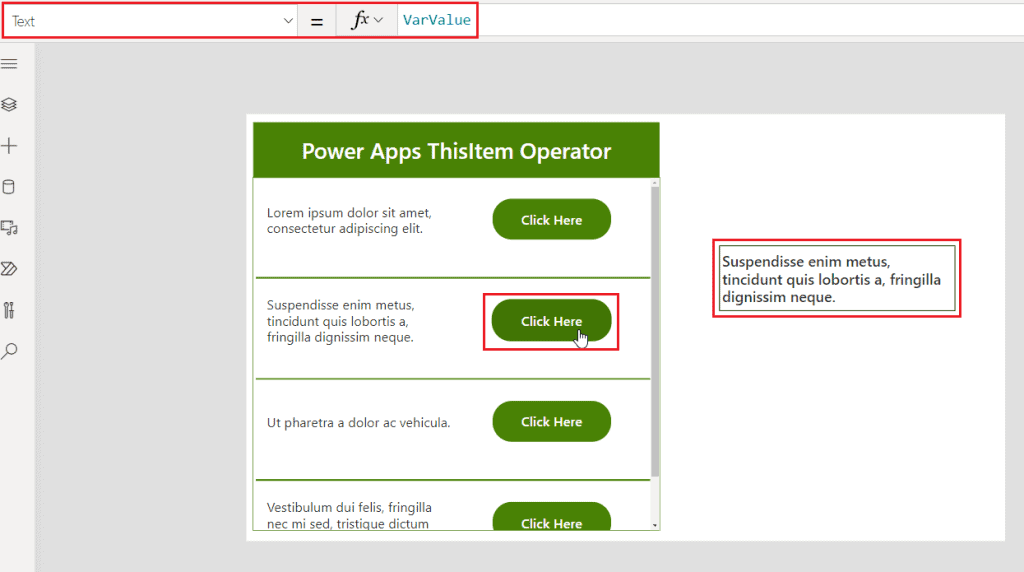
  • Again, we will add a text input control on the outside of the Power Apps gallery. Insert the below expression on the Text property.
Text = VarValue

Where VarValue is the name of the global variable that we have created. Now, we can see when we click any button the respective item will be displayed on the text input control.

Power Apps set ThisItem value

This is how to work with the ThisItem value in Power Apps.

Check out: How to get selected value from gallery in Power Apps?

Set ThisItem value in the Power Apps gallery

Here, we will see how to set a value using the ThisItem operator within a Power Apps gallery. For this, we have a SharePoint list based on ‘Content Scheduler’ having different types of columns such as single line of a text column, choice column, and date as shown below:

Power Apps set ThisItem value in a gallery

On the Power Apps screen, let’s add a blank vertical gallery and connect the gallery with the above SharePoint list.

How to set ThisItem value in Power Apps gallery
How to set ThisItem value in a Power Apps gallery
  • Add a text label control to the above Power Apps gallery and insert the below expression on the Text property to display the content’s title.
Text = ThisItem.Title

Once we insert the above formula it retrieves all the data from the title column of the specified SharePoint list.

PowerApps set ThisItem value in a gallery
  • Similarly, we can add another text label control to display the date column data. For that, the expression will be as below:
text = ThisItem.'Draft Date'
Set ThisItem in Power Apps gallery
Set ThisItem in Power Apps a gallery
  • In the case of the choice column, the expression will be a little different. For this, add a text label control to the Power Apps gallery and insert the below expression on the Text property to display the blog status value.
Text = ThisItem.'Blog Status'.Value
How to set ThisItem value in a Power Apps gallery

Similarly, we have added 2 more text label control to add publish date and blog type as shown below:

PowerApps set ThisItem value in gallery
PowerApps set ThisItem value in a gallery

This is how to set the ThisItem value in a Power Apps gallery.

Have a look: How to add text input to Power Apps collection?

Update ThisItem value in Power Apps gallery

In this section, we will discuss how to update a value in Power Apps gallery using the ThisItem property. That is, we will add an icon to the above Power Apps gallery. When the user clicks on that icon, the respective item’s ‘publish date’ will be updated to a specific date value.

To work with this scenario, the following steps are:

  • Add an icon (calendar or right) to the above Power Apps gallery.
  • Insert the below expression on the icon’s OnSelect property.
OnSelect = Patch(
    'Content Scheduler',
    ThisItem,
    ContentScheduler_Gallery.Selected,
    {'Publish Date': Today()}
)

Where

  • ContentScheduler_Gallery is the name of the above Power Apps vertical gallery.
  • ‘Publish Date’ is the name of the date column where the date value will be updated.
  • Today() reveals the current date.
Power Apps update ThisItem value in a gallery

Let’s publish and preview the app. We can see when we click on any icon the respective date value will be updated within the above gallery.

Update ThisItem value in Power Apps gallery

This is how to update a particular item’s value by using the ThisItem in a Power Apps gallery.

Furthermore, you may like some more Power Apps tutorials:

Conclusion

From this Power Apps Tutorial, we learned all about Power Apps ThisItem property based on different scenarios. Such as:

  • What is Power Apps ThisItem?
  • How to work with the Power Apps ThisItem?
  • Set ThisItem value in the Power Apps gallery.
  • How to update the ThisItem value in a Power Apps gallery?
✇EnjoySharePoint

How to Select First Item in a Power Apps Gallery

In this Power Apps Tutorial, we’ll look at how to select first item in a Power Apps gallery.

We were recently asked to create a Power Apps gallery that would select the first item when working with the Power Apps canvas apps.

Along with this, we will discuss the below topics based on a select the first item within the Power Apps gallery control. Such as:

  • Power Apps get the first selected item in a gallery
  • Power Apps select the first item in a filtered gallery
  • Power Apps get the first item in a gallery collection

Power Apps select first item in a gallery

In this section, we’ll look at how to select the first item in a Power Apps gallery. That is, the gallery will be displayed by default by selecting the first item.

For this, we need to build a Power Apps gallery. We have a SharePoint list named Hotel Guest Registration that contains different types of columns such as single line of text, date, number, etc as shown below:

Power Apps select the first item in the gallery
  • Using the above SharePoint list, we will create a canvas app within the Power Apps.
PowerApps select the first item in the gallery

Note:

In the above Power Apps gallery, we have concatenated the guest’s first name and last name as well as the address and city by using the below expressions.
  • Now, insert the following expression into the Default property of the Power Apps vertical gallery. As a result, it selects the first item in the gallery by default.
Default = First(Self.AllItems)
Select default first item in Power Apps gallery
Select the default first item in a Power Apps gallery
  • To identify the selected item, insert the below expression on the gallery’s TemplateFill property.
TemplateFill = If(ThisItem.IsSelected, Color.BlanchedAlmond,Color.LightGray)
How to auto select first item in a Power Apps gallery
How to auto-select the first item in a Power Apps gallery

This is how to auto-select the first item in a Power Apps gallery.

Get first selected item in a Power Apps gallery

Here, we will see how to get the first selected item in a Power Apps gallery. For this, we are going to use the above example of the Power Apps gallery where the first item has been selected bydefault.

To get the first selected gallery item, the following steps are:

  • On the Power Apps screen, add a display form where we can display all the details from the Power Apps screen.
  • Insert the below expression on the Items property of the Power Apps display form.
Items = Hotel_Registration_Gallery.Selected

Where Hotel_Registration_Gallery is the name of the Power Apps vertical gallery.

Get selected first gallery item value in Power Apps

We can see that the Power Apps display form will show all of the details from the first gallery item that was selected.

Power Apps get the first selected item in a gallery

This is how to get the first selected item in a Power Apps gallery.

Also, read How to create multiple tabs form in Power Apps

Power Apps select the first item in a filtered gallery

In this section, we’ll look at how to choose the first item from a filtered Power Apps gallery. That is, we will create a filter gallery based on a specific condition and then identify the first item from the filtered values.

To work with this scenario, we are going to use the above Power Apps gallery and the following steps are:

  • Suppose, we are going to filter the data whose ‘check-in’ date is on 16/3/2023. For this, we will insert the below expression on the gallery’s Items property.
Items = Filter('Hotel Guest Registration','Check-in Date'=Date(2023,3,16))

Where ‘Hotel Guest Registration’ is the name of the SharePoint data source, and ‘Check-in Date’ is the name of the SharePoint list date column based on which we will filter the gallery data.

How to get first selected item from the Power Apps filtered gallery
How to get a first selected item from the Power Apps filtered gallery
  • To get the first selected item from the above Power Apps gallery, update the gallery’s Items property with the below expression:
Items = First(
    Filter(
        'Hotel Guest Registration',
        'Check-in Date' = Date(
            2023,
            3,
            16
        )
    )
)

Also, insert the below expression on the gallery’s TemplateFill property to identify the selected first item.

TemplateFill = If(ThisItem.IsSelected, Color.DarkSalmon,Color.LightGray)
Power Apps get a first selected item in the filtered gallery

This is how to get the first selected item in the Power Apps filtered gallery.

Power Apps get the first item in a gallery collection

We’ll look at how to get the first item in a Power Apps gallery collection in this section. As per the requirement, we will display the collection through a gallery and select the first item from it.

We made a collection based on a button control. That is, when the user clicks the button, a collection is created. For this, we have used the below expression on a Power Apps button control’s OnSelect property.

OnSelect = Collect(ColGadgets,
{Gadget:"Airpods Gen 2" , Year: 2022, Manufacturer: "Apple"},
{Gadget:"Meta Quest Pro" , Year: 2023 , Manufacturer: "Meta"},
{Gadget:"Google Pixel 7" , Year: 2022 , Manufacturer: "Google"},
{Gadget:"Watch Ultra" , Year:2023 , Manufacturer: "Apple"},
{Gadget:"G4 electric bike" , Year:2021 , Manufacturer: "Gocycle"},
{Gadget:"Legion Pro 7i Powerful Laptop" , Year:2023 , Manufacturer: "Lenovo"}
);
power apps select first item in a gallery collection
  • Next, click on the button to create a collection and add a vertical gallery to the Power Apps screen. Connect the gallery with the collection. As a result, the gallery will display all the collected data.
Power Apps get first selected item in the gallery collection
  • Now, let’s add another gallery to get the first selected item from the above Power Apps gallery collection. For this, insert the below expression on the new gallery’s Items property.
Items = First(ColGadgets)

We can see, the new gallery will display the first selected item from the Power Apps gallery collection as shown below:

How to get first selected item in the PowerApps gallery collection
How to get the first selected item in the PowerApps gallery collection

This is how to get the first selected item in the PowerApps gallery collection.

Conclusion

From this Power Apps Tutorial, we learned all about getting the first selected gallery item within Power Apps based on different scenarios. Such as:

  • Power Apps select the first item in the gallery
  • Power Apps get the first selected item in a gallery
  • Power Apps select the first item in a filtered gallery
  • Power Apps get the first item in a gallery collection

You may like the following Power Apps gallery control articles:

✇EnjoySharePoint

How to get selected value from gallery in Power Apps?

In this Power Apps Tutorial, we will learn how to get selected values from a gallery in Power Apps.

Recently, we got a requirement to get the value from a Power Apps gallery selected item while working with the canvas app.

Also, we will discuss the below topics based on getting selected values from a Power Apps gallery. Such as:

  • Power Apps get a selected value from the gallery to an edit form
  • How to get a selected value from the gallery to a display form in Power Apps
  • Power Apps get the selected value from a gallery by Id
  • Power Apps get selected value from a gallery the last item

First, we’ll look at how to get the value of a Power Apps gallery item that has been selected.

Power Apps get a selected value from a gallery

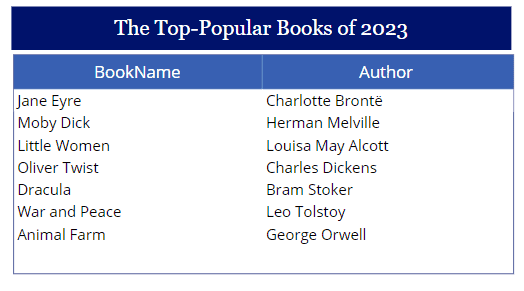
We’ve created a Power Apps gallery that contains a couple of best-selling books and their authors.

Power Apps get selected items from the gallery

As per the requirement, when a user selects an item from the Power Apps gallery, the selected value is gotten and displayed on the screen. To work with this scenario, the following steps are:

  • Add a text label control to the Power Apps screen and place the control next to the gallery.
  • Insert the below expression into the Text property of the Power Apps text control.
Text = "You have selected " & Books_gallery.Selected.Author & " - " & Books_gallery.Selected.BookName

Where Books_gallery is the name of the above gallery control.

Get selected item value from the Power Apps gallery

By default, it is displaying the first selected item value on the Power Apps text label control. To identify the selected value from the Power Apps gallery, insert the below expression on the gallery’s TemplateFill property.

TemplateFill = If(ThisItem.IsSelected, Color.Cornsilk, Color.White)
Get selected item from the Power Apps gallery
Get the selected item from a Power Apps gallery

This is how to get the selected item from the Power Apps gallery.

Power Apps get a selected value from a gallery to an edit form

In this section, we’ll look at how to get a selected value from the Power Apps gallery to an edit form. That is when a user selects an item from the Power Apps gallery control, it will navigate to the edit form and allow the user to edit the selected item within the Power Apps edit form.

To work with this scenario, the following steps are:

  • There is a SharePoint list named Projects Management having different types of columns such as single line of text, date, choice, and currency.
get selected value from gallery in Power Apps
Power Apps get selected items from the gallery to form
  • Using the above SharePoint list, we have built a vertical gallery within the Power Apps.
  • To identify the selected item within the gallery, insert the below expression on the gallery’s TemplateFill property.
TemplateFill = If(ThisItem.IsSelected, Color.Orange, Color.White)
Power Apps get selected items from the gallery to edit form
  • Add another screen to the Power Apps and add an edit form to the screen. Connect the edit form to the SharePoint list i.e., Project Management.
get selected value from Power Apps gallery
Get a selected item from the gallery to a Power Apps edit form
  • To get the selected item from the Power Apps gallery to an edit form, again insert the below expression on the gallery’s OnSelect property.
OnSelect = Set(
    varSelectedItem,
    ThisItem
);
Navigate('ProjectManagement Edit Form Screen')

Where ‘varSelectedItem’ is the variable name and ‘ProjectManagement Edit Form Screen’is the name of the Power Apps screen where the edit form is created.

get selected value from Power Apps gallery control
Get a selected item from the gallery to a PowerApps edit form

That’s all! Save the app and then open it in preview mode. When an item is selected in the Power Apps gallery, the details of that item are retrieved and displayed within the edit form.

Power Apps selected gallery item to edit form

This is how to get the selected item from a gallery to the PowerApps edit form.

Read How to Select First Item in a Power Apps Gallery

Power Apps get a selected value from a gallery to display form

Similarly, here we will see how to get a selected value from the Power Apps gallery to a display form. That means when the user clicks on an item from the Power Apps gallery, the selected items’ details will display on the Power Apps display form as shown below:

Power Apps get selected items from the gallery to display form

We will use the above Power Apps gallery (Project Management System) to get the selected gallery item details in the Power Apps display form; the steps are as follows:

  • On the above apps, add a display form to another new Power Apps screen.
  • Connect the display form to the SharePoint list data source.
Power Apps get a selected value from gallery to display form
  • Insert the below expression on the Power Apps gallery’s OnSelect form.
OnSelect = Set(
    varSelectedItem,
    ThisItem
);
Navigate(ProjectMangement_Display_Screen)

Where varSelectedItem is the name of the created global variable and ProjectMangement_Display_Screen is the name of the Power Apps screen where the display form is created.

PowerApps get a selected value from gallery to display form
  • Similarly, update the Items property of the Power Apps display form with the global variable.
Items = varSelectedItem
Get selected gallery items to Power Apps display form

On the above screen, we can see that it is displaying all the details from the Power Apps gallery selected item.

This is how to get selected gallery items to Power Apps display form.

Power Apps get the selected value from a gallery by ID

In this section, we’ll look at how to get the value of a gallery item by ID. That is when a user selects an item from a Power Apps gallery, the item is displayed on the display form with all details as shown below:

Power Apps get the selected value from a gallery by ID

To work with this scenario, the following steps are:

  • We have built a Power Apps vertical gallery using a certain SharePoint list that displays the product’s image, name, and order date.
PowerApps get the selected value from a gallery by ID
  • To identify the selected item within the Power Apps gallery, insert the following expression on the gallery’s TemplateFill property.
TemplateFill = If(ThisItem.IsSelected, Color.DeepSkyBlue,Color.LightBlue)
Get the selected value from a Power Apps gallery by ID
  • Add a Power Apps display form to the above screen and connect that display form to the SharePoint list. (I.e., Products list)
How to get the selected value from a Power Apps gallery by ID
  • To get the selected item details from the Power Apps gallery, insert the below expression on the gallery’s OnSelect property.
OnSelect = Set(
    VarItemID,
    ThisItem.ID
);
Navigate(Product_FormViewer)

Where Product_FormViewer is the name of the Power Apps display form.

Get selected gallery items using ID in Power Apps
  • Similarly, insert the below formula on the display form’s Item property.
Item = LookUp('Products List', ID= VarItemID)
How to get the selected value from a PowerApps gallery by ID

That’s it! Let’s preview the app and select an item from the above Power Apps gallery. We can see that, the details of the selected item will be displayed on the Power Apps display screen.

Get a selected value from a Power Apps gallery by ID
Get selected value from a Power Apps gallery by ID

This is how to get the selected value from a Power Apps gallery by ID.

Power Apps get selected value from a gallery’s last item

In this section, we will see how to get the selected value from a gallery’s last item. That means the last item of the gallery will be automatically displayed on the Power Apps screen.

To implement this, we are going to use the above gallery and the following steps are:

  • On the above Power Apps screen, insert the below expression on the gallery’s Default property.
Default = Last(Self.AllItems)

Once the above formula is applied, we can see the last item of the gallery has been selected automatically.

Power Apps get selected value from a gallery's last item
Power Apps get selected value from a gallery’s last item
  • Add an Image control and place it beside the gallery control.
  • Insert the below expression on the Image control’s Image property.
Image = Product_Gallery.Selected.Image

Where Product_Gallery is the name of the Power Apps vertical gallery. The image control will now display the image of the gallery’s last selected item.

How to get selected value from gallery in Power Apps
Get selected value from a Power Apps gallery’s last item

This is how to get the selected value from a Power Apps gallery’s last item.

Conclusion

From this Power Apps Tutorial, we learned all about how to get a selected item value from Power Apps gallery based on different scenarios such as:

  • Power Apps get a selected value from the gallery
  • Power Apps get a selected value from the gallery to an edit form
  • Power Apps get a selected value from the gallery to a display form
  • Power Apps get the selected value from a gallery by ID
  • Power Apps get selected value from a gallery’s last item

You may also like the following Power Apps tutorials:

✇EnjoySharePoint

Microsoft Flow Error “Could not find a property named ‘crf9a_Sender’ on type ‘Microsoft.Dynamics.CRM.crf9a_itissueresolutions'”

In this Power Automate tutorial, We will discuss an error i.e. Could not find a property named ‘crf9a_Sender’ on type ‘Microsoft.Dynamics.CRM.crf9a_itissueresolutions’ while working with Datavesre and as well as its solution.

When I was working with Dataverse recently, I needed to use Power Automate to upload a file or an image into a Dataverse row.

For this, I have used a Dataverse List Rows action to filter the rows, and the below error occurred “Could not find a property named ‘crf9a_Sender’ on type ‘Microsoft.Dynamics.CRM.crf9a_itissueresolutions’“.

Refer to the screenshot below that how the error displays in the flow:

Could not find a property named 'crf9a_Sender' on type 'Microsoft.Dynamics.CRM.crf9a_itissueresolutions
Could not find a property named ‘crf9a_Sender’ on type ‘Microsoft.Dynamics.CRM.crf9a_itissueresolutions

We’ll now go into more depth about this issue and how to fix it.

Also, Read: Invalid Connection. Please Choose a Connection Power Automate

Could not find a property named ‘crf9a_Sender’ on type ‘Microsoft.Dynamics.CRM.crf9a_itissueresolutions’ – Error

  • I have a Dataverse table named IT Issue Resolutions. In this table, I have various columns like Issues, Report Date, Attachments, etc with different data types. Along with them, there is a Dataverse Primary column named Sender.
  • Also, this Dataverse table has some records as shown in the screenshot below:
Could not find a property named crf9a Sender Power Automate
Could not find a property named ‘crf9a_Sender’ Power Automate
  • Now, I would like to upload a file or an image into a specific Dataverse row using Power Automate.
  • In order to do this, I filtered the rows using a Dataverse List rows action, and if the value matches, then the particular file or image will upload in that particular dataverse row.
  • In the Dataverse List rows action, there is a field called Filter rows. And I filtered the Sender name i.e.
contains(crf9a_Sender, 'From')
  • This means if the sender’s name contains any value from the When a new email arrives (V3) (From), then the flow will proceed and execute.
  • While I used the above code in the Filter rows field, I got an error like “Could not find a property named ‘crf9a_Sender’ on type ‘Microsoft.Dynamics.CRM.crf9a_itissueresolutions’“.

NOTE:

Even if you will try the code like contains(Sender, ‘From’), then also you will get the same error like “Could not find a property named ‘Sender’ on type ‘Microsoft.Dynamics.CRM.crf9a_itissueresolutions’“.
Power Automate could not find a property named 'crf9a_Sender' on type 'Microsoft.Dynamics.CRM.crf9a_itissueresolutions'
Power Automate could not find a property named ‘crf9a_Sender’ on type ‘Microsoft.Dynamics.CRM.crf9a_itissueresolutions’
  • The error clearly states that the fields like it cannot able to recognize the property or column name i.e. ‘crf9a_Sender’ from the Dataverse table (IT Issue Resolutions).

Now we’ll look at how to resolve the abovementioned Power Automate problem in the part that follows.

Check out: The JSON function cannot serialize tables / objects with a nested property called ‘_ownerid_value’ of type ‘Polymorphic’ Power Apps

Could not find a property named ‘crf9a_Sender’ on type ‘Microsoft.Dynamics.CRM.crf9a_itissueresolutions’ – Solution

When I ran across this Power Automate issue, I did some research online and browsed a number of websites. Here, I integrated it into the code which eventually resolved my problem and carried on as necessary. Follow the instructions below:

  • Go to the Dataverse table (IT Issue Resolutions) -> Expand Sender column -> Click on Edit column -> Expand Advanced options -> Copy the Logical name i.e. crf9a_sender as shown in the image below.
Power Automate Could not find a property named 'crf9a_Sender'
Power Automate Could not find a property named ‘crf9a_Sender’
  • Now go back to the existing flow, expand the List rows action, and paste that Sender logical name (crf9a_sender) inside the contains function that looks like below:
contains(crf9a_sender, 'From')

Refer to the image below.

Could not find a property named 'crf9a_Sender' flow
Could not find a property named ‘crf9a_Sender’ flow
  • Once the flow is ready, just save and test the flow. Now you can see the flow will execute without giving any error.
How to fix could not find a property named 'crf9a_Sender' in Power Automate
How to fix could not find a property named ‘crf9a_Sender’ in Power Automate

This is how we can resolve the Power Automate issue i.e. “Could not find a property named ‘crf9a_Sender’ on type ‘Microsoft.Dynamics.CRM.crf9a_itissueresolutions’” while working with Dataverse table.

Furthermore, you may like some more Power Automate and Dataverse tutorials:

In this Power Automate tutorial, We discussed an error i.e. Could not find a property named ‘crf9a_Sender’ on type ‘Microsoft.Dynamics.CRM.crf9a_itissueresolutions’ while working with Datavesre and its solution.

✇EnjoySharePoint

Display Current User Name in SPFx Client Side Web Part

In this SPFx tutorial, we will discuss, how to display current user name in SPFx client side web part in SharePoint Online. It will also display current date and a welcome message.

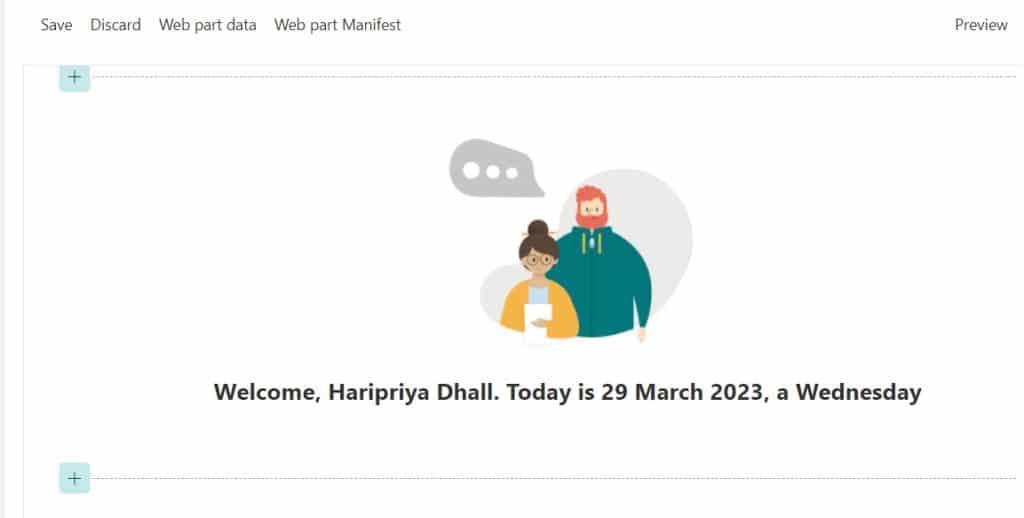
Recently, we working on a project in which the requirement is to display the user name with a welcome message like “Welcome Alex” in a client side web part in SharePoint Online. When a user logged in user opens the SharePoint web part page, it will also display the current date in the format “Today is 13 March 2023, a Monday”. So it looks like below:

spfx webpart with logged in user name and current date
spfx web part with logged-in user name and current date

Let’s see how to create a spfx web part to display the SharePoint site logged-in user name and current date using SharePoint framework.

Create an SPFx web part to display the logged-in user name and current date

Here we will see how to create a client side web part that will display the SharePoint site logged-in user name and the current date.

Follow the below steps to create a web part that will display the logged-in user name and current date on the SharePoint web part page.

  • First, create a project directory with the help of mkdir command and then navigate to the directory with the help of the cd command. Write the below command in the command prompt.
mkdir userprofile
cd userprofile
  • Then to create a project, run the below command inside the directory.
yo @microsoft/sharepoint

Now yeoman Sharepoint generator will ask you a list of questions like the below related to creating a project or solution.

  • Let’s create a new SharePoint solution.
  • ? What is your solution name? userprofile (here provide the solution name or select the suggested name by yeoman)
  • ? Which type of client-side component to create? WebPart (here generator will show you 4 options i.e. Webpart, Extension, Library, Adaptive Card Extension)
  • ? What is your Web part name? UserProfile (provide the web part name or choose the suggested name generated by the yeoman SharePoint generator)
  • ? Which template would you like to use? React (here yeoman SharePoint generator will show you 3 options i.e. Minimal, No Framework, React)
 webpart with logged in user name and current date using spfx
web part with logged in user name and current date using spfx

Now yeoman SharePoint generator will take a little bit of time to install all the dependencies, required for the project. After that, you can see the below success message.

Sharepoint Welcome web part
  • As our spfx webpart solution is ready, so now open the code editor to play with the code that will fulfill the requirements. Write the below code to open the code editor.
code . (code space dot)
  • Below you can see our project structure:
Display Current User Name in SPFx Client Side Web Part
project structure of spfx web part to display logged-in user name and current date
  • Navigate to the Userprofile.tsx file which is located in the ‘src\webparts\userProfile\components\UserProfile.tsx’. Here we will define a constant variable that stores the current date. Define it inside the ‘render()’ above the return ().
const currentDate= new Date()
  • In the same file .tsx file, replace the return() code with the below code :
return (
      <section className={`${styles.userProfile} ${hasTeamsContext ? styles.teams : ''}`}>
        <div className={styles.welcome}>
          <img alt="" src={isDarkTheme ? require('../assets/welcome-dark.png') : require('../assets/welcome-light.png')} className={styles.welcomeImage} />
          <h2>Welcome, {escape(userDisplayName)}. Today is {currentDate.toLocaleString('en-IN', {day: 'numeric', month: 'long', year: 'numeric'})}, a {currentDate.toLocaleString('en-IN', {weekday: 'long'})}</h2>
        </div>
      </section>
    );

In the above code, inside <h2> tag,

  • We have defined the logged-in user name, by using userDisplayName props inside the escape method. Whenever you will create a project, userDisplayName properties are in use, so we have used them in our project. Basically userDisplayName property value dynamically changes, based on the logged-in into SharePoint site.
  • And to display the current date like 23 March 2023, for this we have used this code:”{currentDate.toLocaleString(‘en-IN’, {day: ‘numeric’, month: ‘long’, year: ‘numeric’})}“.
  • Then to display the ‘Wednesday’ we have used this set of code: {currentDate.toLocaleString(‘en-IN’, {weekday: ‘long’})}.

Once you modify the code to get the required result, now provide the SharePoint site URL to the workbench, where we can see our solution.

For this, open the serve.json file which is located in the ‘config\serve.json’. Now provide the URL of the SharePoint site in the ‘initial page’ properties like below.

Get Current User Name in SPFx Client Side Web Part
Sharepoint customized web part to display logged-in user name and current date

Once you configure the workbench, run the below command to compile and run the project on the local server.

gulp serve

The project is running on the local server, here click on the + icon to add the web part.

Now select the solution (Userprofile) under the Local section, then you can see the webpart, which displays the current user name with the current date.

spfx web part to display user name and current date
spfx web part to display the user name and current date

This is how we can create our customized webpart that will display the username and current date using SPFx.

Conclusion

In this SPFx tutorial, we learned how we can display the SharePoint site logged-in user name with the current date in the webpart by using spfx.

You may also like:

✇EnjoySharePoint

How to add text input to Power Apps collection?

In this Power Apps Tutorial, we will learn how to add text input to a Power Apps collection.

Recently, we got a requirement to add text from the text input control to a Power Apps collection while working with the Canvas app. Also, we will discuss the below topics based on Power Apps text control:

  • How to add multiple text inputs to a collection in PowerApps
  • Add text input to an existing collection in Power Apps
  • Update text input to a collection on change in Power Apps

Add text input to a Power Apps collection

Here, we will discuss adding data from a Power Apps text input control to a new Power Apps collection. That means when the user dynamically inserts any data in the text input control, it will add them to the Power Apps collection via a button click.

To work with this scenario, the following steps are:

  • On the Power Apps screen, add a Text Input control and button control.
  • Give a name to the button control ex: Save to Collection.
  • Insert the below expression on the button’s OnSelect property.
OnSelect = Collect(
    CollProject,
    {ProjectName: ProjectName_txt.Text}
)

ProjectName_txt is the name of the Power Apps text input and CollProject is the name of the new collection we created.

Power Apps add text input control to Collection
Power Apps add text input control to the Collection
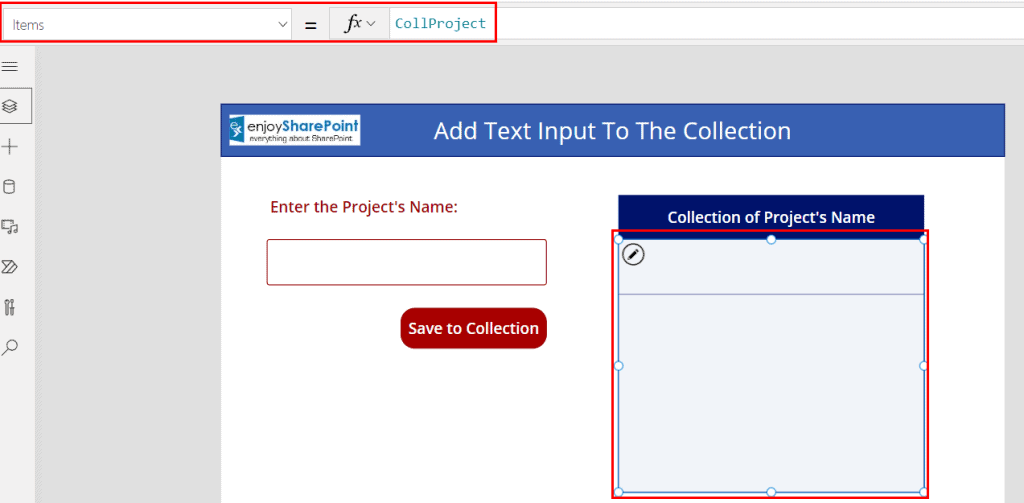
  • To display the collection add a vertical gallery to the Power Apps screen and connect it with the collection (i.e., CollProject).
Power Apps add text input control to Collection on button click
  • For the time being, let’s save and publish the app. Insert any data on the Power Apps text input control in preview mode, and we can see that when we click on the button control, the text is added to the Power Apps collection, as shown below:
Add text Input control to the Power Apps collection

This is how to add text Input control to a Power Apps collection.

Add multiple text inputs to a collection in Power Apps

In this section, we will see how to add multiple text inputs to a Power Apps collection at once. That means when the user clicks on the button, it will add the data from the multiple text input controls to the Power Apps collection.

Consider the following scenario: the user enters the employee’s name, email address, and current project name into the appropriate text input controls, and then clicks the button to save the data in the collection.

To achieve this requirement, the following steps are:

  • On the Power Apps screen, add 3 text input controls for inserting the employee’s name, email address, and current project name.
  • Add a button control to the screen and give a name to the button control.
  • Insert the below expression on the button’s OnSelect property.
OnSelect = Collect(
    Coll_Project,
    {
        FullName: EmployeeName_txt.Text,
        Email: Email_txt. Text,
        Project: ProjectName_txt.Text
    }
)

Where,

  • Coll_Project is the name of the collection.
  • EmployeeName_txt, Email_txt, and ProjectName_txt are the name of the Power Apps text input controls.
Power Apps add multiple text inputs to the collection
  • Let’s add a Power Apps vertical gallery control to the screen and connect it with the collection to display the collected data.
PowerApps add multiple text inputs to collection

Let’s preview the app and insert the data into the text input controls. We can see the collected data on the Power Apps gallery while clicking the button.

Add multiple text inputs to the Power Apps collection

This is how to add multiple text inputs to a Power Apps collection.

Add text input to an existing collection in Power Apps

In this section, we will see how to add data from text input control to an existing Power Apps collection.

That means when the user inserts any data into the text input control, the data will be collected and stored in an existing collection. To work with this scenario, the following steps are:

  • We have created a collection on the Power Apps screen’s OnVisible property.
OnVisible = ClearCollect(CollGadget, {GadgetName:"Meta Quest Pro", Manufacturer:"Meta"}, {GadgetName:"Google Pixel 7", Manufacturer:"Google"},{GadgetName:"Airpods Gen 2", Manufacturer:"Apple"}, {GadgetName:"Gocycle G4 electric bike", Manufacturer:"GoCycle"}, {GadgetName:"Legion Pro 7i Powerful Laptop", Manufacturer:"Lenovo"})

Where,

  1. CollGadget is the name of the Power Apps collection.
  2. GadgetName and Manufacturer are the names of the collection headers.
Power Apps add text input control to existing Collection
  • Let’s add two text control to the Power Apps screen to insert the gadget name and manufacturer.
  • Also, add a button control to the screen to store the data on the collection via the button click. Insert the below expression on the button’s OnSelect property.
OnSelect = Patch(
    CollGadget,
    Defaults(CollGadget),
    {
        GadgetName: GadgetName_txt.Text,
        Manufacturer: Manufacturer_txt.Text
    }
)

Where,

  1. CollGadget is the name of the existing Power Apps collection.
  2. GadgetName_txt and Manufacturer_txt are the names of the text input control.
Power Apps add text input to the existing collection
  • Add a gallery control (or data table) and connect that with the existing collection i.e., CollGadget.
Power Apps add text input control to an existing Collection

Let’s insert data on the above text input control and click on the button. We can see the inserted items got added to the existing collection as shown below:

Add text input to the existing Power Apps collection

This is how to add text input to an existing Power Apps collection.

Power Apps update text input to the collection on change

In this section, we will see how to update the data from a text input control into the Power Apps collection. That means when the user selects any collection item via a gallery, the respective data will display on the text input control. When the user inserts any data, the inserted data will be updated on the Power Apps collection.

To work with this scenario, we are going to use the above Power Apps gallery that is connected with the CollGadget and the following steps are:

  • Add a text input control to the Power Apps screen and place it beside the above gallery.
  • Insert the below expression on the text input’s Default property to display the selected item’s manufacturer.
Default = ColGadget_Gal.Selected.Manufacturer

Where ColGadget_Gal is the name of the Power Apps gallery and Manufacturer is the name of the collection column.

Update text input to Power Apps collection
  • To update the selected item’s Manufacturer, insert the below expression on the text input’s OnChange property.
OnChange = Patch(
    CollGadget,
    LookUp(
        CollGadget,
        Manufacturer = ColGadget_Gal.Selected.Manufacturer
    ),
    {Manufacturer: Manufacturer_txt.Text}
)
Power Apps update text input to the collection on change
  • To identify the selected items from the gallery, we will insert the below expression on the Color properties of the right navigation icon.
Color = If(ThisItem.IsSelected, Color.IndianRed, Color.Blue)
PowerApps update text input to the collection on change

Let’s preview the app and select an item from the gallery. Also, update the manufacturer name and we can see the modification will be visible on the collection via gallery.

Update PowerApps text input to the collection on change

This is how to update PowerApps text input to the collection on change.

Conclusion

From this Power Apps tutorial, we learned how to work with Power Apps collection using text input control based on different scenarios. Such as:

  • Power Apps add text input to the collection
  • Add multiple text inputs to a collection in Power Apps
  • Add text input to an existing collection in Power Apps
  • Power Apps update text input to the collection on change

You may also like:

✇EnjoySharePoint

Power Automate Dataverse Update Multiple Rows

In this Power Apps Dataverse tutorial, We will discuss how to work with Power Automate Dataverse Update Multiple Rows.

Also, we will see how to use Power Automate Condition while working with Power Apps Dataverse.

While I was working with Power Apps Dataverse, I needed to update multiple rows at a time in the Dataverse table. I didn’t want to manually update each record in a large table in that situation. Moreover, updating each row will take a long time.

To get around this, I used Power Automate, which enables quick updating of bulk records in the Dataverse table whenever an action is performed.

Also, Read: Power Automate Dataverse Upload a File or an Image

Power Automate Dataverse Update Multiple Rows

Think of a situation when you want to update several records at once in a Dataverse Table without doing it manually.

Power Automate can then be utilized to assist you in updating many rows in the Dataverse table whenever an action occurs. Let’s use the example below to know more.

Scenario:

The below screenshot represents a Dataverse table named Voter Application Forms. This table has various columns with different data types. Such as:

  1. Applicant Name = This is the Dataverse Primary Column name with the Text data type
  2. Date Of Birth = Date Data type
  3. Gender = Choice (Single value) Data type having some choices like Male, Female, Others, etc.
  4. Age = Number Data type
  5. Patient/Spouse Name = Single line of text Data type
  6. District = Choice Data type having choices like Alabama, Alaska, Florida, etc.
  7. State = Choice Data type having choices like 123 Whitefield, New Bohemia, Czech Village, etc.
  8. Is Eligible = This is a Single line of text data type. These field values are blank because we need to update all the values using Power Automate.
Power Automate Dataverse Update Multiple Rows

Now I would like to build a flow when a user will click on the flow button, then the flow will trigger and all the rows will update in the Dataverse table based upon the condition.

Here, I’ve included a condition that updates the value to “Eligible” in the Dataverse Is Eligible field if the applicant’s age is greater than or equal to 18. If not, the value will be updated in the Dataverse Is Eligible column as “Not Eligible.” Refer to the screenshot below.

Power automate update all dataverse list items

To work around this scenario, follow the instructions below:

Step – 1: [Create a new Instant cloud flow]

  • Open Power Automate and Sign in with your valid Microsoft credentials.
  • Go to + Create (from the left navigation) -> Select Instant cloud flow under the Start from blank section.
Bulk update dataverse using Power automate

Step – 2: [Provide Flow name and Choose the trigger]

  • Then the below window will appear where you need to provide the flow name and choose the flow trigger.
    • Flow name = I have given the flow name as Dataverse Update Multiple Rows in Flow.
    • Choose your flow’s trigger = Select the trigger from the list below to create a flow. In my case, it’s Manually trigger a flow.
  • Click on Create.
Power automate bulk update dataverse

Step – 3: [Rename the trigger and click + to add a new action]

  • Once the flow has been created, the trigger (Manually trigger a flow) will appear as shown in the screenshot below. If you want to rename this trigger, then rename it. Don’t add or change anything to this trigger.
Power automate bulk update dataverse table

Step – 4: [Add Dataverse List Rows action]

  • Next, click on the + icon to insert a new step below the trigger (Manually trigger a flow).
  • Search List Rows in the search bar -> Select Microsoft Dataverse -> Click on List rows (PREMIUM) under the Actions tab.
Dataverse bulk update using Flow
  • Once the List rows action has been added, just select the Dataverse Table name (Voter Application Forms) from the dropdown menu.
Power Automate update Dataverse items

Step – 5: [Insert a Condition control]

  • Then, click on the + icon to insert a new step below the List rows action.
  • Search Condition in the search bar or add Condition under the Actions tab.
Update multiple records in Dataverse using Power Automate
  • Once the condition has been added, it will look like the screenshot below.
How to update multiple rows in Dataverse using Power Automate
  • Now, select the first block of the condition -> Go to the Dynamic content -> Select Age under the List rows action. When you will select age, then the Apply to each action and its value will add automatically.
  • Select the second block and choose the condition “is greater than or equal to” from the dropdown menu.
  • Select the third block and mention the value as 18 (As I want to update the Dataverse rows based on age 18).
How to update Dataverse bulk records using Power Automate

Step – 6: [Update Dataverse Rows If Condition Satisfies]

  • Next, go to the If yes block (left side) and add Update a row [PREMIUM] action (Search Update a row -> Select Microsoft Dataverse -> Click Update a row [PREMIUM]).
Update Dataverse bulk records in Power Automate
  • Just rename the action to Update Dataverse Rows to Eligible and add all the fields below:
    • Table name = Select the Dataverse table (Voter Application Forms) name from the dropdown menu.
    • Row ID = Select the field -> Go to Dynamic content -> Select Voter Application Form [Unique identifier for entity instances].
    • Applicant Name, Age, Date Of Birth, and so on = All these fields you can add from the List rows action under the Dynamic content tab.
    • Is Eligible = You can provide the custom value (Eligible) that you want to update in the Dataverse.
Dataverse update multiple rows using flow

Step – 7: [Update Dataverse Rows If Condition does not Satisfy]

  • Similarly, go to the If no block (right side) and add Update a row [PREMIUM] action (Search Update a row -> Select Microsoft Dataverse -> Click Update a row [PREMIUM]).
  • Just rename the action to Update Dataverse Rows to Not Eligible and add all the fields below:
    • Table name = Select the Dataverse table (Voter Application Forms) name from the dropdown menu.
    • Row ID = Select the field -> Go to Dynamic content -> Select Voter Application Form [Unique identifier for entity instances].
    • Applicant Name, Age, Date Of Birth, and so on = All these fields you can add from the List rows action under the Dynamic content tab.
    • Is Eligible = You can provide the custom value (Not Eligible) that you want to update in the Dataverse.
Update bulk records in Dataverse using Power Automate
  • Now the whole condition action will look like the image below.
Power Automate Update bulk records in Dataverse

Step – 8: [Save and Test the flow]

  • Finally, Save the flow. Click the flow checker as well to see if there are any problems.
  • If so, fix it. If not, move on to testing the flow. Choose Test.
Update Dataverse multiple records using flow
  • In the Test Flow pane, select Manually and click on Test. In the Run flow pane, tap the Run flow button -> Select Done as shown below.
Update list of Dataverse records using Power Automate

Step – 9: [Flow Succeded]

  • When the flow has been completed successfully, a message such as “Your flow ran successfully” will appear at the top of the flow.
How to update dataverse multiple records using flow

Step – 10: [Refresh Dataverse Table]

  • Refresh the relevant Dataverse table (Voter Application Forms) once more at this time. You can see all the custom value has been updated based on the flow condition.
  • That means, if any applicant’s age is greater than or equal to 18, then that specific row has been updated to Eligible otherwise Not Eligible (in the Is Eligible field).
Update dataverse multiple rows using flow

This is how to work with Power Automate Dataverse Update Multiple Rows.

Furthermore, you may like some more Dataverse and Power Apps tutorials:

In this Power Apps Dataverse tutorial, We discussed how to work with Power Automate Dataverse Update Multiple Rows.

Also, we saw how to use Power Automate Condition while working with Power Apps Dataverse.

✇EnjoySharePoint

How to format a currency column in Power Apps?

In this Power Apps Tutorial, we will discuss how to format the Power Apps currency.

Recently, we have been asked by our client to format a SharePoint currency column within the Power Apps while working with the Canvas app.

The following step-by-step guide will show you how to format the currency column within the Power Apps.

Power Apps currency format

In this section, we’ll look at how to format a currency column in Power Apps. As a result, when a user retrieves data from the SharePoint list currency column and imports it into Power Apps, the column will display the data with the relevant currency format.

Power Apps format currency column

How to format a currency column in Power Apps with Dollar

Here, we will see how to format a SharePoint currency column in Power Apps with a step-by-step guide.

We have a SharePoint list named ‘Product list‘ having a currency type column named Price.

Format currency column in PowerApps
  • Let’s build a Power Apps DataTable control by using the above SharePoint list. On the Power Apps screen, click on Insert tab > DataTable > Select.
  • Add the above SharePoint list to the Power Apps canvas app and connect that list to the Power Apps Data table control. We can see the data table will retrieve all the fields including the data from the SharePoint list to Power Apps as shown below:
How to format SharePoint currency column in power apps

On the above Power Apps data table control, we can see that the data in the price column is represented numerically rather than in currency. To format the column data in currency, the following steps are:

  • On the Power Apps data table control, select the Price column.
  • Insert the below expression on the Price column’s Text property.
Text = "$" & Text(ThisItem.Price,"0.00")

Once the formula is applied, we can see the price column will be formatted as currency within the Power Apps data table control.

Format a currency field in PowerApps

This is how to format a currency field in PowerApps.

Also, we can use the below formula to format the SharePoint currency column within the Power Apps. Select the Price column and insert the expression on the column’s Text property.

Text = Text(ThisItem.Price, "$ ##.00")

Now, we can see that the price will come with the dollar symbol including decimal places.

how to format sharepoint currency column in power apps with dollar symbol
how to format SharePoint currency column in power apps with a dollar symbol

This is how to format the SharePoint currency column in power apps with a dollar symbol.

How to format a currency column in Power Apps with Rand

Similarly, we’ll look at how to format a currency column in Power Apps using the South African currency format, Rand.

For that, insert the below expression on the price column’s Text property.

Text = Text(ThisItem.Price, "[$-en-US]R ###.00")

Once the formula is added to the data table’s price column, the data will appear with the Rand symbol as shown below:

Power Apps format currency field with rand symbol

This is how to format a currency field with the rand symbol inside the PowerApps.

Conclusion

From this Power Apps Tutorial, we learned how to format a SharePoint currency field using the dollar symbol as well as the rand within the Power Apps.

You may like the following Power Apps tutorials:

✇EnjoySharePoint

How to Sort a Power Apps Dropdown Control?

In this Power Apps Tutorial, we will see how to sort a dropdown control in Power Apps.

We recently received a request from one of our clients. While working with the Power Apps canvas app, they want to sort the items inside the dropdown control.

In detail we will discuss here:

  • Sort a dropdown control in a Power Apps edit form
  • Sort a dropdown control in a Power Apps gallery
  • Sort Power Apps dropdown control alphabetically

Let’s see how to sort the items in ascending or descending order in a Power Apps dropdown control.

Sort a Power Apps dropdown control

In this section, we’ll look at various methods for sorting a Power Apps dropdown control. In addition, we will use various formulas to sort the dropdown items in the Power Apps edit form and gallery control.

Sort a dropdown control in a Power Apps edit form

In this section, we will see how to sort a dropdown control within a Power Apps edit form. As a result, it will let the user find their items in a descending or ascending order.

  • There is a SharePoint list based on Project Management having different types of columns such as single line text column, date & time column, people column, etc. Also, the list has a choice column named ‘Project Location’.
Power Apps sort dropdown control
  • Let’s build an edit form inside the Power Apps canvas app. Connect that edit form with the SharePoint list. On the Power Apps canvas app screen, go to Insert > Edit form > Select.
  • Connect the Power Apps edit form to the above SharePoint list as a data source.
  • Automatically the form will appear with all the respective control as shown below:
How to sort Power Apps dropdown control
  • let’s remove the combo box control from the Project Location and add a Power Apps Dropdown control.
  • To display the choices from the Project Location SharePoint column insert the below expression on the dropdown’s Items property.
Items = Choices([@'Projects Management'].'Project Location')
Sorting PowerApps dropdown control
  • On the above dropdown, the items are not sorted. To sort the above dropdown items, insert the below expression on the Power Apps dropdown’s Items property.
Items = Sort(
    Choices([@'Projects Management'].'Project Location'),
    Value
)
Sorting PowerApps dropdown control in ascending order

Also, you can use the below expression to sort a Power Apps dropdown control within the edit form.

Items = Sort(
    Choices([@'Projects Management'].'Project Location'),
    ThisRecord.Value,Descending
)

Once the formula is applied, we can see all the items are sorted in descending order as shown below:

Sort dropdown control in Power Apps

This is how to sort Power Apps dropdown choices in ascending order.

Sort a dropdown control in a Power Apps gallery

Similarly, here we will see how to sort a dropdown control in a Power Apps gallery.

Here, we have prepared a Power Apps vertical gallery using the above SharePoint list named ‘Project Management’.

  • On that gallery, add a dropdown control to let the user select the Project Location. For this, insert the below expression in the dropdown’s Items property to display the choices.
Items = Choices('Projects Management'.'Project Location')
Sorting a PowerApps dropdown control
  • To sort the above Power Apps dropdown control, insert the below expression on the dropdown’s Items property.
Items = SortByColumns(
    Choices('Projects Management'.'Project Location'),
    "Value",
)
Sort Power Apps dropdown control

This is how to sort a Power Apps dropdown control within the gallery.

Sort Power Apps dropdown control alphabetically

In this section, we will see how to sort a Power Apps dropdown control alphabetically. Let’s build a Power Apps dropdown control using the project name and sort them alphabetically.

  • Add a dropdown control to the Power Apps screen.
  • Insert the below expression on the Items property of the dropdown control to display the projects’ names.
Items = 'Projects Management'.'Project Name'
Sort Power Apps dropdown control alphabetically
  • To sort the above dropdown alphabetically (descending or ascending), insert the above expression on the dropdown’s Items property.
Items = Sort(
    'Projects Management',
    'Project Name',
    SortOrder.Descending
)
How to sort Power Apps dropdown control alphabetically

This is how to sort a Power Apps dropdown control alphabetically.

Conclusion

From this Power Apps tutorial, we learned how to sort a PowerApps dropdown control based on different scenarios such as:

  • Sort a dropdown control in a Power Apps edit form
  • Sort a dropdown control in a Power Apps gallery
  • Sort Power Apps dropdown control alphabetically

You may also like:

✇EnjoySharePoint

How to Add a Time Picker in the Power Apps Canvas App?

In this Power Apps Tutorial, we will discuss how to add a time picker control in the Power Apps canvas app.

One of our clients recently asked us to add a time picker control alongside the date picker control while working with the Power Apps canvas app. They want to combine the time picker and date picker controls to collect the date and time.

Here, we will see how to add a time picker control to the Power Apps canvas app.

Also, Read: How to Highlight the Selected Item within a Power Apps Gallery?

Add time picker control to the Power Apps canvas app

In Power Apps, we can find a most common inbuilt control named ‘Date picker‘. As per the recent requirement, we will see how to add a time picker to the Power Apps canvas app.

To achieve the requirement, the following steps are:

  • On the Power Apps screen, we have prepared a certain form using the Power Apps controls such as text input and date picker control.
Power Apps time picker control
  • But, as per the requirement, we need to add a time picker control with the above Date picker control.
  • Let’s insert the below expression to create two collections on the Power Apps screen’s OnVisible property. One is for hours (ColHours) and the other is for minutes (ColMinutes).
OnVisible = 

//Create collection for hours

ForAll(
    Sequence(
        25,
        0,
        1
    ),
    Collect(
        ColHours,
        {
            HourText: If(
                ThisRecord.Value < 10,
                "0" & ThisRecord.Value,
                ThisRecord.Value
            ),
            HourValue: ThisRecord.Value
        }
    )
);
//Create collection for minutes
ForAll(
    Sequence(
        61,
        0,
        1
    ),
    Collect(
        ColMinutes,
        {
            MinuteText: If(
                ThisRecord.Value < 10,
                "0" & ThisRecord.Value,
                ThisRecord.Value
            ),
            MinuteValue: ThisRecord.Value
        }
    )
)
Power Apps add time picker control
  • Next, add two Power Apps drop-down controls to the screen and place them near the date picker control as shown below.
  • Set the collections on each dropdown control’s Items property respectively. (i.e., ColHours & ColMinutes)
Add time picker control to Power Apps canvas app
  • To collect the name, selected date, and times, add a button control to the form.
  • Insert the below expression on the button’s OnSelect property.
OnSelect = Collect(
    CollAppointment,
    {
        FullName: Name_txt.Text,
        AppointmentTime: Concatenate(
            DatePicker1.SelectedDate,
            " ",
            Hour_Dropdown.Selected.HourValue,
            ":",
            Minute_Dropdown.Selected.MinuteValue
        )
    }
)

Where,

  • CollAppointment is the name of the collection
  • Name_txt is the name of the Power Apps text input control.
  • Hour_Dropdown and Minute_Dropdown are the names of the Power Apps dropdown controls.
Work with time picker in Power Apps canvas app
  • To display the collected values, add a Power Apps data table control and connect that data table to the collection I.e., CollAppointment.
Power Apps add time picker
  • That’s all! Let’s fill out the form (Power Apps controls) and hit the Save button. As shown below, the inserted data will be collected and displayed in the data table:
Time picker control in Power Apps canvas app

This is how to work with the Power Apps time picker control within the canvas app.

Furthermore, you may like some more Power Apps tutorials:

Conclusion

From this Power Apps Tutorial, we have learned how to build and use the time picker control within the Power Apps canvas app.

✇EnjoySharePoint

How to Highlight the Selected Item within a Power Apps Gallery?

In this Power Apps Tutorial, we will discuss highlighting a selected item within a Power Apps Gallery.

We recently received a request to work with the selected items of a Power Apps gallery while using the canvas app. Per our client’s request, they want to highlight the item selected within a Power Apps gallery.

Also, we will discuss how to highlight the multi-selected items within the Power Apps gallery.

Highlight the selected item within a Power Apps gallery

Here, we will see how to highlight the selected item within a Power Apps gallery. To achieve this requirement, the following steps are:

  • Let’s build a vertical gallery on the Power Apps screen.
  • Connect the gallery to a data source (Ex: SharePoint, Excel, dataverse table, etc.). Suppose, we have a SharePoint list named Project Management and we have used that list in the Power Apps gallery as shown below:
Power Apps gallery selected item
  • To highlight the particular item or selected item in the Power Apps gallery, insert the following expression on the gallery’s TemplateFill property.
TemplateFill = If(ThisItem.IsSelected, Color.AntiqueWhite, Color.White)

As per the above expression, the selected item will be highlighted as AntiqueWhite and the rest will appear in white.

Highlight the Power Apps selected item

This is how to highlight the Power Apps selected item in a gallery control.

Also, Read: How to Patch Dataverse Choice Column in Power Apps

Highlight multi-selected items in the Power Apps gallery

In this section, we will see how to highlight the multi-selected items in the Power Apps gallery.

Currently, we can select only one item in a Power Apps gallery control. But, we can add a temporary Power Apps collection to our app where we will store all the selected items from the gallery.

To achieve this, the followings steps are:

  • We have built a vertical gallery on the Power Apps screen that displays the list of all Office365 users.
    • For this, connect the Power Apps with the Office 365 Users connector. Add a vertical gallery to the Power Apps screen and insert the below expression on the gallery’s Items property. As a result, it will display all the Office 365 users in the Power Apps gallery.
Items = Office365Users.SearchUser()
Power Apps gallery select multiple items
Power Apps gallery selects multiple items
  • Now, we will create a collection that will temporarily store the selected items from the gallery. For this, add the below expression on the Power Apps gallery’s OnSelect property.
OnSelect = If(
    ThisItem.DisplayName in CollSelectedUsers.DisplayName,
    Remove(
        CollSelectedUsers,
        ThisItem
    ),
    Collect(
        CollSelectedUsers,
        ThisItem
    )
)

Where the CollSelectedUsers is the name of the collection that will store the multi-selected items.

Highlight the Power Apps multi selected gallery item
Highlight the Power Apps multi-selected gallery item
  • To identify the selected items, insert the following expression on the TemplateFill of the Power Apps gallery control.
TemplateFill = If(
    ThisItem.DisplayName in CollSelectedUsers.DisplayName,
    Color.AliceBlue,
    Color.White
)
Power Apps Highlight the multi selected gallery items
Power Apps Highlight the multi-selected gallery items
  • To visualize the selected items from the Power Apps gallery, let’s add another vertical gallery to the Power Apps screen.
  • Connect that vertical gallery with the collection that we have created. (i.e., CollSelectedUsers)
Select multiple items in Power Apps gallery
Select multiple items in the Power Apps gallery

That’s it! Let’s publish the app and preview it. we can see when we select the item(s), it will display on another gallery as well as highlight those selected items within the gallery.

Highlight the multi selected gallery item in Power Apps
Highlight the multi-selected gallery item in Power Apps

Similarly, if we deselect the item(s), it will remove from the other gallery as well. This is how to highlight the multi-selected items from the Power Apps gallery.

Additionally, you may like some more Power Apps tutorials:

Conclusion

From this Power Apps tutorial, we learned how to highlight a single selected item as well as multi-selected items within the Power Apps gallery.

✇EnjoySharePoint

How to Patch Dataverse Choice Column in Power Apps

In this Power Apps Dataverse tutorial, We will discuss how to work with Power Apps Patch Dataverse Choice Column. Additionally, we will see how to patch Datavarse Text, Number, and Date columns in Power Apps Edit Form Control.

Furthermore, we will get to know how to update Dataverse Choice Column (Single-choice value) in Power Apps and how to update Dataverse Choice Column (Multi-choice value) in Power Apps.

On a recent project, I had to patch the Dataverse Choice values (multiple choice option set) in a Power Apps Edit form. Once the user will submit the Choice values, then those choices will be stored in the relevant Dataverse table.

So let’s get started with this.

Also, Read: How to Display Dataverse Choices in Power Apps Gallery

Power Apps Patch Dataverse Choice Column

Here we will see how to Patch Dataverse Choice Column in Power Apps.

The below screenshot represents a Dataverse table named Patient Registrations. In this table, there are various columns with various data types. Such as:

  1. Patient Name = This is a Primary column having with Single line of text data type.
  2. DOB = Date Data type
  3. Age = Whole Number Data type
  4. Address = Multi-line of text Data type

Along with these columns, there is one more column called Reason with Choice Data type (including multi-selection option set).

Power Apps Patch Dataverse Choice Column

The below image represents all the Dataverse choices like High Blood Pressure, Diabetes, Heart Issues, etc. Whereas, Patient Disease Reason is the Choice Display Name.

Patch Dataverse Choice Column PowerApps

Now, I would like to patch the Dataverse choice values in a Power Apps Edit Form control.

Example:

  • In Power Apps, there is a Power Apps Edit form with all the Dataverse table columns like Patient Name, Patient Phone Number, DOB, Reason, etc.
  • Also, there is a Power Apps Button control (REGISTER) that helps to store the form entries in the Dataverse table.
How to Patch Dataverse Choice Column in Power Apps
  • But before that, make sure you need to connect the Dataverse Connector and choose the Dataverse table (Patient Registrations) to Power Apps. Otherwise, you may get some errors.
  • You can connect the Dataverse connector by using the Data tab (from the left navigation).
Patch Dataverse Choice Column in Power Apps
  • Next, to patch the Dataverse Choice values as well as other data values, apply the code below on the Button’s OnSelect property as:
OnSelect = Patch(
    'Patient Registrations',
    Defaults('Patient Registrations'),
    {
        'Patient Name': DataCardValue1.Text,
        'Patient Phone Number': DataCardValue6.Text,
        DOB: DateValue1.SelectedDate,
        Age: Value(DataCardValue3.Text),
        Address: DataCardValue4.Text,
        Reason: DataCardValue5.SelectedItems
    }
)

Where,

  1. Patch = Power Apps Patch Function is used to create a new record or modify single or multiple records in a data source.
  2. ‘Patient Registrations’ = Provide Dataverse Table name
  3. ‘Patient Name’, ‘Patient Phone Number’, and so on = These are the Dataverse Column names
  4. DataCardValue1 = This is the Data card value of Patient name
  5. DataCardValue6 = This is the Data card value of Patient Phone Number
  6. DateValue1 = Data card value of DOB
  7. DataCardValue3 = Data card value of Age
  8. DataCardValue4 = Data card value of Address
  9. Reason = Specify the Dataverse Choice Column Name (multi-choice option set)
  10. DataCardValue5.SelectedItems = This is a Combobox control since this Dataverse choice column has a Multi-choice option configured. You need to specify the Dataverse choice column data card value including the SelectedItems property as shown below.
PowerApps Patch Dataverse Choice Column
  • Finally, Save and Publish the app. Preview the app and provide all the patient details including the choice values (multi-choice). Click on the REGISTER button.
Patch Dataverse Choice Column Power Apps
  • Next, go to the specific Dataverse Table (Patient Registrations) and refresh that table once. You can see the new entry has been added to the Dataverse table including the multi-choice options as below.
How to Patch Dataverse Choice Columns in Power Apps

This is how to Patch Dataverse Choice Column (multi-choice option set) in Power Apps.

Check out: Power Apps Get Value Of Choice Field Dataverse

Update Dataverse Choice Column in Power Apps

In this section, We will see how to update the Dataverse Choice column (Single Choice Value) in Power Apps.

  • Here also, I have taken the same above Dataverse Table (Patient Registrations). In that table, I have created a new Choice column (Marital Status) with a single choice value. That means, the user can select only one choice option at a time.
  • The below screenshot refers to all the Dataverse choice options (like Married, Single, Divorced, Widowed) i.e. available inside the Marital Status field.
Update Dataverse Choice Column in Power Apps
  • Using Power Apps, I now would like to update Christiana’s Marital Status, the first patient in the Dataverse table (Patient Registrations).
How to update Dataverse Choice Column in Power Apps
  • To work around this, insert a Power Apps Button control and rename it to Click & Update Marital Status. Select the button and set its OnSelect property to the code below:
OnSelect = Patch(
    'Patient Registrations',
    First(
        Filter(
            'Patient Registrations',
            'Patient Name' = "Christiana"
        )
    ),
    {'Marital Status': 'Select Marital Status '.Married}
)

Where,

  1. ‘Patient Registrations’ = Provide the Dataverse table name
  2. ‘Patient Name’ = Specify the primary column column
  3. “Christiana” = Provide the specific column value of whom you want to update the choice value. You need to specify the value including an inverted comma (” “).
  4. ‘Marital Status’ = This is the Dataverse Choice Column Name
  5. ‘Select Marital Status ‘ = Specify the Dataverse Choice Display Name
  6. Married = Provide the Choice value that you want to update

Refer to the screenshot below.

Power Apps Update Dataverse Choice Column
  • Finally, Save and Publish the app. Preview the app and then tap on the button (Click & Update Marital Status). Then, go to the Dataverse table (Patient Registrations) and refresh it.
  • You can see the marital status of the first record (Christiana) has been updated to Married as shown in the screenshot below.
How to update Dataverse Choice Value in Power Apps

This is how to update Dataverse Choice Column in Power Apps.

Have a look: How to filter SharePoint choice field within Power Apps?

Update Dataverse Choices in Power Apps

Here, we will see how to update Dataverse Choices (multi-choice option set) in Power Apps.

  • In Power Apps, there is a Button control named Click & Update Patient Disease Reason. When the user will click on the button, then the specific Choice field value (Reason) will update.
Update Dataverse Choices in Power Apps
  • In the below screenshot, you can see Reason is my Dataverse Choice column with a multi-choice option set. That means the user can select multiple choices at a time.
  • Now I would like to update the Reason for the fourth patient i.e. Patriot. Refer to the instructions below that how we can achieve it in Power Apps.
Update Dataverse Choices in PowerApps
  • In Power Apps, select the Button control (Click & Update Patient Disease Reason) and apply the code below on its OnSelect property as:
OnSelect = Patch(
    'Patient Registrations',
    First(
        Filter(
            'Patient Registrations',
            'Patient Name' = "Patriot"
        )
    ),
    {
        Reason: [
            'Patient Disease Reason'.Diabetes,
            'Patient Disease Reason'.Fever
        ]
    }
)

Where,

  1. ‘Patient Registrations’ = Provide the Dataverse table name
  2. ‘Patient Name’ = Specify the primary column column
  3. “Patriot” = Provide the specific column value of whom you want to update the choice value. You need to specify the value including an inverted comma (” “).
  4. Reason = Specify the Dataverse Choice Column Name (multi-choice option set)
  5. ‘Patient Disease Reason’ = Specify the Dataverse Choice Display Name (multi-choice option set)
  6. Diabetes, Fever = Specify the Choice values that you want to update

Refer to the screenshot below.

How to update Dataverse Choices in Power Apps
  • Finally, Save and Publish the app. Preview the app and then tap on the button (Click & Update Patient Disease Reason). Then, go to the Dataverse table (Patient Registrations) and refresh it.
  • You can see the Reason for the first record (Patriot) has been updated to Diabetes, Cold as shown in the below screenshot.
Power Apps Update Dataverse Choices

This is how to update Dataverse Choices (multi-choice option set) in Power Apps.

Furthermore, you may like some more Dataverse and Power Apps tutorials:

In this Power Apps Dataverse tutorial, We discussed how to work with Power Apps Patch Dataverse Choice Column. Additionally, we saw how to patch Datavarse Text, Number, and Date columns in Power Apps Edit Form Control.

Furthermore, we got to know how to update Dataverse Choice Column (Single-choice value) in Power Apps and how to update Dataverse Choice Column (Multi-choice value) in Power Apps.

✇EnjoySharePoint

Power Apps Table vs Collection

In this Power Apps Tutorial, we will discuss the Power Apps table vs collection.

PowerApps is a low-code development platform that allows users to create custom applications without having to write code. One of the key features of PowerApps is the ability to work with data. Two ways to work with data in PowerApps are tables and collections.

By using Power Apps’ in-built Table() function and collect() function, we can build table and collection within the Power Apps. Below, we are going to discuss such topics:

  • Power Apps Table function
  • Create a table within the Power Apps
  • Power Apps collect function
  • Create a collection in Power Apps

Also, Read: Send formatted email using Power Apps HTML Text control

Power Apps Table function

The Power Apps Table function is a built-in function that allows you to create and manipulate tables of data in your app temporarily. It is a powerful tool for organizing and managing data in your app.

We can use the Power Apps Table() in a variety of ways, such as:

  • We can use the Table function to create a new table and define the columns and data types.
  • The Table function can be used to filter data from an existing table based on certain criteria.
  • By using the Power Apps Table(), we can sort the data in an existing table based on specific columns. Also, it allows grouping data from an existing table based on certain columns.
  • We can use the Table function to join two or more tables together based on common columns.

To build a table within the Power Apps, the following syntax is:

Table({Column1: value1, Column2: value2, ...})

In the above syntax, we can define the columns and their corresponding values for the table. The values can be constants, variables, or expressions.

Create a table within the Power Apps

Let’s build a table on the Power Apps and display the table using a Power Apps Data table control. For this, the following steps are:

  • On the Power Apps canvas app, add a Data table control.
  • Insert the below expression on the data table’s Items property.
Items = Table(
    {
        BookName: "Jane Eyre",
        Author: "Charlotte Brontë"
    },
    {
        BookName: "Moby Dick",
        Author: "Herman Melville"
    },
    {
        BookName: "Little Women",
        Author: "Louisa May Alcott"
    },
    {
        BookName: "Oliver Twist",
        Author: "Charles Dickens"
    },
    {
        BookName: "Dracula",
        Author: "Bram Stoker"
    },
    {
        BookName: "War and Peace",
        Author: "Leo Tolstoy"
    },
    {
        BookName: "Animal Farm",
        Author: "George Orwell"
    }
)

Where BookName and Autor are the names of the columns.

Create Table in Power Apps
  • On the left side Properties panel, click on the Edit fields and add the fields to the Power Apps data table. Now the table will be appeared as below:
Create table using Power Apps table function
Create a table using Power Apps table function

This is how to use the Power Apps table function to create a table in Power Apps.

Check out: How to Display Dataverse Choices in Power Apps Gallery

Power Apps Collection

The Power Apps Collection function is a built-in function that allows us to create and manipulate collections of data within the app. Collections are temporary data storage areas that can be used to store data that is retrieved from a data source, generated by your app, or manipulated by your app.

The Collection function can be used in a variety of ways, such as:

  • By using the Collect () function, we can create a new collection and define the columns and data types.
  • We can use the AddColumns function to add columns to an existing collection and the Collect function to add rows to a collection.
  • The Filter() function is used to filter data from an existing collection based on certain criteria.
  • By using the Sort() function, we can sort the data in an existing collection based on specific columns.
  • In a Power Apps collection, we can use the GroupBy() function to group data from an existing collection based on certain columns. Also, we can use the Join() function, to join two or more collections together based on common columns.

To build a collection within the Power Apps, the following syntax is:

Collect(collectionname, {Column1: value1, Column2: value2, ...})

Create a collection within the Power Apps

Let’s build a collection within the Power Apps and display the collected data via a Power Apps data table or gallery. For this, the following steps are:

  • On the Power Apps screen, add the below expression on the screen’s OnVisible property to create a collection. As a result, the collection will be created when the screen will be visible.
OnVisible = Collect(
    CollBooks,
    {
        BookName: "Jane Eyre",
        Author: "Charlotte Brontë"
    },
    {
        BookName: "Moby Dick",
        Author: "Herman Melville"
    },
    {
        BookName: "Little Women",
        Author: "Louisa May Alcott"
    },
    {
        BookName: "Oliver Twist",
        Author: "Charles Dickens"
    },
    {
        BookName: "Dracula",
        Author: "Bram Stoker"
    },
    {
        BookName: "War and Peace",
        Author: "Leo Tolstoy"
    },
    {
        BookName: "Animal Farm",
        Author: "George Orwell"
    }
)

Where CollBooks is the name of the new collection. BookName and Author are the names of the collection’s columns.

Power Apps collection
  • Add a vertical gallery to the Power Apps screen and set the collection’s name in the gallery’s Items property.
Items = CollBooks
Create a collection on Power Apps
Create a collection of Power Apps

This is how to use the Power Apps collect function to create a collection.

Additionally, you may like some more Power Apps tutorials:

Conclusion

From the Power Apps tutorial, we learned how to create a table using the Power Apps table function and how to create a collection using Power Apps collect function.

✇EnjoySharePoint

Send formatted email using Power Apps HTML Text control

In this Power Apps Tutorial, we will see discuss how to use the Power Apps HTML text control to send a formatted email to a user. We will see an example of how to Send formatted email using Power Apps HTML Text control.

Recently, we got a requirement to send an email to a user using an HTML text control while working with Power Apps canvas apps. That means when the user clicks on a button control, it will send an email to the specified user using the contents from the Power Apps HTML text control.

Send formatted email using Power Apps HTML Text control

In this section, we will see how to send a formatted email using Power Apps HTML Text control to a user.

To work with the above scenario, the following steps are:

  • Build a blank Power Apps canvas app (or you can use any existing apps) and connect the app with the Office365Outlook connector.
Power Apps HTML text control to Send formatted email
  • On the Power Apps screen, add a text label control and place it as the header of the screen.
  • Next, add an HTML Text control and expand the control to fit the screen.
Send email from the Power Apps HTML text control
Send an email from the Power Apps HTML text control
  • Suppose, I am going to add some details based on the “Monthly meeting” inside the Power Apps HTML text control using the HTML tags. For that, insert the below expression on the control’s HtmlText property.
HtmlText = "<H1><center><font color= Blue> TSINFO Monthly Meeting </font></center></H1> Dear employee, <br/> <p> We would like to invite you to attend our upcoming monthly meeting. The meeting will be held on <b>28th March 2023 at 4:00pm in 5th Floor Conference hall</b>. We kindly ask that you make every effort to attend as we will be discussing important updates and announcements related to our company.</p>Thank you for your attention and we look forward to seeing you there.<br/><br/>Best regards,<br/>Team HR<br/>TSInfo"
Sending an email body text format using Power Apps HTML text control
  • Next, add a button control to the screen and place it under the HTML text control. When the user clicks on the button, it will send an email to the specific person.
  • Insert the below expression on the button’s OnSelect property.
OnSelect = Office365Outlook.SendEmail(User().Email, "Meeting Notification", HtmlText1.HtmlText,{IsHtml:true})

Where,

  1. User().Email defines the logged-in user’s email.
  2. HtmlText1.HtmlText indicates the Power Apps Html Text property name and value.
Send formatted email using Power Apps HTML text control

That’s it! Let’s save, and publish the app. When the button is clicked, we can see a formatted email will send to the logged-in user’s outlook.

How to send a formatted email Using Power Apps Html text control

This is how to send a formatted email Using Power Apps Html text control.

Conclusion

From this Power Apps Tutorial, we learned how to send a formatted email using Power Apps HTML Text control.

You may also like:

✇EnjoySharePoint

How to Display Dataverse Choices in Power Apps Gallery

Do you know how to display Dataverse Choices in Power Apps Gallery Control? Well, in this Microsoft Dataverse tutorial, We will discuss how we can display the Dataverse Choice values (multi-select option set) in a Power Apps Gallery Control.

Also, we will see how to add a Power Apps sub-gallery control inside a main gallery control and display all the Dataverse choices.

Read: Power Apps Get Value Of Choice Field Dataverse

Display Dataverse Choices (multi-select option set) in Power Apps Gallery Control

Here we will see how we can display Dataverse Choices (with a multi-select option set) in a Power Apps Gallery Control.

Scenario:

I have a Dataverse Table named Patient Registrations. This table has a Choice column called Reason (with the multi-select option set). Now I would like to display all the Dataverse choice values in the Power Apps Gallery Control.

Display Dataverse Choices in Power Apps Gallery Control

The image below represents the Power Apps Vertical Gallery control with all the Dataverse records. In the gallery, you can see the last section (Reason) is having a Label control with the code below: (On Label’s Text property)

Text = ThisItem.Reason

Where

Reason = Dataverse Choice Column Name

But when I use this above code on the Label’s Text property, I am getting the below error i.e.

This formula uses scope, which is not presently supported for evaluation.

Refer to the screenshot below.

How to Display Dataverse Choices in Power Apps Gallery

Follow the steps below that how we can achieve our needs.

Solution:

Step – 1:

First, select your Power Apps Gallery control (Master Gallery) and delete the label control that shows the above error.

How to display Dataverse Choices in Power Apps Gallery Control

Step – 2:

Here we will add a Sub-gallery inside the Master Gallery. Select the first section of the master gallery -> Expand + Insert -> Select Vertical gallery as shown below.

Get Dataverse Choices in Power Apps Gallery

Step – 3:

Drag the child gallery and keep it under the Reason field. The below screenshot represents how the sub-gallery control will look inside the master gallery control. Just rename the sub-gallery control to Child Gallery.

How to get Dataverse Choice options in Power Apps Gallery

Step – 4:

Select the Child Gallery -> Go to the Properties tab (from the right side) -> Expand the Layout option and select Title as below.

How to retrieve Dataverse Choices in Power Apps Gallery

Step – 5:

Next, select the Child gallery control and set its Items property to the code below:

Items = ThisItem.Reason

Where,

Reason = Dataverse Choice Field Name

After applying the above code, you will see the same error message i.e. “This formula uses scope, which is not presently supported for evaluation“.

Retrieve Dataverse Choices in Power Apps Gallery

Step – 6:

To overcome the above issue, select the Title control inside the Child gallery and set its Text property to the code below:

Text = ThisItem.Value

Once you applied the above code, you will not see any error message and at the same time, you will get the appropriate choices for each individual record.

How to get Dataverse Choice values in Power Apps Gallery Control

Step – 7:

Finally, you can remove or delete the Separator and Next arrow icons from the Child gallery. You can easily delete these two controls by using the Del button in your system. Or you can delete them by using the Delete option (Select the control -> Click -> Delete) (from the left navigation).

Additionally, if you want to give these controls to any other design, you can do so by using properties like Color, Font, Font size, etc.

Get Dataverse Choice values in Power Apps Gallery

Once everything is done, then the Gallery control will display all the Dataverse choices (multi-option set) like the image below.

How to get Dataverse Choices in PowerApps Gallery

This is how to display Dataverse Choices in Power Apps Gallery Control.

Furthermore, you may like some more Power Apps and Dataverse tutorials:

In this Microsoft Dataverse tutorial, We discussed how we can display the Dataverse Choice values (multi-select option set) in a Power Apps Gallery Control.

Also, we saw how to insert a Power Apps sub-gallery control inside a main gallery control and display all the Dataverse choices.

❌