Microsoft a annoncé mardi une beta publique d’une nouvelle solution « Authenticator Lite » pour les applications Outlook Mobile. Elle sera disponible avec tout abonnement Azure AD, les administrateurs du tenant pourront l’activer ou le désactiver en utilisant le portail Entra via la page de configuration Authenticator ou via le Microsoft Graph.
L’objectif de généraliser l’usage de cet outil est qu’il offre une alternative aux méthodes d’authentification secondaires basées sur les SMS (ou un appel vocal). Il utilise des notifications push pour inviter les utilisateurs finaux à s’authentifier réputé bien plus fiable. Les utilisateurs auront également accès à un mot de passe à usage unique basé sur le temps via l’application.
Plus fiable car il existe, on le sait des méthodes « sociales » pour tromper l’utilisateur avec un SMS. On voit actuellement fleurir des attaques dites « MFA fatigue attacks », également connue sous le nom de MFA Bombing ou MFA Spamming – qui est une stratégie d’attaque d’ingénierie sociale où les attaquants envoient à plusieurs reprises des demandes d’authentification à deux facteurs à l’e-mail, au téléphone ou aux appareils enregistrés de la victime cible un attaquant peut envoyer ainsi une multitude de tentatives de connexion dans l’espoir qu’un utilisateur cliquera sur accepter au moins une fois… Un authenticator supprime ainsi ce problème, tout au moins actuellement (il faut être prudent dans ce domaine…).
La fiabilité limité des méthode de MFA traditionnelles n’est pas une surprise, Microsoft avait déjà affirmé dans cette annonce de 2020 que les invites textuelles et vocales utilisées pour le MFA étaient d’anciennes approches de réseau téléphonique public commuté qui étaient ;
« les moins sûres des méthodes de MFA disponibles aujourd’hui . Ces méthodes utilisent des protocoles qui ne permettent pas le cryptage, et donc les signaux peuvent être interceptés par toute personne ayant accès au réseau de commutation ou se trouvant dans la portée radio d’un appareil« .
Microsoft a l’intention d’activer Authenticator Lite pour tous les utilisateurs ayant des tenants utilisant ce paramètre le 26 mai 2023. L’entreprise indique dans sa communication que « s vous souhaitez modifier l’état de cette fonctionnalité, veuillez le faire avant le 26 mai 2023 ».
Microsoft a annoncé mardi une beta publique d’une nouvelle solution « Authenticator Lite » pour les applications Outlook Mobile. Elle sera disponible avec tout abonnement Azure AD, les administrateurs du tenant pourront l’activer ou le désactiver en utilisant le portail Entra via la page de configuration Authenticator ou via le Microsoft Graph.
L’objectif de généraliser l’usage de cet outil est qu’il offre une alternative aux méthodes d’authentification secondaires basées sur les SMS (ou un appel vocal). Il utilise des notifications push pour inviter les utilisateurs finaux à s’authentifier réputé bien plus fiable. Les utilisateurs auront également accès à un mot de passe à usage unique basé sur le temps via l’application.
Plus fiable car il existe, on le sait des méthodes « sociales » pour tromper l’utilisateur avec un SMS. On voit actuellement fleurir des attaques dites « MFA fatigue attacks », également connue sous le nom de MFA Bombing ou MFA Spamming – qui est une stratégie d’attaque d’ingénierie sociale où les attaquants envoient à plusieurs reprises des demandes d’authentification à deux facteurs à l’e-mail, au téléphone ou aux appareils enregistrés de la victime cible un attaquant peut envoyer ainsi une multitude de tentatives de connexion dans l’espoir qu’un utilisateur cliquera sur accepter au moins une fois… Un authenticator supprime ainsi ce problème, tout au moins actuellement (il faut être prudent dans ce domaine…).
La fiabilité limité des méthode de MFA traditionnelles n’est pas une surprise, Microsoft avait déjà affirmé dans cette annonce de 2020 que les invites textuelles et vocales utilisées pour le MFA étaient d’anciennes approches de réseau téléphonique public commuté qui étaient ;
« les moins sûres des méthodes de MFA disponibles aujourd’hui . Ces méthodes utilisent des protocoles qui ne permettent pas le cryptage, et donc les signaux peuvent être interceptés par toute personne ayant accès au réseau de commutation ou se trouvant dans la portée radio d’un appareil« .
Microsoft a l’intention d’activer Authenticator Lite pour tous les utilisateurs ayant des tenants utilisant ce paramètre le 26 mai 2023. L’entreprise indique dans sa communication que « s vous souhaitez modifier l’état de cette fonctionnalité, veuillez le faire avant le 26 mai 2023 ».
Without too much fuss, Microsoft introduced the preview of a new “surface” (way) for users to complete multi-factor authentication (MFA) challenges. The new method is a companion app for the Microsoft Authenticator app and is covered by Microsoft 365 roadmap item 122289 and is slated for roll-out in May 2023.
Azure AD already covers a variety of methods to satisfy MFA challenges. The methods are categorized from weak to strong in terms of their ability to resist attacks and conditional access policies can insist that a connection uses a certain strength of MFA response before it is accepted. “Authenticator lite” is rated as strong as the Authenticator app because it’s basically code taken from Authenticator and built into other Microsoft apps. In addition, Authenticator lite only supports push notifications with number matching and one-time codes, which are less likely to provoke MFA fatigue than the traditional “click here to approve” response.
Outlook Mobile Leads the Way
Outlook mobile (iOS 4.2309.0, Android 4.2308.0, or higher versions) is the first Microsoft 365 app to pick up the Authenticator Lite code. Some might ask why Microsoft choose Outlook as the test case. I think it’s because Outlook is likely the most heavily used mobile client. The last time Microsoft gave a number for Outlook mobile (April 2019), they reported that Outlook for iOS and Android had more than 100 million users. At that time, Office 365 reached 180 million monthly active users. Now Office 365 is up around 400 million monthly active users. Assuming Outlook mobile has kept pace, it has around 220 million monthly active users.
Building MFA responses into the most popular mobile client is a great way of making MFA easier for organizations to deploy. Microsoft wants customers to deploy MFA. They also want customers to use strong MFA responses and move away from methods like SMS text-based responses. The recent introduction of the Azure AD system-preferred authentication policy to force Azure AD to select the strongest available authentication method for a user when it issues a challenge is a pointer to the future. Who needs to resort to an SMS response when you can respond to a number challenge within Outlook? It makes absolute sense.
Update the Azure AD Authentication Methods Policy
If you’re interested in trying Authenticator Lite with Outlook mobile, the steps to make everything happen are covered in a Microsoft article. In summary:
First, use a Graph API PATCH request to update the Azure AD Authentication Methods Policy to update the companionAppAllowedState setting from disabled (the default) to enabled. The easiest way to do this is with the Graph Explorer (make sure to sign in with an administrator account because you’ll need to consent to the Policy.ReadWrite.AuthenticationMethod permission to update the policy. The relevant lines for the policy in my tenant look like those shown in Figure 1. The state is enabled and the policy is targeted at a group of users with an identifier of “all_users.” This is a special identifier that instructs Azure AD to apply the policy setting to all tenant users. If you want to limit the policy to a specific set of users, create a security group with those users as members and update the authentication methods policy with the group identifier.
Figure 1: Checking the settings of the Azure AD Authentication Methods policy
The updated policy might take a little time to become effective and people can respond to MFA challenges from Outlook. Only accounts enabled to use the Authenticator app (with the mode set to Push or Any) to respond to MFA challenges can use Authenticator Lite within Outlook, and responses are limited to number matching or one-time codes. It’s important to realize that if the Microsoft Authenticator app is present on a device, Outlook won’t attempt to use Authenticator Lite and instead refers all authentication challenges to the full Authenticator app.
It’s also important to realize that the code incorporated into Outlook supports fewer options than the full Authenticator app. For instance, it doesn’t support Self-Service Password Reset (SSPR). The Authenticator app is a more appropriate option for users who need functionality like handling MFA responses for other cloud services like Twitter and GitHub.
MFA Responses for the Masses
I like any action that reduces the friction of MFA deployment and operation for both organizations and users. Authenticator Lite falls into this category. Although I won’t use the new capability because I need the power of the full Authenticator app, I think that Authenticator Lite will meet the needs of most Microsoft 365 users when it comes to responding to MFA challenges.
Support the work of the Office 365 for IT Pros team by subscribing to the Office 365 for IT Pros eBook. Your support pays for the time we need to track, analyze, and document the changing world of Microsoft 365 and Office 365.
Microsoft 365 security is a big topic. Focus is important when it comes to getting things done. In this article, we suggest five areas that administrators could work on during 2023 to improve the security posture of their tenant. You might already have established full control over some of these areas. Even if you have, it's still good to consider if you can improve security.
Moving to a New Mobile Phone Means New Codes for the Microsoft Authenticator App
Moving to a new mobile device always involves a certain amount of hassle. The advent of mobile authenticator apps makes the move a little harder, especially when guest accounts on other tenants are involved.
In my case, I moved from an oldish iPhone 11 to a new iPhone 14. I was very happy with the 11 and used it since 2019. However, its battery showed signs of age and I fancied a change, which is all the reason I needed to get the 14.
Moving apps from an old iPhone to a new device is very easy. Minor hassles like making Outlook the default mail app for iOS and adding Teams to the pinned app list are easily overcome. It’s all the messing around with app passwords and authentication that causes the hassle.
Which brings me to the Microsoft Authenticator app. I am a strong proponent of multi-factor authentication and use the authenticator app to protect my Microsoft 365 and other accounts, including services like GitHub and Twitter. The app has a backup and recovery capability that I used to restore details of the accounts I use with authenticator. Unhappily (as noted in the support article), “Only your personal and non-Microsoft account credentials are stored, which includes your username and the account verification code that’s required to prove your identity.”
MFA Responses by Microsoft Authenticator App Need Device-Specific Credentials
For Microsoft school or work (Azure AD) accounts, the article explains that accounts that use push notifications (like MFA challenges) need additional verification to recover information. Push notifications require using a credential tied to a specific device. To restore accounts protected by MFA using the authenticator app on the new phone, this means that “you must scan a QR code given to you by your account provider.
Figure 1: Listing sign-in methods for an Azure AD account
Note: If a user can’t access the My account page because they don’t have access to their old phone and therefore cannot respond to an MFA challenge, an administrator can temporarily downgrade the MFA requirement to SMS to allow the user to sign in and access the page.
Adding a QR Code for a New Device
Remember that the credential used by the Microsoft Authenticator app to respond to MFA challenges is device-specific. To generate a new QR code, click Add sign-in method and select Authenticator app from the list of options. You’ll then be told that you need to install the app, which is fine because it’s already on the device. Click Next to start the setup process and click Next again to see a new QR code for the app (Figure 2).
Figure 2: Generating a new QR code for the Microsoft Authenticator app
You can scan the code using Authenticator and once this happens, the connection between account, app, and credential works. The process includes a verification step to prove that the Authenticator app can use the credential.
After setting up Authenticator for a new device, you’ll have multiple Microsoft Authenticator entries in your sign-in methods list (one per device). It’s perfectly safe to remove the entries for devices that you no longer use.
Adding a QR Code for a Guest Account
Everything works very nicely for a full tenant account. Generating a QR code to allow Authenticator to satisfy MFA challenges for a guest account is a little more complicated. I have guest accounts in multiple Microsoft 365 organizations, mostly because I am a guest member of Teams in those organizations. Let’s assume that you see that a guest account shows up in Authenticator flagged with “Action required” (Figure 3). This means that Authenticator can’t satisfy challenges for this account because it doesn’t have the necessary credentials.
Figure 3: The Microsoft Authenticator app flags that action is needed to fix an account
To secure the credentials for the account, the trick is to use the option to switch organizations via the icon in the top right-hand corner of the My Account page. This reveals the set of organizations that your account belongs to, starting with your account in the home tenant and then listing the organizations (aka host tenants) where you have a guest account (Figure 4).
Figure 4: Selecting an organization where an account is a guest
Switching to another organization uses your account (the guest account in this case) to sign-into that organization. You can then use the Security Info page to go through the same steps to generate a new QR code and add it to the entry for the guest account in the Authenticator app. The Authenticator app should now be able to satisfy MFA challenges for the guest account when signing into the target organization.
Microsoft Authenticator App Restored to Good Health
Moving to a new iPhone isn’t something people do every day and it’s easy to forget how to renew credentials in different services. Getting new QR codes for the Authenticator app is in that category. Fortunately, the process isn’t quite as painful as I first anticipated after restoring the backup to my new phone and everything is now working as expected.
PS. If you use the Authenticator app on an Apple Watch, remember that from January 2023, the Authenticator app no longer supports WatchOS. Microsoft says that WatchOS is “incompatible with Authenticator security features.” I read that to mean that some of the changes Microsoft made recently to harden Authenticator against MFA fatigue like number matching and additional context just don’t work in the constrained real estate available for watch devices.
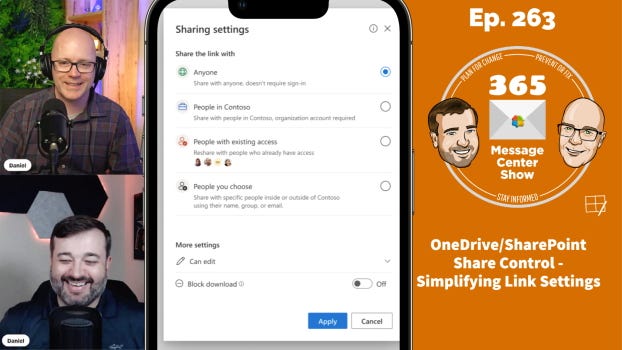
OneDrive/SharePoint Share Control — Simplifying Link Settings
Creating sharing links is going to be clear and simple thanks to some changes in the Share Control window for OneDrive and SharePoint. Descriptions are simpler. See who is using a sharing link at a glance. This should simplify choosing the right type of link for sharing.
— OneDrive/SharePoint Share Control — Simplifying Link Settings — MC467240 — More Layout Options and Yammer Card Content for the Feed Web Part for Viva Connections — MC467626 — Editor Using Context IQ: Inline Search Within Documents in Word for the Web — MC467908 — Authenticator number matching to be enabled for all Microsoft Authenticator users — MC468492
Join Daniel Glenn and Darrell as a Service Webster as they cover the latest messages in the Microsoft 365 Message Center.

 Connexion