Vue lecture

Il y a de nouveaux articles disponibles, cliquez pour rafraîchir la page.
✇M365 Admin

New Alert for Microsoft 365 Defender Password Spray Detection

Microsoft 365 Defender is introducing a new “Password spray attacks originating from single ISP” alert to detect password spray attacks originating from authentic cloud service providers. E5 P2 licensed customers will be impacted with this roll out.

When this will happen:

Rollout will begin in mid-April and will be complete by late April.

How this will affect your organization:

 If your team is impacted, please follow these steps:

  • Validate the sign in attempts from the ISP.
  • Validate user’s typical logon patterns.
  • Identify if any users are compromised.
  • Decommission compromised accounts or reset passwords. 
  • Contact your incident response team or contact Microsoft support for investigation and remediation services.

What you need to do to prepare:

 This alert will be enabled automatically. For additional information, please visit this documentation.

Message ID: MC543877

The post New Alert for Microsoft 365 Defender Password Spray Detection appeared first on M365 Admin.

✇M365 Admin

Viva Goals: Changes to Members’ Listing in Organization and Team Administration pages

As part of our continued efforts to improve customer experience in Viva Goals, we are bringing in a few changes to how members of organizations and teams are listed in the admin pages in Viva Goals. 

In March 2023, we rolled out a feature that allowed Viva Goals team admins to add an AAD group as members to a team. As part of this feature, org admins can also add multiple groups as members to an organization. As groups can now be added as members of an organization/team, we will soon be launching an updated members listing page that will list both individuals and groups as members of an organization or team.

This message is associated with Microsoft 365 Roadmap ID 117470

When this will happen:

Standard Release: We will begin rolling out in mid-May 2023 and expect to complete rollout by late May 2023.

How this will affect your organization:

  • With the launch of the improved members listing pages, organization admins will be able to view and manage all individual members and groups that are added to their Viva Goals organization in a single list in the Admin > Members page.
  • Team admins will also be able to view and manage the individual members and groups added to their teams in a single list in the Team Members page.
  • Admins will be able to expand the groups by clicking on them to see all members in a group. Alternately, they can also search for a member (even those who are part of a group) from the search bars in the respective members pages.
  • Searching for a member will return all search results directly from AAD (Similar to the search function in MS Teams). Upon clicking on more options, admins will be able to know whether a particular member is already part of the organization or team or not. 

At the team level, if a user in the search result is already part of the team, the more options button will let team admins make the user a team admin or remove the team member from the team. If the user is not part of the team, the team admin can then add the user to the team.

What you need to do to prepare:

At the organization level, if a user in the search results is already part of the organization, the more options button will also let admins perform actions such as assigning admin role, changing user type from observer to regular and vice versa, removing a user and deleting a user. If a user is not part of the organization, the more options button will let admins add the user to the organization. 

Please reach out to your Viva account representative if you have any questions. If you do not have a Viva account representative assigned to you, you can reach us by creating a support ticket in Microsoft Admin Center.

Message ID: MC543873

The post Viva Goals: Changes to Members’ Listing in Organization and Team Administration pages appeared first on M365 Admin.

✇M365 Admin

Introducing Microsoft Whiteboard App in Teams

The new Microsoft Whiteboard app in Teams allows you to create, collaborate and share right within Teams, outside of Teams meetings.

You can now easily access all your whiteboards in one single place inside Teams, pre-prep a board for your next meeting or add a whiteboard tab to your favorite chat/channels to collaborate with your team asynchronously. 

When this will happen:

Rollout begins in mid-April and will be completed by the end of April.  

How this will affect your organization:

There are no changes required, the Whiteboard app comes pre-installed in Teams to supercharge your visual collaboration with a seamless experience. 

What you need to do to prepare:

There is no action required. You have an option to pre-pin the Whiteboard app for users in your tenant. To pre-pin Whiteboard, a setup policy can be created and assigned to the users in Teams Admin Center. 

Please click Additional Information to learn more.

Message ID: MC543868

The post Introducing Microsoft Whiteboard App in Teams appeared first on M365 Admin.

✇M365 Admin

SIP / H323 dialing from MTR-W to a VTC

Starting early June, you can configure your Teams Rooms on Windows with a Pro license (MTR-W Pro) to place and receive one-to-one calls from the room to a SIP/ H323 endpoint and vice versa. If you want to enable this calling feature, you must work with a CVI provider to enable the service.

This message is associated with Microsoft 365 Roadmap ID 95263

When this will happen:

Standard Release: We will begin rolling out in early June and expect to complete by mid-June.

How this will affect your organization:

There is no increased risk for you; the feature will be released disabled by default.

Only if you configure your MTR-W Pro by running the right PowerShell commands that enable the feature and if you have contacted a CVI provider that offers this service, your MTR-W Pro will be able to place and/or receive calls to and from SIP/H323 endpoints. These endpoints can be internal (within your organization) or external (outside your organization)

What you need to do to prepare:

If you do nothing, no change is needed and no impact for you. Your MTR-W Pro will continue working as today.

If you want to enable the feature, you must run the PowerShell commands to set up the MTR-W Pro and explicitly configure and enable if you want to allow the room to receive internal (from within your organization) or external (from outside your organization) calls from SIP / H323 endpoints.

How to disable the MTR-W Pro rooms you enabled:

If you want to disable an MTR-W Pro that you have enabled, you just need to run the same PowerShell command that you ran before and explicitly disable the feature.

Message ID: MC543860

The post SIP / H323 dialing from MTR-W to a VTC appeared first on M365 Admin.

✇M365 Admin

Join BJN meeting from MTR-W via Direct Guest Join

As part of a Preview release, around mid-May you will be able to configure your Teams Rooms on Windows to join BlueJeans meetings.

This message is associated with Microsoft 365 Roadmap ID 121769

When this will happen:

Preview:  We will begin rolling out end of April and expect to complete by early May.

Standard Release: We will begin rolling out late June and expect to complete by early July.

How will this impact you:

There is no increased risks for you. If you do not make any changes, your MTR-W will not be affected and will continue working as today.

What you need to do to prepare:

During the preview, you can configure your MTR-W to be able to join BlueJeans meetings by modifying your room XML settings file.

After the standard release, you can configure your MTR-W to be able to join BlueJeans meetings via the console.

If you configure your MTR-W to join BlueJeans meetings you might want to prepare communications for your users on how to join these meetings. BlueJeans is the latest Direct Guest Join partner onboarded to MTR-W. 

Message ID: MC543859

The post Join BJN meeting from MTR-W via Direct Guest Join appeared first on M365 Admin.

✇M365 Admin

Intelligent Meeting Recap in Microsoft 365 Feed

We are announcing Intelligent Meeting Recap functionality in Microsoft 365 Feed for both Teams Premium users and users without Teams Premium.

This message is associated with Microsoft 365 Roadmap ID 122529

When this will happen:

Targeted Release: We will begin rolling out mid-April 2023.

Standard Release: We will begin rolling out late April 2023.

How this will affect your organization:

For Teams Premium users

Focus on what matters with AI-powered meeting recap recommendations in the Microsoft 365 Feed. Get personalized recommendations to catch-up or revisit important meetings, including key insights from these meetings.

What’s in the card?

  • Indication of which part of the meeting you missed
  • Automatically generated AI tasks
  • When your name was mentioned
  • List of top speakers
  • Quick links to the full meeting recap and recording

What’s next?

  • Starting gradual rollout to GA by the end of April
  • GPT-based AI meeting notes
  • Recommending key meetings you attended
  • Rolling out to the Outlook Mobile feed
  • Showing Files related to the meeting

For users without Teams Premium

Focus on what matters with meeting recap recommendations in the M365 Feed. Get recommendations to catch-up or revisit important meetings.

What’s in the card?

  • List of speakers
  • Quick link to the full meeting recap and recording

What’s next?

  • Starting gradual rollout to GA during May
  • Rolling out to the Outlook Mobile feed
  • Showing Files related to the meeting

What you need to do to prepare:

There is no action needed to prepare for this change. You may want to notify your users about this change and update any relevant documentation as appropriate.

Message ID: MC543390

The post Intelligent Meeting Recap in Microsoft 365 Feed appeared first on M365 Admin.

✇M365 Admin

Microsoft 365 admin center: Viva Goals Usage Report

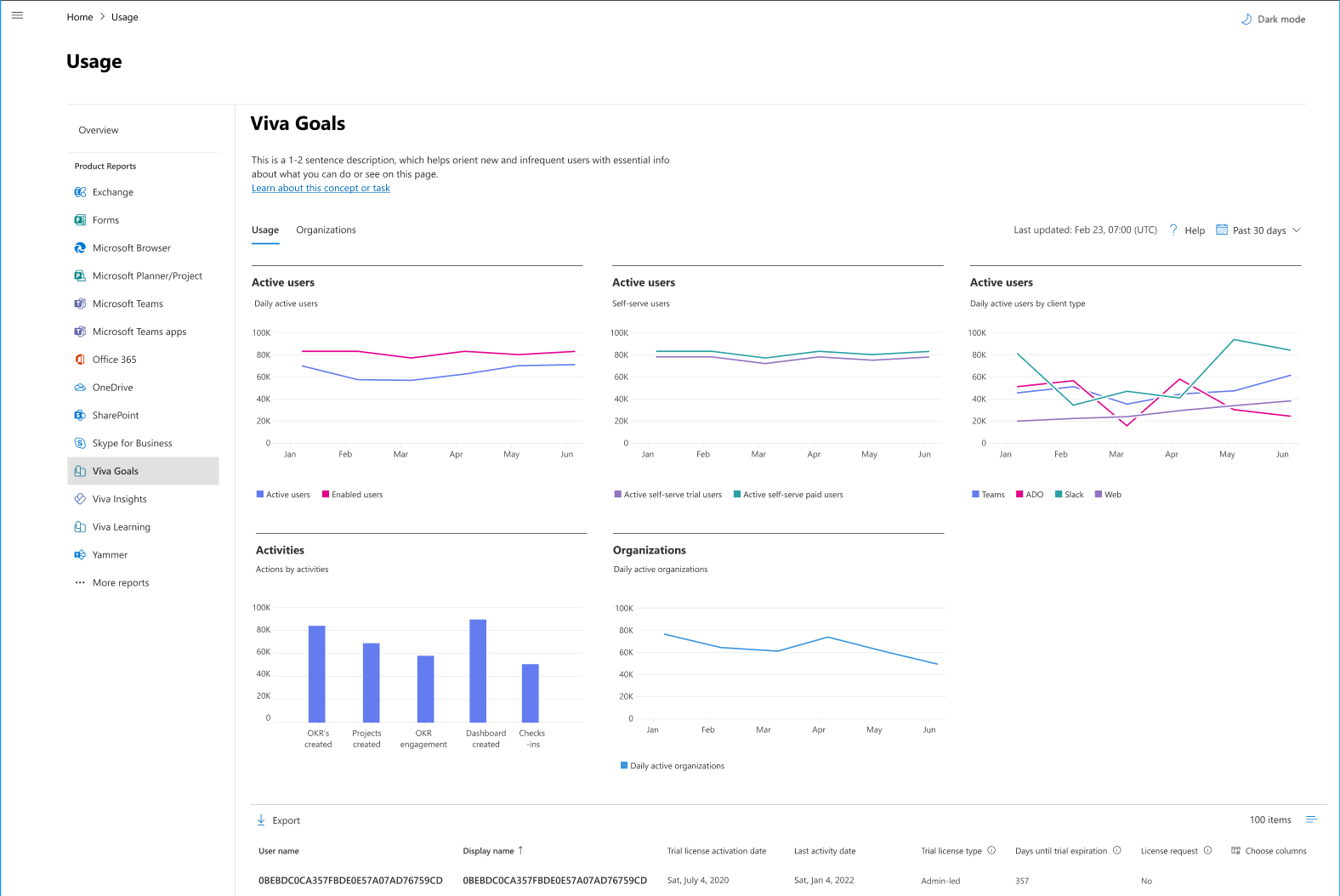
A new report will be made available to help you understand how Viva Goals is used within your organization. The new usage report in the Microsoft 365 admin center will provide metrics on the number of active users including trial and paid licenses and platform distribution (Teams, Slack, Azure DevOps, and Web) with the ability to view 7/30/90/180 day timeframes.

This message is associated with Microsoft 365 Roadmap ID 117599

When this will happen:

Rollout will begin in late April and is expected to be complete by late May.

How this will affect your organization:

Using the Viva Goals usage report, Admins will be able to view metrics for how people in your organization are using Viva Goals and in which platforms. 

View image in new tab

What you need to do to prepare:

Admins can assign the available licenses in their tenant to individual users based on their usage and license requests, via the Microsoft admin center. Once released, you can view Viva Goals reports by going to the Microsoft 365 admin center -> Reports -> Usage -> Viva Goals.

For more information on Viva Goals visit Introduction to Microsoft Viva Goals.

Message ID: MC541159

The post Microsoft 365 admin center: Viva Goals Usage Report appeared first on M365 Admin.

✇M365 Admin

Improved management of Teams apps with capabilities extended to Outlook and the Microsoft 365 app via Integrated Apps

In January 2023, Microsoft released the feature to manage Teams Apps with certain capabilities that extend to Outlook and the Microsoft 365 App (formerly known as Office.com) via the Microsoft 365 Admin Center. Now, we are introducing controls at an app and tenant level, for admins to define which users in their organization can install and use these apps on Outlook and the Microsoft 365 App via Integrated Apps in the Microsoft 365 Admin Center.

This message is associated with Microsoft 365 Roadmap ID 88942

When this will happen:

Standard Release: This feature will begin rolling out to standard release customers in early May 2023 and will complete mid-May 2023.

How this will affect your organization:

With this release, Global Admins can manage how these apps are accessed by users on Outlook and the Microsoft 365 App and set a default state for these apps in the organization. This control only impacts Outlook and the Microsoft 365 App. To manage these apps on Teams, continue to use the Teams Admin Center.

This feature is coming for the Azure Application Admin role by end of May 2023. For tenants that do not have access to the Azure Application Admin role, please use the Global Admin role to make changes until this role is made available to you.

 What new controls are we providing?

1. Per App Control over user installation and use: Admins can choose which users have access to install an app from the store and use the installed app on Outlook and the Microsoft 365 App. These changes can be made for 1P/3P store apps and custom/LOB apps uploaded by the admin.

• Admins can choose to make the app available for installation and use to all users, no users, or specific users. Note that when admins select a specific set of users, the unselected users will not be able to install the app from the store.

The above changes will only apply to Outlook and the Microsoft 365 App. To manage how these apps show up on Teams, please continue to use the Teams Admin Center. (Any previous settings made from the Teams Admin Center will continue to apply for how these apps show up on Teams.)

2. Tenant-wide Default: Admins can set a default state for their tenant for all 1P /3P apps on Outlook and the Microsoft 365 App.

The default tenant state will apply to the following apps:

a. All new and incoming Teams apps with capabilities extended to Outlook and the Microsoft 365 App.

b. All apps published in the past that were not blocked by the admin.

• If an app was previously blocked for Outlook and the Microsoft 365 App, it will continue to remain blocked even after the default state for the tenant is changed. When admins unblock the app, it will revert to the default state set for the tenant on Outlook and the Microsoft 365 App.

c. All apps published in the past that were deployed by the admin.

• The default tenant state will also apply to admin-deployed apps. If an app was previously deployed by the admin to a set of users for Outlook and the Microsoft 365 App, it will continue to remain deployed to the selected set of users, even after the default state for the tenant is changed.

The default tenant state will not apply to the following apps:

a. Custom/LOB apps uploaded by the admin.

• When a custom/LOB app is uploaded by the admin via the Microsoft 365 Admin Center, all users in the organization will have access to install the app by default.

i. Admins can continue to deploy the custom/LOB app to a selected set of users.

ii. Admins can also edit which users have access to install and use the custom/LOB app, as detailed in the ‘Per app control over user installation and use’ section above.

c. Apps that have any user selections made by the admin.

• The changes made by the admin as part of the ‘Per app control over user installation and use’ section detailed above will be honored over the default state in the tenant. Once an admin specifies users for an app, this setting supersedes the tenant-wide default setting for that app.

What does this mean for your organization?

1. All settings made via Integrated Apps will be honored on Outlook and the Microsoft 365 App. Any changes made on Integrated Apps will not impact the Teams client. To manage how these apps show up on Teams, please continue to use Teams Admin Center.

2. Admins can continue to deploy these apps for all or specific users on Outlook and the Microsoft 365 App as before, irrespective of who they have specified to self-install and use the self-installed app. (No action needed)

3. Admins can continue to block these apps on Outlook and the Microsoft 365 App for all users in the organization as before. When an app is blocked, all previous settings made for the app are superseded by the block. Users and admins can’t install or deploy the app, and users can’t use the app if it was previously installed or deployed. (No action needed)

4. Admins can continue to unblock these apps on Outlook and the Microsoft 365 App in their organization as before. When an app is unblocked, it will be restored to the last saved state. (No action needed)

What you can do to prepare:

There is no action you need to take to prepare for this change, but you might consider updating your user documentation.

Message ID: MC541155

The post Improved management of Teams apps with capabilities extended to Outlook and the Microsoft 365 app via Integrated Apps appeared first on M365 Admin.

✇M365 Admin

Microsoft Purview – Data Lifecycle and Records Management – Scope the administration of retention and label policies

To assist in the implementation of security best practices, we are introducing new way to assign administrative privileges in the Microsoft Purview Data Lifecycle Management and Microsoft Purview Records Management solutions that will provide admins the least privilege access required for their job duties.

With this change, organizations can leverage Administrative Units in Azure Active Directory (AAD) to define who can configure and manage policies in Microsoft Purview. This update will include the ability to set up a Data Lifecycle Management or Records Management admin for a specific geography, department, or other unit, who can manage retention and label policies for their unit.

This message is associated with Microsoft 365 Roadmap ID 117354.

When this will happen:

Rollout to public preview will begin in late April and is expected to be complete by end of May.

How this will affect your organization:

Once this feature rolls out, Data Lifecycle Management and Records Management administrators in your organization will have the ability to use administrative units to granularly define access to who can manage retention policies and label policies for different parts of the organization.

Previously, you were only able to assign a tenant-wide admin for Data Lifecycle Management. These people would configure and administer retention and label policies for every part of the organization. Now, you can associate Data Lifecycle Management administrators to one or more admin units. This enables administrators who can view and manage policies for only part of an organization to do so confidently without affecting other units. For example, you can designate an administrator for the Finance Admin Unit. This person can then create polices that apply only to Finance users, groups, or sites.  

What you need to do to prepare:

There is nothing you need to do to receive this feature.

You may consider updating any training or reference material for your Data Lifecycle Management and Records Management administrators and evaluate if you would like to use this new capability. 

Get started with Data Lifecycle Management and Records Management in the Microsoft Purview compliance portal.

Learn more: Permissions in the Microsoft Purview compliance portal

Message ID: MC541152

The post Microsoft Purview – Data Lifecycle and Records Management – Scope the administration of retention and label policies appeared first on M365 Admin.

✇M365 Admin

Applied Filters in Microsoft Lists

Microsoft Lists is rolling out a new way to visualize and clear the filters that are present in a view.

This message is associated with Microsoft 365 Roadmap ID 117585

When this will happen:

Targeted Release: Rollout will begin in late April and is expected to be complete by early May.

Standard Release: Rollout will begin in early May and is expected to be complete by late May.

How this will affect your organization:

As you add and adjust filters to narrow or expand what appears in a view inside a list, you will see which filters have been applied and you can remove them without having to go back into the column filter pane.

View image in new tab

What you need to do to prepare:

You don’t have to do anything to prepare for this change.

Message ID: MC540126

The post Applied Filters in Microsoft Lists appeared first on M365 Admin.

✇M365 Admin

Applied Filters in Microsoft Lists

Microsoft Lists is rolling out a new way to visualize and clear the filters that are present in a view.

This message is associated with Microsoft 365 Roadmap ID 117585

When this will happen:

Targeted Release: Rollout will begin in late April and is expected to be complete by early May.

Standard Release: Rollout will begin in early May and is expected to be complete by late May.

How this will affect your organization:

As you add and adjust filters to narrow or expand what appears in a view inside a list, you will see which filters have been applied and you can remove them without having to go back into the column filter pane.

View image in new tab

What you need to do to prepare:

You don’t have to do anything to prepare for this change.

Message ID: MC540126

The post Applied Filters in Microsoft Lists appeared first on M365 Admin.

✇M365 Admin

Microsoft Teams: Spatial audio in Teams meetings

Microsoft Teams is pleased to announce an upgraded audio experience in meetings: Spatial audio. Spatial audio brings a next-generation immersive soundscape to Teams meetings when using either a wired stereo headset or built-in stereo speakers. This new audio experience spatializes the voices of attendees across the visual meeting stage in the Gallery view. This helps make conversations more natural, increasing the sense of audio presence, and making the conversation easier to follow when multiple people are speaking together.  

This message is associated with Microsoft 365 Roadmap ID 107783

When this will happen:

Targeted release: We will begin rolling out in late April and expect to complete rollout by early May.

Standard Release: We will begin rolling out in late May and expect to complete rollout by mid-June.

GCC-High: We will begin rolling out in mid-July and expect to complete rollout by late July.

DoD: We will begin rolling out in late August and expect to complete rollout by early September.

How this will affect your organization:

The new Spatial audio feature will be available to everyone using supported devices on Windows and MacOS client in your organization. It is a Teams client feature and there are no admin policy settings required to enable this feature.

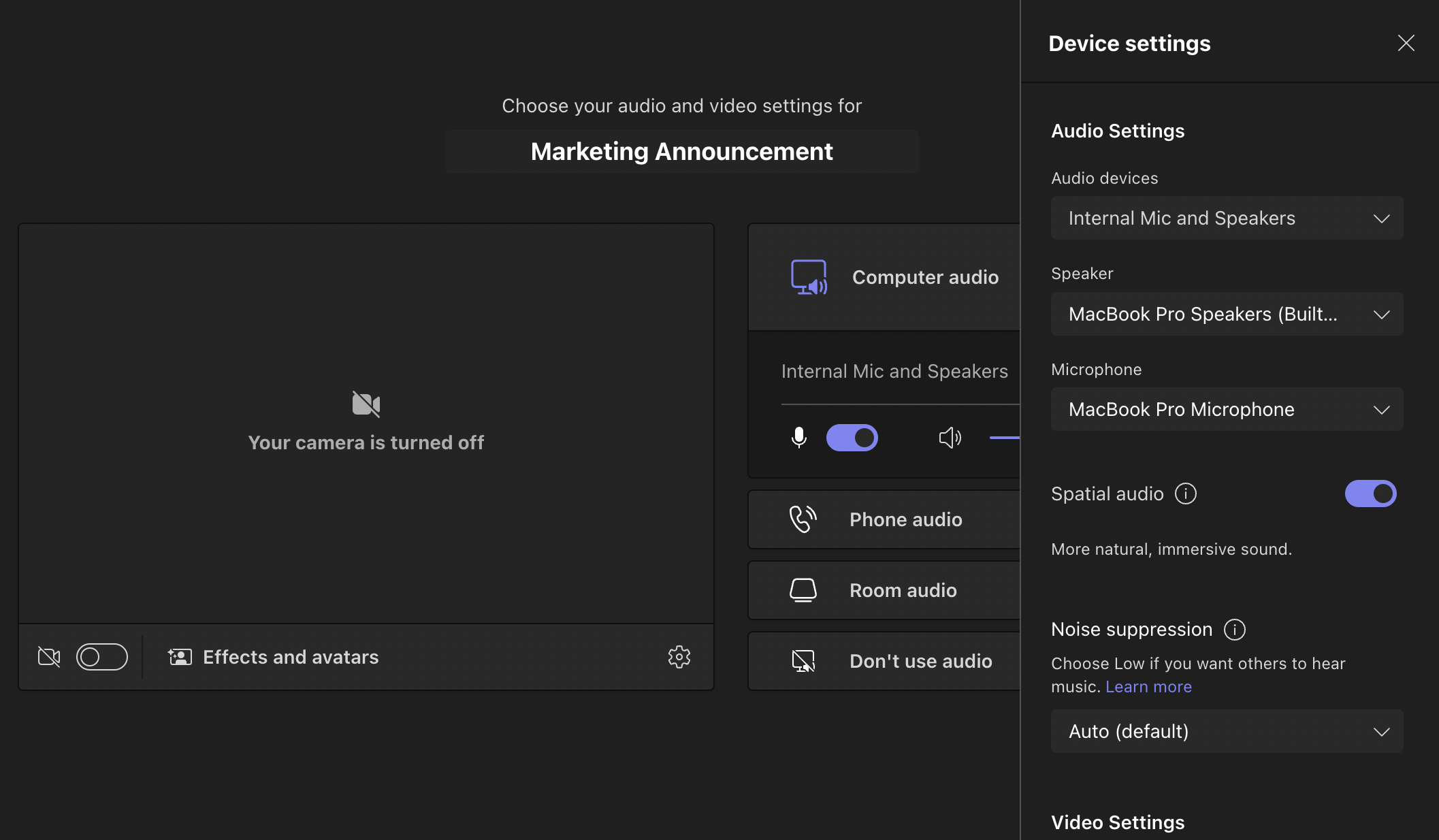
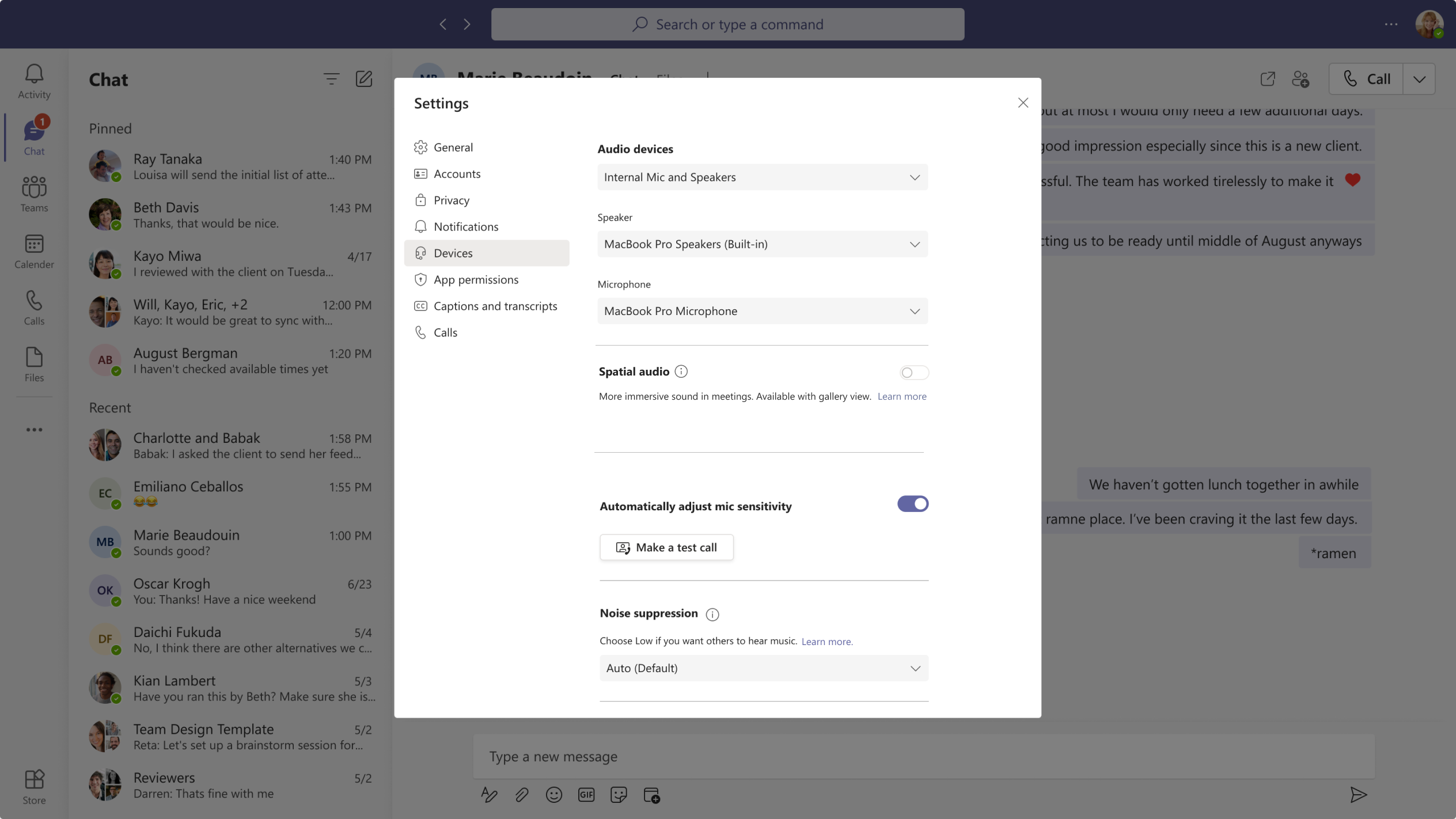
You can select a wired stereo headset or built-in stereo speakers on the meeting pre-join screen before you join a meeting. You can find this setting under Device Settings -> Speaker.


View image in new tab

After joining a meeting, you will be able to see the Spatial audio introduction the first time you enter a meeting, then click on Try it now to open the Spatial audio setting panel.


View image in new tab

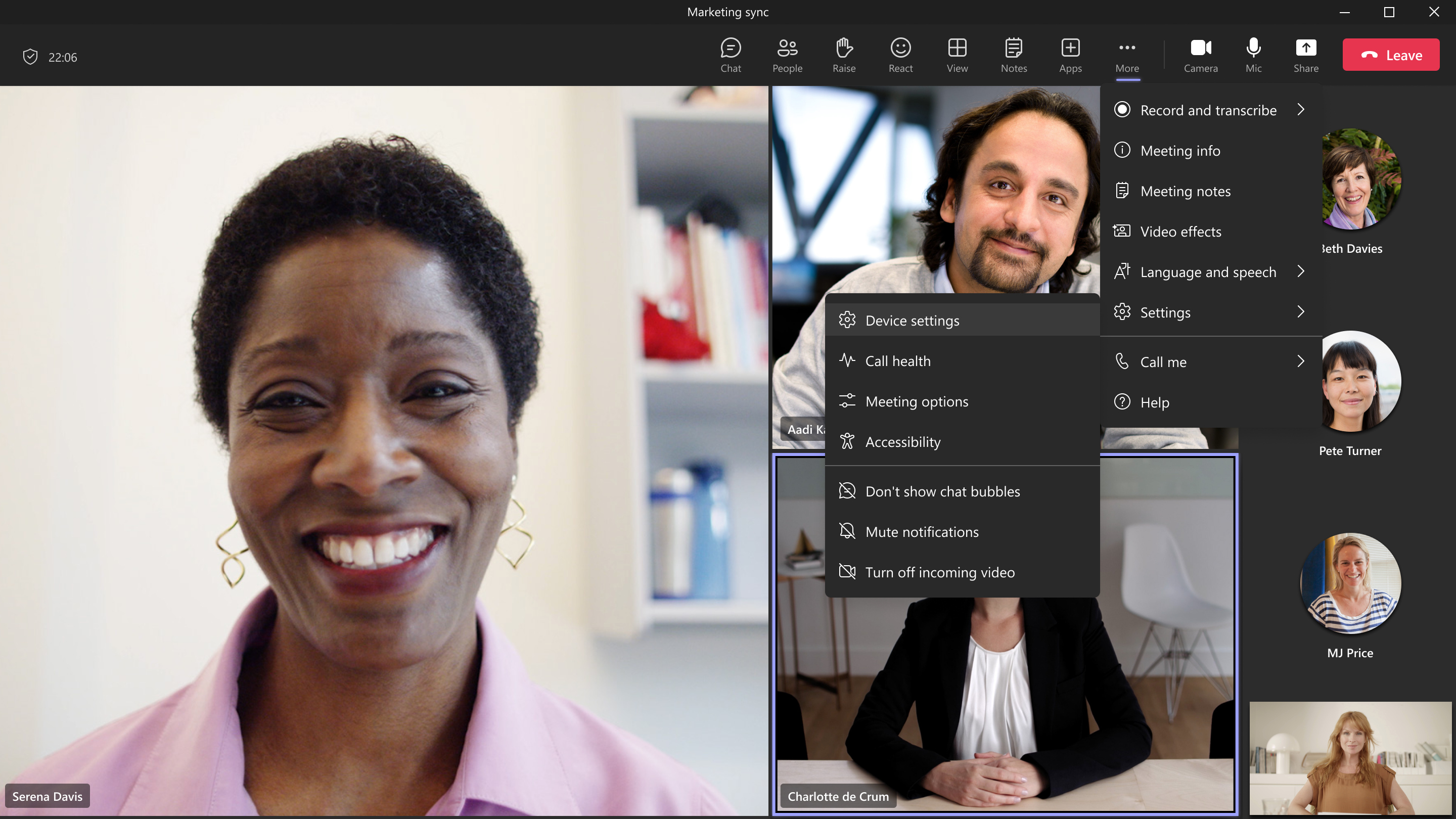
You can also activate Spatial audio by going to the More “…” menu in the meeting toolbar, then Device Settings, and you will find the Spatial audio toggle to activate the feature.


View image in new tab

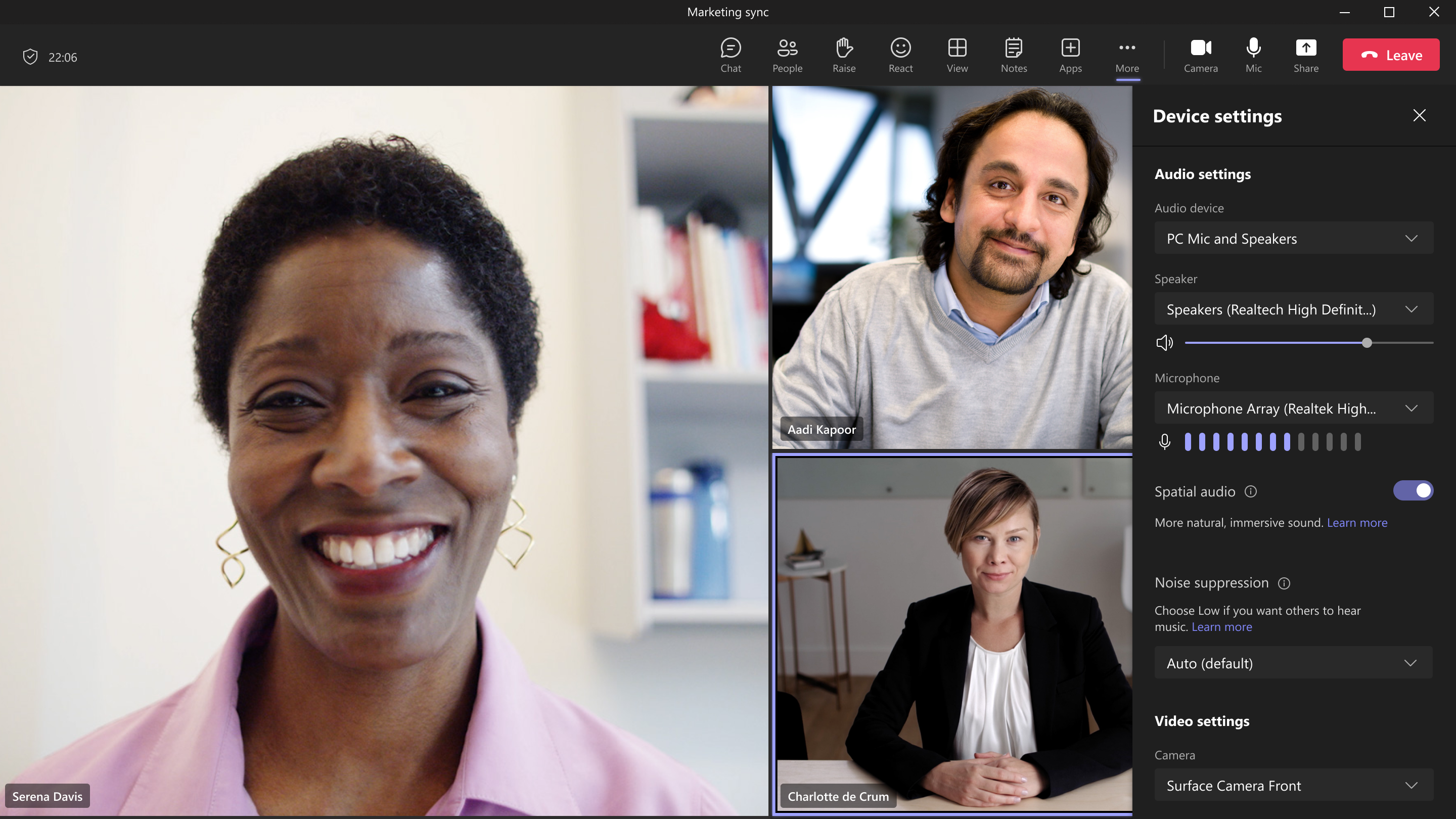
To enable Spatial audio, select a wired stereo headset or built-in stereo speakers under the Speaker section, then enable the Spatial audio toggle.


View image in new tab

Note: Spatial audio is currently enabled only in Gallery view, so you can experience sound spatialized across the meeting stage. You will get the best spatial effect with three or more attendees in the meeting.  

You can also control Spatial audio settings by going to Teams app settings -> Devices  -> Spatial audio.


View image in new tab

What you need to do to prepare:

There is no action required from you at this time. You may want to update your training materials indicating that this feature is supported.

Please keep in mind of the following dependencies and limits:

  • 1:1 calls and large meetings are not yet supported.
  • Wireless audio devices are not yet supported.

Message ID: MC540153

The post Microsoft Teams: Spatial audio in Teams meetings appeared first on M365 Admin.

✇M365 Admin

Microsoft Teams: Install apps Based on User Activity with Zero-Touch App Install (ZTI)

Microsoft Teams Zero-touch App Install (ZTI) uses activity from your users to install and surface apps that admins have already allowed for the tenant. An admin can enable ZTI to help users naturally discover and use apps that are highly relevant to their needs within Microsoft Teams. Specifically, when a user signs into specific SaaS apps using Azure AD (e.g. in web browser), the app will be installed for that user on Teams.

This message is associated with Microsoft 365 Roadmap ID 100385

ZTI provides the right apps to the right users at the right time. Admins and users benefit from:

  • App governance is respected: there is an admin control to turn ON/OFF, launched as default OFF. Installs will not happen for blocked apps and users.
  • Last-mile delivery: admins have done the hard part of deciding which apps/users to allow. ZTI simply helps roll out these apps to the right users.
  • Cross-platform convenience: users can easily access the same apps they are currently using on other platforms, now in Teams.
  • Discovery: many users are not aware their apps are available on Teams – ZTI brings it to them without manually searching in the app store.
  • Relevance: users receive highly relevant apps when they have demonstrated a desire to use them elsewhere
  • Zero-touch: no action required, aside from the admin turning on ZTI.
  • License maximization: maximize the value of SaaS licenses by having the same app available on multiple platforms.


View image in new tab

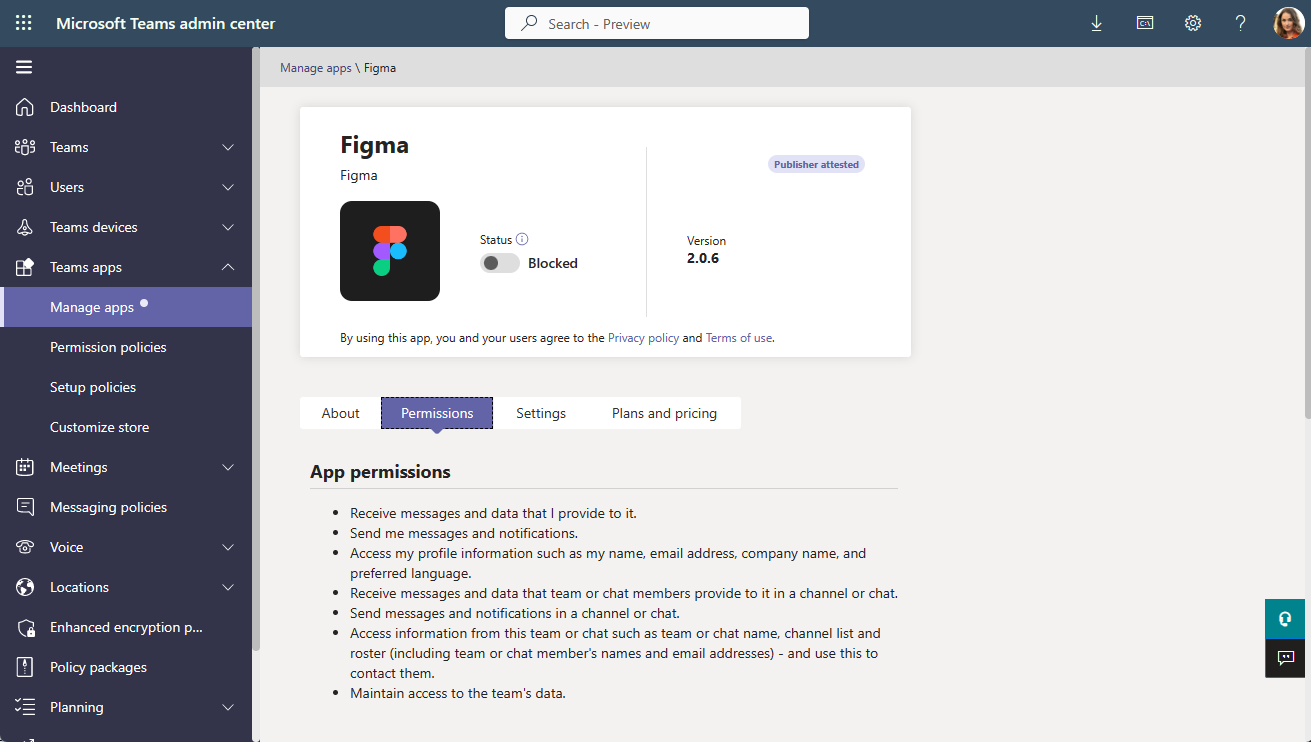
In the Teams admin center, there is also a new App permissions section in every app’s detail page that lists the app permissions. This is the same app permissions shown in the Teams client app store for every app today, now available for admins to conveniently view. This may assist you as you review the apps supported by ZTI.


View image in new tab

When this will happen:

This feature will begin rollout on May 1, 2023.

Admins currently in Public Preview can turn on this feature any time. Admins not in Public Preview can turn on this feature after May 1, 2023.

How this will affect your organization:

ZTI respects all app governance in the Teams Admin Center.

  • Admin control to turn ZTI ON/OFF with the default as OFF.
  • Installs only for users and apps that admins have allowed through settings and policies.
  • A limited set of apps are initially supported. New apps will be deployed OFF with Message Center announcements.

What you need to do to prepare:

For admins, to turn on ZTI:

  1. Confirm you are a Global / Teams admin and assigned to Public Preview.
  2. Navigate to the admin control: Teams Admin Center > Teams apps > Manage apps > Org-wide app settings > Zero-touch app install.
  3. Turn on the admin control: Zero-touch app install: ON > Save
  4. Confirm any ZTI apps you want installed are allowed in your access control settings and policies. Learn more


View image in new tab
      
View image in new tab

Some Teams apps require Graph app permissions during use. Ensure users can smoothly use apps after installation by confirming Graph app permissions are or can be consented. Complete one or both of the following:

  • Allow users to consent to Graph permissions. This is the default setting for Azure AD and no action is needed if no admins have changed it. Learn more
  • Grant admin consent to Graph permissions so users will not need to for each ZTI app that users are signing into. Learn more

Note: Any user can uninstall an app installed through ZTI. The user will not have the app automatically installed again, but they can reinstall it manually.

Limitations:

  • Not all admins can access the ZTI admin control before May 1, 2023. Only admins currently in Public Preview can access it.
  • Activity feed notifications are not available on the Teams mobile app

Message ID: MC540125

The post Microsoft Teams: Install apps Based on User Activity with Zero-Touch App Install (ZTI) appeared first on M365 Admin.

✇M365 Admin

Visual Refresh of Office apps for Windows

We apologize for the late message center notification for the Visual Refresh of Microsoft 365 apps for Windows. The Microsoft 365 Visual Refresh uses the Fluent Design principles to deliver an intuitive, coherent, and familiar experience across all your applications. The Visual Refresh was released alongside Windows 11 in June 2021. We have been slowly rolling out the feature via the Coming Soon pane and making improvements based on your feedback. The Visual Refresh on Windows 11 is currently available for all Microsoft 365 Subscription and Perpetual 2021 users in Production Current Channel and Monthly Enterprise Channel. Windows 11 users can still opt-out via the Coming Soon pane. A bug in the rollout caused Windows 10 production Microsoft 365 Subscription and some Perpetual 2021 users to not receive the change.

Upcoming ChangeThe Visual Refresh will be initially released as an opt-in experience for Windows 10 production Microsoft 365 Subscription users via the Coming Soon pane. Perpetual 2021 Windows 10 and Windows 11 users will receive the Visual Refresh by default and can opt-out via the Coming Soon pane. 

When this will happen:

Visual Refresh Opt-In Availability for Windows 10

Preview: Available now

Standard Release: We will begin rolling out mid-April and expect to complete by mid-May.

How this will affect your organization:

Microsoft 365 subscriptions users will be able to opt-in to the Visual Refresh of Microsoft 365 apps for Windows 10. Perpetual 2021 users will be able to opt-out of the Visual Refresh of Microsoft 365 apps for Windows 10.

View image in new tab

What you need to do to prepare:

You may consider updating your training and documentation as appropriate.

Message ID: MC540123

The post Visual Refresh of Office apps for Windows appeared first on M365 Admin.

✇M365 Admin

Microsoft Purview eDiscovery (Premium): Enhancements for Teams meeting recordings

Coming soon to public preview, we’re rolling out enhancements to Teams meeting recording and video files stored in OneDrive and SharePoint to improve management within eDiscovery workflows.

This message is associated with Microsoft 365 Roadmap ID 106101.

When this will happen:

Rollout will begin in early April and is expected to be complete by end of April.

How this will affect your organization:

This update enables collection and review of metadata associated with Teams meeting recordings and video files stored in OneDrive and SharePoint including transcripts/captions, chapters, and custom thumbnails. 

What you need to do to prepare:

Assess whether these changes will impact your organization’s eDiscovery workflow, then update internal documentation and provide user training as needed.

Get started with eDiscovery (Premium) in the Microsoft Purview compliance portal

Learn more: Conduct an eDiscovery investigation of content in Microsoft Teams

Message ID: MC538383

The post Microsoft Purview eDiscovery (Premium): Enhancements for Teams meeting recordings appeared first on M365 Admin.

✇M365 Admin

Microsoft Search: Graph connector results in Bing ‘All’ tab

Microsoft Graph connectors results is available for users to query from Bing’s ‘All’ tab. If the user’s query contains a pattern with Custom vertical name, the system will return relevant results on top in the Bing ‘All’ tab from the Custom vertical content. This is applicable for Custom verticals defined on Graph connectors.

Examples: <query terms> in <vertical name> OR <vertical name> <query terms> etc.

This message is associated with Microsoft 365 Roadmap ID 93336

When this will happen:

This is now available to users.

How this affects your organization:

This will help end users find their enterprise content easily in the Bing ‘All’ tab. It brings parity to Graph connectors content as this support is already available for Files and People content in Microsoft 365.

View image in new tab

What you can do to prepare:

You may want to consider updating your training and documentation as appropriate and notifying your users of this change.

Message ID: MC538384

The post Microsoft Search: Graph connector results in Bing ‘All’ tab appeared first on M365 Admin.

✇M365 Admin

Microsoft Teams: Meeting Recap Enhancements

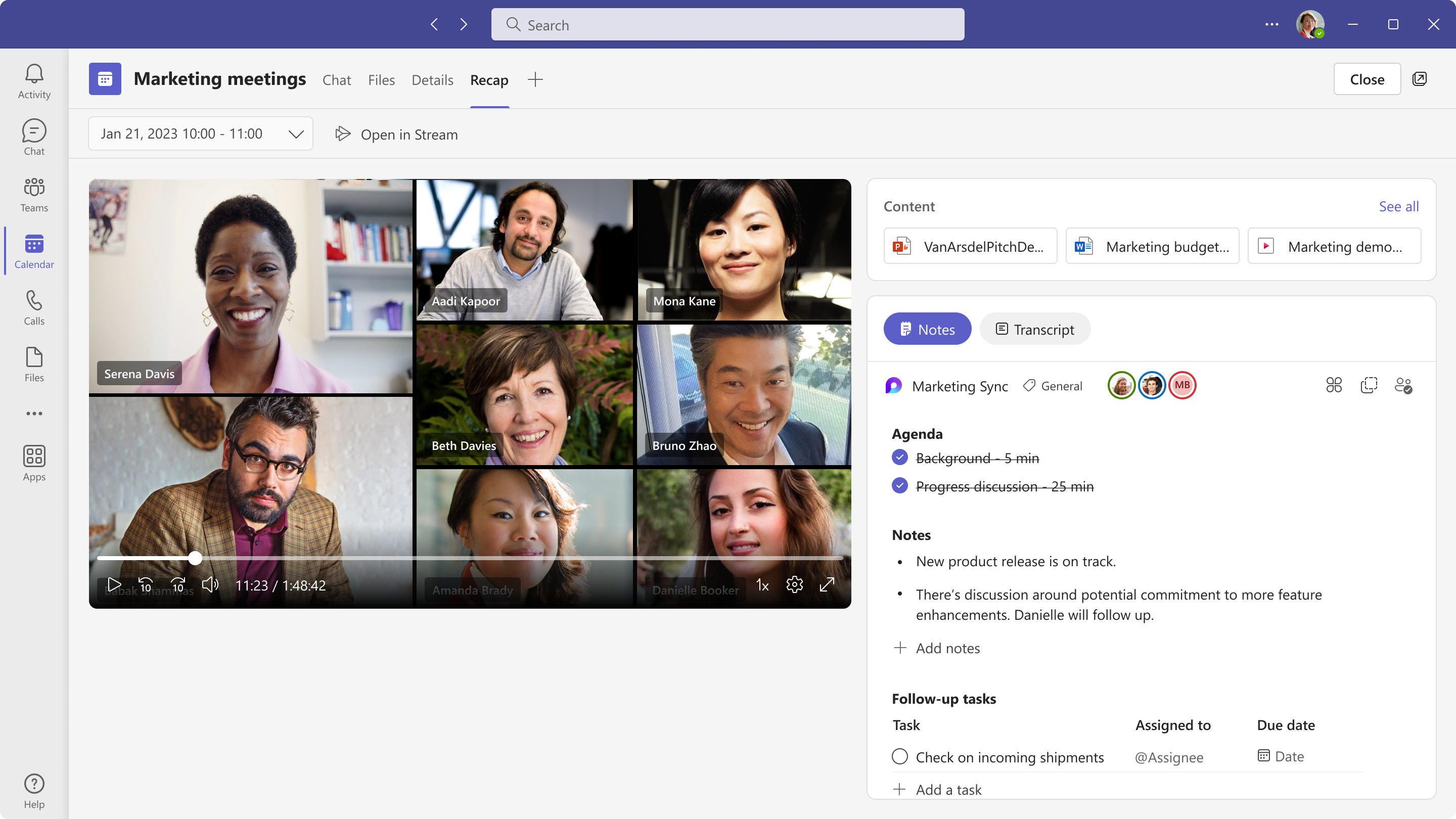
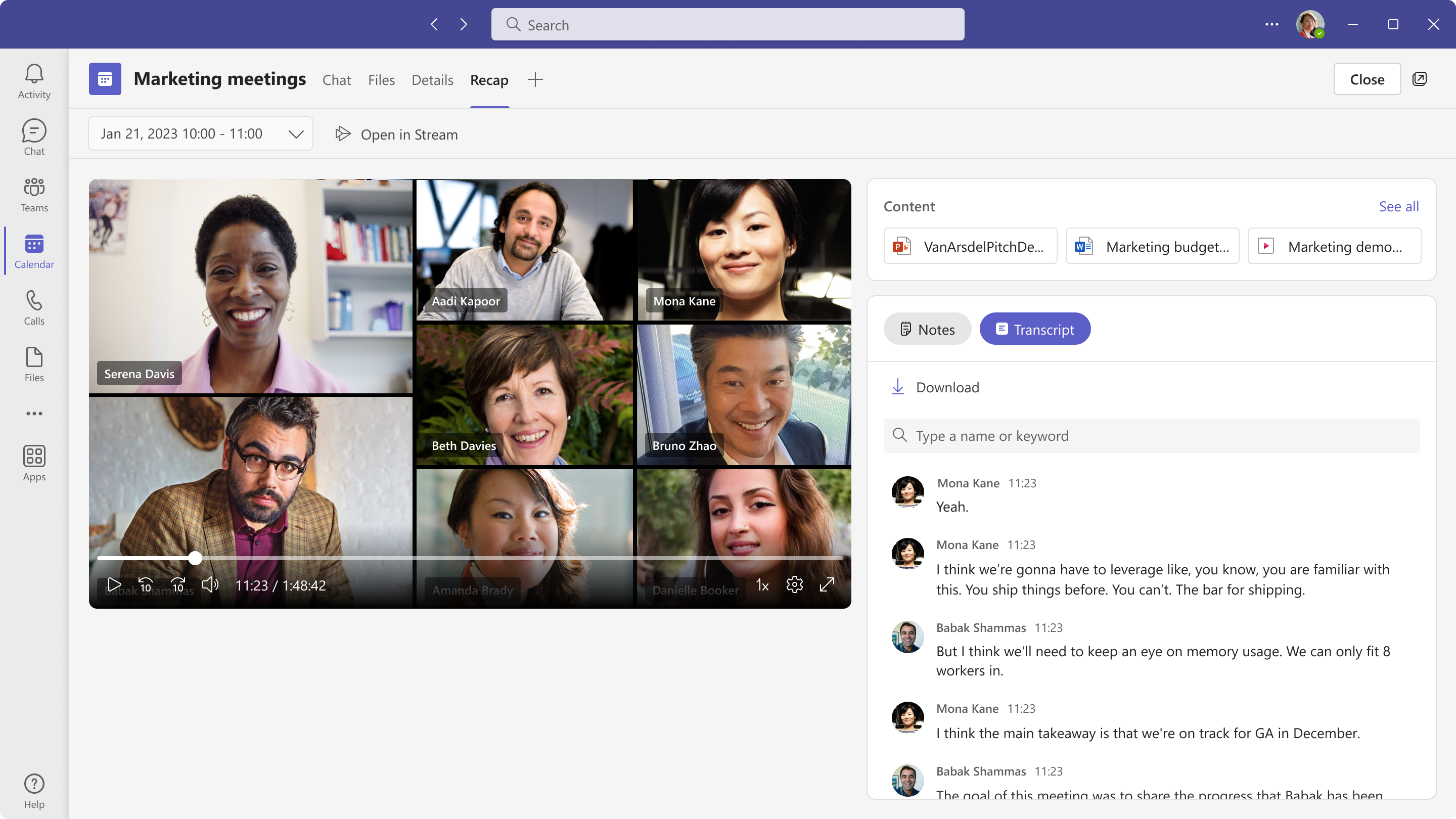
We are bringing improvements for Meeting Recapping. Now, you can find your recording, transcripts, meeting content, and meeting notes all under a single new Recap tab. Watch your recording directly in the Recap tab to catch up on what was discussed while reviewing the notes and transcript without having to switch screens/apps.

When this will happen:

Targeted Release: We will begin rolling out late April and expect to complete by early May.

Preview: We will begin rolling out late April and expect to complete by early May.

Standard Release: We will begin rolling out late May and expect to complete by early June.

How this will affect your organization: 

Users can access Recap from Calendar after meeting ended or directly from meeting chat. 

When both recording and transcript is available from the meeting, the recap tab will show (if applicable for the meeting)

  • Recording
  • Content (Presented PowerPoint Live files, Sent file in Meeting Chat, Attendance Report for organizer)
  • Manual notes (if added)
  • Transcript (view, search and download)

This feature does not require Teams Premium license. For Teams Premium Meeting Recap, see MC post: MC537956. 

meeting recap enhancementsView image in new tab

meeting recap enhancementsView image in new tab

What you need to do to prepare: 

You may consider updating the training materials for you users to inform this feature is now available.

Message ID: MC538726

The post Microsoft Teams: Meeting Recap Enhancements appeared first on M365 Admin.

✇M365 Admin

Microsoft Teams: Intelligent Meeting Recap (Premium)

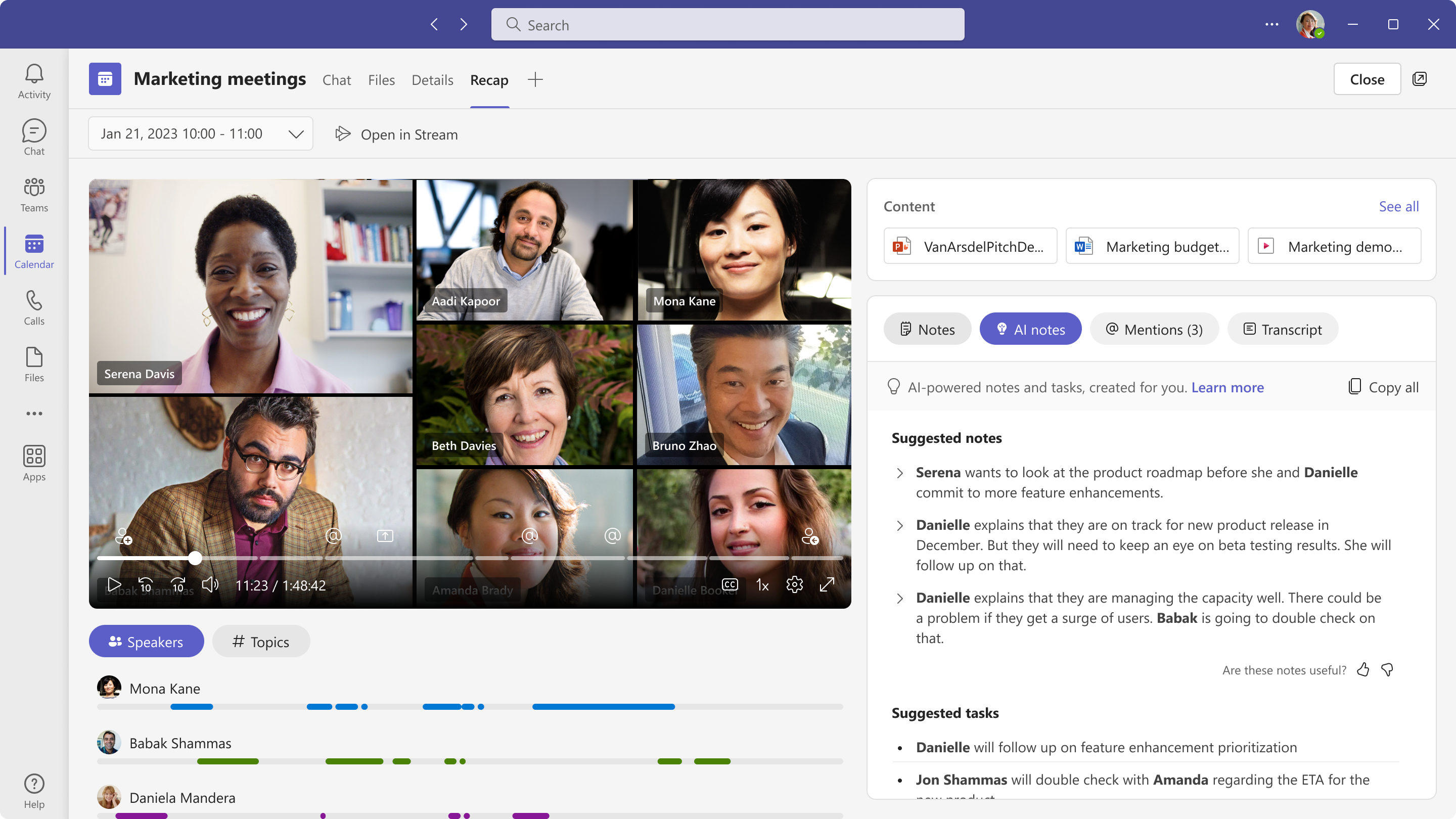
Users with a Teams Premium license will now be able to access a comprehensive meeting overview in the new ‘Recap’ tab in Teams, which leverages AI to provide personalized highlights and key insights from the meeting.

This message is associated with Microsoft 365 Roadmap ID 122529

When this will happen:

Targeted Release and Preview: We will begin rolling out late April and expect to complete by early May.

Standard Release: We will begin rolling out mid-May and expect to complete by late May.

How this will affect your organization:

For users with a Teams Premium license, Intelligent Meeting Recap is a comprehensive AI-powered meeting recap experience that helps users catch-up, recall, and follow-up on hour-long meetings in minutes by providing recording and transcription playback with AI assistance. Located on the new ‘Recap’ tab in Teams calendar and Chat app, this experience also allows users to browse the recording by speakers, and topics, as well as access AI-generated suggested notes, suggested tasks, and @mentions.

intelligent meeting recapView image in new tab

What you need to do to prepare:

The feature is only available for Teams Premium users and for meetings that were transcribed and recorded. The user can toggle an option to be anonymized in meeting transcripts, by access Teams setting -> Captions and Transcripts.

You may consider notifying your Teams Premium users about this change and updating your training and documentation as appropriate.

Message ID: MC537956

The post Microsoft Teams: Intelligent Meeting Recap (Premium) appeared first on M365 Admin.

❌