Vue lecture

Il y a de nouveaux articles disponibles, cliquez pour rafraîchir la page.
✇mountainss Cloud and Datacenter Management Blog

Planning the Transition: Upgrading from Windows 10 to Windows 11 in Enterprise Environments

Windows 10 Laptop needs Upgrade 🚀

Planning the Transition: Upgrading from Windows 10 to Windows 11 in Enterprise Environments

The upgrade from Windows 10 to Windows 11 offers enterprise businesses exciting opportunities to enhance productivity, security, and the overall user experience. However, this transition requires thoughtful planning, especially when deploying at scale across varied environments. Let’s explore how enterprises can prepare for a seamless upgrade, considering scenarios like using Microsoft Intune, MECM, or focusing solely on the end-user perspective.

⚠ IMPORTANT: Windows 10 will be supported until October 14, 2025. After this date, Microsoft will no longer provide technical support or security updates for Windows 10. (You can join ESU Program for Windows 10 if necessary)

Understanding the Upgrade Landscape

Before diving into deployment strategies, enterprises should consider:

  • System Requirements: Ensure devices meet Windows 11 hardware requirements. Tools like the PC Health Check app can help.
  • Application Compatibility: Use Microsoft’s App Assure to verify that critical business applications work smoothly.
  • Infrastructure Readiness: Decide whether your deployment will be managed through on-premises infrastructure, cloud-based management, or a hybrid approach.

Scenario 1: Deployment Using Microsoft Intune

Microsoft Intune is an excellent choice for organizations embracing a modern, cloud-first management approach. It simplifies remote deployment and is particularly well-suited for enterprises with hybrid or remote workforces.

Steps to Deploy with Intune:

  1. Prepare Devices: Ensure all devices are enrolled in Intune and compliant with Azure AD.
  2. Set Up Deployment Policies: Use Intune to create a feature update deployment policy that targets eligible devices.
  3. End-User Impact: Notify employees about the upgrade. With Intune, upgrades are minimally disruptive, allowing installations to occur outside work hours.
  4. Monitoring Progress: Use the Intune admin center to track the deployment and address any failed upgrades.

Best Use Case: Organizations prioritizing remote or hybrid work scenarios, or those aiming to reduce reliance on on-premises infrastructure.

Scenario 2: Deployment Using MECM (Microsoft Endpoint Configuration Manager)

MECM provides robust control for enterprises with significant on-premises infrastructure. It’s ideal for managing complex upgrade scenarios, like retaining user profiles and configurations during deployment.

Steps to Deploy with MECM:

  1. Assess Readiness: Use MECM to run hardware inventory reports and verify device eligibility.
  2. Prepare the Upgrade Package: Download Windows 11 media and create a task sequence in MECM for an in-place upgrade.
  3. Deployment Strategy: Schedule phased rollouts, starting with a pilot group before scaling across the organization.
  4. Monitoring Progress: Leverage MECM’s detailed reporting tools to ensure smooth execution and troubleshoot issues.

Best Use Case: Enterprises requiring greater control over deployment tasks or operating primarily within an on-premises environment.

Scenario 3: Focusing on the End-User Experience

For some organizations, the primary focus of the upgrade is minimizing disruptions for end users and ensuring a seamless experience during and after the transition.

Key Considerations for End Users:

  1. Communication: Inform employees about what to expect, including changes in interface and new features in Windows 11.
  2. Training & Support: Offer training sessions or documentation to familiarize users with Windows 11’s productivity enhancements, Microsoft Learn is a great Learning platform for Windows 11 Training
  3. Feedback Mechanism: Provide a channel for users to report issues or seek support during the rollout.

Best Use Case: Any enterprise prioritizing user satisfaction and productivity during the upgrade.

Recommendations for a Smooth Transition

  • Pilot Testing: Start with a small group of users to test the upgrade process and gather insights.
  • Backup Strategy: Ensure critical data is backed up before proceeding with mass deployments.
  • Define Success Metrics: Monitor upgrade success rates, user satisfaction, and system performance post-upgrade.

Whether you’re leveraging Intune, MECM, or focusing on empowering end users, careful planning and clear communication are the keys to success. With the right approach, your organization can unlock the full potential of Windows 11 while keeping disruptions to a minimum.

Ready to take the first step? Let the upgrade journey begin! 🚀

Here you find more information from Microsoft about Planning for Windows 11

Here you find Microsoft Intune Documentation

Here you find Microsoft Endpoint Configuration Managers Documentation (MECM)

Have a look at Microsoft Copilot + PC to be ready for AI in your Business

✇SharePoint & Products Technologies

La fin de WSUS

Microsoft a effectivement annoncé la fin de Windows Server Update Services (WSUS), et cela pousse les entreprises à envisager d’autres solutions pour la gestion des mises à jour des systèmes Windows. Dans cet articles nous allons voir les avantages des différentes solutions alternatives à WSUS.

1. Microsoft Endpoint Manager (Intune)

Evidemment Microsoft recommande fortement de migrer vers Microsoft Intune, qui fait partie de la suite Microsoft Endpoint Manager. Il s’agit d’une solution cloud qui permet la gestion des mises à jour, des appareils et des applications sur des environnements Windows, macOS, iOS, et Android.

Avantages :

  • Gestion centralisée via le cloud.
  • Capacité à gérer des appareils mobiles (MDM) et des PC (intégration avec Autopilot et Microsoft 365) ainsi que des postes Linux, Mac.
  • Mises à jour automatiques et déploiements basés sur des stratégies définies.
  • Intégration avec Microsoft Defender pour la sécurité des points de terminaison.

2. Windows Update for Business (WUfB)

Windows Update for Business est une autre solution de Microsoft, conçue pour automatiser les mises à jour des appareils Windows, en particulier pour les environnements de type PME ou grands comptes. WUfB offre plus de contrôle sur les mises à jour, permettant de définir des anneaux de mise à jour, des périodes de déploiement différé, et des stratégies de maintenance automatique.
Avantages :

  • Pas besoin d’infrastructure on-premises, tout se fait via le cloud.
  • Contrôle granulaire des déploiements (périodes de différé, anneaux de mise à jour).
  • Réduit la charge administrative par rapport à WSUS.

3. System Center Configuration Manager (SCCM)

Pour les organisations qui souhaitent garder une gestion on-premises, SCCM (aussi appelé Microsoft Endpoint Configuration Manager) reste une option solide, bien que rapidement couteuse en fonction du nombre de machines à maintenir (en dessous d’un certain volume cela n’est pas très intéressant). SCCM permet une gestion complète des mises à jour Windows, mais également des applications, des correctifs de sécurité, et d’autres tâches de gestion d’appareils.

Avantages :

  • Solution on-premises, idéale pour les environnements avec des besoins spécifiques.
  • Gestion avancée des correctifs et des mises à jour.
  • Peut être intégré à Intune pour une gestion hybride (cloud + on-premises).

4. Third-party Patch Management Tools

Il existe plusieurs outils tiers spécialisés dans la gestion des correctifs et des mises à jour qui peuvent servir de remplacement à WSUS. Ces solutions offrent souvent une compatibilité multi-plateforme et des fonctionnalités supplémentaires.

Exemples de solutions tierces :

  • Ivanti Patch Management : Gestion centralisée des correctifs pour plusieurs plateformes.
  • ManageEngine Patch Manager Plus : Multi-plateforme et supporte une large gamme d’applications tierces.
  • SolarWinds Patch Manager : Outil de gestion des correctifs pour environnements Windows et d’autres applications.

5. Azure Update Management

Azure Update Management est une autre option intéressante si vous avez des machines virtuelles (VM) dans Azure ou même des serveurs on-premises hybrides. Cette solution permet de gérer les mises à jour de systèmes d’exploitation sur des machines Windows et Linux via le cloud Azure.

Avantages :

  • Gestion dans le cloud des environnements Windows et Linux.
  • Peut être utilisé pour des infrastructures hybrides (Azure/on-premises).
  • Intégré dans la suite de gestion Azure, facilitant l’automatisation et les rapports.

6. Azure ARC

Azure Arc permet d’étendre la gestion des services Azure à des serveurs physiques et virtuels, qu’ils soient hébergés on-premises ou dans d’autres clouds (AWS, Google Cloud, etc.) pour la gestion des mises à jour. Il offre un contrôle centralisé pour les politiques de mise à jour, la gestion des correctifs et la sécurité, similaire à ce que l’on trouve dans Azure, mais avec une portée beaucoup plus large.

Avec Azure ARC, vous pouvez gérer des machines Windows & Linux situées dans n’importe quel environnement, tout en utilisant des services comme Azure Update Management pour automatiser les mises à jour et les correctifs.

Avantages :

  • Centralisation : Gérez des environnements multi-cloud et on-premises depuis un portail unique.
  • Flexibilité : Compatible avec des systèmes hors Azure, facilitant la gestion unifiée des infrastructures hybrides.
  • Sécurité et conformité : Assurez une application cohérente des correctifs et des stratégies de sécurité sur tous vos environnements.

En Conclusion

La fin de WSUS marque une transition vers des solutions de gestion de mises à jour plus modernes et flexibles, principalement basées sur le cloud. Microsoft Intune et Windows Update for Business sont des alternatives fortement recommandées par Microsoft, tandis que SCCM reste une option solide pour ceux qui préfèrent rester dans un environnement on-premises. Pour ceux qui souhaitent une solution plus spécialisée, des outils tiers comme Ivanti ou ManageEngine peuvent également être explorés. Azure ARC sera lui particulièrement intéressant si vous cherchez à unifier la gestion de vos infra multi-cloud ou hybrides en intégrant vos serveurs dans des workflows de gestion de mises à jour, permettant ainsi une fléxibilité et une potée étendues en comparaison à des solutions exclusivement cloud ou locales.
Hope this helps,

✇Site Root

Blog Post: [Autopilot] Les changements de Mars 2023 (Apps du Store, Renommage, etc.)

En Mars 2023, Microsoft a introduit différents changements à Windows Autopilot permettant d’améliorer le comportement. On retrouve notamment : Un nouveau changement fonctionnel oblige à reno mmer le périphérique pendant la phase du technicien pour le préapprovisionnement des périphérique Azure AD Join . Une fois que le technicien aura sélectionné le bouton de provisionnement, Microsoft effectuera immédiatement le renommage du périphérique et le redémarrage du périphérique, puis passe à l'ESP du périphérique. Au cours du flux d'utilisateurs, le renommage de l'appareil est alors ignoré, ce qui permet de conserver intactes les ressources qui dépendent du nom du périphérique (comme les certificats SCEP). Pour appliquer cette modification, pour Windows 10, vous devez installer la mise à jour de qualité KB5023773 ou une version plus récente. Pour Windows 11, vous devez installer la mise à jour de qualité KB5023778 ou une version plus récente. La page d'état d'inscription (ESP) prend désormais en charge les nouvelles applications du Microsoft Store pendant Windows Autopilot. Cette mise à jour permet une meilleure prise en charge de la nouvelle expérience Microsoft Store. Une nouvelle option est disponible dans le profil ESP (Enrollment Status Page) qui vous permet de choisir si vous voulez essayer d'installer les applications requises pendant la phase de pré-provisionnement (white glove) du technicien. Microsoft comprend que l'installation d'autant d'applications que possible pendant le préapprovisionnement est souhaitée pour réduire le temps d'installation de l'utilisateur final. Pour vous aider à installer autant d'applications que possible pendant le préapprovisionnement, Microsoft a mis en place une option permettant de tenter l'installation de toutes les applications requises attribuées à un appareil pendant la phase du technicien. En cas d'échec de l'installation d'une application, l'ESP se poursuit à l'exception des applications spécifiées dans le profil ESP. Pour activer cette fonction, modifiez votre profil de page d'état d'inscription en sélectionnant Oui dans le nouveau paramètre intitulé Only fail selected apps in technician phase (Échec de l'installation des applications sélectionnées en phase technicien). Ce paramètre n'apparaît que si vous avez sélectionné des applications bloquantes. Source : What's new in Autopilot | Microsoft Learn
✇L2T

Intune – Bloquer certains fabricants de matériel

Matt Shadbolt de l’équipe Intune de Microsoft a récemment publié un article de blog expliquant comment via des règles de conformité Intune boquer certains fabricants de matériel. Microsoft envisagerait de permettre cette limitation de manière native dans les règles de conformité d’Intune.  En attendant Matt nous propose une solution de contournement qui devrait donner des […]

The post Intune – Bloquer certains fabricants de matériel appeared first on Les2T.

✇Maxime Rastello

Manually re-enroll a Hybrid Azure AD Join Windows 10 / Windows 11 device to Microsoft Endpoint Manager without loosing the current configuration

Edit 01/06/2022 : updating this article to include Azure Virtual Desktop Windows 10 / Windows 11 multi-session enrollment command using Device Credential

——–

There are several ways to enroll a Windows 10 PC to Microsoft Intune:

Manually

  • During the Out-of-the-box Experience (OOBE), when starting a Windows 10 PC for the first time
  • In the Windows Settings, after the PC configuration

Manual enrollment will require that the user enters his Azure AD credentials.

Automatically

  • Using Azure AD Join + automatic Intune enrollment
  • Using Hybrid Azure AD Join + automatic Intune enrollment

Automatic enrollment can be triggered using a Group Policy, SCCM Co-Management or Windows AutoPilot.

Windows 10 automatic enrollment requires the creation of public DNS records enterpriseregistration and enterpriseenrollment. More info here.

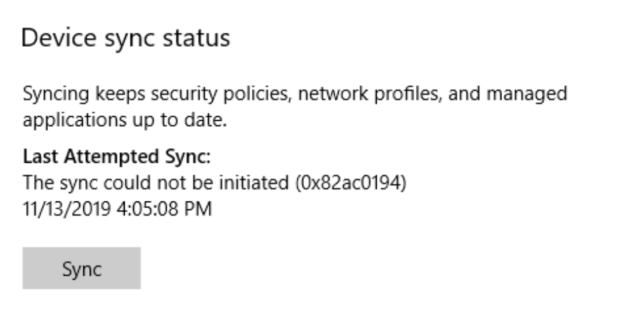
However, sometimes it is possible that a Windows 10 PC is in an inconsistent enrollment state, with error “The sync could not be initiated“.

This can happen because:

  • The PC was shut down during a long time, and the Microsoft Intune certificate is expired (located in Local Machine / Certificates / Personal)
  • Someone manually deleted the Microsoft Intune certificate
  • The PC is enrolled in another Intune tenant

Prerequisites: check Hybrid Azure AD Join status

Before re-enrolling your device to Microsoft Intune, you need to make sure that the certificates for Hybrid Azure AD Join are not expired as well.

Follow this procedure to Manually re-register a Windows 10 / Windows 11 or Windows Server machine in Hybrid Azure AD Join.

Method 1: With data and configuration loss

The easiest way to unenroll a Windows 10 PC from Microsoft Intune is to disconnect the work or school account.

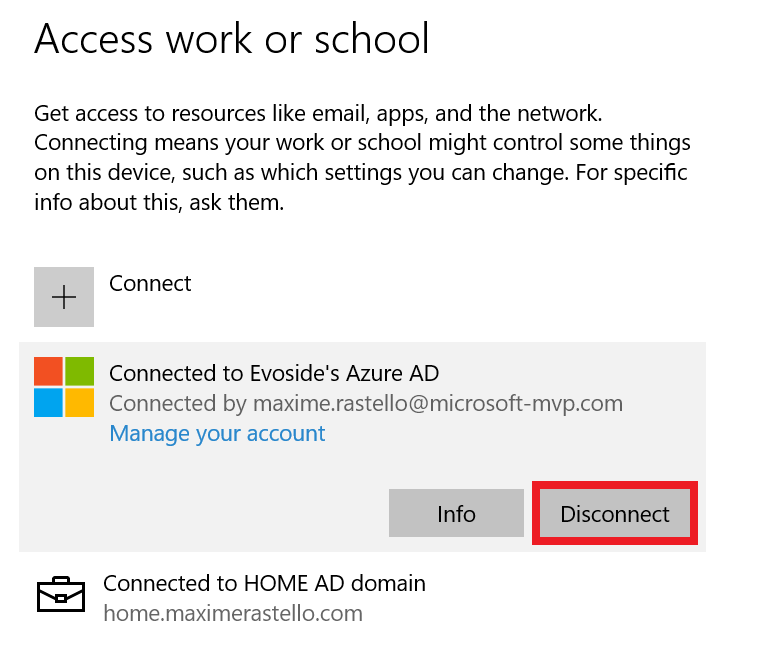
Just go to All settings > Accounts > Access work or school, select your corporate account and click Disconnect.

Important: this menu is not available on Windows 10 / Windows 11 multi-session edition for Azure Virtual Desktop.

However, the problem with this is that all data and configuration pushed by Microsoft Intune will be deleted from the PC.

Method 2: Without data or configuration loss

There is a way to manually re-enroll your Windows 10 PC without loosing all the current configuration and apps deployed by Microsoft Intune.

This method is not officially supported by Microsoft

As you may know, automatic enrollment can be triggered either by a Group Policy Object or by the SCCM client on a co-managed device.

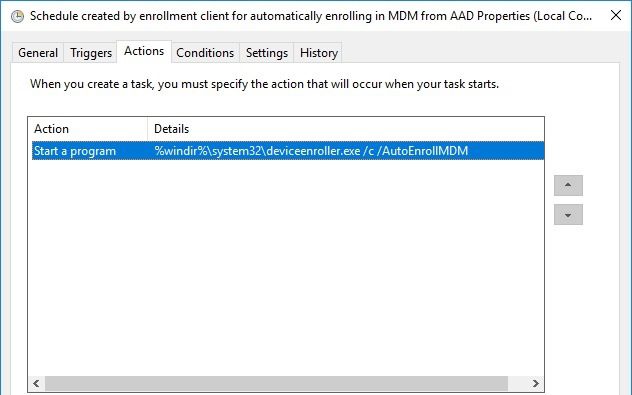
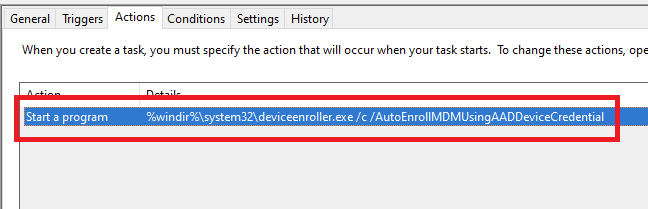
In both cases, the feature will basically create a scheduled task to enroll the PC at next logon. The command is different if you are trying to enroll Windows 10 / Windows 11 Enterprise multi-session devices from Azure Virtual Desktop (using Device Credential) or a regular Windows 10 / Windows 11 device using User Credential:

Windows 10 / Windows 11 Enterprise (with User Credential)

Task launched in the SYSTEM context:

%windir%\system32\deviceenroller.exe /c /AutoEnrollMDM

Windows 10 / Windows 11 Enterprise Multi-session for Azure Virtual Desktop (with Device Credential)

Task launched in the SYSTEM context:

%windir%\system32\deviceenroller.exe /c /AutoEnrollMDMUsingAADDeviceCredential

To manually re-enroll the PC, we will need to clean up the environment and relaunch this command in the SYSTEM context to re-enroll the PC.

Here are the steps that you need to follow to make it work:

  1. Delete stale scheduled tasks
  2. Delete stale registry keys
  3. Delete the Intune enrollment certificate
  4. Restart the enrollment process

Step 1: Delete stale scheduled tasks

Follow this procedure:

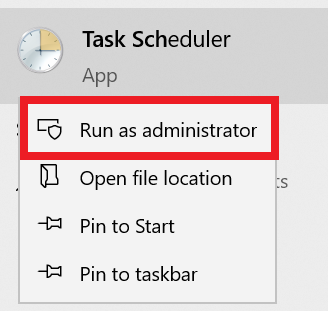
  • Run the Task Scheduler as an administrator.

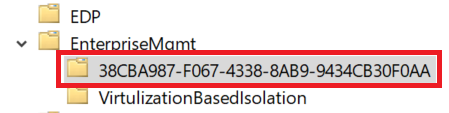
  • Go to Task Scheduler Library > Microsoft > Windows > EnterpriseMgmt. Write down the enrollment ID somewhere, you will need it for the cleanup.

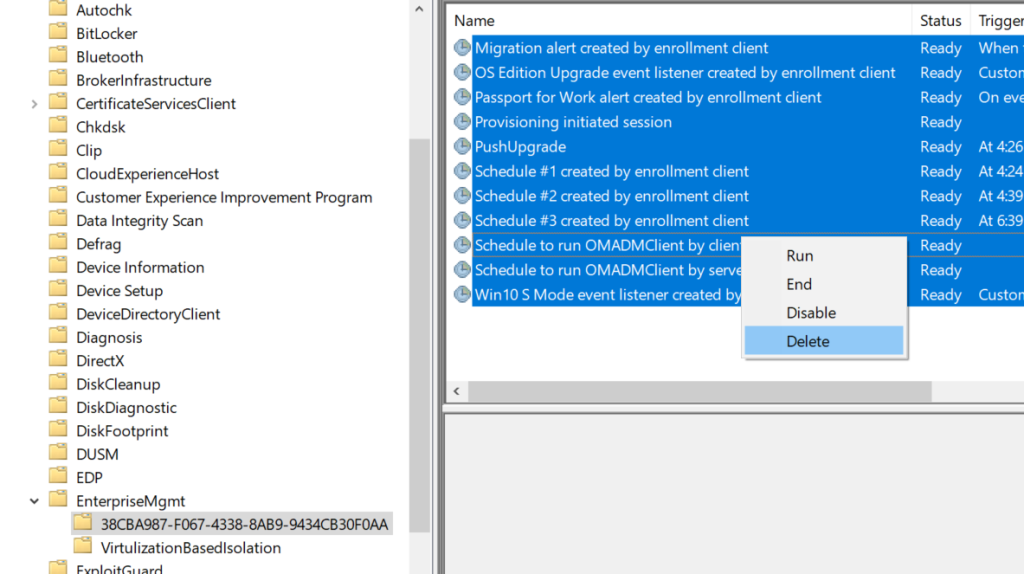
  • Delete all the existing tasks the enrollment folder.

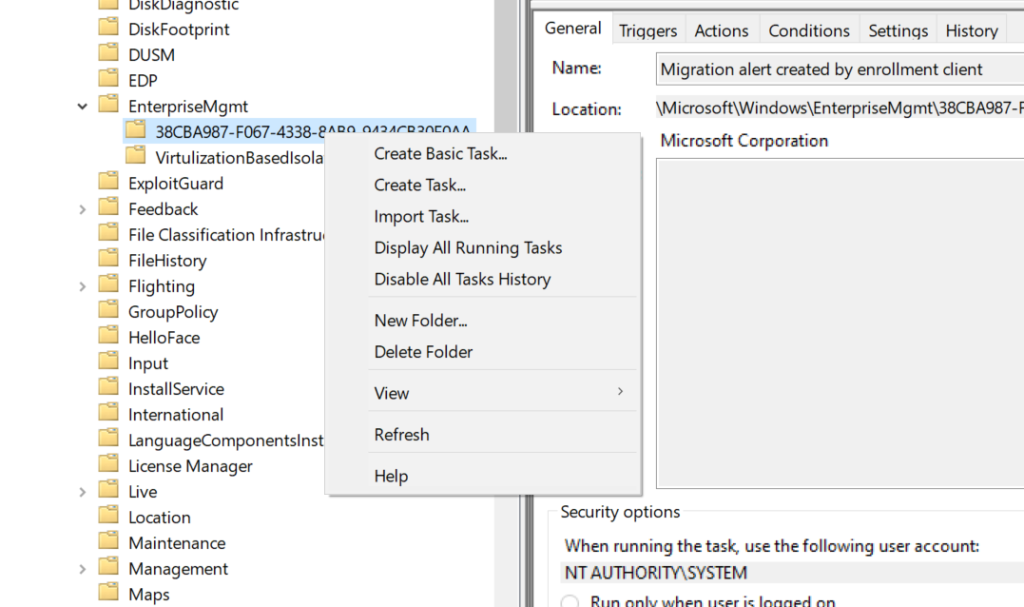
  • Delete the enrollment ID folder.

Step 2: delete stale registry keys

Use the previous enrollment ID to search the regitry:

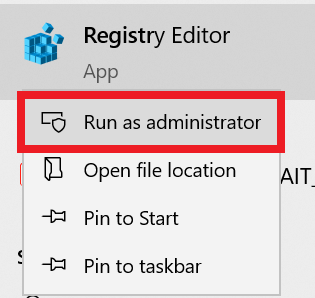
  • Open the Registry Editor as an administrator.

  • Search for the enrollment ID you wrote in the following locations and if found, delete the key that is containing the ID:
    • HKEY_LOCAL_MACHINE\SOFTWARE\Microsoft\Enrollments\xxxxxxxxxxxxx
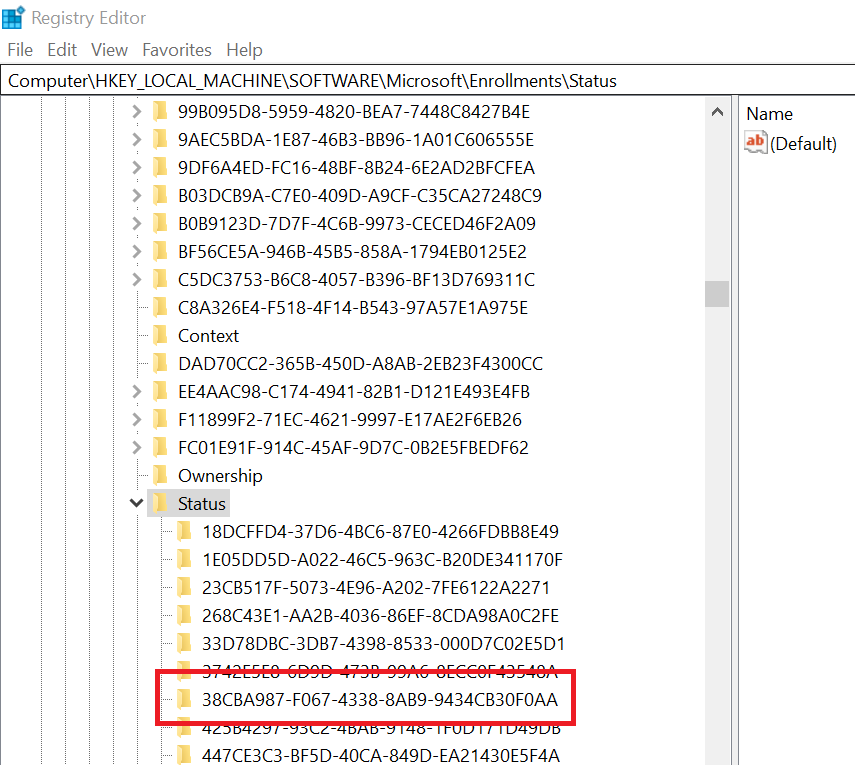
    • HKEY_LOCAL_MACHINE\SOFTWARE\Microsoft\Enrollments\Status\xxxxxxxxxxxxx
    • HKEY_LOCAL_MACHINE\SOFTWARE\Microsoft\EnterpriseResourceManager\Tracked\xxxxxxxxxxxxx
    • HKEY_LOCAL_MACHINE\SOFTWARE\Microsoft\PolicyManager\AdmxInstalled\xxxxxxxxxxxxx
    • HKEY_LOCAL_MACHINE\SOFTWARE\Microsoft\PolicyManager\Providers\xxxxxxxxxxxxx
    • HKEY_LOCAL_MACHINE\SOFTWARE\Microsoft\Provisioning\OMADM\Accounts\xxxxxxxxxxxxx
    • HKEY_LOCAL_MACHINE\SOFTWARE\Microsoft\Provisioning\OMADM\Logger\xxxxxxxxxxxxx
    • HKEY_LOCAL_MACHINE\SOFTWARE\Microsoft\Provisioning\OMADM\Sessions\xxxxxxxxxxxxx

DO NOT delete registry keys that are not in the list above. They will be overwritten after the new enrollment.

Step 3: delete the Intune enrollment certificate

Follow the procedure:

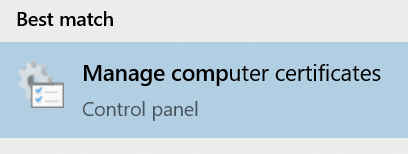
  • Search for the option “Manage computer certificates” or use the command certlm.msc as an administrator.

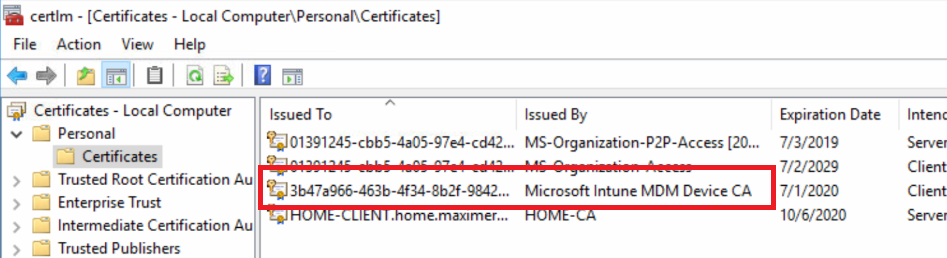
  • Go to Personal > Certificates and delete the certificate issued by either “Microsoft Intune MDM Device CA” or “SC_Online_Issuing” (depending on the date of the enrollment).

Step 4: Restart the enrollment process

To be properly executed, the enrollment command must be entered in a SYSTEM context. We will use the PSExec tool for that purpose.

  • Use PSExec to launch a Command Prompt as SYSTEM:
psexec /i /s cmd

  • In the Command Prompt, enter one of the following command depending on your enrollment type:

Windows 10 / Windows 11 Enterprise (using User Credential)

%windir%\system32\deviceenroller.exe /c /AutoEnrollMDM

Windows 10 / Windows 11 Enterprise Multisession for Azure Virtual Desktop (using User Credential)

%windir%\system32\deviceenroller.exe /c /AutoEnrollMDMUsingAADDeviceCredential

  • In the computer certificate store, check that a new Intune certificate has been enrolled for the device:

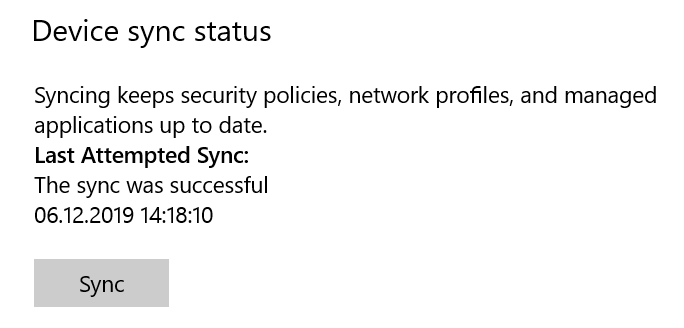
  • You are now ready to start a policy sync from the Windows Settings, and check that the connection with the Intune service is now OK:

✇Maxime Rastello

Digital Experience – Bordeaux – Nouveau poste de travail à l’heure du cloud et de la mobilité

J’ai l’honneur de vous annoncer la création de l’évènement Digital Experience à Bordeaux, en collaboration avec AZEO et Microsoft. Cet évènement gratuit se déroulera à l’hôtel Mercure Bordeaux Château Chartrons.

J’aurais l’opportunité de présenter une conférence sur la gestion moderne du poste de travail Windows, à l’heure du cloud et de la mobilité. Nous discuterons des sujets comme le management via Intune, le provisioning via AutoPilot et bien d’autres.

N’hésitez pas à vous inscrire maintenant, les places étant limitées.

✇SharePoint Fire

Export & Import Intune policies and configuration using Graph API

Intune or Microsoft Endpoint Manager is to tool for Mobile Device Management (MDM) or Mobile Application Management (MAM). Device management was mostly focussed on devices like iOS and Android where Windows 10 was most likely managed using System Center Configuration Manager (SCCM). Windows 10 is perfectly manageable in an MDM scenario for years using Microsoft Intune. I’ve created some default policies in my developer tenant which I’ll be exporting and importing using the Graph API. My focus at the moment is Windows 10 but I’ll be adding iOS, Android and MacOS policies later. Some iOS, Android and MacOS policies will also be downloaded automatically. This script can be customized to suit your needs as it can also be used as a backup solution for your policies and configuration, or just to verify if the policies are the same as they were 1 month ago.

Intune policies

Besides some general configuration I’ve created the following policies:

    • Deployment profiles
    • Compliance policy
    • Security baselines
    • Update rings
    • App protection policy
    • Configuration policies

The following settings are still a work in progress

  • Enrollment profiles
  • Apps
  • Branding
  • Other config

Graph API

I will be using the Graph API for exporting and importing Intune policies and configuration.

Permissions

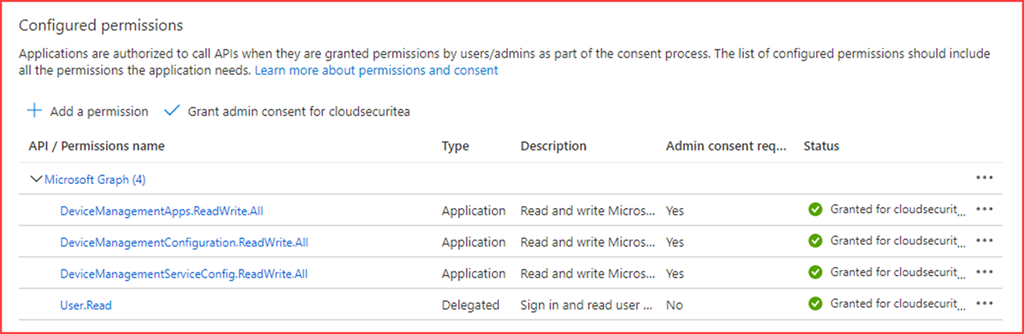
We will be reading and writing so we need to add application permissions to call the API’s in Azure Active Directory.

Add the below API permissions. (Note that these permissions can do harm in the wrong hands. Create conditional access policies to limit the attack surface.)

  • DeviceManagementApps.ReadWrite.All
  • DeviceManagementConfiguration.ReadWrite.All
  • DeviceManagementServiceConfig.ReadWrite.All

image

Note the following information as we will need it for the script

  • Client ID
  • Client Secret
  • Tenant ID
  • Output location

Export Intune policies

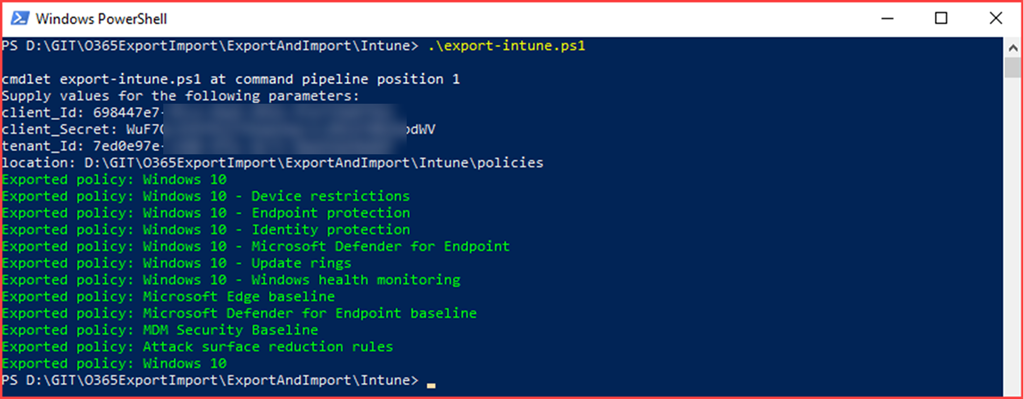
The script has been uploaded to O365ExportImport/ExportAndImport/Intune at main · CloudSecuritea/O365ExportImport · GitHub where it can be downloaded, changed and used. Run the following command to start the export:

export-intune.ps1 and provide the script with the required parameters

SNAGHTML7dfaea

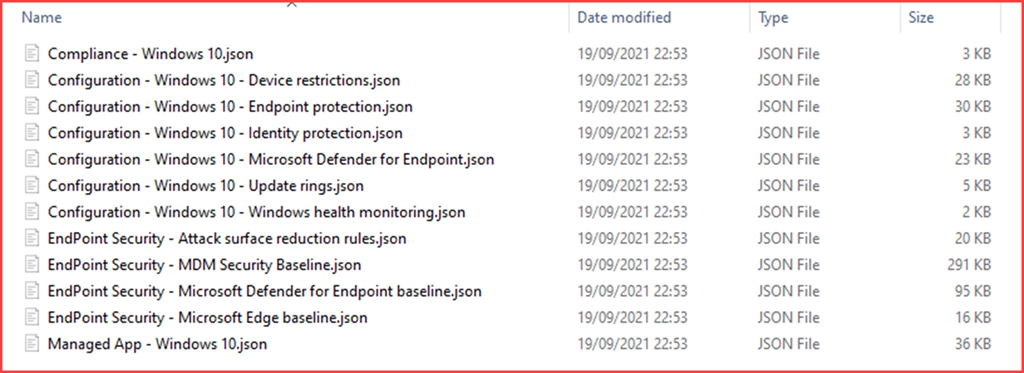
The files will be created in the specified location

image

Import Conditional Access policies

We have just exported the Intune policies. The JSON files will now be used to import this configuration. Note that running the script will create new policies and you will need to delete old policies if present. Assignments are currently not configured directly and will need to be set afterwards.

image

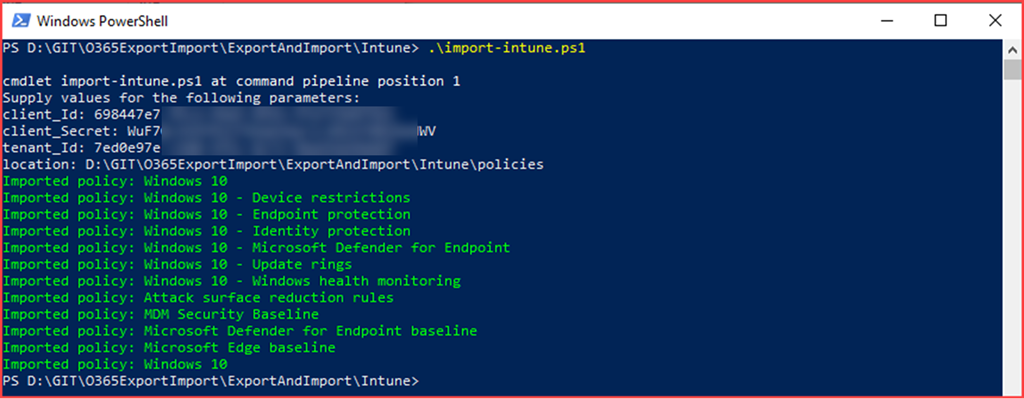
The script has been uploaded to O365ExportImport/ExportAndImport/Intune at main · CloudSecuritea/O365ExportImport · GitHub where it can be downloaded, changed and used. Run the following command to start the import:

import-intune.ps1 and provide the script with the required parameters

SNAGHTML80c3fd

image

Things to do

  • Add more configuration items
  • Automatically delete and assign

The post Export & Import Intune policies and configuration using Graph API appeared first on Cloud Security | Office 365 | Azure | SharePoint.

✇Maxime Rastello

Manually re-enroll a Hybrid Azure AD Join Windows 10 / Windows 11 device to Microsoft Endpoint Manager without loosing the current configuration

Edit 01/06/2022 : updating this article to include Azure Virtual Desktop Windows 10 / Windows 11 multi-session enrollment command using Device Credential

——–

There are several ways to enroll a Windows 10 PC to Microsoft Intune:

Manually

  • During the Out-of-the-box Experience (OOBE), when starting a Windows 10 PC for the first time
  • In the Windows Settings, after the PC configuration

Manual enrollment will require that the user enters his Azure AD credentials.

Automatically

  • Using Azure AD Join + automatic Intune enrollment
  • Using Hybrid Azure AD Join + automatic Intune enrollment

Automatic enrollment can be triggered using a Group Policy, SCCM Co-Management or Windows AutoPilot.

Windows 10 automatic enrollment requires the creation of public DNS records enterpriseregistration and enterpriseenrollment. More info here.

However, sometimes it is possible that a Windows 10 PC is in an inconsistent enrollment state, with error “The sync could not be initiated“.

This can happen because:

  • The PC was shut down during a long time, and the Microsoft Intune certificate is expired (located in Local Machine / Certificates / Personal)
  • Someone manually deleted the Microsoft Intune certificate
  • The PC is enrolled in another Intune tenant

Prerequisites: check Hybrid Azure AD Join status

Before re-enrolling your device to Microsoft Intune, you need to make sure that the certificates for Hybrid Azure AD Join are not expired as well.

Follow this procedure to Manually re-register a Windows 10 / Windows 11 or Windows Server machine in Hybrid Azure AD Join.

Method 1: With data and configuration loss

The easiest way to unenroll a Windows 10 PC from Microsoft Intune is to disconnect the work or school account.

Just go to All settings > Accounts > Access work or school, select your corporate account and click Disconnect.

Important: this menu is not available on Windows 10 / Windows 11 multi-session edition for Azure Virtual Desktop.

However, the problem with this is that all data and configuration pushed by Microsoft Intune will be deleted from the PC.

Method 2: Without data or configuration loss

There is a way to manually re-enroll your Windows 10 PC without loosing all the current configuration and apps deployed by Microsoft Intune.

This method is not officially supported by Microsoft

As you may know, automatic enrollment can be triggered either by a Group Policy Object or by the SCCM client on a co-managed device.

In both cases, the feature will basically create a scheduled task to enroll the PC at next logon. The command is different if you are trying to enroll Windows 10 / Windows 11 Enterprise multi-session devices from Azure Virtual Desktop (using Device Credential) or a regular Windows 10 / Windows 11 device using User Credential:

Windows 10 / Windows 11 Enterprise (with User Credential)

Task launched in the SYSTEM context:

%windir%\system32\deviceenroller.exe /c /AutoEnrollMDM

Windows 10 / Windows 11 Enterprise Multi-session for Azure Virtual Desktop (with Device Credential)

Task launched in the SYSTEM context:

%windir%\system32\deviceenroller.exe /c /AutoEnrollMDMUsingAADDeviceCredential

To manually re-enroll the PC, we will need to clean up the environment and relaunch this command in the SYSTEM context to re-enroll the PC.

Here are the steps that you need to follow to make it work:

  1. Delete stale scheduled tasks
  2. Delete stale registry keys
  3. Delete the Intune enrollment certificate
  4. Restart the enrollment process

Step 1: Delete stale scheduled tasks

Follow this procedure:

  • Run the Task Scheduler as an administrator.

  • Go to Task Scheduler Library > Microsoft > Windows > EnterpriseMgmt. Write down the enrollment ID somewhere, you will need it for the cleanup.

  • Delete all the existing tasks the enrollment folder.

  • Delete the enrollment ID folder.

Step 2: delete stale registry keys

Use the previous enrollment ID to search the regitry:

  • Open the Registry Editor as an administrator.

  • Search for the enrollment ID you wrote in the following locations and if found, delete the key that is containing the ID:
    • HKEY_LOCAL_MACHINE\SOFTWARE\Microsoft\Enrollments\xxxxxxxxxxxxx
    • HKEY_LOCAL_MACHINE\SOFTWARE\Microsoft\Enrollments\Status\xxxxxxxxxxxxx
    • HKEY_LOCAL_MACHINE\SOFTWARE\Microsoft\EnterpriseResourceManager\Tracked\xxxxxxxxxxxxx
    • HKEY_LOCAL_MACHINE\SOFTWARE\Microsoft\PolicyManager\AdmxInstalled\xxxxxxxxxxxxx
    • HKEY_LOCAL_MACHINE\SOFTWARE\Microsoft\PolicyManager\Providers\xxxxxxxxxxxxx
    • HKEY_LOCAL_MACHINE\SOFTWARE\Microsoft\Provisioning\OMADM\Accounts\xxxxxxxxxxxxx
    • HKEY_LOCAL_MACHINE\SOFTWARE\Microsoft\Provisioning\OMADM\Logger\xxxxxxxxxxxxx
    • HKEY_LOCAL_MACHINE\SOFTWARE\Microsoft\Provisioning\OMADM\Sessions\xxxxxxxxxxxxx

DO NOT delete registry keys that are not in the list above. They will be overwritten after the new enrollment.

Step 3: delete the Intune enrollment certificate

Follow the procedure:

  • Search for the option “Manage computer certificates” or use the command certlm.msc as an administrator.

  • Go to Personal > Certificates and delete the certificate issued by either “Microsoft Intune MDM Device CA” or “SC_Online_Issuing” (depending on the date of the enrollment).

Step 4: Restart the enrollment process

To be properly executed, the enrollment command must be entered in a SYSTEM context. We will use the PSExec tool for that purpose.

  • Use PSExec to launch a Command Prompt as SYSTEM:
psexec /i /s cmd

  • In the Command Prompt, enter one of the following command depending on your enrollment type:

Windows 10 / Windows 11 Enterprise (using User Credential)

%windir%\system32\deviceenroller.exe /c /AutoEnrollMDM

Windows 10 / Windows 11 Enterprise Multisession for Azure Virtual Desktop (using User Credential)

%windir%\system32\deviceenroller.exe /c /AutoEnrollMDMUsingAADDeviceCredential

  • In the computer certificate store, check that a new Intune certificate has been enrolled for the device:

  • You are now ready to start a policy sync from the Windows Settings, and check that the connection with the Intune service is now OK:

✇SharePoint Fire

Manage apps with Defender for Endpoint and Microsoft Cloud App Security

It’s easy to manage apps when you have a clear perimeter. There is only one option to access the internet and that’s through the company firewall. Now, with people working from home and bring your own (BYO) or choose your own (CYO) devices it’s difficult. You want to maintain control on company devices by monitoring and allowing or disallowing certain applications or URL’s.

This post will show how to manage apps with Defender for Endpoint and Microsoft Cloud App Security. We will be implementing policies using Intune and configuring Defender for Endpoint and MCAS with the least amount of settings to enable the integration between MCAS –> Defender for Endpoint –> Endpoint.

Note: This setup requires a Microsoft E5 license to be able to fully use MCAS and Defender for Endpoint. It’s also possible to buy seperate stand-alone licenses but I recommend the Microsoft E5 license with all the extra security benefits.

Scenario

We have Windows 10 endpoints which are enrolled in Intune. Intune is connected with Defender for Endpoint. All onboarded Windows devices are onboarded automatically to Defender for Endpoint. The goal is to block unsanctioned apps on Windows 10 devices manually and automatically.

Configuration

Intune

There are a few requirements from the endpoints perspective.

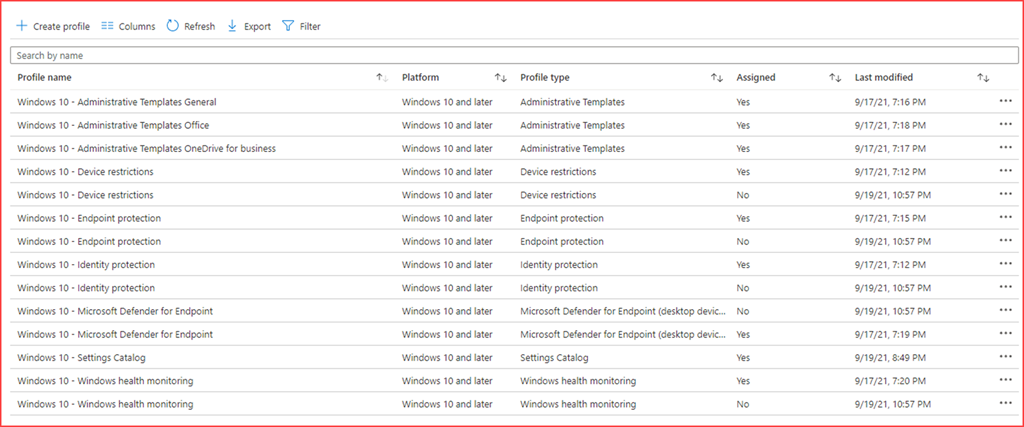
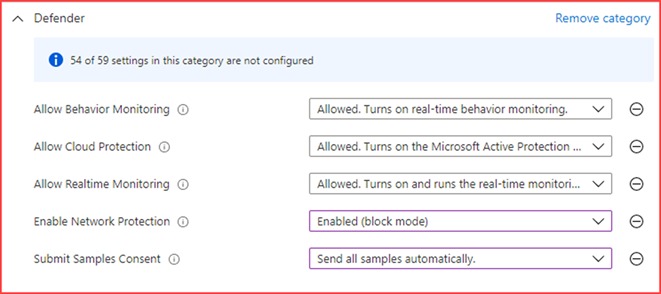
  • Real-time protection needs to be enabled
  • Cloud-delivered protection needs to be enabled
  • Network protection needs to be enabled and configured to block mode

These settings can be set manually on the device, using GPO, endpoint manager or via Intune.

Note: I recommend using the Microsoft Defender for Endpoint Baseline as this includes the above requirements and more.

Create a new Windows 10 and later configuration profile using the settings catalog profile type.

image

Enable the above options.

Defender for Endpoint

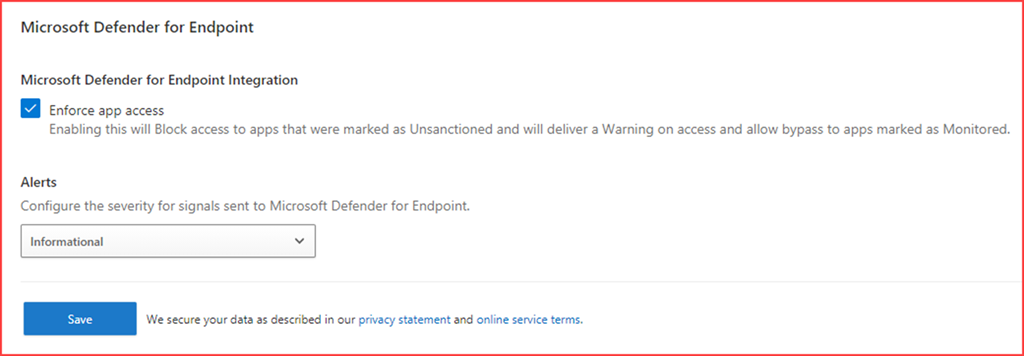
Two features need to be enabled in Defender for Endpoint:

Custom network indicators

image

Microsoft Cloud App Security

image

Microsoft Cloud App Security

Enable “Enforce app access” on the settings page in MCAS.

image

Block unsanctioned apps

Manually

It’s possible to block apps that are being used or apps from the cloud app catalog. There are currently more than 20k apps in the cloud app catalog and it’s impossible to go through them manually.

image

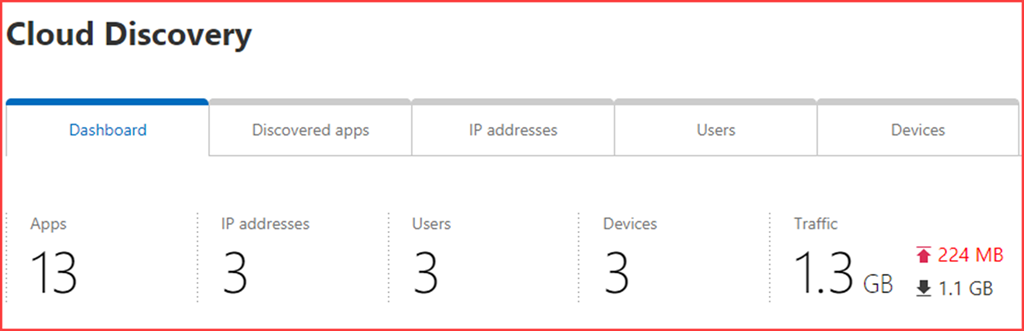
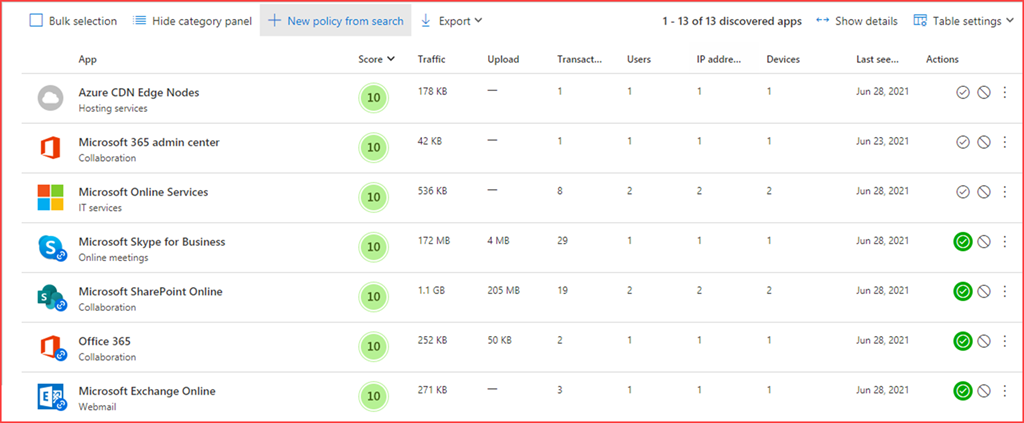
Apps that users are currently using are displayed in the cloud discovery dashboard

image

Clicking on Apps will get you to all the apps currently being used.

image

You can block an app by marking it as unsanctioned

image

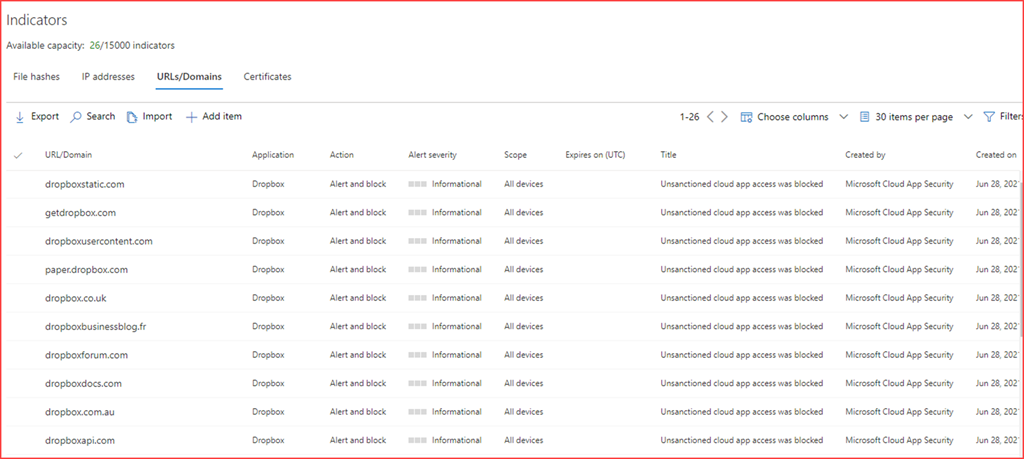
All URL’s related to Dropbox will be added to the Indicators section at Defender for Endpoint

image

Automatically

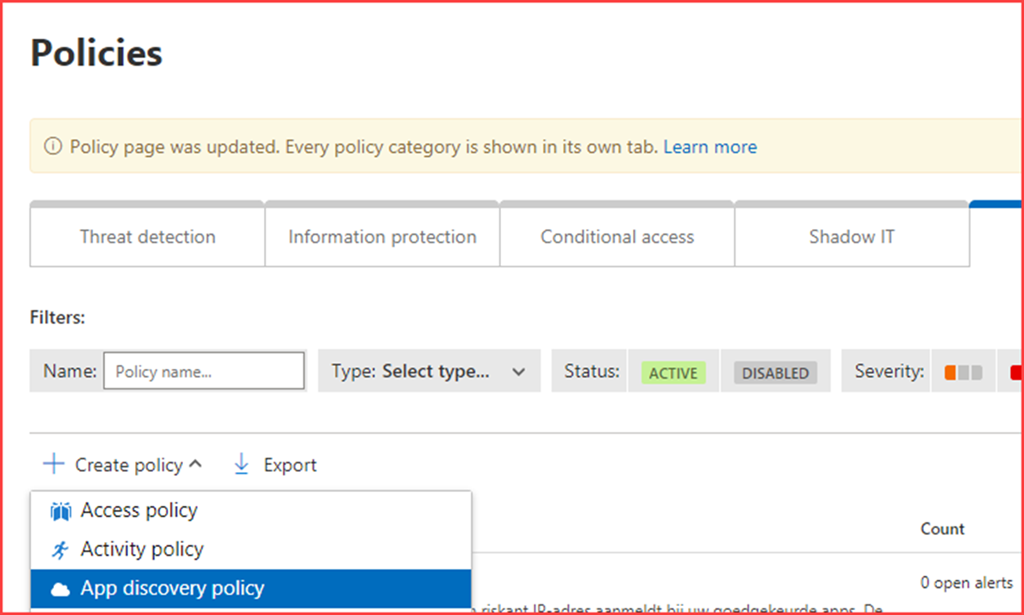
Create a new “App discovery policy” under control –> Policies

image

Give the policy a name and select a suitable filter

image

For example:

  • Block apps with a risk score of 0-3
  • Block apps with cloud storage as category
  • Block apps with Social Network as category
  • Block apps without a GDPR readiness statement

  • Block apps where the headquarters is located in a certain location

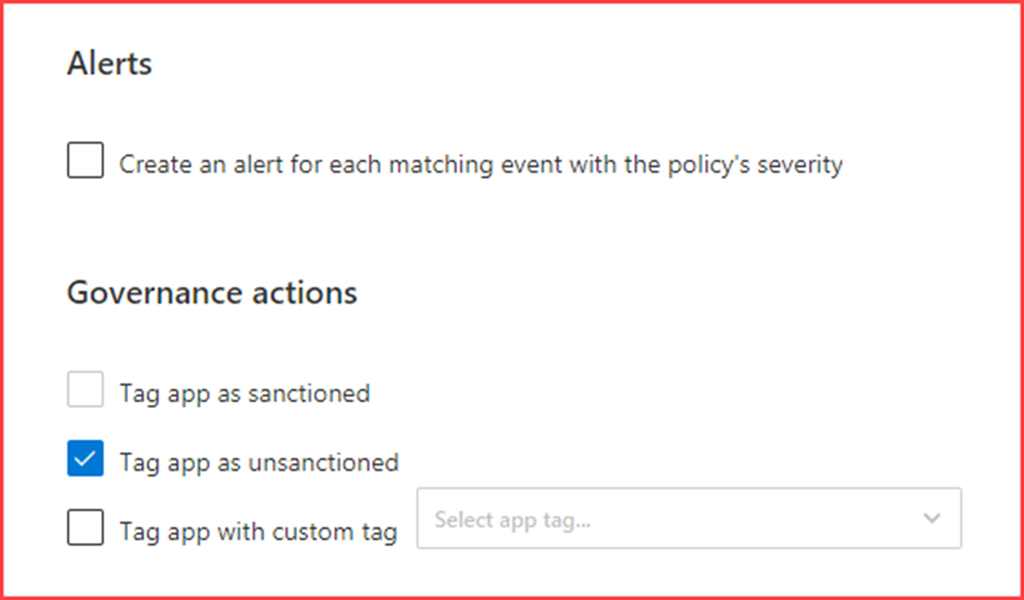
Next select that the app needs to be set as unsanctioned

image

User behaviour

When a user tries to navigate to https://dropbox.com they will see the following screen in Edge Chromium

image

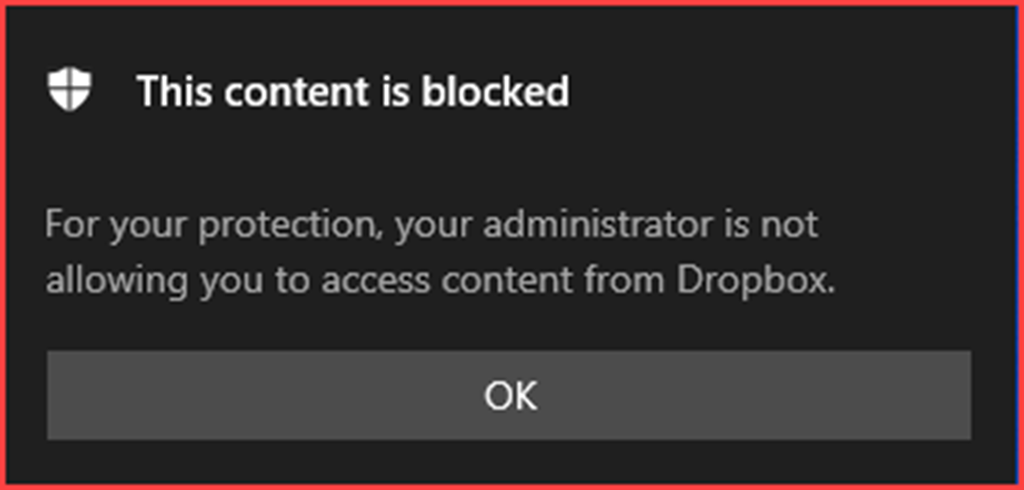
The app also stops working where users may receive the following message from Microsoft Defender

image

Additional notes

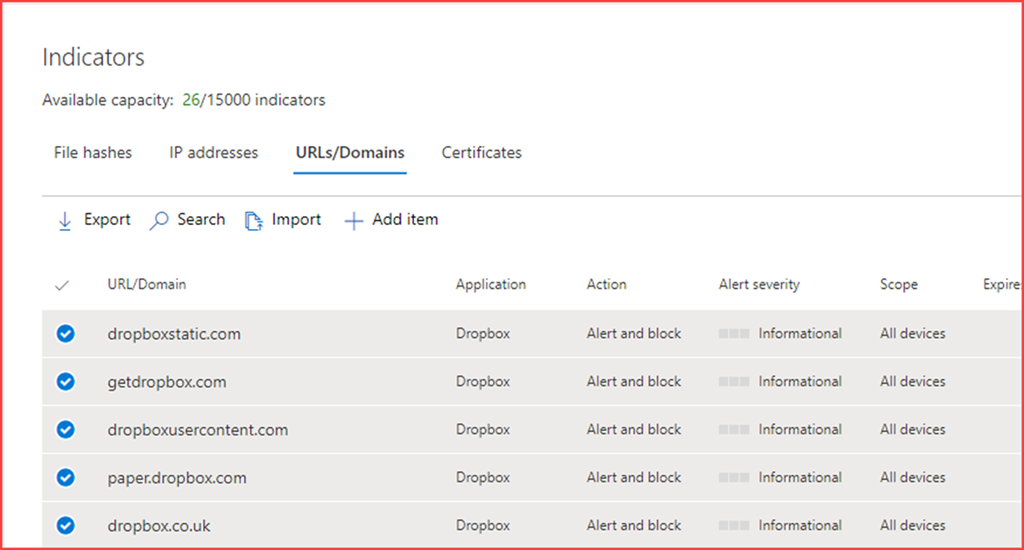
When allowing the app again you may need to remove the URLs/Domains from the Indicator list in Defender for Endpoint.

image

The post Manage apps with Defender for Endpoint and Microsoft Cloud App Security appeared first on Cloud Security | Office 365 | Azure | SharePoint.

✇Maxime Rastello

Digital Experience – Bordeaux – Nouveau poste de travail à l’heure du cloud et de la mobilité

J’ai l’honneur de vous annoncer la création de l’évènement Digital Experience à Bordeaux, en collaboration avec AZEO et Microsoft. Cet évènement gratuit se déroulera à l’hôtel Mercure Bordeaux Château Chartrons.

J’aurais l’opportunité de présenter une conférence sur la gestion moderne du poste de travail Windows, à l’heure du cloud et de la mobilité. Nous discuterons des sujets comme le management via Intune, le provisioning via AutoPilot et bien d’autres.

N’hésitez pas à vous inscrire maintenant, les places étant limitées.

✇SharePoint Trenches

Run PowerShell script on Windows 10 PC through the MDM Channel in Intune

In the last couple of weeks I've been working on an internal project that includes software distribution of Windows apps on MDM enrolled Windows 10 PCs using cloud only Intune deployment. Yes that's right, no SharePoint in this post, but a real world EMS story.
The easiest way to publish classic windows apps on Windows 10 PC that is MDM enrolled will be by publishing Windows Installer through MDM (*.msi) installer.
The important thing with this installer type is that the installation should go without any user interaction required especially when you use "Required Install".
The issue I hit is related to Dell software that is essential for the remote work and almost everyone in the company is using it. However for some reason the software publisher (Dell Software) is considered not trusted in Windows 10. There is this great thing in Windows (since Win 7) called SmartScreen that will pop-up a question asking if we trust the software publisher, before running executable with not trusted publisher. If we manually install the software we are clicking Yes and everithing is fine, the signing certificate is added to the Trusted Publishers certificate store.
However, when we are deploying the package over Intune this issue will cause the installation to fail with exit code 1603.
The way to fix this is to extract the signing certificate and install it in the Trusted Publisher on the target computer or to turn off SmartScreen with a policy, but the second is not a good security practice. The issue is that we cannot deploy cert to the Trusted Publishers store using Intune configuration policy.
My solution is to use PowerShell script that will be deployed and executed over the MDM channel.
The issue is that Intune does not support direct script deployment. There are some articles on the net that are demonstrating how to package batch script in self-extracting executable using IExpress.
However we need to wrap PowerShell script in MSI package suitable for MDM deployment.
I think that this is a very useful technique and I will try to put all the peaces together in this post, so you can deploy and run every PowerShell script on Windows 10 MDM PCs.
The easiest(and free) way to do this will be to create a self-extracting exe with IExpress, wrap the exe in MSI and publish it to Intune.
In order to reliably wrap the PS script in exe I used a script that I found in the TechNet Gallery called Create-EXEFrom.ps1. It will do a really good job wrapping the PS script and you can also add additional files in the package, like in my case I will need Dell Software certificate that should be installed on the target machine. Below is an example line for wrapping MyApp.ps1 script (this will be name used in all sample code) including the certificate we need.

.\Create-EXEFrom.ps1 -PSScriptPath "C:\MyApp.ps1" -SupplementalFilePaths "C:\Certificate.cer"


The exe will be created in the same folder and will be called "MyApp.exe".
The tricky part is that our exe and msi package should also be executed without any interaction required, including bypassing of the SmartScreen. This can be done by properly signing both packages with valid code signing certificate. In my case I have used the certificate that we normally use in bluesource for signing mobile apps. In order to sign the packages you can use the signtool.
If the signing is successful you should see below in your file properties and you should be able to run the exe without SmartScreen alerts.
Publisher Certificate

Now when we have signed exe we should wrap it in MSI package.
The easiest free way for me was to use WiX Toolset to do that. I put together really simple WiX project with only one custom action that will execute the exe. Below you can see the sample xml with the cmd commands I used to compile the WiX project.
If you are new to WiX  you should have your WiX bin folder in the PATH variable to make the cmd script work as it is. In my case it is "C:\Program Files (x86)\WiX Toolset v3.10\bin"(I know it is not the newest version).
Note that the package will be installed under the SYSTEM account and you should consider that in your scripts. You can find how to test MSI package in following article.
Next step is to publish the MSI as "Windows Installer through MDM (*.msi)" installer type as it is shown below.
Intune Publish MSI

The last thing that's left is to deploy the newly published app and maybe running some tests won't be a bad idea :).

I hope that this non-SharePoint post, written by a SharePoint guy will be helpful!
✇SharePoint & Products Technologies

Identity Management

Hi folks,

Chaque semaine, vous entendez parler d’accronyme, pas forcément évident de savoir à quoi rattacher les MFA, PIM, PAM, MIM, MAM, MDM, etc. … Donc pas trop de technique pour l’instant mais du jargon 🙂

Je vous propose un petit tour de définition qui peut-être utile 🙂

MFA – Multi-Factor Authentication

Un classique, c’est de la double authentification permettant au système de s’assurer que vous êtes bien qui vous dites être (oui oui relire plusieurs fois cette phrase aide). Cela permet d’identifier une personne, un device, une application voir une localisation. C’est une combinaison de facteur permettant un trust et vérifier qui vous êtes.

Le MFA, peut-être un code SMS, un code application, PIN, une clé biométrique, voir une clé de password (FIDO par exemple). La combinaison de votre login password et de cette seconde clé forme le MFA.

PIM – Privileged Identity Management

PIM est utilisé pour attribuer, activer et approuver des identités privilégiées dans Azure AD. PIM fournit une activation de rôle basée sur le temps et l’approbation pour rédire les risques d’autorisations d’accès aux ressources sensibles.

Par exemple : Le support doit avoir accès aux informations de votre tenant, OK mais que pour 10mn. Au dela le système coupe les accès.

Les principales fonctions de PIM :

  • Accès privilégié just-in-time à Azure AD et aux ressources Azure.
  • Accès limité dans le temps aux ressources.
  • Processus d’approbation pour activer les rôles privilégiés (admin par ex.)
  • Forcer le MFA
  • Justification des demandes d’accès (un peu comme dans SharePoint quand vous n’avez pas accès).
  • Notifier lorsque les rôles sont activés.
  • Participer aux revus d’accès internes / externes lors d’audit.

PAM – Privileged Access Management
Souvent on confond les PIM et PAM (POUM est toujours pas là #ahah)

PAM permet de gérer les identités de manière locale (OnPremise) PAM est un morceau de PIM qiu utilise MIM.

PAM vous sera utile pour :

  • Rendre plus difficile l’accès à l’administration, au réseau et à des comptes avec de grand privilèges pour un hacker.
  • Ajouter une protection aux groupes privilégiés qui contrôlent l’accès aux ordinateurs joints à un domaine et aux applications sur ces ordinateurs.
  • Fournir une surveillance, et des contrôles afin de voir/suivre qui sont leurs administrateurs (avec de grands privilèges) et ce qu’ils font.

PAM vous permettra de mieux comprendre comment les comptes administrateurs sont utilisés.

MIM – Microsoft Identity Manager

MIM, c’est quoi dans tout ce truc là ? Microsoft Identity Manager

Il va vous aider à gérer les utilisateurs et les environnements hybrides. MIM vous simplifiera la gestion du cycle de vie des identités grâce à des flux de travail automatisés, des règles métier et une intégration aux plates-formes.

MIM permet d’appliquer les droits AD aux utilisateurs pour des applications locales. Azure AD Connect peut ensuite rendre ces utilisateurs et autorisations disponibles dans Azure AD pour Office 365 et les applications hébergées dans le cloud.

Petit récap ?

  • PIM est une fonctionnalité permettant de gérer les identités dans Azure AD.
  • PAM est une fonctionnalité locale permettant de gérer les identités dans Active Directory.
  • MIM aide à gérer les utilisateurs, les informations d’identification, les stratégies et l’accès local.

MAM – Mobile Application Management

MAM est un élément important car si les entreprises ne peuvent gérer que les identités, mais pas les applications, elles passent à côté d’un aspect clé de la protection des données.

MAM est connecté à une fonctionnalité Microsoft appelée Microsoft Intune et est une suite de fonctionnalités de gestion permettant de publier, d’envoyer, de configurer, de sécuriser, de surveiller et de mettre à jour des applications mobiles pour les utilisateurs.

MAM fonctionne avec ou sans enrollment de l’appareil, ce qui signifie que les organisations peuvent protéger les données sensibles sur presque tous les appareils à l’aide de MAM-WE (without enrollment). Si les entreprises activent l’authentification multifactorielle, elles peuvent vérifier quel est l’utilisateur sur l’appareil. MAM permet de gérer les applications auxquelles l’utilisateur peut avoir accès.

Si vous ajoutez la fonctionnalité Gestion des appareils mobiles ou MDM d’Intune, vous pouvez forcer l’inscription des appareils, puis utiliser MAM pour gérer les applications.

Hope this helps !

Stay tuned & safe

mickey75019

❌