Vue lecture

Il y a de nouveaux articles disponibles, cliquez pour rafraîchir la page.
✇Office 365 for IT Pros

Microsoft Introduces New Syntex-SharePoint Advanced Management License

Syntex-SharePoint Advanced Management Covers Secure Collaboration for SharePoint Online

Updated 2 March 2022

I know that many Microsoft 365 organizations don’t use sensitivity labels, even if they have the necessary licenses to use labels to protect content. All Office 365 licenses allow users to read protected content, but you need Office 365 E3 or above to apply labels to files, and Office 365 E5 or Microsoft 365 Compliance E5 for auto-label processing. At least, that’s been the case up to now.

Applying a default sensitivity label for a SharePoint Online document library (Figure 1) counts as automatic processing. Apparently, Microsoft considers the fact that new and modified documents in the library pick up the sensitivity label (unless previously labeled) as reason enough. In late January 2023, Microsoft revealed that this feature was one of the set to be licensed through a new Microsoft Syntex-SharePoint Advanced Management license.

 Using a default sensitivity label with a document library requires a Syntex advanced management license
Figure 1: Using a default sensitivity label with a document library requires a Syntex advanced management license

Features Enabled by the Microsoft Syntex-SharePoint Advanced Management License

The new license is in preview and includes other elements to improve secure collaboration based on SharePoint Online and OneDrive for Business, including:

  • Using sensitivity labels with Azure AD authentication contexts to limit access to SharePoint Online sites. This feature has been in preview since 2021.
  • Restricting access to a SharePoint Online site to members of a Microsoft 365 group. This restriction blocks users who have received access to a file in the site.
  • Blocking the download of files from SharePoint Online sites or OneDrive for Business accounts without the need to use Azure AD conditional access policies. In other words, users are forced to use a browser to access the site or account and cannot download, print, or synchronize files. The restriction also blocks access to the Office desktop apps because these apps need to download files to work on them locally.

In addition, Syntex-SharePoint Advanced Management includes some management and governance features. The three examples cited appear to be instances where it’s possible for administrators to do the same thing with some effort. Microsoft is making it easier. For example, the ability to limit access to OneDrive for Business to those who are members of a specific security group stops people licensed to use OneDrive but who aren’t members of the security group from using the app. The same effect is possible by simply removing the OneDrive service plan from their assigned licenses.

I haven’t seen what actions are included in the feature to export recent SharePoint site actions, but it might be possible to replicate the functionality by fetching SharePoint management events from the unified audit log.

My assumption is that any user who takes advantage of a feature licensed by Syntex advanced management requires a license. For instance, site members of a site where a document library uses a default sensitivity label all require Syntex-SharePoint Advanced Management licenses.

I can’t find a public announcement by Microsoft about the Syntex-SharePoint Advanced Management license. Cynics will say that this is another example of how Microsoft creates licenses for new functionality to generate additional revenue from its installed base. A more benign view is that the new license allows people with Office 365 E3 licenses to use the security and governance features enabled by Syntex Advanced Management. When I find out more details about licensing, including if some features covered by Syntex Advanced Management are also available through other licenses, I shall share the information.

Viewing Metadata for Protected Files

On an associated topic, I was asked why the metadata of documents protected by sensitivity labels remains visible to people who have no right to access these files. It’s a good question because some get confused when they notice an interesting document in a library but can’t open it because they’re blocked by the rights assigned in the label. For instance, who wouldn’t want to open a document with a title like “Proposed Pay Rises for Staff”?

When you enable SharePoint Online and OneDrive for Business to support sensitivity labels, it allows the workloads to deal with protected (encrypted) content. SharePoint Online stores protected files in an unencrypted format to allow functions like indexing and data loss prevention policies to work. Any access to a document, such as a user opening or downloading a file, causes SharePoint Online to encrypt the document so that the application used to open the file (like Word) can apply the rights assigned to the user. Everything works very nicely and those who have access to files can work with that content and those who don’t cannot.

When browsing items in a document library, site members can see metadata like the titles and authors of protected documents. Attempts to open these documents fail if the user doesn’t have the necessary rights. Because SharePoint Online doesn’t encrypt or obscure the metadata, those users know that documents with potentially very interesting content are available.

How SharePoint Online Stores Documents

The reason why document metadata is visible to all site members is rooted in how SharePoint Online stores documents. SharePoint Online uses Azure SQL as its storage platform. Blob storage holds documents and other files while metadata is in a separate table (list). The Azure SQL data is heavily protected against illegal access. Once a user has access to a document library, the assumption is that SharePoint can show them all the items, which is what they see in the list shown in a browser or the Teams files channel tab. It’s only when a user attempts to access a protected document that SharePoint Online validates their right to open that content.

You can argue that SharePoint Online and OneDrive for Business should hide the existence of protected documents that the user can’t open, but this would require SharePoint Online to check that access before displaying documents in a library. Such a check would incur a huge performance penalty because SharePoint Online cannot assume that the rights assigned in a sensitivity label are the same as the last time it checked.

New Functionality, New Costs

Although the news about the Syntex-SharePoint Advanced Management license will disappoint some, it’s reasonable that Microsoft should charge extra for security and management features that not every Microsoft 365 tenant will want or need. Those that need the functionality will simply have to pay the $3/user monthly cost. Hasn’t that always been the way?


Stay updated with developments across the Microsoft 365 ecosystem by subscribing to the Office 365 for IT Pros eBook. We do the research to make sure that our readers understand the technology.

✇Office 365 for IT Pros

How to Disable the Viva Engage Core Service Plan

Viva Engage Core Service Plan for Continuity and New Features

Along with their announcements that Yammer is becoming Viva Engage, Microsoft blogged about a new Viva Engage admin center (just what we need – another admin portals). The admin blog contained the news of new service plans that Microsoft has added to user account license assignments. For example, accounts with Office 365 E3 and E1 licenses now have the Viva Engage Core and Viva Learning Seeded service plans (Figure 1).

Viva Engage Core listed in the apps (service plans) available to a user account
Figure 1: Viva Engage Core listed in the apps (service plans) available to a user account

I don’t see any trace of the Viva Engage Core service plan in Office 365 E5 licenses. This might be because some accounts have Viva Suite licenses.

Good Intentions but Bad Outcome

Microsoft added the Viva Engage Core service plan to make sure that Viva users could continue to use Yammer services (like Q&A) after the switchover, saying “The service plans have been enabled for all users to provide a smooth and easily controlled feature roll out process.” The Viva Engage Code service plan will control new features and Microsoft wanted to put the service plan in place so that no one would miss out.

That’s a laudable intention, but they missed one very important point. Microsoft failed to disable the Viva Engage Core service plan for accounts where administrators had previously disabled the Yammer Enterprise service plan. Because the Viva Engage Core service plan enables Yammer services, the newly enabled license option means that people who previously couldn’t use Yammer can now do so.

Disabling the Viva Engage Core Service Plan

Most users won’t realize that they can go to yammer.com and launch Yammer with a URL like https://web.yammer.com/main/org/office365itpros.com. Anyway, if they did, they probably wouldn’t find much because the organization obviously doesn’t want to use Yammer. Considering those facts, you might think that little damage is done, but workers councils and unions might not take the same view.

Some PowerShell can fix the damage. Many organizations have a general-purpose script to remove service plans from Microsoft 365 licenses (here’s my version – make sure that you use the Graph-based script). In this case, I repurposed a script that I wrote to remove the Kaizala service plan from licenses, if only because it’s more recent work and includes logging of license updates.

To check user accounts for disabled service plans, we need to know what to look for. In this instance, the script must check accounts to see if the Yammer Enterprise service plan (7547a3fe-08ee-4ccb-b430-5077c5041653) is disabled and if so, disable the Viva Engage Core service plan (a82fbf69-b4d7-49f4-83a6-915b2cf354f4). The source for this information is Microsoft’s Azure AD license reference page.

The outline of the script is:

  • Find licensed user accounts.
  • For each account, check if it has an Office 365 license.
  • If so, check if Yammer Enterprise is disabled.
  • If so, disable Viva Engage Core.

You can download a copy of the full script from GitHub. I know the script will remove Viva Core Engage from Office 365 E3 licenses, but I don’t know how Microsoft assigned the service plan to other licenses. Because the code is PowerShell, it should be easy to amend to handle other license conditions.

Evolving License Management with PowerShell

PowerShell is a great way to automate license management operations if you don’t have something more sophisticated to help, like Azure AD group-based licensing. But remember that Microsoft will retire the license management cmdlets from the Azure AD and MSOL modules on March 31, 2023. Make sure that any PowerShell you write to work with user licenses uses Graph API requests or cmdlets from the Microsoft Graph PowerShell SDK.

P.S. Microsoft’s graphic to support the rebranding announcement in tweets and other social media was really quite clever. (Figure 1), even if it hid what must have been a bruising transition for some.

Yammer and Viva Engage
Figure 2: Yammer and Viva Engage

Learn how to exploit the data available to Microsoft 365 tenant administrators through the Office 365 for IT Pros eBook. We love figuring out how things work. We don’t like when Microsoft rebrands software products because it means that we’ve then got to update references in the book. There were 298 mentions of Yammer in the February 2023 update for the Office 365 for IT Pros eBook. March will see that number drop dramatically…

✇Office 365 for IT Pros

Exchange Online Adds Support for License Stacking

License Stacking Allows Workloads to Manage Multiple Licenses

Exchange Online license
Exchange Online

The Exchange Online blog post of January 20 “Introducing Support for Concurrent Exchange Online License Assignments” caused some furrowed brows because on first glance it doesn’t seem like an important announcement. The impact of the change depends on the size of a Microsoft 365 tenant and the processes used for license management. If your tenant is small and licenses are relatively static, you can safely ignore this topic. But those who run large tenants and use features like group-based license assignments are likely to be much more interested.

License stacking means that an Azure AD user account can hold multiple licenses for the same workload. Some of the licenses might be inherited from products (SKUs) that bundle multiple service plans (a not-for-sale license included in a SKU). Others come from specific products or add-ons. For instance, an account might hold the Teams Exploratory license and also have a license for Teams through the Office 365 E3 or E5 SKUs. When license stacking is in place, the workload is responsible for resolving the capabilities made available through the different licenses and allowing the account access to the feature set available from the best (“most superior”) license. In the example above, Teams would respect the license from Office 365 E3 or E5 because it covers more functionality than the Teams Exploratory license.

Exchange Online Licenses

In the case of Exchange Online, four licenses are available:

  • Exchange Online Essentials (BPOS_S_Essentials).
  • Exchange Online Kiosk (BPOS_S_Deskless).
  • Exchange Online Plan 1 (BPOS_S_Standard).
  • Exchange Online Plan 2 (BPOS_S_Enterprise).

BPOS refers to Business Productivity Online Suite, a predecessor to Office 365 based on Exchange 2007.

Microsoft says that they have updated the Get-ExoMailbox (Get-Mailbox) and Get-Recipient cmdlets to give tenants insight into the Exchange capabilities assigned to accounts through the licenses assigned to the accounts. I found that the data isn’t fully populated for all mailboxes (this will happen over time). However, it’s possible to run a command like this to report assignments:

Get-Recipient -RecipientTypeDetails UserMailbox -ResultSize Unlimited | Format-Table DisplayName, RootCapabilities

DisplayName                             RootCapabilities
-----------                             ----------------
Tony Redmond                            BPOS_S_Enterprise
Ben Owens (DCPG)                        None
Andy Ruth (Director)                    BPOS_S_Standard, BPOS_S_Enterprise
James Ryan                              BPOS_S_Enterprise

The Ben Owens account is an example where the assignment information isn’t yet populated. The Andy Ruth account is an example where two licenses are in place that include an Exchange service plan (one for Exchange Online Plan 1, the other for Plan 2). In this case, because Exchange Online Plan 2 enables more functionality than Plan 1, it’s the one that Exchange Online respects.

Concurrent License Assignments for Exchange Online

Traditionally, Exchange Online has not supported license stacking, which means that an Azure AD account can hold a single Exchange Online license. Most of the time this doesn’t matter because the usual situation is for an account to receive an Exchange Online license through a product SKU. For instance, Office 365 E3 and E5 both include the Exchange Online Plan 2 service plan.

However, it’s possible that an account might start out with a Microsoft 365 Business Basic license that includes Exchange Online Plan 1. The account belongs to a user who’s promoted to a management position that the organization requires to come within the scope of a retention policy and have an online archive. These features require Exchange Online Plan 2, so the organization removes the Microsoft 365 Business Basic license and assigns the account an Office 365 E3 license.

Exchange Online mandates that all user mailboxes have licenses. When the organization removes the Exchange Online Plan 1 license from the account, a chance exists that Exchange Online might soft-delete the mailbox and make it unavailable. The mailbox becomes available again when the account gains the Exchange Online Plan 2 license through Office 365 E3, but it’s not a great situation to be in if a user loses access to their mailbox while license administration is in progress.

Why Exchange Online License Stacking is Helpful

Support for license stacking (multiple concurrent licenses) means that the organization can assign the superior license to the account before removing the other license. This might happen through an automated process. For instance, a group-based licensing assignment might occur and assign the license because of the user’s new job means that they join a group. Later, another process might remove the inferior license from the account to return it to the unused license pool. Automated license assignment by reference to a property of Azure AD accounts is very common, both through Azure AD group-based assignment and purpose-built license management tools. Organizations often go down this route because of the complexity that’s sometimes found in understanding the combinations and permutations available in Azure AD licensing.

Group-Based Licensing for All

In August 2021, as part of their announcement about the retirement of the license assignment cmdlets in the Azure AD and MSOL PowerShell cmdlets. Microsoft promised to remove the additional licensing requirement for group-based licensing. That hasn’t happened yet because Microsoft has had to delay the move to the new licensing platform for Microsoft 365.

The current schedule deprecates the licensing cmdlets on March 31, 2023, and perhaps this will mark the point when Microsoft allows everyone to use group-based licensing. If you haven’t already migrated PowerShell scripts that do license management to the Microsoft Graph PowerShell SDK, it’s time to get going.

Good Housekeeping Change

Microsoft is rolling stacked licenses support for Exchange Online in  the commercial clouds. Government clouds are next and will be done by the end of H1 2023. It’s not an exciting change, but it’s a good example of a housekeeping enhancement that will stop users losing access to their mailboxes due to internal license management.

✇Office 365 for IT Pros

Microsoft Makes 30-Day Test Licenses Available for Teams Premium

Test New Functionality with up to 25 Users

Updated: 3 February

Microsoft is making 25 free trial licenses available for the Teams Premium package available to organizations to test the new functionality. The trial licenses last for 30 days after which the accounts assigned the licenses will lose access to the premium functionality. The official announcement appeared in the Microsoft Technical Community on December 16.

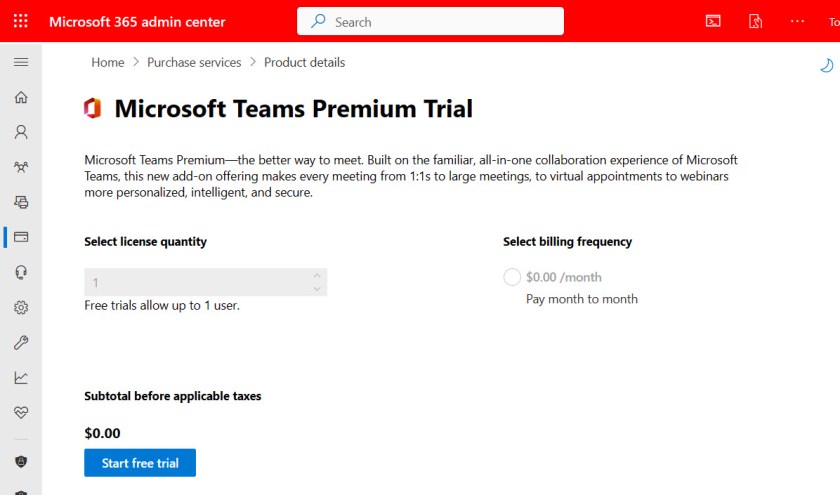
To get the licenses, go to the marketplace section of the Microsoft 365 admin center and search for Teams Premium under Purchase from Microsoft. According to Microsoft, the trial licenses are available starting now, but as of December 19, I did not see any mention of Teams Premium in the catalog available within the Microsoft 365 admin center. However, the direct link does work. (update: the Teams Premium trial licenses are available as described)

 Teams Premium free trial
Figure 1: Teams Premium free trial

Here’s the bizarre thing though. A bug in Microsoft’s internal eCommerce system stops tenants getting more than one license at a time. You can repeat the exercise three times to get three licenses and after that the eCommerce system fails to co-operate further and tells you that you’re “not eligible to buy this product.” Microsoft knows of the problem and will fix it, but perhaps not until the new year. I’ve been assured by Microsoft that the licenses obtained after the fix is in place will have their own 30-day trial period.

Features to Test

Microsoft’s documentation for Teams Premium licensing covers the additional features enabled over standard Teams in areas like meetings, webinars, and meeting protection and reporting. Some of the features are less interesting (to me) than others. The set that I’ll be paying close attention to include:

  • Translated post-meeting transcripts.
  • Adding watermarks to meetings. It won’t stop people taking screenshots of sensitive content presented during meetings, but it might deter some.
  • Assigning sensitivity labels to Teams meetings to protect content associated with the meeting such as shared files. The Purview team has already deployed the change to support a label setting for Teams meetings and OWA is also getting a similar feature (MC484925) and I want to compare the two.
  • It’s worth saying that not all the new features are available yet. I have noticed that the premium features for the new webinar experience work as expected (like operating a waitlist or requiring manual approval of participants – Figure 2), but other pieces of functionality listed by Microsoft are currently unavailable.
  • Time markers and autogenerated chapters in meeting recordings.

Oddly, there’s no mention in the documentation about intelligent meeting recap, one of the features hyped by Microsoft at the Ignite 2022 conference.

Some Teams Premium features are selected for this webinar
Figure 2: Some Teams Premium features are selected for this webinar

Limited Time for Testing

Given the limited amount of time available to test functionality using the trial licenses it might be wise to wait until after the holiday period before getting the licenses. Over the next few weeks, it’s unlikely that Microsoft will deliver a significant number of new features so running a solid 30-day trial starting in mid-January sounds like a good approach that should give organizations sufficient evidence to make an intelligent purchasing decision when Microsoft makes Teams Premium generally available. At Ignite 2022, Microsoft indicated that the target date is February 2023.

Understanding Licensing Rules for Teams Premium

Microsoft hopes to persuade customers to cough up the $10/month/user charge for Teams Premium licenses. I see no mention in their documentation about the scope of licensing. For instance, I assume that only a webinar or meeting organizer needs a Teams Premium license to organize an event that uses premium features, but some features like the ability to see live translated captions in your own language during meetings are likely to require per-user licensing.

It’s worth noting that Microsoft will move some features covered by the standard Teams license to the premium license. These features include:

  • Live translated captions.
  • Timeline markers in meeting recordings to note when users join or leave meetings.
  • Custom together mode scenes.

If you’ve been using these features, you might need to consider what to do in the future. The choice is to either drop using the features or pay for Teams Premium. I think it’s somewhat sneaky of Microsoft to move existing features into an optional license but I don’t get to vote.


So much change, all the time. It’s a challenge to stay abreast of all the updates Microsoft makes across Office 365. Subscribe to the Office 365 for IT Pros eBook to receive monthly insights into what happens, why it happens, and what new features and capabilities mean for your tenant.

❌