Vue lecture

Il y a de nouveaux articles disponibles, cliquez pour rafraîchir la page.
✇Collabmania

SharePoint List and Microsoft List 💥 Form 💥 Formatting
sharepoint online form formatting

This is a summary of the GitHub repository to format Microsoft List Forms in SharePoint Online or to format Microsoft List in Microsoft Teams.

This is the list as per 18/03/2023. I’ll update it regularly.

Getting started with : wrapped-body

Link

Wrapped Form Body

By default, uncustomized list forms display the fields in a single column. This is generally fine, but sometimes you may want to use more horizontal space and have your fields wrap. This is not technically a format but rather a body layout. No columns or sections are specified meaning that this can be applied to any form and it won’t change the order of display or what columns are visible it simply adds the wrapping.

screenshot of the sample

Wave header and footer

This sample demonstrates how to display waves in the header and footer of a form. Waves are displayed using SVG.

screenshot of the sample

Status Header and Footer

This sample shows a customized header and footer for a form with a Status column with possible values ‘Thinking about it’, ‘Working on it’, ‘Done’, and ‘Nevermind’.

This format is intended for the Header Format and Footer Format of the form body in the Configure Layout panel. Depending on the value of the Status column, a corresponding icon and colour scheme are used.

This sample shows a customized header and footer for a form with a Status column with possible values ‘Thinking about it’, ‘Working on it’, ‘Done’, and ‘Nevermind’.

This format is intended for the Header Format and Footer Format of the form body in the Configure Layout panel. Depending on the value of the Status column, a corresponding icon and colour scheme are used.

screenshot of the sample

Ribbon Header

This sample demonstrates displaying a ribbon in the header. The values of the Title column are displayed in the ribbon.

screenshot of the sample

Event Itinerary Header

This sample shows a customized header for the item form used in the “Event itinerary” list template.

screenshot of the sample

This format is intended for the Header Format of the form body in the Configure Layout panel. The body layout shown in the screenshot can be obtained by configuring sections within the Body panel (not included in this format).

Dashed Line Header

This sample displays the Title and Description values in the heading and decorates them with dashed lines. If the Description value is empty, it will be hidden.

dashed-line-header-text-left.json 

Blank header

Link

The post SharePoint List and Microsoft List 💥 Form 💥 Formatting appeared first on Collabmania.
✇Collabmania

Model Driven ou Canvas Apps ?

model driven powerapps or canvas apps

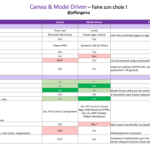
Suite à la conférence Modern Workplace Conference 2021 à Paris, voici le support de présentation de ma session où je vous éclaire sur le choix des Canvas Apps ou Model Driven Apps.

Tout d’abord regardons les licences nécessaires puis les usages / fonctionnalités de chaque application

J’espère que cette comparaison entre les Model Driven et Canvas apps vous permettra de choisir la bonne technologie.

Sachez que depuis 2021 il est possible d’ajouter une CANVAS Apps dans une model driven sur toute la page

The post Model Driven ou Canvas Apps ? appeared first on Collabmania.

✇Collabmania

Power Automate Meeting Reminder

Problématique :

Je rate parfois les rappels d’une réunion Teams. Notification perdue parmi toutes les notifications Windows.

Solution :

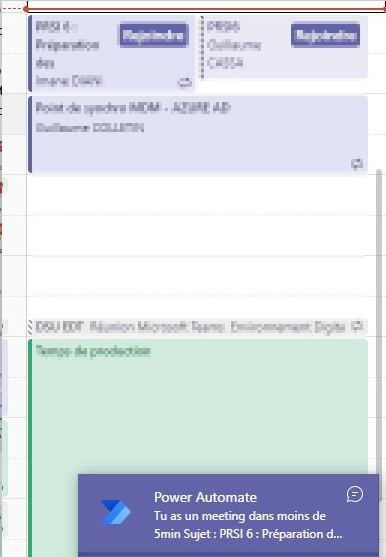
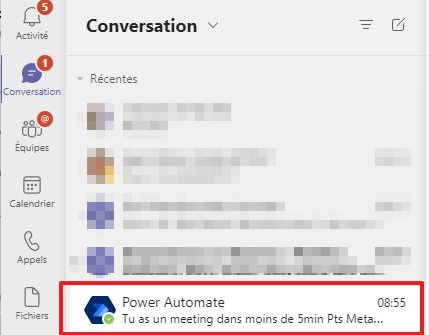
Un automatisme Power Automate qui m’envoie un message dans Teams 5min avant une réunion. Cela permet, de mon téléphone ou PC, de voir le rappel sans avoir Outlook ouvert.

Je suis notifié avant une réunion

Recette :

  1. Un Power Automate qui se déclenche toutes les 5 minutes
  2. Il récupère les meeting de ma journée
  3. Compare l’heure actuelle à l’heure de début de chaque réunion
    • Si l’heure de début est dans moins de 5min, alors envoie de message via Teams à l’utilisateur

Télécharger la solution

Télécharger la recette Power Automate

Comment l’installer ?

  • Aller sur Power Automate (via www.office.com)
  • Importer le Power Automate (importer le zip précédemment téléchargé)
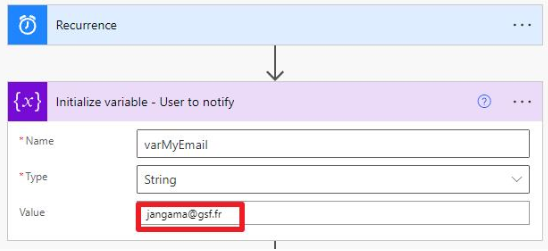
  • Éditer le Power automate et configurer votre Email

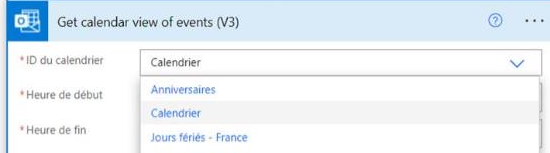
Vérifier que votre calendrier est sélectionné :

  • Sauvegarder
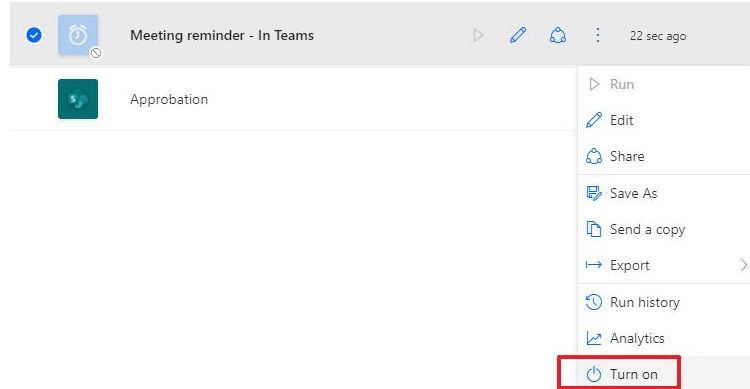
  • Activer le power automate

C’est tout bon !

Laissez vos suggestions dans les commentaires pour améliorer le Power automate !

Qu’en pensez-vous ?

The post Power Automate Meeting Reminder appeared first on Collabmania.

✇Collabmania

Programmatically remove every Teams except some by PowerShell Script

Why such script ?

My customer was a school, each year they need to recreate the Teams classroom, to reset the content and canal

The solution was to remove every Teams except the permanent one (workgroup Teams)

Below is the PowerShell Script. I use an xml file to connect easily to the Microsoft 365, avoiding re entering login / password

#By Jeff ANGAMA
#02.09.2020

#************GOAL************#
#This script remove every TEAMS except the one specified in variable $keepThoseTeams
#Write the list of TEAMS without ACCENT !!!

#************PRE REQUISITE - Run those commands to save your creds************#
#$pathToCred = "C:\credTenant.xml"
# $credential = Get-Credential
# $credential | Export-CliXml -Path $pathToCred

#************CONFIG************#
$keepThoseTeams = (
    'IT Team',
    'Support Informatique',
    'Training',
    'Administration',
    'College',
    'Coordinateurs lycee',
    'Documents de suivi lycee',
    'Budget',
    'Demande de creation de classe'
    )

#LOGS
$currentFolder = Get-Location
$timeStamp = $(((get-date).ToUniversalTime()).ToString("yyyyMMddThhmmssZ"))
$logFileName = "$currentFolder\logs\logDeleteTeams_" + $timeStamp + ".txt"
Start-Transcript -path $logFileName -append

#Connect
$pathToCred = "C:\credTenant.xml"
$credential = Import-CliXml -Path $pathToCred
Connect-MicrosoftTeams -Credential $credential

#remove accent from text, to avoid issue with contains or eq function containing accents
function get-sanitizedUTF8Input{   
    Param(
        [String]$inputString
    )
    #replace diacritics
    $sb = [Text.Encoding]::ASCII.GetString([Text.Encoding]::GetEncoding("Cyrillic").GetBytes($inputString))
    
    #remove spaces and anything the above function may have missed
    return $sb
}

Get-Team | ForEach-Object { 
    $valueToCheck = get-sanitizedUTF8Input -inputString $_.DisplayName

    if($keepThoseTeams -contains $valueToCheck){
        Write-Host -ForeGroundColor Green "Do not delete this Team " $_.DisplayName $_.GroupId
    }else {
        Write-Host "Deleting Team " $_.DisplayName $_.GroupId
        #Remove-Team -GroupId $_.GroupId
    }
}

Stop-Transcript

Write-Host -ForeGroundColor Green "END OF SCRIPT"

The post Programmatically remove every Teams except some by PowerShell Script appeared first on Collabmania.

❌