
 Connexion
Synchronising tasks at scale between Bloom Growth and Microsoft To Do
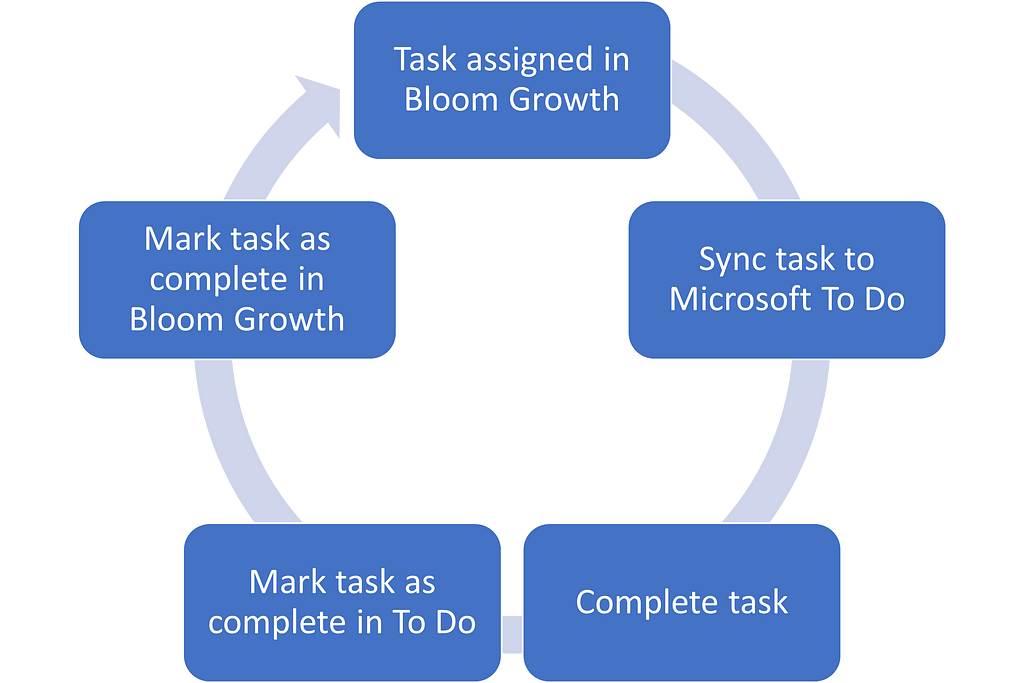
At Rapid Circle, we utilise a framework known as the Enterprise Operating System (EOS), and to help achieve this we use a tool called Bloom Growth (formerly known as Traction Tools).
I won’t get into the specifics of how it works, but one of the things that comes out of our weekly “L10” team meetings is tasks get allocated to people. (This isn’t rocket science, and is possible with many other systems, but Bloom Growth is what we and many organisations use.)
The Challenge
The only issue with tasks being created in Bloom Growth is that they stay in Bloom Growth. If you want to update them or mark them as complete — you need to log into Bloom Growth to do that. Additionally, the only way you’re reminded of the tasks is a daily email — which for many people gets lost in their sea of other reminder emails.
Effective users of the Microsoft 365 platform will use To Do for managing their tasks as it does a great job of individual task lists, shared task lists, and synchronising tasks with Planner.
So how do we connect the two together?
The Solution — v1
As soon as I started using Bloom Growth and was assigned a task, I immediately looked for any form of integration to be able to bring the tasks to where I work — in Microsoft 365. Unfortunately nothing existed that I could find.
A quick search online yielded a positive result — a Bloom Growth v1 API swagger.
The initial solution I built was for myself only using two workflows.
Flow #1
- Triggered based on a daily schedule
- Connects to Bloom Growth with my account
- Checks for any open tasks under my account
- Checks to make sure the tasks don’t already exist in To Do
- Creates tasks in a specific To Do task list with the Bloom Growth ID appended to the task title (required for Flow #2)
Flow #2
- Triggered when a task in the specific To Do list was updated, using a trigger condition to only run for completed tasks
- Connects to Bloom Growth with my account
- Looks for a task in Bloom Growth that matches the ID in the task title
- Marks the task as complete in Bloom Growth
While a few of my colleagues made copies of these workflows for themselves, I heard some of the managers lamenting that their staff were not completing tasks on time for the reasons mentioned above. And while I could go with the approach of walking people through setting it up, ultimately it’s a lot of separate solutions, running under each employee — which can be challenging to support.
Enter…
The Solution v2
While discussing this with one of my colleagues who was using a copy of my two flows, we wondered if there was a way we could do this at scale.
At the time, the Graph documentation for Microsoft To Do did not reflect that application permissions were supported for the endpoints, but I thought I’d try it anyway… and it worked.
So, without further ado, here is how to synchronise tasks from Bloom Growth with Microsoft To Do for large amounts of staff.
This solution utilises 3 workflows:
- Create a “L10 Tasks” folder for users
- Check for tasks assigned to them, add them to To Do
- Check for completed tasks in To Do, mark them as complete in Bloom Growth
Solution Requirements
There are 3 requirements we need for this to work:
Requirement #1: Bloom Growth access
For this solution to work, we need an account with administrator-level access in Bloom Growth, so that it can see the tasks of every single member.
Requirement #2: Azure AD App Registration
In order to be able to read/write everyone’s task lists, we need an Azure AD App Registration with the following permissions:
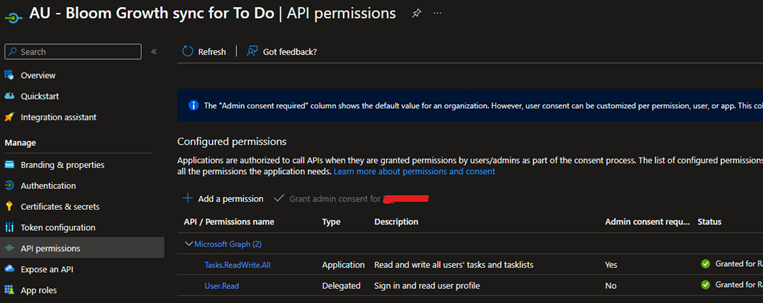
Create a client secret, and that’s it!
Requirement #3: Table to store user-specific information
For my solution, I used a SharePoint list out of convenience. However, you could use a Dataverse table or something else if you like.
All we need to store in this list is:
- User Principal Name (UPN)
- Bloom Growth ID
- Task list ID
Workflows
Workflow #1: Create the “L10 Tasks” list in To Do
This workflow runs on a regular basis and performs the following functions:
- Get members of a security group (so we only apply this to valid users)
- Find their Bloom Growth user ID
- Create the task list in To Do
- Record the details in a table
Of course we need some basic error checking to handle if they already have an existing task list, and secondly whether they actually exist in Bloom Growth.
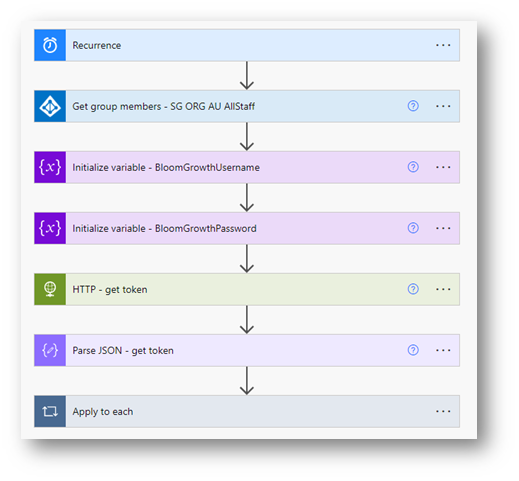

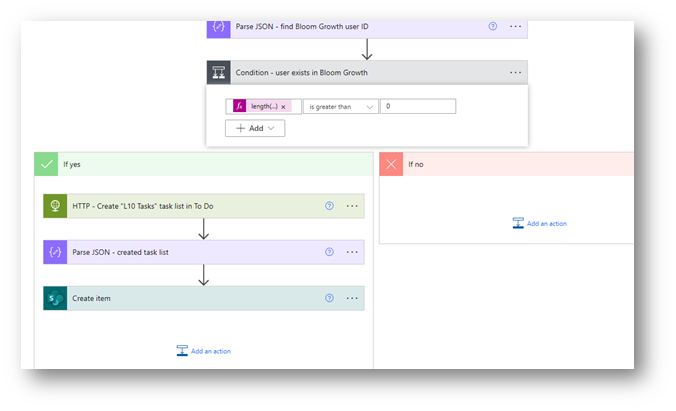
Sure the workflow is not necessarily as elegant as it could be, but it only takes about 2–3 minutes to run for about 80 users, so I don’t feel the need to optimise it at this point.
Workflow #2: Check for new tasks in Bloom Growth and create them in To Do
This workflow is timed to run after the first workflow, and performs the following functions:
- Get the users to run the sync against
- For each user, find tasks assigned to them in Bloom Growth
- Check if those tasks already exist in the “L10 Tasks” list (using the Bloom Growth task ID as a reference)
- If not found, create the task in To Do with the Bloom Growth task ID in the title (used by the previous step, and the next workflow)

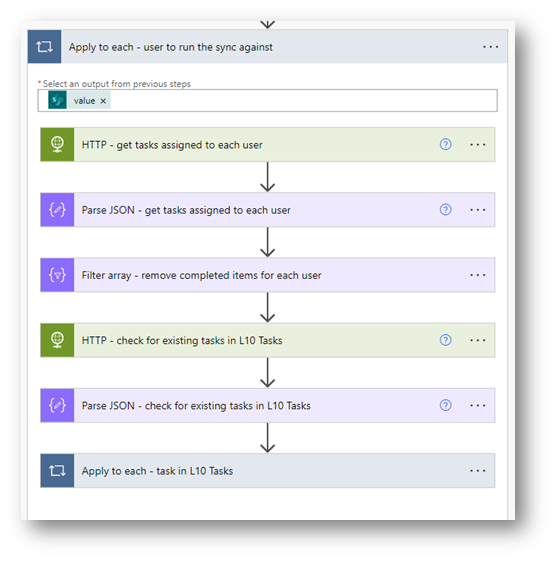
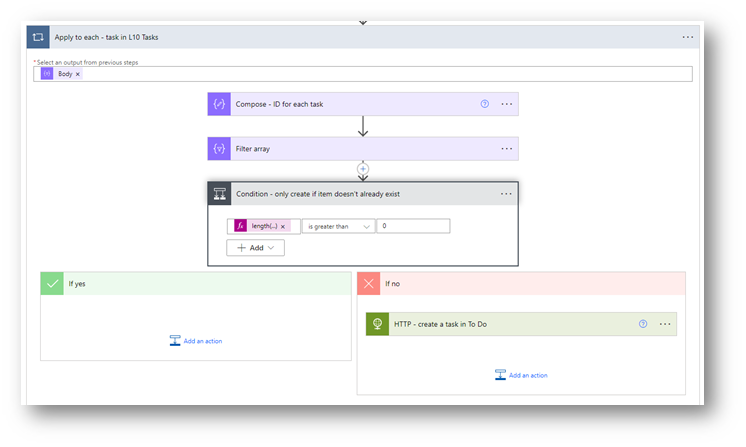
Again, this workflow could be more elegant, but it also only takes a whopping 2–3 minutes to run for the 80 users.
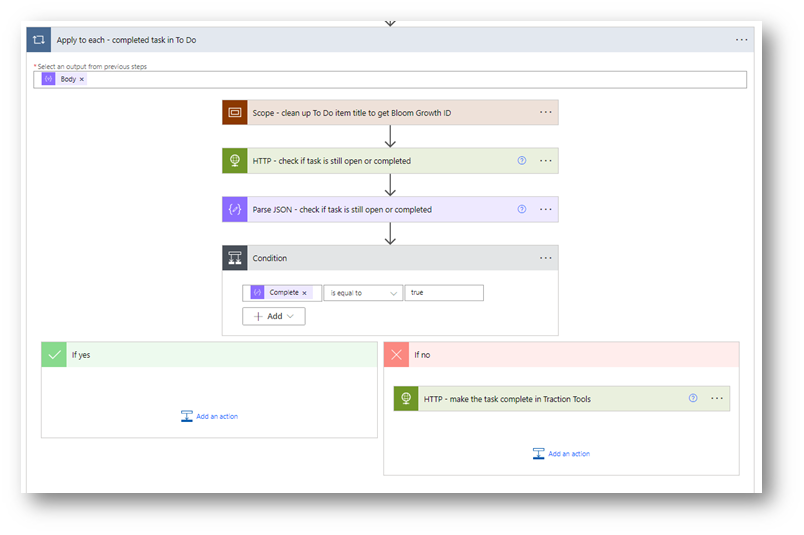
Workflow 3: Check for completed tasks in To Do and update their status in Bloom Growth
The first part is the same as Workflow 2, but what it does within the Apply to each is different.
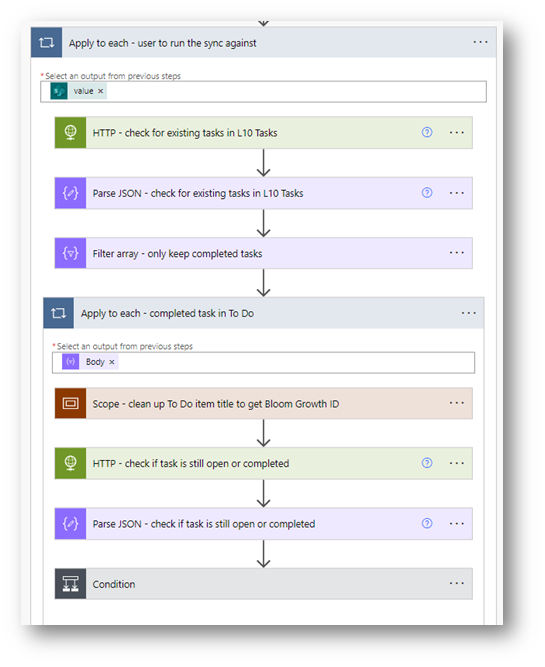
Within the scope we retrieve the Bloom Growth ID of the task from title of the To Do task:
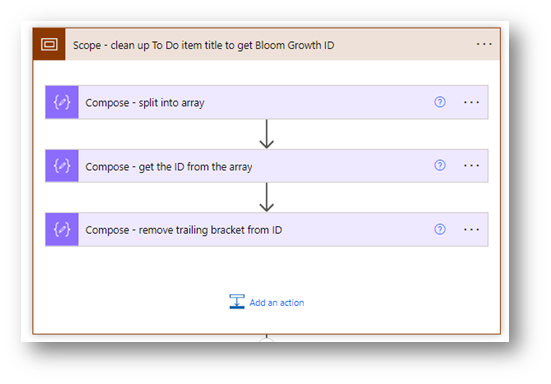
Then we check if the task is still open in Bloom Growth or not (as someone may have already marked it as complete directly in the web portal, and we don’t want to get an error):
The Final Result
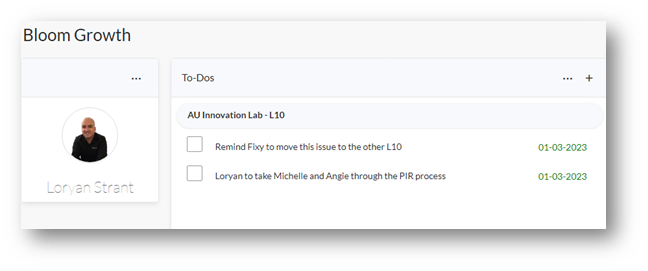
Here’s what my tasks look like in Bloom Growth:
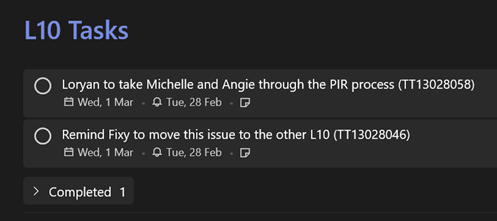
And in To Do:
So let’s mark one of these tasks as complete in To Do:
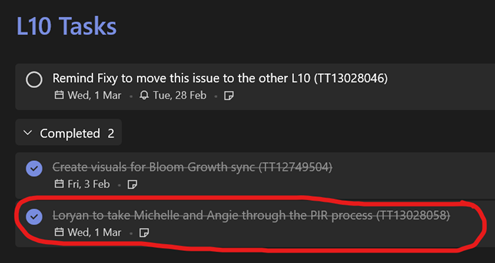
And presto:
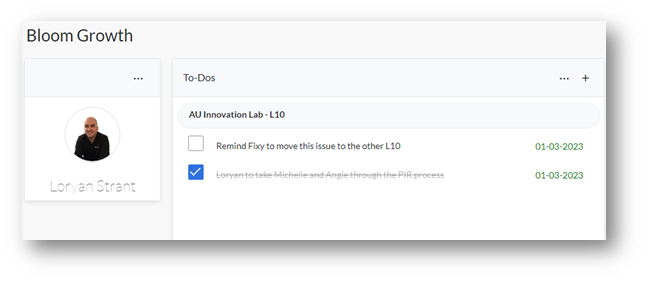
You can download the full solution from my PowerThings repository on GitHub.
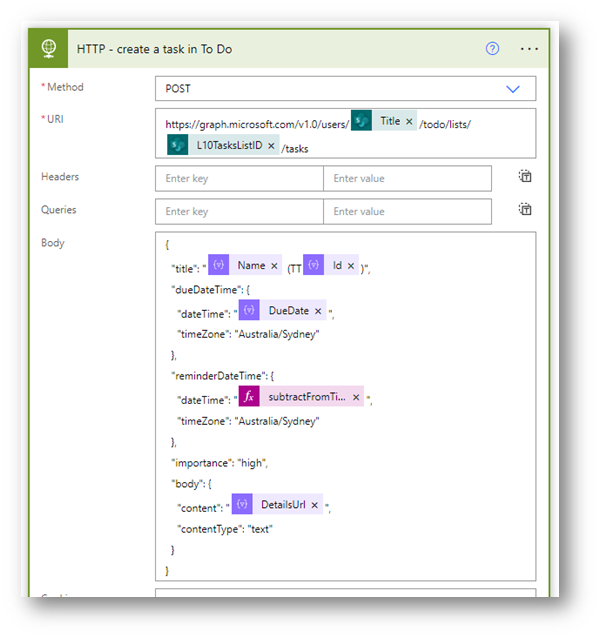
Appendix — Graph endpoints used
This blog post is already long, so I’ve put the breakouts of the To Do specific API calls down here.
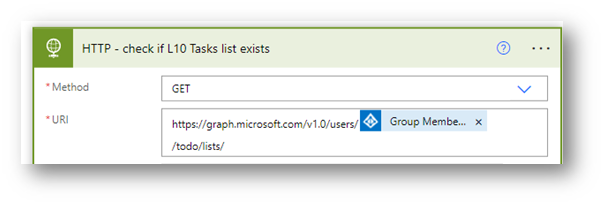
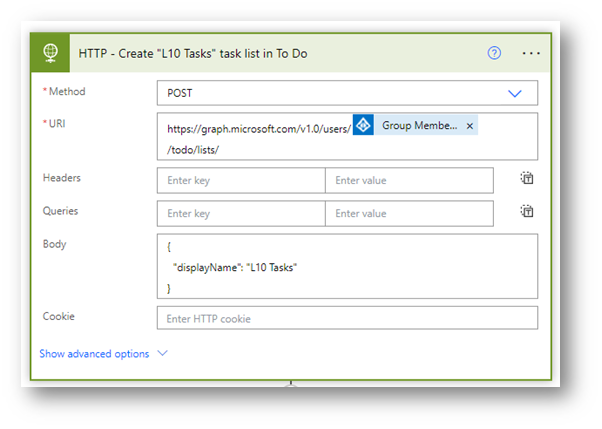
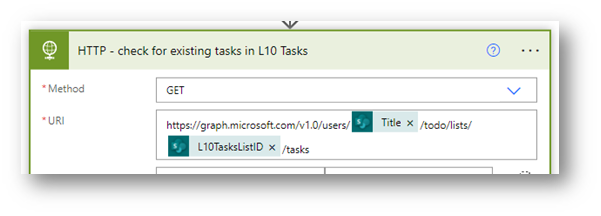
Originally published at Loryan Strant, Microsoft 365 MVP.
Synchronising tasks at scale between Bloom Growth and Microsoft To Do was originally published in REgarding 365 on Medium, where people are continuing the conversation by highlighting and responding to this story.

