Vue normale

Il y a de nouveaux articles disponibles, cliquez pour rafraîchir la page.
À partir d’avant-hierSharePoint

2 ways to request document approval in SharePoint Online

Approvals… We always need to approve something. In the corporate world, you can’t do much without obtaining approval from your boss, project team, Finance, or Legal department. Luckily, we have a few quick ways to request Document approvals in SharePoint. The below post summarizes both options.

Use Cases for Document Approvals

There are plenty of use cases when you might want to obtain approval for a document. These are just a few from my good old corporate days…

  • Obtain approval from Finance for an invoice before processing it
  • Obtain approval from Legal for a contract before sharing it with the customer
  • Obtain approval for a budget from your boss
  • Obtain approval for a project Charter from Project Owner/Sponsors
  • Obtain approval from a project team for meeting minutes and action items

How to obtain document approval in SharePoint Online

There are two ways for you to obtain approvals in SharePoint. You can do so via SharePoint document library or an Approval Team Apps. I document both below. Both options vary in terms of user experience but rely on the same Power Automate logic.

Option 1: Document Approval via SharePoint document library

The first option to approve documents is via the SharePoint Document Library. You can easily check the box next to the document and Request Sign-Off. I provided step-by-step instructions here.

Option 2: Document Approval via Approval App in Teams

The second option is a bit more “elegant” and is possible thanks to a recent addition to Teams – the Approval App. I once again documented the process in this article.

Which option to choose?

Use SharePoint Request Sign-Off if…

  • You primarily access documents via the SharePoint interface and not Teams
  • You primarily need to request sign-off from documents in a specific document library
  • You prefer that recipients approve via Email (Outlook) rather than the Teams interface

Use Teams Approvals App if…

  • You primarily live in Teams, rather than SharePoint or Outlook
  • You primarily need to request approvals from various sources (document libraries)
  • You prefer that recipients approve via Teams rather than Email (Outlook)

The post 2 ways to request document approval in SharePoint Online appeared first on SharePoint Maven.

Migrating Workflow Manager to SharePoint Workflow Manager on new hardware

At the moment we have official documentation available on how to upgrade an existing Microsoft Workflow Manager installation to SharePoint Workflow Manager and how perform a fresh installation of SharePoint Workflow Manager. What is missing are the required steps if an existing Microsoft Workflow Manager should be replaced with a new SharePoint Workflow Manager on […]

New Documentation: SharePoint Workflow Manager installation and configuration

We recently announced the release of SharePoint Workflow Manager which is a replacement for Microsoft Workflow Manager. Meanwhile new documentation has been released covering the installation and configuration of SharePoint Workflow Manager: Install and configure workflow for SharePoint Server

What is an Approval App in Teams?

One of the relatively recent additions to Microsoft Teams was the addition of an Approval app. In this article, I want to explain to you what it is all about and how to make the most out of this wonderful addition.

What is an Approval App in Teams?

Approval App in Teams is an app that allows users to bring together and centralize all of the workflow approval processes. Specifically, it will enable the users to approve or reject items/documents submitted by others or initiate an approval workflow themselves.

Approval App in Teams

Think of Teams App as a subset of the Power Automate application brought inside of Microsoft Teams.

Approval App is a personal App

It is imperative to note that the Approval App is a personal application, not a group one. I explained the difference between the two in this post. That means it shows only the workflows/approvals sent directly to the user or initiated by the user. The App does not show the workflows/business processes created and managed by others.

How to install the Teams Approval App

  1. To install the application, click on three dots on the sidebar on the left, then search for ApprovalsApproval App in Teams
  2. The App will now be added to the sidebar for easy access. You can pin it from there so it stays there permanently.

Team Approval App components

Received Approvals

  1. If you are looking to approve or reject items submitted by others, you would need to click on the Received tab
  2. There, you will get a dashboard of all requests submitted to you for Approval
  3. Clicking on the item, will provide you with the history of the approval/submission
  4. And if you need to approve or reject, you can do as wellApproval App in Teams
  5. And it will be marked as such in the dashboard

Sent Approvals

If you have submitted a document for review (more about this below), you will need to click on the Sent Approvals tab. It will state to who you sent Approval requests to and their status.

New Approval Request

You can also initiate new approval requests from the Teams Approval App. Just click on the New approval request

Approval App in Teams

Create or Manage Approval Templates

There is also a way for Admins and team Owners to create approvals based on common business scenarios (i.e., vacation requests). This is probably a topic for another post, so I will make sure to write a separate article later on how to configure those for your team or organization.

The post What is an Approval App in Teams? appeared first on SharePoint Maven.
Announcing the release of SharePoint Workflow Manager for SharePoint Server

Microsoft is pleased to announce the release of SharePoint Workflow Manager, a new workflow engine to power the SharePoint 2013 Workflows platform for SharePoint Server and replace Service Bus and Microsoft Workflow Manager. SharePoint Workflow Manager is compatible with SharePoint Server 2013, 2016, 2019, and Subscription Edition. We recommend that all SharePoint Server customers using […]

Creating Rules for Microsoft Lists – A Simple Alternative to Power Automate Flows

Somewhere between the classic Alerts functionality and Power Automate flows, we find the ability in Microsoft Lists to create rules for lists. Rules allow us to do some pretty basic – but VERY common things.

Creating a rule for a list is fairly straightforward. In the toolbar at the top of the list view, click on automate, and Create a rule.

There are only four options right now, but I expect this will expand. Microsoft is getting better at building what I think of as “bridging functionality”. Rather than the old days, where almost everything useful required a developer, there are now multiple options along a spectrum to accomplish many things.

The four options today are Notify someone when…

  1. A column changes
  2. A column value changes
  3. A new item is created
  4. An item is deleted

Note that #2 and #4 weren’t even possible not that long ago. We had to do all kinds of hocus-pocus for #2 and there simply wasn’t a “hook” for #4.

If you think about it, a huge number of SharePoint Designer workflows were built over the years JUST to send email notifications. This applies the 80/20 rule (one of my favorite rules – aka the Pareto Principle) to those use cases.

When you choose which rule you’d like to use – and I love how the graphics make it much easier to decide – you land on a screen where you just need to select a few values to set things up. If you’ve ever created a rule in Outlook to shuffle emails from specific sources into folders, you’ll recognize this type of logic.

The screen is also “list aware” – it knows which columns might make sense for each slot and what its possible values are. Here, I’m asking the list to notify me when the Category column is (equals) “(1) Category1”.

For the notification, all Person columns in the list are available.

As you can see, there’s little thinking involved: the columns are available in a dropdown when you need them.

Once you’ve set up a rule or rules, you can manage them from the same dropdown.

The ensuing screen shows you all the rules you have created, allowing you to delete them or just turn them off. The “Off” toggle is excellent to have when you’re loading content or making bulk metadata changes. You can stop the flood of notifications easily but equally easily turn the rule(s) back on.

Under the covers, this capability undoubtedly uses the web hooks for list items. This means the notifications will be fast and painless.

By the way, you may be wondering what those notifications look like. Truth is, they are nothing fancy. But they probably look better than 80% of the notifications you ever built in SharePoint Designer workflows over the years. This is another area where I expect the capability will expand, allowing some level of customization for the emails.

So the next time someone asks you to write a flow just to send an email when list items change, make sure to think about using rules instead. They will be amazed how fast you solve the problem.

Nintex Workflow UDA Usage report script

Yesterday I worked with a client that have many Nintex workflow published with heavy usage of UDAs(User Defined Actions). I wanted to get a detailed report on the UDA usage. Unfortunately I am not aware of any  out of the box Nintex tool that can do that. The Analyze button can give you some information, but you need to click on the workflow to find out where it is located, you need to be in the scope where the UDA is published, you can get information for one UDA at a time and the information is not really "exportable".
This is why I created a powershell script that will give you information for the UDA usage across the farm on all levels. It will give you useful information like UDA Name, Workflow Name, Defined At, List, Web, Site, WebApplication, WorkflowType, Author, UDA Version Used, Workflow Id.
There are two "modes" of the script, the default will give you just the GUIDs of the list,web,site and the web apps. If you want to get the name of the list and the URLs you need to use the second mode that will require more time to complete but will give you nice looking URLs instead GUIDs. If you want to get the URLs just use switch parameter GetUrls. The result can be saved in CSV format or it can be outputted in powershell. If you give value for CSVPath the Grid View will open at the end to visualize the data. The main source of information is the Nintex Configuration database and you can use the script with SQL authentication if you have an account with enough permissions and your SQL supports it.
I have tested the script with SharePoint 2016,2013 and 2010 and the oldest Nintex Workflow version I tested was 2.3.7.0.
You can see the code and the output examples below. I hope you find it useful!

Output with URLs retrieved:
Nintex Workflow UDA Usage report with URLs

Quick output with GUIDs:
Nintex Workflow UDA Usage report with GUIDs

Display related item repeating section in Nintex Workflow task form

Last week I worked with a customer that had repeating sections in Nintex Forms 2013 item form and Nintex Workflow 2013 workflow associated with the list. The customer had the requirement to be able to properly display the repeating section data in the workflow task forms. This requirement does not seems to be a straightforward to accomplish, but in this post I am going to demonstration that this is actually very simple and since I haven't found this in other sources I am sharing my solution and other useful links in this post.
The issue with the repeating section is that it is living as "section"only in the form. You can connect the entire repeating section to a field with type "Multiple lines of text" and you will see that our repeating section value is actually saved as XML.

Nintex Repeating Section

The item actually looks like this:

Nintex Repeating Section  Form

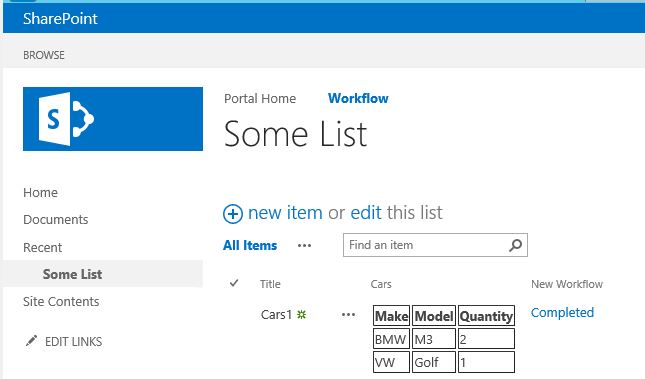
The first nice thing that is not directly related to the title of this post is to make the XML data looks better in List View. To accomplish this I am going to use the CSR (Client-side rendering) approach demonstrated in this post "Displaying Repeating Section as table in List View - the CSR approach". Adapting and applying the script to my list view gives me below result that is way better than the XML.

Repeating Section CSR


The way to make sense out of the repeating section in workflow is by querying the XML from the field. I will not go in dept since there are many resource on the subject. One thing that can help you in this task is this article "Nintex Forms/Workflow - Parsing Repeating Section Data" by Vadim Tabakman.
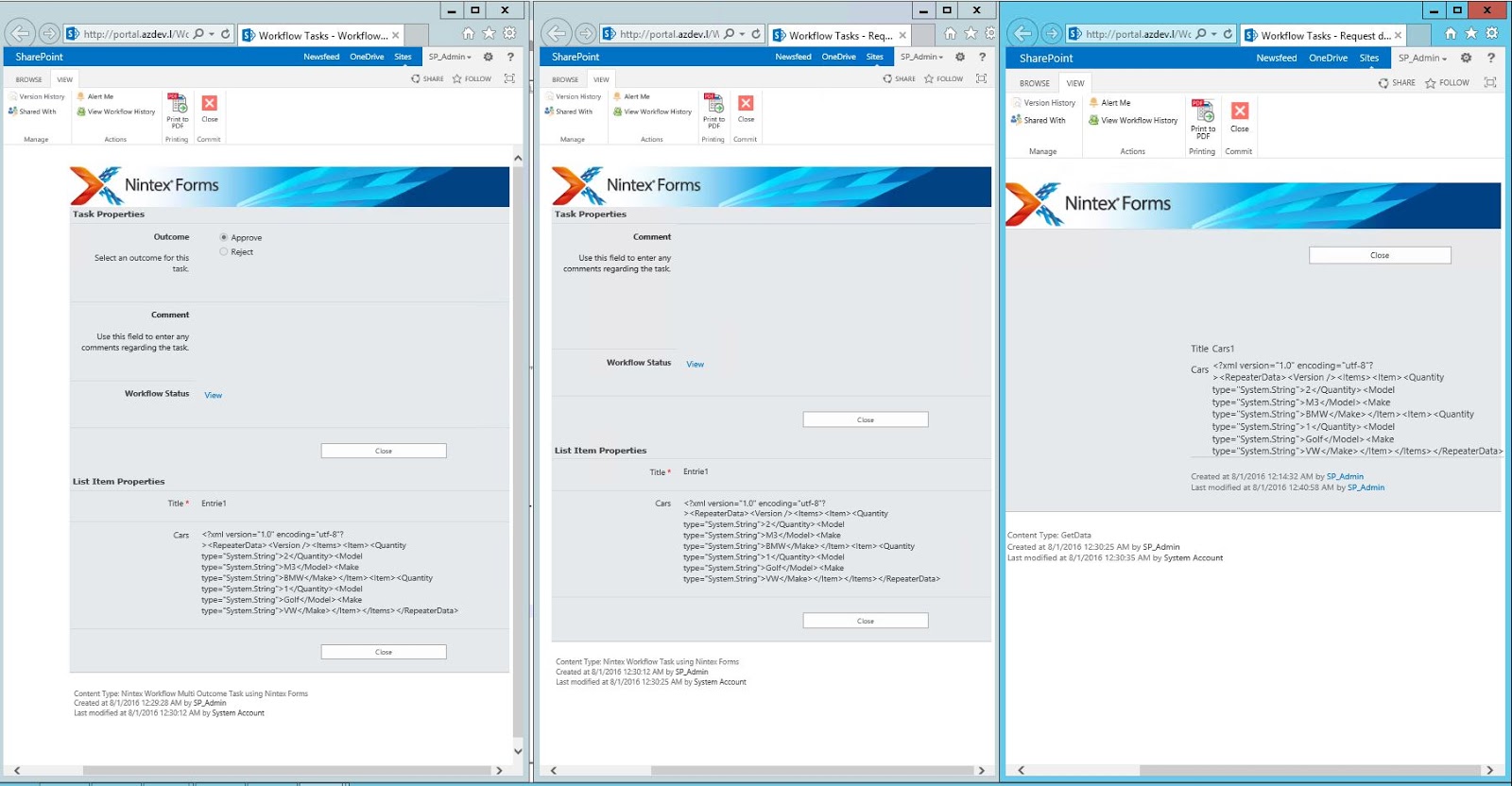
Now to the reason to write this post. If you have tasks in your workflow it will not be unusual you or your customer/users to want to see the related item properties right in the task form instead clicking on links. If you leave the form as it is, the best you can get is to view the repeating section as XML. You can edit the task forms with Nintex Forms for most of the task templates you will get a good starting point and all item properties controls will be created. However check out how this controls look like in three common tasks. From left to right Flexi Task, Request review and Request data.

Nintex Task Forms

As you can see the data from the repeating section is displayed as XML. Even in the "Request data" template where I have used "List item" control to display the related item. 
This was also the case with the customer, they had many "Request data" tasks and all of them were using "List item" control to display the related item.
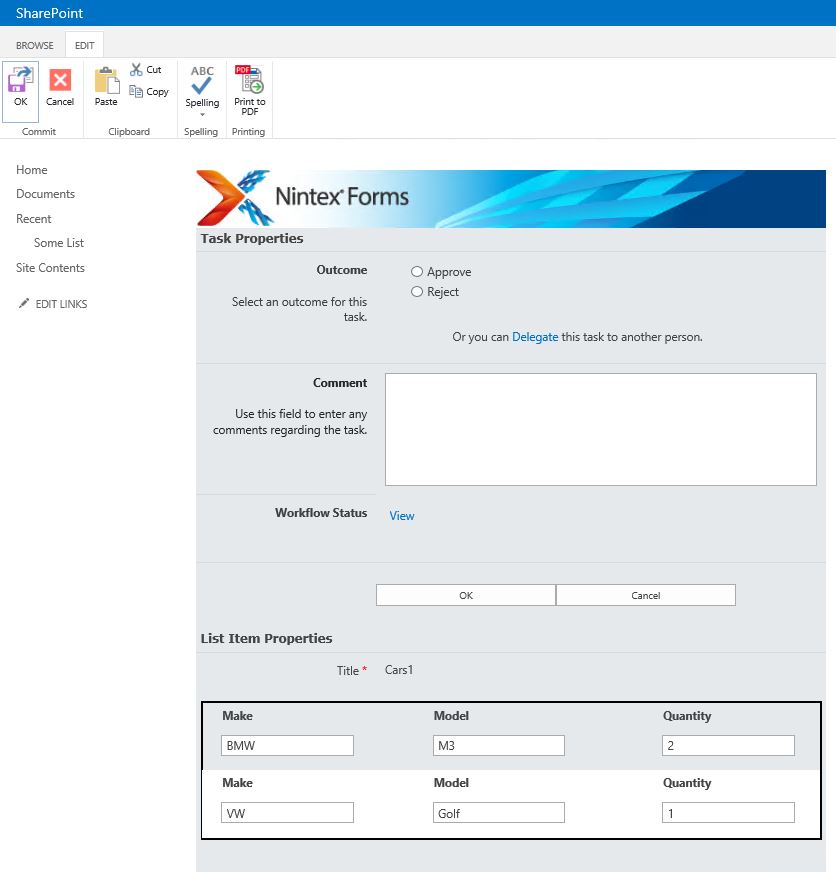
The solution to this is very simple, just create a new repeating section in the task form, recreate all child controls by replicating the data type and the Name of the controls. Then connect the repeating section control to the related item field that contains the XML from the related item. Checkout how a Flexi task looks like if you recreate the repeating section as described.

Flexi Task Form


The data from the repeating section in the related item is represented as repeating section in the task form as well. Just make sure that the names of the controls are as in the original item, make the repeating section read only in the task form and you will be completely fine.
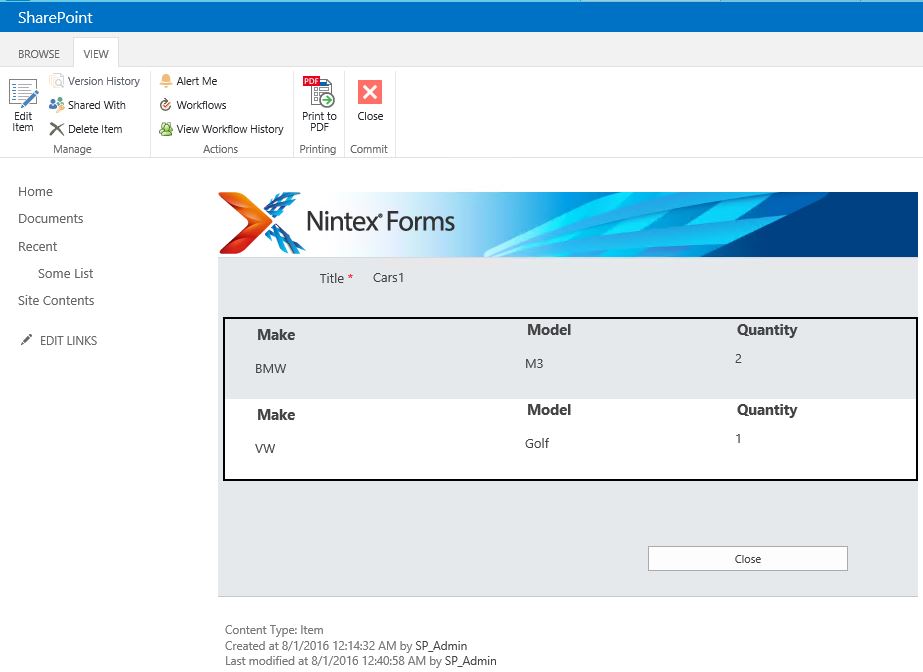
I tested the same approach in SharePoint 2016 and Office 365. However something interesting is happening with the XML as you can see in the screenshot below (the field is called Rep)

Task Form Office 365

The important thing is that the repeating section is visualized as expected. If I found what is happening with the XML might blog about it.
I hope that this was helpful! 
❌
❌