
Vue normale

Il y a de nouveaux articles disponibles, cliquez pour rafraîchir la page.
À partir d’avant-hierMS Technology Talk

TechDay Pakistan 2023

We are thrilled to announce the 2nd edition of TechDay Pakistan, the highly anticipated online event that will take place on March 11th, 2023. Our goal is to bring together Microsoft 365, Azure, AI, D365, Power Platform specialists, developers, architects, end-users, and other professionals who work with Microsoft Cloud Technologies.

Our event aims to provide a platform for attendees to learn and share the latest information, best practices, and insights on various topics related to Microsoft Cloud Technologies. We will have expert speakers who will share their knowledge and experiences, along with interactive sessions, demos, and networking opportunities for all participants.

TechDay Pakistan 2023 is an opportunity for professionals to stay up-to-date with the latest trends, techniques, and tools in Microsoft Cloud Technologies. Whether you are a seasoned expert or a newcomer, our event promises to offer something for everyone.

So, mark your calendars for March 11th, 2023, and join us for a day of insightful discussions, learning, and networking. We look forward to welcoming you to TechDay Pakistan 2023.

For more info visit: https://techdaypakistan.com

Registration

We are excited to invite you to register for TechDay Pakistan 2023, the premier online event for Microsoft Cloud Technology professionals in Pakistan. Don’t miss the chance to connect with experts, learn about the latest tools and techniques, and expand your network.

Registration is now open and easy to access at our Eventbrite page. Follow the link provided below to secure your spot and join us on March 11th, 2023 for a day of knowledge sharing and networking.

Click here to register: https://www.eventbrite.com/e/techday-pakistan-2023-tickets-578556928347

We can’t wait to see you at TechDay Pakistan 2023!

Sessions

Saturday, March 11, 2023

Power Platform Powerhouse Microsoft 365 Mastery AI and Azure

9:00 am

Power Platform Powerhouse
9:00 am → 30 min

USE AI IN POWER PLATFORM: REAL-TIME USE CASE

Microsoft 365 Mastery
9:00 am → 40 min

Cloud Adoption Framework – Governance Overview

9:45 am

10:30 am

Power Platform Powerhouse
10:30 am → 40 min

The Power of PowerFx

Microsoft 365 Mastery
10:30 am → 40 min

Pitfalls for Data Analytics Domain in Pakistan

11:15 am

AI and Azure
11:15 am → 40 min

Let’s take a look at Azure Monitor!

12:00 pm

Power Platform Powerhouse
12:00 pm → 40 min

Leverage GTP-3 in Power Platform

12:45 pm

Power Platform Powerhouse
12:45 pm → 40 min

Automated in-memory testing of Power Automate Flows

1:30 pm

AI and Azure
1:30 pm → 40 min

Building a Responsible AI strategy

2:15 pm

Microsoft 365 Mastery
2:15 pm → 40 min

From Zero to Hero with Lookup Family Functions

AI and Azure
2:15 pm → 40 min

Automate workflows with Azure and Open API

3:00 pm

3:45 pm

Power Platform Powerhouse
3:45 pm → 40 min

Power Platform Accessibility 101

Microsoft 365 Mastery
3:45 pm → 40 min

Database Design Fundamentals

AI and Azure
3:45 pm → 40 min

Introduction to Azure Functions

Session and Speaker Management powered by Sessionize.com

Speakers

The post TechDay Pakistan 2023 appeared first on MS Technology Talk.

Microsoft 365 Discovery Series 2023

The Microsoft 365 Discovery series is an exciting opportunity for individuals to expand their knowledge and skills in Microsoft 365. Starting on February 10th, 2023 and continuing until March 31st, 2023, the series will consist of eight weeks of informative sessions. Each Saturday, attendees will have the opportunity to attend two sessions – one featuring a community speaker discussing various aspects of Microsoft 365, and the second focused specifically on Microsoft SharePoint.

This series is completely free and open to those who have a basic understanding of Microsoft 365. Our goal is to provide individuals with the opportunity to enhance their skills and expertise in Microsoft 365 technology. Whether you are a seasoned professional or just starting out in the Microsoft technology landscape, this series offers an excellent chance for you to develop and strengthen your skills.

Register

Register: https://www.eventbrite.com/e/microsoft-365-discovery-series-2023-tickets-536799390427

Speakers

Sessions

  • PowerPlatform and AI

    Week 4
    Fri, 3/3/2023 6:15 pm – 6:50 pm
  • Guidance for a succesful deployment of Modern Workplace Enviroment Using SharePoint ,Teams ,Viva

    Week 2
    Fri, 3/3/2023 7:00 pm – 7:35 pm
  • You’ve got an error in your Flow? Great, let’s deal with it

    Week 3
    Fri, 3/3/2023 7:00 pm – 7:35 pm
  • SharePoint Online Admin Center: A Comprehensive Guide

    Week 4
    Fri, 3/3/2023 7:10 pm – 7:45 pm
  • Mastering SharePoint Online: A Beginner’s Guide to Customization and Administration

    Week 2
    Fri, 3/3/2023 7:50 pm – 8:25 pm
  • SharePoint Online Governance: How to Develop a Governance Plan for SharePoint Online Environment

    Week 3
    Fri, 3/3/2023 7:50 pm – 8:25 pm
  • Microsoft 365 for Developers

    Week 1
    Fri, 3/3/2023 8:00 pm – 8:35 pm
  • Microsoft Teams with bots, connectors and tabs

    Week 4
    Fri, 3/3/2023 8:00 pm – 8:35 pm
  • Getting Started with Adaptive Cards in the Viva Dashboard: A Beginner’s Guide

    Week 5
    Fri, 3/10/2023 7:00 pm – 7:35 pm
  • Ensuring High Value MS Teams in an Agile organisation

    Week 5
    Fri, 3/10/2023 7:45 pm – 8:20 pm
  • M365 Automation for Company Employee Onboarding

    Week 5
    Fri, 3/10/2023 8:30 pm – 9:05 pm
  • No code implementation of AZ AD/Facebook/Google/Twitter/ authentication in Azure App service

    Week 6
    Fri, 3/17/2023 6:00 pm – 6:35 pm
  • In 3 steps to a better meeting culture with Microsoft VIVA Insights

    Week 6
    Fri, 3/17/2023 6:45 pm – 7:20 pm
  • How to Build a Video Portal in SharePoint Online

    Week 6
    Fri, 3/17/2023 7:30 pm – 8:05 pm
  • Power Automate and SharePoint Online Integration

    Week 6
    Fri, 3/17/2023 8:15 pm – 8:50 pm
  • Overview Microsoft Teams Calling Plans, Direct Routing, Operator Connect and Operator Connect Mobile

    Week 7
    Fri, 3/24/2023 6:00 pm – 6:35 pm
  • Introduction to Microsoft Learn and Upskilling

    Week 7
    Fri, 3/24/2023 6:45 pm – 7:20 pm
  • Taking Microsoft Teams to the next level

    Week 7
    Fri, 3/24/2023 7:30 pm – 8:05 pm
  • Turbo-boost your SPFx validations and upgrades using CLI for Microsoft

    Week 8
    Fri, 3/31/2023 6:00 pm – 6:35 pm
Session and Speaker Management powered by Sessionize.com

The post Microsoft 365 Discovery Series 2023 appeared first on MS Technology Talk.
SharePoint Online Site Collection Migrations

Migration is a process to migrate content from one location to another and similarly SharePoint online site collection migration is the process of moving a SharePoint site collection from one environment (such as an on-premises SharePoint server) to another environment (such as SharePoint Online in Office 365). This can involve copying all of the site collection’s content, data, and configurations to the new environment, and ensuring that the site collection functions as expected in the new environment. This process can help organizations take advantage of the benefits of SharePoint Online, such as increased scalability and improved security, while still retaining access to their existing SharePoint content and data. The migration process can be complex, so it’s often recommended to use a migration tool to help simplify the process.

Steps to Migrate a SharePoint Online Site Collection

Here are the steps to migrate SharePoint Online site collection content to another location:

Preparation:

  • Plan the migration process, including the scope and timeline.
  • Verify that the source and destination environments are compatible.
  • Create a backup of the source site collection.

Data Collection:

  • Use a migration tool or the SharePoint Online Management Shell to collect the data from the source site collection.
  • Store the collected data in a secure location.

Data Import:

  • Create a new site collection in the destination environment.
  • Use a migration tool or the SharePoint Online Management Shell to import the collected data into the new site collection.

Data Validation:

  • Verify that the data has been imported correctly and that the site collection is functioning as expected.
  • Test the site collection for any issues and resolve them.

Post-migration activities:

  • Update any URLs or links in the site collection.
  • Finalize the migration process and clean up any temporary files.

PowerShell script to migrate SharePoint online site collection

Here is an example of how to use PowerShell to migrate SharePoint Online site collection content to another site collection:

Connect to SharePoint Online:

$username = "user@mstalk.onmicrosoft.com"
$password = Read-Host -Prompt "Enter password" -AsSecureString
$cred = New-Object -TypeName System.Management.Automation.PSCredential -ArgumentList $username, $password
Connect-PnPOnline -Url https://mstalk.sharepoint.com -Credentials $cred

Backup the source site collection:

Export-PnPClientSideSolution -Identity sitecollection.sppkg -OutputPath c:\backup

Import the backup to the destination site collection:

Import-PnPClientSideSolution -Path c:\backup\sitecollection.sppkg

Verify the import:

Get-PnPClientSideSolution

We shared a basic example and when you are trying to migrate using then you need to change the PowerShell commands and parameters depending on the specifics of your migration, such as the size of your site collection and the migration tool you’re using. It’s recommended to use a migration tool to simplify the migration process, as the process of migrating a SharePoint Online site collection can be complex and time-consuming.

The post SharePoint Online Site Collection Migrations appeared first on MS Technology Talk.

SharePoint On-Premise Migrations

SharePoint on-premise migration refers to the process of moving data, content, and settings from a SharePoint on-premise environment to a different environment, such as another on-premise environment, SharePoint Online, or a hybrid environment.

This migration process is necessary when organizations need to upgrade their existing SharePoint environment, move to a different hosting solution, or consolidate multiple on-premise SharePoint farms into a single environment.

Steps Involved in a SharePoint on-premise Migration

The steps involved in a SharePoint on-premise migration include:

  1. Planning: Define the scope of the migration, determine the content to be migrated, and plan the migration timeline.
  2. Preparation: Check the compatibility of the source and destination environments, set up the destination environment, and test the migration process.
  3. Data Migration: Copy the content, data, and settings from the source environment to the destination environment.
  4. Validation: Verify that the data has been successfully migrated and that the destination environment is functioning correctly.
  5. Post-migration activities: Finalize the migration, update the URLs, and configure the environment as needed.

The process of SharePoint on-premise migration can be complex, especially when migrating a large amount of data, so it’s recommended to use a migration tool or engage a professional migration services provider to ensure a smooth migration process.

The post SharePoint On-Premise Migrations appeared first on MS Technology Talk.

SharePoint Migration detail overview

SharePoint Migration is the process of transferring content, data, and configurations from one SharePoint environment to another. The migration process can involve moving from one version of SharePoint to another, from an on-premises environment to the cloud, or from one SharePoint tenant to another. The main goal of SharePoint Migration is to ensure that the content and data remains accessible and usable after the migration.

I am going to write a series of blogs on SharePoint migrations and differences on SharePoint On-Premise and SharePoint online migrations.

Important Migration Factors

There are several factors to consider when planning a SharePoint Migration, including:

  • Source and destination environment compatibility: Ensure that the source and destination environments are compatible and can support the content, data, and configurations being migrated.
  • Content scope: Determine which content, data, and configurations will be migrated, and which will be excluded.
  • Timeline: Establish a timeline for the migration, including planning, preparation, data collection, data migration, testing, and go-live.
  • Tools and methods: Choose the right migration tool and method based on the size of the migration and the complexity of the content and data being migrated.
  • Security and compliance: Ensure that the migration process complies with security and data protection regulations, and that the migrated content and data remains secure in the destination environment.
  • User experience: Consider the impact of the migration on end-users, and plan for training, communication, and support to minimize disruption to the user experience.

The SharePoint Migration process can be complex, so it’s recommended to plan and test the migration thoroughly before executing it. The use of a migration tool can help simplify the process and minimize the risk of data loss or disruption to the user experience.

Different Ways of SharePoint Migrations

There are several different ways to perform SharePoint migrations, depending on the size, complexity, and specific requirements of your migration. Here are some common methods for SharePoint migrations:

Manual Migration:

Manually copying and pasting content and data from one SharePoint environment to another. This method is typically used for small migrations and requires manual configuration of the destination environment.

Third-party Migration Tools:

Using commercial or open-source tools to automate the migration process. These tools can handle complex migrations, manage large amounts of data, and provide detailed reporting and tracking.

SharePoint Migration API:

Using Microsoft’s SharePoint Migration API to automate the migration process. The API provides a set of APIs that can be used to migrate content, data, and configurations from one SharePoint environment to another.

SharePoint Content Deployment:

Using the content deployment feature in SharePoint to move content from one site collection to another. This method is typically used for moving content between site collections within the same SharePoint environment.

SharePoint Backup and Restore:

Using the backup and restore feature in SharePoint to move content, data, and configurations from one environment to another. This method is typically used for moving content, data, and configurations between SharePoint versions or between on-premises and cloud environments. It’s important to choose the right method for your migration based on the size and complexity of your content, data, and configurations, as well as your specific requirements and constraints. It’s also recommended to carefully plan and test your migration process before executing it, to minimize the risk of data loss or disruption to the user experience.

The post SharePoint Migration detail overview appeared first on MS Technology Talk.

TechDay Pakistan 2022

Welcome to our first Online event TechDay Pakistan. Our aim is to engage Microsoft 365, Azure, D365, PowerPlatform specialists, end users, architects, developers, and other professionals that work with Microsoft Cloud Technologies to share the latest information for working with anything and everything.
We are organizing an online event “TechDay Pakistan” on 20th March 2022.

Registration

A great lineup of industry experts speaker who will share their knowledge with the attendees. Event register is now open, please click on the following link to get yourself registered: https://www.eventbrite.com.au/e/techday-pakistan-20th-march-tickets-288420693057

Call for Speakers

Call for speakers is on now, please click here submit your session.

Event Detail

Please follow event page link for more details: https://techdaypakistan.com

The post TechDay Pakistan 2022 appeared first on MS Technology Talk.

Microsoft 365 Discovery Series 2022

Welcome to Microsoft 365 Discovery series. We are going to organize series of sessions for Eight weeks starting from 26th Feb, 2022 till 16th of April, 2022. There would be two sessions each Saturday, one would be from the community speaker on any of the Microsoft 365 area and second one would be a continuous series of sessions on Microsoft SharePoint.

This would a free event series and we encourage you to attend if you have basic understand on Microsoft t365. Our goal is to develop skillset on Microsoft 365 Platform. If you are new to Microsoft technologies, then this would be an ideal opportunity for you to develop the right skill set.

Registration link: https://www.eventbrite.com/e/microsoft-365-discovery-series-2022-tickets-287832102567

Event Page Link: https://tinyurl.com/MSTechTalkDiscoverySeries

Event Detail

  • PowerPlatform and AI

    In this session, I will discuss the depth of AI within PowerPlatform and how it’s changing the whole structure of Businesses Applications.

    Week 1
    Thu, 3/10/2022 5:00 pm – 5:45 pm
  • Microsoft 365 Mobile Device Management (Intune) component

    Managing mobile devices and computers is not easy. Especially because mobile users are nowadays, mostly everyone, and therefore the challenges are greater. Through MDM-Mobile Device Management and Azure Intune you can provide business and data by organizing security politics, dynamic groups and assigning rights to access documents and applications.
    Microsoft 365 makes it easy for you to manage your devices as well as protect your data, learn through a demo in class.

    Week 2
    Thu, 3/10/2022 5:10 pm – 5:55 pm
  • Overview on Microsoft 365 and Dev Tenant

    An overview on Microsoft 365 will be shared and the app details and creation of a new dev tenant. A detail walkthrough on admin panel and creation of user accounts, configuring demo accounts and organization setting details for the created Tenant

    Week 1
    Thu, 3/10/2022 6:00 pm – 6:45 pm
  • SharePoint Online Information Architecture

    Well-planned and executed information architecture is a prerequisite for an intelligent and high-performing intranet, hub, or site. The most important first step in planning an effective information architecture is understanding your users and helping them find what they need to complete tasks in a way that makes the most sense to them.

    In this session I will share the details regarding the SharePoint Site templates and Hub Site. Will discuss about information architecture for the site and why its important including overview on content types, site columns and list templates.

    If you haven’t worked on SharePoint before than session will be helpful for you to get understanding about the structure of SharePoint sites and how it works. And if you are working for a company, you will understand that what information you would need from business users.

    Week 2
    Thu, 3/10/2022 6:00 pm – 6:45 pm
  • How to configure Microsoft Teams to meet your needs

    Microsoft Teams offers many options in its separate Admin Center to customize the feature to your needs. It distinguishes between global settings and settings that can be applied by policy to explicit users and groups. In addition, there are various options with the separate Microsoft Cloud features to customize the Teams environment to your needs. This session shows an overview focusing to:
    •Options with the Conditional Access feature
    •Microsoft Teams and Defender for Cloud Apps
    •Defender for Office 365 and scenarios in the context of Microsoft Teams
    •Microsoft Information Protection and Teams
    •App Policies with Endpoint Manger for Microsoft Teams Apps

    Week 3
    Sat, 3/12/2022 5:10 pm – 5:55 pm
  • SharePoint Site Security Management

    In this session I will share details on SharePoint security and will show managing security at site at site level and also at document level. Will also different Tiers of Microsoft Teams security and also customization of security for SharePoint site and Microsoft Team to protect the secure content with ease of collaboration.

    Week 3
    Sat, 3/12/2022 6:00 pm – 6:45 pm
  • Introducing Microsoft Graph Search Connectors

    In this session, I will introduce what is Microsoft Graph & Connectors and how important they are for all our future search in our organization. Search is a key aspect on every product in the market for content management and how it solves the user experience is a topic to discuss.
    We will cover Microsoft & Custom Connectors on this topic and understand the architecture of building them with Microsoft Graph.

    **& Yes, we will see some cool demos

    Week 4
    Sat, 3/19/2022 5:10 pm – 5:55 pm
  • SharePoint List and Power Automate Integration

    In this session I will be sharing an overview about SharePoint lists and Power Automate and will walkthrough the process for creating a flow associated with a SharePoint list.
    If you are new to Microsoft 365 platform and learning about SharePoint than this session would be very helpful for you and will give you understanding about SharePoint lists and how to integrate business processes.

    Week 4
    Sat, 3/19/2022 6:00 pm – 6:45 pm
  • Add to OneDrive – new way to sync?

    This session tells you the different of “classic” sync and “Add to OneDrive”, the Pro’s and Contra’s, the Limits of sync and why Microsoft implement another way of sync. It includes a lot of demo’s to explain, that the new way of sync is much more better.

    Week 5
    Sat, 3/26/2022 5:10 pm – 5:55 pm
  • Microsoft Form, Power Automate and SharePoint list process Integration

    In this session I will share the steps by step integration between Microsoft Form and SharePoint List using Power Automate flow and also will show the integration of different business activities.

    Week 5
    Sat, 3/26/2022 6:00 pm – 6:45 pm
  • PowerApps – Import Excel Files into SharePoint

    Importing data from Excel sheets into an existing or new SharePoint list can be a great tool to have in your toolbox. Let’s take a look at the best approach to executing this from Power Apps using File Pickers and a Flow from Power Automate

    Week 6
    Sat, 4/2/2022 5:10 pm – 5:55 pm
  • Introduction to Azure SQL

    In this session we will cover the different options available in Azure SQL in order to select the appropriate option for our next cloud project. We will see practical cases of how to migrate our on-premises databases to Azure SQL

    Week 7
    Sat, 4/9/2022 2:10 pm – 2:55 pm
  • SharePoint and Teams App Development using SPFx and PnP Modules

    This session is about SharePoint app development using SPFx framework and how we can use PnP modules and other 3rd party components in SharePoint app development. This would be a walk through session where I will share the details on the project creation creation till deployment steps.

    Week 7
    Sat, 4/9/2022 3:00 pm – 3:45 pm
Session and Speaker Management powered by Sessionize.com

Speakers

The post Microsoft 365 Discovery Series 2022 appeared first on MS Technology Talk.

Get details for site permissions for a SharePoint online site

This is one of the most common requirement which you get from the site owners, they want to know who have access to the site. This is also one of the important report which one need at the time of site migration. You can generate this report with help of the migration tools. Or can go to the site permissions to verify who have access on the site by looking to site permissions.

For viewing site permissions, go to site settings and click on site permissions. Or use below URL to directly access the site permissions.

https://<tenant name>.sharepoint.com/_layouts/15/user.aspx

You can see the site security groups, click on check permissions to verify permissions for any of the user.

Generate Site permission report using Power Shell

I am sharing a PowerShell script which you can run using Site collection admin account and generate the site permission report.

$siteURL = "https://mstechtalkdemodev.sharepoint.com/"
 
#Connect to Site
Connect-PnPonline -Url $siteURL -Interactive
 
#Get the web
$web = Get-PnPWeb -Includes RoleAssignments
 
#Loop through each permission assigned and extract details
$permissionData = @()
ForEach ($roleAssignment in $web.RoleAssignments)
{
    #Get the Permission Levels assigned and Member
    Get-PnPProperty -ClientObject $roleAssignment -Property RoleDefinitionBindings, Member
     
    #Get the Permission Levels assigned
    $permissionLevels = ($roleAssignment.RoleDefinitionBindings | Select -ExpandProperty Name | Where { $_ -ne "Limited Access"} ) -join ","
     
    #Leave Principals with no Permissions
    If($permissionLevels.Length -eq 0) {Continue}
 
    $permissionType = $roleAssignment.Member.PrincipalType
    #Get SharePoint group members
    If($permissionType -eq "SharePointGroup")
    {
        #Get Group Members
        $groupMembers = Get-PnPGroupMember -Identity $roleAssignment.Member.LoginName
                   
        #Leave Empty Groups
        If($groupMembers.count -eq 0){ Continue }
        $groupUsers = ($groupMembers | Select -ExpandProperty LoginName | Where { $_ -ne "SHAREPOINT\system"}) -join "; "
   
        #Add the Data to Object
        $permissions = New-Object PSObject
        $permissions | Add-Member NoteProperty Name($roleAssignment.Member.Title)
        $permissions | Add-Member NoteProperty Accounts($groupUsers)
        $permissions | Add-Member NoteProperty Type($permissionType)
        $permissions | Add-Member NoteProperty PermissionLevels($permissionLevels)
        $permissionData += $permissions
    }
    Else
    {
        #Add the Data to Object
        $permissions = New-Object PSObject
        $permissions | Add-Member NoteProperty Name($roleAssignment.Member.Title)
        $permissions | Add-Member NoteProperty Accounts($roleAssignment.Member.LoginName)
        $permissions | Add-Member NoteProperty Type($permissionType)
        $permissions | Add-Member NoteProperty PermissionLevels($permissionLevels)
        $permissionData += $permissions
    }
} 
#Export Permissions data to CSV file
$permissionData | Out-GridView

The post Get details for site permissions for a SharePoint online site appeared first on MS Technology Talk.

Change storage limit for OneDrive for Business

Default storage limit for OneDrive online is 1 TB for all the Microsoft 365 users. SharePoint Admin can change the OneDrive’s storage quota limit from the OneDrive Admin Center but that would be for all users. If a user’s OneDrive is reaching the the 1 TB storage limit than SharePoint admin can increase the storage limit for that user using Microsoft 365 Admin Center and by using SharePoint online PowerShell.

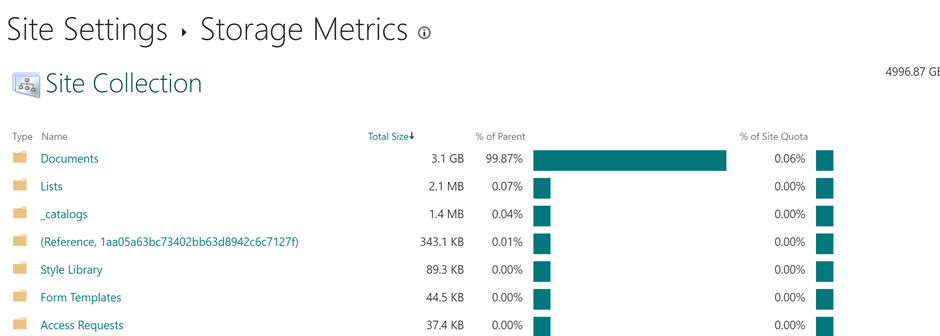
User can view their storage limit by going to OneDrive Settings à More Settings and click on Storage Matrix.

Retrieve OneDrive URL

A user can access his/her OneDrive’s URL directly through brownser by login into Microsoft 365 Tenant. A SharePoint Admin can access it through multiple ways which explained on this blog post. Below is a small PowerShell script which will return of all OneDrive sites

Import-Module Microsoft.Online.SharePoint.PowerShell
$TenantUrl = "https://mstalk-admin.sharepoint.com"
Connect-SPOService -Url $TenantUrl
$OneDriveURLs = 
Get-SPOSite -IncludePersonalSite $true -Limit all 
    -Filter "Url -like -my.sharepoint.com/personal/" | select Title,Url,Owner,StorageUsageCurrent| Out-GridView 

Change user’s OneDrive for Business storage using Microsoft 365 Admin Center

Go to Active users and search for the user. Click on the user’s name for details and select OneDrive Tab and click on Edit button Under Storage used.

Change user’s OneDrive for Business storage using PowerShell

Use below SharePoint online PowerShell to update the storage limit for a user:

Import-Module Microsoft.Online.SharePoint.PowerShell
$TenantUrl = "https://mstalk-admin.sharepoint.com"

$OneDriveSite = "https://mstalk-my.sharepoint.com/personal/adnan_amin_mstechtalk_com"
#Enter the OneDrive Storage Quota in MB 
$OneDriveStorageQuota = "2097152" 
#Enter the OneDrive Storage Quota Warning Level in MB
$OneDriveStorageQuotaWarningLevel = "2097152" 
Set-SPOSite -Identity $OneDriveSite -StorageQuota $OneDriveStorageQuota -StorageQuotaWarningLevel $OneDriveStorageQuotaWarningLevel 

The post Change storage limit for OneDrive for Business appeared first on MS Technology Talk.

❌
❌