
Vue normale

Il y a de nouveaux articles disponibles, cliquez pour rafraîchir la page.
À partir d’avant-hierFlux principal

Using SharePoint as a Document Repository for Teams

Microsoft Teams has quickly become one of the most popular collaboration tools for businesses around the world. However, when it comes to managing documents and files, Teams has its limitations. In this blog post, we’ll explore how to use SharePoint as a document repository for Teams and discuss best practices for managing files and documents.

Understanding SharePoint as a Document Repository:

SharePoint is a powerful document management system that can be used to store, manage, and share documents and files. It provides a range of features and capabilities, including version control, co-authoring, and security controls. By using SharePoint as a document repository for Teams, you can take advantage of these features and provide a centralized location for all of your files and documents.

Setting Up SharePoint for Teams

Before you can use SharePoint as a document repository for Teams, you need to set it up properly. Here are the steps:

Create a SharePoint Site:

First, you need to create a SharePoint site where you’ll store your documents. This site should be configured with the appropriate permissions and security controls.

Create Document Libraries:

Next, you need to create document libraries within your SharePoint site. These libraries should be organized in a logical manner and should reflect the way your team works.

Connect SharePoint to Teams:

Once your SharePoint site and document libraries are set up, you can connect them to Teams. This can be done by adding the SharePoint site as a tab in a Teams channel.
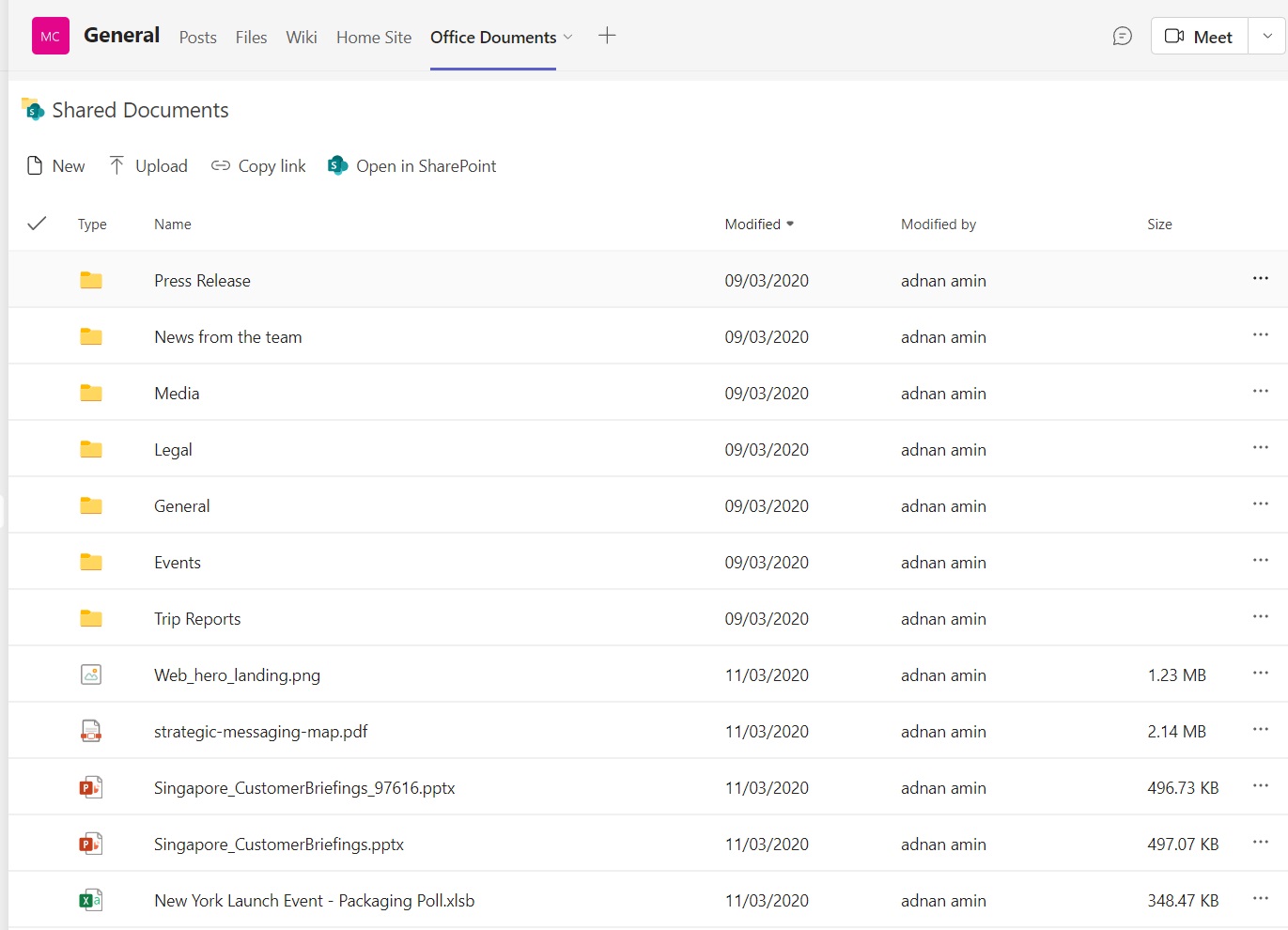
Managing Documents in SharePoint

Now that your SharePoint site is set up and connected to Teams, you can start managing your documents. Here are some best practices for managing documents in SharePoint:

Use Version Control:

SharePoint provides version control, which allows you to keep track of changes made to a document over time. This is especially useful when multiple people are working on the same document.

Co-Author Documents:

SharePoint also provides co-authoring capabilities, which allow multiple people to work on a document at the same time. This is useful when collaborating on a document with your team.

Use Metadata:

Metadata can be used to categorize and organize documents within SharePoint. By using metadata, you can make it easier for team members to find the documents they need.

Set Permissions:

SharePoint provides a range of security controls that allow you to set permissions for your documents. By setting permissions, you can ensure that only the right people have access to sensitive documents.

By using SharePoint as a document repository for Teams, you can take advantage of its powerful document management capabilities and provide a centralized location for all of your files and documents. With proper setup and management, SharePoint can be a valuable tool for any team looking to collaborate on documents and files.

The post Using SharePoint as a Document Repository for Teams appeared first on MS Technology Talk.

Integrating SharePoint and Teams for Better Collaboration: Best Practices

SharePoint and Teams are two powerful collaboration tools in the Microsoft suite. SharePoint is a content management and collaboration platform that provides organizations with document libraries, lists, workflows, and other features that make it easy to share and manage content. Teams is a chat-based collaboration platform that brings together people, conversations, and content in a virtual workspace. By integrating these two platforms, you can unlock even greater collaboration capabilities. In this blog post, we’ll explore how to integrate SharePoint and Teams and discuss best practices for using them together.

Understanding the Benefits of Integrating SharePoint and Teams:

The integration of SharePoint and Teams provides a seamless collaboration experience, allowing users to work together in one unified environment. Here are some of the benefits of integrating SharePoint and Teams:

Access SharePoint Content in Teams:

With the integration of SharePoint and Teams, you can easily access SharePoint content within Teams. This means that you can collaborate on documents, lists, and other content without having to leave Teams.

Collaborate on SharePoint Content:

You can collaborate on SharePoint content with your team members in real-time within Teams. This enables team members to work together more efficiently, and it ensures that everyone is on the same page.

Improved Communication:

With the integration of SharePoint and Teams, you can communicate with team members using Teams chat, voice, and video features. This makes it easier to collaborate on content and discuss ideas in real-time.

Setting up the Integration Between SharePoint and Teams:

To integrate SharePoint and Teams, you need to set up a few things. Here’s a step-by-step guide:

Set up a SharePoint site:

The first step is to set up a SharePoint site that you want to integrate with Teams. You can do this by going to SharePoint Online and creating a new site.

Create a Team:

Next, you need to create a new Team in Teams. This will be the virtual workspace where you and your team members will collaborate.

Add the SharePoint site to Teams:

Once you have created the Team, you need to add the SharePoint site to it. You can do this by selecting the “Add cloud storage” option within the Files tab of the Team.

Collaborate on SharePoint content in Teams:

Now that you have set up the integration between SharePoint and Teams, you can collaborate on SharePoint content within Teams. You can access SharePoint files and lists from the Files and Lists tabs of the Team. You can also create new documents and lists directly from within Teams.

Exploring the Capabilities of the SharePoint and Teams Integration

The integration of SharePoint and Teams provides a wide range of capabilities that can enhance collaboration in your organization. Here are some of the key capabilities of the integration:

Co-authoring:

With the integration of SharePoint and Teams, you can co-author documents in real-time with your team members. This means that multiple people can work on the same document at the same time, making collaboration more efficient.

Access control:

SharePoint provides powerful access control features that allow you to control who can access and edit content. With the integration of SharePoint and Teams, you can apply these access control features to the content that you collaborate on in Teams.

Mobile access:

With the integration of SharePoint and Teams, you can access SharePoint content from anywhere using the Teams mobile app. This means that you can collaborate on content with your team members even when you’re on the go.

Integrating SharePoint and Teams provides a powerful collaboration experience that can enhance productivity and improve communication in your organization. By following these best practices for integrating SharePoint and Teams, you can collaborate on content in real-time, improve communication, and achieve better results.

The post Integrating SharePoint and Teams for Better Collaboration: Best Practices appeared first on MS Technology Talk.

Mastering SharePoint Modern Lists: Tips and Tricks for Efficient Usage and Formatting

SharePoint modern lists are one of the most powerful tools that allow you to create, manage, and share information with your team in a highly customizable manner. With the latest updates, it has become even easier to use SharePoint modern lists and customize them to suit your needs. In this blog post, we will take a look at some tips and tricks for using SharePoint modern lists efficiently and formatting them to your liking.

Tips for Using SharePoint Modern Lists Efficiently

Use Custom Views

One of the most efficient ways to use SharePoint modern lists is to create custom views. Custom views allow you to filter, sort, and group your data to suit your needs. For example, if you have a large list of sales data, you can create a custom view that only shows sales from a particular region or salesperson. This makes it easier for you to analyze your data and identify trends.

Use Quick Edit Mode

SharePoint modern lists come with a built-in Quick Edit mode that allows you to edit data directly in the list. This is a faster and more efficient way to update your data, especially if you need to make multiple changes at once. To use Quick Edit mode, simply click on the Quick Edit button on the toolbar.

Use Column Formatting

Column formatting allows you to customize the appearance of your list columns. You can use column formatting to change the font size, color, and background color of your data, as well as add icons and images. This makes it easier for you to visualize your data and identify important information at a glance.

Formatting SharePoint Modern Lists

Use the Column Settings Menu

To format your SharePoint modern list, you can use the Column Settings menu. The Column Settings menu allows you to modify the display settings of your list columns, such as the column name, data type, and default value. You can also use the Column Settings menu to create custom validation rules and set up calculated columns.

Use JSON Customization

JSON customization allows you to create highly customized SharePoint modern lists. With JSON customization, you can modify the appearance and behavior of your list, such as changing the background color, font size, and alignment of your data. To use JSON customization, you will need to have some programming knowledge, but there are many resources available online that can help you get started.

Use Power Apps

Power Apps is a powerful tool that allows you to create custom apps and forms for your SharePoint modern lists. With Power Apps, you can customize the appearance and behavior of your list to suit your needs. For example, you can create a custom form that only shows certain fields based on the user’s role, or create a custom app that allows users to view and edit data on their mobile devices.

SharePoint modern lists are a powerful tool that can help you manage and share information with your team. By using custom views, Quick Edit mode, and column formatting, you can use SharePoint modern lists more efficiently. And by using the Column Settings menu, JSON customization, and Power Apps, you can customize the appearance and behavior of your list to suit your needs. With these tips and tricks, you can become a master of SharePoint modern lists and take your team’s productivity to the next level.

The post Mastering SharePoint Modern Lists: Tips and Tricks for Efficient Usage and Formatting appeared first on MS Technology Talk.

How to optimize SharePoint online Search for better for better results

SharePoint Online provides a powerful search engine that enables users to quickly find the information they need. However, the quality of search results depends largely on how well the site is optimized for search. In this blog post, we’ll explore some best practices for optimizing your SharePoint Online site for better search results and also discuss PowerShell scripts that can help you achieve this.

Use Managed Metadata:

Managed metadata is a hierarchical collection of centrally managed terms that can be used to tag content in SharePoint Online. By using managed metadata, you can ensure that your content is consistently labeled, which can improve the accuracy of search results. PowerShell script can be used to create and manage term sets and terms.

Customize Search Refiners:

Search refiners are used to filter search results based on specific criteria such as file type, author, or date. By customizing search refiners, you can make it easier for users to find the information they need. PowerShell script can be used to create custom refiners based on managed metadata.

Optimize Page Titles and Descriptions:

The page titles and descriptions are used by the search engine to index the content of the page. By optimizing these elements with relevant keywords, you can improve the visibility of your pages in search results. PowerShell script can be used to update page titles and descriptions.

Use Friendly URLs:

Friendly URLs are human-readable web addresses that are easy to remember and type. By using friendly URLs, you can make it easier for users to find your content and improve the visibility of your site in search results. PowerShell script can be used to set friendly URLs for pages and sites.

Enable Searchable PDFs:

PDF files are a common format for documents, but they are not always searchable by default. By enabling the searchability of PDF files, you can ensure that their content is included in search results. PowerShell script can be used to enable PDF search in SharePoint Online.

By following these best practices and using PowerShell scripts, you can optimize your SharePoint Online site for better search results. PowerShell scripts can help you automate the process of managing and optimizing your site for search, making it easier and more efficient to achieve your search optimization goals.

The post How to optimize SharePoint online Search for better for better results appeared first on MS Technology Talk.

Building Custom SharePoint Solutions to Meet Your Business Needs

SharePoint is a powerful platform for building custom solutions that meet the unique needs of your business. One way to extend SharePoint’s functionality is by creating custom web parts. A web part is a modular component that can be added to a SharePoint page to display information or perform a specific function. In this blog post, we’ll explore how to create custom web parts in SharePoint to build custom solutions for your business needs.

Planning Your Custom Web Part

Before you begin building your custom web part, it’s important to plan out the requirements and functionality you need. This includes identifying the data sources, user interface, and any other features that you want your web part to include. Some questions you may want to consider during the planning phase include:

  • What data sources will your web part use?
  • How will users interact with your web part?
  • Will your web part require any custom logic or functionality?

Creating Your Custom Web Part Using Out-of-the-Box Features

SharePoint provides several out-of-the-box web parts that you can use as a starting point for your custom web part. These web parts include the Content Editor, Image Viewer, and Script Editor web parts, among others. You can customize these web parts by modifying their properties or adding your own code. To create your custom web part using out-of-the-box features, follow these steps:

  • Navigate to the page where you want to add your web part and click the Edit button.
  • Click the Insert tab on the ribbon and select the web part you want to modify.
  • Modify the properties of the web part or add your own code using the Script Editor web part.

Creating Your Custom Web Part Using PowerApps

PowerApps is a low-code platform that allows you to create custom web parts without writing code. With PowerApps, you can create custom forms, dashboards, and other components that can be added to a SharePoint page. To create your custom web part using PowerApps, follow these steps:

  • Navigate to the PowerApps portal and create a new canvas app.
  • Design your app by adding screens, forms, and other components.
  • Publish your app to SharePoint by selecting the PowerApps option on the Insert tab in the SharePoint ribbon.

Creating Your Custom Web Part Using SPFx

The SharePoint Framework (SPFx) is a modern development framework that allows you to build custom web parts using modern web technologies such as React, Angular, and TypeScript. With SPFx, you can create powerful, dynamic web parts that can be added to any SharePoint page. To create your custom web part using SPFx, follow these steps:

  1. Install the necessary tools and dependencies for SPFx development.
  2. Create a new SPFx web part project using the Yeoman generator.
  3. Develop your web part by adding components, styling, and logic.
  4. Deploy your web part to SharePoint by packaging it as a SharePoint solution and uploading it to the SharePoint app catalog.

Creating custom web parts in SharePoint can be a powerful way to extend SharePoint’s functionality and build custom solutions for your business needs. Whether you use out-of-the-box features, PowerApps, or SPFx, you have the flexibility and power to create web parts that are tailored to your organization’s unique requirements. By planning out your requirements and following best practices for development, you can create web parts that deliver real value to your organization.

The post Building Custom SharePoint Solutions to Meet Your Business Needs appeared first on MS Technology Talk.

TechDay Pakistan 2023

We are thrilled to announce the 2nd edition of TechDay Pakistan, the highly anticipated online event that will take place on March 11th, 2023. Our goal is to bring together Microsoft 365, Azure, AI, D365, Power Platform specialists, developers, architects, end-users, and other professionals who work with Microsoft Cloud Technologies.

Our event aims to provide a platform for attendees to learn and share the latest information, best practices, and insights on various topics related to Microsoft Cloud Technologies. We will have expert speakers who will share their knowledge and experiences, along with interactive sessions, demos, and networking opportunities for all participants.

TechDay Pakistan 2023 is an opportunity for professionals to stay up-to-date with the latest trends, techniques, and tools in Microsoft Cloud Technologies. Whether you are a seasoned expert or a newcomer, our event promises to offer something for everyone.

So, mark your calendars for March 11th, 2023, and join us for a day of insightful discussions, learning, and networking. We look forward to welcoming you to TechDay Pakistan 2023.

For more info visit: https://techdaypakistan.com

Registration

We are excited to invite you to register for TechDay Pakistan 2023, the premier online event for Microsoft Cloud Technology professionals in Pakistan. Don’t miss the chance to connect with experts, learn about the latest tools and techniques, and expand your network.

Registration is now open and easy to access at our Eventbrite page. Follow the link provided below to secure your spot and join us on March 11th, 2023 for a day of knowledge sharing and networking.

Click here to register: https://www.eventbrite.com/e/techday-pakistan-2023-tickets-578556928347

We can’t wait to see you at TechDay Pakistan 2023!

Sessions

Saturday, March 11, 2023

Power Platform Powerhouse Microsoft 365 Mastery AI and Azure

9:00 am

Power Platform Powerhouse
9:00 am → 30 min

USE AI IN POWER PLATFORM: REAL-TIME USE CASE

Microsoft 365 Mastery
9:00 am → 40 min

Cloud Adoption Framework – Governance Overview

9:45 am

10:30 am

Power Platform Powerhouse
10:30 am → 40 min

The Power of PowerFx

Microsoft 365 Mastery
10:30 am → 40 min

Pitfalls for Data Analytics Domain in Pakistan

11:15 am

AI and Azure
11:15 am → 40 min

Let’s take a look at Azure Monitor!

12:00 pm

Power Platform Powerhouse
12:00 pm → 40 min

Leverage GTP-3 in Power Platform

12:45 pm

Power Platform Powerhouse
12:45 pm → 40 min

Automated in-memory testing of Power Automate Flows

1:30 pm

AI and Azure
1:30 pm → 40 min

Building a Responsible AI strategy

2:15 pm

Microsoft 365 Mastery
2:15 pm → 40 min

From Zero to Hero with Lookup Family Functions

AI and Azure
2:15 pm → 40 min

Automate workflows with Azure and Open API

3:00 pm

3:45 pm

Power Platform Powerhouse
3:45 pm → 40 min

Power Platform Accessibility 101

Microsoft 365 Mastery
3:45 pm → 40 min

Database Design Fundamentals

AI and Azure
3:45 pm → 40 min

Introduction to Azure Functions

Session and Speaker Management powered by Sessionize.com

Speakers

The post TechDay Pakistan 2023 appeared first on MS Technology Talk.

Microsoft 365 Discovery Series 2023

The Microsoft 365 Discovery series is an exciting opportunity for individuals to expand their knowledge and skills in Microsoft 365. Starting on February 10th, 2023 and continuing until March 31st, 2023, the series will consist of eight weeks of informative sessions. Each Saturday, attendees will have the opportunity to attend two sessions – one featuring a community speaker discussing various aspects of Microsoft 365, and the second focused specifically on Microsoft SharePoint.

This series is completely free and open to those who have a basic understanding of Microsoft 365. Our goal is to provide individuals with the opportunity to enhance their skills and expertise in Microsoft 365 technology. Whether you are a seasoned professional or just starting out in the Microsoft technology landscape, this series offers an excellent chance for you to develop and strengthen your skills.

Register

Register: https://www.eventbrite.com/e/microsoft-365-discovery-series-2023-tickets-536799390427

Speakers

Sessions

  • PowerPlatform and AI

    Week 4
    Fri, 3/3/2023 6:15 pm – 6:50 pm
  • Guidance for a succesful deployment of Modern Workplace Enviroment Using SharePoint ,Teams ,Viva

    Week 2
    Fri, 3/3/2023 7:00 pm – 7:35 pm
  • You’ve got an error in your Flow? Great, let’s deal with it

    Week 3
    Fri, 3/3/2023 7:00 pm – 7:35 pm
  • SharePoint Online Admin Center: A Comprehensive Guide

    Week 4
    Fri, 3/3/2023 7:10 pm – 7:45 pm
  • Mastering SharePoint Online: A Beginner’s Guide to Customization and Administration

    Week 2
    Fri, 3/3/2023 7:50 pm – 8:25 pm
  • SharePoint Online Governance: How to Develop a Governance Plan for SharePoint Online Environment

    Week 3
    Fri, 3/3/2023 7:50 pm – 8:25 pm
  • Microsoft 365 for Developers

    Week 1
    Fri, 3/3/2023 8:00 pm – 8:35 pm
  • Microsoft Teams with bots, connectors and tabs

    Week 4
    Fri, 3/3/2023 8:00 pm – 8:35 pm
  • Getting Started with Adaptive Cards in the Viva Dashboard: A Beginner’s Guide

    Week 5
    Fri, 3/10/2023 7:00 pm – 7:35 pm
  • Ensuring High Value MS Teams in an Agile organisation

    Week 5
    Fri, 3/10/2023 7:45 pm – 8:20 pm
  • M365 Automation for Company Employee Onboarding

    Week 5
    Fri, 3/10/2023 8:30 pm – 9:05 pm
  • No code implementation of AZ AD/Facebook/Google/Twitter/ authentication in Azure App service

    Week 6
    Fri, 3/17/2023 6:00 pm – 6:35 pm
  • In 3 steps to a better meeting culture with Microsoft VIVA Insights

    Week 6
    Fri, 3/17/2023 6:45 pm – 7:20 pm
  • How to Build a Video Portal in SharePoint Online

    Week 6
    Fri, 3/17/2023 7:30 pm – 8:05 pm
  • Power Automate and SharePoint Online Integration

    Week 6
    Fri, 3/17/2023 8:15 pm – 8:50 pm
  • Overview Microsoft Teams Calling Plans, Direct Routing, Operator Connect and Operator Connect Mobile

    Week 7
    Fri, 3/24/2023 6:00 pm – 6:35 pm
  • Introduction to Microsoft Learn and Upskilling

    Week 7
    Fri, 3/24/2023 6:45 pm – 7:20 pm
  • Taking Microsoft Teams to the next level

    Week 7
    Fri, 3/24/2023 7:30 pm – 8:05 pm
  • Turbo-boost your SPFx validations and upgrades using CLI for Microsoft

    Week 8
    Fri, 3/31/2023 6:00 pm – 6:35 pm
Session and Speaker Management powered by Sessionize.com

The post Microsoft 365 Discovery Series 2023 appeared first on MS Technology Talk.

Talking Power Platform with new MVP Heidi Jordan

We’re thrilled to welcome Heidi Jordan to Episode 89 of the Microsoft 365 Voice. Heidi is one of our newest Microsoft MVPs, an advocate for Women in Technology, and a Power Platform superstar!

Topics covered in this episode:

A SharePoint girl in a Power Platform world. Heidi’s evolution from working in the SharePoint space to expanding into Power Platform (Power Apps, Power Platform, etc.)

Leaning into community. History on how Heidi got involved in the community by speaking, blogging, attending events, etc.

Building your personal brand. Heidi shares how she’s identified herself in the SharePoint and Microsoft 365 community, how she evolved the topics and sessions she likes to present on, etc.

Getting started with process automation. Heidi discusses her approach to identifying business process automation needs for the organizations she works with. She recommends breaking down manual processes into the basics of who/what/when/where/why. Once you define the key process needs and validate what’s most important, you can identify the core requirements for your Power Platform solutions.

Taking a visual approach to designing Power Automate workflows. Heidi talks through her process to visually map out business processes using Visio, PowerPoint, etc. Once she drives agreement on the desired flow, it’s easy to ingest that into Power Automate to create workflows.

The importance of change management and adoption. Business process automation requires buy-in from the information workers that are managing the day-to-day processes you’re automating. Building out features, enhancements, and solutions that make life easier for these information workers will lessen their burden and get them excited to work with you. Take the time to ask them for their wish list items — it’s worth it!

Break your large processes down into smaller chunks. Heidi discusses how she breaks down work processes into smaller Power Automate workflows.

A big thank you to Heidi for joining us. We hope you enjoy this episode as much as we did!

Have a Microsoft 365 question? Submit it online! Your question may be featured in a future podcast episode.

Originally published at http://blog.splibrarian.com on January 28, 2023.


Talking Power Platform with new MVP Heidi Jordan was originally published in REgarding 365 on Medium, where people are continuing the conversation by highlighting and responding to this story.

TechDay Pakistan 2022

Welcome to our first Online event TechDay Pakistan. Our aim is to engage Microsoft 365, Azure, D365, PowerPlatform specialists, end users, architects, developers, and other professionals that work with Microsoft Cloud Technologies to share the latest information for working with anything and everything.
We are organizing an online event “TechDay Pakistan” on 20th March 2022.

Registration

A great lineup of industry experts speaker who will share their knowledge with the attendees. Event register is now open, please click on the following link to get yourself registered: https://www.eventbrite.com.au/e/techday-pakistan-20th-march-tickets-288420693057

Call for Speakers

Call for speakers is on now, please click here submit your session.

Event Detail

Please follow event page link for more details: https://techdaypakistan.com

The post TechDay Pakistan 2022 appeared first on MS Technology Talk.

❌
❌