Vue normale

Il y a de nouveaux articles disponibles, cliquez pour rafraîchir la page.
À partir d’avant-hierFlux principal

Microsoft Forms infographic : How to add Image as choice in both forms and quiz for your class

New features are coming fast on Microsoft 365 and you have trouble following the official roadmap ?

Every month, I publish a new infographic presenting a tip, a new feature on Microsoft teams / Microsoft 365 solutions that you can use today on your platform.

I am a teacher and I use forms. How to add an image instead of text in an answer for a choice type question ?

,Context :

This was a long-awaited request from many Microsoft Forms users: How to allow selecting pictures instead of text in quizzes? How to implement visual selection questions in quizzes?

Indeed, there are several cases where the choice of images is relevant. It is the example of images (logos, areas to be selected, etc ...) that is much easier to choose the answer, when this answer can not be expressed in words or that to express it in words, it would be necessary to make a sentence too long. It is also the example of teachers who can easily use it to help students with reading difficulties and language comprehension problems or foreign students learning the language.

,,Solution,

From now on, it is possible to select photos in the answer choices. Here are the different types of questions and answers where you can add a photo :

- Choice type question : photo insertable in the question field and photo insertable in the answer field

- Open question : photo insertable in the question field

- Evaluation : photo insertable in the question field

- Date : insertable photo in the question field

- Ranking : photo can be inserted in the question field

- Likert : photo to be inserted in the question field

For Choice type questions, there are - 3 ways to get photos -

1) from your computer

2) from Bing search

3) from your OneDrive

And there are - 3 ways to insert photos - in the answer choice

1) Drag and Drop

2) Copy and Paste

3) Bulk import up to 5 images per batch

Once you have added an image to a question, you can adjust its size by enlarging, reducing or zooming in on it to focus on a portion of the image. You can also add alternative text for screen narrators.

My opinion

This is a great new feature and I'm sure many teachers will be excited about it. Here are the few points I would like to highlight :

- It is available for education tenants but also for business tenants

- You have a size limit of 5MB per picture

- Zoom seems to be selected by default when you import pictures. Be sure to deselect it if needed

Microsoft Teams assignment How to add video feedback

If you liked this tip and think it will be useful to others as well, feel free to share it.

Power Automate: SharePoint – When an item is deleted Trigger

SharePoint’s lists are excellent for keeping data, but one accidental delete could generate a lot of headaches, especially if you don’t notice it. That’s why Microsoft developed the “When an item is deleted” trigger, where you can define Flows that do actions when an item is deleted, like a notification to someone to check the “Recycle bin” and see if the item should have been deleted or not.

Let’s check how to take advantage of SharePoint’s “When an item is deleted” trigger.

Where to find it?

To find it, you can search for the “When an item is deleted” trigger or go to “Standard”:

Select “SharePoint”:

Pick the “When an item is deleted” trigger.

Here’s what it looks like.

Pro Tip:
Power Automate tends to save the most common triggers on the main screen, so check there before going through the full hierarchy. Also, you can use the search to find it quickly.

Usage

It’s pretty easy to configure. You select the site and the list you want to check, and that’s it. For example, if we want to check our “Test Users” list, we’ll do the following:

It will trigger as soon as an item is deleted, but I want to highlight the outputs of this trigger. It won’t return the elements of the item, so you won’t have access to all columns like in the “When an item is created or modified” trigger, for example. You will get the following information:

It makes sense to return this data since the trigger will fire after the item is deleted, so it won’t have access to its information. It will provide information about the deletion, like who deleted it and when.

Non-intuitive behaviors

As mentioned above, not returning all list elements could be considered a non-intuitive behavior. Still, there’s another one I would like to highlight concerning the data returned.

As you can see above, you have the “Is Folder” that is kind of strange on a list, right? We’re dealing with list items, not folders and files, but there’s the indication of “Is Folder”. This is because you can add folders to a list to organize your items. I go into a lot of detail here , so take a look if you want to learn how to use them.

Finally, there’s the possibility to configure SharePoint to keep all changes to the list items. If you don’t know how to do it, check my article on SharePoint’s best practices in the section “Versions”. We can take advantage of this version history and use the “Send an HTTP request to SharePoint “ action to get it. If you don’t know how to do it, here’s an article.

The issue with this is that you won’t be able to do it. You’ll get the following error message:

Item does not exist. It may have been deleted by another user.

Again, the trigger will fire after is deleted, so you won’t have access to its elements unless you manually restore it from the “Recycle Bin”. However, one could consider a “deletion” as a change to the item’s status and worth keeping a version mention of it, but I can understand why Microsoft chose this behavior.

Limitations

The “When an item is deleted” trigger can only be used by site collection admins of the site where the list is located, meaning that if you’re not a site admin, this trigger won’t fire, so keep this in mind in case you’re having issues with the trigger.

Recommendations

Here are some things to keep in mind.

Don’t use this for synchronization

I see many questions regarding synchronization between SharePoint lists, and the “When an item is deleted“ trigger could be an excellent target to catch items that need deleting. But I would strongly advise you not to do it. Synchronization of items is an amazingly complex topic in computer science, and we are all super when something doesn’t synchronize properly. If the trigger fails, data will be out of sync, and Power Automate won’t rerun it. If the data is changed on the destination list, you already have a problem that will only worsen over time.

Name it correctly

The name is super important since the trigger can be used on any list you can access. Always build the name so that other people can understand what you are using without opening the action and checking the details.

Always add a comment

Adding a comment will also help avoid mistakes. Indicate what you’re expecting, why the Flow should be triggered, and what the data will be used. It’s essential to add comments when limiting the trigger with some custom rulessince these are not prominent in the UI, and people may get confused as to why the Flow doesn’t trigger when it’s simply a rule preventing it from doing so. It’s essential to enable faster debugging when something goes wrong.

Finally, let people know why you’re choosing the parameters you configured. For example, why do you select that folder if you have a folder defined? It may make sense now, but not in a few months.

An automated trigger is better than a scheduled one

Sometimes people are tempted to use scheduled triggers that pool the resources once in a while. This way, they can control when the information is fetched and save much Power Automate “triggers” if their quota is low. However, even if it isn’t, it may be more efficient to do batch tasks than once by one. I understand, and in some cases, I can agree, but it brings a lot of difficulties in the process. For example, you may need to keep track of what changed from the last run until this one so that some things may get lost. Also, you’re forcing something to happen periodically, even if there’s no data.

I always recommend using these “automatic” triggers instead, where they trigger one by one, but only when there’s data, so you’re always sure you get something to do. Also, debugging triggers that parse a single data point instead of multiple simultaneously is much easier. If something fails on one, then you can fix the Flow and repeat the process. But while parsing multiple ones, things can get a lot harder.

Back to the Power Automate Trigger Reference.

Photo by Gareth Harper on Unsplash

Microsoft Forms: Hiding the ‘Untitled Form’ label in forms without a title

If we want to create custom headers for Microsoft Forms, as we don’t have many customisation options, an alternative way would be to create a custom image.

But if we want to add the form title to the image and leave it as blank as below:

Forms always will set the title as ‘Untitled Form’ when you save it, even if you add spaces to it:

However, it turns out that if we add the ‘zero-width space character‘ to the form title, it is preserved:

To add this character, you can simply copy it using the button below, and paste it into your Form title:

And that’s it!

Important to remember that as the form had the title removed, it will appear without a title in your forms list:

Note:The image size that worked best for me was 1100×100 for the custom image. When editing the form it won’t show in full size but when playing the form from the shared link it will display properly.

The post Microsoft Forms: Hiding the ‘Untitled Form’ label in forms without a title appeared first on michelcarlo.

Infographie Microsoft Forms : comment transférer la propriété d'un forms-2 scénarios

Les nouvelles fonctionnalités s'enchaînent à toute vitesse sur Microsoft 365 et vous avez du mal à lire la roadmap officielle ?

Chaque mois, je publie une nouvelle infographie présentant une astuce, une nouveauté sur les solutions Microsoft teams / Microsoft 365 que vous pouvez utiliser dès aujourd'hui sur votre plateforme.

Comment transférer la propriété d'un sondage ou d'un questionnaire quand une personne va partir ou ne fait plus partie de l'organisation ?

,Situation : Quand une personne va quitter ou a déjà quitté une entreprise ou une école ou une université, il est toujours compliqué de faire la passation ou de pouvoir suivre des sondages et des résultats créés à partir du compte individuel d'une personne.

Le offboarding, s'il n'est pas bien organisé, peut être une source de "tracas" pour tous celles et ceux qui restent et doivent reprendre le travail de la personne.

Alors que peut-on faire avec les forms d'une personne avant qu'elle quitte l'organisation ? et que peut-on faire avec les forms de la personne quand elle a déjà quitté l'organisation. Je vous explique tout ça avec ces 2 scénarios.

,,Solution scénario 1 ,> la personne va quitter l'organisation

Pour réaliser le transfert de propriété avant le départ, c'est le propriétaire du forms qui doit réaliser individuellement la procédure.

  • Etape 1 :

Dans ses formulaires, la personne choisit le forms à transférer puis clique sur les options pour choisir "déplacer"

  • Etape 2 :

La personne choisit le groupe vers lequel elle souhaite déplacer son formulaire et déplace le forms qui se retrouvera désormais dans la section "mes groupes" et non pas "mes formulaires". Seuls les groupes auxquels appartient cette personne sont affichés

Points d'attention :

- La personne qui souhaite transférer la propriété d'un forms vers un groupe doit faire partie de ce dernier

- La propriété d'un forms peut être transférée d'un individu à un groupe, mais pas l'inverse.

- Vous ne pouvez pas transférer la propriété d'un forms qui est partagé avec vous

- Un groupe ne peut pas transférer un forms à un autre groupe.

,,Solution scénario 2 , ,> la personne a déjà quitté l'organisation

Pour réaliser le transfert de propriété du forms à la place de la personne, les conditions suivantes doivent être remplies :

1- Vous êtes l'administrateur global ou l'administrateur de l'application bureautique de l'organisation et vous disposez d'une licence Forms valide.

2- La personne qui est partie a un compte qui a été supprimé ou désactivé.

  • Etape 1 :

Dans la barre d'adresse de votre navigateur, remplacez l'URL existante par la suivante :

https://forms.office.com/Pages/delegatepage.aspx?originalowner=\[*email*\]

L'email que vous devez renseigner est bien celui de la personne qui a quitté l'organisation.

  • Etape 2 :

Une fois fait, vous avez accès aux forms de l'ancien employé. Et de la même manière que le scénario 1, vous choisissez le forms à transférer pour ensuite le déplacer vers un groupe.

Points d'attention :

- Le formulaire doit être transféré dans les 30 jours suivant la suppression du compte.

- Il n'y a pas de restriction de temps pour transférer la propriété d'un formulaire d'un compte qui a été désactivé (et non supprimé)

Transférer propriété forms

2 solutions vraiment pratiques qui doivent nécessairement interroger sur les bonnes pratiques des forms au sien des équipes, la solution à long terme consistant à créer des formulaires dans des groupes, afin que la propriété ne soit pas liée à un individu.

Si vous avez aimé cette infographie ou cette astuce sur Microsoft Forms et que vous pensez qu'elle sera également utile à d'autres personnes, n'hésitez pas à la partager

Microsoft Forms infographic : Add a timer to limit the time to answer a quiz

New features are coming fast on Microsoft 365 and you have trouble following the official roadmap ?

Every week, I publish a new infographic presenting a tip, a new feature on Microsoft teams / Microsoft 365 solutions that you can use today on your platform.

How to create a quiz or a form with a timed response ?

,Context : For those who are on Microsoft 365 education, this new feature in Microsoft Forms should interest you in this period of "back to school".

In some situations, teachers may want to set up timed assessments. Prior to this new feature, the only option in Forms was to set a start date with a start time and an end date with an end time as well. Although this was convenient, it was necessary to warn the participants of the time they had to answer the quiz and no timer was displayed.

I know many people who are looking for a simpler and more automated way to set up a timer into a class quiz, for example.

,,Solution, : A new feature appeared in Microsoft forms settings allowing you to set up a timed response (in minutes) with values between 1 and 999. When a student or a participant answers, he/she will see the time countdown at the top of the window. And once the time is exceeded, the answer is automatically validated and sent. Really handy!

Several points to keep in mind :

- The timer works on both form and quiz

- The timer works on forms/quiz sent internally but also those sent externally with the "anyone can respond" option

- The timer in Microsoft Forms is available on both education and business tenants

- When a student or a participant could not answer one or more questions in time, the teacher or the quiz creator will see in the results "no answer provided".

What I think about it

Excellent new feature that meets a real need. One small regret though, I think it would have been nice in the results window to see a label or an icon in front of each question that was not answered in time or to have the possibility to see the time spent on each question to understand if the person really did not have time to answer or spent a lot of time without being able to find an answer.

Microsoft Forms add a timer to a quiz recording

If you liked this tip and think it will be useful to others as well, feel free to share it.

Microsoft Forms Infographic : Convert quizzes in Word to quizzes with forms easily

New features are coming fast on Microsoft 365 and you have trouble following the official roadmap ?

Every week, I publish a new infographic presenting a tip, a new feature on Microsoft teams / Microsoft 365 solutions that you can use today on your platform.

How to import into Forms quizzes made with word and reuse them quickly ?

,Context : You are a teacher and come from a school where you did not have access to the Microsoft 365 education platform. You don't want to rewrite everything and are looking for a way to import your word or PDF quizzes into Microsoft Forms

,,Solution, : Good news for you and it's all new. In education tenant (not in business ... sorry guys !), a new function has appeared allowing you to import quizzes made in Word or PDF quizzes.

The maximum file size is 10MB & the questions that can be included for correct conversion are multiple choice questions, open questions and questions with fill-in-the-blank text.

Tip top! and if you are not satisfied, the revision mode allows you to readjust the questions before importing. Very useful, isn't it?

Convert a word quiz into forms quiz

If you liked this tip and think it will be useful to others as well, feel free to share it.

Infographie Microsoft Forms : Convertir des quiz sous Word en quiz avec forms

Les nouvelles fonctionnalités s'enchaînent à toute vitesse sur Microsoft 365 et vous avez du mal à lire la roadmap officielle ?

Chaque semaine, je publie une nouvelle infographie présentant une astuce, une nouveauté sur les solutions Microsoft teams / Microsoft 365 que vous pouvez utiliser dès aujourd'hui sur votre plateforme.

Comment importer dans Forms des quiz fait avec word et les réutiliser ?

,Situation : Vous êtes enseignant(e) et vous souhaitez réutiliser des quiz que vous aviez fait auparavant dans Word ou des quiz PDF en les important dans Microsoft Forms

,,Solution, : C'est désormais possible et c'est une excellente nouvelle pour éviter de refaire 2 fois le même quiz. Dans les tenants education (pas dans les business), une nouvelle fonction est apparue vous permettant d'importer des quiz réalisés sous Word ou des quiz en PDF. La taille maximale du fichier est de 10MB. Les questions qui peuvent être reprises dans le format des questions Forms sont les questions à choix multiples, les questions ouvertes et les questions avec du texte à trous. Tip top ! d'autant plus que si on est pas satisfait, le mode révision permet de réajuster les questions avant l'importation. Hyper pratique, non ?

Microsoft Forms importer quiz word

Si vous avez aimé cette astuce et que vous pensez qu'elle sera également utile à d'autres personnes, n'hésitez pas à la partager

Poor Person’s Form Embedding in SharePoint Online Pages

In SharePoint – because it’s primarily a collaboration platform – we often struggle with the difference between security and obscurity.

Some content absolutely must be secured, meaning only certain people can see or edit it. In these cases, we set the permissions such that people simply can’t see or even be aware of the content.

Other content should just be kept out of the way by not showing links to it or including it in pages, and this can sometimes be referred to as obscurity. Audience targeting is a form of content management by obscurity: if the content isn’t of use to me, I may not see it, but that doesn’t mean I can’t get to it.

A very common business requirement is to allow people to provide some basic information, like a suggestion for a continuous improvement, their shirt or hat size for a company giveaway, or nominating someone for an award. We can configure the list which contain this information to only show the current user’s items in views, but that’s not necessarily security. If you need them, these settings are in List settings / Advanced settings / Item-level Permissions.

But that’s not the main point of this post. Sometimes the forms are simple and the process is not consequential enough to deserve a Power App or more complex form development. We just want to make the plain old list form available for people to use easily and shield them from the complexity of the underlying list itself. I see solutions all the time where the user is sent to a list view with tacit belief they will know to click the +New button to create a new item in the list. In many workforces, even that is too complicated.

Sometimes Occam’s Razor applies: the simplest solution is the best one.

This is a trick I’ve used many times to make life easier for users and also keep them from plumbing around in the underlying list, even though they may be able to do so due to the permission settings being pretty open.

Some advice, though…

Don’t stick a form like this on the home page of an Intranet site unless you want everyone to see that form as the primary focus for the entire site. I would argue this is rarely the case. In my example, the Suggestion Box is part of the Continuous Improvement site. That effort has to have more to it than just the form.

Here’s the trick. I’m sure I’m not the first person to come up with it, and Emily (@eemancini) probably taught it to me in the first place!

  • Create a new page in the site and add some explanatory text and imagery. Let your users know what you’re asking them to do and why it’s useful. A “naked” form doesn’t give them any context.
  • Add an Embed Web Part to the page with a URL something like this: https://sympmarc.sharepoint.com/sites/SuggestionBox/Lists/SuggestionBox/NewForm.aspx?Source=https://sympmarc.sharepoint.com/sites/SuggestionBox/Lists/SuggestionBox/NewForm.aspx I’ll break that down below.
  • Add a navigation element to the home page of your site to take people to this page.

That ugly URL has the following parts:

  • https://sympmarc.sharepoint.com/sites/SuggestionBox/Lists/SuggestionBox/NewForm.aspx – The list’s new item form you want to load in the page. All lists have forms pages, and have since SharePoint 2007:
    • https://sympmarc.sharepoint.com – Your SharePoint subdomain. This is my personal tenant.
    • /sites/SuggestionBox/ – The site where the list lives.
    • Lists/SuggestionBox/ – The list itself. All SharePoint lists live under the /Lists part of the URL path. (Document Libraries don’t.)
    • NewForm.aspx – This is the form you get when you click the +New button on the list pages.
  • ?Source=https://sympmarc.sharepoint.com/sites/SuggestionBox/Lists/SuggestionBox/NewForm.aspx – Values after the ? are what’s called the query string. Manipulating what’s hdre has been a nice little arrow in the quiver for years. They are name/value pairs, so here we have:
    • Source – This is a special parameter name when it comes to SharePoint lists. It basically says “when you’re done here, redirect to the following URL”)
    • https://sympmarc.sharepoint.com/sites/SuggestionBox/Lists/SuggestionBox/NewForm.aspx – Yup, that’s the same link we’re loading above.

Your page will look something like this:

As you can see, the form is embedded directly in the page. In actuality, it’s housed inside something called an iframe. You may have heard developers disparaging iframes in the past, but in this case, it works just the way we want it to.

When the user fills out the form and clicks Save, guess where they end up? Right in the same place! So they can submit one or more items – in this case suggestions – without ever knowing there’s a SharePoint list under the covers.

Have you used a trick like this in the past? Do you have any improvements to suggest about this technique?

Adding Conditional Formatting for a List Form Header with JSON

The recently added capability to perform simple layout changes on a SharePoint list form using JSON is the bee’s knees.

See the source image

As is the case with many insect joints, the examples out there mostly are the same and the documentation isn’t full featured enough for most people’s taste.

Sue Hanley (@SusanHanley) and I were working on some list form formatting JSON today and we had a devil of a time figuring out a simple little thing. We wanted the Header of the form to say “New Project Request” if it was, well, a new Project Request. If we were editing an existing Project Request, we wanted the header to say “Project Request for Foo”, where “Foo” was the value of the list item’s Title. Simple, right?

The article Configure the list form | Microsoft Docs is instructive, but only scratches the surface of the possibilities. In fact, the example given for the header is great, but throws an error if you’re on a New Form and haven’t filled in the Title – because there isn’t a Title value yet. It doesn’t prevent the form from working, but it’s ugly, that message “Failure: Title was not found on the data object.”

There are a couple of things going on here. First, the message is shown because of this line at the top of the JSON.

"debugMode": true,

That tells SharePoint to let you know if there are any issues. You should generally remove it – or never add it – unless you need to debug issues.

Second, the formula for the text in the header is always going to look a little funny on the New Form, regardless whether there’s a value for the Title.

"txtContent": "='Contact details for ' + [$Title]"

Contact details for… Who?

Wouldn’t it be better if the JSON you used handled this better? Of course it would. Here’s what we came up with. We removed the "debugMode": true, so we wouldn’t see the message, ever. Then we added a condition to display a more pleasant header: "txtContent": "=if([$Title]=='','New Project Request', 'Project Request for '+[$Title])"

Here’s the full JSON. Obviously, you may not be creating a Project Request, but you can easily change that text.

{
  "elmType": "div",
  "attributes": {
    "class": "ms-borderColor-neutralTertiary"
  },
  "style": {
    "width": "99%",
    "border-top-width": "0px",
    "border-bottom-width": "1px",
    "border-left-width": "0px",
    "border-right-width": "0px",
    "border-style": "solid",
    "margin-bottom": "16px"
  },
  "children": [
    {
      "elmType": "div",
      "style": {
        "display": "flex",
        "box-sizing": "border-box",
        "align-items": "center"
      },
      "children": [
        {
          "elmType": "div",
          "attributes": {
            "iconName": "TextDocument",
            "class": "ms-fontSize-42 ms-fontWeight-regular ms-fontColor-themePrimary",
            "title": "Details"
          },
          "style": {
            "flex": "none",
            "padding": "0px",
            "padding-left": "0px",
            "height": "36px"
          }
        }
      ]
    },
    {
      "elmType": "div",
      "attributes": {
        "class": "ms-fontColor-neutralSecondary ms-fontWeight-bold ms-fontSize-24"
      },
      "style": {
        "box-sizing": "border-box",
        "width": "100%",
        "text-align": "left",
        "padding": "21px 12px",
        "overflow": "hidden"
      },
      "children": [
        {
          "elmType": "div",
          "txtContent": "=if([$Title] == '','New Project Request', 'Project Request for '+[$Title])"
        }
      ]
    }
  ]
}

Here’s what that gives us for the New Form…

And once we’ve filled in the Title and in the Edit Form…

Display related item repeating section in Nintex Workflow task form

Last week I worked with a customer that had repeating sections in Nintex Forms 2013 item form and Nintex Workflow 2013 workflow associated with the list. The customer had the requirement to be able to properly display the repeating section data in the workflow task forms. This requirement does not seems to be a straightforward to accomplish, but in this post I am going to demonstration that this is actually very simple and since I haven't found this in other sources I am sharing my solution and other useful links in this post.
The issue with the repeating section is that it is living as "section"only in the form. You can connect the entire repeating section to a field with type "Multiple lines of text" and you will see that our repeating section value is actually saved as XML.

Nintex Repeating Section

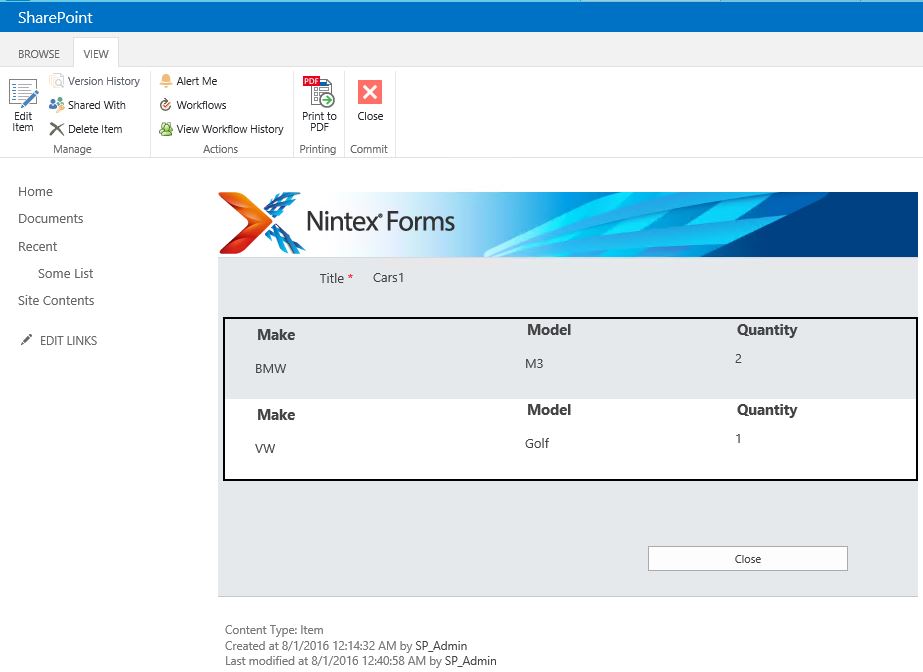
The item actually looks like this:

Nintex Repeating Section  Form

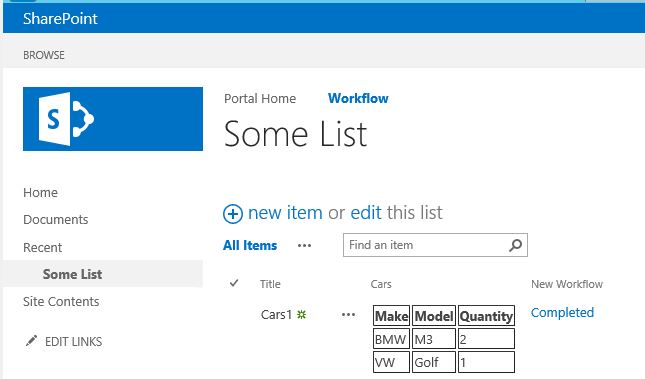
The first nice thing that is not directly related to the title of this post is to make the XML data looks better in List View. To accomplish this I am going to use the CSR (Client-side rendering) approach demonstrated in this post "Displaying Repeating Section as table in List View - the CSR approach". Adapting and applying the script to my list view gives me below result that is way better than the XML.

Repeating Section CSR


The way to make sense out of the repeating section in workflow is by querying the XML from the field. I will not go in dept since there are many resource on the subject. One thing that can help you in this task is this article "Nintex Forms/Workflow - Parsing Repeating Section Data" by Vadim Tabakman.
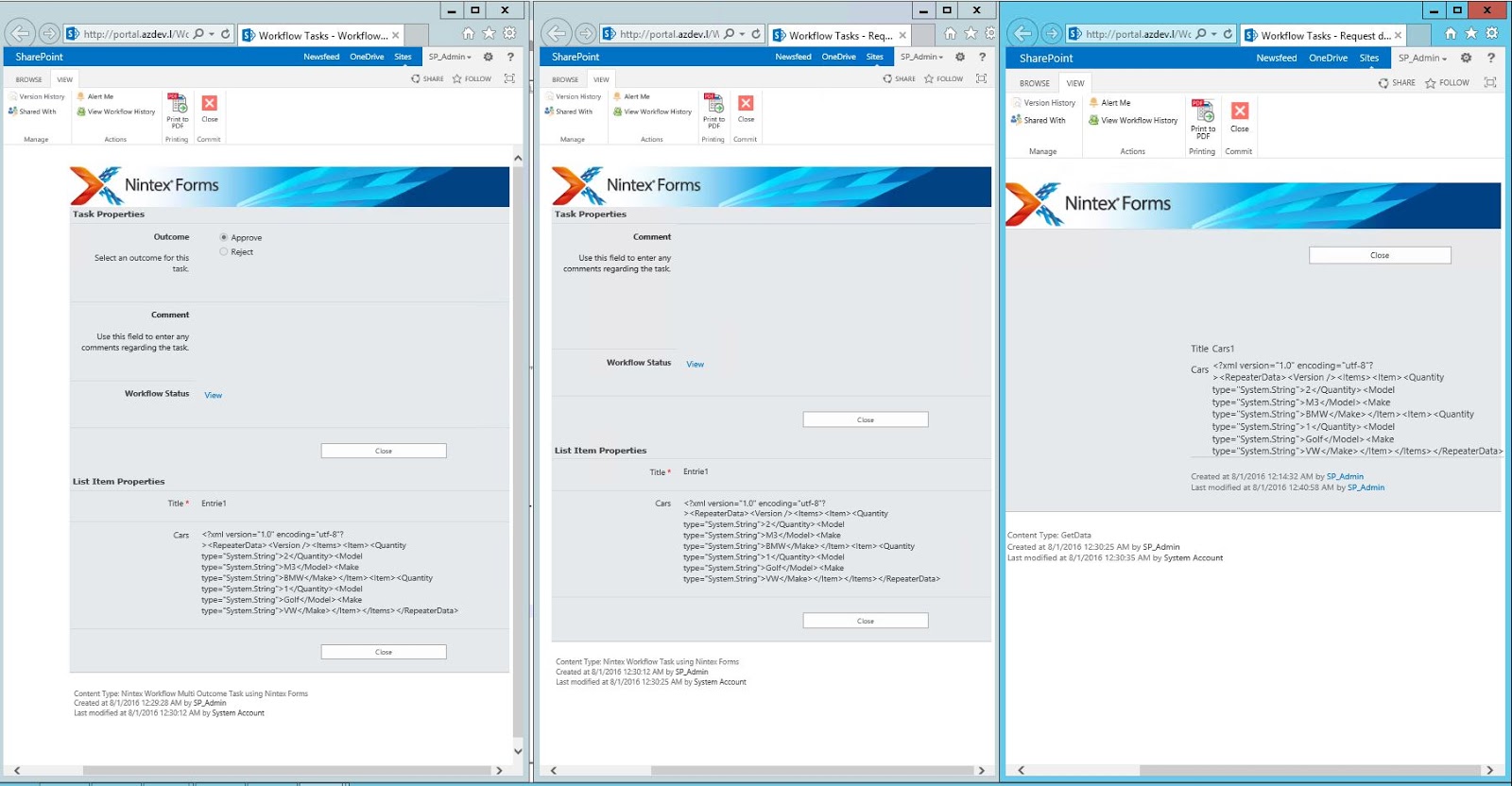
Now to the reason to write this post. If you have tasks in your workflow it will not be unusual you or your customer/users to want to see the related item properties right in the task form instead clicking on links. If you leave the form as it is, the best you can get is to view the repeating section as XML. You can edit the task forms with Nintex Forms for most of the task templates you will get a good starting point and all item properties controls will be created. However check out how this controls look like in three common tasks. From left to right Flexi Task, Request review and Request data.

Nintex Task Forms

As you can see the data from the repeating section is displayed as XML. Even in the "Request data" template where I have used "List item" control to display the related item. 
This was also the case with the customer, they had many "Request data" tasks and all of them were using "List item" control to display the related item.
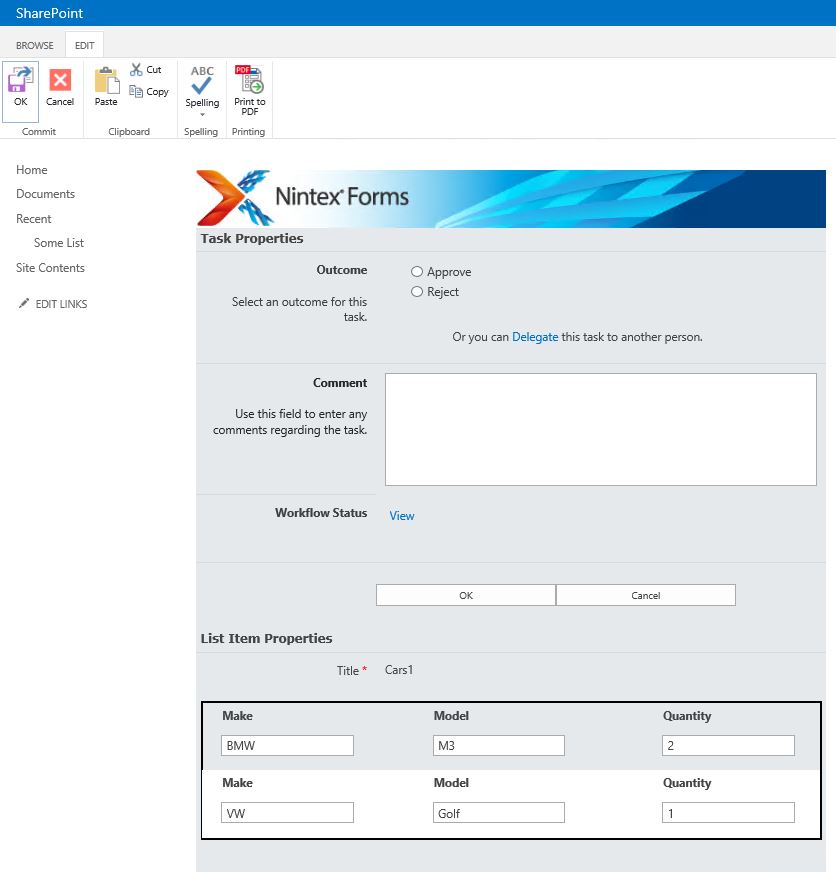
The solution to this is very simple, just create a new repeating section in the task form, recreate all child controls by replicating the data type and the Name of the controls. Then connect the repeating section control to the related item field that contains the XML from the related item. Checkout how a Flexi task looks like if you recreate the repeating section as described.

Flexi Task Form


The data from the repeating section in the related item is represented as repeating section in the task form as well. Just make sure that the names of the controls are as in the original item, make the repeating section read only in the task form and you will be completely fine.
I tested the same approach in SharePoint 2016 and Office 365. However something interesting is happening with the XML as you can see in the screenshot below (the field is called Rep)

Task Form Office 365

The important thing is that the repeating section is visualized as expected. If I found what is happening with the XML might blog about it.
I hope that this was helpful! 

How to create a survey from SharePoint and OneDrive using Forms for Excel

As I mentioned numerous times in my blog, Microsoft Forms is a great way to create a quick survey/questionnaire on the fly. The primary method of doing so is navigating to the Forms application and creating either a personal or a Group Form. Today, I want to share another technique that has some fantastic benefits. There is also a way to create a survey from SharePoint and OneDrive using Forms for Excel. Let me explain.

The primary way to create a new Form

The primary way to create a new Form (unless you are creating a quick poll) is via the Forms application. I explained the steps in this article before.

The issue with the above method

One major downside of the above method is that if you want to navigate to the survey results, you have to navigate to the Form you created, click on Responses Tab and click on the Open in Excel link.

Moreover, whenever you want to review the refreshed results, it always downloads a new Excel file which you then need to move to SharePoint or OneDrive if you’re going to save a record of it.

How to create a survey from SharePoint and OneDrive using Forms for Excel

Luckily, we also have another cool option to alleviate the abovementioned issue. It is available from the New drop-down choice in SharePoint Document Library or OneDrive for Business Web App.

Forms for Excel within a Document Library on a SharePoint site

Forms for Excel

Forms for Excel within OneDrive for Business

Here are the steps to create a Survey from the SharePoint document library and OneDrive using Forms for Excel.

  1. From either a SharePoint Document Library or OneDrive Web App, click the New drop-down and choose Forms for ExcelForms for Excel
  2. Give your Excel file a name (which is essentially the name of your survey as well) and click Create
  3. It will create a Form/Survey, and you will be able to add questions to it

What happens when you create a survey from SharePoint and OneDrive using Forms for Excel

You might be wondering what’s so cool about this method. Here are a few advantages of this method compared to creating Forms from the Forms Application:

  1. Forms created from OneDrive for Business become Personal forms, and forms created from the SharePoint document library become Group forms. To understand the difference between the two, check out this post.
  2. Survey responses are automatically saved in a SharePoint Document Library Excel Document if you created the Survey from the SharePoint Document LibraryForms for Excel
  3. Survey responses are automatically saved in your OneDrive Web App Excel document if you created the Survey from the OneDrive Web Application
  4. There is no need to refresh the data or download new responses – they are automatically saved into Excel Document within a document library (or OneDrive)
  5. If you click Open in Excel from within the Forms Responses, it does not download a new Excel document every single time. Instead, it opens the Excel file you created from either the document library or OneDrive.Forms for Excel
  6. If you decide to move a personal form to a Microsoft 365 Group (I described the process here), the Excel with survey responses is automatically copied to an associated Team Site default document library!
  7. If you need to edit the Form, you can also do it from the convenience of the Excel Web App by clicking Insert > Forms > Edit FormForms for Excel

Forms for Excel and Communication Sites

You won’t find Forms for Excel in any document libraries within a Communication Site. And there is a reason for it. Since the Form can either be Personal (responses stored in OneDrive for Business) or Group (responses stored on an associated Team Site), Forms can not be associated with a Communication Site (since it is not a Team Site connected to a group).

New Drop-down on a document library on a Communication Site

The post How to create a survey from SharePoint and OneDrive using Forms for Excel appeared first on SharePoint Maven.

❌
❌