Vue normale

Il y a de nouveaux articles disponibles, cliquez pour rafraîchir la page.
À partir d’avant-hierFlux principal

How to find the Internal name of columns in SharePoint Online?

The internal name of a SharePoint column is a unique name that is automatically generated by SharePoint when a column is created. It is used by SharePoint internally to reference and retrieve the value of a particular column associated with an item or document. The internal name is generated based on the display name you provide but all special characters and spaces will be replaced with Unicode’s by SharePoint. Internal name is generated only once while creating a new column and it cannot be changed even if you change the display name of SharePoint column.

The internal name is not visible to users in the SharePoint user interface by default, but it is commonly used in various scenarios, such as in SharePoint REST APIs, Power Automate flow expressions, Power Apps formulas, PowerShell, etc. to interact with column data programmatically.

Where are Internal names of SharePoint columns used?

  1. Custom Scripts: When creating custom scripts, such as JavaScript or PowerShell, the internal names of columns are required to reference and manipulate the values of the columns while interacting with SharePoint data.
  2. Workflows: In SharePoint Designer workflows or Microsoft Power Automate (formerly known as Microsoft Flow), the internal names of columns are used to reference the values of the columns as inputs or outputs in the workflow actions and in expressions.
  3. Custom Solutions: When building custom solutions, such as SharePoint apps, SharePoint framework (SPFx) web parts, or custom code, the internal names of columns are required to interact with the columns programmatically.
  4. Power Apps: Few of the Power Apps functions like ShowColumns, SortByColumns, etc. requires using internal names of SharePoint columns in formula.
  5. JSON Formatting: Internal name of SharePoint column is required in JSON formatting to reference the column value with [$InternalNameOfColumn] syntax.

How to find the Internal name of a SharePoint column?

Using Modern experience list view

You can use sorting or filtering options from SharePoint online modern experience list view to find the internal name of a SharePoint column. Sort by and Filter by options are supported by most of the column types in SharePoint like Single line of text, Choice, Number, Date and Time, Yes/No (Boolean), Person or Group (single selection), etc.

For this afticle, we will use sorting based on SharePoint choice column as an example:

1. Go to the SharePoint online list for which you want to check the internal name of a column.

2. Click on column name/header from the list view and select either Ascending (A to Z) or Descending (Z to A) option from the popup menu:

Find internal name of SharePoint column by sorting choice column from SharePoint online modern experience list view
Find internal name of SharePoint column by sorting choice column

3. SharePoint will sort the list view based on selection and the browser URL will be changed like:

https://contoso.sharepoint.com/sites/wlive/Lists/InternalNames/AllItems.aspx?sortField=ChoiceColumn&isAscending=false

Where column name (ChoiceColumn) after sortField= is the internal name of your SharePoint choice column.

4. Similarly, when you use Filter by option in SharePoint modern experience to filter the list view based on Date and Time column (named as Start Date), SharePoint changes browser URL like:

https://contoso.sharepoint.com/sites/wlive/Lists/InternalNames/AllItems.aspx?FilterField1=Start_x0020_Date&FilterValue1=2023-04-05&FilterType1=DateTime

Where column name (Start_x0020_Date) after FilterField1= is the internal name of your SharePoint date and time column. Notice _x0020_ in internal column name which is an Unicode encoding of the space character in the display name of date and time column (Start Date).

Using Classic experience List settings page

Few of the SharePoint column types like Multiple lines of text, Hyperlink or Picture, Image, etc. does not support sorting or filtering from SharePoint modern experience list views. So, you have to use the classic experience list settings page to find the internal name for such SharePoint columns.

Follow below steps to find the internal name of multiple lines of text column using SharePoint classic experience list settings page:

1. Go to the SharePoint online list for which you want to check the internal name of a column.

2. Click on Settings (gear) icon from the top right corner and select List settings:

Open SharePoint online List settings page from modern experience list view to find the internal name of SharePoint column
Open SharePoint online list settings page

3. From list settings page, scroll down to the Columns section and click on the column name for which you want to find the internal name:

Open SharePoint online column settings page from classic experience list settings page to find the internal name of SharePoint column
Open SharePoint online Column settings page

4. SharePoint will open column settings page for the respective column with browser URL like:

https://contoso.sharepoint.com/sites/wlive/_layouts/15/FldEdit.aspx?List=%7B6FBA7FAE-AFC0-45D6-99EE-0AB20629EE41%7D&Field=MultilineTextCol
SharePoint online column settings page showing internal name of column

Where column name (MultilineTextCol) after Field= is the internal name of your SharePoint online multiple lines of text column.

Note: You can use this classic experience method to find out the internal name of SharePoint columns for all column types.

Using SharePoint REST API

You can use SharePoint REST API endpoint like below to get the internal name of SharePoint column based on it’s display name. Open URL in below format directly from browser tab:

https://contoso.sharepoint.com/sites/SPConnect/_api/web/lists/getbytitle('InternalNames')/fields?$select=Title,InternalName&$filter=Title eq 'Multiline Text Column'
Find internal name of SharePoint online list column using SharePoint REST API
Find internal name of SharePoint column using SharePoint REST API
Using PnP PowerShell

You can use below PnP PowerShell script to find the internal name of SharePoint online list column using PnP PowerShell:

# SharePoint online site URL
$siteUrl = "https://contoso.sharepoint.com/sites/wlive"

# Display name of SharePoint list
$listName = "InternalNames"

# Display name of SharePoint list column
$columnName = "Multiline Text Column"
 
# Connect to SharePoint online site
Connect-PnPOnline -Url $siteUrl -Interactive
 
# Get internal name of SharePoint list column
Get-PnPField -Identity $columnName -List $listName | Select Title,InternalName
Find internal name of SharePoint online list column using PnP PowerShell
Find internal name of SharePoint column using PnP PowerShell
Using CLI for Microsoft 365

You can use below CLI for Microsoft 365 script to find the internal name of SharePoint online list column using CLI for Microsoft 365:

# SharePoint online site URL
$siteUrl = "https://contoso.sharepoint.com/sites/wlive"

# Display name of SharePoint list
$listName = "InternalNames"

# Display name of SharePoint list column
$columnName = "Multiline Text Column"
 
# Get Credentials to connect
$m365Status = m365 status
if ($m365Status -match "Logged Out") {
	m365 login
}

# Get internal name of SharePoint list column
m365 spo field get --webUrl $siteUrl --listTitle $listName --title $columnName --output text
Find internal name of SharePoint online list column using CLI for Microsoft 365
Find internal name of SharePoint column using CLI for Microsoft 365

Best practices for naming SharePoint columns

When creating columns in SharePoint, it’s important to follow best practices for column naming to avoid using special characters or Unicode characters in internal names. Here are some recommended best practices:

  1. Use only alphanumeric characters: Stick to using letters (A-Z, a-z) and numbers (0-9) in column names. Avoid using special characters such as @, #, $, %, _, etc. Avoid column names beginning with numbers.
  2. Avoid spaces: Use PascalCase to separate words in column names instead of spaces. For example, use ColumnName instead of Column Name. This can help prevent issues with URLs, Unicode encoding, and referencing column names in scripts or code.
  3. Avoid reserved words: SharePoint has reserved words that are used for system functionality, and using them in column names may cause conflicts. Examples of reserved words include “ID”, “Modified”, “Created”, “Title”, etc. Avoid using these reserved words as column names.
  4. Keep it concise and meaningful: Use descriptive and meaningful names for columns that clearly indicate their purpose. Avoid using vague or generic names that may be confusing or ambiguous to users. Use column description to provide more information about the columns.
  5. Be consistent: Establish a consistent naming convention for columns across your SharePoint site or site collection to ensure uniformity and ease of management. This can also help with documentation, training, and maintenance of your SharePoint environment.

I hope you liked this article. Give your valuable feedback & suggestions in the comments section below and share this article with others.
Learn more

Create a SharePoint online site using Power Automate flow

In this article, I will demonstrate how to provision a SharePoint online modern site using a Power automate flow. As there is no standard Power automate action for creating a SharePoint site (previously called “site collections”) using SharePoint connector, we will use the Send an HTTP Request to SharePoint action and SharePoint REST API in Power automate flow.

Follow below steps to create a SharePoint online modern communication site using Power Automate flow:

1. Go to make.powerautomate.com and create a new Instant cloud flow with Manually trigger a flow trigger.

2. Add Send an HTTP request to SharePoint action in Power automate flow.

3. Use configurations for Send an HTTP request to SharePoint action in below format:

MethodPOST

Uri_api/SPSiteManager/create

Headers:

{
	"accept": "application/json;odata=verbose",
	"content-type": "application/json;odata=verbose"
}

Body:

{
	"request": {
		"Title": "My Communication Site",
		"Url": "https://contoso.sharepoint.com/sites/MyCommSite",
		"Description": "My Communication Site created using Power Automate flow",
		"Owner": "gsanap@contoso.com",
		"Lcid": 1033,
		"WebTemplate": "SITEPAGEPUBLISHING#0",
		"SiteDesignId": "6142d2a0-63a5-4ba0-aede-d9fefca2c767",
		"ShareByEmailEnabled": false
	}
}

Where,

Url

URL for the new SharePoint online modern site (site collection)

LCID

Locale identifier (LCID) for the site language. 1033 is for English language, check LCID for other languages at: Language.Lcid property

WebTemplate

WebTemplate property is used to specify which type of SharePoint site to you want to create. You can use following values for this property:

  • Communication Site: SITEPAGEPUBLISHING#0
  • Team Site (not connected to M365 group): STS#3

SiteDesignId

SiteDesignId property is used to apply site template (previously called “site design”) to newly created SharePoint site.

If you want to apply an out-of-the-box available site template, use the following values:

  • Topic: 96c933ac-3698-44c7-9f4a-5fd17d71af9e
  • Showcase: 6142d2a0-63a5-4ba0-aede-d9fefca2c767
  • Blank: f6cc5403-0d63-442e-96c0-285923709ffc

ShareByEmailEnabled

If this property is set to true, it will enable sharing SharePoint files via Email.

Your final Power automate flow should look like this:

Create a SharePoint online modern communication site using Power Automate flow and SharePoint REST API
Create a SharePoint online site using Power Automate flow

4. Save your flow and Run it using Test > Manually options at the top right corner. After flow run completes successfully, navigate to the site URL mentioned in Send an HTTP request to SharePoint action in Power automate flow and you will see a newly created SharePoint online modern communication site like:

SharePoint online modern communication site created using Power Automate flow and SharePoint REST API with Send an HTTP request to SharePoint action
SharePoint online modern communication site created using Power Automate

Learn more

SharePoint Online: All you need to know about Commenting in Lists

Microsoft recently introduced a new feature of commenting in SharePoint Online lists and Microsoft lists. Using this feature users will be able to add and delete comments on list items. Users can view all comments on a list item and filter between views that show comments or activity related to an item in details pane.

Microsoft has started rolling out this feature to all SharePoint Online tenants in December 2020 release, see Roadmap.

Where can you find Comments options?

Comments options are currently located at below three places in SharePoint Online/Microsoft lists:

List view

Users can see which list items have comments when they access the SharePoint Online list view or Microsoft list home page. Comments option will be shown on command bar when you select a list item as well as at the right hand side of Title column. When you hover over on comments icon it will show you the count of comments added to the list item.

New Comments in SharePoint list view
Comments options in List view
Display/Edit form

By default, users will see a new comments pane alongside the list item form when they access a list. Users can toggle the comment pane visibility by clicking the comments icon. When you hide comments, the pane does not collapse. The comments pane will be closed by default for lists customized by Power Apps.

New Comments in SharePoint list display form
Comments options on Display form
Details Pane

Users can see the Comments and All activity related to list item on details pane. Users can filter views that show comments or activity by using the dropdown under “More details” section.

New Comments options in Details pane in SharePoint Online list
Comments options in Details pane

Permission Considerations

Comments follow the permission settings inherent in SharePoint Online and Microsoft Lists.

  • Users with read-only permission can only view comments.
  • Those with list edit permission can make comments as well as delete comments; editing comments is currently not possible. 

Where the Comments will be stored?

Comments are stored in the schema for each list, which is based on the SharePoint storage platform.

Working with SharePoint REST APIs

As comments are stored within the list schema itself and not with list items, it is not possible to fetch comments using  $select with /items endpoint. However, you can get the list item comments using below endpoint:

https://<tenant>.sharepoint.com/sites/<site>/_api/web/lists/getbytitle('<list-name>')/GetItemById(<item-id>)/Comments()

//OR

https://<tenant>.sharepoint.com/sites/<site>/_api/web/lists/getbytitle('<list-name>')/items(<item-id>)/Comments()

For more information on working with comments using SharePoint REST APIs, check:

Working with JSON Formatting

Currently it is not possible to get the actual list item comments value using JSON formatting. But, you can get the count of comments added to list item using [$_CommentCount] which is an internal name of SharePoint list column that returns the count of list item comments.

Check how you can get comments count and show it in SharePoint list view at: Working with SharePoint Online/Microsoft List Comments using JSON Formatting.

Current Limitations

  • Editing comments is currently not possible.
  • Any user can delete the list item comments. Currently there is no way to disable deletion of comments.
  • Maximum characters limit in list comments: 2000 characters
  • Classic lists that are not yet built to show up in modern user interfaces, like Task lists, will not have this commenting feature.
  • Commenting on lists in Teams is not available with this release.
  • Comments are not indexed by Search.

Enable/Disable Comments

Currently it is not possible to disable commenting at the site or list level. Microsoft is working on the new feature which will allow users to enable/disable the comments for individual SharePoint lists. However, Admins can enable/disable this feature at the organization level by changing the CommentsOnListItemsDisabled parameter in the Set-SPOTenant PowerShell cmdlet:

Read more about how to enable/disable the commenting in SharePoint Online/Microsoft Lists at: How to Enable/Disable the commenting in SharePoint Online/Microsoft Lists.

What’s Next?

  • Currently it is not possible to disable commenting at the site or list level. Microsoft is currently working on this feature update, more information at: Enable/Disable the comments for a SharePoint Online/Microsoft List.
  • @mentions in comments:
    • Get a colleague’s attention to an item in a list by @mentioning them within list comments. That person will receive a notification and a link that takes them directly back to the item, to review the comment and take the requested action.

I hope you liked this blog. Give your valuable feedback & suggestions in the comments section below and share this blog with others.

Attempting to explain Teams shared channels to end users

Shared channels in Microsoft Teams are not exactly new, but at the same time relatively recent. Consistently amongst organisations and IT Pros the resounding commentary I’ve heard is that they are too confusing and have been disabled.

The problem is that shared channels are a mix of experiences borrowed from private channels and guest access, with extra layers of control wrapped around them.

My biggest frustration with the approach of disabling shared channels, is that I wished people did the same for private channels and guest access in the first place. Not because I think features should be disabled, but more so because I believe any feature before being made available to end-users should come with (in no particular order of importance):

  • Governance to ensure the organisation remains compliant.
  • Support to ensure that users don’t get lost and can get help if they need it.
  • Training to ensure that they actually understand the why/which/what/when/who/how of the particular feature.

Unfortunately, this isn’t reality, and both organisations and users chastise each other or Microsoft for not doing things properly. Sometimes it’s not their actual faults, sometimes it actually is.

But anyway, back to shared channels.

More than meets the eye

Before shared channels was released, I shared a quiz asking what people knew about the features and restrictions. The features I asked about were merely to do with basic functionality of shared channels — not even factoring in users from external tenants.

In total there were 11 questions with a total of 20 points available. Out of 260 responses, the average score was only 10.6 — with many people responding to me on social media that the quiz was too hard. And most of the respondents were IT professionals — not even end-users, so imagine how much more challenging it can be for them.

(You can view the results here.)

Two different experiences

With shared channels in Microsoft Teams, there are effectively two different experiences that eventuate for users.

The first, is shared channels for internal use. This, is relatively innocuous and serves as another choice of whether to use an existing Team, a new Team, a private channel, a group chat, etc.

The second, is external access — where you can share channels with a user in another organisation, a Team in another organisation, and vice versa. This is where things become not just a little bit more challenging, but A LOT more challenging — if you want to do things somewhat properly that is.

Two different stories

Here’s the first challenge with shared channels. By default in Microsoft Teams, shared channels are enabled for all users, including the ability for internal users to invite external users as well as for them to join shared channels in other organisations.

The problem is that the exact opposite is configured as a default in Azure Active Directory under cross-tenant access settings.

What this results in, is a user attempting to perform a function that the application says is allowed, only to find out upon performing the action that it’s not allowed — and unfortunately with relatively vague reasons in the error message.

What a user sees

What a user thinks

Going down the rabbit hole

The problem is that this is just the start of our experience.

The relationship

The reasons why a user may not be able to invite an external user to a channel include:

  • Both organisations set to block by default (Azure AD)
  • Host organisation set to block by default (Azure AD)
  • Host organisation set to block inbound (Azure AD)
  • External organisation set to block by default (Azure AD)
  • External organisation set to block outbound (Azure AD)
  • Inviter not allowed to invite external users (Teams)
  • Inviter not allowed to invite external users (Azure AD)
  • External user not allowed to join external channels (Teams)
  • External user not allowed to join external channels (Azure AD)

The problem is that it could be any permutation of these, and then there’s the added layer of being able to control the various aspects at a more granular level — by security group or individual user.

For example, you could have a policy in Teams that allows members of a particular security group to invite external users but have not set up the cross-tenant relationship in Azure AD.

Or you could have done all your bits correctly, but the other organisation hasn’t done theirs correctly.

The challenge is that before end-users can collaborate in a shared channel, the IT teams need to collaborate on setting up their relationship between organisations first.

The level of trust

And in order for external users to be able to actually upload files into a shared channel (separate from conversations), you need to enable trust settings between organisations.

Here’s the thing with trust settings… what if the external organisation has weak MFA or compliance policies?

What if they *shudder* allow SMS verification codes?

What if they allow jailbroken devices to be marked as compliant?

Getting personal

And if you want to get granular about controlling who from another organisation is allowed to come into your tenant shared channels, you can restrict this to specific users and groups:

But while that seems straightforward, wait until you get to the next screen:

When I think of an end-user trying to obtain this information from another end-user, and even having to use the term “object ID”, this is what I imagine:

Some months ago I was creating guidance for an organisation who wanted to start using shared channels, and when trying to come up with some documentation that could be provided to end users, and this is how I felt trying to explain it all:

In the end, I built a Power App to simplify the experience.

Teams Shared Channel Navigator

Yes, you read that right — it was easier for me to build an app than it was to explain the various outcomes and scenarios. Because working with shared channels, when done properly, is nothing short of a butterfly effect.

Not only did I build an app, but I also built associated workflows, AND found and worked out how to work with an undocumented/unsupported Microsoft API.

What it does

Instead of trying to explain the myriad of potential reasons why working with a shared channel may not be possible, this app simply shows the end user what they individually can or can’t do, and what is possible for the organisation.

How it works

When initially loading the app, it runs a workflow which calls an undocumented (and unsupported) Microsoft Teams API which lets us see what channel policies exist, and are assigned to the user.

(Initially I wanted to use an Azure Runbook with a PowerShell script to do it the supported way, but unfortunately the cmdlets require do not work with a combination of managed identities / service principals / application permissions — so there was no way to get the data in a secured manner.)

After a few seconds when the policies have been retrieved, the “Please wait…” text switches over to a clickable “Continue” button.

On the next screen, the application shows what the user can do based on the Microsoft Teams policies retrieved in the prior step. This is a crucial step, because not every user may have the ability to join shared channels in other organisations, or invite external people into internally hosted shared channels.

If both of those options are unavailable to the user, the text at the bottom is not visible and the “Search for an organisation” button does not appear.

If the user is able to perform either function and presses the “Search for an organisation” button, they are taken to the next screen which gives them to the option to see if a cross-tenant relationship has been established.

IMPORTANT: We can only check for our side of the process. If our side is set up correctly but the other side is not, we do not have the ability to check for that.

The user can enter either an email address of someone they wish to invite, or just the domain name of the organisation.

This calls a Microsoft Graph API endpoint which both checks to see if the partner organisation relationship has been established on our side, as well as the organisation name (as configured in their Azure Active Directory / Microsoft 365 tenant).

Based on the result it may return a negative and explain that a relationship has not been configured.

Or, if a relationship has been configured, it will identify the nature of the relationship is (ie. inbound or outbound).

If the relationship with the partner supports outbound access (i.e. the ability for users in our tenant to access channels in their tenant), the app then displays whether the user performing the search has the ability to access shared channels in the partner tenant.

This is an important step as the outbound relationship may be set to “All Users”, or may be restricted to specific individual users or security groups.

(In the below example I’ve decided to be a bit silly and show an animated GIF of Oprah Winfrey, however if the user does not have permission, it would return a “Computer says no” animated GIF from Little Britain.)

Summary

While shared channels do make it considerably easier for organisations to collaborate with each other, it’s the initial step of establishing that collaboration which can be somewhat challenging.

This solution allows users to perform some self-service discovery before contacting service desk teams to simply say “it doesn’t work” and have to begin the troubleshooting process from there.

This can reduce both the amount of frustration and time spent by all parties to get to the desired outcome of establishing collaboration between organisations and people.

And if you’re after the code, check my GitHub repository (https://github.com/loryanstrant/) as I’ll be explaining the back-end components and uploading the solution soon.

Originally published at Loryan Strant, Microsoft 365 MVP.


Attempting to explain Teams shared channels to end users was originally published in REgarding 365 on Medium, where people are continuing the conversation by highlighting and responding to this story.

How to find the Internal name of columns in SharePoint Online?

The internal name of a SharePoint column is a unique name that is automatically generated by SharePoint when a column is created. It is used by SharePoint internally to reference and retrieve the value of a particular column associated with an item or document. The internal name is generated based on the display name you provide but all special characters and spaces will be replaced with Unicode’s by SharePoint. Internal name is generated only once while creating a new column and it cannot be changed even if you change the display name of SharePoint column.

The internal name is not visible to users in the SharePoint user interface by default, but it is commonly used in various scenarios, such as in SharePoint REST APIs, Power Automate flow expressions, Power Apps formulas, PowerShell, etc. to interact with column data programmatically.

Where are Internal names of SharePoint columns used?

  1. Custom Scripts: When creating custom scripts, such as JavaScript or PowerShell, the internal names of columns are required to reference and manipulate the values of the columns while interacting with SharePoint data.
  2. Workflows: In SharePoint Designer workflows or Microsoft Power Automate (formerly known as Microsoft Flow), the internal names of columns are used to reference the values of the columns as inputs or outputs in the workflow actions and in expressions.
  3. Custom Solutions: When building custom solutions, such as SharePoint apps, SharePoint framework (SPFx) web parts, or custom code, the internal names of columns are required to interact with the columns programmatically.
  4. Power Apps: Few of the Power Apps functions like ShowColumns, SortByColumns, etc. requires using internal names of SharePoint columns in formula.
  5. JSON Formatting: Internal name of SharePoint column is required in JSON formatting to reference the column value with [$InternalNameOfColumn] syntax.

How to find the Internal name of a SharePoint column?

Using Modern experience list view

You can use sorting or filtering options from SharePoint online modern experience list view to find the internal name of a SharePoint column. Sort by and Filter by options are supported by most of the column types in SharePoint like Single line of text, Choice, Number, Date and Time, Yes/No (Boolean), Person or Group (single selection), etc.

For this afticle, we will use sorting based on SharePoint choice column as an example:

1. Go to the SharePoint online list for which you want to check the internal name of a column.

2. Click on column name/header from the list view and select either Ascending (A to Z) or Descending (Z to A) option from the popup menu:

Find internal name of SharePoint column by sorting choice column from SharePoint online modern experience list view
Find internal name of SharePoint column by sorting choice column

3. SharePoint will sort the list view based on selection and the browser URL will be changed like:

https://contoso.sharepoint.com/sites/wlive/Lists/InternalNames/AllItems.aspx?sortField=ChoiceColumn&isAscending=false

Where column name (ChoiceColumn) after sortField= is the internal name of your SharePoint choice column.

4. Similarly, when you use Filter by option in SharePoint modern experience to filter the list view based on Date and Time column (named as Start Date), SharePoint changes browser URL like:

https://contoso.sharepoint.com/sites/wlive/Lists/InternalNames/AllItems.aspx?FilterField1=Start_x0020_Date&FilterValue1=2023-04-05&FilterType1=DateTime

Where column name (Start_x0020_Date) after FilterField1= is the internal name of your SharePoint date and time column. Notice _x0020_ in internal column name which is an Unicode encoding of the space character in the display name of date and time column (Start Date).

Using Classic experience List settings page

Few of the SharePoint column types like Multiple lines of text, Hyperlink or Picture, Image, etc. does not support sorting or filtering from SharePoint modern experience list views. So, you have to use the classic experience list settings page to find the internal name for such SharePoint columns.

Follow below steps to find the internal name of multiple lines of text column using SharePoint classic experience list settings page:

1. Go to the SharePoint online list for which you want to check the internal name of a column.

2. Click on Settings (gear) icon from the top right corner and select List settings:

Open SharePoint online List settings page from modern experience list view to find the internal name of SharePoint column
Open SharePoint online list settings page

3. From list settings page, scroll down to the Columns section and click on the column name for which you want to find the internal name:

Open SharePoint online column settings page from classic experience list settings page to find the internal name of SharePoint column
Open SharePoint online Column settings page

4. SharePoint will open column settings page for the respective column with browser URL like:

https://contoso.sharepoint.com/sites/wlive/_layouts/15/FldEdit.aspx?List=%7B6FBA7FAE-AFC0-45D6-99EE-0AB20629EE41%7D&Field=MultilineTextCol
SharePoint online column settings page showing internal name of column

Where column name (MultilineTextCol) after Field= is the internal name of your SharePoint online multiple lines of text column.

Note: You can use this classic experience method to find out the internal name of SharePoint columns for all column types.

Using SharePoint REST API

You can use SharePoint REST API endpoint like below to get the internal name of SharePoint column based on it’s display name. Open URL in below format directly from browser tab:

https://contoso.sharepoint.com/sites/SPConnect/_api/web/lists/getbytitle('InternalNames')/fields?$select=Title,InternalName&$filter=Title eq 'Multiline Text Column'
Find internal name of SharePoint online list column using SharePoint REST API
Find internal name of SharePoint column using SharePoint REST API
Using PnP PowerShell

You can use below PnP PowerShell script to find the internal name of SharePoint online list column using PnP PowerShell:

# SharePoint online site URL
$siteUrl = "https://contoso.sharepoint.com/sites/wlive"

# Display name of SharePoint list
$listName = "InternalNames"

# Display name of SharePoint list column
$columnName = "Multiline Text Column"
 
# Connect to SharePoint online site
Connect-PnPOnline -Url $siteUrl -Interactive
 
# Get internal name of SharePoint list column
Get-PnPField -Identity $columnName -List $listName | Select Title,InternalName
Find internal name of SharePoint online list column using PnP PowerShell
Find internal name of SharePoint column using PnP PowerShell
Using CLI for Microsoft 365

You can use below CLI for Microsoft 365 script to find the internal name of SharePoint online list column using CLI for Microsoft 365:

# SharePoint online site URL
$siteUrl = "https://contoso.sharepoint.com/sites/wlive"

# Display name of SharePoint list
$listName = "InternalNames"

# Display name of SharePoint list column
$columnName = "Multiline Text Column"
 
# Get Credentials to connect
$m365Status = m365 status
if ($m365Status -match "Logged Out") {
	m365 login
}

# Get internal name of SharePoint list column
m365 spo field get --webUrl $siteUrl --listTitle $listName --title $columnName --output text
Find internal name of SharePoint online list column using CLI for Microsoft 365
Find internal name of SharePoint column using CLI for Microsoft 365

Best practices for naming SharePoint columns

When creating columns in SharePoint, it’s important to follow best practices for column naming to avoid using special characters or Unicode characters in internal names. Here are some recommended best practices:

  1. Use only alphanumeric characters: Stick to using letters (A-Z, a-z) and numbers (0-9) in column names. Avoid using special characters such as @, #, $, %, _, etc. Avoid column names beginning with numbers.
  2. Avoid spaces: Use PascalCase to separate words in column names instead of spaces. For example, use ColumnName instead of Column Name. This can help prevent issues with URLs, Unicode encoding, and referencing column names in scripts or code.
  3. Avoid reserved words: SharePoint has reserved words that are used for system functionality, and using them in column names may cause conflicts. Examples of reserved words include “ID”, “Modified”, “Created”, “Title”, etc. Avoid using these reserved words as column names.
  4. Keep it concise and meaningful: Use descriptive and meaningful names for columns that clearly indicate their purpose. Avoid using vague or generic names that may be confusing or ambiguous to users. Use column description to provide more information about the columns.
  5. Be consistent: Establish a consistent naming convention for columns across your SharePoint site or site collection to ensure uniformity and ease of management. This can also help with documentation, training, and maintenance of your SharePoint environment.

I hope you liked this article. Give your valuable feedback & suggestions in the comments section below and share this article with others.
Learn more

find-internal-name-of-sharepoint-column-by-sorting-choice-column

ganeshsanapblogs

Find internal name of SharePoint column by sorting choice column from SharePoint online modern experience list view

Open SharePoint online List settings page from modern experience list view to find the internal name of SharePoint column

Open SharePoint online column settings page from classic experience list settings page to find the internal name of SharePoint column

SharePoint online column settings page showing internal name of column

Find internal name of SharePoint online list column using SharePoint REST API

Find internal name of SharePoint online list column using PnP PowerShell

Find internal name of SharePoint online list column using CLI for Microsoft 365

Azure AD Connect Cyber attacks, New AI features for industry, Fun Teams Features & more: Practical 365 Podcast S3 E25

In the show this week, Paul and Steve discuss a cyber attack reported against Azure AD Connect that inflicted a vast amount of damage to a business, Snapchat filters in Teams, two new changes to the Graph API and Microsoft Teams Rooms on Android, and more!

The post Azure AD Connect Cyber attacks, New AI features for industry, Fun Teams Features & more: Practical 365 Podcast S3 E25 appeared first on Practical 365.

Reporting on Teams shared channels & users

One of the core principles I live my life by is to be informed, to know something fully before I make a decision.

Maybe it’s because I’m Autistic, maybe it’s just common sense, maybe it’s how I was raised, whatever — let’s not get philosophical here.

Virtually every organisation I’ve spoken to has said they’ve disabled shared channels in Microsoft Teams until they know more about it, and some have actually engaged me to help them with a framework for using it.

There are a number of challenges with shared channels, and that comes from the fact it’s trying to provide more granularity than guest access currently does, while at the same time trying to be flexible and easy to use — and we know you generally can’t have all of these together.

For those that have chosen to allow access to external channels and users, how do they know where their people are — and who is inside their tenant?

While there is some reporting in the Teams Admin Center (TAC), we have to dig into each Team, then each shared channel, and only then we can we find the external users and where they came from.

Thankfully we have a few endpoints in Microsoft Graph we can use to build some of our own reporting, using Power Automate to call the Graph endpoints and Power BI to visualise the data.

You can store the data in SharePoint Lists, Dataverse tables, or whatever you like.

There are a few aspects to capture in order to get a full picture:

  • Organisations that have been configured in for cross-tenant access in Azure AD
  • Shared channels attached to Teams
  • Internal users accessing shared channels in other organisations
  • Users from other organisations accessing shared channels in your tenant
  • Identifying what internal shared channels the external users are in

DISCLAIMER: Some of these calls are using beta endpoints and are technically not supported — so use at your own peril/pleasure.

Pre-requisites

Before we can create any workflows that call Graph, you will need an Azure AD App Registration with the following permissions:

  • Channel.ReadBasic.All
  • ChannelMember.Read.All
  • CrossTenantInformation.ReadBasic.All
  • CrossTenantUserProfileSharing.Read.All
  • Directory.Read.All
  • Policy.Read.All

You’ll also need to already have (or build) a listing of:

  • Users — ID & display name
  • Teams — ID & display name

Key workflows

In all of my workflows, I use a variable called “GraphPath” and sometimes “GraphPathSuffix” to help make the design of them more scalable and repeatable, so where applicable I will include those variables.

List organisations configured for cross-tenant access

Here we will use two key requests:

First, let’s list all the partners we have defined in Azure AD:

As this only returns the tenant ID, we need to run a second call against each of them to capture their organisation name and primary domain:

The data we’ll record looks like this:

And in Power BI our output looks like this:

Listing shared channels in your tenant

Ideally you already have a list of Teams in your tenant stored somewhere, if you don’t — you’ll need it for this next step.

Here we will use one key request:

The two parameters we’re using for our call are:

We’re then going to use both of these together with the Group ID of the Teams to see what shared channels exist:

For each channel we find, we’ll store these values:

Using a relationship between the “tenantid” value in this table and the same value in the table from the previous step we can start to build this out:

Where the values are blank in the “Remote Tenant” column, this is because the tenant is not external (i.e. the channel is hosted in our tenant).

List internal users accessing shared channels in other organisations

Here we will use two key requests:

Let’s set our Graph query elements:

The first step is to simply find who in our tenant is accessing external tenants, with the only result being their ID:

For each of those users, we now need to extrapolate and find the related tenants:

Then for each tenant returned, we only need to store the user ID and external tenant ID:

Again, using a relationship between the “tenantid” value in this table and the same value in the table from the previous step we can start to build this out:

List users from other organisations accessing shared channels in your tenant

Here we will use two key requests:

To see who from other organisations is inside of our tenant, our query is this:

And our action is simple:

Then for each result we find, we need to store the external user’s ID, display name, and home tenant ID:

Again, using a relationship between the “homeTenantId” value in this table and the same value in the table from the previous step we can start to build this out:

Connecting the dots

List which external users are in which shared channels

As we already have a list of shared channels stored in a table somewhere (in my case, it’s in Dataverse), we can now run a query against them.

Using this, we can now go beyond just having a listing of knowing which external users in are in shared channels, but knowing which users are in which channels themselves.

In my query to list those channels, I’ve used the existing “TenantID” variable I declared in my workflow to use with the Azure AD App Registration, so this will filter only channels that are in our tenant:

For each channel we want to list the members:

We again use our tenant ID to filter out any members who are internal, and I’ve also put a condition in place to only proceed if the resulting list has anything in it by using length(body(‘Filter_array_-_only_include_external_users’)):

For any users that do exist, we now record them in our table:

Over in Power BI we’ll establish a relationship between the Channel ID of the shared channels table and the Channel ID from this table (along with some filtering to remove channels where the “User IDs” column is empty), as well as the User ID from this table and the previous listing to get the following result:

Now, if you’re wondering why the list of external users is smaller in this list than in the previous list, it’s because there are effectively two components of the external users that exist:

  • Their inbound user profile
  • Their membership in a channel

Through the course of creating this solution, what I’ve discovered is that if you invite an external user to a shared channel, but they don’t accept the invitation — they will not show up as members of the channel.

It’s for this reason we need to maintain both lists of data (which could be addressed through better Power BI reporting skills than what I possess) — to understand where external users are in your tenant, and where they aren’t. This is the same as what we must do for Azure AD B2B guest users who may exist as an object in your directory, but not actually be a member of a M365 Group or Team (for any number of reasons, such as the Team no longer existing, they were removed by an owner, etc.).

Summary

As I started this blog post saying, it’s important to know what we are working with before we make decisions, as well as to provide troubleshooting and support in scenarios where things aren’t working the way we expect.

While a lot of what I’ve shown is possible in PowerShell, my preference is to do this using Power Automate, HTTP calls to Microsoft Graph, store the data in Dataverse tables, and report them with Power BI as it provides me with a solution that can continually operate without human intervention, as well as storing and displaying the data in a way that stakeholders and decision makers can access easily.

You may have reached this point and be wondering where the code for all this is, as I often publish the components on GitHub. As some of this was worked out during the course of writing this blog post, the workflows are not exactly in the most effective structure they could be.

Once I’ve cleaned them up, I’ll publish them on GitHub and update this blog post. For now, I’ve hopefully provided enough information for you to start building out your own reports.

Originally published at Loryan Strant, Microsoft 365 MVP.


Reporting on Teams shared channels & users was originally published in REgarding 365 on Medium, where people are continuing the conversation by highlighting and responding to this story.

Microsoft Limits Graph API Requests for User Account Data

Old Limit with SignInActivity was 999 – New Limit for Azure AD Accounts is 120

Because it retrieves details of Azure AD accounts, the List Users API is one of the most heavily used of the Microsoft Graph APIs. It also underpins the Get-MgUser cmdlet from the Microsoft Graph PowerShell SDK. Microsoft generates the cmdlet from the API using a process called AutoRest, which means that changes made to the API show up soon afterward in the cmdlet.

I’ve documented some of the issues that developers must deal with when coding with the cmdlets from the Microsoft Graph PowerShell SDK. The cmdlets have been stable recently, which is a relief because tenants are migrating scripts from the Azure AD and MSOL modules. However, last week an issue erupted in a GitHub discussion that caused a lot of disruption.

In a nutshell, if you use List Users to fetch Azure AD accounts and include the SignInActivity property, the API limits the page size for results to 120 items. Calls made without specifying SignInActivity can set the page size to be anything up to 999 items.

An Unannounced Change

To help manage demand on the service, all Graph API requests limit the number of items that they return. To retrieve all matching items for a request, developers must fetch pages of results until nothing remains. When a developer knows that large numbers of items must be fetched, they often increase the page size to reduce the number of requests.

Microsoft didn’t say anything about the new restriction on requests that fetch Azure AD account data with sign-in activity. Developers only discovered the problem when programs and scripts failed. I first learned of the issue when some of the users of the Office 365 for IT Pros GitHub repository reported that a Graph request which included a $top query parameter to increase the page size to 999 items failed. For example:

$uri = "https://graph.microsoft.com/beta/users?`$select=displayName,userPrincipalName,mail,id,CreatedDateTime,signInActivity,UserType&`$top=999"
[array]$Data = Invoke-RestMethod -Method GET -Uri $Uri -ContentType "application/json" -Headers $Headers
Invoke-RestMethod : The remote server returned an error: (400) Bad Request.
At line:1 char:16
+ ... ray]$Data = Invoke-RestMethod -Method GET -Uri $Uri -ContentType "app ...
+                 ~~~~~~~~~~~~~~~~~~~~~~~~~~~~~~~~~~~~~~~~~~~~~~~~~~~~~~~~~
    + CategoryInfo          : InvalidOperation: (System.Net.HttpWebRequest:HttpWebRequest)
   [Invoke-RestMethod], WebException
    + FullyQualifiedErrorId : WebCmdletWebResponseException,Microsoft.PowerShell.Commands.I

As shown in Figure 2, testing with the Get-MgUser cmdlet revealed some more information in the error (“Cannot query data for more than 120 users at a time”). This was the first time I learned about a query limit:

Get-MgUser reports more useful error information

Cannot query data for more than 120 users at a time (SignInActivity)
Figure 2: Get-MgUser reports more useful error information

According to a response reported in the GitHub discussion, Microsoft support reported

The PG have confirmed that this endpoint will be transitioning from beta to General Availability (GA).

As part of this transition, changes to its behavior has been made, this includes not requesting more than 120 results per call. They recommend requesting less than 120 results per call, which can be done by setting the top parameter to, say 100.”

It’s likely that Microsoft made the change because retrieving sign-in activity data for Azure AD accounts is an expensive operation. Reducing the page size to 120 possibly makes it easier to process a request than if it asked for 999 items.

Beta Version of List Users Moving to Production

When the product group (PG) says that the endpoint is transitioning from beta to GA, it means that instead of needing to use https://graph.microsoft.com/beta/users to access sign-in activity, the data will be available through https://graph.microsoft.com/V1.0/users. If you use the Microsoft Graph PowerShell SDK, you won’t have to run the Select-MgProfile cmdlet to choose the beta endpoint. Moving the beta version of the API to the production endpoint is a good thing because there are many other account properties now only available through the beta endpoint (like license assignments).

If you use the Microsoft Graph PowerShell SDK, the Get-MgUser cmdlet is unaffected by the change if you specify the All parameter. This is because the cmdlet handles pagination internally and fetches all pages automatically without the need to specify a page size. For instance, this works:

$AccountProperties = @( ‘Id’, ‘DisplayName’, ‘SignInActivity’)
[array]$Users = Get-MgUser -All -Property $AccountProperties | Select-Object $AccountProperties

Moving to Production

Although it’s good that Microsoft is (slowly) moving the beta versions of the List Users API towards production, it’s a pity that they introduced a change that broke so many scripts and programs without any warning. At worse, this so exhibits a certain contempt for the developer community. At best, it’s a bad sign when communication with the developer community is not a priority. That’s just sad.


Insight like this doesn’t come easily. You’ve got to know the technology and understand how to look behind the scenes. Benefit from the knowledge and experience of the Office 365 for IT Pros team by subscribing to the best eBook covering Office 365 and the wider Microsoft 365 ecosystem.

Tworzenie elementu listy SharePoint w podfolderze używając SPO REST API

W tym poście chciałbym podzielić się z Wami tym, jak łatwo utworzyć element na liście, ale nie bezpośrednio razem z innymi elementami, ale w podfolderze.

Problem

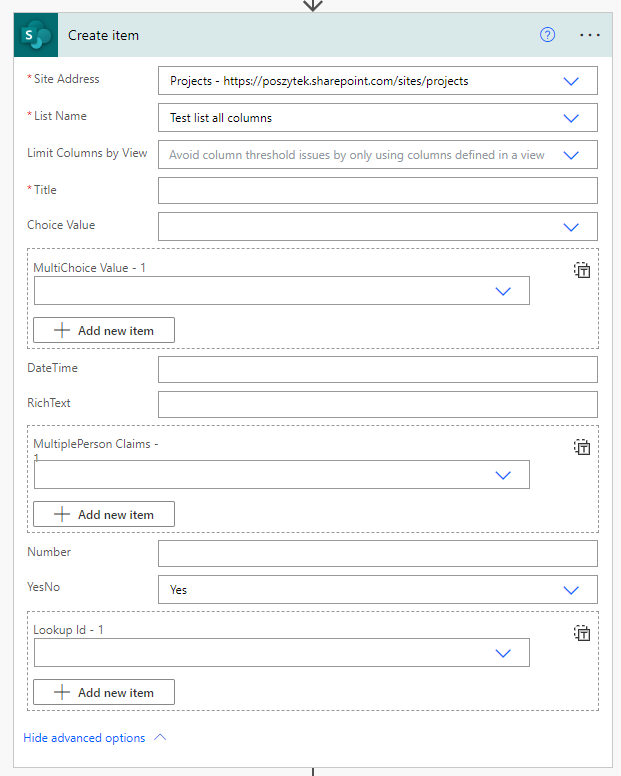
Próba utworzenia elementu wewnątrz podfolderu na liście jest absolutnie niemożliwa przy użyciu istniejącej akcji SharePoint Online.

Create item action

Interfejs akcji nie pozwala na wybór ścieżki, pod którą ma zostać utworzony element. Najlepszym rozwiązaniem jest użycie API REST usługi SharePoint Online.

Użycie REST API SharePoint

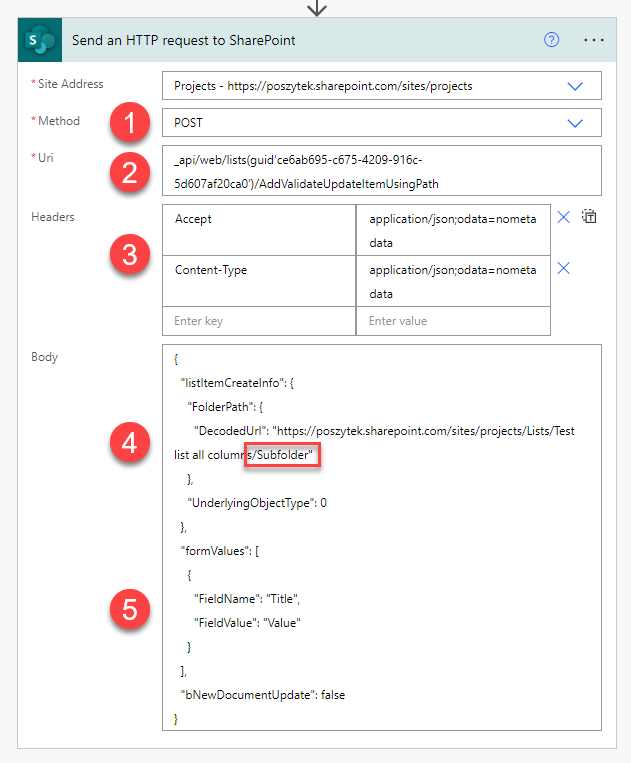
Endpointem, którego należy użyć do wykonania takiej operacji, jest /AddValidateUpdateItemUsingPath z użyciem żądania POST:

Send HTTP Request to SharePoint
  1. Powinno być to żądanie POST
  2. Możesz wypróbować uri „GetByTitle”, chociaż nie mogłem sprawić, by to działało, więc przełączyłem się na guid i jest w porządku 🙂
  3. Użyj nagłówka Accept dla danych zwracanych z wykonanego żądania i Content-Type, aby poinformować punkt końcowy, jaki typ danych jest wysyłany. Używam ;odata=nometadata, aby otrzymać w odpowiedzi tylko minimalną ilość informacji.
  4. Parametr DecodedUrl określa ścieżkę do podfolderu, w którym ma zostać utworzony element.
  5. Lista FieldName + FieldValue może być wykorzystana do stworzenia elementu z metadanymi. Pamiętaj tylko, że musi to być prawidłowy JSON, więc jeśli jakaś wartość zawiera cudzysłowy, należy je wyescapeować.

Generalnie, aby ustawić wartość dla podstawowych typów kolumn, użyj kodu JSON jak poniżej:

   "formValues": [
    {
      "FieldName": "Title",
      "FieldValue": "VALUE"
    },
    {
      "FieldName": "SingleChoice",
      "FieldValue": "VALUE 1"
    },
    {
      "FieldName": "MultiChoice",
      "FieldValue": "VALUE 1;VALUE 2;VALUE 3"
    },
    {
      "FieldName": "DateTime",
      "FieldValue": "DATE IN CORRECT FORMAT"
    },
    {
      "FieldName": "RichText",
      "FieldValue": "VALUE - REMEMBER TO ESCAPE QUOTES!"
    },
    {
      "FieldName": "Number",
      "FieldValue": "1000.00"
    },
    {
      "FieldName": "YesNo",
      "FieldValue": "True or False"
    },
    {
      "FieldName": "SingleLookup",
      "FieldValue": "1"
    },
    {
      "FieldName": "MultiLookup",
      "FieldValue": "I FAILED HERE :("
    },
    {
      "FieldName": "MultiplePerson",
      "FieldValue": "I FAILED HERE AS WELL"
    }
  ]

Ważne! Nie udało mi się pomyślnie wypełnić danych w złożonych kolumnach, takich jak lookup, osoba lub zarządzane metadane. Moje rozwiązanie dla tego problemu znajdziesz poniżej poniżej.

Po pomyślnym wykonaniu akcji treść odpowiedzi będzie zawierała dane dla każdej wypełnionej kolumny wraz z identyfikatorem stworzonego elementu:

{
  "value": [
    {
      "ErrorCode": 0,
      "ErrorMessage": null,
      "FieldName": "Title",
      "FieldValue": "Test 1",
      "HasException": false,
      "ItemId": 0
    },
    {
      "ErrorCode": 0,
      "ErrorMessage": null,
      "FieldName": "Id",
      "FieldValue": "0",
      "HasException": false,
      "ItemId": 0
    }
  ]
}

Ważne! Nawet jeśli kod odpowiedzi wynosi 200, co sugeruje, że żądanie zakończyło się powodzeniem, elementu może nie zostać utworzony. Sprawdź treść odpowiedzi pod kątem komunikatów o błędach.

Jeśli wystąpi błąd, kolumna, która go spowodowała, będzie zawierać następującą odpowiedź JSON:

    {
      "ErrorCode": 0,
      "ErrorMessage": "Value does not fall within the expected range.",
      "FieldName": "Lookup",
      "FieldValue": "[1;2]",
      "HasException": true,
      "ItemId": 0
    },

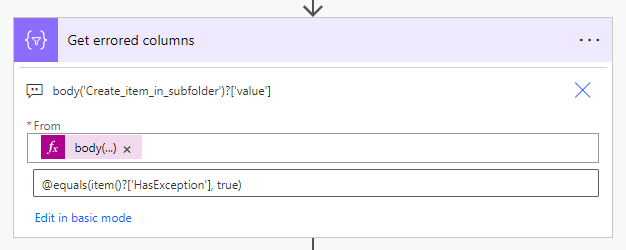
Aby uzyskać wszystkie pola, w których wystąpił błąd podczas tworzenia elementu, możesz użyć akcji „Filter” dla body('Send an HTTP request to SharePoint')?['value'] i filtrować @equals(item() ?['HasException'], true):

Filter response to get array of errors.

W zamian otrzymasz tablicę wszystkich pól, które spowodowały błędy.

Ustaw wartości pól złożonych

Próbowałem ustawić wartości (ale nie udało mi się to) pola, takie jak:

  • Lookup
  • Person
  • Managed metadata

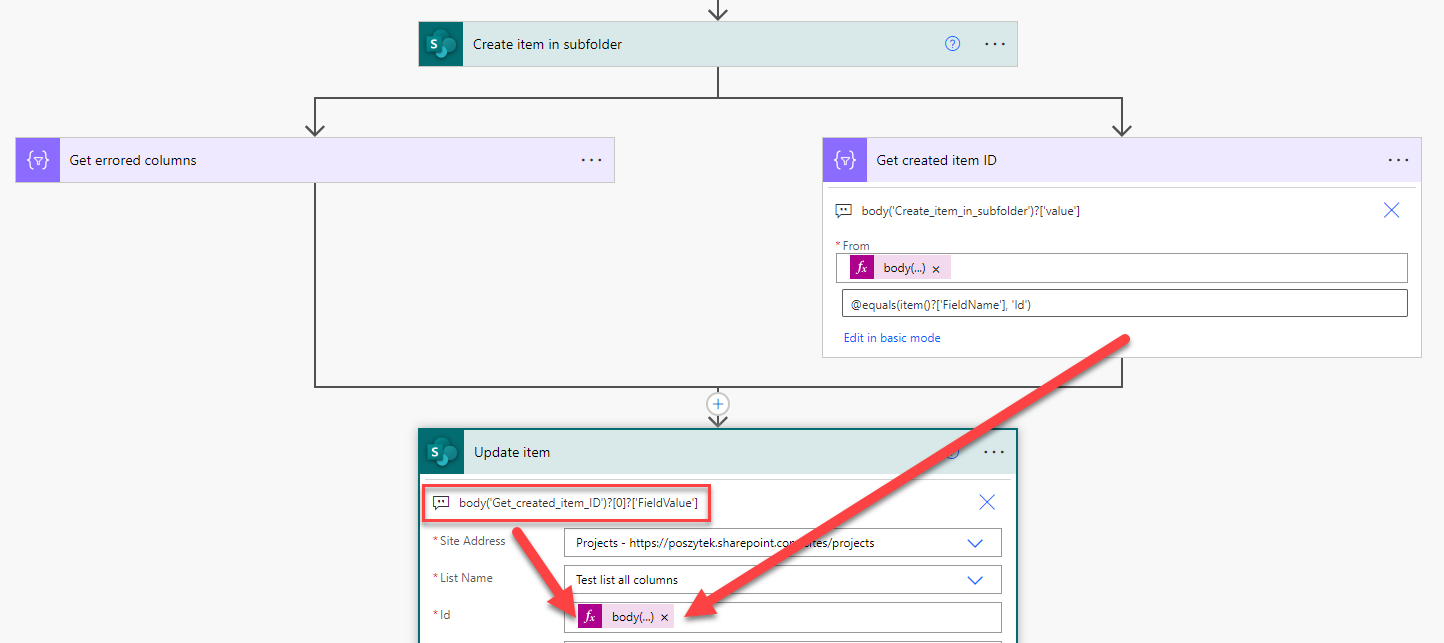
Ale udało mi się ustawić tylko wartość w kolumnie single-lookup 🙁 Więc wpadłem na inny pomysł. Użyj powyższej akcji, aby utworzyć element pod żądaną ścieżką podfolderu, a następnie pobrałem jego identyfikator i użyłem zwykłego „Update item”, aby ustawić żądane wartości nawet dla złożonych typów pól:

Update create item

Osiągnałem to ponownie używając akcji „Filter” dla body('Send an HTTP request to SharePoint')?['value'] i następnie filtrując @equals(item()?['FieldName'], 'Id'). Następnie możesz uzyskać wartość Id korzystając z poniższego wyrażenia:
body('Filter')?[0]?['FieldValue'].

I to wszystko! Daj mi znać, jak to działa u Ciebie.

Artykuł Tworzenie elementu listy SharePoint w podfolderze używając SPO REST API pochodzi z serwisu Tomasz Poszytek, Business Applications MVP.

SharePoint Online: Apply JSON View formatting using SharePoint REST API

JSON View formatting in SharePoint Online can be a useful tool for customizing the way list/library data is presented to end users. This can help improve the user experience and make it easier for users to understand and interact with the SharePoint list/library data.

In this blog post, we will discuss how to apply JSON View formatting in SharePoint Online using SharePoint REST API.

If you want to reuse the JSON view formatting from existing SharePoint list view to newly created views in same SharePoint online list or in different SharePoint list with similar columns, you can get the custom JSON formatting applied on existing SharePoint list view using SharePoint REST API. You have to use the REST endpoint in below format to fetch the JSON:

https://contoso.sharepoint.com/sites/SPConnect/_api/web/lists/getbytitle('My List')/views/getbytitle('All Items')?$select=Title,CustomFormatter

Once you get the list view formatting JSON using above API call, you can use it in below example to apply JSON View formatting to newly created SharePoint Online lists. For this blog post, we will reuse the JSON view formatting from one of my blog posts – SharePoint Online: Highlight selected list item rows using JSON formatting

You can use below SharePoint REST API code for applying JSON view formatting to SharePoint online list:

/sites/SPConnect/SiteAssets/jquery.min.js
<script type="text/javascript">
    function updateViewJSONFormatting(listName, viewName) {
        var viewEndpoint = _spPageContextInfo.webAbsoluteUrl + "/_api/web/lists/getbytitle('" + listName + "')/views/getbytitle('" + viewName + "')";

        var jsonFormatting = {
			"$schema": "https://developer.microsoft.com/json-schemas/sp/v2/row-formatting.schema.json",
			"additionalRowClass": "=if(@isSelected, 'ms-bgColor-themePrimary ms-fontColor-white', '')"
		};
        
        var viewProperties = {
            "__metadata": {
                "type": "SP.View"
            },
            "CustomFormatter": JSON.stringify(jsonFormatting)
        };

        $.ajax({
            url: viewEndpoint,
            type: "POST",
            headers: {
                "accept": "application/json;odata=verbose",
                "content-type": "application/json;odata=verbose",
                "X-RequestDigest": $("#__REQUESTDIGEST").val(),
                "X-HTTP-Method": "MERGE",
                "If-Match": "*"
            },
            data: JSON.stringify(viewProperties),
            success: function(data) {
                console.log(data);
            },
            error: function(error) {
                console.log(error);
            }
        });
    }
</script>

You can call above reusable function like:

updateViewJSONFormatting('Comments List', 'All Items')

Once above function executes successfully, navigate to your SharePoint online list view and you will see that JSON view formatting is applied to your SharePoint online list view:

SharePoint Online: Apply JSON View formatting using SharePoint REST API to highlight selected list item rows using JSON formatting
SharePoint Online: Apply JSON View formatting using SharePoint REST API

Learn more

highlight-selected-list-item-row-using-json-formatting-in-sharepoint

ganeshsanapblogs

SharePoint Online: Apply JSON View formatting using SharePoint REST API to highlight selected list item rows using JSON formatting

Enable/Disable SharePoint Online List Comments using SharePoint REST API

Commenting feature in lists is enabled by default when you create a new list in SharePoint online site or in “My lists” under Microsoft Lists. However you may want to disable the commenting feature if you are using multiple lines of text column with “Append Changes to Existing Text” functionality or if you are capturing comments by Power automate approvals. 

In my earlier blogs, I explained how to enable/disable the comments in SharePoint Online lists for entire tenant using SharePoint Online PowerShell & PnP PowerShell and how to enable/disable the comments for individual SharePoint lists from SharePoint UI via browser.

In this blog I will explain how you can enable/disable the commenting in SharePoint Online/Microsoft Lists using SharePoint REST API. We can retrieve SharePoint list and update list properties with lists endpoint like below using SharePoint REST API:

https://contoso.sharepoint.com/sites/SPConnect/_api/web/lists/getbytitle('Comments List')

Using above endpoint we will update list property named DisableCommenting which allows us to enable/disable SharePoint online list commenting. We have to use the list properties payload like below:

var listProperties = {
	"__metadata": {
		"type": "SP.List"
	},
	"DisableCommenting": true
}

Complete Code

Below is the complete code to disable the commenting in individual SharePoint Online/Microsoft Lists “list” using SharePoint REST API:

function disableListComments(listName) {
	var listEndpoint = _spPageContextInfo.webAbsoluteUrl + "/_api/web/lists/getbytitle('" + listName + "')";

	var listProperties = {
		"__metadata": {
			"type": "SP.List"
		},
		"DisableCommenting": true
	}

	$.ajax({
		url: listEndpoint,
		type: "POST",
		headers: {
			"accept": "application/json;odata=verbose",
			"content-type": "application/json;odata=verbose",
			"X-RequestDigest": $("#__REQUESTDIGEST").val(),
			"X-HTTP-Method": "MERGE",
			"If-Match": "*"
		},
		data: JSON.stringify(listProperties),
		success: function(data) {
			console.log(data);
		},
		error: function(error) {
			console.log(error);
		}
	});
}

You can call this function like given below:

disableListComments('Comments List')

Once above function executes successfully, navigate to List Settings > Advanced Settings and you will see that commenting is disabled for your SharePoint online list:

List Advanced settings showing disabled commenting on SharePoint Online list or Microsoft Lists using SharePoint REST API
Disabled commenting on SharePoint Online list or Microsoft Lists

I hope you liked this blog. Give your valuable feedback & suggestions in the comments section below and share this blog with others.

See also

Mastering the Foibles of the Microsoft Graph PowerShell SDK

He looks happy, but he hasn't hit some of the Microsoft Graph PowerShell SDK foibles yet...
He looks happy, but he hasn’t hit some of the SDK foibles yet…

Translating Graph API Requests to PowerShell Cmdlets Sometimes Doesn’t Go So Well

The longer you work with a technology, the more you come to know about its strengths and weaknesses. I’ve been working with the Microsoft Graph PowerShell SDK for about two years now. I like the way that the SDK makes Graph APIs more accessible to people accustomed to developing PowerShell scripts, but I hate some of the SDK’s foibles.

This article describes the Microsoft Graph PowerShell SDK idiosyncrasies that cause me most heartburn. All are things to look out for when converting scripts from the Azure AD and MSOL modules before their deprecation (speaking of which, here’s an interesting tool that might help with this work).

No Respect for $Null

Sometimes you just don’t want to write something into a property and that’s what PowerShell’s $Null variable is for. But the Microsoft Graph PowerShell SDK cmdlets don’t like it when you use $Null. For example, let’s assume you want to create a new Azure AD user account. This code creates a hash table with the properties of the new account and then runs the New-MgUser cmdlet.

$NewUserProperties = @{
    GivenName = $FirstName
    Surname = $LastName
    DisplayName = $DisplayName
    JobTitle = $JobTitle
    Department = $Null
    MailNickname = $NickName
    Mail = $PrimarySmtpAddress
    UserPrincipalName = $UPN
    Country = $Country
    PasswordProfile = $NewPasswordProfile
    AccountEnabled = $true }
$NewGuestAccount = New-MgUser @NewUserProperties

New-MgUser fails because of an invalid value for the department property, even though $Null is a valid PowerShell value.

New-MgUser : Invalid value specified for property 'department' of resource 'User'.
At line:1 char:2
+  $NewGuestAccount = New-MgUser @NewUserProperties
+  ~~~~~~~~~~~~~~~~~~~~~~~~~~~~~~~~~~~~~~~~~~~~~~~~
    + CategoryInfo          : InvalidOperation: ({ body = Micros...oftGraphUser1 }:<>f__AnonymousType64`1) [New-MgUser
   _CreateExpanded], RestException`1
    + FullyQualifiedErrorId : Request_BadRequest,Microsoft.Graph.PowerShell.Cmdlets.NewMgUser_CreateExpanded

One solution is to use a variable that holds a single space. Another is to pass $Null by running the equivalent Graph request using the Invoke-MgGraphRequest cmdlet. Neither are good answers to what should not happen (and we haven’t even mentioned the inability to filter on null values).

Ignoring the Pipeline

The pipeline is a fundamental building block of PowerShell. It allows objects retrieve by a cmdlet to pass to another cmdlet for processing. But despite the usefulness of the pipeline, the SDK cmdlets don’t support it and the pipeline stops stone dead whenever an SDK cmdlet is asked to process incoming objects. For example:

Get-MgUser -Filter "userType eq 'Guest'" -All | Update-MgUser -Department "Guest Accounts"
Update-MgUser : The pipeline has been stopped

Why does this happen? The cmdlet that receives objects must be able to distinguish between the different objects before it can work on them. In this instance, Get-MgUser delivers a set of guest accounts, but the Update-MgUser cmdlet does not know how to process each object because it identifies an object is through the UserId parameter whereas the inbound objects offer an identity in the Id property.

The workaround is to store the set of objects in an array and then process the objects with a ForEach loop.

Property Casing and Fetching Data

I’ve used DisplayName to refer to the display name of objects since I started to use PowerShell with Exchange Server 2007. I never had a problem with uppercasing the D and N in the property name until the Microsoft Graph PowerShell SDK came along only to find that sometimes SDK cmdlets insist on a specific form of casing for property names. Fail to comply, and you don’t get your data.

What’s irritating is that the restriction is inconsistent. For instance, both these commands work:

Get-MgGroup -Filter "DisplayName eq 'Ultra Fans'"
Get-MgGroup -Filter "displayName eq 'Ultra Fans'"

But let’s say that I want to find the group members with the Get-MgGroupMember cmdlet:

[array]$GroupMembers = Get-MgGroupMember -GroupId (Get-MgGroup -Filter "DisplayName eq 'Ultra Fans'" | Select-Object -ExpandProperty Id)

This works, but I end up with a set of identifiers pointing to individual group members. Then I remember from experience gained from building scripts to report group membership that Get-MgGroupMember (like other cmdlets dealing with membership like Get-MgAdministrationUnitMember) returns a property called AdditionalProperties holding extra information about members. So I try:

$GroupMembers.AdditionalProperties.DisplayName

Nope! But if I change the formatting to displayName, I get the member names:

$GroupMembers.AdditionalProperties.displayName
Tony Redmond
Kim Akers
James Ryan
Ben James
John C. Adams
Chris Bishop

Talk about frustrating confusion! It’s not just display names. Reference to any property in AdditionalProperties must use the same casing as used the output, like userPrincipalName and assignedLicenses.

Another example is when looking for sign-in logs. This command works because the format of the user principal name is the same way as stored in the sign-in log data:

[array]$Logs = Get-MgAuditLogSignIn -Filter "UserPrincipalName eq 'james.ryan@office365itpros.com'" -All

Uppercasing part of the user principal name causes the command to return zero hits:

[array]$Logs = Get-MgAuditLogSignIn -Filter "UserPrincipalName eq 'James.Ryan@office365itpros.com'" -All

Two SDK foibles are on show here. First, the way that cmdlets return sets of identifiers and stuff information into AdditionalProperties (something often overlooked by developers who don’t expect this to be the case). Second, the inconsistent insistence by cmdlets on exact matching for property casing.

I’m told that this is all due to the way Graph APIs work. My response is that it’s not beyond the ability of software engineering to hide complexities from end users by ironing out these kinds of issues.

GUIDs and User Principal Names

Object identification for Graph requests depends on globally unique identifiers (GUIDs). Everything has a GUID. Both Graph requests and SDK cmdlets use GUIDs to find information. But some SDK cmdlets can pass user principal names instead of GUIDs when looking for user accounts. For instance, this works:

Get-MgUser -UserId Tony.Redmond@office365itpros.com

Unless you want to include the latest sign-in activity date for the account.

Get-MgUser -UserId Tony.Redmond@office365itpros.com -Property signInActivity
Get-MgUser :
{"@odata.context":"http://reportingservice.activedirectory.windowsazure.com/$metadata#Edm.String","value":"Get By Key
only supports UserId and the key has to be a valid Guid"}

The reason is that the sign-in data comes from a different source which requires a GUID to lookup the sign-in activity for the account, so we must pass the object identifier for the account for the command to work:

Get-MgUser -UserId "eff4cd58-1bb8-4899-94de-795f656b4a18" -Property signInActivity

It’s safer to use GUIDs everywhere. Don’t depend on user principal names because a cmdlet might object – and user principal names can change.

No Fix for Problems in V2 of the Microsoft Graph PowerShell SDK

V2.0 of the Microsoft Graph PowerShell SDK is now in preview. The good news is that V2.0 delivers some nice advances. The bad news is that it does nothing to cure the weaknesses outlined here. I’ve expressed a strong opinion that Microsoft should fix the fundamental problems in the SDK before doing anything else.

I’m told that the root cause of many of the issues is the AutoRest process Microsoft uses to generate the Microsoft Graph PowerShell SDK cmdlets from Graph API metadata. It looks like we’re stuck between a rock and a hard place. We benefit enormously by having the SDK cmdlets but the process that makes the cmdlets available introduces its own issues. Let’s hope that Microsoft gets to fix (or replace) AutoRest and deliver an SDK that’s better aligned with PowerShell standards before our remaining hair falls out due to the frustration of dealing with unpredictable cmdlet behavior.


Insight like this doesn’t come easily. You’ve got to know the technology and understand how to look behind the scenes. Benefit from the knowledge and experience of the Office 365 for IT Pros team by subscribing to the best eBook covering Office 365 and the wider Microsoft 365 ecosystem.

Reporting Operating System Versions for Azure AD Registered Devices

Know What Operating System Used by Azure AD Registered Devices

After reading an article about populating extension attributes for Azure AD registered devices, a reader asked me how easy it would be to create a report about the operating systems used for registered devices. Microsoft puts a lot of effort into encouraging customers to upgrade to Windows 11 and it’s a good idea to know what’s the device inventory. Of course, products like Intune have the ability to report this kind of information, but it’s more fun (and often more flexible) when you can extract the information yourself.

As it turns out, reporting the operating systems used by registered devices is very easy because the Microsoft Graph reports this information in the set of properties retrieved by the Get-MgDevice cmdlet from the Microsoft Graph PowerShell SDK.

PowerShell Script to Report Azure AD Registered Devices

The script described below creates a report of all registered devices and sorts the output by the last sign in date. Microsoft calls this property ApproximateLastSignInDateTime. As the name indicates, the property stores the approximate date for the last sign in. Azure AD doesn’t update the property every time someone uses the device to connect. I don’t have a good rule for when property updates occur. It’s enough (and approximate) that the date is somewhat accurate for the purpose of identifying if a device is in use, which is why the script sorts devices by that date.

Any Windows device that hasn’t been used to sign into Azure AD in the last six months is likely not active. This isn’t true for mobile phones because they seem to sign in once and never appear again. The report generated for my tenant still has a record for a Windows Phone which last signed in on 2 December 2015. I think I can conclude that it’s safe to remove this device from my inventory.

Figuring Out Device Owners

In the last script I wrote using the Get-MgDevice cmdlet, I figured out the owner of the device by extracting the user identifier from the PhysicalIds property. While this approach works, it’s complicated. A much better approach is to use the Get-MgDeviceRegisteredOwner cmdlet which returns the user identifier for the Azure AD account of the registered owner. With this identifier, we can retrieve any account property that makes sense, such as the display name, user principal name, department, city, and country. You could easily add other properties that make sense to your organization. See this article for more information about using the Get-MgUser cmdlet to interact with Azure AD user accounts.

The Big Caveat About Operating System Information

The problem that exists in using registered devices to report operating system information is that it’s not accurate. The operating system details noted for a device are accurate at the point of registration but degrade over time. If you want to generate accurate reports, you need to use the Microsoft Graph API for Intune.

With that caveat in mind, here’s the code to report the operating system information that Azure AD stores for registered devices:

Connect-MgGraph -Scope User.Read.All, Directory.Read.All
Select-MgProfile Beta

Write-Host "Finding registered devices"
[array]$Devices = Get-MgDevice -All
If (!($Devices)) { Write-Host "No registered devices found - exiting" ; break }
Write-Host ("Processing details for {0} devices" -f $Devices.count)
$Report = [System.Collections.Generic.List[Object]]::new() 
$i = 0
ForEach ($Device in $Devices) {
  $i++
  Write-Host ("Reporting device {0} ({1}/{2}" -f $Device.DisplayName, $i, $Devices.count)
  $DeviceOwner = $Null
  Try {
    [array]$OwnerIds = Get-MgDeviceRegisteredOwner -DeviceId $Device.Id
    $DeviceOwner = Get-MgUser -UserId $OwnerIds[0].Id }
  Catch {}

  $ReportLine = [PSCustomObject][Ordered]@{
   Device             = $Device.DisplayName
   Id                 = $Device.Id
   LastSignIn         = $Device.ApproximateLastSignInDateTime
   Owner              = $DeviceOwner.DisplayName
   OwnerUPN           = $DeviceOwner.UserPrincipalName
   Department         = $DeviceOwner.Department
   Office             = $DeviceOwner.OfficeLocation
   City               = $DeviceOwner.City
   Country            = $DeviceOwner.Country
   "Operating System" = $Device.OperatingSystem
   "O/S Version"      = $Device.OperatingSystemVersion
   Registered         = $Device.RegistrationDateTime
   "Account Enabled"  = $Device.AccountEnabled
   DeviceId           = $Device.DeviceId
   TrustType          = $Device.TrustType }
  $Report.Add($ReportLine)

} #End Foreach Device

# Sort in order of last signed in date
$Report = $Report | Sort-Object {$_.LastSignIn -as [datetime]} -Descending

$Report | Out-GridView

Figure 1 is an example of the report as viewed through the Out-GridView cmdlet.

Reporting operating system information for Azure AD registered devices
Figure 1: Reporting operating system information for Azure AD registered devices

An Incomplete Help

I’ve no idea whether this script will help anyone. It’s an incomplete answer to a question. However, even an incomplete answer can be useful in the right circumstances. After all, it’s just PowerShell, so use the code as you like.


Learn how to exploit the data available to Microsoft 365 tenant administrators through the Office 365 for IT Pros eBook. We love figuring out how things work.

Fetching Group Membership Information for an Azure AD Account

Discover Group Membership with the Graph SDK

Group membership with the Graph SDK

I’ve updated some scripts recently to remove dependencies on the Azure AD and Microsoft Online Services (MSOL) modules, which are due for deprecation on June 30, 2023 (retirement happens at the end of March for the license management cmdlets). In most cases, the natural replacement is cmdlets from the Microsoft Graph PowerShell SDK.

One example is when retrieving the groups an Azure AD user account belongs to. This is an easy task when dealing with the membership of individual groups using cmdlets like:

  • Get-DistributionGroupMember (fetch distribution list members).
  • Get-DynamicDistributionGroupMember (fetch dynamic distribution group members).
  • Get-UnifiedGroupLinks (fetch members of a Microsoft 365 group).
  • Get-MgGroupMember (fetch members of an Azure AD group).

Things are a little more complex when answering a question like “find all the groups that Sean Landy belongs to.” Let’s see how we can answer the request.

The Exchange Online Approach

One method of attacking the problem often found in Exchange scripts is to use the Get-Recipient cmdlet with a filter based on the distinguished name of the mailbox belonging to an account: For example, this code reports a user’s membership of Microsoft 365 groups:

$User = Get-EXOMailbox -Identity Sean.Landy
$DN = $User.DistinguishedName
$Groups = (Get-Recipient -ResultSize Unlimited -RecipientTypeDetails GroupMailbox -Filter "Members -eq '$DN'" )
Write-Host (“User is a member of {0} groups” -f $Groups.count)

The method works if the distinguished name doesn’t include special characters like apostrophes for users with names like Linda O’Shea. In these cases, extra escaping is required to make PowerShell handle the name correctly. This problem will reduce when Microsoft switches the naming mechanism for Exchange Online objects to be based on the object identifier instead of mailbox display name. However, there’s still many objects out there with distinguished names based on display names.

The Graph API Request

As I go through scripts, I check if I can remove cmdlets from other modules to make future maintenance easier. Using Get-Recipient means that a script must connect to the Exchange Online management module, so let’s remove that need by using a Graph API request. Here’s what we can do, using the Invoke-MgGraphRequest cmdlet to run the request:

$UserId = $User.ExternalDirectoryObjectId
$Uri = ("https://graph.microsoft.com/V1.0/users/{0}/memberOf/microsoft.graph.group?`$filter=groupTypes/any(a:a eq 'unified')&`$top=200&$`orderby=displayName&`$count=true" -f $UserId)
[array]$Data = Invoke-MgGraphRequest -Uri $Uri
[array]$Groups = $Data.Value
Write-Host (“User is a member of {0} groups” -f $Groups.count) 

We get the same result (always good) and the Graph request runs about twice as fast as Get-Recipient does.

Because the call is limited to Microsoft 365 groups, I don’t have to worry about transitive membership. If I did, then I’d use the group transitive memberOf API.

Using the SDK Get-MgUserMemberOf Cmdlet

The Microsoft Graph PowerShell SDK contains cmdlets based on Graph requests. The equivalent cmdlet is Get-MgUserMemberOf. This returns memberships of all group types known to Azure AD, so it includes distribution lists and security groups. To return the set of Microsoft 365 groups, apply a filter after retrieving the group information from the Graph.

[array]$Groups = Get-MgUserMemberOf -UserId $UserId -All | Where-Object {$_.AdditionalProperties["groupTypes"] -eq "Unified"}
Write-Host (“User is a member of {0} groups” -f $Groups.count) 

Notice that the filter looks for a specific type of group in a value in the AdditionalProperties property of each group. If you run Get-MgUserMemberOf without any other processing. the cmdlet appears to return a simple list of group identifiers. For example:

$Groups

Id                                   DeletedDateTime
--                                   ---------------
b62b4985-bcc3-42a6-98b6-8205279a0383
64d314bb-ea0c-46de-9044-ae8a61612a6a
87b6079d-ddd4-496f-bff6-28c8d02e9f8e
82ae842d-61a6-4776-b60d-e131e2d5749c

However, the AdditionalProperties property is also available for each group. This property contains a hash table holding other group properties that can be interrogated. For instance, here’s how to find out whether the group supports private or public access:

$Groups[0].AdditionalProperties['visibility']
Private

When looking up a property in the hash table, remember to use the exact form of the key. For instance, this works to find the display name of a group:

$Groups[0].AdditionalProperties['displayName']

But this doesn’t because the uppercase D creates a value not found in the hash table:

$Groups[0].AdditionalProperties['DisplayName']

People starting with the Microsoft Graph PowerShell SDK are often confused when they see just the group identifiers apparently returned by cmdlets like Get-MgUserMemberOf, Get-MgGroup, and Get-MgGroupMember because they don’t see or grasp the importance of the AdditionalProperties property. It literally contains the additional properties for the group excepting the group identifier.

Here’s another example of using information from AdditionalProperties. The details provided for a group don’t include its owners. To fetch the owner information for a group, run the Get-MgGroupOwner cmdlet like this:

$Group = $Groups[15]
[array]$Owners = Get-MgGroupOwner -GroupId $Group.Id | Select-Object -ExpandProperty AdditionalProperties
$OwnersOutput = $Owners.displayName -join ", "
Write-Host (“The owners of the {0} group are {1}” -f $Group.AdditionalProperties[‘displayName’], $OwnersOutput)

If necessary, use the Get-MgGroupTransitiveMember cmdlet to fetch transitive memberships of groups.

The Graph SDK Should be More Intelligent

It would be nice if the Microsoft Graph PowerShell SDK didn’t hide so much valuable information in AdditionalProperties and wasn’t quite so picky about the exact format of property names. Apparently, the SDK cmdlets behave in this manner because it’s how Graph API requests work when they return sets of objects. That assertion might well be true, but it would be nice if the SDK applied some extra intelligence in the way it handles data.


Insight like this doesn’t come easily. You’ve got to know the technology and understand how to look behind the scenes. Benefit from the knowledge and experience of the Office 365 for IT Pros team by subscribing to the best eBook covering Office 365 and the wider Microsoft 365 ecosystem.

Reporting Group Membership for Azure AD Guest Accounts with the Microsoft Graph PowerShell SDK

Finding Azure AD Guest Accounts in Microsoft 365 Groups

The article explaining how to report old guest accounts and their membership of Microsoft 365 Groups (and teams) in a tenant is very popular and many people use its accompanying script. The idea is to find guest accounts above a certain age (365 days – configurable in the script) and report the groups these guests are members of. Any old guest accounts that aren’t in any groups are candidates for removal.

The script uses an old technique featuring the distinguished name of guest accounts to scan for group memberships using the Get-Recipient cmdlet. The approach works, but the variation of values that can exist in distinguished names due to the inclusion of characters like apostrophes and vertical lines means that some special processing is needed to make sure that lookups work. Achieving consistency in distinguished names might be one of the reasons for Microsoft’s plan to make Exchange Online mailbox identification more effective.

In any case, time moves on and code degrades. I wanted to investigate how to use the Microsoft Graph PowerShell SDK to replace Get-Recipient. The script already uses the SDK to find Azure AD guest accounts with the Get-MgUser cmdlet.

The Graph Foundation

Graph APIs provide the foundation for all SDK cmdlets. Graph APIs provide the foundation for all SDK cmdlets. The first thing to find is an appropriate API to find group membership. I started off with getMemberGroups. The PowerShell example for the API suggests that the Get-MgDirectoryObjectMemberGroup cmdlet is the one to use. For example:

$UserId = (Get-MgUser -UserId Terry.Hegarty@Office365itpros.com).id 
[array]$Groups = Get-MgDirectoryObjectMemberGroup  -DirectoryObjectId $UserId -SecurityEnabledOnly:$False

The cmdlet works and returns a list of group identifiers that can be used to retrieve information about the groups that the user belongs to. For example:

Get-MgGroup -GroupId $Groups[0] | Format-Table DisplayName, Id, GroupTypes

DisplayName                     Id                                   GroupTypes
-----------                     --                                   ----------
All Tenant Member User Accounts 05ecf033-b39a-422c-8d30-0605965e29da {DynamicMembership, Unified}

However, because Get-MgDirectoryObjectMemberGroup returns a simple list of group identifiers, the developer must do extra work to call Get-MgGroup for each group to retrieve group properties. Not only is this extra work, calling Get-MgGroup repeatedly becomes very inefficient as the number of guests and their membership in groups increase.

Looking Behind the Scenes with Graph X-Ray

The Azure AD admin center (and the Entra admin center) both list the groups that user accounts (tenant and guests) belong to. Performance is snappy and it seemed unlikely that the code used was making multiple calls to retrieve the properties for each group. Many of the sections in these admin centers use Graph API requests to fetch information, and the Graph X-Ray tool reveals those requests. Looking at the output, it’s interesting to see that the admin center uses the beta Graph endpoint with the groups memberOf API (Figure 1).

Using the Graph X-Ray tool to find the Graph API for group membership

Azure AD Guest Accounts
Figure 1: Using the Graph X-Ray tool to find the Graph API for group membership

We can reuse the call used by the Azure AD center to create the query (containing the object identifier for the user account) and run the query using the SDK Invoke-MgGraphRequest cmdlet. One change made to the command is to include a filter to select only Microsoft 365 groups. If you omit the filter, the Graph returns all the groups a user belongs to, including security groups and distribution lists. The group information is in an array that’s in the Value property returned by the Graph request. For convenience, we put the data into a separate array.

$Uri = ("https://graph.microsoft.com/beta/users/{0}/memberOf/microsoft.graph.group?`$filter=groupTypes/any(a:a eq 'unified')&`$top=200&$`orderby=displayName&`$count=true" -f $Guest.Id)
[array]$Data = Invoke-MgGraphRequest -Uri $Uri
[array]$GuestGroups = $Data.Value

Using the Get-MgUserMemberOf Cmdlet

The equivalent SDK cmdlet is Get-MgUserMemberOf. To return the set of groups an account belongs to, the command is:

[array]$Data = Get-MgUserMemberOf -UserId $Guest.Id -All
[array]$GuestGroups = $Data.AdditionalProperties

The format of returned data marks a big difference between the SDK cmdlet and the Graph API request. The cmdlet returns group information in a hash table in the AdditionalProperties array while the Graph API request returns a simple array called Value. To retrieve group properties from the hash table, we must enumerate through its values. For instance, to return the names of the Microsoft 365 groups in the hash table, we do something like this:

[Array]$GroupNames = $Null
ForEach ($Item in $GuestGroups.GetEnumerator() ) {
   If ($Item.groupTypes -eq "unified") { $GroupNames+= $Item.displayName }
}
$GroupNames= $GroupNames -join ", "

SDK cmdlets can be inconsistent in how they return data. It’s just one of the charms of working with cmdlets that are automatically generated from code. Hopefully, Microsoft will do a better job of ironing out inconsistencies when they release V2.0 of the SDK sometime later in 2023.

A Get-MgUserTransitiveMemberOf cmdlet is also available to return the membership of nested groups. We don’t need to do this because we’re only interested in Microsoft 365 groups, which don’t support nesting. The cmdlet works in much the same way:

[array]$TransitiveData = Get-MgUserTransitiveMemberOf -UserId Kim.Akers@office365itpros.com -All

The Script Based on the SDK

Because of the extra complexity in accessing group properties, I decided to use a modified version of the Graph API request from the Azure AD admin center. It’s executed using the Invoke-MgGraphRequest cmdlet, so I think the decision is justified.

When revising the script, I made some other improvements, including adding a basic assessment of whether a guest account is stale or very stale. The assessment is intended to highlight if I should consider removing these accounts because they’re obviously not being used. Figure 2 shows the output of the report.

Report highlighting potentially obsolete guest accounts
Figure 2: Report highlighting potentially obsolete Azure AD guest accounts

You can download a copy of the script from GitHub.

Cleaning up Obsolete Azure AD Guest Accounts

Reporting obsolete Azure AD guest accounts is nice. Cleaning up old junk from Azure AD is even better. The script generates a PowerShell list with details of all guests over a certain age and the groups they belong to. To generate a list of the very stale guest accounts, filter the list:

[array]$DeleteAccounts = $Report | Where-Object {$_.StaleNess -eq "Very Stale"}

To complete the job and remove the obsolete guest accounts, a simple loop to call Remove-MgUser to process each account:

ForEach ($Account in $DeleteAccounts) {
   Write-Host ("Removing guest account for {0} with UPN {1}" -f $Account.Name, $Account.UPN) 
   Remove-MgUser -UserId $Account.Id }

Obsolete or stale guest accounts are not harmful, but their presence slows down processing like PowerShell scripts. For that reason, it’s a good idea to clean out unwanted guests periodically.


Learn about mastering the Microsoft Graph PowerShell SDK and the Microsoft 365 PowerShell modules by subscribing to the Office 365 for IT Pros eBook. Use our experience to understand what’s important and how best to protect your tenant.

Planner Gets Its Grid View – Finally

Planner Grid View and Repeating Tasks Arrive Together

First announced in message center notification MC428511 (Sept 2022, Microsoft 365 roadmap item 98104), Planner’s much-awaited grid view has finally made its appearance in tenants, roughly a month late from the adjusted date Microsoft set in November. The January 10 Planner blog post is full of excitement but does nothing to explain why the pace of change in Planner is so slow. This isn’t the first long-delayed feature release. Adding the ability for Planner to generate compliance records is another example of slow delivery.

To be fair to the Planner developers, the update also includes the ability to add repeating (recurring) tasks, something that isn’t included in any message center notification that I can find. The feature showed up in preview in some tenants last October and now it’s available to all. Nice as it is to have an extra feature show up by surprise, the lack of communication is something that the folks who are pushing for better and more comprehensive communication with customers through the Microsoft 365 message center might look into.

Biggest Planner Update Since 2020

Planner hasn’t changed its views since the 2018 introduction of the Schedule view., but Grid view is probably the biggest update since Planner expanded the set of labels available in a plan from six to 25 in 2020. As such, I was disappointed to find that I couldn’t sort tasks by clicking on column headings. Instead, Planner uses the same filter mechanism as available with its other views to select the set of tasks displayed in the view (Figure 1).

 The new Planner grid view lists tasks for a plan
Figure 1: The new Planner grid view lists tasks for a plan

It’s logical to want Planner grid view to use the same filter component as the other Planner views. However, once the grid is populated (with or without a filter), it becomes much more useful if you can sort the data by tapping a column heading.

Items in the grid are editable. You can open the full task or edit properties inline. For instance, you can edit a task name, set new dates for task, assign new people to tasks, or move tasks between buckets. The inline editing capability of the grid is especially useful. If you’re used to the Planner web interface, there’s nothing difficult to master in grid view.

The Grid Conundrum

What’s surprising about the time taken for Microsoft to introduce grid view for the Planner web app is that they’ve had a perfectly good example to work from since the debut of the Tasks by Planner app for Teams (Figure 2) in 2020. Even odder, the Teams app allows users to sort tasks by clicking on column headings.

Planner Grid View in the Teams app
Figure 2: Planner Grid View in the Teams app

The Teams app is not perfect. Once a plan spans more than a couple of hundred tasks, the app slows down discernibly and it becomes easy to make mistakes, such as marking the wrong task as complete because of unpredictable scrolling in the task list. Nevertheless, it’s a nice way of browsing tasks to update those that need refinement and remove those that are complete.

Recurring Tasks

The implementation of recurring tasks is interesting. A task exists as a single instance, so each occurrence of a recurring task is a separate task. After creating a new task, you can edit its properties to set a start date, end date, and interval (Figure 3). This task exists until you complete it. At that time, Planner creates a new task and adjusts the start and end dates by the set interval.

Making a Planner task into a recurring task
Figure 3: Making a Planner task into a recurring task

If you remove the due date for a task, it loses its recurring status because Planner cannot advance the next iteration of the task to a new due date. If you delete the active instance of a recurring task, you can delete the task or all future tasks. Deleting the current task deletes the task and creates the next task in the series. It’s a simple and effective mechanism.

Planner Graph APIs

From a development perspective, Microsoft tweeted that application permissions for the Planner Graph APIs are rolling out and should be available to all tenants by the end of January. Up to now, the Planner API only supported delegated permissions, which meant that an account had to be a member of a plan before it could access task information. This made scenarios such as reporting very difficult (you could make the account used to generate reports a member of every plan in the tenant, but that’s not realistic). It will be interesting to see what kind of solutions appear based on the new APIs.


Insight like this doesn’t come easily. You’ve got to know the technology and understand how to look behind the scenes. Benefit from the knowledge and experience of the Office 365 for IT Pros team by subscribing to the best eBook covering Office 365 and the wider Microsoft 365 ecosystem.

Hack Ikea Frekvens panel – ESP8266

Ikea est une super enseigne, on y trouve de tout (bon ok, surtout en meuble) mais ils se diversifient de plus en plus. Notamment, vous avez pu voir qu’ils s’étaient lancés dans la domotique avec le gamme Tradfri. Dans l’ensemble, les produits qu’ils proposent sont d’un très bon rapport qualité/prix … c’est d’ailleurs leur plus gros atout… Il me semble.

Dans cet article, une fois n’est pas coutume, on va détourner l’un de leur produit pour l’adapter à nos besoins.

Comme d’habitude, le nom du produit est imprononçable et je m’y reprend à 3 fois pour bien l’écrire mais ça vaut quand même le coup de vous en parler.

Nous allons donc détourner le Frekvens panel d’Ikea afin de le piloter à travers un ESP8266.

PS : avant d’aller plus loin, je dois vous dire que ce détournement n’est pas de moi et je vous conseille d’aller visiter le github de son initiateur. D’ailleurs, je ferai référence à son travail dans la suite parce que rien ne vaut la source. 🙂


Achat

Pour se procurer ce magnifique objet, il suffit de se rendre sur le site marchand Ikea

ikea_frekvens_panel

Lien : https://www.ikea.com/fr/fr/p/frekvens-eclairage-a-led-multifonction-noir-30420354/
Prix : ~= 40€ (Peut être en solde parfois à (29€) )

Pour le NodeMCU, vous pouvez vous le procurer en mode pressé ici :

Prix : ~= 8€ en prime

Bon alors cet appareil est un afficheur LEDs (monochrome) qui permet « d’ambiancer » vos soirées. Il réagit selon la musique (ou le bruit) et fait clignoter ses LEDs selon le programme que vous aurez sélectionné.

Il est muni de 2 boutons. Un pour ON/OFF et l’autre pour choisir le programme lumineux.

Conceptuellement, il est très abouti et qualitatif. Même si pour nous, cela n’aura pas grand intérêt, il est prévu pour s’imbriquer avec les autres produits de la gamme. Comme avec des LEGO, vous pourrez monter votre propre architecture sonore et créer votre propre configuration pour animer vos soirées.

Démontage du Frekvens panel

Voici la partie la plus complexe. Démonter cet appareil s’est révélé être très complexe. En effet, hormis les quelques vis à enlever, il a fallu comprendre comment accéder à la carte électronique pour l’enlever. J’ai énormément galéré et j’ai finalement réussi … mais je vous renvoie vers cette vidéo Youtube qui m’aurait bien été utile …

Avec cette vidéo, vous comprendrez mieux comment il faut faire pour tout démonter.

Je n’ai donc pas grand chose à rajouter dans cette section… Ah si … bonne chance !!! 😉

Détournement matériel avec l’ESP8266

Préparation du panel

Une fois la carte électronique sortie de son boitier, voici ce que l’on a :

Board_frekvens_ikea

Alors, dans cette image, c’est l’arrière du panel (de l’autre côté, il y a les LEDs 16×16). Le PCB blanc est composé des 16 contrôleurs LEDs et le PCB vert, c’est le « cerveau ». Il comprend le microcontrôleur et la gestion des boutons et du microphone avec un ampli op très connu (LM358).

Notre objectif est donc de se substituer au PCB vert pour le remplacer par un ESP8266. Il faut donc dessouder.

La meilleure méthode (comme souvent) pour dessouder est d’utiliser un pistolet à air chaud.

Une fois effectué, vous devait obtenir ceci :

ikea_frekvens_nude


Adaptation matérielle avec un ESP8266

Une fois effectué, il nous reste à câbler le panel vers un ESP8266. Pour des raisons de commodité et rapidité, j’ai donc utilisé un NodeMCU.

Voici le schéma de câblage proposé par « @frumpurino » :

cablage_frekvens

L’autre avantage du NodeMCU, c’est qu’il est muni d’un régulateur de tension qui permettra de transformer le 3.9VDC (tension peu commune 😉 ) en 3.3VDC et du coup alimenté le micro et les LEDs.

cablage_frekvens_ikea

Pour récupérer les boutons, il faut récupérer les fils rouge / noir / blanc qui étaient soudés sur le PCB vert.

PCB_vert

Pour cet article, on oubliera la gestion du micro pour 2 raisons :

  • Je n’en ai pas besoin personnellement
  • Il faudrait utiliser un ampli op que le NodeMCU n’a pas.

Cependant, ce microphone pourrait être utile pour de la détection de présence ou encore déterminer un niveau de bruit. Ce genre de besoin est demandé parfois pour les résidences secondaires.

Schéma du nodeMCU

Voyons comment on peut tout relier.

NodeMCU_schema


Voilà ce que ça donne au final :

nodemcu_frekvens_ikea

Maintenant que tout est câblé, il ne reste plus qu’à coder.

Bon comme d’habitude, pour des raisons de rapidité et simplicité, utilisons l’IDE Arduino.

Un firmware qui va bien

En plus d’avoir trouvé un super détournement, l’auteur de ce hack a aussi développé une librairie Arduino. Basée sur la librairie GFX adafruit, cela va largement faciliter le développement d’un firmware pour contrôler le panel 16×16.

Les fonctionnalités actuelles

  • Paramétrage WiFi en mode STA ou AP
  • Mise à jour OTA
  • Afficher du texte défilant
  • Afficher un caractère fixe
  • Accès à une API WEB

Toutes ces fonctions ne seront peut-être pas disponibles (ou buggées) à la sortie de l’article, mais je mets tout le projet sur mon github afin que vous puissiez suivre l’évolution ou que vous puissiez contribuer.

Voici à quoi l’interface WEB ressemble (Jquery + Bootstrap stockés dans la flash)

config_wifi_frekvensConfig_apiweb

Il est aussi possible de changer la configuration du panel via une API :

http://<IP>/api?text=bonjour&size=&scroll=&light=&x=&y=

La page renverra OK en retour.

Vous pourrez alors l’intégrer facilement dans votre box domotique avec un plugin HTTP REST.

Et Voilà le résultat :

frekvens_ikea_hack

Conclusion

Alors ce hack n’est pas très évident pour tout le monde car il nécessite des compétences en soudure et démontage mais, je trouve qu’il en vaut vraiment la peine car l’objet en lui même est très beau et que les fonctionnalités rajoutées (mise en mode connecté) sont un vrai plus. Bref un bon DIY WAF …

Si ce hack intéresse énormément de personnes, je peux créer un PCB qui viendrait en lieu et place du PCB vert et qui permettrait (en plus d’être plus propre) d’ajouter un ampli op pour gérer le microphone et rajouter par exemple une photorésistance afin de gérer la luminosité automatiquement.

Bref, dites moi en commentaire s’il y a des intéressés et n’hésitez pas à contribuer !

A bientôt !

Microsoft Clarifies How It Plans to Charge for APIs

Pay as You Go Model for Microsoft 365 APIs

Microsoft 365 APIs

About fifteen months ago, Microsoft introduced the notion of metered APIs where those who consumed the APIs would pay for the resources they consume. The pay-as-you-go (PAYG) model evolved further in July 2022 when Microsoft started to push ISVs to use the new Teams export API instead of Exchange Web Services (EWS) for their backup products. The Teams export API is a metered API and is likely to the test case to measure customer acceptance of the PAYG model.

So far, I haven’t heard many positive reactions to the development. Some wonder how Microsoft can force ISVs to use an API when they don’t know how high the charges metering will rack up. Others ask how Microsoft can introduce an export API for backup when they don’t have an equivalent import API to allow tenants to restore data to Teams. I don’t understand this either as it seems logical to introduce export and import capabilities at the same time. We live in interesting times!

PAYG with Syntex Backup

To be fair to Microsoft, they plan to go down the same PAYG route with the new backup service they plan to introduce in 2023 as part of the Syntex content management suite. Customers will have to use an Azure subscription to pay for backups of SharePoint Online, OneDrive for Business, and Exchange Online (so far, Microsoft is leaving Teams backup to ISVs).

All of which brings me to the December 2 post from the Microsoft Graph development team where Microsoft attempts to describe what they’re doing with different Microsoft 365 APIs. Like many Microsoft texts, too many words disguise the essential facts of the matter.

Three Microsoft 365 API Tiers

Essentially, Microsoft plans to operate three Microsoft 365 API tiers:

  • Standard: The regular Graph-based and other APIs that allow Microsoft 365 tenants to access and work with their data.
  • High-capacity: Metered APIs that deal with high-volume operations like the streaming of data out of Microsoft 365 for backups or the import of data into Microsoft 365.
  • Advanced: APIs developed by Microsoft to deliver new functionality. Microsoft points to Azure Communications Services as an example. These APIs allow developers to add the kind of communication options that are available in Teams to their applications.

My reading of the situation is that Microsoft won’t charge for standard APIs because this would interfere with customer access to their data. Microsoft says that standard APIs will remain the default endpoint.

However, Microsoft very much wants to charge for high-capacity APIs used by “business-critical applications with high usage patterns.” The logic here is that these APIs strain the resources available within the service. To ensure that Microsoft can meet customer expectations, they need to deploy more resources to meet the demand and someone’s got to pay for those resources. By using a PAYG model, Microsoft will charge for actual usage of resources.

Microsoft also wants customers to pay for advanced APIs. In effect, this is like an add-on license such as Teams Premium. If you want to use the bells and whistles enabled by an advanced API, you must pay for the privilege. It’s a reasonable stance.

Problem Areas for Microsoft 365 APIs

I don’t have a problem with applying a tiered model for APIs, especially if the default tier continues with free access. The first problem here is in communications, where Microsoft has failed to sell their approach to ISVs and tenants. The lack of clarity and obfuscation is staggering for an organization that employs masses of marketing and PR staff.

The second issue is the lack of data about how much PAYG is likely to cost. Few want to write an open-ended check to Microsoft for API usage. Microsoft is developing the model and understands how the APIs work, so it should be able to give indicative pricing for different scenarios. For instance, if I have 100 teams generating 35,000 new channel conversations and 70,000 chats monthly, how much will a backup cost? Or if my tenant generates new and updated documents at the typical rate observed by Microsoft across all tenants of a certain size, how much will a Syntex backup cost?

The last issue is the heavy-handed approach Microsoft has taken with backup ISVs. Being told that you must move from a working, well-sorted, and totally understood API to a new, untested, and metered API is not a recipe for good ISV relationships. Microsoft needs its ISVs to support its API tiered model. It would be so much better if a little less arrogance and a little more humility was obvious in communication. Just because you’re the big dog who owns the API bone doesn’t mean that you need to fight with anyone who wants a lick.


Make sure that you’re not surprised about changes that appear inside Office 365 applications by subscribing to the Office 365 for IT Pros eBook. Our monthly updates make sure that our subscribers stay informed.

Creating a SharePoint page using Microsoft Graph API and Power Automate

Thanks to the workflow that notifies me of updates to the Microsoft Graph API, I saw a new addition to the list: the sitePage resource type.

This is exciting for me, as I currently have some workflows that distribute SharePoint pages to various sites both within our own tenant, as well as client tenants. Currently these are triggered by a page being published in a central location, with specific information used as trigger conditions.

What’s annoying about this scenario is that I need to create connectors in Power Automate to the client tenant using an account in their environment. It also means I need a workflow per client (to keep it clean).

Now with the addition of the sitePage resource type in Microsoft Graph, I can make this work programmatically across any number of clients — all from a single workflow.

WARNING: This is a beta feature at present, so don’t use it for production systems unless you’re find to accept the risks.

Requirements

The requirements of this are fairly simple. We need:

  • An app registration in Azure AD that has the “Sites.ReadWrite.All” application permission added
  • A repository where the details are stored, including:
  • Client name
  • Tenant ID
  • App/Client ID
  • Secret
  • SharePoint site ID

Now, we could use a different way to authenticate, and we could also use an action to perform a search in the tenant to find the relevant site by name or URL, but if we’ve got that — then it’s not exactly difficult to get the SharePoint site ID and store it in our repository.

For the purposes of this, I’m going to store it in a SharePoint list:

Workflow

At a high-level, my workflow is quite simple:

In my specific scenario, all the workflow is doing is publishing a page with an embedded video, as part of a program of regular content I create for clients. So all I need to provide is a page title and the URL suffix from the embed code.

The next step of the workflow takes my page title, and turns it into a file name:

The code used here is:

concat(replace(triggerBody()['text'],' ','-'),'.aspx')

From here, we’re now ready to retrieve all the sites we want to apply this to:

Within our Apply to Each, we have three steps:

  1. Create the page
  2. Parse the JSON of the page creation
  3. Publish the page, using the ID from step 2

(If you’re comfortable with extracting the page ID value directly from the results of step 1, then you don’t need the Parse JSON action.)

In the page creation action, I’m creating a very simple page that only has a single embed web part on it, and I’m passing variables from both the trigger as well as the Get Items action.

The Parse JSON is relatively straightforward:

And for the final step we hit publish on the page:

And that’s it! We have a simple page published in each tenant listed, with the same content.

If you want something more glamorous, refer to the sitePage resource type page to get a breakdown of the structure of the body of the content.

Appendix

Here’s the full details of the body of the page creation and Parse JSON actions.

Create page

{
"name": "@{outputs('Compose_-_replace_spaces_with_hyphens_and_add_file_extension')}",
"title": "@{triggerBody()['text']}",
"pageLayout": "article",
"promotionKind": "newsPost",
"showComments": false,
"showRecommendedPages": false,
"titleArea": {
"enableGradientEffect": true,
"imageWebUrl": "/_layouts/15/images/sleektemplateimagetile.jpg",
"layout": "plain",
"showAuthor": false,
"showPublishedDate": true,
"showTextBlockAboveTitle": false,
"textAboveTitle": "",
"textAlignment": "left",
"imageSourceType": 2,
"title": "@{triggerBody()['text']}"
},
"canvasLayout": {
"horizontalSections": [
{
"layout": "oneColumn",
"id": "1",
"emphasis": "none",
"columns": [
{
"id": "1",
"webparts": [
{
"id": "669d4d75-eca0-4e8b-95d7-2e765dd4859a",
"webPartType": "490d7c76-1824-45b2-9de3-676421c997fa",
"data": {
"audiences": [],
"dataVersion": "1.2",
"description": "Embed content from other sites such as Sway, YouTube, Vimeo, and more",
"title": "Embed",
"properties": {
"embedCode": "<iframe src=\"https://player.vimeo.com/video/@{triggerBody()['text_2']}\" width=\"640\" height=\"360\" frameborder=\"0\" allow=\"autoplay; fullscreen; picture-in-picture\" allowfullscreen=\"\"></iframe>",
"cachedEmbedCode": "<iframe src=\"https://player.vimeo.com/video/@{triggerBody()['text_2']}\" width=\"640\" height=\"360\" frameborder=\"0\" allow=\"autoplay; fullscreen; picture-in-picture\" allowfullscreen=\"\"></iframe>",
"shouldScaleWidth": true,
"thumbnailUrl": "",
"cachedEmbedCodeThumbnail": ""
},
"serverProcessedContent": {
"imageSources": [
{
"key": "imageSource",
"value": "/_LAYOUTS/IMAGES/VISUALTEMPLATEIMAGE1.JPG"
}
]
}
}
}
]
}
]
}
]
}
}

Parse JSON

{
"type": "object",
"properties": {
"@@odata.context": {
"type": "string"
},
"@@odata.etag": {
"type": "string"
},
"eTag": {
"type": "string"
},
"id": {
"type": "string"
},
"lastModifiedDateTime": {
"type": "string"
},
"name": {
"type": "string"
},
"webUrl": {
"type": "string"
},
"title": {
"type": "string"
},
"pageLayout": {
"type": "string"
},
"thumbnailWebUrl": {
"type": "string"
},
"promotionKind": {
"type": "string"
},
"showComments": {
"type": "boolean"
},
"showRecommendedPages": {
"type": "boolean"
},
"createdBy": {
"type": "object",
"properties": {
"user": {
"type": "object",
"properties": {
"displayName": {
"type": "string"
}
}
}
}
},
"lastModifiedBy": {
"type": "object",
"properties": {
"user": {
"type": "object",
"properties": {
"displayName": {
"type": "string"
}
}
}
}
},
"parentReference": {
"type": "object",
"properties": {
"siteId": {
"type": "string"
}
}
},
"contentType": {
"type": "object",
"properties": {
"id": {
"type": "string"
},
"name": {
"type": "string"
}
}
},
"publishingState": {
"type": "object",
"properties": {
"level": {
"type": "string"
},
"versionId": {
"type": "string"
}
}
},
"reactions": {
"type": "object",
"properties": {}
},
"titleArea": {
"type": "object",
"properties": {
"enableGradientEffect": {
"type": "boolean"
},
"imageWebUrl": {
"type": "string"
},
"layout": {
"type": "string"
},
"showAuthor": {
"type": "boolean"
},
"showPublishedDate": {
"type": "boolean"
},
"showTextBlockAboveTitle": {
"type": "boolean"
},
"textAboveTitle": {
"type": "string"
},
"textAlignment": {
"type": "string"
},
"title": {
"type": "string"
},
"authors@odata.type": {
"type": "string"
},
"authors": {
"type": "array"
},
"authorByline@odata.type": {
"type": "string"
},
"authorByline": {
"type": "array"
},
"imageSourceType": {
"type": "integer"
},
"serverProcessedContent": {
"type": "object",
"properties": {
"imageSources": {
"type": "array",
"items": {
"type": "object",
"properties": {
"key": {
"type": "string"
},
"value": {
"type": "string"
}
},
"required": [
"key",
"value"
]
}
}
}
}
}
}
}
}

Originally published at Loryan Strant, Microsoft 365 MVP.


Creating a SharePoint page using Microsoft Graph API and Power Automate was originally published in REgarding 365 on Medium, where people are continuing the conversation by highlighting and responding to this story.

❌
❌