
Vue normale

Il y a de nouveaux articles disponibles, cliquez pour rafraîchir la page.
À partir d’avant-hierFlux principal

Model Driven Apps: How to open a custom page when selecting a record in a sub-grid?

I came into a business requirement where I needed to override two out of the box actions to open a custom page instead of the normal out of the Box Quick create or Main form the two scenarios are as below:

Scenario 1:

Overriding the New Record button from a sub grid which usually opens a quick create but in my case I need to open a custom page.

To achieve this please follow the below steps:

  1. Create your custom page and Add to your Model Driven App.
  2. Create a new web resource to add the functions that open the custom page sample code is as below:

It depends on your scenario you can pass parameters in my scenario I want to pass the parent record Id, so I am passing the execution context and in the next step I will show how we can pass this parameter through the xrmtoolbox.

function OpenCustomPageDialog(executionContext) {
    let formContext = executionContext;
    //Initiating Web Resource Parameter.
    let pageInput = {
        pageType: "custom",// Set pageType as "custom"
        name: "Prefix_CustomPageName", // Custom Page Name
        entityName: "prefix_entityname", // Entity Name
        recordId:  formContext.data.entity.getId().replace(/[{}]/g, '')
    };
    //Declaring HTML Page Dimensions.
    var navigationOptions = {
        target: 2,
        position: 1,
        height: 800,
        width: 1200,
        title: "Transfer Case"
    };
    //Using navigateTo Client API.
    Xrm.Navigation.navigateTo(pageInput, navigationOptions).then(
        function success() {
            // Run code on success
            formContext.data.refresh();
        },
        function error() {
            // Handle errors
            formContext.data.refresh();
        }
    );
}

3. In this scenario we will need to use the XRMToolbox Ribbon workbench as currently we can’t modify the existing commands using the new command bar.

4. So to do this create a new solution and just add your table in the above example it will be the contact as this is the sub grid we need to override its behavior.

5. Load the solution using the Ribbon Work Bench

6. Then navigate to the sub grid select the Add New Button, Right click and choose customise button

7. Go to the command and then go to Actions and remove the existing Out of the box action choose your web resource and add you JS function name and pass the primary control which will be the execution context of the parent record in my case it is the account.

8. Publish your customisation and then you can open the dialog of your custom page , you can choose the position of the dialog and choose whether you need it inline – centre or on the side.

More details on using the navigate to function you can find here.

Scenario 2:

Overriding the the event when selecting a record to open a custom page instead of the normal Main form

  1. For this we need to follow the same steps from the previous scenario step 1 to 5
  2. On your sub grid you need now to add a new button and Hide it and the whole idea is to use a magic word in the command of the hidden button that does all the magic
  3. On the ribbon select the button from the left navigation and drag to the subgrid

4. Right click on the button and select customise command, Set the Id of the new command to: Mscrm.OpenRecordItem the magic word , choose the javascript in the below step and use the parameter: selectedcontrolallitemsid to pass the selected record Ids

5. Same way we need to reference a new JavaScript function and we pass whatever parameters accordingly in this case I am going to pass the record Id which is item is passed from the step above as selectedcontrolallitemsid

function OpenExistingCustomPageDialog(item) {
    //let formContext = executionContext;
    //Initiating Web Resource Parameter.
    let pageInput = {
        pageType: "custom",// Set pageType as "custom"
        name: "prefix_custompagename", // Custom Page Name
        entityName: "contact", // Entity Name
        recordId: item[0]
    };
    //Declaring HTML Page Dimensions.
    var navigationOptions = {
        target: 1,
        position: 1,
        height: 800,
        width: 1200,
        title: "Update Transfer Case"
    };
    //Using navigateTo Client API.
    Xrm.Navigation.navigateTo(pageInput, navigationOptions).then(
        function success() {
            // Run code on success
            //formContext.data.refresh();
        },
        function error() {
            // Handle errors
         //   formContext.data.refresh();
        }
    );
}

6. On the command we need to add an enable rule as below to make sure that the button is always hidden.

7. Now go back to the button and rename the button Id to Mscrm.OpenRecordItem and choose the command we have just created in step 5:

8. Publish customisation and watch the magic happens!

Thanks to the amazing Scott Durrow for the amazing ribbon work bench as well as the details youTube Video on achieving the above, I have just blogged it for easy reference mainly to myself.

Some useful link below:

Pass data from a page as a parameter to ribbon actions

Override the default open behavior of data rows in an entity-bound grid
Reporting on Teams shared channels & users

One of the core principles I live my life by is to be informed, to know something fully before I make a decision.

Maybe it’s because I’m Autistic, maybe it’s just common sense, maybe it’s how I was raised, whatever — let’s not get philosophical here.

Virtually every organisation I’ve spoken to has said they’ve disabled shared channels in Microsoft Teams until they know more about it, and some have actually engaged me to help them with a framework for using it.

There are a number of challenges with shared channels, and that comes from the fact it’s trying to provide more granularity than guest access currently does, while at the same time trying to be flexible and easy to use — and we know you generally can’t have all of these together.

For those that have chosen to allow access to external channels and users, how do they know where their people are — and who is inside their tenant?

While there is some reporting in the Teams Admin Center (TAC), we have to dig into each Team, then each shared channel, and only then we can we find the external users and where they came from.

Thankfully we have a few endpoints in Microsoft Graph we can use to build some of our own reporting, using Power Automate to call the Graph endpoints and Power BI to visualise the data.

You can store the data in SharePoint Lists, Dataverse tables, or whatever you like.

There are a few aspects to capture in order to get a full picture:

  • Organisations that have been configured in for cross-tenant access in Azure AD
  • Shared channels attached to Teams
  • Internal users accessing shared channels in other organisations
  • Users from other organisations accessing shared channels in your tenant
  • Identifying what internal shared channels the external users are in

DISCLAIMER: Some of these calls are using beta endpoints and are technically not supported — so use at your own peril/pleasure.

Pre-requisites

Before we can create any workflows that call Graph, you will need an Azure AD App Registration with the following permissions:

  • Channel.ReadBasic.All
  • ChannelMember.Read.All
  • CrossTenantInformation.ReadBasic.All
  • CrossTenantUserProfileSharing.Read.All
  • Directory.Read.All
  • Policy.Read.All

You’ll also need to already have (or build) a listing of:

  • Users — ID & display name
  • Teams — ID & display name

Key workflows

In all of my workflows, I use a variable called “GraphPath” and sometimes “GraphPathSuffix” to help make the design of them more scalable and repeatable, so where applicable I will include those variables.

List organisations configured for cross-tenant access

Here we will use two key requests:

First, let’s list all the partners we have defined in Azure AD:

As this only returns the tenant ID, we need to run a second call against each of them to capture their organisation name and primary domain:

The data we’ll record looks like this:

And in Power BI our output looks like this:

Listing shared channels in your tenant

Ideally you already have a list of Teams in your tenant stored somewhere, if you don’t — you’ll need it for this next step.

Here we will use one key request:

The two parameters we’re using for our call are:

We’re then going to use both of these together with the Group ID of the Teams to see what shared channels exist:

For each channel we find, we’ll store these values:

Using a relationship between the “tenantid” value in this table and the same value in the table from the previous step we can start to build this out:

Where the values are blank in the “Remote Tenant” column, this is because the tenant is not external (i.e. the channel is hosted in our tenant).

List internal users accessing shared channels in other organisations

Here we will use two key requests:

Let’s set our Graph query elements:

The first step is to simply find who in our tenant is accessing external tenants, with the only result being their ID:

For each of those users, we now need to extrapolate and find the related tenants:

Then for each tenant returned, we only need to store the user ID and external tenant ID:

Again, using a relationship between the “tenantid” value in this table and the same value in the table from the previous step we can start to build this out:

List users from other organisations accessing shared channels in your tenant

Here we will use two key requests:

To see who from other organisations is inside of our tenant, our query is this:

And our action is simple:

Then for each result we find, we need to store the external user’s ID, display name, and home tenant ID:

Again, using a relationship between the “homeTenantId” value in this table and the same value in the table from the previous step we can start to build this out:

Connecting the dots

List which external users are in which shared channels

As we already have a list of shared channels stored in a table somewhere (in my case, it’s in Dataverse), we can now run a query against them.

Using this, we can now go beyond just having a listing of knowing which external users in are in shared channels, but knowing which users are in which channels themselves.

In my query to list those channels, I’ve used the existing “TenantID” variable I declared in my workflow to use with the Azure AD App Registration, so this will filter only channels that are in our tenant:

For each channel we want to list the members:

We again use our tenant ID to filter out any members who are internal, and I’ve also put a condition in place to only proceed if the resulting list has anything in it by using length(body(‘Filter_array_-_only_include_external_users’)):

For any users that do exist, we now record them in our table:

Over in Power BI we’ll establish a relationship between the Channel ID of the shared channels table and the Channel ID from this table (along with some filtering to remove channels where the “User IDs” column is empty), as well as the User ID from this table and the previous listing to get the following result:

Now, if you’re wondering why the list of external users is smaller in this list than in the previous list, it’s because there are effectively two components of the external users that exist:

  • Their inbound user profile
  • Their membership in a channel

Through the course of creating this solution, what I’ve discovered is that if you invite an external user to a shared channel, but they don’t accept the invitation — they will not show up as members of the channel.

It’s for this reason we need to maintain both lists of data (which could be addressed through better Power BI reporting skills than what I possess) — to understand where external users are in your tenant, and where they aren’t. This is the same as what we must do for Azure AD B2B guest users who may exist as an object in your directory, but not actually be a member of a M365 Group or Team (for any number of reasons, such as the Team no longer existing, they were removed by an owner, etc.).

Summary

As I started this blog post saying, it’s important to know what we are working with before we make decisions, as well as to provide troubleshooting and support in scenarios where things aren’t working the way we expect.

While a lot of what I’ve shown is possible in PowerShell, my preference is to do this using Power Automate, HTTP calls to Microsoft Graph, store the data in Dataverse tables, and report them with Power BI as it provides me with a solution that can continually operate without human intervention, as well as storing and displaying the data in a way that stakeholders and decision makers can access easily.

You may have reached this point and be wondering where the code for all this is, as I often publish the components on GitHub. As some of this was worked out during the course of writing this blog post, the workflows are not exactly in the most effective structure they could be.

Once I’ve cleaned them up, I’ll publish them on GitHub and update this blog post. For now, I’ve hopefully provided enough information for you to start building out your own reports.

Originally published at Loryan Strant, Microsoft 365 MVP.


Reporting on Teams shared channels & users was originally published in REgarding 365 on Medium, where people are continuing the conversation by highlighting and responding to this story.

Power Apps Get Value Of Choice Field Dataverse

In this Power Apps Dataverse tutorial, We will discuss Power Apps Get Value Of Choice Field Dataverse.

Also, we will cover the topics below:

  • How to get a specific Dataverse choice value using Power Apps Label Control
  • How to get a Dataverse choice value using Power Apps Combobox Control
  • How to retrieve a Dataverse choice value using Power Apps Dropdown Control

Read: How to Display Dataverse Choices in Power Apps Gallery

Power Apps Get Value Of Choice Field Dataverse

At first, Power Apps Get Value Of Choice Field Dataverse what does this mean? Let’s understand this first.

  • I have a Dataverse table named Patient Registrations. This table has various columns along with a Choice column called Reason.
  • This Reason choice column is having with all these below choice values like High Blood Pressure, Diabetes, Heart Issues, etc. Where the Patient Disease Reasons is my Choice Display name.

NOTE:

Don’t know how to create a Choice Column in Dataverse? No worries. Refer this complete tutorial to know everything about Dataverse Choice Column.
Power Apps Get Value Of Choice Field Dataverse
  • Moreover, the Dataverse table (Patient Registrations) has some below records:
How to get Dataverse choice value in Power Apps
  • Now I would like to get a specific Dataverse Choice value in Power Apps. For example, Gene Gorg is a patient whose symptoms include High Blood Pressure and a Cold. I want to retrieve this patient’s specific choice values using Power Apps.

We can achieve this need by using some of the Power Apps input controls like:

  1. Get a specific Dataverse Choice Value using Power Apps Label Control
  2. Get a specific Dataverse Choice Value using Power Apps Combobox Control
  3. Get a specific Dataverse Choice Value using Power Apps Dropdown Contol

Get a specific Dataverse Choice Value using Power Apps Label Control

Here, we will see how to get a specific Dataverse Choice value using a Power Apps Label control.

In Power Apps, insert a Label control (where you want to display the patient disease reason) and apply the code below on its Text property as:

NOTE:

Make sure to connect the Dataverse connector and choose the appropriate Dataverse table before adding the code to the Power Apps Label control. Otherwise, you might have certain issues.
Text = Concat(
    LookUp(
        'Patient Registrations',
        'Patient Name' = "Gene Gorg"
    ).Reason,
    Text(Value),
    "; "
)

Where,

  1. Concat = Power Apps CONCAT function in Power Apps is used to concatenate two or more strings together. This function allows you to combine different pieces of text, or even data from multiple fields or columns, into a single string.
  2. LookUp = Power Apps LookUp function is used to search for a single record in a data source that matches specified criteria. This function can be used to retrieve data from a table or list based on a specific value in one or more fields.
  3. ‘Patient Registrations’ = Provide the Dataverse Table name.
  4. ‘Patient Name’ = Specify the Dataverse Column name of whom you want to display the choice values.
  5. “Gene Gorg” = Enter the Person or Patient name of whom you want to display the choices.
  6. Reason = Provide the Dataverse Choice Field name.
  7. Text(Value) = The Power Apps Text function transforms any data type into a text representation using a predefined format.
  8. “; “ = This is the separator that helps to separate the choice values inside the label control.

Once you applied the code in the label control, the result (specific Dataverse Choices) will appear as shown below.

Get a specific Dataverse Choice Value using Power Apps Label Control

This is how to get a specific Dataverse Choice Value using Power Apps Label Control.

Also, Read: Dataverse Primary Name Column Autonumber

Get a Dataverse Choice Value using Power Apps Combobox Control

Next comes to how to get a Dataverse Choice value using Power Apps Combobox control.

In Power Apps Screen, add a Combobox control (where you want to display the patient disease reason) and apply the code below on its DefaultSelectedItems property as:

NOTE:

When adding the code to the Power Apps Combobox control, make sure the Dataverse connector is connected and that the proper Dataverse table is selected. If not, you can experience certain problems.
DefaultSelectedItems = LookUp(
    'Patient Registrations',
    'Patient Name' = "Gene Gorg"
).Reason

Where,

  1. ‘Patient Registrations’ = Dataverse table name
  2. ‘Patient Name’ = Specify the Dataverse Column name of whom you want to display the choice values.
  3. “Gene Gorg” = Enter the Person or Patient name of whom you want to display the choices.
  4. Reason = Provide the Dataverse Choice Column name

You can see the output (specific Dataverse Options) after applying the code in the Combobox control below.

Get a Dataverse Choice Value using Power Apps Combobox Control

This is how to get a Dataverse Choice Value using Power Apps Combobox Control.

Check out: Filter Dataverse Choice Column [With Various Examples]

Get a Dataverse Choice Value using Power Apps Dropdown Control

Here, we will overlook how to get a Dataverse Choice Value using Power Apps Dropdown Control.

In this case, I would like to get the Dataverse choice values of Ronald Crust (3rd record from the above Dataverse table).

To work around this, We will apply the same above code (Get a Dataverse Choice Value using Power Apps Combobox Control) in the Dropdown control.

NOTE:

Ensure to connect the Dataverse connector and choose the appropriate Dataverse table before adding the code to the Power Apps Dropdown control. Otherwise, you might have certain issues.

Insert a Dropdown control and put the code below on its Items property as:

Items = LookUp(
    'Patient Registrations',
    'Patient Name' = "Ronald Crust"
).Reason

Where,

  1. ‘Patient Registrations’ = Provide Dataverse table name.
  2. ‘Patient Name’ = Specify the Dataverse Column name of whom you want to display the choice values.
  3. “Ronald Crust” = Enter the Person or Patient name of whom you want to display the choices.
  4. Reason = Provide the Dataverse Choice Column name.
Get a Dataverse Choice Value using Power Apps Dropdown Control

Finally, Save, Publish, and Preview the app. Once you will expand the Dropdown control, you can see all the dataverse choice values of a specific item or person as below.

How to get Dataverse Choice Value using Power Apps Dropdown Control

This is how to get a Dataverse Choice Value using Power Apps Dropdown Control.

Furthermore, you may like some more power apps tutorials:

In this Power Apps Dataverse tutorial, We discussed everything about Power Apps Get Value Of Choice Field Dataverse. Also, we covered the topics below:

  • How to get a specific Dataverse choice value using Power Apps Label Control
  • How to get a Dataverse choice value using Power Apps Combobox Control
  • How to retrieve a Dataverse choice value using Power Apps Dropdown Control

Uprawnienia delegowanych zadań zatwierdzania w Power Platform

Ten post odnosi się bezpośrednio do mojego najnowszego filmu, w którym opisuję brakujące kroki wymagane do naprawdę pomyślnego delegowania zadania do użytkownika mającego rolę Environment Maker przy użyciu przepływów w chmurze Power Automate i danych zadan zatwierdzania przechowywanych w Microsoft Dataverse.

W filmie opowiadam, że nie wystarczy po prostu utworzyć i przypisać zadania nowemu zatwierdzającemu, poprzez dezaktywację istniejącego rekordu w tabeli Approval Request i utworzenie nowego, którego właścicielem jest nowy zatwierdzający. Należy również upewnić się, że rekord nagłówka procesu zatwierdzania, utworzony w tabeli Approval, jest udostępniany nowemu zatwierdzającemu.

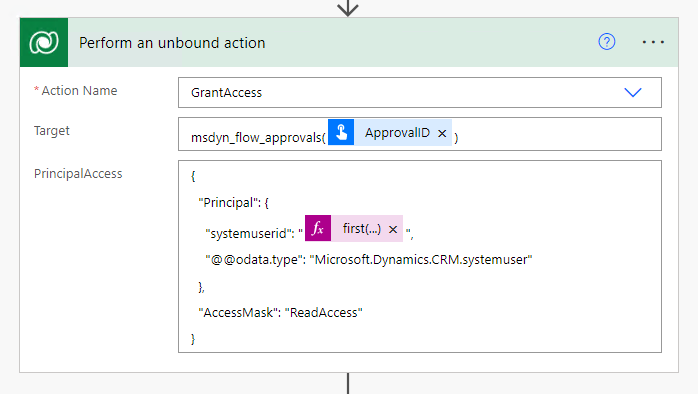
Aby udostępnić ten rekord, w swoim przepływie w chmurze musisz dodać akcję „Perform an unbound action”, która wykona akcję „GrantAccess”.

Celem tej akcji jest powiązany wiersz z tabeli Approval – należy użyć następującego wyrażenia:

msdyn_flow_approvals(<<GUID rekordu APPROVAL - jako tekst>>)

Następnie musisz wstawić JSON, który zapewni nowemu zatwierdzającemu dostęp do odczytu tego rekordu. Aby to osiągnąć, skopiuj i wklej poniższy kod JSON:

{
  "Principal": {
    "systemuserid": "<<GUID nowego zatwierdzającego z tabeli Users>>",
    "@odata.type": "Microsoft.Dynamics.CRM.systemuser"
  },
  "AccessMask": "ReadAccess"
}

Pamiętaj, aby poprzedzić „@odata.type” dodatkowym symbolem „@”, aby wyglądało to tak: „@@odata.type”, w przeciwnym razie flow checker potraktuje to jako błąd. Akcja będzie wyglądać następująco (oprócz danych dynamicznych – być może w Twoim przypadku będzie inaczej):

Perform an unbound action configuration

To jest w zasadzie wszystko. Teraz, zanim utworzysz nowy rekord w tabeli Approval Request, upewnij się, że nagłówek w tabeli Approval jest udostępniony nowej osobie na poziomie odczytu.

Artykuł Uprawnienia delegowanych zadań zatwierdzania w Power Platform pochodzi z serwisu Tomasz Poszytek, Business Applications MVP.

Pre-Filtering Multi-table Lookups

A very common requirement which is being request frequently is having a lookup table that points to multiple tables similar to the out of the box customer lookup type that can point out to either a contact or account.

This feature was released in July 2021 but I hadn’t the chance to try it till now and it came up with a challenge to using it which is Prefiltering this new type of lookup and I have searched and googled and everything and I really could not find someone who tried it, Many articles pointing out how to create this column typeand how it looks like but none really explained how to add prefiltration so it does not display all the records but show them as filtered based on a predefined criteria.

This article by Nick Doelman has a very good explanation to Polymorphic lookups.

This article describes how to do pre-filtration to a normal lookup type.

Also with the help of the XRMToolbox Polymorphic Lookup Creator it was very easy to create the polymorphic lookup which for the sake of the example below my lookup needed to point to either contact or user tables with a pre-search filter where first name = Mira

SO when it came to the prefiltration it was pretty easier than I thought and I just tried it and to my Surprise it worked, so all I did is used the normal way for lookup filtration but added a custom filter for each of my tables.

function FilterPolymporphicLookup(executionContext){
	formContext = executionContext.getFormContext();
formContext.getControl("new_polymorphiclookupid").addPreSearch(filterPolymorphic);
}
 function filterPolymorphic() {

    var contactFilter = "<filter type='and'><condition attribute='firstname' operator='eq' value='Mira' /></filter>";
    var userFilter = "<filter type='and'><condition attribute='firstname' operator='eq' value='Mira' /></filter>";

    formContext.getControl("new_polymorphiclookupid").addCustomFilter(contactFilter, "contact");
    
    formContext.getControl("new_polymorphiclookupid").addCustomFilter(userFilter, "systemuser");

}

Multilookup

miraghaly

Pre-Filtering Multi-table Lookups

A very common requirement which is being request frequently is having a lookup table that points to multiple tables similar to the out of the box customer lookup type that can point out to either a contact or account.

This feature was released in July 2021 but I hadn’t the chance to try it till now and it came up with a challenge to using it which is Prefiltering this new type of lookup and I have searched and googled and everything and I really could not find someone who tried it, Many articles pointing out how to create this column typeand how it looks like but none really explained how to add prefiltration so it does not display all the records but show them as filtered based on a predefined criteria.

This article by Nick Doelman has a very good explanation to Polymorphic lookups.

This article describes how to do pre-filtration to a normal lookup type.

Also with the help of the XRMToolbox Polymorphic Lookup Creator it was very easy to create the polymorphic lookup which for the sake of the example below my lookup needed to point to either contact or user tables with a pre-search filter where first name = Mira

SO when it came to the prefiltration it was pretty easier than I thought and I just tried it and to my Surprise it worked, so all I did is used the normal way for lookup filtration but added a custom filter for each of my tables.

function FilterPolymporphicLookup(executionContext){
	formContext = executionContext.getFormContext();
formContext.getControl("new_polymorphiclookupid").addPreSearch(filterPolymorphic);
}
 function filterPolymorphic() {

    var contactFilter = "<filter type='and'><condition attribute='firstname' operator='eq' value='Mira' /></filter>";
    var userFilter = "<filter type='and'><condition attribute='firstname' operator='eq' value='Mira' /></filter>";

    formContext.getControl("new_polymorphiclookupid").addCustomFilter(contactFilter, "contact");
    
    formContext.getControl("new_polymorphiclookupid").addCustomFilter(userFilter, "systemuser");

}

Create a virtual table from Excel using the Virtual Connector Provider

Virtual tables enable integrating data from external data sources by seamlessly representing that data as tables in Microsoft Dataverse, without data replication

Virtual Connector Providers currently available are:

  • SQL Server
  • Sharepoint
  • Excel

In this article I will go step by step on how to connect your excel sheet to Dataverse:

  1. Download and Install the virtual connector from this URL
  2. Click on Get Free , Sign in to your account and choose your environment, you can check the progress of installation and once it is installed you can proceed to step3.

3. Go to Power Apps (make.powerapps.com), and select the environment in which you would like to set up the virtual table.

4. In the left navigation pane, select Dataverse > Connections, and then select New connection.

5. Select the Microsoft Excel Online (Business) from the list of connections and create new connection

6. You’ll be asked to provide additional details to connect to the data source.

Note: Your excel file should be saved in OneDrive of the person whose the connection belongs to and the table should be formatted as table.

7. Select Create, your current signed-in credentials will be used.

8. Go to solutions -> Create new Solution and Select New Connection reference.

9. Choose the Connector and the connection and click Create

10. Go to Advanced setting by selecting the Gear Icon

11. Navigate to settings – > Administration and select virtual entity data sources

12. Click on New

13. Select Virtual Connector Data Provider and Click OK.

14. Set the Name of your Data Source, Select the connection we have created in step 9 and the file name in your onedrive:

15. Once you save an entity catalogue will be created, Entity Catalogue will be used to help you create your virtual tables

16. Go to Tables -> Filter by Virtual and then you can see your entity catalogue

17. Next you need to proceed to creating your virtual table based on your entity Catalogue so you need to create a new app and add the entity catalogue to it.

18. Navigate to Apps and Click New App and add the Entity Catalogue to it.

19. Click Add Page from the left navigation and select the entity catalouge

20. Save and Publish, then Play to open the app

21. Select Table 1 or any table from the tables defined in your datasource.

22. Select the Name , the primary key and the primary name and set Create or Refresh Entity to yes and save and now you can see your virtual table in the list of Dataverse Tables.

Moving Solution to other Environment:

  1. Make sure you have installed the Dataverse Virtual Connector on your target environment before importing your solution.
  2. Make sure you have created the required connection step No. 5 on the target environment.
  3. You will need to add the Virtual table Data Source through the solution components -> Developer

miraghaly

Create a virtual table from Excel using the Virtual Connector Provider

Virtual tables enable integrating data from external data sources by seamlessly representing that data as tables in Microsoft Dataverse, without data replication

Virtual Connector Providers currently available are:

  • SQL Server
  • Sharepoint
  • Excel

In this article I will go step by step on how to connect your excel sheet to Dataverse:

  1. Download and Install the virtual connector from this URL
  2. Click on Get Free , Sign in to your account and choose your environment, you can check the progress of installation and once it is installed you can proceed to step3.

3. Go to Power Apps (make.powerapps.com), and select the environment in which you would like to set up the virtual table.

4. In the left navigation pane, select Dataverse > Connections, and then select New connection.

5. Select the Microsoft Excel Online (Business) from the list of connections and create new connection

6. You’ll be asked to provide additional details to connect to the data source.

Note: Your excel file should be saved in OneDrive of the person whose the connection belongs to and the table should be formatted as table.

7. Select Create, your current signed-in credentials will be used.

8. Go to solutions -> Create new Solution and Select New Connection reference.

9. Choose the Connector and the connection and click Create

10. Go to Advanced setting by selecting the Gear Icon

11. Navigate to settings – > Administration and select virtual entity data sources

12. Click on New

13. Select Virtual Connector Data Provider and Click OK.

14. Set the Name of your Data Source, Select the connection we have created in step 9 and the file name in your onedrive:

15. Once you save an entity catalogue will be created, Entity Catalogue will be used to help you create your virtual tables

16. Go to Tables -> Filter by Virtual and then you can see your entity catalogue

17. Next you need to proceed to creating your virtual table based on your entity Catalogue so you need to create a new app and add the entity catalogue to it.

18. Navigate to Apps and Click New App and add the Entity Catalogue to it.

19. Click Add Page from the left navigation and select the entity catalouge

20. Save and Publish, then Play to open the app

21. Select Table 1 or any table from the tables defined in your datasource.

22. Select the Name , the primary key and the primary name and set Create or Refresh Entity to yes and save and now you can see your virtual table in the list of Dataverse Tables.

Moving Solution to other Environment:

  1. Make sure you have installed the Dataverse Virtual Connector on your target environment before importing your solution.
  2. Make sure you have created the required connection step No. 5 on the target environment.
  3. You will need to add the Virtual table Data Source through the solution components -> Developer

Business Central – Setup Data-Verse Connection

In this article I will guide you through a step by step guide to connect Business Central to your dataverse environment:

  1. Login to your business central environment.
  2. Click on the Search Icon on the top right of your screen and type Assisted Setup.

3.Go to Connect with Other systems – > Setup a connection to Dataverse.

4. This will open the Dataverse Connection Setup Pop up window

5. Choose the default options for enabling data synchronisation and enable virtual table and events and click Next

6. Choose Accept on the review terms and conditions an click Next

7. On the Next screen, you will be presented with all environments that you have access to, choose the environment URL.

8. Click Sign in with administrator user that have System Administrator rights in Dataverse and you should be using a specific account for this integration and click Next.

9. By Default the setup will run with Data Synchronisation, if you want to do the setup without Data Synchronisation , you can enable this option

10. Then on the next screen you will be you will be presented with an Analysis for the data to be synchronised and you can select your coupling criteria.

11. Click Next and Finish

References:

https://learn.microsoft.com/en-nz/dynamics365/business-central/admin-how-to-set-up-a-dynamics-crm-connection

miraghaly

Business Central – Setup Data-Verse Connection

In this article I will guide you through a step by step guide to connect Business Central to your dataverse environment:

  1. Login to your business central environment.
  2. Click on the Search Icon on the top right of your screen and type Assisted Setup.

3.Go to Connect with Other systems – > Setup a connection to Dataverse.

4. This will open the Dataverse Connection Setup Pop up window

5. Choose the default options for enabling data synchronisation and enable virtual table and events and click Next

6. Choose Accept on the review terms and conditions an click Next

7. On the Next screen, you will be presented with all environments that you have access to, choose the environment URL.

8. Click Sign in with administrator user that have System Administrator rights in Dataverse and you should be using a specific account for this integration and click Next.

9. By Default the setup will run with Data Synchronisation, if you want to do the setup without Data Synchronisation , you can enable this option

10. Then on the next screen you will be you will be presented with an Analysis for the data to be synchronised and you can select your coupling criteria.

11. Click Next and Finish

References:

https://learn.microsoft.com/en-nz/dynamics365/business-central/admin-how-to-set-up-a-dynamics-crm-connection

Lookup data from connected Dataverse table with Power Automate

“How can I get data from another Dataverse table connected by a lookup column, what’s the best approach in Power Automate?”


When building solution over Dataverse, you might end up with multiple tables to store different type of information. Yet the information is often connected and the way to create such connection are lookup columns. There’s already a post on updating the lookup values using Power Automate, but how do you use them afterwards? What’s the best way to get the additional information from the second table?

You don’t need an additional action

Unlike with SharePoint where you need another ‘Get items’ action, in Dataverse you don’t need second ‘List rows’ (as long as there’s a lookup column). It’s because the ‘List rows’ action already offers such option in the ‘Expand Query’ field.

But what do you put there? As you might expect you’ll have to type in the input manually.

Use the Expand Query option

The input has always (at least) two pieces – the lookup column schema name and the data column logical name.

<lookupColumnSchemaName>($select=<dataColumnLogicalName>)

Firstly, you need the Schema name of the lookup column in the main table.

Secondly, you’ll need the Logical name of the column in the second table.

Once you have both the pieces, turn them into the ‘Expand Query’, e.g.

cr09b_LookupColumn($select=cr09b_anotherlookupcolumn)
Power Automate lookup dataverse table

If you need more columns from the same table, separate them by comma…

<lookupColumnSchemaName>($select=<dataColumnLogicalName>,<dataColumnLogicalName2>,<dataColumnLogicalName3>)

…or use the same approach to select columns from multiple tables.

<lookupColumnSchemaName>($select=<dataColumnLogicalName>,<dataColumnLogicalName2>,<dataColumnLogicalName3>),<lookupColumnSchemaNameX>($select=<dataColumnLogicalNameY>,<dataColumnLogicalNameZ>)

Summary

Power Automate allows you to get data from another Dataverse table connected by a lookup field without any extra actions. You don’t need to add another ‘List rows’ with a filter, but you must know what to enter in the ‘Expand Query’. Get the lookup column Schema name together with the data column Logical name, put it together, and collect related data across multiple Dataverse tables in a single action.


Do you struggle with the various expressions, conditions, filters, or HTTP requests available in Power Automate?

I send one email per week with a summary of the new solutions, designed to help even non IT people to automate some of their repetitive tasks.

All subscribers have also access to resources like a SharePoint Filter Query cheat sheet or Date expressions cheat sheet.

Zero spam, unsubscribe anytime.

The post Lookup data from connected Dataverse table with Power Automate appeared first on Let's POWER Automate.

Dataverse Record Level Security

Record (row) level security in Canvas or Model-driven apps. Using Dataverse security models.

dataverse-record-level-security-yt-thumbnail

jcook127001

Record ownership across business units (Preview)

Tip For Testing Your Flows In Power Automate

Wouldn't it be nice if we can Test our Flows without executing some of the actions like Sending Emails, creating items in SharePoint or Dataverse? Guess what we can! And its very easy to do. Check this out!

BlogPic

jcook127001

Dataverse Tip# 6 Adding a new column to an existing Excel Template

Let’s say you have an existing out of the box Excel Template that you use to export data from a dataverse Table, and you came to the need to add a new column from a related table to your template so you need to apply the below steps to update your existing template instead of having to go back and redo your template:

  1. Create a new view with the new field added and click Excel Templates and Choose Download Template.In my Example i have added on the contacts view Account Name from Company and Number

2. Open the downloaded Excel file template and then show the developer tab by going to options -> Customise Ribbon and selecting the developer tab

3. On the excel sheet navigate to the developer tab and click View Code

4. The view code opens a VBA project you will find a hidden sheet on the left hand side , called hiddenDataSheet, this is where all the binding happens between the column name in dataverse and the excel column, so go to the Visible property and set it to visible close the VBA project and go back to your excel sheet you will find the hidden sheet now visible

5.

6. Go to the hidden sheet and you will find in the first column of the first row the bindings between the dataverse columns and the Excel Column

7. Now you need to identify the New column that you need to add to your existing template that you need to update this is highlighted in the above image.

&60807094-c373-4995-91f7-712993b50884.accountnumber=Account%20Number%20%28Company%20Name%29%20%28Account%29

60807094-c373-4995-91f7-712993b50884.accountnumber is the dataverse column name

Account%20Number%20%28Company%20Name%29%20%28Account%29 is your excel column name

8. Now go back your contacts view click on Excel Templates and choose the excel template you need to update.

9. Open the excel template , Go to developer tab,click view code and set the hiddenDatasheet to visible, Go back to your Excel sheet add a new column called AccountNumber

10. Go to the hidden sheet and append the text in step 7 as below:

&60807094-c373-4995-91f7-712993b50884.accountnumber=Account%20Number%20%28Company%20Name%29%20%28Account%29

Remove the part in bold and replace by AccountNumber your new ExcelColumn

So it will be like this:

&60807094-c373-4995-91f7-712993b50884.accountnumber=AccountNumber

11. Go back to view code , hide the hiddenDataSheet and upload your template.

References:

https://learn.microsoft.com/en-us/power-apps/maker/model-driven-apps/templates-overview

miraghaly

Power FX Metadata not Refreshing

I thought this might be useful to share , we run into an issue where we used the new command bar editor to create new buttons and All was good till we added a new column to the same table and published all customisations, went to the Command Bar and tried to set the visible property using Power FX formula but unfortunately the new column did not show up.

So by contacting Microsoft this is a known issue as of now and as a work around you need to follow the below steps:

  1. Go to the Solution -> Choose the app ->Select the table -> Right Click Edit Command Bar.

3. Choose the Command Bar you want to Edit

4. Select your customised button and click Open Component Library

5. Component Library will be loaded on the Menu Click File -> Save , Then Publish and then reopen the Command Bar ,your metadata will be refreshed.

miraghaly

Non-Interactive Limits Explained and API Usage Reports!

So a question that I have been stumbling and confused about is how the API Limits for DataVerse is calculated in case I am using a service account (Non-Interactive) User / Service Principal (Application User) in my power automate. So the answer is as below

These limits are defined and pooled at the tenant level

Every tenant will get an initial base request limit per tenant determined by what paid licenses are on the tenant, plus accrued limits determined by the quantity of paid Dynamics 365 Enterprise and Professional licenses.1 This pool can only be used by these non-licensed users and not by users with assigned interactive user licenses.
ProductsPooled non-licensed tenant-level requests per 24 hoursExample
Dynamics 365 Enterprise & Professional applications1500,000 base requests + 5,000 requests accrued per USL1 up to 10,000,000 max2Say you have 10 Field Service License so the total per 24 hours will be
Total =500,000+5000X10 =550,000 Request per 24 Hours
Power Apps (all licenses)25,000 base requests with no per-license accrual for the tenantSay you have any 10 Power App Requests
Total = 25,000
Power Automate (all licenses)25,000 base requests with no per-license accrual for the tenantSay you have any 10 Power App Requests
Total = 25,000
Non-Interactive Limits

Licensed Users Requests Limits

ProductsRequests per paid license per 24 hours
Paid licensed users for Power Platform (excludes Power Apps per App, Power Automate per flow, and Power Virtual Agents) and Dynamics 365 excluding Dynamics 365 Team Member40,000
Power Apps pay-as-you-go plan, and paid licensed users for Power Apps per app, Microsoft 365 apps with Power Platform access, and Dynamics 365 Team Member6,000
Power Automate per flow plan, Power Virtual Agents base offer, and Power Virtual Agents add-on pack4250,000
Paid Power Apps Portals login200
Licensed Users Request Limits

So as a best practise given the above any connection to DataVerse should be running under service Principal and in general flows ownership should be either using a service account or Service Principal.

API Usage Checking:

  1. Sign in to https://admin.powerplatform.microsoft.com/home
  2. Navigate to Resources-> Capacity and click on Download Reports
Download Reports

3. Click New

4. Choose Microsoft Power Platform Requests

5. Choose Either License or Non-Licensed and Click Submit

References:

https://docs.microsoft.com/en-us/power-platform/admin/api-request-limits-allocations#non-licensed-user-request-limits?WT.mc_id=DX-MVP-5004221

image-31

miraghaly

❌
❌