
Vue normale

Il y a de nouveaux articles disponibles, cliquez pour rafraîchir la page.
À partir d’avant-hierFlux principal

SharePoint Online: All you need to know about Commenting in Lists

Microsoft recently introduced a new feature of commenting in SharePoint Online lists and Microsoft lists. Using this feature users will be able to add and delete comments on list items. Users can view all comments on a list item and filter between views that show comments or activity related to an item in details pane.

Microsoft has started rolling out this feature to all SharePoint Online tenants in December 2020 release, see Roadmap.

Where can you find Comments options?

Comments options are currently located at below three places in SharePoint Online/Microsoft lists:

List view

Users can see which list items have comments when they access the SharePoint Online list view or Microsoft list home page. Comments option will be shown on command bar when you select a list item as well as at the right hand side of Title column. When you hover over on comments icon it will show you the count of comments added to the list item.

New Comments in SharePoint list view
Comments options in List view
Display/Edit form

By default, users will see a new comments pane alongside the list item form when they access a list. Users can toggle the comment pane visibility by clicking the comments icon. When you hide comments, the pane does not collapse. The comments pane will be closed by default for lists customized by Power Apps.

New Comments in SharePoint list display form
Comments options on Display form
Details Pane

Users can see the Comments and All activity related to list item on details pane. Users can filter views that show comments or activity by using the dropdown under “More details” section.

New Comments options in Details pane in SharePoint Online list
Comments options in Details pane

Permission Considerations

Comments follow the permission settings inherent in SharePoint Online and Microsoft Lists.

  • Users with read-only permission can only view comments.
  • Those with list edit permission can make comments as well as delete comments; editing comments is currently not possible. 

Where the Comments will be stored?

Comments are stored in the schema for each list, which is based on the SharePoint storage platform.

Working with SharePoint REST APIs

As comments are stored within the list schema itself and not with list items, it is not possible to fetch comments using  $select with /items endpoint. However, you can get the list item comments using below endpoint:

https://<tenant>.sharepoint.com/sites/<site>/_api/web/lists/getbytitle('<list-name>')/GetItemById(<item-id>)/Comments()

//OR

https://<tenant>.sharepoint.com/sites/<site>/_api/web/lists/getbytitle('<list-name>')/items(<item-id>)/Comments()

For more information on working with comments using SharePoint REST APIs, check:

Working with JSON Formatting

Currently it is not possible to get the actual list item comments value using JSON formatting. But, you can get the count of comments added to list item using [$_CommentCount] which is an internal name of SharePoint list column that returns the count of list item comments.

Check how you can get comments count and show it in SharePoint list view at: Working with SharePoint Online/Microsoft List Comments using JSON Formatting.

Current Limitations

  • Editing comments is currently not possible.
  • Any user can delete the list item comments. Currently there is no way to disable deletion of comments.
  • Maximum characters limit in list comments: 2000 characters
  • Classic lists that are not yet built to show up in modern user interfaces, like Task lists, will not have this commenting feature.
  • Commenting on lists in Teams is not available with this release.
  • Comments are not indexed by Search.

Enable/Disable Comments

Currently it is not possible to disable commenting at the site or list level. Microsoft is working on the new feature which will allow users to enable/disable the comments for individual SharePoint lists. However, Admins can enable/disable this feature at the organization level by changing the CommentsOnListItemsDisabled parameter in the Set-SPOTenant PowerShell cmdlet:

Read more about how to enable/disable the commenting in SharePoint Online/Microsoft Lists at: How to Enable/Disable the commenting in SharePoint Online/Microsoft Lists.

What’s Next?

  • Currently it is not possible to disable commenting at the site or list level. Microsoft is currently working on this feature update, more information at: Enable/Disable the comments for a SharePoint Online/Microsoft List.
  • @mentions in comments:
    • Get a colleague’s attention to an item in a list by @mentioning them within list comments. That person will receive a notification and a link that takes them directly back to the item, to review the comment and take the requested action.

I hope you liked this blog. Give your valuable feedback & suggestions in the comments section below and share this blog with others.

Members vs. Other people in Project for the Web

As mentioned in an earlier article, Project for the Web is tightly integrated with Microsoft 365 Group. The same membership that controls access to a SharePoint site and Teams, also controls what users can or can’t do within the Project for the Web application. So in today’s post, I would like to explain this “relationship” a bit further, especially when it comes to assigning tasks within the Project for the Web application. Specifically, I will explain the difference between Members vs. Other people in Project for the Web.

No Group when the Schedule is initially created

When you initially create a project schedule, it is not attached to any Microsoft 365 Group. This allows you to get started with some tasks and even task assignments without connecting the schedule to any existing Microsoft 365 group or creating a new one. You can connect the schedule to a group or create a brand new group by clicking on Group Members in the upper-right-hand corner.Members vs. Other people in Project for the Web

What happens when you assign a task in a schedule not connected to a group

In case you start creating a schedule, and it is not yet connected to a Microsoft Group, and then you decide to assign a given task to any user other than yourself, it will come up with the following message:

“This project has not been shared with a group yet and assignees will not be able to see their assigned tasks until it is shared. Would you like to continue assigning this task or share the project with a group?”

If you choose Add a group option, it will prompt you to other create a new Microsoft 365 Group, or choose an existing one. If you click on Just assign, it will allow you to assign a task to the user without creating a Microsoft 365 Group. However, it will also warn that resources won’t be able to view assigned tasks or manage them until the group is created.

Members vs. Other people in Project for the Web

What happens when you assign a task in a schedule to users outside of the group

There is also another scenario that is possible. You might connect the schedule to an existing Microsoft 365 Group (or create a new one), but when you assign tasks, you might assign them to users inside and outside of a group. If you assign to users inside of a group, it is all good. However, when you assign tasks to users not part of the group, you will get the following message:

“The person you are trying to assign is not a member of this group, and will not be able to see their assigned tasks until they are added. Would you like to continue assigning and add them to the group?”

Members vs. Other people in Project for the Web

If you choose Assign and add, the user will get the task assignment and become part of a Microsoft 365 Group. In other words, that user will also have access to all the other assets of a Group, like a SharePoint site, Outlook group calendar, a Microsoft Team, Planner, etc.

If you choose Just assign, the user will get the task assignment, but won’t become part of a Microsoft 365 Group.

Members vs. Other people in Project for the Web

If your schedule has task assignments for users inside and outside the Microsoft 365 group, you can easily see the rosters by clicking Group members in the upper-right-hand corner.

The Members tab will list the members of a Microsoft 365 Group.

Members vs. Other people in Project for the Web

The Other people tab will show the users who have been assigned a task on a schedule but who are not part of a Microsoft 365 Group.

Members vs. Other people in Project for the Web

The post Members vs. Other people in Project for the Web appeared first on SharePoint Maven.

How to manage SharePoint access Site requests

If you own a SharePoint site, I am sure you followed all the best practices regarding the site security setup and permissions. However, you might also want to control the experience of the users who do not have access to the site just yet, but who might need one. Likewise, you might want to view pending access requests at any point in time and either approve or reject them. In addition, if you happened to share the site externally, you might want to track who accepted your invite and who did not. I know I listed a few different scenarios in this article, but they will all be answered by the wonderful feature of Site access requests. Buckle up and enjoy another sermon of wisdom from rabbi Zelfond. By the way, you might want to read this post till the end as I also cover some important and unintended consequences of SharePoint access Site Requests.

Default User Experience

By default, on any given site, when the users who don’t have access to that site, when clicking on its URL, will get this message.

SharePoint access Site Requests

Here they can add a personal message and press the Request Access button, and request access to the site.

SharePoint access Site Requests

You can customize this page and either disable this button or control who the requests go to. Let me explain.

How to disable Site Access Requests

If you do not want users to bother you with these requests, you can disable them altogether.

  1. Navigate to the SharePoint Site, click Gear Icon > Site Permissions
  2. Under Site Sharing, click Change how members can share
  3. Toggle the switch next to Allow access requests to Off and click SaveSharePoint access Site Requests
  4. Once disabled, the user will get a nasty message when navigating to the SharePoint site URL: Access Denied. The user does not have permissions to access this resource.

How to specify who the Site Access Requests will be emailed to

Alternatively, you can also specify who the Site access requests will be emailed to. By default, they are sent to the Site Owners. However, you can also designate an alternate email address. It can be an email address of any user, and can even be an external email address as well. And you can also add a custom message to the request access page if necessary.

SharePoint access Site Requests

What happens to the user when you approve or reject requests

When the user requests access to the site, here is what happens:

  1. The Site Owners (or whoever you designated to receive these emails) will receive an email like this
  2. The Owner can either Accept or Decline the request
  3. In case the request is Declined, the owner will need to confirm the intentionSharePoint access Site Requests
  4. When navigating the site again, the page will display a message: Sorry, your request has been declined.
  5. The user will also receive an email advising that the request has been declined
  6. In case the request is Accepted, the user will immediately be granted access to the site and receive a corresponding email

How to access pending and completed sites requests

If you ever want to see all the past and present, and pending SharePoint access Site Requests, this is how you do it.

  1. Gear Icon > Site Information
  2. Click on View all site settings
  3. Under the Users and Permissions section, click on Access requests and invitations
  4. From the page that will appear, you will be able to see pending requests, invitations sent to external users (more on this below), as well as the history of site access requestsSharePoint access Site Requests

View Status of invitations sent to external users

What I also really like about this page above is that it allows you to view the status of pending invitations sent out to external users. So if you shared your site externally and wondering if external users accepted the invite or not, this is the page to view this on!

SharePoint access Site Requests and Group-connected Team Sites

It is also very important to note what is actually happening to the site permissions when you accept the user request to access the site, as this might lead to some unintended consequences. Let me explain.

When you Accept a given access request, then navigate to Site Permissions (Gear Icon > Site Permissions), you will see the users automatically added to the SharePoint Site Members Group (those with Edit role)

Of course, you can change their role to Visitor or remove them altogether if necessary. However, this behavior can also lead to confusion and unintended consequences if your SharePoint site is connected to a Microsoft 365 Group (i.e., the site is part of Microsoft Teams).

One would expect that by requesting access to the site, they become a member of the whole Microsoft 365 Group (Teams, Outlook, Planner, etc.). But that is not the case. They are just given access to the site itself only. If you check the group membership, they won’t appear there.

So if you would like to add those users to the group itself and give them access to Teams, etc., you would need to add them as members of the group. By the way, I explained these two different models of security for a group-connected site in this article.

The post How to manage SharePoint access Site requests appeared first on SharePoint Maven.

How to Deal with Common Errors when Running Graph Commands with PowerShell

It's great to be able to run Graph API requests in PowerShell scripts if everything goes right. This article describes why some common Graph API errors occur in scripts and what to do when the errors happen. Most errors are due to permissions assigned to the Azure AD apps used to run scripts and getting the basics will resolve those problems.

The post How to Deal with Common Errors when Running Graph Commands with PowerShell appeared first on Practical 365.

Grant Permissions to All Communication Sites Associated with a Hub Site

This isn’t rocket science, but it’s something I do often enough that I want to lodge the PowerShell in a post instead of continuing to rewrite it.

When we are building an Intranet, we often want to grant permissions for all the Communication Sites to a small set of people during the testing process. This script will do that for one user.

Here is a quick overview of what is happening:

  • Everything before line 12 is just set up. I define a few variables pointing to the Admin Site and Hub Site. I connect to the Admin Site in line 9, and then I have a token which is reusable for all the other connections.
  • In line 12, I get all the sites which are associated with the Hub Site. In this case, it is the root site in the tenant and also a Home Site. This is the most common setup for an Intranet.
  • Next I loop through all the associated sites. The first step is to connect to each site.
  • I’m finding both the Owners and Members groups in lines 16-17. We may want to make some people Owners and other People Members, and we can use the appropriate group in line 18.
  • Communication Sites don’t have backing Microsoft 365 Groups, so I can use the Add-PnPGroupMember cmdlet, which just adds the user(s) to the correct SharePoint group.
  • You could duplicate line 18 to grant permissions to more than one person.
# Import modules
Import-Module PnP.PowerShell

# Base variables
$adminUrl = "https://tenant-admin.sharepoint.com/"
$HubSiteURL = "https://tenant.sharepoint.com/"

# Connect to the tenant
Connect-PnPOnline -Url $adminUrl -Interactive

# Get the sites associated with the Intranet Hub Site
$associatedSites = Get-PnPHubSiteChild -Identity $HubSiteURL | Sort-Object 

foreach ($site in $associatedSites) {
    Connect-PnPOnline -Url $site -Interactive
    $ownerGroup = (Get-PnPSiteGroup | Where-Object { $_.LoginName -like "*Owner*" })[0]
    $memberGroup = (Get-PnPSiteGroup | Where-Object { $_.LoginName -like "*Member*" })[0]
    Add-PnPGroupMember -LoginName "lester.frogbottom@tenant.com" -Group $ownerGroup.LoginName

}

I know the best way to do this is by using a Microsoft 365 Group, but this down and dirty approach makes sense in a limited way. When we launch the Intranet, we’ll clean out all the Members and Visitors to start fresh, so it doesn’t matter that much if we are a bit messy for now. Plus, we may be granting temporary Member permissions to someone just during the build phase.


Eagle-eyed reader Brian McCullough (@bpmccullough) pointed out I was working too hard to get the Member and Owner groups.

Get-PnPGroup -AssociatedOwnerGroup -AssociatedMemberGroup -AssociatedVisitorGroup would these work instead?

— Brian McCullough (@bpmccullough) September 30, 2021

Rather than these two lines:

$ownerGroup = (Get-PnPSiteGroup | Where-Object { $_.LoginName -like "*Owner*" })[0]
$memberGroup = (Get-PnPSiteGroup | Where-Object { $_.LoginName -like "*Member*" })[0]

We can do this:

$ownerGroup = Get-PnPGroup -AssociatedOwnerGroup
$memberGroup = Get-PnPGroup -AssociatedMemberGroup

Could not retrieve profile schema from server

How many of you faced this strange behavior of SharePoint 2013 designer?


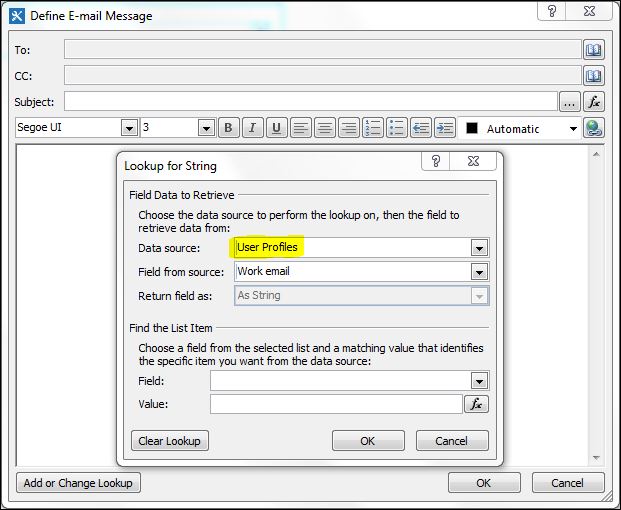
When trying to use User Profile as a Data Source in a workflow. Something similar to the screen shot below:

Try looking in google did not give me the expected solution. A lot of people suggested to grant permissions of the web app pool account to the search service database. But what actually that means? I granted read permissions to all search related databases, but as you expect the problem was still persisting.

So many articles were referring to Search I was start thinking that the problem is really there. But all of the explanations were not exactly correct. The right way to make it working is:
  1. Go to Central Admin
  2. Go to Manage Service Applications
  3. Select Search Service Application, but don't click on it
  4. Select Administrators
  5. Add the application pool account of the web application
  6. Grant "Read (Diagnostic Pages Only)" permission and click OK


Afterwards everything should work normally.

For now I don't have exact explanation why these settings are necessary. Will try to find out and post here as a comment.

[HOW TO] remove Newsfeed, Onedrive and Sites from navigation bar

I'm writing this post because it was curious for me when I have to remove Newsfeed, Onedrive and Sites from SharePoint 2013 on-premises suite bar. The task was users should be able to see these buttons/links in the suite bar.
What I'm talking about:


Googling this question I was offered to use SharePoint Designer and to change the master page. Even there were also conclusion like "There is NO Out Of the Box solution" for this one.

But I doubt and managed to find one to remove these links from the suite bar :) You have to remove all users from "Permissions for User Profile Synchronization Service Proxy"or to put only these users which will be able to see suite bar


Usually here you will see "Authenticated Users", that means all AD users will see the suite bar.
I remove them and put only my account. So from now on ONLY me can see the suite bar links.
You have to go to "Central Admin -> Manage User Profile Synchronization Service -> Manage User Permissions" under People section of User Profile Service will take you the screen above.

Hope you will find this post helpful, if so please share it!

Enjoy!
❌
❌