Vue normale

Il y a de nouveaux articles disponibles, cliquez pour rafraîchir la page.
À partir d’avant-hierFlux principal

Service Health and Message Centre via Power Automate

In this blog post, we’ll explain how to use Power Automate to monitor your Microsoft 365 service health and admin message center. With this method, you’ll have more control and customization options for your organization’s services.

We’ll start by creating an Azure app registration and using the Graph API to bring data into Power Automate. From there, you can save this information to a SharePoint List, publish it to your organization, build a Power App, or set alerts for degraded service health via Teams or email.

By using this method, you’ll have a more efficient and effective way to monitor and manage your Microsoft 365 services.

SharePoint List, Gallery View of Service Status
SharePoint List, Gallery View of Service Status via HealthOverview


Azure App Registration

In order to grant access to the Graph API, you will need either a delegated or application app registration. I have chosen an App registration to avoid having to tie this to a specific user account.

Below is a step by step guide which should enable you to setup the app registration, generate and gather a client secret value, obtain the client id, oauth endpoint and of course grant the necessary permissions to allow access to the Service Health and Communications Graph API.

  1. Open the Azure portal https://portal.azure.com and sign in with your Azure account.
  2. Select “App registrations” and click on “New registration”.
  3. Give your app a name and select the appropriate account type (e.g. single tenant or multi-tenant).
  4. Click on “Register”.
  5. Once the app is registered, open the “Certificates & secrets” section.
  6. Click on “New client secret” and enter a description.
  7. Select the expiration period and click “Add”.
  8. Copy the newly created client secret value and save it in a secure location.
  9. Open the “API permissions” section and click on “Add a permission”.
  10. Select “Microsoft Graph” and choose the desired permissions (e.g. ServiceHealth.Read.All & ServiceMessage.Read.All – Application Permissions).
  11. Click on “Add permissions”.
  12. Click on the “Grant admin consent” button to grant the app the necessary permissions.
  13. Now your app is registered in Azure and ready to be used with the Microsoft Graph API.
  14. Open the “Overview” section and copy the “Application (client ID)”
  15. Click on Endpoints and copy the “OAuth 2.0 token endpoint (v2)” endpoint

Testing & creating Graph queries using Graph Explorer

Via the Graph Explorer it is very easy to build and test rest api calls to the Graph API. For dervice message we can use https://graph.microsoft.com/v1.0/admin/serviceAnnouncement/messages to pull back all of the familiar data from the Microsoft 365 Admin Message Center (details here) and then there is https://graph.microsoft.com/v1.0/admin/serviceAnnouncement/healthOverviews to pull back data on general Platform health, as well as obtaining specific details about the platform of your choice, including updates and links as seen in the Microsoft 365 Admin Service Heatlh (details here). Note you have plenty of other options to suite your requirements, including archiving and marking messages as read.

When these endpoints are combined with Odata filters, a select or orderby parameter, we can really tailor the data received back from the Rest API. More details of where can be read up on here.

For the example in this post I am going to filter the service announcement messages for the following services Microsoft 365, Planner, Microsoft Power Automate, Power BI, Power Apps, Microsoft Forms; ensure that we only retrieve messages from 1st January 2023 onwards and order these messages by the start date time. Also given the data returned is quite expanse, I am use select to retrieve specific fields, mainly id, category, severity, tags, title, category, startdatetime, enddatetime, services, details, body. This allows me to limit and be selective about the data returned back to Power Automate.

A sample Graph API query for this data would be as follows:

https://graph.microsoft.com/v1.0/admin/serviceAnnouncement/messages?$select=id,category,severity,tags,title,category,startdatetime,enddatetime,services,details,body&$filter=startDateTime ge 2023-01-01 and services/any(p:p in ('Microsoft 365', 'Planner', 'Microsoft Power Automate', 'Power BI', 'Power Apps', 'Microsoft Forms'))&$orderby=startDateTime+desc
Graph Explorer API Call
Graph Explorer

Setting up Power Automate for Authentication

In order to authenticate with our Azure App registration via Power Automate, we can use the HTTP action or build a custom connector. For the example today, I have used the HTTP action to obtain a bearer token and then a subsequent one to query the Graph API endpoint, the bearer token is valid for 60 minutes and so it can be used as many times as you wish during your flow run, assuming it finishes in under 60 minutes.

Setup of the HTTP Post to obtain a token is farily straightforward, albeit I always have to reach for google to remind myself how to do it. About time I wrote a blog post to remind myself. The Method is of course POST, the URI is based on the Endpoint copied from your App registration (Step 15 above) and will include the GUID for your tenant. Using the client id and client secret in your body, you should be able to get a response back and then use the access token value from the body in the next step.

//Header
{
  "Content-Type": "application/x-www-form-urlencoded"
}

//Body
client_id=['client_id']&client_secret['client_secret']&grant_type=client_credentials&scope=https://graph.microsoft.com/.default
HTTP action to obtain a bearer token from Azure App Registration

Get Service Announcements via HTTP

In order to retrieve the service announcements, we can construct an HTTP action to https://graph.microsoft.com/v1.0/admin/serviceAnnouncement/messages and pass the Odata parameters as defined and tested earlier in Graph Explorer. It is worth noting that you cannot pass these parameters directly in the URI. They must be included in the Queries parameters as seen below.

HTTP Action to obtain the Service Announcements
{
  "$filter": "startDateTime ge @{startOfMonth(utcnow(),'yyyy-MM-dd')} and services/any(p:p in ('Microsoft 365', 'Planner', 'Microsoft Power Automate', 'Power BI', 'Power Apps', 'Microsoft Forms'))",
  "$select": "id,category,severity,tags,title,category,startdatetime,enddatetime,services,details,body",
  "$orderby": "startDateTime desc"
}

If you’ve watched my YouTube, you will know that I love my expressions. If you’re wondering how to get the Access Token, the expression is body(‘HTTP_Get_Token’)?[‘access_token’] where HTTP_Get_Token is the name of the HTTP action. You must prefix this with the word bearer and a space, Bearer AccessToken. If after setting this up, you are getting strange errors but are getting a bearer token in your first HTTP action, an incredibly useful site for decoding these tokens is here and it will determine the permissions that have been granted by the authentication. Worth checking you have been granted the Graph Application Permissions via the Azure App Registration.

Repurposing the data

Using a Select Action we can repurpose the data from the value array returned by the HTTP Action. I have typed these expressions manually based on item()?[‘nameofkey’]. Note that for the services value, an array is returned by default. I have therefore created a string from the array by using join(). The expression would therefore be join(item()?[‘services’],’, ‘).

Select data from HTTP Post
Repurpose data from HTTP Action

With the data repurposed, it can be passed to the Create HTML Table as input and of course, you probably know the rest at this point. Many uses with the data in an array, send a teams message, build a dynamic adaptive card, add items to a list or dataverse or use the data directly in a Power App.

Sample HTML Table
HTML Table of Service Announcements

Get Health Overview via HTTP

Very much like the action above, you can also query the HealthOverview endpoint and get a very compact array of service name and status. If you liked the opening images on this post, I used this data to update a SharePoint list and display it in Gallery Mode. Remember that this data is specific to your tenant and so it is incredily useful for making organisation wide announcements should there be any lengthy downtime. How much time could you save for your front line IT helpdesk if end users could check the status of a service using a Virtual Agent or IT SharePoint Communication Site?

HTTP action to get health overview.

I also experimented with Queries to include an $expand on issues. This enabled me to retrieve far more detailed information about each platform. As well as the current status, it was possible to retrieve the most recent update on a Platform degredation, details of which were in a nested array.

example of using $expand on issues
Example of using $expand on issues

By combing this data with a sort() and reverse() expression it is possible to sort the updated data by date descending and save the most recent update. Again this could be potentially useful information for end users or front line IT. Below you can see an example of the potential data that can be captured.

Sample data about Platform Service Health

Hope you enjoyed this, please let me know how your org has used this to solve a problem and don’t forget to check out my YouTube 👍

The post Service Health and Message Centre via Power Automate first appeared on DamoBird365.
Add user to Distribution List

It’s still the case that you cannot directly add a user to an Exchange Distribution List via Power Automate as can be seen here Working with groups in Microsoft Graph – Microsoft Graph v1.0 | Microsoft Learn (distribution groups cannot be managed by Graph API) but it’s been over 12 months since I wrote my blog post Add members to a distribution list – Power Automate where initially it was possible to do so. This functionality was removed by design but has never made a come back. In an attempt to explore the options available out there, I came across a PowerShell command to both add and remove users from a distribution group. Why not bring this to an Azure Runbook and that’s what I will demonstrate in the following article.

** Update 11th March 2023 **

When I wrote this updated blog post in January 2023, it was possible to achieve this but when I set it up live for a video recording, it didn’t work and I thought that the distribution list cmdlets for Exchange Online had been removed from the Cloud Based service. Add-DistributionGroupMember (ExchangePowerShell) | Microsoft Learn.

Via twitter another couple of users appear to confirm that this still works. I am trying to find time to re-test and then release a video of it all working 👍

Referring to your todays update, which error do you encounter adding or removing distribution list members? With the setup according to my following post, I‘m able to adjust DL membership with managed identity-based auth in Azure runbooks. (1/2)https://t.co/y0b8fdLFx8

— Dustin Schutzeichel (@CloudProtectNja) March 11, 2023

The Solution

With an automation account on Azure, you can write PowerShell Runbooks. In this case I have written two very simple scripts that accept the distribution group name and member email address as parameters. We can view these Runbooks from our Automate Account:

Runbooks for Adding and Removing Members of a distribution group.

Below we can view the code to both add and remove a member to/from a distribution list on Exchange.

<#
    .DESCRIPTION
        A sample script to add a user to a distribution group

    .NOTES
        AUTHOR: Damien Bird
        LASTEDIT: 9th January 2023
#>

param(
[string]$DistroGroup,
[string]$Email
)

try
{
    "Logging in to Exchange..."
    Connect-ExchangeOnline -ManagedIdentity -Organization abdndamodev.onmicrosoft.com
    "Adding user..."
    Add-DistributionGroupMember -Identity $DistroGroup -Member $Email
    "User Added"
}
catch {
    Write-Error -Message $_.Exception
    throw $_.Exception
}
<#
    .DESCRIPTION
        A sample script to remove a user from a distribution group

    .NOTES
        AUTHOR: Damien Bird
        LASTEDIT: 9th January 2023
#>

param(
[string]$DistroGroup,
[string]$Email
)

try
{
    "Logging in to Exchange..."
    Connect-ExchangeOnline -ManagedIdentity -Organization abdndamodev.onmicrosoft.com
    "Removing user..."
    Remove-DistributionGroupMember -Identity $DistroGroup -Member $Email -Confirm:$false
    "User Removed"
}
catch {
    Write-Error -Message $_.Exception
    throw $_.Exception
}

In order to call these Runbooks from the Power Platform, we have a few options that I am aware of. The first most straightforward one is the Azure Automation connector which allows you to run a job on Azure. Below we can see two Power Automate actions to remove Henrietta from our New Distro Group. We simply Create a job and check the output of the jobs Success.

Azure Automation in Power Automate

The other option available to us are adding a webhook to the function and calling it direct Start an Azure Automation runbook from a webhook | Microsoft Learn or using API Management Import an Azure Function App as an API in API Management – Azure API Management | Microsoft Learn, and build a custom connector so that we can easily call the new function from across the Platform using actions Power Platform connectors overview | Microsoft Learn.

Distribution group in Exchange

As the Azure Function to add or remove members is run, the distribution group is updated to reflect any changes.

The setup

We need to setup 3 things:

  1. An automation account, to run our RunBooks
  2. A managed identity to enable access to Exchange via PowerShell
  3. Our Runbooks, to run our PowerShell scripts

How to setup a Managed Identity

Thankfully the documentation for this is good and it can be achieved with a combination of PowerShell and Azure Portal. You will need to install the Azure Az PowerShell and Graph SDK in preperation. In summary:

  1. Create an Automation account, in my case I called it “ExchangeFunctionality” Quickstart – Create an Azure Automation account using the portal | Microsoft Learn
  2. Save the GUID of your managed identity into a variable in PowerShell $MI_ID
  3. Add the Exchange Online PowerShell module to the managed identity via the Azure Portal. This is a case of adding a module “ExchangeOnlineManagement” to your Automation account.
  4. Connect to Graph via PowerShell and grant permissions for the managed identity to call Exchange Online.
  5. Assign an Azure AD role to the managed identity that fits with the permissions of your script. This is a combination of Azure Portal to assign and PowerShell to confirm. Albeit in my case the PowerShell failed as the Management Directory Role had already been assigned.

Setting up the Runbook and PowerShell Scripts

Another process that’s well documented Manage runbooks in Azure Automation | Microsoft Learn and I have a previous demo from February 2021 where I brought the ability to enable/disable external sharing on SharePoint to Power Automate Power Automate meets PowerShell in Azure. The basic scripts for this process are shared earlier in this article.

What other use cases have you got for Azure Runbooks? Did you use the Azure Automation connector, webhook or API Management? Please let me know in the comments below.

The post Add user to Distribution List first appeared on DamoBird365.

Efficiently Filter a JSON object in Power Automate

Here is an interesting sample JSON object {}, that contains a JSON array [] with 3 objects. The final solution will have 3000 objects. The aim is to retrieve two key values from the object whilst checking another nested array for a common string ‘ACABA’. Whilst it is perfectly acceptable to use an apply to each and loop through all 3000 objects, this will eat into your 24 hour API limit on the Power Platform and whilst this hasn’t really been a concern in the past, Microsoft are lowering those limits and will begin enforcement once a new admin level report has been released.

On a sliding 24 hour period, a user will have 6,000 api requests as an O365 licensed user, this will increase to 40,000 for those that are licensed per user and 250,000 as a per flow. There is no time like the present to understand efficiency in your flows.

The problem

The solution

In two simple actions (and therefore two api calls), it is possible to re-purpose the array and filter the result. With a Select Action we can include the 3 key values, the id, product id and the tags array. We can then filter on this new array by converting the tags array into a string. We cannot easily repurpose the tags array in the select without using something like Xpath, so I will leave that for another day. It is worth noting that string comparison is case sensitive, therefore you might want to consider using toupper() or tolower().

With the original object in the compose, the Select is repurposing the data from the object to form a new array. We must supply an array [] to the select, in this case the data array []. This can be accessed from the result object {}. An expression for this might look like follows outputs(‘compose’)?[‘result/data’].

Output of the select contains a repurposed array.

With this newly formed array, we can then filter on the tags array as a string for the key string ‘ACABA’ using the condition “contains”. This will reduce the original array of three objects to two, as we know the third does not contain the required string. This flow will run in a matter of seconds and consume only two API calls (three if you count the compose containing the original Object).

The expressions used in this solution are:

item()?['id']
item()?['productid']
item()?['tags']
string(item()?['tags'])
Repurpose and filter an array using Power Automate

How did you find that? Please let me know below and make sure you check out my other content on YouTube. Find me on social media platforms as DamoBird365 and make sure you say hi. Thanks for reading.

The post Efficiently Filter a JSON object in Power Automate first appeared on DamoBird365.
Disable Microsoft Forms via Power Automate

It is technically possible to disable a Microsoft Form from Power Automate. Why would you want to do this? Maybe it’s time limited – ok sure you can specify an end date via the existing UI. But what if that date or time was to be dynamic?

What if you wanted to turn off the form based on the number of submissions? My use case is based on users signing up to an event. We have 10 spaces, an 11th users tries to sign up. Wouldn’t it be nice if we could automatically disable the form on the 10th user and then notify the 11th that unfortunately we’ve reached capacity? Or depending on use case, maybe that 11th user will see that the form is now closed and they are too late.

What I am going to share with you is unsupported. I have previously demonstrated how you can download the data from forms direct from the API back in August of last year (2021). You can watch that here.

Shutting down a Microsoft Form

If you have built a form and navigate to the elipses and settings, you can untick the box to Accept Responses and set a message. We are going to automate this in one single action within Power Automate.

The API endpoint consists of a tenant id, group or user id and a form id. If you are looking to read up on the specifics, I suggest you watch my video or read up on Hiro’s blog post here

Below is the body that you must submit in order to update the closed status to true or indeed false if you want to re-enable your form. You can also set the form closed message. I have made this dynamic to indicate when the form was closed. This is displayed to the end user.

{
  "settings":
    "{
      \"FormClosed\":true,
      \"FormClosedMessage\":\"We have reached capacity - @{formatDateTime(utcnow(),'dd/MM/yyyy HH:MM:ss')}\"
    }"
}
Microsoft Form personalised message

The single action

We simply send a PATCH to the forms api, with basic header information and the json output (per above). In order to do this we need to update the tenant, group/user id and forms id based on the Uri in the screenshot below.

Single action to disable or enable a microsoft form
/formapi/api/16c901d1-9763-49b1-961c-6cd701f5d0f7/users/6c646262-4f6f-4bfb-88c7-86b3d1252cac/forms('0QHJFmOXsUmWHGzXAfXQ92JiZGxvT_tLiMeGs9ElLKxUNEtSR05HNjNMNlZDMERZTEMzREc5SDFZWi4u')

How would you implement this?

This is all down to your specific use case. It’s possible to return the number of rows on a form submission and based on that number you could implement a condition. Similarly, if you are adding users to an event, you could count the number of attendees for that event. Maybe you could even delete the event from the form instead of disabling the form? I think that’s a challenge for another day.

If the number of attendees is greater than 4, disable form, else add them to the event

What do you think? Is there a need for this functionality natively? Let me know in the comments below and if you are looking to add users to an outlook event, why not read this post?

The post Disable Microsoft Forms via Power Automate first appeared on DamoBird365.

Update Event and Hide Attendees

It would appear that the standard actions for Events in Power Automate will send your attendees an email each time a new attendee is added or updated. In addition to this, attendees are visible to all. Using the Graph API and the Update Event call it is possible to add attendees without notifying others. It is also possible to hide all other attendees from each other.

I’ve previously blogged about managing events using Microsoft Forms. Put simply, enable users to register for a specific event using Microsoft Forms and Power Automate. But unfortunately this resulted in all attendees receiving an update when someone new completed the form. If you combine this blog with my solution above or watch my video on my YouTube, you can build yourself a very handy event registration system using Power Automate.

Hiding Attendees

The first challenge is to hide attendees. This can be run either as soon as a new event has been created OR each time a new attendee is added. There doesn’t appear to be a side effect of doing the latter. It’s one action, using the graph connector Send an HTTP request. Note that I have a compose containing the Event ID to simplify the URL in all of the following actions.

hide attendees on an outlook event

In order to hide the attendees, we must set the parameter hideAttendees to true. By default this is set to false on any new event. When I view the event in my personal calendar as an attendee, I can only see my own attendance. As the event organiser I can see the status of all individuals invited and I will continue to get updates when users accept or reject.

only one attendee visible in new calendar event

Adding new attendees to an event using the API

First of all, we need to send an HTTP request to GET the details of the existing event. This includes a response with the existing attendees. According to the documentation, if we then send a request to update the attendees, only those that have been added will get an email and this is certainly my experience during testing – unlike the native Outlook Connector experience.

We then need to create a new array that includes an object for a new attendee. We can specify if they are required or optional and of course their email address. I have built this using a compose action. The Microsoft documentation has further details and examples of settings that you could consider updating using this endpoint.

Now that we have the new attendee in an array, we need to merge the existing attendees with the new one. We can do this with the union expression. **Note** that I have retrieved the Attendees array by extending the default expression for the body of the HTTP request with ?[‘attendees’]. We then must place this into an Attendees object. Using a compose, we can insert the object squirly brackets {} insert the key “Attendees” and use the union expression below to join the existing and new attendee.

union(outputs('Send_an_HTTP_request_Get_Attendees')?['body']?['attendees'],outputs('Compose_New_Attendee'))

Finally we can PATCH the updated attendee object back to the event. This will ensure that the new attendee is added and sent an email, existing attendees will not receive an email and if you have implemented the hideAttendees parameter, they won’t see how many other users are attending the event.

I would love to hear if this solution has worked for you? Have you previously encountered this issue yourself in your own development? Let me know in the comments below.

The post Update Event and Hide Attendees first appeared on DamoBird365.

Restore deleted Flows as an Admin

As an admin, you will only know too well, that if a user deletes a flow, you will need to raise a call with Microsoft to restore that flow to Power Automate. Until May 2022 that is, when the Restore-AdminFlow cmdlet was released.

There are native actions in Power Automate for adminstering flows but there is no current timescales for releasing an action to restore flows directly. If you were wondering if it was possible to restore flows from Power Automate or Power Apps using the Platform, then I have a solution for you – Azure Runbooks. I have a blog post showing you how I built a Runbook to change the sharing options of SharePoint using Power Automate.

It’s worth noting at this point, that the Restore-AdminFlow cmdlet can only restore non solution aware flows!

Deleting your flows

Accidentally or intentionally, if you delete flows from Power Automate, you will not be able to restore them. You now have up to 28 days to action a restore using PowerShell.

Deleting a flow

In order to restore a flow you must either know the FlowName, i.e. the GUID or the DisplayName, i.e. the friendly name you have given your flow. My demonstration below will return both by determining the flows that have been deleted on a specific enviroment and will use the GUID to restore them.

Using PowerShell to restore a flow

You will first need to install the PowerShell support for PowerApps, available in the guide here. You will also need to be an environment admin for the environment that you wish to restore flows. This is not for end users to restore their own flows but for your IT department, who could adopt this solution to allow self service as I will demonstrate.

I have created two basic PowerShell scripts. The first of which will determine an array of flows that have been deleted in the past 28 days. This is achieved by comparing two tables of data from the Get-AdminFlow CmdLet and outputting either a JSON array for an automated RunBook and Power Automate integration or as a comma seperated string of FlowNames (the flow GUID). The second script will accept a comma seperated list of FlowNames (i.e. GUIDs) and restore each of those flows using Restore-AdminFlow CmdLet. Restored flows will be disabled by default.

#DamoBird365
#PowerShell script to demo how to retrieve an array of deleted flows from a default environment
#Official Docs https://docs.microsoft.com/en-us/powershell/module/microsoft.powerapps.administration.powershell
#www.DamoBird365.com 
#www.youtube.com/c/DamoBird365

param (
    [string]$EnvironmentName = "Default-rg70379a-th7f-45c9-b7d4-hn207c7ca554"
)

#Credentials if using RunBook
#$myCredential = Get-AutomationPSCredential -Name 'PPEnvironmentAdmin' 
#$userName = $myCredential.UserName
#$securePassword = $myCredential.Password
#$password = $myCredential.GetNetworkCredential().Password

#Sign In To PowerApps PowerShell
Add-PowerAppsAccount # -Username $userName -Password $securePassword #If using RunBook

#Get ALL Flows (excluding deleted)
$NonDeletedFlows = Get-AdminFlow -EnvironmentName $EnvironmentName

#Get ALL Flows (including deleted)
$AllFlowsIncDeleted = Get-AdminFlow -EnvironmentName $EnvironmentName -IncludeDeleted $true

#Compare non with all to get deleted
$DeletedFlows = Compare-Object -ReferenceObject $NonDeletedFlows -DifferenceObject $AllFlowsIncDeleted -Property FlowName -PassThru

#Format Result as JSON
$DeletedFlowsJSON = $DeletedFlows | Select-Object -Property FlowName, DisplayName | ConvertTo-Json

Write-Output ($DeletedFlowsJSON)

#If you want a comma seperated string of FlowNames for Testing in PowerShell
$combined = $DeletedFlows | ForEach-Object { $_.FlowName }
$result = $combined -join ','
Write-Output ("")
Write-Output ($result)
#DamoBird365
#PowerShell script to demo how to restore deleted flows from a default environment
#Official Docs https://docs.microsoft.com/en-us/powershell/module/microsoft.powerapps.administration.powershell
#www.DamoBird365.com 
#www.youtube.com/c/DamoBird365

param (
    [string]$FlowsToRestoreString = "59d1cdd1-542e-4c13-8a59-b729221ebef5,7cf92a9d-c345-456b-9123-ce83291ab4b0",
	[string]$EnvironmentName = "Default-rg70379a-th7f-45c9-b7d4-hn207c7ca554"
	
)

#Credentials if using RunBook
#$myCredential = Get-AutomationPSCredential -Name 'PPEnvironmentAdmin' 
#$userName = $myCredential.UserName
#$securePassword = $myCredential.Password
#$password = $myCredential.GetNetworkCredential().Password

#Sign In To PowerApps PowerShell
Add-PowerAppsAccount # -Username $userName -Password $securePassword #If using RunBook

#Split string into an array
$FlowsToRestore = $FlowsToRestoreString.split(",");

#For each FlowName in the array, restore the flow 
$FlowsRestored = foreach ($Flow in $FlowsToRestore)  { Restore-AdminFlow -EnvironmentName $EnvironmentName -FlowName $Flow; Start-Sleep -Seconds 1 }

Write-Output ($FlowsRestored)

I demo how to use these scripts in my video. Note that I have commented out the credentials as used by the RunBook which is perfectly fine if all you want to do is run the PowerShell locally to restore flows ad-hoc.

RunBook Automation

For my Power Automate and subsequent Power App solution, I built two Azure RunBooks using the above scripts. One is appropriately called GetDeletedFlows and will return a JSON Array of deleted flows, the second RestoreFlows, will restore those deleted flows as determined by an input of FlowName GUIDs.

Azure RunBook to restore deleted flows

I have configured Credentials within my Automation Account so that I can call these from the RunBook. I have also installed the PowerApps admin module which is a requirement of running these PowerShell scripts online.

PowerApps Admin module

Restore Flows via Power Automate

To restore flows via Power Automate, you need to use the Premium action Create Job and Get Job for Azure Automation. The RunBook accepts a default environment which you can retrieve from the URL of your Maker Portal and you need to make sure you select “Wait for Job” under advanced. Get Job will then retrieve the JSON Array of deleted flows and it’s with this data that I have simply converted the FlowName GUID’s into an array. You could of course filter this array by Display Name at this point if required and only restore select flows.

With the FlowName (GUIDs) as an Array, we can simply join() them to form a comma seperated list of GUIDs and this can be passed back to the second RunBook to restore those flows. The second RunBook will accept both the default environment and of course the comma seperated list of flows to restore.

View Deleted Flows and Restore via Power Apps

Using the same actions above we can simply take the JSON array output from an equivalent flow called directly from PowerApps and convert to a collection. This can then be displayed within a PowerApp as a Gallery. From the Gallery we could in theory allow multiple selections and restore multiple flows, but for the purpose of my demo I have a flow that will restore a single flow based on the current item being selected. To restore multiple flows, all we need to do is pass a comma seperated list of FlowName GUIDs.

The first Flow triggered from the app will return the JSON array as an output back to the app. As there is no native way to convert a JSON array to a collection, I have used the technique as described in the following post on the Microsoft Forum.

Flow Triggered from PowerApps to get an array of deleted flows

The second flow is triggered by selecting an item on the gallery and the FlowName GUID of the current item is sent to the flow as input in order to pass this to the RunBook.

Flow accepts a GUID in order to restore a deleted flow

The app in terms of appearance is rather basic and includes a Gallery where the items are based on the collection retrieved from the first Power Automate Flow. I trigger this on a manual button press but it could be onvisible of the current screen. The restoration of flows is triggered by selecting a current item and upon completion, I remove the current item from the collection and then refresh the data source. The restored flow should no longer be in the returned data source as the flow has now been restored. Note that it can take up to 30 seconds for the whole process to complete.

Power App interface to restore deleted flows

The post Restore deleted Flows as an Admin first appeared on DamoBird365.

Create an Interactive Power Virtual Agent

Making your Power Virtual Agent more interactive is achievable using Power Automate. When the bot asks the end user a question, it can accept input (entities), pass these to Power Automate and then in return tailor a response, based on the outcome of your flow. In order to demonstrate this, I built a parcel history bot that would query the DHL Tracking API and return to the user the current status and event history for a valid Tracking ID. This method can be re-applied to Microsoft Lists, Dataverse, Connectors and any other 3rd party API. You can watch a demo and see how it was built in more detail below.

Setting up the Power Virtual Agent

You can build a Power Virtual Agents rapidly and deploy via Teams within minutes. It’s possible to build a PVA in Teams under existing Microsoft 365 licensing but it’s worth noting that if you want your bot to go external or beyond the standard connectors in Power Automate, as I do in my demo, you will need to license your organisation with a PVA Subscription.

When you first commission your bot, you have a fully working demo that you could make live and publish immediately. It comes with 4 sample topics to help you understand how the trigger phrases enable your bot to recognise a topic path and how the logic of the auhoring canvas plays out.

Parcel Tracking Bot Topic and Trigger Phrases

Above I established a new Topic on Parcel Tracking and setup 4 phrases around the topic of parcel tracking and DHL. Establishing the process in the authoring canvas needs an understanding of basic logic, but the nodes available to you are quite limited in that you can:

  1. Ask a question
  2. Add a condition
  3. Call an action (i.e. a call to Power Automate)
  4. Show a Message
  5. Or – Redirect to another topic

The key concepts of the authoring canvas are well described here.

The Process Map

My parcel topic will be triggered using the keywords and in response, will welcome the user and ask them for a tracking reference. It then saves the supplied reference into a variable which is then supplied to Power Automate as an Input Variable, in this case I called it trackingref. The flow is created as an action and requires the PVA trigger, with corresponding input variable, the actions in between, and the output. In my case I have two variables as Markdown Tables, the current parcel status and the event history of the Parcel.

Once my Flow has run, the bot will return the two tables back to the user and if no parcel is found, will ask the user via a condition block, if they want to search again. This is done by checking the status variable being equal to “No Match Found” which is logic I built into my flow should no parcel match be found. The PVA is then able to loop back up to the top of the process and ask once more for a valid tracking reference. If a valid parcel is found or the end user doesn’t want to search again, the conversation is ended with a survey.

Chat bot welcome
Calling a flow as an action and returning the response
a condition to check if the parcel was found
Searching again or ending the conversation

DHL Parcel API

In order for the Flow to get the tracking info of the DHL parcel, you will need a developers account which can be setup in 5 minutes. The documentation for the API I use in my demo is available here and simply requires an API key (which they provide when you register an application) and a parcel reference. You will also need premium licensing for a 3rd party API or connector but if you are keen to explore what PVA and Power Automate could do for you, you could consider setting up a Microsoft List and build a flow to retrieve data based on a filter of the get items action

Power Automate

If you want to try this solution out for yourself, the flow, in the form of a Scope, is available to download here. You can create your chat bot and paste the scope into your PVA Flow. I built my initial Flow in the Maker Portal, using a scope, and that allowed me to test the specifics of retrieving data and returning it to a compose action, without having to run my bot. By building the solution in a scope, I could easily copy it into PVA once I was ready.

My flow begins with the PVA trigger and trackingref input, which allows me to accept the input from the end user conversation. I then have a compose with my API key from DHL, a call to the HTTP action with the tracking reference as part of the URL and a header for the API Key. Then I have a condition which is setup to run on success and failure (as the HTTP call will fail if no parcel is found) and it checks to see if the shipment array is null.

If the condition is evaluated true, I simply have a compose with a string in it. This allows me to play out the rest of the flow using the full width of the editor. I do not need to put the rest of my flow in the yes container. In the no, I return the default values back to PVA of “no match found!” and a request to check that the reference was valid. The flow then terminates as succesful and no further actions will be run.

Getting the Status object and Events array involved exploring the flow history for the HTTP action, and potentially you could return more than one parcel if they share the same reference. If you do go down the route of creating a real DHL chat bot, make sure you fully explore the API docs. You will see below I have formed the expressions required to get this data and create my first status table using Markdown.

Two ways of achieving the same thing

Next I really just wanted to demonstrate how you can achieve the same output more efficiently using a select action. Below I am taking the array of parcel event data and repurposing it as an array of object strings.

Sample event array

The apply to each is the more conventional method where we take the array as input, create a string in a compose, and then bring those strings back together to form an array using outputs (Pieters Method). Using select and concat, I can build exactly the same output but in a single api call. This has huge efficiency benefit when processing large arrays.

I then use a compose with a return line to join the array of data to form the table data formatted in Markdown.

The final piece of the flow is the return action, where the output from the flow is returned back to PVA and then presented to the user via the message action. If we have found a parcel, we have two neatly formatted tables, if no parcel is found, we return an appropriate message and ask them if they want to search again.

I created this solution to demonstrate how to take your Power Virtual Agent to the next level. It’s very simple to have a conversation with a chat bot and setup multiple topics to signpost a user but the real benefit of PVA is the dynamic data. How many days holiday do I have? Can I book a day off? Who is in the office today? All of these questions could be answered by the chat bot using Power Automate and a data source via standard connectors to Microsoft 365 or Premium with an external API.

What have you used Power Virtual Agents for?

The post Create an Interactive Power Virtual Agent first appeared on DamoBird365.

Create a draft Email in Outlook

Learn how easy it is to create a draft email in your Outlook Draft folder using Power Automate. Rather than send the email direct from Power Automate, let me show you a simple way to create a draft email. You can review, edit and send this email directly from your Outlook Mailbox. As well as a video to demonstrate how this is possible, I will further extend the concept below and show you how you can include attachments as part of your draft email.

Click here to read up on the Graph API we use to perform this PowerAutomate Flow.

Using the above documentation and the Graph Send an HTTP Request Action, we can create a draft email in one simple action. The content can include dynamic data including title, to, subject, body and of course attachments.

Graph API Draft Email

I haven’t included any copy / paste samples as Microsoft do a good job of this in their documentation. However, where it’s not so good, is an example that includes attachments.

Adding an attachment (from SharePoint)

In order to add attachments to your draft email, you need to contruct an array of attachment(s) objects that are made up as follows:

{
  "@odata.type": "#microsoft.graph.fileAttachment",
  "name": "@{items('Apply_to_each')?['{FilenameWithExtension}']}",
  "contentBytes": @{body('Get_file_content')?['$content']}
}

Note, that you must escape the @ in the attachment object by including two @@ or you will get an error when trying to save the flow.

In my scenario, I am using get files (properties only) action to get a list of files from SharePoint, you could of course filter this or make your file attachment(s) fixed by using get file content action. I use an apply to each to get each file(s) and add them to an object in a compose called Attachment.

Creating the array of attachments for the draft email

To create our object we must include the file name (which can be dynamic content) but also the contentBytes, this is built using an expression body(‘Get_file_content’)?[‘$content’] and must not include double quotes. Once we have our objects in the Attachment(s) compose action, we can bring them all together in an array using the expression outputs(‘Attachment’). This is a neat little trick to create an array, based on the data contained within the compose action(s) in an apply to each.

{
    "subject": "Files?",
    "importance": "Low",
    "body": {
        "contentType": "HTML",
        "content": "Quite a few files are attached!"
    },
    "toRecipients": [
        {
            "emailAddress": {
                "address": "damien@yourtenant.onmicrosoft.com"
            }
        }
    ],
    "Attachments": @{outputs('Attachment')}
}

The above HTTP body demonstrates how you might create a draft email with attachments.

Adding an Attachment (from OneDrive)

Sending file(s) from OneDrive is very simlar. You will need to construct the expression for the file content. The expression I have used for my excel file is outputs(‘Get_file_content’)?[‘body’]?[‘$content’].

Above, I am attaching a single file. Don’t forget about escaping the @ symbol. As this is a single file, we need to form an array by adding [ opening and closing ] square brackets (see below).

Adding the attachment array to the body of the email is exactly the same. You can add it by calling the expression outputs(‘Attachment’) or by using the dynamic content block.

The Drafts

All you have to do now, is have a look in your draft folder. Open up the draft, make any changes and hit send!

Looking to go a bit more complex?

If you are looking to create a draft email containing HTML, a link to a website, a mailto link or maybe a signature, take a look at the example flow below which can be downloaded from my git hub here!

using compose to create HTML components
A signature block and main body in HTML
Create a draft email using Graph API in Power Automate

And here is what your draft email created in Power Automate will look like:

Sample draft email generated using Graph API

Please let me know how you have used this in your own solutions.

The post Create a draft Email in Outlook first appeared on DamoBird365.

Provision a Team in Microsoft Teams using Power Apps and Power Automate

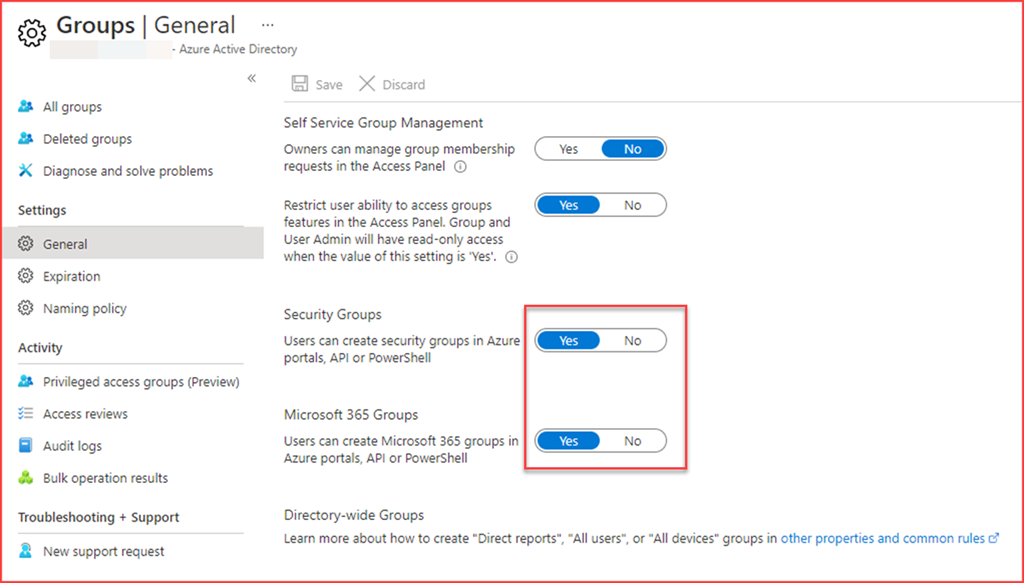
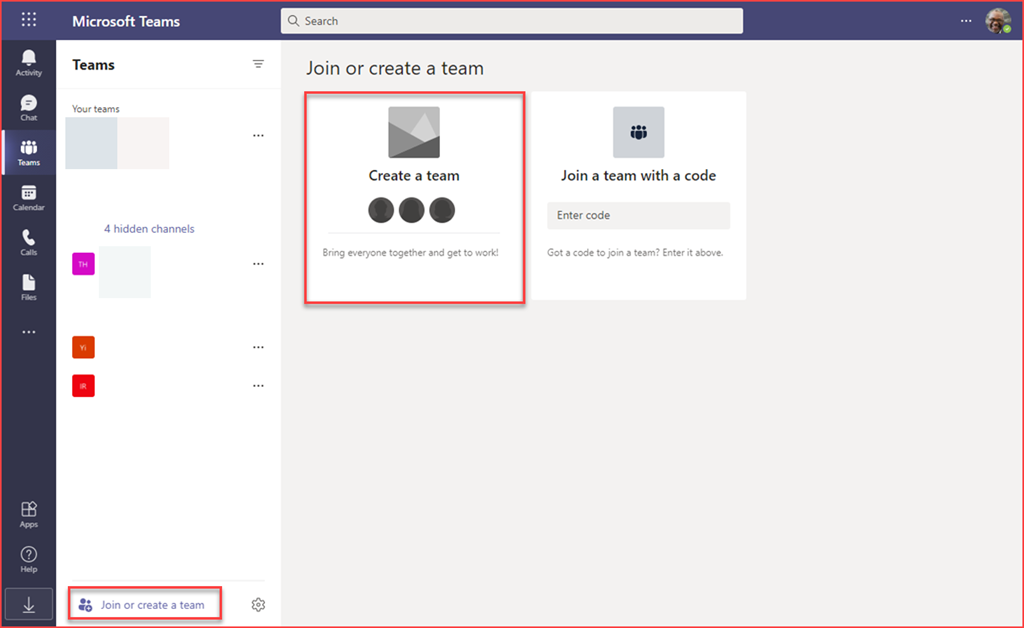
It’s best practice from a security point of view to disable users from creating security groups or Microsoft 365 groups. Users can create security groups in Azure portals, API or PowerShell by default. The below setting will also prevent users from creating teams in Microsoft Teams as this will create a Microsoft 365 group.

image

In this post we will be creating a Power App and workflow to allow users to create teams on our terms. We will be letting users choose what type of Team they need and it will be provisioned. At the end I’ll be listing a few best practices regarding usability and security of this solution.

Prevent users from creating teams

The first step is preventing users from creating teams by switching the option to create groups to “No”. The user is able to create teams by default.

image

Switching the slider will show the following for users when trying to create a team

image

Create your Power App / Power Automate flow

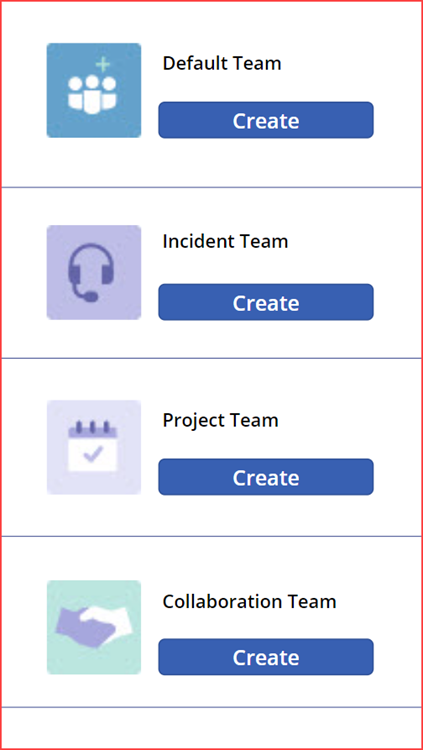
You can create a Power App to you liking. I’ve just create a simple app with a few buttons.

image

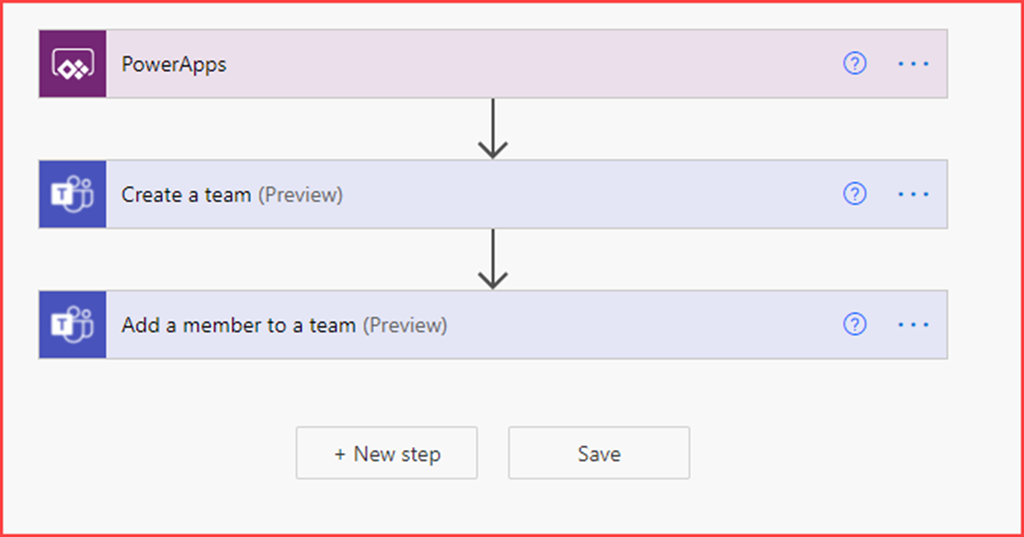
The Power Automate flow is just as simple which will create a Team and add a user to this team.

image

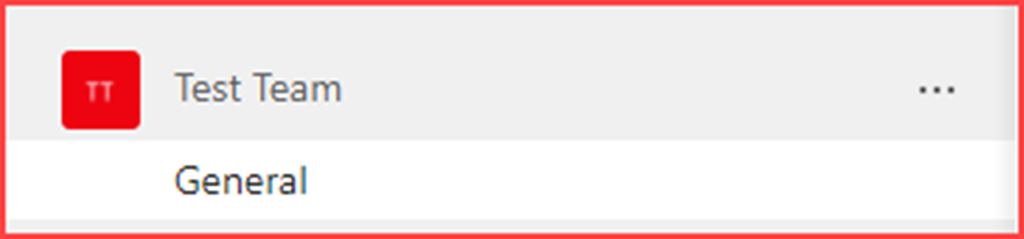
Clicking on the button will create the default team

image

Best practices

Control and naming conventions

Adding an approval to the flow will give administrators control on which Teams are being created. Using the app you can use your own naming convention to know which teams have been created and filter based on them.

Service Account

Run / create the flow using a non-personal (service) account. This will make sure that the application will stop working when the account who created it is deleted.

Logic apps

This flow is created directly from the Power App where it’s also possible to use an Azure Logic App. This allows administrators additional monitoring. The behaviour of the logic app can be exported to a Log Analytics Workspace. An alert can also be created should the Logic App or an action in the Logic App fail.

The post Provision a Team in Microsoft Teams using Power Apps and Power Automate appeared first on Cloud Security | Office 365 | Azure | SharePoint.

❌
❌