
Vue normale

Il y a de nouveaux articles disponibles, cliquez pour rafraîchir la page.
À partir d’avant-hierFlux principal

Change Site Policy Deletion notification email template in SharePoint

The Site Policies in SharePoint are information management tool that helps you implement some site life cycle management. Whether this is dictated by internal house keeping rules or some external regulations that apply to your organisation, the Site Policy is the out of the box way to go if you want to "close" a site, delete it or both, automaticaly after certain period of time.
With site policies you have the option to notify the site owners in advance before the site is deleted. The mail looks like the one below.
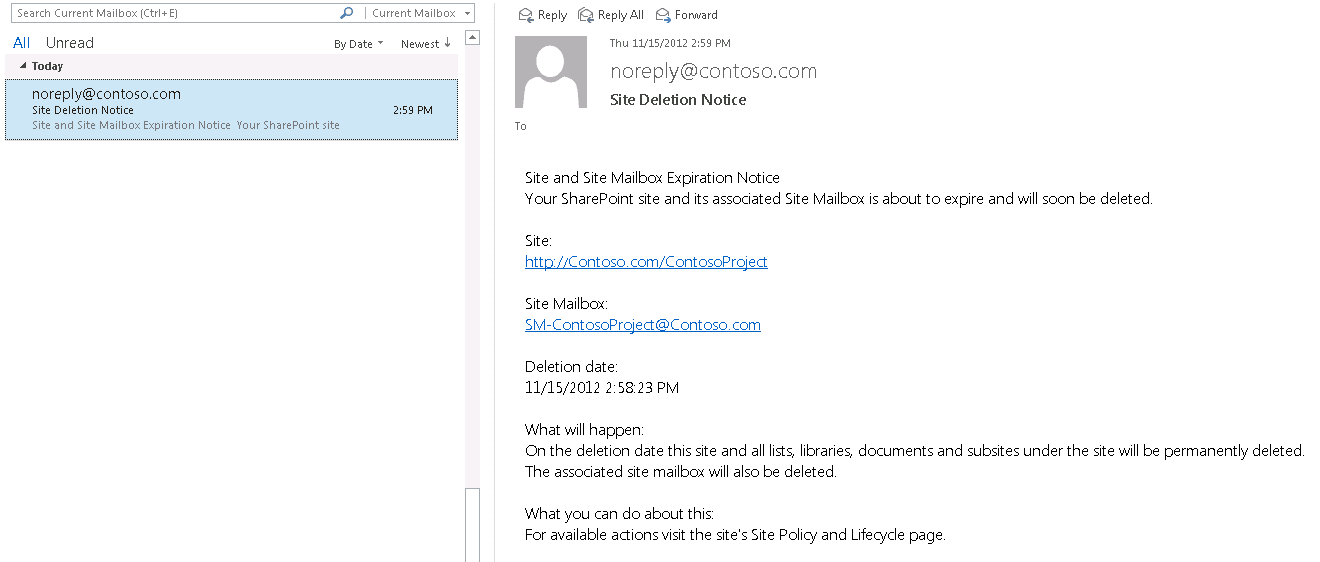
Site Deletion Notice

The information in this email might not be suitable for your organization.
Fortunately there is a way to change the default Site Policy notification email body template and the email subject. This is not done in some XML template file like the Alerts template, maybe there is one, but I have not found it. There is SSOM and CSOM API that you can use to set custom email body template per policy.
The documentation of this is very poor and the best resource on this is the article Site Policy in SharePoint.
Unfortunately I have not managed to make this work server side or using PowerShell. I have tried with SharePoint 2013, SharePoint 2016 and SharePoint Online ssom and csom as well.
The only way I found it working is from console application using the CSOM approach.
The site policy post above is good and the code should work as it is, but it has some gaps.
There are three placeholders that we can use, placeholders for Site Url, Deletion Date and Mailbox Id.
However the placeholders with curly braces that are demonstrated in the post will not work.
I would like to save you some time testing especially if you are targeting SharePoint Online, as there you cannot manually run the "Expiration Policy" timer job.

The correct placeholders are below, without curly braces or any spaces.

SiteUrl: <!--SiteUrl-->
Deletion Date: <!--SiteDeleteDate-->
Mailbox ID: <!--TeamMailboxID-->


I hope you found this helpful!

Set Managed Metadata field value with PowerShell and CSOM

In the previous post I demonstrated an easy way to migrate managed metadata term store objects to SharePoint Online with PowerShell.
Now when you have migrated the terms you might need to migrate some documents and set the metadata fields in SharePoint Online. In the same project I had to migrate around 600 documents to SPO including the metadata which had 6 managed metadata fields, 4 of them were multi-valued.
In this post I will share a powershell snipped to make TaxonomyFieldValueCollection and use it as value for field of type Managed Metadata.
I am showing this method because I got some mixed results when I used simple string as value. It is hard for me to explain why simply updating with taxonomy string did not worked in all cases.
For example, if the document was created in Office Web Apps I was unable to set the fields using a simple string. You can try using the string method and then cross-check  if everithing is set, because if you feed only metadata string(multi-valued) or just guid(for single-valued) you might not get any error, but the field will be left blank.
The challenge for me in the "TaxonomyFieldValueCollection" approach was to create TaxonomyField object instance, because I had to use the generic client context method CastTo and PowerShell don't work well with generic methods. This is why I decided it is worth sharing this example. You can see the code below.

Now a couple of words about the string that is used. In the example above I am setting multi-valued MM field with collection of two terms. The string is in format "<int>;#<label>|<guid> " with ;# delimiter between the terms. The integer is the item id of the term in the Taxonomy Hidden List, if you are using the term for first time or you do not know this id you can use the default value "-1".
The label part speaks for itself, this is the label of the term and the most important part is the guid of the term. If something is wrong with the format of the string you will see below error message.

"The given value for a taxonomy field was not formatted in the required <int>;#<label>|<guid> format."


This method is working every time for all items. I hope that this was helpful!

Get All Items in 5000+ large list with CSOM in PowerShell

Last week I had to write a script that needed to take all items in large SharePoint Online list.
By large I mean above 5000 items. This means that the list is above the list view threshold in SharePoint Online, which is 5000 and we cannot change that. The way to get all items in SharePoint Online is to use CAML query. However if it is just an empty query without any filtering it will fail, if you use unindexed column for filtering or ordering the query will fail, if you filter/order by indexed column and the query returns more than 5000 items it will fail again. The error in this and other scenarios is similar to the one below.

Exception calling "ExecuteQuery" with "0" argument(s): "The attempted operation is prohibited because it exceeds the list view threshold enforced by the administrator."

The way to workaround this is pagination of the view. This means that we will have a row limit of the result that the query can return that should be less or equal to 5000. Once we get the first 5000 items we can do another query for the next 5000 starting from the position where the first result(page) ends. This is the same with what we do in the UI scrolling foreword in the list view. Below is an example PowerShell snippet that will take all items from a list using 5000 items page size ordering the items by ID.

$list = $ctx.Web.Lists.GetByTitle($DocLibName)
$ctx.Load($list)
$ctx.ExecuteQuery()
## View XML
$qCommand = @"
<View Scope="RecursiveAll">
    <Query>
        <OrderBy><FieldRef Name='ID' Ascending='TRUE'/></OrderBy>
    </Query>
    <RowLimit Paged="TRUE">5000</RowLimit>
</View>
"@
## Page Position
$position = $null
 
## All Items
$allItems = @()
Do{
    $camlQuery = New-Object Microsoft.SharePoint.Client.CamlQuery
    $camlQuery.ListItemCollectionPosition = $position
    $camlQuery.ViewXml = $qCommand
 ## Executing the query
    $currentCollection = $list.GetItems($camlQuery)
    $ctx.Load($currentCollection)
    $ctx.ExecuteQuery()
 
 ## Getting the position of the previous page
    $position = $currentCollection.ListItemCollectionPosition
 
 # Adding current collection to the allItems collection
    $allItems += $currentCollection
}
# the position of the last page will be Null
Until($position -eq $null) 

Few word about the query, I am using RecursiveAll because I used it against library and I wanted to get all items in all folders, the size of the page is 5000, just on the edge of the threshold and I am ordering the result by ID because this column is always indexed.
I am using Do-Until loop to get all pages and setting the position to be the position of the last item collection that was retrieved.
This is really a powerful and quick way to workaround the annoying 5000 list view threshold. I hope you find it useful!
❌
❌