Vue normale

Il y a de nouveaux articles disponibles, cliquez pour rafraîchir la page.
À partir d’avant-hierFlux principal

Set Managed Metadata field value with PowerShell and CSOM

In the previous post I demonstrated an easy way to migrate managed metadata term store objects to SharePoint Online with PowerShell.
Now when you have migrated the terms you might need to migrate some documents and set the metadata fields in SharePoint Online. In the same project I had to migrate around 600 documents to SPO including the metadata which had 6 managed metadata fields, 4 of them were multi-valued.
In this post I will share a powershell snipped to make TaxonomyFieldValueCollection and use it as value for field of type Managed Metadata.
I am showing this method because I got some mixed results when I used simple string as value. It is hard for me to explain why simply updating with taxonomy string did not worked in all cases.
For example, if the document was created in Office Web Apps I was unable to set the fields using a simple string. You can try using the string method and then cross-check  if everithing is set, because if you feed only metadata string(multi-valued) or just guid(for single-valued) you might not get any error, but the field will be left blank.
The challenge for me in the "TaxonomyFieldValueCollection" approach was to create TaxonomyField object instance, because I had to use the generic client context method CastTo and PowerShell don't work well with generic methods. This is why I decided it is worth sharing this example. You can see the code below.

Now a couple of words about the string that is used. In the example above I am setting multi-valued MM field with collection of two terms. The string is in format "<int>;#<label>|<guid> " with ;# delimiter between the terms. The integer is the item id of the term in the Taxonomy Hidden List, if you are using the term for first time or you do not know this id you can use the default value "-1".
The label part speaks for itself, this is the label of the term and the most important part is the guid of the term. If something is wrong with the format of the string you will see below error message.

"The given value for a taxonomy field was not formatted in the required <int>;#<label>|<guid> format."


This method is working every time for all items. I hope that this was helpful!
Migrate SharePoint 2010 Term Store to SharePoint Online with PowerShell

Last week I worked with a customer on migrating one SharePoint 2010 site to a new SharePoint Online.
I can qualify the site as Knowledge Base designed for optimal discoverability of the documents that are uploaded. To achieve a good discoverability you will need some good metadata describing the resources. Many times the metadata that is used is actually managed metadata that needs to be migrated/recreated in SharePoint Online.
If you have 10 or 20 terms it will not be an issue to recreate them, but if you have 400 for example it will not be very practical to manually recreate all terms.
There are many powershell scripts out there to export/import terms, but the success rate and the complexity might vary. This is why I would like to share how I did it and it worked out pretty well for me.
For the purpose we are going use the custom cmdlets provided for free by Gary Lapointe.
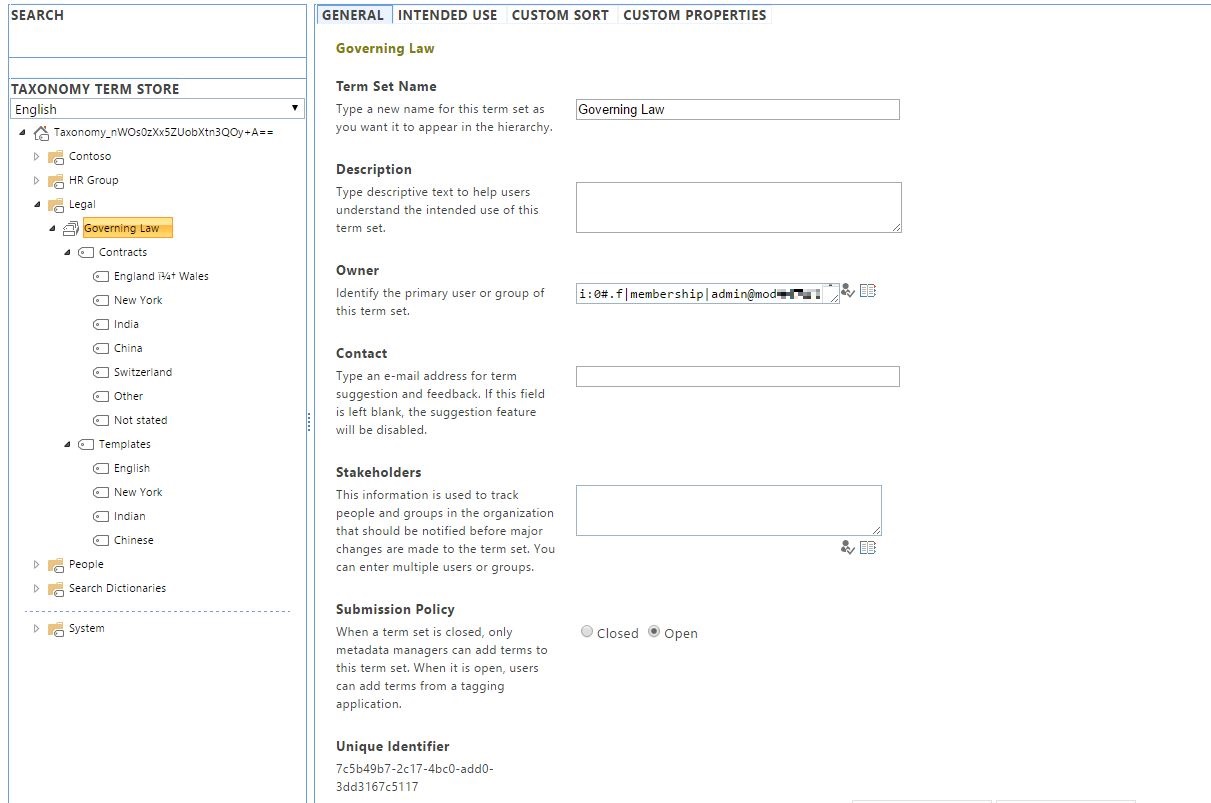
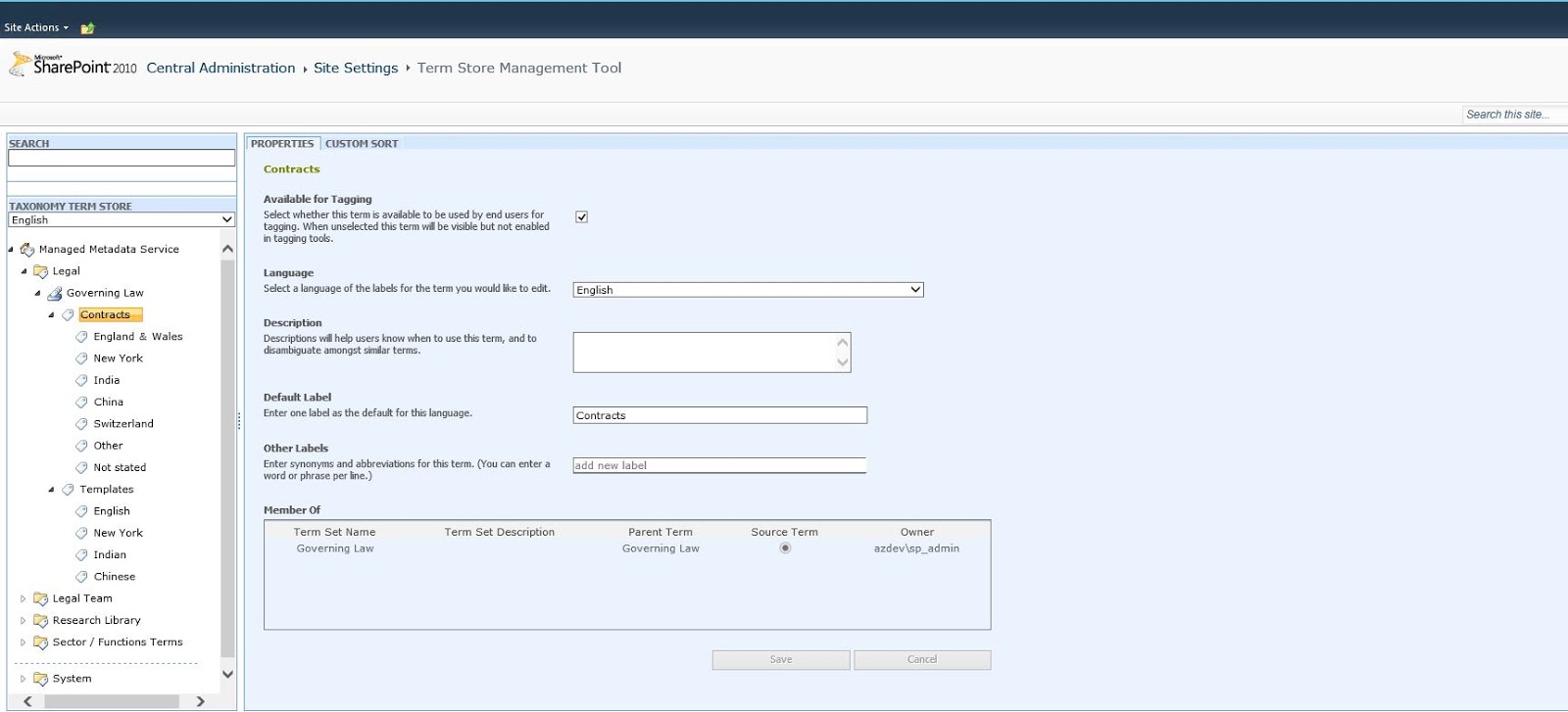
For demonstration purposes I will export one term set group with one term set that has limited number of terms. You can check it out below, it also has some parent/child terms.

SharePoint 2010 Term Store

In order to export the term set group you will need to deploy the WSP that will add the custom SharePoint Server 2010 commands. By doing so you will add the additional 2010 commands directly to the Microsoft.SharePoint.PowerShell snap-in.
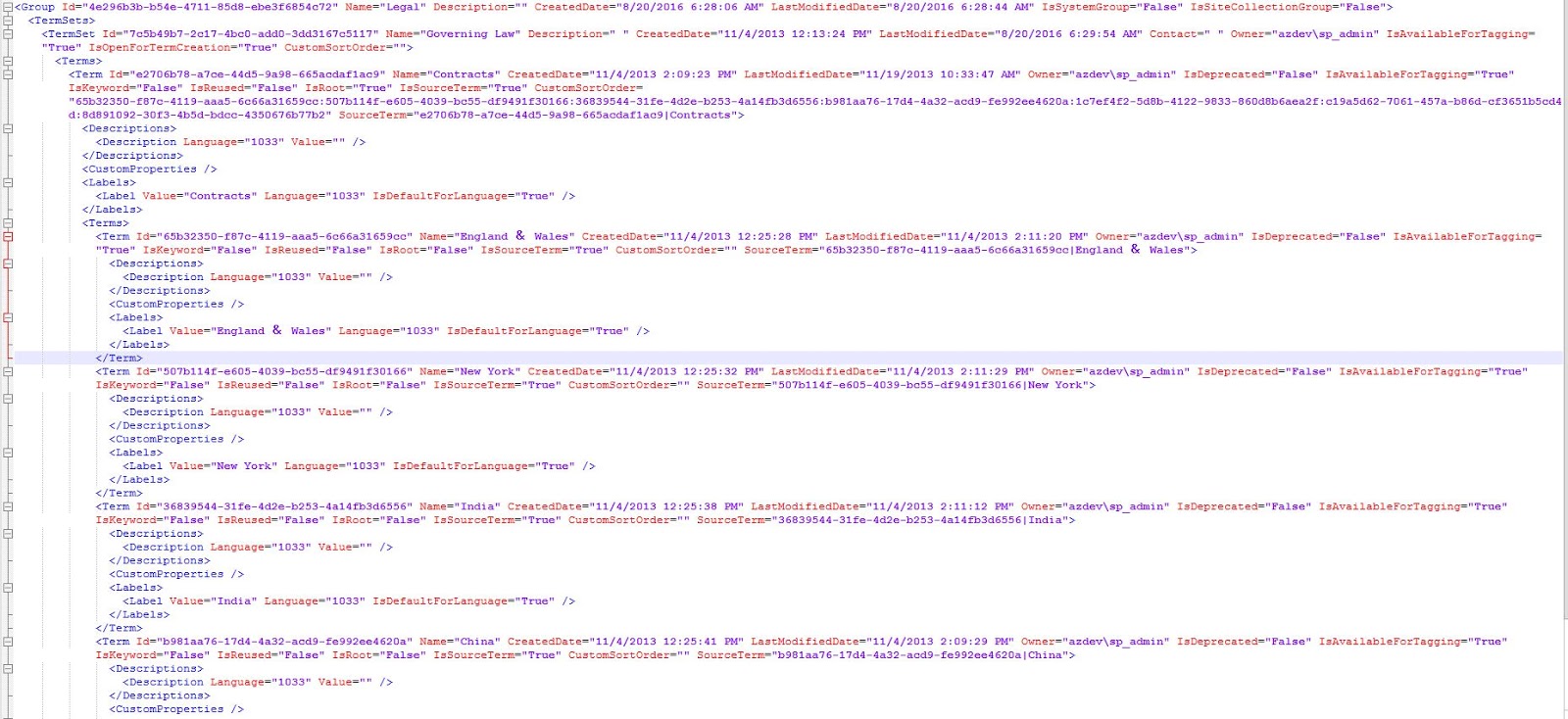
To export taxonomy object as xml we are going to use Export-SPTerms. You will need to supply some taxonomy object as input parameter, this will be a taxonomy session if you want to export everything, for more examples see the cmdlet help. You can see how the Legal term set group looks as  xml below.

Input XML

As you can see all essential information that is needed is exported, even some that will be an issue if you are importing the terms to a different environment or SharePoint Online. This is the Owner or every attribute that represents on-prem identity that you might have. The import command will also try to set this properties with the same values and it will fail because the identity as it was exported cannot be found. The way to workaround this is just to set different value for Owner that will be a valid Online identity. Now it is up to you to decide if you want to do this tradeoff and migrate the objects with different Owner than the source. Below are two lines (3 to make it fit better) that will take the content of the exported XML and will set new Owner for each XML node where the Owner attribute is not empty and later the same XML object can be used for input of the import command.

[xml]$termXML = Get-Content "C:\Legal.xml"
($termXML.SelectNodes("//*")) | Where {$_.Owner -ne $null} | `
ForEach-Object {$_.SetAttribute("Owner", "i:0#.f|membership|admin@MOD******.onmicrosoft.com")}

To import the taxonomy objects in SPO you will need to download and install the SharePoint Online Custom Cmdlets
This will actually install a new module called  Lapointe.SharePointOnline.PowerShell.
The command that we are going to use for the import is Import-SPOTaxonomy. For InputFile parameter we are going to use the variable from the above lines after we have set all identity attributes. If you are importing an object that is not a top level term store you should specify ParentTermStore(can get it with Get-SPOTermStore), if not you should switch on the parameter "Tenant". Before all that, you should connect to a site in your target tenant using Connect-SPOSite. Below are the lines to import the Legal term set group.

Connect-SPOSite -Url "https://mod******.sharepoint.com"
Import-SPOTaxonomy -InputFile $termXML -ParentTermStore (Get-SPOTermStore)

And this is it. Our Legal term set group is recreated and available in the entire tenant. One nice thing is that the GUIDs will be copied as well.

SharePoint Online Term Store

I hope that this was helpful and big thanks to Gary Lapointe for writing this great tools! The same approach should work for SharePoint 2013, but I have not tested this.

❌
❌