Vue normale

Il y a de nouveaux articles disponibles, cliquez pour rafraîchir la page.
À partir d’avant-hierFlux principal

Unlocking the Future of Hybrid Cloud Management with Azure Arc, Windows Admin Center, and Azure Copilot

Microsoft Azure Arc enabled Windows Server 2025 Insider Preview in Windows Admin Center

In the ever-evolving landscape of IT infrastructure, the need for seamless integration and management across on-premises, edge, and cloud environments has never been more critical. Enter Azure Arc-enabled servers, Windows Admin Center, and Azure Copilot—three powerful tools that together redefine hybrid cloud management.

Azure Arc: Bridging the Gap

Azure Arc is a game-changer for organizations looking to extend Azure management capabilities to any infrastructure. Whether your servers are on-premises, at the edge, or in another cloud, Azure Arc enables you to manage them through a single pane of glass. This unified approach simplifies operations, enhances security, and ensures compliance across diverse environments.

With Azure Arc, you can:

  • Deploy and manage Kubernetes clusters anywhere.
  • Apply Azure policies consistently across all your resources.
  • Leverage Azure services like Azure Monitor and Azure Security Center for comprehensive monitoring and security.

Windows Admin Center: Simplified Server Management

Windows Admin Center (WAC) is a browser-based management tool that brings simplicity and efficiency to server management. Integrated with Azure Arc, WAC provides a centralized platform to manage your Windows Servers, whether they are on-premises or in the cloud.

Key features of Windows Admin Center include:

  • Intuitive Dashboard: A user-friendly interface that provides a holistic view of your server environment.
  • Streamlined Management: Tools for managing server roles, storage, networking, and more.
  • Azure Integration: Seamless connectivity with Azure services, enabling hybrid scenarios like Azure Backup and Azure Site Recovery.

Azure Copilot: AI-Powered Assistance

Azure Copilot is the latest addition to the Azure ecosystem, bringing AI-powered assistance to your fingertips. Integrated with both Azure Arc and Windows Admin Center, Azure Copilot leverages machine learning to provide insights, recommendations, and automation, making your IT operations smarter and more efficient.


With Azure Copilot, you can:

  • Automate Routine Tasks: Reduce manual intervention with intelligent automation.
  • Gain Actionable Insights: Use predictive analytics to anticipate issues before they occur.
  • Enhance Security: Receive real-time security recommendations and threat detection.


The Power of Integration

The true strength of these tools lies in their integration. Azure Arc extends Azure’s reach to any infrastructure, Windows Admin Center simplifies server management, and Azure Copilot adds a layer of intelligence and automation. Together, they create a robust hybrid cloud management solution that empowers IT professionals to manage complex environments with ease.
This is called Microsoft Adaptive Cloud

Imagine a scenario where you can deploy a Kubernetes cluster on-premises, manage it through Windows Admin Center, and use Azure Copilot to automate updates and monitor performance—all from a single interface. This level of integration not only enhances operational efficiency but also ensures that your infrastructure is secure, compliant, and ready for the future.


Conclusion

As organizations continue to navigate the complexities of hybrid cloud environments, the combination of Azure Arc, Windows Admin Center, and Azure Copilot offers a comprehensive solution that simplifies management, enhances security, and drives innovation. Embrace the future of IT infrastructure management with these powerful tools and unlock new possibilities for your organization.

Ready to transform your hybrid cloud strategy? Dive into the world of Azure Arc, Windows Admin Center, and Azure Copilot today and experience the future of IT management.

For more information on these tools and how they can benefit your organization, check out the latest updates from Microsoft Docs:

Microsoft Azure Arc documentation

Microsoft Azure Copilot documentation

Microsoft Azure Windows Admin Center for Arc Enabled Servers

Selecting WSUS update classifications for Windows 10/11

In addition to the products for which you want to receive updates via WSUS, you also have to choose which types of updates you want to subscribe to. However, the classifications don't reflect Microsoft's actual servicing model for Windows. Therefore, in many cases, it's not obvious why certain updates appear in a specific category.

The post Selecting WSUS update classifications for Windows 10/11 first appeared on 4sysops.

Microsoft Releases Cmdlet to Retrieve Disposition Review Items

Export Details of Disposition Review Items

Message Center notification MC521457 (Microsoft 365 roadmap item 106102) might have passed you buy on February 27 when Microsoft announced a new PowerShell cmdlet for disposition review. Relatively few people are concerned with Microsoft Purview Data Lifecycle Management to care that a new cmdlet is available to export (not just “to support”) disposition review items, so it’s entirely natural that you might have gone on to read about other announcements occurring around the same time, like Exchange Online’s improved message recall feature.

Roll-out of the new Get-ReviewItems cmdlet is now complete. The cmdlet is available after loading the latest version of the Exchange Online management module.

Disposition Items

Microsoft 365 retention labels often result in the deletion of items after the lapse of their retention periods. This is enough for most organizations, but those that want oversight over the final processing of selected items can configure retention labels to invoke a disposition review, part of the Microsoft Purview records management solution. Disposition reviews are often used to retain messages and documentations such as those for project documentation until the organization is absolutely sure that it’s safe to remove individual items.

Using a disposition review with retention labels requires advanced licenses, like Office 365 E5. An organization can put items through a single-stage or multi-stage review (Figure1) leading to final deletion, retention for another period, or assignment of a new retention label. The reviewers who decide on the disposition of content are selected by the organization because they have the expertise and experience to know if items are still needed or can progress to final disposition. It’s also possible to configure a custom automated disposition process using Power Automate.

Viewing disposition review items for a retention label
Figure 1: Viewing disposition review items for a retention label

Exporting Disposition Review Items

The Get-ReviewItems cmdlet doesn’t affect disposition outcomes. It’s a utility cmdlet to export details of disposition review items for a specific retention label in a pending or disposed (processed) state. The reason why the cmdlet exists is that the Purview GUI (Figure 1) supports export of up to 50,000 items. Although it’s unlikely that an organization will have more than 50,000 items awaiting disposition review, it is possible that they might have more than 50,000 disposed (processed) items. The Get-ReviewItems cmdlet can export details of all those items.

Microsoft’s documentation for Get-ReviewItems includes examples of using the cmdlet. One in particular is noteworthy because it explains how to fetch pages of review items until all items have been recovered. Fetching pages of data is common practice in the Graph API world and it’s done to reduce the strain on the service imposed if administrators requested very large numbers of items at one time.

I expanded the example to create a report of all disposition review items for a tenant (all items for all retention labels with a disposition review). Here’s the code:

Connect-IPPSSession

[array]$ReviewTags = Get-ComplianceTag | Where-Object {$_.IsReviewTag -eq $True} | Sort-Object Name
If (!($ReviewTags)) { Write-Host "No retention tags with manual disposition found - exiting"; break }

Write-Host ("Looking for Review Items for {0} retention tags: {1}" -f $ReviewTags.count, ($ReviewTags.Name -join ", "))

$Report = [System.Collections.Generic.List[Object]]::new() 

[array]$ItemsForReport = $Null
ForEach ($ReviewTag in $ReviewTags) {
 Write-Host ("Processing disposition items for the {0} label" -f $ReviewTag.Name)
 [array]$ItemDetails = $Null; [array]$ItemDetailsExport = $Null
 # Fetch first page of review items for the tag and extract the items to an array
 [array]$ReviewItems = Get-ReviewItems -TargetLabelId $ReviewTag.ImmutableId -IncludeHeaders $True -Disposed $False  
 $ItemDetails += $ReviewItems.ExportItems
 # If more pages of data are available, fetch them and add to the Item details array
 While (![string]::IsNullOrEmpty($ReviewItems.PaginationCookie))
 {
    $ReviewItems = Get-ReviewItems -TargetLabelId $ReviewTag.ImmutableId -IncludeHeaders $True -PagingCookie $ReviewItems.PaginationCookie
    $ItemDetails += $ReviewItems.ExportItems
 }
 # Convert data from CSV
 If ($ItemDetails) {
   [array]$ItemDetailsExport = $ItemDetails | ConvertFrom-Csv -Header $ReviewItems.Headers 
   ForEach ($Item in $ItemDetailsExport) {
     # Sometimes the data doesn't include the label name, so we add the label name to be sure
     $Item | Add-Member -NotePropertyName Label -NotePropertyValue $ReviewTag.Name }
   $ItemsForReport += $ItemDetailsExport
 }
}

ForEach ($Record in $ItemsForReport) {
  If ($Record.ItemCreationTime) {
   $RecordCreationDate =  Get-Date($Record.ItemCreationTime) -format g 
  } Else {
   $RecordCreationDate = "Unknown" }
 
   $DataLine  = [PSCustomObject] @{
     TimeStamp       = $RecordCreationDate
     Subject         = $Record.Subject
     Label           = $Record.Label
     AppliedBy       = $Record.LabelAppliedBy
     RecordType      = $Record.RecordType
     'Last Reviewed' = Get-Date($Record.ItemLastModifiedTime) -format g
     'Review Action' = $Record.ReviewAction
     Comment         = $Record.Comment
     'Deleted Date'  = $Record.DeletedDate
     Author          = $Record.Author
     Link            = $Record.InternetMessageId
     Location        = $Record.Location
   } 
   $Report.Add($DataLine)
}

Everything works – until you meet an item with a comma in its subject or the comment captured when a reviewer decides upon a disposition outcome. After discussing the issue with Microsoft, its root cause is that the export is in CSV format and the comma in these fields causes problems when converting from CSV format. Microsoft is working on a fix which might be present as you read this.

The Lesson of Export

The Get-ReviewItems cmdlet will be a useful tool for those involved in disposition processing. They can extract details of items and report that information in whatever way they wish. The comma issue proves that documentation is not always perfect. It’s important to test examples to make sure that they work as they should.


Insight like this doesn’t come easily. You’ve got to know the technology and understand how to look behind the scenes. Benefit from the knowledge and experience of the Office 365 for IT Pros team by subscribing to the best eBook covering Office 365 and the wider Microsoft 365 ecosystem.

Client logs collections in Configuration Manager (SCCM)

Configuration Manager (previously named SCCM) supports the collection of device client logs that can be accessed through the SCCM console. These logs are very useful for troubleshooting. The console notifies the clients to collect the logs.

The post Client logs collections in Configuration Manager (SCCM) first appeared on 4sysops.

Why Some Outlook Clients Encrypt Outbound Messages Differently

Outlook Sensitivity Labels Processed in Different Ways

An observant reader noticed that Outlook clients encrypt messages using sensitivity labels in different ways. If you look at Figure 1, you see three messages sent to the same person using Outlook Mobile, OWA (or Monarch), and Outlook for Windows. The Ultra Confidential sensitivity label protects all messages with encryption, but only the copy sent from Outlook for Windows is protected in the sender’s mailbox. The other copies sent from Outlook Mobile and OWA are protected when they arrive in the recipient mailbox.

Outlook lists three messages from different clients with different outcomes from Outlook sensitivity labels
Figure 1: Outlook lists three messages from different clients

The obvious question is why this situation happens. Shouldn’t all Outlook clients produce the same result? Alas, this is not the case. As explained in Microsoft documentation, “When a sensitivity label is configured with encryption, the encryption process depends on the client platform.” In effect, Outlook desktop is the only client that contains the code necessary to encrypt an outbound message.

Other Outlook clients rely on passing messages through the Exchange Online transport service. The transport service has super-user capabilities and can apply the necessary protection. When transport detects that a message has a sensitivity label with encryption that isn’t yet protected, it does the necessary work to protect the message by placing the message and its attachments in a rpmsg “wrapper” before sending the message on to the next hop in its journey.

Client Processing for Protected Messages

The rpmsg wrapper is how Outlook sensitivity labels impose rights management for protected messages. The receiving client must unpack the message from the wrapper and respect the rights assigned to the recipient by the publishing license that’s included in the wrapper. The receiving client sends the publishing license to the information protection service to obtain a use license that allows the client to open the message.

Clients perform the processing to allow users to read protected messages without being prompted for credentials. If the client can’t obtain a use license, it displays information from the rpmsg to direct the user to the Office 365 Message Encryption (OME) Portal. If the user can prove their rights to open the message by signing into the OME portal with an account included in the recipient list, they can view the message contents online.

The reason why two out of the three messages are unencrypted in the Sent Items folder is that these are the messages that clients didn’t protect. Outlook desktop protected the other message before it submitted the item to transport. In

all cases, the sender can be confident that the message was fully protected when it left the transport service for onward routing.

Clients and the MIP SDK

Microsoft could incorporate the code (using the Microsoft Information Protection SDK) to protect messages in OWA and Outlook mobile. However, this approach doesn’t seem to make sense. Apart from the extra complexity introduced into the client code base, OWA can only be used online. Outlook mobile clients could protect files, but they usually work in a connected mode (either Wi-Fi or a cellular network). Outlook desktop has always been able to work offline, so its developers incorporated the code to process protected inbound and outbound messages when working offline.

Growing Use of Outlook Sensitivity Labels

The number of messages protected by Outlook sensitivity labels is steadily increasing. I do not have firm data to back this assertion, just anecdotal evidence from customer interactions. Microsoft continues to pour engineering effort into making sensitivity labels more accessible and useful, so I expect the trend to continue. And when your tenant starts to use sensitivity labels to protect email, you’ll know why some Outlook clients protect messages in a different manner to others.


Learn about using Exchange Online, Outlook clients, and the rest of Office 365 by subscribing to the Office 365 for IT Pros eBook. Use our experience to understand what’s important and how best to protect your tenant.

SharePoint Online Block Download Policy for Teams Meeting Recordings

Block Download Policy covered by Syntex-SharePoint Advanced Management License

Microsoft launched the Syntex-SharePoint Advanced Management license into preview in late January 2023. The license is now generally available and cost $3/user/month. Since news about the license emerged, people have been figuring out if the features covered by the license are worth the cost by examining details of the features it enables. Now a new block download file policy is available for Teams meeting recordings.

Blocking Downloads and Teams Meetings

In February, I covered the Block Download Policy for SharePoint Online, a feature in Syntex-SharePoint Advanced Management to limit users to browser access when interacting with content stored in sensitive sites. Blocking downloads for Teams recordings is a similar feature that’s now available in preview. The big difference is that the block download policy applies tenant-wide for all Teams recordings created after the block comes into force in both SharePoint Online sites (for channel meeting recordings) and OneDrive for Business (for personal meeting recordings).

Clearly Microsoft is responding to a customer need to make Teams meeting recording more secure. Blocking downloads removes the worry that someone with access to a recording of a sensitive meeting can download it before the meeting file automatically expires.

Site-Wide Block Download Policy Applied With PowerShell

As noted above, the block is tenant-wide. No GUI is currently available in the SharePoint Online admin center, so management of the block is by running the Set-SPOTenant cmdlet from the SharePoint Online management module.

Make sure that you run an up-to-date version of the module (I used 16.0.23408.12000) as otherwise the Set-SPOTenant won’t support the necessary parameters. Keeping modules like Exchange Online management, Teams, SharePoint Online, and the Microsoft Graph PowerShell SDK up to date is an important task. Ideally, you should check and update modules monthly. As it’s always nice when PowerShell looks after PowerShell, here’s a script to automate the process, including tidying up by removing old module files afterward.

To impose the block, use Set-SPOTenant to set these parameters:

  • BlockDownloadFileTypePolicy from $False (the default) to $True.
  • BlockDownloadFileTypeIds to “TeamsMeetingRecording.” This is the only value currently supported by the cmdlet.
  • ExcludedBlockDownloadGroupIds to the identifiers of security groups whose members you want to exclude from the block download policy. You can’t use Microsoft 365 groups to exclude accounts. This parameter can be left blank if you want the policy to apply to all accounts. If you want to specify multiple security groups, do so in a comma-separated list.

Here’s the command I ran in my tenant to enable the block policy and check its settings afterward:

Set-SPOTenant -BlockDownloadFileTypePolicy $True -BlockDownloadFileTypeIds TeamsMeetingRecording -ExcludedBlockDownloadGroupIds "dc637020-4b0f-4f65-bdf0-3c7dbe8a83e7"

Get-SPOTenant | Format-List BlockDownLoadFile*, ExcludedBlock*

BlockDownloadFileTypePolicy   : True
BlockDownloadFileTypeIds      : {TeamsMeetingRecording}
ExcludedBlockDownloadGroupIds : {dc637020-4b0f-4f65-bdf0-3c7dbe8a83e7}

It can take up to a day before a policy update becomes effective across SharePoint Online. Before it is effective, anyone can download a Teams meeting recording (Figure 1).

The option to download a Teams recording is available

Block download file policy
Figure 1: The option to download a Teams recording is available

When the block download policy is effective, users don’t see the download options for recordings created after the effective date (Figure 2).

The Block download policy stops users downloading Teams meeting recordings
Figure 2: The Block download policy stops users downloading Teams meeting recordings

It’s important for users to understand that they are only blocked for new recordings. At least, while the feature is in preview. However, when the block download policy is generally available, a background agent will search for older Teams meeting recordings stored in SharePoint Online and OneDrive for Business and mark the files as blocked for download. Although I can see why customers would want this to happen, the fact is that many of the Teams recordings will age out and disappear in a relatively short period unless users take explicit action to retain the files.

Available in Preview Now

SharePoint Online’s block download policy for Teams recordings is available in preview. After Microsoft makes the block download policy generally available, you’ll need to buy some Syntex-SharePoint Advanced Management licenses to continue using the policy or the block download policy will stop working (perhaps much to the relief of some users!).


Insight like this doesn’t come easily. You’ve got to know the technology and understand how to look behind the scenes. Benefit from the knowledge and experience of the Office 365 for IT Pros team by subscribing to the best eBook covering Office 365 and the wider Microsoft 365 ecosystem.

Why Microsoft 365 License Assignment Dates Can Be Misleading

Microsoft 365 tenant administrators might want to know when user accounts receive a specific license. Unhappily, Azure AD license assignment dates can mislead, so some interpretation and personal knowledge might be needed to find out just when a user was licensed.

The post Why Microsoft 365 License Assignment Dates Can Be Misleading appeared first on Practical 365.

Prepare WSUS for Windows 10/11 Unified Update Platform (UUP)

The Unified Update Platform (UUP) reduces the size of feature and quality updates, as well as the number of reboots. It also retains Features on Demand (FoDs). WSUS and SCCM users will soon be able to enjoy UUP. For WSUS to obtain future Windows 11 updates, the servers have to be prepared accordingly.

The post Prepare WSUS for Windows 10/11 Unified Update Platform (UUP) first appeared on 4sysops.

Sensitivity Bar Appears in Office Desktop Apps

Sensitivity Bar Informs Users About the Labeling Status of Office Documents

I guess I was surprised when I saw message center notification MC515530 appear on February 15 all about the new sensitivity bar (or sensitivity labeling bar) for the Microsoft 365 apps for enterprise (the subscription version of the Office desktop apps). The surprise didn’t come from not knowing about the bar, because I’ve been using it for months as it’s in the Current Channel Preview release. It’s more that it seems to have taken forever to get a relatively simple (and good) change to general release. The update is Microsoft 365 roadmap item 88517 and will appear in the standard release of Word, PowerPoint, and Excel in March 2023. The Microsoft 365 Insider blog (September 20, 2022) explains how the sensitivity bar works.

It makes sense to show users details of the sensitivity label applied to a document. Office apps show the information shown in Figure 1 when a user clicks on the file name in the application window. You can update the file name, choose a different sensitivity label, save the file to a different location, or see the version history. This functionality is available even if you choose to hide the sensitivity bar (see below). What we’re concerned about here is the addition of the sensitivity label name and the colored shield in what’s displayed.

The name of the assigned sensitivity label appears in the sensitivity bar
Figure 1: The name of the assigned sensitivity label appears in the sensitivity bar

The display of the sensitivity label name in the sensitivity bar now means that Office apps display sensitivity labels in three separate places in the UI: the bar, the sensitivity button, and in the information bar at the bottom of the screen. The lock icons shown in the sensitivity and information bars are visual indicators that the sensitivity label protects the document with rights management.

Eliminating the Unified Labeling Client

Introducing the sensitivity bar is part of Microsoft’s ongoing effort to eliminate the unified labeling client (also known as the Azure Information Protection client). This add-on client was the original software installed to allow users to label Office documents and it included an information bar to display label properties.

The Office apps include native labeling capabilities, meaning that they include the necessary Microsoft Information Protection code to interact with labels, apply rights management encryption, and so on. Native protection means that there’s no need for an add-on client, but before it’s possible to transition all customers off the unified labeling client, Microsoft needs to provide equivalent functionality in the Office apps. Microsoft has been working to give the Office desktop apps equivalent functionality to that gained by installing the unified labeling client since at least 2018. A big step forward happened in 2019 when the Office apps gained native protection support. Now we’re in the final stages of the process when tweaks to the UI like this one and the introduction of colors for sensitivity labels apply the final fit-and-finish.

Hiding the Sensitivity Bar

If you don’t want the Office apps to display sensitivity label names, you can amend the label policy that publishes sensitivity labels to users to add a setting to hide the sensitivity bar. Microsoft’s documentation suggests that this might be appropriate if people use very long file names and want to see that information displayed (they can always see information about labels through the Sensitivity button).

In any case, you can’t disable the sensitivity bar through the Purview compliance center. Instead, run these PowerShell commands to connect to the compliance endpoint, select all label policies, and add the setting:

Connect-ExchangeOnline
Connect-IPPSSesssion
[array]$LabelPolicies = Get-LabelPolicy
ForEach ($Policy in $LabelPolicies) { 
  Set-LabelPolicy -Identity $Policy.Name -AdvancedSettings @{HideBarByDefault="True"}
}

To check the setting, run:

Get-LabelPolicy | Format-List Name, PolicySettingsBlob

You should see the setting shown like this:

<setting key="HideBarByDefault" value="True" />

Figure 2 shows the effect, which is quite subtle. Everything that was there before is still present but the label is now represented by a colored shield (meaning it’s a protected document) instead of the shield and label name.

Sensitivity bar hidden means no sensitivity label name alongside the shield
Figure 2: Sensitivity bar hidden means no sensitivity label name alongside the shield

To reverse the setting, set its value to False. The Office apps pick up changes made to label policies the next time they refresh their label cache, so it might take several hours before apps hide the sensitivity bar.

Useful Change for Those Interested in Sensitivity Labels

For most users, the addition of the sensitivity bar is a minor improvement that I find useful (but maybe only because I label every document). The bar serves a useful purpose in highlighting the presence of a sensitivity label (which might have been applied automatically by a label policy), and might help to raise awareness about the need to exercise care when handling confidential information. On the other hand, the sensitivity bar might fade into the background like many other elements of the Office GUI that people only access when they really need to. Of course, if your organization doesn’t use sensitivity labels, you don’t need to worry about the sensitivity bar.


Insight like this doesn’t come easily. You’ve got to know the technology and understand how to look behind the scenes. Benefit from the knowledge and experience of the Office 365 for IT Pros team by subscribing to the best eBook covering Office 365 and the wider Microsoft 365 ecosystem.

Microsoft Introduces New Syntex-SharePoint Advanced Management License

Syntex-SharePoint Advanced Management Covers Secure Collaboration for SharePoint Online

Updated 2 March 2022

I know that many Microsoft 365 organizations don’t use sensitivity labels, even if they have the necessary licenses to use labels to protect content. All Office 365 licenses allow users to read protected content, but you need Office 365 E3 or above to apply labels to files, and Office 365 E5 or Microsoft 365 Compliance E5 for auto-label processing. At least, that’s been the case up to now.

Applying a default sensitivity label for a SharePoint Online document library (Figure 1) counts as automatic processing. Apparently, Microsoft considers the fact that new and modified documents in the library pick up the sensitivity label (unless previously labeled) as reason enough. In late January 2023, Microsoft revealed that this feature was one of the set to be licensed through a new Microsoft Syntex-SharePoint Advanced Management license.

 Using a default sensitivity label with a document library requires a Syntex advanced management license
Figure 1: Using a default sensitivity label with a document library requires a Syntex advanced management license

Features Enabled by the Microsoft Syntex-SharePoint Advanced Management License

The new license is in preview and includes other elements to improve secure collaboration based on SharePoint Online and OneDrive for Business, including:

  • Using sensitivity labels with Azure AD authentication contexts to limit access to SharePoint Online sites. This feature has been in preview since 2021.
  • Restricting access to a SharePoint Online site to members of a Microsoft 365 group. This restriction blocks users who have received access to a file in the site.
  • Blocking the download of files from SharePoint Online sites or OneDrive for Business accounts without the need to use Azure AD conditional access policies. In other words, users are forced to use a browser to access the site or account and cannot download, print, or synchronize files. The restriction also blocks access to the Office desktop apps because these apps need to download files to work on them locally.

In addition, Syntex-SharePoint Advanced Management includes some management and governance features. The three examples cited appear to be instances where it’s possible for administrators to do the same thing with some effort. Microsoft is making it easier. For example, the ability to limit access to OneDrive for Business to those who are members of a specific security group stops people licensed to use OneDrive but who aren’t members of the security group from using the app. The same effect is possible by simply removing the OneDrive service plan from their assigned licenses.

I haven’t seen what actions are included in the feature to export recent SharePoint site actions, but it might be possible to replicate the functionality by fetching SharePoint management events from the unified audit log.

My assumption is that any user who takes advantage of a feature licensed by Syntex advanced management requires a license. For instance, site members of a site where a document library uses a default sensitivity label all require Syntex-SharePoint Advanced Management licenses.

I can’t find a public announcement by Microsoft about the Syntex-SharePoint Advanced Management license. Cynics will say that this is another example of how Microsoft creates licenses for new functionality to generate additional revenue from its installed base. A more benign view is that the new license allows people with Office 365 E3 licenses to use the security and governance features enabled by Syntex Advanced Management. When I find out more details about licensing, including if some features covered by Syntex Advanced Management are also available through other licenses, I shall share the information.

Viewing Metadata for Protected Files

On an associated topic, I was asked why the metadata of documents protected by sensitivity labels remains visible to people who have no right to access these files. It’s a good question because some get confused when they notice an interesting document in a library but can’t open it because they’re blocked by the rights assigned in the label. For instance, who wouldn’t want to open a document with a title like “Proposed Pay Rises for Staff”?

When you enable SharePoint Online and OneDrive for Business to support sensitivity labels, it allows the workloads to deal with protected (encrypted) content. SharePoint Online stores protected files in an unencrypted format to allow functions like indexing and data loss prevention policies to work. Any access to a document, such as a user opening or downloading a file, causes SharePoint Online to encrypt the document so that the application used to open the file (like Word) can apply the rights assigned to the user. Everything works very nicely and those who have access to files can work with that content and those who don’t cannot.

When browsing items in a document library, site members can see metadata like the titles and authors of protected documents. Attempts to open these documents fail if the user doesn’t have the necessary rights. Because SharePoint Online doesn’t encrypt or obscure the metadata, those users know that documents with potentially very interesting content are available.

How SharePoint Online Stores Documents

The reason why document metadata is visible to all site members is rooted in how SharePoint Online stores documents. SharePoint Online uses Azure SQL as its storage platform. Blob storage holds documents and other files while metadata is in a separate table (list). The Azure SQL data is heavily protected against illegal access. Once a user has access to a document library, the assumption is that SharePoint can show them all the items, which is what they see in the list shown in a browser or the Teams files channel tab. It’s only when a user attempts to access a protected document that SharePoint Online validates their right to open that content.

You can argue that SharePoint Online and OneDrive for Business should hide the existence of protected documents that the user can’t open, but this would require SharePoint Online to check that access before displaying documents in a library. Such a check would incur a huge performance penalty because SharePoint Online cannot assume that the rights assigned in a sensitivity label are the same as the last time it checked.

New Functionality, New Costs

Although the news about the Syntex-SharePoint Advanced Management license will disappoint some, it’s reasonable that Microsoft should charge extra for security and management features that not every Microsoft 365 tenant will want or need. Those that need the functionality will simply have to pay the $3/user monthly cost. Hasn’t that always been the way?


Stay updated with developments across the Microsoft 365 ecosystem by subscribing to the Office 365 for IT Pros eBook. We do the research to make sure that our readers understand the technology.

Manage and secure your endpoints in hybrid environments with ManageEngine Endpoint Central

Learn how ManageEngine Endpoint Central (formerly ManageEngine Desktop Central) provides the tools and automation needed for managing endpoints, patching, deploying software, and installing operating systems in today's hybrid remote work environments.

The post Manage and secure your endpoints in hybrid environments with ManageEngine Endpoint Central first appeared on 4sysops.

Run WSUS cleanup as a scheduled task

Removing updates that are no longer needed or that have been replaced is important to keep WSUS in a healthy state. However, in the daily routine, admins often forget to execute the wizard for WSUS cleanup manually. Hence, it is more reliable if you set up a scheduled task for it.

The post Run WSUS cleanup as a scheduled task first appeared on 4sysops.

Viva Engage — The artist formerly known as Yammer

Viva Engage — The artist formerly known as Yammer

Today the Microsoft product team announced a much anticipated and predicted change for Microsoft 365 and Microsoft Viva — Yammer is evolving to Viva Engage.

I can’t deny a twinge of sadness that it is time to farewell Yammer as a brand. I’ve been a Yammer user, community manager and advocate since the OG pre-Microsoft days. But for me, this is yet another positive step-change for collaboration, internal communication and community within the Microsoft 365 stack.

Unpacking the announcement

Pretty straight forward really. Key messages from the announcement:

  • Yammer will brand to Viva Engage
  • It will happen over a period of 12 months
  • New features and capabilities are coming
  • Existing customers continue under existing licencing
  • Native mode upgrade is required to benefit

See the full announcement here for all the details: Yammer is evolving to Viva Engage | Yammer Blog

New features — yes please

For Viva suite and Viva Topics customers there are several new features which will enhance existing networks and perhaps be the hero feature for a new network:

  • Storyline Announcements for leaders
  • Leadership Corner for employees
  • Ask Me Anything Events
  • #Campaigns
  • Advanced Analytics
  • Answers in Viva

Practical considerations

I enjoy a shiny new features as much as the next digital workplace nerd, but what does this mean in real terms. What advice would I give to practitioners deciding how to approach this change? The same (or at least similar) advice that I would give about introducing any new product or feature.

Take it back to basics

  • What problem are you trying to solve?
  • Who is going to drive an champion the change?
  • What processes and governance do you need to ensure ongoing success?
  • Where does Viva Engage sit in your overall digital workplace and employee experience strategy?
  • How will you prioritise and resources to support the change, and beyond?

Be purpose driven, not product driven.

Simple to write, takes work in practice.

  • Existing thriving networks: Take the opportunity to embrace new features and give your healthy network a boost with the new brand approach.
  • Existing unloved networks: Dust off that strategy, talk to your people, if there is a need to connect, communicate and collaborate a rebrand could be a nice catalyst for change
  • No current network: Step back and look at what your people need and then decide if Viva Engage is the right solution.

Community Management, Governance and Leadership are (still) key

Viva Engage offers more than the Yammer of long ago, but it is still at it’s core a community and collaboration tool. If you build it, they might come, but if you want them to stay there needs to be purpose, nurturing, rules and the strong presence of leadership.

Fortunately recent releases and improvements have made it easier to do a great job of this. If you’re having conversations about Viva Engage in your organisation you definitely want your Change Management team along side you, clear governance, capable Community Managers and strong Leaders who are equipped to leverage the power of Viva Engage.

Yammer is not dead — it’s evolved

I feel pretty confident that I can retire my ‘Yammer is not dead’ slide, and perhaps I don’t need the Yammer Time Gif any more. But Yammer being dead or alive was never the point. The point is that it did, and Viva Engage does, provide an incredibly useful toolset that has a track record of delivering value for organisations who need to connect their people.

Time to retire the ‘Yammer is not dead’ slide.

References and perspectives

I’m keeping an eye out for resources from Microsoft and perspectives from people in the community. Here are a few I’ve already come across in the hours since the announcement.

Yammer is evolving to Viva Engage — Microsoft Community Hub

New Leadership, Analytics, and Knowledge Experiences for Viva Engage are now rolling out — Microsoft Community Hub

Viva Engage features for leaders — Dan Holme

New features for leaders, communicators and employees in Microsoft Viva Engage | LinkedIn

Yammer Service to be rebranded Viva Engage across all platforms — Kevin Crossman

Viva Engage has the answer — The Intrazone Podcast

Originally published at https://rebeccajlj.com on February 14, 2023.


Viva Engage — The artist formerly known as Yammer was originally published in REgarding 365 on Medium, where people are continuing the conversation by highlighting and responding to this story.

Blog Post: [Microsoft Teams] Les salles MTR Android désormais disponible avec le portail "Microsoft Teams Rooms Pro Management"

Le portail "Microsoft Teams Rooms Pro Management" est une solution de gestion incluse avec la licence Microsoft Teams Room Pro permettant de surveiller et mettre à jour de manière proactive les périphériques des salles Microsoft Teams Rooms et leurs accessoires. Description du service: https://learn.microsoft.com/en-us/microsoftteams/rooms/rooms-pro-management Auparavant, l'utilisation du service était possible seulement avec les équipements des salles MTR (Microsoft Teams Room) basés sur un système d'opération Windows, il est maintenant possible de prendre en charge aussi les salles MTR Android dans le portail de gestion Microsoft Teams Room Pro. Vous pouvez désormais inscrire des appareils MTR Android et des consoles tactiles, qui apparaîtront dans la page Salles en tant que types d’appareils distincts. Le portail est disponible à cette adresse: Microsoft Teams Rooms Pro Management En date du blog, voici les différents fonctionnalités disponibles: Signalisations Les appareils s’affichent comme sains/non intègres dans la page Pièces en fonction du signal de connectivité. •Signalé • Connectivité - en ligne/hors ligne Paramètres Les propriétés suivantes sont visibles sous l’onglet Paramètres du panneau Espace : • MTR Android: ID de l’appareil, marque, modèle, numéro de série, adresse IP, version de l’application MTR, version du firmware, version de l’agent OEM, version de l’agent d’administration, version de l’application du portail d’entreprise. • Console tactile : ID de l’appareil, marque, modèle, numéro de série, adresse IP, version de l’application MTR, version du firmware, version de l’agent OEM, version de l’agent d’administration, version de l’application du portail d’entreprise Actions • Redémarrages à distance pour MTR Android et Touch Console. REMARQUE: lorsqu’une console tactile est couplée avec un périphérique MTR Android, elle ne peut pas être redémarrée. • Collecte de journaux à distance pour MTR Android et Touch Console (avec historique des journaux) Rapports • Le rapport d’utilisation inclura les données MTR Android. Les consoles tactiles ne font pas partie du rapport car elles sont utilisées conjointement avec MTR Android • La gestion des stocks comprendra MTR Android et les consoles tactiles. Ils ne sont pas dans les normes et la planification parce qu’ils n’ont pas de périphériques selon la conception Microsoft annonce la disponibilité prochaines de nouvelles fonctionnalités seront déployées pour Teams Rooms sur Android dans le portail "Microsoft Teams Rooms Pro Management" dans les mois à venir.

WSUS cleanup aborting: Increase timeout for database and IIS

If many expired or superseded updates have accumulated in WSUS, then the server cleanup wizard will hang. The problem is often difficult to solve, but promising measures include a longer timeout for the IIS and the database, and more memory for the IIS AppPool.

The post WSUS cleanup aborting: Increase timeout for database and IIS first appeared on 4sysops.

How to Apply Container Management Labels to Existing Teams

It's easy to apply sensitivity labels to new teams, but what happens if you need to apply labels to a batch of existing teams? This article explains the basic steps necessary to find teams without labels, figure out the labels to apply, and apply the selected labels.

The post How to Apply Container Management Labels to Existing Teams appeared first on Practical 365.

Exchange Online Adds Support for License Stacking

License Stacking Allows Workloads to Manage Multiple Licenses

Exchange Online license
Exchange Online

The Exchange Online blog post of January 20 “Introducing Support for Concurrent Exchange Online License Assignments” caused some furrowed brows because on first glance it doesn’t seem like an important announcement. The impact of the change depends on the size of a Microsoft 365 tenant and the processes used for license management. If your tenant is small and licenses are relatively static, you can safely ignore this topic. But those who run large tenants and use features like group-based license assignments are likely to be much more interested.

License stacking means that an Azure AD user account can hold multiple licenses for the same workload. Some of the licenses might be inherited from products (SKUs) that bundle multiple service plans (a not-for-sale license included in a SKU). Others come from specific products or add-ons. For instance, an account might hold the Teams Exploratory license and also have a license for Teams through the Office 365 E3 or E5 SKUs. When license stacking is in place, the workload is responsible for resolving the capabilities made available through the different licenses and allowing the account access to the feature set available from the best (“most superior”) license. In the example above, Teams would respect the license from Office 365 E3 or E5 because it covers more functionality than the Teams Exploratory license.

Exchange Online Licenses

In the case of Exchange Online, four licenses are available:

  • Exchange Online Essentials (BPOS_S_Essentials).
  • Exchange Online Kiosk (BPOS_S_Deskless).
  • Exchange Online Plan 1 (BPOS_S_Standard).
  • Exchange Online Plan 2 (BPOS_S_Enterprise).

BPOS refers to Business Productivity Online Suite, a predecessor to Office 365 based on Exchange 2007.

Microsoft says that they have updated the Get-ExoMailbox (Get-Mailbox) and Get-Recipient cmdlets to give tenants insight into the Exchange capabilities assigned to accounts through the licenses assigned to the accounts. I found that the data isn’t fully populated for all mailboxes (this will happen over time). However, it’s possible to run a command like this to report assignments:

Get-Recipient -RecipientTypeDetails UserMailbox -ResultSize Unlimited | Format-Table DisplayName, RootCapabilities

DisplayName                             RootCapabilities
-----------                             ----------------
Tony Redmond                            BPOS_S_Enterprise
Ben Owens (DCPG)                        None
Andy Ruth (Director)                    BPOS_S_Standard, BPOS_S_Enterprise
James Ryan                              BPOS_S_Enterprise

The Ben Owens account is an example where the assignment information isn’t yet populated. The Andy Ruth account is an example where two licenses are in place that include an Exchange service plan (one for Exchange Online Plan 1, the other for Plan 2). In this case, because Exchange Online Plan 2 enables more functionality than Plan 1, it’s the one that Exchange Online respects.

Concurrent License Assignments for Exchange Online

Traditionally, Exchange Online has not supported license stacking, which means that an Azure AD account can hold a single Exchange Online license. Most of the time this doesn’t matter because the usual situation is for an account to receive an Exchange Online license through a product SKU. For instance, Office 365 E3 and E5 both include the Exchange Online Plan 2 service plan.

However, it’s possible that an account might start out with a Microsoft 365 Business Basic license that includes Exchange Online Plan 1. The account belongs to a user who’s promoted to a management position that the organization requires to come within the scope of a retention policy and have an online archive. These features require Exchange Online Plan 2, so the organization removes the Microsoft 365 Business Basic license and assigns the account an Office 365 E3 license.

Exchange Online mandates that all user mailboxes have licenses. When the organization removes the Exchange Online Plan 1 license from the account, a chance exists that Exchange Online might soft-delete the mailbox and make it unavailable. The mailbox becomes available again when the account gains the Exchange Online Plan 2 license through Office 365 E3, but it’s not a great situation to be in if a user loses access to their mailbox while license administration is in progress.

Why Exchange Online License Stacking is Helpful

Support for license stacking (multiple concurrent licenses) means that the organization can assign the superior license to the account before removing the other license. This might happen through an automated process. For instance, a group-based licensing assignment might occur and assign the license because of the user’s new job means that they join a group. Later, another process might remove the inferior license from the account to return it to the unused license pool. Automated license assignment by reference to a property of Azure AD accounts is very common, both through Azure AD group-based assignment and purpose-built license management tools. Organizations often go down this route because of the complexity that’s sometimes found in understanding the combinations and permutations available in Azure AD licensing.

Group-Based Licensing for All

In August 2021, as part of their announcement about the retirement of the license assignment cmdlets in the Azure AD and MSOL PowerShell cmdlets. Microsoft promised to remove the additional licensing requirement for group-based licensing. That hasn’t happened yet because Microsoft has had to delay the move to the new licensing platform for Microsoft 365.

The current schedule deprecates the licensing cmdlets on March 31, 2023, and perhaps this will mark the point when Microsoft allows everyone to use group-based licensing. If you haven’t already migrated PowerShell scripts that do license management to the Microsoft Graph PowerShell SDK, it’s time to get going.

Good Housekeeping Change

Microsoft is rolling stacked licenses support for Exchange Online in  the commercial clouds. Government clouds are next and will be done by the end of H1 2023. It’s not an exciting change, but it’s a good example of a housekeeping enhancement that will stop users losing access to their mailboxes due to internal license management.

US Department of Interior Passwords Cracked within 90 Minutes, Report Reveals

The image shows a small golden key on top of a black keyboard.
Passwords are easy to crack, thanks to some solid guesswork and government laxity.
Source: Pexels

Password crackers at the Office of Inspector General (OIG), tasked with testing security protocols at the US Department of the Interior (DOI), successfully breached 21% of the active accounts’ passwords inside the department within 90 minutes. 

The rig created for the purpose cost less than USD 15,000, but it exposed the many flaws in DOI’s authentication protocols. These included a lack of two-factor authentication (2FA) and extremely weak password management. Among the passwords cracked were the easily-guessable “Password-1234,” and its variations. Surprisingly, that password met the department’s criteria for password complexity. 

Despite decades of guidance from the government on enforcing 2FA protocols, the DOI has failed to follow through. This puts at stake billions of dollars in department revenue and funds. Its other responsibilities involve managing parks and cultural heritage sites, protecting the environment, and assisting indigenous populations. 

The report alluded to the Colonial Pipeline ransomware attack — where a single password leak cost over USD 4.4 million in payments. It warned that such weak password protocols might result in an attack with similarly disruptive consequences. 

Another major issue that the OIG has referred to in the report is the presence of inactive accounts. These accounts could also become a security liability if not fixed. 

Giving its detailed examination of these password vulnerabilities within the department, the OIG has provided the department with eight recommendations. Essentially, the department must implement these recommendations no later than 2024. 

A Damning Report on Password Protocols in the DOI

The image shows the commonly reused passwords across DOI departments.
Passwords used by the DOI are easy to guess and commonly reused.
Source: OIG

The DOI didn’t enforce password limits nor disable inactive accounts on time. Moreover, 89% of high-value assets under the department had no 2FA protection. These actions are in clear violation of Executive Order No. 14028, which mandated the enforcement of 2FA across federal systems by Nov. 8, 2021. 

Of the 85,944 active accounts, the OIG cracked 18,174, including 288 with elevated privileges and 362 belonging to senior employees. The department’s password protocols were so lax that they allowed employees to use the same weak passwords across many accounts. For example, 478 unique employee accounts used “Password-1234”. 

The OIG conducted these tests after a previous inspection had revealed weak authentication protocols across DOI’s various sub-departments and agencies. This test came on the heels of that inspection. The OIG conducted the test to determine if the DOI’s cybersecurity protocols were robust enough to protect against stolen and recovered passwords. They were not.

Password Encryption and Publicly Available Password Lists

The image shows a bar chart of reused and cracked passwords used by the DOI and senior government officials.
Senior government employees often reuse the same weak passwords.
Source: OIG

Aside from an appalling disregard for password management by a federal agency, the report debunks the impenetrability of password hashing. This process encrypts and scrambles passwords, and many public and private companies and departments rely on it. Many believe it to be enough to foil threat actors’ plans to obtain credentials, assuming it to be impenetrable. This complacent thinking leads companies to shun 2FA measures that would further bolster security.

The consequences of not following through on recommended password security measures are now too evident from this story: OIG created a USD 15,000 commercial password cracking rig and ended up cracking over 14,000 passwords within 90 minutes. They cracked another 4,200 hashed passwords within the next eight weeks. 

Since people reuse passwords, password-cracking teams know the hashes for those passwords. For example, the word “password” converts to “5f4dcc3b5aa765d61d8327deb882cf99”. With the enormous number of password breaches at private and public organizations, lists of common and reused passwords are publicly available for anyone to see. 

All the password crackers have to do is input these password lists to speed up their operations. As a result, a cybercriminal group with resources like an efficient password-cracking rig can easily crack vulnerable accounts. They can do this using known hashes and publicly available lists. As such, to ensure that employees don’t reuse passwords shown on these publicly available lists, some tech agencies even purchase them to avoid using the same passwords on their networks. 

Preventing Password Theft

The image shows a snapshot from the OIG report, detailing ineffective password complexity and cracked hashes by account type.
Password complexity is quite poor at the DOI.
Source: OIG

Incidences of password theft across social media and other applications have increased the demand for zero-knowledge architectures. These allow clients to hold the private key that decrypts passwords. While still crackable, it’s regarded as far more secure than conventional encryption, where the service provider holds the encryption and decryption keys. 

On a more basic level, 2FA still counts as the most effective way to ensure network security against an increasing variety of attack vectors. A second authentication layer “adds a layer of security that protects organizations — even when passwords are compromised,” according to the OIG report. Companies that ensure 2FA across as many services as possible make it harder for cybercriminals to infiltrate their network security. 

The next phase in the evolution of stronger user authentication is the replacement of passwords with passkeys. Passkeys have certain inherent advantages over passwords when it comes to security. For instance, a cryptographic key pair is created for users on each website, allowing users to hold onto the private key on their device. Users reuse passwords for convenience, but passkeys will relieve them of their responsibilities to memorize, change, or alter credentials. This will cut back on user error and time lost in password management, developing stronger passwords, and changing and resetting them. Some in the tech space, like Google, have already started rolling passkeys out to users.

A Migration From Traditional Encryption? 

Migration from the conventional means of data storage, encryption, and user authentication is nowhere near the frequency or speed at which cybercriminals are breaching networks. A focus on strengthening security and password protocols is the need of the hour. 

The combined use of passkeys and 2FA across all platforms and devices could go a long way in reducing cybercrime. Unfortunately, as evidenced by the DOI, many organizations still won’t follow through even when a cybersecurity procedure is recognized and mandated. 

The post US Department of Interior Passwords Cracked within 90 Minutes, Report Reveals appeared first on TechGenix.

Manually re-enroll a Hybrid Azure AD Join Windows 10 / Windows 11 device to Microsoft Endpoint Manager without loosing the current configuration

Edit 01/06/2022 : updating this article to include Azure Virtual Desktop Windows 10 / Windows 11 multi-session enrollment command using Device Credential

——–

There are several ways to enroll a Windows 10 PC to Microsoft Intune:

Manually

  • During the Out-of-the-box Experience (OOBE), when starting a Windows 10 PC for the first time
  • In the Windows Settings, after the PC configuration

Manual enrollment will require that the user enters his Azure AD credentials.

Automatically

  • Using Azure AD Join + automatic Intune enrollment
  • Using Hybrid Azure AD Join + automatic Intune enrollment

Automatic enrollment can be triggered using a Group Policy, SCCM Co-Management or Windows AutoPilot.

Windows 10 automatic enrollment requires the creation of public DNS records enterpriseregistration and enterpriseenrollment. More info here.

However, sometimes it is possible that a Windows 10 PC is in an inconsistent enrollment state, with error “The sync could not be initiated“.

This can happen because:

  • The PC was shut down during a long time, and the Microsoft Intune certificate is expired (located in Local Machine / Certificates / Personal)
  • Someone manually deleted the Microsoft Intune certificate
  • The PC is enrolled in another Intune tenant

Prerequisites: check Hybrid Azure AD Join status

Before re-enrolling your device to Microsoft Intune, you need to make sure that the certificates for Hybrid Azure AD Join are not expired as well.

Follow this procedure to Manually re-register a Windows 10 / Windows 11 or Windows Server machine in Hybrid Azure AD Join.

Method 1: With data and configuration loss

The easiest way to unenroll a Windows 10 PC from Microsoft Intune is to disconnect the work or school account.

Just go to All settings > Accounts > Access work or school, select your corporate account and click Disconnect.

Important: this menu is not available on Windows 10 / Windows 11 multi-session edition for Azure Virtual Desktop.

However, the problem with this is that all data and configuration pushed by Microsoft Intune will be deleted from the PC.

Method 2: Without data or configuration loss

There is a way to manually re-enroll your Windows 10 PC without loosing all the current configuration and apps deployed by Microsoft Intune.

This method is not officially supported by Microsoft

As you may know, automatic enrollment can be triggered either by a Group Policy Object or by the SCCM client on a co-managed device.

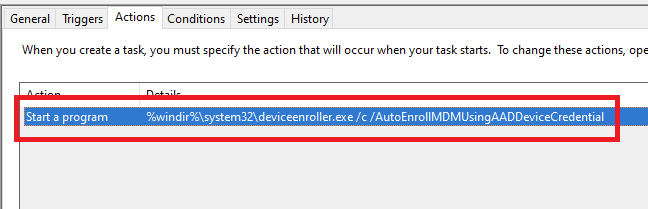
In both cases, the feature will basically create a scheduled task to enroll the PC at next logon. The command is different if you are trying to enroll Windows 10 / Windows 11 Enterprise multi-session devices from Azure Virtual Desktop (using Device Credential) or a regular Windows 10 / Windows 11 device using User Credential:

Windows 10 / Windows 11 Enterprise (with User Credential)

Task launched in the SYSTEM context:

%windir%\system32\deviceenroller.exe /c /AutoEnrollMDM

Windows 10 / Windows 11 Enterprise Multi-session for Azure Virtual Desktop (with Device Credential)

Task launched in the SYSTEM context:

%windir%\system32\deviceenroller.exe /c /AutoEnrollMDMUsingAADDeviceCredential

To manually re-enroll the PC, we will need to clean up the environment and relaunch this command in the SYSTEM context to re-enroll the PC.

Here are the steps that you need to follow to make it work:

  1. Delete stale scheduled tasks
  2. Delete stale registry keys
  3. Delete the Intune enrollment certificate
  4. Restart the enrollment process

Step 1: Delete stale scheduled tasks

Follow this procedure:

  • Run the Task Scheduler as an administrator.

  • Go to Task Scheduler Library > Microsoft > Windows > EnterpriseMgmt. Write down the enrollment ID somewhere, you will need it for the cleanup.

  • Delete all the existing tasks the enrollment folder.

  • Delete the enrollment ID folder.

Step 2: delete stale registry keys

Use the previous enrollment ID to search the regitry:

  • Open the Registry Editor as an administrator.

  • Search for the enrollment ID you wrote in the following locations and if found, delete the key that is containing the ID:
    • HKEY_LOCAL_MACHINE\SOFTWARE\Microsoft\Enrollments\xxxxxxxxxxxxx
    • HKEY_LOCAL_MACHINE\SOFTWARE\Microsoft\Enrollments\Status\xxxxxxxxxxxxx
    • HKEY_LOCAL_MACHINE\SOFTWARE\Microsoft\EnterpriseResourceManager\Tracked\xxxxxxxxxxxxx
    • HKEY_LOCAL_MACHINE\SOFTWARE\Microsoft\PolicyManager\AdmxInstalled\xxxxxxxxxxxxx
    • HKEY_LOCAL_MACHINE\SOFTWARE\Microsoft\PolicyManager\Providers\xxxxxxxxxxxxx
    • HKEY_LOCAL_MACHINE\SOFTWARE\Microsoft\Provisioning\OMADM\Accounts\xxxxxxxxxxxxx
    • HKEY_LOCAL_MACHINE\SOFTWARE\Microsoft\Provisioning\OMADM\Logger\xxxxxxxxxxxxx
    • HKEY_LOCAL_MACHINE\SOFTWARE\Microsoft\Provisioning\OMADM\Sessions\xxxxxxxxxxxxx

DO NOT delete registry keys that are not in the list above. They will be overwritten after the new enrollment.

Step 3: delete the Intune enrollment certificate

Follow the procedure:

  • Search for the option “Manage computer certificates” or use the command certlm.msc as an administrator.

  • Go to Personal > Certificates and delete the certificate issued by either “Microsoft Intune MDM Device CA” or “SC_Online_Issuing” (depending on the date of the enrollment).

Step 4: Restart the enrollment process

To be properly executed, the enrollment command must be entered in a SYSTEM context. We will use the PSExec tool for that purpose.

  • Use PSExec to launch a Command Prompt as SYSTEM:
psexec /i /s cmd

  • In the Command Prompt, enter one of the following command depending on your enrollment type:

Windows 10 / Windows 11 Enterprise (using User Credential)

%windir%\system32\deviceenroller.exe /c /AutoEnrollMDM

Windows 10 / Windows 11 Enterprise Multisession for Azure Virtual Desktop (using User Credential)

%windir%\system32\deviceenroller.exe /c /AutoEnrollMDMUsingAADDeviceCredential

  • In the computer certificate store, check that a new Intune certificate has been enrolled for the device:

  • You are now ready to start a policy sync from the Windows Settings, and check that the connection with the Intune service is now OK:

❌
❌