A Docker sandbox gives you a safe, disposable environment to experiment, build, or let automated tools run without risking your real system. It’s becoming an essential part of modern development workflows, especially as coding agents and cloud‑based tooling evolve. Docker
What a Docker sandbox actually is
A Docker sandbox is an isolated execution environment that behaves like a lightweight, temporary machine. It lets you run containers, install packages, modify configurations, and test ideas freely—while keeping your host system untouched. Modern implementations often use microVMs to provide stronger isolation than traditional containers, giving you the flexibility of a full system with the safety of a sealed box.
Key characteristics include:
Isolation — Your experiments can’t affect your host OS.
Disposability — You can reset or destroy the environment instantly.
Reproducibility — Every sandbox starts from a known, clean state.
Autonomy — Tools and agents can run unattended without permission prompts.
Why Docker sandboxes matter now
The rise of coding agents and automated development tools has created new demands. These agents need to run commands, install dependencies, and even use Docker themselves. Traditional approaches—like OS‑level sandboxing or full virtual machines—either interrupt workflows or are too heavy. Docker sandboxes solve this by offering:
A real system for agents to work in
The ability to run Docker inside the sandbox
A consistent environment across platforms
Fast resets for iterative development
This makes them ideal for AI‑assisted coding, CI/CD experimentation, and secure testing.
Where you can use Docker sandboxes today
Several platforms now offer browser‑based or cloud‑hosted Docker sandboxes, making it easy to experiment without installing anything locally.
Docker Sandboxes (Docker Inc.) — Purpose‑built for coding agents, using microVM isolation.
CodeSandbox Docker environments — Interactive online playgrounds where you can fork, edit, and run Docker‑based projects directly in the browser. CodeSandbox
LabEx Online Docker Playground — A full Docker terminal running on Ubuntu 22.04, ideal for learning and hands‑on practice, especially as Play with Docker winds down. LabEx
These platforms remove setup friction and let you focus on learning, testing, or building.
How developers typically use Docker sandboxes
A Docker sandbox fits naturally into several workflows:
Learning Docker — Practice commands, build images, and explore networking without installing anything.
Testing risky changes — Try new packages, configs, or scripts without fear of breaking your machine.
Running coding agents — Give AI tools a safe environment to operate autonomously.
Prototyping microservices — Spin up isolated services quickly and tear them down just as fast.
Teaching and workshops — Provide a consistent environment for all participants.
A non‑obvious advantage
Docker sandboxes aren’t just about safety—they’re about speed of iteration. Because they reset instantly and start from a known state, they eliminate the “works on my machine” problem and make experimentation frictionless. This is especially powerful when combined with automated tools or when onboarding new team members.
Closing thought
Docker sandboxes are becoming a foundational tool for modern development—combining safety, speed, and autonomy in a way that traditional containers or VMs alone can’t match. They’re especially valuable if you’re experimenting with AI‑driven coding tools or want a clean, reproducible environment for testing. Important:Use Docker Sandboxes for testing.
The Rise of Free Hardened Docker Images: A New Security Baseline for Developers and DevOps
Containerization has become the backbone of modern software delivery. But as adoption has exploded, so has the attack surface. Vulnerable base images, outdated dependencies, and misconfigured runtimes have quietly become some of the most common entry points for supply‑chain attacks.
The industry has been asking for a better baseline—something secure by default, continuously maintained, and frictionless for teams to adopt. And now we’re finally seeing it: free hardened Docker images becoming widely available from major vendors and open‑source security communities.
This shift isn’t just a convenience upgrade. It’s a fundamental change in how we think about container security.
Why Hardened Images Matter More Than Ever
A “hardened” image isn’t just a slimmer version of a base OS. It’s a container that has been:
Stripped of unnecessary packages
Fewer binaries = fewer vulnerabilities.
Built with secure defaults
Non‑root users, locked‑down permissions, and minimized attack surface.
Continuously scanned and patched
Automated pipelines ensure CVEs are fixed quickly.
Cryptographically signed
So you can verify provenance and integrity before deployment.
Aligned with compliance frameworks
CIS Benchmarks, NIST 800‑190, and other standards are increasingly baked in.
For developers, this means fewer surprises during security reviews. For DevOps teams, it means fewer late‑night patch cycles and fewer emergency rebuilds.
What’s New About the Latest Generation of Free Hardened Images
The newest wave of hardened images goes far beyond the “minimal OS” approach of the past. Here’s what’s changing:
Hardened Language Runtimes
We’re seeing secure-by-default images for:
Python
Node.js
Go
Java
.NET
Rust
These images often include:
Preconfigured non‑root users
Read‑only root filesystems
Mandatory access control profiles
Reduced dependency trees
Automated SBOMs (Software Bills of Materials)
Every image now ships with a machine‑readable SBOM.
This gives you:
Full visibility into dependencies
Faster vulnerability triage
Easier compliance reporting
SBOMs are no longer optional—they’re becoming a standard part of secure supply chains.
Built‑in Image Signing and Verification
Tools like Sigstore Cosign, Notary v2, and Docker Content Trust are now integrated directly into image pipelines.
This means you can enforce:
“Only signed images may run” policies
Zero‑trust container admission
Immutable deployment guarantees
Continuous Hardening Pipelines
Instead of waiting for monthly rebuilds, hardened images are now updated:
Daily
Automatically
With CVE‑aware rebuild triggers
This dramatically reduces the window of exposure for newly discovered vulnerabilities.
Introduction
Docker Desktop 4.39.0 is here, bringing a host of new features designed to enhance developer productivity, streamline workflows, and improve security. This release continues Docker’s commitment to providing efficient, secure, and reliable tools for building, sharing, and running applications.
Key Features in Docker Desktop 4.39.0
Docker AI Agent with Model Context Protocol (MCP) and Kubernetes Support
The Docker AI Agent, introduced in previous versions, has been upgraded to support MCP and Kubernetes. MCP enables AI-powered applications to access external data sources, perform operations with third-party services, and interact with local filesystems. Kubernetes support allows the AI Agent to manage namespaces, deploy services, and analyze pod logs.
General Availability of Docker Desktop CLI
The Docker Desktop CLI is now officially available, offering developers a powerful command-line interface for managing containers, images, and volumes. The new docker desktop logs command simplifies log management.
Platform Flag for Multi-Platform Image Management
Docker Desktop now supports the –platform flag on docker load and docker save commands, enabling seamless import and export of multi-platform images.
Enhanced Containerization Across Programming Languages
The Docker AI Agent can now containerize applications written in JavaScript, Python, Go, C#, and more. It analyzes projects to identify services, programming languages, and package managers, making containerization effortless.
Security Improvements
Docker Desktop 4.39.0 addresses critical vulnerabilities, such as CVE-2025-1696, ensuring proxy authentication credentials are no longer exposed in plaintext.
Developer Productivity: The upgraded Docker AI Agent simplifies container management and troubleshooting, saving developers time and effort.
Multi-Platform Flexibility: The –platform flag ensures compatibility across diverse environments, making Docker Desktop a versatile tool for modern development.
Enhanced Security: By addressing vulnerabilities, Docker Desktop 4.39.0 reinforces its position as a secure platform for application development.
Conclusion
Docker Desktop 4.39.0 is a significant step forward, offering smarter tools, improved security, and greater flexibility for developers. Whether you’re managing Kubernetes clusters or containerizing applications, this release has something for everyone.
GitHub Copilot Free edition for Microsoft VSCode is very handy to get started with Infrastructure as Code (IaC) and make your own deployment scripts for Azure Cloud Services.
Here I asked for a bicep deployment script to deploy a Windows Server Insider Build into Azure Cloud.
What I really like is GitHub Copilot free speech extension in VSCode.
Now I can just Talk to Copilot and get the job done
GitHub Copilot free in VSCode is a very handy AI tool to save time in your project and can support your work.
Copilot can make mistakes by using wrong information or data, that’s why you have always do the checks yourself and test first before you use it in production. Happy Infrastructure as Code with GitHub Copilot Free edition for VSCode
When you want to work with containers and Microsoft Visual Studio Code Docker Desktop for Windows is awesome to work with on your pc. Docker Desktop is a one-click-install application for your Mac, Linux, or Windows environment that lets you build, share, and run containerized applications and microservices. You can work with docker container images from Hub here
But you can also work with Docker Desktop for Windows Kubernetes containers.
I like to work with Docker Desktop for Windows because it’s easy to manage and updates works fine with good documentation on fixes and changes.
Software Updates Overview
Installing New Update 4.33.1
Unpacking Files
Starting New docker Engine
Docker Desktop for Windows and Kubernetes are running again.
Join the Developer Preview Program to see what Docker is building and make an impact on the future of Docker products. You can help us make your experience with Docker better than ever!
Try the features in development and give your feedback
Conclusion
Docker Desktop for Windows is easy to manage and to work with containers and microservices. You are really flexible how to work with Containers, and that is what I like about Docker Desktop for Windows. Try it yourself on your Windows Laptop and see how fast you can run your Container App.
Il y a quelque temps, j’ai découvert une étude intéressante réalisée par des chercheurs de l’Université du Québec sur la sécurité du code généré par ChatGPT, le modèle de langage développé par OpenAI. Vous vous demandez peut-être ce qu’ils ont trouvé ? Eh bien, accrochez-vous, car les résultats sont surprenants !
Les chercheurs ont demandé à ChatGPT de générer 21 programmes et scripts dans différents langages, et seuls cinq d’entre eux étaient sécurisés dès la première tentative. Après avoir insisté pour que ChatGPT corrige ses propres erreurs, ils ont réussi à obtenir sept codes sécurisés de plus.
Une partie du problème semble provenir du fait que ChatGPT ne prend pas en compte un modèle d’exécution de code de type « adversarial« . En d’autres termes, il ne considère pas que le code qu’il génère pourrait être utilisé à des fins malveillantes. De plus, ChatGPT refuse de créer un code offensif, mais créera volontiers un code vulnérable, ce que les auteurs considèrent comme une incohérence éthique.
Les chercheurs ont également constaté qu’une des « réponses » de ChatGPT comme solution miracle aux préoccupations de sécurité était d’avoir uniquement des entrées valides, ce qui n’est pas vraiment réaliste dans le monde réel. De plus, le modèle ne fournit jamais de conseils utiles pour renforcer la sécurité d’un code, sauf si on lui demande précisemment de remédier aux problèmes. Et pour lui demander ça, il faut savoir quelles demandes lui formuler exactement, ce qui veut dire que vous devez vous-même être familier du langage et des vulnérabilités, par avance.
En conclusion de leur étude, les chercheurs pensent que ChatGPT, sous sa forme actuelle, représente un risque et que l’IA est victime du syndrome de Dunning Krüger. Les étudiants et les développeurs doivent être parfaitement conscients que le code généré avec ce type d’outil peut être non sécurisé. De plus, le comportement du modèle est imprévisible, car il peut générer un code sécurisé dans un langage et un code vulnérable dans un autre.
Bref, si vous utilisez ChatGPT ou un autre outil similaire (Github Copilot…etc) pour générer du code, gardez à l’esprit qu’il ne faut pas prendre pour argent comptant que le code fourni est sécurisé. Soyez vigilant et assurez-vous de vérifier et de tester le code pour détecter les éventuelles vulnérabilités. Et n’oubliez pas, comme dit Gaston Lagaffe : « La sécurité avant tout ! »
Avez-vous déjà été confronté à un iPhone désactivé et ne savez pas comment le déverrouiller sans code? Vous n’êtes pas seul. De nombreuses personnes oublient leur code de déverrouillage ou se retrouvent avec un iPhone désactivé pour diverses raisons. Dans cet article, nous allons explorer les raisons pour lesquelles les iPhone sont désactivés et comment […]
Tenorshare 4uKey : iPhone désactivé comment faire sans iTunes
🔹Télécharger Tenorshare 4uKey https://bit.ly/3dFYGiXLe moyen le plus efficace de débloquer/réinitialiser un iPhone désactivé sans iTunes en 2021 !Si vous n...
Si vous êtes sous Windows et que vous voulez sortir des sentiers battus en le personnalisant un peu au-delà des paramètres prévus par Microsoft, vous êtes sur le bon site. Sur le site Windhawk, vous trouverez un utilitaire gratuit qui permet d’appliquer des mods à votre Windows.
Un « mod », c’est une modification qui sera faite à Windows pour par exemple avoir un notepad avec un thème sombre, faire un clic avec le bouton du milieu de la souris pour fermer une application ouverte dans la barre des tâches, ou encore contrôler le volume sonore de votre PC en scrollant sur votre barre de menu.
La liste complète des mods proposés par Windhawk se trouve ici et évidemment, le code de chacun d’entre eux est disponible donc vous savez exactement ce que ça fait sur votre système.
Il n’y a pas encore énormément de mods en base, mais c’est un bon début et vous pouvez proposer les vôtres.
En tout cas, pour moi qui aime ce genre de petits hacks, je trouve que c’est une chouette idée à développer.
Si vous voulez vous améliorer en Python, mais que vous manquez de temps et que vous ne voulez pas vous prendre la tête, alors Calmcode.io est la solution pour vous.
Avec plus de 600 vidéos assez courtes et simples à comprendre dans différents cours, vous pourrez facilement apprendre les bases de Python et découvrir de nouveaux outils open source.
Notez que le site propose également une newsletter pour être tenu informé des nouveaux contenus mis en ligne.
L’objectif de Calmcode est de remédier à l’anxiété liée à vos perceptions de vos compétences en développement en proposant des leçons vidéo courtes et simples à capter qui partent de zéro.
Par exemple, vous y trouverez une bonne introduction à l’outil Bandit qui permet de renforcer la sécurité de votre code Python.
Le contenu est axé sur des outils et des réflexions qui peuvent comme ça, rendre votre vie professionnelle plus agréable. Calmcode s’efforce ainsi de suivre des principes importants tels que fournir un contenu clair et concis, mettre l’accent sur la patience et l’itération plutôt que sur des délais à respecter, et surtout « montrer » comment on fait les choses plutôt que simplement les expliquer.
C’est vraiment cool et je suis certain que vous en retirerez des choses. Bref, à fouiller !
L’ERP est-il en perte de vitesse ? Pour le moment, non. Mais se poser la question, c’est déjà donner une indication de réponse. S’il est suffisamment hégémonique pour ne pas être directement menacé par l’émergence des technologies Low Code et No Code, l’ERP est néanmoins obligé de s’adapter pour survivre. Quitte à embrasser son bourreau ? Pas si vite…
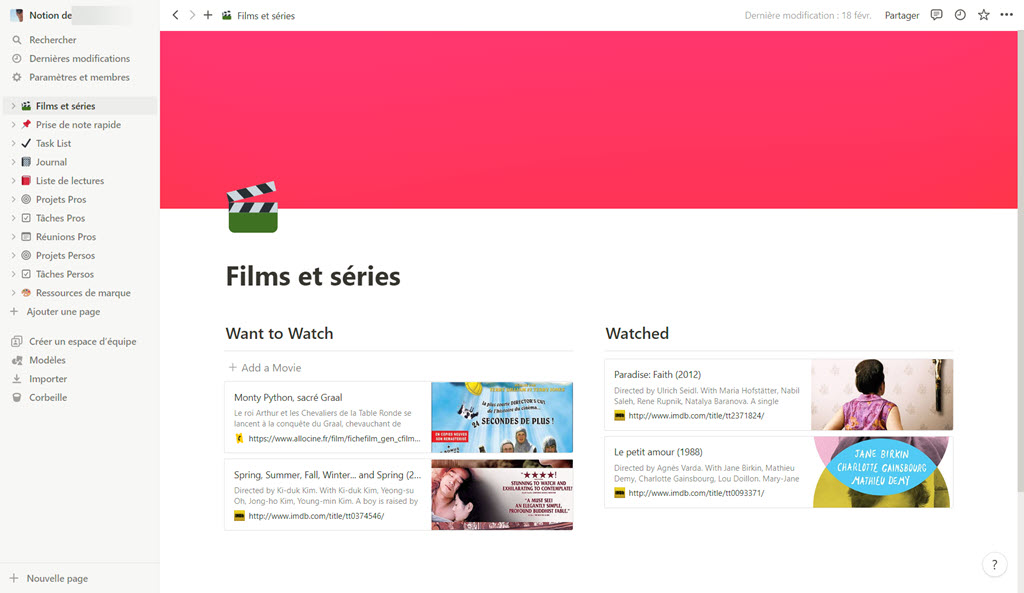
Depuis quelques semaines je suis devenu véritablement accroc de Notion, une plateforme tout-en-un, complètement scalable, qui s’avère redoutable pour gérer au quotidien des projets, prendre des notes de réunion, faire des To Do List, gérer des tâches, des banques d’images, créer des pages web statiques, partager des éléments à d’autres utilisateurs notion ou des personnes extérieures, et bien plus encore !
Notion est disponible depuis un navigateur mais je vous recommande l’application pour Android, iOS, MacOS et Windows afin de profiter d’une expérience utilisateur optimale.
La version gratuite de Notion est largement suffisante pour une utilisation personnelle, les seules restrictions sont celles relatives à l’utilisation en équipe qui vont nécessiter un abonnement payant.
Si j’ai jeté mon dévolu sur Notion c’est qu’il me permet de réduire le nombre d’application que j’utilisais pour faire pleins de choses différentes. Moins d’applications à connaître c’est un gain de temps considérable à la clé. J’apprends progressivement à connaître les raccourcis clavier de Notion pour être encore plus efficace et je découvre petit à petit la puissance de son éditeur de texte riche assez bluffant.
Il est très simple d’intégrer des images par glisser / déposer, intégrer un lien Web avec un aperçu, accéder à des dizaines de balises en tapant simplement un / lors de sa saisie, ajouter des icônes et des bandeaux sur ses pages pour créer un document qui aura de l’allure et que vous pourrez partager en ligne ou exporter en PDF par exemple.
SI vous voulez en savoir plus je vous propose de consulter le Guide Complet sur Notion dans la vidéo en français de l’excellent Shubham SHARMA.
Je vous recommande également sa vidéo sur les 20 Nouveautés NOTION à ne pas manquer en 2023 ou Shubham SHARMA présente également le moteur d’IA intégré depuis peu dans Notion et qui est même disponible pour les utilisateurs de la version gratuite.
Vous le savez, Kali est un Linux spécialisé pour la cybersécurité, qui permet de faire de l’analyse de vulnérabilité, du test d’intrusion, de l’analyse de paquets réseau, du reverse engineering et tout un tas d’autres trucs. Si vous êtes un pentester, vous l’utilisez probablement et vous savez que la création de VM Kali Linux pour chaque mission peut être une tâche un poil relou !
Heureusement, un nouveau projet open source baptisé Kali-automation-install va vous faciliter grandement la vie. Cet outil permet en effet de créer automatiquement une VM Kali Linux avec tous les outils nécessaires pré-installés dessus, le tout en utilisant un simple script bash qui peut être rapidement et facilement modifié. Cela permet de répondre à vos besoins spécifiques sur chacune de vos missions d’expert ;-).
Ce projet a été développé par sKillseries, un habitué du monde offensif cyber et permet aussi de configurer Kali en français pour qu’il fonctionne avec les deux hyperviseurs les plus courants : VirtualBox et VMware.
Pour l’utiliser, vous devrez d’abord installer packer ainsi que l’hyperviseur de votre choix (J’ai choisi Virtualbox pour l’exemple).
apt install packer virtualbox virtuabox-ext-pack
Ensuite, vous pouvez modifier les variables qui sont dans le fichier kali-var.json pour personnaliser votre VM Kali Linux.
{
    "iso_url": "<Lien de Téléchargement Kali-Linux>",
    "iso_checksum": "<SHA256Checksum de l'ISO>
}
Enfin, une fois ces modifications faites, vous pourrez initier la création de la VM avec une seule commande directement depuis votre terminal ou vos propres scripts.
Vous pouvez même le faire en mode headless si vous le souhaitez (sans interaction) en ajoutant le paramètre suivant au fichier json de votre hyperviseur.
"headless": "1",
Vous trouverez toutes les infos sur ce projet sur sa page Github.
Managing Azure AD User Country and Regional Settings
A question arose about why Exchange Online doesn’t synchronize country settings from Azure AD user accounts, leading to a situation where an Azure AD user account and its mailbox might have inconsistent values. Here’s an example where the Get-MgUser and Get-Recipient cmdlets report different country values for a user account:
Get-MgUser -UserId Sean.Landy@Office365itpros.com | Format-Table country, usagelocation

Country UsageLocation
------- -------------
Austria FR

Get-Recipient -Identity Sean.Landy@Office365itpros.com | Select-Object country*

CountryOrRegion
---------------
France
The technical reason for the apparent inconsistency is simple: Get-MgUser reads data for a user account from Azure AD while Get-Recipient reads information about a mailbox from EXODS, the Exchange Online directory. We’re dealing with two different objects stored in two different directories.
EXODS exists to manage mail-specific properties for mail-enabled objects, like mailboxes. EXODS also manages Exchange objects that aren’t in Azure AD such as public folders and dynamic distribution lists.
Dual Write Between Azure AD and EXODS
To ensure consistency across the two directories, Azure AD and EXODS use a dual-write process. In other words, when an application attempts to update an object, the write operation must succeed in both directories before Azure AD and EXODS commit the change.
However, this doesn’t happen for every property for every object in the two directories. Although the mailbox CountryOrRegion property receives the same value as the user account’s Country property when Exchange Online creates a new mailbox, synchronization doesn’t follow for further updates. Azure AD and EXODS synchronize updates to other elements of address information like the street address, city, and province made in either directory, but ignore changes to the Country property in Azure AD or the CountryOrRegion property in EXODS. Perhaps the reason is that the two properties have different names and purposes: One is specific to a country while the other can store a country or region name. In fact, EXODS doesn’t store a Country property for mailboxes.
All of which means that it is possible to update an Azure AD account with a new value for the country property without any effect on EXODS. For example, this command updates Azure AD without doing anything to EXODS:
In practical terms, the inconsistency might be irritating but it isn’t important. Azure AD is the directory of record for Microsoft 365 and applications should go to it for information about user accounts. The information stored in EXODS about mailbox owners is for informational purposes only. If you want everything to match, then you must create a mechanism (a PowerShell script most likely) to synchronize the properties you want to be consistent.
Azure AD Account Usage Location
Another potential inconsistency is the usage location assigned to an Azure AD account. In the example above, the usage location is FR (France) but the Country property says Austria. The usage location is where Microsoft delivers the service to the account and it’s important that it’s correct because Microsoft cannot deliver some elements of Microsoft 365 (mostly to do with encryption) in certain countries.
Life being what it is, the usage location set when creating an account can change. For instance, a user might relocate to work in an office in another country for a period. There’s no requirement to update the usage location for the account because this should reflect the user’s normal location. In addition, an account’s usage location isn’t associated with the tenant home location. The location (or datacenter region) for a tenant establishes where Microsoft delivers services to the tenant from and where tenant data resides. This can be a country-level datacenter (like France, Switzerland, or South Africa), or a regional datacenter (like the U.S. or Western Europe). Tenant accounts located in countries outside a datacenter location can access services delivered to the tenant. Multi-geo tenants are available should local data residency be necessary.
Mailbox Regional Settings
When you create a new Microsoft 365 account and license the account for Exchange Online, the mailbox does not inherit regional properties from the country or service location defined for the Azure AD account. This is deliberate because regional properties are personal to the user and define the language used to interact with the mailbox, its time zone, and the preferred date format. Different groups of people in the same country often use different regional settings. Examples include Welsh speakers in the United Kingdom and Flemish speakers in Belgium.
OWA applies default regional properties based on the tenant location the first time the mailbox owner signs in and creates a set of default folders. For example, mailboxes that use the English language have an Inbox folder, while mailboxes configured for French use Boîte de réception. Users can update regional settings for OWA through Outlook settings. (Figure 1). If they change the selected language, they have the option to rename the default folders.
Figure 1: Selecting regional settings for OWA
Administrators can run the Set-MailboxRegionalConfiguration cmdlet to change the regional settings for a mailbox. In this example, the mailbox language, time zone, and date and time formats match the settings for a Dutch user working in the Netherlands. Notice the use of the LocalizeDefaultFolderName parameter, set to $True to force Exchange Online to create default folder names in Dutch for the mailbox:
Set-MailboxRegionalConfiguration –Identity 'Rob Young' –Language nl-NL
–TimeZone 'W. Europe Standard Time' –DateFormat ‘d-M-yyyy’–TimeFormat 'HH:mm'
–LocalizeDefaultFolderName:$True
Apart from the language, the time zone is the most important setting because it’s used by Microsoft 365 applications. For example, Teams displays the local time zone for other users when showing their details in profile cards. If your organization scripts the creation of new accounts, it’s a good idea to make sure that the code includes the configuration of an appropriate time zone setting for the mailbox.
Reporting Azure AD User Country and Regional Settings
It’s easy to audit the language settings of Azure AD accounts and mailboxes. Here’s some code to show how:
Figure 2 shows the output. This data is from a test tenant, but it illustrates how easy it is for inconsistencies to occur across the range of country settings available for accounts and mailboxes.
Figure 2: Azure AD user account and mailbox country and regional settings
The most important element to get correct is the time zone because it affects the user experience. It would be easy to make sure that Country (Azure AD) and CountryOrRegion (EXODS) contain the same value, but aside from configuring values during account creation, you should leave regional settings alone as they’re a matter of personal choice.
Insight like this doesn’t come easily. You’ve got to know the technology and understand how to look behind the scenes. Benefit from the knowledge and experience of the Office 365 for IT Pros team by subscribing to the best eBook covering Office 365 and the wider Microsoft 365 ecosystem.
Moving to a New Mobile Phone Means New Codes for the Microsoft Authenticator App
Moving to a new mobile device always involves a certain amount of hassle. The advent of mobile authenticator apps makes the move a little harder, especially when guest accounts on other tenants are involved.
In my case, I moved from an oldish iPhone 11 to a new iPhone 14. I was very happy with the 11 and used it since 2019. However, its battery showed signs of age and I fancied a change, which is all the reason I needed to get the 14.
Moving apps from an old iPhone to a new device is very easy. Minor hassles like making Outlook the default mail app for iOS and adding Teams to the pinned app list are easily overcome. It’s all the messing around with app passwords and authentication that causes the hassle.
Which brings me to the Microsoft Authenticator app. I am a strong proponent of multi-factor authentication and use the authenticator app to protect my Microsoft 365 and other accounts, including services like GitHub and Twitter. The app has a backup and recovery capability that I used to restore details of the accounts I use with authenticator. Unhappily (as noted in the support article), “Only your personal and non-Microsoft account credentials are stored, which includes your username and the account verification code that’s required to prove your identity.”
MFA Responses by Microsoft Authenticator App Need Device-Specific Credentials
For Microsoft school or work (Azure AD) accounts, the article explains that accounts that use push notifications (like MFA challenges) need additional verification to recover information. Push notifications require using a credential tied to a specific device. To restore accounts protected by MFA using the authenticator app on the new phone, this means that “you must scan a QR code given to you by your account provider.
Figure 1: Listing sign-in methods for an Azure AD account
Note: If a user can’t access the My account page because they don’t have access to their old phone and therefore cannot respond to an MFA challenge, an administrator can temporarily downgrade the MFA requirement to SMS to allow the user to sign in and access the page.
Adding a QR Code for a New Device
Remember that the credential used by the Microsoft Authenticator app to respond to MFA challenges is device-specific. To generate a new QR code, click Add sign-in method and select Authenticator app from the list of options. You’ll then be told that you need to install the app, which is fine because it’s already on the device. Click Next to start the setup process and click Next again to see a new QR code for the app (Figure 2).
Figure 2: Generating a new QR code for the Microsoft Authenticator app
You can scan the code using Authenticator and once this happens, the connection between account, app, and credential works. The process includes a verification step to prove that the Authenticator app can use the credential.
After setting up Authenticator for a new device, you’ll have multiple Microsoft Authenticator entries in your sign-in methods list (one per device). It’s perfectly safe to remove the entries for devices that you no longer use.
Adding a QR Code for a Guest Account
Everything works very nicely for a full tenant account. Generating a QR code to allow Authenticator to satisfy MFA challenges for a guest account is a little more complicated. I have guest accounts in multiple Microsoft 365 organizations, mostly because I am a guest member of Teams in those organizations. Let’s assume that you see that a guest account shows up in Authenticator flagged with “Action required” (Figure 3). This means that Authenticator can’t satisfy challenges for this account because it doesn’t have the necessary credentials.
Figure 3: The Microsoft Authenticator app flags that action is needed to fix an account
To secure the credentials for the account, the trick is to use the option to switch organizations via the icon in the top right-hand corner of the My Account page. This reveals the set of organizations that your account belongs to, starting with your account in the home tenant and then listing the organizations (aka host tenants) where you have a guest account (Figure 4).
Figure 4: Selecting an organization where an account is a guest
Switching to another organization uses your account (the guest account in this case) to sign-into that organization. You can then use the Security Info page to go through the same steps to generate a new QR code and add it to the entry for the guest account in the Authenticator app. The Authenticator app should now be able to satisfy MFA challenges for the guest account when signing into the target organization.
Microsoft Authenticator App Restored to Good Health
Moving to a new iPhone isn’t something people do every day and it’s easy to forget how to renew credentials in different services. Getting new QR codes for the Authenticator app is in that category. Fortunately, the process isn’t quite as painful as I first anticipated after restoring the backup to my new phone and everything is now working as expected.
PS. If you use the Authenticator app on an Apple Watch, remember that from January 2023, the Authenticator app no longer supports WatchOS. Microsoft says that WatchOS is “incompatible with Authenticator security features.” I read that to mean that some of the changes Microsoft made recently to harden Authenticator against MFA fatigue like number matching and additional context just don’t work in the constrained real estate available for watch devices.
PnP.PowerShell is one of my favorite tools of the trade. I’ve had to set up multiple machines for myself or others for this lately, and I always find myself looking for the fastest path to glory. Usually, it takes about 9 articles and 15 blind alleys, so I figured I’d capture what seems to work for me. Hopefully I can keep this up to date if things change.
Install Visual Studio Code
Visual Studio Code aka VS Code aka VSCode aka Code (which I’ll use in the rest of this post) is the “modern”, free code editor from Microsoft. I’ve used dozens of code editors over the years and Code is one of the best. Plus, everyone else is using it!
This one gets me every time. You’ll want your Execution Policies set like this:
This allows you to install PowerShell modules with less friction. It’s possible your organization won’t let you make this change. You can see your current settings by typing
Get-ExecutionPolicy -List
in a terminal window. To open things up, run this cmdlet:
I’m sure there are reasons to set this in different ways based on your organization’s view of security. I’m not going to get into that here: heed your governance rules.
Install PowerShell 7
If you’re running a Windows machine, you’ve most likely got PowerShell 5 (PS5) installed by default. PowerShell 7 (PS7) has more capabilities and is required for PnP.PowerShell to run successfully. Some cmdlets may run just fine with PS5, but don’t be fooled: you want PS7.)
One of the great things about Code is the rich ecosystem of extensions. The PowerShell extension from Microsoft makes Code smart about PowerShell. You want it.
Open the Command Palette on Windows or Linux with Ctrl+Shift+P. On macOS, use Cmd+Shift+P.
Search for Session.
Click on PowerShell: Show Session Menu.
Choose the version of PowerShell you want to use from the list.
You’ll want to choose PowerShell (x64), if it isn’t already selected.
Pro tip: When you’ve got a PowerShell file (.ps1, .psm1, etc.) open, you can also get to the PowerShell Session Menu by clicking on the squiggly brackets next to PowerShell in the bottom toolbar. Plus, the version is there!
Install PnP.PowerShell
Finally, the piece de resistance: PnP.PowerShell. This is the module that lets us do so much with Microsoft 365. If you’re using the SPO module instead, I say switch.
You need to run Code as an administrator if you want to install modules. To do this, I usually just type Code in the search box in Windows 11, right click the result, and choose Run as administrator.
This article is for those of you on a Windows machine. I don’t have a Mac, nor do I want a Mac. I also don’t run Linux. Or a Sinclair Z-80 (though I loved the one I had way back when, it wouldn’t run PowerShell).
I expect I’ve missed a few little bits here. Feel free to tell me so in the comments, and I’ll make updates. Also, let me know if this is helpful!
This is something which has come up in several contexts in the last few months, so I figured I’d put virtual pen to virtual paper and record it for future me and all of you.
If you’ve ever tried to embed content from an external source in a SharePoint page using the Embed Web Part, you may have gotten an error similar to this:
Embedding content from this website isn’t allowed, but your admin can change this setting. They will need to add ‘<specific URL>’ to the list of sites that are allowed.
It looks something like the screenshot below. It doesn’t matter if it’s a “bare” URL or you’ve encased the URL in an iframe explicitly, like I have below.
When you use the Embed Web Part, SharePoint takes the URL you provide and wraps it in an iframe. An iframe is a way for the browser to display the content inline but protect the page from any malicious actions the embedded site might try to take when it loads. Think of it like displaying a scorpion in a glass box. The scorpion may not have any venom, but since you don’t really know, you leave it in the box. You can see it just fine, but it can’t hurt you.
It turns out the links below the error explain the solution, but I had never clicked those links and read the details! In fact, unless it was years ago, I’ve just ignored the setting we need to solve this.
If you’d like to embed content from a URL, you’ll need to make sure you’ve added the domain name in the site settings. To do this, click on the cog / Site information / View all site settings / HTML Field Security. Here, you can add the domains you’d like to allow to be embedded.
Microsoft provides a default set of common domains, which as of this writing and in my tenant is the following. It’s a bit of an archeology lesson to read through them all!
youtube.com
youtube-nocookie.com
player.vimeo.com
bing.com
office.microsoft.com
officeclient.microsoft.com
store.office.com
skydrive.live.com
powerbi.com
powerbigov.us
sway.com
docs.com
microsoftstream.com
powerapps.com
flow.microsoft.com
powerapps.us
flow.microsoft.us
app.smartsheet.com
publish.smartsheet.com
www.slideshare.net
youtu.be
read.amazon.com
onedrive.live.com
www.microsoft.com
forms.office365.us
support.office.com
embed.ted.com
channel9.msdn.com
forms.office.com
videoplayercdn.osi.office.net
sway.office.com
linkedin.com
web.yammer.com
customervoice.microsoft.com
You can add the domain you’d like to use in the settings. Once you’d added it to the site, you can embed content from that domain – including its subdomains – in the site with the Embed Web Part.
Note that this is a per site setting. If you want to embed content from the same domain in multiple sites, you’ll need to add it to each site. As far as I know, there’s no programmatic way to add a domain across sites, but I could be mistaken about this.
If you’re feeling loosey-goosey, you could change the setting to allow embeds from any domain, but you may not want to do that for security reasons.
Finally, you must be a Site Owner to change these settings. If you don’t have access to this setting, you’ll need to get help from someone who does.
In SharePoint – because it’s primarily a collaboration platform – we often struggle with the difference between security and obscurity.
Some content absolutely must be secured, meaning only certain people can see or edit it. In these cases, we set the permissions such that people simply can’t see or even be aware of the content.
Other content should just be kept out of the way by not showing links to it or including it in pages, and this can sometimes be referred to as obscurity. Audience targeting is a form of content management by obscurity: if the content isn’t of use to me, I may not see it, but that doesn’t mean I can’t get to it.
A very common business requirement is to allow people to provide some basic information, like a suggestion for a continuous improvement, their shirt or hat size for a company giveaway, or nominating someone for an award. We can configure the list which contain this information to only show the current user’s items in views, but that’s not necessarily security. If you need them, these settings are in List settings / Advanced settings / Item-level Permissions.
But that’s not the main point of this post. Sometimes the forms are simple and the process is not consequential enough to deserve a Power App or more complex form development. We just want to make the plain old list form available for people to use easily and shield them from the complexity of the underlying list itself. I see solutions all the time where the user is sent to a list view with tacit belief they will know to click the +New button to create a new item in the list. In many workforces, even that is too complicated.
Sometimes Occam’s Razor applies: the simplest solution is the best one.
This is a trick I’ve used many times to make life easier for users and also keep them from plumbing around in the underlying list, even though they may be able to do so due to the permission settings being pretty open.
Some advice, though…
Don’t stick a form like this on the home page of an Intranet site unless you want everyone to see that form as the primary focus for the entire site. I would argue this is rarely the case. In my example, the Suggestion Box is part of the Continuous Improvement site. That effort has to have more to it than just the form.
Here’s the trick. I’m sure I’m not the first person to come up with it, and Emily (@eemancini) probably taught it to me in the first place!
Create a new page in the site and add some explanatory text and imagery. Let your users know what you’re asking them to do and why it’s useful. A “naked” form doesn’t give them any context.
Add an Embed Web Part to the page with a URL something like this: https://sympmarc.sharepoint.com/sites/SuggestionBox/Lists/SuggestionBox/NewForm.aspx?Source=https://sympmarc.sharepoint.com/sites/SuggestionBox/Lists/SuggestionBox/NewForm.aspx I’ll break that down below.
Add a navigation element to the home page of your site to take people to this page.
That ugly URL has the following parts:
https://sympmarc.sharepoint.com/sites/SuggestionBox/Lists/SuggestionBox/NewForm.aspx – The list’s new item form you want to load in the page. All lists have forms pages, and have since SharePoint 2007:
https://sympmarc.sharepoint.com – Your SharePoint subdomain. This is my personal tenant.
/sites/SuggestionBox/ – The site where the list lives.
Lists/SuggestionBox/ – The list itself. All SharePoint lists live under the /Lists part of the URL path. (Document Libraries don’t.)
NewForm.aspx – This is the form you get when you click the +New button on the list pages.
?Source=https://sympmarc.sharepoint.com/sites/SuggestionBox/Lists/SuggestionBox/NewForm.aspx – Values after the ? are what’s called the query string. Manipulating what’s hdre has been a nice little arrow in the quiver for years. They are name/value pairs, so here we have:
Source – This is a special parameter name when it comes to SharePoint lists. It basically says “when you’re done here, redirect to the following URL”)
https://sympmarc.sharepoint.com/sites/SuggestionBox/Lists/SuggestionBox/NewForm.aspx – Yup, that’s the same link we’re loading above.
Your page will look something like this:
As you can see, the form is embedded directly in the page. In actuality, it’s housed inside something called an iframe. You may have heard developers disparaging iframes in the past, but in this case, it works just the way we want it to.
When the user fills out the form and clicks Save, guess where they end up? Right in the same place! So they can submit one or more items – in this case suggestions – without ever knowing there’s a SharePoint list under the covers.
Have you used a trick like this in the past? Do you have any improvements to suggest about this technique?

 Connexion