Vue normale

Il y a de nouveaux articles disponibles, cliquez pour rafraîchir la page.
À partir d’avant-hierFlux principal

Celebrating 15 Remarkable Years in the Microsoft MVP Community

Dear Community Members, Friends, and Colleagues,

As I mark my 15th anniversary in the Microsoft MVP program, I’m filled with immense gratitude, humility, and pride. What began as a passion for sharing knowledge and building connections has blossomed into a deeply rewarding journey—one shaped by innovation, collaboration, and the extraordinary people who make this community thrive.

Over these 15 years, I’ve had the privilege to learn from brilliant minds, contribute to inspiring projects, and witness the transformative power of technology firsthand. Whether through speaking engagements, blog posts, mentoring, or hands-on technical work, being part of the MVP program has continually deepened my commitment to empowering others and fostering open, inclusive collaboration.

To the community: thank you for challenging, supporting, and celebrating with me. Your curiosity, creativity, and kindness are what keep this ecosystem alive and forward-looking.

To Microsoft: thank you for the honor and trust. The MVP program is a unique platform that amplifies voices, nurtures growth, and builds bridges—not just between developers and users, but between ideas and action.

While this milestone is a moment to reflect, it’s also a reminder that there’s always more to explore, create, and share. I look forward to continuing this journey together—with the same spark, but even greater purpose.

With heartfelt appreciation,
James

Here are some photos with Awesome people that I have met during these years:

Here you see Vijay Tewari in the middle who nominated me for the first time 🙂
Damian Flynn on the left and me on the right are Microsoft MVPs for Virtual Machine Manager (VMM)
at that time in 2011.

Here you see Tina Stenderup-Larsen in the middle, she is amazing! A Great Microsoft Community Program Manager
supporting all the MVPs in the Nordics & Benelux doing an Awesome Job!
On the right is Robert Smit a Great Dutch MVP and friend.

Mister OMS alias Scripting Guy Ed Wilson.

When there is a Microsoft Windows Server event, there is Jeff Woolsey 😉
“The three Musketeers”

Meeting Brad Anderson, he had great lunch breaks interviews in his car
with Awesome people.

The Azure Stack Guys on the 25th MVP Global Summit 😊

Mister PowerShell Jeffrey Snover at the MVP Summit having fun 😂

Scott Guthrie meeting him at the Red Shirt Tour in Amsterdam.

Great to meet Yuri Diogenes in 2018 with his book Azure Security Center.
I know him from the early days with Microsoft Security, like ISA Server 😉

Mister Azure, CTO Mark Russinovich meeting at the MVP Global Summit in Redmond.
a Great Technical Fellow with Awesome Azure Adaptive Cloud Solution Talks!

Mister DevOps himself Donovan Brown in Amsterdam for DevOps Days

My friend Rick Claus Mister MS Ignite.

Mister Azure Corey Sanders at the MVP Summit.

Mister Channel 9, MSIgnite, AI Specialist Seth Juarez
He is a funny guy.

Meeting Scott Hanselman in the Netherlands together with MVP Andre van den Berg.
Scott is Awesome in developer innovations and technologies.
Following Azure Friday from the beginning.

Windows Insider friends for ever meeting Scott Hanselman.
With on the left MVP Erik Moreau.

Windows Insiders for Ever 💙
Here together with Dona Sarkar here in the Netherlands

Windows Insider Friends having fun with Ugly Sweater meeting.
On the right my friend Maison da Silva and on the upper right Erik Moreau and Andre van den Berg.
Friends for Life 💙

Microsoft Global MVP 15 Years Award disc is in the House 🫶
on Monday the 14th of July 2025.

Thank you All 💗

Happy Anniversary Day 50 years of Microsoft Innovation

50 years of Microsoft

A Legacy of Innovation and Transformation

Half a century ago, on April 4th, 1975, two young visionaries, Bill Gates and Paul Allen, co-founded Microsoft with a bold ambition: to make computing accessible and essential for everyone. What began as a small software company has grown into a global technology leader, continuously transforming industries and empowering billions of lives. As we celebrate Microsoft’s 50-year journey, let’s explore its milestones, innovations, and impact, including its contributions to datacenters, Windows Server, Hyper-V, Azure, and the leadership of its CEOs.

The Early Years: Coding the Future

Microsoft’s first big breakthrough came with the creation of an operating system for the fledgling personal computer market. In 1980, the company introduced MS-DOS, laying the groundwork for the revolutionary Windows operating system, launched in 1985. This graphical interface transformed computing, making it accessible to both businesses and individuals.

Guiding Microsoft Through Its Evolution: The CEOs Who Shaped the Company

Microsoft’s trajectory has been shaped by its visionary leadership. From the founders to the present, each CEO has left an indelible mark:

  1. Bill Gates (1975–2000): As co-founder and first CEO, Gates spearheaded the company’s initial growth, launching pivotal products like MS-DOS, Windows, and Office. His focus on innovation and accessibility built the foundation of Microsoft’s success.
  2. Steve Ballmer (2000–2014): During his tenure, Ballmer led Microsoft through massive expansion, particularly in enterprise solutions and cloud computing. He introduced Windows Server and laid the groundwork for services like Azure. Ballmer’s energy and passion defined his leadership style and kept Microsoft competitive in a rapidly changing market.
  3. Satya Nadella (2014–Present): Nadella ushered in a cloud-first, AI-driven era, transforming Microsoft’s culture and business model. His emphasis on inclusivity, empathy, and sustainability revitalized the company. Under his leadership, Azure became one of the world’s leading cloud platforms, and Microsoft made transformative acquisitions like LinkedIn, GitHub, and Activision Blizzard.

Lake Bill on Redmond Campus

Redefining Enterprise Technology: Datacenters, Windows Server, and Virtualization

As businesses increasingly relied on technology, Microsoft expanded its offerings to support enterprise needs. Windows Server, introduced in 1993, became a cornerstone for server management and networking. It evolved over the decades, incorporating features such as Active Directory, high availability, and security enhancements.

Microsoft played a pivotal role in virtualization with Hyper-V, launched in 2008. Hyper-V allowed organizations to maximize resource efficiency and reduce costs by running multiple virtual machines on a single physical server. Modern datacenters powered by Microsoft’s hardware and software solutions now form the backbone of its cloud services.

Embracing the Cloud: The Azure Revolution

Microsoft’s Azure cloud platform, launched in 2010, redefined computing. It enabled organizations to access scalable infrastructure, deploy applications globally, and harness artificial intelligence with ease. Azure spans over 60 regions worldwide, making it one of the most comprehensive cloud platforms. Its ecosystem includes hybrid cloud solutions, advanced analytics, and IoT technologies.

Gaming, Devices, and Consumer Innovation

Microsoft entered the gaming industry with the Xbox in 2001, creating a thriving gaming ecosystem. Beyond gaming, the company innovated with devices like the Surface lineup, combining sleek design with productivity. Its integration of hardware and software demonstrated Microsoft’s versatility.

Shaping the Future: AI, Sustainability, and Datacenters

Microsoft continues to lead in artificial intelligence with tools like Microsoft Copilot. Its pledge to be carbon-negative by 2030 highlights environmental responsibility, with sustainable datacenter operations playing a central role.

Conclusion: A Legacy Built to Inspire

Microsoft’s 50-year journey is a testament to the power of innovation and visionary leadership. From Bill Gates to Steve Ballmer to Satya Nadella, each CEO has steered the company to new heights. With contributions ranging from datacenters and Windows Server to Hyper-V and Azure, Microsoft’s impact has been profound. As the company looks ahead, it remains dedicated to empowering people and organizations to achieve more, ensuring the next 50 years are as groundbreaking as the last.

Here’s to Microsoft—a company built to inspire and shape the future.

at Building 92 of the Microsoft Campus in Redmond.


A little Christmas Story

Once upon a time, in a world where technology and holiday cheer intertwined, there was a bustling community of developers eagerly awaiting the latest updates from the Microsoft Windows 11 and Windows Server Insider programs. As the festive season approached, the air was filled with excitement and anticipation.

In the heart of this community were the Microsoft MVPs (Most Valuable Professionals) and Docker Captains, who were known for their expertise and passion for technology. They decided to come together to create something truly magical for developers around the world.

One snowy evening, as the MVPs and Docker Captains gathered around a virtual fireplace, they began to brainstorm ideas. “What if we could combine the power of Windows 11, Windows Server, and Docker Containers to create a seamless development experience?” suggested one MVP, their eyes twinkling with excitement.

The idea quickly gained momentum, and soon, the group was hard at work. They envisioned a world where developers could effortlessly build, test, and deploy applications using the latest features of Windows 11 and Windows Server, all within the flexible and scalable environment of Docker Containers.

With the help of the Insider programs, they gained early access to cutting-edge features and updates. The MVPs and Docker Captains worked tirelessly, sharing their knowledge and expertise to create a series of tutorials, guides, and sample projects. These resources were designed to help developers harness the full potential of Windows 11, Windows Server, and Docker Containers.

As the holiday season progressed, the community began to see the fruits of their labor. Developers from all corners of the globe started to adopt the new tools and techniques, marveling at the ease and efficiency they brought to their workflows. The combination of Windows 11’s sleek interface, Windows Server’s robust capabilities, and Docker Containers’ flexibility created a harmonious symphony of technology.

To celebrate their success, the MVPs and Docker Captains organized a virtual holiday party. Developers joined from far and wide, sharing stories of their experiences and the innovative projects they had created. The virtual room was filled with laughter, camaraderie, and a shared sense of accomplishment.

As the night drew to a close, one of the Docker Captains raised a toast. “Here’s to the power of collaboration, the spirit of innovation, and the joy of the holiday season. May we continue to push the boundaries of technology and inspire developers everywhere.”

And so, the story of the Microsoft Windows 11 and Windows Server Insider Christmas, made possible by the dedication and expertise of the MVPs and Docker Captains, became a cherished tale in the developer community. It was a reminder that, with passion and teamwork, even the most ambitious dreams could come true.

Happy holidays, and may your coding adventures be merry and bright! 🎄💻🐳

La fin de WSUS

Microsoft a effectivement annoncé la fin de Windows Server Update Services (WSUS), et cela pousse les entreprises à envisager d’autres solutions pour la gestion des mises à jour des systèmes Windows. Dans cet articles nous allons voir les avantages des différentes solutions alternatives à WSUS.

1. Microsoft Endpoint Manager (Intune)

Evidemment Microsoft recommande fortement de migrer vers Microsoft Intune, qui fait partie de la suite Microsoft Endpoint Manager. Il s’agit d’une solution cloud qui permet la gestion des mises à jour, des appareils et des applications sur des environnements Windows, macOS, iOS, et Android.

Avantages :

  • Gestion centralisée via le cloud.
  • Capacité à gérer des appareils mobiles (MDM) et des PC (intégration avec Autopilot et Microsoft 365) ainsi que des postes Linux, Mac.
  • Mises à jour automatiques et déploiements basés sur des stratégies définies.
  • Intégration avec Microsoft Defender pour la sécurité des points de terminaison.

2. Windows Update for Business (WUfB)

Windows Update for Business est une autre solution de Microsoft, conçue pour automatiser les mises à jour des appareils Windows, en particulier pour les environnements de type PME ou grands comptes. WUfB offre plus de contrôle sur les mises à jour, permettant de définir des anneaux de mise à jour, des périodes de déploiement différé, et des stratégies de maintenance automatique.

Avantages :

  • Pas besoin d’infrastructure on-premises, tout se fait via le cloud.
  • Contrôle granulaire des déploiements (périodes de différé, anneaux de mise à jour).
  • Réduit la charge administrative par rapport à WSUS.

3. System Center Configuration Manager (SCCM)

Pour les organisations qui souhaitent garder une gestion on-premises, SCCM (aussi appelé Microsoft Endpoint Configuration Manager) reste une option solide, bien que rapidement couteuse en fonction du nombre de machines à maintenir (en dessous d’un certain volume cela n’est pas très intéressant). SCCM permet une gestion complète des mises à jour Windows, mais également des applications, des correctifs de sécurité, et d’autres tâches de gestion d’appareils.

Avantages :

  • Solution on-premises, idéale pour les environnements avec des besoins spécifiques.
  • Gestion avancée des correctifs et des mises à jour.
  • Peut être intégré à Intune pour une gestion hybride (cloud + on-premises).

4. Third-party Patch Management Tools

Il existe plusieurs outils tiers spécialisés dans la gestion des correctifs et des mises à jour qui peuvent servir de remplacement à WSUS. Ces solutions offrent souvent une compatibilité multi-plateforme et des fonctionnalités supplémentaires.

Exemples de solutions tierces :

  • Ivanti Patch Management : Gestion centralisée des correctifs pour plusieurs plateformes.
  • ManageEngine Patch Manager Plus : Multi-plateforme et supporte une large gamme d’applications tierces.
  • SolarWinds Patch Manager : Outil de gestion des correctifs pour environnements Windows et d’autres applications.

5. Azure Update Management

Azure Update Management est une autre option intéressante si vous avez des machines virtuelles (VM) dans Azure ou même des serveurs on-premises hybrides. Cette solution permet de gérer les mises à jour de systèmes d’exploitation sur des machines Windows et Linux via le cloud Azure.

Avantages :

  • Gestion dans le cloud des environnements Windows et Linux.
  • Peut être utilisé pour des infrastructures hybrides (Azure/on-premises).
  • Intégré dans la suite de gestion Azure, facilitant l’automatisation et les rapports.

6. Azure ARC

Azure Arc permet d’étendre la gestion des services Azure à des serveurs physiques et virtuels, qu’ils soient hébergés on-premises ou dans d’autres clouds (AWS, Google Cloud, etc.) pour la gestion des mises à jour. Il offre un contrôle centralisé pour les politiques de mise à jour, la gestion des correctifs et la sécurité, similaire à ce que l’on trouve dans Azure, mais avec une portée beaucoup plus large.

Avec Azure ARC, vous pouvez gérer des machines Windows & Linux situées dans n’importe quel environnement, tout en utilisant des services comme Azure Update Management pour automatiser les mises à jour et les correctifs.

Avantages :

  • Centralisation : Gérez des environnements multi-cloud et on-premises depuis un portail unique.
  • Flexibilité : Compatible avec des systèmes hors Azure, facilitant la gestion unifiée des infrastructures hybrides.
  • Sécurité et conformité : Assurez une application cohérente des correctifs et des stratégies de sécurité sur tous vos environnements.

En Conclusion

La fin de WSUS marque une transition vers des solutions de gestion de mises à jour plus modernes et flexibles, principalement basées sur le cloud. Microsoft Intune et Windows Update for Business sont des alternatives fortement recommandées par Microsoft, tandis que SCCM reste une option solide pour ceux qui préfèrent rester dans un environnement on-premises. Pour ceux qui souhaitent une solution plus spécialisée, des outils tiers comme Ivanti ou ManageEngine peuvent également être explorés. Azure ARC sera lui particulièrement intéressant si vous cherchez à unifier la gestion de vos infra multi-cloud ou hybrides en intégrant vos serveurs dans des workflows de gestion de mises à jour, permettant ainsi une fléxibilité et une potée étendues en comparaison à des solutions exclusivement cloud ou locales.

Hope this helps,

Windows 10 – WSUS – HTTPS obligatoire dès le mois d’octobre

Microsoft a annoncé avoir procédé à des « améliorations de la sécurité des périphériques Windows qui analysent WSUS » lors du patch Tuesday de septembre. Seulement ces améliorations pourraient empêcher les postes sous Windows 10 d’obtenir la prochaine cumulative Update. Avec la mise à jour cumulative de septembre 2020 de Windows 10, l’éditeur a introduit des modifications […]

The post Windows 10 – WSUS – HTTPS obligatoire dès le mois d’octobre appeared first on Les2T.

SCCM – La version 1906 est en disponibilité générale

Microsoft vient de passer la version 1906 de ConfigMgr (5.00.8853.1000) en disponibilité générale. Cette version devrait apparaître pour tous dans les consoles à la condition de disposer au minimum de la version 1806. Pour connaitre les nombreuses nouveautés : https://docs.microsoft.com/en-us/sccm/core/plan-design/changes/whats-new-in-version-1906

The post SCCM – La version 1906 est en disponibilité générale appeared first on Les2T.

SCCM 1902 – Nouveau correctif : 4500571

Microsoft a libéré cette nuit un nouveau correctif pour la version 1902 de ConfigMgr. Celui-ci est disponible dans la console pour les Fast Ring comme pour les autres et corrige énormément de problèmes comme dans l’OSD ou dans les communications https. Problèmes résolus :  Le téléchargement de package de la tâche séquence action échoue et le […]

The post SCCM 1902 – Nouveau correctif : 4500571 appeared first on Les2T.

SCCM – Mise en Cache – Vidéo 3, comprendre les options, BranchCache

Voici la troisième et dernière vidéo de la nouvelle série de tutoriels vidéo sur Peer cache dans SCCM CB enregistrée par Microsoft. Cette série est animée par @Steve Rachui , un des principaux ingénieurs de terrain de Microsoft. Cette troisième vidéo se concentre sur l’intégration de BranchCache à Configuration Manager. La discussion inclut des détails sur la manière […]

The post SCCM – Mise en Cache – Vidéo 3, comprendre les options, BranchCache appeared first on Les2T.

SCCM – Mise en Cache – Vidéo 2, comprendre les options PeerCache dans l’OSD

Voici la deuxième vidéo de la nouvelle série de tutoriels vidéo sur Peer cache dans SCCM CB enregistrée par Microsoft. Cette série est animée par @Steve Rachui , un des principaux ingénieurs de terrain de Microsoft. Cette deuxième vidéo se concentre sur les fonctionnalités de Peer cache intégrées à Configuration Manager et détaille spécifiquement le fonctionnement de la […]

The post SCCM – Mise en Cache – Vidéo 2, comprendre les options PeerCache dans l’OSD appeared first on Les2T.

Manually re-enroll a Hybrid Azure AD Join Windows 10 / Windows 11 device to Microsoft Endpoint Manager without loosing the current configuration

Edit 01/06/2022 : updating this article to include Azure Virtual Desktop Windows 10 / Windows 11 multi-session enrollment command using Device Credential

——–

There are several ways to enroll a Windows 10 PC to Microsoft Intune:

Manually

  • During the Out-of-the-box Experience (OOBE), when starting a Windows 10 PC for the first time
  • In the Windows Settings, after the PC configuration

Manual enrollment will require that the user enters his Azure AD credentials.

Automatically

  • Using Azure AD Join + automatic Intune enrollment
  • Using Hybrid Azure AD Join + automatic Intune enrollment

Automatic enrollment can be triggered using a Group Policy, SCCM Co-Management or Windows AutoPilot.

Windows 10 automatic enrollment requires the creation of public DNS records enterpriseregistration and enterpriseenrollment. More info here.

However, sometimes it is possible that a Windows 10 PC is in an inconsistent enrollment state, with error “The sync could not be initiated“.

This can happen because:

  • The PC was shut down during a long time, and the Microsoft Intune certificate is expired (located in Local Machine / Certificates / Personal)
  • Someone manually deleted the Microsoft Intune certificate
  • The PC is enrolled in another Intune tenant

Prerequisites: check Hybrid Azure AD Join status

Before re-enrolling your device to Microsoft Intune, you need to make sure that the certificates for Hybrid Azure AD Join are not expired as well.

Follow this procedure to Manually re-register a Windows 10 / Windows 11 or Windows Server machine in Hybrid Azure AD Join.

Method 1: With data and configuration loss

The easiest way to unenroll a Windows 10 PC from Microsoft Intune is to disconnect the work or school account.

Just go to All settings > Accounts > Access work or school, select your corporate account and click Disconnect.

Important: this menu is not available on Windows 10 / Windows 11 multi-session edition for Azure Virtual Desktop.

However, the problem with this is that all data and configuration pushed by Microsoft Intune will be deleted from the PC.

Method 2: Without data or configuration loss

There is a way to manually re-enroll your Windows 10 PC without loosing all the current configuration and apps deployed by Microsoft Intune.

This method is not officially supported by Microsoft

As you may know, automatic enrollment can be triggered either by a Group Policy Object or by the SCCM client on a co-managed device.

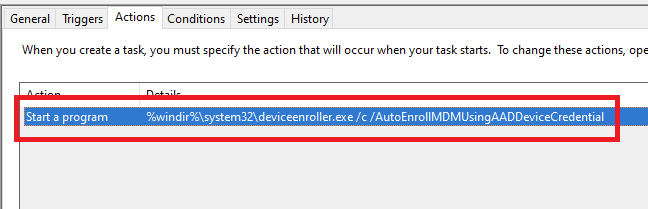
In both cases, the feature will basically create a scheduled task to enroll the PC at next logon. The command is different if you are trying to enroll Windows 10 / Windows 11 Enterprise multi-session devices from Azure Virtual Desktop (using Device Credential) or a regular Windows 10 / Windows 11 device using User Credential:

Windows 10 / Windows 11 Enterprise (with User Credential)

Task launched in the SYSTEM context:

%windir%\system32\deviceenroller.exe /c /AutoEnrollMDM

Windows 10 / Windows 11 Enterprise Multi-session for Azure Virtual Desktop (with Device Credential)

Task launched in the SYSTEM context:

%windir%\system32\deviceenroller.exe /c /AutoEnrollMDMUsingAADDeviceCredential

To manually re-enroll the PC, we will need to clean up the environment and relaunch this command in the SYSTEM context to re-enroll the PC.

Here are the steps that you need to follow to make it work:

  1. Delete stale scheduled tasks
  2. Delete stale registry keys
  3. Delete the Intune enrollment certificate
  4. Restart the enrollment process

Step 1: Delete stale scheduled tasks

Follow this procedure:

  • Run the Task Scheduler as an administrator.

  • Go to Task Scheduler Library > Microsoft > Windows > EnterpriseMgmt. Write down the enrollment ID somewhere, you will need it for the cleanup.

  • Delete all the existing tasks the enrollment folder.

  • Delete the enrollment ID folder.

Step 2: delete stale registry keys

Use the previous enrollment ID to search the regitry:

  • Open the Registry Editor as an administrator.

  • Search for the enrollment ID you wrote in the following locations and if found, delete the key that is containing the ID:
    • HKEY_LOCAL_MACHINE\SOFTWARE\Microsoft\Enrollments\xxxxxxxxxxxxx
    • HKEY_LOCAL_MACHINE\SOFTWARE\Microsoft\Enrollments\Status\xxxxxxxxxxxxx
    • HKEY_LOCAL_MACHINE\SOFTWARE\Microsoft\EnterpriseResourceManager\Tracked\xxxxxxxxxxxxx
    • HKEY_LOCAL_MACHINE\SOFTWARE\Microsoft\PolicyManager\AdmxInstalled\xxxxxxxxxxxxx
    • HKEY_LOCAL_MACHINE\SOFTWARE\Microsoft\PolicyManager\Providers\xxxxxxxxxxxxx
    • HKEY_LOCAL_MACHINE\SOFTWARE\Microsoft\Provisioning\OMADM\Accounts\xxxxxxxxxxxxx
    • HKEY_LOCAL_MACHINE\SOFTWARE\Microsoft\Provisioning\OMADM\Logger\xxxxxxxxxxxxx
    • HKEY_LOCAL_MACHINE\SOFTWARE\Microsoft\Provisioning\OMADM\Sessions\xxxxxxxxxxxxx

DO NOT delete registry keys that are not in the list above. They will be overwritten after the new enrollment.

Step 3: delete the Intune enrollment certificate

Follow the procedure:

  • Search for the option “Manage computer certificates” or use the command certlm.msc as an administrator.

  • Go to Personal > Certificates and delete the certificate issued by either “Microsoft Intune MDM Device CA” or “SC_Online_Issuing” (depending on the date of the enrollment).

Step 4: Restart the enrollment process

To be properly executed, the enrollment command must be entered in a SYSTEM context. We will use the PSExec tool for that purpose.

  • Use PSExec to launch a Command Prompt as SYSTEM:
psexec /i /s cmd

  • In the Command Prompt, enter one of the following command depending on your enrollment type:

Windows 10 / Windows 11 Enterprise (using User Credential)

%windir%\system32\deviceenroller.exe /c /AutoEnrollMDM

Windows 10 / Windows 11 Enterprise Multisession for Azure Virtual Desktop (using User Credential)

%windir%\system32\deviceenroller.exe /c /AutoEnrollMDMUsingAADDeviceCredential

  • In the computer certificate store, check that a new Intune certificate has been enrolled for the device:

  • You are now ready to start a policy sync from the Windows Settings, and check that the connection with the Intune service is now OK:

Manually re-enroll a Hybrid Azure AD Join Windows 10 / Windows 11 device to Microsoft Endpoint Manager without loosing the current configuration

Edit 01/06/2022 : updating this article to include Azure Virtual Desktop Windows 10 / Windows 11 multi-session enrollment command using Device Credential

——–

There are several ways to enroll a Windows 10 PC to Microsoft Intune:

Manually

  • During the Out-of-the-box Experience (OOBE), when starting a Windows 10 PC for the first time
  • In the Windows Settings, after the PC configuration

Manual enrollment will require that the user enters his Azure AD credentials.

Automatically

  • Using Azure AD Join + automatic Intune enrollment
  • Using Hybrid Azure AD Join + automatic Intune enrollment

Automatic enrollment can be triggered using a Group Policy, SCCM Co-Management or Windows AutoPilot.

Windows 10 automatic enrollment requires the creation of public DNS records enterpriseregistration and enterpriseenrollment. More info here.

However, sometimes it is possible that a Windows 10 PC is in an inconsistent enrollment state, with error “The sync could not be initiated“.

This can happen because:

  • The PC was shut down during a long time, and the Microsoft Intune certificate is expired (located in Local Machine / Certificates / Personal)
  • Someone manually deleted the Microsoft Intune certificate
  • The PC is enrolled in another Intune tenant

Prerequisites: check Hybrid Azure AD Join status

Before re-enrolling your device to Microsoft Intune, you need to make sure that the certificates for Hybrid Azure AD Join are not expired as well.

Follow this procedure to Manually re-register a Windows 10 / Windows 11 or Windows Server machine in Hybrid Azure AD Join.

Method 1: With data and configuration loss

The easiest way to unenroll a Windows 10 PC from Microsoft Intune is to disconnect the work or school account.

Just go to All settings > Accounts > Access work or school, select your corporate account and click Disconnect.

Important: this menu is not available on Windows 10 / Windows 11 multi-session edition for Azure Virtual Desktop.

However, the problem with this is that all data and configuration pushed by Microsoft Intune will be deleted from the PC.

Method 2: Without data or configuration loss

There is a way to manually re-enroll your Windows 10 PC without loosing all the current configuration and apps deployed by Microsoft Intune.

This method is not officially supported by Microsoft

As you may know, automatic enrollment can be triggered either by a Group Policy Object or by the SCCM client on a co-managed device.

In both cases, the feature will basically create a scheduled task to enroll the PC at next logon. The command is different if you are trying to enroll Windows 10 / Windows 11 Enterprise multi-session devices from Azure Virtual Desktop (using Device Credential) or a regular Windows 10 / Windows 11 device using User Credential:

Windows 10 / Windows 11 Enterprise (with User Credential)

Task launched in the SYSTEM context:

%windir%\system32\deviceenroller.exe /c /AutoEnrollMDM

Windows 10 / Windows 11 Enterprise Multi-session for Azure Virtual Desktop (with Device Credential)

Task launched in the SYSTEM context:

%windir%\system32\deviceenroller.exe /c /AutoEnrollMDMUsingAADDeviceCredential

To manually re-enroll the PC, we will need to clean up the environment and relaunch this command in the SYSTEM context to re-enroll the PC.

Here are the steps that you need to follow to make it work:

  1. Delete stale scheduled tasks
  2. Delete stale registry keys
  3. Delete the Intune enrollment certificate
  4. Restart the enrollment process

Step 1: Delete stale scheduled tasks

Follow this procedure:

  • Run the Task Scheduler as an administrator.

  • Go to Task Scheduler Library > Microsoft > Windows > EnterpriseMgmt. Write down the enrollment ID somewhere, you will need it for the cleanup.

  • Delete all the existing tasks the enrollment folder.

  • Delete the enrollment ID folder.

Step 2: delete stale registry keys

Use the previous enrollment ID to search the regitry:

  • Open the Registry Editor as an administrator.

  • Search for the enrollment ID you wrote in the following locations and if found, delete the key that is containing the ID:
    • HKEY_LOCAL_MACHINE\SOFTWARE\Microsoft\Enrollments\xxxxxxxxxxxxx
    • HKEY_LOCAL_MACHINE\SOFTWARE\Microsoft\Enrollments\Status\xxxxxxxxxxxxx
    • HKEY_LOCAL_MACHINE\SOFTWARE\Microsoft\EnterpriseResourceManager\Tracked\xxxxxxxxxxxxx
    • HKEY_LOCAL_MACHINE\SOFTWARE\Microsoft\PolicyManager\AdmxInstalled\xxxxxxxxxxxxx
    • HKEY_LOCAL_MACHINE\SOFTWARE\Microsoft\PolicyManager\Providers\xxxxxxxxxxxxx
    • HKEY_LOCAL_MACHINE\SOFTWARE\Microsoft\Provisioning\OMADM\Accounts\xxxxxxxxxxxxx
    • HKEY_LOCAL_MACHINE\SOFTWARE\Microsoft\Provisioning\OMADM\Logger\xxxxxxxxxxxxx
    • HKEY_LOCAL_MACHINE\SOFTWARE\Microsoft\Provisioning\OMADM\Sessions\xxxxxxxxxxxxx

DO NOT delete registry keys that are not in the list above. They will be overwritten after the new enrollment.

Step 3: delete the Intune enrollment certificate

Follow the procedure:

  • Search for the option “Manage computer certificates” or use the command certlm.msc as an administrator.

  • Go to Personal > Certificates and delete the certificate issued by either “Microsoft Intune MDM Device CA” or “SC_Online_Issuing” (depending on the date of the enrollment).

Step 4: Restart the enrollment process

To be properly executed, the enrollment command must be entered in a SYSTEM context. We will use the PSExec tool for that purpose.

  • Use PSExec to launch a Command Prompt as SYSTEM:
psexec /i /s cmd

  • In the Command Prompt, enter one of the following command depending on your enrollment type:

Windows 10 / Windows 11 Enterprise (using User Credential)

%windir%\system32\deviceenroller.exe /c /AutoEnrollMDM

Windows 10 / Windows 11 Enterprise Multisession for Azure Virtual Desktop (using User Credential)

%windir%\system32\deviceenroller.exe /c /AutoEnrollMDMUsingAADDeviceCredential

  • In the computer certificate store, check that a new Intune certificate has been enrolled for the device:

  • You are now ready to start a policy sync from the Windows Settings, and check that the connection with the Intune service is now OK:

Thank you #Community and #Microsoft for this Awesome Year 2022! Happy Holidays

What a Year 2022!!

I like to thank you Community for Supporting, Sharing and Reading New Microsoft technologies on my Blog, Twitter, Facebook and
LinkedIn Community Groups 💗 I wish you all happy Holidays, Merry Christmas and a Healthy New Year 2023 may the Best Wishes comes true ! 🎄🥂

I’m very proud and Honored  on the Microsoft Global MVP Awards 2022-2023 !

  • MVP Award for Cloud and Datacenter Management
  • MVP Award for Windows Insiders
  • MVP Award for Azure Hybrid

Thank you Microsoft Product Groups, MVP Award Program, Windows Insider Team, Azure Hybrid Team, Windows Server and Azure Stack HCI Team for all your support, NDA PGI sessions, and for the Awesome software, Features, solutions you are building 🙂
Wish you all Happy Holidays, Merry Christmas and a Healthy New Year 2023 may the Best Wishes comes true ! 🎄🥂

Here are some Great links for Reading and Sharing :

JOIN these LinkedIn Community Groups for free and Share New Microsoft Technologies Together:

Windows Admin Center Community Group

Containers in the Cloud Community Group

Microsoft Azure Monitor & Security for Hybrid IT Community Group

Azure Hybrid Community Group

Azure DevOps Community Group

What I really love is the Microsoft Tech Community platform


For Microsoft Azure Hybrid:

Azure Arc Jumpstart site

Azure Hybrid and Multi Cloud documentation

Microsoft Azure Arc Community monthly Meetup (GitHub)

Follow on Twitter for Azure Hybrid:

——————————————————————————————————————————————————-
For Windows Insiders:

Microsoft Windows Insiders Blog

Windows Insider Team on YouTube

The Windows Insider Program Team is really active on Twitter:
@WindowsInsider

@JenMsft

@NorthFaceHiker

@brandonleblanc

@amanda_lango


Get started with the Windows Server Insider program

What’s New in Windows Server 2022

Overview of Windows Admin Center

What’s New in SQL Server 2022


mountainss

❌
❌