Vue normale

Il y a de nouveaux articles disponibles, cliquez pour rafraîchir la page.
À partir d’avant-hierFlux principal

Docker Desktop 4.51.0 Kubernetes Gets a Major Update

Docker Desktop continues to evolve as the go-to platform for containerized development, and the latest release — version 4.51.0 — brings exciting new capabilities for developers working with Kubernetes.

What’s New in 4.51.0

  1. Kubernetes Resource Setup Made Simple

One of the standout features in this release is the ability to set up Kubernetes resources directly from a new view inside Docker Desktop. This streamlined interface allows developers to configure pods, services, and deployments without leaving the Desktop environment. It’s a huge step toward making Kubernetes more approachable for teams who want to focus on building rather than wrestling with YAML files.

  1. Real-Time Kubernetes Monitoring

The new Kubernetes view also provides a live display of your cluster state. You can now see pods, services, and deployments update in real time, making it easier to spot issues, monitor workloads, and ensure everything is running smoothly.

  1. Smarter Dependency Management

Docker Desktop now integrates improvements with Kind (Kubernetes in Docker), ensuring that only required dependency images are pulled if they aren’t already available locally. This reduces unnecessary downloads and speeds up cluster setup.

  1. Updated Core Components
  • Docker Engine v28.5.2 ships with this release, ensuring stability and performance improvements.
  • Enhanced Linux kernel support for smoother Kubernetes operations.

Why This Matters

Kubernetes has a reputation for being complex for some people, but Docker Desktop 4.51.0 is working to change that. By embedding Kubernetes resource management and monitoring directly into the Desktop experience, Docker is lowering the barrier to entry for developers and teams. Whether you’re experimenting with microservices or managing production-like environments locally, these new features make Kubernetes more accessible and intuitive.

Getting Started

To try out these new features:

  1. Update to Docker Desktop 4.51.0.
  2. Open the new Kubernetes view to configure resources.
  3. Watch your pods, services, and deployments update in real time.

Update available with New Kubernetes UI
Click on Download Update

Click on Create Cluster

Here you can select a Single Node Cluster or with Kind a Multi-Node Cluster.
I selected for a Single node cluster.

Click on Install

Here is your Single Node Kubernetes Cluster running with version 1.34.1

Kubectl get nodes

My Nginx Container app is running on Kubernetes in Docker Desktop 😉

Final Thoughts

Docker Desktop 4.51.0 is more than just an incremental update — it’s a meaningful step toward bridging the gap between container development and Kubernetes orchestration. With simplified setup and real-time monitoring, developers can spend less time configuring and more time innovating. 🐳

Here you find more information about Docker Desktop and Kubernetes Clustering


Docker Desktop Container Images and Azure Cloud App Services

Docker Desktop and Azure App Cloud Services

Expanded Architecture: Docker developer environment with Azure Cloud Services.

Development Environment

  • Docker Desktop + Tools: Visual Studio Code, Azure CLI, Docker Scout, AI, MCP
  • Docker Scout CLI: Compares image versions, detects CVEs, integrates with pipelines

Container Host (Windows Server 2025 Core)

  • Hyper-V Isolated Containers: For enhanced security
  • Workloads: Microservices, legacy apps, AI containers
  • GitOps Operator: Automated deployment via Git repositories
  • Azure Arc Agent: Connects on-prem host to Azure Control Plane

Here you find more information about Docker on Windows Server 2025 Core

Your Windows 11 Laptop with Docker Desktop

☁ Azure Cloud Integrations

Component Function
Azure App Service (Docker) Hosts web apps as Docker containers with autoscaling and Key Vault integration
Azure DevOps + Pipelines CI/CD for image build, scan, push, and deployment
Azure Copilot Security AI-driven security recommendations and policy analysis
Azure Container Registry (ACR) Secure storage and distribution of container images
Azure Key Vault Secrets management: API keys, passwords, certificates
Microsoft Defender for Cloud Runtime protection, image scanning, threat detection
Azure Policy & RBAC Governance and access control
Azure Monitor + Sentinel Logging, metrics, threat detection
Azure Update Manager Hotpatching of Windows and container images without reboot

More information on Strengthening Container Security with Docker Hardened Images and Azure Container Registry

DevSecOps Workflow

  1. Build & Harden Image → Dockerfile + SBOM
  2. Scan with Docker Scout → CLI or pipeline
  3. Push to ACR → With signing and RBAC
  4. Deploy via Azure DevOps Pipelines → App Service or Arc-enabled host
  5. Inject Secrets via Key Vault → Automatically at runtime
  6. Monitor & Patch → Azure Monitor + Update Manager
  7. Audit & Alerting → Azure Sentinel + Defender
  8. Security Guidance → Copilot Security analyzes policies and offers recommendations

Example of Deploying a custom container to Azure App Service with Azure Pipelines

Microsoft Azure App Service is really scalable for Docker App Solutions:

Azure App Service is designed to scale effortlessly with your application’s needs. Whether you’re hosting a simple web app or a complex containerized microservice, it offers both vertical scaling (upgrading resources like CPU and memory) and horizontal scaling (adding more instances). With built-in autoscaling, you can respond dynamically to traffic spikes, scheduled workloads, or performance thresholds—without manual intervention or downtime.

From small startups to enterprise-grade deployments, App Service adapts to demand with precision, making it a reliable platform for modern, cloud-native applications.

Scale Up Features and Capacities Learn how to increase CPU, memory, and disk space by changing the pricing tier

Enable Automatic Scaling (Scale Out) Configure autoscaling based on traffic, schedules, or resource metrics

Per-App Scaling for High-Density Hosting Scale individual apps independently within the same App Service Plan

Conclusion

For modern developers, the combination of Azure App Services and Docker Desktop offers a powerful, flexible, and scalable foundation for building, testing, and deploying cloud-native applications.

  • Developers can build locally with Docker, ensuring consistency and portability.
  • Then deploy seamlessly to Azure App Services, leveraging its cloud scalability and integration.
  • This workflow reduces configuration drift, accelerates testing cycles, and improves team collaboration.

Unleashing AI Development with Docker Desktop 4.41

Docker Desktop version 4.41 available

Unleashing AI Development with Docker Desktop 4.41: NVIDIA GPU Support and Model Runner Beta

The world of AI development is evolving rapidly, and Docker Desktop 4.41 is here to accelerate that journey. With the introduction of the Model Runner Beta and NVIDIA GPU support, Docker has taken a significant leap forward in making AI development more accessible, efficient, and integrated. Let’s dive into the highlights of this groundbreaking release.

What’s New in Docker Desktop 4.41?

Docker Desktop 4.41 introduces the Model Runner Beta, a feature designed to simplify the process of running and managing AI models locally. This release also brings NVIDIA GPU support to Windows users, enabling developers to harness the power of GPU acceleration for their machine learning tasks. Here’s a closer look at the key updates:

  1. Model Runner Beta:
    • The Model Runner Beta allows developers to run AI models as part of their Docker Compose projects. This integration streamlines the orchestration of model pulls and the injection of model runner services into applications.
    • A dedicated “Models” section in the Docker Desktop GUI provides a user-friendly interface for browsing, running, and managing models alongside containers, volumes, and images.
  2. NVIDIA GPU Support:
    • Windows users can now leverage NVIDIA GPUs for AI workloads, significantly boosting performance and reducing training times for machine learning models.
    • This feature is a game-changer for developers working on resource-intensive AI applications, as it enables seamless integration of GPU acceleration into their workflows.
  3. Enhanced Integration with Docker Compose and Testcontainers:
    • Docker Compose now supports the declaration of AI services within a single Compose file, allowing teams to manage models like any other service in their development environment.
    • Testcontainers integration extends testing capabilities to AI models, with initial support for Java and Go, making it easier to create automated tests for AI-powered applications.

Why This Matters for AI Developers

The introduction of the Model Runner Beta and NVIDIA GPU support in Docker Desktop 4.41 addresses several pain points faced by AI developers:

  • Simplified Workflows: By treating models as first-class artifacts, Docker enables developers to version, distribute, and deploy models using familiar tools and workflows.
  • Improved Performance: GPU acceleration ensures faster training and inference times, allowing developers to iterate and innovate more quickly.
  • Seamless Collaboration: The ability to push models directly to Docker Hub fosters collaboration and sharing across teams, eliminating the need for custom registries or additional infrastructure.

Getting Started with Docker Model Runner

Enable GPU-backed Inference

docker model status

docker model help

docker model pull ai/smollm2

ai/smollm2 model pulled successfully

docker model list

docker model run ai/smollm2

This is a small example, but it’s really fast with answering my questions 👍

The Future of AI Development with Docker

Docker Desktop 4.41 is more than just an update; it’s a step towards democratizing AI development. By integrating powerful tools like the Model Runner Beta and NVIDIA GPU support, Docker is empowering developers to build, test, and deploy AI applications with unprecedented ease and efficiency.

Whether you’re a seasoned AI researcher or a developer exploring the possibilities of machine learning, Docker Desktop 4.41 is your gateway to a faster, smarter, and more collaborative AI development experience.

Ready to transform your AI workflows? Dive into Docker Desktop 4.41 and experience the future of AI development today!

Docker Desktop Update version 4.38.0 with Kubernetes Multi-Node feature

Install the Newest Docker Desktop version 4.38.0

Docker released a New Docker Desktop version 4.38.0 with new features:

  • nstalling Docker Desktop via the PKG installer is now generally available.
  • Enforcing sign-in via configuration profiles is now generally available.
  • Docker Compose, Docker Scout, the Docker CLI, and Ask Gordon can now be updated independently of Docker Desktop and without a full restart (Beta).
  • The new update command has been added to the Docker Desktop CLI (Mac only).
  • Bake is now generally available, with support for entitlements and composable attributes.
  • You can now create multi-node Kubernetes clusters in Docker Desktop.
  • Ask Gordon is more widely available. It is still in Beta.

In the following steps I’m upgrading my Docker Desktop Kubernetes 1-Node Cluster to a 4-Node Kubernetes Cluster:

Go to Settings in Docker Desktop and click on Kubernetes

Click on Kind.
Here you can select the Kubernetes version and how much nodes you need.

IMPORTANT: This will create a new Kubernetes Cluster!
(the old 1-node cluster will be gone)

Creating 4-Node Kubernetes Cluster in Docker Desktop

4-Node Kubernetes Cluster running in Docker Desktop

When you have “Show System Containers” in Settings at Kubernetes on
then you see these 4-Nodes here in VSCode.

Happy Coding 🐳


Microsoft Purview compliance portal: Endpoint Data Loss Prevention – Detect sensitive files that are encrypted, or password protected

With this capability, your DLP policies will be able to detect the presence of, and prevent password protected Microsoft Office, PDF, and archive files on Windows endpoint devices from unauthorized use.

Product
Release phase General Availability
Release date April CY2023
Platform Desktop
Cloud Instance GCC High, GCC, DoD
Created 2023-04-07
Roadmap ID 124790
Roadmap Link https://www.microsoft.com/microsoft-365/roadmap?featureid=124790

The post Microsoft Purview compliance portal: Endpoint Data Loss Prevention – Detect sensitive files that are encrypted, or password protected appeared first on M365 Admin.

Microsoft Teams: Meeting ID and passcode to join on Teams Rooms on Windows

IT Admins can configure and require a meeting ID and passcode to join a meeting on Teams Rooms on Windows to ensure higher levels of security and privacy. This feature is available for Teams Rooms Pro customers.

Product Microsoft Teams
Release phase General Availability
Release date June CY2023
Platform Desktop
Cloud Instance Worldwide (Standard Multi-Tenant), GCC, GCC High
Created 2023-04-05
Roadmap ID 101332
Roadmap Link https://www.microsoft.com/microsoft-365/roadmap?featureid=101332

The post Microsoft Teams: Meeting ID and passcode to join on Teams Rooms on Windows appeared first on M365 Admin.

AMA – le 28 août 2019 – Windows Virtual Desktop

Alors que Windows Virtual Desktop se rapproche de la disponibilité générale, Microsoft nous propose un « Ask Microsoft Anything » (AMA) afin que nous puissions obtenir des réponses à toutes les questions techniques soulevées lors de nos tests de la preview. Rejoignez ce AMA, le mercredi 28 Août de 18h00 à 19h00 heure française. Les chefs de […]

The post AMA – le 28 août 2019 – Windows Virtual Desktop appeared first on Les2T.

Debian : Password sur GRUB

Bloquer les modifications des entrées Grub.

Lorsque vous démarrez sur une machine ayant comme système d’exploitation GNU/Linux, il y a de très fortes chances que le chargeur d’amorçage (bootloader) soit Grub. Si c’est le cas, il vous suffit d’appuyer sur la toucher e pour éditer les paramètres de lancement, et pouvoir réaliser toute une série d’actions.

Bien souvent, cela peut être utile pour obtenir un shell root et dépanner sa machine personnelle, mais en entreprise (sur desktops comme serveurs), on préférerait bloquer les modifications d’entrées Grub, pour éviter certaines mésaventures.

C’est ce que nous allons voir ici, comment protéger la modification d’entrées Grub sur une Debian, mais sans pour autant exiger un mot de passe pour démarre l’OS (ce sont deux choses bien distinctes).

Sans plus attendre, allons-y !

I) Créer les users et passwords correspondants

La première étape est donc de créer les couples user/passwords qui permettront de déverrouiller ces dites entrées. Bien-entendu, libre à vous d’en créer un seul, ou une dizaine, c’est au choix !

La première étape est donc de générer le hash pour nos différents passwords, ici je ne créerai qu’un utilisateur, mais le principe est le même, il suffit de le faire autant de fois que l’on a de users :

sudo grub-mkpasswd-pbkdf2

Cette commande va nous permettre d’obtenir un hash de notre password une fois encodé.

On modifie ensuite le fichier /etc/grub.d/40_custom, pour y définir le ou les utilisateurs avec le hash de leur mot de passe :

# Si vous désirez spécifier plusieurs users

set superusers="root utilisateur02 utilisateur03 utilisateur04"

# On rajout le hash correspondant ensuite à chaque user

password_pbkdf2 root grub.pbkdf2.sha512.10000~
password_pbkdf2 utilisateur02 grub.pbkdf2.sha512.10000~
password_pbkdf2 utilisateur03 grub.pbkdf2.sha512.10000~
password_pbkdf2 utilisateur04 grub.pbkdf2.sha512.10000~

Ici je n’ai mis que l’utilisateur root, mais libre à vous de mettre l’utilisateur système de votre choix !

On peut ensuite enregistrer le fichier. puis mettre à jour la configuration de grub via un classique update-grub.

Si vous redémarrez votre machine maintenant, vous verrez que le mot de passe est bien demandé (et avec un agencement de clavier en qwerty au passage !), mais pas seulement pour l’édition, aussi pour le simple boot… et ce n’est pas ce que l’on souhaite ici.

II) Empêcher les modifications, pas le démarrage de l’OS

Rien de très sorcier ici, il nous suffit d’éditer cette fois le fichier /etc/grub/10_linux et de rajouter le flag –unrestricted aux entrées désirées :

 echo "menuentry '$(echo "$title" | grub_quote)' --unrestricted ${CLASS} \$menuentry_id_option 'gnulinux-$version-$type-$boot_device_id' {"$  else
      echo "menuentry '$(echo "$os" | grub_quote)' --unrestricted ${CLASS} \$menuentry_id_option 'gnulinux-simple-$boot_device_id' {" | sed "s/^$  fi

Ici, on modifie directement la commande echo « menuentry … » de sorte que lorsque votre kernel sera mis à jour, ces modifications resteront intactes. Bien-entendu, il est aussi possible de ne bloquer l’édition ou le boot que pour une entrée Grub bien particulière.

N’oubliez pas une fois cette modification effectuée de bien exécuter la commande update-grub à nouveau !

Et c’est tout ! Vous savez désormais comment protéger vos entrées Grub, voir même proposer un mot de passe supplémentaire pour le démarrage de votre OS !

Comme d’habitude, j’espère vous avoir appris quelques bricoles, et vous souhaite une bonne journée/soirée !

L’article Debian : Password sur GRUB est apparu en premier sur Notamax.

Manually re-enroll a Hybrid Azure AD Join Windows 10 / Windows 11 device to Microsoft Endpoint Manager without loosing the current configuration

Edit 01/06/2022 : updating this article to include Azure Virtual Desktop Windows 10 / Windows 11 multi-session enrollment command using Device Credential

——–

There are several ways to enroll a Windows 10 PC to Microsoft Intune:

Manually

  • During the Out-of-the-box Experience (OOBE), when starting a Windows 10 PC for the first time
  • In the Windows Settings, after the PC configuration

Manual enrollment will require that the user enters his Azure AD credentials.

Automatically

  • Using Azure AD Join + automatic Intune enrollment
  • Using Hybrid Azure AD Join + automatic Intune enrollment

Automatic enrollment can be triggered using a Group Policy, SCCM Co-Management or Windows AutoPilot.

Windows 10 automatic enrollment requires the creation of public DNS records enterpriseregistration and enterpriseenrollment. More info here.

However, sometimes it is possible that a Windows 10 PC is in an inconsistent enrollment state, with error “The sync could not be initiated“.

This can happen because:

  • The PC was shut down during a long time, and the Microsoft Intune certificate is expired (located in Local Machine / Certificates / Personal)
  • Someone manually deleted the Microsoft Intune certificate
  • The PC is enrolled in another Intune tenant

Prerequisites: check Hybrid Azure AD Join status

Before re-enrolling your device to Microsoft Intune, you need to make sure that the certificates for Hybrid Azure AD Join are not expired as well.

Follow this procedure to Manually re-register a Windows 10 / Windows 11 or Windows Server machine in Hybrid Azure AD Join.

Method 1: With data and configuration loss

The easiest way to unenroll a Windows 10 PC from Microsoft Intune is to disconnect the work or school account.

Just go to All settings > Accounts > Access work or school, select your corporate account and click Disconnect.

Important: this menu is not available on Windows 10 / Windows 11 multi-session edition for Azure Virtual Desktop.

However, the problem with this is that all data and configuration pushed by Microsoft Intune will be deleted from the PC.

Method 2: Without data or configuration loss

There is a way to manually re-enroll your Windows 10 PC without loosing all the current configuration and apps deployed by Microsoft Intune.

This method is not officially supported by Microsoft

As you may know, automatic enrollment can be triggered either by a Group Policy Object or by the SCCM client on a co-managed device.

In both cases, the feature will basically create a scheduled task to enroll the PC at next logon. The command is different if you are trying to enroll Windows 10 / Windows 11 Enterprise multi-session devices from Azure Virtual Desktop (using Device Credential) or a regular Windows 10 / Windows 11 device using User Credential:

Windows 10 / Windows 11 Enterprise (with User Credential)

Task launched in the SYSTEM context:

%windir%\system32\deviceenroller.exe /c /AutoEnrollMDM

Windows 10 / Windows 11 Enterprise Multi-session for Azure Virtual Desktop (with Device Credential)

Task launched in the SYSTEM context:

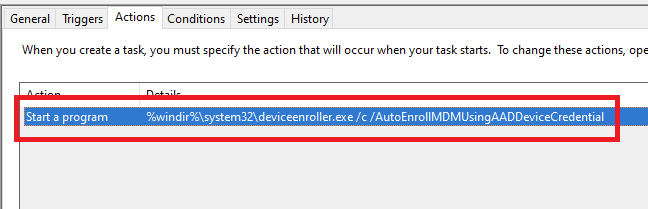
%windir%\system32\deviceenroller.exe /c /AutoEnrollMDMUsingAADDeviceCredential

To manually re-enroll the PC, we will need to clean up the environment and relaunch this command in the SYSTEM context to re-enroll the PC.

Here are the steps that you need to follow to make it work:

  1. Delete stale scheduled tasks
  2. Delete stale registry keys
  3. Delete the Intune enrollment certificate
  4. Restart the enrollment process

Step 1: Delete stale scheduled tasks

Follow this procedure:

  • Run the Task Scheduler as an administrator.

  • Go to Task Scheduler Library > Microsoft > Windows > EnterpriseMgmt. Write down the enrollment ID somewhere, you will need it for the cleanup.

  • Delete all the existing tasks the enrollment folder.

  • Delete the enrollment ID folder.

Step 2: delete stale registry keys

Use the previous enrollment ID to search the regitry:

  • Open the Registry Editor as an administrator.

  • Search for the enrollment ID you wrote in the following locations and if found, delete the key that is containing the ID:
    • HKEY_LOCAL_MACHINE\SOFTWARE\Microsoft\Enrollments\xxxxxxxxxxxxx
    • HKEY_LOCAL_MACHINE\SOFTWARE\Microsoft\Enrollments\Status\xxxxxxxxxxxxx
    • HKEY_LOCAL_MACHINE\SOFTWARE\Microsoft\EnterpriseResourceManager\Tracked\xxxxxxxxxxxxx
    • HKEY_LOCAL_MACHINE\SOFTWARE\Microsoft\PolicyManager\AdmxInstalled\xxxxxxxxxxxxx
    • HKEY_LOCAL_MACHINE\SOFTWARE\Microsoft\PolicyManager\Providers\xxxxxxxxxxxxx
    • HKEY_LOCAL_MACHINE\SOFTWARE\Microsoft\Provisioning\OMADM\Accounts\xxxxxxxxxxxxx
    • HKEY_LOCAL_MACHINE\SOFTWARE\Microsoft\Provisioning\OMADM\Logger\xxxxxxxxxxxxx
    • HKEY_LOCAL_MACHINE\SOFTWARE\Microsoft\Provisioning\OMADM\Sessions\xxxxxxxxxxxxx

DO NOT delete registry keys that are not in the list above. They will be overwritten after the new enrollment.

Step 3: delete the Intune enrollment certificate

Follow the procedure:

  • Search for the option “Manage computer certificates” or use the command certlm.msc as an administrator.

  • Go to Personal > Certificates and delete the certificate issued by either “Microsoft Intune MDM Device CA” or “SC_Online_Issuing” (depending on the date of the enrollment).

Step 4: Restart the enrollment process

To be properly executed, the enrollment command must be entered in a SYSTEM context. We will use the PSExec tool for that purpose.

  • Use PSExec to launch a Command Prompt as SYSTEM:
psexec /i /s cmd

  • In the Command Prompt, enter one of the following command depending on your enrollment type:

Windows 10 / Windows 11 Enterprise (using User Credential)

%windir%\system32\deviceenroller.exe /c /AutoEnrollMDM

Windows 10 / Windows 11 Enterprise Multisession for Azure Virtual Desktop (using User Credential)

%windir%\system32\deviceenroller.exe /c /AutoEnrollMDMUsingAADDeviceCredential

  • In the computer certificate store, check that a new Intune certificate has been enrolled for the device:

  • You are now ready to start a policy sync from the Windows Settings, and check that the connection with the Intune service is now OK:

Mise à jour Mai 2018 Windows et erreur CredSSP Remote Desktop (Encryption Oracle Remediation)

Petite note car je vois pas mal de soucis chez nos clients.

Microsoft a changé le fonctionnement de l’authentification RDP entre clients / serveurs.


Le but de ce décalage de 2 mois était de patcher d’abord les serveurs (Mars), puis les clients (Mai) pour que ces derniers puissent s’y connecter 2 mois après.

Suite à ces modifications, la connexion RDP à des serveurs non-patchés depuis des clients patchés peut échouer (erreur CredSSP).


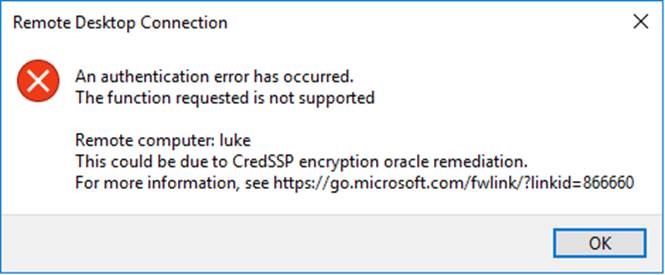
An authentication error has occured.
The function requested is not supported
This could be due to CredSSP encryption oracle remediation


Voici les scénarios possibles :

Ne fonctionne pas

  • Serveur non patché depuis Mars / client patché depuis Mai

Fonctionne

  • Serveur non patché depuis Mars / client non-patché
  • Serveur patché depuis Mars / client non-patché
  • Serveur patché depuis Mars / client patché depuis Mai


Workaround (fortement déconseillé)

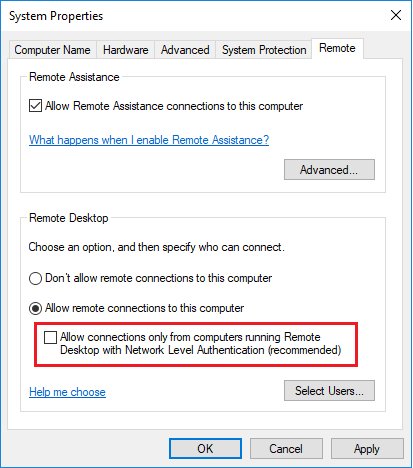
Si un client a été patché alors que le serveur n’est pas à jour, il est possible de désactiver le Network Level Authentication côté serveur de manière temporaire pour s’y connecter.


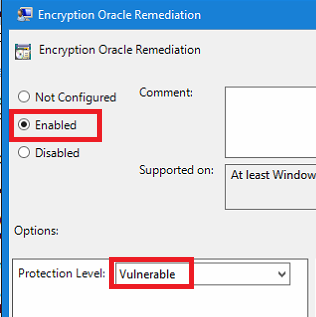
Il est aussi possible de désactiver la fonctionnalité “Encryption Oracle Remediation” par GPO sur les serveurs non-patchés :

  1. Si pas encore fait, installez les ADMX pour Windows 10 build 1803 (ou supérieur)
  2. Allez dans Computer Configuration -> Administrative Templates -> System -> Credentials Delegation
  3. Modifiez le paramètre Encryption Oracle Remediation en Enabled / Vulnerable


Note : La recommandation officielle reste toutefois de patcher serveurs et clients.


Manually re-enroll a Hybrid Azure AD Join Windows 10 / Windows 11 device to Microsoft Endpoint Manager without loosing the current configuration

Edit 01/06/2022 : updating this article to include Azure Virtual Desktop Windows 10 / Windows 11 multi-session enrollment command using Device Credential

——–

There are several ways to enroll a Windows 10 PC to Microsoft Intune:

Manually

  • During the Out-of-the-box Experience (OOBE), when starting a Windows 10 PC for the first time
  • In the Windows Settings, after the PC configuration

Manual enrollment will require that the user enters his Azure AD credentials.

Automatically

  • Using Azure AD Join + automatic Intune enrollment
  • Using Hybrid Azure AD Join + automatic Intune enrollment

Automatic enrollment can be triggered using a Group Policy, SCCM Co-Management or Windows AutoPilot.

Windows 10 automatic enrollment requires the creation of public DNS records enterpriseregistration and enterpriseenrollment. More info here.

However, sometimes it is possible that a Windows 10 PC is in an inconsistent enrollment state, with error “The sync could not be initiated“.

This can happen because:

  • The PC was shut down during a long time, and the Microsoft Intune certificate is expired (located in Local Machine / Certificates / Personal)
  • Someone manually deleted the Microsoft Intune certificate
  • The PC is enrolled in another Intune tenant

Prerequisites: check Hybrid Azure AD Join status

Before re-enrolling your device to Microsoft Intune, you need to make sure that the certificates for Hybrid Azure AD Join are not expired as well.

Follow this procedure to Manually re-register a Windows 10 / Windows 11 or Windows Server machine in Hybrid Azure AD Join.

Method 1: With data and configuration loss

The easiest way to unenroll a Windows 10 PC from Microsoft Intune is to disconnect the work or school account.

Just go to All settings > Accounts > Access work or school, select your corporate account and click Disconnect.

Important: this menu is not available on Windows 10 / Windows 11 multi-session edition for Azure Virtual Desktop.

However, the problem with this is that all data and configuration pushed by Microsoft Intune will be deleted from the PC.

Method 2: Without data or configuration loss

There is a way to manually re-enroll your Windows 10 PC without loosing all the current configuration and apps deployed by Microsoft Intune.

This method is not officially supported by Microsoft

As you may know, automatic enrollment can be triggered either by a Group Policy Object or by the SCCM client on a co-managed device.

In both cases, the feature will basically create a scheduled task to enroll the PC at next logon. The command is different if you are trying to enroll Windows 10 / Windows 11 Enterprise multi-session devices from Azure Virtual Desktop (using Device Credential) or a regular Windows 10 / Windows 11 device using User Credential:

Windows 10 / Windows 11 Enterprise (with User Credential)

Task launched in the SYSTEM context:

%windir%\system32\deviceenroller.exe /c /AutoEnrollMDM

Windows 10 / Windows 11 Enterprise Multi-session for Azure Virtual Desktop (with Device Credential)

Task launched in the SYSTEM context:

%windir%\system32\deviceenroller.exe /c /AutoEnrollMDMUsingAADDeviceCredential

To manually re-enroll the PC, we will need to clean up the environment and relaunch this command in the SYSTEM context to re-enroll the PC.

Here are the steps that you need to follow to make it work:

  1. Delete stale scheduled tasks
  2. Delete stale registry keys
  3. Delete the Intune enrollment certificate
  4. Restart the enrollment process

Step 1: Delete stale scheduled tasks

Follow this procedure:

  • Run the Task Scheduler as an administrator.

  • Go to Task Scheduler Library > Microsoft > Windows > EnterpriseMgmt. Write down the enrollment ID somewhere, you will need it for the cleanup.

  • Delete all the existing tasks the enrollment folder.

  • Delete the enrollment ID folder.

Step 2: delete stale registry keys

Use the previous enrollment ID to search the regitry:

  • Open the Registry Editor as an administrator.

  • Search for the enrollment ID you wrote in the following locations and if found, delete the key that is containing the ID:
    • HKEY_LOCAL_MACHINE\SOFTWARE\Microsoft\Enrollments\xxxxxxxxxxxxx
    • HKEY_LOCAL_MACHINE\SOFTWARE\Microsoft\Enrollments\Status\xxxxxxxxxxxxx
    • HKEY_LOCAL_MACHINE\SOFTWARE\Microsoft\EnterpriseResourceManager\Tracked\xxxxxxxxxxxxx
    • HKEY_LOCAL_MACHINE\SOFTWARE\Microsoft\PolicyManager\AdmxInstalled\xxxxxxxxxxxxx
    • HKEY_LOCAL_MACHINE\SOFTWARE\Microsoft\PolicyManager\Providers\xxxxxxxxxxxxx
    • HKEY_LOCAL_MACHINE\SOFTWARE\Microsoft\Provisioning\OMADM\Accounts\xxxxxxxxxxxxx
    • HKEY_LOCAL_MACHINE\SOFTWARE\Microsoft\Provisioning\OMADM\Logger\xxxxxxxxxxxxx
    • HKEY_LOCAL_MACHINE\SOFTWARE\Microsoft\Provisioning\OMADM\Sessions\xxxxxxxxxxxxx

DO NOT delete registry keys that are not in the list above. They will be overwritten after the new enrollment.

Step 3: delete the Intune enrollment certificate

Follow the procedure:

  • Search for the option “Manage computer certificates” or use the command certlm.msc as an administrator.

  • Go to Personal > Certificates and delete the certificate issued by either “Microsoft Intune MDM Device CA” or “SC_Online_Issuing” (depending on the date of the enrollment).

Step 4: Restart the enrollment process

To be properly executed, the enrollment command must be entered in a SYSTEM context. We will use the PSExec tool for that purpose.

  • Use PSExec to launch a Command Prompt as SYSTEM:
psexec /i /s cmd

  • In the Command Prompt, enter one of the following command depending on your enrollment type:

Windows 10 / Windows 11 Enterprise (using User Credential)

%windir%\system32\deviceenroller.exe /c /AutoEnrollMDM

Windows 10 / Windows 11 Enterprise Multisession for Azure Virtual Desktop (using User Credential)

%windir%\system32\deviceenroller.exe /c /AutoEnrollMDMUsingAADDeviceCredential

  • In the computer certificate store, check that a new Intune certificate has been enrolled for the device:

  • You are now ready to start a policy sync from the Windows Settings, and check that the connection with the Intune service is now OK:

Mise à jour Mai 2018 Windows et erreur CredSSP Remote Desktop (Encryption Oracle Remediation)

Petite note car je vois pas mal de soucis chez nos clients.

Microsoft a changé le fonctionnement de l’authentification RDP entre clients / serveurs.


Le but de ce décalage de 2 mois était de patcher d’abord les serveurs (Mars), puis les clients (Mai) pour que ces derniers puissent s’y connecter 2 mois après.

Suite à ces modifications, la connexion RDP à des serveurs non-patchés depuis des clients patchés peut échouer (erreur CredSSP).


An authentication error has occured.
The function requested is not supported
This could be due to CredSSP encryption oracle remediation


Voici les scénarios possibles :

Ne fonctionne pas

  • Serveur non patché depuis Mars / client patché depuis Mai

Fonctionne

  • Serveur non patché depuis Mars / client non-patché
  • Serveur patché depuis Mars / client non-patché
  • Serveur patché depuis Mars / client patché depuis Mai


Workaround (fortement déconseillé)

Si un client a été patché alors que le serveur n’est pas à jour, il est possible de désactiver le Network Level Authentication côté serveur de manière temporaire pour s’y connecter.


Il est aussi possible de désactiver la fonctionnalité “Encryption Oracle Remediation” par GPO sur les serveurs non-patchés :

  1. Si pas encore fait, installez les ADMX pour Windows 10 build 1803 (ou supérieur)
  2. Allez dans Computer Configuration -> Administrative Templates -> System -> Credentials Delegation
  3. Modifiez le paramètre Encryption Oracle Remediation en Enabled / Vulnerable


Note : La recommandation officielle reste toutefois de patcher serveurs et clients.


Nutanix AHV and Citrix MCS: Adding a persistent disk via Powershell – v2

After writing this blogpost on  Adding a persistent disk via Powershell with Citrix MCS running on Nutanix AHV I got an email from one of our senior system architects, he asked me about this configuration so I shared the blogpost with him and his customer to find out that this customer enhanced the scripting part

Checking power settings on VMs using powershell

One of the customers I was engaged with ran into an issue where Citrix Studio was throwing out power commands towards Prism and Nutanix AHV but the VMs didn’t always respond properly. After some investigation it turned out we ran into the issue described here. Now obviously Citrix has best practices to disable screensavers on

How to add a CD-ROM drive and mount an ISO file via powershell to an AHV-hosted VM

Another powershell blog? Yeah, I guess it’s that kind of a month :). After writing my previous blog on How to add a NIC via Powershell to an AHV-hosted VM I got talking to one of our Services resources about a customer trying to run Citrix PVS with BDM. I figured I could easily modify
❌
❌