Vue normale

Il y a de nouveaux articles disponibles, cliquez pour rafraîchir la page.
À partir d’avant-hierFlux principal

Transformation digitale de la fonction finance : où en est-on ?

Transformation digitale de la Fonction finance - Quels avancements - Lenildo Morais via @ITPROFR

Une transformation numérique financière est la mise en œuvre et l'utilisation de technologies numériques spécifiquement pour améliorer l'efficience, l'efficacité, la perspicacité, l'agilité et la qualité des processus et systèmes financiers et libérer du temps pour que la fonction financière soutienne l'entreprise avec de meilleures informations et connaissances.

The post Transformation digitale de la fonction finance : où en est-on ? appeared first on iTPro.fr.

Friendly vs. Standard Date format in SharePoint lists and libraries

Well, I guess these are trends of the modern world and social media, but some of its elements made it to SharePoint lists and libraries. If you work with Date type columns a lot, you probably notice the different styles of date format we have as options. In this article, I would like to explain the two types and how to change them if necessary.

Standard Date Type

The standard date type displays the dates in the form we are used to seeing: Date/Month/Year (or Month/Date/Year depending on the region you leave in).

Friendly Date Type

There is another style available now in SharePoint called Friendly. It displays the dates you often see on social media: yesterday, tomorrow, etc.

How to change data formats in SharePoint lists and libraries

The behavior and default display of date fields depend on the type of Date column you have. There is also a way to change it. The same functionality is available on lists and libraries.

System Columns

For system date columns (i.e., Modified, Created), it defaults to Friendly date type.

To change the format from Friendly to Standard, you must go behind the scenes.

  1. From the document library, click Gear Icon > Library Settings
  2. Click More library settings
  3. Click on the Modified or Created column
  4. Change the Radio button to Standard and click OKFriendly vs. Standard Date format
  5. Your system columns will now display the Standard date and time in the document libraryFriendly vs. Standard Date format

Custom Columns

When you create custom date type columns, they default to Standard format. However, you can change the type to Friendly right when you create a column.

  1. Click Add column > Date and time
  2. Give your Date column a name. You will notice it defaults to Standard.Friendly vs. Standard Date format
  3. This is what it looks like with the Standard date type
  4. To change the format from one type to another, you can just use the modern interface to do so
  5. And this is what a custom column looks like with the Friendly date typeFriendly vs. Standard Date format

The post Friendly vs. Standard Date format in SharePoint lists and libraries appeared first on SharePoint Maven.

Jumeaux numériques : Buzzword ou tendance à prendre au sérieux ?

Jumeaux numériques : Buzzword ou tendance à prendre au sérieux ?

Depuis quelques temps, on remarque de plus en plus de sujets dans la presse spécialisée, et des conversations dans les cercles d’initiés gravitent autour de la notion de jumeaux numériques.

The post Jumeaux numériques : Buzzword ou tendance à prendre au sérieux ? appeared first on iTPro.fr.

Euclyde Datacenters, un fort positionnement sur le marché des datacenters souverains

Euclyde_Datacenters_fort_positionnement_datacenters_souverains

Euclyde Datacenters, entreprise française exploitant six datacenters interconnectés et de haute disponibilité sur le territoire national, confirme son positionnement sur le marché des datacenters souverains de nouvelle génération. Eclairage avec Anwar Saliba, Directeur général d’Euclyde Datacenters.

The post Euclyde Datacenters, un fort positionnement sur le marché des datacenters souverains appeared first on iTPro.fr.

How to optimize SharePoint online Search for better for better results

SharePoint Online provides a powerful search engine that enables users to quickly find the information they need. However, the quality of search results depends largely on how well the site is optimized for search. In this blog post, we’ll explore some best practices for optimizing your SharePoint Online site for better search results and also discuss PowerShell scripts that can help you achieve this.

Use Managed Metadata:

Managed metadata is a hierarchical collection of centrally managed terms that can be used to tag content in SharePoint Online. By using managed metadata, you can ensure that your content is consistently labeled, which can improve the accuracy of search results. PowerShell script can be used to create and manage term sets and terms.

Customize Search Refiners:

Search refiners are used to filter search results based on specific criteria such as file type, author, or date. By customizing search refiners, you can make it easier for users to find the information they need. PowerShell script can be used to create custom refiners based on managed metadata.

Optimize Page Titles and Descriptions:

The page titles and descriptions are used by the search engine to index the content of the page. By optimizing these elements with relevant keywords, you can improve the visibility of your pages in search results. PowerShell script can be used to update page titles and descriptions.

Use Friendly URLs:

Friendly URLs are human-readable web addresses that are easy to remember and type. By using friendly URLs, you can make it easier for users to find your content and improve the visibility of your site in search results. PowerShell script can be used to set friendly URLs for pages and sites.

Enable Searchable PDFs:

PDF files are a common format for documents, but they are not always searchable by default. By enabling the searchability of PDF files, you can ensure that their content is included in search results. PowerShell script can be used to enable PDF search in SharePoint Online.

By following these best practices and using PowerShell scripts, you can optimize your SharePoint Online site for better search results. PowerShell scripts can help you automate the process of managing and optimizing your site for search, making it easier and more efficient to achieve your search optimization goals.

The post How to optimize SharePoint online Search for better for better results appeared first on MS Technology Talk.

How to create custom fields in Project for the Web

One of the capabilities we recently got in Project for the Web is the ability to have custom fields within a project schedule. So today I want to explain how to create custom fields in Project for the Web.

What is Project for the Web?

Project for the Web is a Microsoft application available within Microsoft 365 that allows organizations to manage projects. It fills the gap between Planner, which is more of an informal task management application, and Microsoft Project, which is a desktop project management application that is sophisticated in terms of capabilities but also a bit confusing and not unintuitive to regular users. I actually compared the various task management options within Microsoft 365 in this article, so check it out.

Example of a schedule in Project for the Web

Example of a schedule in Project for the Web

Built-in fields in Project for the Web

Project for the Web already contains some built-in fields (columns) that you can add/display on any project. Essentially, these are core columns/fields that are either necessary for the Project for the Web to work/function or allow for some additional capabilities in terms of project tracking.

Some built-in fields include Start, Finish, Duration, % completed, Assigned to, and a few others.

When you create a new project, some fields are displayed by default in a Grid, and you can always show/hide others by clicking on the + Add column.

How to create custom fields in Projects for the Web

Just like we can create custom metadata in SharePoint lists and libraries, we can also create custom columns in Project for the Web Task schedules. In Project for the Web, we call these custom metadata fields. Here is how to create a new custom field.

  1. Click the Add column button, then + New Fieldcustom fields in Project for the Web
  2. On the next screen, choose the type of column you want to create and its namecustom fields in Projects for the Web
  3. As of the writing of this post, only certain types of columns are supported (shown below)custom fields in Project for the Web
  4. For this article, I would like to add a Cost column (number field), to track the cost of each task on my schedule. The roll-up question is whether or not the numbers for the subtasks will be added together (rolled up/summed up) on the parent tasks.custom fields in Project for the Web
  5. In my case, I will choose to sum up all the subtask costs (roll-up). You may select other math functions as well (i.e., show the min or max, or an average of the task numbers).custom fields in Projects for the Web
  6. Click Create to create the fieldcustom fields in Project for the Web
  7. The custom field will now appear in the schedule
  8. By the way, in case you chose roll-up, this is what it looks like. In my case, I chose Roll up Sum of all subtasks, so it totals up the numbers (costs in my case) for the parent task.

How to fill in information for the custom fields in Project for the Web

If you want to fill out the custom fields with specific task information, you do so by filling it out like any other field on a task. You have two options:

  • Option 1: Complete the information by filling out a field in the Grid mode (like you do in Excel)custom fields in Project for the Web
  • Option 2: Click in the Task Details Panel and complete the information therecustom fields in Project for the Web

The post How to create custom fields in Project for the Web appeared first on SharePoint Maven.

Ecoresponsabilité numérique : entre conscience et habitudes …

Ecoresponsabilité_Numérique_entre_Conscience_et_Habitudes_via_@itprofr

Habitudes des collaborateurs, gestion des données numériques, considérations écoresponsables… Les Français sont conscients de l’impact écologique des activités numériques professionnelles, mais la moitié persiste dans ses habitudes peu vertueuses…

The post Ecoresponsabilité numérique : entre conscience et habitudes … appeared first on iTPro.fr.

Five Things Microsoft 365 Security Administrators Should Do in 2023

Microsoft 365 security is a big topic. Focus is important when it comes to getting things done. In this article, we suggest five areas that administrators could work on during 2023 to improve the security posture of their tenant. You might already have established full control over some of these areas. Even if you have, it's still good to consider if you can improve security.

The post Five Things Microsoft 365 Security Administrators Should Do in 2023 appeared first on Practical 365.

Site-Level vs. Tenant-level Term Sets

When you create a Managed Metadata column, you have to point the column to a term set within a Term Store. As I documented in one of my previous posts, you can either create term sets globally, within the tenant-wide term store or locally at the site level. Each option has its pros and cons, so today, I want to compare the two.

Tenant-Level Term Sets

Tenant-Level Term Sets are created within the Term Store that is accessible via the SharePoint Admin Center. It can also be accessed by the site owners as we; however, for site owners to be able to adjust the values within the terms sets or create new terms sets, they need to be granted Manager or Contributor roles within the Term Store. Below I would like to list the advantages and disadvantages of this option.

Advantages

  • By design can be accessed and seen by all the SharePoint sites within a tenant

Disadvantages

  • For the site owners to create new terms sets, they need to be set up as group managers or contributors (by the SharePoint Administrator or other Group Managers of the term group)
  • Requires SharePoint Admin Role to be set up/configured

Site-Levet Term Sets

As described in a previous post of mine, site owners can also create site-level terms sets as well. This though, becomes the only option if they can’t get access to the SharePoint Admin Center (which is a headache in larger organizations).

Site-Level vs. Tenant-level Term Sets

Advantages

  • The only option for site owners to use when they can’t access their company’s SharePoint Admin Center
  • Pretty straightforward to use

Disadvantages

  • By design, term sets created at the site level are not visible to other sites within a tenant. For other sites to see the term sets, they need to be shared with other sites (manually). I described the mechanism here.Site-Level vs. Tenant-level Term Sets

The post Site-Level vs. Tenant-level Term Sets appeared first on SharePoint Maven.

L’exploitation des données RH, réponse à la pénurie de talents ?

exploitation données et pénurie talents Talents @ITPROFR

Depuis l’apparition de la crise liée au COVID-19, le monde du travail n’a cessé d’évoluer et ces dernières années ont vu émerger deux tendances en la matière qui ont touché le monde entier et qui s’ancreront certainement dans la durée.

The post L’exploitation des données RH, réponse à la pénurie de talents ? appeared first on iTPro.fr.

How to connect lists and libraries via dynamic filtering in SharePoint Online

Today I want to describe a feature in modern SharePoint that allows you to connect two lists and libraries and dynamically filter them based on the value selected from one of the lists or libraries. I know this all sounds a bit confusing, so let Dr. Zelfond explain this.

Use Case

Perhaps it first makes sense to explain what I am talking about. Say you have two lists. One is a list of clients with the corresponding client information (client name, address, status, etc.).

Another list is a list of contacts for each client (client name, first and last name of contact, email address, and phone number).

I want to be able to view both lists at once on a SharePoint page, but the way I want this to work, I want to select a client name from the Clients list, and I want the second list to automatically filter the contacts based on client name selected from the first one. Thanks to the dynamic filtering option we now got in SharePoint Online, we can do this. Let me explain.

How to connect and dynamically filter lists and libraries in SharePoint Online

  1. Edit the Page and add both lists to the page, side-by-side
  2. Once added, it should look like thisconnect lists and libraries
  3. Edit the page again, and select the list you want to be filtered based on the choice made in another list (in my case, Contacts). Click the pencil icon.
  4. Next, enable the Dynamic filtering toggle. You will see several drop-downs appearing underneath. In the first drop-down, choose the column in the list you want automatically filtered. In my case, I want my Contacts list to be filtered by Company Name. Next, choose the list or library where you will filter the information. In my case, it is a Clients list. Finally, select a column that you will filter in that second list. In my case, it is Client Name. So essentially, the column in the first drop-down and the column in the third drop-down have to match in terms of the information they contain (Company Name = Client Name). Click Apply.connect lists and libraries
  5. Republish the page

How dynamic filtering works

Now that we connected two lists via dynamic filtering let’s see how it works. Click on any row from List 1, and you will notice that List 2 is filtered based on the selection made.

Use Cases for using dynamic filtering

Dynamically connect a list to a list

You can quickly build a quick CRM within SharePoint, by connecting a list of clients with a list of contacts (just as I described above) and even deals/opportunities all presented on the same page.

Dynamically connect a list to a library

You can maintain a list of clients and then have a document library with, say, contracts, all tagged against a given client name, and then have those contracts filtered automatically based on a client selected from the list.

connect lists and libraries

Notes

  • You can dynamically connect two lists or two libraries or a list and a library
  • The column headings do not need to match. For example, I can have a Client Name heading in list/library 1 and a Customer Name in list/library 2. The main thing is that the choices/information in those columns must match!
  • Related to the above, the text/choices need to match 100% for this work. For example, if in list 1 you spelled out ABC Inc. and in list 2 you called the same company ABC, Inc. (with a coma), those do not match, and dynamic filtering won’t pick it up.

The post How to connect lists and libraries via dynamic filtering in SharePoint Online appeared first on SharePoint Maven.

The Importance of Standardizing Microsoft 365 Account Creation

Microsoft 365 tenants can create Azure AD accounts in different ways. No matter whether you create accounts manually or with PowerShell scripts, the important thing is to end up with the right data in Azure AD because many Microsoft 365 features depend on accurate directory.

The post The Importance of Standardizing Microsoft 365 Account Creation appeared first on Practical 365.

Getting Specific Files And IDs In SharePoint Using Power Automate

I encountered an issue when trying to filter a a file by filename, that was in a SharePoint document library. When needing to get a specific SharePoint file ID. It can be troublesome to filter the Files. For example Using a 'Get files' action we can see that the properties of the file are encased inside {} meaning that SharePoint is using some calculation on the Document Library to create these fields.

feature

jcook127001

Power FX Metadata not Refreshing

I thought this might be useful to share , we run into an issue where we used the new command bar editor to create new buttons and All was good till we added a new column to the same table and published all customisations, went to the Command Bar and tried to set the visible property using Power FX formula but unfortunately the new column did not show up.

So by contacting Microsoft this is a known issue as of now and as a work around you need to follow the below steps:

  1. Go to the Solution -> Choose the app ->Select the table -> Right Click Edit Command Bar.

3. Choose the Command Bar you want to Edit

4. Select your customised button and click Open Component Library

5. Component Library will be loaded on the Menu Click File -> Save , Then Publish and then reopen the Command Bar ,your metadata will be refreshed.

miraghaly

Troubleshoot PowerShell Add-Type Load Error [Tip]

In the last couple of days I am working with a client that has a DMS solution based on SharePoint Server 2010. We inherited the solution so it has it's specifics. One of those little things (that make life exciting) is that they have fields with custom data types. 
I had to do a powershell script that will edit some document metadata. I had to update standard SharePoint native data type fields, but after updating the item in powershell I lost the values of the custom data type fields. I realized that I need the custom data type loaded in the powershell session. So I started to import some DLLs, in the order that I thought it makes sense as we do not have the source code of the solutions.This was fine until I received the error below:

Add-Type : Unable to load one or more of the requested types. Retrieve the LoaderExceptions property for more information.

This error is completely generic and the only useful thing is that it tells us where we can find more useful information.
This simple error handling script turned out to be life saver for me as it showed exactly what the load error is and which dependent assembly I need to load first :)


The nice blue text is our LoaderExceptions property of the exception. I hope that you find it useful!
LoaderExceptions Powershell

Set Managed Metadata field value with PowerShell and CSOM

In the previous post I demonstrated an easy way to migrate managed metadata term store objects to SharePoint Online with PowerShell.
Now when you have migrated the terms you might need to migrate some documents and set the metadata fields in SharePoint Online. In the same project I had to migrate around 600 documents to SPO including the metadata which had 6 managed metadata fields, 4 of them were multi-valued.
In this post I will share a powershell snipped to make TaxonomyFieldValueCollection and use it as value for field of type Managed Metadata.
I am showing this method because I got some mixed results when I used simple string as value. It is hard for me to explain why simply updating with taxonomy string did not worked in all cases.
For example, if the document was created in Office Web Apps I was unable to set the fields using a simple string. You can try using the string method and then cross-check  if everithing is set, because if you feed only metadata string(multi-valued) or just guid(for single-valued) you might not get any error, but the field will be left blank.
The challenge for me in the "TaxonomyFieldValueCollection" approach was to create TaxonomyField object instance, because I had to use the generic client context method CastTo and PowerShell don't work well with generic methods. This is why I decided it is worth sharing this example. You can see the code below.

Now a couple of words about the string that is used. In the example above I am setting multi-valued MM field with collection of two terms. The string is in format "<int>;#<label>|<guid> " with ;# delimiter between the terms. The integer is the item id of the term in the Taxonomy Hidden List, if you are using the term for first time or you do not know this id you can use the default value "-1".
The label part speaks for itself, this is the label of the term and the most important part is the guid of the term. If something is wrong with the format of the string you will see below error message.

"The given value for a taxonomy field was not formatted in the required <int>;#<label>|<guid> format."


This method is working every time for all items. I hope that this was helpful!

Migrate SharePoint 2010 Term Store to SharePoint Online with PowerShell

Last week I worked with a customer on migrating one SharePoint 2010 site to a new SharePoint Online.
I can qualify the site as Knowledge Base designed for optimal discoverability of the documents that are uploaded. To achieve a good discoverability you will need some good metadata describing the resources. Many times the metadata that is used is actually managed metadata that needs to be migrated/recreated in SharePoint Online.
If you have 10 or 20 terms it will not be an issue to recreate them, but if you have 400 for example it will not be very practical to manually recreate all terms.
There are many powershell scripts out there to export/import terms, but the success rate and the complexity might vary. This is why I would like to share how I did it and it worked out pretty well for me.
For the purpose we are going use the custom cmdlets provided for free by Gary Lapointe.
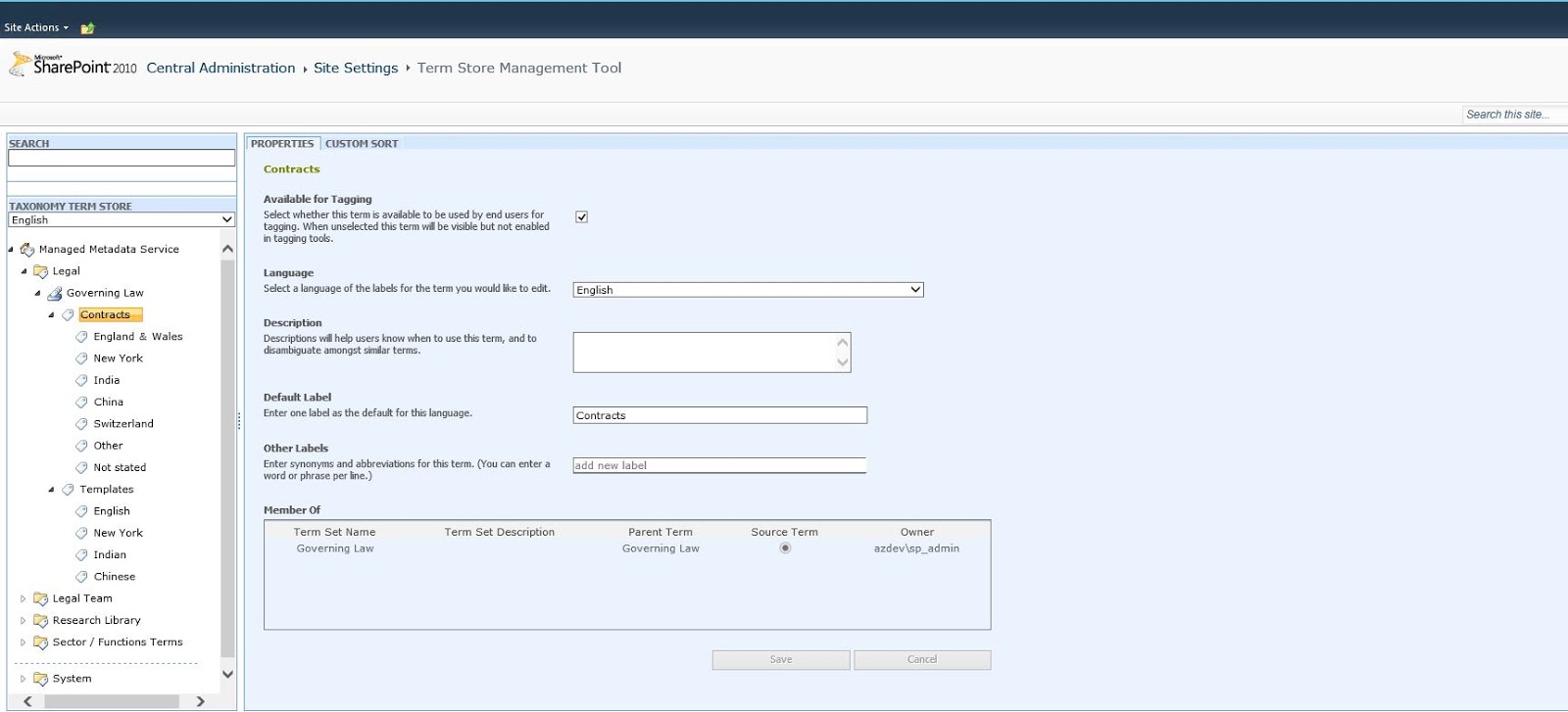
For demonstration purposes I will export one term set group with one term set that has limited number of terms. You can check it out below, it also has some parent/child terms.

SharePoint 2010 Term Store

In order to export the term set group you will need to deploy the WSP that will add the custom SharePoint Server 2010 commands. By doing so you will add the additional 2010 commands directly to the Microsoft.SharePoint.PowerShell snap-in.
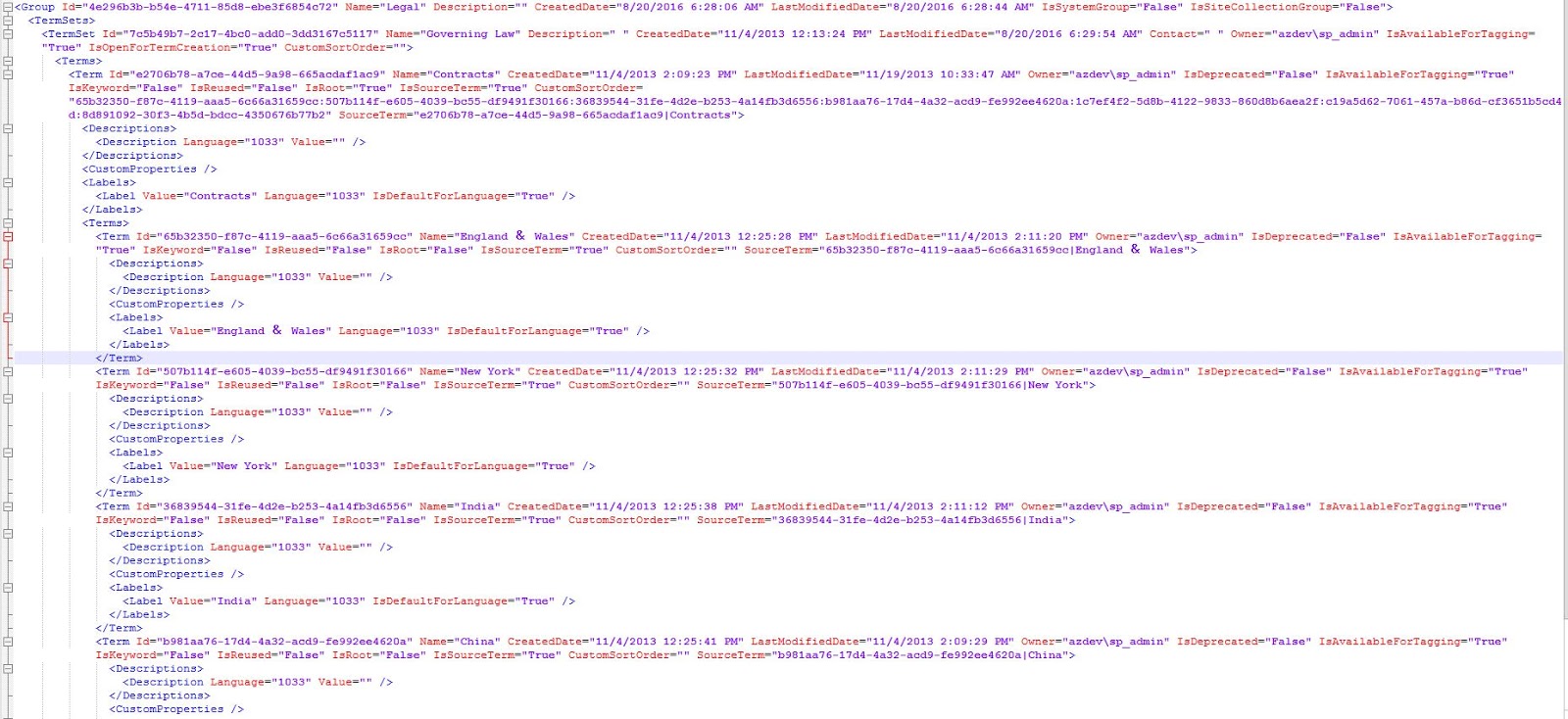
To export taxonomy object as xml we are going to use Export-SPTerms. You will need to supply some taxonomy object as input parameter, this will be a taxonomy session if you want to export everything, for more examples see the cmdlet help. You can see how the Legal term set group looks as  xml below.

Input XML

As you can see all essential information that is needed is exported, even some that will be an issue if you are importing the terms to a different environment or SharePoint Online. This is the Owner or every attribute that represents on-prem identity that you might have. The import command will also try to set this properties with the same values and it will fail because the identity as it was exported cannot be found. The way to workaround this is just to set different value for Owner that will be a valid Online identity. Now it is up to you to decide if you want to do this tradeoff and migrate the objects with different Owner than the source. Below are two lines (3 to make it fit better) that will take the content of the exported XML and will set new Owner for each XML node where the Owner attribute is not empty and later the same XML object can be used for input of the import command.

[xml]$termXML = Get-Content "C:\Legal.xml"
($termXML.SelectNodes("//*")) | Where {$_.Owner -ne $null} | `
ForEach-Object {$_.SetAttribute("Owner", "i:0#.f|membership|admin@MOD******.onmicrosoft.com")}

To import the taxonomy objects in SPO you will need to download and install the SharePoint Online Custom Cmdlets
This will actually install a new module called  Lapointe.SharePointOnline.PowerShell.
The command that we are going to use for the import is Import-SPOTaxonomy. For InputFile parameter we are going to use the variable from the above lines after we have set all identity attributes. If you are importing an object that is not a top level term store you should specify ParentTermStore(can get it with Get-SPOTermStore), if not you should switch on the parameter "Tenant". Before all that, you should connect to a site in your target tenant using Connect-SPOSite. Below are the lines to import the Legal term set group.

Connect-SPOSite -Url "https://mod******.sharepoint.com"
Import-SPOTaxonomy -InputFile $termXML -ParentTermStore (Get-SPOTermStore)

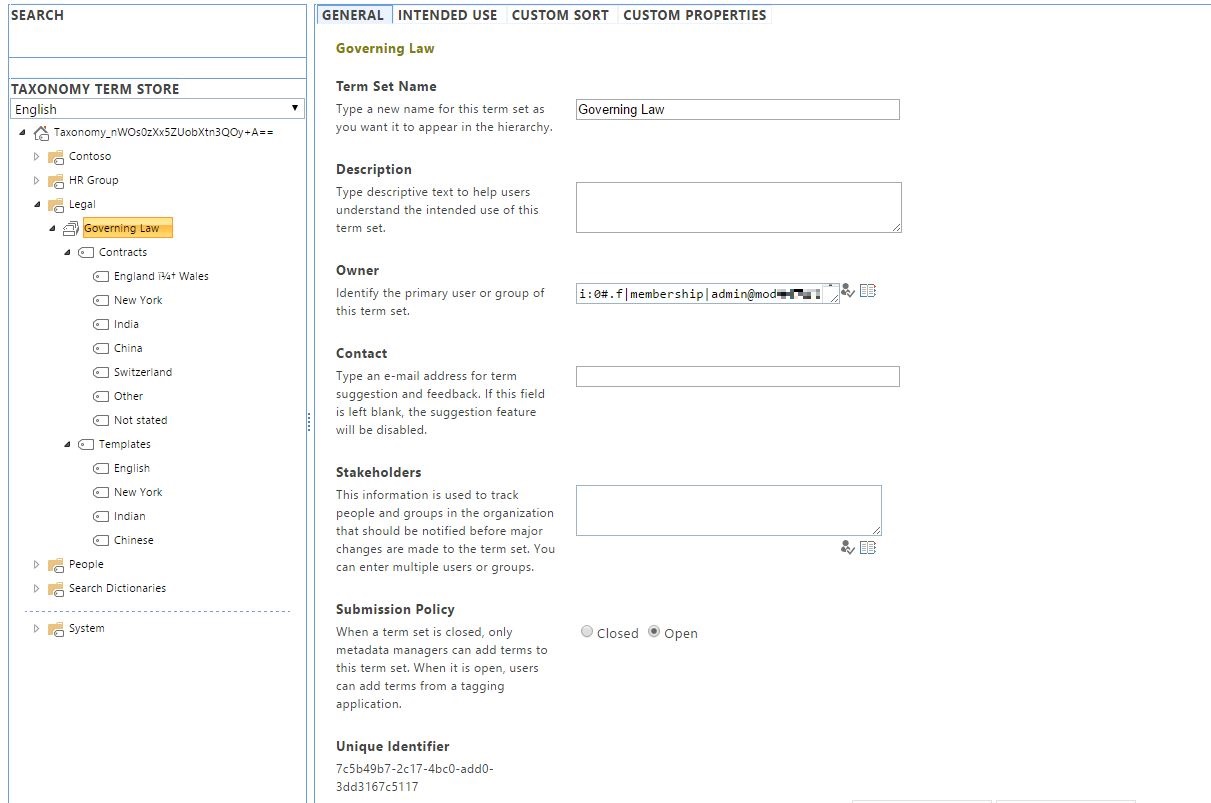
And this is it. Our Legal term set group is recreated and available in the entire tenant. One nice thing is that the GUIDs will be copied as well.

SharePoint Online Term Store

I hope that this was helpful and big thanks to Gary Lapointe for writing this great tools! The same approach should work for SharePoint 2013, but I have not tested this.

#MVPLABSerie Azure Arc enabled SQL Server Health Assessment #AzureHybrid #AzureArc #SQLServer

Azure Hybrid

In earlier MVPLABSerie blogpost I wrote about making your on-premises Servers hybrid with Azure Arc enabled Servers.
In my mvplab.local domain, there is a SQL 2022 Cluster running which also has the Azure Connected Machine Agent version 1.24.

One of the benefits of Azure Arc enabled Servers for SQL is that you can do on-demand SQL Health assessments on your SQL Environment in your On-premises Datacenter. In the following step-by-step guide we will prepare the SQL Cluster nodes.

Go to this link to watch the video

In my mvplab.local domain I’m doing the following steps :

Go in the Azure Portal to Azure Arc
Click on SQL Servers
under Infrastructure.
Click on Add

I Choose for Connect Servers
because both SQL Nodes are already connected in my MVPLAB.local domain.

Prerequisites
Click on Next Server details.

Select the right Azure Subscription and Resource Group
Select the region and Operating System
Set Proxy server URL
if you need one
Click on Next.

Set your owner tags if needed.
Here you can find more information about Tags Management

From here you have to download the Script
and Run it locally on both SQL Nodes. ( or your Single SQL Server )

Run the script in administrator modus of Powershell ISE.
go to page https://microsoft.com/devicelogin
and enter the Code

Login and continue.

Here you see that the Azure Connected Machine Agent already is installed.
But it will now add the SQL Extension.

Installation Completed Successfully.

Now we have two Azure Arc enabled SQL Servers connected.

Overview of SQL 2022 Node in Azure Arc.

You can see the Databases running.

Here you can set your Admin from Azure Active Directory.

But we want to do a SQL Assessment, but the Azure Monitoring Agent is still missing.

Here you see that the SQL extension is installed.
Now we will add the Azure Monitor Agent to my existing Log Analytics Workspace.
Click on Add

Select Log Analytics Agent – Azure Arc.

Add your Workspace ID
Add your Workspace Kay
Click on Review + Create

Validation Passed.

Azure Monitoring Agent is Installed.

From here you can do the On-Demand SQL Assessments via
Microsoft Azure Arc enabled SQL Servers.

The SQL Server Assessment focuses on several key pillars, including:

  • SQL Server configuration
  • Database design
  • Security
  • Performance
  • Always On
  • Cluster
  • Upgrade readiness
  • Error log analysis
  • Operational Excellence

Example of SQL Server Assessment results.

On each assessment result you get a recommendation from Microsoft so you can make your SQL environment Health and Secure!

Conclusion

To get these health results of your SQL environment is Awesome 🙂 You are in control of your Azure Hybrid Arc enabled SQL Servers to keep them Healthy and Secure. The following Azure Arc enabled SQL Server blogpost is about Azure Defender for Cloud for your SQL Servers. With these two Azure Arc for SQL Server features you get the best Insights to keep your data as save as possible.

mountainss

❌
❌